
Chapter 7 UI Fragments and the Fragment Manager
![build. gradle dependencies { compile file. Tree(include: ['*. jar'], dir: 'libs') android. Test. Compile('com.](https://slidetodoc.com/presentation_image_h2/0eecf5f8b748dc564fef2ee783dccbd0/image-18.jpg "build. gradle dependencies { compile file. Tree(include: ['*. jar'], dir: 'libs') android. Test. Compile('com.")
- Slides: 46
Chapter 7 UI Fragments and the Fragment Manager
Challenge Solution
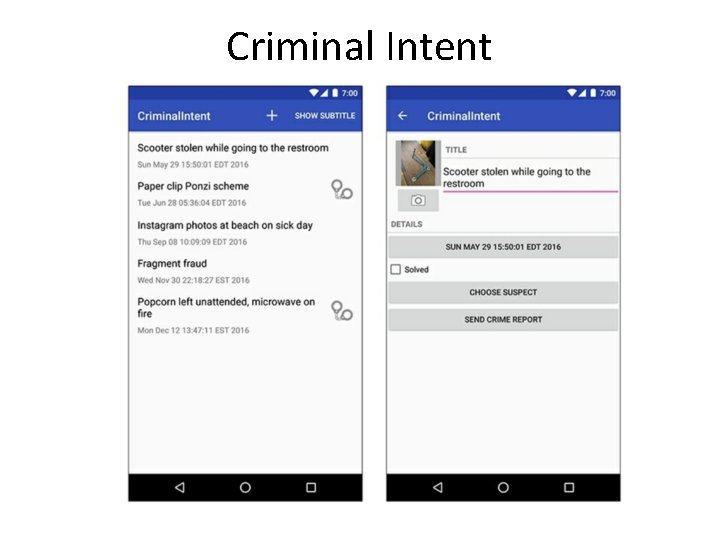
Criminal Intent • In this chapter, you will start building an application named Criminal. Intent. • Criminal. Intent records the details of “office crimes” – – things like leaving dirty dishes in the breakroom sink – walking away from an empty shared printer after your documents have printed. • With Criminal. Intent, you can make a record of a crime including a title, a date, and a photo. • You can also identify a suspect from your contacts and lodge a complaint via email, Twitter, Facebook, or other app. • Criminal. Intent is a complex app that will take thirteen chapters to complete. (we will not complete this app in our class but feel free to do so on your own) • It will have a list-detail interface: The main screen will display a list of recorded crimes. Users will be able add new crimes or select an existing crime to view and edit its details.
Criminal Intent
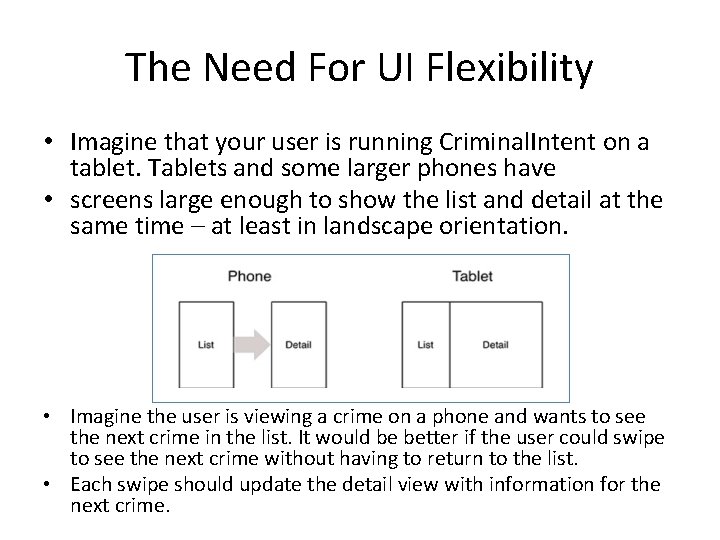
The Need For UI Flexibility • Imagine that your user is running Criminal. Intent on a tablet. Tablets and some larger phones have • screens large enough to show the list and detail at the same time – at least in landscape orientation. • Imagine the user is viewing a crime on a phone and wants to see the next crime in the list. It would be better if the user could swipe to see the next crime without having to return to the list. • Each swipe should update the detail view with information for the next crime.
The Need for UI Flexibility Cont • What these scenarios have in common is UI flexibility: – the ability to compose and recompose an activity’s view at runtime depending on what the user or the device requires. • Activities were not built to provide this flexibility. An activity is tightly coupled with its view. • The view that the activity inflates in the call to set. Content. View(…) is tied to the activity ’til death do them part. • You cannot swap out an activity’s entire view (without destroying the activity) or pass a view from one activity to another at runtime. • This is the law of Android.
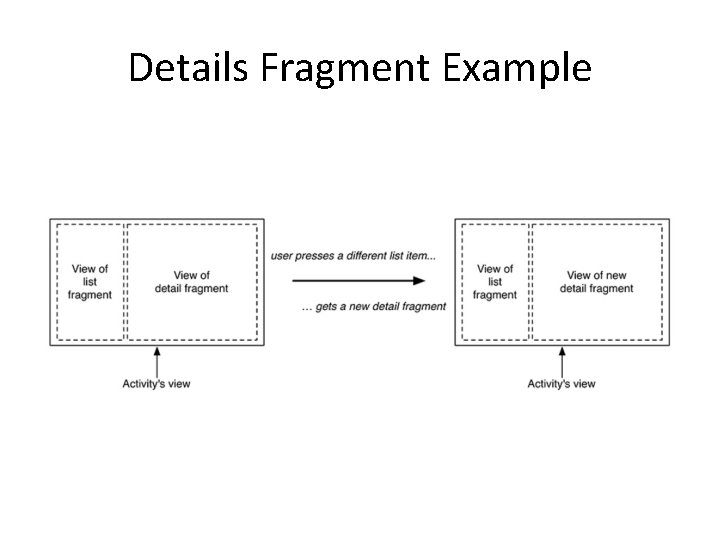
Fragments • You can get around the letter of the Android law by moving the app’s UI management from the activity to one or more fragments. • A fragment is a controller object that an activity can deputize to perform tasks. • Most commonly, the task is managing a user interface. – The user interface can be an entire screen or just one part of the screen. • A fragment managing a user interface is known as a UI fragment. • A UI fragment has a view of its own that is inflated from a layout file. • The activity’s view contains a spot where the fragment’s view will be inserted. – Or it might have several spots for the views of several fragments.
Details Fragment Example
Using Fragments • Using UI fragments separates the UI of your app into building blocks, which is useful for more than just list-detail applications. • Working with individual blocks, it is easy to build tab interfaces, tack on animated sidebars, and more. Achieving this UI flexibility comes at a cost: more complexity, more moving parts, and more code. • You will reap the benefits of using fragments in Chapter 11 and Chapter 17. The complexity, however, starts now.
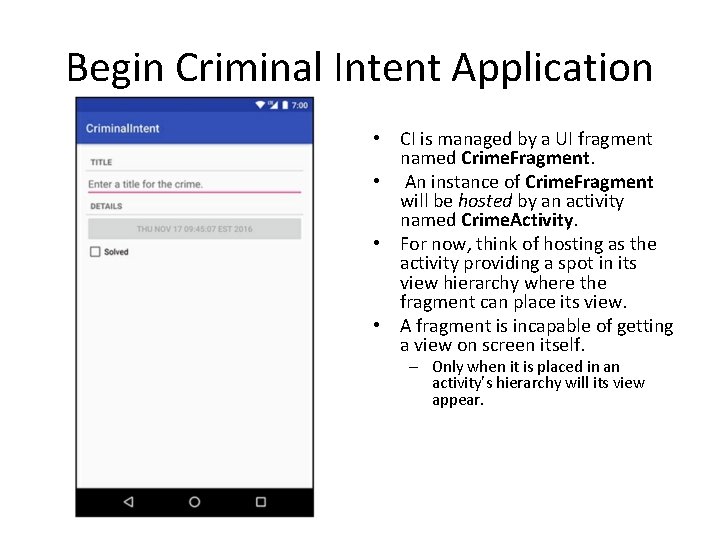
Begin Criminal Intent Application • CI is managed by a UI fragment named Crime. Fragment. • An instance of Crime. Fragment will be hosted by an activity named Crime. Activity. • For now, think of hosting as the activity providing a spot in its view hierarchy where the fragment can place its view. • A fragment is incapable of getting a view on screen itself. – Only when it is placed in an activity’s hierarchy will its view appear.
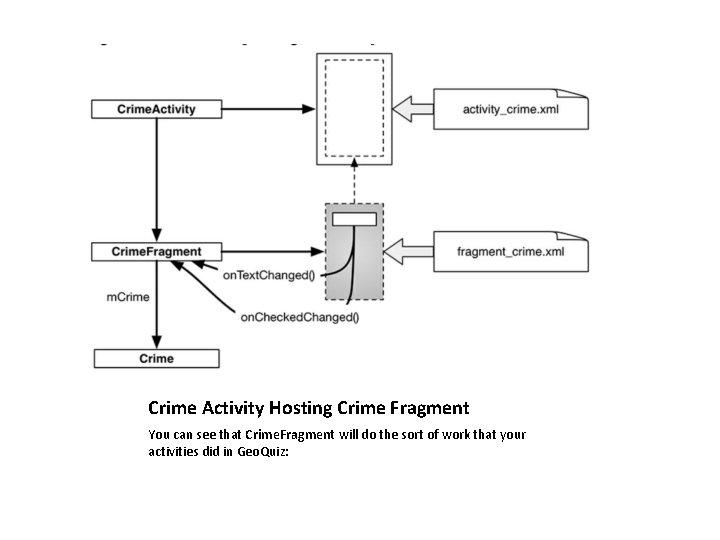
Crime Activity Hosting Crime Fragment You can see that Crime. Fragment will do the sort of work that your activities did in Geo. Quiz:
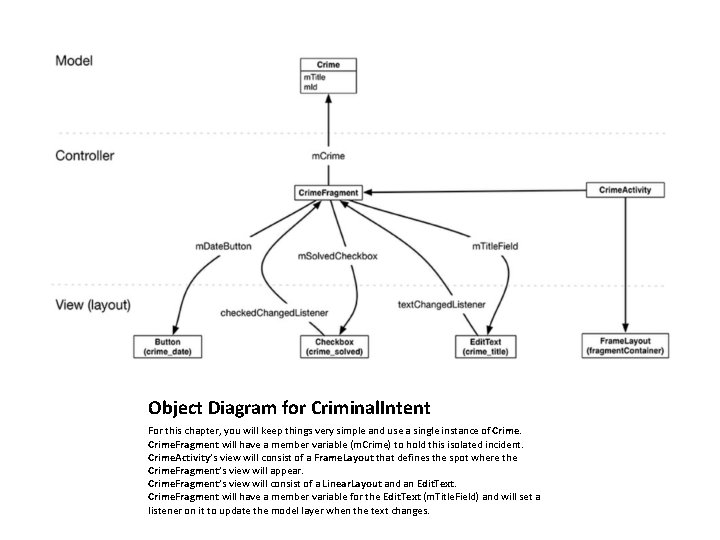
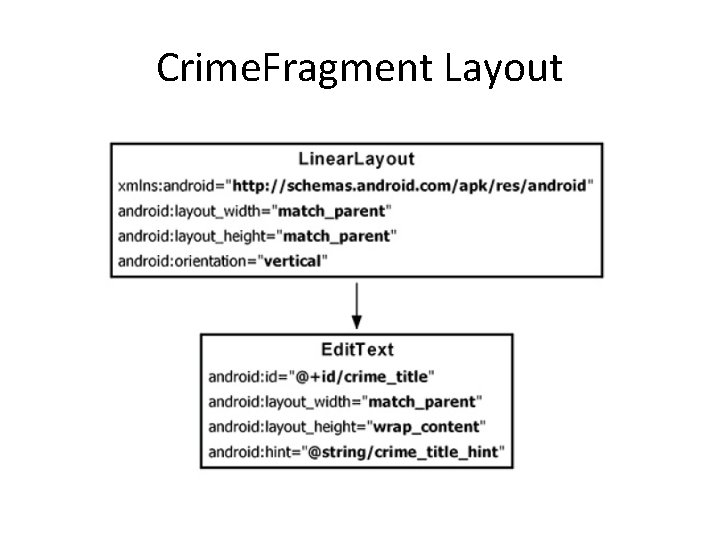
Object Diagram for Criminal. Intent For this chapter, you will keep things very simple and use a single instance of Crime. Fragment will have a member variable (m. Crime) to hold this isolated incident. Crime. Activity’s view will consist of a Frame. Layout that defines the spot where the Crime. Fragment’s view will appear. Crime. Fragment’s view will consist of a Linear. Layout and an Edit. Text. Crime. Fragment will have a member variable for the Edit. Text (m. Title. Field) and will set a listener on it to update the model layer when the text changes.
Adding 3 Classes • We will write 3 classes: Crime, Crime. Fragment, and Crime. Activity. • An instance of Crime will represent a single office crime. • In this chapter, a crime will have only a title and an ID. – The title is a descriptive name, like “Toxic sink dump” or “Someone stole my yogurt!”. – The ID will uniquely identify an instance of Crime.
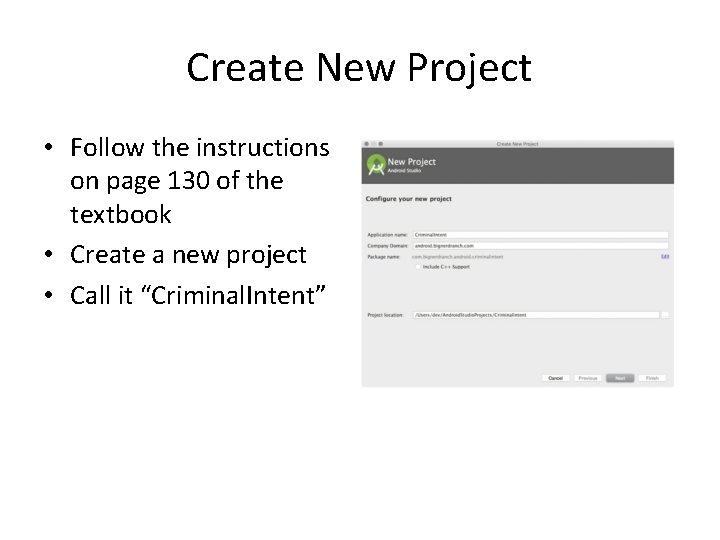
Create New Project • Follow the instructions on page 130 of the textbook • Create a new project • Call it “Criminal. Intent”
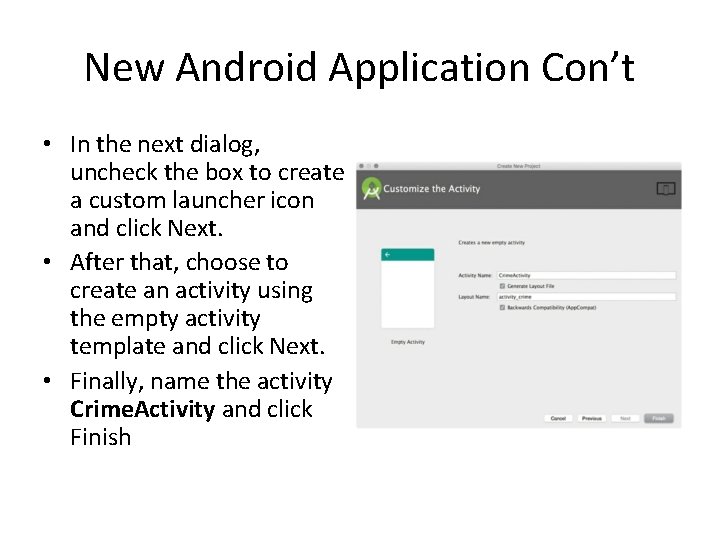
New Android Application Con’t • In the next dialog, uncheck the box to create a custom launcher icon and click Next. • After that, choose to create an activity using the empty activity template and click Next. • Finally, name the activity Crime. Activity and click Finish
Two Types of Fragments • Fragments were introduced in API level 11 along with the first Android tablets and the sudden need for UI flexibility. • You must choose which implementation of fragments that you want use: native fragments or support fragments. – The native implementation of fragments is built into the device that the user runs your app on. If you support many different versions of Android, each of those Android versions could have a slightly different implementation of fragments (for example, a bug could be fixed in one version and not the versions prior to it). – The support implementation of fragments is built into a library that you include in your application. This means that each device you run your app on will depend on the same implementation of fragments no matter the Android version.
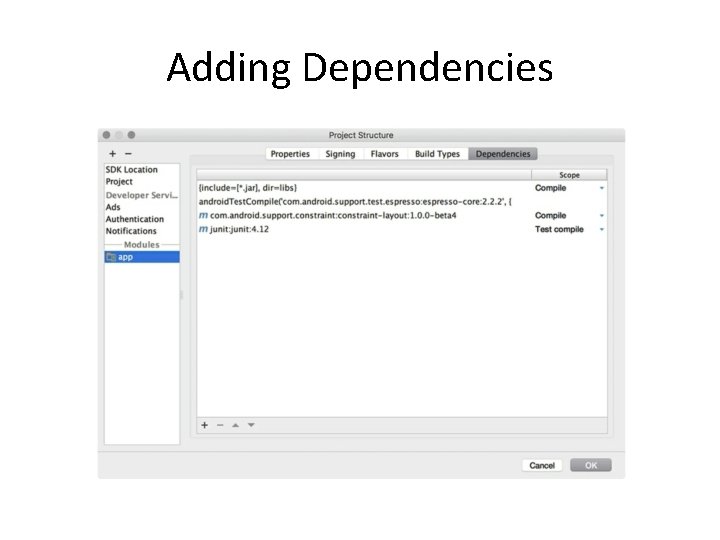
Adding Dependencies in Android Studio • You will use the implementation of fragments that comes with the App. Compat library. • The App. Compat library is one of Google’s many compatibility libraries that you will use throughout this book. • To use the App. Compat library, it must be included in your list of dependencies. • Open the build. gradle file located in your app module.
build. gradle dependencies { compile file. Tree(include: ['*. jar'], dir: 'libs') android. Test. Compile('com. android. support. test. espresso: espresso-core: 2. 2. 2', { exclude group: 'com. android. support', module: 'support-annotations' }) compile 'com. android. support: appcompat-v 7: 25. 3. 0' test. Compile 'junit: 4. 12' } Gradle allows for the specification of dependencies that you have not copied into your project. When your app is compiled, Gradle will find, download, and include the dependencies for you. All you have to do is specify an exact string incantation and Gradle will do the rest. project (File → Project Structure. . . ). Select the app module on the left and the Dependencies tab in the app module.
Adding Dependencies
Maven • The dependency string compile 'com. android. support: appcompatv 7: 25. 0. 0' uses the Maven coordinates format group. Id: artifact. Id: version. • (Maven is a dependency management tool. You can learn more about it at maven. apache. org/. ) • The group. Id is the unique identifier for a set of libraries available on the Maven repository. – Often the library’s base package name is used as the group. Id, which is com. android. support for the App. Compat library. • The artifact. Id is the name of a specific library within the package. In this case, the name of the library you are referring to is appcompat-v 7. • Last but not least, the version represents the revision number of the library. • In fact, it is a good idea to use the latest version of the support library so that you can use newer APIs and receive the latest bug fixes. If Android Studio added a newer version of the library for you, do not roll it back to the version shown above.
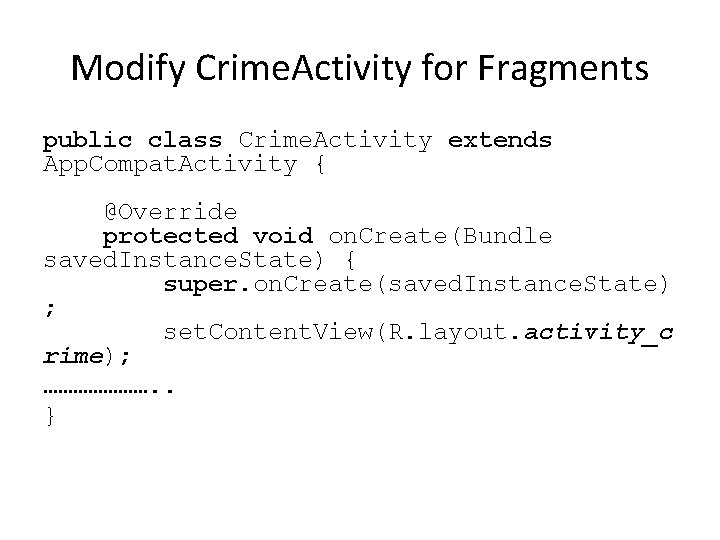
Modify Crime. Activity for Fragments public class Crime. Activity extends App. Compat. Activity { @Override protected void on. Create(Bundle saved. Instance. State) { super. on. Create(saved. Instance. State) ; set. Content. View(R. layout. activity_c rime); …………………. . }
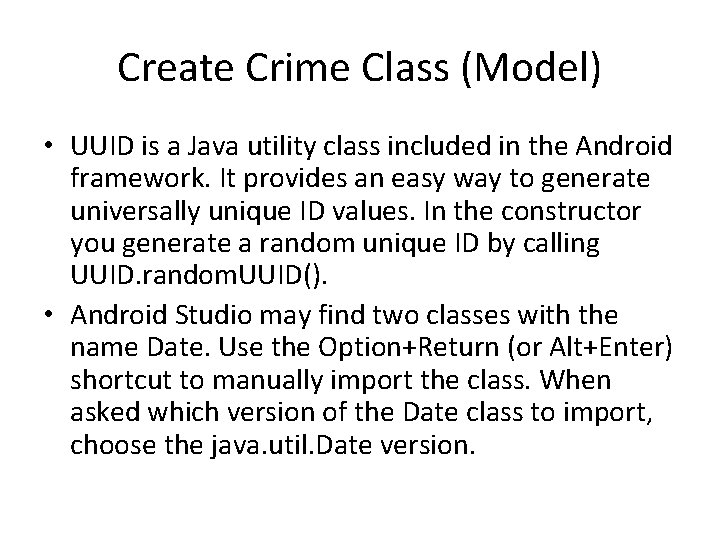
Create Crime Class (Model) • UUID is a Java utility class included in the Android framework. It provides an easy way to generate universally unique ID values. In the constructor you generate a random unique ID by calling UUID. random. UUID(). • Android Studio may find two classes with the name Date. Use the Option+Return (or Alt+Enter) shortcut to manually import the class. When asked which version of the Date class to import, choose the java. util. Date version.
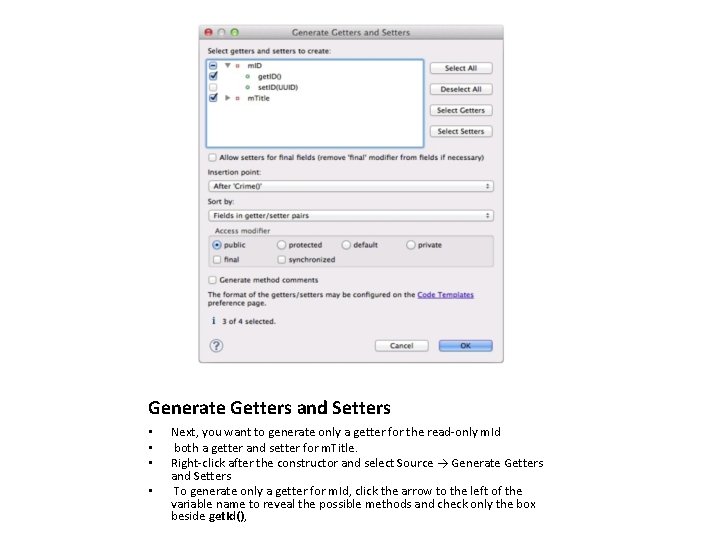
Generate Getters and Setters • • Next, you want to generate only a getter for the read-only m. Id both a getter and setter for m. Title. Right-click after the constructor and select Source → Generate Getters and Setters To generate only a getter for m. Id, click the arrow to the left of the variable name to reveal the possible methods and check only the box beside get. Id(),
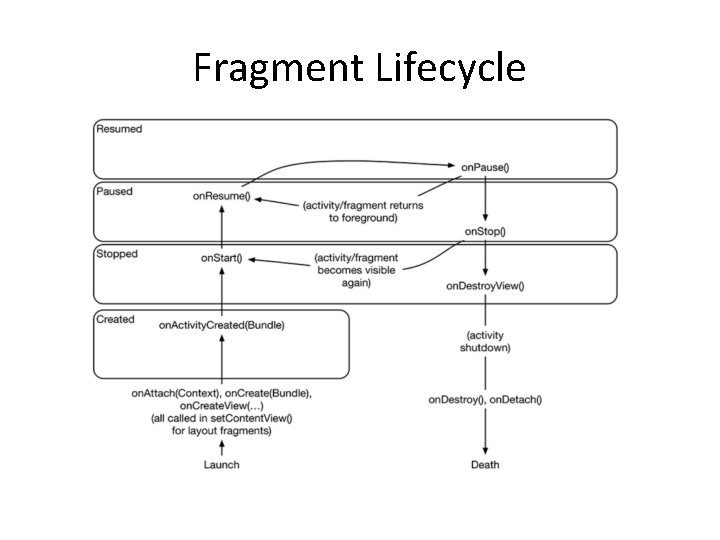
Hosting a Fragment • To host a UI fragment: – An activity must define a spot in its layout for the fragment’s view – Manage the lifecycle of the fragment instance • Because a fragment works on behalf of an activity, its state should reflect the activity’s state. Thus, it needs corresponding lifecycle methods to handle the activity’s work. • One critical difference between the fragment lifecycle and the activity lifecycle is that fragment lifecycle methods are called by the hosting activity, not the OS. • The OS knows nothing about the fragments that an activity is using to manage things. Fragments are the activity’s internal business.
Fragment Lifecycle
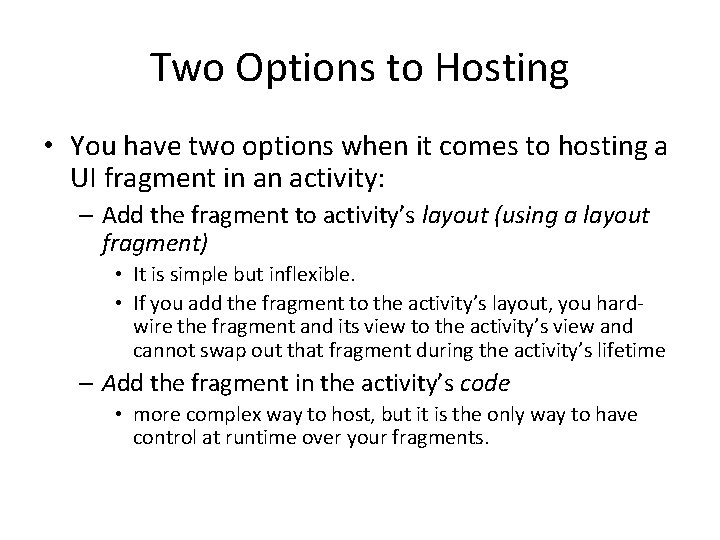
Two Options to Hosting • You have two options when it comes to hosting a UI fragment in an activity: – Add the fragment to activity’s layout (using a layout fragment) • It is simple but inflexible. • If you add the fragment to the activity’s layout, you hardwire the fragment and its view to the activity’s view and cannot swap out that fragment during the activity’s lifetime – Add the fragment in the activity’s code • more complex way to host, but it is the only way to have control at runtime over your fragments.
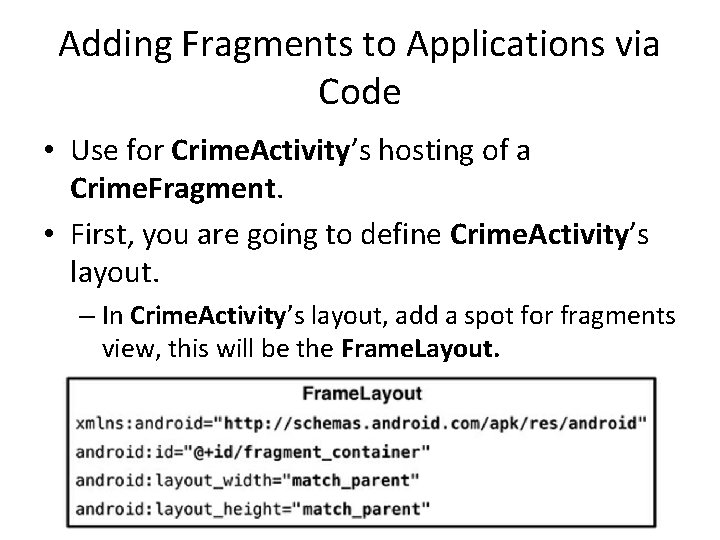
Adding Fragments to Applications via Code • Use for Crime. Activity’s hosting of a Crime. Fragment. • First, you are going to define Crime. Activity’s layout. – In Crime. Activity’s layout, add a spot for fragments view, this will be the Frame. Layout.
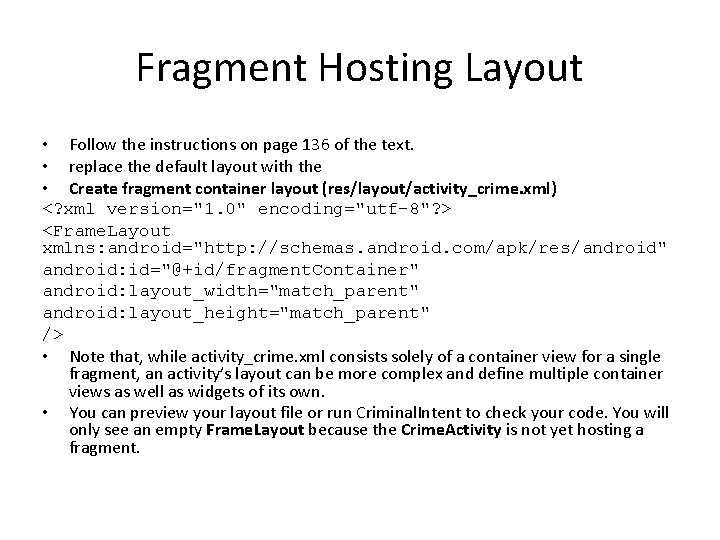
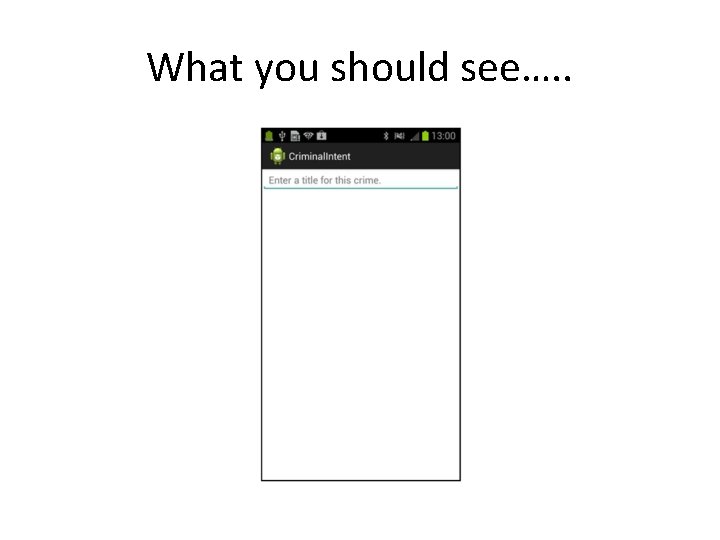
Fragment Hosting Layout • Follow the instructions on page 136 of the text. • replace the default layout with the • Create fragment container layout (res/layout/activity_crime. xml) <? xml version="1. 0" encoding="utf-8"? > <Frame. Layout xmlns: android="http: //schemas. android. com/apk/res/android" android: id="@+id/fragment. Container" android: layout_width="match_parent" android: layout_height="match_parent" /> • Note that, while activity_crime. xml consists solely of a container view for a single fragment, an activity’s layout can be more complex and define multiple container views as well as widgets of its own. • You can preview your layout file or run Criminal. Intent to check your code. You will only see an empty Frame. Layout because the Crime. Activity is not yet hosting a fragment.
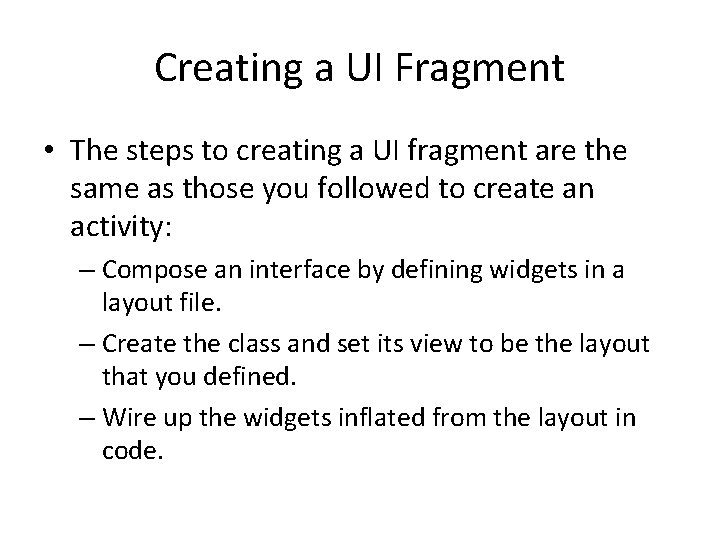
Creating a UI Fragment • The steps to creating a UI fragment are the same as those you followed to create an activity: – Compose an interface by defining widgets in a layout file. – Create the class and set its view to be the layout that you defined. – Wire up the widgets inflated from the layout in code.
Crime. Fragment Layout
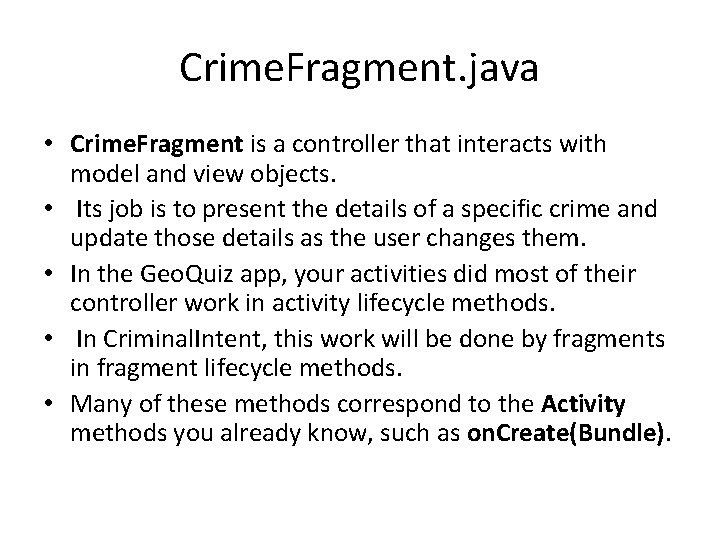
Crime. Fragment. java • Crime. Fragment is a controller that interacts with model and view objects. • Its job is to present the details of a specific crime and update those details as the user changes them. • In the Geo. Quiz app, your activities did most of their controller work in activity lifecycle methods. • In Criminal. Intent, this work will be done by fragments in fragment lifecycle methods. • Many of these methods correspond to the Activity methods you already know, such as on. Create(Bundle).
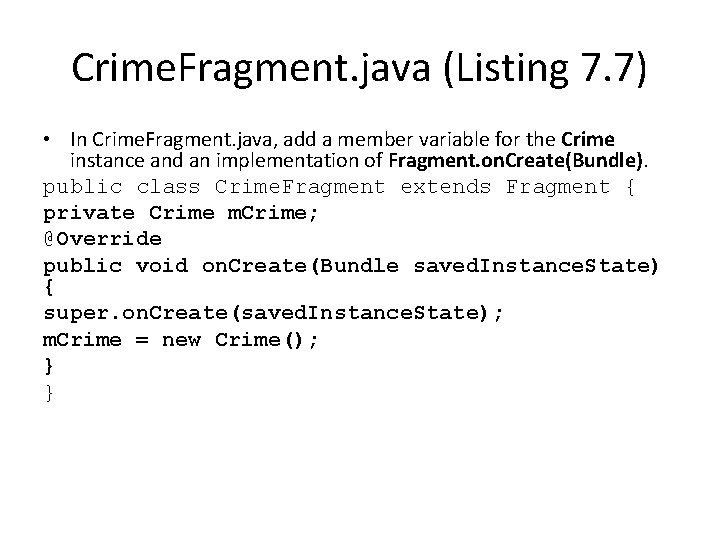
Crime. Fragment. java (Listing 7. 7) • In Crime. Fragment. java, add a member variable for the Crime instance and an implementation of Fragment. on. Create(Bundle). public class Crime. Fragment extends Fragment { private Crime m. Crime; @Override public void on. Create(Bundle saved. Instance. State) { super. on. Create(saved. Instance. State); m. Crime = new Crime(); } }
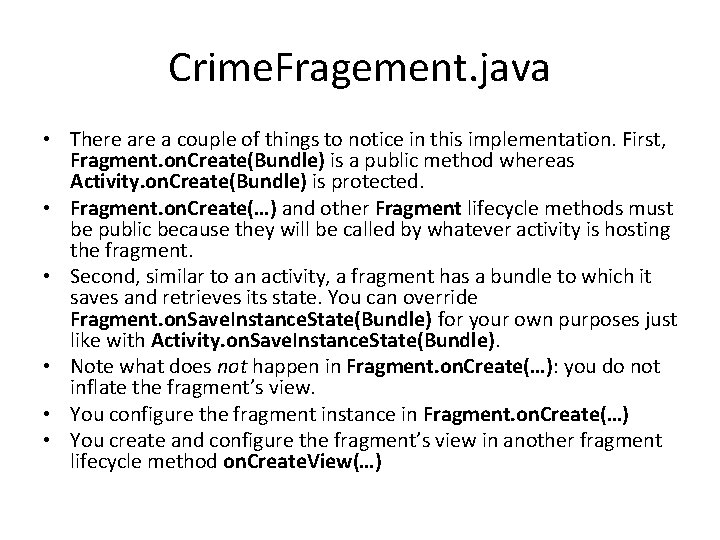
Crime. Fragement. java • There a couple of things to notice in this implementation. First, Fragment. on. Create(Bundle) is a public method whereas Activity. on. Create(Bundle) is protected. • Fragment. on. Create(…) and other Fragment lifecycle methods must be public because they will be called by whatever activity is hosting the fragment. • Second, similar to an activity, a fragment has a bundle to which it saves and retrieves its state. You can override Fragment. on. Save. Instance. State(Bundle) for your own purposes just like with Activity. on. Save. Instance. State(Bundle). • Note what does not happen in Fragment. on. Create(…): you do not inflate the fragment’s view. • You configure the fragment instance in Fragment. on. Create(…) • You create and configure the fragment’s view in another fragment lifecycle method on. Create. View(…)
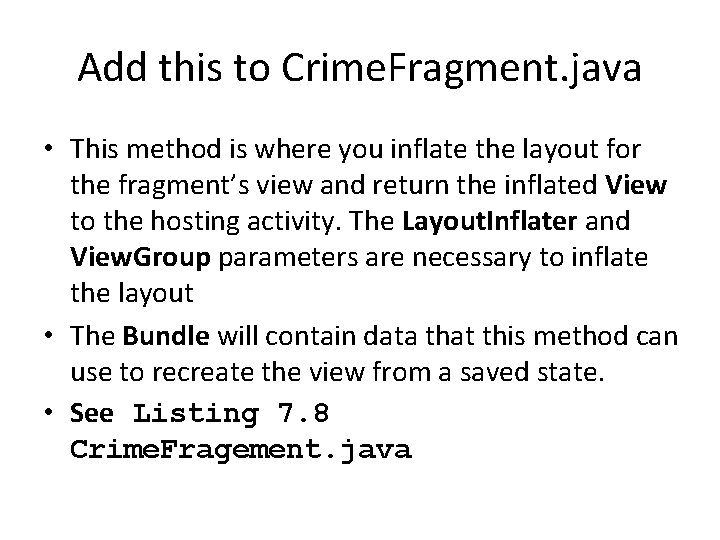
Add this to Crime. Fragment. java • This method is where you inflate the layout for the fragment’s view and return the inflated View to the hosting activity. The Layout. Inflater and View. Group parameters are necessary to inflate the layout • The Bundle will contain data that this method can use to recreate the view from a saved state. • See Listing 7. 8 Crime. Fragement. java
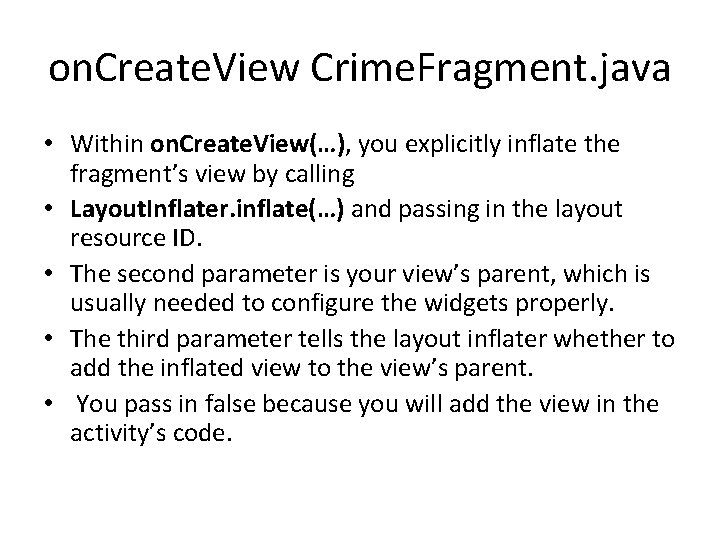
on. Create. View Crime. Fragment. java • Within on. Create. View(…), you explicitly inflate the fragment’s view by calling • Layout. Inflater. inflate(…) and passing in the layout resource ID. • The second parameter is your view’s parent, which is usually needed to configure the widgets properly. • The third parameter tells the layout inflater whether to add the inflated view to the view’s parent. • You pass in false because you will add the view in the activity’s code.
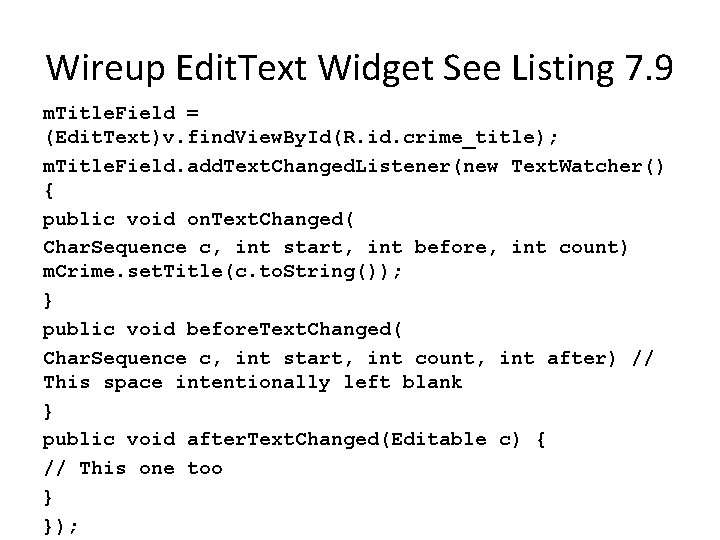
Wireup Edit. Text Widget See Listing 7. 9 m. Title. Field = (Edit. Text)v. find. View. By. Id(R. id. crime_title); m. Title. Field. add. Text. Changed. Listener(new Text. Watcher() { public void on. Text. Changed( Char. Sequence c, int start, int before, int count) m. Crime. set. Title(c. to. String()); } public void before. Text. Changed( Char. Sequence c, int start, int count, int after) // This space intentionally left blank } public void after. Text. Changed(Editable c) { // This one too } });
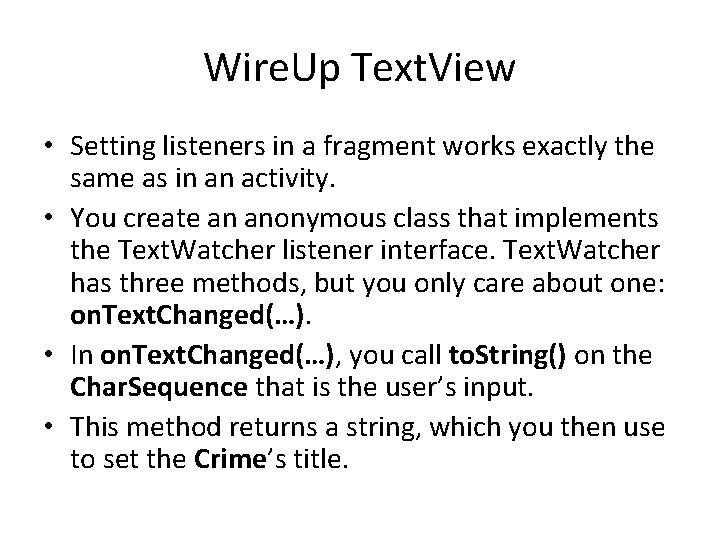
Wire. Up Text. View • Setting listeners in a fragment works exactly the same as in an activity. • You create an anonymous class that implements the Text. Watcher listener interface. Text. Watcher has three methods, but you only care about one: on. Text. Changed(…). • In on. Text. Changed(…), you call to. String() on the Char. Sequence that is the user’s input. • This method returns a string, which you then use to set the Crime’s title.
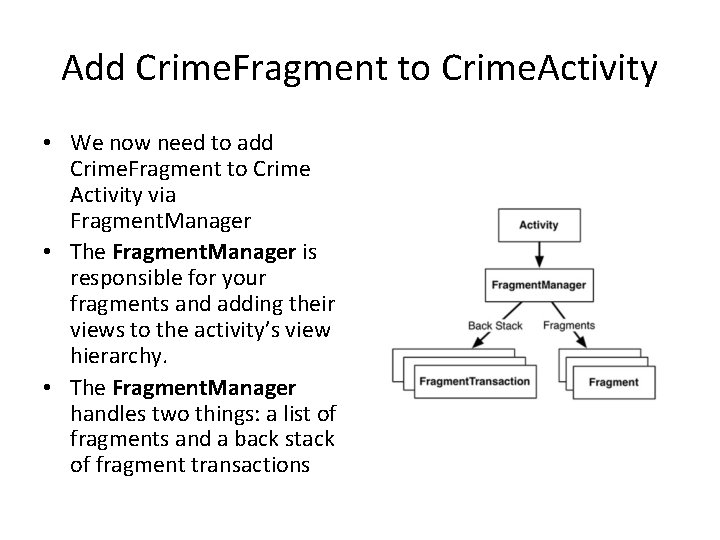
Add Crime. Fragment to Crime. Activity • We now need to add Crime. Fragment to Crime Activity via Fragment. Manager • The Fragment. Manager is responsible for your fragments and adding their views to the activity’s view hierarchy. • The Fragment. Manager handles two things: a list of fragments and a back stack of fragment transactions
Add Crime. Fragment to Crime. Activity • For Criminal. Intent, you will only be concerned with the Fragment. Manager’s list of fragments. • To add a fragment to an activity in code, you make explicit calls to the activity’s Fragment. Manager. • The first step is to get the Fragment. Manager itself. • In Crime. Activity. java, add listing 7. 10 & 7. 11 code to on. Create(…)
Fragment Transactions • Listing 7. 11 commits a fragment transaction • Fragment transactions are used to add, remove, attach, detach, or replace fragments in the fragment list. • They are the heart of how you use fragments to compose and recompose screens at runtime. • The Fragment. Manager maintains a back stack of fragment transactions that you can navigate. • “Create a new fragment transaction, include one add operation in it, and then commit it.
Fragment Transactions • The add(…) method is the meat of the transaction. It has two parameters: a container view ID and the newly-created Crime. Fragment. • The container view ID should look familiar. It is the resource ID of the Frame. Layout that you defined in activity_crime. xml. • A container view ID serves two purposes: – It tells the Fragment. Manager where in the activity’s view the fragment’s view should appear. – It is used as a unique identifier for a fragment in the Fragment. Manager’s list. • When you need to retrieve the Crime. Fragment from the Fragment. Manager, you ask for it by container view ID:
What you should see…. .
Fragment Lifecycle
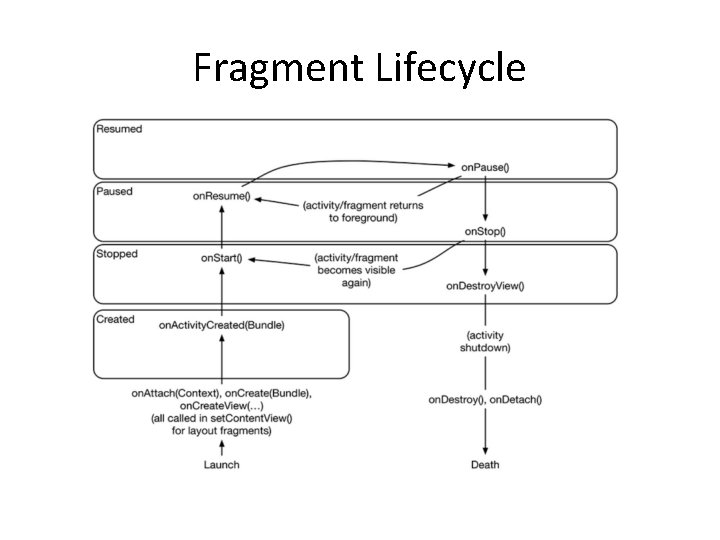
Fragment Lifecycle • The Fragment. Manager of an activity is responsible for calling the lifecycle methods of the fragments in its list. • The on. Attach(Activity), on. Create(Bundle), and on. Create. View(…) methods are called when you add the fragment to the Fragment. Manager. • The on. Activity. Created(…) method is called after the hosting activity’s on. Create(…) method has executed. • You are adding the Crime. Fragment in Crime. Activity. on. Create(…), so this method will be called after the fragment has been added.
Fragment Lifecycle Con’t • What happens if you add a fragment while the activity is already stopped, paused, or running? • In that case, the Fragment. Manager immediately walks the fragment through whatever steps are necessary to get it caught up to the activity’s state. • For example, when you add a fragment to an activity that is already running, that fragment gets calls to on. Attach(Activity), on. Create(Bundle), on. Create. View(…), on. Activity. Created(Bundle), on. Start(), and then on. Resume(). • Once the fragment’s state is caught up to the activity’s state, the hosting activity’s Fragment. Manager will call further lifecycle methods around the same time it receives the corresponding calls from the OS to keep the fragment’s state aligned with that of the activity. • There is no guarantee about whether the fragment’s methods will be called before or after the activity’s methods.
HOMEWORK • Do Chapter 8 of the book on your on. • We will start with Chapter 9 next week.