
Chapter 7 Menu Selection Form Fillin and Dialog




- Slides: 37
Chapter 7 Menu Selection, Form Fillin, and Dialog Boxes 1
Outline n Introduction n Task-related menu organization n Single menus n Combinations of multiple menus n Content organization n Fast movement through menus n Data entry with menus n Audio menus and menus for small display 2
Introduction n When designers cannot create appropriate directmanipulation strategies, menu selection and form fillin are attractive alternatives. n Menus can be pull-downs, pop-ups, checkboxes/radio buttons in dialog boxes, or embedded links on web pages. n They are effective because they support … “recognition, rather than recall” n Simple menus are effective for less-trained or intermittent users. n With careful design of complex menus and high-speed interaction, menus can be made appealing even to expert frequent users. 3
Task-Related Menu Organization n The primary goal for menu, form-fillin, and dialogbox designers is to create a sensible, comprehensible, memorable, and convenient organization relevant to the user's task. ¨ Hierarchical decompositions are natural and comprehensible to most people but difficult to use in some cases n Consider a restaurant menu! Computer menus design is more difficult ¨ Categories should be comprehensible and distinctive so that users are confident in making their selections 4
► Task-Related Menu Organization n Studies show that categorical menus are more efficient than pure alphabetical n The key to menu-structure design is first to consider task-related objects and actions. ¨ Examples n …? In some applications, frequency of use is a useful way of organizing menus. ¨ E. g. , n in mobile phones “Add contact” is more frequent than “Remove contact” 5
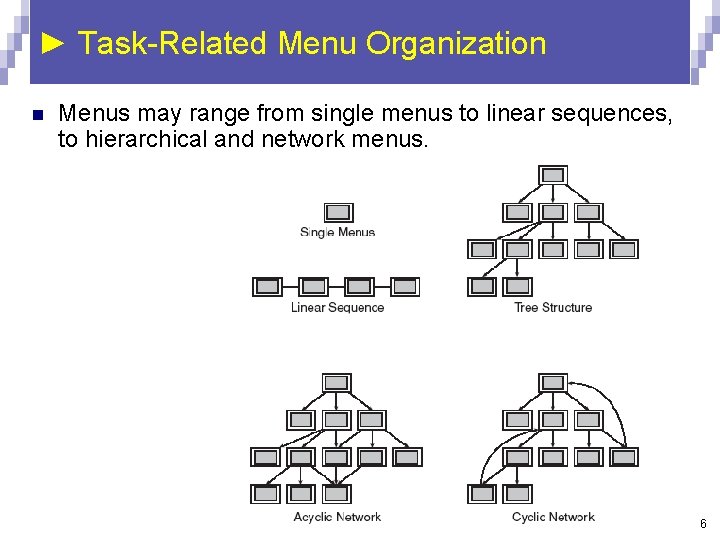
► Task-Related Menu Organization n Menus may range from single menus to linear sequences, to hierarchical and network menus. 6
► Single Menus n n Binary Menus ¨ Radio Buttons ¨ Button Choice Multiple-item Menus ¨ Radio ¨ Links n Buttons (Lists) Multiple-selection menus or check boxes ¨ They are a convenient selection method for handling multiple binary choices 7
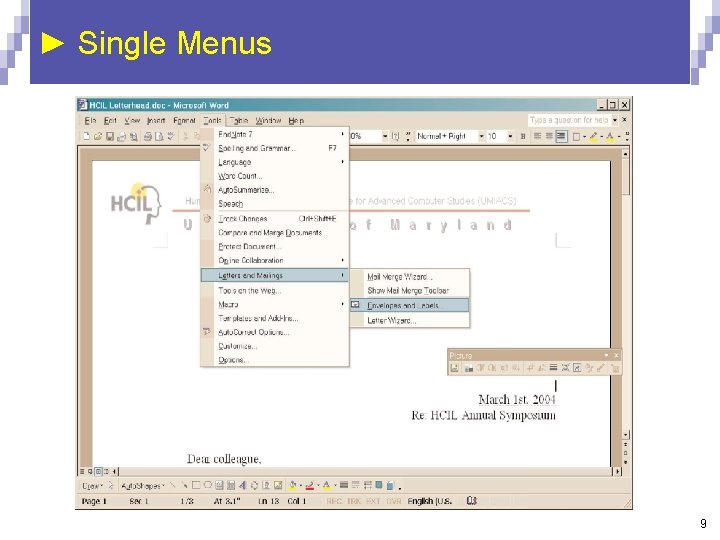
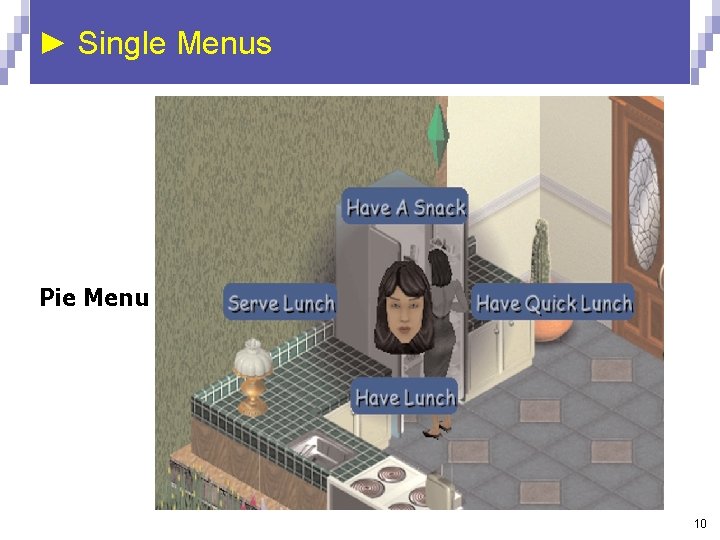
► Single Menus n Pull-down, pop-up, and toolbar menus ¨ Pull-down n Always available to the user on a top menu bar Unavailable-for-selection item should be grayed out rather than removed. (positional constancy principle) Key board shortcuts (e. g. , Ctrl-C) ¨ Should be consistent, and be indicated next to the items ¨ Toolbars, n n n iconic menus, and palettes Offers actions on a displayed object Should be customizable (because they take space) ¨ Pop-up n menus Should be small Pie menus 8
► Single Menus 9
► Single Menus Pie Menu 10
► Single Menus n Menus for long lists ¨ Scrolling menus: n ¨ Combo boxes: n ¨ display the first portion of the menu and an additional menu item, typically an arrow that leads to the next set of items in the menu sequence. combine a scrolling menu with a text-entry field. Fisheye menus: n display all of the menu items on the screen at once, but show only items near the cursor at full size. Fisheye menus (and others) demo: http: //www. cs. umd. edu/hcil/fisheyemenu/fisheyeme nu-demo. shtml 11
► Single Menus n Menus for long lists (cont. ) ¨ Sliders and alphasliders n When items consist of ranges or numerical values, a slider is a natural choice to allow the selection of a value. n The alphaslider uses multiple levels of granularity in moving the slider thumb and therefore can support tens or hundreds of thousand of items. Alphasliders 12
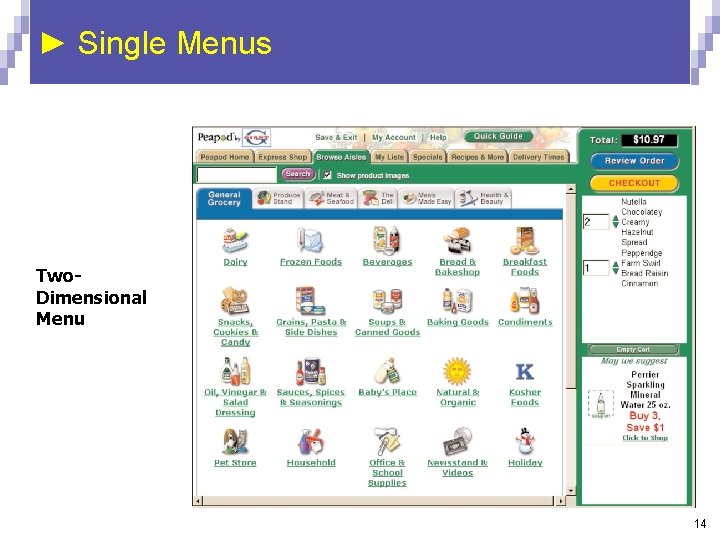
► Single Menus n Menus for long lists (cont. ) ¨ Two-dimensional menus n “Fast and vast” two-dimensional menus give users a good overview of the choices, reduce the number of required actions, and allow rapid selection. n Useful in web-page design because they minimize scrolling 13
► Single Menus Two. Dimensional Menu 14
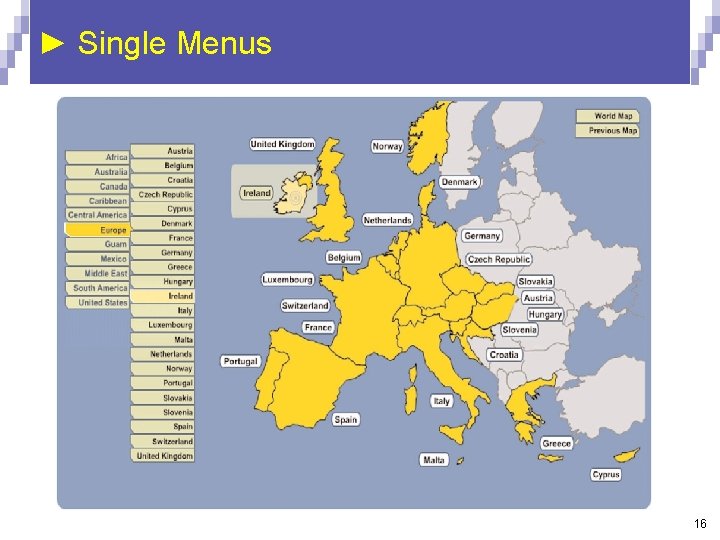
► Single Menus n Embedded menus and hotlinks ¨ Embedded menus are an alternative to explicit menus ¨ It is natural to allow users reading about people, events, and places to retrieve detailed information by selecting menus in context. n Examples: hotlinks on the web, calendar months in grid format ¨ Graphical menus are particularly attractive to present selection options while providing context to help users make their choices. n Examples: ¨ Digital geographical maps ¨ Ekisupato (pronounced the same as “Expert” by a Japanese) 15
► Single Menus 16
Combination of Multiple Menus n Linear menu sequences and simultaneous menus ¨ Linear n Guide the user through complex decision-making process. n One decision at a time ¨ n Effective for novice users performing simple tasks Examples: Online exams, wizards ¨ Simultaneous n Present multiple active menus at the same time and allows users to enter choices in any order n May benefit experienced users n Example: http: //bailando. sims. berkeley. edu/flamenco. html 17
► Combination of Multiple Menus n Tree-structured menus ¨ ¨ ¨ Designers can form categories of similar items to create a tree structure n E. g. , fonts, size, style, spacing They have the power to make large collections of data available to novice or intermittent users. (imagine 4 levels & 30 items at each level) Fast retrieval if natural and comprehensive Should use terminology from the task domain Expanding menus maintain the full context of each choice n E. g. , Windows Explorer Depth-breadth tradeoff n Studies show that breadth should be preferred over depth (no more than 3 to 4 levels) 18
► Combination of Multiple Menus n Menu Maps Menu maps can help users stay oriented in a large menu tree ¨ Effective for providing overviews to minimize user disorientation. ¨ On websites, site maps ¨ n Acyclic and Cyclic Networks Arise naturally in social relationships and the Web. ¨ Navigating can cause confusion and disorientation. ¨ Developing mental model of a network structure is difficult than that of a tree structure – (the notion of “level” helps) ¨ But it provides more flexibility in navigation ¨ A menu-combination example: presenting thousands of items http: //www. epicurious. com/ 19
Content Organization n Task-related grouping in tree organization ¨ Create groups of logically similar items n ¨ Form groups that cover all possibilities n ¨ e. g. , age groups Make sure that items are non-overlapping n ¨ e. g. , countries at level 1, states at level 2, … e. g. , “Entertainment” and “Events” are poor choices compared to “Concerts” and “Sports” Use familiar terminology, but ensure that items are distinct from one another n e. g. , “Day” and “Night” maybe too vague; consider “ 6 am to 6 pm” … 20
► Content Organization n Item Presentation Sequence ¨ ¨ The order of items in the menu is important, and should take natural sequence into account when possible: n Time (chronological ordering) n Numeric ordering (ascending or descending ordering) n Physical properties (increasing or decreasing length, area, …) When cases have no task-related orderings, the designer must choose from such possibilities as: n Alphabetic sequence of terms n Grouping of related items n Most frequently used items first n Most important items first. 21
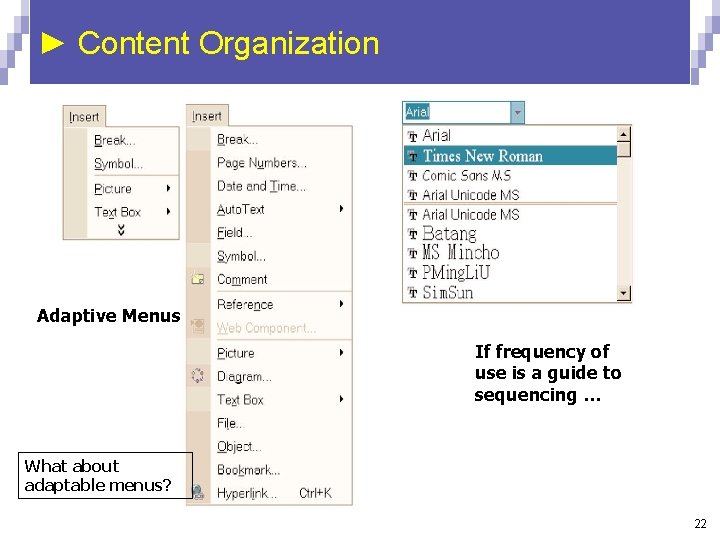
► Content Organization Adaptive Menus If frequency of use is a guide to sequencing … What about adaptable menus? 22
► Content Organization n Menu layout ¨ Titles n For single menus, use a simple descriptive title. n For tree-structured menus, use the exact same words in the higher-level menu items as in the titles for the next lower-level menu. ¨ n e. g. if a menu item is called “Business and Financial Services”, the next screen should have that phrase as its title. Consistency in placement of titles is also important 23
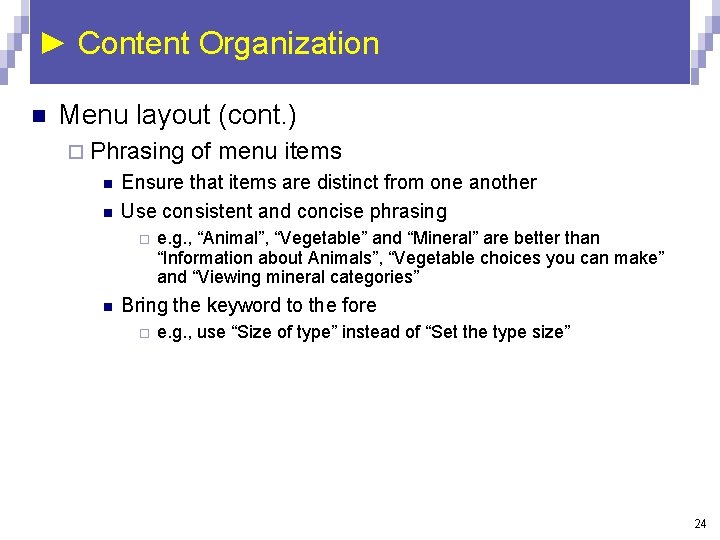
► Content Organization n Menu layout (cont. ) ¨ Phrasing n n Ensure that items are distinct from one another Use consistent and concise phrasing ¨ n of menu items e. g. , “Animal”, “Vegetable” and “Mineral” are better than “Information about Animals”, “Vegetable choices you can make” and “Viewing mineral categories” Bring the keyword to the fore ¨ e. g. , use “Size of type” instead of “Set the type size” 24
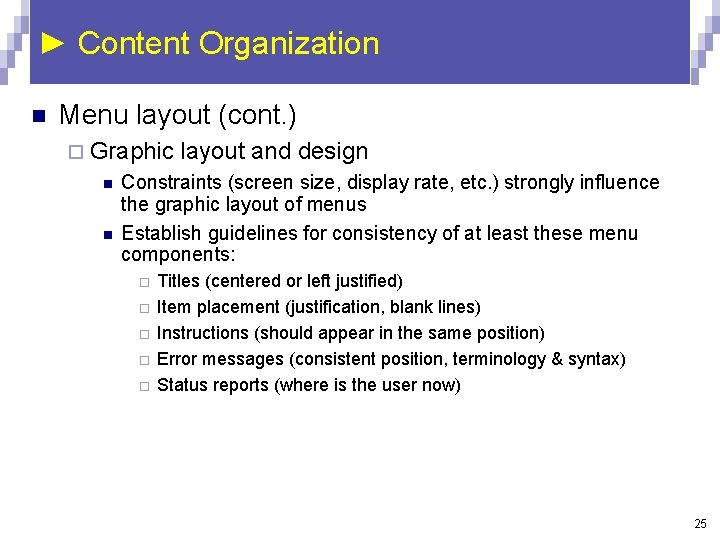
► Content Organization n Menu layout (cont. ) ¨ Graphic n n layout and design Constraints (screen size, display rate, etc. ) strongly influence the graphic layout of menus Establish guidelines for consistency of at least these menu components: ¨ ¨ ¨ Titles (centered or left justified) Item placement (justification, blank lines) Instructions (should appear in the same position) Error messages (consistent position, terminology & syntax) Status reports (where is the user now) 25
► Content Organization n Menu layout (cont. ) ¨ Techniques n to indicate position in menu structure Like book chapters and sections, the followings can be used for different levels ¨ Fonts (bold, italic, normal) ¨ Indentation ¨ Upper/lower case characters n Position markers: +-----, -+----, --+---, ---+--, ----+-, -----+ n Cascading or walking menus 26
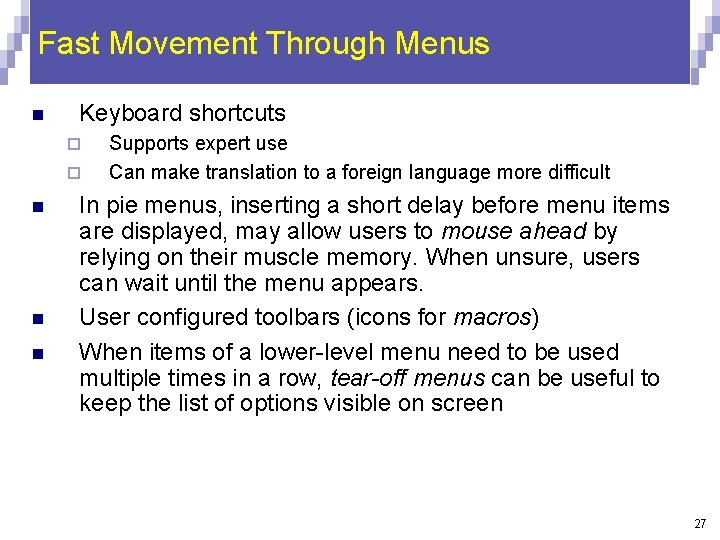
Fast Movement Through Menus n Keyboard shortcuts ¨ ¨ n n n Supports expert use Can make translation to a foreign language more difficult In pie menus, inserting a short delay before menu items are displayed, may allow users to mouse ahead by relying on their muscle memory. When unsure, users can wait until the menu appears. User configured toolbars (icons for macros) When items of a lower-level menu need to be used multiple times in a row, tear-off menus can be useful to keep the list of options visible on screen 27
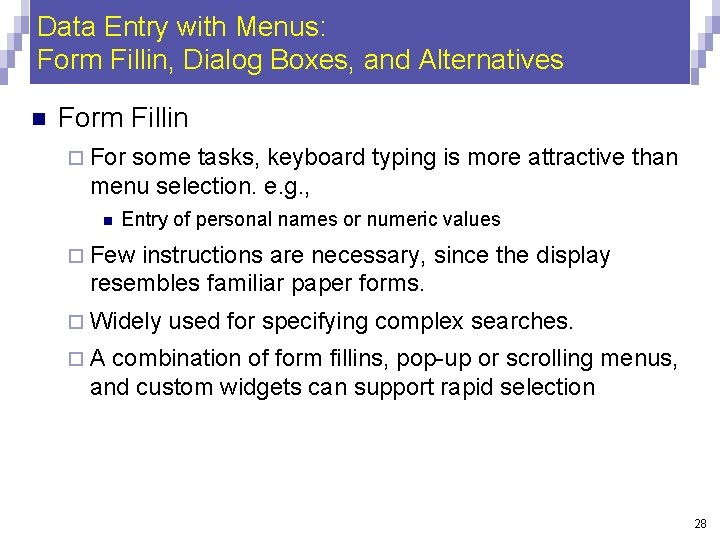
Data Entry with Menus: Form Fillin, Dialog Boxes, and Alternatives n Form Fillin ¨ For some tasks, keyboard typing is more attractive than menu selection. e. g. , n Entry of personal names or numeric values ¨ Few instructions are necessary, since the display resembles familiar paper forms. ¨ Widely used for specifying complex searches. ¨A combination of form fillins, pop-up or scrolling menus, and custom widgets can support rapid selection 28
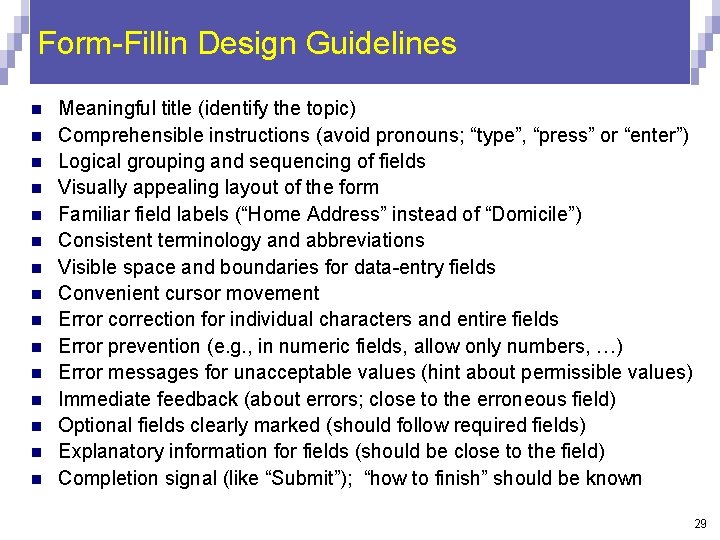
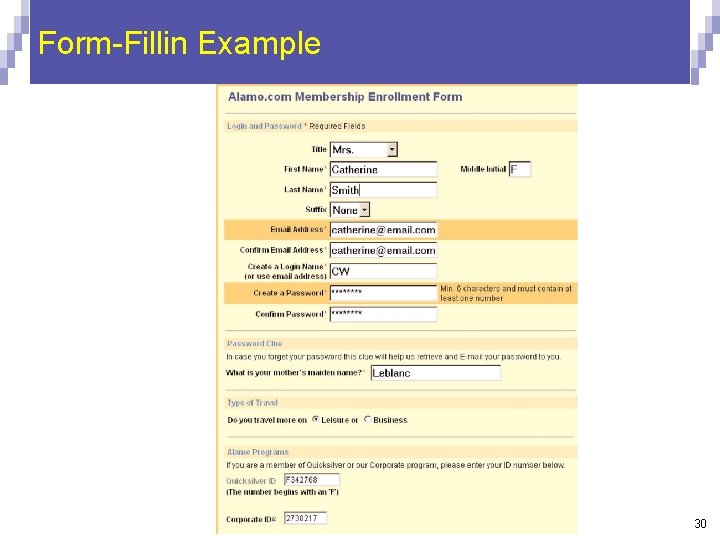
Form-Fillin Design Guidelines n n n n Meaningful title (identify the topic) Comprehensible instructions (avoid pronouns; “type”, “press” or “enter”) Logical grouping and sequencing of fields Visually appealing layout of the form Familiar field labels (“Home Address” instead of “Domicile”) Consistent terminology and abbreviations Visible space and boundaries for data-entry fields Convenient cursor movement Error correction for individual characters and entire fields Error prevention (e. g. , in numeric fields, allow only numbers, …) Error messages for unacceptable values (hint about permissible values) Immediate feedback (about errors; close to the erroneous field) Optional fields clearly marked (should follow required fields) Explanatory information for fields (should be close to the field) Completion signal (like “Submit”); “how to finish” should be known 29
Form-Fillin Example 30
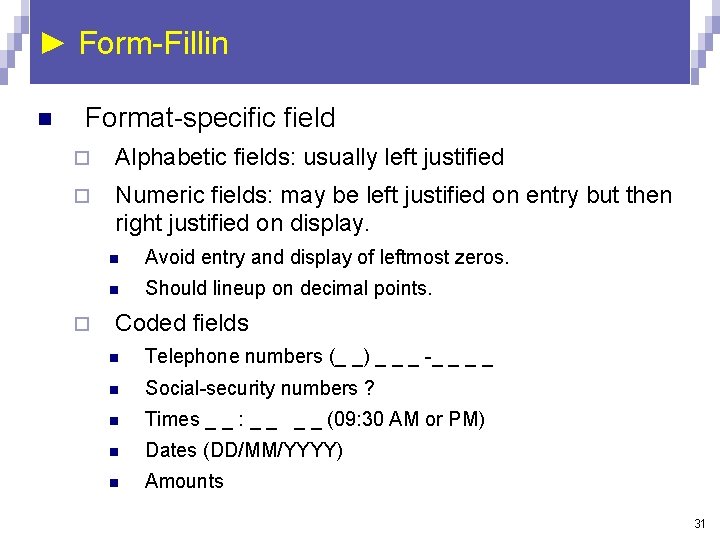
► Form-Fillin n Format-specific field ¨ Alphabetic fields: usually left justified ¨ Numeric fields: may be left justified on entry but then right justified on display. ¨ n Avoid entry and display of leftmost zeros. n Should lineup on decimal points. Coded fields n Telephone numbers (_ _) _ _ _ -_ _ n Social-security numbers ? n Times _ _ : _ _ (09: 30 AM or PM) n Dates (DD/MM/YYYY) n Amounts 31
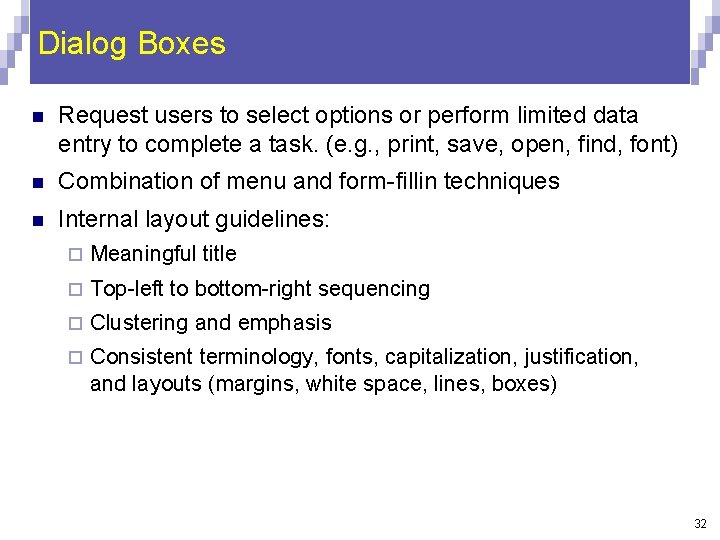
Dialog Boxes n Request users to select options or perform limited data entry to complete a task. (e. g. , print, save, open, find, font) n Combination of menu and form-fillin techniques n Internal layout guidelines: ¨ Meaningful title ¨ Top-left to bottom-right sequencing ¨ Clustering and emphasis ¨ Consistent terminology, fonts, capitalization, justification, and layouts (margins, white space, lines, boxes) 32
► Dialog Boxes n n External Relationship ¨ Size small enough to reduce overlap problems ¨ Display close to related items ¨ No overlap of required items For complex tasks, multiple dialog boxes may be needed. ¨ Tabbed dialog box can be used 33
Audio Menus and Menus for Small Displays n n Menu systems in small displays and situations where hands and eyes are busy are a challenge. Audio menus Verbal prompts and option descriptions ¨ Input is normally verbal or from keypad ¨ Not persistent, like a visual display, so memorization is required ¨ n Complex menu structures should be avoided ¨ Dial-ahead capabilities allow repeat users to skip through the prompts ¨ Voice recognition enables users to speak their options instead of hitting keys n Natural language processing is a challenge. e. g. , ¨ “Reserve two seats on the first flight tomorrow from New York to Washington” 34
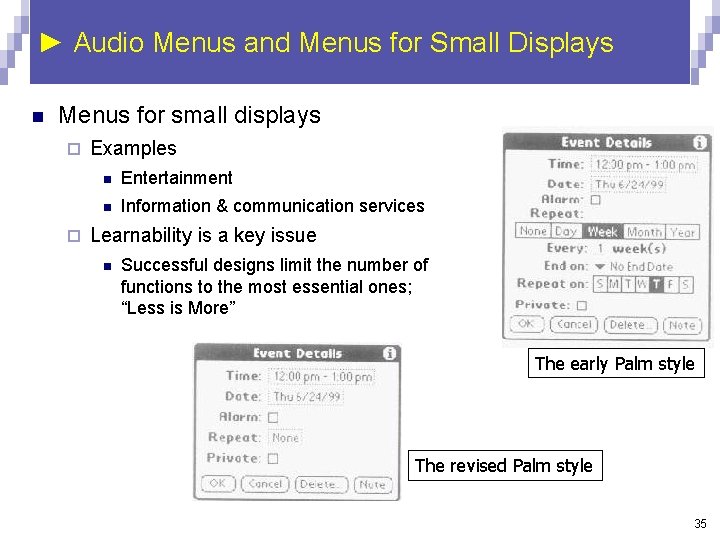
► Audio Menus and Menus for Small Displays n Menus for small displays ¨ ¨ Examples n Entertainment n Information & communication services Learnability is a key issue n Successful designs limit the number of functions to the most essential ones; “Less is More” The early Palm style The revised Palm style 35
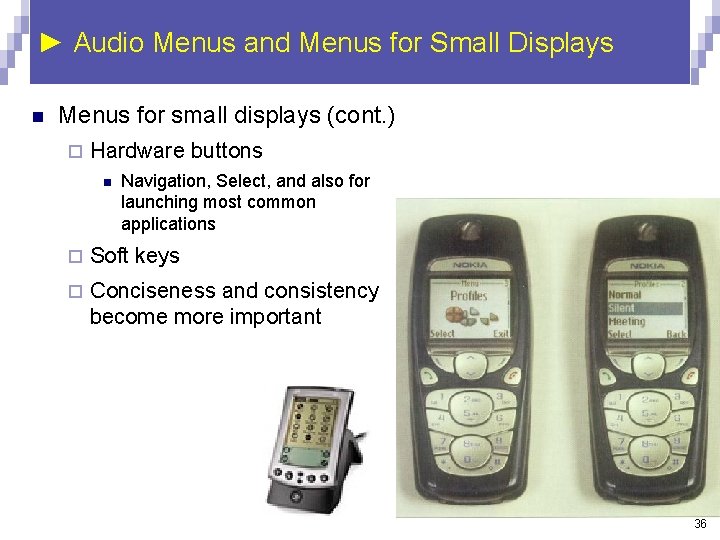
► Audio Menus and Menus for Small Displays n Menus for small displays (cont. ) ¨ Hardware buttons n Navigation, Select, and also for launching most common applications ¨ Soft keys ¨ Conciseness and consistency become more important 36
Skipped Sections The following section has been skipped: ¨ 7. 7. 4 Novel designs combining menus and direct manipulation 37