
Chapter 7 Introduction to Spreadsheets Objectives 1 Identify

Chapter 7 Introduction to Spreadsheets
Objectives 1. Identify uses of the spreadsheet in general as well as for healthcare applications. 2. Define basic terminology related to spreadsheets. 3. Review selected functions for using Excel 2010.
Common Spreadsheet Terms • • Spreadsheet Workbook Worksheet Template
Parts of a Worksheet • Rows are numbered and run horizontally • Columns are labeled with letters (A-Z) and run vertically down • Cell – a placeholder for data – Active cell is in use and is highlighted by an outline • Cell Address – label for each cell (A 1, B 23) • Range or block is a group of cells defined by upper-left and lower-right corners
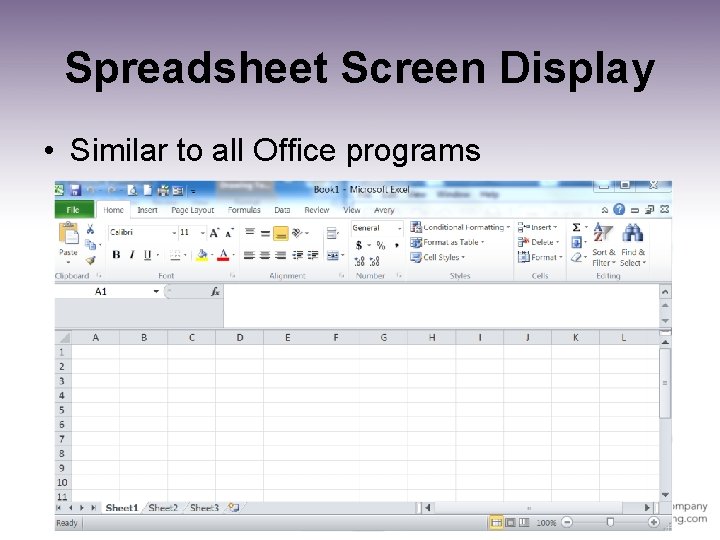
Spreadsheet Screen Display • Similar to all Office programs
Starting a Spreadsheet – Questions to Answer 1. What is the purpose of the spreadsheet? 2. What type of data is needed? 3. Are monthly, quarterly, or yearly time intervals needed? 4. Will comparisons of data be necessary between units or across time periods? 5. How many data elements or time intervals are there?
Creating a Worksheet 1. Name the file – follows file naming convention 2. Enter worksheet identifying information on first few rows 3. Enter labels for rows & columns 4. Enter the data 5. Enter formulas & functions
Creating a Worksheet (Cont. ) 6. 7. 8. 9. Format the data and labels Format the worksheet Create charts or graphs Print worksheets and/or graphs
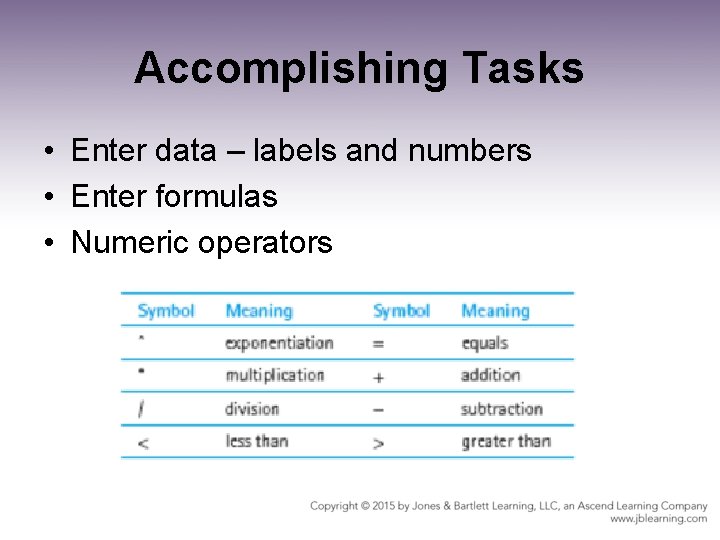
Accomplishing Tasks • Enter data – labels and numbers • Enter formulas • Numeric operators
Using Charts • Effective ways to display spreadsheet data • Chart terms: – Axis – Categories – Chart types – Data Series – Legend
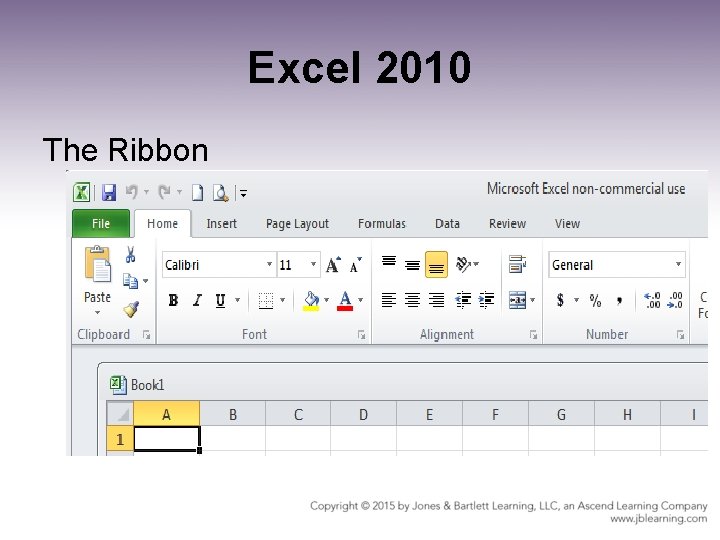
Excel 2010 The Ribbon
Excel Tabs • • File Home Insert Page Layout Formulas Data Review View
Moving Around the Worksheet • Arrow Keys Move one cell in direction of the arrow key • Tab Key Move one cell to the right • Shift+Tab Move one cell to the left • Ctrl + Home Move to beginning of worksheet
Moving around the Worksheet • Page Up/Down Move to the cell one screen up/down in same column • Alt+Page Up/Down Move to left/right one screen in same row • Ctrl+End Move to the intersection of last row and column containing data • Home Move to beginning of the row
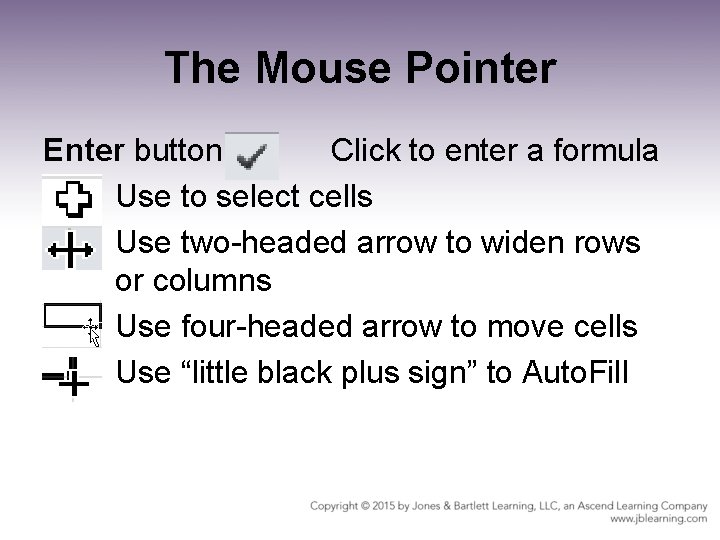
The Mouse Pointer Enter button Click to enter a formula Use to select cells Use two-headed arrow to widen rows or columns Use four-headed arrow to move cells Use “little black plus sign” to Auto. Fill
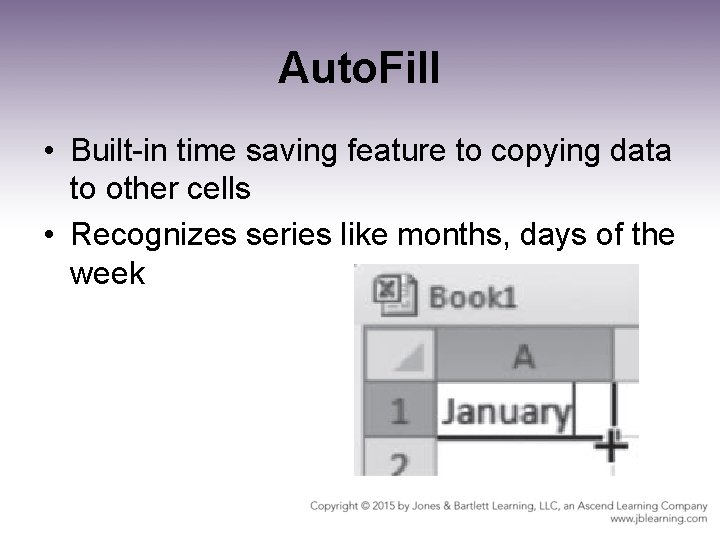
Auto. Fill • Built-in time saving feature to copying data to other cells • Recognizes series like months, days of the week
To Select Cells To Select Do This • A single cell • A range of cells • Click the cell • Click a cell at one end of series and drag mouse til all cells highlighted • Click row or column heading • Hold down Ctrl key while clicking desired areas • Click the rectangle at the left of the columns under the formula bar • Entire rows/columns • Multiple cells, rows, columns • Entire Worksheet
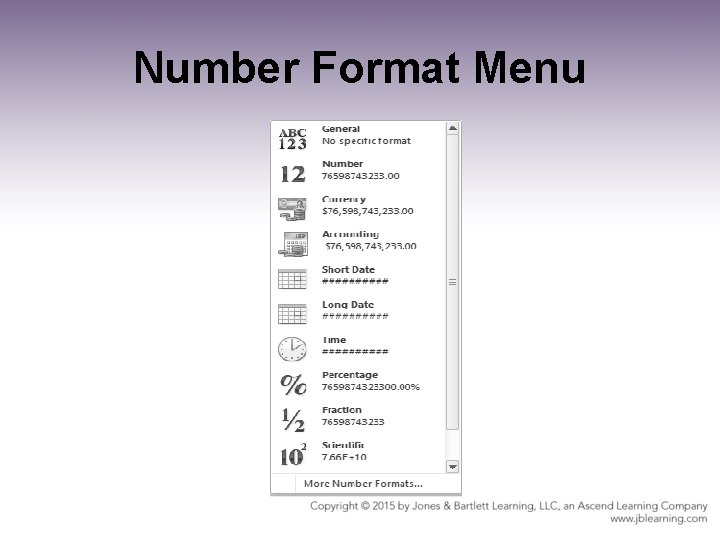
Number Format Menu
To Build a Formula/Function • Type an = sign in the cell where you want to place the formula • Type the formula by typing cell addresses or selecting cells with the mouse OR Type the function name (arguments) • Press enter or click the Enter icon
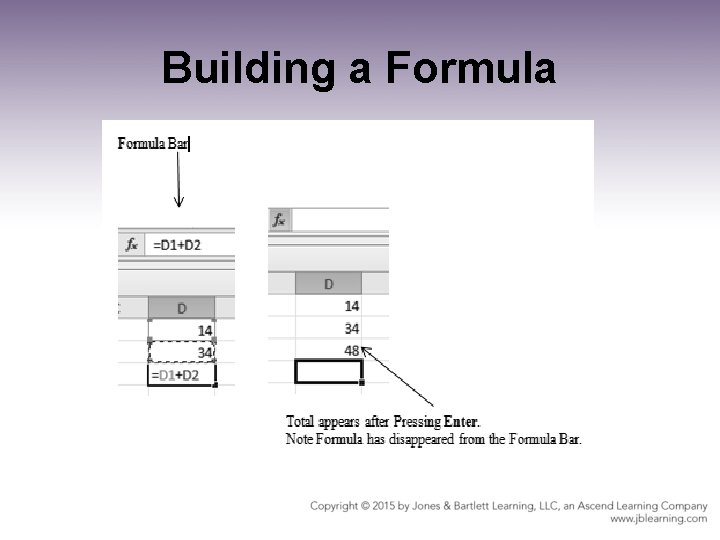
Building a Formula
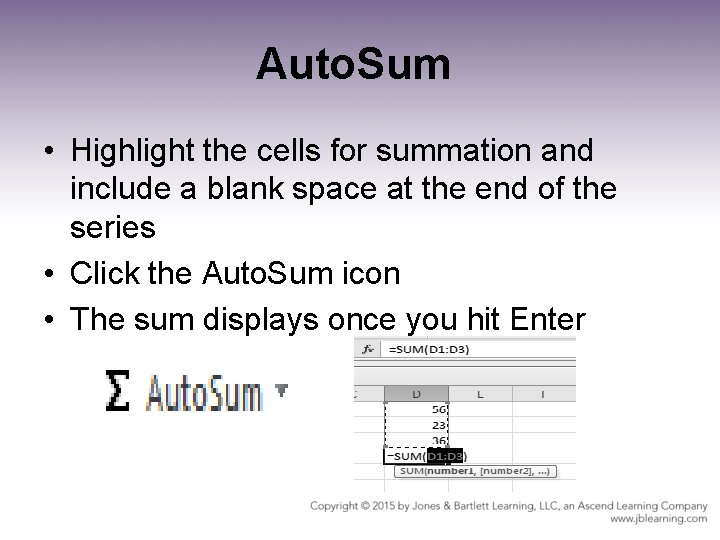
Auto. Sum • Highlight the cells for summation and include a blank space at the end of the series • Click the Auto. Sum icon • The sum displays once you hit Enter

Common Functions
Cell Addresses • Relative –designed to change when copied to other cells relative to its location on the worksheet • Absolute – addresses that remain the same when copied; shown by a $ sign before the row and column, row, or column number or letter • Sample - $A$5, $A 5, A$5
Sort and Filter • Sorting data places data in a column in a specified order A-Z or Z-A • Filtering data creates a data subset for viewing selected records in the spreadsheet
Graphing Data • Works just like in Power. Point • Important to select the correct chart type • Must select the correct data range
- Slides: 25