
Chapter 7 Creating Database Reports Guide to Oracle
Chapter 7: Creating Database Reports Guide to Oracle 10 g
Lesson A Objectives After completing this lesson, you should be able to: • Use the Reports Builder report styles • Use the Report Wizard to create a report • Configure the appearance of a report • View a report in a Web browser • Create a master-detail report Guide to Oracle 10 g 2
Lesson A Objectives (continued) • Create a custom template • Apply a custom template to a report Guide to Oracle 10 g 3
Introduction to Reports Builder Database Reports • Reports Builder – Allows application developers to create reports that display data from Oracle 10 g database • Developer 10 g – Reports Builder allows developers to preview and distribute reports in variety of different formats including: • Web pages • Portable document format (. pdf) files Guide to Oracle 10 g 4
Introduction to Reports Builder Database Reports (continued) • Layout styles: – – – – Tabular Form Mailing label Form letter Group left group above Matrix with group Guide to Oracle 10 g 5
Using the Report Wizard to Create a Report • Steps: – Specify data that report displays – Select report style – Configure report properties and layout • Report Wizard pages: – – Welcome Report type Style Data source Guide to Oracle 10 g 6
Using the Report Wizard to Create a Report (continued) • Report Wizard pages (continued): – Data – Fields • Shows data fields that SQL query returns – – Totals Labels Template Finish Guide to Oracle 10 g 7
Configuring the Report Appearance • Use Reports Builder environment to: – Modify report appearance – Customize report features • Paper Design window – – Default editing environment Refine appearance of reports Shows how report will appear on paper Can preview as Web page Guide to Oracle 10 g 8
Configuring the Report Appearance (continued) • Data Model button – Modify report data • Web Source button – Displays underlying HTML code • Defines how report will appear in Web browser • Paper Layout button – Opens report in Paper Layout view Guide to Oracle 10 g 9
Configuring the Report Appearance (continued) • Paper Parameter Form button – View parameter form – Parameter form • User selects input parameter values to customize form appearance and functionality at runtime • Save report design specification using variety of formats – Reports Builder design files • Rdf extension Guide to Oracle 10 g 10
Using the Report Wizard in Reentrant Mode • Reentrant mode – Modify SQL query • To use ORDER BY clause Guide to Oracle 10 g 11
The Reports Builder Object Navigator Window • Reports Builder object navigator – View report components in hierarchical tree structure – Access different components in Reports Builder environment – Access components of individual report • Reports – Top-level node Guide to Oracle 10 g 12
The Reports Builder Object Navigator Window (continued) • Other objects: – – – Templates PL/SQL libraries Debug actions Stack Built-in packages Database objects Guide to Oracle 10 g 13
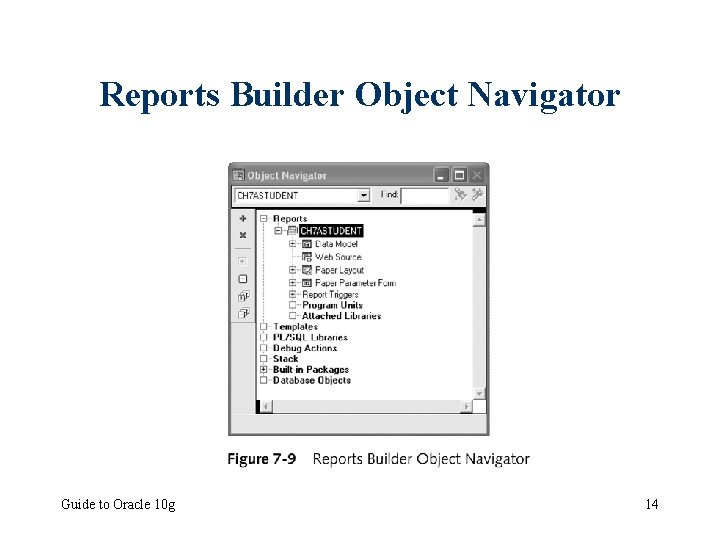
Reports Builder Object Navigator Guide to Oracle 10 g 14
Modifying the Report Appearance in the Paper Design Window • Report title appears in report margin – Area on page beyond where report data appears • Adjust column’s width – Select column – Drag to make it wider or narrower • Specify format masks for fields that display number and date data • Property Inspector Guide to Oracle 10 g 15
Modifying the Report Appearance in the Paper Design Window (continued) • Import graphic images into reports – Same as importing graphic images into forms Guide to Oracle 10 g 16
Closing and Reopening Reports • To close report: – Click File on menu bar – Click Close • To open report: – On Welcome to Reports Builder dialog • Click Open an existing report option button • Click OK Guide to Oracle 10 g 17
Viewing the Report as a Web Page • Preview report as Web page – Click Run Web Layout button • Web page source code – File with. htm extension – Contains HTML commands and text to represent report content and formatting Guide to Oracle 10 g 18
Viewing the Report as a Web Page (continued) • View formatting changes in Web page output – Preview report using either: • Paginated HTMLCSS format Guide to Oracle 10 g 19
Creating a Master-Detail Report • One record has many associated detail records – Through foreign key relationship • Use Report Wizard to specify report style and data values – Report’s SQL query must retrieve all master and detail values – Report Wizard displays groups page Guide to Oracle 10 g 20
Specifying the Style and Data • Create new report in object navigator – Select Reports node – Click Create button • Styles for creating master-detail reports – Group left – Group above Guide to Oracle 10 g 21
Using the Groups Page to Specify Master-Detail Relationships • Data in master-detail report has multiple levels • Each data level represents group – Top-level (master) group is level 1 • Specify report groups – Move fields for each group from available fields list to group fields list Guide to Oracle 10 g 22
Report Templates • Many reports that have similar appearance – Useful to create custom template to specify report appearance – Avoid performing same formatting tasks over and over again Guide to Oracle 10 g 23
Creating a Custom Template • Custom template defines: – Font sizes and styles for report’s • Title • Column headings • Data values – Text and background colors – Boilerplate objects • Store template definition in template definition file that has. tdf extension Guide to Oracle 10 g 24
The Paper Layout Template Editor Window • Environment within Paper Layout window – Used for editing templates • Similar to forms builder layout editor • Areas within painting region in report template – Margin – Body Guide to Oracle 10 g 25
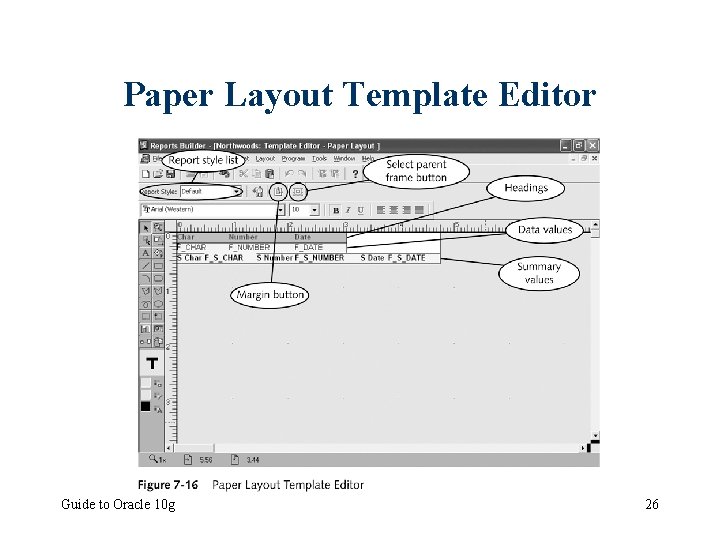
Paper Layout Template Editor Guide to Oracle 10 g 26
Editing Template Margins • Open margins for editing – Click Margin button Guide to Oracle 10 g 27
Editing the Template Body • Report body has two types of attributes: – Default – Override • Frame – Object that encloses similar objects within report • Parent frame – Frame that directly encloses object Guide to Oracle 10 g 28
Applying Custom Templates to Reports • Modify existing report’s template by – Opening Report Wizard in reentrant mode – Changing template specification Guide to Oracle 10 g 29
Applying Templates by Specifying the Template Filename • Select Template file specification option button on Report Wizard template page – Enter full folder path and filename of template file • Including drive letter • Quick and easy way to apply custom templates • Disadvantage – Template file must be available at specified file location whenever report file opened Guide to Oracle 10 g 30
Registering Custom Templates in Reports Builder • Appears in predefined templates list on template page • Advantage – Don’t have to specify path to template file – File does not always have to be available • Two-step process: – Modify developer user preferences file – Copy template file to Reports Builder templates folder Guide to Oracle 10 g 31
Registering Custom Templates in Reports Builder (continued) • • User preferences file Template description Template filename Template page displays thumbnail images of predefined templates – Create thumbnail image of custom template – Save screenshot as Bmp file Guide to Oracle 10 g 32
Lesson A Summary • Report – Summary view of database data that users can view on screen or print on paper • Create report – Specify data to appear in report – Select report style – Configure report properties and layout • Paper design window • The Reports Builder Object Navigator Guide to Oracle 10 g 33
Lesson A Summary (continued) • Create master-detail report using Report Wizard • Report template – Defines report appearance Guide to Oracle 10 g 34
Lesson B Objectives After completing this lesson, you should be able to: • Describe the components of a report • Modify report components • Modify the format of master-detail reports • Create parameters to allow the user to customize report data Guide to Oracle 10 g 35
Report Components • Data Model – Specifies data that report displays • Paper Layout view – Displays report components as symbolic objects • Report frames – Group related report objects Guide to Oracle 10 g 36
The Data Model Window • Shows report’s SQL query and associated record groups • Report record group – Set of records represents data fields that query retrieves • Simple tabular report has single record group • Master-detail report has multiple record groups • Components in report Data Model have properties – Inspect using Property Inspector Guide to Oracle 10 g 37
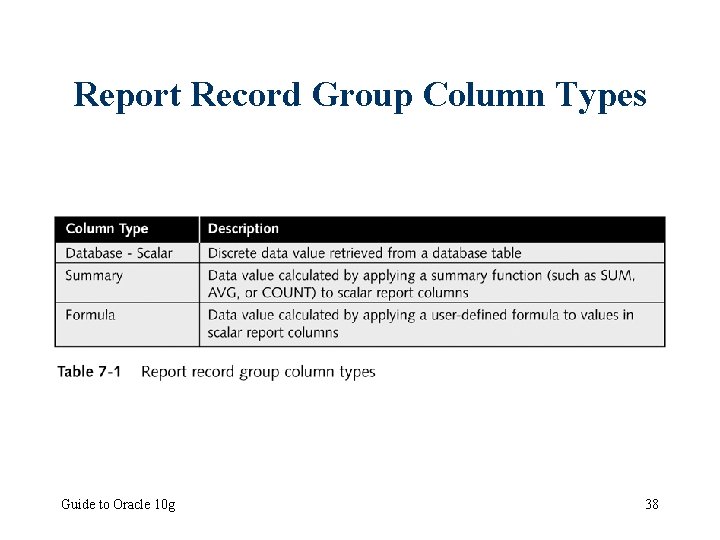
Report Record Group Column Types Guide to Oracle 10 g 38
The Data Model Window (continued) • Group filter – Uses some criteria to limit number of records that report query retrieves – To create: • Assign value to filter type property Guide to Oracle 10 g 39
Understanding Report Objects • Repeating rows – Each row shows same data fields with different data values • Report sections: – Header – Main – Trailer Guide to Oracle 10 g 40
Report Frames • Frames – Containers for grouping related report objects – Set specific properties for group of objects • Rather than having to set property for each item • Group frame – Encloses repeating frame and optional header frame Guide to Oracle 10 g 41
Report Frames (continued) • Repeating frame – Encloses repeating data rows – Has variable sizing • Header frame – Encloses all column headings for record group • Move object outside enclosing frame – Error message appears in Reports Builder Guide to Oracle 10 g 42
Report Frames (continued) • Report Wizard derives frame names from names of associated record groups • Select specific report frame in Paper Layout window – Select item that in frame – Select item’s parent frame by clicking Select Parent Frame button • Change frame properties on frame Property Inspector Guide to Oracle 10 g 43
Components of a Master-Detail Report • Multiple record groups • Multiple group frames Guide to Oracle 10 g 44
Master-Detail Data Model • More complex than Data Model for single-table report – Contains multiple record groups • Data Model groups report record groups according to master-detail relationships – Each data link between two record groups represents master-detail relationship Guide to Oracle 10 g 45
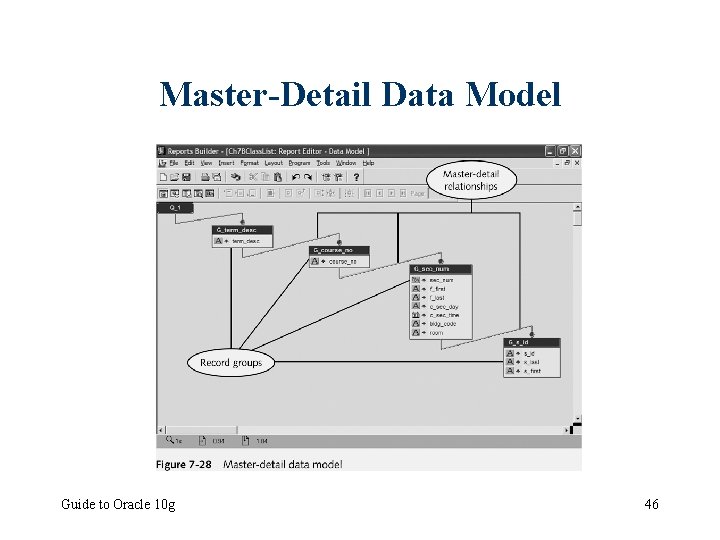
Master-Detail Data Model Guide to Oracle 10 g 46
Master-Detail Report Frames • Each record group has associated group frame – Group frames for more detailed record groups nested inside group frames for less detailed record groups • Frame relationships can be hard to see – Many frames appear directly on top of each other – Open frame Property Inspector immediately after selecting frame • To check frame name Guide to Oracle 10 g 47
Modifying Master-Detail Report Properties • Page break between sets of repeating records – Open Property Inspector for repeating frame – Change Maximum Records per Page property to 1 • Confine mode – Determines objects can be moved outside enclosing frames – Always safest to leave enabled Guide to Oracle 10 g 48
Modifying Master-Detail Report Properties (continued) • Flex mode – Enclosing frame automatically becomes larger – When enclosed object moved beyond enclosing frame’s boundary – Overrides confine mode – When moving report layout field • Automatically resizes all surrounding frames – Works well when to make a frame longer • But not wider Guide to Oracle 10 g 49
Modifying Master-Detail Report Properties (continued) • Elasticity – Determines whether field’s size fixed – Or whether field can expand or contract automatically • Depending on height and width of retrieved data value Guide to Oracle 10 g 50
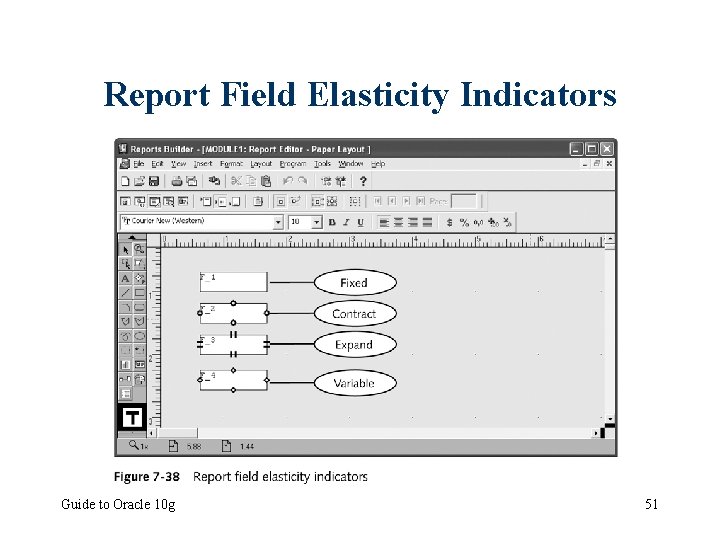
Report Field Elasticity Indicators Guide to Oracle 10 g 51
Report Parameters • Specifies how report appears • Specifies report’s behavior when it runs • Types: – System – User Guide to Oracle 10 g 52
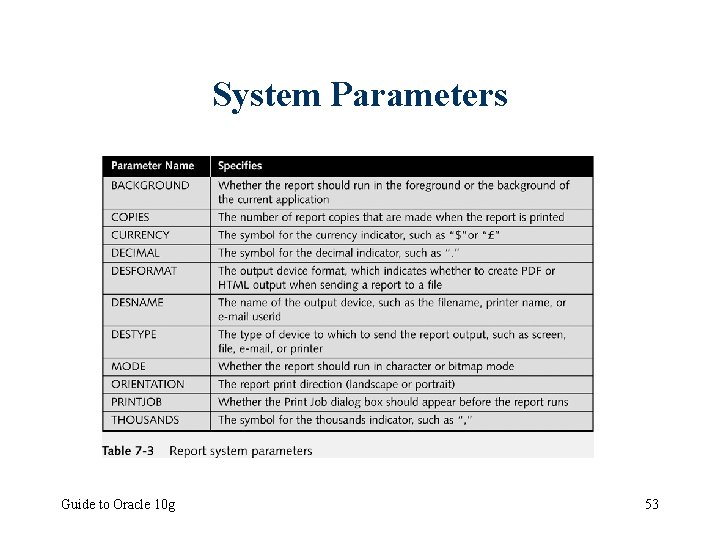
System Parameters Guide to Oracle 10 g 53
User Parameters • User selects user parameter value from parameter list • Parameter list – Shows possible values • Modify report to include user parameter – Create parameter list – Modify report query to use parameter as search condition Guide to Oracle 10 g 54
User Parameters (continued) • Parameter object name • Parameter data type • Configure list of values property in user parameter Property Inspector • Syntax: – : parameter_name • Parameter form – Displays title and hint line list of one or more parameters with associated prompts. Guide to Oracle 10 g 55
Customizing the Report Parameter Form • • • Change text that appears in title and hint line Reposition form items Add additional text and graphics Use parameter form builder utility Also lists all of system parameters – User can modify at runtime Guide to Oracle 10 g 56
Lesson B Summary • Data Model window shows: – Report query – Record groups it generates – Data links between query and record group • Create group filter – To limit number of records report query retrieves • Paper Layout window displays layout field for each Data Model column Guide to Oracle 10 g 57
Lesson B Summary (continued) • Frames – Containers for grouping report record group data items and column headings • Report parameters – System – User Guide to Oracle 10 g 58
Lesson C Objectives After completing this lesson, you should be able to: • Display image data in a report • Manually create queries and data links • Create summary columns • Create formula columns • Create reports that display formatted data in a Web browser window Guide to Oracle 10 g 59
Displaying Image Data in Reports • Store image data with LOB data type • Create report based on table that has field with BLOB data type – And contains image data Guide to Oracle 10 g 60
Creating and Configuring the Report Image Layout Fields • Use Report Wizard to create report – All data fields automatically appear as text – If column contains multimedia data • Data appears as text characters “MM” • Modify field by: – Opening Property Inspector – Changing File Format property to image Guide to Oracle 10 g 61
Creating Report Queries and Data Links Manually • Create query manually – – Retrieve master records Create query manually that retrieves detail records Create data link between two queries, Create layout fields to display query data Guide to Oracle 10 g 62
Creating Queries and Data Links Manually (continued) • Create query manually (continued) – – Open Data Model window Select SQL query tool Click in painting region Type SQL query • Manually create data links to represent masterdetail relationships between queries – Master = parent – Detail = child Guide to Oracle 10 g 63
Creating Queries and Data Links Manually (continued) • Types of data links – Query to Query – Group to Group – Column to Column Guide to Oracle 10 g 64
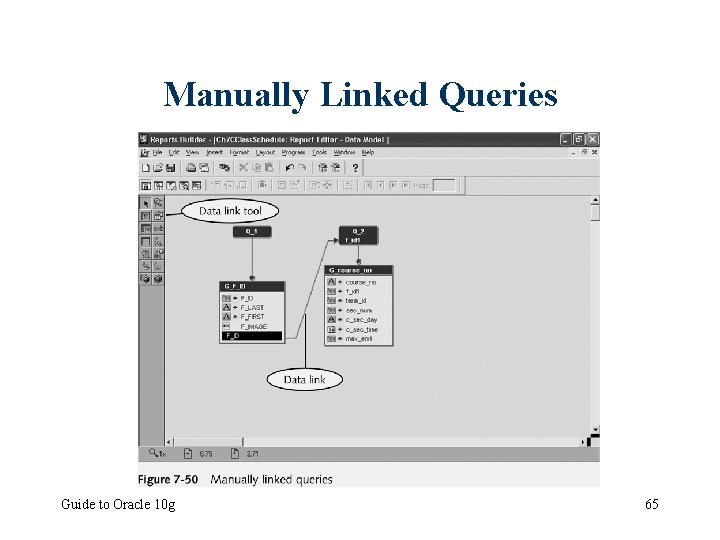
Manually Linked Queries Guide to Oracle 10 g 65
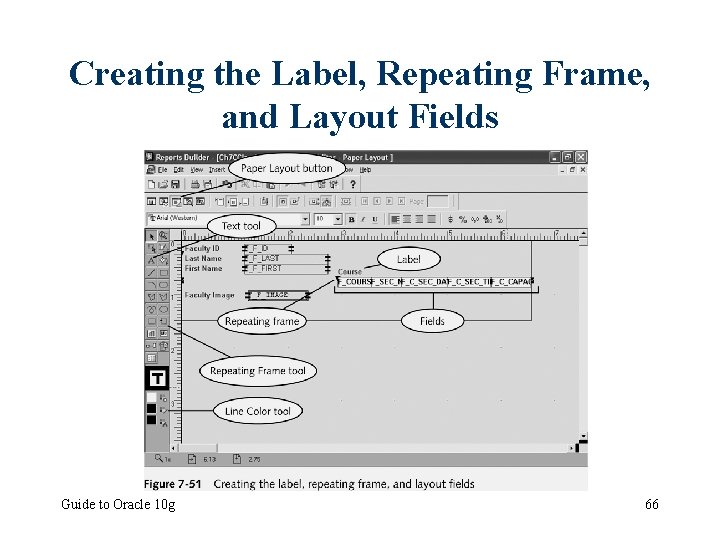
Creating the Label, Repeating Frame, and Layout Fields Guide to Oracle 10 g 66
Creating Reports that Display Calculated Values • Formula columns – Display values that PL/SQL functions calculate using report data field values as input parameters • Summary columns – Perform summary functions Guide to Oracle 10 g 67
Creating Formula Columns • Function – Self-contained program block – Returns single value • User-defined functions – Use PL/SQL commands to calculate return value • Formula column – Displays value that user-defined function returns Guide to Oracle 10 g 68
Creating Formula Columns (continued) • Create and display formula column – Create formula column in report Data Model – Write user-defined function – Create layout field in report Guide to Oracle 10 g 69
Creating a Formula Column in the Report Data Model • Click Formula Column tool • Be careful to place formula column in same record group as columns that formula function uses in calculations Guide to Oracle 10 g 70
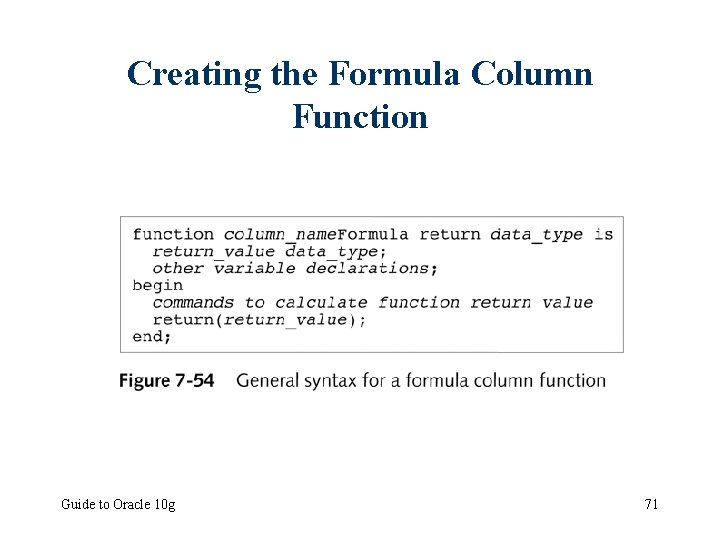
Creating the Formula Column Function Guide to Oracle 10 g 71
Creating a Layout Field to Display the Formula Column • Display formula column on report – Open Paper Layout window – Use Field tool to create new report layout field – Place layout field in same repeating frame as source values formula – Set new field’s Source property to name of formula column Guide to Oracle 10 g 72
Creating Summary Columns • Summary column – Returns summary value of series of data fields in repeating frame • Create – Using totals page in Report Wizard – Manually Guide to Oracle 10 g 73
Creating a Summary Column Using the Report Wizard • Select field to be summarized and summary function on Report Wizard totals page • Wizard automatically: – Modifies report Data Model – Creates fields to display summary column on report layout Guide to Oracle 10 g 74
Creating a Summary Column Manually • Using Report Wizard – Eliminates all custom formatting – Deletes custom objects • Create summary column manually – Control summary column placement and frequency – Retain other custom objects Guide to Oracle 10 g 75
Creating a Summary Column Manually (continued) • Tasks: – Create summary column in report Data Model • Using summary column tool – Modify summary column properties – Create layout field • Place layout field in repeating frame that corresponds to record group that contains summary column Guide to Oracle 10 g 76
Displaying Formatted Reports as Web Pages • View report in Paginated HTML or Paginated HTMLCSS format – Reports Builder translates report into static Web page – Content fixed at time developer generates page – Not updated with database changes Guide to Oracle 10 g 77
Using the Oracle 10 g Application Server to Generate Reports Dynamically • Oracle 10 g Application Server (OAS) – Web server Oracle corporation uses to deliver Web -based Oracle 10 g database applications to users • Report Server process – Queries database when user requests report – Generates dynamic Web page – Displays current database data Guide to Oracle 10 g 78
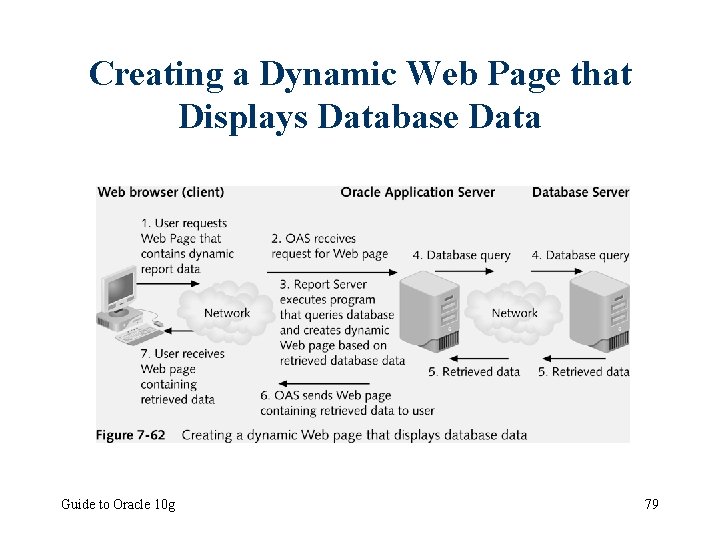
Creating a Dynamic Web Page that Displays Database Data Guide to Oracle 10 g 79
Creating Reports that Appear as Dynamic Web Pages • Create report using techniques learned in this chapter • Save report in either: – Report definition file (RDF) – Java server page ( JSP) format Guide to Oracle 10 g 80
Creating Reports that Appear as Dynamic Web Pages (continued) • Techniques for modifying appearance of Web reports: – Use Web source window to modify default formatting – Open existing HTML file in Reports Builder that contains formatting for report • Use Reports Builder to add commands to retrieve and display report data Guide to Oracle 10 g 81
Overview of HTML Documents • Text file with. htm or. html extension • Contains formatting symbols called tags – – Define how Web page appears in Web browser Enclose in angle brackets Opening tag Closing tag • Elements – Represent content that appears on Web page such as text and graphic images Guide to Oracle 10 g 82
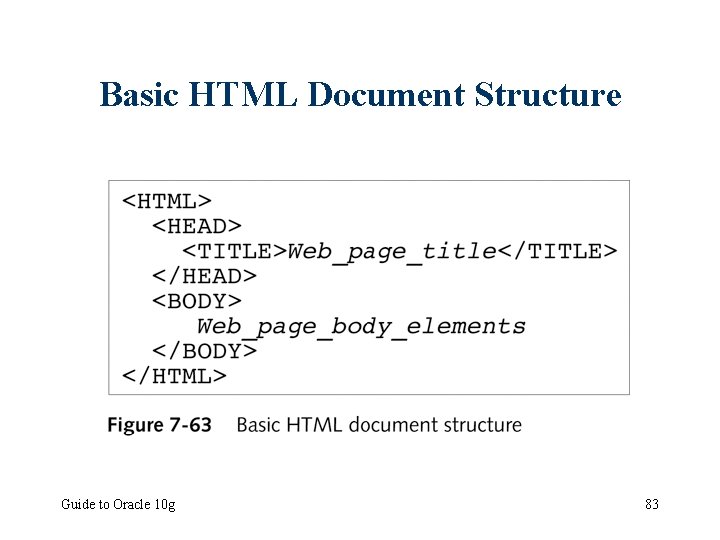
Basic HTML Document Structure Guide to Oracle 10 g 83
Viewing the Report Web Source File • Web source file contains – HTML tags that define report appearance – Program commands that create dynamic report elements • Web report embeds program commands using tags – Similar to html tags – Prefaced by rw: – Same for reports in either format Guide to Oracle 10 g 84
Viewing the Report Web Source File (continued) • Java commands appear enclosed in the <% and %> command delimiters • Data area – Contains commands that dynamically retrieve and display report data – Follow html comment with text <!--Data Area Generated by Reports Developer --> Guide to Oracle 10 g 85
Modifying the Default Appearance of a Web Report • Techniques for modifying appearance of Web reports: – Use Web Source window to modify default formatting – Open existing HTML file in Reports Builder that contains formatting for report • Use Reports Builder to add commands to retrieve and display report data Guide to Oracle 10 g 86
Modifying the Default Appearance of a Web Report (continued) • Report Block Wizard pages: – – – Style page Groups page Fields page Labels page Template page Guide to Oracle 10 g 87
Lesson C Summary • Create report displays LOB data field • Manually create queries and data links in Data Model view – Create layout fields to display values that queries retrieve • Create formula and summary columns • Oracle 10 g Application Server (OAS) – Display dynamic reports Guide to Oracle 10 g 88
Summary • Report – Summary view of database data that users can view on screen or print on paper • • • Report template Data Model window Paper Layout window Frames Oracle 10 g Application Server (OAS) Guide to Oracle 10 g 89
- Slides: 89