
Chapter 6 Standard server controls 11 Bakul Ahluwalia
Chapter 6 Standard server controls #11 Bakul Ahluwalia Pg: 191 -209
Overview • An introduction to server controls. • How to work with button controls. • How to work with text boxes, labels , check boxes, and radio buttons. • C# code for working with these controls.

An introduction to server controls • Types of server controls • The web server controls presented in this chapter • How to handle control events • How to use access key with web server controls • How to set the focus on a web server control • How to set the default button control
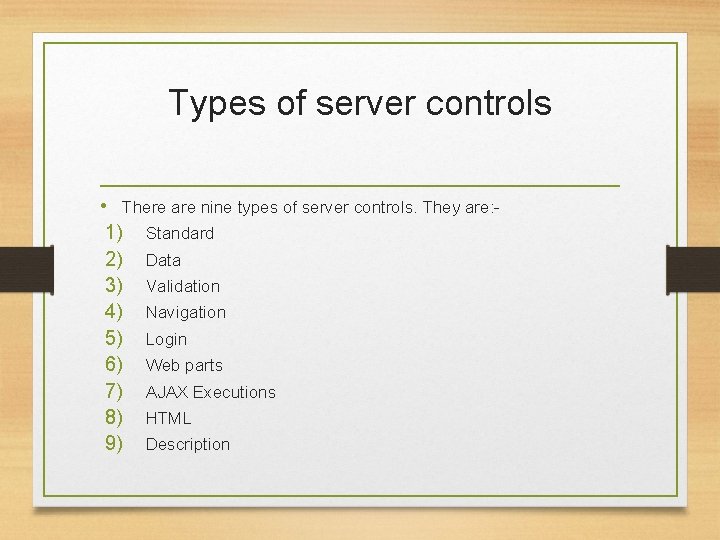
Types of server controls • There are nine types of server controls. They are: 1) Standard 2) Data 3) Validation 4) Navigation 5) Login 6) Web parts 7) AJAX Executions 8) HTML 9) Description
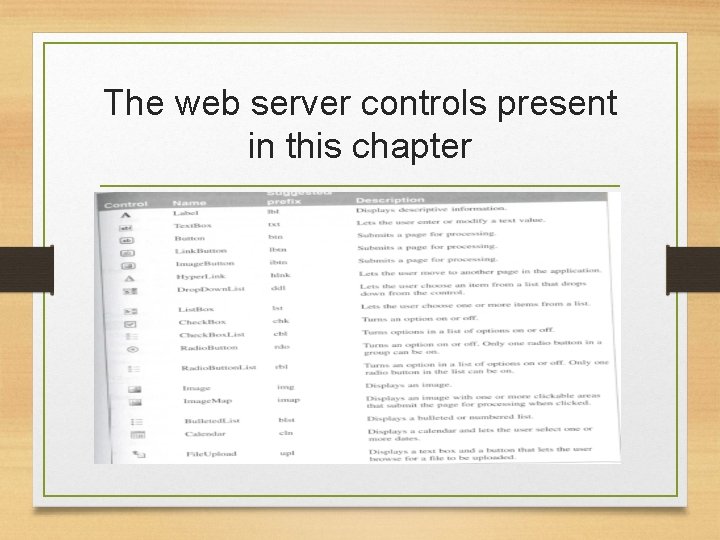
The web server controls present in this chapter
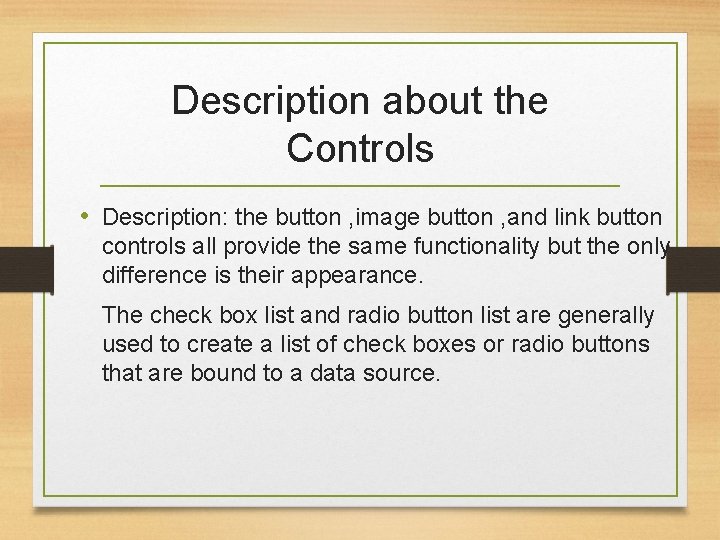
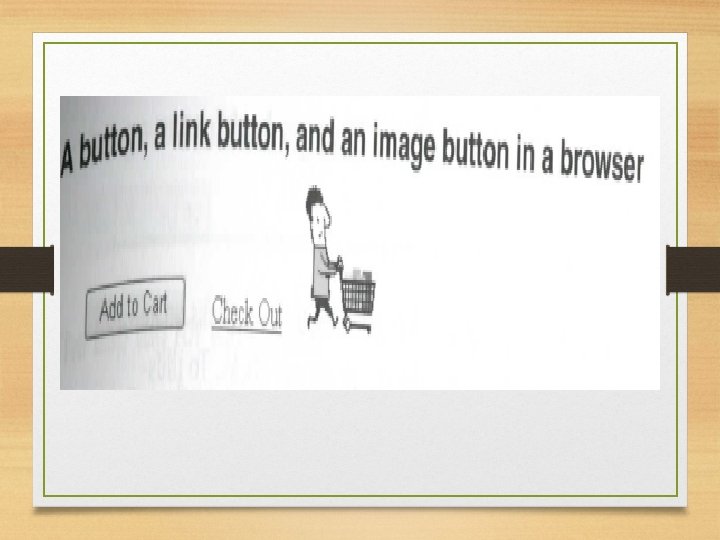
Description about the Controls • Description: the button , image button , and link button controls all provide the same functionality but the only difference is their appearance. The check box list and radio button list are generally used to create a list of check boxes or radio buttons that are bound to a data source.
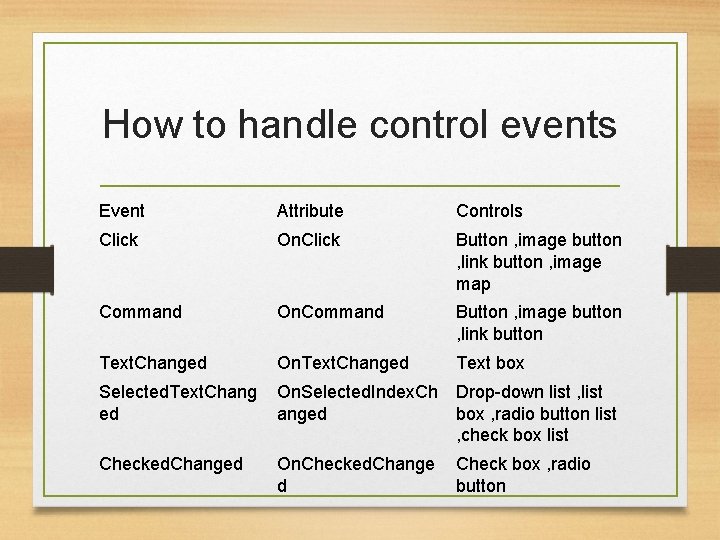
How to handle control events Event Attribute Controls Click On. Click Button , image button , link button , image map Command On. Command Button , image button , link button Text. Changed On. Text. Changed Text box Selected. Text. Chang ed On. Selected. Index. Ch Drop-down list , list anged box , radio button list , check box list Checked. Changed On. Checked. Change d Check box , radio button
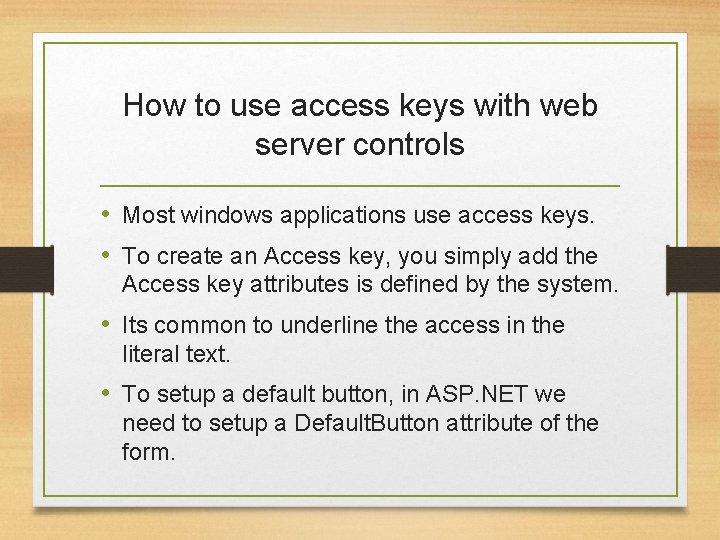
How to use access keys with web server controls • Most windows applications use access keys. • To create an Access key, you simply add the Access key attributes is defined by the system. • Its common to underline the access in the literal text. • To setup a default button, in ASP. NET we need to setup a Default. Button attribute of the form.
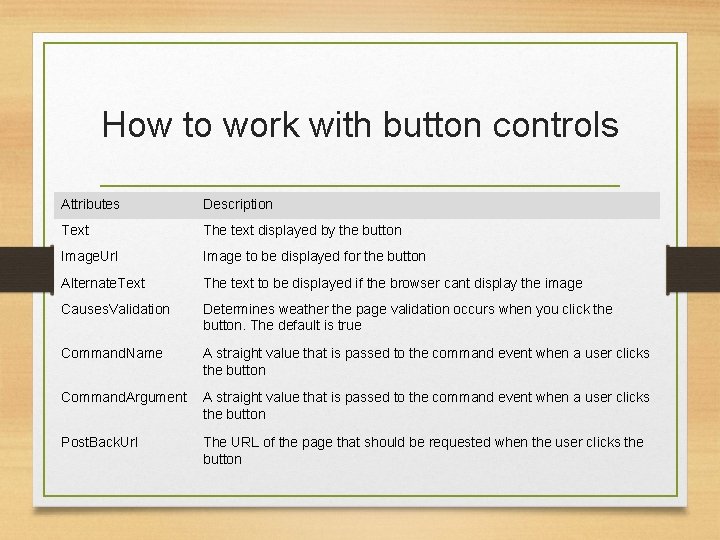
How to work with button controls Attributes Description Text The text displayed by the button Image. Url Image to be displayed for the button Alternate. Text The text to be displayed if the browser cant display the image Causes. Validation Determines weather the page validation occurs when you click the button. The default is true Command. Name A straight value that is passed to the command event when a user clicks the button Command. Argument A straight value that is passed to the command event when a user clicks the button Post. Back. Url The URL of the page that should be requested when the user clicks the button
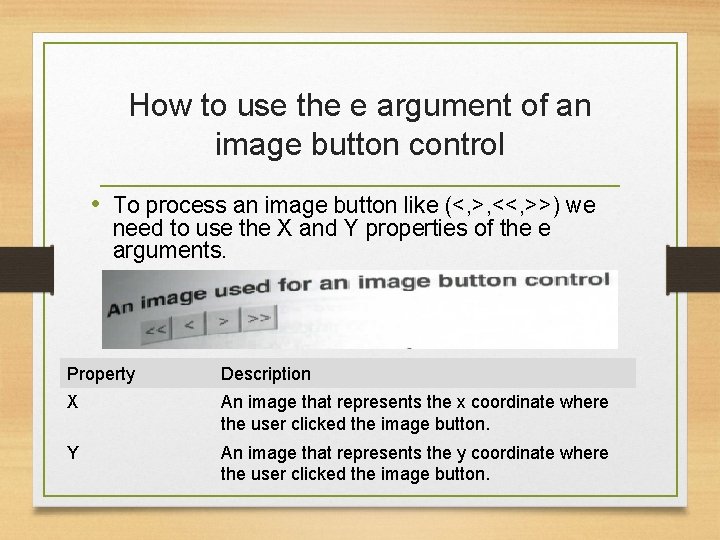
How to use the e argument of an image button control • To process an image button like (<, >, <<, >>) we need to use the X and Y properties of the e arguments. Property Description X An image that represents the x coordinate where the user clicked the image button. Y An image that represents the y coordinate where the user clicked the image button.
How to use the Command event • The two properties of the Command. Eventargs class are how to work and process the event handler. Properties Property Command. Name of. Description the Command. Event. Args class The value specified in the Command. Name property for the control that generated the Command event. Command. Argume The value specified in the Command. Argument nt property for the control that generated the Command event.
How to work with text boxes, labels, check boxes, and radio buttons. • Common text box attributes Attributes Description Text. Mode The type of text box. Single. Line creates a standard text box. Text The text content of the text box Max. Length The maximum number of characters that can be entered into the text box Wrap Determine whether or not text wraps automatically when it reaches the end of a multi-line text boxes. The default is true Read. Only Determines whether the user can change the text in the text box. Columns The width of the text box in characters'.
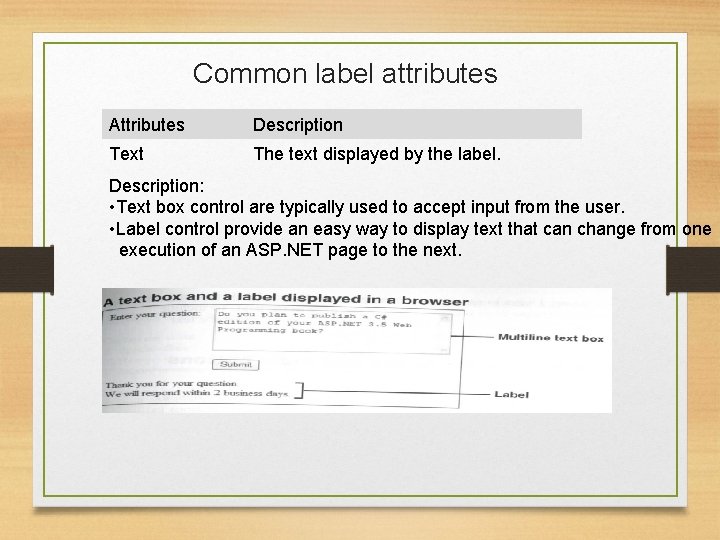
Common label attributes Attributes Description Text The text displayed by the label. Description: • Text box control are typically used to accept input from the user. • Label control provide an easy way to display text that can change from one execution of an ASP. NET page to the next.
How to work with check boxes and radio buttons. • Instead of entering text into a form , a user must be provided with a select options. • To create a group of radio buttons we simply give the Group. Name attribute of each radio button in the group. Common check box and radio button attributes Attributes Description Text The text that is displayed next to the check box or radio button Checked Indicates whether the check box or radio button is selected Group. Nam e The name of the group that the control belongs to.
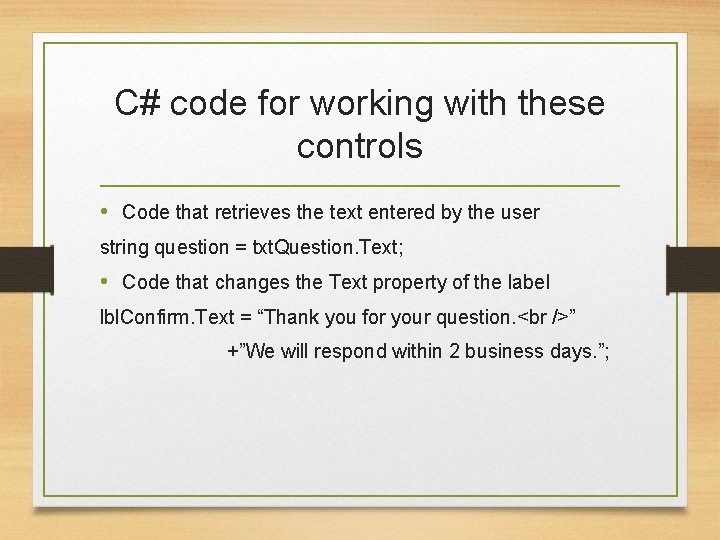
C# code for working with these controls • Code that retrieves the text entered by the user string question = txt. Question. Text; • Code that changes the Text property of the label lbl. Confirm. Text = “Thank you for your question. ” +”We will respond within 2 business days. ”;
Thank You!!
- Slides: 17