
Chapter 6 Server Configuration 1 Learning Objectives Chapter
Chapter 6: Server Configuration 1
Learning Objectives Chapter 6 n n Explain how to use the tools in the Control Panel Install and configure the display, pointing devices, keyboard, computer hardware, recovery options, protocols, and additional Windows 2000 Server components 2
Learning Objectives (continued) Chapter 6 n Use the Device Manager to view hardware properties and troubleshoot problems 3
Control Panel Chapter 6 n n The Control Panel is one of the first places to start when configuring a server The Control Panel is like a control center from which to customize Windows 2000 Server for devices, network connectivity, and other functions 4
Accessing the Control Panel Chapter 6 n Three ways to access the Control Panel are: u Click Start, point to Settings, and click Control Panel u Open Control Panel from My Computer u Open Control Panel from Windows Explorer via the My Computer option 5
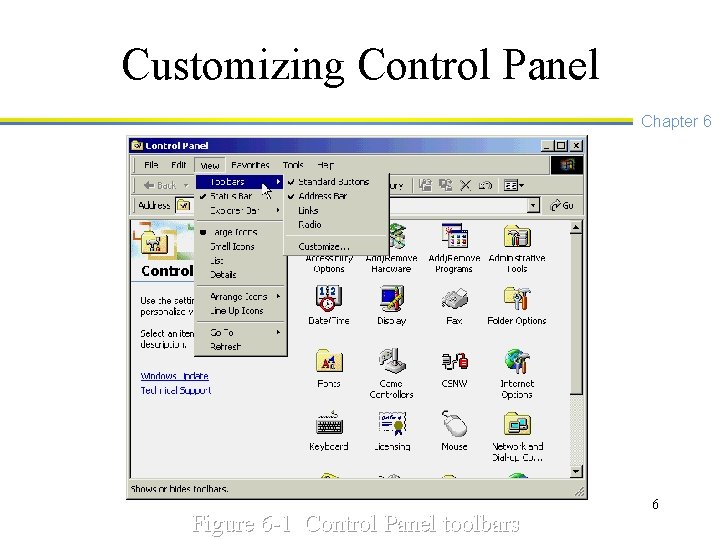
Customizing Control Panel Chapter 6 Figure 6 -1 Control Panel toolbars 6
Accessibility Options Chapter 6 n The Accessibility Options tool is for accommodating visual, audio, and sensory needs of the user 7
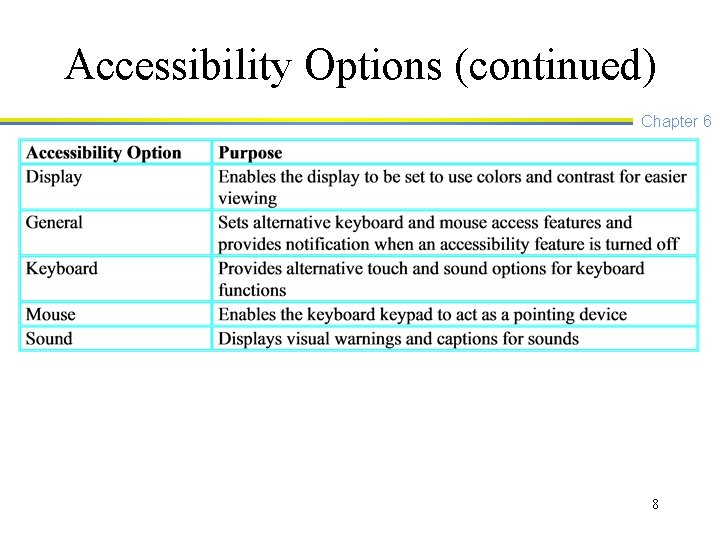
Accessibility Options (continued) Chapter 6 8
Add/Remove Hardware Chapter 6 n Use the Add/Remove Hardware tool to install new hardware, remove hardware, unplug a device, and make sure that a device is functioning 9
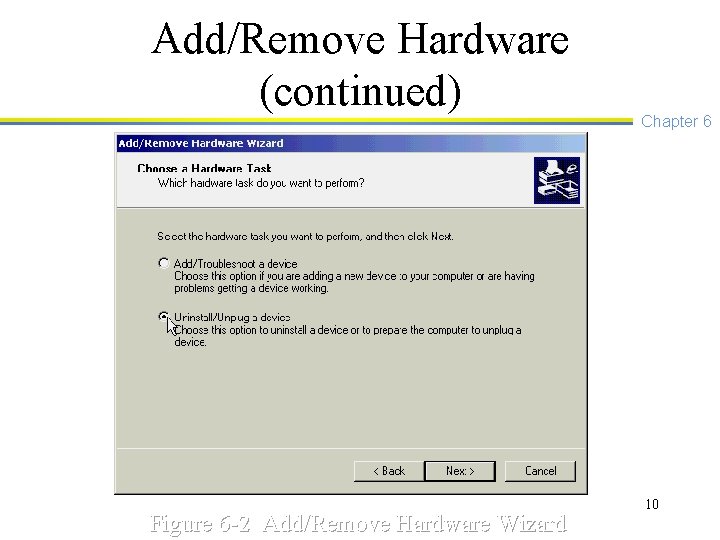
Add/Remove Hardware (continued) Figure 6 -2 Add/Remove Hardware Wizard Chapter 6 10
Add/Remove Programs Chapter 6 n n Use the Add/Remove Programs tool to install new software and to remove software A vital function of Add/Remove Programs is to enable you to add and remove Windows 2000 components 11
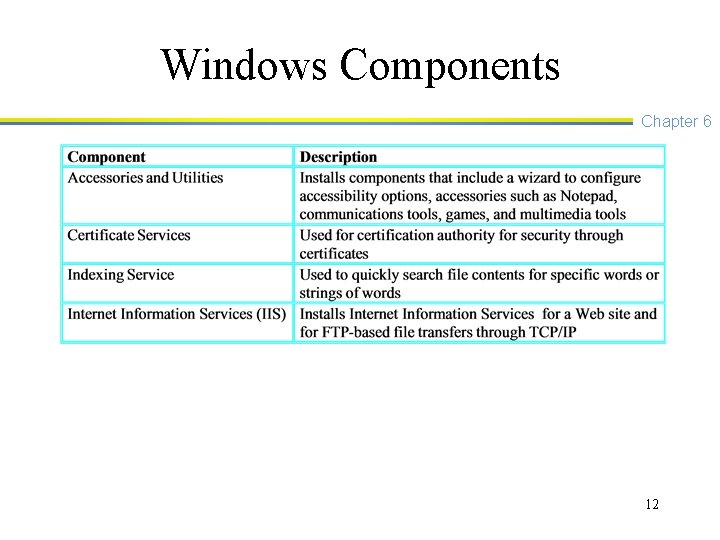
Windows Components Chapter 6 12
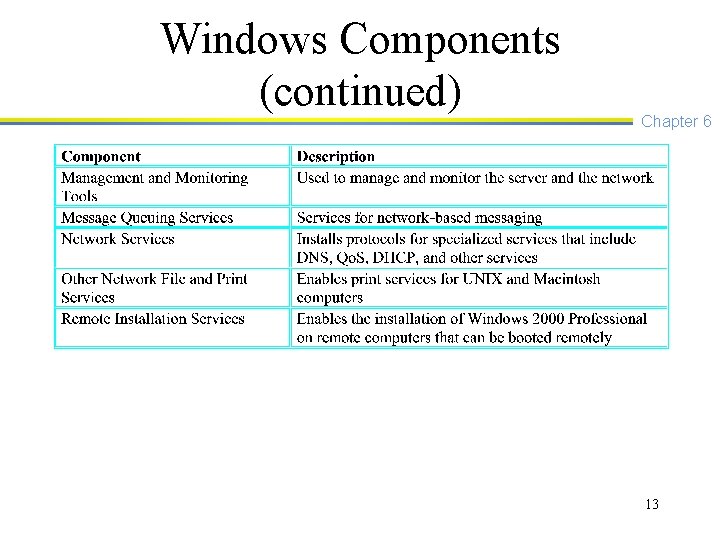
Windows Components (continued) Chapter 6 13
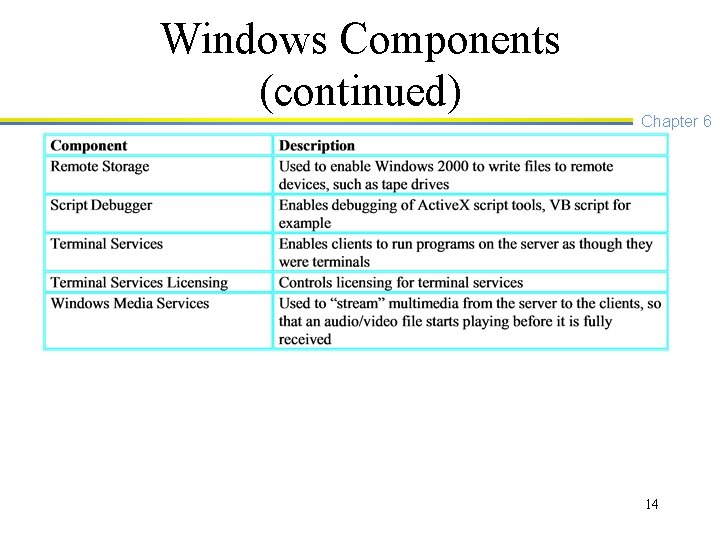
Windows Components (continued) Chapter 6 14
Administrative Tools Chapter 6 n Provides shortcuts to the Windows 2000 Server administrative tools, such as tools to manage user accounts, the Active Directory, and IIS 15
Date/Time Chapter 6 n The Date/Time tool is used to configure the calendar, date, time, and time zones. 16
Display Chapter 6 n The Display tool configures video characteristics such as the desktop background, display colors and resolution, and the appearance of title bars 17
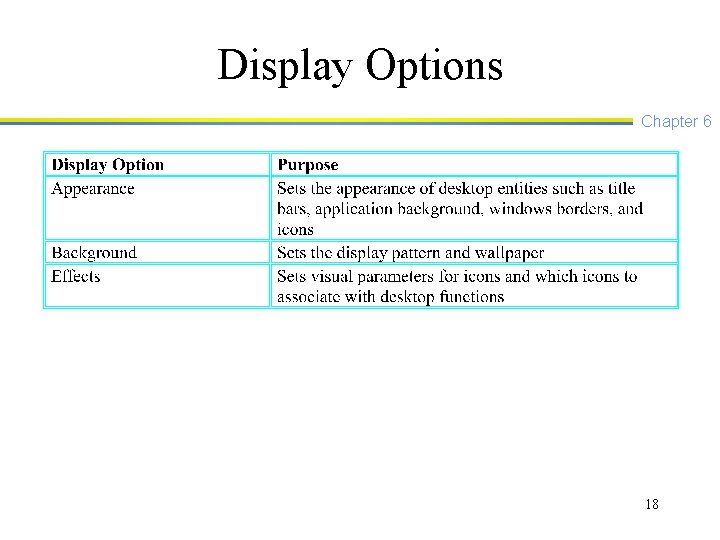
Display Options Chapter 6 18
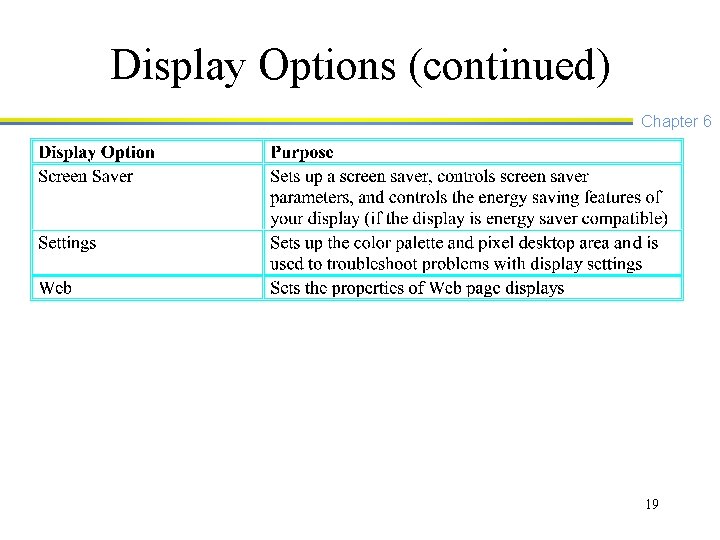
Display Options (continued) Chapter 6 19
Folder Options Chapter 6 n Use the Folder Options tool to customize My Computer, Windows Explorer, and desktop options 20
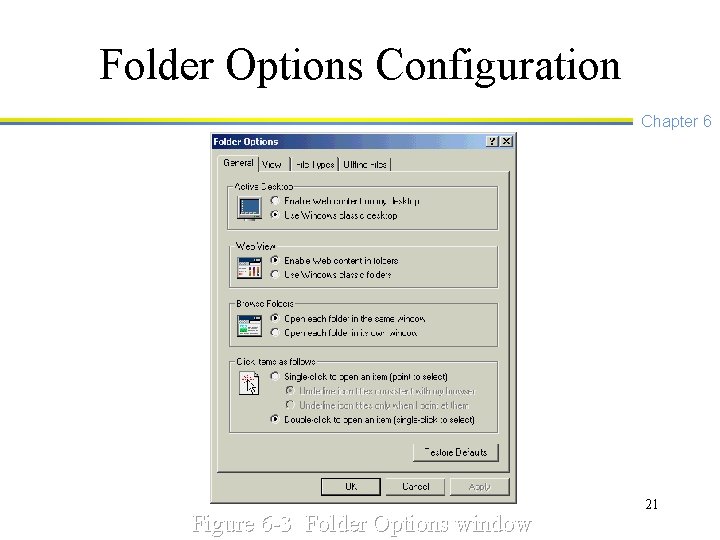
Folder Options Configuration Chapter 6 Figure 6 -3 Folder Options window 21
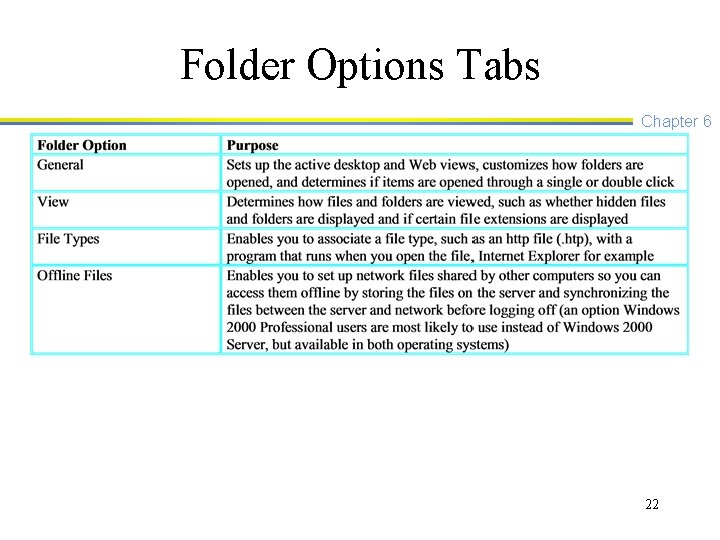
Folder Options Tabs Chapter 6 22
Fonts Chapter 6 n The Fonts tool is used to install, remove, and manage fonts in Windows 2000 23
Game Controllers Chapter 6 n Included more for compatibility with Windows 2000 Professional and enables the setup of game controllers, such as a controller in an expansion slot or connected to a USB port 24
GSNW Chapter 6 n The GSNW tool enables you to configure and manage Gateway Services for Net. Ware, when the Windows 2000 server is setup up to offer a gateway to files on a Net. Ware server 25

Internet Options Chapter 6 n The Internet Options tool is used to customize Internet access, such as the home Web page, storage of temporary files, and security 26
Keyboard Chapter 6 n The Keyboard tool is used to customize keyboard parameters such as the repeat rate and cursor blink rate 27
Licensing Chapter 6 n The Licensing tool is used to manage licenses and is the place in which to add more licenses when they are purchased as your network grows 28
Mail and Fax Chapter 6 n The Mail and Fax tool enables you to configure the Windows 2000 Server mail and fax services, such as mail reception options and information about each fax user and fax cover pages 29
Mouse Chapter 6 n Use the Mouse tool to configure mouse properties such as pointer symbols and the mouse response rate 30
Network and Dial-up Connections n Chapter 6 The Network and Dial-up Connections tool is one you will come to rely on for configuring all kinds of network connections, configuring protocols, and managing other network properties 31
Troubleshooting Tip Chapter 6 n Use the Network and Dial-up Connections tool to temporarily disconnect a server from the network while you are maintaining it or fixing a problem 32
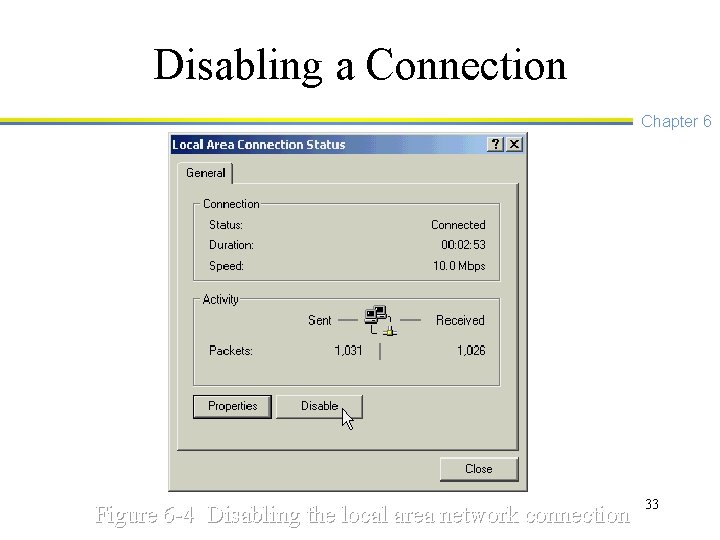
Disabling a Connection Chapter 6 Figure 6 -4 Disabling the local area network connection 33

Phone and Modem Options Chapter 6 n The Phone and Modem Options tool enables you to configure telecommunications lines, such as setting modem speed and transmission properties 34
Power Options Chapter 6 n The Power Options tool is used to configure energy saving features such as turning off the monitor and hard drive when they are not in use; plus it is used to configure communication with an uninterruptible power source 35
Printers Chapter 6 n Use the Printers tool to install, remove, and manage printers, including making the Windows 2000 server function as a print server 36
Regional Options Chapter 6 n The Regional Options tool is used to customize the time format and international formats for numbers, the date, and currency; plus it is used to set the language used 37
Scanners and Cameras Chapter 6 n The Scanners and Cameras tool is used to install a scanner card or configure the attachment of a digital camera 38
Scheduled Tasks Chapter 6 n The Scheduled Tasks tool is used to run a task, command, or script at a particular time 39
Troubleshooting Tip Chapter 6 n If the Task Scheduler is not working, make sure that the Task Scheduler service is started and set to start automatically (use the Computer Management tool or the Services tool to check) 40
Sounds and Multimedia Chapter 6 n Use the Sounds and Multimedia tool to configure sounds with particular actions and to configure multimedia capabilities such as compression, MIDI, and other features 41
System Chapter 6 n The System tool enables you to configure user profiles, the computer’s name, server performance, and access the Device Manager 42
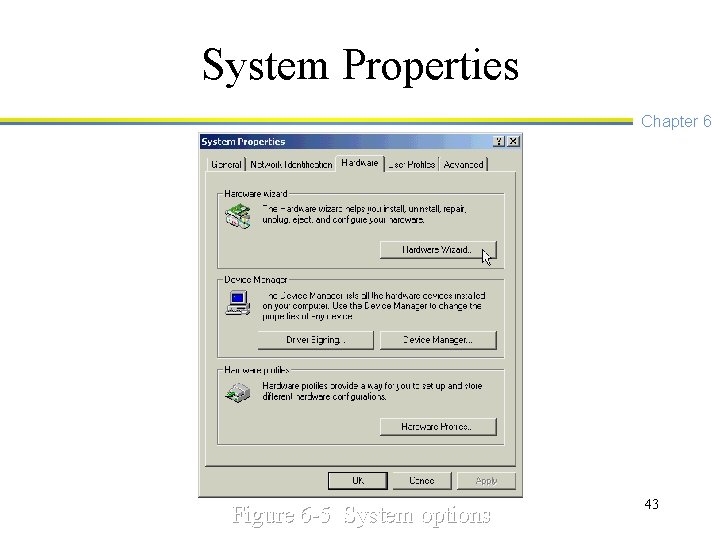
System Properties Chapter 6 Figure 6 -5 System options 43
Driver Signing Chapter 6 n Driver signing: A digital signature that Microsoft incorporates into driver and system files as a way to verify the files and to ensure that they are not inappropriately overwritten 44
System File Checker Chapter 6 n The System File Checker is a tool that is used to find inappropriate versions of critical files, such as. dll and. sys files and restore the appropriate versions 45
Troubleshooting Tip Chapter 6 n If you install software from a vendor and afterward find that certain features of Windows 2000 Server no longer work properly, use the System File Checker to locate which system files have been overwritten and then to restore those files 46
Configuring the Display Chapter 6 n After installing Windows 2000 Server, use the display tool to: u Check the color and pixel settings u Install a new display driver u Set up a screen saver u Set up the background display 47
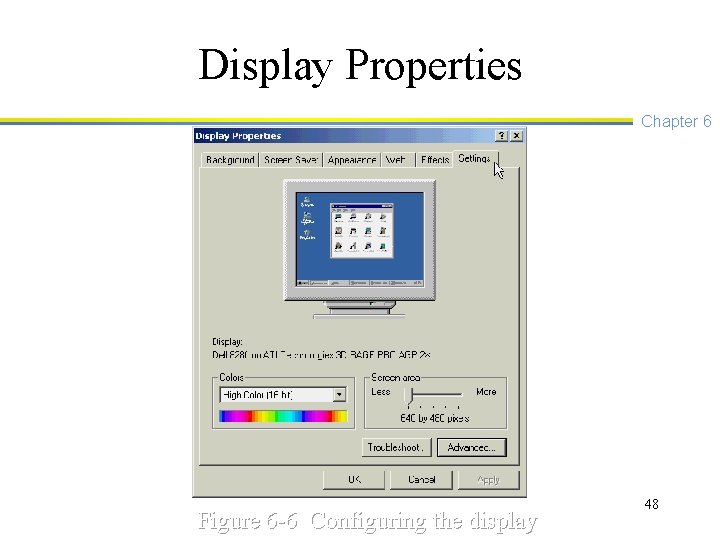
Display Properties Chapter 6 Figure 6 -6 Configuring the display 48
Troubleshooting Tip Chapter 6 n n Use the password option with your screen saver to protect the server from intruders Use a screen saver that is not CPU intensive 49
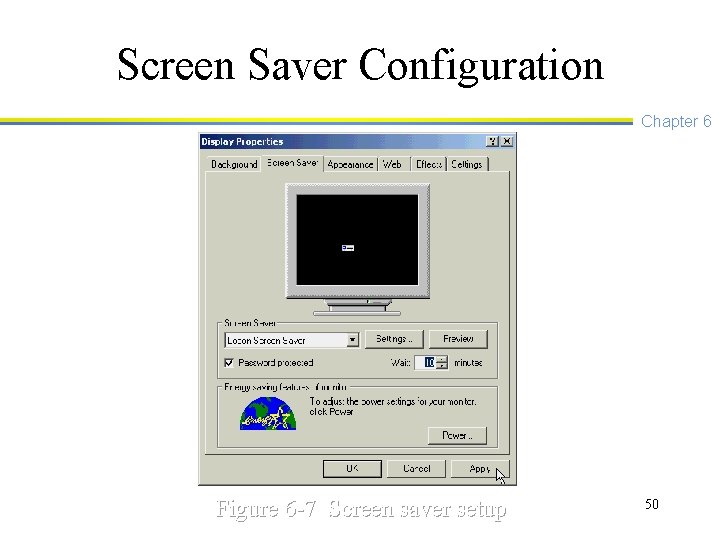
Screen Saver Configuration Chapter 6 Figure 6 -7 Screen saver setup 50
Configuring the Mouse or Pointing Device n Chapter 6 Configure the mouse or install a new pointing device to match the way that you work, for example you can use the Mouse tool to install a driver for a pointing device that you set up to replace the mouse that came with the server 51
Mouse Setup Options Chapter 6 52
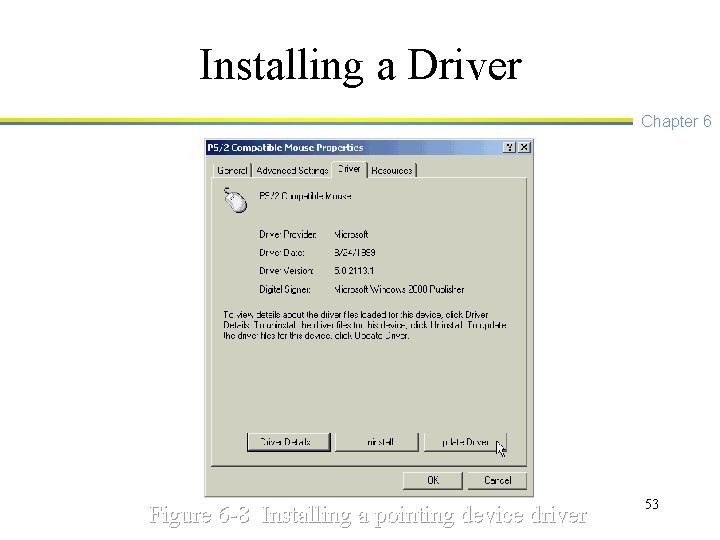
Installing a Driver Chapter 6 Figure 6 -8 Installing a pointing device driver 53
Configuring the Keyboard Chapter 6 n Change the keyboard characteristics to match the way you work or install a new keyboard and driver 54
Keyboard Setup Options Chapter 6 55
Adding, Removing, and Testing Hardware n Chapter 6 The Control Panel Add/Remove Hardware tool can detect a new device that is installed -- it is also used to remove a device, unplug a device, and run a test to determine if a device is working 56
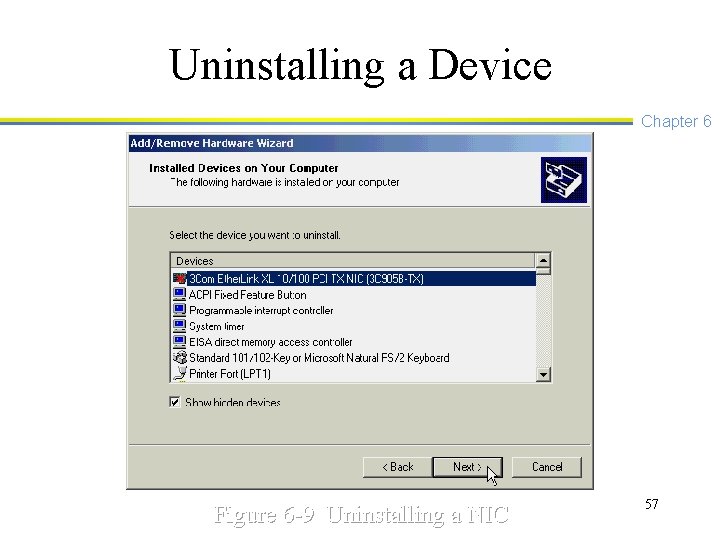
Uninstalling a Device Chapter 6 Figure 6 -9 Uninstalling a NIC 57
Configuring Startup and Recovery n n Chapter 6 Configure the startup sequence and configure how to recover from a system failure Example system failure configuration options are: u Record the failure in the system log u Send an alert u Write debug information in a log u Have the computer attempt to reboot automatically 58
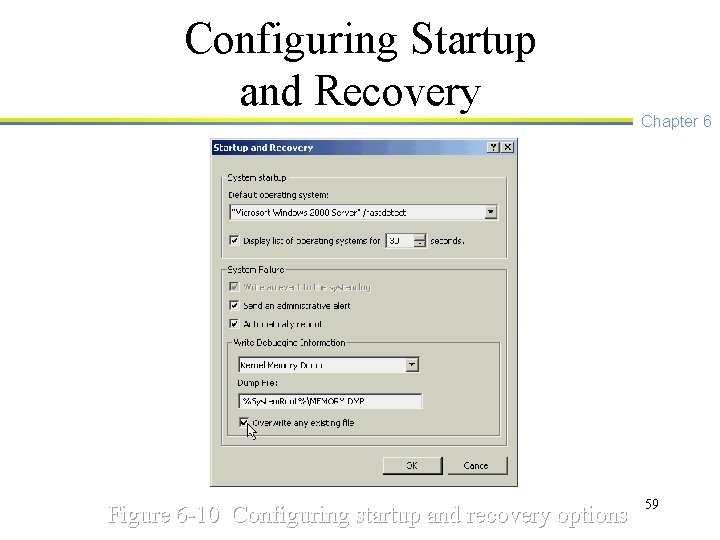
Configuring Startup and Recovery Figure 6 -10 Configuring startup and recovery options Chapter 6 59
Configuring Power Management Chapter 6 n n n Use a default power management scheme or configure your own Configure power management for the monitor, disk drives, standby options, and hibernation Configure UPS power management, if a UPS is used with the server 60
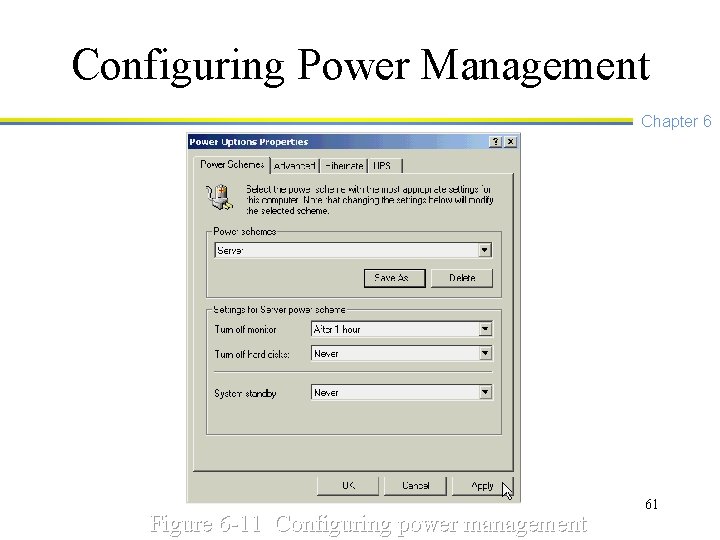
Configuring Power Management Chapter 6 Figure 6 -11 Configuring power management 61
Configuring Protocols Chapter 6 n Use the Network and Dial-up Connections tool in Control Panel to install, remove, and configure protocols such as TCP/IP, NWLink, Net. BEUI, DLC, and Apple. Talk 62
General Steps to Install a Protocol n n Chapter 6 Open the Network and Dial-up Connections tool from Control Panel or from the Start button, Settings option Right-click Local Area Connection and click Properties Click Install, click Protocol, and click Add Double-click the protocol you want to install 63
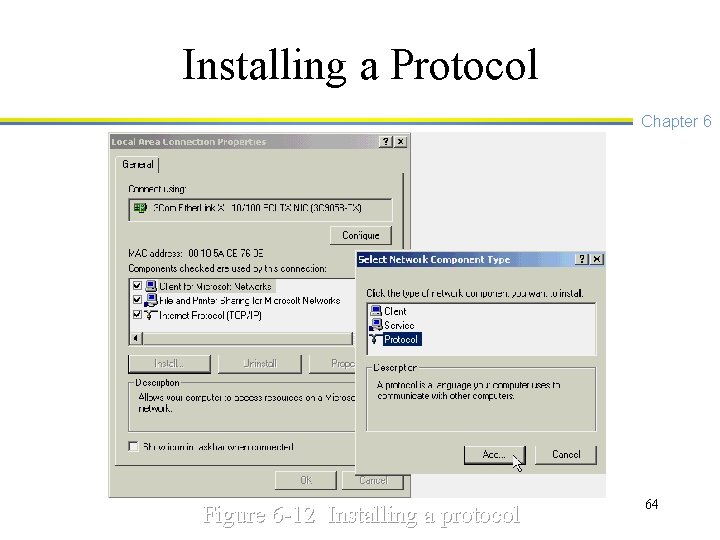
Installing a Protocol Chapter 6 Figure 6 -12 Installing a protocol 64
Configuring TCP/IP Chapter 6 n n Typically you will configure static addressing for a server Parameters associated with static addressing include: u IP address -- assign a unique address u Subnet mask -- such as 255. 0. 0 u Default gateway -- a computer or router that forwards communications to another network u DNS server -- to resolve computer names to IP addresses 65
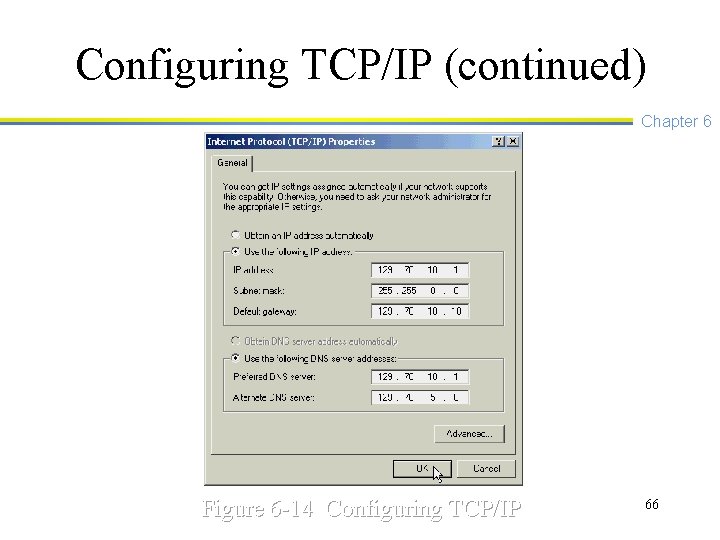
Configuring TCP/IP (continued) Chapter 6 Figure 6 -14 Configuring TCP/IP 66
Installing Additional Windows 2000 Components n n Chapter 6 Use the Network and Dial-Up Connections tool to install additional networking components such as Gateway Services for Net. Ware Use the Add/Remove Programs tool to install additional software components such as Network Monitor or Remote Installation Services 67
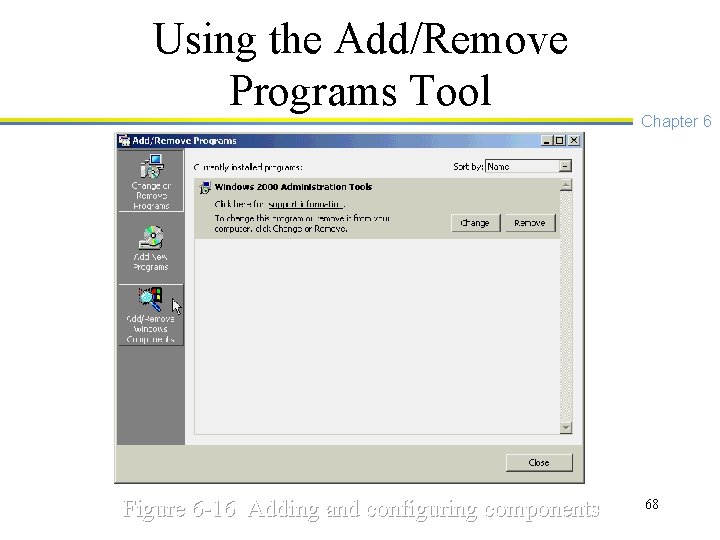
Using the Add/Remove Programs Tool Figure 6 -16 Adding and configuring components Chapter 6 68

Troubleshooting Tip: Check for Resource Conflicts n n Chapter 6 Use the Device Manager or the Computer Management tool to check for a resource conflict Example hardware resources include: u Interrupt request (IRQ) line u I/O address u Reserved memory range 69
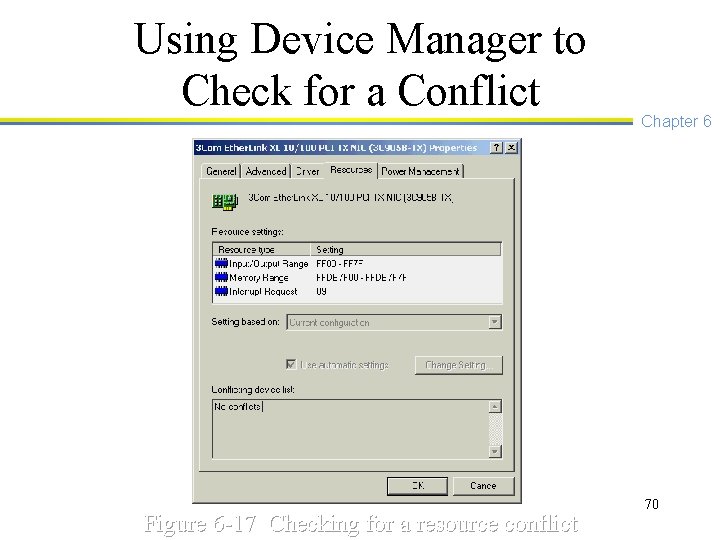
Using Device Manager to Check for a Conflict Figure 6 -17 Checking for a resource conflict Chapter 6 70
Chapter Summary Chapter 6 n n The Control Panel is one of the first places where you will begin configuring a newly installed server Some of the Control Panel tools that you will use most often include the Add/Remove Hardware tool, the Add/Remove Programs tool, and the Network and Dial-up Connections tool 71
Chapter Summary Chapter 6 n n Use the driver signing features of Windows 2000 Server to protect important system files To prepare for troubleshooting, plan to become familiar with the Device Manager and the Computer Management tool 72
- Slides: 72