
Chapter 6 Procedures and Functions Addison Wesley is
![Declaring a Function [Access. Specifier] Function. Name ([Parameter. List]) As Data. Type [Statements] End](https://slidetodoc.com/presentation_image/20840139d45883ef5495a82f74b4faa6/image-15.jpg "Declaring a Function [Access. Specifier] Function. Name ([Parameter. List]) As Data. Type [Statements] End")
- Slides: 38
Chapter 6 Procedures and Functions Addison Wesley is an imprint of © 2011 Pearson Addison-Wesley. All rights reserved.
Introduction • A procedure is a collection of statements that performs a task – Event handlers are a type of procedure • A function is a collection of statements that performs a task and returns a value to the part of the program that executed it – You have already worked with Visual Basic’s built-in functions, such as CInt and Is. Numeric • A method can be either a procedure or a function Copyright © 2011 Pearson Addison-Wesley Chapter 6 – Slide 3
Section 6. 1 PROCEDURES You can write your own general purpose procedures that perform specific tasks. General purpose procedures are not triggered by events, but are called from statements in other procedures. Addison Wesley is an imprint of © 2011 Pearson Addison-Wesley. All rights reserved.
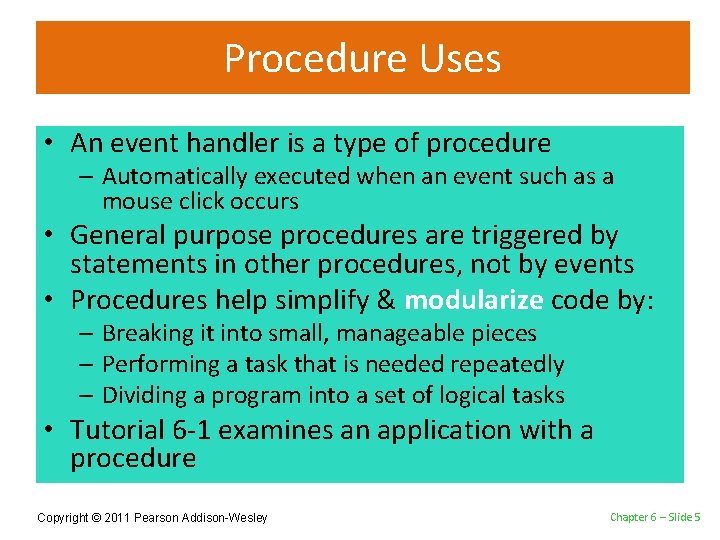
Procedure Uses • An event handler is a type of procedure – Automatically executed when an event such as a mouse click occurs • General purpose procedures are triggered by statements in other procedures, not by events • Procedures help simplify & modularize code by: – Breaking it into small, manageable pieces – Performing a task that is needed repeatedly – Dividing a program into a set of logical tasks • Tutorial 6 -1 examines an application with a procedure Copyright © 2011 Pearson Addison-Wesley Chapter 6 – Slide 5
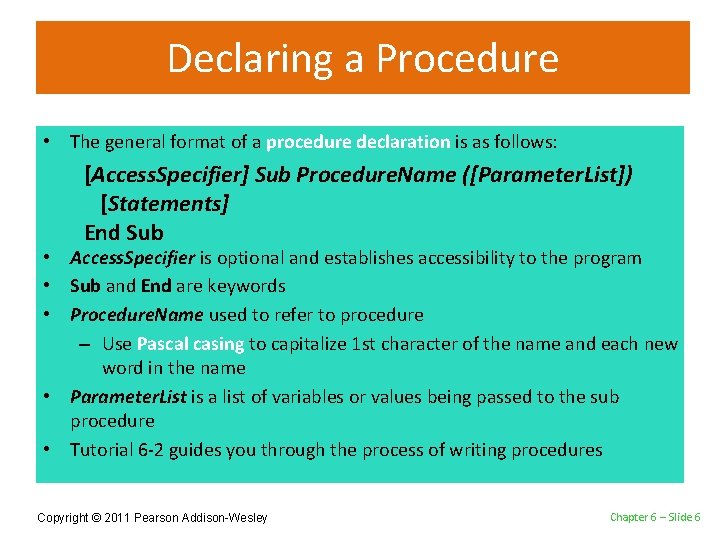
Declaring a Procedure • The general format of a procedure declaration is as follows: [Access. Specifier] Sub Procedure. Name ([Parameter. List]) [Statements] End Sub • Access. Specifier is optional and establishes accessibility to the program • Sub and End are keywords • Procedure. Name used to refer to procedure – Use Pascal casing to capitalize 1 st character of the name and each new word in the name • Parameter. List is a list of variables or values being passed to the sub procedure • Tutorial 6 -2 guides you through the process of writing procedures Copyright © 2011 Pearson Addison-Wesley Chapter 6 – Slide 6
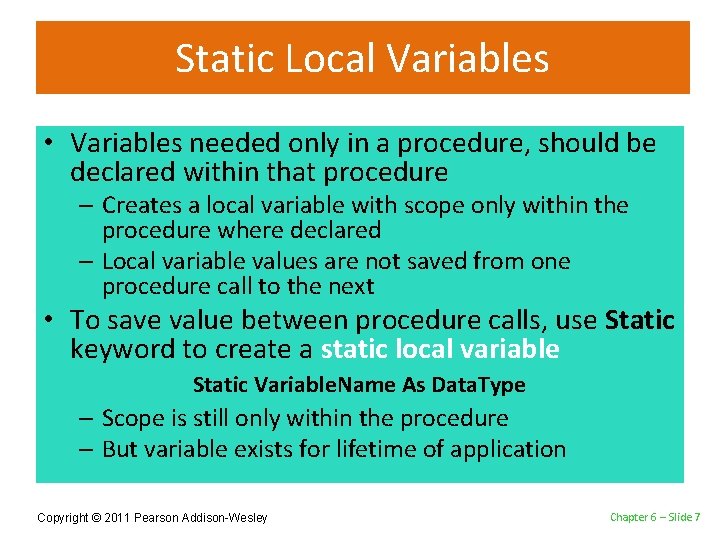
Static Local Variables • Variables needed only in a procedure, should be declared within that procedure – Creates a local variable with scope only within the procedure where declared – Local variable values are not saved from one procedure call to the next • To save value between procedure calls, use Static keyword to create a static local variable Static Variable. Name As Data. Type – Scope is still only within the procedure – But variable exists for lifetime of application Copyright © 2011 Pearson Addison-Wesley Chapter 6 – Slide 7
Section 6. 2 PASSING ARGUMENTS TO PROCEDURES When calling a procedure, you can pass it values known as arguments. Addison Wesley is an imprint of © 2011 Pearson Addison-Wesley. All rights reserved.
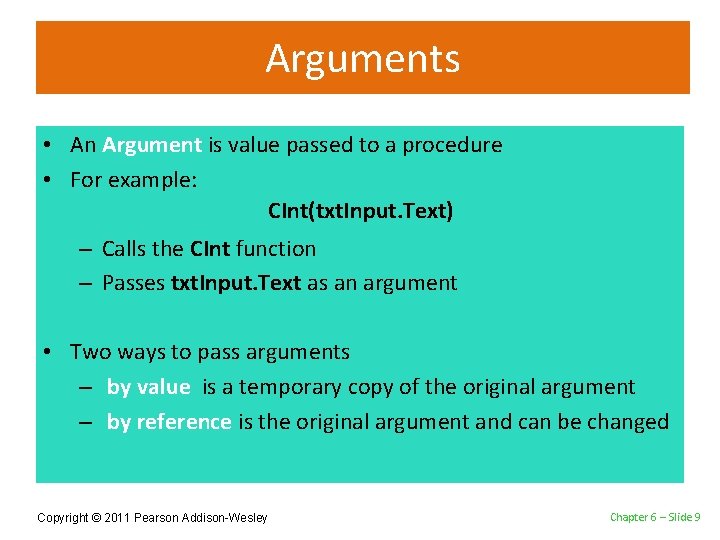
Arguments • An Argument is value passed to a procedure • For example: CInt(txt. Input. Text) – Calls the CInt function – Passes txt. Input. Text as an argument • Two ways to pass arguments – by value is a temporary copy of the original argument – by reference is the original argument and can be changed Copyright © 2011 Pearson Addison-Wesley Chapter 6 – Slide 9
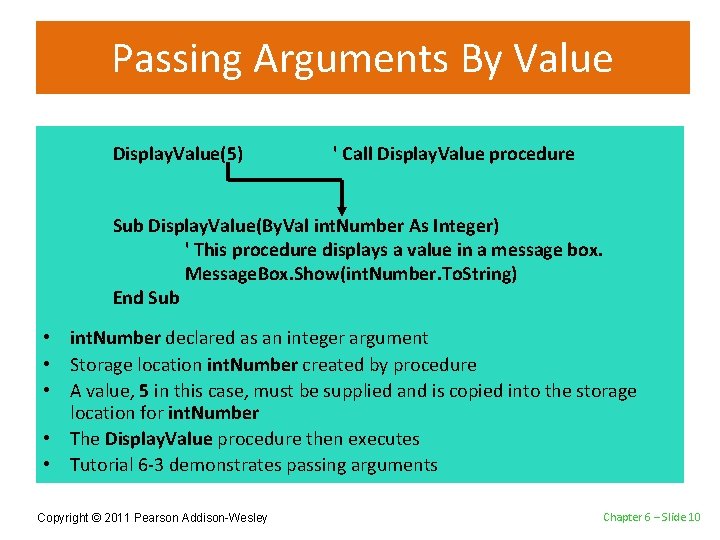
Passing Arguments By Value Display. Value(5) ' Call Display. Value procedure Sub Display. Value(By. Val int. Number As Integer) ' This procedure displays a value in a message box. Message. Box. Show(int. Number. To. String) End Sub • int. Number declared as an integer argument • Storage location int. Number created by procedure • A value, 5 in this case, must be supplied and is copied into the storage location for int. Number • The Display. Value procedure then executes • Tutorial 6 -3 demonstrates passing arguments Copyright © 2011 Pearson Addison-Wesley Chapter 6 – Slide 10
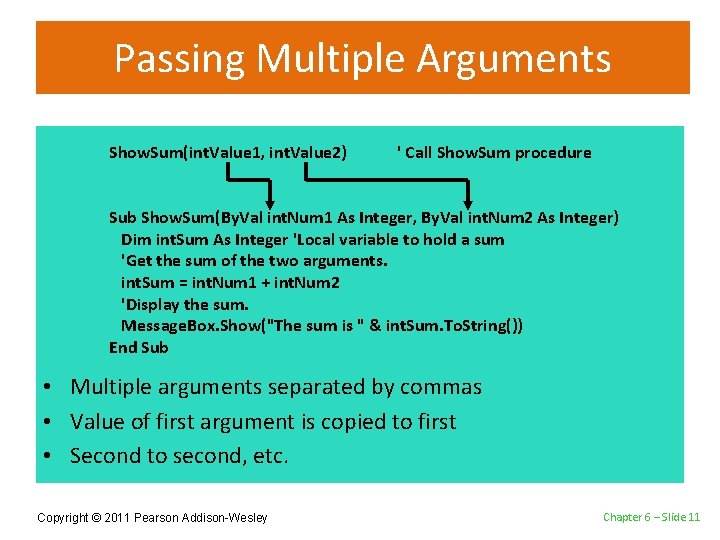
Passing Multiple Arguments Show. Sum(int. Value 1, int. Value 2) ' Call Show. Sum procedure Sub Show. Sum(By. Val int. Num 1 As Integer, By. Val int. Num 2 As Integer) Dim int. Sum As Integer 'Local variable to hold a sum 'Get the sum of the two arguments. int. Sum = int. Num 1 + int. Num 2 'Display the sum. Message. Box. Show("The sum is " & int. Sum. To. String()) End Sub • Multiple arguments separated by commas • Value of first argument is copied to first • Second to second, etc. Copyright © 2011 Pearson Addison-Wesley Chapter 6 – Slide 11
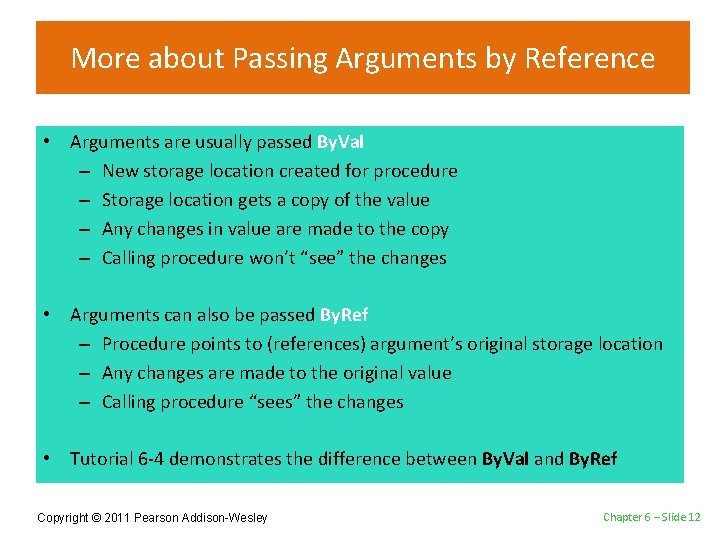
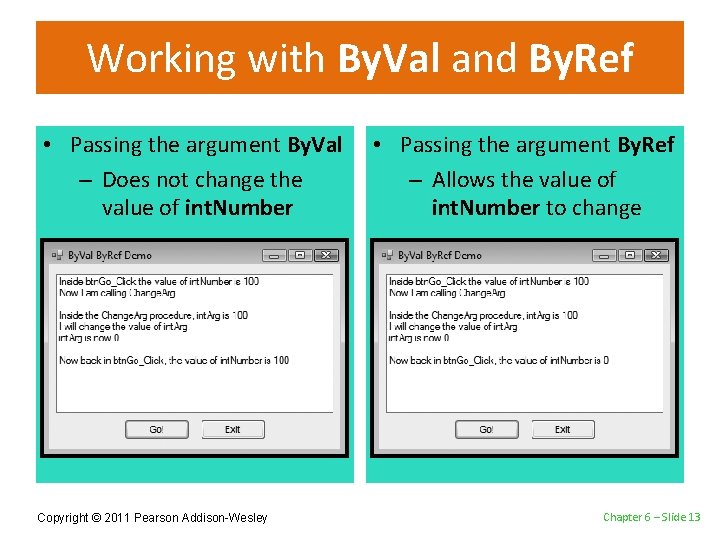
More about Passing Arguments by Reference • Arguments are usually passed By. Val – New storage location created for procedure – Storage location gets a copy of the value – Any changes in value are made to the copy – Calling procedure won’t “see” the changes • Arguments can also be passed By. Ref – Procedure points to (references) argument’s original storage location – Any changes are made to the original value – Calling procedure “sees” the changes • Tutorial 6 -4 demonstrates the difference between By. Val and By. Ref Copyright © 2011 Pearson Addison-Wesley Chapter 6 – Slide 12
Working with By. Val and By. Ref • Passing the argument By. Val – Does not change the value of int. Number Copyright © 2011 Pearson Addison-Wesley • Passing the argument By. Ref – Allows the value of int. Number to change Chapter 6 – Slide 13
Section 6. 3 FUNCTIONS A function returns a value to the part of the program that called the function. Addison Wesley is an imprint of © 2011 Pearson Addison-Wesley. All rights reserved.
Declaring a Function [Access. Specifier] Function. Name ([Parameter. List]) As Data. Type [Statements] End Function • New keyword Function • Also new is As Data. Type which states the data type of the value to be returned • Return value is specified in a Return expression Copyright © 2011 Pearson Addison-Wesley Chapter 6 – Slide 15
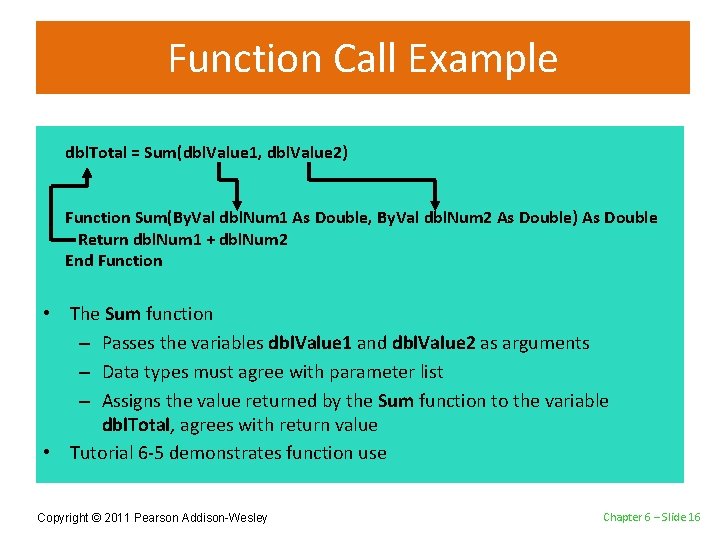
Function Call Example dbl. Total = Sum(dbl. Value 1, dbl. Value 2) Function Sum(By. Val dbl. Num 1 As Double, By. Val dbl. Num 2 As Double) As Double Return dbl. Num 1 + dbl. Num 2 End Function • The Sum function – Passes the variables dbl. Value 1 and dbl. Value 2 as arguments – Data types must agree with parameter list – Assigns the value returned by the Sum function to the variable dbl. Total, agrees with return value • Tutorial 6 -5 demonstrates function use Copyright © 2011 Pearson Addison-Wesley Chapter 6 – Slide 16
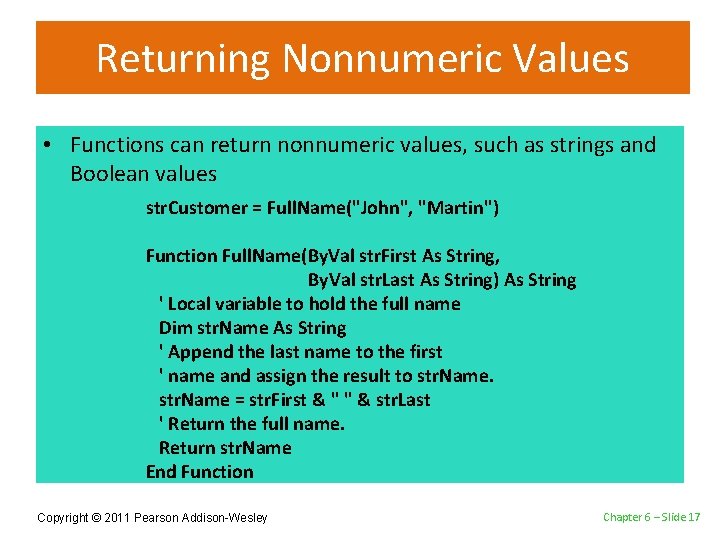
Returning Nonnumeric Values • Functions can return nonnumeric values, such as strings and Boolean values str. Customer = Full. Name("John", "Martin") Function Full. Name(By. Val str. First As String, By. Val str. Last As String) As String ' Local variable to hold the full name Dim str. Name As String ' Append the last name to the first ' name and assign the result to str. Name = str. First & " " & str. Last ' Return the full name. Return str. Name End Function Copyright © 2011 Pearson Addison-Wesley Chapter 6 – Slide 17
Section 6. 4 MORE ABOUT DEBUGGING: STEPPING INTO, OVER, AND OUT OF PROCEDURES AND FUNCTIONS Visual Basic debugging commands allow you to single-step through applications with procedure and function calls. The Step Into command allows you to single-step through a called procedure or function. The Step Over command allows you to execute a procedure or function call without single-stepping through its lines. The Step Out command allows you to execute all remaining lines of a procedure or function you are debugging without stepping through them. Addison Wesley is an imprint of © 2011 Pearson Addison-Wesley. All rights reserved.
The Step Into Command • The Step Into command – Continue to debug by single-stepping through a procedure • Press the F 8 key • Select Debug from the menu bar, and then select Step Into from the Debug menu • Click the Step Into button on the Debug Toolbar, if the toolbar is visible • Tutorial 6 -6 demonstrates the Step Into command Copyright © 2011 Pearson Addison-Wesley Chapter 6 – Slide 19
The Step Over Command • The Step Over command – Run procedure without single-stepping, continue single-step after the call • Press the Shift + F 8 key • Select Debug from the menu bar, and then select Step Over from the Debug menu • Click the Step Over button on the Debug Toolbar, if the toolbar is visible • Tutorial 6 -7 demonstrates the Step Over command Copyright © 2011 Pearson Addison-Wesley Chapter 6 – Slide 20
The Step Out Command • The Step Out command – End single-stepping in procedure, continue singlestep after the call • Press the Ctrl + Shift + F 8 key • Select Debug from the menu bar, and then select Step Out from the Debug menu • Click the Step Out button on the Debug Toolbar, if the toolbar is visible • Tutorial 6 -8 demonstrates the Step Out command Copyright © 2011 Pearson Addison-Wesley Chapter 6 – Slide 21
Section 6. 5 FOCUS ON PROGRAM DESIGN AND PROBLEM SOLVING: BUILDING THE BAGEL AND COFFEE PRICE CALCULATOR APPLICATION In this section you build the Bagel and Coffee Price Calculator application. It uses procedures and functions to calculate the total of a customer order. Addison Wesley is an imprint of © 2011 Pearson Addison-Wesley. All rights reserved.
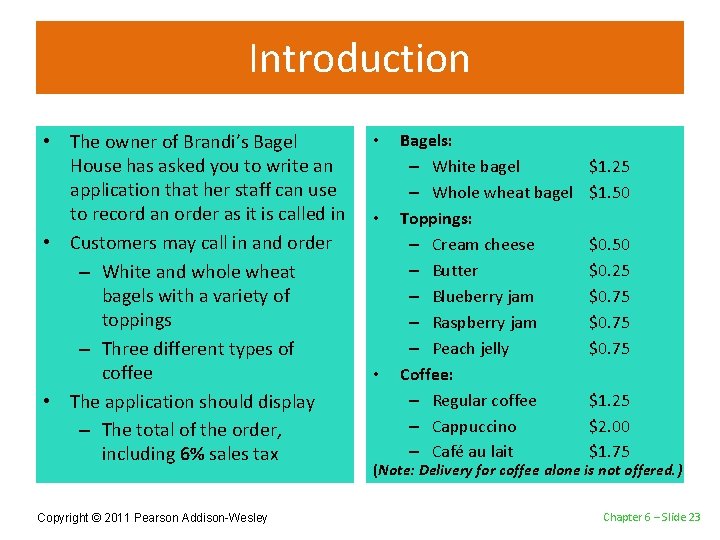
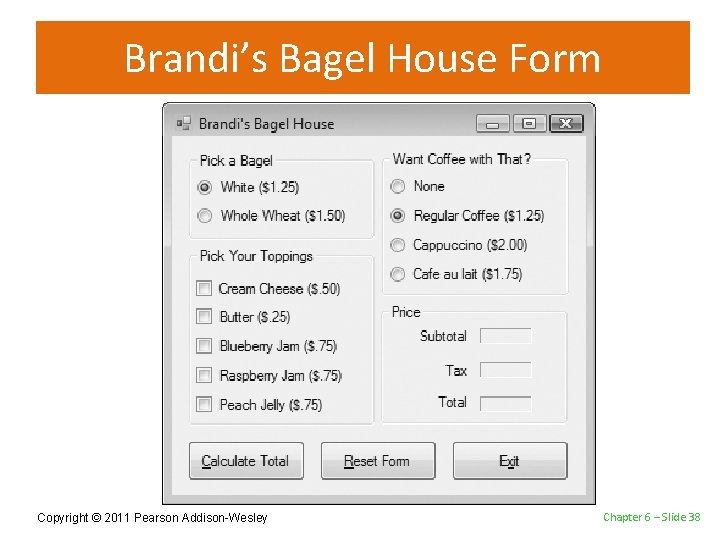
Introduction • The owner of Brandi’s Bagel House has asked you to write an application that her staff can use to record an order as it is called in • Customers may call in and order – White and whole wheat bagels with a variety of toppings – Three different types of coffee • The application should display – The total of the order, including 6% sales tax Copyright © 2011 Pearson Addison-Wesley • • • Bagels: – White bagel – Whole wheat bagel Toppings: – Cream cheese – Butter – Blueberry jam – Raspberry jam – Peach jelly Coffee: – Regular coffee – Cappuccino – Café au lait $1. 25 $1. 50 $0. 25 $0. 75 $1. 25 $2. 00 $1. 75 (Note: Delivery for coffee alone is not offered. ) Chapter 6 – Slide 23
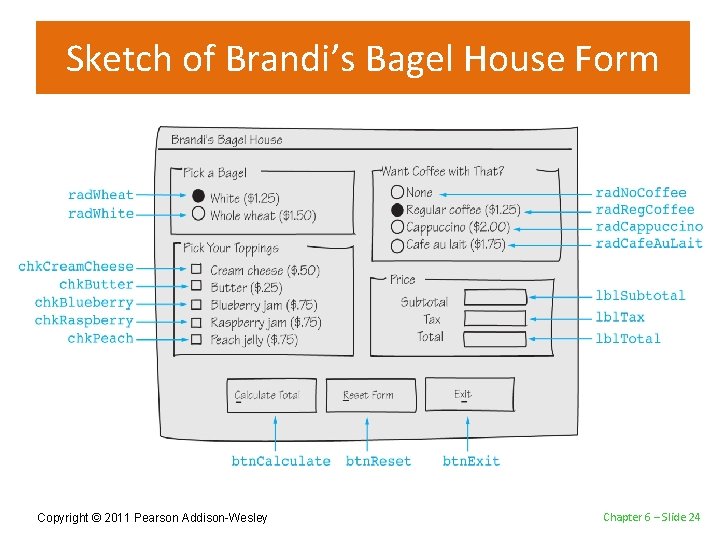
Sketch of Brandi’s Bagel House Form Copyright © 2011 Pearson Addison-Wesley Chapter 6 – Slide 24
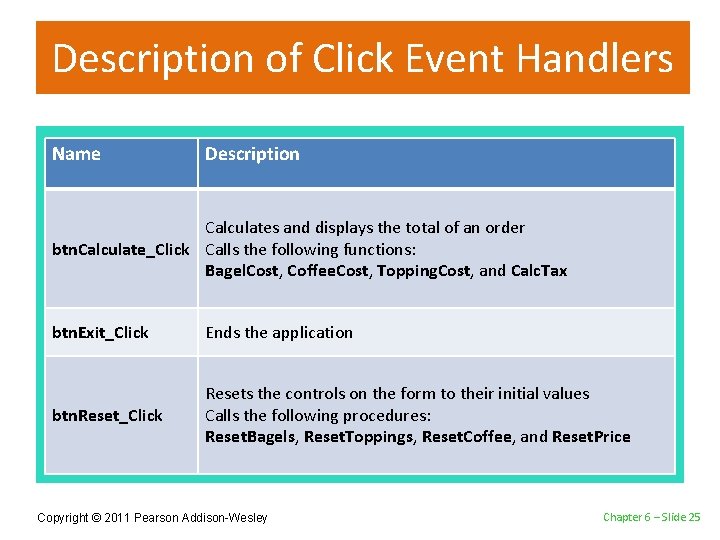
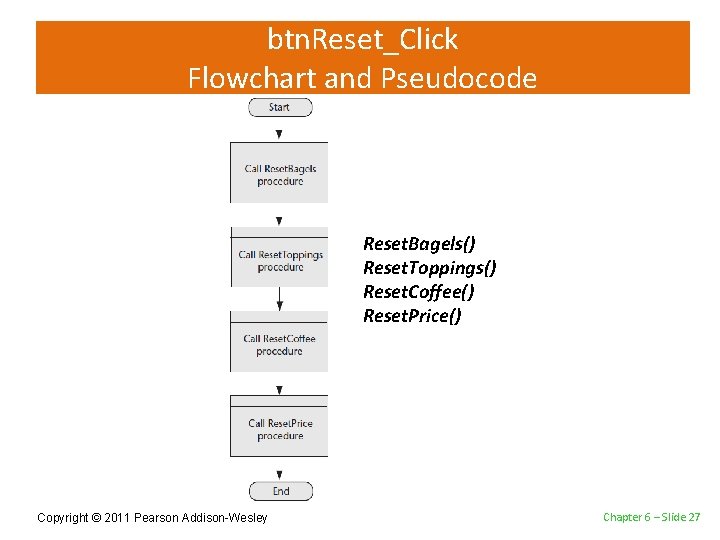
Description of Click Event Handlers Name Description Calculates and displays the total of an order btn. Calculate_Click Calls the following functions: Bagel. Cost, Coffee. Cost, Topping. Cost, and Calc. Tax btn. Exit_Click Ends the application btn. Reset_Click Resets the controls on the form to their initial values Calls the following procedures: Reset. Bagels, Reset. Toppings, Reset. Coffee, and Reset. Price Copyright © 2011 Pearson Addison-Wesley Chapter 6 – Slide 25
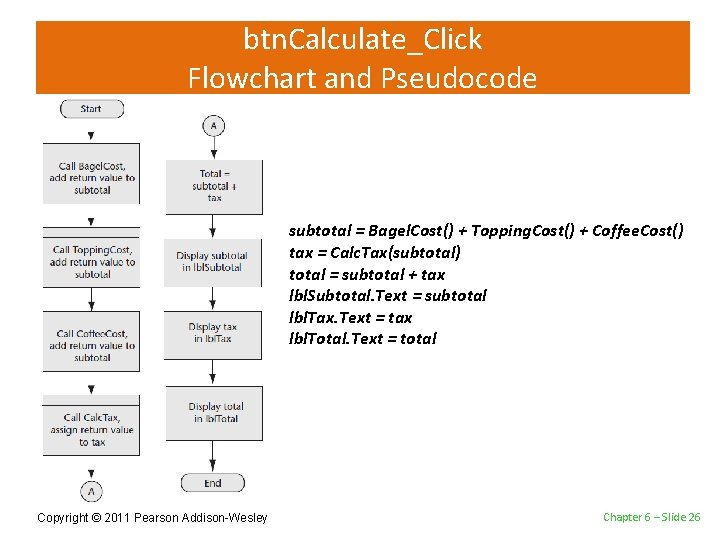
btn. Calculate_Click Flowchart and Pseudocode subtotal = Bagel. Cost() + Topping. Cost() + Coffee. Cost() tax = Calc. Tax(subtotal) total = subtotal + tax lbl. Subtotal. Text = subtotal lbl. Tax. Text = tax lbl. Total. Text = total Copyright © 2011 Pearson Addison-Wesley Chapter 6 – Slide 26
btn. Reset_Click Flowchart and Pseudocode Reset. Bagels() Reset. Toppings() Reset. Coffee() Reset. Price() Copyright © 2011 Pearson Addison-Wesley Chapter 6 – Slide 27
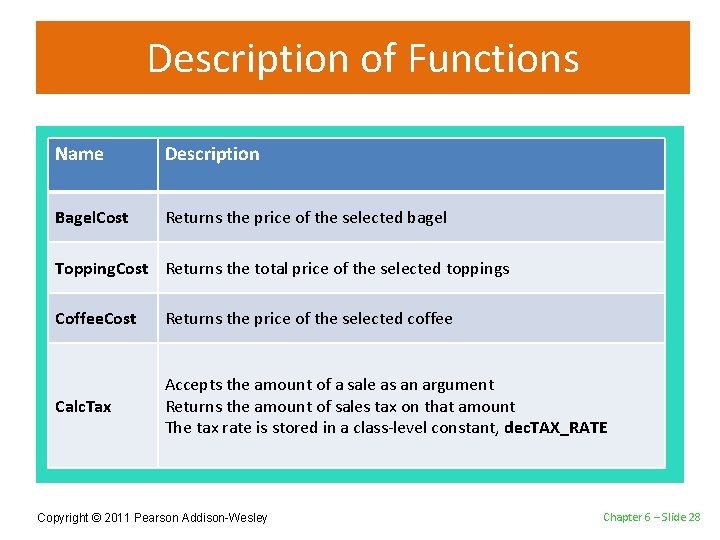
Description of Functions Name Description Bagel. Cost Returns the price of the selected bagel Topping. Cost Returns the total price of the selected toppings Coffee. Cost Returns the price of the selected coffee Calc. Tax Accepts the amount of a sale as an argument Returns the amount of sales tax on that amount The tax rate is stored in a class-level constant, dec. TAX_RATE Copyright © 2011 Pearson Addison-Wesley Chapter 6 – Slide 28
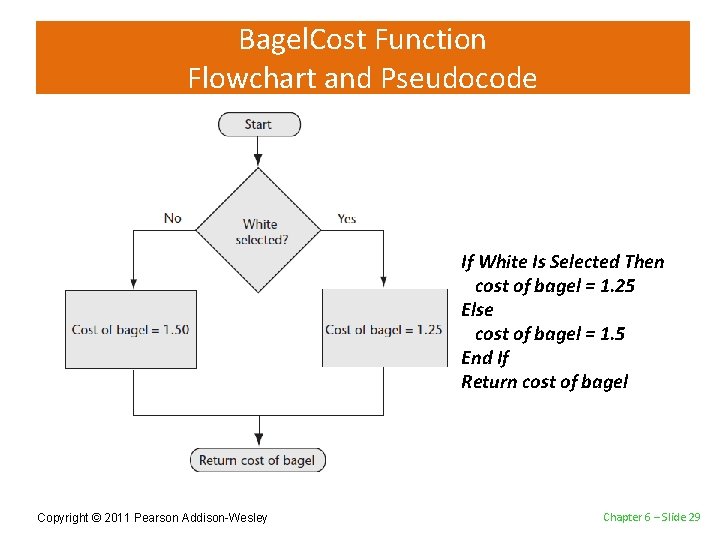
Bagel. Cost Function Flowchart and Pseudocode If White Is Selected Then cost of bagel = 1. 25 Else cost of bagel = 1. 5 End If Return cost of bagel Copyright © 2011 Pearson Addison-Wesley Chapter 6 – Slide 29
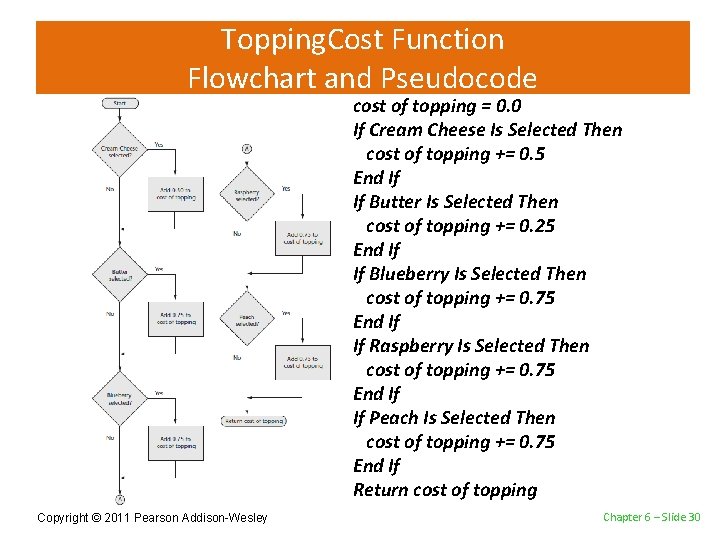
Topping. Cost Function Flowchart and Pseudocode cost of topping = 0. 0 If Cream Cheese Is Selected Then cost of topping += 0. 5 End If If Butter Is Selected Then cost of topping += 0. 25 End If If Blueberry Is Selected Then cost of topping += 0. 75 End If If Raspberry Is Selected Then cost of topping += 0. 75 End If If Peach Is Selected Then cost of topping += 0. 75 End If Return cost of topping Copyright © 2011 Pearson Addison-Wesley Chapter 6 – Slide 30
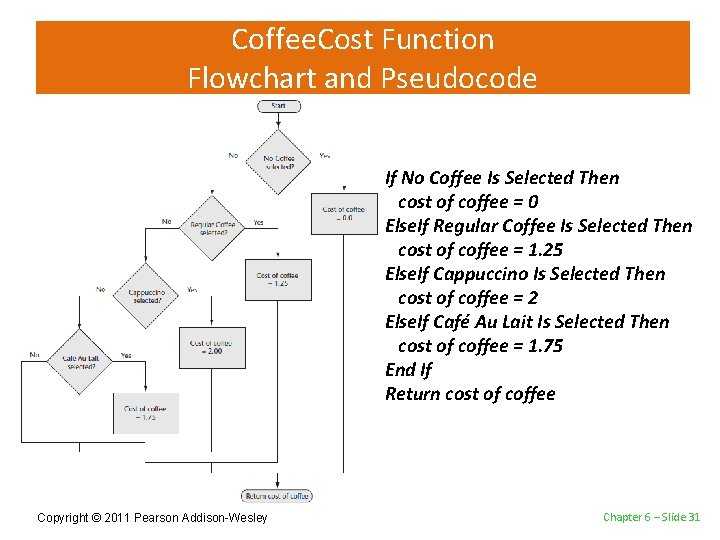
Coffee. Cost Function Flowchart and Pseudocode If No Coffee Is Selected Then cost of coffee = 0 Else. If Regular Coffee Is Selected Then cost of coffee = 1. 25 Else. If Cappuccino Is Selected Then cost of coffee = 2 Else. If Café Au Lait Is Selected Then cost of coffee = 1. 75 End If Return cost of coffee Copyright © 2011 Pearson Addison-Wesley Chapter 6 – Slide 31
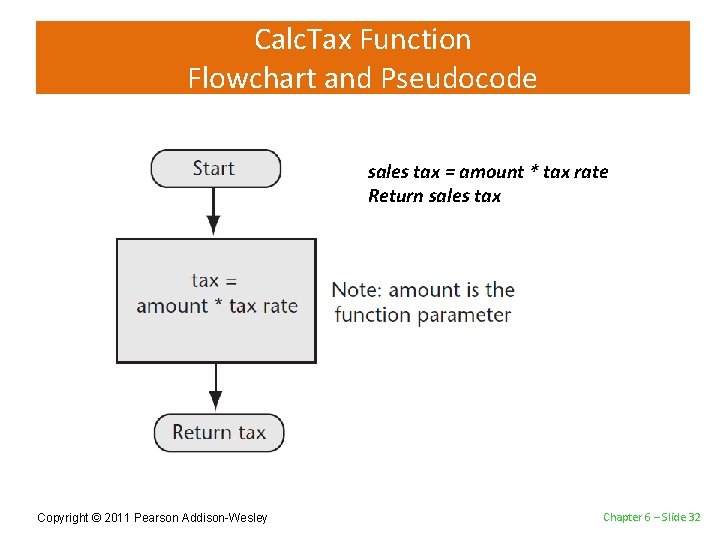
Calc. Tax Function Flowchart and Pseudocode sales tax = amount * tax rate Return sales tax Copyright © 2011 Pearson Addison-Wesley Chapter 6 – Slide 32
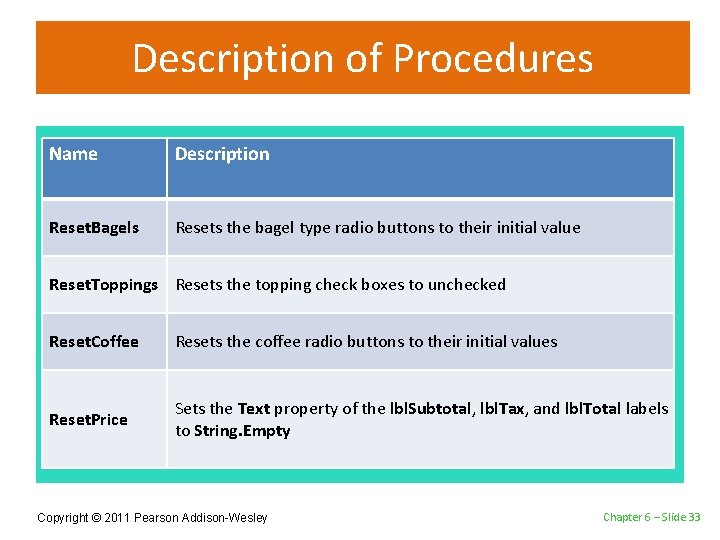
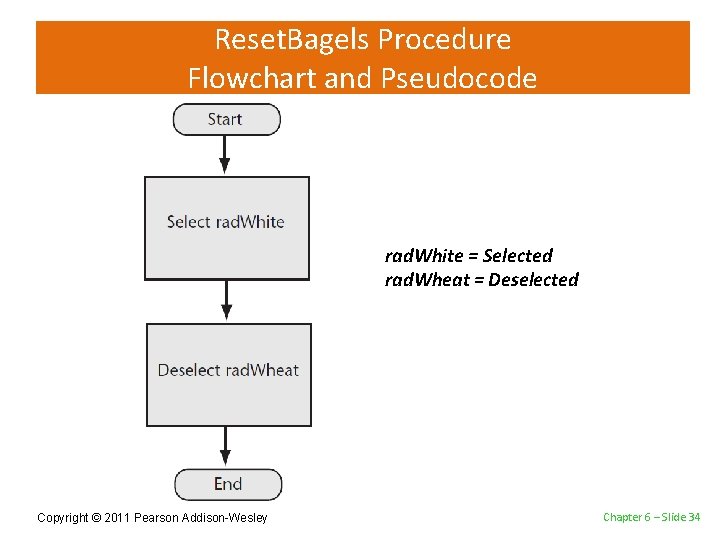
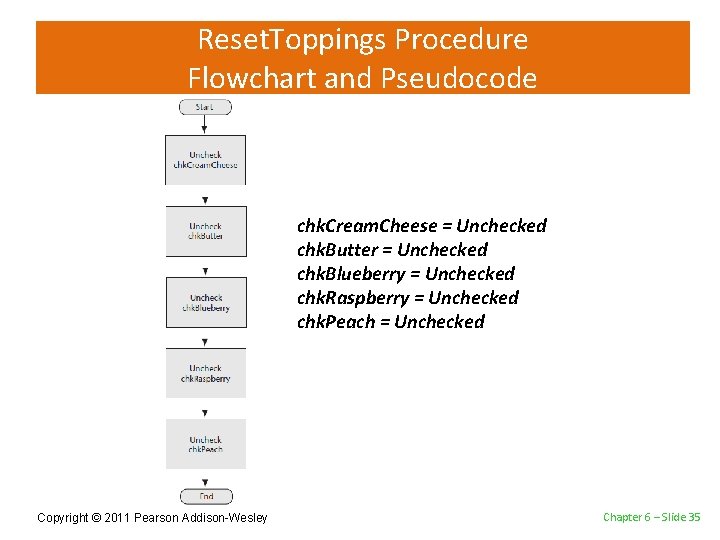
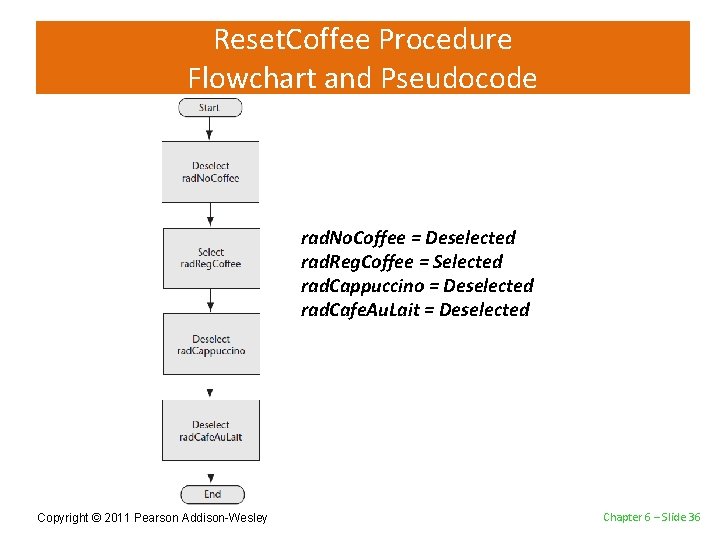
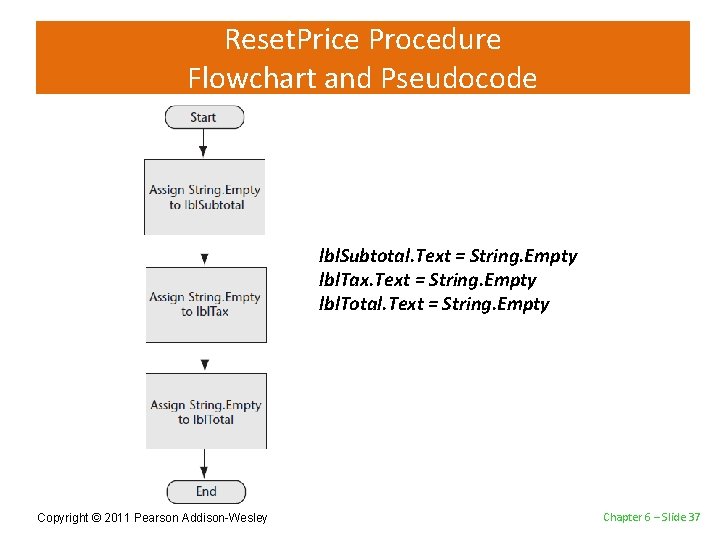
Description of Procedures Name Description Reset. Bagels Resets the bagel type radio buttons to their initial value Reset. Toppings Resets the topping check boxes to unchecked Reset. Coffee Resets the coffee radio buttons to their initial values Reset. Price Sets the Text property of the lbl. Subtotal, lbl. Tax, and lbl. Total labels to String. Empty Copyright © 2011 Pearson Addison-Wesley Chapter 6 – Slide 33
Reset. Bagels Procedure Flowchart and Pseudocode rad. White = Selected rad. Wheat = Deselected Copyright © 2011 Pearson Addison-Wesley Chapter 6 – Slide 34
Reset. Toppings Procedure Flowchart and Pseudocode chk. Cream. Cheese = Unchecked chk. Butter = Unchecked chk. Blueberry = Unchecked chk. Raspberry = Unchecked chk. Peach = Unchecked Copyright © 2011 Pearson Addison-Wesley Chapter 6 – Slide 35
Reset. Coffee Procedure Flowchart and Pseudocode rad. No. Coffee = Deselected rad. Reg. Coffee = Selected rad. Cappuccino = Deselected rad. Cafe. Au. Lait = Deselected Copyright © 2011 Pearson Addison-Wesley Chapter 6 – Slide 36
Reset. Price Procedure Flowchart and Pseudocode lbl. Subtotal. Text = String. Empty lbl. Tax. Text = String. Empty lbl. Total. Text = String. Empty Copyright © 2011 Pearson Addison-Wesley Chapter 6 – Slide 37
Brandi’s Bagel House Form Copyright © 2011 Pearson Addison-Wesley Chapter 6 – Slide 38