
Chapter 6 PLC Programming Objectives List the rules
Chapter 6 PLC Programming
Objectives • List the rules for creating a PLC ladder logic diagram. • Convert a relay logic diagram to a PLC ladder logic diagram. • Create ladder logic diagrams when the PLC is in the offline mode. • Download PLC ladder logic diagrams and test them on a trainer. © Goodheart-Willcox Co. , Inc. Permission granted to reproduce for educational use only.
Objectives • Use the force instruction for troubleshooting. • Create and print program reports. • Save and open ladder diagram project files. © Goodheart-Willcox Co. , Inc. Permission granted to reproduce for educational use only.
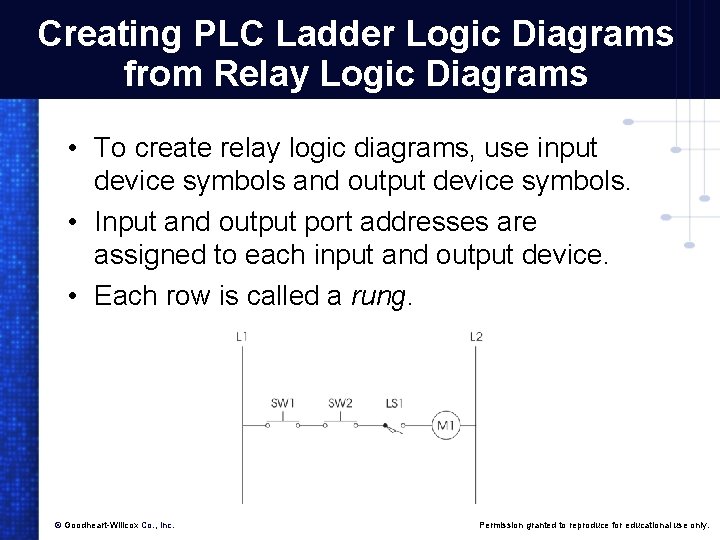
Creating PLC Ladder Logic Diagrams from Relay Logic Diagrams • To create relay logic diagrams, use input device symbols and output device symbols. • Input and output port addresses are assigned to each input and output device. • Each row is called a rung. © Goodheart-Willcox Co. , Inc. Permission granted to reproduce for educational use only.
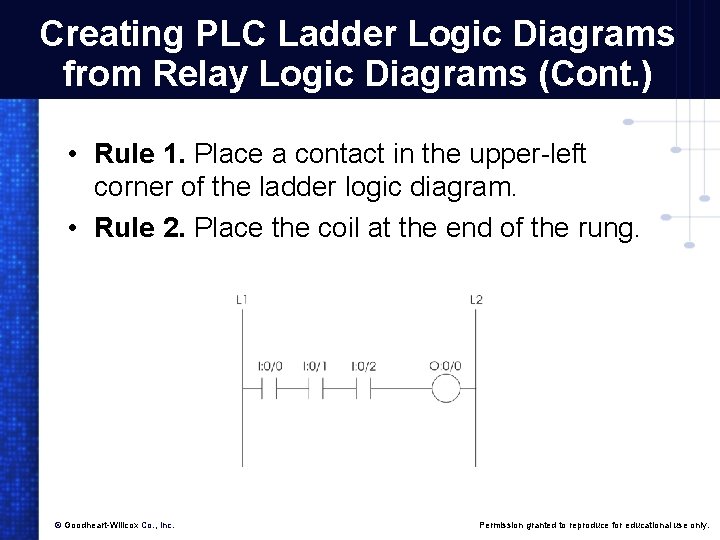
Creating PLC Ladder Logic Diagrams from Relay Logic Diagrams (Cont. ) • Rule 1. Place a contact in the upper-left corner of the ladder logic diagram. • Rule 2. Place the coil at the end of the rung. © Goodheart-Willcox Co. , Inc. Permission granted to reproduce for educational use only.
Creating PLC Ladder Logic Diagrams from Relay Logic Diagrams (Cont. ) • Rule 3. All contacts must be placed horizontally. • Rule 4. Outputs cannot be connected in series with other outputs. © Goodheart-Willcox Co. , Inc. Permission granted to reproduce for educational use only.
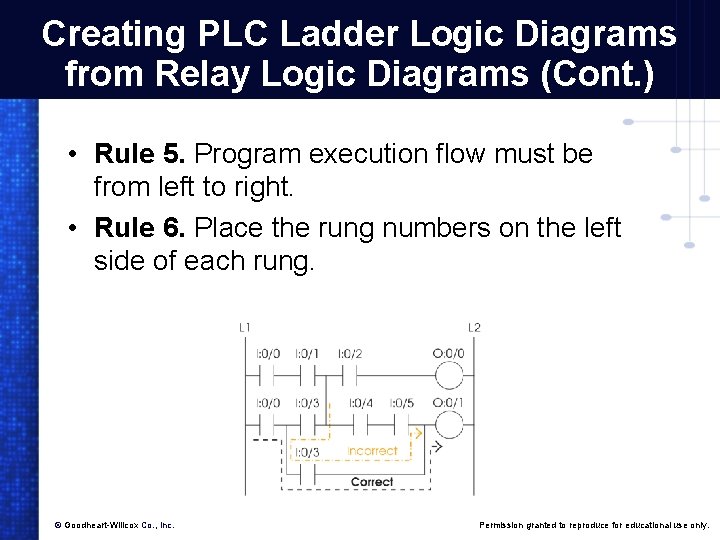
Creating PLC Ladder Logic Diagrams from Relay Logic Diagrams (Cont. ) • Rule 5. Program execution flow must be from left to right. • Rule 6. Place the rung numbers on the left side of each rung. © Goodheart-Willcox Co. , Inc. Permission granted to reproduce for educational use only.
Rung Comments • Placed on the top of each rung. • Describe major function of following rungs. • Specify location of each contact associated with a coil. – Place contact next to the coil the number of the rung the associated contact is on. © Goodheart-Willcox Co. , Inc. Permission granted to reproduce for educational use only.
Programming Ladder Logic Diagrams with NO and NC Switches • After constructing the relay logic diagram: – Assign addresses to each input and output device. – Connect input/output devices to the PLC ports. – Create PLC ladder diagram. © Goodheart-Willcox Co. , Inc. Permission granted to reproduce for educational use only.
Programming Ladder Logic Diagrams with NO and NC Switches (Cont. ) • PLC is in offline programming mode while ladder diagram is created. • Offline mode: – Mode where the PLC ladder logic diagram can be created. © Goodheart-Willcox Co. , Inc. Permission granted to reproduce for educational use only.
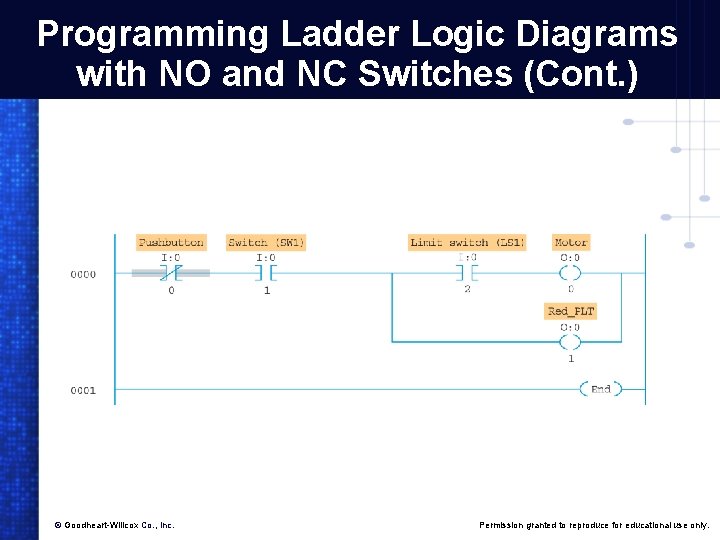
Programming Ladder Logic Diagrams with NO and NC Switches (Cont. ) © Goodheart-Willcox Co. , Inc. Permission granted to reproduce for educational use only.
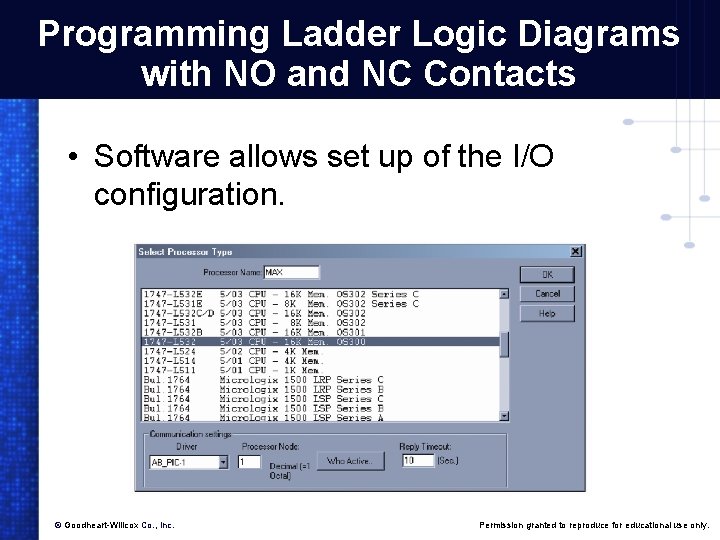
Programming Ladder Logic Diagrams with NO and NC Contacts • Software allows set up of the I/O configuration. © Goodheart-Willcox Co. , Inc. Permission granted to reproduce for educational use only.
Programming Ladder Logic Diagrams with NO and NC Contacts (Cont. ) • Slot zero: – Always reserved for the PLC processor. • Slot one: – Houses a sixteen port 120 VAC input module. • Slot two: – Houses a sixteen port 120 VAC output module. © Goodheart-Willcox Co. , Inc. Permission granted to reproduce for educational use only.
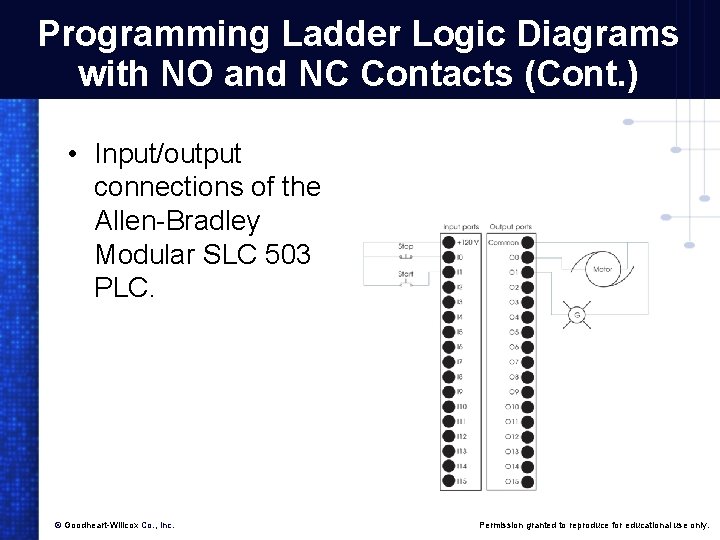
Programming Ladder Logic Diagrams with NO and NC Contacts (Cont. ) • Input/output connections of the Allen-Bradley Modular SLC 503 PLC. © Goodheart-Willcox Co. , Inc. Permission granted to reproduce for educational use only.
Program Scan • PLC program execution flow on each rung is from left to right. • From the top rung to the bottom rung, moving through the entire PLC ladder logic diagram. • Operational Scan Rate: – Time required to execute the PLC ladder diagram once. © Goodheart-Willcox Co. , Inc. Permission granted to reproduce for educational use only.
PLC Program Scan Time • PLC ladder logic diagram instructions: – Scanned from the instruction in the upperleft corner. – Ends with the instruction on the lowerright corner. – After last instruction in the lower-right corner, scanning restarts. © Goodheart-Willcox Co. , Inc. Permission granted to reproduce for educational use only.
PLC Program Scan Time (Cont. ) • Output energize (OTE): – Output port connected to an output device. • Output latch (OTL) and output unlatch (OTU): – Used for latch/unlatch instructions. • One-shot rising (OSR): – One-shot output instruction used to generate a one-shot pulse. © Goodheart-Willcox Co. , Inc. Permission granted to reproduce for educational use only.
PLC Operational Cycle • Input scan: – Processor reads input ports and updates input status table. • Program scan: – Processor executes PLC program and updates output status table. • Output scan: – Output status table values transferred to output terminals. © Goodheart-Willcox Co. , Inc. Permission granted to reproduce for educational use only.
Scanning a Rung • Input and output addresses are updated. • Sometimes, specific inputs or outputs may not be updated in time. • Immediate input with mask (IIM). • Immediate output with mask (IOM). © Goodheart-Willcox Co. , Inc. Permission granted to reproduce for educational use only.
Project Tree Area • Divided into: – Program Files. – Data Files. • Three program file icons in the Program Files area. © Goodheart-Willcox Co. , Inc. Permission granted to reproduce for educational use only.
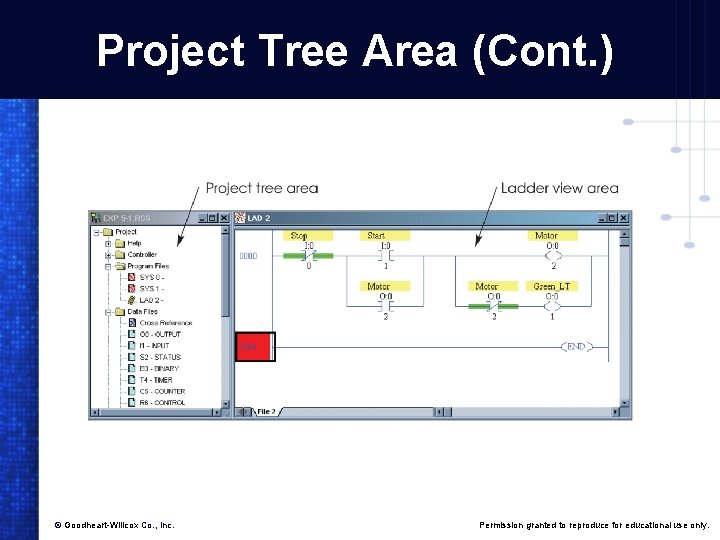
Project Tree Area (Cont. ) © Goodheart-Willcox Co. , Inc. Permission granted to reproduce for educational use only.
Program Files • SYS 0 program file: – Used by PLC processor to keep track of its internal register settings. – Not available to RSLogix 500 user. • SYS 1 program file: – Reserved. – Not available to RSLogix 500 user. © Goodheart-Willcox Co. , Inc. Permission granted to reproduce for educational use only.
Main Program File (LAD 2) • Holds the main PLC ladder logic diagram. • PLC project: – May be more than one program file. © Goodheart-Willcox Co. , Inc. Permission granted to reproduce for educational use only.
Subroutine Program Files • May be several in addition to the main program file. • Called on or accessed from the main program file. • Selecting a main program file or a subroutine file in the project tree area: – Ladder logic diagram is displayed in ladder view area. © Goodheart-Willcox Co. , Inc. Permission granted to reproduce for educational use only.
Data Files • • Input (I) Output (O) Status (S 2) Timer (T 4) © Goodheart-Willcox Co. , Inc. • • Counter (C 5) Control (R 6) Integer (N 7) Bit (B 3 and B 10) Permission granted to reproduce for educational use only.
Data Files (Cont. ) • Input (I): – Inputs can be examine if open (XIO) or examine if closed (XIC). • Output (O): – In the Allen-Bradley Fixed SLC 500 PLCs, eight output ports in module zero. © Goodheart-Willcox Co. , Inc. Permission granted to reproduce for educational use only.
Status (S 2) • Holds the flag or status bits of the ladder logic diagram. • If a central processing unit fault is generated in the PLC, click this icon. • Find fault indicator status bit. • Read the reason the message was generated. • Correct the program to solve the fault condition. © Goodheart-Willcox Co. , Inc. Permission granted to reproduce for educational use only.
Timer (T 4) • Holds information related to the number of timers used in the ladder logic program. • Depending on the size of the PLC RAM, there could be timers with addresses from T 4: 0 to T 4: 255. – A PLC ladder diagram can have access to 256 timers. – Number of timers is limited due to lack of enough RAM memory in the PLC. © Goodheart-Willcox Co. , Inc. Permission granted to reproduce for educational use only.
Counter (C 5) • Holds information related to counters that can have any address from C 5: 0 to C 5: 255. • Number limited due to the lack of RAM memory in the PLC. © Goodheart-Willcox Co. , Inc. Permission granted to reproduce for educational use only.
Control (R 6) • Control file (R 6) holds 256 words (R 6: 0 to R 6: 255) used as control registers. • Control registers are used with sequencer and shift register instructions. • Registers R 6: 0 to R 6: 255 can hold valuable information related to the sequencer and shift register instructions. © Goodheart-Willcox Co. , Inc. Permission granted to reproduce for educational use only.
Integer (N 7) • Holds 256 words (N 7: 0 to N 7: 255) that can be used as temporary storage integer registers. © Goodheart-Willcox Co. , Inc. Permission granted to reproduce for educational use only.
Bit (B 3 and B 10) • Each hold 256 words (B 3: 0 to B 3: 255 and B 10: 0 to B 10: 255). • Used by advance PLC instructions such as bit shift and sequencer instructions. • Allen-Bradley SLC 500 series Programmable Logic Controllers have 16 -bit registers. © Goodheart-Willcox Co. , Inc. Permission granted to reproduce for educational use only.
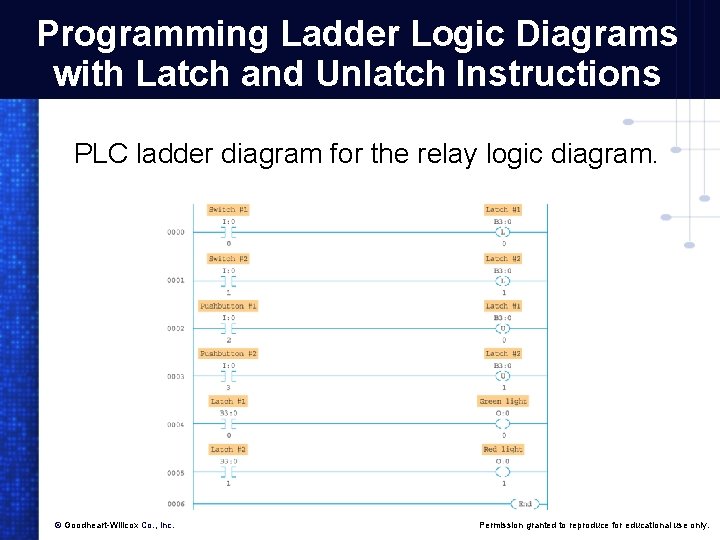
Programming Ladder Logic Diagrams with Latch and Unlatch Instructions PLC ladder diagram for the relay logic diagram. © Goodheart-Willcox Co. , Inc. Permission granted to reproduce for educational use only.
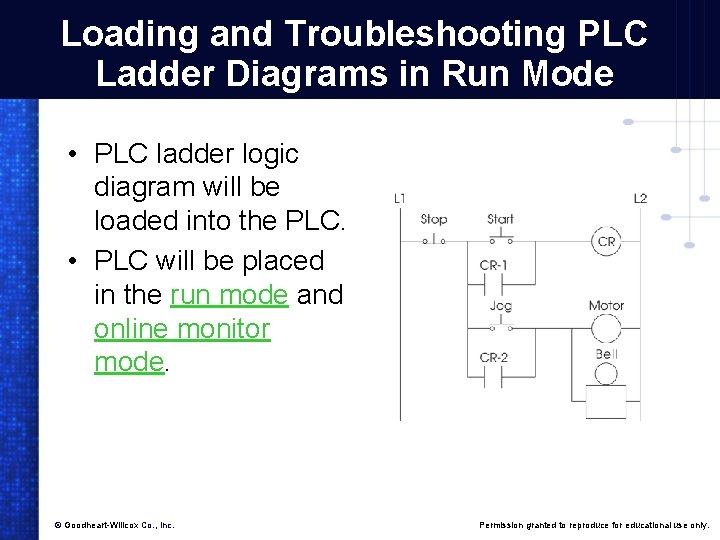
Loading and Troubleshooting PLC Ladder Diagrams in Run Mode • PLC ladder logic diagram will be loaded into the PLC. • PLC will be placed in the run mode and online monitor mode. © Goodheart-Willcox Co. , Inc. Permission granted to reproduce for educational use only.
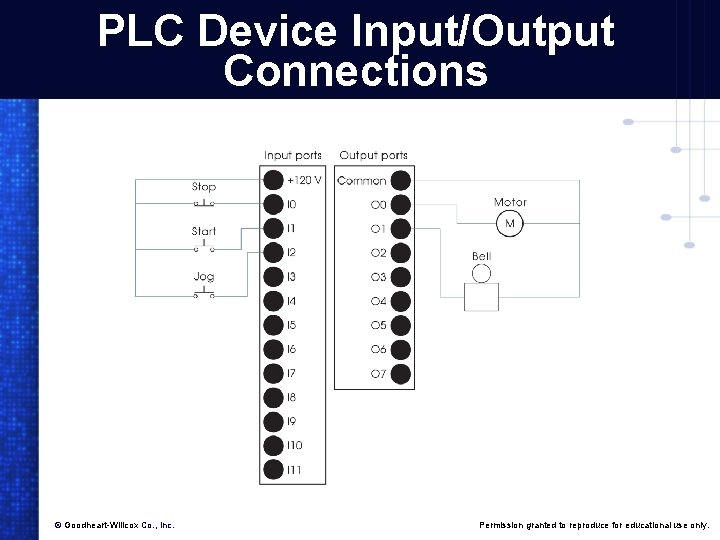
PLC Device Input/Output Connections © Goodheart-Willcox Co. , Inc. Permission granted to reproduce for educational use only.
Run Modes • Offline mode. • Online mode. © Goodheart-Willcox Co. , Inc. Permission granted to reproduce for educational use only.
Run Modes (Cont. ) • When PLC is in run and online monitor mode: – Run mode icon on the top of the screen will start rotating along its vertical axis. – Two vertical rails in the ladder logic diagram will be highlighted. © Goodheart-Willcox Co. , Inc. Permission granted to reproduce for educational use only.
Forced Condition Mode • Method of testing the PLC system without actually closing or opening input devices. • Keys on the computer keyboards are pressed to test the program. • Force condition must be used with extreme caution. • Allows a programmer to turn outputs on and off without actually touching the input/output devices. © Goodheart-Willcox Co. , Inc. Permission granted to reproduce for educational use only.
Forced Condition Mode (Cont. ) • Place PLC in the offline mode and create the ladder logic diagram displayed. • Download program into PLC. • Place PLC in run/online monitor mode. • Even though the force instruction is a powerful tool for troubleshooting, using the force instruction in an industrial plant has the potential of causing fatal accidents. © Goodheart-Willcox Co. , Inc. Permission granted to reproduce for educational use only.
Creating and Printing PLC Program Reports • Different report options available. • Configure the printer and its settings. • Preview reports that are ready to be printed and print them. • PLC manufacturer’s programming software will have similar report options. © Goodheart-Willcox Co. , Inc. Permission granted to reproduce for educational use only.
Creating and Printing PLC Program Reports (Cont. ) • Seven commands for creating and printing PLC reports found under the File menu: – – – – Print View. Print Preview. Report Options. Report Preview. Print Report. Printer Setup. Page Setup. © Goodheart-Willcox Co. , Inc. Permission granted to reproduce for educational use only.
Report Options • • • General. Data Files. Program Files. Special. Database. Miscellaneous Layout Options. © Goodheart-Willcox Co. , Inc. Permission granted to reproduce for educational use only.
General Report • • Title Page. Processor Information. I/O Configuration. Channel Configuration. Custom Data Monitor. Cross Reference. Multipoint List. © Goodheart-Willcox Co. , Inc. Permission granted to reproduce for educational use only.
Title Page Report • Prints the RSLogix 500 name and the Rockwell software logo. – Printing this page requires a lot of ink. – Therefore, do not select this option. © Goodheart-Willcox Co. , Inc. Permission granted to reproduce for educational use only.
Processor Information Report • Contains the name and type of processor used in the PLC system. • Know the type of PLC used with your lab station. • Do not need to select this option either. © Goodheart-Willcox Co. , Inc. Permission granted to reproduce for educational use only.
I/O Configuration Report • Number of slots available on the PLC. • Which slots are configured to be used and how many ports each module in the expansion slot has. • Printouts of the number of input/output devices used. © Goodheart-Willcox Co. , Inc. Permission granted to reproduce for educational use only.
Channel Configuration Report • Lists the controller channel number used for the communication between the PLC and the computer. • The PLC is assigned to station or node zero. • Configure the AB_PIC-1 (Allen-Bradley Peripheral Interface Connector) device driver that uses channel one. © Goodheart-Willcox Co. , Inc. Permission granted to reproduce for educational use only.
Channel One • RJ-45 connection terminal. • RJ-45 type terminal looks similar to the RJ-11 telephone jack terminal, except the RJ-45 is larger than the RJ-11 terminal. • Always used for connecting the 1747 PIC communication interface device to the PLC and the computer. © Goodheart-Willcox Co. , Inc. Permission granted to reproduce for educational use only.
Channel Zero • Could also be used for connecting peripheral devices. • Barcode reader or a printer directly to the SLC 502, SLC 503, SLC 504, and SLC 505 PLC systems. • Channel zero uses the RS 232 C (Recommended Standard 232 C) standard channel available on these PLC systems. © Goodheart-Willcox Co. , Inc. Permission granted to reproduce for educational use only.
Custom Data Monitor Report • Provides a list of the addresses in the custom data monitor, their symbols, and the current value of the bit or word address. • For the smaller SLC 500 and SLC 501 programmable logic controller systems, do not print this report. © Goodheart-Willcox Co. , Inc. Permission granted to reproduce for educational use only.
Cross Reference Report • Specifies which data files and rungs the addresses in the project are using. • For smaller ladder logic diagrams with only a few rungs, do not print this report option. © Goodheart-Willcox Co. , Inc. Permission granted to reproduce for educational use only.
Multipoint List Report • Contains a list of addresses used in the ladder logic diagram. • Addresses can be for input/output devices (I/O), contact bits (B 3 or B 10), timer (T 4), counter (C 5), control register (R 6), or status register (S 2). © Goodheart-Willcox Co. , Inc. Permission granted to reproduce for educational use only.
Multipoint List Report (Cont. ) • Available with Allen-Bradley Micro. Logix 1000, SLC 5/03 -OS 302, and SLC 5/04 -OS 401 controllers. • Addresses used and conditions or states while the PLC was operating. • Occasionally, select this option to review conditions while troubleshooting your PLC project. © Goodheart-Willcox Co. , Inc. Permission granted to reproduce for educational use only.
Data Base Section • Address/Symbols. • Instruction Comments. • Symbol Groups. © Goodheart-Willcox Co. , Inc. Permission granted to reproduce for educational use only.
Address/Symbols Option • Lists instruction addresses and descriptions. • Only lists processor addresses used in the ladder logic diagram. © Goodheart-Willcox Co. , Inc. Permission granted to reproduce for educational use only.
Instruction Comments Option • Displays the instruction comments. • On the ladder logic diagram, instruction comments will write over the address comments. – If an address has both instruction and address comments, only the instruction comment will be printed. © Goodheart-Willcox Co. , Inc. Permission granted to reproduce for educational use only.
Symbol Groups Option • Contains the list and description of the symbol groups. • PLC programmer can create symbols for each input/output device. • From then on, the programmer can use the symbol to place the I/O device. © Goodheart-Willcox Co. , Inc. Permission granted to reproduce for educational use only.
Symbol Groups Option (Cont. ) • For example, create a symbol called PB 0 for the input I: 0/0. • Then instead of typing I: 0/0, type PB 0 to place the input device in the ladder diagram. © Goodheart-Willcox Co. , Inc. Permission granted to reproduce for educational use only.
Program Files Section • Report option in the dialog box has two options. • Options: – Program File List. – Program Files. © Goodheart-Willcox Co. , Inc. Permission granted to reproduce for educational use only.
Program File List • List of the ladder logic diagrams. It will always list file 0, file 1, and file 2. – File 0, or SYS 0, is used to hold the status bits or flag bits. – These bits are S 2, S 3, S 5, and such. File 1, or SYS 2, is reserved. – Therefore, file 0 and file 1 are system files. File 2, or LAD 2, contains the main ladder logic diagram. © Goodheart-Willcox Co. , Inc. Permission granted to reproduce for educational use only.
Program Files Option • Displays ladder logic diagrams of the files in the report. • Select this report option. © Goodheart-Willcox Co. , Inc. Permission granted to reproduce for educational use only.
Data Files Section • Data File List. • Data Files. • Memory Usage. © Goodheart-Willcox Co. , Inc. Permission granted to reproduce for educational use only.
Data File Reports • Data File List: – Specifies the list of data files available for the PLC project. • Data Files option: – Specify which data file to include in report or the range for which data file will be printed. © Goodheart-Willcox Co. , Inc. Permission granted to reproduce for educational use only.
Saving and Retrieving PLC Programs • To save the PLC project from the File menu, click Save As. • From the Look In box, select drive and subdirectory to save the project file. • Enter name of the file in the File Name text box. • Click Save. © Goodheart-Willcox Co. , Inc. Permission granted to reproduce for educational use only.
Saving and Retrieving PLC Programs (Cont. ) • From Look In box, select drive in which the program is residing. • Select desired PLC project file and click Open. • Change parameters of save instructions. • From Tools menu, click Options to open the System Options dialog box. © Goodheart-Willcox Co. , Inc. Permission granted to reproduce for educational use only.
Saving and Retrieving PLC Programs (Cont. ) • In the Save Time Interval (minutes) option in the Auto. Save section: – Enter time interval for the program to automatically save the project files. – For example, type in “ 10” to automatically save the project files every 10 minutes. © Goodheart-Willcox Co. , Inc. Permission granted to reproduce for educational use only.
Number of Backups Text Box • Enter the desired number. • Located in the Program Backup section. • Specify the number of copies of the project files for the program to keep. • Specify that the system keeps only one copy of the project. – Copy called the backup file. © Goodheart-Willcox Co. , Inc. Permission granted to reproduce for educational use only.
- Slides: 68