
CHAPTER 5 Windows Operating System and User Interface
- Slides: 35
CHAPTER 5 Windows Operating System and User Interface Arlene N. Baratang, M. A.
Terminology 1 • User interface. The point at which a user, a user department, or organization interacts with a computer system. • Graphical User Interface (GUI). A graphicbased user interface that incorporates movable windows, icons and a mouse. • Desktop. The background of the GUI on which you have graphical tools.
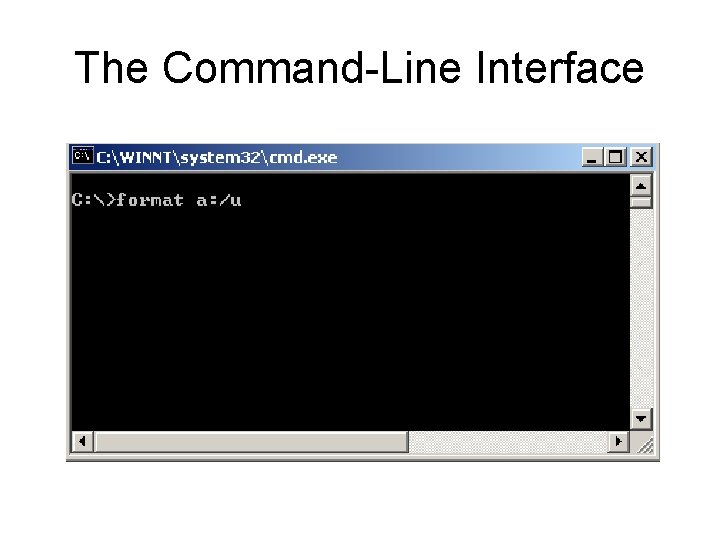
Terminology 2 • Shortcuts. Are the small pictures on the desktop that represent links to resources on PC or network. • Icon. The tiny graphic that represents an object such as programs, folders, files, printers, and shortcuts. • Command-line Interface. It uses typewritten commands to execute tasks.
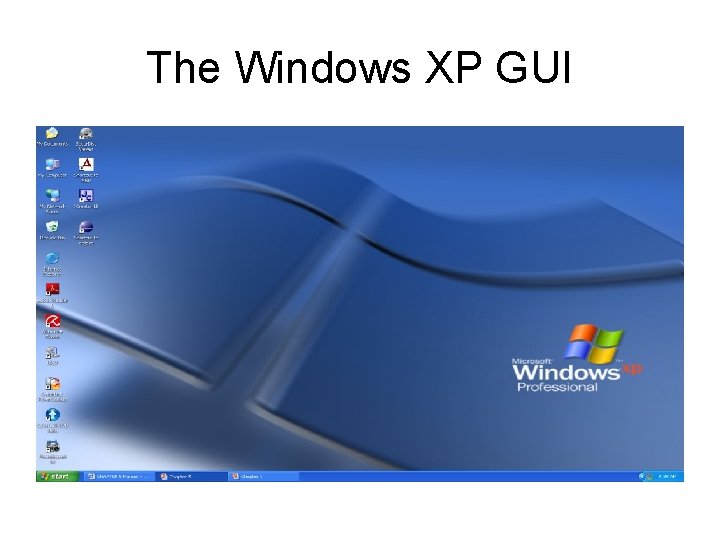
The Windows XP GUI
The Command-Line Interface
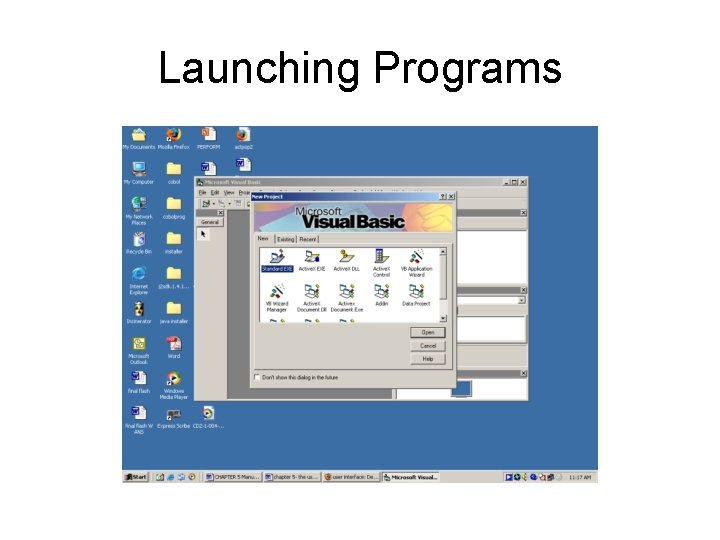
Launching Programs
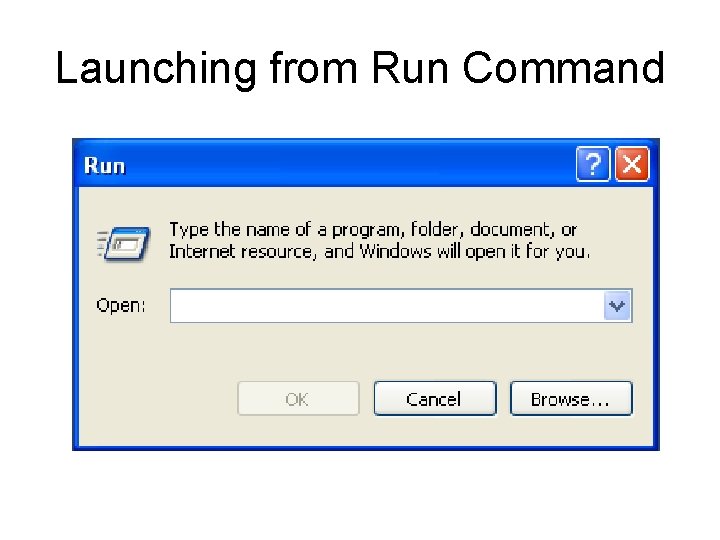
Launching from Run Command
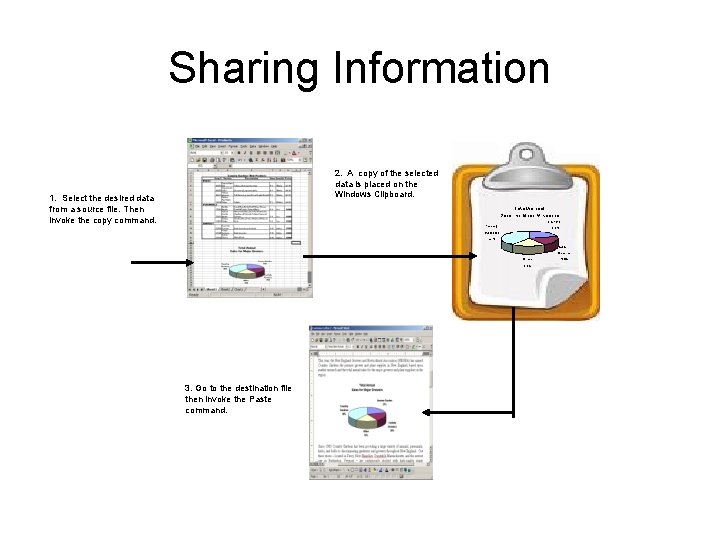
Sharing Information 2. A copy of the selected data is placed on the Windows Clipboard. 1. Select the desired data from a source file. Then invoke the copy command. 3. Go to the destination file then invoke the Paste command.
Terminology 3 • Clipboard. The temporary holding space for data that is being copied or moved in the computer’s memory. • Object Linking and Embedding (OLE). Object embedding is a simple cut and paste between applications. Object linking copies to and from the object from the Clipboard and creates a link to the original document.
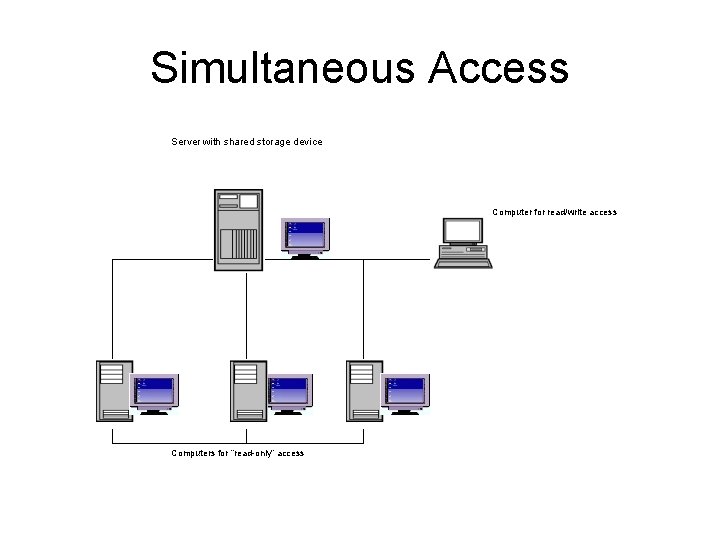
Simultaneous Access Server with shared storage device Computer for read/write access Computers for “read-only” access
Terminology 4 • Network server (server). A central computer with a large storage device and other resources that all users can share. • File server. Where the server can store data files for users to access.
Terminology 5 • Two basic types of accessing protected data: • Read-only. Users can only read the data but cannot make changes to the file. • Read/Write. Users are allowed to open shared files from the network server and can make changes to those files.
ACTIVITY 1 • 1. 2. 3. 4. 5. 6. 7. 8. Steps in Sharing Peripheral Devices (i. e. sharing of printer). Click Start. Click Settings. Click Printer and Faxes. Right-click on the printer name. Click Sharing. Under Sharing Tab, click Share this printer. Click Apply. Click OK.
ACTIVITY 2 • Adding the Shared Printer Connection 1. Once the network connection is established, you can add a printer by doing the following steps: 2. Click Start. 3. Click Settings. 4. Click Printer and Faxes. 5. Click Add a printer under the Printer Tasks section on the left side of the screen. 6. If the Printer Tasks section isn’t visible, click the Folders button on the top toolbar and it will appear. 7. Clicking Add a printer opens the Welcome to the Add Printer Wizard. 8. The wizard will ask if you’re installing a local printer attached to this computer or a network computer attached to another computer. 9. Ensure that the printer you want to connect is powered on and make your selection. 10. Select the printer you want and it will be installed or added to your printer list. 11. Run the wizard again if there is more than one printer to be added and make the selection which will be the default printer.
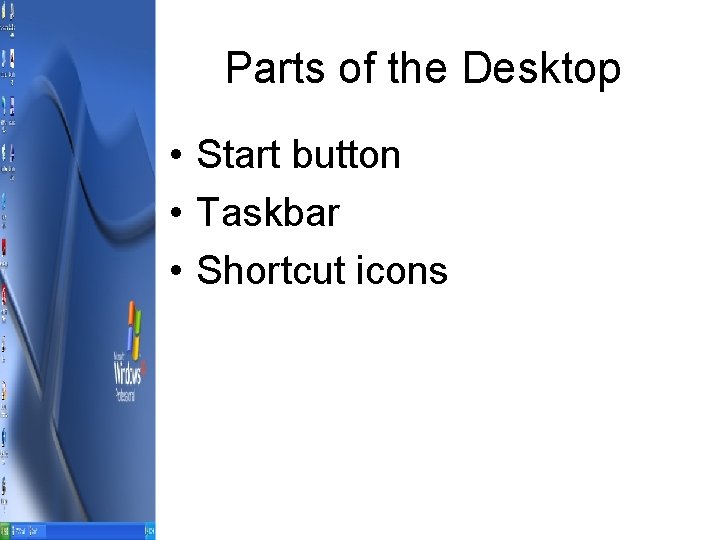
Parts of the Desktop • Start button • Taskbar • Shortcut icons
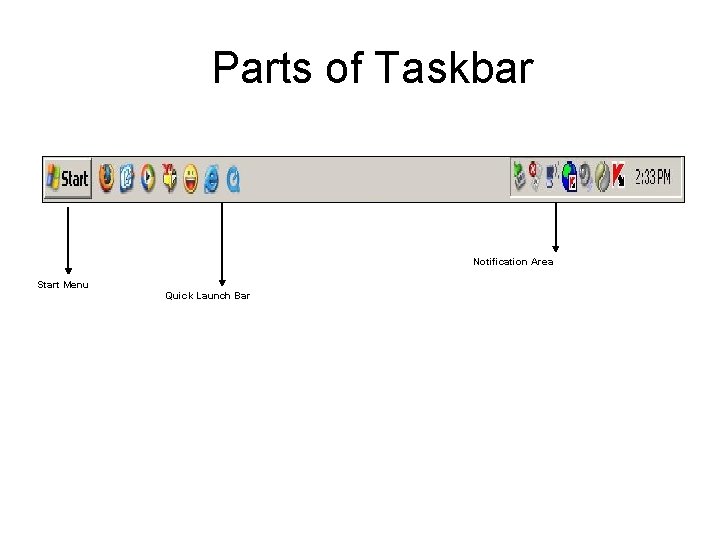
Parts of Taskbar Notification Area Start Menu Quick Launch Bar
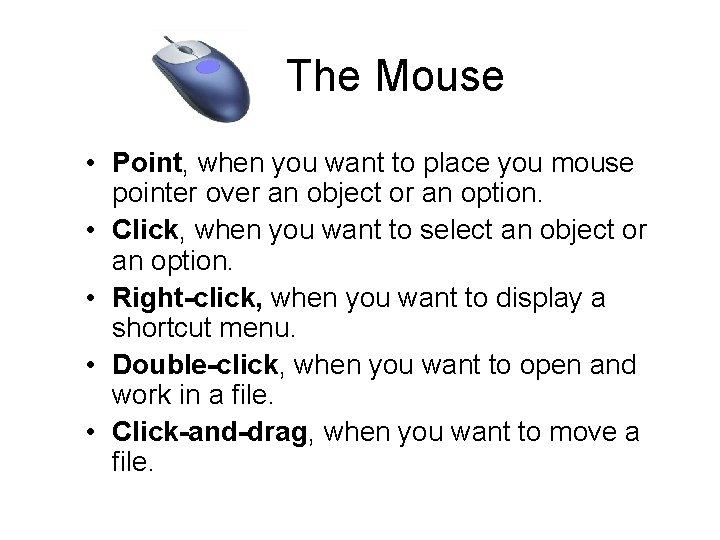
The Mouse • Point, when you want to place you mouse pointer over an object or an option. • Click, when you want to select an object or an option. • Right-click, when you want to display a shortcut menu. • Double-click, when you want to open and work in a file. • Click-and-drag, when you want to move a file.
ACTIVITY 3 • • Multitasking Switching Between Programs 1. 2. 3. 4. 5. 6. 7. 8. You can switch windows simply by clicking on the appropriate icon on the Taskbar, or: Click the application's Taskbar button. Click the application's title bar. Click any visible part of the application's window. You may use key combination like <Alt>+<Tab> to quickly switch tasks, then: Press and hold down the <Alt> key. Hit the <Tab> key and a window will pop up in the middle of your screen showing you all the applications you currently have running on your machine. To select the application you want to open, hold down the <Alt> key and keep pressing the <Tab> key until the application you want to select is highlighted. Then release the <Alt> key and the selected application will display on the foreground.
ACTIVITY 4 • Tiling and Cascading the Window Tiled windows are next to each other, while cascading windows are layered on top of each other. To automatically arrange two or more open windows, right -click on a blank area of the Taskbar then choose on the following options: Cascade Windows, Tile Windows Horizontally, or Tile Windows Vertically. To return to your previous window arrangement, right-click on the blank area of the Taskbar then select Undo command.
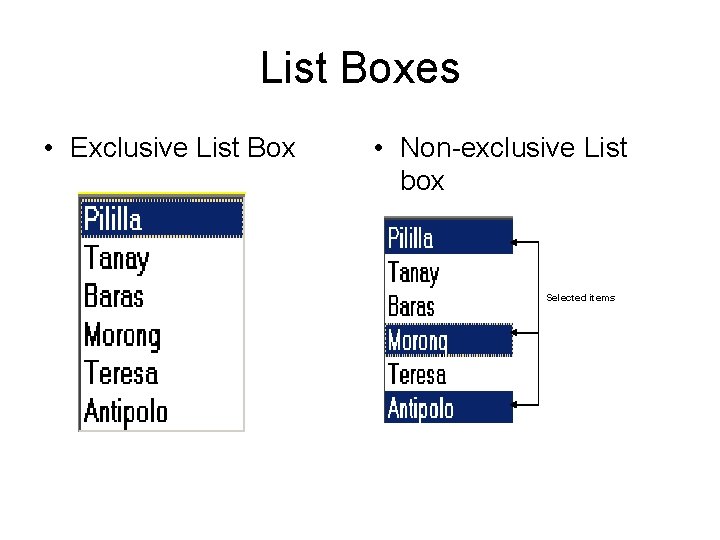
List Boxes • Exclusive List Box • Non-exclusive List box Selected items
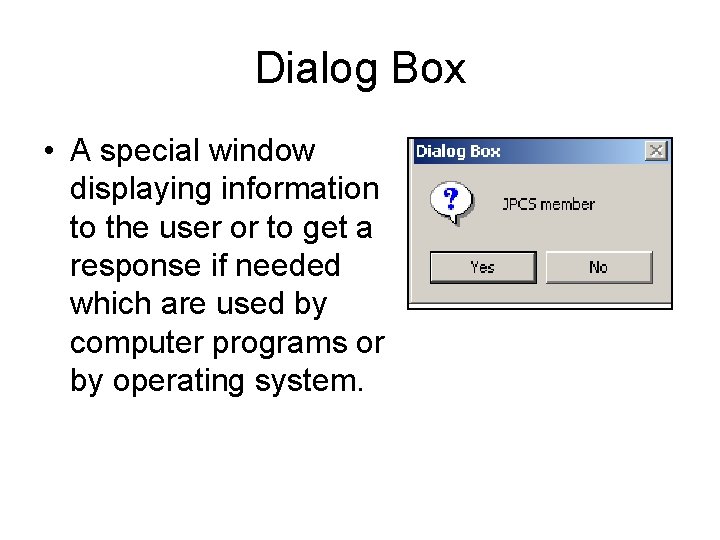
Dialog Box • A special window displaying information to the user or to get a response if needed which are used by computer programs or by operating system.
Help and Support Center
Some Helpful Shortcut Keyboard Commands 1 • F 1: Starts Windows Help. • F 10: Activates menu bar options. • SHIFT+F 10 Opens a shortcut menu for the selected item - this is the same as right-clicking an object. • CTRL+ESC: Opens the Start menu (use the ARROW keys to select an item). • CTRL+ESC or ESC: Selects the Start button (press TAB to select the taskbar, or press SHIFT+F 10 for a context menu).
Some Helpful Shortcut Keyboard Commands 2 • ALT+DOWN ARROW: Opens a drop-down list box. • ALT+TAB: Switch to another running program (hold down the ALT key and then press the TAB key to view the task-switching window). • SHIFT: Press and hold down the SHIFT key while you insert a CD-ROM to bypass the automatic-run feature. • ALT+SPACE: Displays the main window's System menu (from the System menu, you can restore, move, resize, minimize, maximize, or close the window). • ALT+- (ALT+hyphen): Displays the Multiple Document Interface (MDI) child window's System menu (from the MDI child window's System menu, you can restore, move, resize, minimize, maximize, or close the child window).
Some Helpful Shortcut Keyboard Commands 3 • CTRL+TAB: Switch to the next child window of a Multiple Document Interface (MDI) program. • ALT+underlined letter in menu: Opens the menu. • ALT+F 4: Closes the current window. • CTRL+F 4: Closes the current Multiple Document Interface (MDI) window. • ALT+F 6: Switch between multiple windows in the same program (for example, when the Notepad Find dialog box is displayed, ALT+F 6 switches between the Find dialog box and the main Notepad window).
Formatting • • Formatting a disk erases all information from the disk. To format a disk, close all files on that disk then follow these steps: 1. Open My. Computer. 2. Right click one device from the following icons and choose Format. Type a name in the box of Volume label as your label for your disk. This is optional. 3. Click on Start button then OK button when finished.
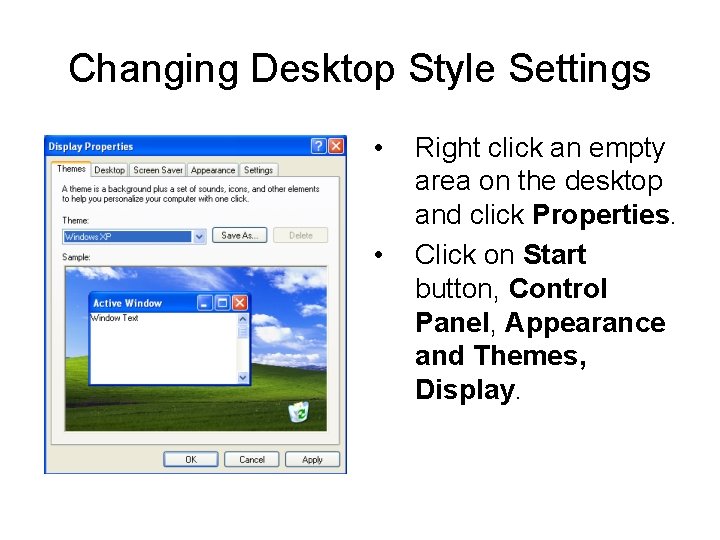
Changing Desktop Style Settings • • Right click an empty area on the desktop and click Properties. Click on Start button, Control Panel, Appearance and Themes, Display.
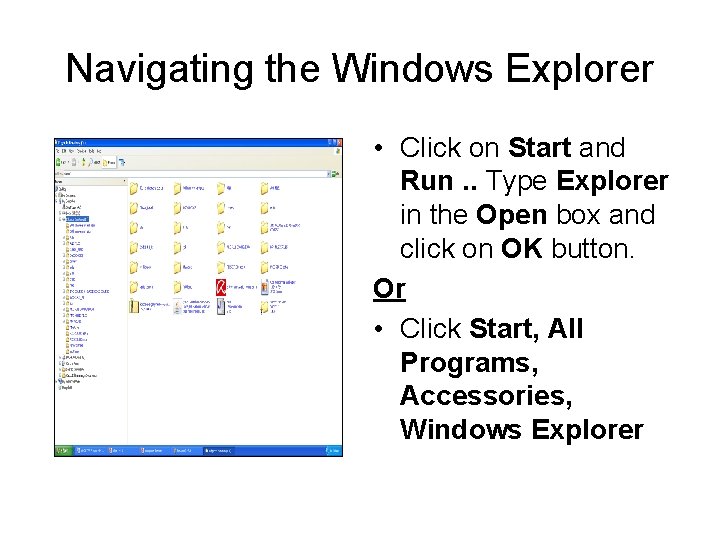
Navigating the Windows Explorer • Click on Start and Run. . Type Explorer in the Open box and click on OK button. Or • Click Start, All Programs, Accessories, Windows Explorer
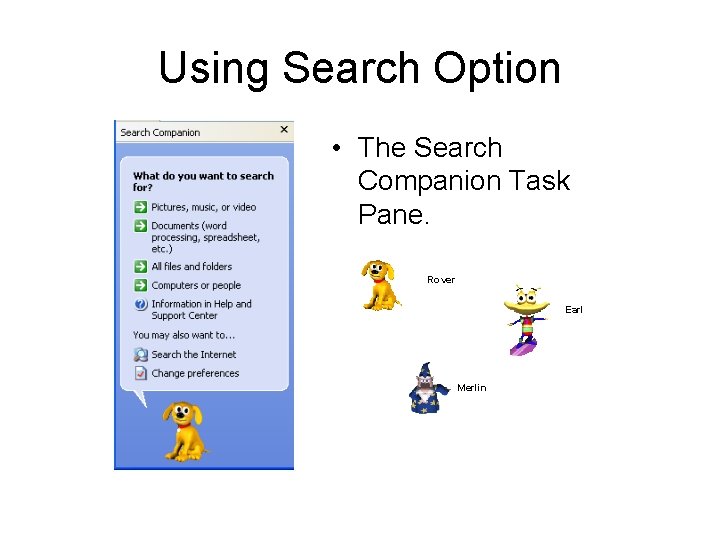
Using Search Option • The Search Companion Task Pane. Rover Earl Merlin
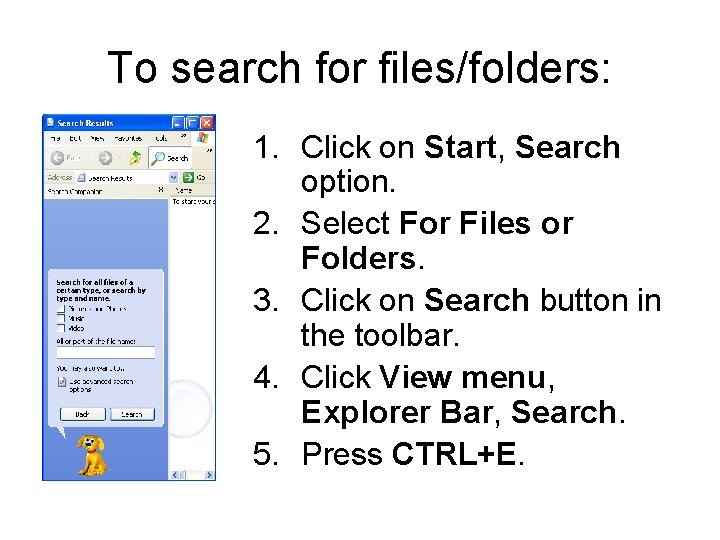
To search for files/folders: 1. Click on Start, Search option. 2. Select For Files or Folders. 3. Click on Search button in the toolbar. 4. Click View menu, Explorer Bar, Search. 5. Press CTRL+E.
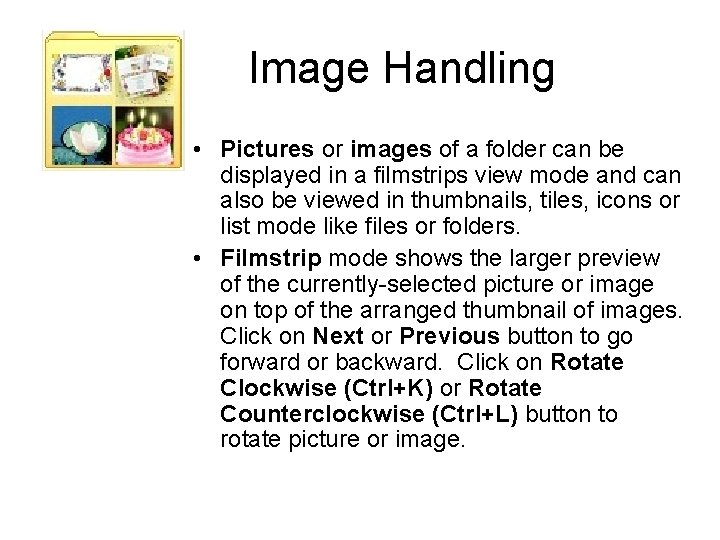
Image Handling • Pictures or images of a folder can be displayed in a filmstrips view mode and can also be viewed in thumbnails, tiles, icons or list mode like files or folders. • Filmstrip mode shows the larger preview of the currently-selected picture or image on top of the arranged thumbnail of images. Click on Next or Previous button to go forward or backward. Click on Rotate Clockwise (Ctrl+K) or Rotate Counterclockwise (Ctrl+L) button to rotate picture or image.
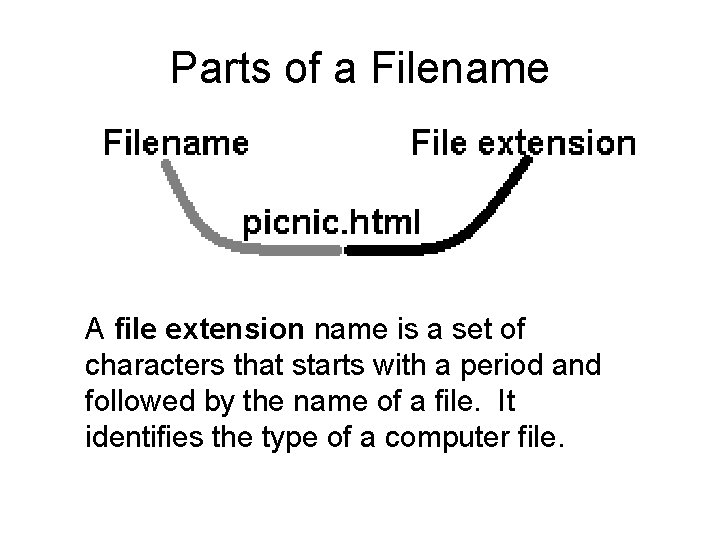
Parts of a Filename A file extension name is a set of characters that starts with a period and followed by the name of a file. It identifies the type of a computer file.
Changing the Name of a File/Folder • Right click the file/folder and click Rename. Type the new name and press ENTER. • Or • Select the file/folder, click File menu and choose Rename. Type the new name and press ENTER.
Moving Files/Folders • To move files or folders by dragging, you can: • Select the file/folder that you want to move. Make sure the destination of the file/folder to be moved is visible. • Press and hold down SHIFT while dragging the file or folder to the destination. • Press and hold down CTRL key while dragging the file/folder to the destination to copy the file/folder instead of moving it.
Selecting Multiple Files/Folders • Select all the files and folders in the window by pressing CTRL+A or click Edit menu, Select All. • Select consecutive files or folders, click the first item, press and hold down SHIFT, then click the last item. • Select nonconsecutive files or folders, press and hold down CTRL while clicking each item. • Click the empty portion in the folder window to clear the selection.