
Chapter 5 Understanding Text Processing The Complete Guide
![Searching for Patterns with grep (continued) • $ grep Thomas[c. C]orp *txt • •](https://slidetodoc.com/presentation_image_h2/5bffbcfc7fed6295e868ad6169b96772/image-13.jpg "Searching for Patterns with grep (continued) • $ grep Thomas[c. C]orp *txt • •")
- Slides: 57
Chapter 5: Understanding Text Processing The Complete Guide to Linux System Administration
Objectives • • Use regular expressions in a variety of circumstances Manipulate text files in complex ways using multiple command-line utilities Use advanced features of the vi editor Use the sed and awk text processing utilities The Complete Guide to Linux System Administration 2
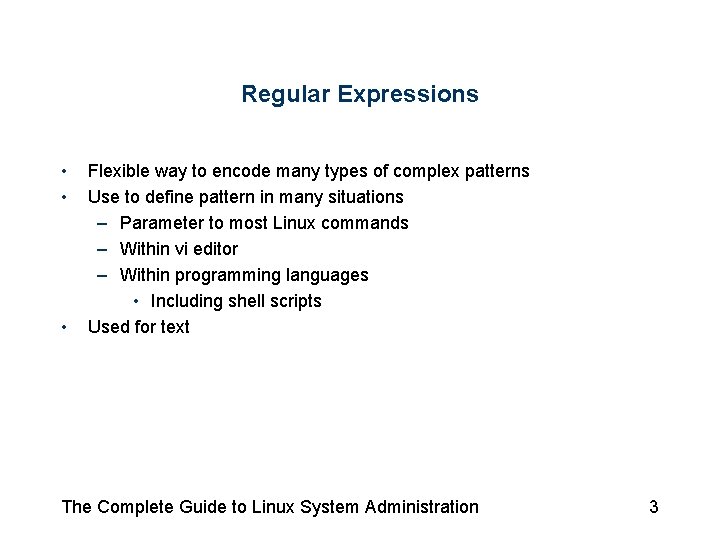
Regular Expressions • • • Flexible way to encode many types of complex patterns Use to define pattern in many situations – Parameter to most Linux commands – Within vi editor – Within programming languages • Including shell scripts Used for text The Complete Guide to Linux System Administration 3
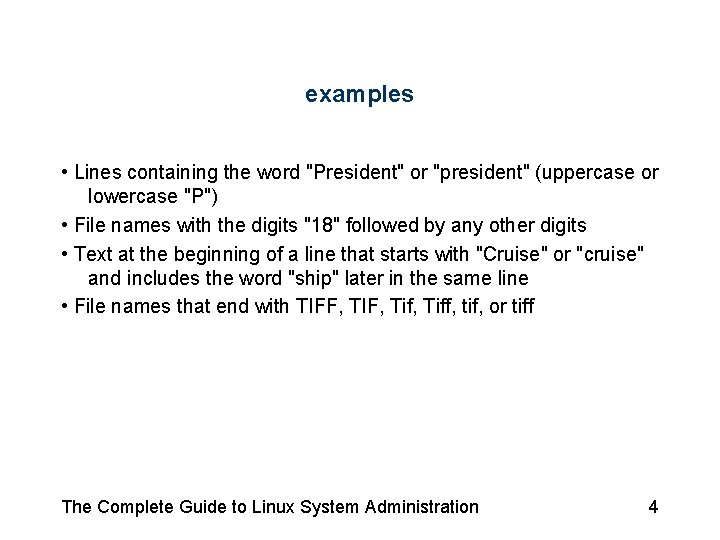
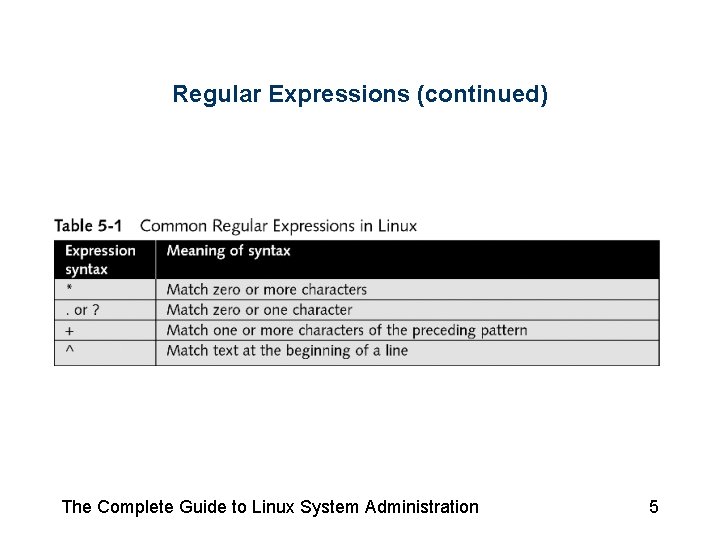
examples • Lines containing the word "President" or "president" (uppercase or lowercase "P") • File names with the digits "18" followed by any other digits • Text at the beginning of a line that starts with "Cruise" or "cruise" and includes the word "ship" later in the same line • File names that end with TIFF, TIF, Tiff, tif, or tiff The Complete Guide to Linux System Administration 4
Regular Expressions (continued) The Complete Guide to Linux System Administration 5
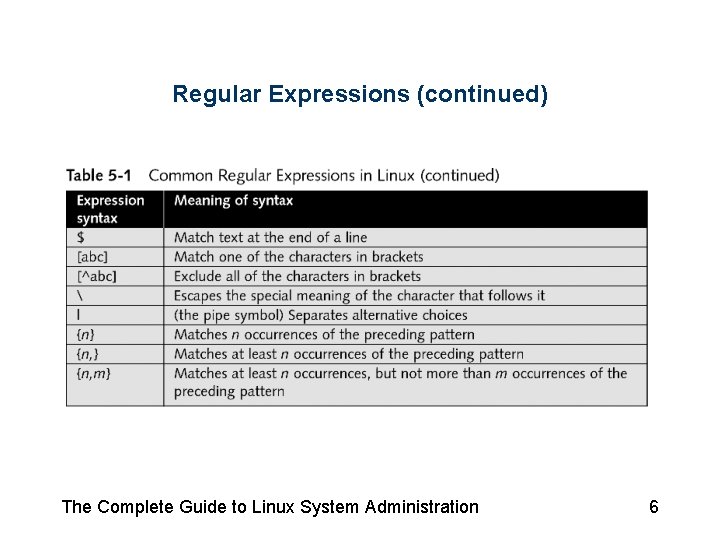
Regular Expressions (continued) The Complete Guide to Linux System Administration 6
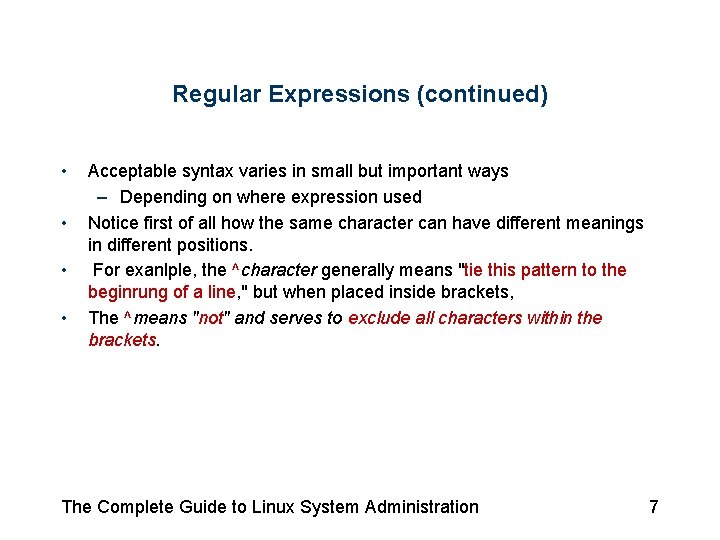
Regular Expressions (continued) • • Acceptable syntax varies in small but important ways – Depending on where expression used Notice first of all how the same character can have different meanings in different positions. For exanlple, the ^character generally means "tie this pattern to the beginrung of a line, " but when placed inside brackets, The ^means "not" and serves to exclude all characters within the brackets. The Complete Guide to Linux System Administration 7
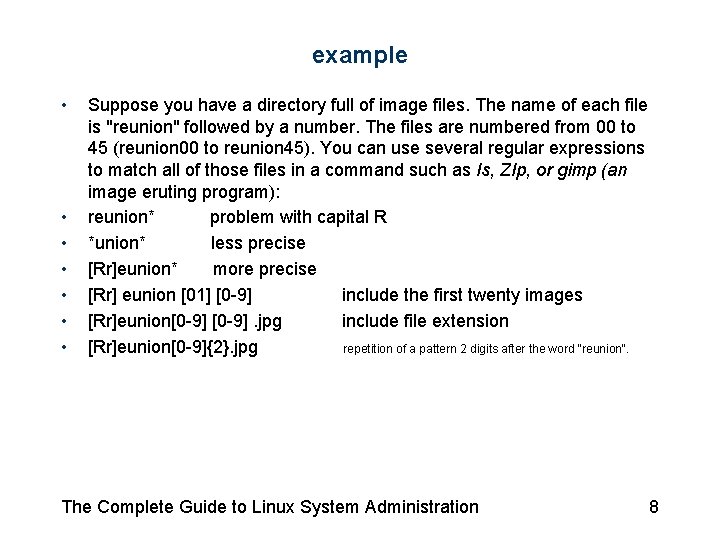
example • • Suppose you have a directory full of image files. The name of each file is "reunion" followed by a number. The files are numbered from 00 to 45 (reunion 00 to reunion 45). You can use several regular expressions to match all of those files in a command such as Is, ZIp, or gimp (an image eruting program): reunion* problem with capital R *union* less precise [Rr]eunion* more precise [Rr] eunion [01] [0 -9] include the first twenty images [Rr]eunion[0 -9]. jpg include file extension [Rr]eunion[0 -9]{2}. jpg repetition of a pattern 2 digits after the word "reunion". The Complete Guide to Linux System Administration 8
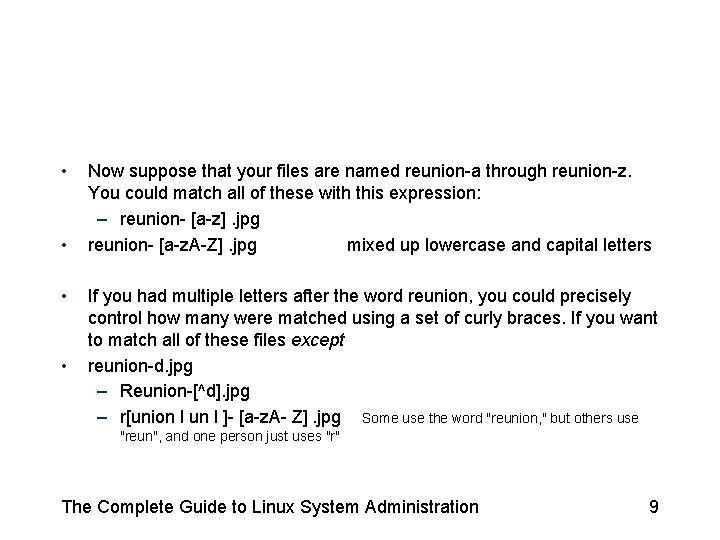
• • Now suppose that your files are named reunion-a through reunion-z. You could match all of these with this expression: – reunion- [a-z]. jpg reunion- [a-z. A-Z]. jpg mixed up lowercase and capital letters If you had multiple letters after the word reunion, you could precisely control how many were matched using a set of curly braces. If you want to match all of these files except reunion-d. jpg – Reunion-[^d]. jpg – r[union l un l ]- [a-z. A- Z]. jpg Some use the word "reunion, " but others use "reun", and one person just uses "r" The Complete Guide to Linux System Administration 9
Manipulating Files • Command-line utilities useful for: – Searching – Sorting – Reorganizing – Otherwise working with text files The Complete Guide to Linux System Administration 10
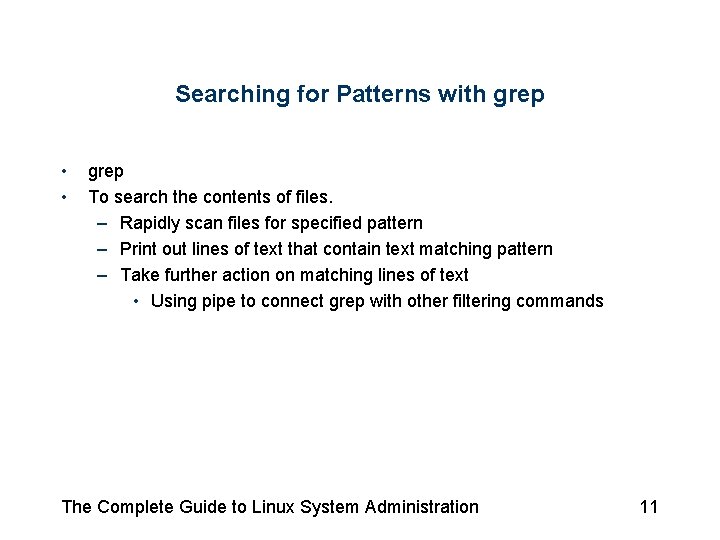
Searching for Patterns with grep • • grep To search the contents of files. – Rapidly scan files for specified pattern – Print out lines of text that contain text matching pattern – Take further action on matching lines of text • Using pipe to connect grep with other filtering commands The Complete Guide to Linux System Administration 11
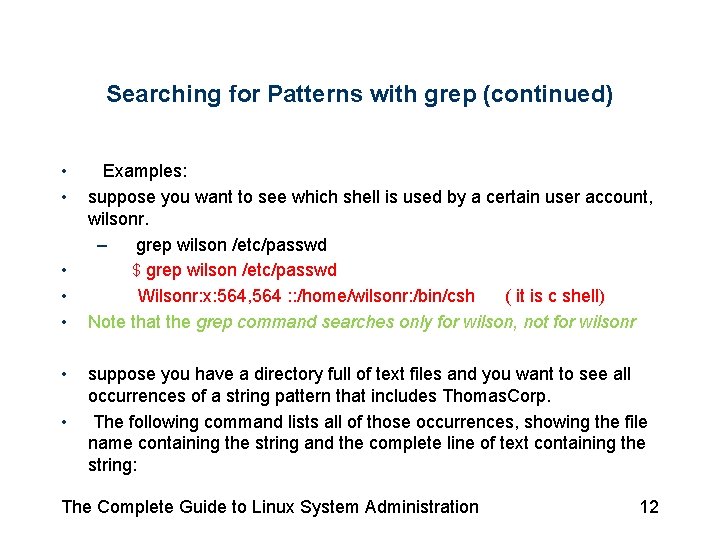
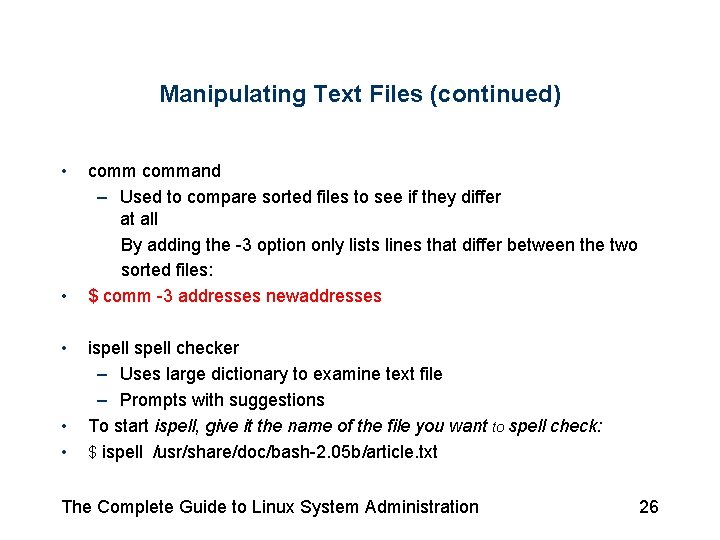
Searching for Patterns with grep (continued) • • Examples: suppose you want to see which shell is used by a certain user account, wilsonr. – grep wilson /etc/passwd $ grep wilson /etc/passwd Wilsonr: x: 564, 564 : : /home/wilsonr: /bin/csh ( it is c shell) Note that the grep command searches only for wilson, not for wilsonr suppose you have a directory full of text files and you want to see all occurrences of a string pattern that includes Thomas. Corp. The following command lists all of those occurrences, showing the file name containing the string and the complete line of text containing the string: The Complete Guide to Linux System Administration 12
Searching for Patterns with grep (continued) • $ grep Thomas[c. C]orp *txt • • finds instances of the following strings: Thomascorp Thomas. Corporation Thomas. Corps • • But these strings are not found: Thomas Corporation Thomas corporation Thomas Nast • When using the grep command, an asterisk is never needed at the beginning or end of the string pattern (such as Thomas. Corp *), because grep locates the string wherever it occurs. The Complete Guide to Linux System Administration 13
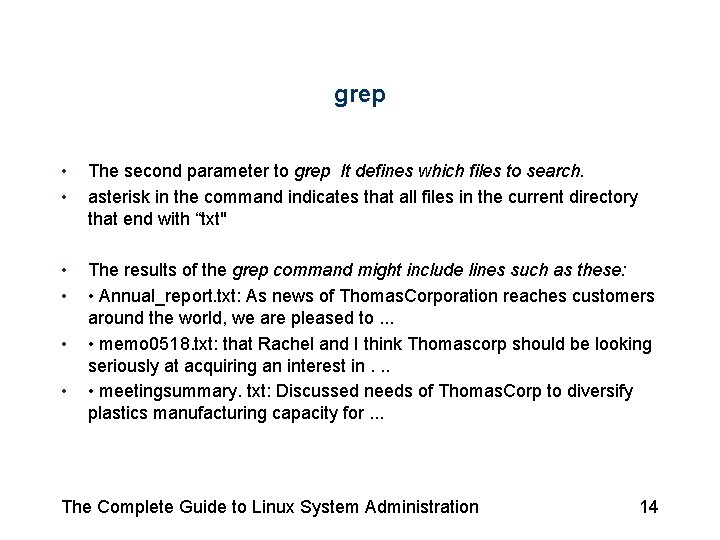
grep • • The second parameter to grep It defines which files to search. asterisk in the command indicates that all files in the current directory that end with “txt" • • The results of the grep command might include lines such as these: • Annual_report. txt: As news of Thomas. Corporation reaches customers around the world, we are pleased to. . . • memo 0518. txt: that Rachel and I think Thomascorp should be looking seriously at acquiring an interest in. . . • meetingsummary. txt: Discussed needs of Thomas. Corp to diversify plastics manufacturing capacity for. . . • • The Complete Guide to Linux System Administration 14
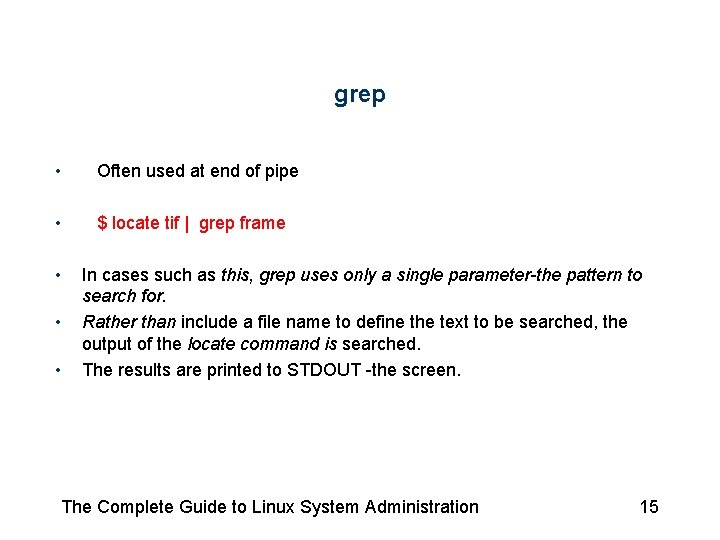
grep • Often used at end of pipe • $ locate tif | grep frame • • • In cases such as this, grep uses only a single parameter-the pattern to search for. Rather than include a file name to define the text to be searched, the output of the locate command is searched. The results are printed to STDOUT -the screen. The Complete Guide to Linux System Administration 15
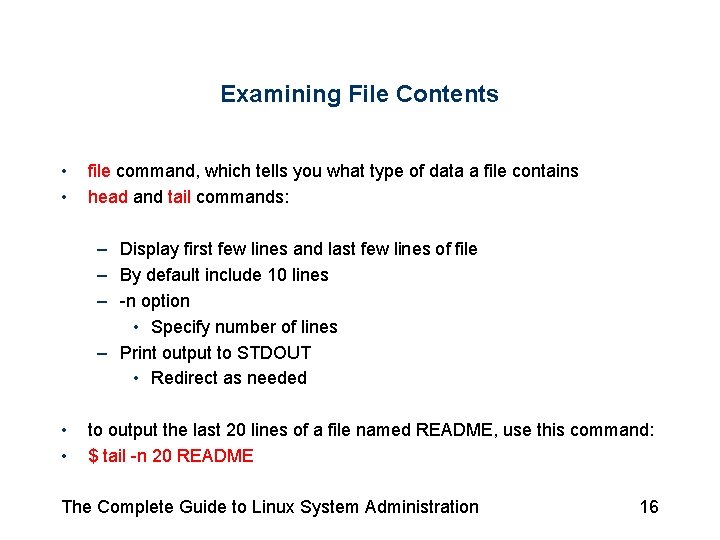
Examining File Contents • • file command, which tells you what type of data a file contains head and tail commands: – Display first few lines and last few lines of file – By default include 10 lines – -n option • Specify number of lines – Print output to STDOUT • Redirect as needed • • to output the last 20 lines of a file named README, use this command: $ tail -n 20 README The Complete Guide to Linux System Administration 16
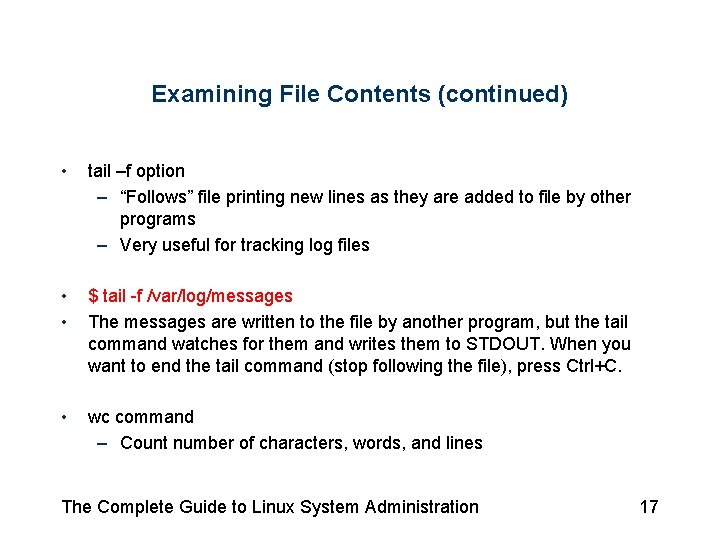
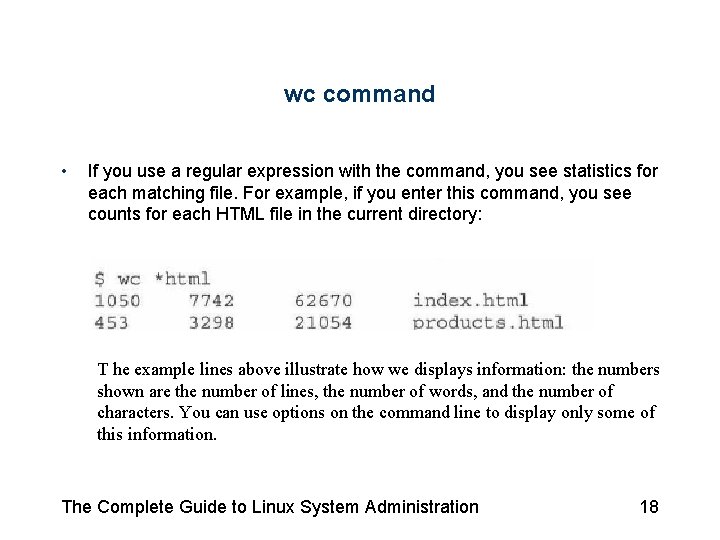
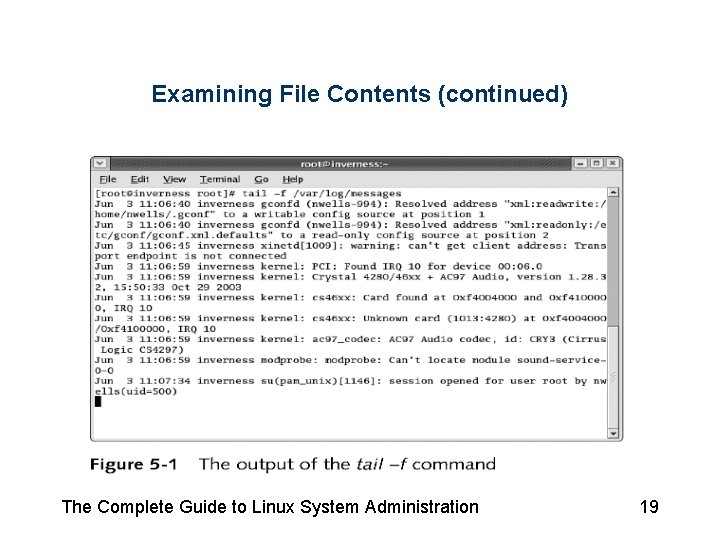
Examining File Contents (continued) • tail –f option – “Follows” file printing new lines as they are added to file by other programs – Very useful for tracking log files • • $ tail -f /var/log/messages The messages are written to the file by another program, but the tail command watches for them and writes them to STDOUT. When you want to end the tail command (stop following the file), press Ctrl+C. • wc command – Count number of characters, words, and lines The Complete Guide to Linux System Administration 17
wc command • If you use a regular expression with the command, you see statistics for each matching file. For example, if you enter this command, you see counts for each HTML file in the current directory: T he example lines above illustrate how we displays information: the numbers shown are the number of lines, the number of words, and the number of characters. You can use options on the command line to display only some of this information. The Complete Guide to Linux System Administration 18
Examining File Contents (continued) The Complete Guide to Linux System Administration 19
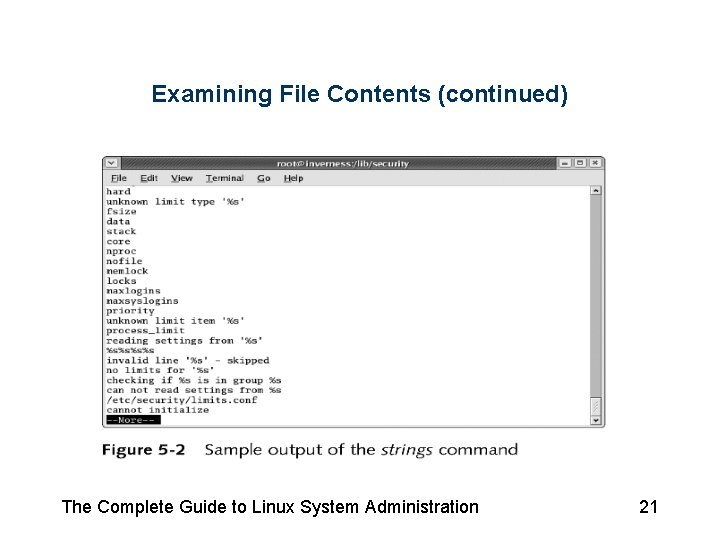
Examining File Contents (continued) • strings command – Extracts text strings from file that includes binary and other non-text data – Provides convenient way to check for information that may not be otherwise available The Complete Guide to Linux System Administration 20
Examining File Contents (continued) The Complete Guide to Linux System Administration 21
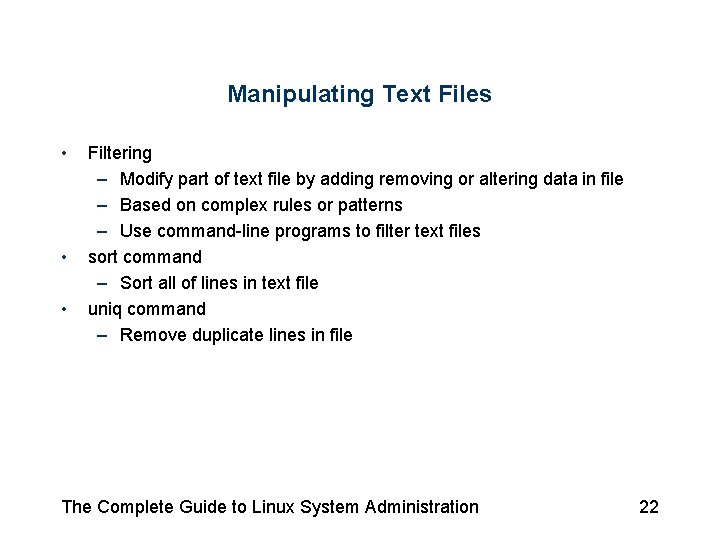
Manipulating Text Files • • • Filtering – Modify part of text file by adding removing or altering data in file – Based on complex rules or patterns – Use command-line programs to filter text files sort command – Sort all of lines in text file uniq command – Remove duplicate lines in file The Complete Guide to Linux System Administration 22
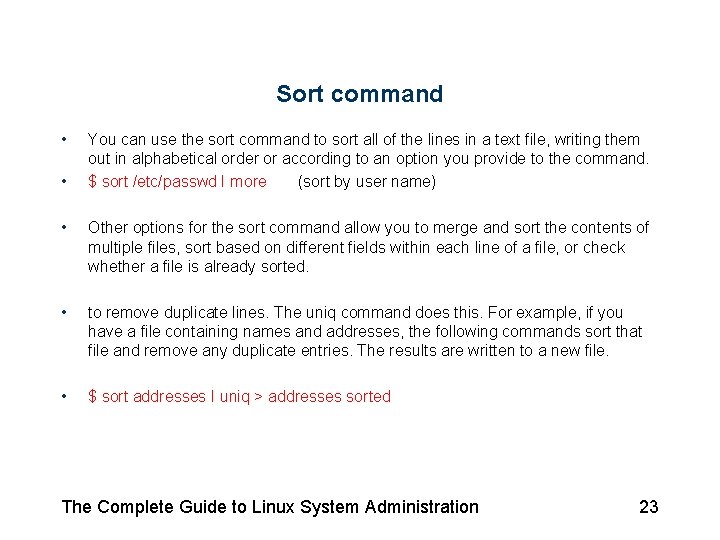
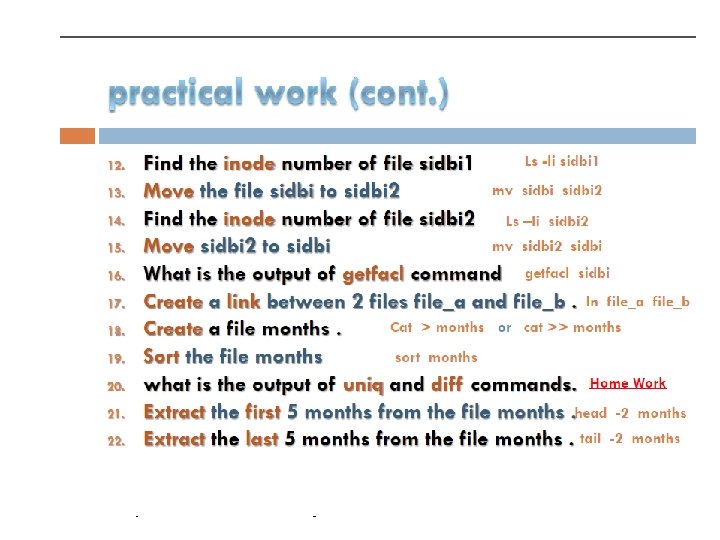
Sort command • • You can use the sort command to sort all of the lines in a text file, writing them out in alphabetical order or according to an option you provide to the command. $ sort /etc/passwd I more (sort by user name) • Other options for the sort command allow you to merge and sort the contents of multiple files, sort based on different fields within each line of a file, or check whether a file is already sorted. • to remove duplicate lines. The uniq command does this. For example, if you have a file containing names and addresses, the following commands sort that file and remove any duplicate entries. The results are written to a new file. • $ sort addresses I uniq > addresses sorted The Complete Guide to Linux System Administration 23
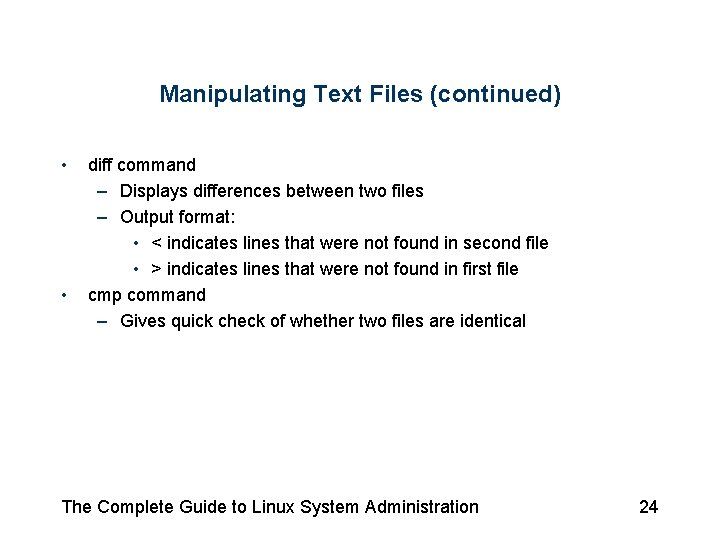
Manipulating Text Files (continued) • • diff command – Displays differences between two files – Output format: • < indicates lines that were not found in second file • > indicates lines that were not found in first file cmp command – Gives quick check of whether two files are identical The Complete Guide to Linux System Administration 24
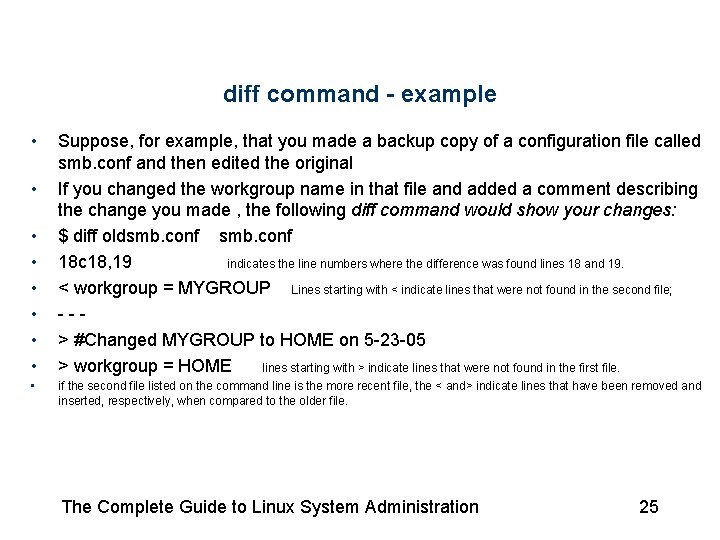
diff command - example • • • Suppose, for example, that you made a backup copy of a configuration file called smb. conf and then edited the original If you changed the workgroup name in that file and added a comment describing the change you made , the following diff command would show your changes: $ diff oldsmb. conf 18 c 18, 19 indicates the line numbers where the difference was found lines 18 and 19. < workgroup = MYGROUP Lines starting with < indicate lines that were not found in the second file; --> #Changed MYGROUP to HOME on 5 -23 -05 > workgroup = HOME lines starting with > indicate lines that were not found in the first file. if the second file listed on the command line is the more recent file, the < and> indicate lines that have been removed and inserted, respectively, when compared to the older file. The Complete Guide to Linux System Administration 25
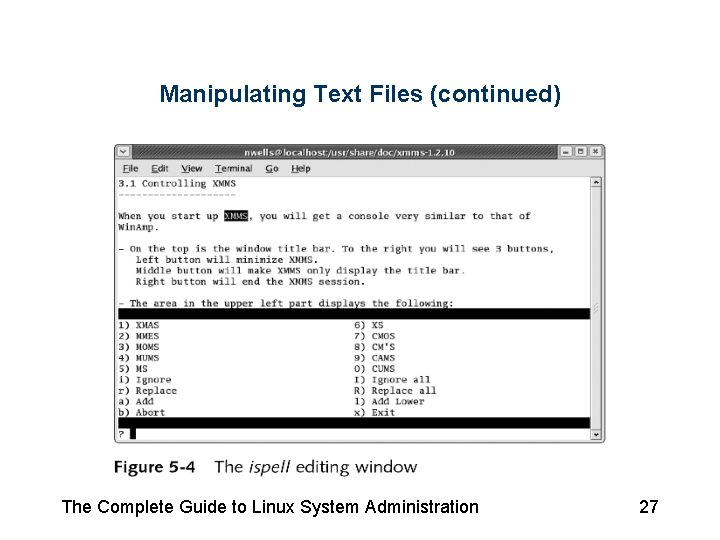
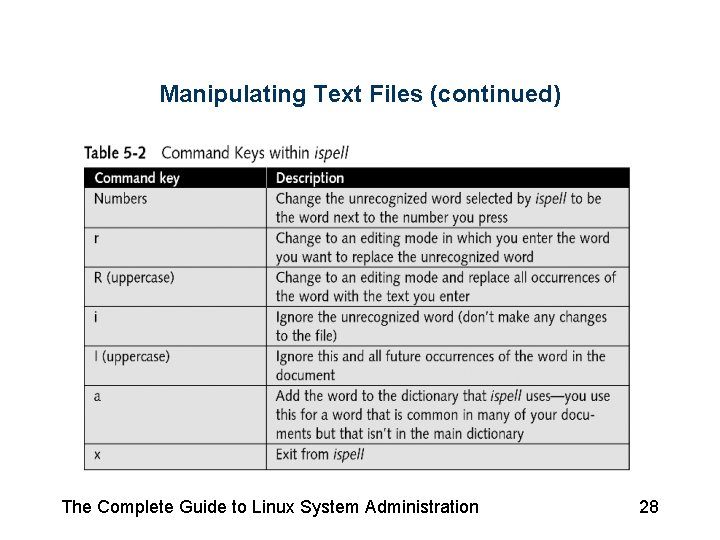
Manipulating Text Files (continued) • • • command – Used to compare sorted files to see if they differ at all By adding the -3 option only lists lines that differ between the two sorted files: $ comm -3 addresses newaddresses ispell checker – Uses large dictionary to examine text file – Prompts with suggestions To start ispell, give it the name of the file you want to spell check: $ ispell /usr/share/doc/bash-2. 05 b/article. txt The Complete Guide to Linux System Administration 26
Manipulating Text Files (continued) The Complete Guide to Linux System Administration 27
Manipulating Text Files (continued) The Complete Guide to Linux System Administration 28
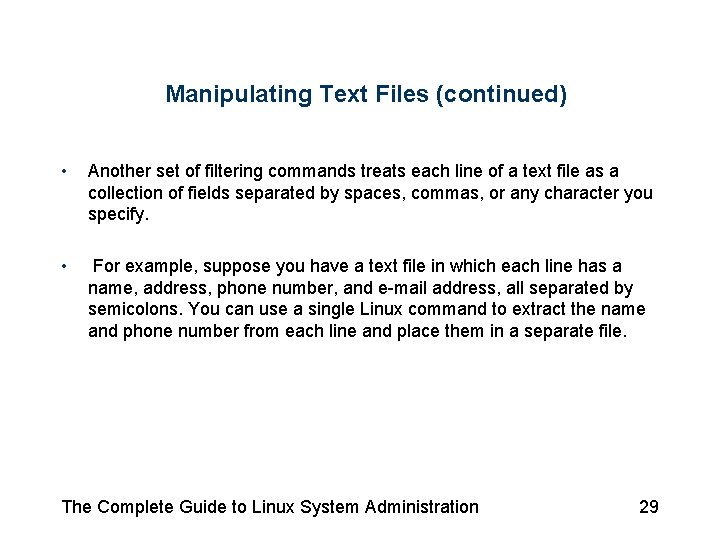
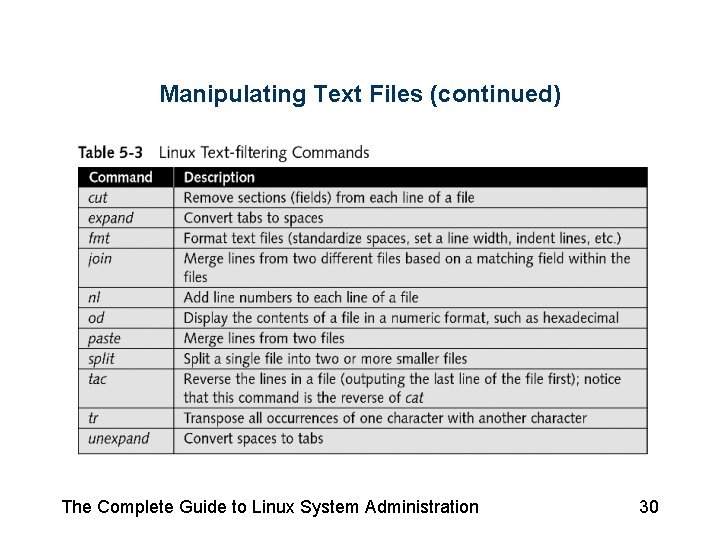
Manipulating Text Files (continued) • Another set of filtering commands treats each line of a text file as a collection of fields separated by spaces, commas, or any character you specify. • For example, suppose you have a text file in which each line has a name, address, phone number, and e-mail address, all separated by semicolons. You can use a single Linux command to extract the name and phone number from each line and place them in a separate file. The Complete Guide to Linux System Administration 29
Manipulating Text Files (continued) The Complete Guide to Linux System Administration 30
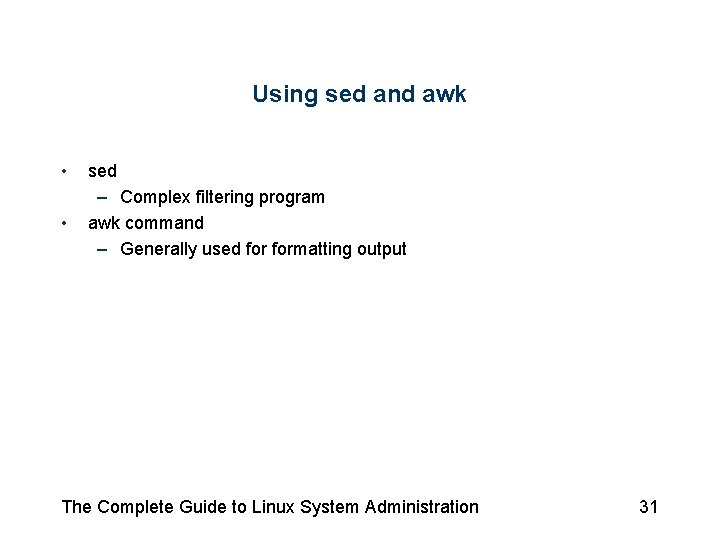
Using sed and awk • • sed – Complex filtering program awk command – Generally used formatting output The Complete Guide to Linux System Administration 31
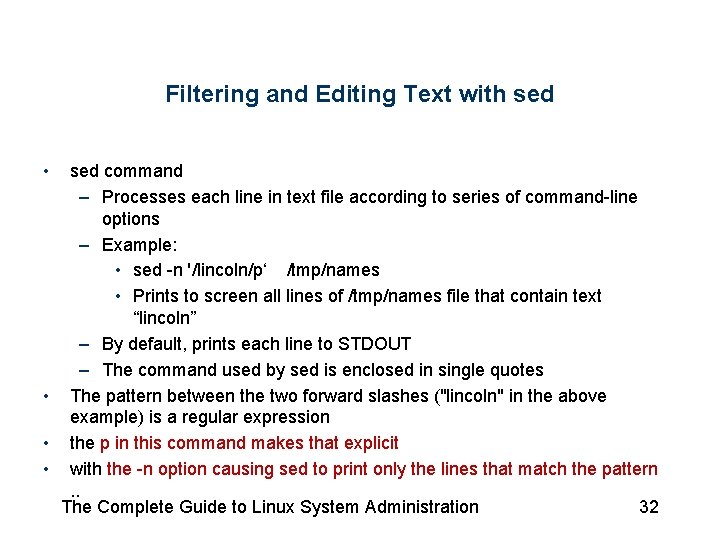
Filtering and Editing Text with sed • sed command – Processes each line in text file according to series of command-line options – Example: • sed -n '/lincoln/p‘ /tmp/names • Prints to screen all lines of /tmp/names file that contain text “lincoln” – By default, prints each line to STDOUT – The command used by sed is enclosed in single quotes • The pattern between the two forward slashes ("lincoln" in the above example) is a regular expression • the p in this command makes that explicit • with the -n option causing sed to print only the lines that match the pattern. . The Complete Guide to Linux System Administration 32
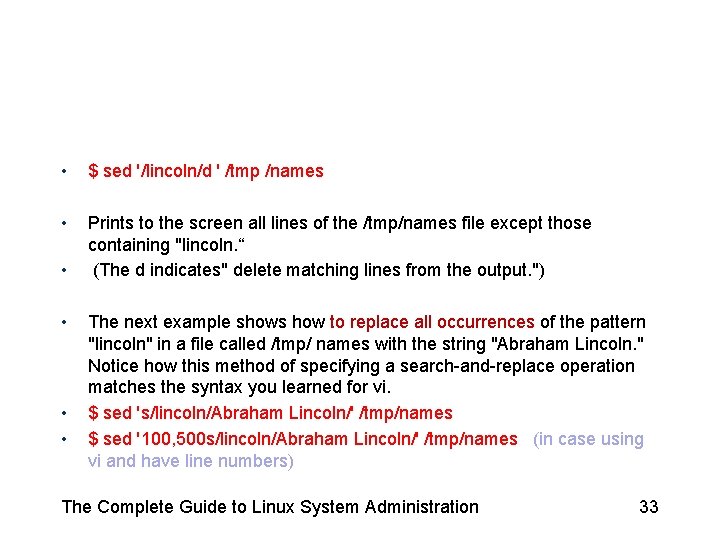
• $ sed '/lincoln/d ' /tmp /names • Prints to the screen all lines of the /tmp/names file except those containing "lincoln. “ (The d indicates" delete matching lines from the output. ") • • The next example shows how to replace all occurrences of the pattern "lincoln" in a file called /tmp/ names with the string "Abraham Lincoln. " Notice how this method of specifying a search-and-replace operation matches the syntax you learned for vi. $ sed 's/lincoln/Abraham Lincoln/' /tmp/names $ sed '100, 500 s/lincoln/Abraham Lincoln/' /tmp/names (in case using vi and have line numbers) The Complete Guide to Linux System Administration 33
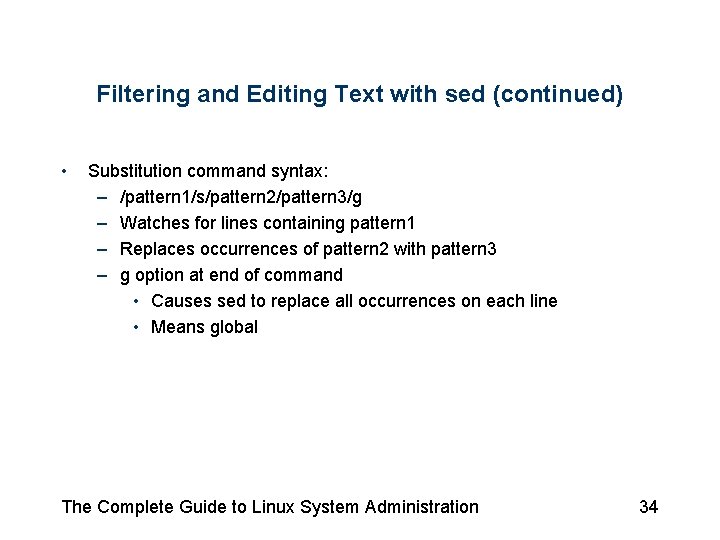
Filtering and Editing Text with sed (continued) • Substitution command syntax: – /pattern 1/s/pattern 2/pattern 3/g – Watches for lines containing pattern 1 – Replaces occurrences of pattern 2 with pattern 3 – g option at end of command • Causes sed to replace all occurrences on each line • Means global The Complete Guide to Linux System Administration 34
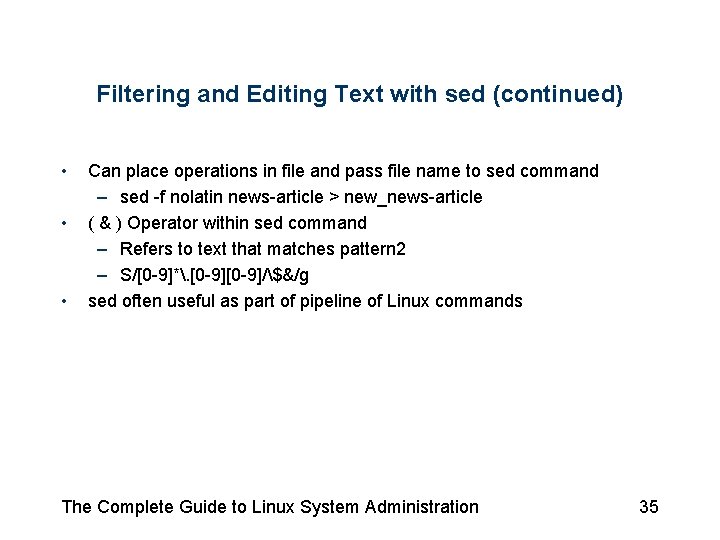
Filtering and Editing Text with sed (continued) • • • Can place operations in file and pass file name to sed command – sed -f nolatin news-article > new_news-article ( & ) Operator within sed command – Refers to text that matches pattern 2 – S/[0 -9]*. [0 -9]/$&/g sed often useful as part of pipeline of Linux commands The Complete Guide to Linux System Administration 35
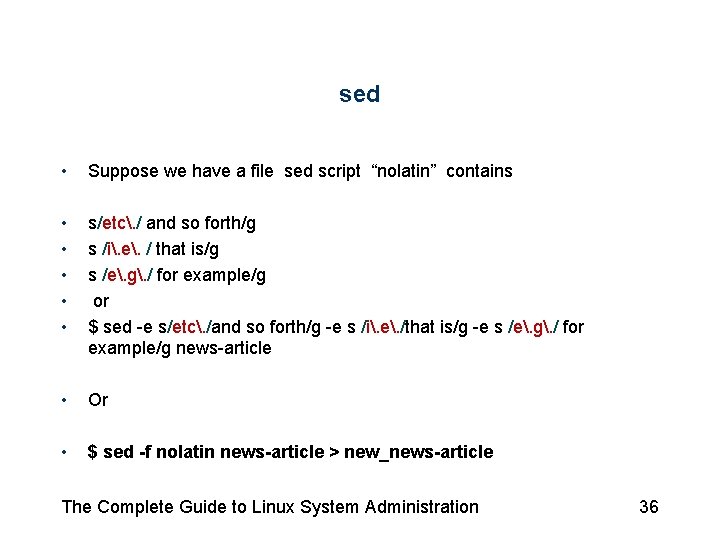
sed • Suppose we have a file sed script “nolatin” contains • • • s/etc. / and so forth/g s /i. e. / that is/g s /e. g. / for example/g or $ sed -e s/etc. /and so forth/g -e s /i. e. /that is/g -e s /e. g. / for example/g news-article • Or • $ sed -f nolatin news-article > new_news-article The Complete Guide to Linux System Administration 36
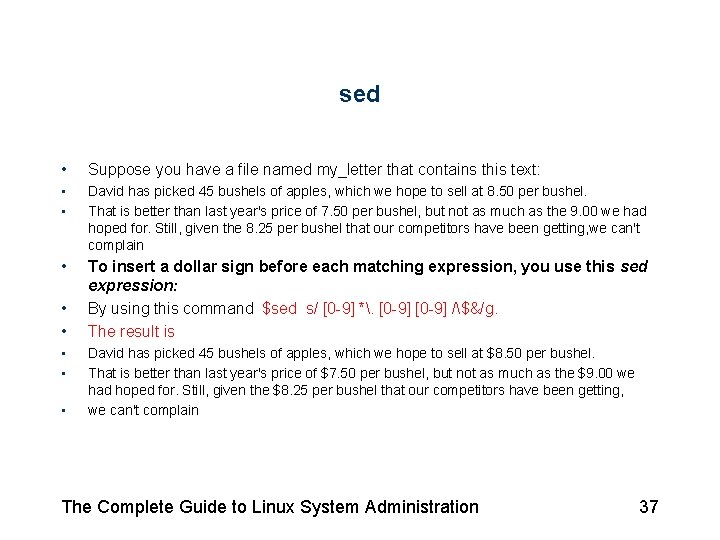
sed • Suppose you have a file named my_letter that contains this text: • • David has picked 45 bushels of apples, which we hope to sell at 8. 50 per bushel. That is better than last year's price of 7. 50 per bushel, but not as much as the 9. 00 we had hoped for. Still, given the 8. 25 per bushel that our competitors have been getting, we can't complain • To insert a dollar sign before each matching expression, you use this sed expression: By using this command $sed s/ [0 -9] *. [0 -9] /$&/g. The result is • • • David has picked 45 bushels of apples, which we hope to sell at $8. 50 per bushel. That is better than last year's price of $7. 50 per bushel, but not as much as the $9. 00 we had hoped for. Still, given the $8. 25 per bushel that our competitors have been getting, we can't complain The Complete Guide to Linux System Administration 37
Formatting with awk • • • Processes text – Extracts parts of file – Formats text according to information you provide on command line or in script file Format output based on fields within line of text Often can perform same functions with sed or awk The Complete Guide to Linux System Administration 38
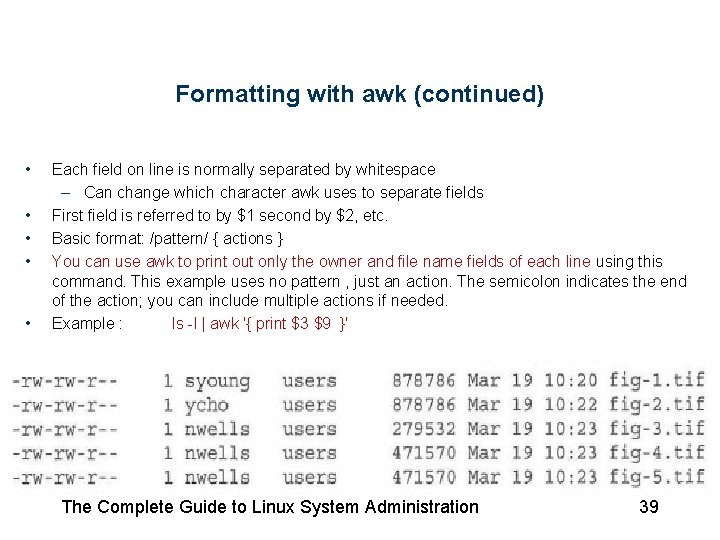
Formatting with awk (continued) • • • Each field on line is normally separated by whitespace – Can change which character awk uses to separate fields First field is referred to by $1 second by $2, etc. Basic format: /pattern/ { actions } You can use awk to print out only the owner and file name fields of each line using this command. This example uses no pattern , just an action. The semicolon indicates the end of the action; you can include multiple actions if needed. Example : ls -l | awk '{ print $3 $9 }' The Complete Guide to Linux System Administration 39
Formatting with awk (continued) • • Can include regular expression to select which lines awk includes in output: For example, to select only symbolic links from the output of Is -I, you use this command: – ls -l | awk '/^l/ {print $3 $9 }‘ Use variable or comparison in awk command – Put at beginning of command instead of pattern – ls -l | awk ' $2 > 3 {print $0 }' Using awk script file: – awk -f awk_command_list text_file The Complete Guide to Linux System Administration 40
More Advanced Text Editing • vi editor provides advanced text editing features The Complete Guide to Linux System Administration 41
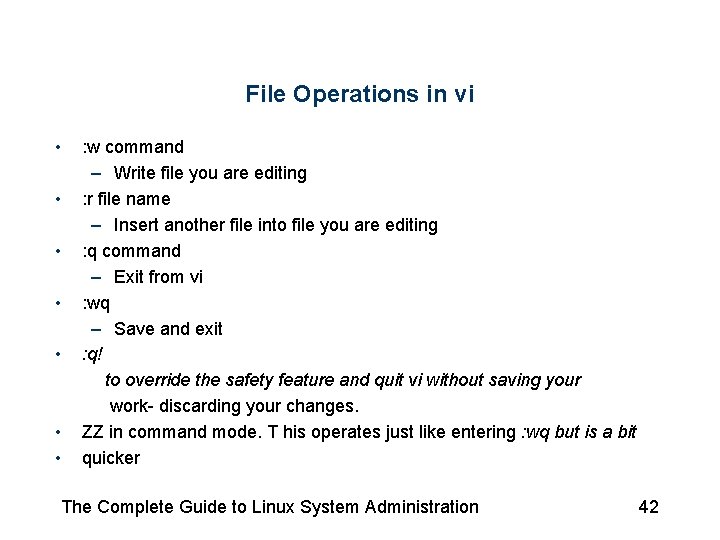
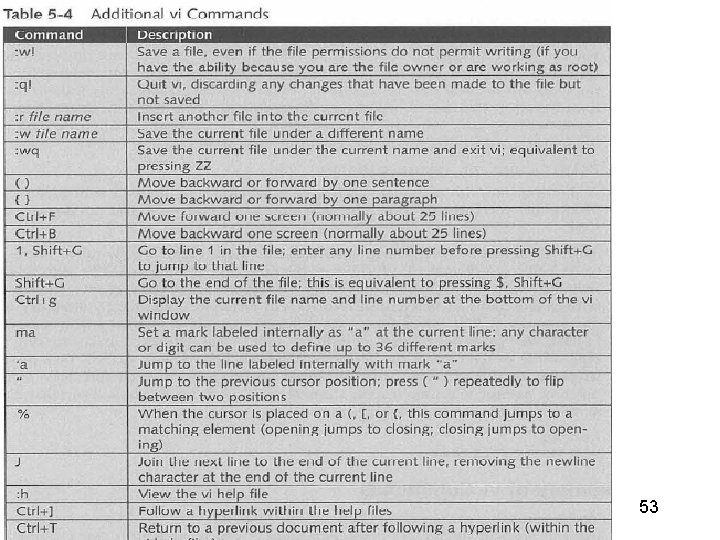
File Operations in vi • • : w command – Write file you are editing : r file name – Insert another file into file you are editing : q command – Exit from vi : wq – Save and exit : q! to override the safety feature and quit vi without saving your work- discarding your changes. ZZ in command mode. T his operates just like entering : wq but is a bit quicker The Complete Guide to Linux System Administration 42
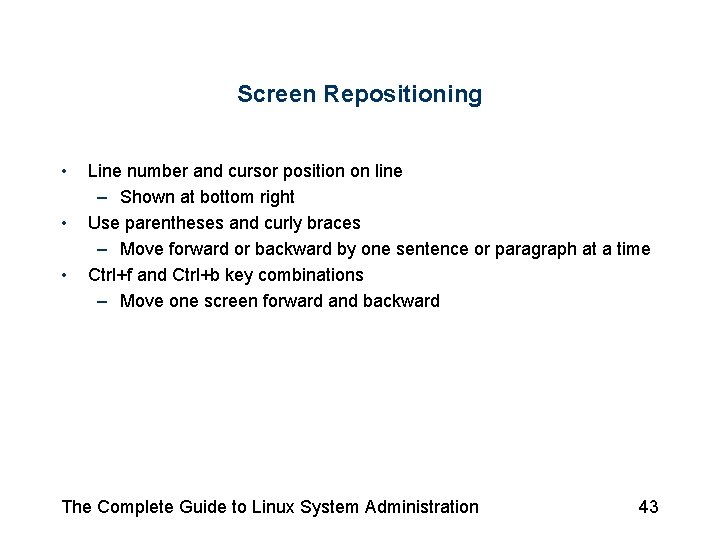
Screen Repositioning • • • Line number and cursor position on line – Shown at bottom right Use parentheses and curly braces – Move forward or backward by one sentence or paragraph at a time Ctrl+f and Ctrl+b key combinations – Move one screen forward and backward The Complete Guide to Linux System Administration 43
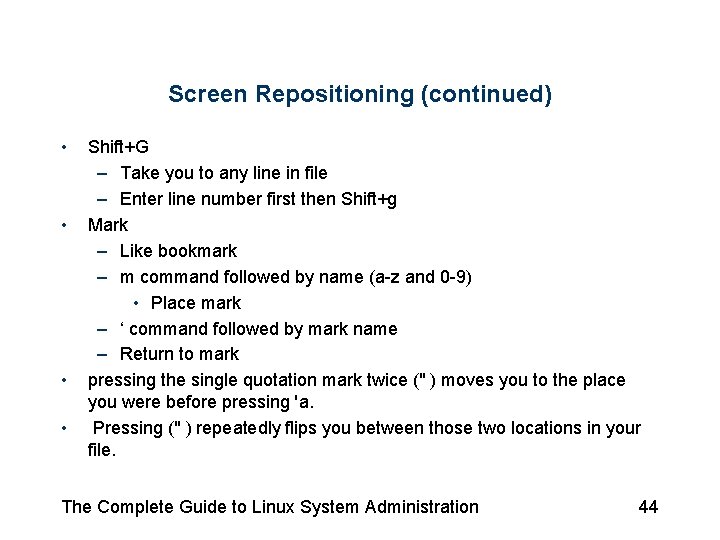
Screen Repositioning (continued) • • Shift+G – Take you to any line in file – Enter line number first then Shift+g Mark – Like bookmark – m command followed by name (a-z and 0 -9) • Place mark – ‘ command followed by mark name – Return to mark pressing the single quotation mark twice (" ) moves you to the place you were before pressing 'a. Pressing (" ) repeatedly flips you between those two locations in your file. The Complete Guide to Linux System Administration 44
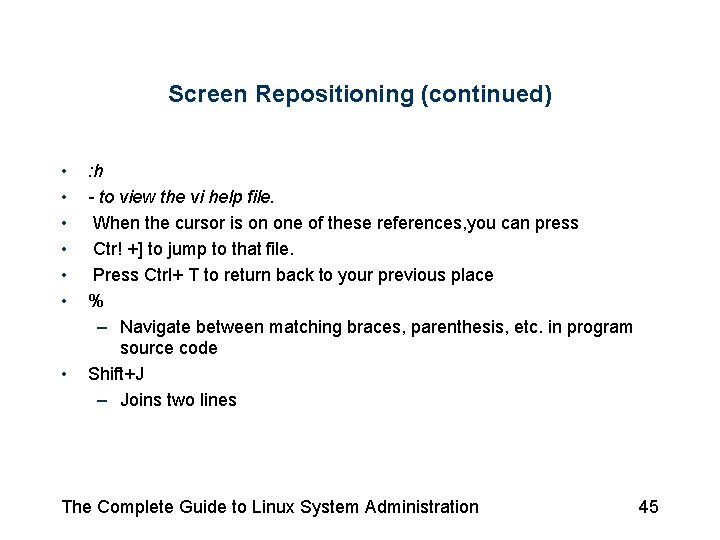
Screen Repositioning (continued) • • : h - to view the vi help file. When the cursor is on one of these references, you can press Ctr! +] to jump to that file. Press Ctrl+ T to return back to your previous place % – Navigate between matching braces, parenthesis, etc. in program source code Shift+J – Joins two lines The Complete Guide to Linux System Administration 45
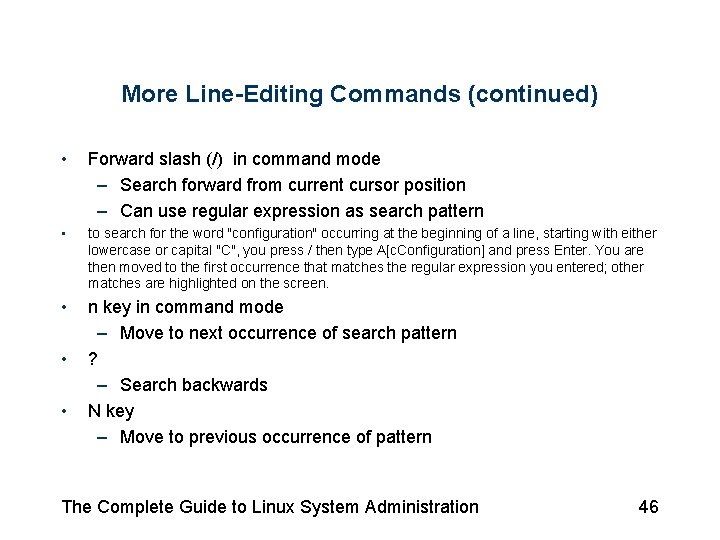
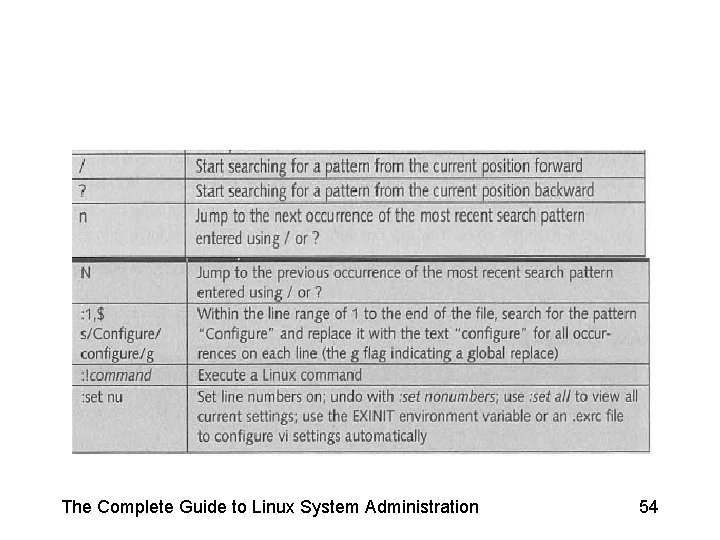
More Line-Editing Commands (continued) • Forward slash (/) in command mode – Search forward from current cursor position – Can use regular expression as search pattern • to search for the word "configuration" occurring at the beginning of a line, starting with either lowercase or capital "C", you press / then type A[c. Configuration] and press Enter. You are then moved to the first occurrence that matches the regular expression you entered; other matches are highlighted on the screen. • n key in command mode – Move to next occurrence of search pattern ? – Search backwards N key – Move to previous occurrence of pattern • • The Complete Guide to Linux System Administration 46
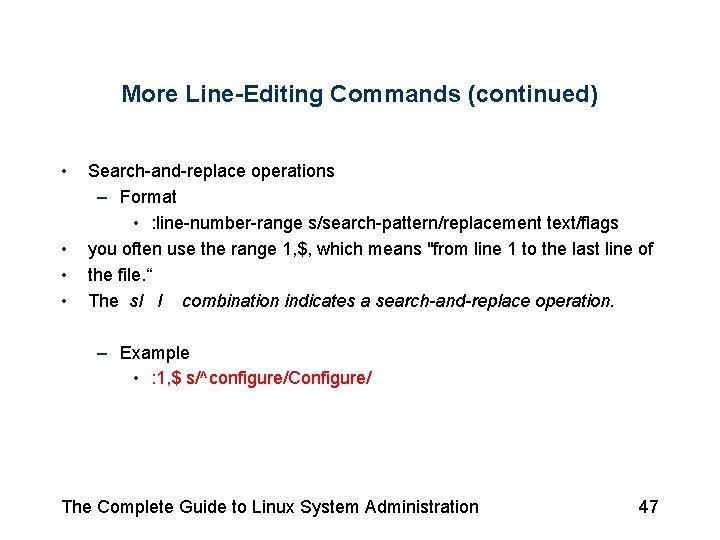
More Line-Editing Commands (continued) • • Search-and-replace operations – Format • : line-number-range s/search-pattern/replacement text/flags you often use the range 1, $, which means "from line 1 to the last line of the file. “ The sl I combination indicates a search-and-replace operation. – Example • : 1, $ s/^configure/Configure/ The Complete Guide to Linux System Administration 47
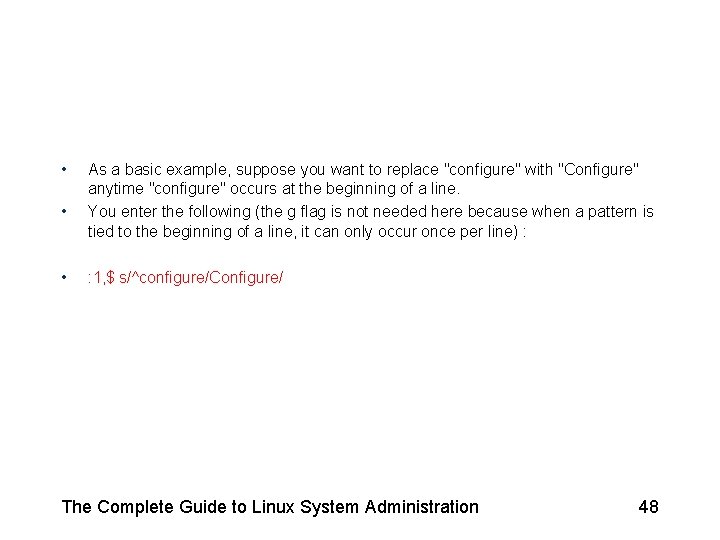
• • • As a basic example, suppose you want to replace "configure" with "Configure" anytime "configure" occurs at the beginning of a line. You enter the following (the g flag is not needed here because when a pattern is tied to the beginning of a line, it can only occur once per line) : : 1, $ s/^configure/Configure/ The Complete Guide to Linux System Administration 48
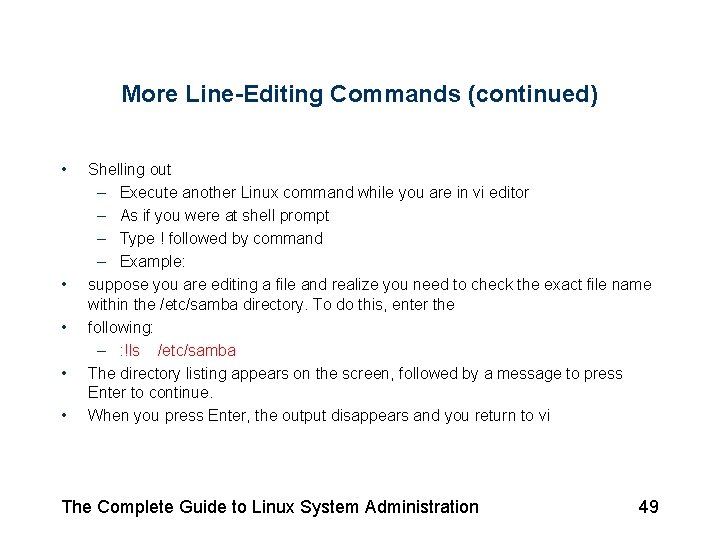
More Line-Editing Commands (continued) • • • Shelling out – Execute another Linux command while you are in vi editor – As if you were at shell prompt – Type ! followed by command – Example: suppose you are editing a file and realize you need to check the exact file name within the /etc/samba directory. To do this, enter the following: – : !ls /etc/samba The directory listing appears on the screen, followed by a message to press Enter to continue. When you press Enter, the output disappears and you return to vi The Complete Guide to Linux System Administration 49
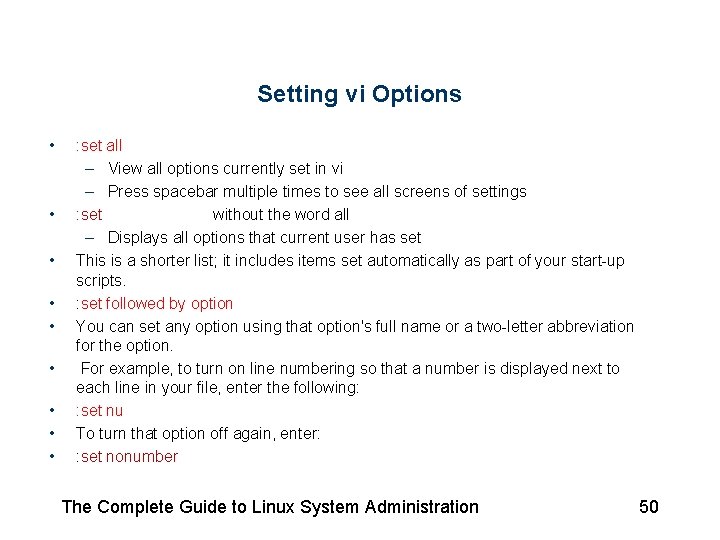
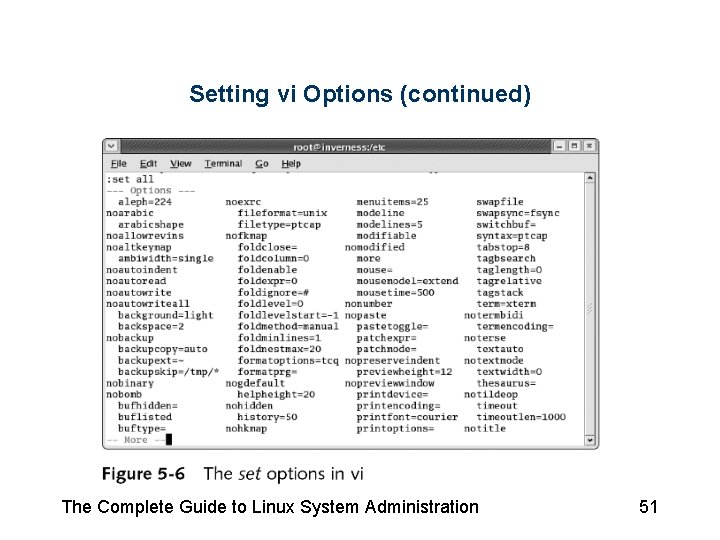
Setting vi Options • • • : set all – View all options currently set in vi – Press spacebar multiple times to see all screens of settings : set without the word all – Displays all options that current user has set This is a shorter list; it includes items set automatically as part of your start-up scripts. : set followed by option You can set any option using that option's full name or a two-letter abbreviation for the option. For example, to turn on line numbering so that a number is displayed next to each line in your file, enter the following: : set nu To turn that option off again, enter: : set nonumber The Complete Guide to Linux System Administration 50
Setting vi Options (continued) The Complete Guide to Linux System Administration 51
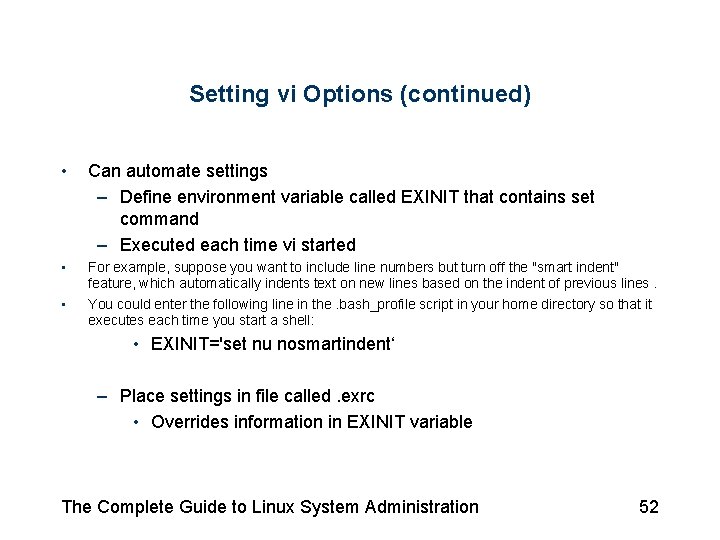
Setting vi Options (continued) • Can automate settings – Define environment variable called EXINIT that contains set command – Executed each time vi started • For example, suppose you want to include line numbers but turn off the "smart indent" feature, which automatically indents text on new lines based on the indent of previous lines. You could enter the following line in the. bash_profile script in your home directory so that it executes each time you start a shell: • • EXINIT='set nu nosmartindent‘ – Place settings in file called. exrc • Overrides information in EXINIT variable The Complete Guide to Linux System Administration 52
53
The Complete Guide to Linux System Administration 54
The Complete Guide to Linux System Administration 55
Summary • • • Regular expressions used in many places to define patterns of information grep command used to search for lines of text containing pattern defined using regular expression sed and awk commands support complex scripting language that includes regular expressions The Complete Guide to Linux System Administration 56
Summary (continued) • vi – Uses complex combinations of commands to reposition cursor within text – Supports search-and-replace operations – set command defines editor settings The Complete Guide to Linux System Administration 57