
Chapter 5 Server Installation 1 Learning Objectives Chapter
Chapter 5: Server Installation 1
Learning Objectives Chapter 5 n n Make installation, hardware, and sitespecific preparations to install Windows 2000 Server Install Windows 2000 Server using different methods, including from a CDROM, from the installation disks, over a network, unattended, and from another operating system 2
Learning Objectives (continued) Chapter 5 n n n Go through a Windows 2000 Server installation step by step, and test the installation Upgrade a Windows NT server and domain Create an emergency repair disk 3
Learning Objectives (continued) Chapter 5 n n Install a service pack Troubleshoot installation problems and uninstall Windows 2000 Server 4
Installation Preparations Chapter 5 n Preliminary steps: u Information about what hardware components are installed u Determination of which file system to use u Creation of an Administrator account u Name of the server u An installed NIC u Determine which protocols to install 5
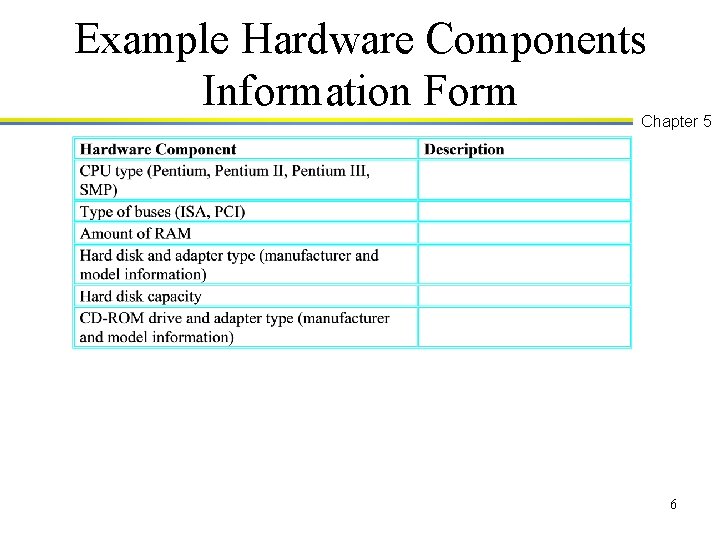
Example Hardware Components Information Form Chapter 5 6
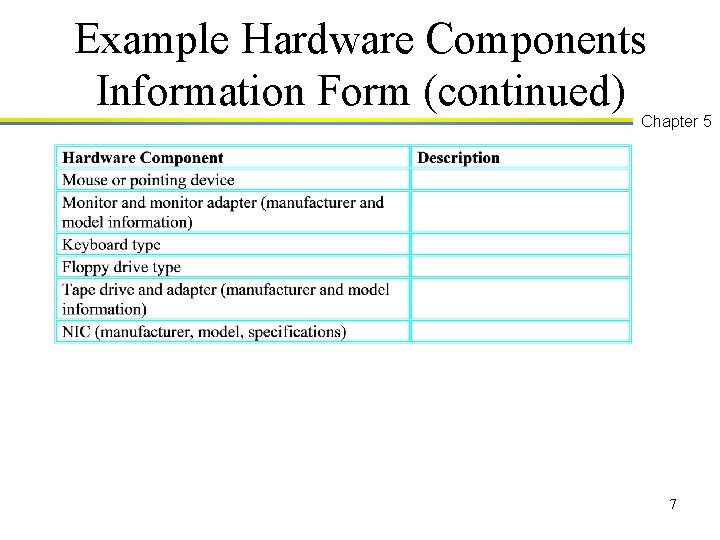
Example Hardware Components Information Form (continued) Chapter 5 7
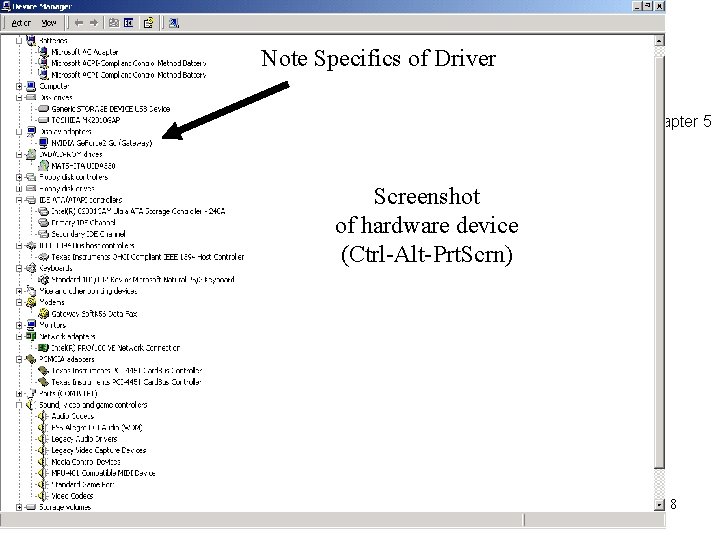
Note Specifics of Driver Chapter 5 Screenshot of hardware device (Ctrl-Alt-Prt. Scrn) 8
Troubleshooting Tip Chapter 5 n n n Record the BIOS setup information and save it for later troubleshooting in the event that the computer’s battery is defective or in case you need it to restore one or more BIOS settings Try f 1 on gateway during gateway screen on boot A lot of systems tell how to get into setup at the beginning of the boot, e. g. “Hit DEL to enter setup 9
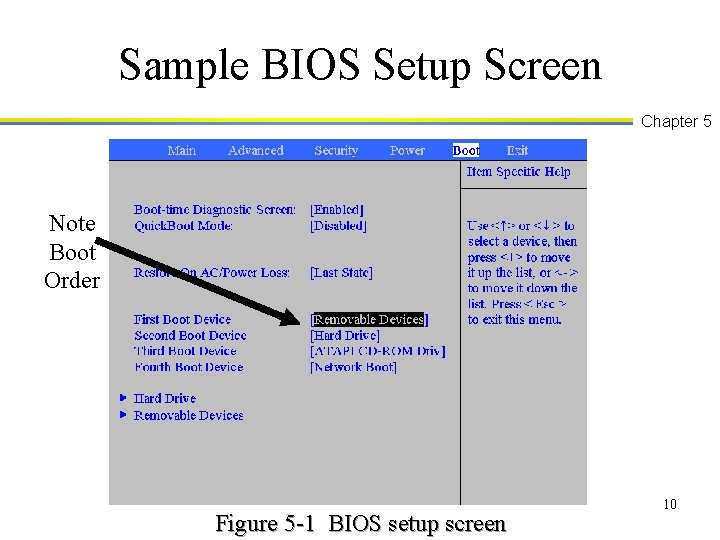
Sample BIOS Setup Screen Chapter 5 Note Boot Order Figure 5 -1 BIOS setup screen 10
Troubleshooting Tip Chapter 5 n Obtain the latest device drivers before you start the installation, such as those for the NIC, HAL. dll (for SMP computers), SCSI adapters, CD-ROM drives, RAID arrays u Check device site for latest drivers u I suggest you let Win 2 K install its default, then a later time install newer drivers 11
Make Important Decisions in Advance n n n n Chapter 5 How to partition the disk or disks What file system(s) to use What to name the server What password to use for the Administrator account What protocols to use What licensing method to use Whether to make the server a DC (Domain Controller) 12
Decide Whether to Set Up a Dual Boot System n n Chapter 5 Other systems that can reside on the same server as Windows 2000 Server include MS-DOS, Windows 3. x, Windows 95, and Windows 98 If you decide this, you are limited to a FAT partition 13
Partitioning Chapter 5 n n If you create FAT and NTFS partitions, create the FAT partition before you start (or leave an existing FAT partition if you create a dual boot system) You cannot see NTFS systems from a FAT booted system 14
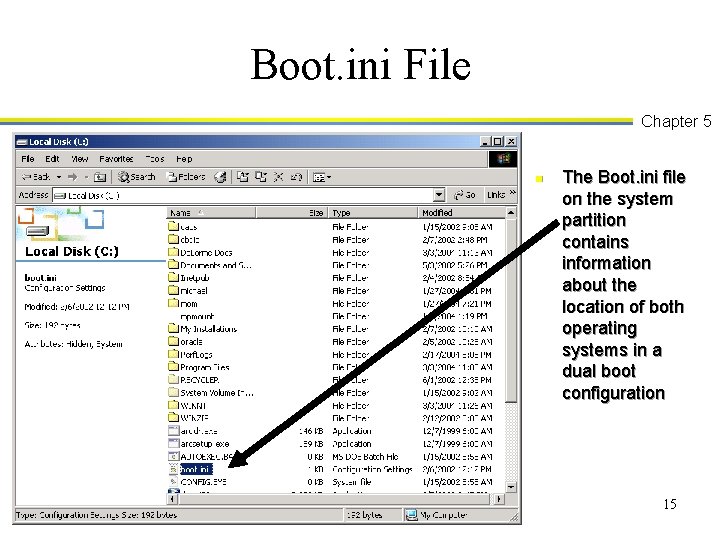
Boot. ini File Chapter 5 n The Boot. ini file on the system partition contains information about the location of both operating systems in a dual boot configuration 15
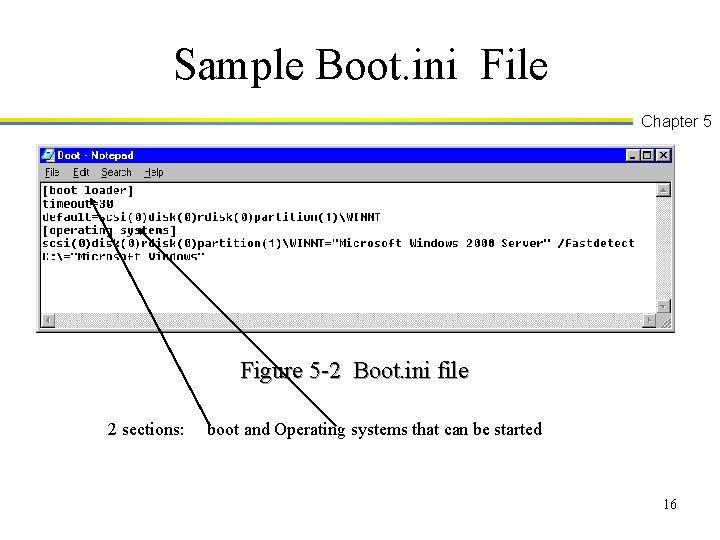
Sample Boot. ini File Chapter 5 Figure 5 -2 Boot. ini file 2 sections: boot and Operating systems that can be started 16
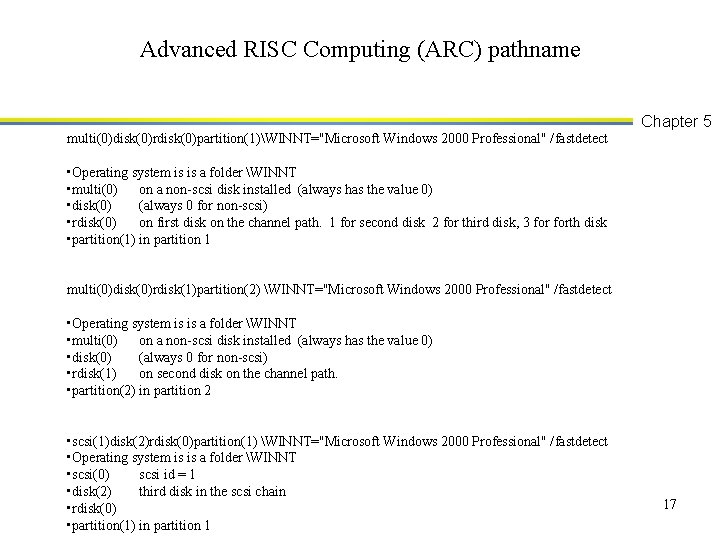
Advanced RISC Computing (ARC) pathname multi(0)disk(0)rdisk(0)partition(1)WINNT="Microsoft Windows 2000 Professional" /fastdetect Chapter 5 • Operating system is is a folder WINNT • multi(0) on a non-scsi disk installed (always has the value 0) • disk(0) (always 0 for non-scsi) • rdisk(0) on first disk on the channel path. 1 for second disk 2 for third disk, 3 forth disk • partition(1) in partition 1 multi(0)disk(0)rdisk(1)partition(2) WINNT="Microsoft Windows 2000 Professional" /fastdetect • Operating system is is a folder WINNT • multi(0) on a non-scsi disk installed (always has the value 0) • disk(0) (always 0 for non-scsi) • rdisk(1) on second disk on the channel path. • partition(2) in partition 2 • scsi(1)disk(2)rdisk(0)partition(1) WINNT="Microsoft Windows 2000 Professional" /fastdetect • Operating system is is a folder WINNT • scsi(0) scsi id = 1 • disk(2) third disk in the scsi chain • rdisk(0) • partition(1) in partition 1 17
FAT Partitions Chapter 5 n Windows 2000 will format a 2 GB or smaller partition as FAT 16 and a partition larger than 2 GB as FAT 32 18
Server Naming Chapter 5 n Use a name that is easy to type u No n to NJrt 1242 Make the name descriptive of the server’s function or of the organization u NCOMPRIME n n Select a name that is easy to remember and use Make sure the name is not already used on the network 19
Administrator Password Chapter 5 n n Use a “strong” or difficult-to-guess password for the critical Administrator account Characteristics of a strong password: u Over seven characters long u Has a combination of letters, numbers, and symbols m 1 ch@el m!cha 3 l u Includes at least one symbol in characters two through six 20
Protocol Selection Chapter 5 n Consider using the default TCP/IP setup as a starting point and add other protocols later as needed 21
Licensing Methods Chapter 5 n n Per server licensing: A server software license based on the maximum number of clients that log on to the server at one time Per seat licensing: A server software license that requires that there be enough licenses for all network client workstations 22
Initial Server Installation Chapter 5 n n Standalone server: A server that is not a member of a domain, but that is a member of an existing workgroup or that establishes its own workgroup, such as in peer-to-peer networking Member server: A server that is a member of an existing Windows 2000 domain, but that does not function as a domain controller F (Either type of server can be later set up as a domain controller) 23
Installation Options Chapter 5 n n n CD-ROM only Floppy disk and CD-ROM Network installation Installation from an existing operating system Unattended installation 24
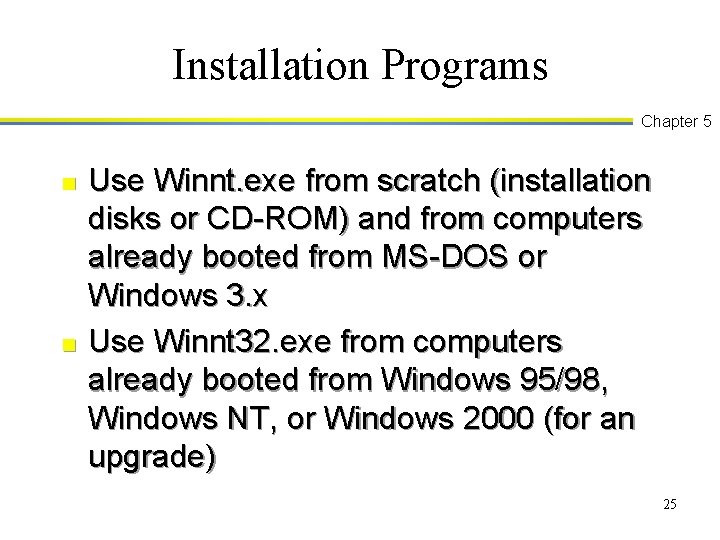
Installation Programs Chapter 5 n n Use Winnt. exe from scratch (installation disks or CD-ROM) and from computers already booted from MS-DOS or Windows 3. x Use Winnt 32. exe from computers already booted from Windows 95/98, Windows NT, or Windows 2000 (for an upgrade) 25
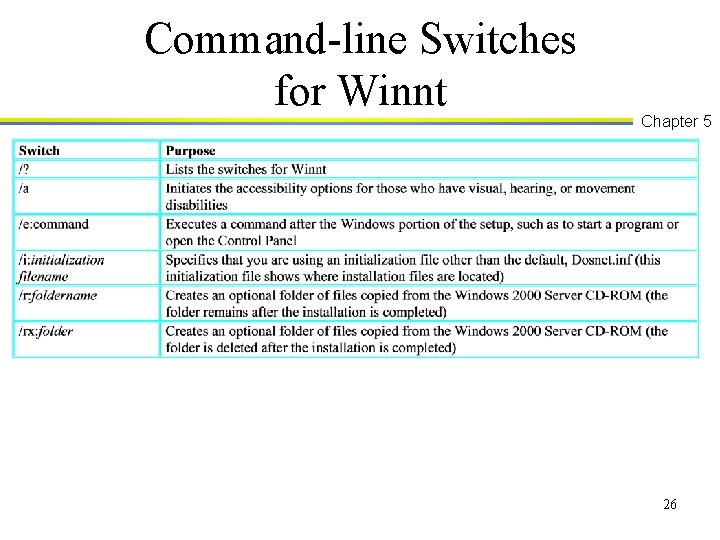
Command-line Switches for Winnt Chapter 5 26
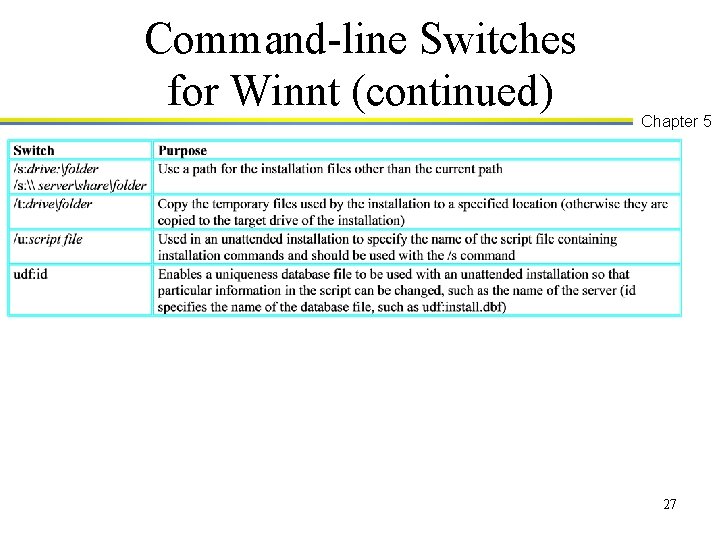
Command-line Switches for Winnt (continued) Chapter 5 27
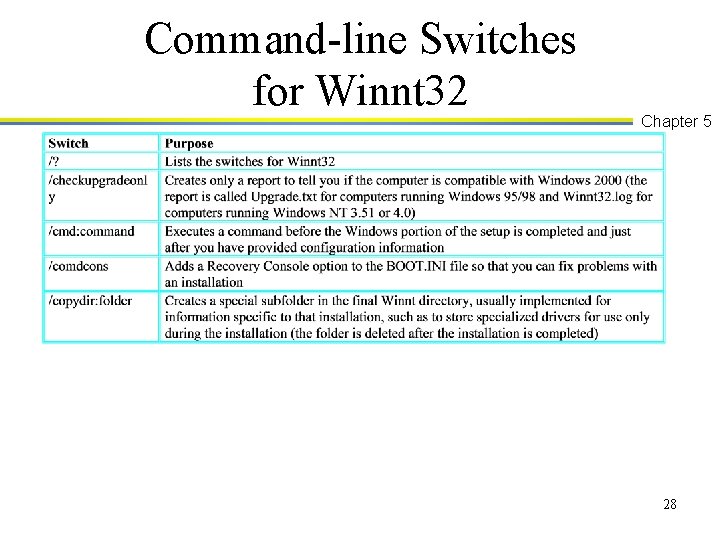
Command-line Switches for Winnt 32 Chapter 5 28
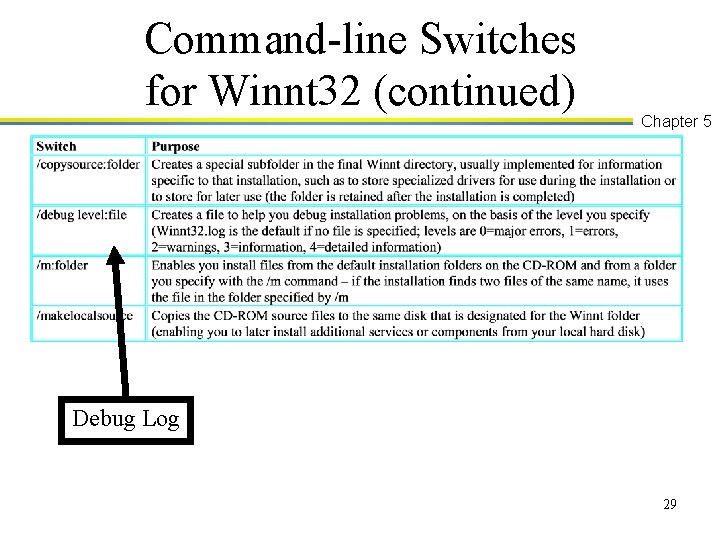
Command-line Switches for Winnt 32 (continued) Chapter 5 Debug Log 29
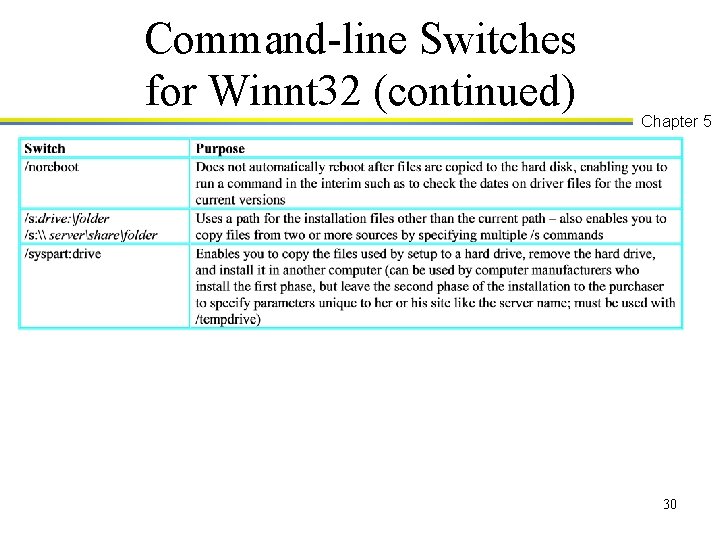
Command-line Switches for Winnt 32 (continued) Chapter 5 30
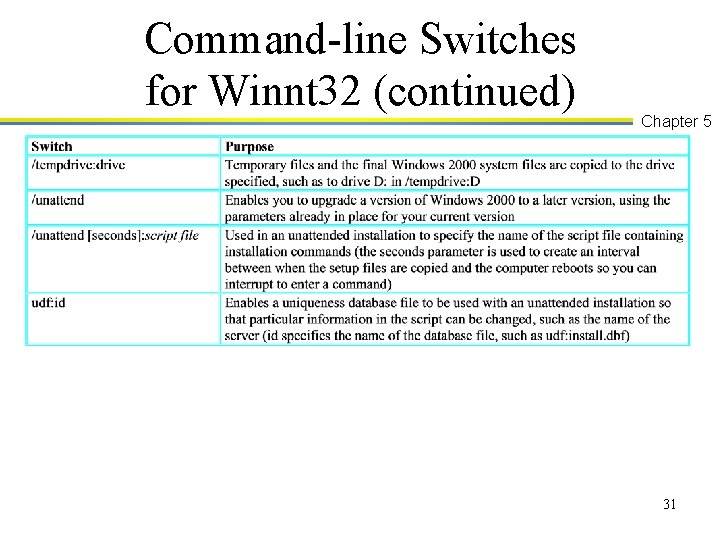
Command-line Switches for Winnt 32 (continued) Chapter 5 31
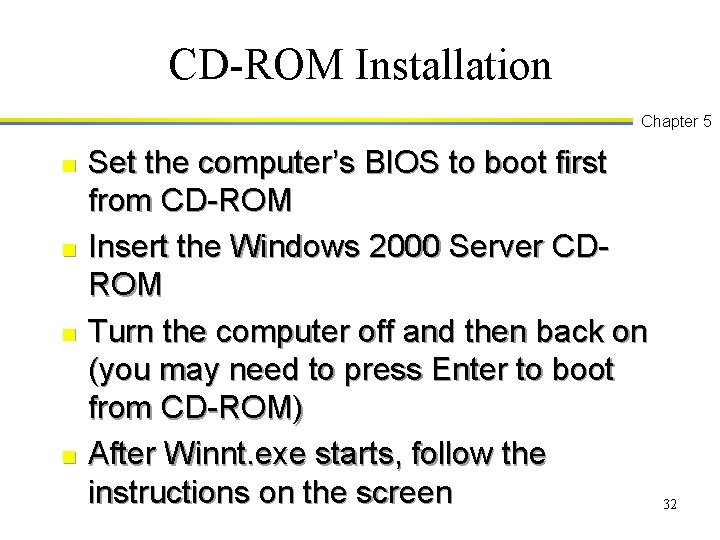
CD-ROM Installation Chapter 5 n n Set the computer’s BIOS to boot first from CD-ROM Insert the Windows 2000 Server CDROM Turn the computer off and then back on (you may need to press Enter to boot from CD-ROM) After Winnt. exe starts, follow the instructions on the screen 32
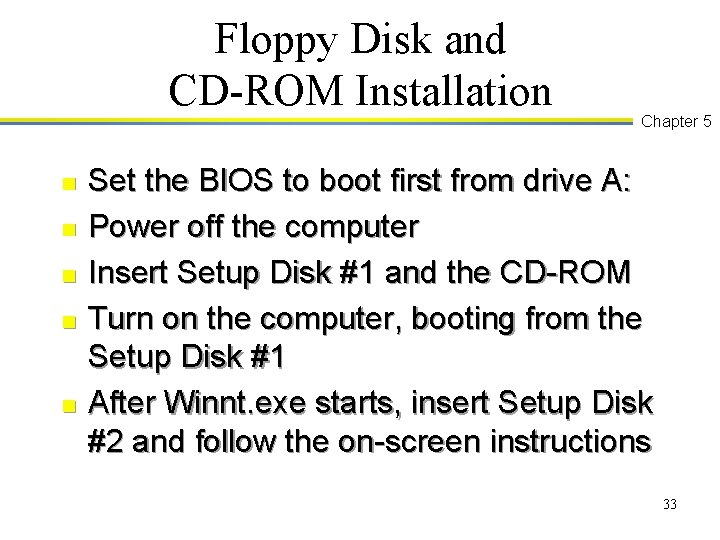
Floppy Disk and CD-ROM Installation n n Chapter 5 Set the BIOS to boot first from drive A: Power off the computer Insert Setup Disk #1 and the CD-ROM Turn on the computer, booting from the Setup Disk #1 After Winnt. exe starts, insert Setup Disk #2 and follow the on-screen instructions 33
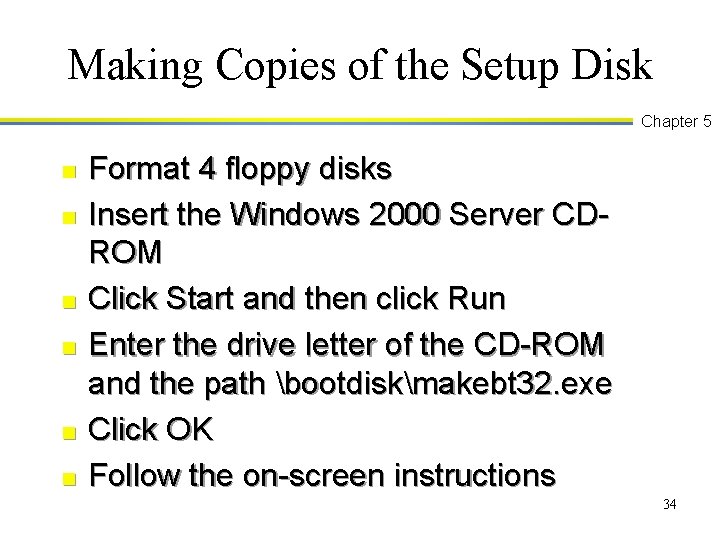
Making Copies of the Setup Disk Chapter 5 n n n Format 4 floppy disks Insert the Windows 2000 Server CDROM Click Start and then click Run Enter the drive letter of the CD-ROM and the path bootdiskmakebt 32. exe Click OK Follow the on-screen instructions 34
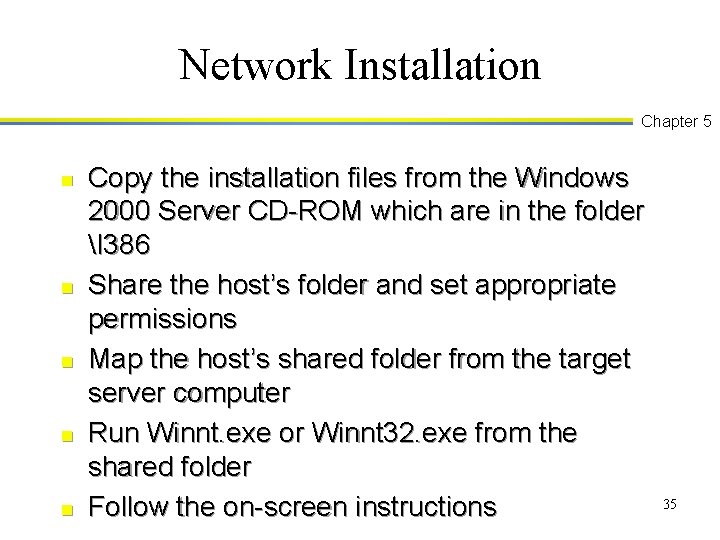
Network Installation Chapter 5 n n n Copy the installation files from the Windows 2000 Server CD-ROM which are in the folder I 386 Share the host’s folder and set appropriate permissions Map the host’s shared folder from the target server computer Run Winnt. exe or Winnt 32. exe from the shared folder Follow the on-screen instructions 35
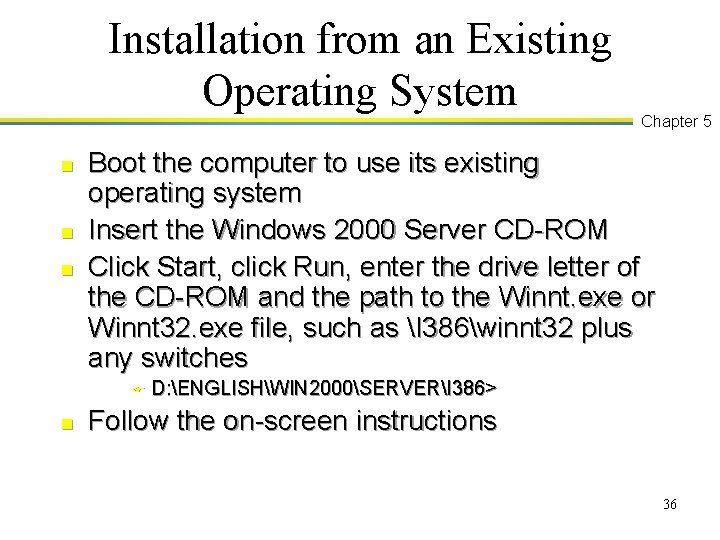
Installation from an Existing Operating System n n n Boot the computer to use its existing operating system Insert the Windows 2000 Server CD-ROM Click Start, click Run, enter the drive letter of the CD-ROM and the path to the Winnt. exe or Winnt 32. exe file, such as I 386winnt 32 plus any switches F n Chapter 5 D: ENGLISHWIN 2000SERVERI 386> Follow the on-screen instructions 36
Installation Tip Chapter 5 n If you install Windows 2000 from MSDOS, you can reduce the installation time from several hours to under an hour if you start the SMARTDRIVE utility before running Winnt. exe 37
Unattended Installation Over the Network n n Create an answer file using Setup Manager or Notepad Use the /s and /u (or /unattend) switches to specify the location of the installation files and of the answer file such as: u Winnt 32 n Chapter 5 /s: \mainserverI 386 /unattend: unattend. txt Use a uniqueness database and the /UDF switch to further customize the unattended installation 38
Unattended Installation via CD-ROM n Chapter 5 An alternative to a unattended network installation is to create an answer file to use along with booting via the CD-ROM, but name the file, Winnt. sif 39
Creating Duplicate Unattended Installations n n Chapter 5 Use Sysprep. exe to clone computers that have the same hardware configuration Use Syspart. exe to clone computers that have different hardware configurations 40
Installation Troubleshooting Tip Chapter 5 n n If Setup starts, but does not find mass storage, restart the installation, press F 6 as soon as possible and load the manufacturer’s driver (such as for a SCSI adapter) If Setup does not start because you are using an SMP computer, restart the installation, press F 5, and provide the computer manufacturer’s Hal. dll 41
Installation Part 1 Chapter 5 n When the Windows Setup starts, it inspects the computer hardware and loads drivers and then presents a screen on which to press Enter to start the installation 42
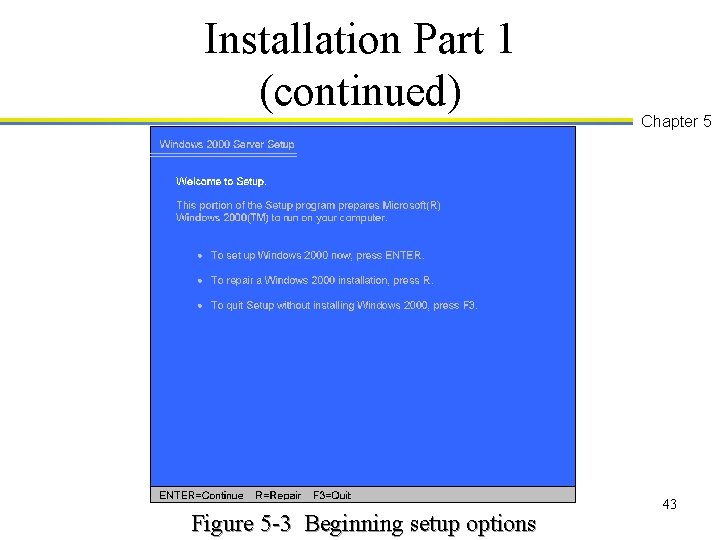
Installation Part 1 (continued) Figure 5 -3 Beginning setup options Chapter 5 43
Installation Part 1 (continued) n n Chapter 5 Read the licensing agreement and press F 8 Select the partitioned or unpartitioned disk space on which to install Windows 2000 44
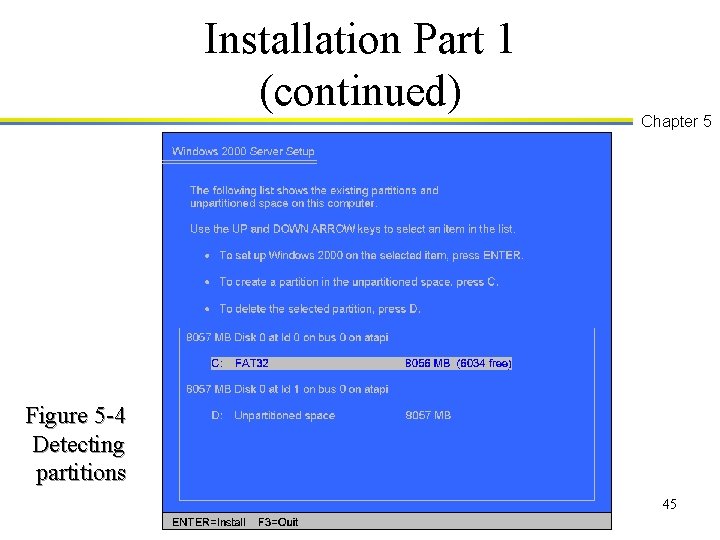
Installation Part 1 (continued) Chapter 5 Figure 5 -4 Detecting partitions 45
Installation Part 1 (continued) n n Chapter 5 Select the file system to use, FAT or NTFS Setup automatically checks the disks, copies files, and reboots into the graphical mode 46
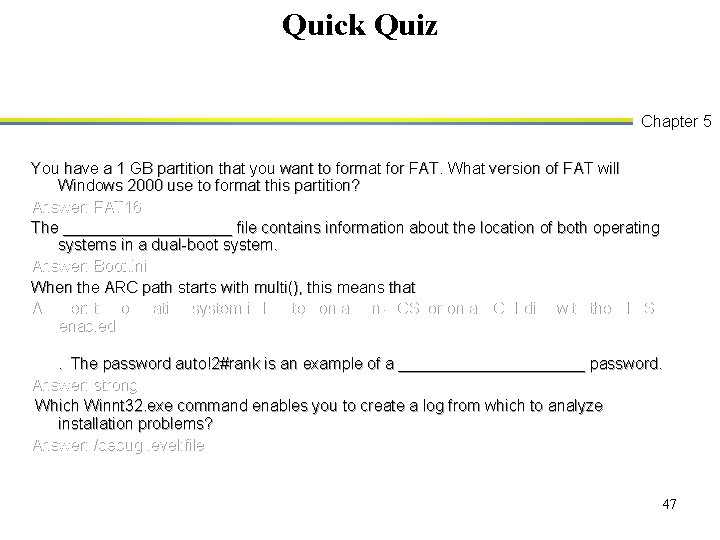
Quick Quiz Chapter 5 You have a 1 GB partition that you want to format for FAT. What version of FAT will Windows 2000 use to format this partition? Answer: FAT 16 The __________ file contains information about the location of both operating systems in a dual-boot system. Answer: Boot. ini When the ARC path starts with multi(), this means that Answer: the operating system is located on a non-SCSI or on a SCSI disk with the BIOS enabled. The password auto!2#rank is an example of a ___________ password. Answer: strong Which Winnt 32. exe command enables you to create a log from which to analyze installation problems? Answer: /debug level: file 47
Installation Part 2 Chapter 5 n n Setup gathers and verifies information about the computer, such as the keyboard and pointing device Setup next enables you to configure regional and keyboard settings, such as the language that you use 48
Installation Part 2 (continued) n n Chapter 5 Enter your name and the name of your organization Enter the product key which is obtained from the back of the Windows 2000 Server CD-ROM jewel case 49
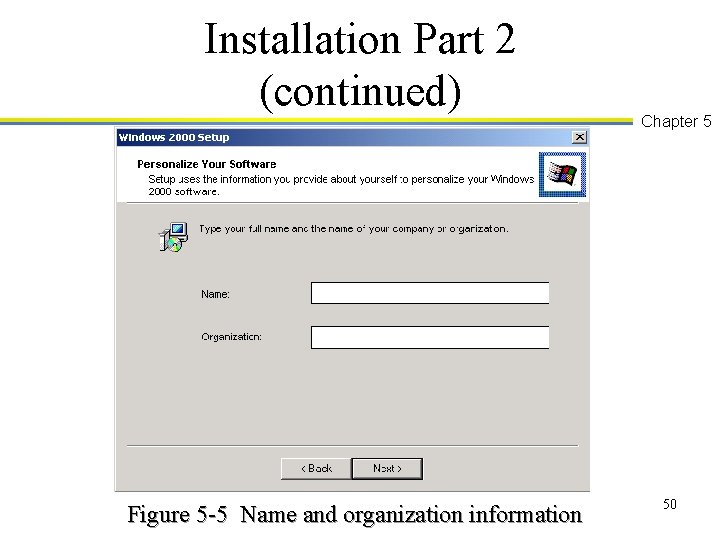
Installation Part 2 (continued) Figure 5 -5 Name and organization information Chapter 5 50
Installation Part 2 (continued) n n n Chapter 5 Select the licensing mode Enter the name of the server and the Administrator account’s password Select the Windows 2000 components to install 51
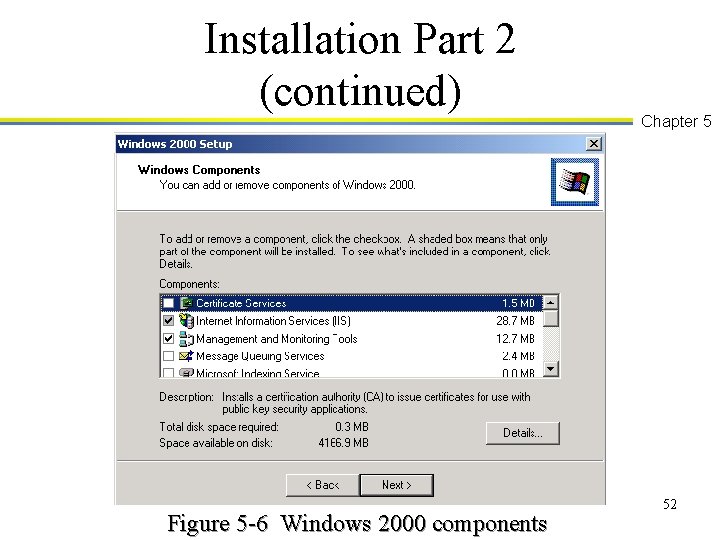
Installation Part 2 (continued) Figure 5 -6 Windows 2000 components Chapter 5 52
Installation Part 2 (continued) n n Chapter 5 If there is an installed modem, provide the Modem Dialing information Verify the date and time Select the network configuration option, such as Typical settings in order to install TCP/IP Specify whether the computer will start off in a workgroup or domain (if in a domain, 53 provide the account and password)
Installation Part 2 (continued) n Chapter 5 Wait for Setup to install components and files and then click Finish 54
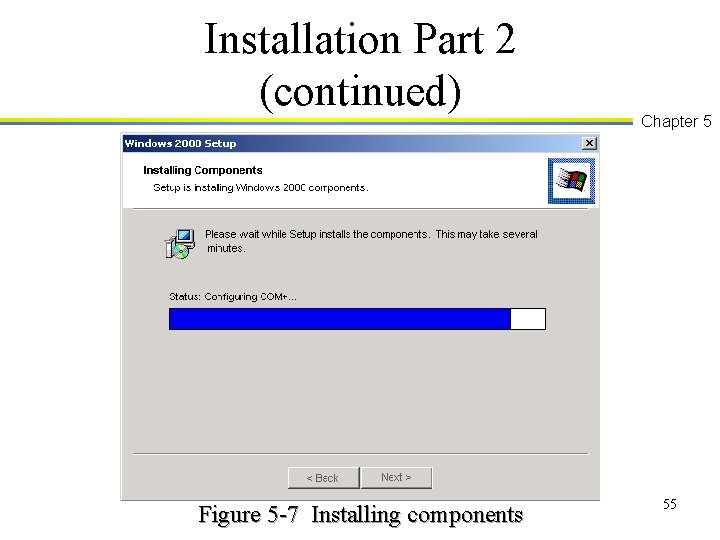
Installation Part 2 (continued) Figure 5 -7 Installing components Chapter 5 55
Log On and Test the Server Chapter 5 n n Press Ctrl+Alt+Del, enter Administrator as the account name, and enter the Administrator password you specified during the installation Look for the Windows 2000 Configure Your Server dialog box, which provides one method for continuing to configure the server 56
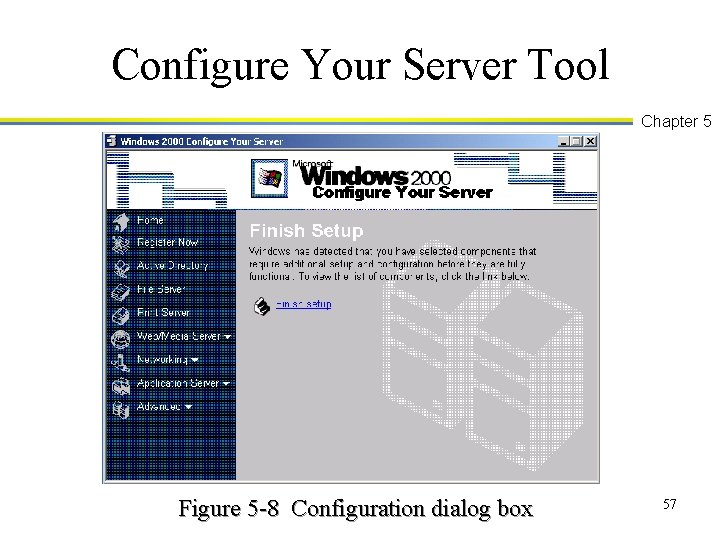
Configure Your Server Tool Chapter 5 Figure 5 -8 Configuration dialog box 57
Testing the Desktop Icons Chapter 5 n Test the desktop icons and other preliminary functions of the server 58
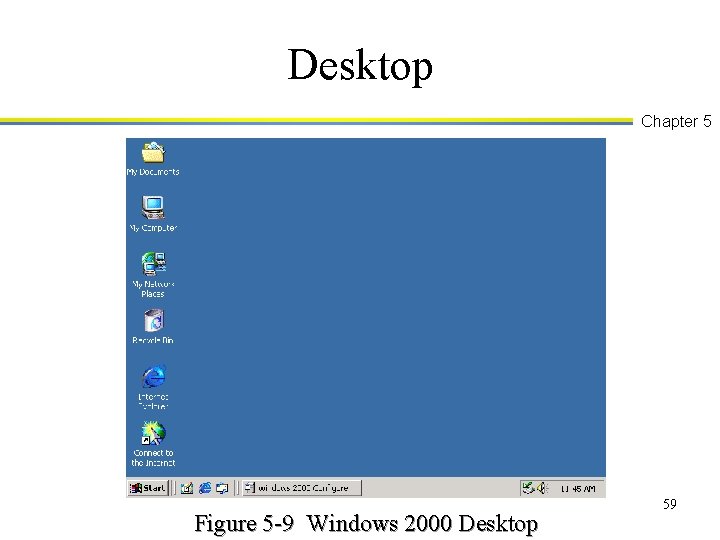
Desktop Chapter 5 Figure 5 -9 Windows 2000 Desktop 59
Upgrading a Windows NT 4. 0 Server and Domain n n Chapter 5 Coordinate a time for the upgrade Backup each server that will be upgraded Upgrade the PDC first Upgrade the BDCs one at a time Upgrade using Winnt 32 60
Upgrading a Windows NT 4. 0 Server and Domain (continued) n n Chapter 5 Select the Upgrade to Windows 2000 (recommend) option Follow the directions in the Windows 2000 Setup 61
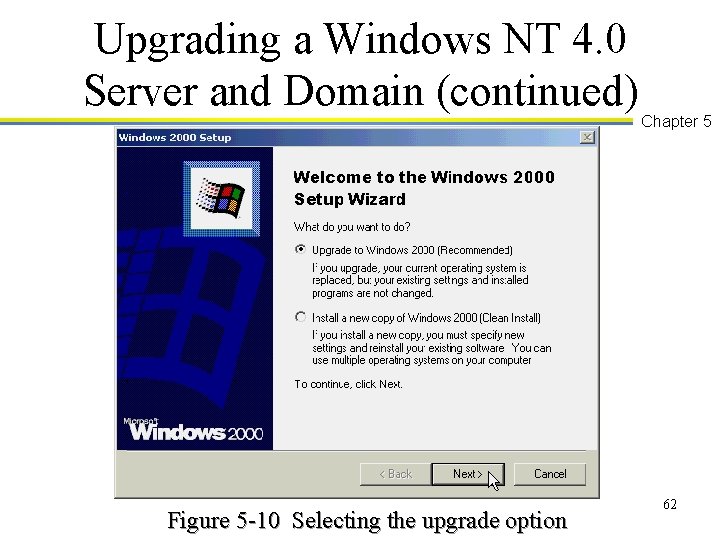
Upgrading a Windows NT 4. 0 Server and Domain (continued) Figure 5 -10 Selecting the upgrade option Chapter 5 62
Upgrading a Windows NT 4. 0 Server and Domain (continued) n n n Chapter 5 When the Active Directory Wizard starts, specify if you want to join an existing domain tree or forest, or start a new one Establish the appropriate default domain and other group policies Convert the domain to native mode after the last BDC is upgraded and there are no more Windows NT servers 63
Troubleshooting Tip Chapter 5 n n Create an emergency repair disk for each newly installed or upgraded server Update the emergency repair disk every time you implement an important change on a server, such as after installing new hardware, drivers, and software 64
Troubleshooting Installation Problems n Chapter 5 The first step is to avoid problems through your advanced preparations u Purchase components listed on the HCL u Test all hardware before you start the installation u Run the computer’s diagnostics before starting u Run a comprehensive test of the hard disk before starting 65
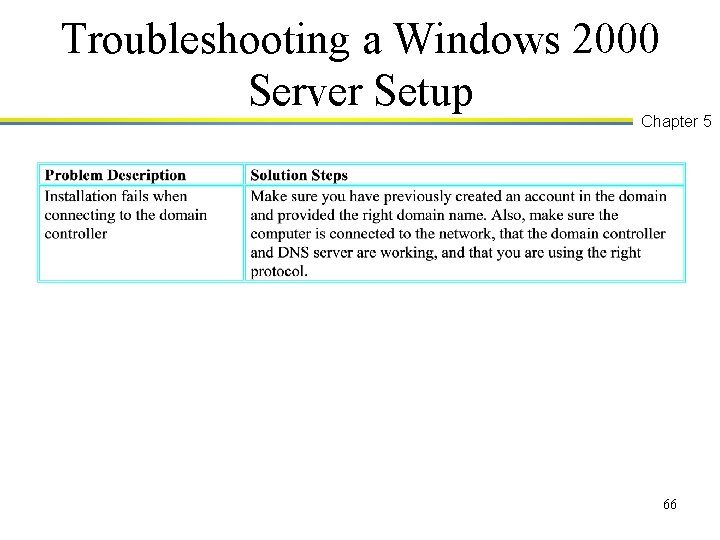
Troubleshooting a Windows 2000 Server Setup Chapter 5 66
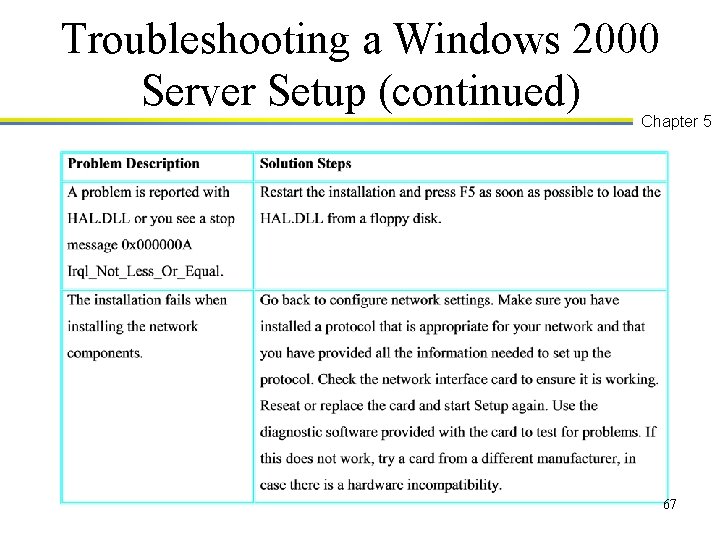
Troubleshooting a Windows 2000 Server Setup (continued) Chapter 5 67
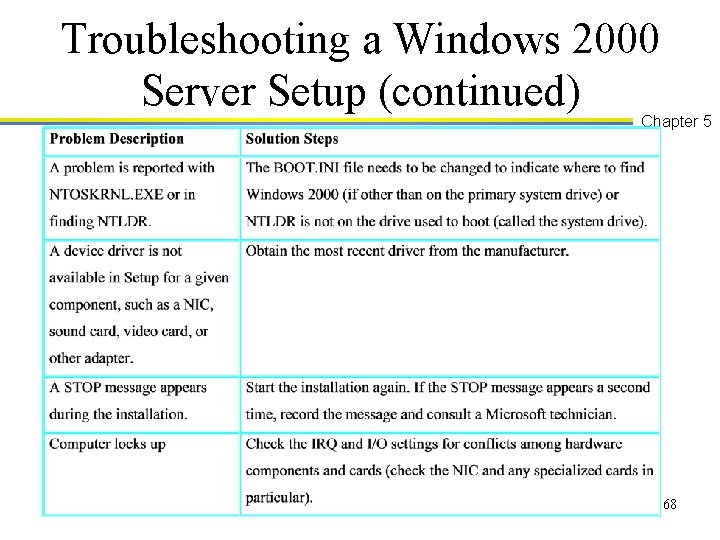
Troubleshooting a Windows 2000 Server Setup (continued) Chapter 5 68
Service Packs Chapter 5 n n Check Microsoft’s Web site for the latest information about service packs and the option to download them For more control, install service packs using the Update command 69
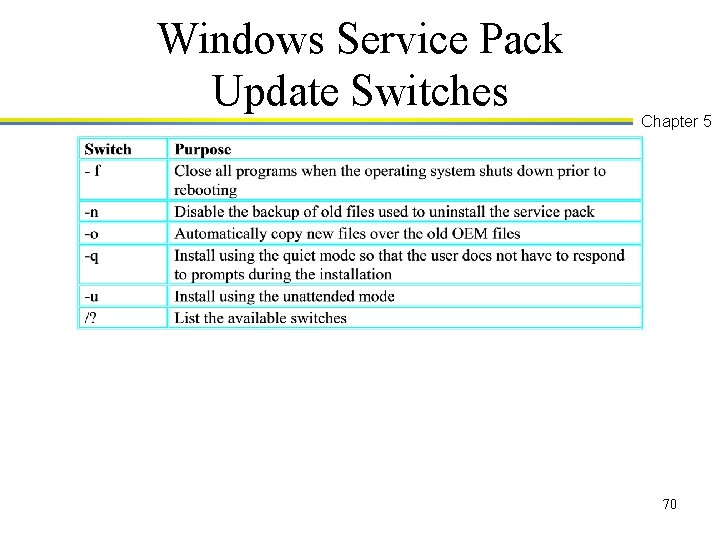
Windows Service Pack Update Switches Chapter 5 70
Uninstalling Windows 2000 Server n n n Chapter 5 Backup the server files Use the disk management utilities in the new operating system to delete the Windows 2000 partition, re-partition the drive, and format it (or start a Windows 2000 installation and delete the partition via Windows 2000 Setup) Install the new operating system 71
Chapter Summary Chapter 5 n n Before you install Windows 2000 Server, make sure the computer’s components are on the HCL Make decisions in advance about how to complete the installation options, such as how to partition the disk and what file system to use 72
Chapter Summary Chapter 5 n n Use the appropriate installation option, such as installing from CD-ROM, from the installation diskettes, over the network, from another operating system, or unattended Make an emergency repair disk after you finish the installation 73
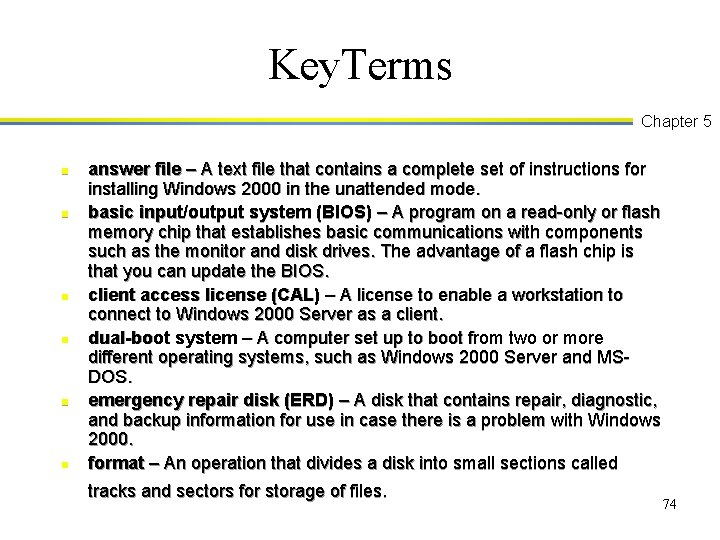
Key. Terms Chapter 5 n n n answer file – A text file that contains a complete set of instructions for installing Windows 2000 in the unattended mode. basic input/output system (BIOS) – A program on a read-only or flash memory chip that establishes basic communications with components such as the monitor and disk drives. The advantage of a flash chip is that you can update the BIOS. client access license (CAL) – A license to enable a workstation to connect to Windows 2000 Server as a client. dual-boot system – A computer set up to boot from two or more different operating systems, such as Windows 2000 Server and MSDOS. emergency repair disk (ERD) – A disk that contains repair, diagnostic, and backup information for use in case there is a problem with Windows 2000. format – An operation that divides a disk into small sections called tracks and sectors for storage of files. 74
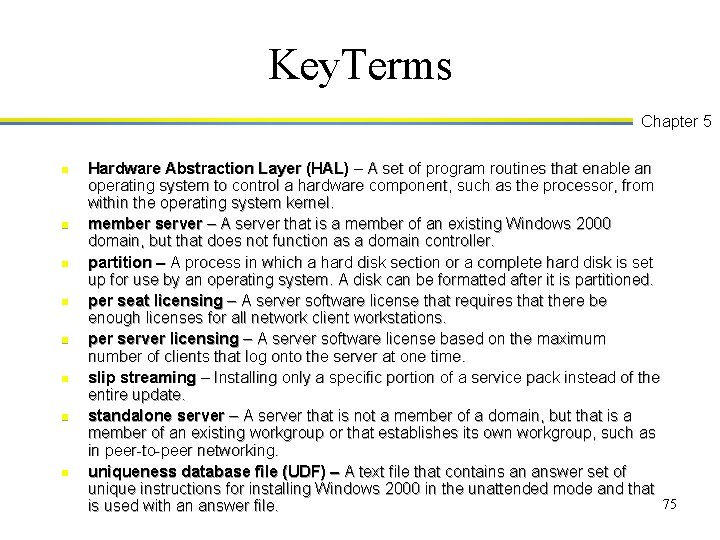
Key. Terms Chapter 5 n n n n Hardware Abstraction Layer (HAL) – A set of program routines that enable an operating system to control a hardware component, such as the processor, from within the operating system kernel. member server – A server that is a member of an existing Windows 2000 domain, but that does not function as a domain controller. partition – A process in which a hard disk section or a complete hard disk is set up for use by an operating system. A disk can be formatted after it is partitioned. per seat licensing – A server software license that requires that there be enough licenses for all network client workstations. per server licensing – A server software license based on the maximum number of clients that log onto the server at one time. slip streaming – Installing only a specific portion of a service pack instead of the entire update. standalone server – A server that is not a member of a domain, but that is a member of an existing workgroup or that establishes its own workgroup, such as in peer-to-peer networking. uniqueness database file (UDF) – A text file that contains an answer set of unique instructions for installing Windows 2000 in the unattended mode and that 75 is used with an answer file.
- Slides: 75