
Chapter 5 Paint Shop Pro Outline 5 1
- Slides: 35
Chapter 5 – Paint Shop Pro Outline 5. 1 5. 2 5. 3 5. 4 5. 5 5. 6 2000 Deitel & Associates, Inc. All rights reserved. Introduction Image Basics File Formats: GIF or JPEG? Tool Palette Screen Capturing Layers
5. 1 Introduction • Images liven up a Web page • Many images available on the Internet for free download and use • Jasc Inc. ’s Paint Shop Pro included on CD 2000 Deitel & Associates, Inc. All rights reserved.
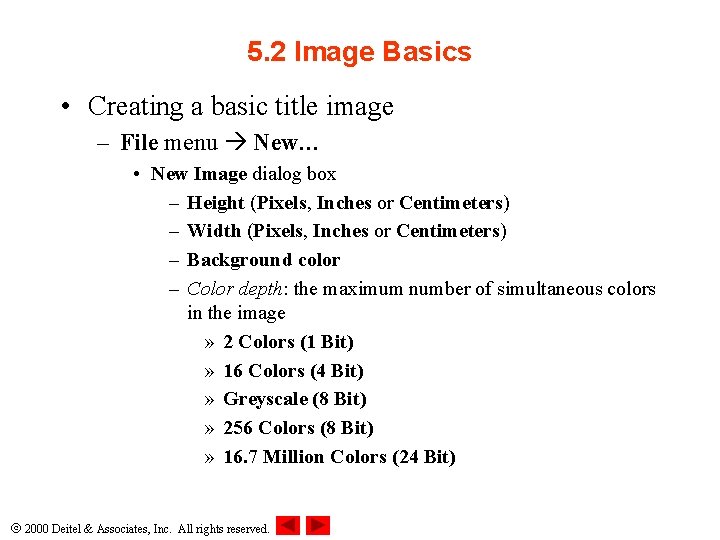
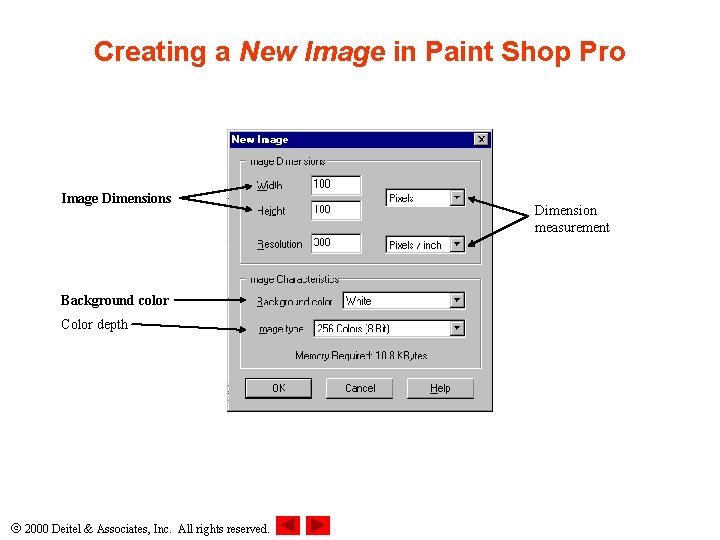
5. 2 Image Basics • Creating a basic title image – File menu New… • New Image dialog box – Height (Pixels, Inches or Centimeters) – Width (Pixels, Inches or Centimeters) – Background color – Color depth: the maximum number of simultaneous colors in the image » 2 Colors (1 Bit) » 16 Colors (4 Bit) » Greyscale (8 Bit) » 256 Colors (8 Bit) » 16. 7 Million Colors (24 Bit) 2000 Deitel & Associates, Inc. All rights reserved.
Creating a New Image in Paint Shop Pro Image Dimensions Background color Color depth 2000 Deitel & Associates, Inc. All rights reserved. Dimension measurement
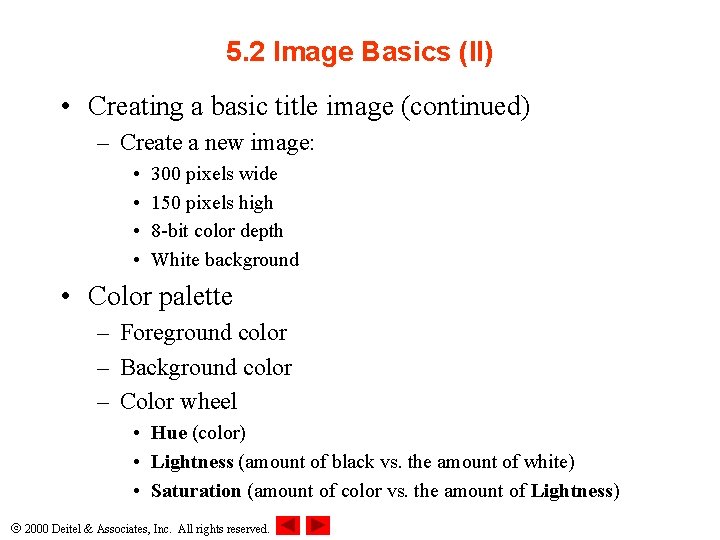
5. 2 Image Basics (II) • Creating a basic title image (continued) – Create a new image: • • 300 pixels wide 150 pixels high 8 -bit color depth White background • Color palette – Foreground color – Background color – Color wheel • Hue (color) • Lightness (amount of black vs. the amount of white) • Saturation (amount of color vs. the amount of Lightness) 2000 Deitel & Associates, Inc. All rights reserved.
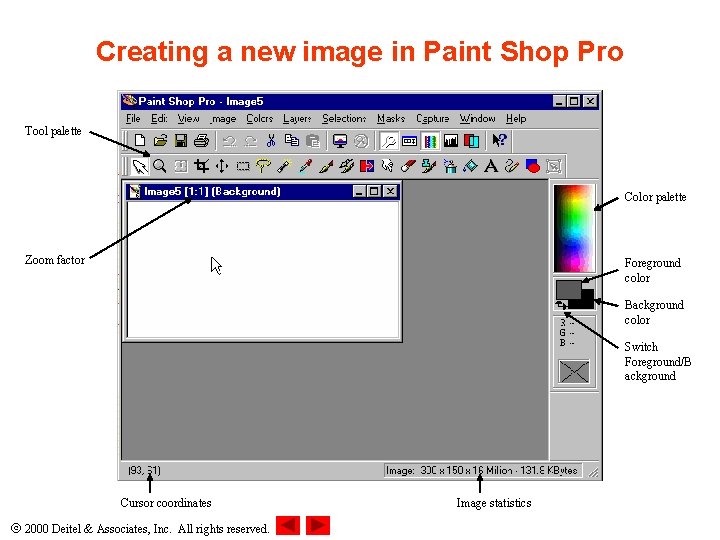
Creating a new image in Paint Shop Pro Tool palette Color palette Zoom factor Foreground color Background color Switch Foreground/B ackground Cursor coordinates 2000 Deitel & Associates, Inc. All rights reserved. Image statistics
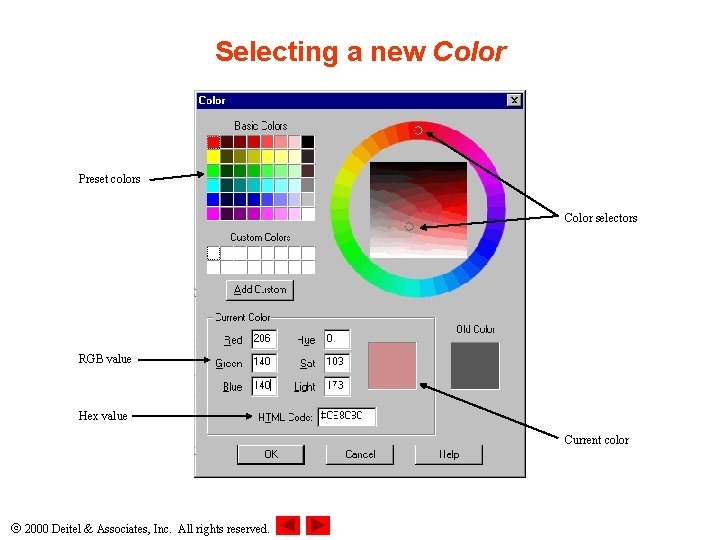
Selecting a new Color Preset colors Color selectors RGB value Hex value Current color 2000 Deitel & Associates, Inc. All rights reserved.
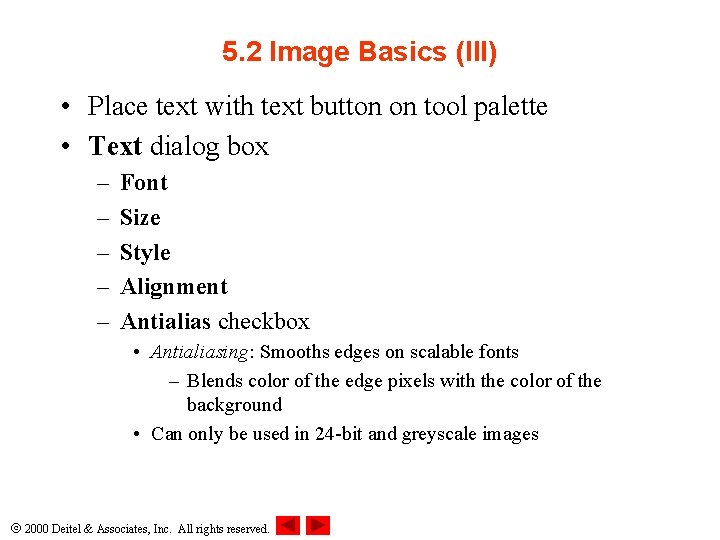
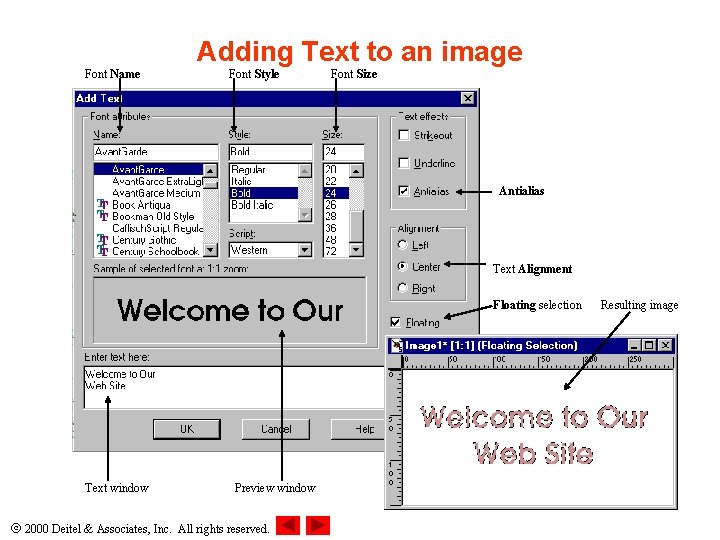
5. 2 Image Basics (III) • Place text with text button on tool palette • Text dialog box – – – Font Size Style Alignment Antialias checkbox • Antialiasing: Smooths edges on scalable fonts – Blends color of the edge pixels with the color of the background • Can only be used in 24 -bit and greyscale images 2000 Deitel & Associates, Inc. All rights reserved.
Font Name Adding Text to an image Font Style Font Size Antialias Text Alignment Floating selection Text window Preview window 2000 Deitel & Associates, Inc. All rights reserved. Resulting image
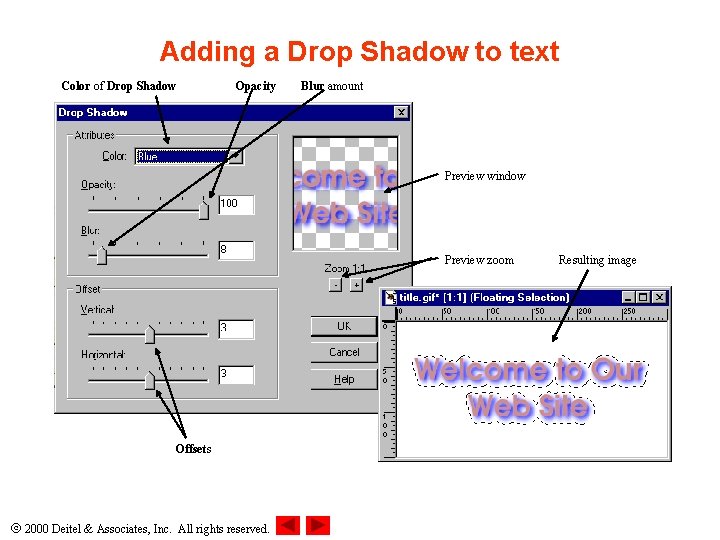
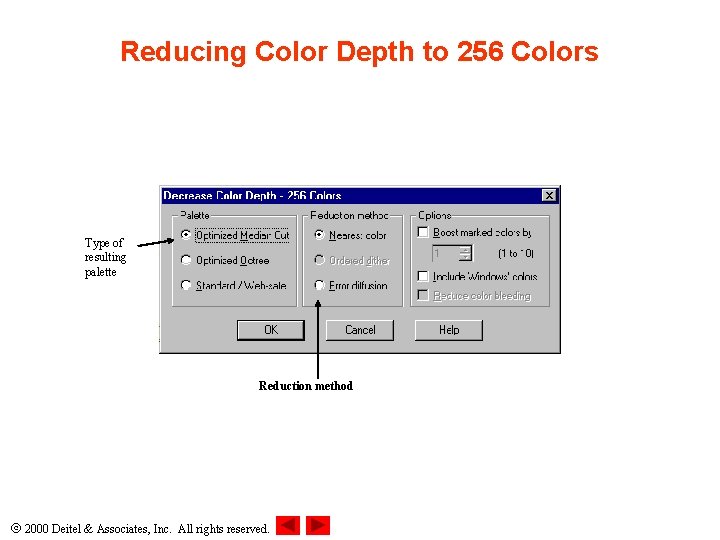
5. 2 Image Basics (IV) • Image menu Effects submenu Drop Shadow… effect – Offset section • Vertical • Horizontal – Attributes section • Color • Opacity • Blur • Most people use 8 -bit color depth when viewing Web sites – Using too many colors at once will create grainy images • Viewer’s browser dithers image – Reduce color depth by using Colors menu Decrease Color Depth 2000 Deitel & Associates, Inc. All rights reserved.
Adding a Drop Shadow to text Color of Drop Shadow Opacity Blur amount Preview window Preview zoom Offsets 2000 Deitel & Associates, Inc. All rights reserved. Resulting image
Reducing Color Depth to 256 Colors Type of resulting palette Reduction method 2000 Deitel & Associates, Inc. All rights reserved.
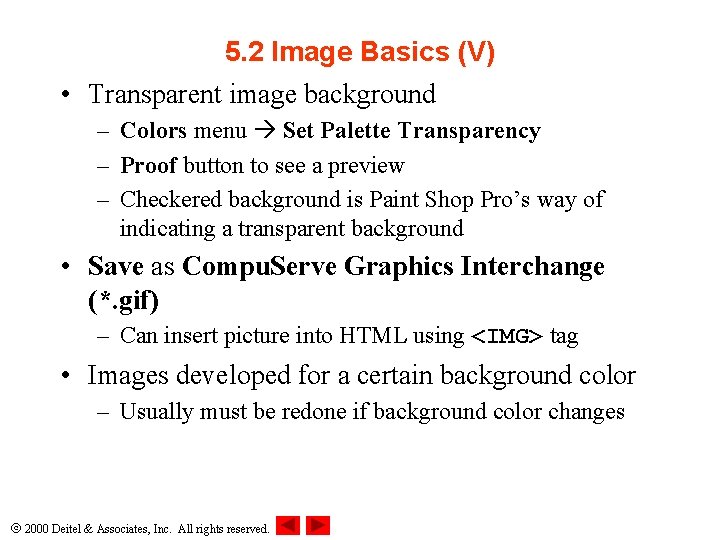
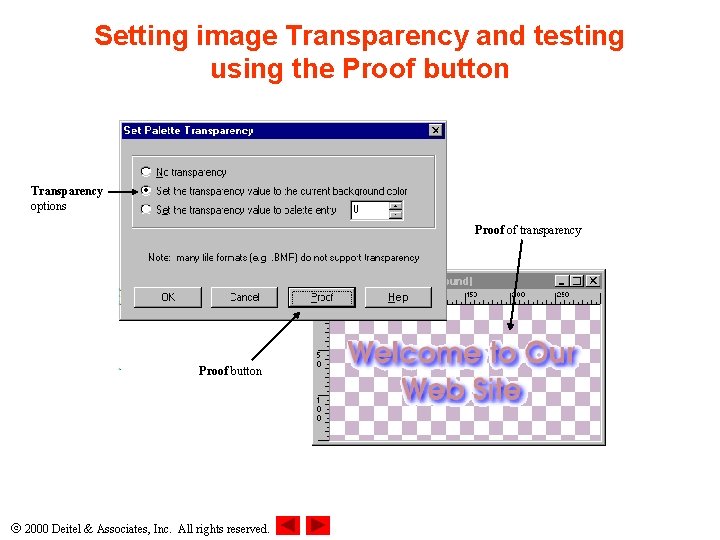
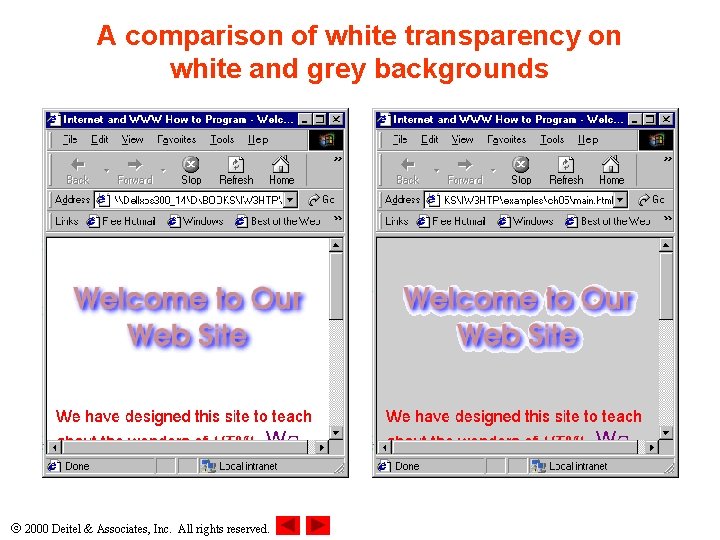
5. 2 Image Basics (V) • Transparent image background – Colors menu Set Palette Transparency – Proof button to see a preview – Checkered background is Paint Shop Pro’s way of indicating a transparent background • Save as Compu. Serve Graphics Interchange (*. gif) – Can insert picture into HTML using <IMG> tag • Images developed for a certain background color – Usually must be redone if background color changes 2000 Deitel & Associates, Inc. All rights reserved.
Setting image Transparency and testing using the Proof button Transparency options Proof of transparency Proof button 2000 Deitel & Associates, Inc. All rights reserved.
A comparison of white transparency on white and grey backgrounds 2000 Deitel & Associates, Inc. All rights reserved.
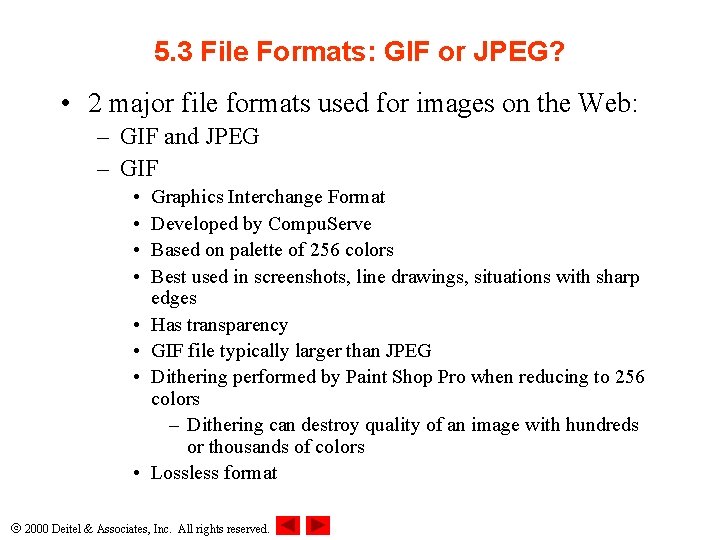
5. 3 File Formats: GIF or JPEG? • 2 major file formats used for images on the Web: – GIF and JPEG – GIF • • Graphics Interchange Format Developed by Compu. Serve Based on palette of 256 colors Best used in screenshots, line drawings, situations with sharp edges Has transparency GIF file typically larger than JPEG Dithering performed by Paint Shop Pro when reducing to 256 colors – Dithering can destroy quality of an image with hundreds or thousands of colors Lossless format 2000 Deitel & Associates, Inc. All rights reserved.
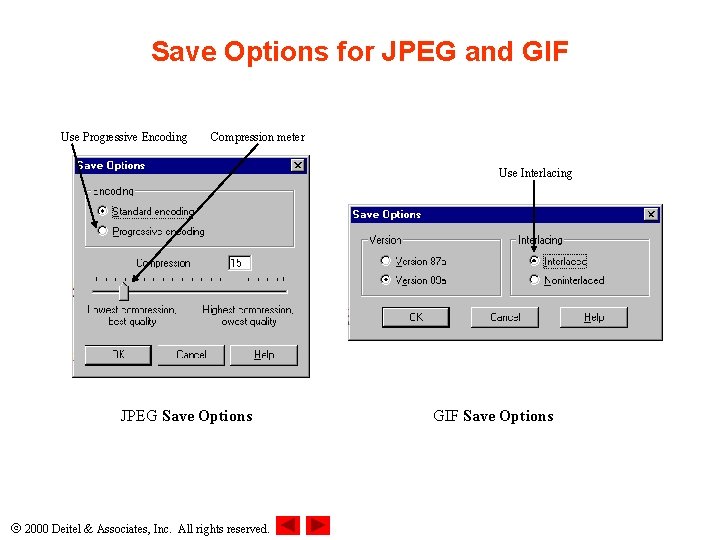
5. 3 File Formats: GIF or JPEG? (II) • JPEG – Lossy format • Can reduce the quality of image – Does not handle sharp edges and abrupt changes well – Both GIF and JPEG share interlacing (GIF terminology) or progressive encoding (JPEG terminology) • Downloads a rough whole image and gradually increases clarity • Do not place too may interlaced images on a Web page – Slow the rendering of a page • Save Options: Interlacing/Progressive Encoding 2000 Deitel & Associates, Inc. All rights reserved.
5. 3 File Formats: GIF or JPEG? (III) – JPEG format has scalable compression • In Save Options dialog, Compression slider – Sliding to the left causes the image to retain high quality, but file size also high – Sliding to the right causes file size to decrease, but image quality suffers • PNG (Portable Network Graphics) format – Can encode in RGBA • A for alpha transparency – Makes images transparent against any background – Supported by Paint Shop Pro, Netscape Navigator, Internet Explorer – http: //www. w 3. org/Graphics/PNG/ 2000 Deitel & Associates, Inc. All rights reserved.
Save Options for JPEG and GIF Use Progressive Encoding Compression meter Use Interlacing JPEG Save Options 2000 Deitel & Associates, Inc. All rights reserved. GIF Save Options
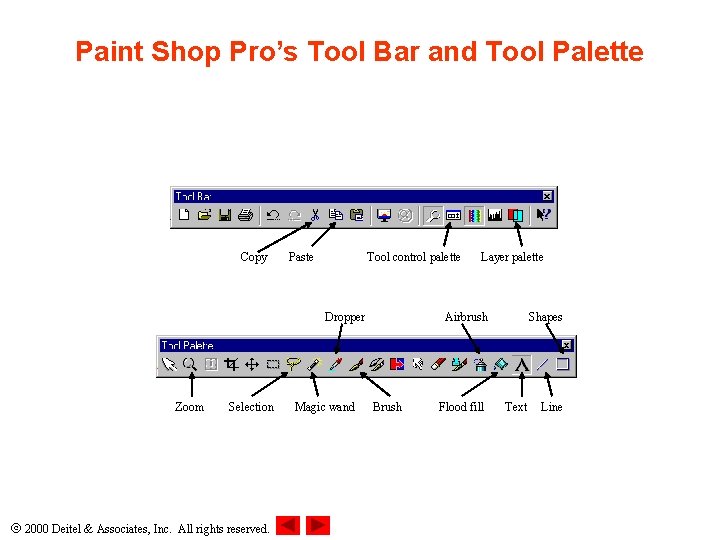
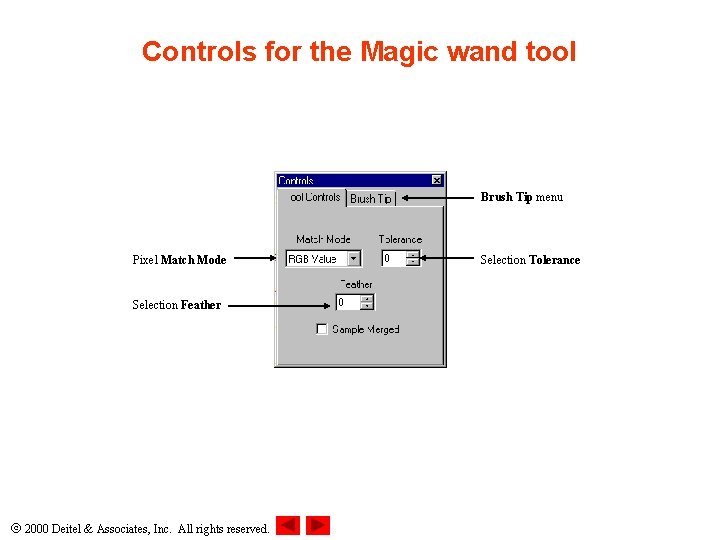
5. 4 Tool Palette • Tool Palette – Zoom tool • • Left-click to zoom in Right-click to zoom out Zoom factor displayed on the title bar Zoom up to 16: 1 and out to 1: 16 – Selection tool • Selects a rectangular region – Magic wand tool • Select all adjacent pixels of the same colors • Increasing Tolerance lets the tool select the color you clicked as well as similar colors – Access by clicking tool control palette button on Tool Bar 2000 Deitel & Associates, Inc. All rights reserved.
Paint Shop Pro’s Tool Bar and Tool Palette Copy Paste Tool control palette Dropper Zoom Selection 2000 Deitel & Associates, Inc. All rights reserved. Magic wand Layer palette Airbrush Brush Flood fill Shapes Text Line
Controls for the Magic wand tool Brush Tip menu Pixel Match Mode Selection Feather 2000 Deitel & Associates, Inc. All rights reserved. Selection Tolerance
5. 4 Tool Palette (II) • Tool palette (continued) – Flood fill tool • Colors all the pixels in range • Gradient in control palette – Shapes tool • Filled Rectangle – Airbrush tool • Simulates brush strokes on a canvas • Customize in the control palette 2000 Deitel & Associates, Inc. All rights reserved.
5. 4 Tool Palette (III) • Tool palette (continued) – Dropper tool • Changes foreground or background color to any color present in the image • Move dropper cursor over a color that you want and click • Left-click foreground • Right-click for background • Avoid too many colors – Makes your site look confusing and erratic 2000 Deitel & Associates, Inc. All rights reserved.
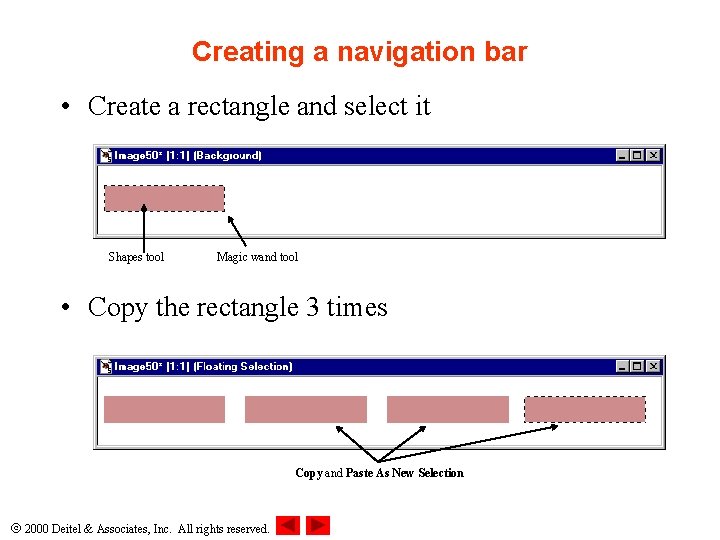
Creating a navigation bar • Create a rectangle and select it Shapes tool Magic wand tool • Copy the rectangle 3 times Copy and Paste As New Selection 2000 Deitel & Associates, Inc. All rights reserved.
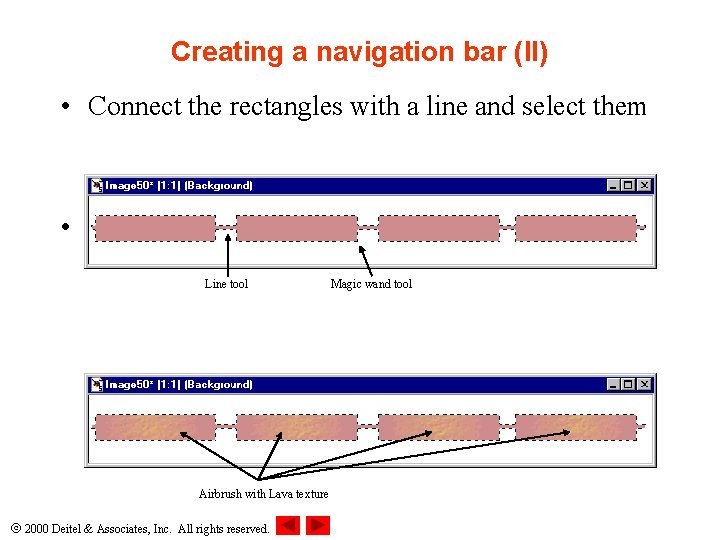
Creating a navigation bar (II) • Connect the rectangles with a line and select them • Lightly airbrush the rectangles with a texture Line tool Airbrush with Lava texture 2000 Deitel & Associates, Inc. All rights reserved. Magic wand tool
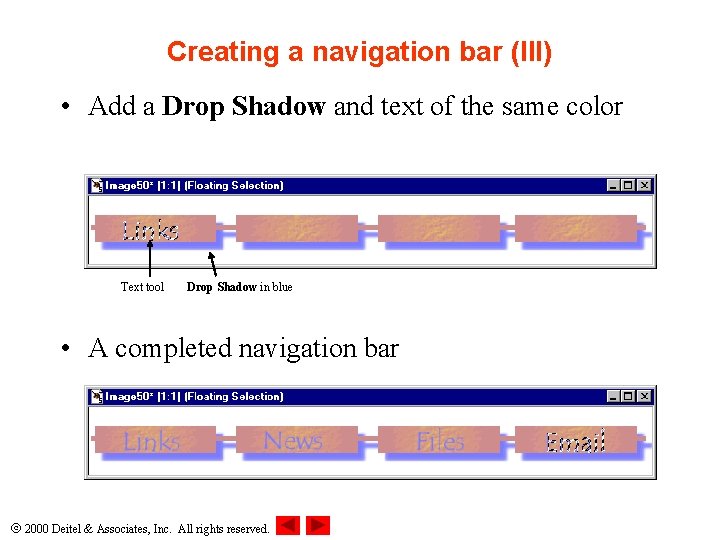
Creating a navigation bar (III) • Add a Drop Shadow and text of the same color Text tool Drop Shadow in blue • A completed navigation bar 2000 Deitel & Associates, Inc. All rights reserved.
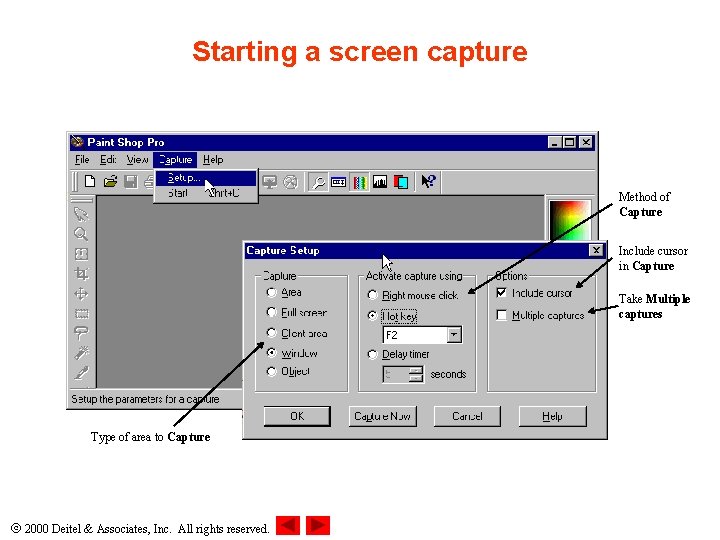
5. 5 Screen Capturing • Capture menu Setup… – Choose a type of area • • Area gives you a cursor to capture a rectangle Full screen captures the whole screen Client area captures the input area of the active window Window captures the whole active window (including title bar and menus) • Object captures a specific object when you trigger the capture (by clicking) – Method to capture • Default is right-click • Hot key • Delay timer 2000 Deitel & Associates, Inc. All rights reserved.
Starting a screen capture Method of Capture Include cursor in Capture Take Multiple captures Type of area to Capture 2000 Deitel & Associates, Inc. All rights reserved.
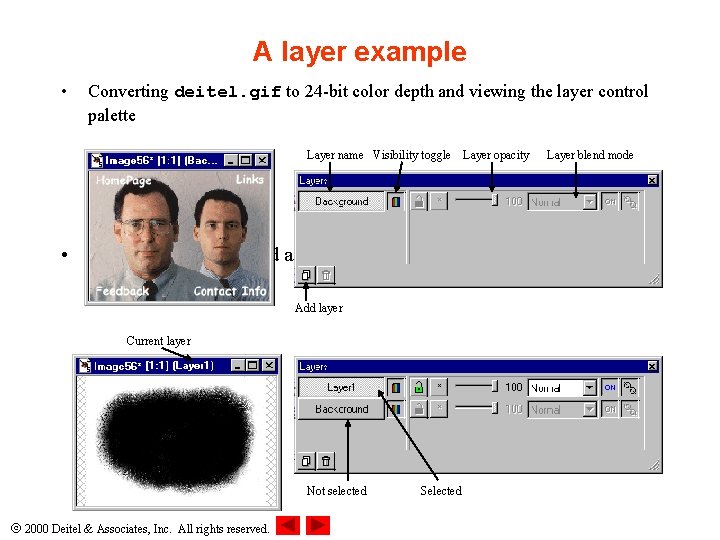
5. 6 Layers • An image can be composed of many layers – Each has its own attributes and effects on other layers – Makes composing complex images easier • Layer control palette button on the Tool Bar – Each layer occupies one row in the window – Layers are transparent by default 2000 Deitel & Associates, Inc. All rights reserved.
A layer example • Converting deitel. gif to 24 -bit color depth and viewing the layer control palette Layer name Visibility toggle Layer opacity • Adding a new layer and airbrushing Add layer Current layer Not selected 2000 Deitel & Associates, Inc. All rights reserved. Selected Layer blend mode
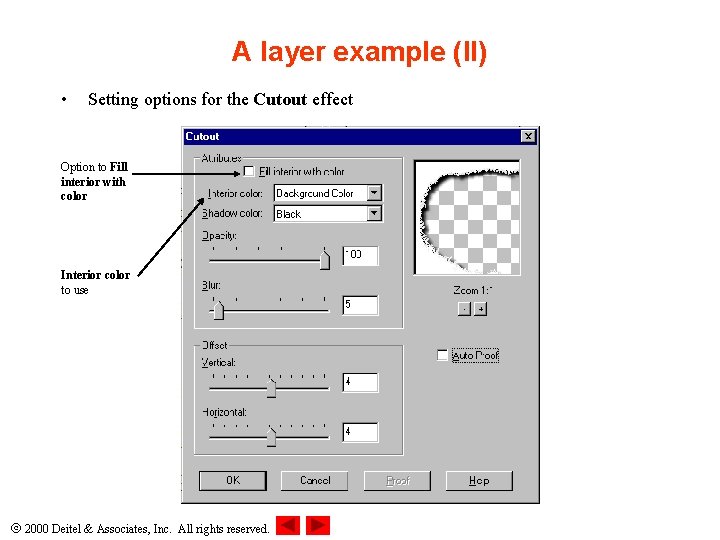
A layer example (II) • Setting options for the Cutout effect Option to Fill interior with color Interior color to use 2000 Deitel & Associates, Inc. All rights reserved.
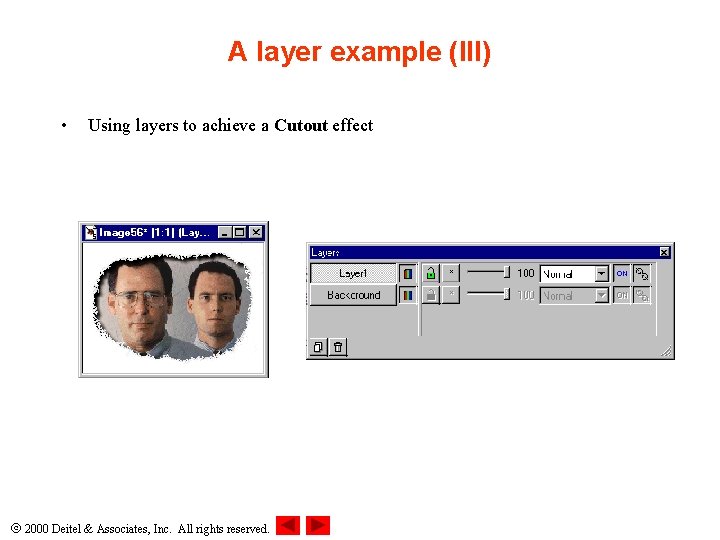
A layer example (III) • Using layers to achieve a Cutout effect 2000 Deitel & Associates, Inc. All rights reserved.
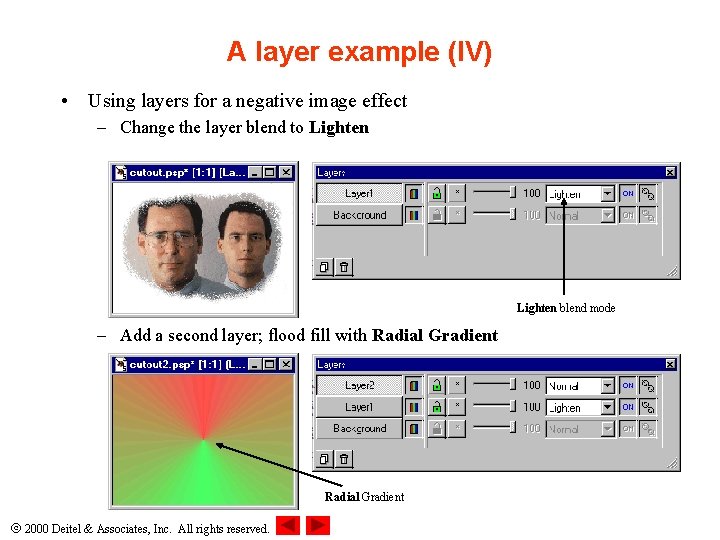
A layer example (IV) • Using layers for a negative image effect – Change the layer blend to Lighten blend mode – Add a second layer; flood fill with Radial Gradient 2000 Deitel & Associates, Inc. All rights reserved.
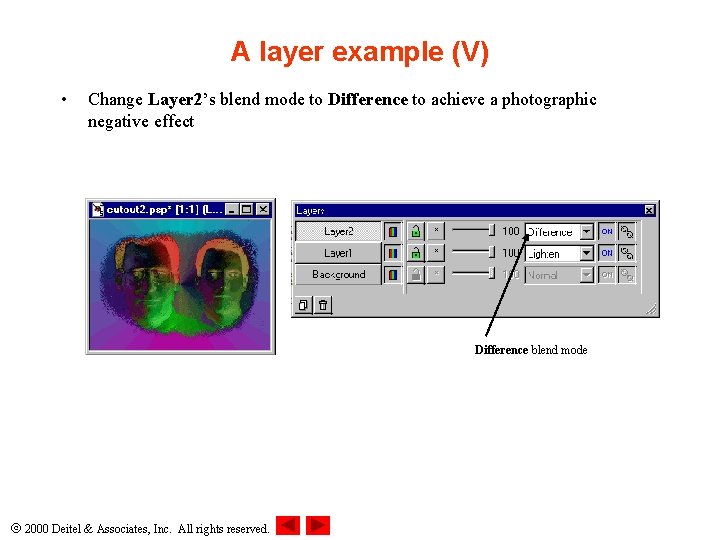
A layer example (V) • Change Layer 2’s blend mode to Difference to achieve a photographic negative effect Difference blend mode 2000 Deitel & Associates, Inc. All rights reserved.