
Chapter 5 Drawing Shapes with Turtle Graphics 1
- Slides: 24
Chapter 5 Drawing Shapes with Turtle Graphics 1
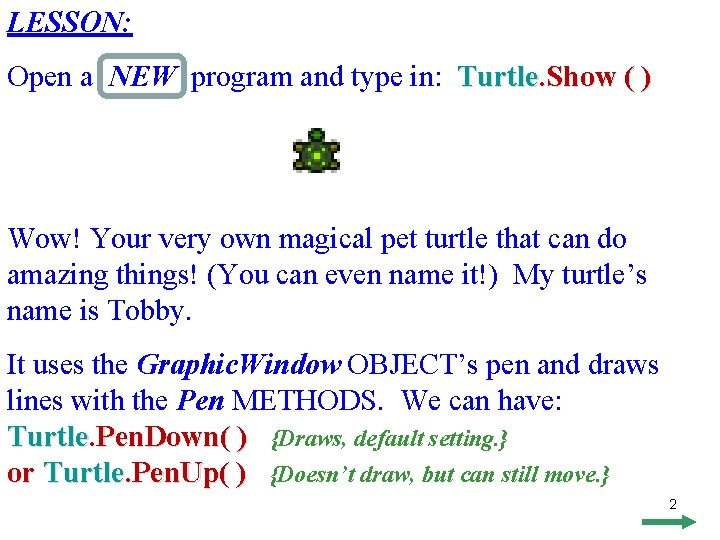
LESSON: Open a NEW program and type in: Turtle. Show ( ) Wow! Your very own magical pet turtle that can do amazing things! (You can even name it!) My turtle’s name is Tobby. It uses the Graphic. Window OBJECT’s pen and draws lines with the Pen METHODS. We can have: Turtle. Pen. Down( ) {Draws, default setting. } or Turtle. Pen. Up( ) {Doesn’t draw, but can still move. } 2
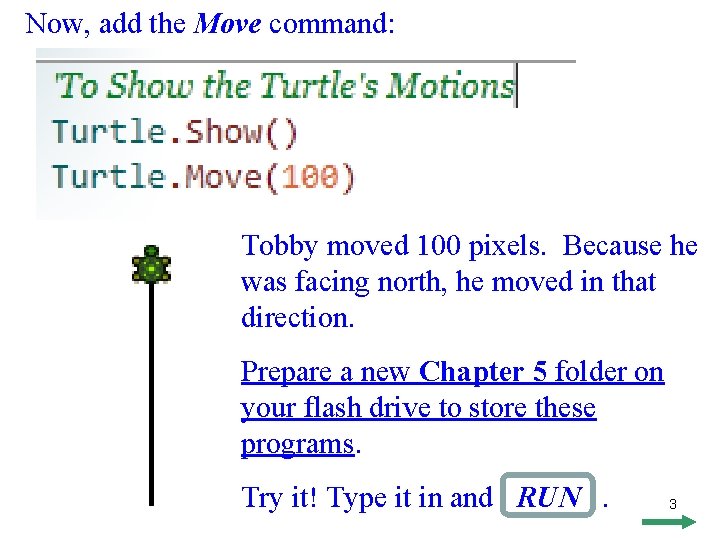
Now, add the Move command: Tobby moved 100 pixels. Because he was facing north, he moved in that direction. Prepare a new Chapter 5 folder on your flash drive to store these programs. Try it! Type it in and RUN. 3
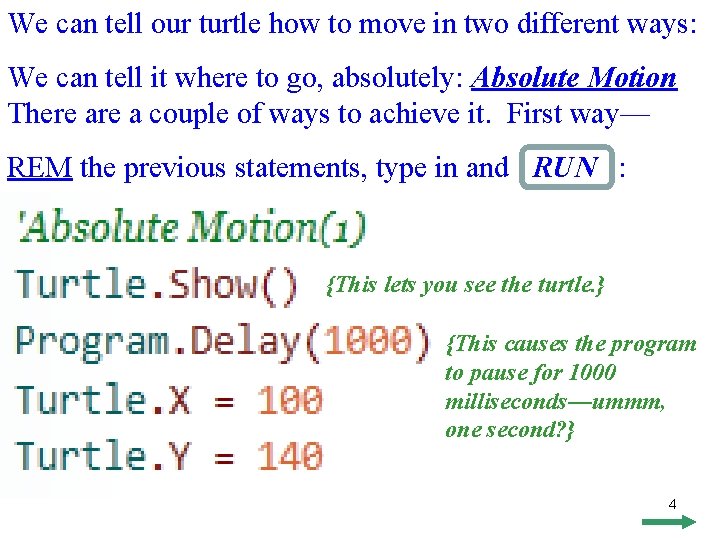
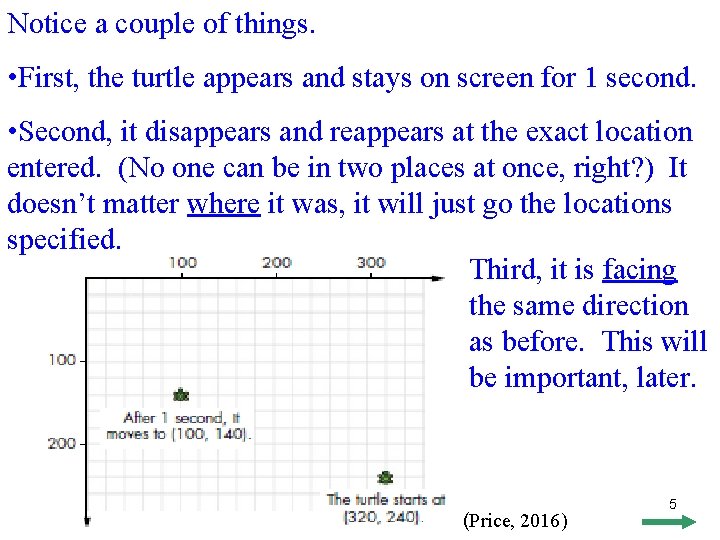
We can tell our turtle how to move in two different ways: We can tell it where to go, absolutely: Absolute Motion There a couple of ways to achieve it. First way— REM the previous statements, type in and RUN : {This lets you see the turtle. } {This causes the program to pause for 1000 milliseconds—ummm, one second? } 4
Notice a couple of things. • First, the turtle appears and stays on screen for 1 second. • Second, it disappears and reappears at the exact location entered. (No one can be in two places at once, right? ) It doesn’t matter where it was, it will just go the locations specified. Third, it is facing the same direction as before. This will be important, later. (Price, 2016) 5
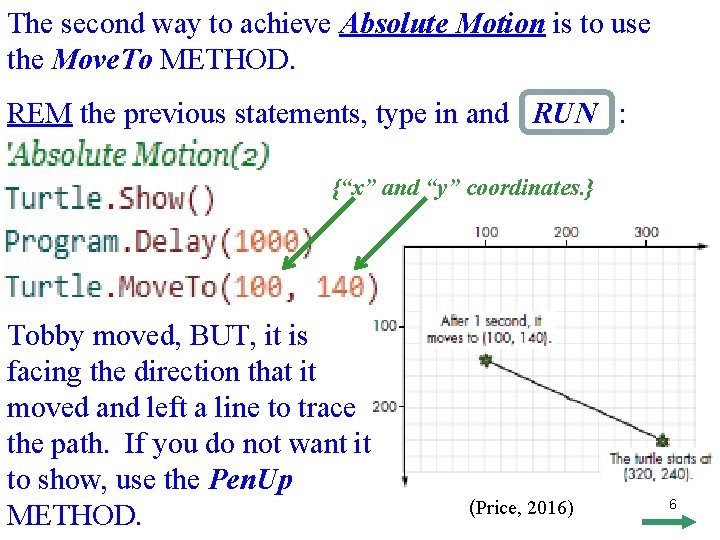
The second way to achieve Absolute Motion is to use the Move. To METHOD. REM the previous statements, type in and RUN : {“x” and “y” coordinates. } Tobby moved, BUT, it is facing the direction that it moved and left a line to trace the path. If you do not want it to show, use the Pen. Up METHOD. (Price, 2016) 6
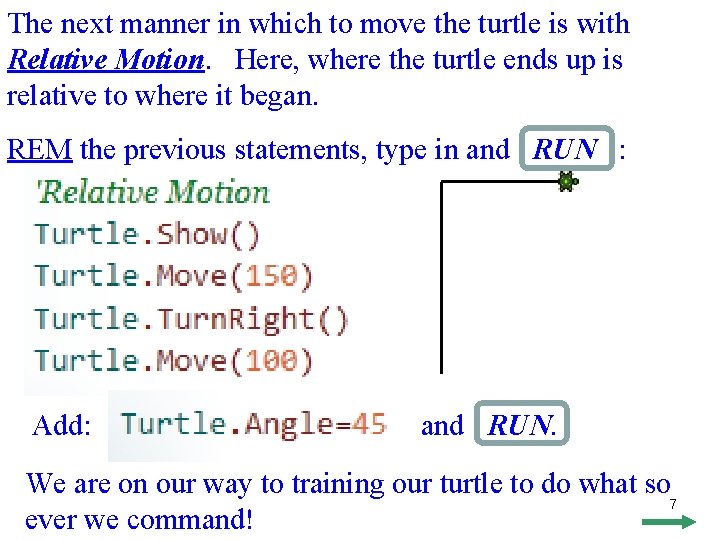
The next manner in which to move the turtle is with Relative Motion. Here, where the turtle ends up is relative to where it began. REM the previous statements, type in and RUN : Add: and RUN. We are on our way to training our turtle to do what so 7 ever we command!
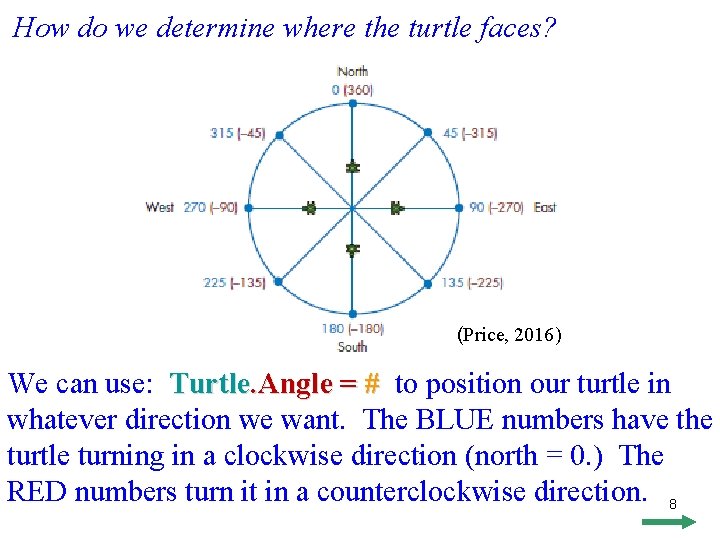
How do we determine where the turtle faces? (Price, 2016) We can use: Turtle. Angle = # to position our turtle in whatever direction we want. The BLUE numbers have the turtle turning in a clockwise direction (north = 0. ) The RED numbers turn it in a counterclockwise direction. 8
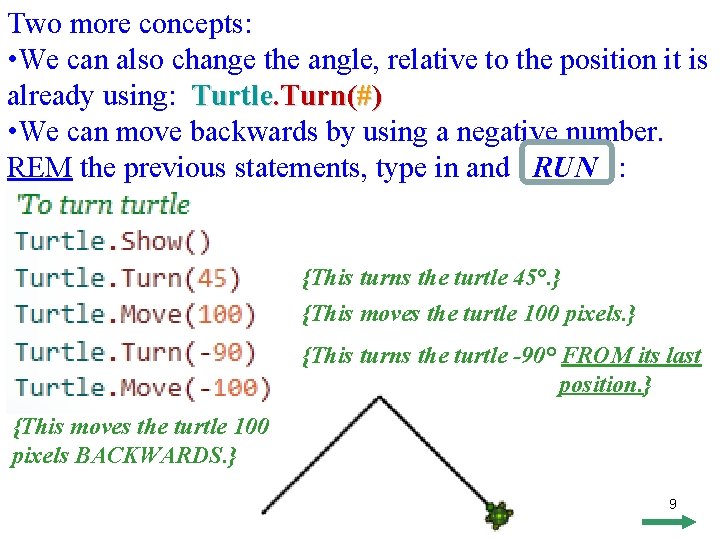
Two more concepts: • We can also change the angle, relative to the position it is already using: Turtle. Turn(#) • We can move backwards by using a negative number. REM the previous statements, type in and RUN : {This turns the turtle 45°. } {This moves the turtle 100 pixels. } {This turns the turtle -90° FROM its last position. } {This moves the turtle 100 pixels BACKWARDS. } 9
Mini Program 1: • Beginning with Absolute Motion, position your turtle in the upper left corner (5, 5), (10, 10), (20, 20), etc. • Change your Pen color and thickness. (Pen. Color and Pen. Width. ) • Have your turtle draw a square, using Relative Motion. • As you type in each step, RUN the program and check that it is doing what you wanted it to. • SAVE, but do not print, I will check it via VISION. Due _____ 10
Mini Program 2: • Begin anywhere with Absolute Motion. • Change your Pen color and thickness. (Pen. Color and Pen. Width. ) • Pick a background color. • Have your turtle draw a regular hexagon (6 sides), using Relative Motion. The formula for the exterior angle of any regular polygon with n sides is 360/n. Remember, you will need to calculate the turtle’s angle. • As you type in each step, RUN the program and check that it is doing what you wanted it to. • SAVE, but do not print, I will check it via VISION. Due _____ 11
Speed: A property that governs the speed at which your turtle moves or draws. The syntax is: Turtle. Speed = any integer from 1 to 10 Mini Program 3: • For each side of your hexagon, have your turtle move at a different speed. Mix up the fast and the slow. • SAVE AS a different name, but do not print, I will check it via VISION. Due _____ 12
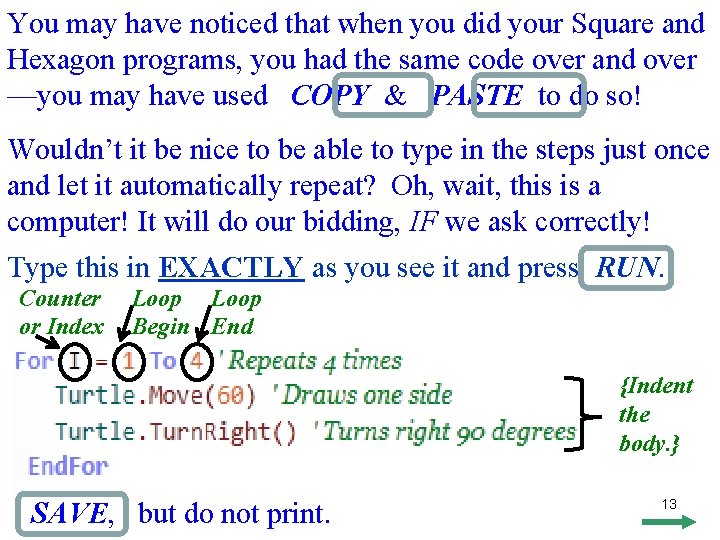
You may have noticed that when you did your Square and Hexagon programs, you had the same code over and over —you may have used COPY & PASTE to do so! Wouldn’t it be nice to be able to type in the steps just once and let it automatically repeat? Oh, wait, this is a computer! It will do our bidding, IF we ask correctly! Type this in EXACTLY as you see it and press RUN. Counter or Index Loop Begin End {Indent the body. } SAVE, but do not print. 13
Mini Program 4: • Re-do your hexagon program using a loop to control the drawing of the sides. • SAVE AS a different name, but do not print, I will check it via VISION. Due _____ As of now, WHEN YOU SUBMIT A FORMAL PROGRAM, you will be required to list your variables in the VARIABLES section of your program. This includes num. Sides, repeat. Count, I, and J. 14
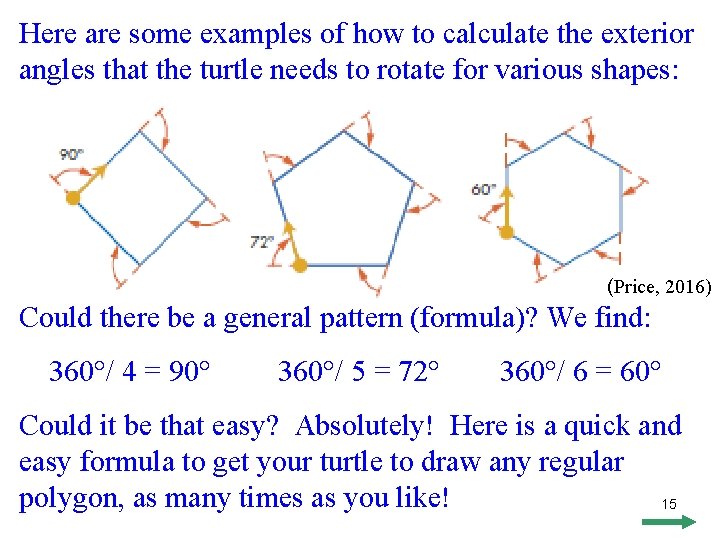
Here are some examples of how to calculate the exterior angles that the turtle needs to rotate for various shapes: (Price, 2016) Could there be a general pattern (formula)? We find: 360°/ 4 = 90° 360°/ 5 = 72° 360°/ 6 = 60° Could it be that easy? Absolutely! Here is a quick and easy formula to get your turtle to draw any regular polygon, as many times as you like! 15
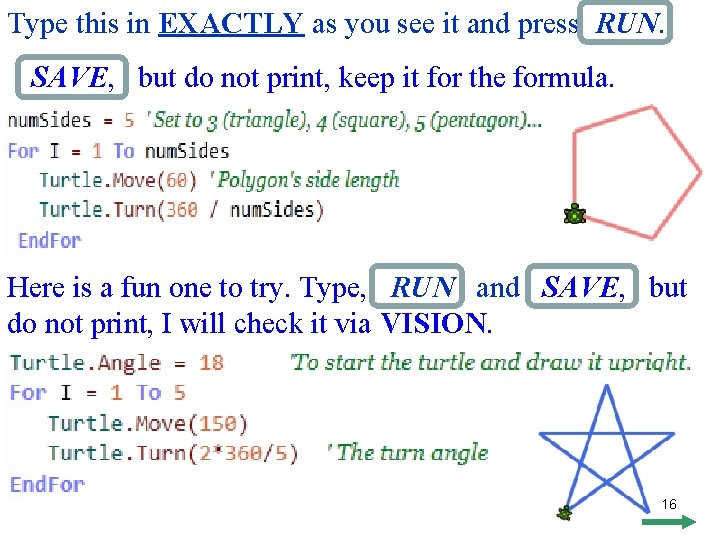
Type this in EXACTLY as you see it and press RUN. SAVE, but do not print, keep it for the formula. Here is a fun one to try. Type, RUN and SAVE, but do not print, I will check it via VISION. 16
Mini Program 5: • On page 66, choose to write the program for one of the three stars (7, 8, or 9 points) • How to do the calculations are under each one. • Choose your own background and pen color. • You may want to speed up your turtle. • SAVE, but do not print, I will check it via VISION. Due _____ 17
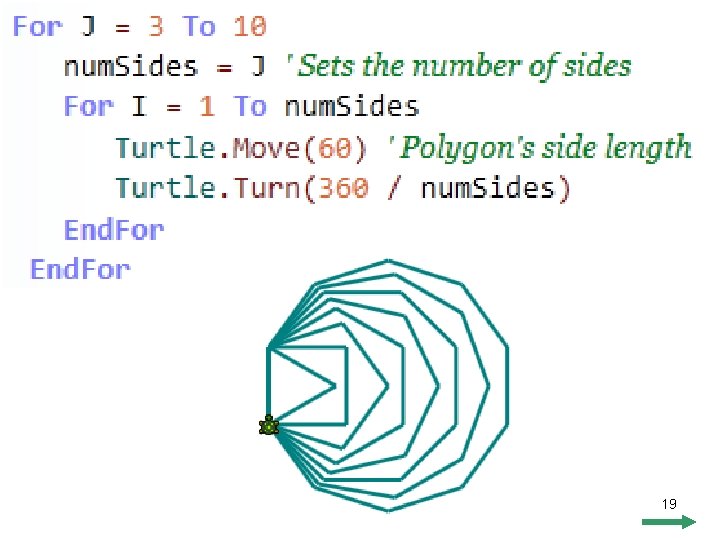
The program on the next page goes a step farther. It contains a loop within a loop. The inside loop actually draws the polygon, but the outside loop controls the number of sides. Type, RUN and SAVE, but do not print, keep it for the formula. Pen. Width and Pen. Color are up to you! 18
19
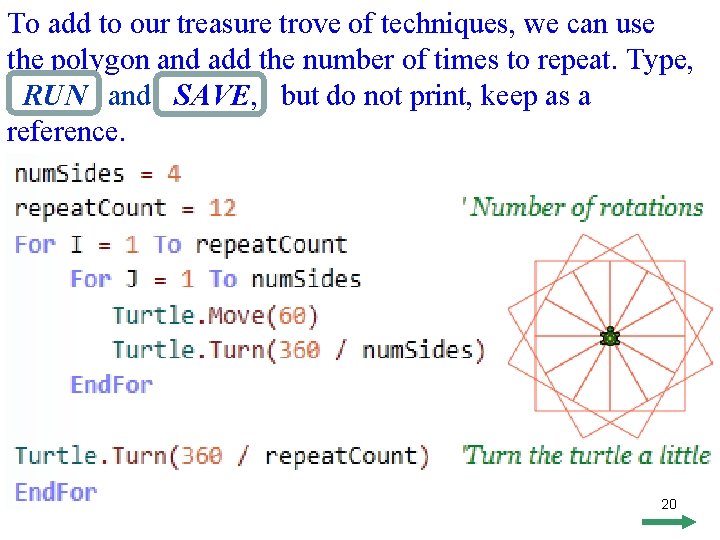
To add to our treasure trove of techniques, we can use the polygon and add the number of times to repeat. Type, RUN and SAVE, but do not print, keep as a reference. 20
Mini Program 6: • Using the previous program, re-write, changing the number of sides and rotations. (more than 4 and 12) • Choose your own background and pen color. • You may want to speed up your turtle. • SAVE, but do not print, I will check it via VISION. Due _____ 21
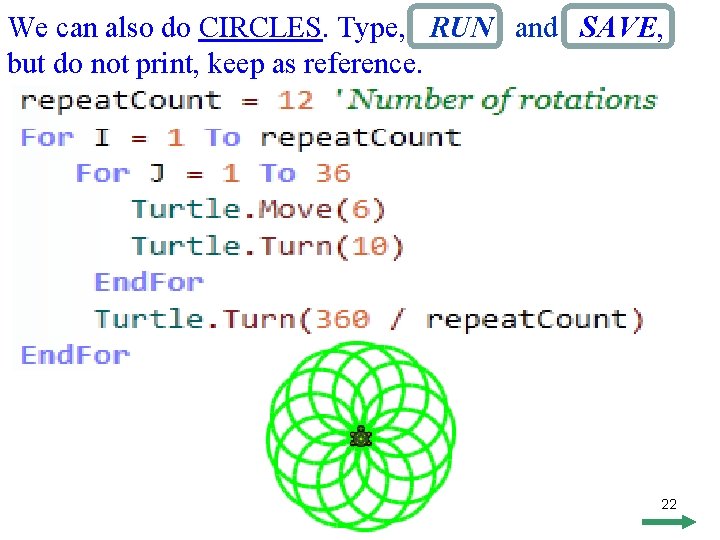
We can also do CIRCLES. Type, RUN and SAVE, but do not print, keep as reference. 22
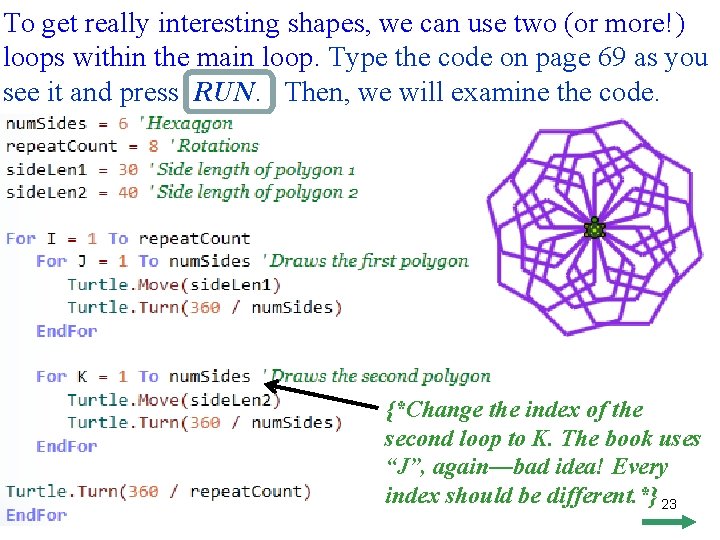
To get really interesting shapes, we can use two (or more!) loops within the main loop. Type the code on page 69 as you see it and press RUN. Then, we will examine the code. {*Change the index of the second loop to K. The book uses “J”, again—bad idea! Every index should be different. *} 23
Chapter 5 Programming Assignment • Use your SHELL and SAVE AS CH 5 GRAPHICS • Using the program from page 69, choose two to do from the top of page 70 (or create one or two on your own!) • Do not forget to list your variables in the VARIABLE section, ***IDENTIFYING THEM IN A GENERAL WAY*** • Change the Pen. Color and Pen. Width. • Change the num. Sides and repeat. Count. • Write the code that will create your own Polygon Art! • Use a white background and the Snipping Tool to capture your images. • Turn in a copy of the program and output. 24 • Due _____