
CHAPTER 5 Creating Tasks and Notes Paradigm Publishing
CHAPTER 5 Creating Tasks and Notes © Paradigm Publishing, Inc. 1
Performance Objectives § § § Create, update, print, and delete tasks Assign a task to someone else Respond to a task request Send task information to other users Change the task view to create task lists Change task options Create, edit, and delete notes Apply a color category to a note Customize the note view Forward a note by email Track activities using journal entries © Paradigm Publishing, Inc. 2
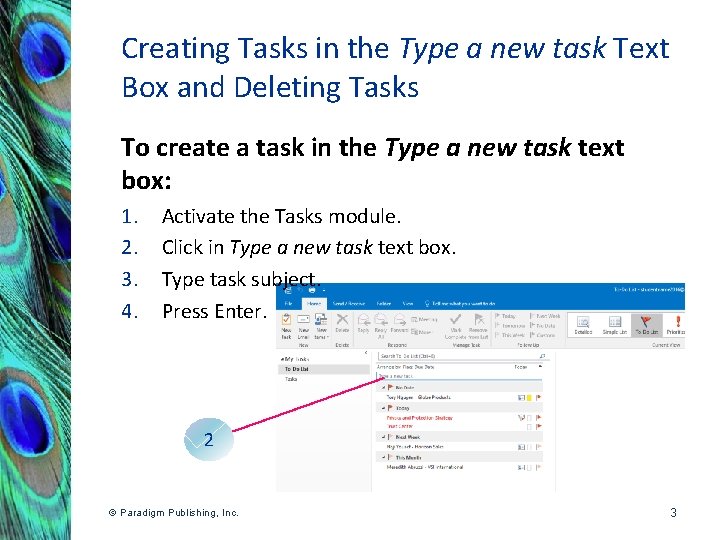
Creating Tasks in the Type a new task Text Box and Deleting Tasks To create a task in the Type a new task text box: 1. 2. 3. 4. Activate the Tasks module. Click in Type a new task text box. Type task subject. Press Enter. 2 © Paradigm Publishing, Inc. 3
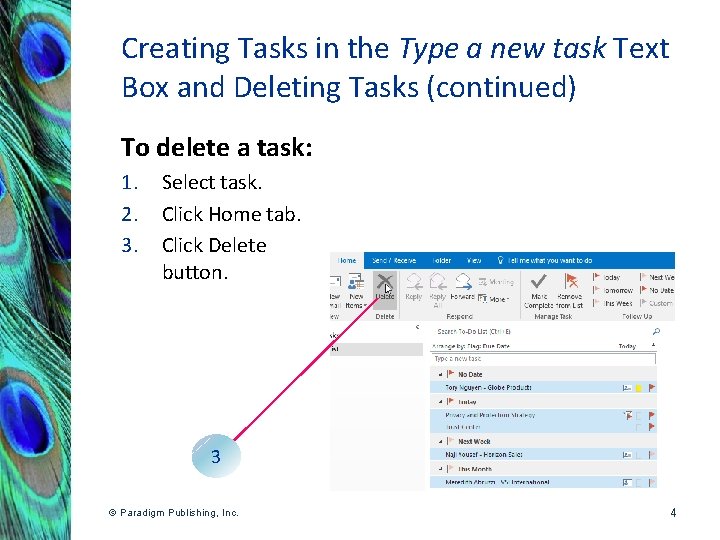
Creating Tasks in the Type a new task Text Box and Deleting Tasks (continued) To delete a task: 1. 2. 3. Select task. Click Home tab. Click Delete button. 3 © Paradigm Publishing, Inc. 4
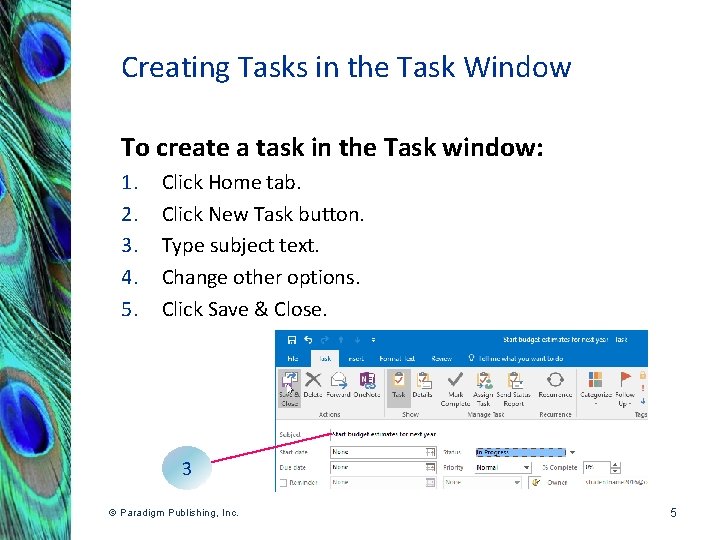
Creating Tasks in the Task Window To create a task in the Task window: 1. 2. 3. 4. 5. Click Home tab. Click New Task button. Type subject text. Change other options. Click Save & Close. 3 © Paradigm Publishing, Inc. 5
Creating Tasks in the Task Window (continued) § The default status for a new task is Not Started. § The default priority for a task is Normal. § Outlook inserts the name of the current user as the owner of the task. § Use the white text box at the bottom of the Task window to type additional notes, instructions, or other information that you want to store with the task details. © Paradigm Publishing, Inc. 6
Creating Tasks in the Task Window (continued) § Click the Details button in the Show group on the Task tab of a Task window to display the Details page. § At the Details page, you can store the date the task was completed, the number of hours estimated to complete the task, and the actual number of hours worked on the task. § If the work you are doing is to be billed out, enter information in the Company, Mileage, and Billing information text boxes. © Paradigm Publishing, Inc. 7
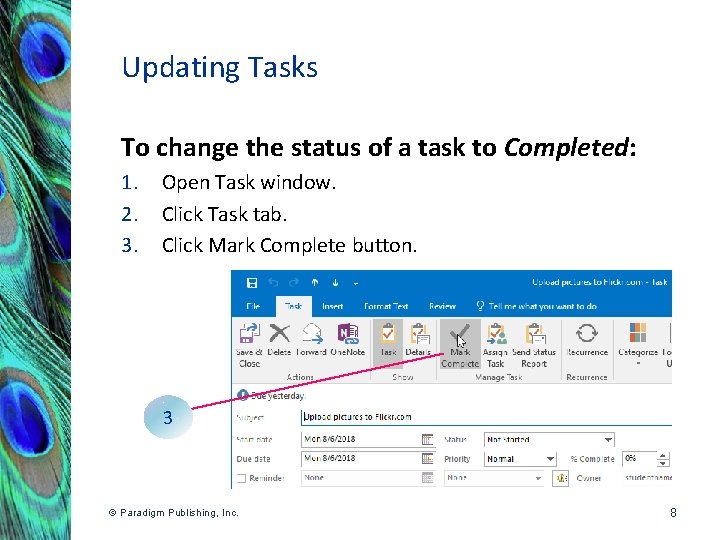
Updating Tasks To change the status of a task to Completed: 1. 2. 3. Open Task window. Click Task tab. Click Mark Complete button. 3 © Paradigm Publishing, Inc. 8
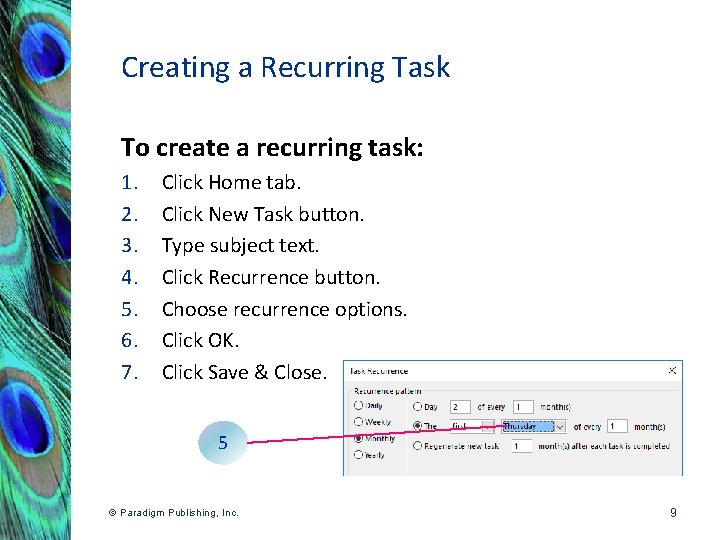
Creating a Recurring Task To create a recurring task: 1. 2. 3. 4. 5. 6. 7. Click Home tab. Click New Task button. Type subject text. Click Recurrence button. Choose recurrence options. Click OK. Click Save & Close. 5 © Paradigm Publishing, Inc. 9
Checkpoint 1 When a task is finished, you can either delete the task from the task list or change the task status to a. Submitted. b. Finished. c. Completed. d. Recurring. © Paradigm Publishing, Inc. 10
Assigning a Task to Someone Else § You can assign a task to someone else by emailing the individual a task request. § The recipient of the task request can choose to accept the task, decline the task, or assign the task to someone else. § If you receive a task request and accept the task, you become the owner of the task. § The owner is the only person who can make changes to the task details. © Paradigm Publishing, Inc. 11
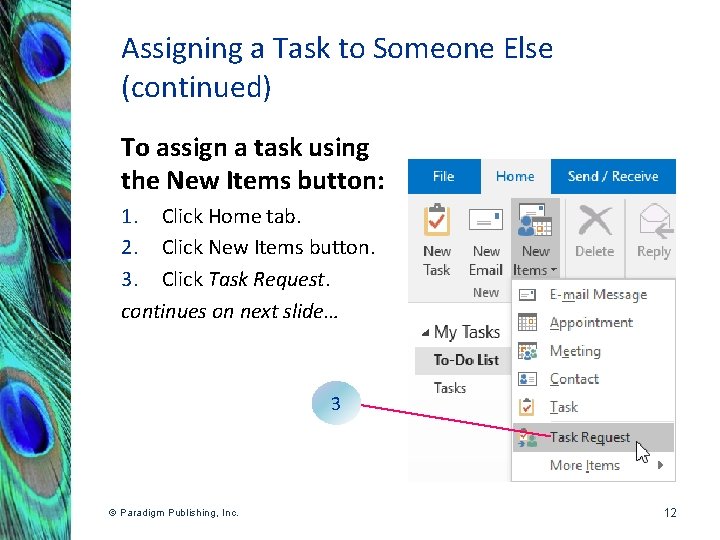
Assigning a Task to Someone Else (continued) To assign a task using the New Items button: 1. Click Home tab. 2. Click New Items button. 3. Click Task Request. continues on next slide… 3 © Paradigm Publishing, Inc. 12

Assigning a Task to Someone Else (continued) …continued from previous slide 4. Enter recipient in To text box. 5. Type subject text. 6. Change options. 7. Click Send. 5 © Paradigm Publishing, Inc. 13
Responding to a Task Request § The process for responding to a task request message is similar to the process for responding to a meeting request message. § If you are the task recipient, you will receive a message in your Inbox. § Select the message header in the Content pane and then click the Accept or Decline button in the Reading pane. © Paradigm Publishing, Inc. 14

Responding to a Task Request (continued) § Clicking the Accept button moves the task into the Tasks folder. § Clicking Decline moves the task to the Deleted Items folder. § You can select the option Edit the response before sending and then add an explanation. § Alternatively, you can select Send the response now, which sends the task originator the default response message of User name has accepted. © Paradigm Publishing, Inc. 15
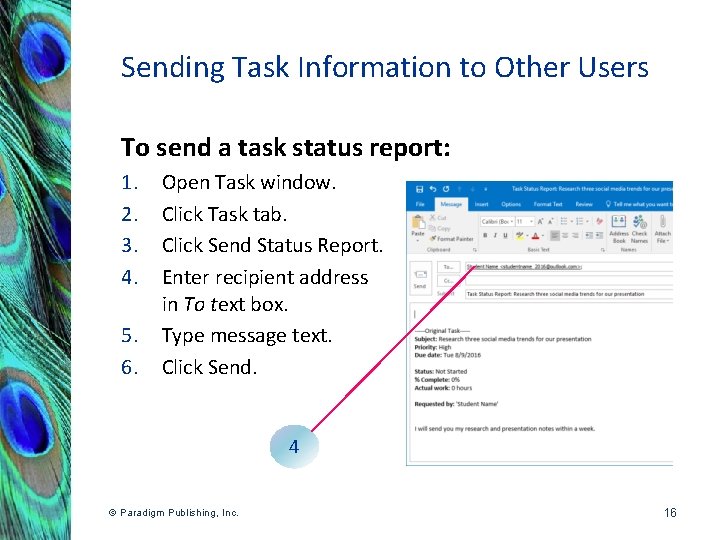
Sending Task Information to Other Users To send a task status report: 1. 2. 3. 4. 5. 6. Open Task window. Click Task tab. Click Send Status Report. Enter recipient address in To text box. Type message text. Click Send. 4 © Paradigm Publishing, Inc. 16
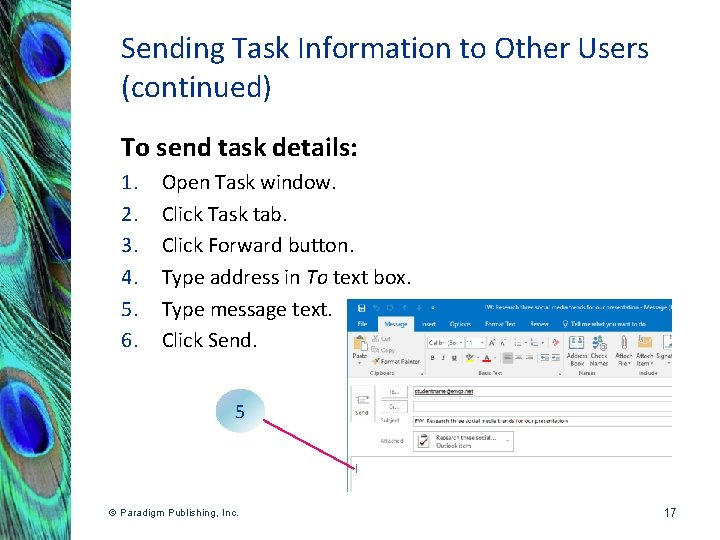
Sending Task Information to Other Users (continued) To send task details: 1. 2. 3. 4. 5. 6. Open Task window. Click Task tab. Click Forward button. Type address in To text box. Type message text. Click Send. 5 © Paradigm Publishing, Inc. 17
Checkpoint 2 The recipient of a task request can choose to do which of the following? a. accept the task b. decline the task c. assign the task to someone else d. all of the above © Paradigm Publishing, Inc. 18
Changing the Task View to Create Task Lists § The Current View group on the Home tab provides the following other view options to create task lists: – Prioritized. A list of all tasks grouped by the Priority option. – Active. A filtered list of all tasks not marked as completed. – Completed. A filtered list of tasks that have been marked as completed. continues on next slide… © Paradigm Publishing, Inc. 19
Changing the Task View to Create Task Lists (continued) …continued from previous slide – Today. A filtered list of tasks due today plus overdue tasks. – Next 7 Days. A filtered list of all tasks with due dates within the next seven days and sorted in ascending order by due date. – Overdue. A filtered list of all tasks that are not marked as completed and are past their due dates. – Assigned. A filtered list of tasks that have been assigned to other individuals, grouped by name. © Paradigm Publishing, Inc. 20
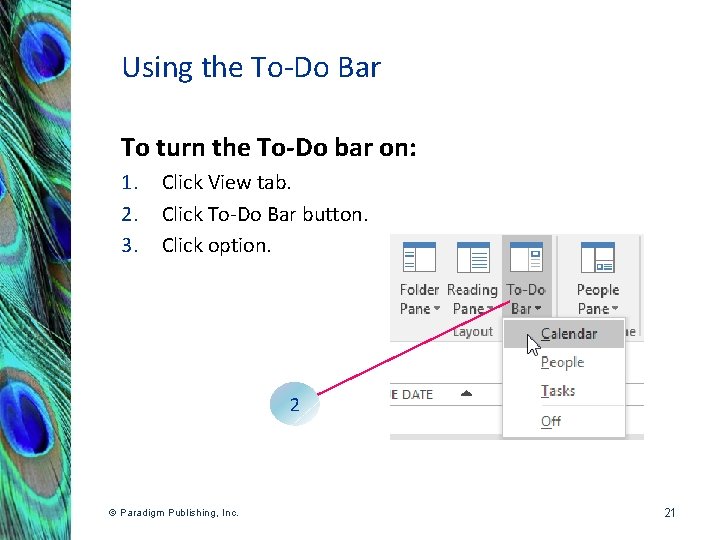
Using the To-Do Bar To turn the To-Do bar on: 1. 2. 3. Click View tab. Click To-Do Bar button. Click option. 2 © Paradigm Publishing, Inc. 21
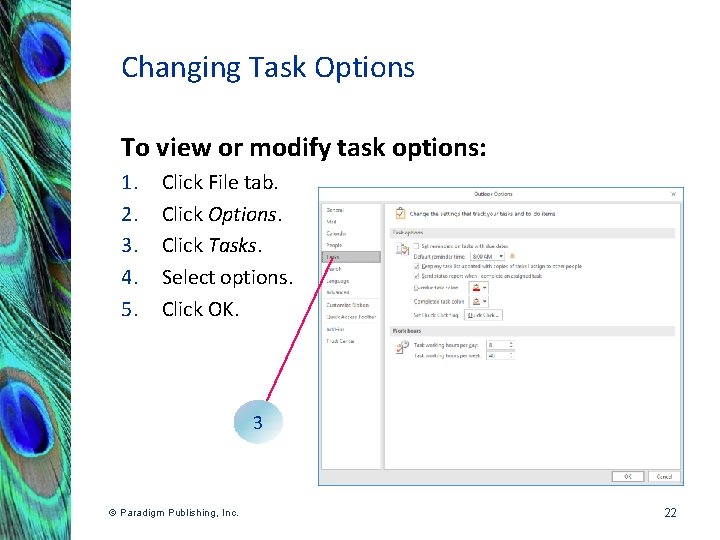
Changing Task Options To view or modify task options: 1. 2. 3. 4. 5. Click File tab. Click Options. Click Tasks. Select options. Click OK. 3 © Paradigm Publishing, Inc. 22
Creating and Managing Notes § In Outlook, a note contains a small amount of text that is not structured in any way. § It is meant to act as a reminder or placeholder to store thoughts, ideas, and other information that you do not want to forget. § Important notes can be placed on the desktop in a location that can be easily seen. © Paradigm Publishing, Inc. 23
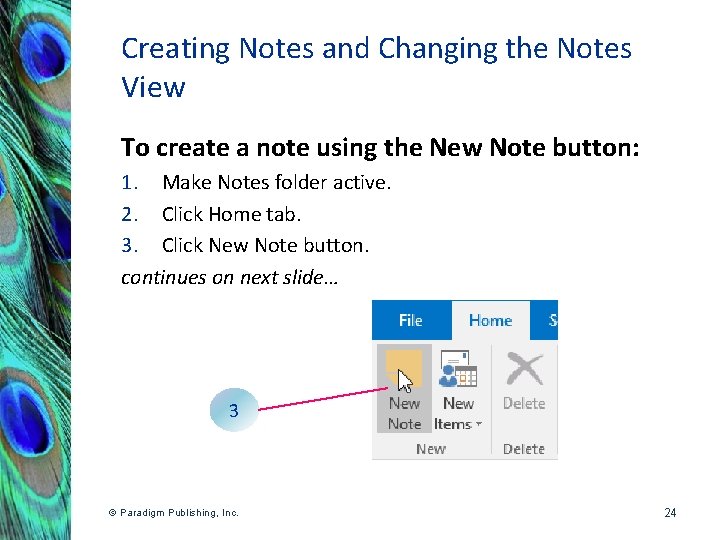
Creating Notes and Changing the Notes View To create a note using the New Note button: 1. Make Notes folder active. 2. Click Home tab. 3. Click New Note button. continues on next slide… 3 © Paradigm Publishing, Inc. 24
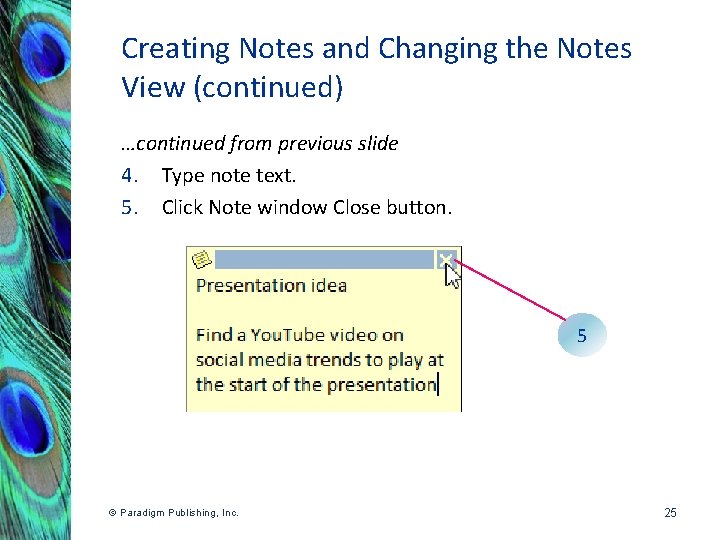
Creating Notes and Changing the Notes View (continued) …continued from previous slide 4. Type note text. 5. Click Note window Close button. 5 © Paradigm Publishing, Inc. 25
Creating Notes and Changing the Notes View (continued) § Outlook stores the date and time that the note was created and displays it at the bottom of the Note window. § Buttons in the Current View group on the Home tab are used to display notes in Icon view, Notes List view, or Last 7 Days view. © Paradigm Publishing, Inc. 26
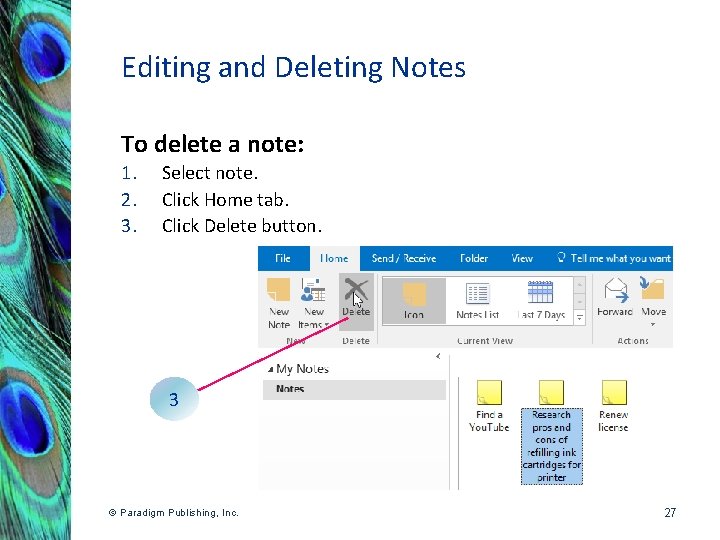
Editing and Deleting Notes To delete a note: 1. 2. 3. Select note. Click Home tab. Click Delete button. 3 © Paradigm Publishing, Inc. 27
Checkpoint 3 The Outlook object that contains a small amount of text that is not structured in any way but is meant to act as a reminder is called a a. journal. b. task. c. contact. d. note. © Paradigm Publishing, Inc. 28
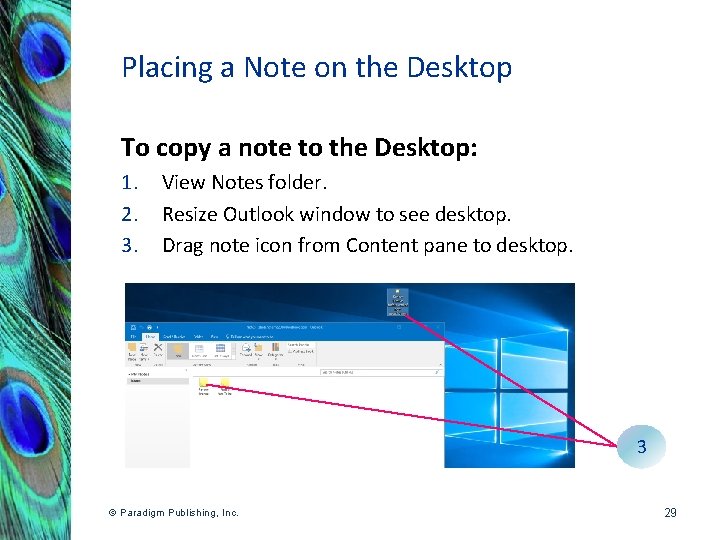
Placing a Note on the Desktop To copy a note to the Desktop: 1. 2. 3. View Notes folder. Resize Outlook window to see desktop. Drag note icon from Content pane to desktop. 3 © Paradigm Publishing, Inc. 29
Assigning a Color Category to a Note § If you create notes for many items, the Content pane can quickly become filled with notes that are not related. § Applying a color category to a note is one way of organizing the Notes folder. § By default, notes are not listed by title when viewed in the Content pane. § Notes are listed in descending order by date created. © Paradigm Publishing, Inc. 30
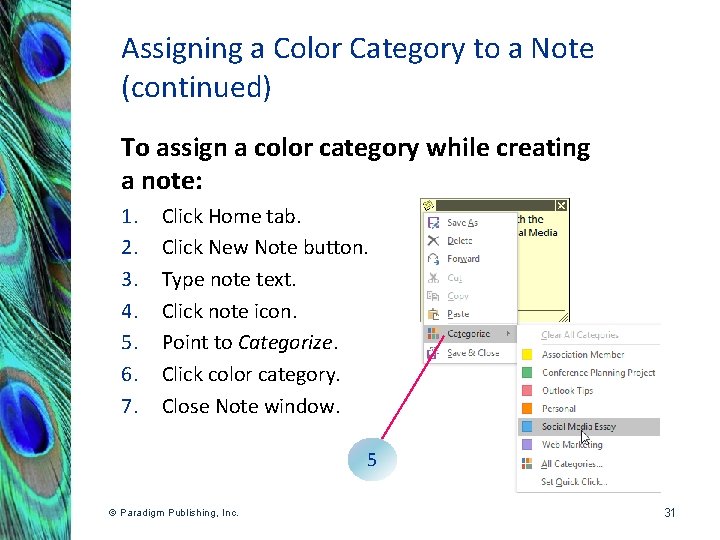
Assigning a Color Category to a Note (continued) To assign a color category while creating a note: 1. 2. 3. 4. 5. 6. 7. Click Home tab. Click New Note button. Type note text. Click note icon. Point to Categorize. Click color category. Close Note window. 5 © Paradigm Publishing, Inc. 31
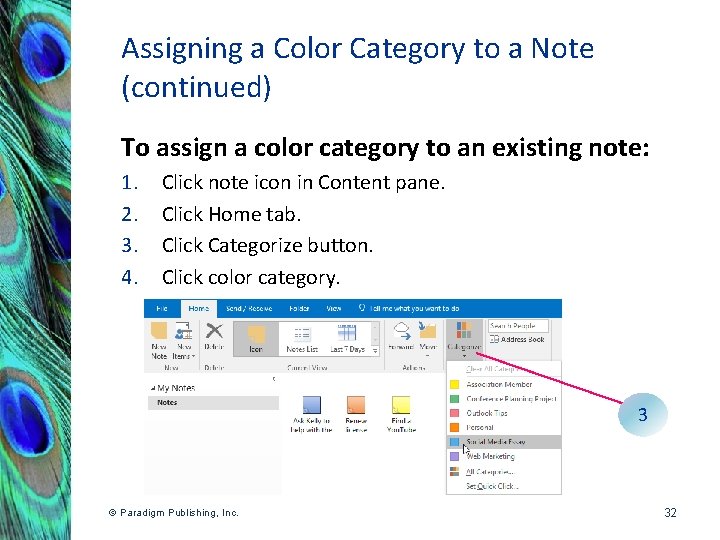
Assigning a Color Category to a Note (continued) To assign a color category to an existing note: 1. 2. 3. 4. Click note icon in Content pane. Click Home tab. Click Categorize button. Click color category. 3 © Paradigm Publishing, Inc. 32
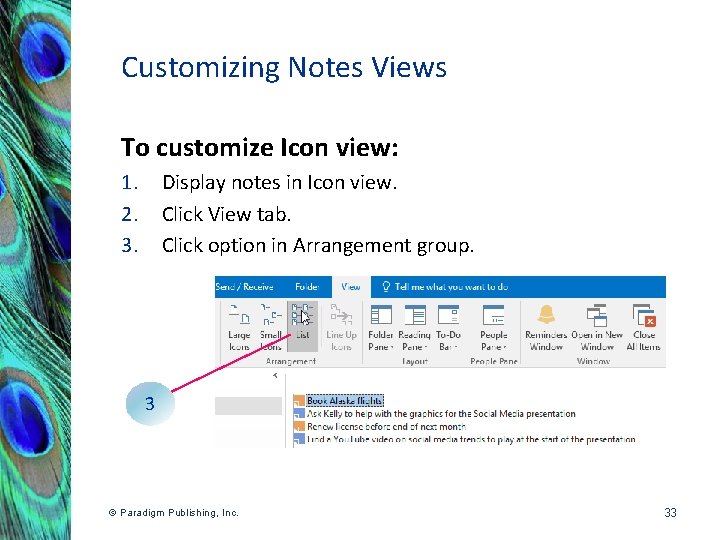
Customizing Notes Views To customize Icon view: 1. 2. 3. Display notes in Icon view. Click View tab. Click option in Arrangement group. 3 © Paradigm Publishing, Inc. 33
Forwarding a Note § Select a note in the Content pane and then click the Forward button on the Home tab. § This opens an email message window with the note attached as a file, which you can then forward to one or more recipients. § You can also click the note icon at the top left of a Note window and then click Forward to open an email message window. © Paradigm Publishing, Inc. 34
Creating and Managing Journal Entries § The Journal module is a place in which you can keep track of events or items that you want to remember. § To display the Journal, click Folders from the Navigation Options button pop-up list and then click Journal in the Folder pane. § Use the Journal module to keep track of what was said during a telephone conversation or how much time was spent working on a project, for example. © Paradigm Publishing, Inc. 35
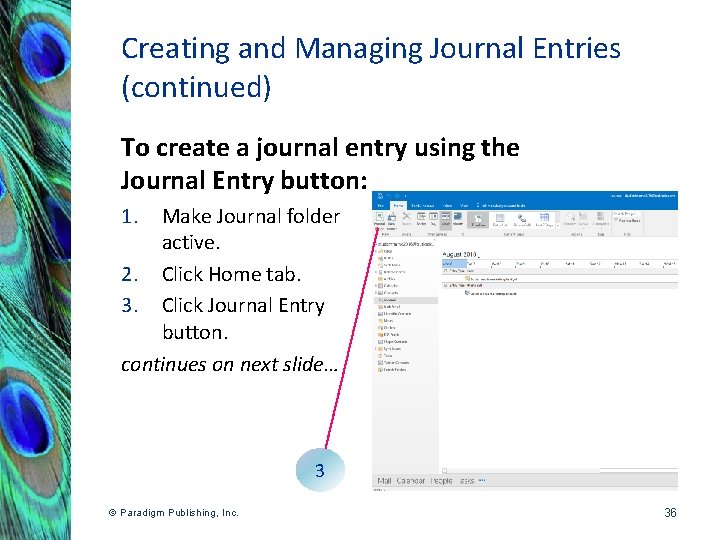
Creating and Managing Journal Entries (continued) To create a journal entry using the Journal Entry button: 1. Make Journal folder active. 2. Click Home tab. 3. Click Journal Entry button. continues on next slide… 3 © Paradigm Publishing, Inc. 36
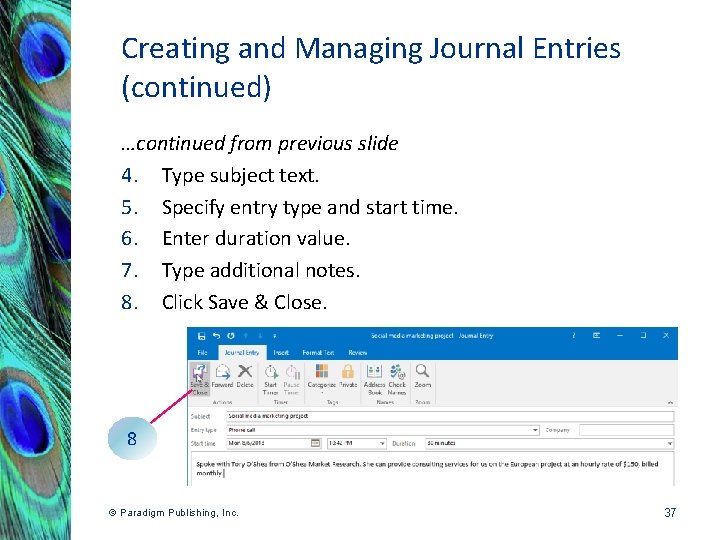
Creating and Managing Journal Entries (continued) …continued from previous slide 4. Type subject text. 5. Specify entry type and start time. 6. Enter duration value. 7. Type additional notes. 8. Click Save & Close. 8 © Paradigm Publishing, Inc. 37
Editing and Deleting a Journal Entry § Double-click a journal entry in the Content pane to open the Journal Entry window and then make changes to the entry details. § You can attach a file to a journal entry using the Attach File button in the Include group on the Insert tab. § Outlook adds a shortcut icon for the file in the text box below Start time. § Launch the file by double-clicking the file icon in the Journal Entry window. © Paradigm Publishing, Inc. 38
Checkpoint 4 The Journal module opens in which view by Default? a. Timeline b. Entry List c. Last 7 Days d. Icon © Paradigm Publishing, Inc. 39
- Slides: 39