
Chapter 4 The Selection Structure Programming with Microsoft
- Slides: 50
Chapter 4: The Selection Structure Programming with Microsoft Visual Basic. NET, Second Edition
The If…Then…Else Statement Lesson A Objectives • Write pseudocode for the selection structure • Create a flowchart to help you plan an application’s code • Write an If. . . Then. . . Else statement Programming with Microsoft Visual Basic. NET, Second Edition 2
The If…Then…Else Statement Lesson A Objectives (continued) • Write code that uses comparison operators and logical operators • Format numbers using the To. String method • Change the case of a string Programming with Microsoft Visual Basic. NET, Second Edition 3
The Selection Structure • Use the selection structure to make a decision or comparison and select a particular set of tasks to perform • The selection structure is also called the decision structure • The condition must result in either a true (yes) or false (no) answer Programming with Microsoft Visual Basic. NET, Second Edition 4
The Selection Structure (continued) • If the condition is true, the program performs one set of tasks • If the condition is false, there may or may not be a different set of tasks to perform • Visual Basic. NET provides four forms of the selection structure: If, If/Else, and Case Programming with Microsoft Visual Basic. NET, Second Edition 5
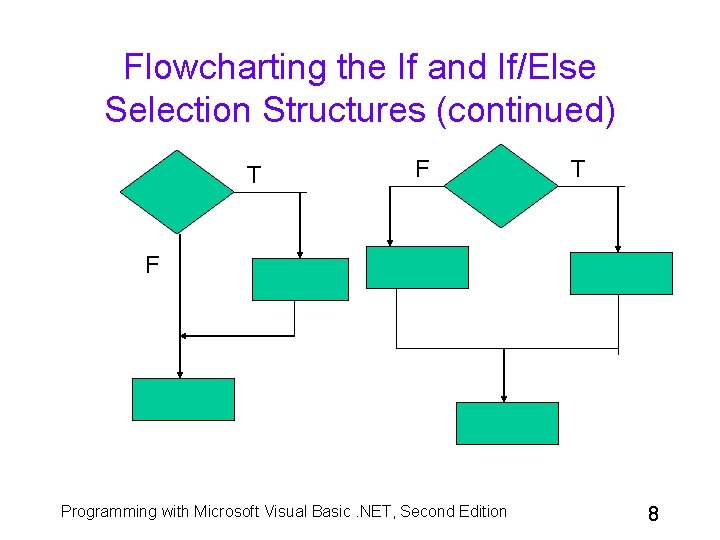
Writing Pseudocode for If and If/Else Selection Structures • An If selection structure contains only one set of instructions, which are processed when the condition is true • An If/Else selection structure contains two sets of instructions: – One set is processed when the condition is true – The other set is processed when the condition is false Programming with Microsoft Visual Basic. NET, Second Edition 6
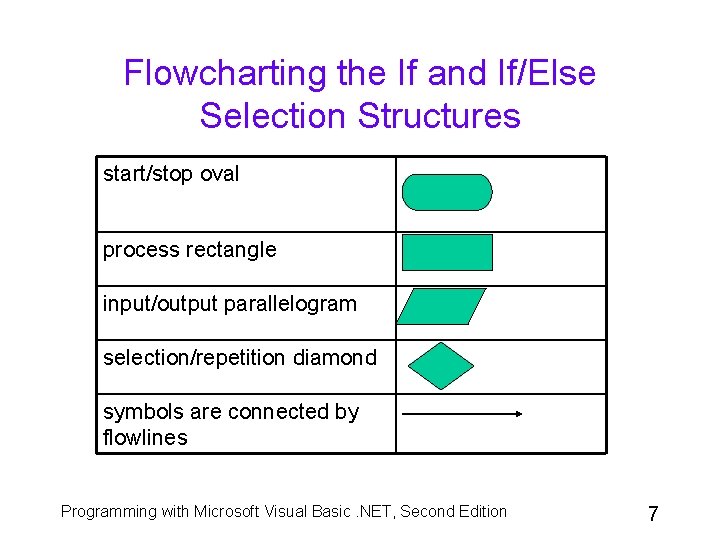
Flowcharting the If and If/Else Selection Structures start/stop oval process rectangle input/output parallelogram selection/repetition diamond symbols are connected by flowlines Programming with Microsoft Visual Basic. NET, Second Edition 7
Flowcharting the If and If/Else Selection Structures (continued) T F Programming with Microsoft Visual Basic. NET, Second Edition 8
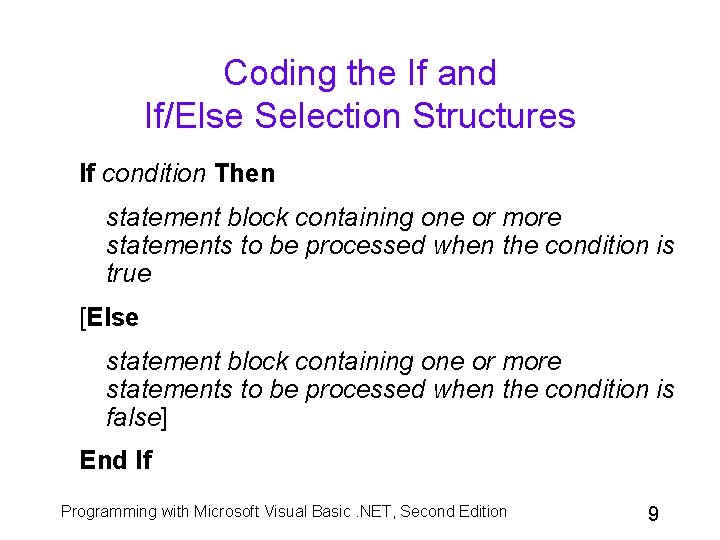
Coding the If and If/Else Selection Structures If condition Then statement block containing one or more statements to be processed when the condition is true [Else statement block containing one or more statements to be processed when the condition is false] End If Programming with Microsoft Visual Basic. NET, Second Edition 9
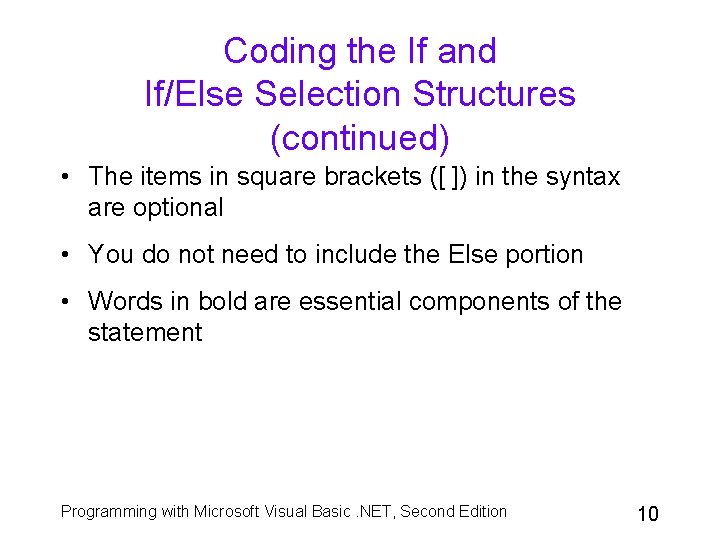
Coding the If and If/Else Selection Structures (continued) • The items in square brackets ([ ]) in the syntax are optional • You do not need to include the Else portion • Words in bold are essential components of the statement Programming with Microsoft Visual Basic. NET, Second Edition 10
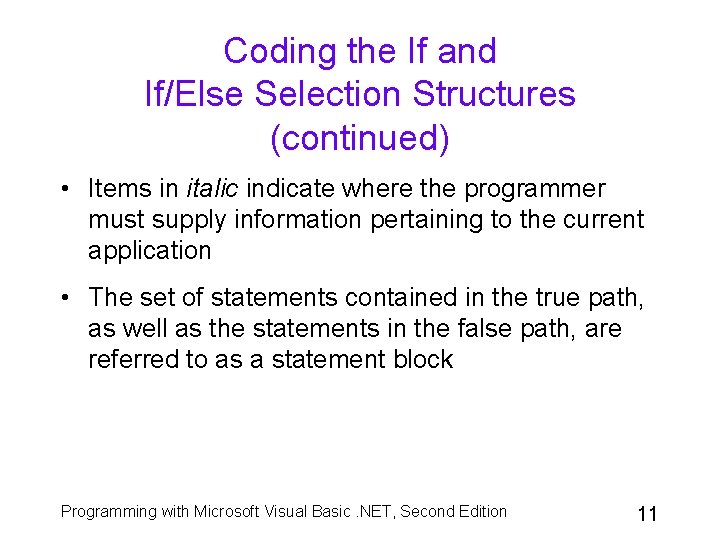
Coding the If and If/Else Selection Structures (continued) • Items in italic indicate where the programmer must supply information pertaining to the current application • The set of statements contained in the true path, as well as the statements in the false path, are referred to as a statement block Programming with Microsoft Visual Basic. NET, Second Edition 11
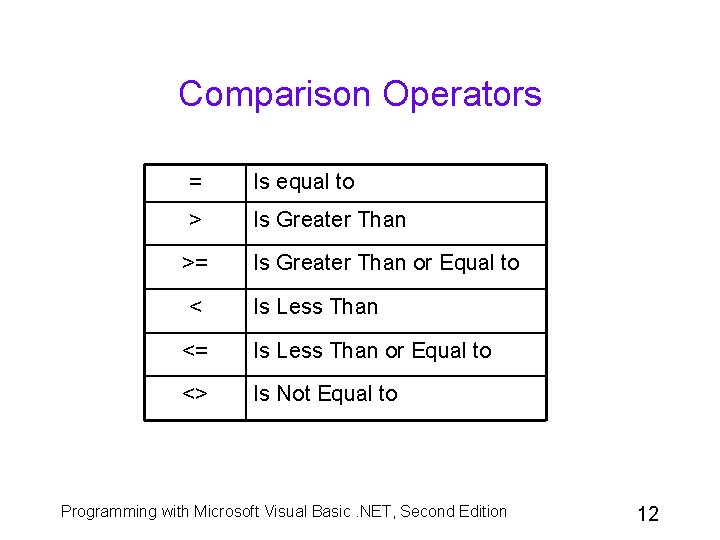
Comparison Operators = Is equal to > Is Greater Than >= Is Greater Than or Equal to < Is Less Than <= Is Less Than or Equal to <> Is Not Equal to Programming with Microsoft Visual Basic. NET, Second Edition 12
Comparison Operators (continued) • Comparison operators are also referred to as relational operators • All expressions containing a relational operator will result in either a true or false answer only • Comparison operators are evaluated from left to right, and are evaluated after any mathematical operators Programming with Microsoft Visual Basic. NET, Second Edition 13
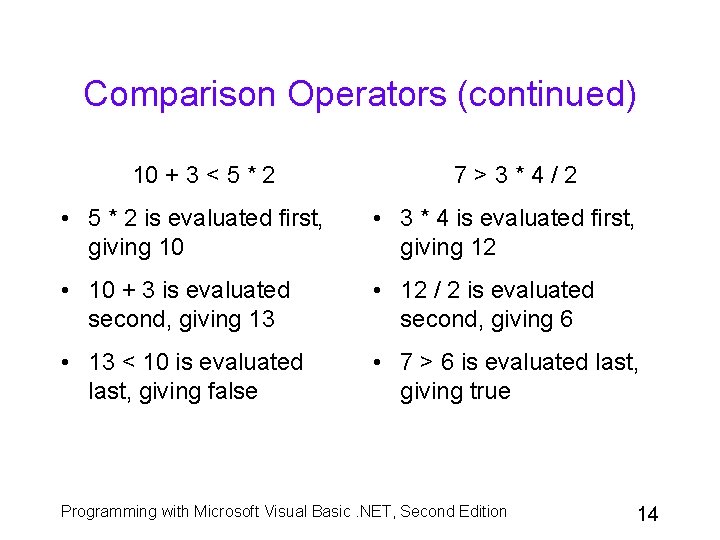
Comparison Operators (continued) 10 + 3 < 5 * 2 7>3*4/2 • 5 * 2 is evaluated first, giving 10 • 3 * 4 is evaluated first, giving 12 • 10 + 3 is evaluated second, giving 13 • 12 / 2 is evaluated second, giving 6 • 13 < 10 is evaluated last, giving false • 7 > 6 is evaluated last, giving true Programming with Microsoft Visual Basic. NET, Second Edition 14
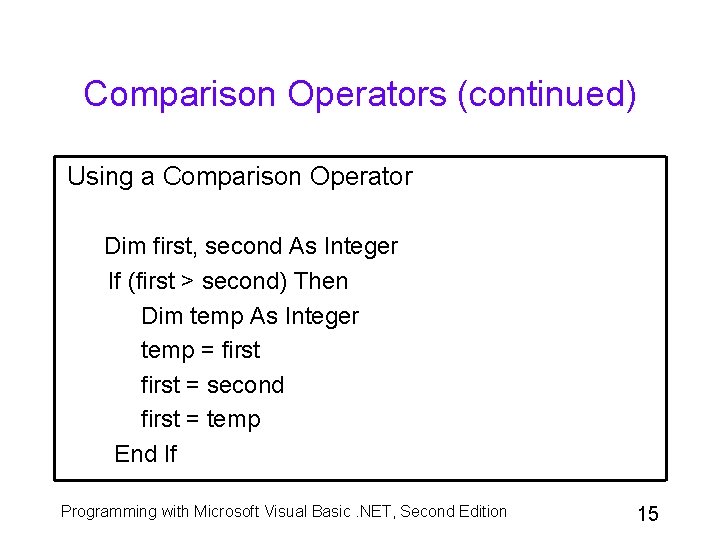
Comparison Operators (continued) Using a Comparison Operator Dim first, second As Integer If (first > second) Then Dim temp As Integer temp = first = second first = temp End If Programming with Microsoft Visual Basic. NET, Second Edition 15
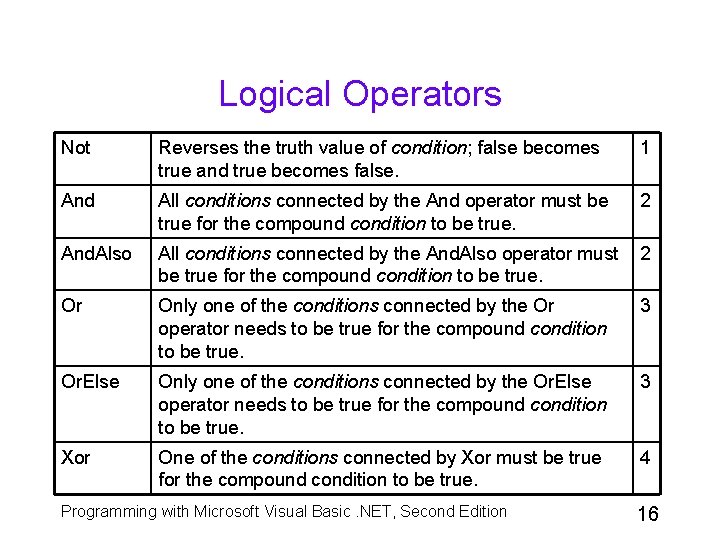
Logical Operators Not Reverses the truth value of condition; false becomes true and true becomes false. 1 And All conditions connected by the And operator must be true for the compound condition to be true. 2 And. Also All conditions connected by the And. Also operator must be true for the compound condition to be true. 2 Or Only one of the conditions connected by the Or operator needs to be true for the compound condition to be true. 3 Or. Else Only one of the conditions connected by the Or. Else operator needs to be true for the compound condition to be true. 3 Xor One of the conditions connected by Xor must be true for the compound condition to be true. 4 Programming with Microsoft Visual Basic. NET, Second Edition 16
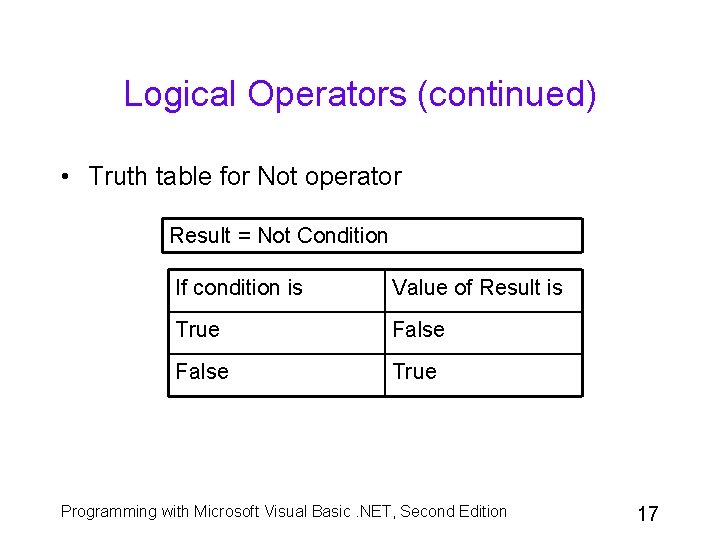
Logical Operators (continued) • Truth table for Not operator Result = Not Condition If condition is Value of Result is True False True Programming with Microsoft Visual Basic. NET, Second Edition 17
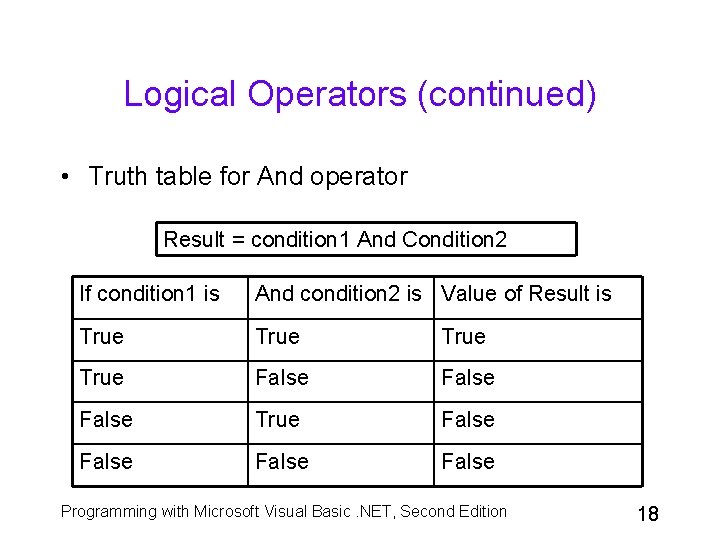
Logical Operators (continued) • Truth table for And operator Result = condition 1 And Condition 2 If condition 1 is And condition 2 is Value of Result is True False True False Programming with Microsoft Visual Basic. NET, Second Edition 18
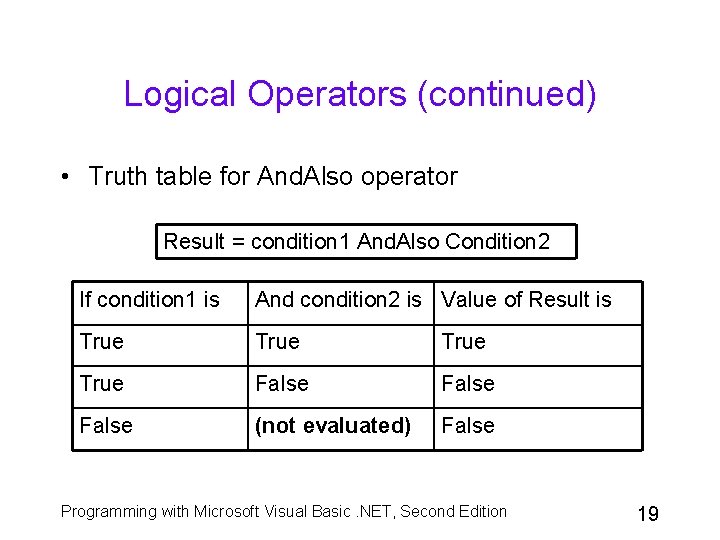
Logical Operators (continued) • Truth table for And. Also operator Result = condition 1 And. Also Condition 2 If condition 1 is And condition 2 is Value of Result is True False (not evaluated) False Programming with Microsoft Visual Basic. NET, Second Edition 19
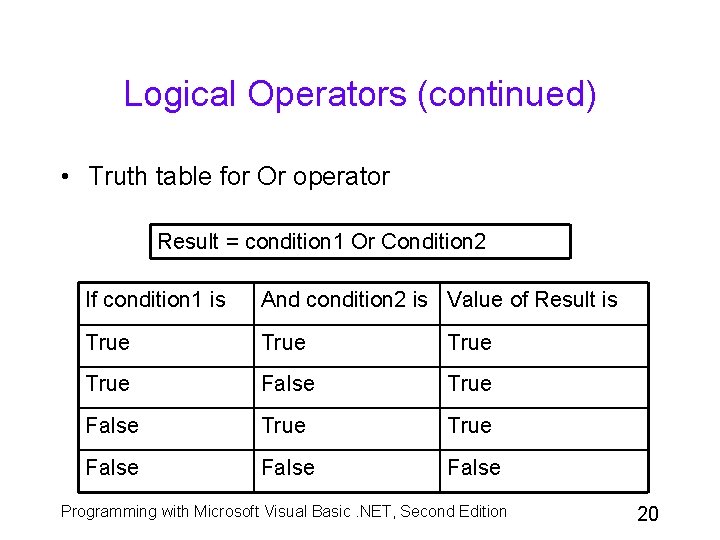
Logical Operators (continued) • Truth table for Or operator Result = condition 1 Or Condition 2 If condition 1 is And condition 2 is Value of Result is True True False False Programming with Microsoft Visual Basic. NET, Second Edition 20
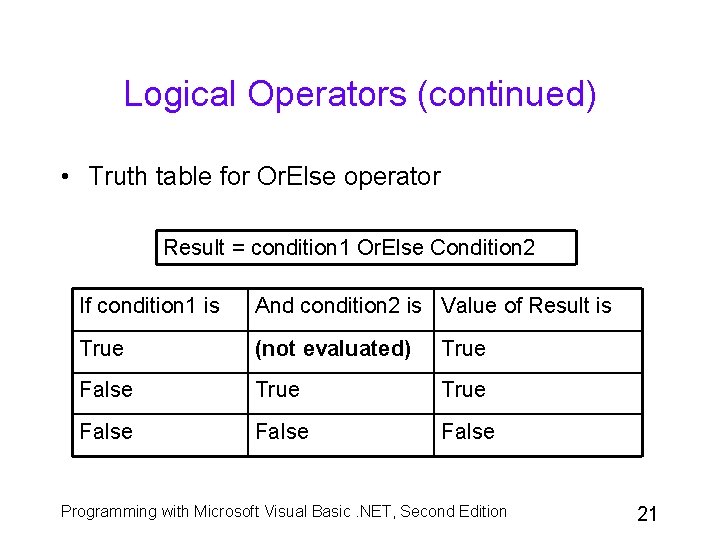
Logical Operators (continued) • Truth table for Or. Else operator Result = condition 1 Or. Else Condition 2 If condition 1 is And condition 2 is Value of Result is True (not evaluated) True False False Programming with Microsoft Visual Basic. NET, Second Edition 21
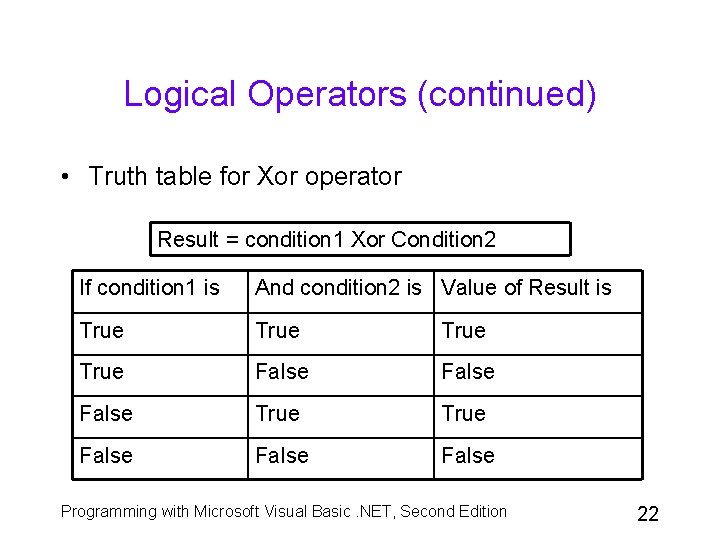
Logical Operators (continued) • Truth table for Xor operator Result = condition 1 Xor Condition 2 If condition 1 is And condition 2 is Value of Result is True False True False Programming with Microsoft Visual Basic. NET, Second Edition 22
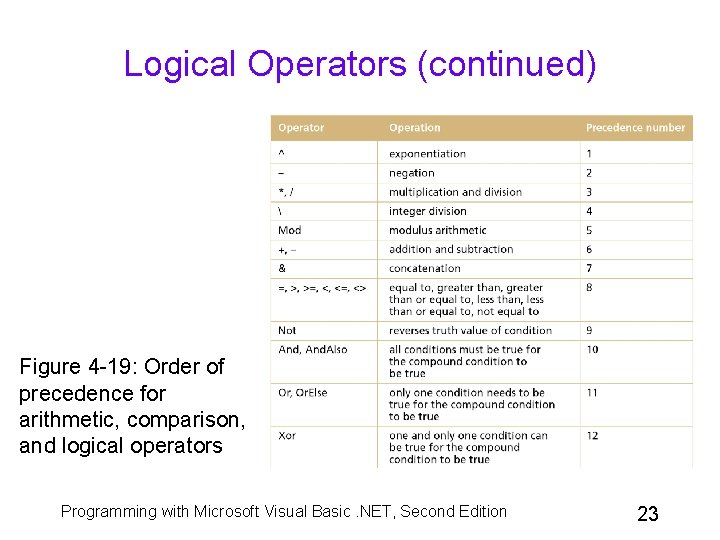
Logical Operators (continued) Figure 4 -19: Order of precedence for arithmetic, comparison, and logical operators Programming with Microsoft Visual Basic. NET, Second Edition 23
Using the To. String Method to Format Numbers • Use the To. String method to format a number • Syntax: variablename. To. String(format. String) • variablename is the name of a numeric variable Programming with Microsoft Visual Basic. NET, Second Edition 24
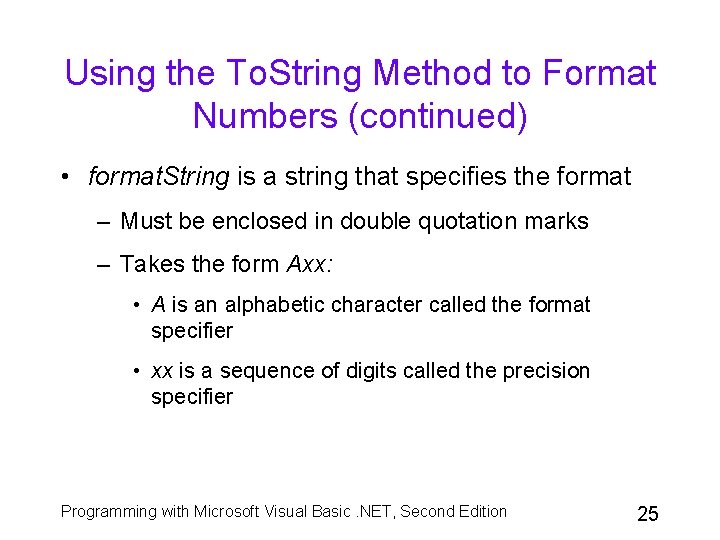
Using the To. String Method to Format Numbers (continued) • format. String is a string that specifies the format – Must be enclosed in double quotation marks – Takes the form Axx: • A is an alphabetic character called the format specifier • xx is a sequence of digits called the precision specifier Programming with Microsoft Visual Basic. NET, Second Edition 25
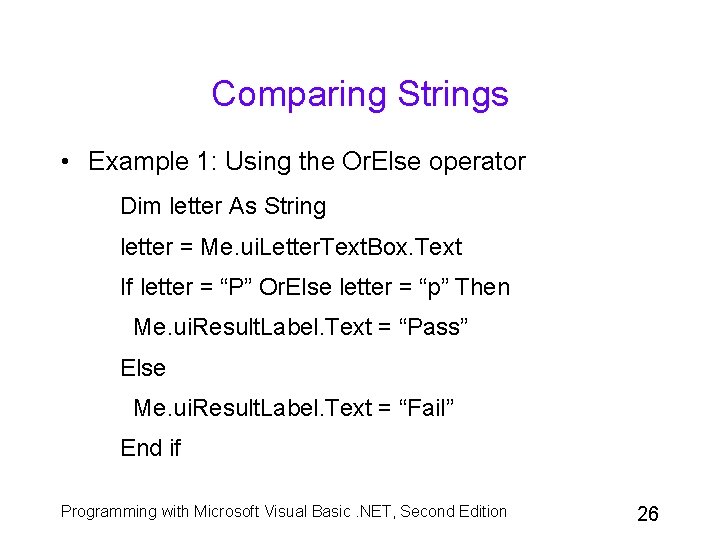
Comparing Strings • Example 1: Using the Or. Else operator Dim letter As String letter = Me. ui. Letter. Text. Box. Text If letter = “P” Or. Else letter = “p” Then Me. ui. Result. Label. Text = “Pass” Else Me. ui. Result. Label. Text = “Fail” End if Programming with Microsoft Visual Basic. NET, Second Edition 26
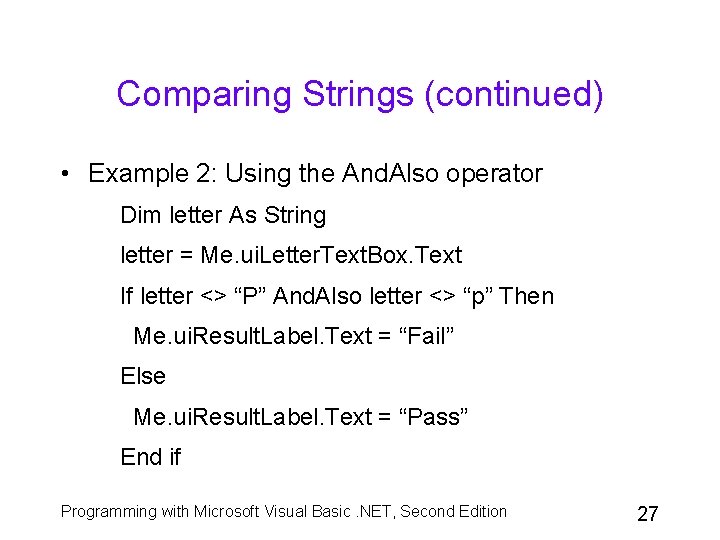
Comparing Strings (continued) • Example 2: Using the And. Also operator Dim letter As String letter = Me. ui. Letter. Text. Box. Text If letter <> “P” And. Also letter <> “p” Then Me. ui. Result. Label. Text = “Fail” Else Me. ui. Result. Label. Text = “Pass” End if Programming with Microsoft Visual Basic. NET, Second Edition 27
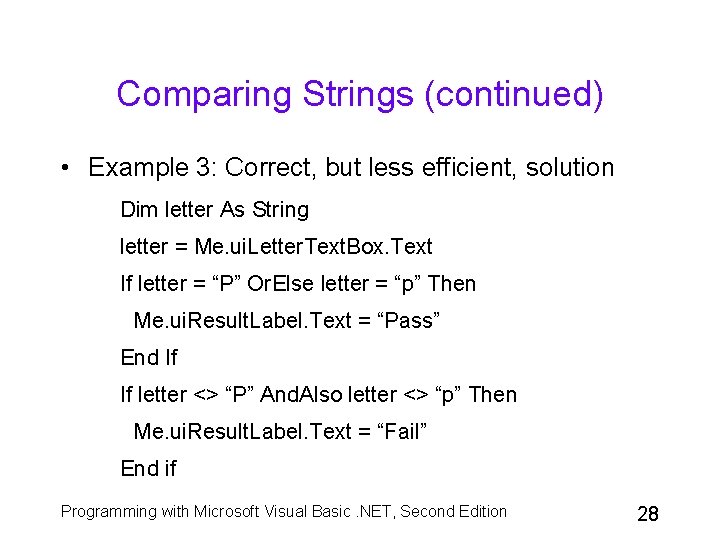
Comparing Strings (continued) • Example 3: Correct, but less efficient, solution Dim letter As String letter = Me. ui. Letter. Text. Box. Text If letter = “P” Or. Else letter = “p” Then Me. ui. Result. Label. Text = “Pass” End If If letter <> “P” And. Also letter <> “p” Then Me. ui. Result. Label. Text = “Fail” End if Programming with Microsoft Visual Basic. NET, Second Edition 28
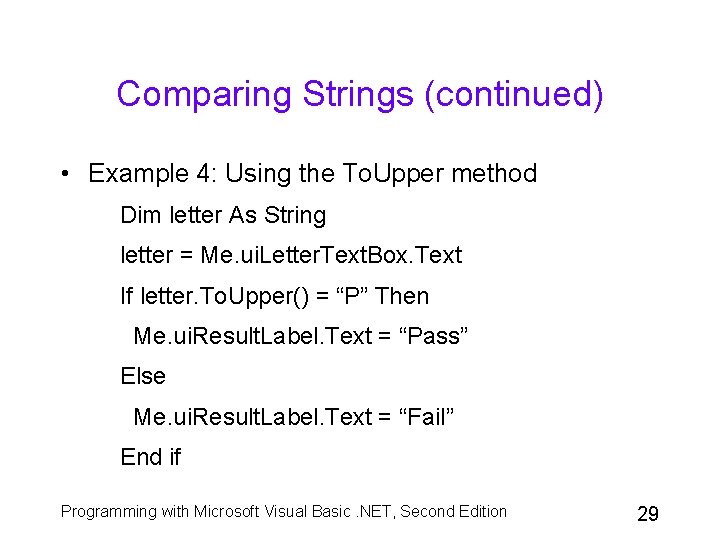
Comparing Strings (continued) • Example 4: Using the To. Upper method Dim letter As String letter = Me. ui. Letter. Text. Box. Text If letter. To. Upper() = “P” Then Me. ui. Result. Label. Text = “Pass” Else Me. ui. Result. Label. Text = “Fail” End if Programming with Microsoft Visual Basic. NET, Second Edition 29
The Monthly Payment Calculator Application Lesson B Objectives • Group objects using a Group. Box control • Calculate a periodic payment using the Financial. Pmt method • Create a message box using the Message. Box. Show method • Determine the value returned by a message box Programming with Microsoft Visual Basic. NET, Second Edition 30
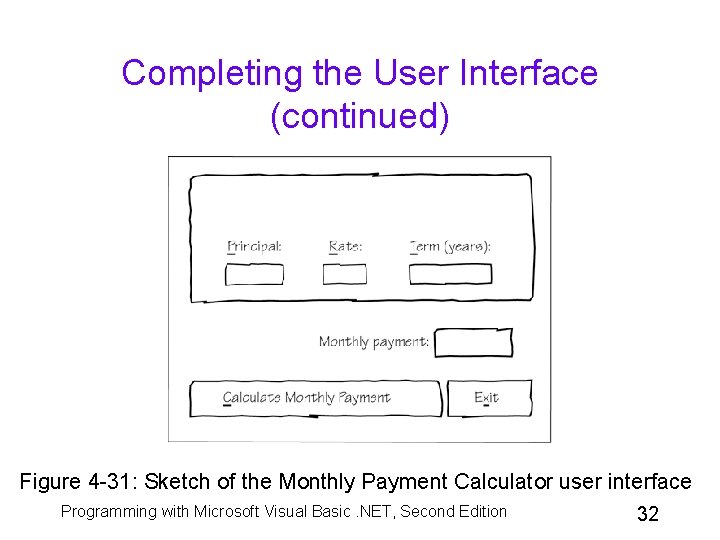
Completing the User Interface • Herman Juarez has asked you to create an application that he can use to calculate the monthly payment on a car loan • To make this calculation, the application needs: – The loan amount (principal) – The annual percentage rate (APR) of interest – The life of the loan (term) in years Programming with Microsoft Visual Basic. NET, Second Edition 31
Completing the User Interface (continued) Figure 4 -31: Sketch of the Monthly Payment Calculator user interface Programming with Microsoft Visual Basic. NET, Second Edition 32
Adding a Group Box Control to the Form • Use the Group. Box tool in the Toolbox window to add a group box control to the interface • A group box control serves as a container for other controls • Use a group box control to visually separate related controls from other controls on the form Programming with Microsoft Visual Basic. NET, Second Edition 33
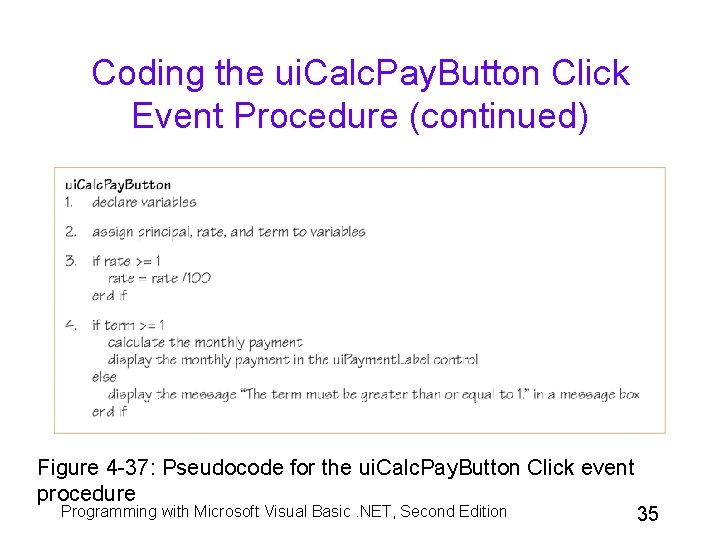
Coding the ui. Calc. Pay. Button Click Event Procedure • The ui. Calc. Pay. Button’s Click event procedure is responsible for: – Calculating the monthly payment amount – Displaying the result in the ui. Payment. Label control • Figure 4 -37 shows the pseudocode for the ui. Calc. Pay. Button’s Click event procedure Programming with Microsoft Visual Basic. NET, Second Edition 34
Coding the ui. Calc. Pay. Button Click Event Procedure (continued) Figure 4 -37: Pseudocode for the ui. Calc. Pay. Button Click event procedure Programming with Microsoft Visual Basic. NET, Second Edition 35
Using the Financial. Pmt Method • Use the Visual Basic. NET Financial. Pmt method to calculate a periodic payment on either a loan or an investment • Syntax: Financial. Pmt(Rate, NPer, PV[, FV, Due]) • Rate: interest rate period • NPer: total number of payment periods (the term) Programming with Microsoft Visual Basic. NET, Second Edition 36
Using the Financial. Pmt Method (continued) • PV: present value of the loan or investment; the present value of a loan is the loan amount, whereas the present value of an investment is zero • FV: future value of the loan or investment; the future value of a loan is zero, whereas the future value of an investment is the amount you want to accumulate; if omitted, the number 0 is assumed Programming with Microsoft Visual Basic. NET, Second Edition 37
Using the Financial. Pmt Method (continued) • Due: due date of payments; can be either the constant Due. Date. End. Of. Period or the constant Due. Date. Beg. Of. Period; if omitted, Due. Date. End. Of. Period is assumed Programming with Microsoft Visual Basic. NET, Second Edition 38
The Message. Box. Show Method • Use the Message. Box. Show method to display a message box that contains text, one or more buttons, and an icon • Syntax: Message. Box. Show(text, caption, buttons, icon[, default. Button]) • text: text to display in the message box • caption: text to display in the title bar of the message box Programming with Microsoft Visual Basic. NET, Second Edition 39
The Message. Box. Show Method (continued) • buttons: buttons to display in the message box • icon: icon to display in the message box • default. Button: button automatically selected when the user presses Enter Programming with Microsoft Visual Basic. NET, Second Edition 40
Coding the Text. Changed Event • A control’s Text. Changed event occurs when the contents of a control’s Text property have changed as a result of: – The user entering data into the control, or – The application’s code assigning data to the control’s Text property Programming with Microsoft Visual Basic. NET, Second Edition 41
Coding the Text. Changed Event (continued) • When the user makes a change to the information entered in the three text box controls, the Monthly Payment Calculator application should delete the monthly payment displayed in the ui. Payment. Label control Programming with Microsoft Visual Basic. NET, Second Edition 42
Completing the Monthly Payment Calculator Application Lesson C Objectives • Specify the keys that a text box will accept • Align the text in a label control • Handle exceptions using a Try/Catch block Programming with Microsoft Visual Basic. NET, Second Edition 43
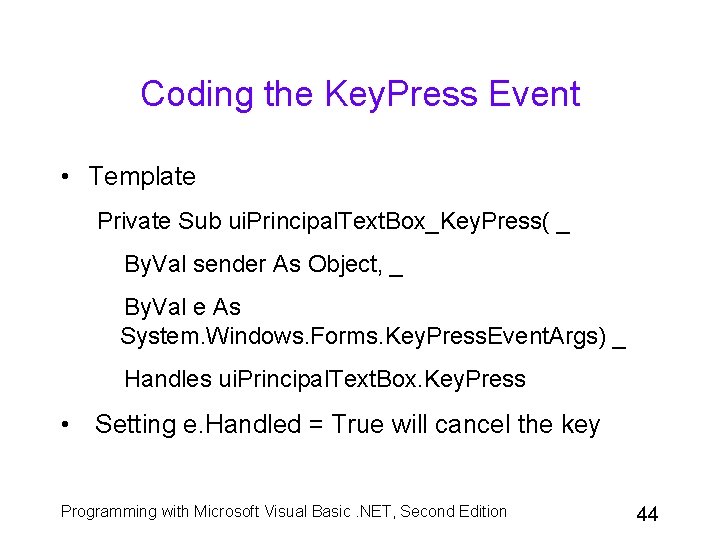
Coding the Key. Press Event • Template Private Sub ui. Principal. Text. Box_Key. Press( _ By. Val sender As Object, _ By. Val e As System. Windows. Forms. Key. Press. Event. Args) _ Handles ui. Principal. Text. Box. Key. Press • Setting e. Handled = True will cancel the key Programming with Microsoft Visual Basic. NET, Second Edition 44
Aligning the Text in a Label Control • The Text. Align property controls the placement of the text in a label control • The Text. Align property can be set to Top. Left (the default), Top. Center, Top. Right, Middle. Left, Middle. Center, Middle. Right, Bottom. Left, Bottom. Center, or Bottom. Right Programming with Microsoft Visual Basic. NET, Second Edition 45
Using a Try/Catch Block • An exception is an error that occurs while a program is running • Use the Try statement to catch (or trap) an exception when it occurs in a program • Use a Catch statement to take the appropriate action to resolve the problem • A block of code that uses both the Try and Catch statements is referred to as a Try/Catch block Programming with Microsoft Visual Basic. NET, Second Edition 46
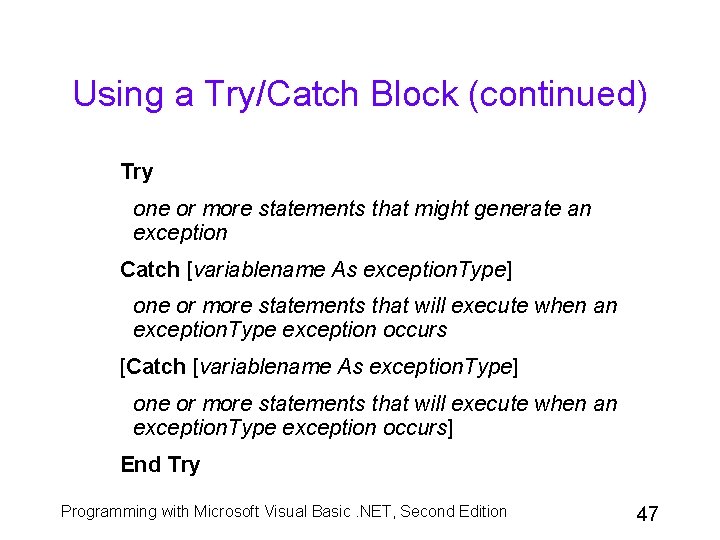
Using a Try/Catch Block (continued) Try one or more statements that might generate an exception Catch [variablename As exception. Type] one or more statements that will execute when an exception. Type exception occurs [Catch [variablename As exception. Type] one or more statements that will execute when an exception. Type exception occurs] End Try Programming with Microsoft Visual Basic. NET, Second Edition 47
Summary • To evaluate an expression containing arithmetic, comparison, and logical operators, evaluate arithmetic operators first, then comparison operators, and then logical operators • To code a selection structure, use the If. . . Then. . . Else statement • To create a compound condition, use the logical operators Programming with Microsoft Visual Basic. NET, Second Edition 48
Summary (continued) • Use the Group. Box tool to add a group box control to the form; drag controls from the form or the Toolbox window into the group box control • To calculate a periodic payment on either a loan or an investment, use the Financial. Pmt method • To display a message box that contains text, one or more buttons, and an icon, use the Message. Box. Show method Programming with Microsoft Visual Basic. NET, Second Edition 49
Summary (continued) • To allow a text box to accept only certain keys, code the text box’s Key. Press event • To align the text in a control, set the control’s Text. Align property • To catch an exception, and then have the computer take the appropriate action, use a Try/Catch block Programming with Microsoft Visual Basic. NET, Second Edition 50