
Chapter 4 Planning Site Navigation Principles of Web
Chapter 4 Planning Site Navigation
Principles of Web Design Chapter 4 Objectives • Understand navigation principles • Build navigation schemes that meet the user’s needs • Provide location information • use hypertext linking creatively • Use graphics for navigation and linking 2
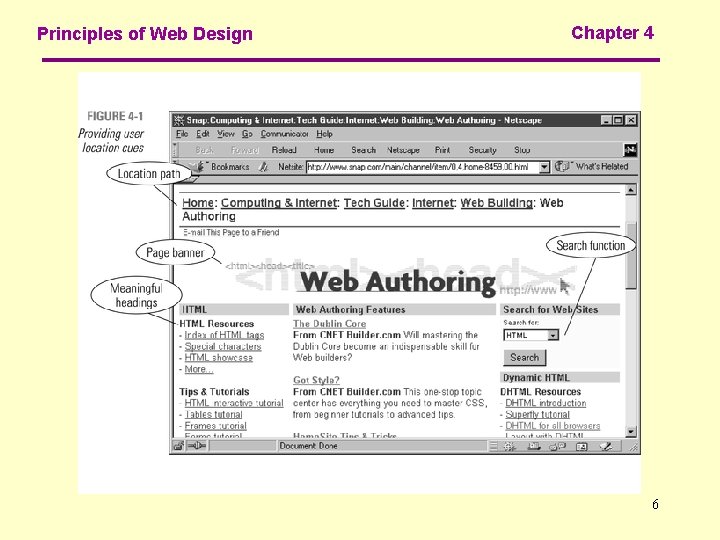
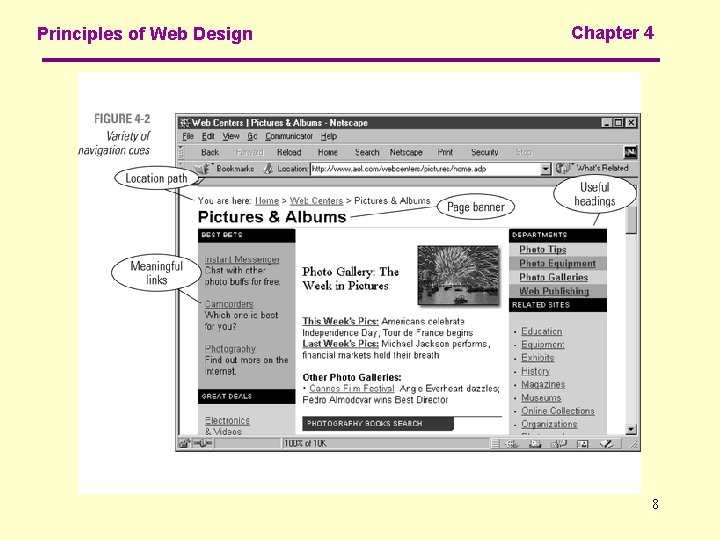
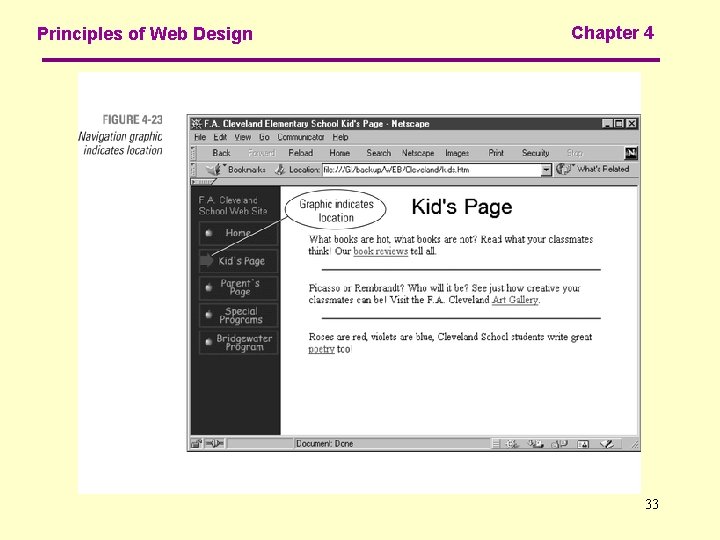
Principles of Web Design Chapter 4 Creating Usable Navigation Provide enough location information to let the user answer the following navigation questions: • • Where am I? Where can I go? How do I get there? How do I get back to where I started? 3
Principles of Web Design Chapter 4 Creating Usable Navigation To answer these questions, provide the following information: • Let the user know what page they are on, and what type of content they are viewing. • Let the user know where they are in relation to the rest of the site. 4

Principles of Web Design Chapter 4 Creating Usable Navigation • Provide consistent, easy-to-understand links • Provide alternatives to the browser’s Back button that lets users return to their starting point 5
Principles of Web Design Chapter 4 6
Principles of Web Design Chapter 4 Limit Information Overload • Create manageable information segments • Control page length • Use hypertext to connect facts, relationships and concepts 7
Principles of Web Design Chapter 4 8
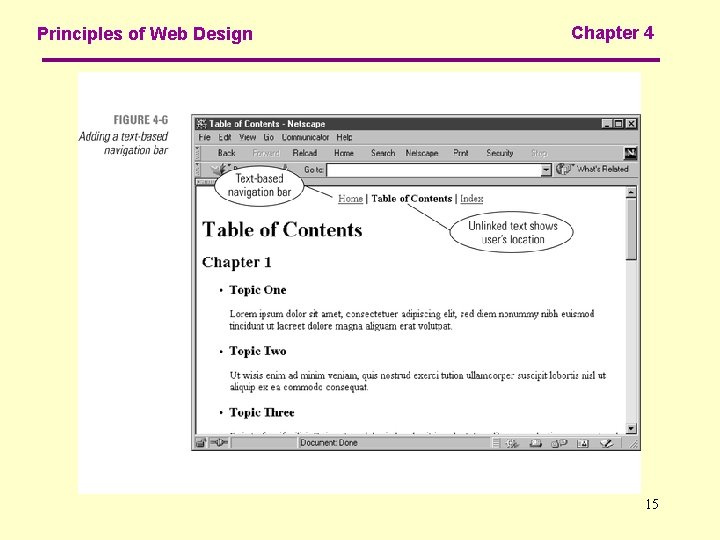
Principles of Web Design Chapter 4 Using Text-Based Navigation • Text-based linking often is the most effective way to provide navigation on your site • It can work in both text-only and graphical browsers • Always provide a text-based set of links as an alternate means of navigation 9
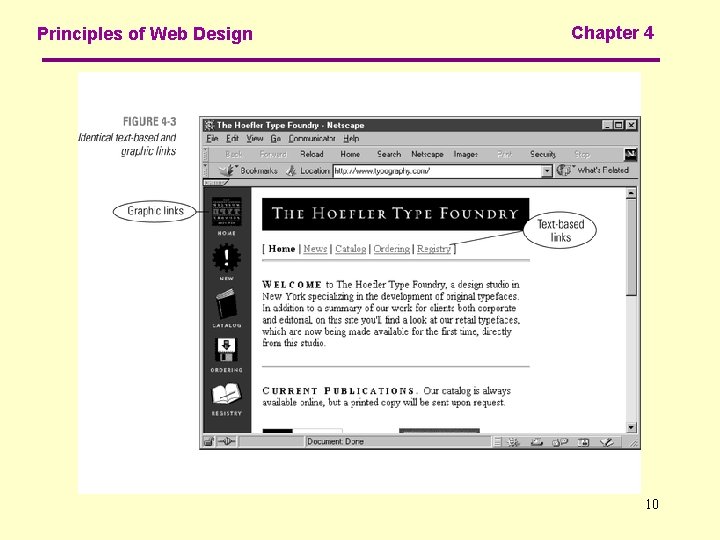
Principles of Web Design Chapter 4 10
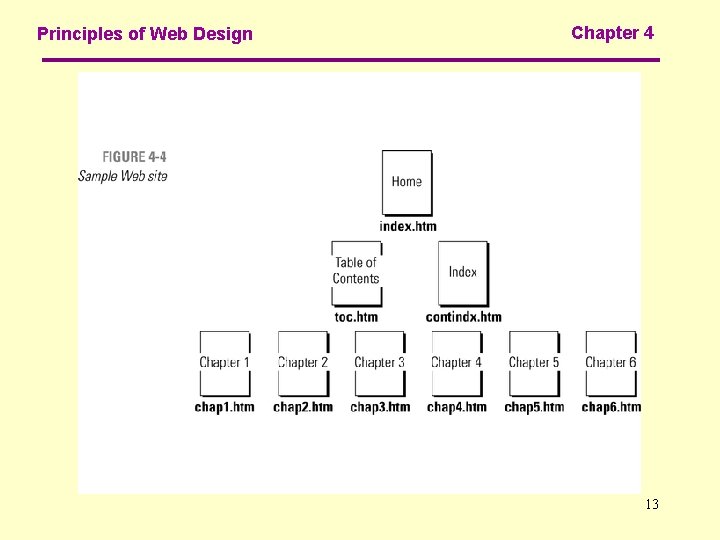
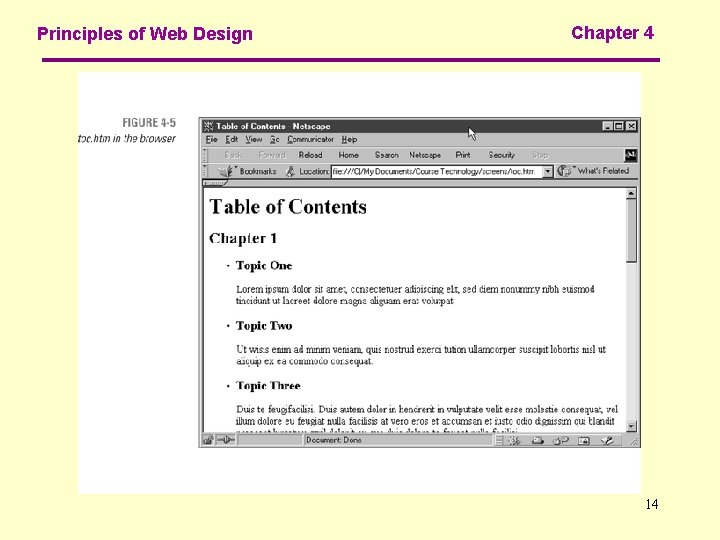
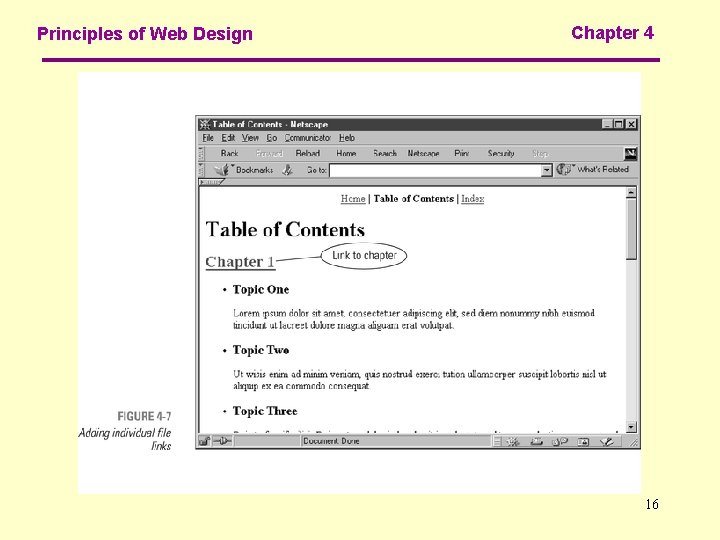
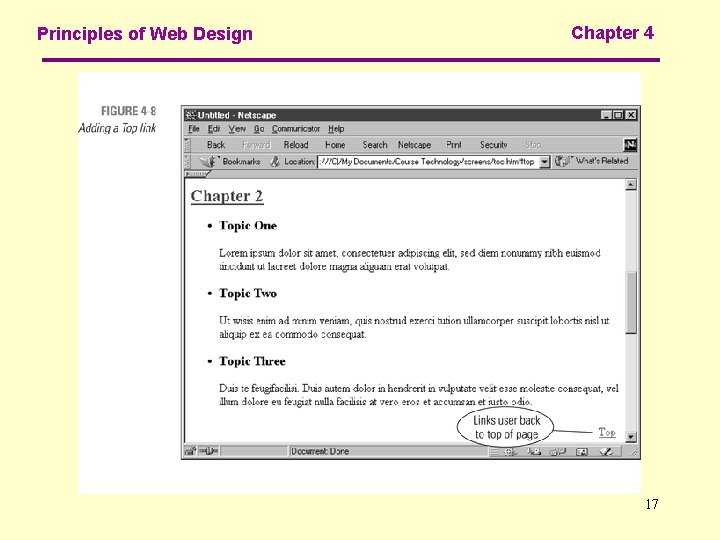
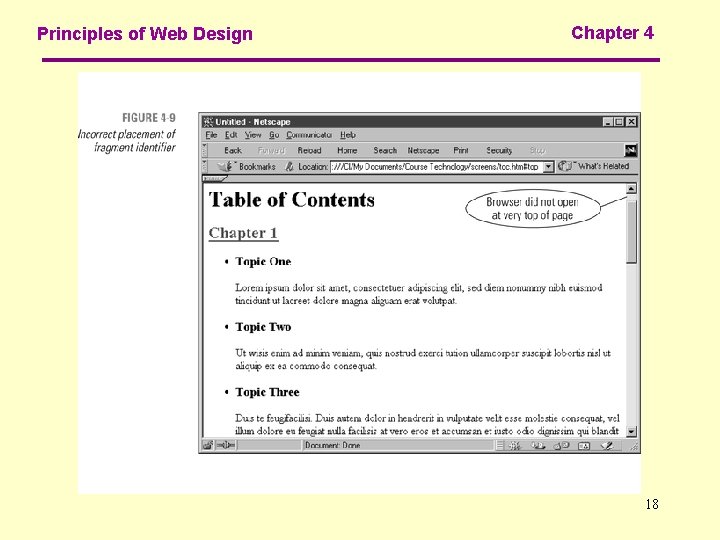
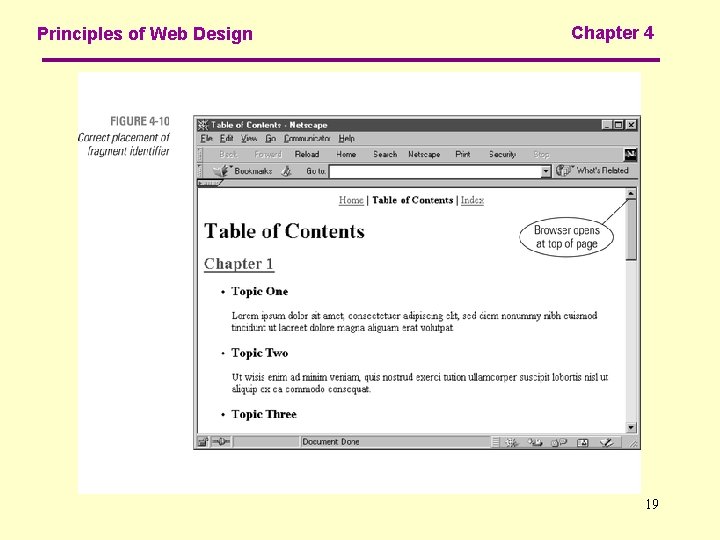
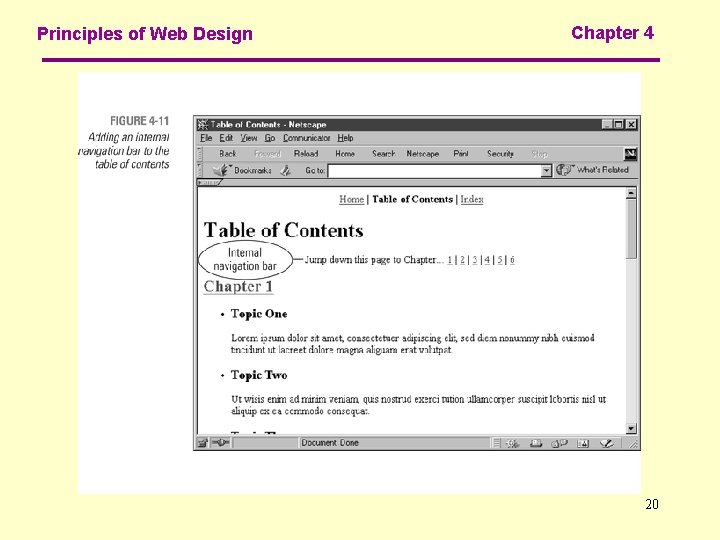
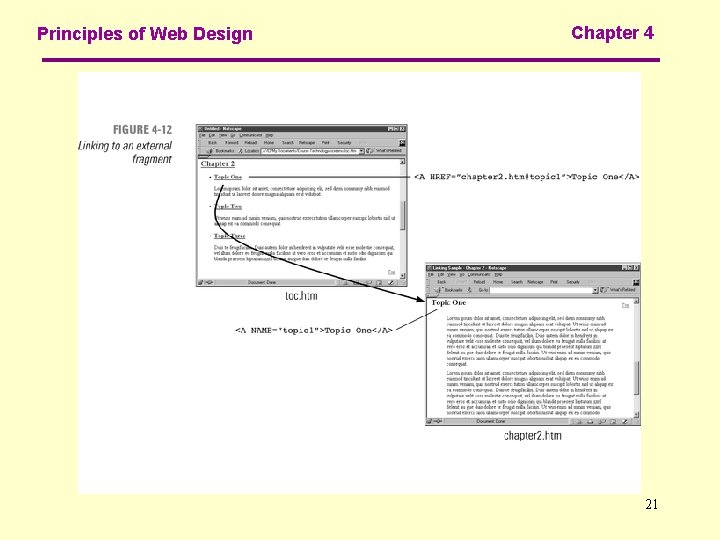
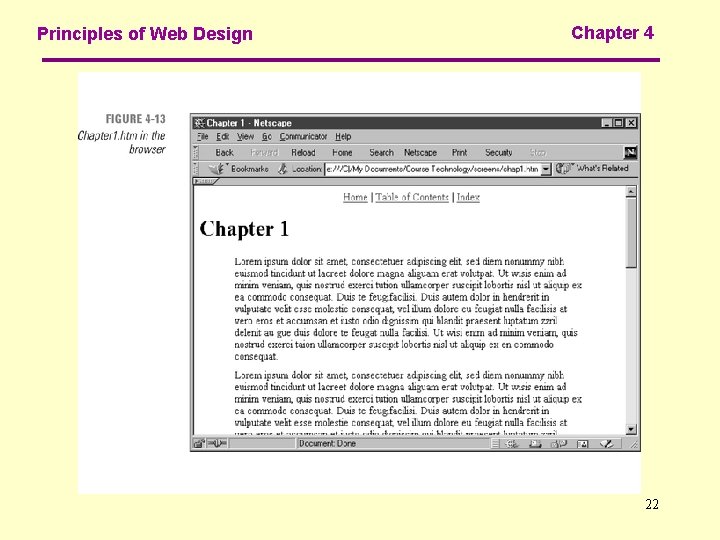
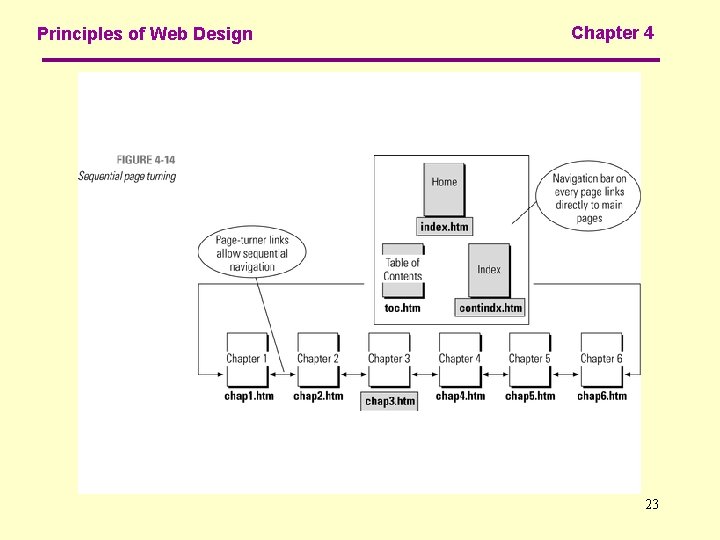
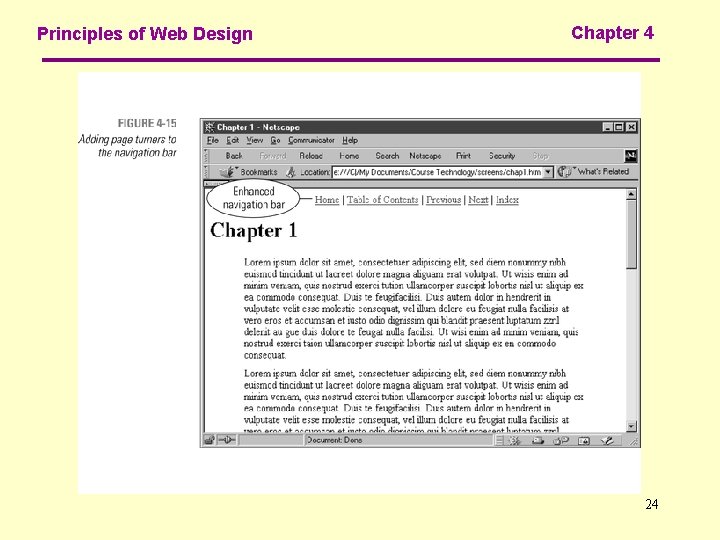
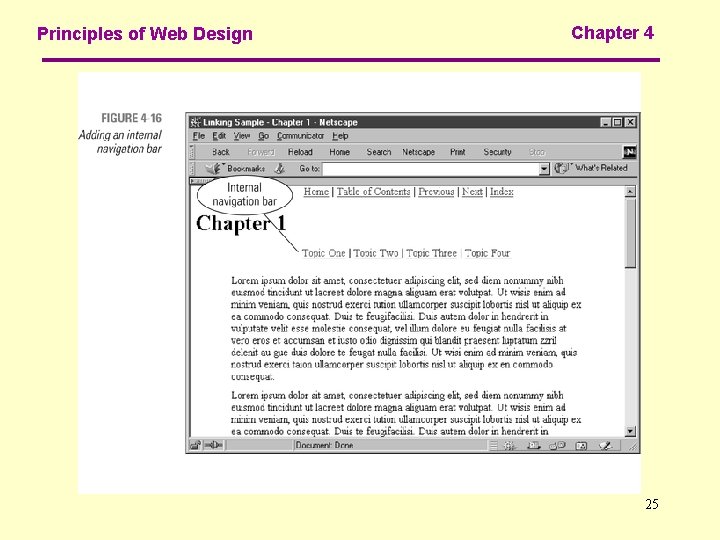
Principles of Web Design Chapter 4 Sample Text Navigation The following screens demonstrate a variety of text-based navigation options: • To main pages (home, table of contents, index) • To the top of each chapter • Within the table of contents page to chapter descriptions • From table of contents page to specific topic within each chapter 11
Principles of Web Design Chapter 4 Sample Text Navigation The following screens demonstrate a variety of text-based navigation options: • Between previous and next chapters • Within chapter pages to each topic • To related information by using contextual links 12
Principles of Web Design Chapter 4 13
Principles of Web Design Chapter 4 14
Principles of Web Design Chapter 4 15
Principles of Web Design Chapter 4 16
Principles of Web Design Chapter 4 17
Principles of Web Design Chapter 4 18
Principles of Web Design Chapter 4 19
Principles of Web Design Chapter 4 20
Principles of Web Design Chapter 4 21
Principles of Web Design Chapter 4 22
Principles of Web Design Chapter 4 23
Principles of Web Design Chapter 4 24
Principles of Web Design Chapter 4 25
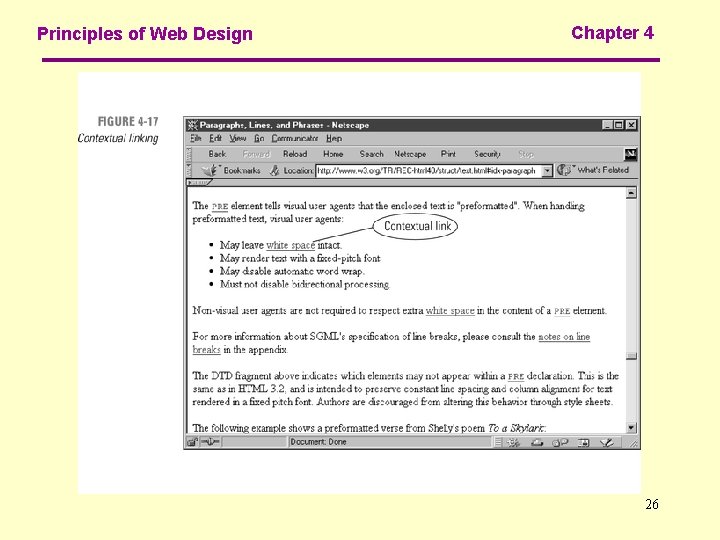
Principles of Web Design Chapter 4 26
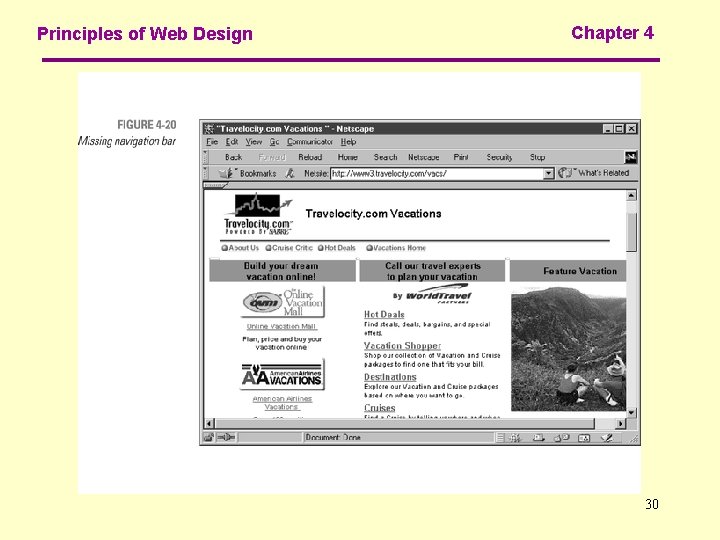
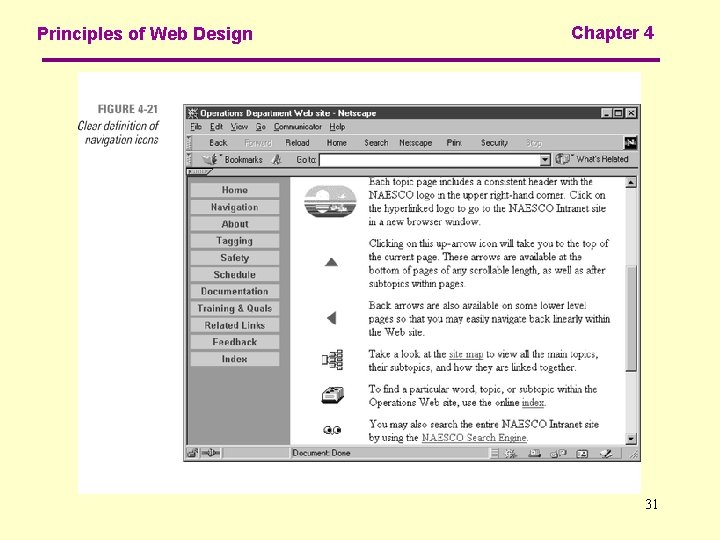
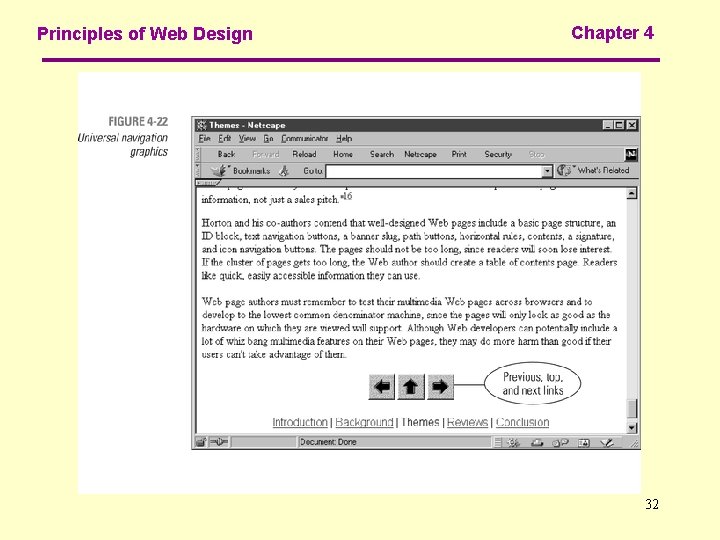
Principles of Web Design Chapter 4 Graphics for Navigation • Standardize your navigation graphics • Provide predictable navigation cues for the user • Repeat graphics to minimize download time • Use consistent placement and design of navigation graphics to reassure the user • Use easily understandable graphics 27
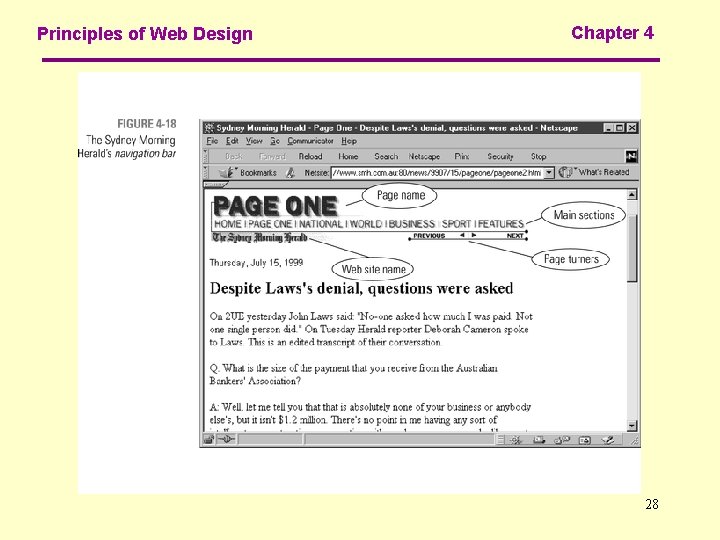
Principles of Web Design Chapter 4 28
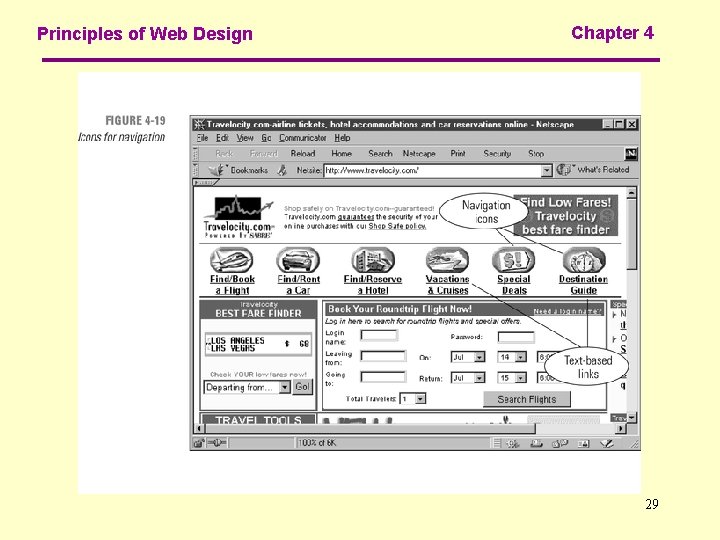
Principles of Web Design Chapter 4 29
Principles of Web Design Chapter 4 30
Principles of Web Design Chapter 4 31
Principles of Web Design Chapter 4 32
Principles of Web Design Chapter 4 33
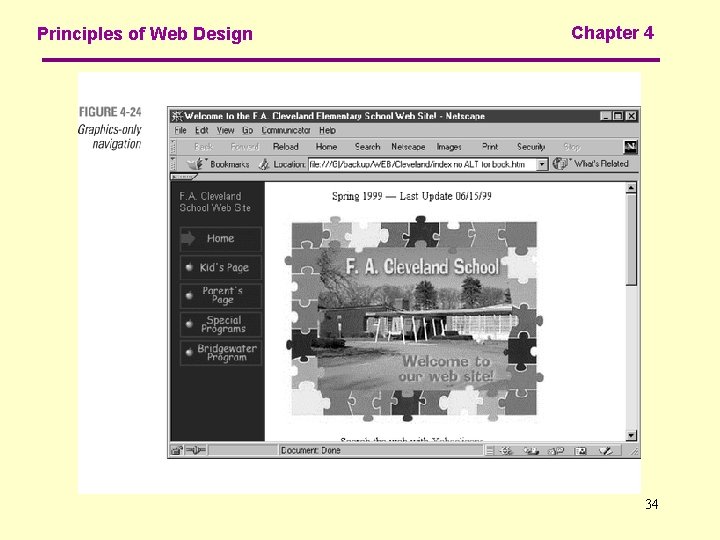
Principles of Web Design Chapter 4 34
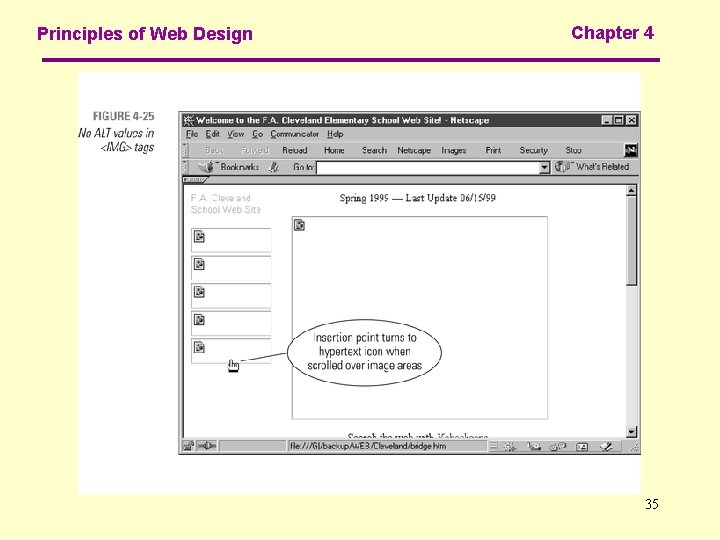
Principles of Web Design Chapter 4 35
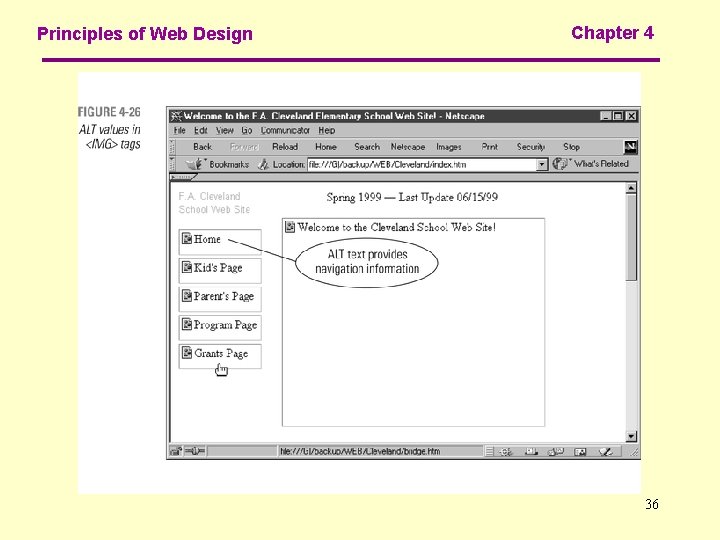
Principles of Web Design Chapter 4 36
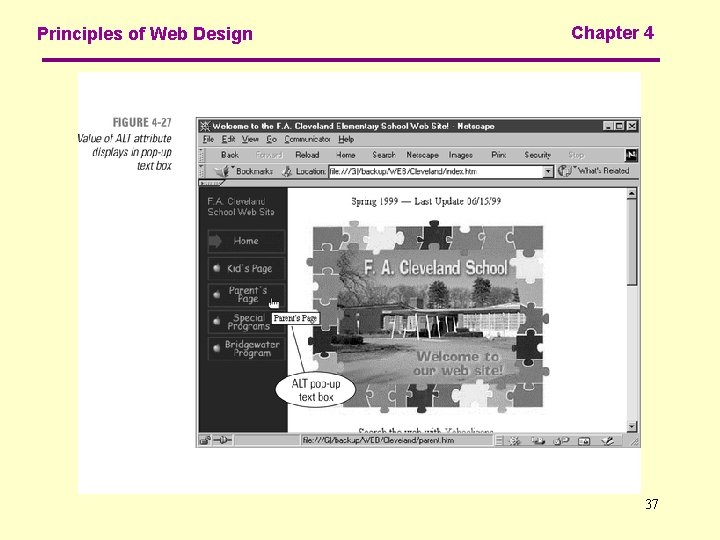
Principles of Web Design Chapter 4 37
Principles of Web Design Chapter 4 Summary • Work from the user's point of view. Think about where users want to go within your site, and make it easy for them to get there. • Add plenty of links so it's easy to get around your site. Link to fragments as well as whole pages. Make it easy to get back to your navigation options. • In addition to providing links, make sure you provide plenty of location cues to let the user know where they are. 38
Principles of Web Design Chapter 4 Summary • Do you have to use graphics for linking? Rethink the objectives of your site and determine whether text will do as well. Every additional graphic adds to download time. • Don't forget to provide ALT values to your <IMG> tags to provide alternate navigation options for the user. 39
- Slides: 39