
Chapter 4 Decision Making A useful computer requires


- Slides: 119
Chapter 4 – Decision Making A useful computer requires the ability to make decisions. The key to programming the computer to make correct decisions is making sure you understand how to represent and evaluate the expression representing the decision properly. 1 The Visual Basic. NET Coach
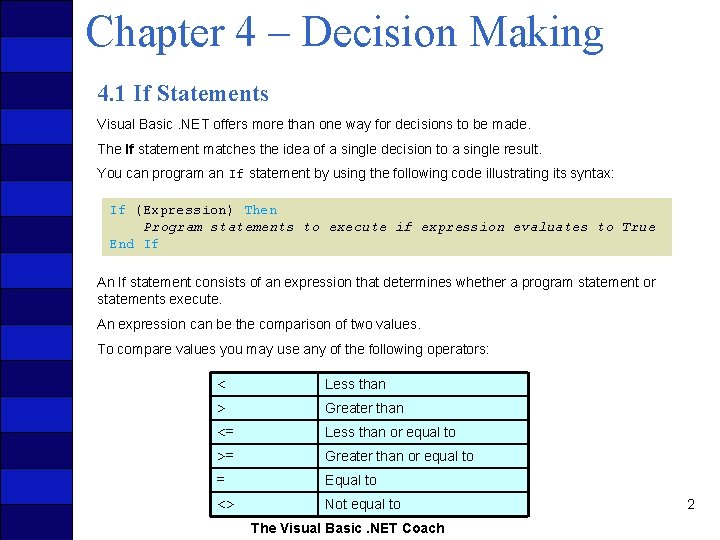
Chapter 4 – Decision Making 4. 1 If Statements Visual Basic. NET offers more than one way for decisions to be made. The If statement matches the idea of a single decision to a single result. You can program an If statement by using the following code illustrating its syntax: If (Expression) Then Program statements to execute if expression evaluates to True End If An If statement consists of an expression that determines whether a program statement or statements execute. An expression can be the comparison of two values. To compare values you may use any of the following operators: < Less than > Greater than <= Less than or equal to >= Greater than or equal to = Equal to <> Not equal to The Visual Basic. NET Coach 2
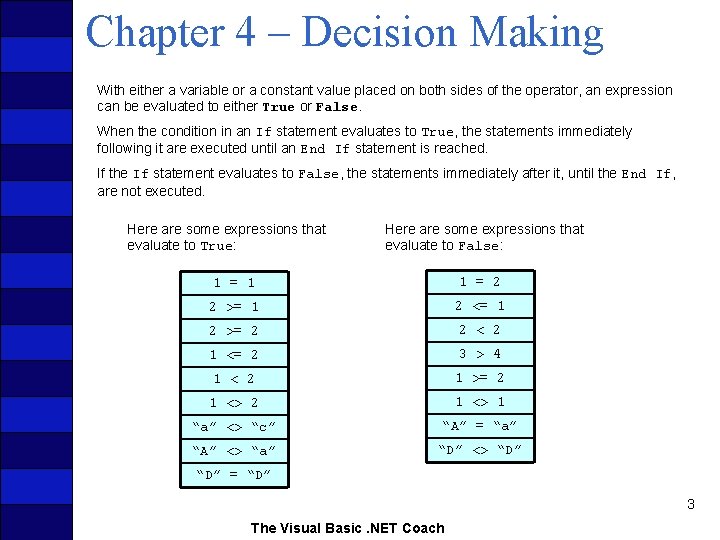
Chapter 4 – Decision Making With either a variable or a constant value placed on both sides of the operator, an expression can be evaluated to either True or False. When the condition in an If statement evaluates to True, the statements immediately following it are executed until an End If statement is reached. If the If statement evaluates to False, the statements immediately after it, until the End If, are not executed. Here are some expressions that evaluate to True: Here are some expressions that evaluate to False: 1 = 1 1 = 2 2 >= 1 2 <= 1 2 >= 2 2 < 2 1 <= 2 3 > 4 1 < 2 1 >= 2 1 <> 1 “a” <> “c” “A” = “a” “A” <> “a” “D” <> “D” = “D” 3 The Visual Basic. NET Coach
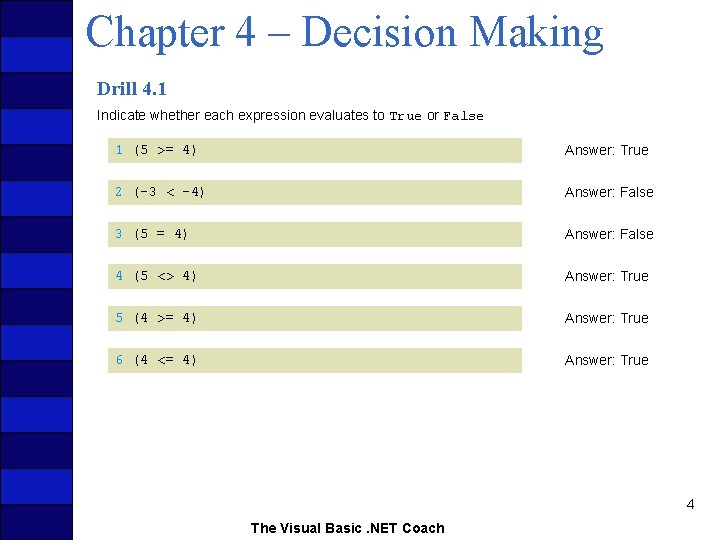
Chapter 4 – Decision Making Drill 4. 1 Indicate whether each expression evaluates to True or False 1 (5 >= 4) Answer: True 2 (-3 < -4) Answer: False 3 (5 = 4) Answer: False 4 (5 <> 4) Answer: True 5 (4 >= 4) Answer: True 6 (4 <= 4) Answer: True 4 The Visual Basic. NET Coach
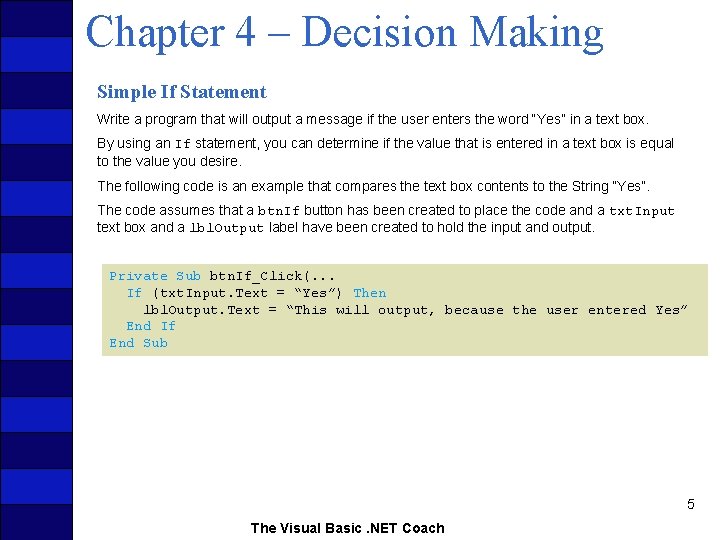
Chapter 4 – Decision Making Simple If Statement Write a program that will output a message if the user enters the word “Yes” in a text box. By using an If statement, you can determine if the value that is entered in a text box is equal to the value you desire. The following code is an example that compares the text box contents to the String “Yes”. The code assumes that a btn. If button has been created to place the code and a txt. Input text box and a lbl. Output label have been created to hold the input and output. Private Sub btn. If_Click(. . . If (txt. Input. Text = “Yes”) Then lbl. Output. Text = “This will output, because the user entered Yes” End If End Sub 5 The Visual Basic. NET Coach
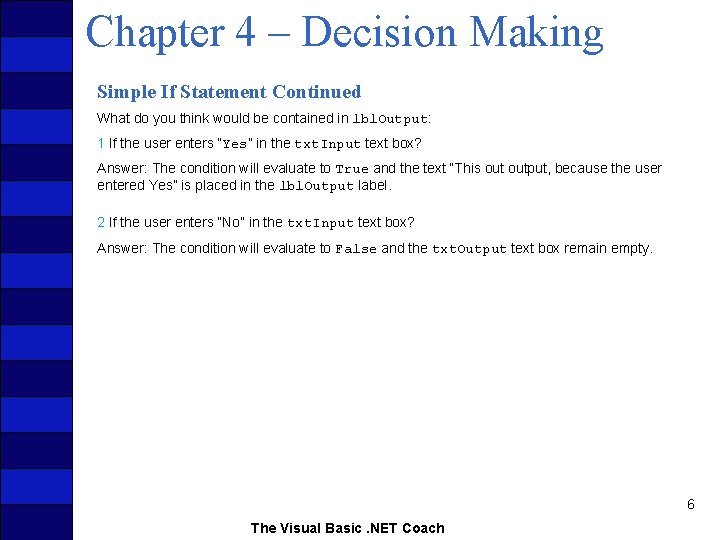
Chapter 4 – Decision Making Simple If Statement Continued What do you think would be contained in lbl. Output: 1 If the user enters “Yes” in the txt. Input text box? Answer: The condition will evaluate to True and the text “This output, because the user entered Yes” is placed in the lbl. Output label. 2 If the user enters “No” in the txt. Input text box? Answer: The condition will evaluate to False and the txt. Output text box remain empty. 6 The Visual Basic. NET Coach
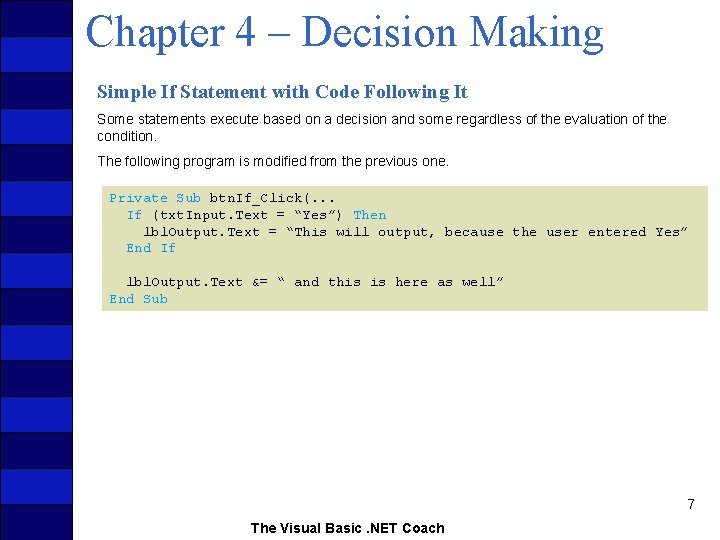
Chapter 4 – Decision Making Simple If Statement with Code Following It Some statements execute based on a decision and some regardless of the evaluation of the condition. The following program is modified from the previous one. Private Sub btn. If_Click(. . . If (txt. Input. Text = “Yes”) Then lbl. Output. Text = “This will output, because the user entered Yes” End If lbl. Output. Text &= “ and this is here as well” End Sub 7 The Visual Basic. NET Coach
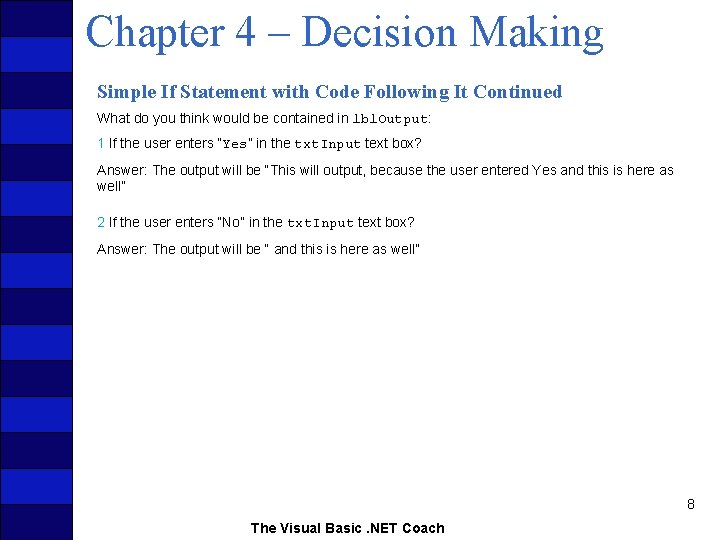
Chapter 4 – Decision Making Simple If Statement with Code Following It Continued What do you think would be contained in lbl. Output: 1 If the user enters “Yes” in the txt. Input text box? Answer: The output will be “This will output, because the user entered Yes and this is here as well” 2 If the user enters “No” in the txt. Input text box? Answer: The output will be “ and this is here as well” 8 The Visual Basic. NET Coach
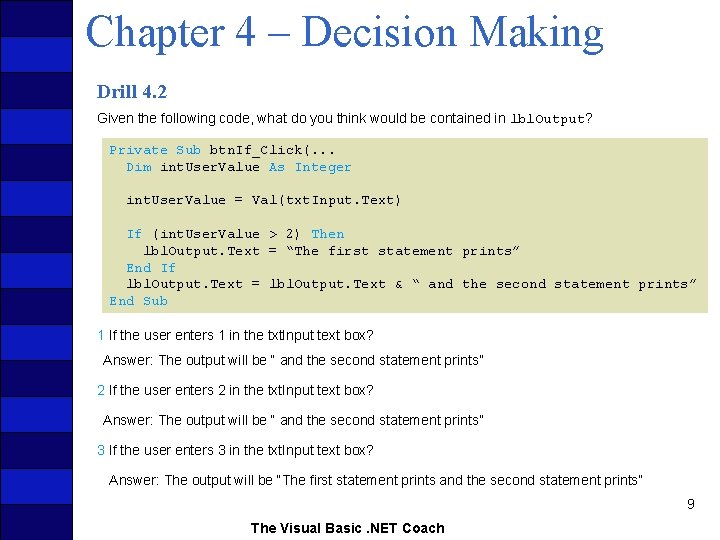
Chapter 4 – Decision Making Drill 4. 2 Given the following code, what do you think would be contained in lbl. Output? Private Sub btn. If_Click(. . . Dim int. User. Value As Integer int. User. Value = Val(txt. Input. Text) If (int. User. Value > 2) Then lbl. Output. Text = “The first statement prints” End If lbl. Output. Text = lbl. Output. Text & “ and the second statement prints” End Sub 1 If the user enters 1 in the txt. Input text box? Answer: The output will be “ and the second statement prints” 2 If the user enters 2 in the txt. Input text box? Answer: The output will be “ and the second statement prints” 3 If the user enters 3 in the txt. Input text box? Answer: The output will be “The first statement prints and the second statement prints” 9 The Visual Basic. NET Coach
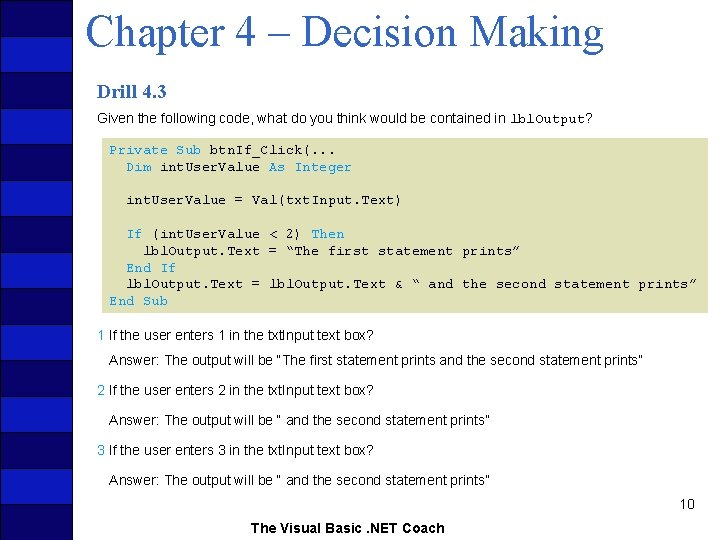
Chapter 4 – Decision Making Drill 4. 3 Given the following code, what do you think would be contained in lbl. Output? Private Sub btn. If_Click(. . . Dim int. User. Value As Integer int. User. Value = Val(txt. Input. Text) If (int. User. Value < 2) Then lbl. Output. Text = “The first statement prints” End If lbl. Output. Text = lbl. Output. Text & “ and the second statement prints” End Sub 1 If the user enters 1 in the txt. Input text box? Answer: The output will be “The first statement prints and the second statement prints” 2 If the user enters 2 in the txt. Input text box? Answer: The output will be “ and the second statement prints” 3 If the user enters 3 in the txt. Input text box? Answer: The output will be “ and the second statement prints” 10 The Visual Basic. NET Coach
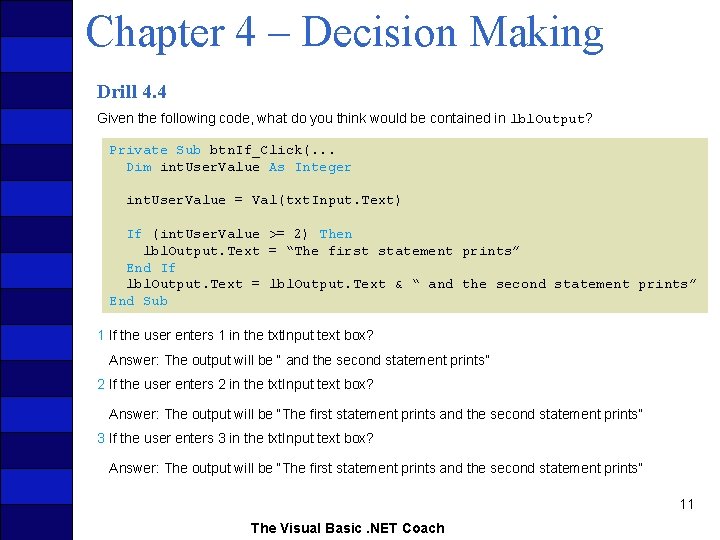
Chapter 4 – Decision Making Drill 4. 4 Given the following code, what do you think would be contained in lbl. Output? Private Sub btn. If_Click(. . . Dim int. User. Value As Integer int. User. Value = Val(txt. Input. Text) If (int. User. Value >= 2) Then lbl. Output. Text = “The first statement prints” End If lbl. Output. Text = lbl. Output. Text & “ and the second statement prints” End Sub 1 If the user enters 1 in the txt. Input text box? Answer: The output will be “ and the second statement prints” 2 If the user enters 2 in the txt. Input text box? Answer: The output will be “The first statement prints and the second statement prints” 3 If the user enters 3 in the txt. Input text box? Answer: The output will be “The first statement prints and the second statement prints” 11 The Visual Basic. NET Coach
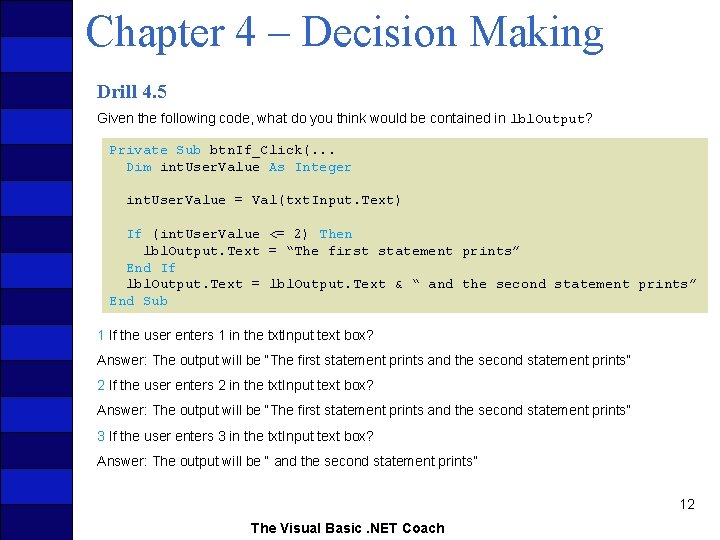
Chapter 4 – Decision Making Drill 4. 5 Given the following code, what do you think would be contained in lbl. Output? Private Sub btn. If_Click(. . . Dim int. User. Value As Integer int. User. Value = Val(txt. Input. Text) If (int. User. Value <= 2) Then lbl. Output. Text = “The first statement prints” End If lbl. Output. Text = lbl. Output. Text & “ and the second statement prints” End Sub 1 If the user enters 1 in the txt. Input text box? Answer: The output will be “The first statement prints and the second statement prints” 2 If the user enters 2 in the txt. Input text box? Answer: The output will be “The first statement prints and the second statement prints” 3 If the user enters 3 in the txt. Input text box? Answer: The output will be “ and the second statement prints” 12 The Visual Basic. NET Coach
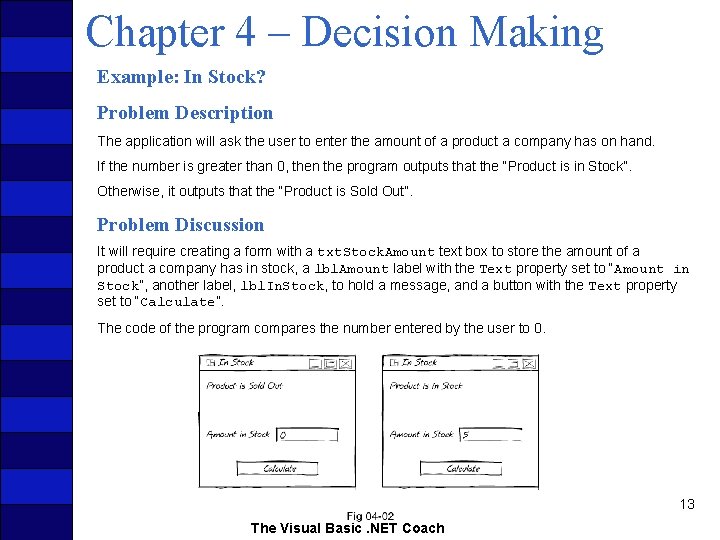
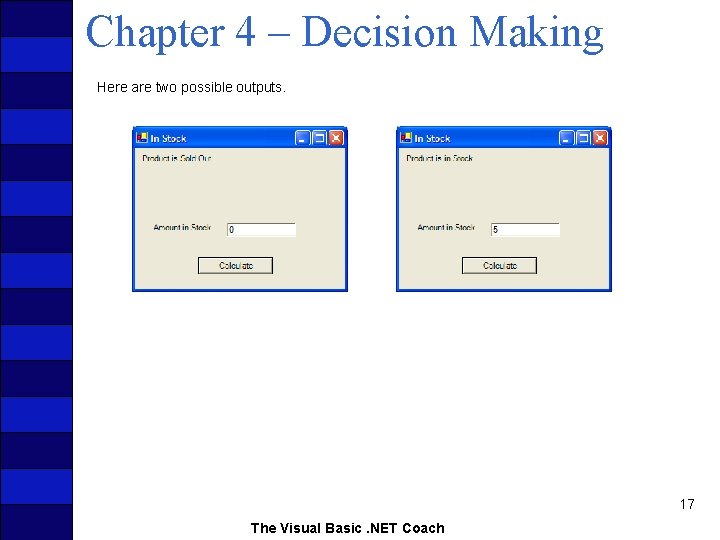
Chapter 4 – Decision Making Example: In Stock? Problem Description The application will ask the user to enter the amount of a product a company has on hand. If the number is greater than 0, then the program outputs that the “Product is in Stock”. Otherwise, it outputs that the “Product is Sold Out”. Problem Discussion It will require creating a form with a txt. Stock. Amount text box to store the amount of a product a company has in stock, a lbl. Amount label with the Text property set to “Amount in Stock”, another label, lbl. In. Stock, to hold a message, and a button with the Text property set to “Calculate”. The code of the program compares the number entered by the user to 0. 13 The Visual Basic. NET Coach
Chapter 4 – Decision Making Problem Solution Create Project and Form Step 1: From the Start window, click on New Project. The New Project window will appear. Step 2: Specify the name of the application as In. Stock. Step 3: Specify the location as "C: VB Net CoachChapter 4Code ". Step 4: Click on the OK button. Step 5: Rename the form to frm. In. Stock. Step 6: Rename the file by right-clicking on the file name in the Solution Explorer and setting the name to frm. In. Stock. vb. Step 7: Set the Text property of the form to In Stock. 14 The Visual Basic. NET Coach
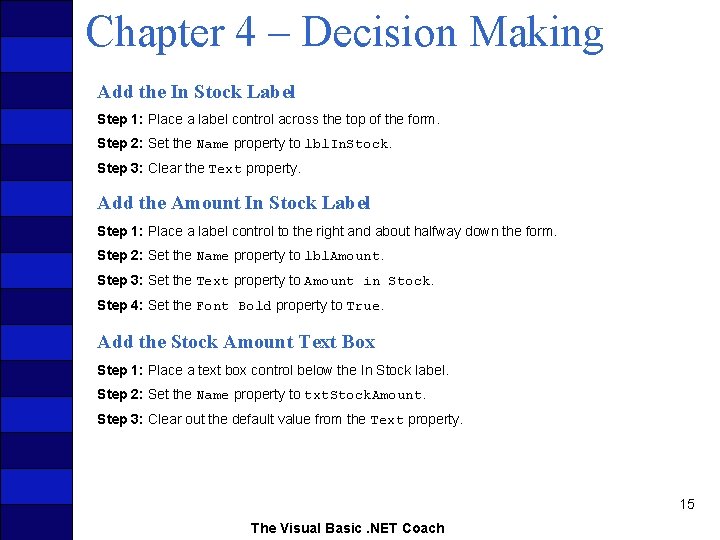
Chapter 4 – Decision Making Add the In Stock Label Step 1: Place a label control across the top of the form. Step 2: Set the Name property to lbl. In. Stock. Step 3: Clear the Text property. Add the Amount In Stock Label Step 1: Place a label control to the right and about halfway down the form. Step 2: Set the Name property to lbl. Amount. Step 3: Set the Text property to Amount in Stock. Step 4: Set the Font Bold property to True. Add the Stock Amount Text Box Step 1: Place a text box control below the In Stock label. Step 2: Set the Name property to txt. Stock. Amount. Step 3: Clear out the default value from the Text property. 15 The Visual Basic. NET Coach
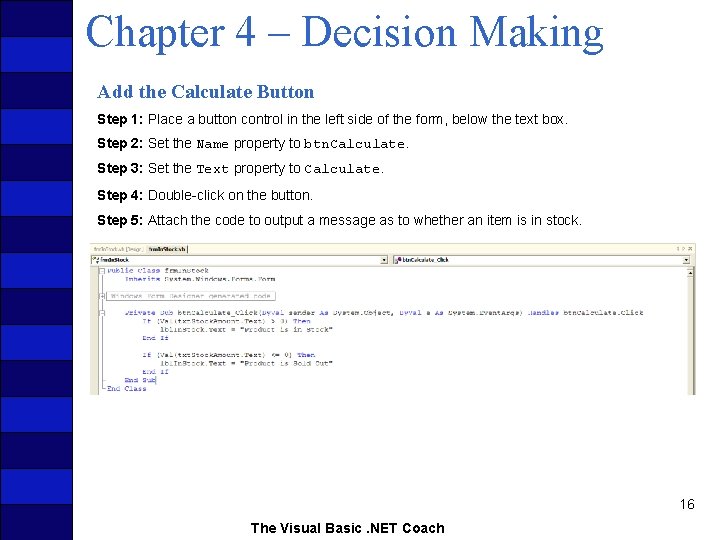
Chapter 4 – Decision Making Add the Calculate Button Step 1: Place a button control in the left side of the form, below the text box. Step 2: Set the Name property to btn. Calculate. Step 3: Set the Text property to Calculate. Step 4: Double-click on the button. Step 5: Attach the code to output a message as to whether an item is in stock. 16 The Visual Basic. NET Coach
Chapter 4 – Decision Making Here are two possible outputs. 17 The Visual Basic. NET Coach
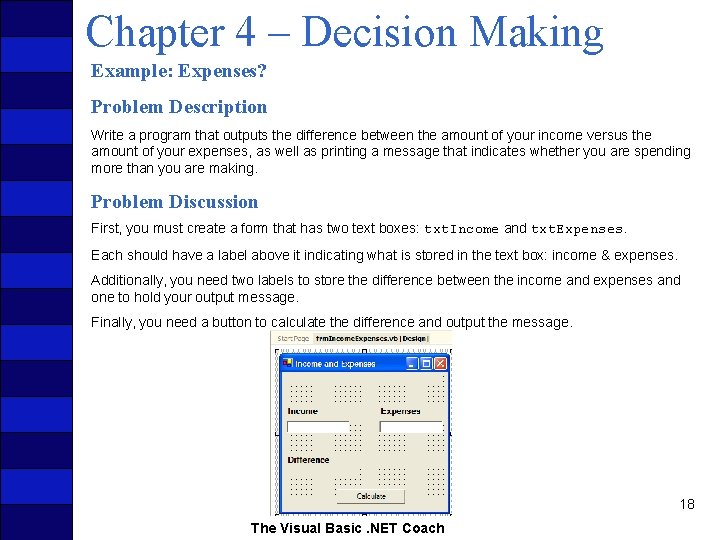
Chapter 4 – Decision Making Example: Expenses? Problem Description Write a program that outputs the difference between the amount of your income versus the amount of your expenses, as well as printing a message that indicates whether you are spending more than you are making. Problem Discussion First, you must create a form that has two text boxes: txt. Income and txt. Expenses. Each should have a label above it indicating what is stored in the text box: income & expenses. Additionally, you need two labels to store the difference between the income and expenses and one to hold your output message. Finally, you need a button to calculate the difference and output the message. 18 The Visual Basic. NET Coach
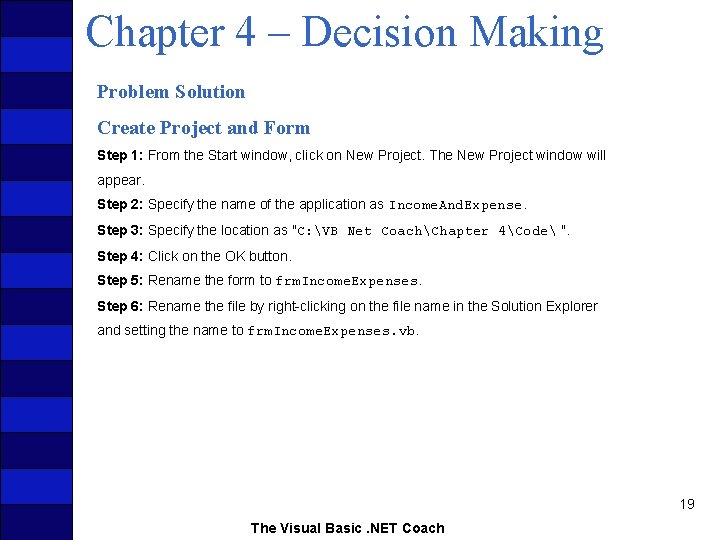
Chapter 4 – Decision Making Problem Solution Create Project and Form Step 1: From the Start window, click on New Project. The New Project window will appear. Step 2: Specify the name of the application as Income. And. Expense. Step 3: Specify the location as "C: VB Net CoachChapter 4Code ". Step 4: Click on the OK button. Step 5: Rename the form to frm. Income. Expenses. Step 6: Rename the file by right-clicking on the file name in the Solution Explorer and setting the name to frm. Income. Expenses. vb. 19 The Visual Basic. NET Coach
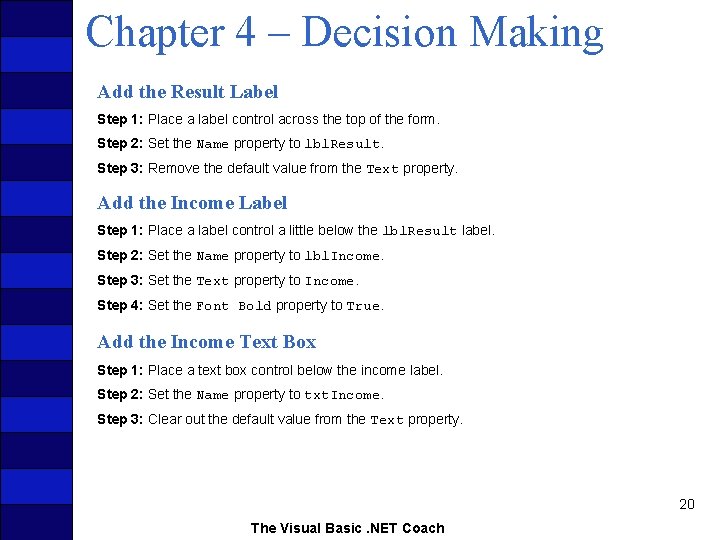
Chapter 4 – Decision Making Add the Result Label Step 1: Place a label control across the top of the form. Step 2: Set the Name property to lbl. Result. Step 3: Remove the default value from the Text property. Add the Income Label Step 1: Place a label control a little below the lbl. Result label. Step 2: Set the Name property to lbl. Income. Step 3: Set the Text property to Income. Step 4: Set the Font Bold property to True. Add the Income Text Box Step 1: Place a text box control below the income label. Step 2: Set the Name property to txt. Income. Step 3: Clear out the default value from the Text property. 20 The Visual Basic. NET Coach
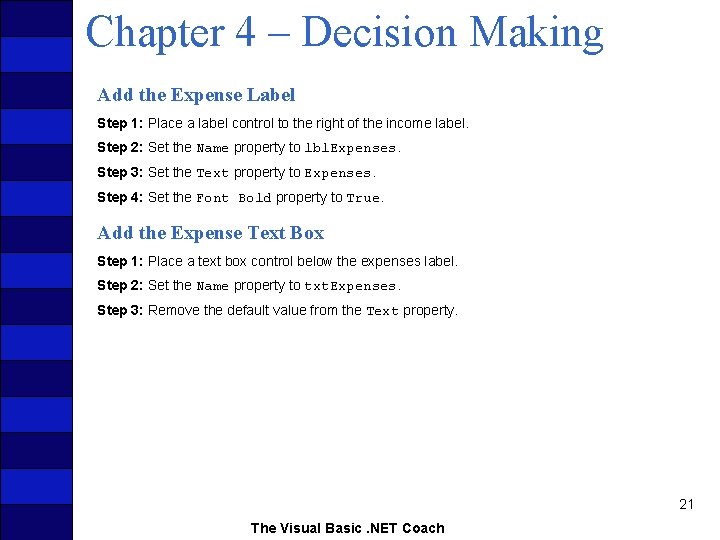
Chapter 4 – Decision Making Add the Expense Label Step 1: Place a label control to the right of the income label. Step 2: Set the Name property to lbl. Expenses. Step 3: Set the Text property to Expenses. Step 4: Set the Font Bold property to True. Add the Expense Text Box Step 1: Place a text box control below the expenses label. Step 2: Set the Name property to txt. Expenses. Step 3: Remove the default value from the Text property. 21 The Visual Basic. NET Coach
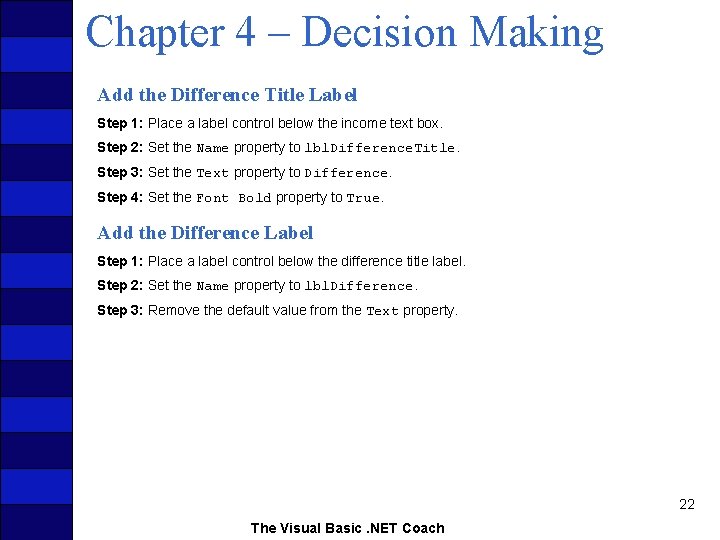
Chapter 4 – Decision Making Add the Difference Title Label Step 1: Place a label control below the income text box. Step 2: Set the Name property to lbl. Difference. Title. Step 3: Set the Text property to Difference. Step 4: Set the Font Bold property to True. Add the Difference Label Step 1: Place a label control below the difference title label. Step 2: Set the Name property to lbl. Difference. Step 3: Remove the default value from the Text property. 22 The Visual Basic. NET Coach
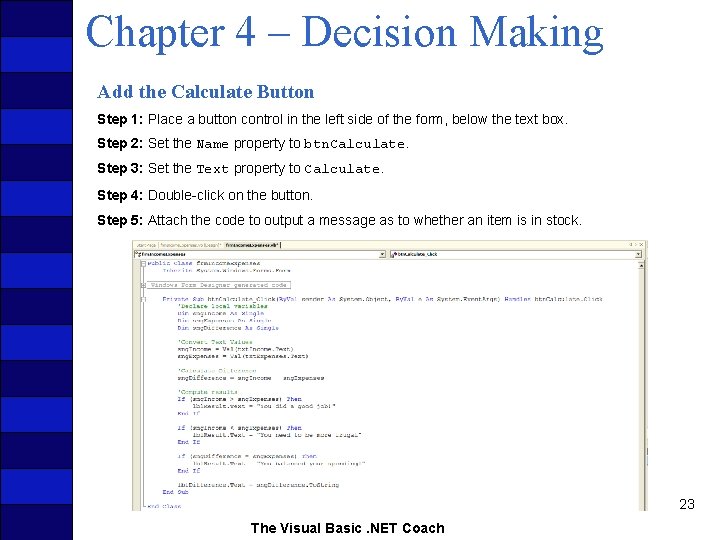
Chapter 4 – Decision Making Add the Calculate Button Step 1: Place a button control in the left side of the form, below the text box. Step 2: Set the Name property to btn. Calculate. Step 3: Set the Text property to Calculate. Step 4: Double-click on the button. Step 5: Attach the code to output a message as to whether an item is in stock. 23 The Visual Basic. NET Coach
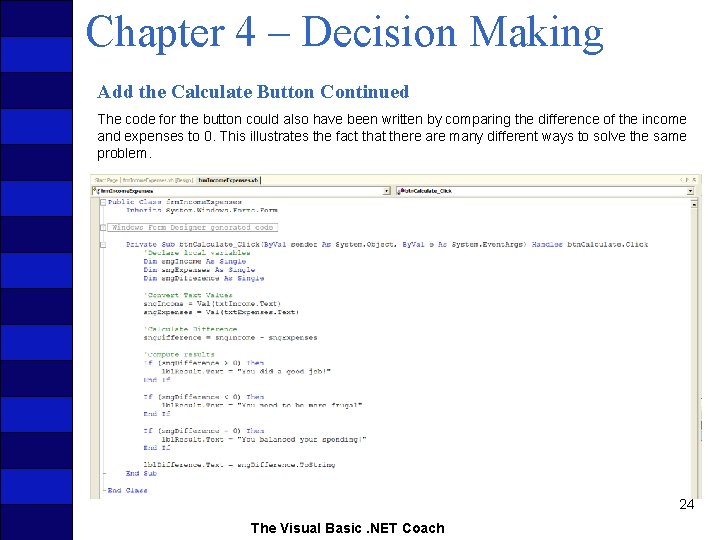
Chapter 4 – Decision Making Add the Calculate Button Continued The code for the button could also have been written by comparing the difference of the income and expenses to 0. This illustrates the fact that there are many different ways to solve the same problem. 24 The Visual Basic. NET Coach
Chapter 4 – Decision Making Example: Voting Booth Application Problem Description With all the commotion surrounding the 2000 presidential election, a better voting booth is needed. Throughout the next few chapters you will develop a number of Voting Booth applications. You will see how, as you learn more commands and controls in the Visual Basic. NET language, you will be able to improve the accuracy of the voting booth. Maybe you can sell it in Florida! 25 The Visual Basic. NET Coach
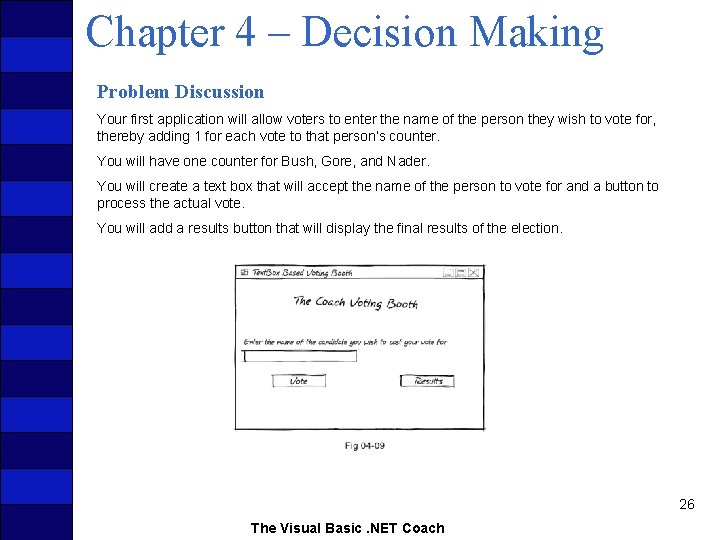
Chapter 4 – Decision Making Problem Discussion Your first application will allow voters to enter the name of the person they wish to vote for, thereby adding 1 for each vote to that person’s counter. You will have one counter for Bush, Gore, and Nader. You will create a text box that will accept the name of the person to vote for and a button to process the actual vote. You will add a results button that will display the final results of the election. 26 The Visual Basic. NET Coach
Chapter 4 – Decision Making Problem Discussion Continued In order to store the number of votes for each candidate, you will require a variable for each candidate. Since the number of votes a candidate can have is a whole number, an Integer data type variable will be used. These variables will need to be accessed from both the Vote and Results buttons’ Click events. Therefore, the variables will need to be declared in the Declarations section of the form. One other issue you will have to deal with is to initialize these variables. Technically, you do not have to because the default value for an Integer is 0, but it is always a good habit to initialize them. Forms, like all objects, have a special routine called a constructor. A constructor is called before the actual object is completely created. This is the appropriate place for initialization of variable in a form. 27 The Visual Basic. NET Coach
Chapter 4 – Decision Making Problem Solution Create Project and Form Step 1: From the Start window, click on New Project. The New Project window will appear. Step 2: Specify the name of the application as Voting Booth 1. Step 3: Specify the location as "C: VB Net CoachChapter 4Code ". Step 4: Click on the OK button. Step 5: Rename the form to frm. Voting. Booth. Step 6: Rename the file by right-clicking on the file name in the Solution Explorer and setting the name to frm. Voting. Booth. vb. Step 7: Set the Text property of the form to Text. Box Based Voting Booth. 28 The Visual Basic. NET Coach
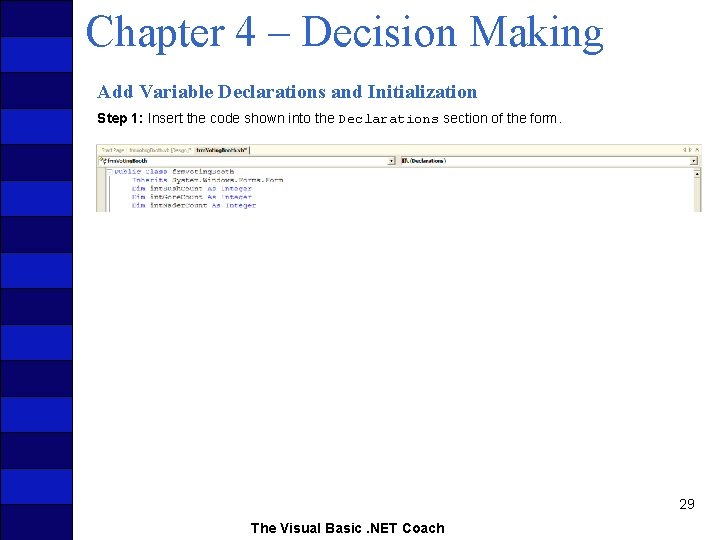
Chapter 4 – Decision Making Add Variable Declarations and Initialization Step 1: Insert the code shown into the Declarations section of the form. 29 The Visual Basic. NET Coach
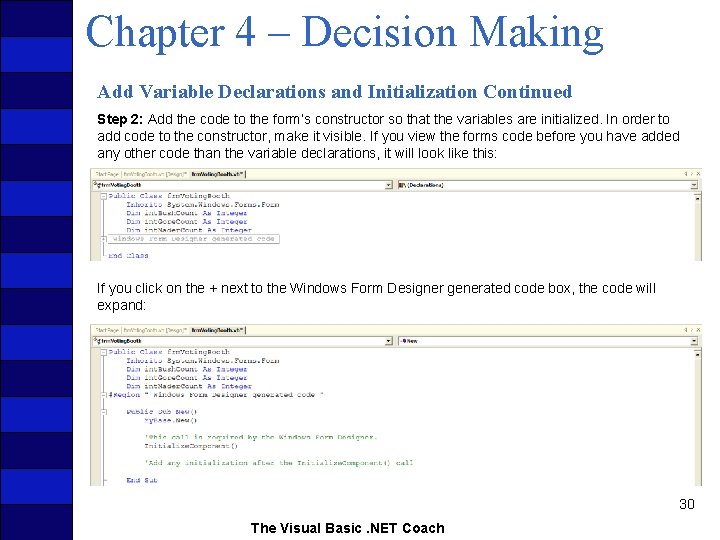
Chapter 4 – Decision Making Add Variable Declarations and Initialization Continued Step 2: Add the code to the form’s constructor so that the variables are initialized. In order to add code to the constructor, make it visible. If you view the forms code before you have added any other code than the variable declarations, it will look like this: If you click on the + next to the Windows Form Designer generated code box, the code will expand: 30 The Visual Basic. NET Coach
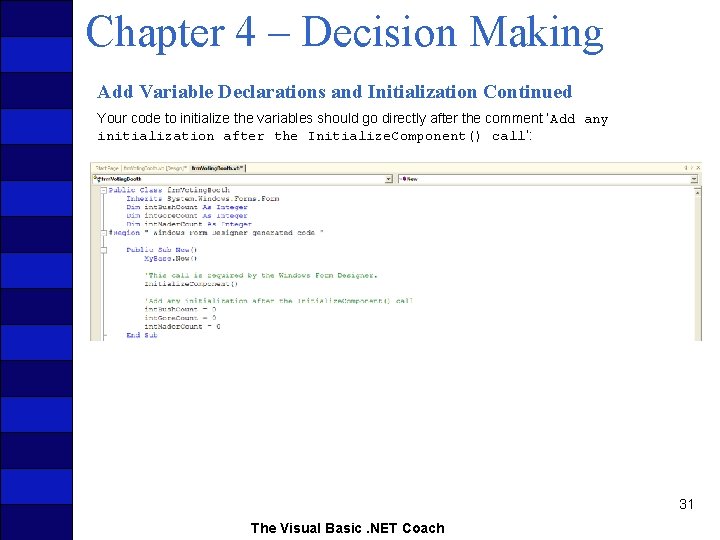
Chapter 4 – Decision Making Add Variable Declarations and Initialization Continued Your code to initialize the variables should go directly after the comment ‘Add any initialization after the Initialize. Component() call’: 31 The Visual Basic. NET Coach
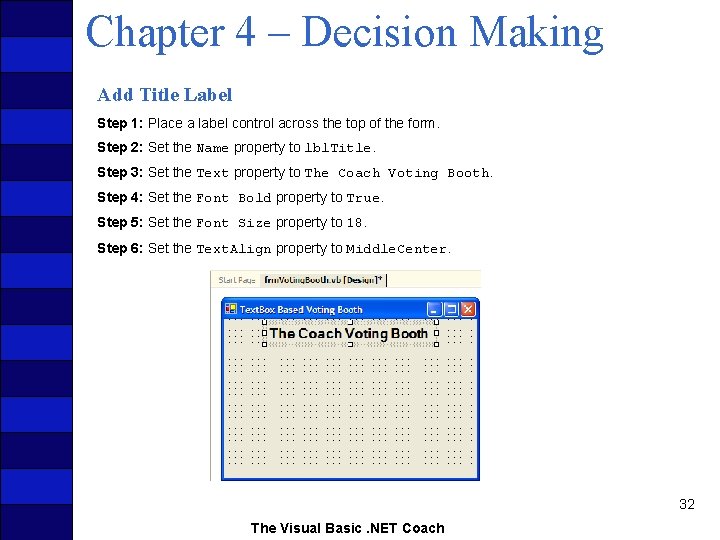
Chapter 4 – Decision Making Add Title Label Step 1: Place a label control across the top of the form. Step 2: Set the Name property to lbl. Title. Step 3: Set the Text property to The Coach Voting Booth. Step 4: Set the Font Bold property to True. Step 5: Set the Font Size property to 18. Step 6: Set the Text. Align property to Middle. Center. 32 The Visual Basic. NET Coach
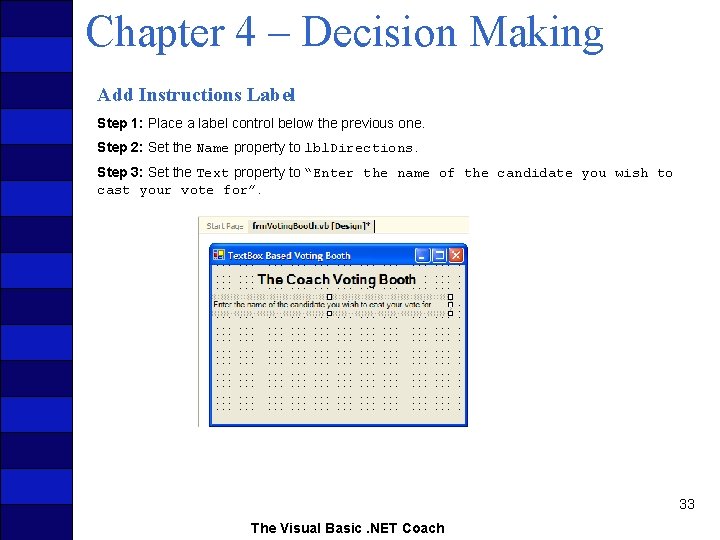
Chapter 4 – Decision Making Add Instructions Label Step 1: Place a label control below the previous one. Step 2: Set the Name property to lbl. Directions. Step 3: Set the Text property to “Enter the name of the candidate you wish to cast your vote for”. 33 The Visual Basic. NET Coach
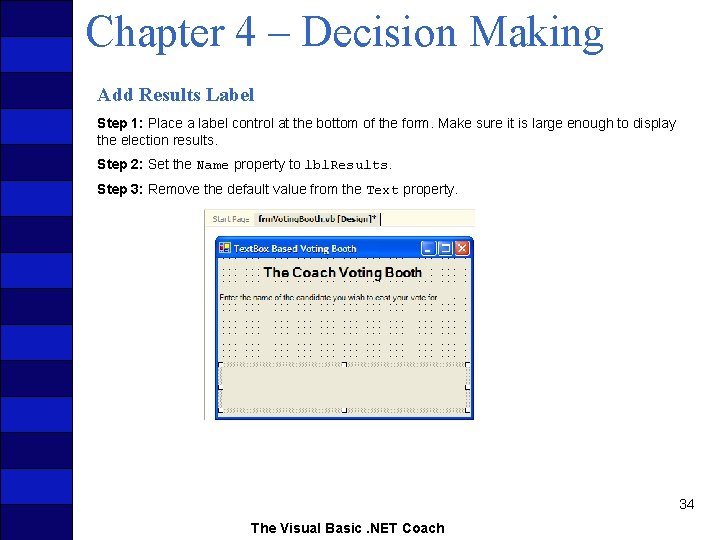
Chapter 4 – Decision Making Add Results Label Step 1: Place a label control at the bottom of the form. Make sure it is large enough to display the election results. Step 2: Set the Name property to lbl. Results. Step 3: Remove the default value from the Text property. 34 The Visual Basic. NET Coach
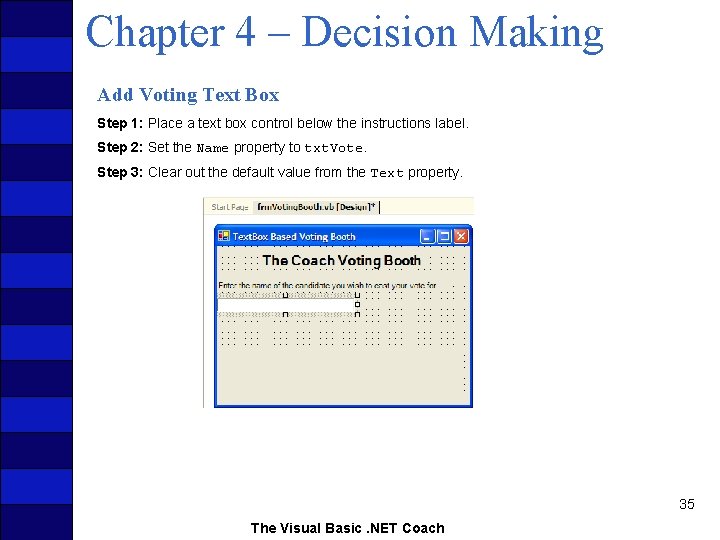
Chapter 4 – Decision Making Add Voting Text Box Step 1: Place a text box control below the instructions label. Step 2: Set the Name property to txt. Vote. Step 3: Clear out the default value from the Text property. 35 The Visual Basic. NET Coach
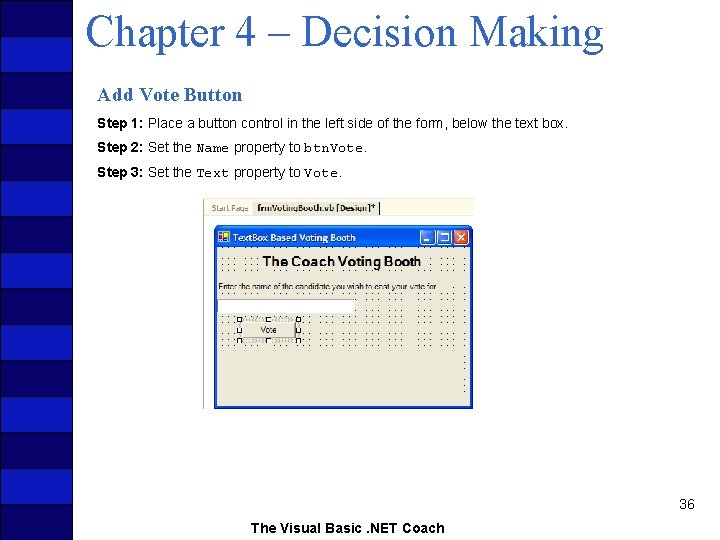
Chapter 4 – Decision Making Add Vote Button Step 1: Place a button control in the left side of the form, below the text box. Step 2: Set the Name property to btn. Vote. Step 3: Set the Text property to Vote. 36 The Visual Basic. NET Coach
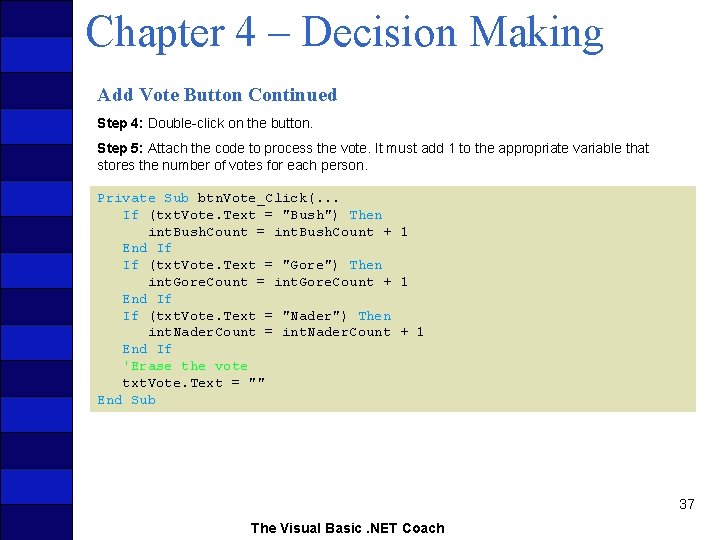
Chapter 4 – Decision Making Add Vote Button Continued Step 4: Double-click on the button. Step 5: Attach the code to process the vote. It must add 1 to the appropriate variable that stores the number of votes for each person. Private Sub btn. Vote_Click(. . . If (txt. Vote. Text = "Bush") Then int. Bush. Count = int. Bush. Count + 1 End If If (txt. Vote. Text = "Gore") Then int. Gore. Count = int. Gore. Count + 1 End If If (txt. Vote. Text = "Nader") Then int. Nader. Count = int. Nader. Count + 1 End If 'Erase the vote txt. Vote. Text = "" End Sub 37 The Visual Basic. NET Coach
Chapter 4 – Decision Making Add Results Button Step 1: Place a button control to the right of the other button. Step 2: Set the Name property to btn. Results. Step 3: Set the Text property to Results. 38 The Visual Basic. NET Coach
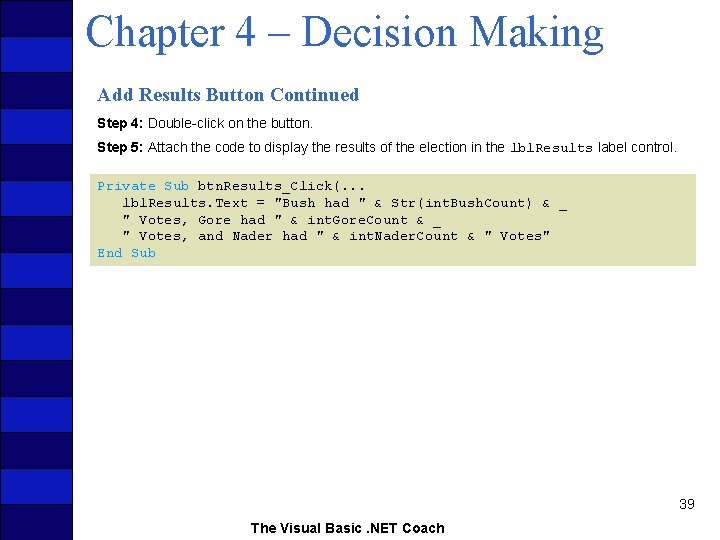
Chapter 4 – Decision Making Add Results Button Continued Step 4: Double-click on the button. Step 5: Attach the code to display the results of the election in the lbl. Results label control. Private Sub btn. Results_Click(. . . lbl. Results. Text = "Bush had " & Str(int. Bush. Count) & _ " Votes, Gore had " & int. Gore. Count & _ " Votes, and Nader had " & int. Nader. Count & " Votes" End Sub 39 The Visual Basic. NET Coach
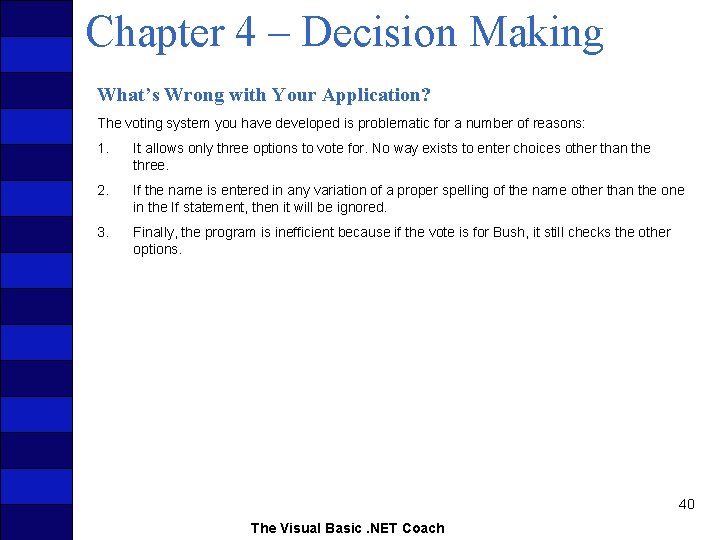
Chapter 4 – Decision Making What’s Wrong with Your Application? The voting system you have developed is problematic for a number of reasons: 1. It allows only three options to vote for. No way exists to enter choices other than the three. 2. If the name is entered in any variation of a proper spelling of the name other than the one in the If statement, then it will be ignored. 3. Finally, the program is inefficient because if the vote is for Bush, it still checks the other options. 40 The Visual Basic. NET Coach
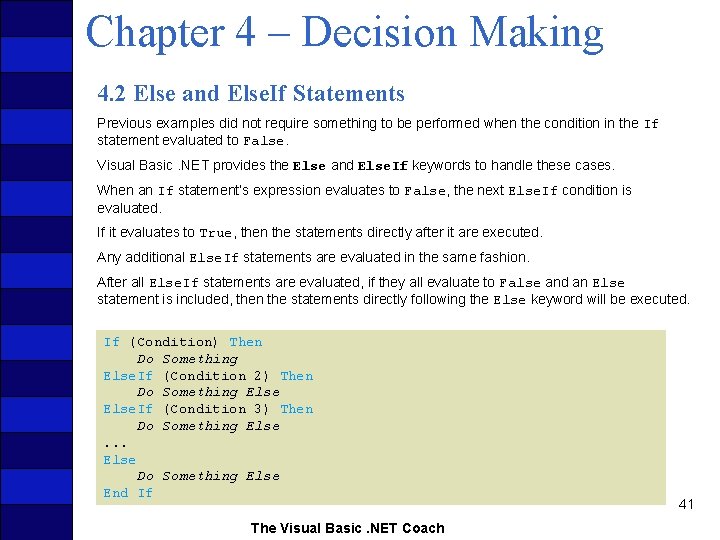
Chapter 4 – Decision Making 4. 2 Else and Else. If Statements Previous examples did not require something to be performed when the condition in the If statement evaluated to False. Visual Basic. NET provides the Else and Else. If keywords to handle these cases. When an If statement’s expression evaluates to False, the next Else. If condition is evaluated. If it evaluates to True, then the statements directly after it are executed. Any additional Else. If statements are evaluated in the same fashion. After all Else. If statements are evaluated, if they all evaluate to False and an Else statement is included, then the statements directly following the Else keyword will be executed. If (Condition) Then Do Something Else. If (Condition 2) Then Do Something Else. If (Condition 3) Then Do Something Else. . . Else Do Something Else End If The Visual Basic. NET Coach 41
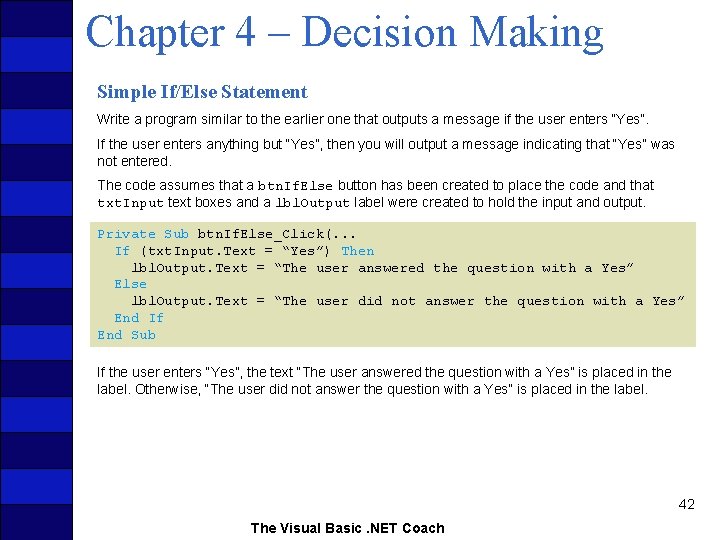
Chapter 4 – Decision Making Simple If/Else Statement Write a program similar to the earlier one that outputs a message if the user enters “Yes”. If the user enters anything but “Yes”, then you will output a message indicating that “Yes” was not entered. The code assumes that a btn. If. Else button has been created to place the code and that txt. Input text boxes and a lbl. Output label were created to hold the input and output. Private Sub btn. If. Else_Click(. . . If (txt. Input. Text = “Yes”) Then lbl. Output. Text = “The user answered the question with a Yes” Else lbl. Output. Text = “The user did not answer the question with a Yes” End If End Sub If the user enters “Yes”, the text “The user answered the question with a Yes” is placed in the label. Otherwise, “The user did not answer the question with a Yes” is placed in the label. 42 The Visual Basic. NET Coach
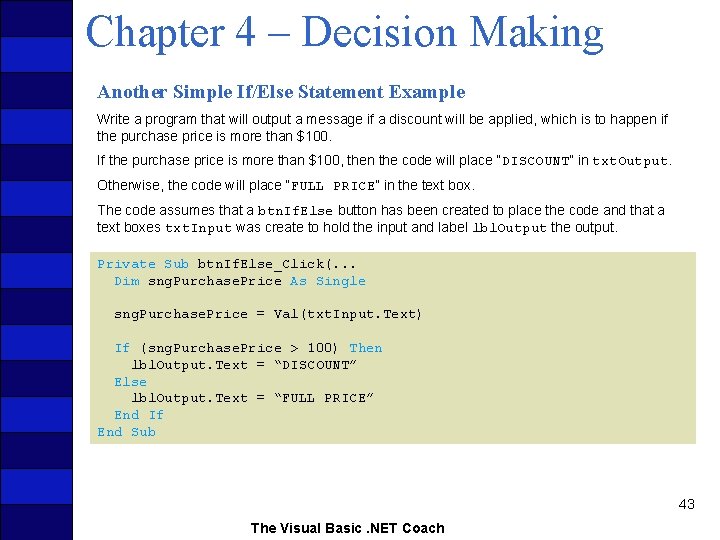
Chapter 4 – Decision Making Another Simple If/Else Statement Example Write a program that will output a message if a discount will be applied, which is to happen if the purchase price is more than $100. If the purchase price is more than $100, then the code will place “DISCOUNT” in txt. Output. Otherwise, the code will place “FULL PRICE” in the text box. The code assumes that a btn. If. Else button has been created to place the code and that a text boxes txt. Input was create to hold the input and label lbl. Output the output. Private Sub btn. If. Else_Click(. . . Dim sng. Purchase. Price As Single sng. Purchase. Price = Val(txt. Input. Text) If (sng. Purchase. Price > 100) Then lbl. Output. Text = “DISCOUNT” Else lbl. Output. Text = “FULL PRICE” End If End Sub 43 The Visual Basic. NET Coach
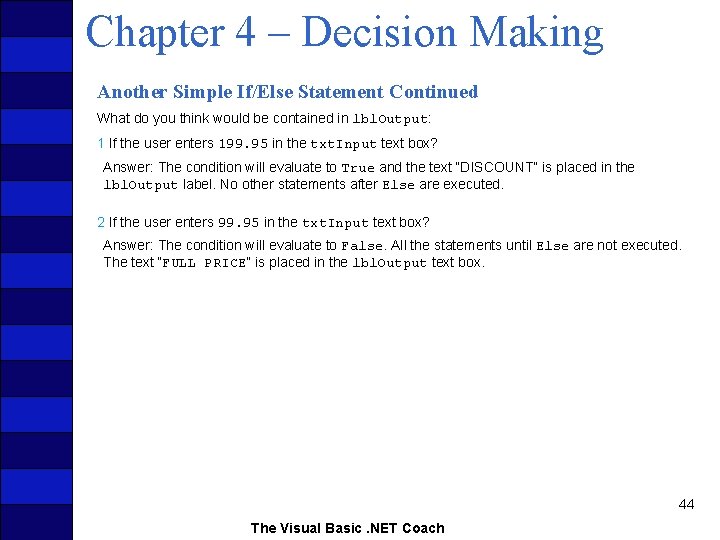
Chapter 4 – Decision Making Another Simple If/Else Statement Continued What do you think would be contained in lbl. Output: 1 If the user enters 199. 95 in the txt. Input text box? Answer: The condition will evaluate to True and the text “DISCOUNT” is placed in the lbl. Output label. No other statements after Else are executed. 2 If the user enters 99. 95 in the txt. Input text box? Answer: The condition will evaluate to False. All the statements until Else are not executed. The text “FULL PRICE” is placed in the lbl. Output text box. 44 The Visual Basic. NET Coach
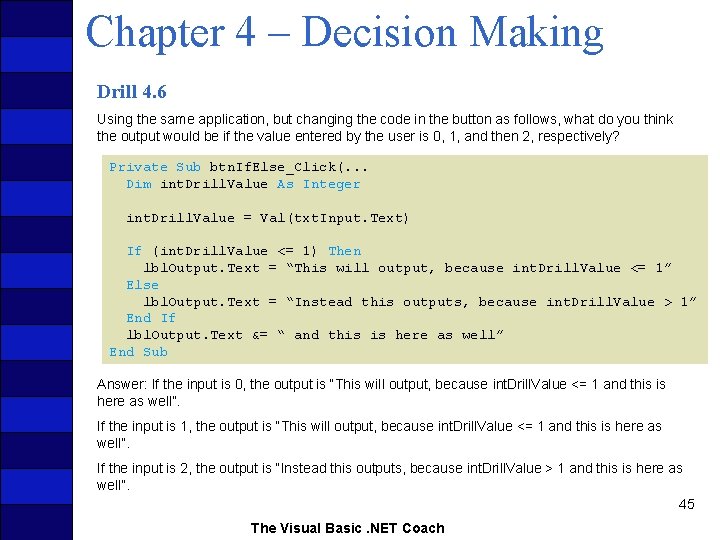
Chapter 4 – Decision Making Drill 4. 6 Using the same application, but changing the code in the button as follows, what do you think the output would be if the value entered by the user is 0, 1, and then 2, respectively? Private Sub btn. If. Else_Click(. . . Dim int. Drill. Value As Integer int. Drill. Value = Val(txt. Input. Text) If (int. Drill. Value <= 1) Then lbl. Output. Text = “This will output, because int. Drill. Value <= 1” Else lbl. Output. Text = “Instead this outputs, because int. Drill. Value > 1” End If lbl. Output. Text &= “ and this is here as well” End Sub Answer: If the input is 0, the output is “This will output, because int. Drill. Value <= 1 and this is here as well”. If the input is 1, the output is “This will output, because int. Drill. Value <= 1 and this is here as well”. If the input is 2, the output is “Instead this outputs, because int. Drill. Value > 1 and this is here as well”. 45 The Visual Basic. NET Coach
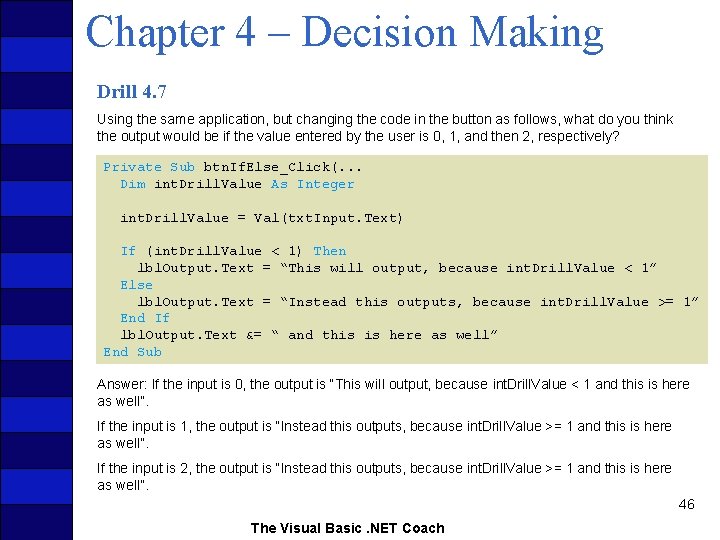
Chapter 4 – Decision Making Drill 4. 7 Using the same application, but changing the code in the button as follows, what do you think the output would be if the value entered by the user is 0, 1, and then 2, respectively? Private Sub btn. If. Else_Click(. . . Dim int. Drill. Value As Integer int. Drill. Value = Val(txt. Input. Text) If (int. Drill. Value < 1) Then lbl. Output. Text = “This will output, because int. Drill. Value < 1” Else lbl. Output. Text = “Instead this outputs, because int. Drill. Value >= 1” End If lbl. Output. Text &= “ and this is here as well” End Sub Answer: If the input is 0, the output is “This will output, because int. Drill. Value < 1 and this is here as well”. If the input is 1, the output is “Instead this outputs, because int. Drill. Value >= 1 and this is here as well”. If the input is 2, the output is “Instead this outputs, because int. Drill. Value >= 1 and this is here as well”. 46 The Visual Basic. NET Coach
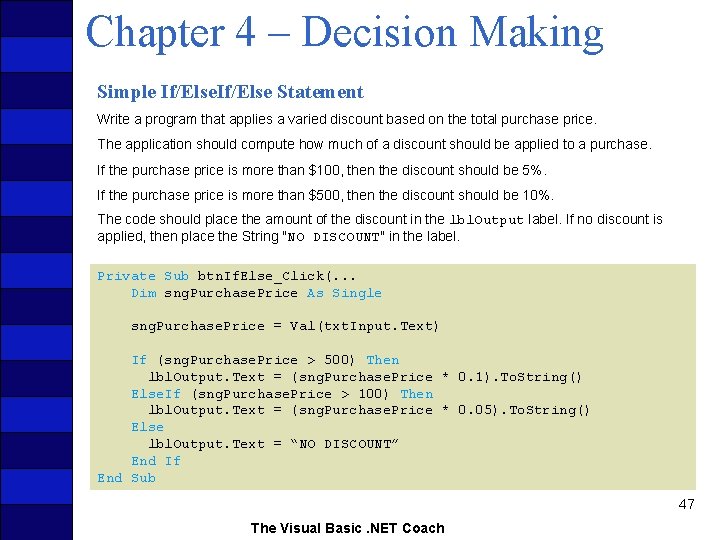
Chapter 4 – Decision Making Simple If/Else Statement Write a program that applies a varied discount based on the total purchase price. The application should compute how much of a discount should be applied to a purchase. If the purchase price is more than $100, then the discount should be 5%. If the purchase price is more than $500, then the discount should be 10%. The code should place the amount of the discount in the lbl. Output label. If no discount is applied, then place the String "NO DISCOUNT" in the label. Private Sub btn. If. Else_Click(. . . Dim sng. Purchase. Price As Single sng. Purchase. Price = Val(txt. Input. Text) If (sng. Purchase. Price > 500) Then lbl. Output. Text = (sng. Purchase. Price * 0. 1). To. String() Else. If (sng. Purchase. Price > 100) Then lbl. Output. Text = (sng. Purchase. Price * 0. 05). To. String() Else lbl. Output. Text = “NO DISCOUNT” End If End Sub 47 The Visual Basic. NET Coach
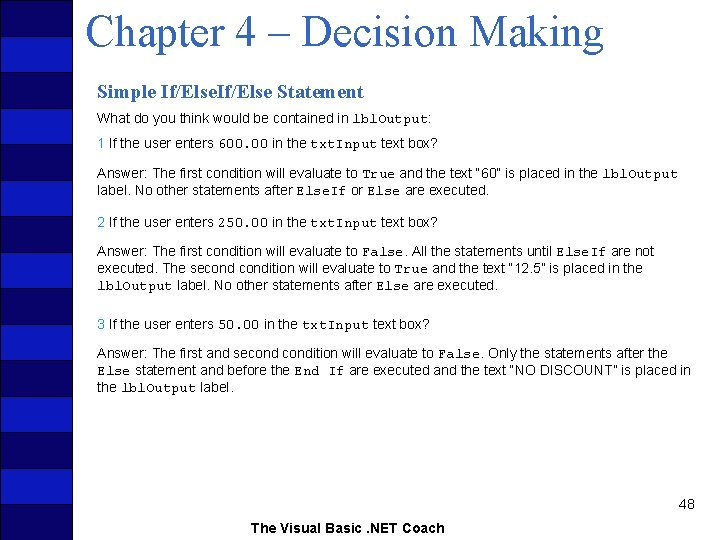
Chapter 4 – Decision Making Simple If/Else Statement What do you think would be contained in lbl. Output: 1 If the user enters 600. 00 in the txt. Input text box? Answer: The first condition will evaluate to True and the text “ 60” is placed in the lbl. Output label. No other statements after Else. If or Else are executed. 2 If the user enters 250. 00 in the txt. Input text box? Answer: The first condition will evaluate to False. All the statements until Else. If are not executed. The secondition will evaluate to True and the text “ 12. 5” is placed in the lbl. Output label. No other statements after Else are executed. 3 If the user enters 50. 00 in the txt. Input text box? Answer: The first and secondition will evaluate to False. Only the statements after the Else statement and before the End If are executed and the text “NO DISCOUNT” is placed in the lbl. Output label. 48 The Visual Basic. NET Coach
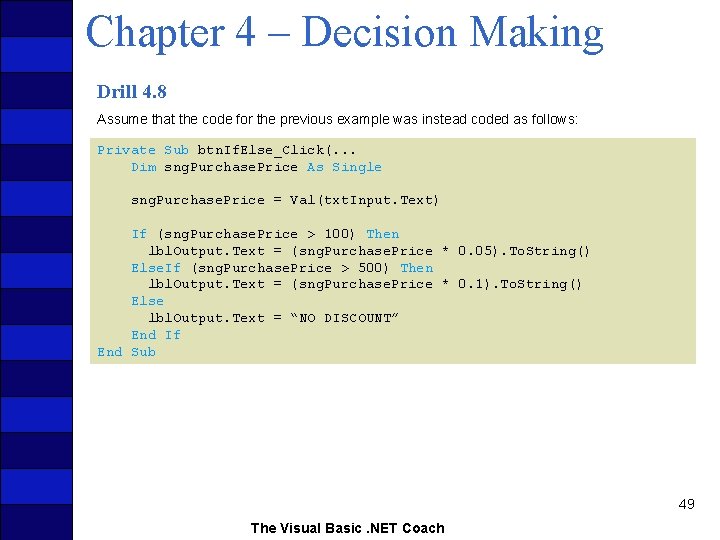
Chapter 4 – Decision Making Drill 4. 8 Assume that the code for the previous example was instead coded as follows: Private Sub btn. If. Else_Click(. . . Dim sng. Purchase. Price As Single sng. Purchase. Price = Val(txt. Input. Text) If (sng. Purchase. Price > 100) Then lbl. Output. Text = (sng. Purchase. Price * 0. 05). To. String() Else. If (sng. Purchase. Price > 500) Then lbl. Output. Text = (sng. Purchase. Price * 0. 1). To. String() Else lbl. Output. Text = “NO DISCOUNT” End If End Sub 49 The Visual Basic. NET Coach
Chapter 4 – Decision Making Drill 4. 8 Continued What do you think would be contained in lbl. Output: 1 If the user enters 600. 00 in the txt. Input text box? Answer: The first condition will evaluate to True and the text “ 30” is placed in the lbl. Output label. No other statements after Else. If or Else are executed. 2 If the user enters 250. 00 in the txt. Input text box? Answer: The first condition will evaluate to True and the text “ 12. 5” is placed in the lbl. Output label. No other statements after Else. If or Else are executed. 3 If the user enters 50. 00 in the txt. Input text box? Answer: The first and secondition will evaluate to False. Only the statements after the Else statement and before the End If are executed and the text “NO DISCOUNT” is placed in the lbl. Output label. 50 The Visual Basic. NET Coach
Chapter 4 – Decision Making Drill 4. 9 The code assumes that a btn. If. Else button has been created to place the code and that a txt. Input text box and a lbl. Output label were created to hold the input and output, respectively. What do you think the output would be if the value entered by the user is -1, 0, and then 1, respectively? Private Sub btn. If. Else_Click(. . . Dim int. Drill. Value As Integer int. Drill. Value = Val(txt. Input. Text) If (int. Drill. Value > 0) Then lbl. Output. Text = “The number if positive” Else. If (int. Drill. Value < 0) Then lbl. Output. Text = “The number is negative” Else lbl. Output. Text = “ I got a big zero” End Sub Answer: If the input is -1, the output is “The number is negative” If the input is 0, the output is “I got a big zero” If the input is 1, the output is “The number is positive” 51 The Visual Basic. NET Coach
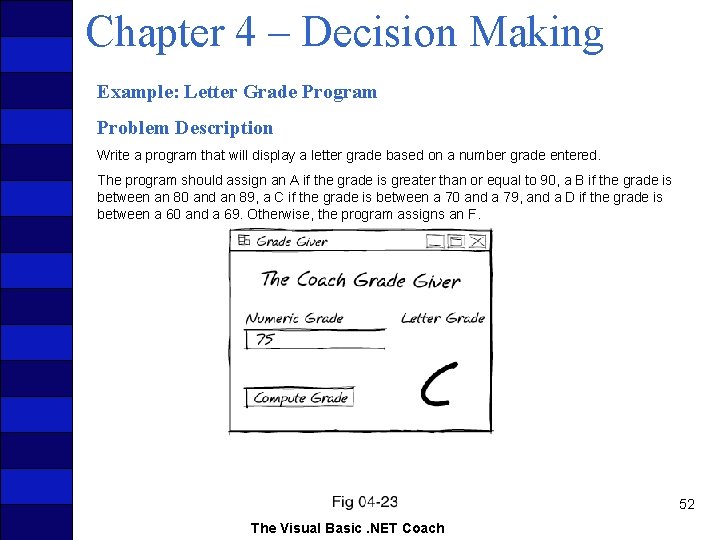
Chapter 4 – Decision Making Example: Letter Grade Program Problem Description Write a program that will display a letter grade based on a number grade entered. The program should assign an A if the grade is greater than or equal to 90, a B if the grade is between an 80 and an 89, a C if the grade is between a 70 and a 79, and a D if the grade is between a 60 and a 69. Otherwise, the program assigns an F. 52 The Visual Basic. NET Coach
Chapter 4 – Decision Making Problem Discussion The application will require a text box to accept the numerical grade and a label to output the result. The actual computation of the letter grade will be performed in the Click event of a button. The letter grade can be determined using an If statement with a few Else. If statements checking the range of each possible letter grade. Using an If statement with Else. If statements is preferred over using a series of If statements because once a letter grade has been determined, it would be wasteful to check the remaining If statements. 53 The Visual Basic. NET Coach
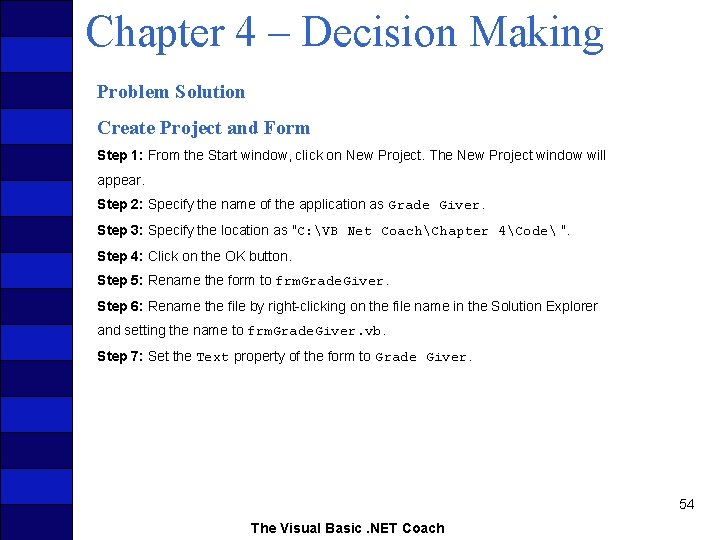
Chapter 4 – Decision Making Problem Solution Create Project and Form Step 1: From the Start window, click on New Project. The New Project window will appear. Step 2: Specify the name of the application as Grade Giver. Step 3: Specify the location as "C: VB Net CoachChapter 4Code ". Step 4: Click on the OK button. Step 5: Rename the form to frm. Grade. Giver. Step 6: Rename the file by right-clicking on the file name in the Solution Explorer and setting the name to frm. Grade. Giver. vb. Step 7: Set the Text property of the form to Grade Giver. 54 The Visual Basic. NET Coach
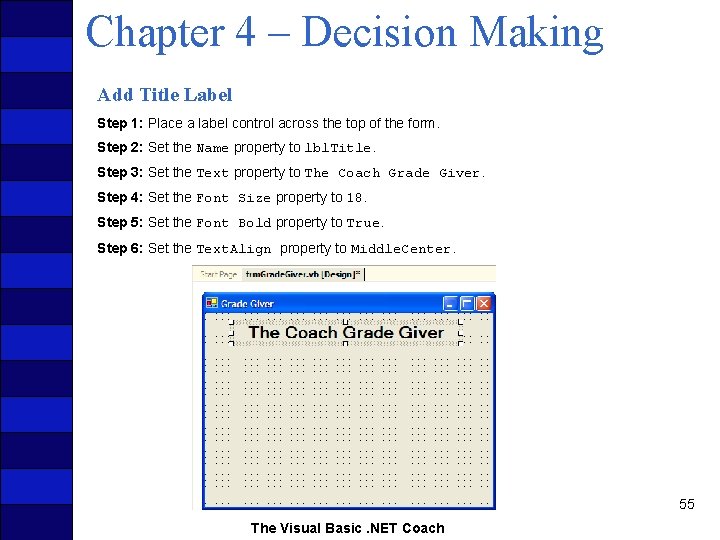
Chapter 4 – Decision Making Add Title Label Step 1: Place a label control across the top of the form. Step 2: Set the Name property to lbl. Title. Step 3: Set the Text property to The Coach Grade Giver. Step 4: Set the Font Size property to 18. Step 5: Set the Font Bold property to True. Step 6: Set the Text. Align property to Middle. Center. 55 The Visual Basic. NET Coach
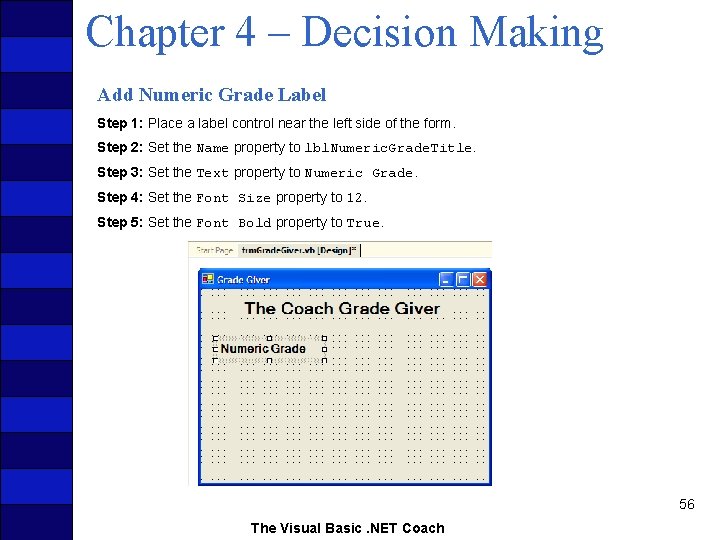
Chapter 4 – Decision Making Add Numeric Grade Label Step 1: Place a label control near the left side of the form. Step 2: Set the Name property to lbl. Numeric. Grade. Title. Step 3: Set the Text property to Numeric Grade. Step 4: Set the Font Size property to 12. Step 5: Set the Font Bold property to True. 56 The Visual Basic. NET Coach
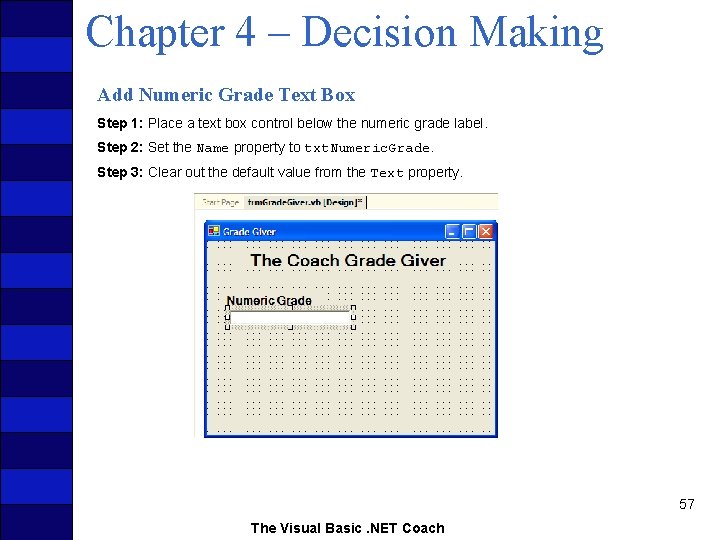
Chapter 4 – Decision Making Add Numeric Grade Text Box Step 1: Place a text box control below the numeric grade label. Step 2: Set the Name property to txt. Numeric. Grade. Step 3: Clear out the default value from the Text property. 57 The Visual Basic. NET Coach
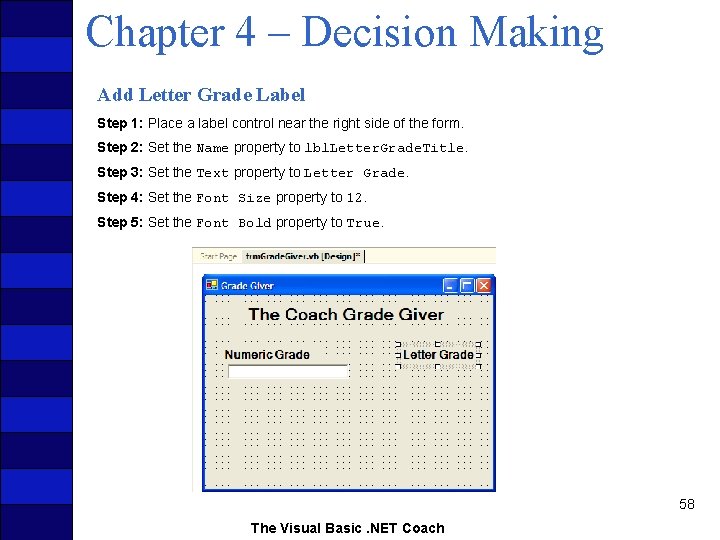
Chapter 4 – Decision Making Add Letter Grade Label Step 1: Place a label control near the right side of the form. Step 2: Set the Name property to lbl. Letter. Grade. Title. Step 3: Set the Text property to Letter Grade. Step 4: Set the Font Size property to 12. Step 5: Set the Font Bold property to True. 58 The Visual Basic. NET Coach
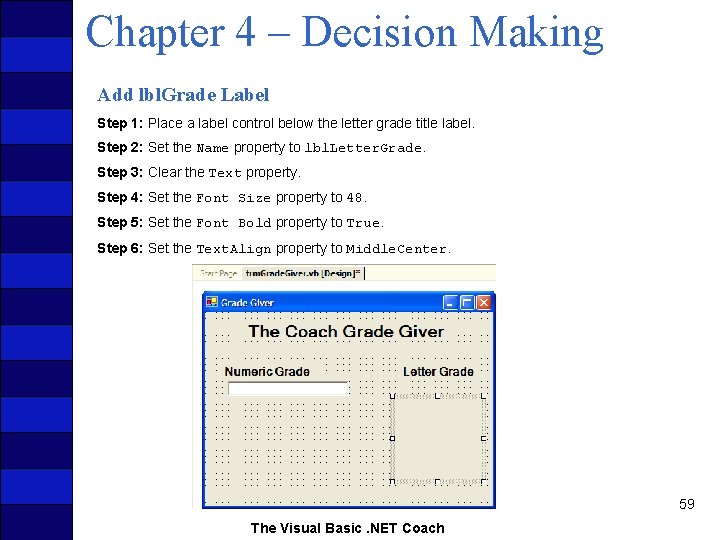
Chapter 4 – Decision Making Add lbl. Grade Label Step 1: Place a label control below the letter grade title label. Step 2: Set the Name property to lbl. Letter. Grade. Step 3: Clear the Text property. Step 4: Set the Font Size property to 48. Step 5: Set the Font Bold property to True. Step 6: Set the Text. Align property to Middle. Center. 59 The Visual Basic. NET Coach
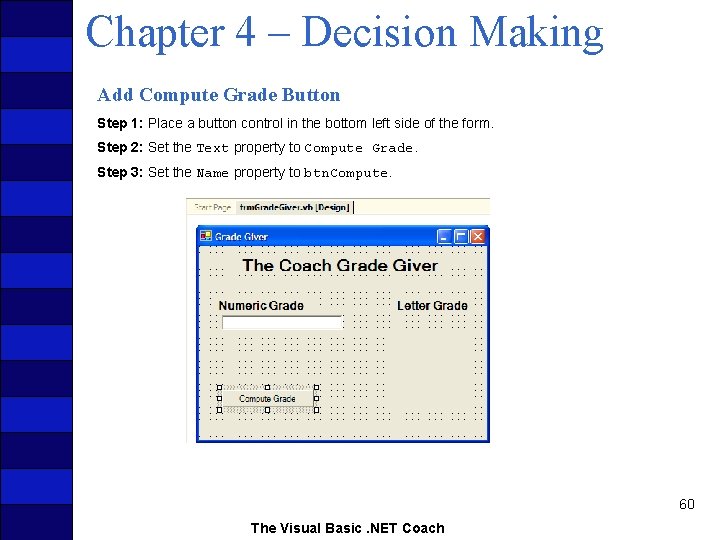
Chapter 4 – Decision Making Add Compute Grade Button Step 1: Place a button control in the bottom left side of the form. Step 2: Set the Text property to Compute Grade. Step 3: Set the Name property to btn. Compute. 60 The Visual Basic. NET Coach
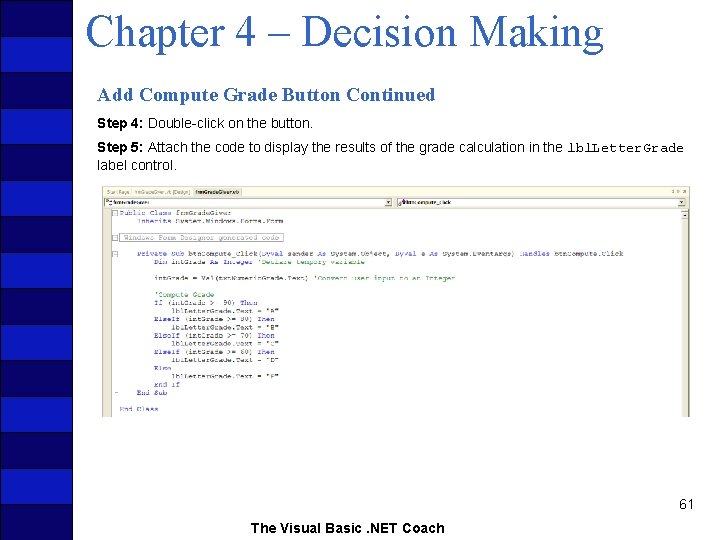
Chapter 4 – Decision Making Add Compute Grade Button Continued Step 4: Double-click on the button. Step 5: Attach the code to display the results of the grade calculation in the lbl. Letter. Grade label control. 61 The Visual Basic. NET Coach
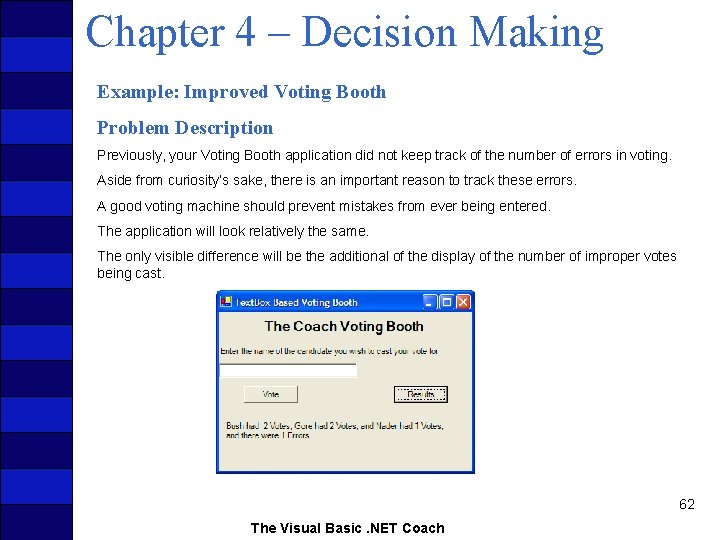
Chapter 4 – Decision Making Example: Improved Voting Booth Problem Description Previously, your Voting Booth application did not keep track of the number of errors in voting. Aside from curiosity’s sake, there is an important reason to track these errors. A good voting machine should prevent mistakes from ever being entered. The application will look relatively the same. The only visible difference will be the additional of the display of the number of improper votes being cast. 62 The Visual Basic. NET Coach
Chapter 4 – Decision Making Problem Discussion Your new application will take advantage of Else. If and Else statements to total the votes more efficiently as well as keep a total of improper votes. By using the Else. If statement, you can process each vote more efficiently. By using the Else statement, you can capture all of the errors. 63 The Visual Basic. NET Coach
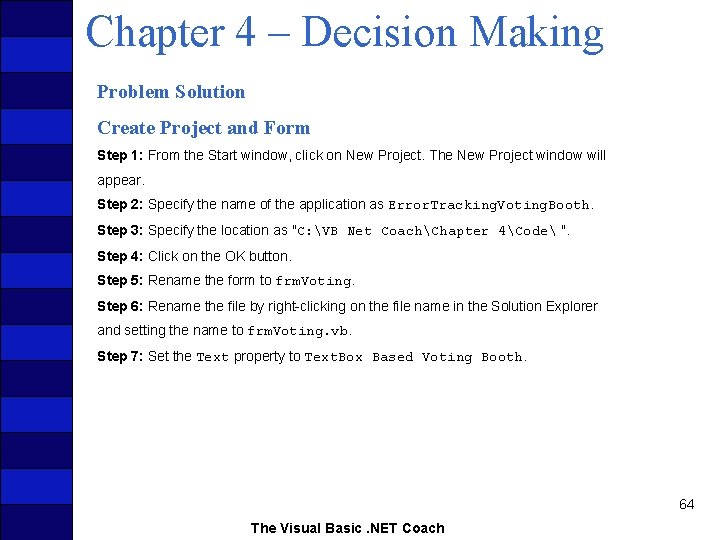
Chapter 4 – Decision Making Problem Solution Create Project and Form Step 1: From the Start window, click on New Project. The New Project window will appear. Step 2: Specify the name of the application as Error. Tracking. Voting. Booth. Step 3: Specify the location as "C: VB Net CoachChapter 4Code ". Step 4: Click on the OK button. Step 5: Rename the form to frm. Voting. Step 6: Rename the file by right-clicking on the file name in the Solution Explorer and setting the name to frm. Voting. vb. Step 7: Set the Text property to Text. Box Based Voting Booth. 64 The Visual Basic. NET Coach
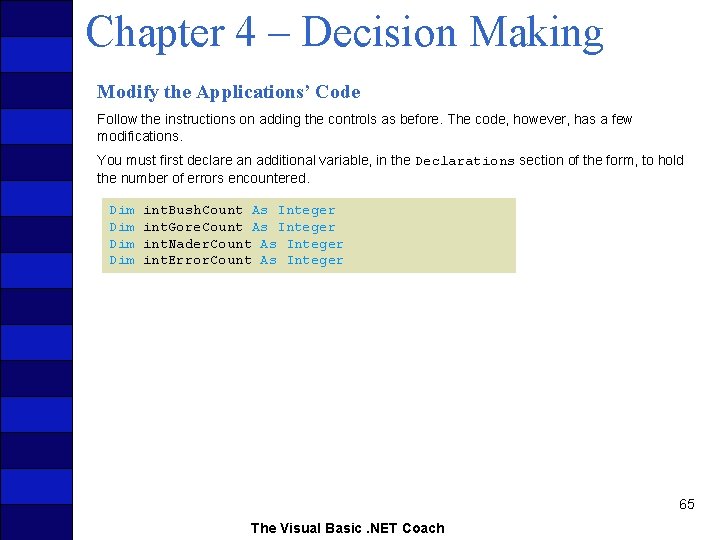
Chapter 4 – Decision Making Modify the Applications’ Code Follow the instructions on adding the controls as before. The code, however, has a few modifications. You must first declare an additional variable, in the Declarations section of the form, to hold the number of errors encountered. Dim Dim int. Bush. Count As Integer int. Gore. Count As Integer int. Nader. Count As Integer int. Error. Count As Integer 65 The Visual Basic. NET Coach
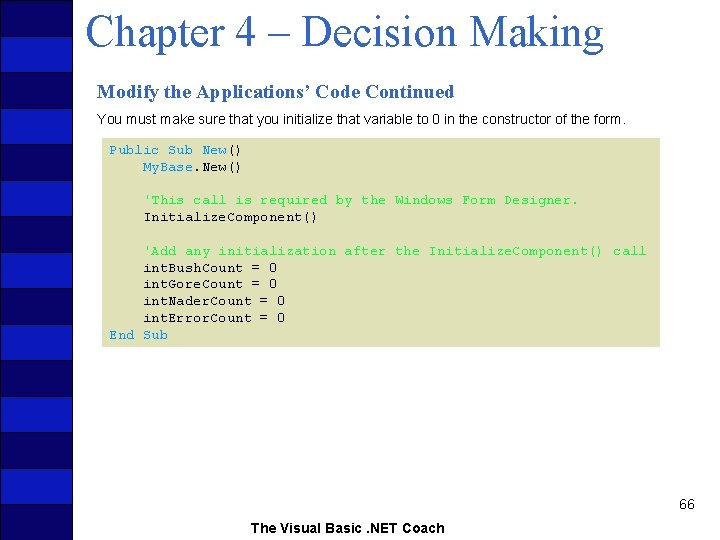
Chapter 4 – Decision Making Modify the Applications’ Code Continued You must make sure that you initialize that variable to 0 in the constructor of the form. Public Sub New() My. Base. New() 'This call is required by the Windows Form Designer. Initialize. Component() 'Add any initialization after the Initialize. Component() call int. Bush. Count = 0 int. Gore. Count = 0 int. Nader. Count = 0 int. Error. Count = 0 End Sub 66 The Visual Basic. NET Coach
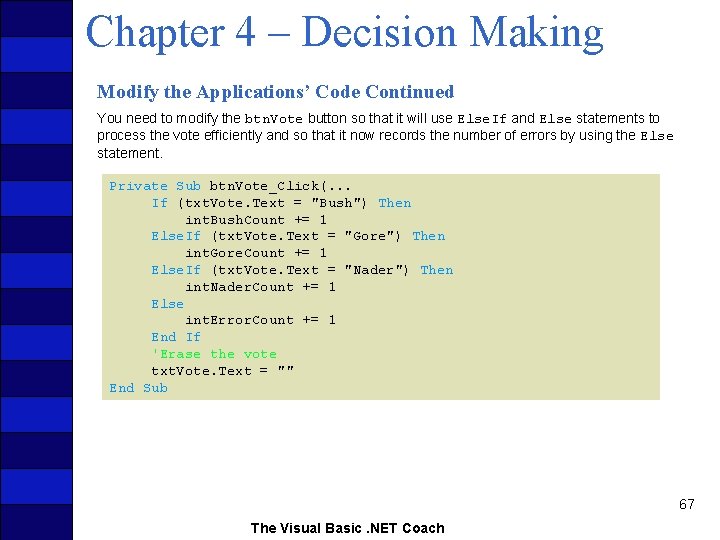
Chapter 4 – Decision Making Modify the Applications’ Code Continued You need to modify the btn. Vote button so that it will use Else. If and Else statements to process the vote efficiently and so that it now records the number of errors by using the Else statement. Private Sub btn. Vote_Click(. . . If (txt. Vote. Text = "Bush") Then int. Bush. Count += 1 Else. If (txt. Vote. Text = "Gore") Then int. Gore. Count += 1 Else. If (txt. Vote. Text = "Nader") Then int. Nader. Count += 1 Else int. Error. Count += 1 End If 'Erase the vote txt. Vote. Text = "" End Sub 67 The Visual Basic. NET Coach
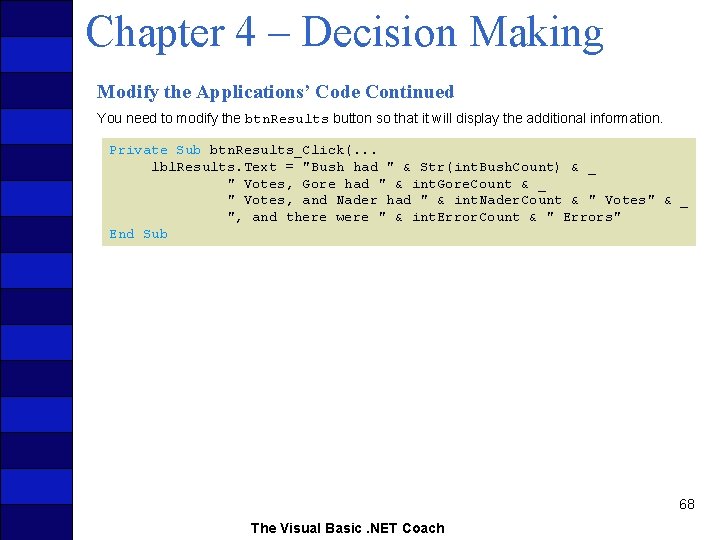
Chapter 4 – Decision Making Modify the Applications’ Code Continued You need to modify the btn. Results button so that it will display the additional information. Private Sub btn. Results_Click(. . . lbl. Results. Text = "Bush had " & Str(int. Bush. Count) & _ " Votes, Gore had " & int. Gore. Count & _ " Votes, and Nader had " & int. Nader. Count & " Votes" & _ ", and there were " & int. Error. Count & " Errors" End Sub 68 The Visual Basic. NET Coach
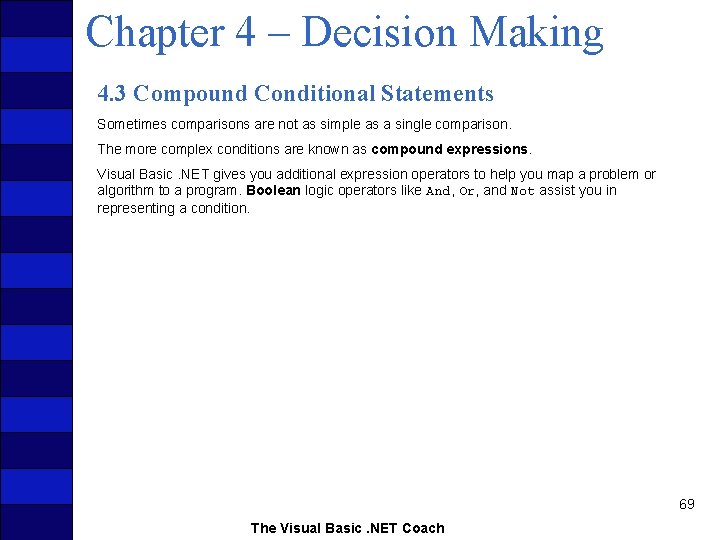
Chapter 4 – Decision Making 4. 3 Compound Conditional Statements Sometimes comparisons are not as simple as a single comparison. The more complex conditions are known as compound expressions. Visual Basic. NET gives you additional expression operators to help you map a problem or algorithm to a program. Boolean logic operators like And, Or, and Not assist you in representing a condition. 69 The Visual Basic. NET Coach
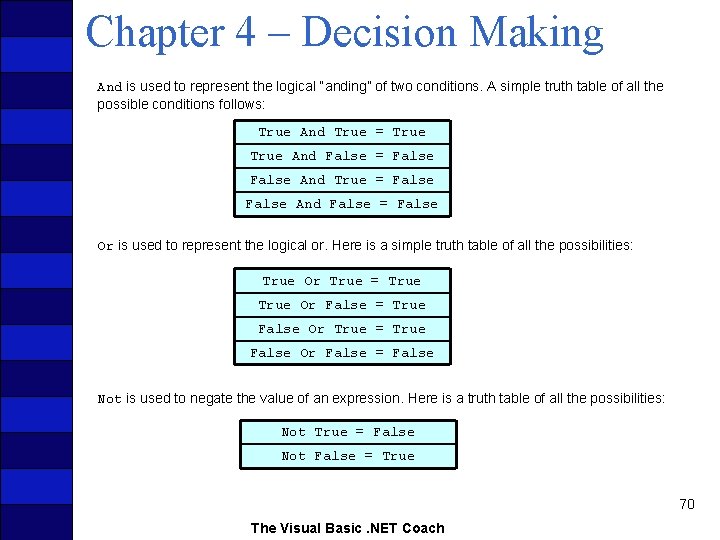
Chapter 4 – Decision Making And is used to represent the logical “anding” of two conditions. A simple truth table of all the possible conditions follows: True And True = True And False = False And True = False And False = False Or is used to represent the logical or. Here is a simple truth table of all the possibilities: True Or True = True Or False = True False Or True = True False Or False = False Not is used to negate the value of an expression. Here is a truth table of all the possibilities: Not True = False Not False = True 70 The Visual Basic. NET Coach
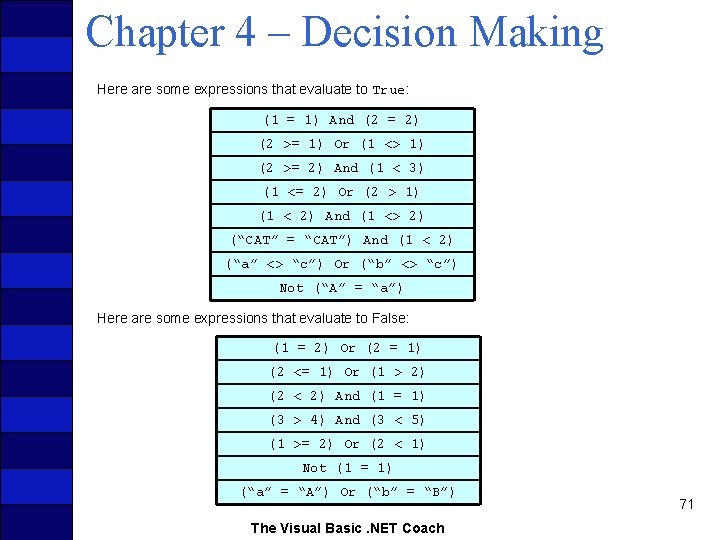
Chapter 4 – Decision Making Here are some expressions that evaluate to True: (1 = 1) And (2 = 2) (2 >= 1) Or (1 <> 1) (2 >= 2) And (1 < 3) (1 <= 2) Or (2 > 1) (1 < 2) And (1 <> 2) (“CAT” = “CAT”) And (1 < 2) (“a” <> “c”) Or (“b” <> “c”) Not (“A” = “a”) Here are some expressions that evaluate to False: (1 = 2) Or (2 = 1) (2 <= 1) Or (1 > 2) (2 < 2) And (1 = 1) (3 > 4) And (3 < 5) (1 >= 2) Or (2 < 1) Not (1 = 1) (“a” = “A”) Or (“b” = “B”) The Visual Basic. NET Coach 71
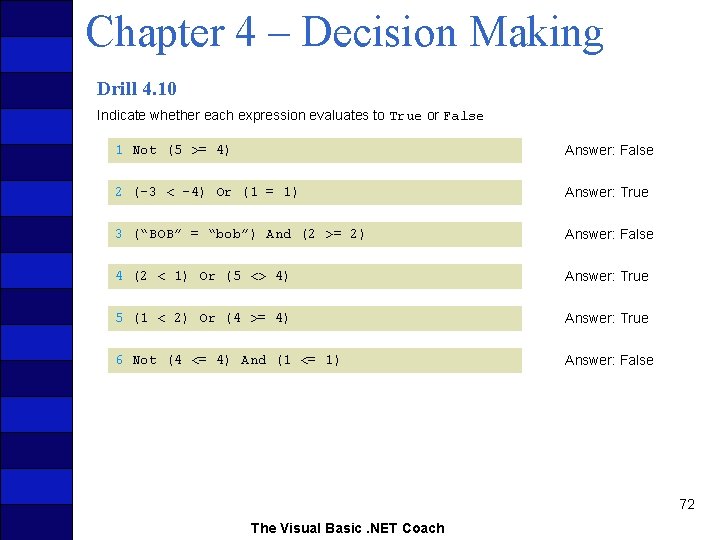
Chapter 4 – Decision Making Drill 4. 10 Indicate whether each expression evaluates to True or False 1 Not (5 >= 4) Answer: False 2 (-3 < -4) Or (1 = 1) Answer: True 3 (“BOB” = “bob”) And (2 >= 2) Answer: False 4 (2 < 1) Or (5 <> 4) Answer: True 5 (1 < 2) Or (4 >= 4) Answer: True 6 Not (4 <= 4) And (1 <= 1) Answer: False 72 The Visual Basic. NET Coach
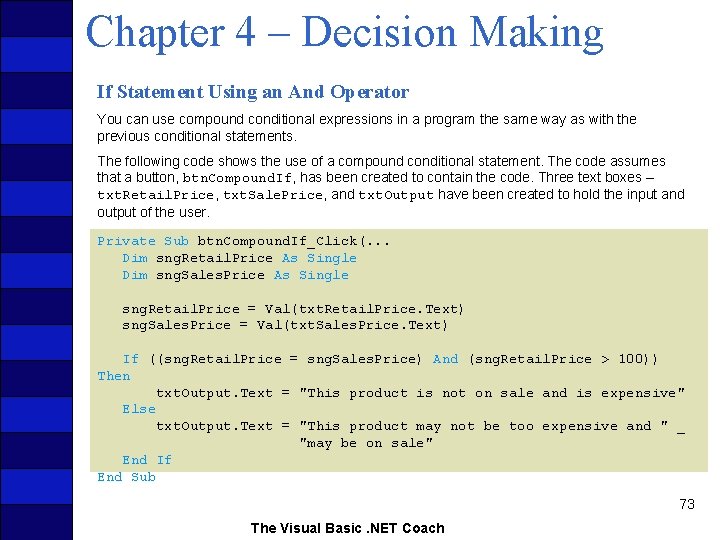
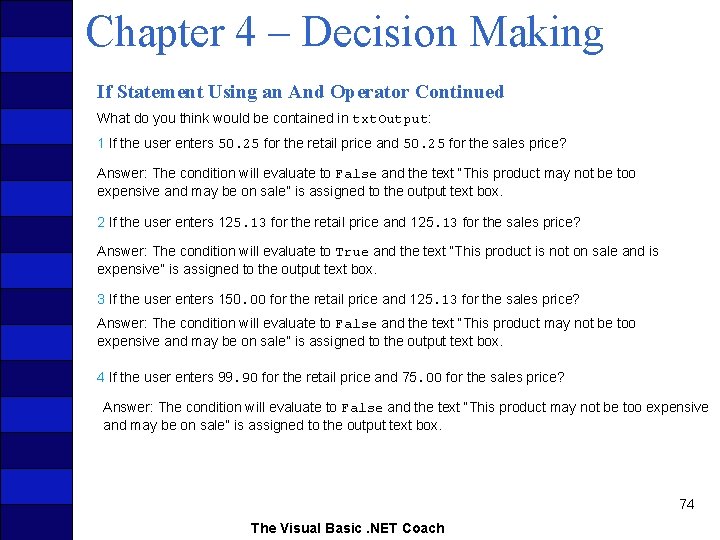
Chapter 4 – Decision Making If Statement Using an And Operator You can use compound conditional expressions in a program the same way as with the previous conditional statements. The following code shows the use of a compound conditional statement. The code assumes that a button, btn. Compound. If, has been created to contain the code. Three text boxes – txt. Retail. Price, txt. Sale. Price, and txt. Output have been created to hold the input and output of the user. Private Sub btn. Compound. If_Click(. . . Dim sng. Retail. Price As Single Dim sng. Sales. Price As Single sng. Retail. Price = Val(txt. Retail. Price. Text) sng. Sales. Price = Val(txt. Sales. Price. Text) If ((sng. Retail. Price = sng. Sales. Price) And (sng. Retail. Price > 100)) Then txt. Output. Text = "This product is not on sale and is expensive" Else txt. Output. Text = "This product may not be too expensive and " _ "may be on sale" End If End Sub 73 The Visual Basic. NET Coach
Chapter 4 – Decision Making If Statement Using an And Operator Continued What do you think would be contained in txt. Output: 1 If the user enters 50. 25 for the retail price and 50. 25 for the sales price? Answer: The condition will evaluate to False and the text “This product may not be too expensive and may be on sale” is assigned to the output text box. 2 If the user enters 125. 13 for the retail price and 125. 13 for the sales price? Answer: The condition will evaluate to True and the text “This product is not on sale and is expensive” is assigned to the output text box. 3 If the user enters 150. 00 for the retail price and 125. 13 for the sales price? Answer: The condition will evaluate to False and the text “This product may not be too expensive and may be on sale” is assigned to the output text box. 4 If the user enters 99. 90 for the retail price and 75. 00 for the sales price? Answer: The condition will evaluate to False and the text “This product may not be too expensive and may be on sale” is assigned to the output text box. 74 The Visual Basic. NET Coach
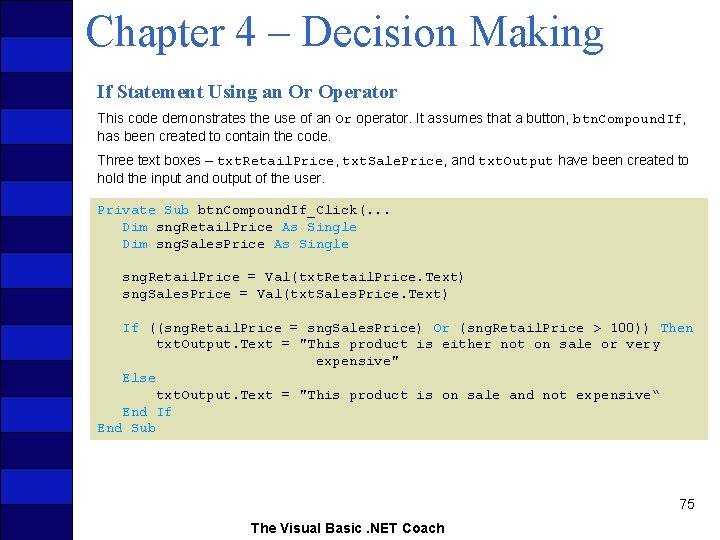
Chapter 4 – Decision Making If Statement Using an Or Operator This code demonstrates the use of an Or operator. It assumes that a button, btn. Compound. If, has been created to contain the code. Three text boxes – txt. Retail. Price, txt. Sale. Price, and txt. Output have been created to hold the input and output of the user. Private Sub btn. Compound. If_Click(. . . Dim sng. Retail. Price As Single Dim sng. Sales. Price As Single sng. Retail. Price = Val(txt. Retail. Price. Text) sng. Sales. Price = Val(txt. Sales. Price. Text) If ((sng. Retail. Price = sng. Sales. Price) Or (sng. Retail. Price > 100)) Then txt. Output. Text = "This product is either not on sale or very expensive" Else txt. Output. Text = "This product is on sale and not expensive“ End If End Sub 75 The Visual Basic. NET Coach
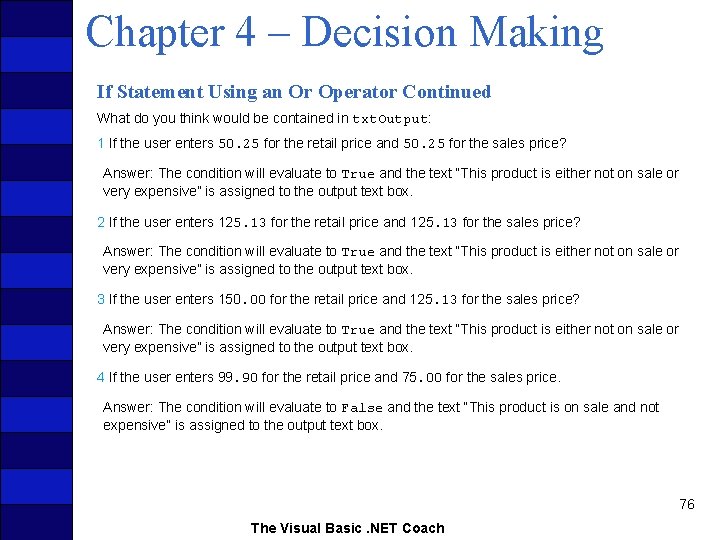
Chapter 4 – Decision Making If Statement Using an Or Operator Continued What do you think would be contained in txt. Output: 1 If the user enters 50. 25 for the retail price and 50. 25 for the sales price? Answer: The condition will evaluate to True and the text “This product is either not on sale or very expensive” is assigned to the output text box. 2 If the user enters 125. 13 for the retail price and 125. 13 for the sales price? Answer: The condition will evaluate to True and the text “This product is either not on sale or very expensive” is assigned to the output text box. 3 If the user enters 150. 00 for the retail price and 125. 13 for the sales price? Answer: The condition will evaluate to True and the text “This product is either not on sale or very expensive” is assigned to the output text box. 4 If the user enters 99. 90 for the retail price and 75. 00 for the sales price. Answer: The condition will evaluate to False and the text “This product is on sale and not expensive” is assigned to the output text box. 76 The Visual Basic. NET Coach
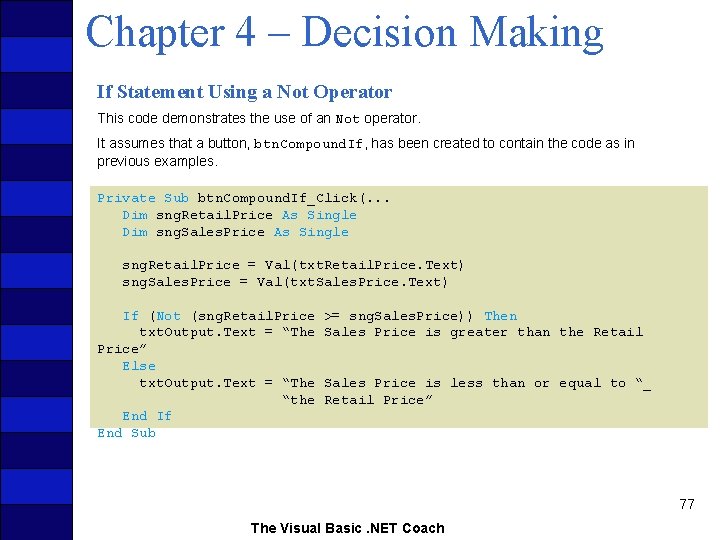
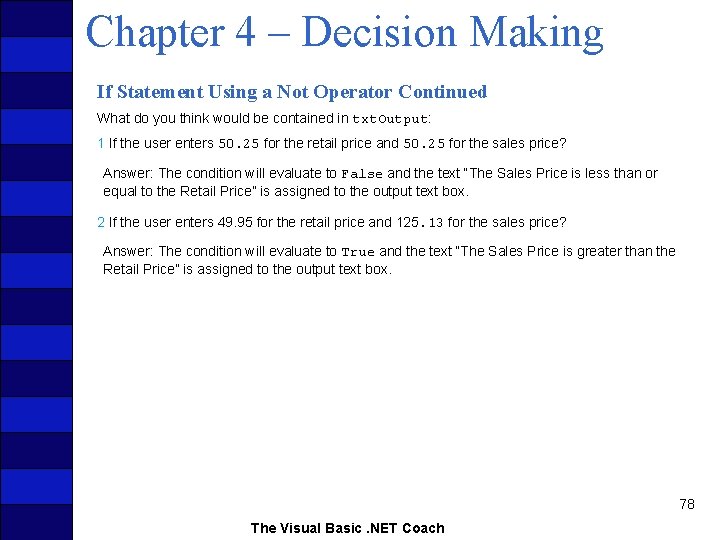
Chapter 4 – Decision Making If Statement Using a Not Operator This code demonstrates the use of an Not operator. It assumes that a button, btn. Compound. If, has been created to contain the code as in previous examples. Private Sub btn. Compound. If_Click(. . . Dim sng. Retail. Price As Single Dim sng. Sales. Price As Single sng. Retail. Price = Val(txt. Retail. Price. Text) sng. Sales. Price = Val(txt. Sales. Price. Text) If (Not (sng. Retail. Price txt. Output. Text = “The Price” Else txt. Output. Text = “The “the End If End Sub >= sng. Sales. Price)) Then Sales Price is greater than the Retail Sales Price is less than or equal to “_ Retail Price” 77 The Visual Basic. NET Coach
Chapter 4 – Decision Making If Statement Using a Not Operator Continued What do you think would be contained in txt. Output: 1 If the user enters 50. 25 for the retail price and 50. 25 for the sales price? Answer: The condition will evaluate to False and the text “The Sales Price is less than or equal to the Retail Price” is assigned to the output text box. 2 If the user enters 49. 95 for the retail price and 125. 13 for the sales price? Answer: The condition will evaluate to True and the text “The Sales Price is greater than the Retail Price” is assigned to the output text box. 78 The Visual Basic. NET Coach
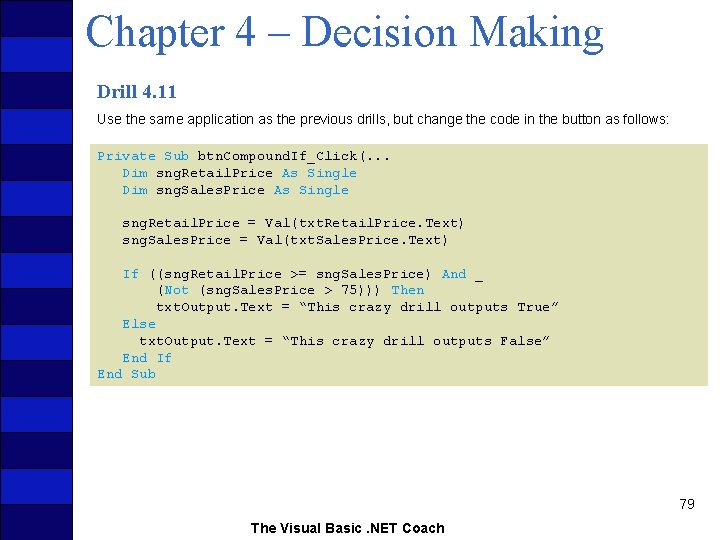
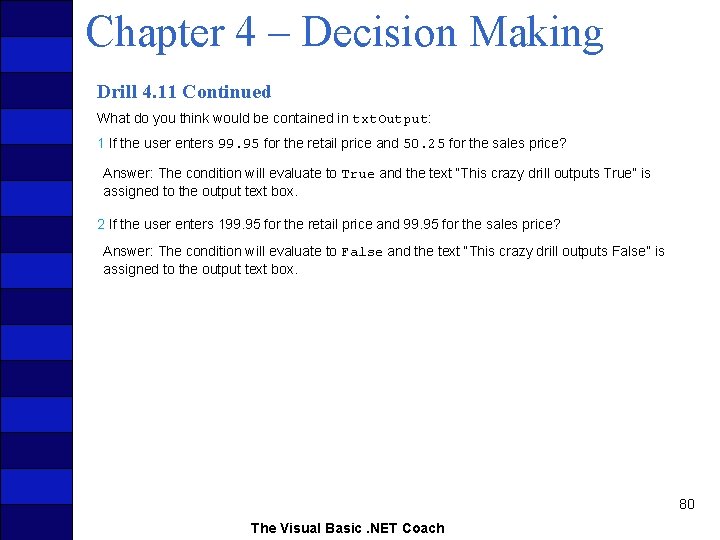
Chapter 4 – Decision Making Drill 4. 11 Use the same application as the previous drills, but change the code in the button as follows: Private Sub btn. Compound. If_Click(. . . Dim sng. Retail. Price As Single Dim sng. Sales. Price As Single sng. Retail. Price = Val(txt. Retail. Price. Text) sng. Sales. Price = Val(txt. Sales. Price. Text) If ((sng. Retail. Price >= sng. Sales. Price) And _ (Not (sng. Sales. Price > 75))) Then txt. Output. Text = “This crazy drill outputs True” Else txt. Output. Text = “This crazy drill outputs False” End If End Sub 79 The Visual Basic. NET Coach
Chapter 4 – Decision Making Drill 4. 11 Continued What do you think would be contained in txt. Output: 1 If the user enters 99. 95 for the retail price and 50. 25 for the sales price? Answer: The condition will evaluate to True and the text “This crazy drill outputs True” is assigned to the output text box. 2 If the user enters 199. 95 for the retail price and 99. 95 for the sales price? Answer: The condition will evaluate to False and the text “This crazy drill outputs False” is assigned to the output text box. 80 The Visual Basic. NET Coach
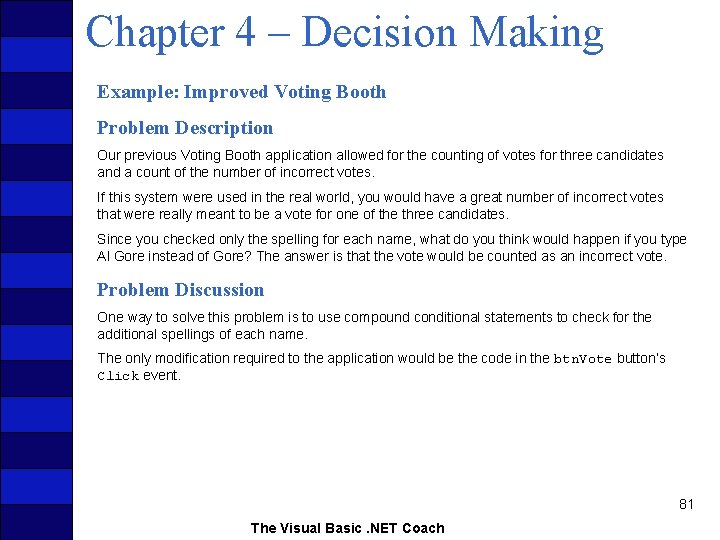
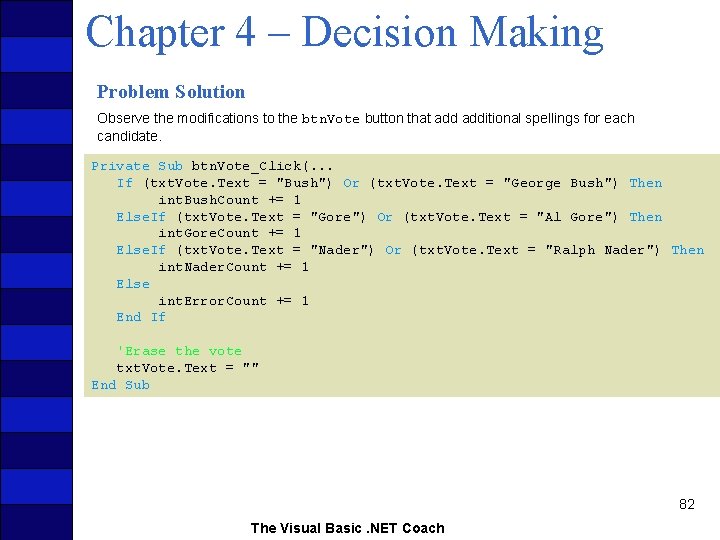
Chapter 4 – Decision Making Example: Improved Voting Booth Problem Description Our previous Voting Booth application allowed for the counting of votes for three candidates and a count of the number of incorrect votes. If this system were used in the real world, you would have a great number of incorrect votes that were really meant to be a vote for one of the three candidates. Since you checked only the spelling for each name, what do you think would happen if you type Al Gore instead of Gore? The answer is that the vote would be counted as an incorrect vote. Problem Discussion One way to solve this problem is to use compound conditional statements to check for the additional spellings of each name. The only modification required to the application would be the code in the btn. Vote button’s Click event. 81 The Visual Basic. NET Coach
Chapter 4 – Decision Making Problem Solution Observe the modifications to the btn. Vote button that additional spellings for each candidate. Private Sub btn. Vote_Click(. . . If (txt. Vote. Text = "Bush") Or (txt. Vote. Text = "George Bush") Then int. Bush. Count += 1 Else. If (txt. Vote. Text = "Gore") Or (txt. Vote. Text = "Al Gore") Then int. Gore. Count += 1 Else. If (txt. Vote. Text = "Nader") Or (txt. Vote. Text = "Ralph Nader") Then int. Nader. Count += 1 Else int. Error. Count += 1 End If 'Erase the vote txt. Vote. Text = "" End Sub 82 The Visual Basic. NET Coach
Chapter 4 – Decision Making 4. 4 Nested Conditional Statements Compound conditional statements are useful for mapping real-world situations to the computer. If a part of the condition needs to be repeated more than once, it would be inefficient to repeat the check of that condition each time. Visual Basic. NET provides the ability to nest conditional statements. It is simply a matter of placing one conditional statement inside another. This simply requires treating the inner If statement as an individual If statement to be evaluated as you would any other statement. Here is a real-world example of when this would be useful: 83 The Visual Basic. NET Coach
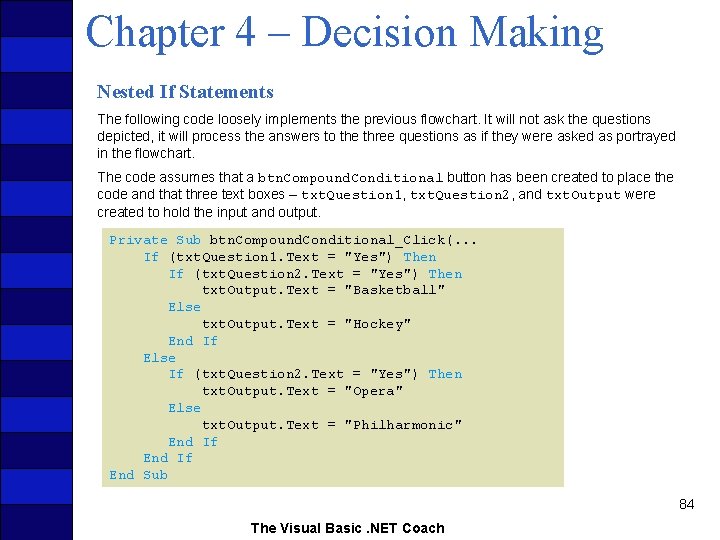
Chapter 4 – Decision Making Nested If Statements The following code loosely implements the previous flowchart. It will not ask the questions depicted, it will process the answers to the three questions as if they were asked as portrayed in the flowchart. The code assumes that a btn. Compound. Conditional button has been created to place the code and that three text boxes – txt. Question 1, txt. Question 2, and txt. Output were created to hold the input and output. Private Sub btn. Compound. Conditional_Click(. . . If (txt. Question 1. Text = "Yes") Then If (txt. Question 2. Text = "Yes") Then txt. Output. Text = "Basketball" Else txt. Output. Text = "Hockey" End If Else If (txt. Question 2. Text = "Yes") Then txt. Output. Text = "Opera" Else txt. Output. Text = "Philharmonic" End If End Sub 84 The Visual Basic. NET Coach
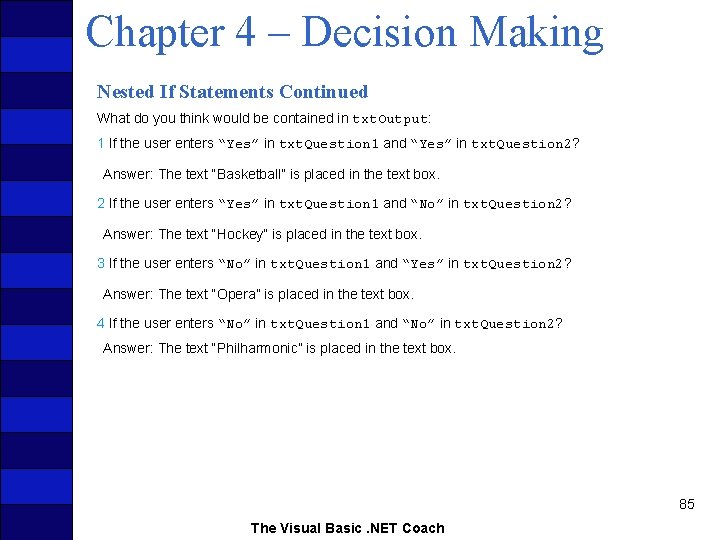
Chapter 4 – Decision Making Nested If Statements Continued What do you think would be contained in txt. Output: 1 If the user enters “Yes” in txt. Question 1 and “Yes” in txt. Question 2? Answer: The text “Basketball” is placed in the text box. 2 If the user enters “Yes” in txt. Question 1 and “No” in txt. Question 2? Answer: The text “Hockey” is placed in the text box. 3 If the user enters “No” in txt. Question 1 and “Yes” in txt. Question 2? Answer: The text “Opera” is placed in the text box. 4 If the user enters “No” in txt. Question 1 and “No” in txt. Question 2? Answer: The text “Philharmonic” is placed in the text box. 85 The Visual Basic. NET Coach
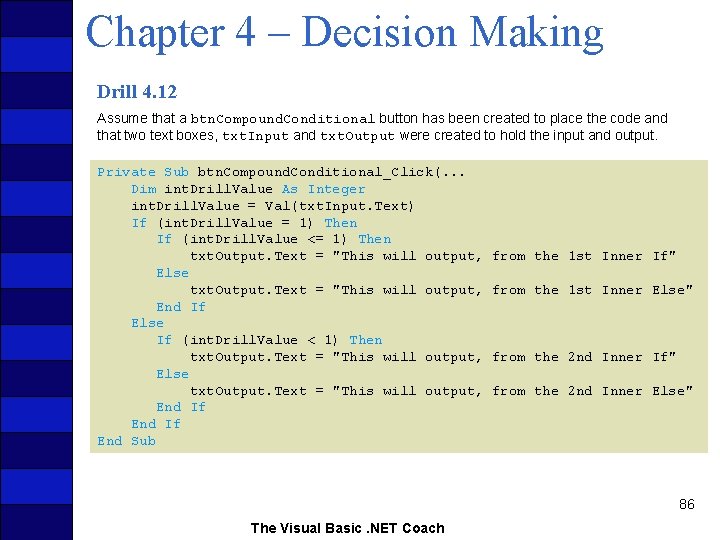
Chapter 4 – Decision Making Drill 4. 12 Assume that a btn. Compound. Conditional button has been created to place the code and that two text boxes, txt. Input and txt. Output were created to hold the input and output. Private Sub btn. Compound. Conditional_Click(. . . Dim int. Drill. Value As Integer int. Drill. Value = Val(txt. Input. Text) If (int. Drill. Value = 1) Then If (int. Drill. Value <= 1) Then txt. Output. Text = "This will output, Else txt. Output. Text = "This will output, End If Else If (int. Drill. Value < 1) Then txt. Output. Text = "This will output, Else txt. Output. Text = "This will output, End If End Sub from the 1 st Inner If" from the 1 st Inner Else" from the 2 nd Inner If" from the 2 nd Inner Else" 86 The Visual Basic. NET Coach
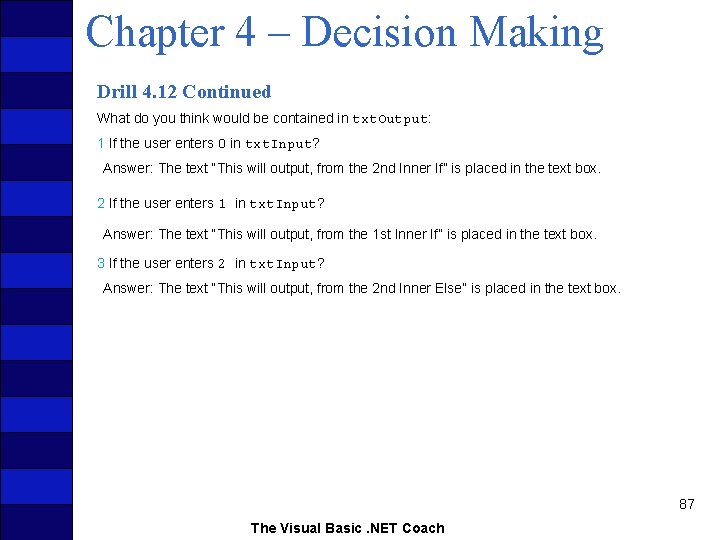
Chapter 4 – Decision Making Drill 4. 12 Continued What do you think would be contained in txt. Output: 1 If the user enters 0 in txt. Input? Answer: The text “This will output, from the 2 nd Inner If” is placed in the text box. 2 If the user enters 1 in txt. Input? Answer: The text “This will output, from the 1 st Inner If” is placed in the text box. 3 If the user enters 2 in txt. Input? Answer: The text “This will output, from the 2 nd Inner Else” is placed in the text box. 87 The Visual Basic. NET Coach
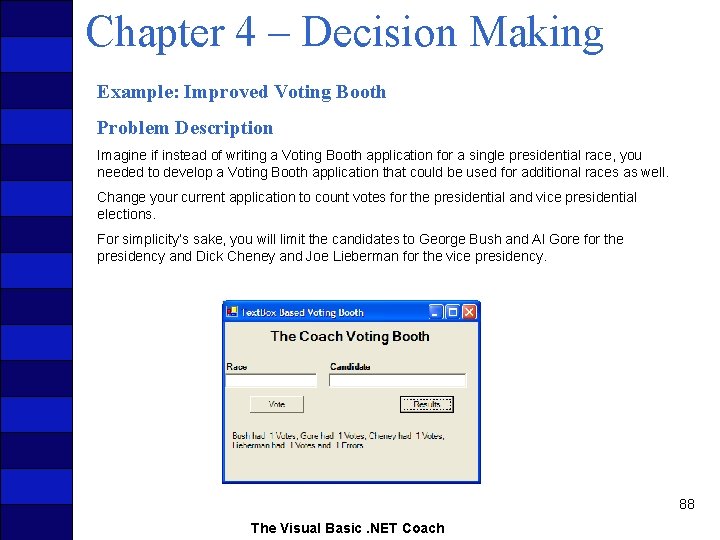
Chapter 4 – Decision Making Example: Improved Voting Booth Problem Description Imagine if instead of writing a Voting Booth application for a single presidential race, you needed to develop a Voting Booth application that could be used for additional races as well. Change your current application to count votes for the presidential and vice presidential elections. For simplicity’s sake, you will limit the candidates to George Bush and Al Gore for the presidency and Dick Cheney and Joe Lieberman for the vice presidency. 88 The Visual Basic. NET Coach
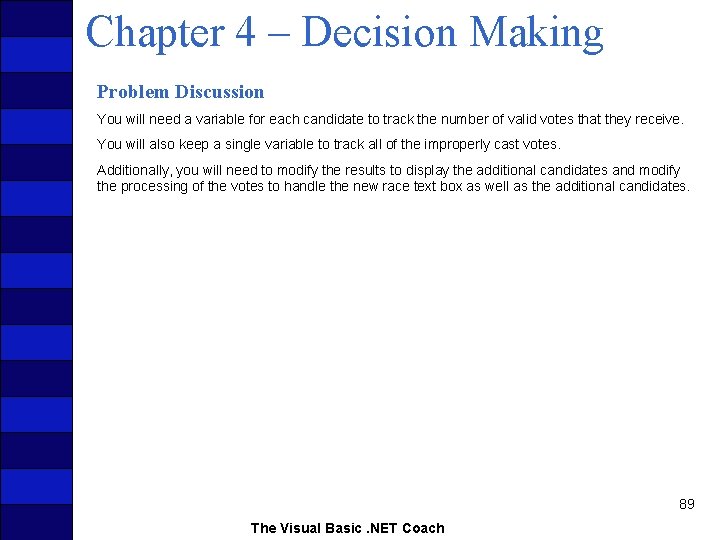
Chapter 4 – Decision Making Problem Discussion You will need a variable for each candidate to track the number of valid votes that they receive. You will also keep a single variable to track all of the improperly cast votes. Additionally, you will need to modify the results to display the additional candidates and modify the processing of the votes to handle the new race text box as well as the additional candidates. 89 The Visual Basic. NET Coach
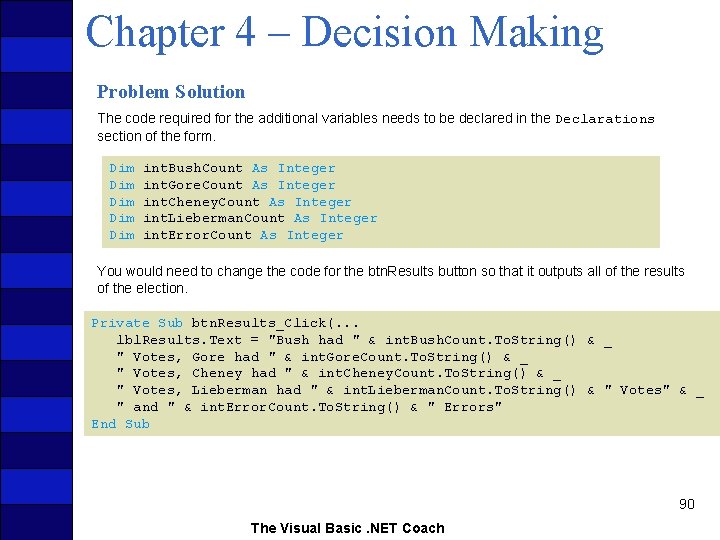
Chapter 4 – Decision Making Problem Solution The code required for the additional variables needs to be declared in the Declarations section of the form. Dim Dim Dim int. Bush. Count As Integer int. Gore. Count As Integer int. Cheney. Count As Integer int. Lieberman. Count As Integer int. Error. Count As Integer You would need to change the code for the btn. Results button so that it outputs all of the results of the election. Private Sub btn. Results_Click(. . . lbl. Results. Text = "Bush had " & int. Bush. Count. To. String() & _ " Votes, Gore had " & int. Gore. Count. To. String() & _ " Votes, Cheney had " & int. Cheney. Count. To. String() & _ " Votes, Lieberman had " & int. Lieberman. Count. To. String() & " Votes" & _ " and " & int. Error. Count. To. String() & " Errors" End Sub 90 The Visual Basic. NET Coach
Chapter 4 – Decision Making Problem Solution Continued If you didn’t nest the conditional statements, your code would execute more slowly. When a condition is repeatedly checked, consider using the nested form. Each time you check a candidate which the nonnested example, you have to recheck the condition to indicate whether this vote is for a president or a vice president. 91 The Visual Basic. NET Coach
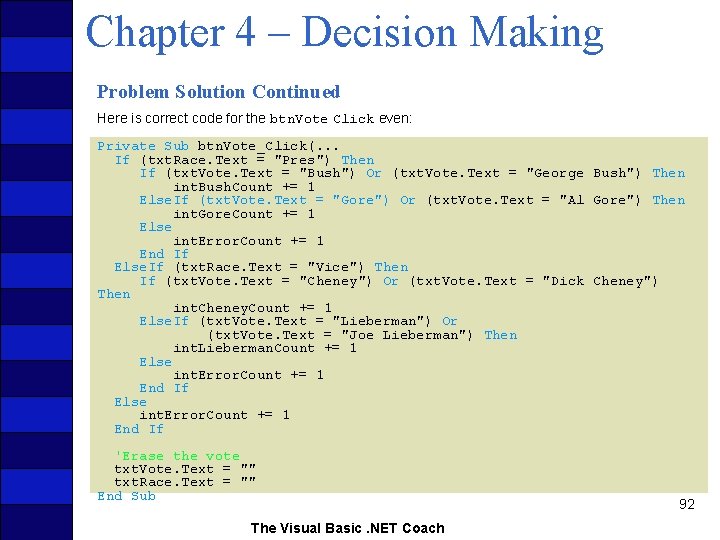
Chapter 4 – Decision Making Problem Solution Continued Here is correct code for the btn. Vote Click even: Private Sub btn. Vote_Click(. . . If (txt. Race. Text = "Pres") Then If (txt. Vote. Text = "Bush") Or (txt. Vote. Text = "George Bush") Then int. Bush. Count += 1 Else. If (txt. Vote. Text = "Gore") Or (txt. Vote. Text = "Al Gore") Then int. Gore. Count += 1 Else int. Error. Count += 1 End If Else. If (txt. Race. Text = "Vice") Then If (txt. Vote. Text = "Cheney") Or (txt. Vote. Text = "Dick Cheney") Then int. Cheney. Count += 1 Else. If (txt. Vote. Text = "Lieberman") Or (txt. Vote. Text = "Joe Lieberman") Then int. Lieberman. Count += 1 Else int. Error. Count += 1 End If 'Erase the vote txt. Vote. Text = "" txt. Race. Text = "" End Sub The Visual Basic. NET Coach 92
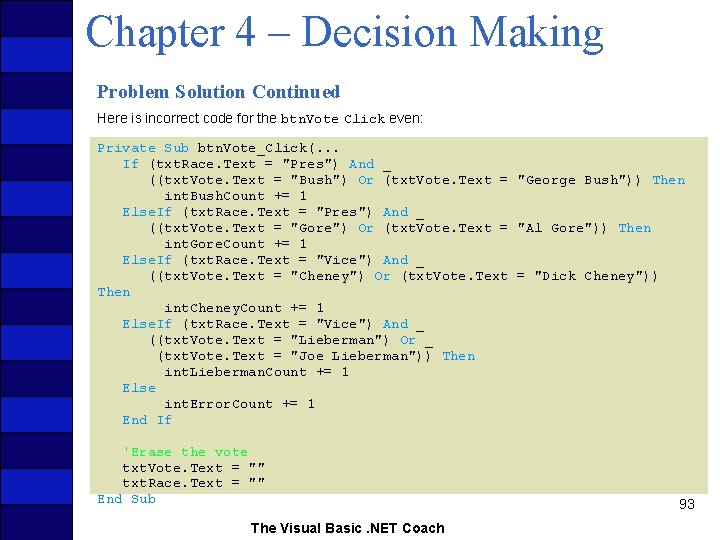
Chapter 4 – Decision Making Problem Solution Continued Here is incorrect code for the btn. Vote Click even: Private Sub btn. Vote_Click(. . . If (txt. Race. Text = "Pres") And _ ((txt. Vote. Text = "Bush") Or (txt. Vote. Text = "George Bush")) Then int. Bush. Count += 1 Else. If (txt. Race. Text = "Pres") And _ ((txt. Vote. Text = "Gore") Or (txt. Vote. Text = "Al Gore")) Then int. Gore. Count += 1 Else. If (txt. Race. Text = "Vice") And _ ((txt. Vote. Text = "Cheney") Or (txt. Vote. Text = "Dick Cheney")) Then int. Cheney. Count += 1 Else. If (txt. Race. Text = "Vice") And _ ((txt. Vote. Text = "Lieberman") Or _ (txt. Vote. Text = "Joe Lieberman")) Then int. Lieberman. Count += 1 Else int. Error. Count += 1 End If 'Erase the vote txt. Vote. Text = "" txt. Race. Text = "" End Sub The Visual Basic. NET Coach 93
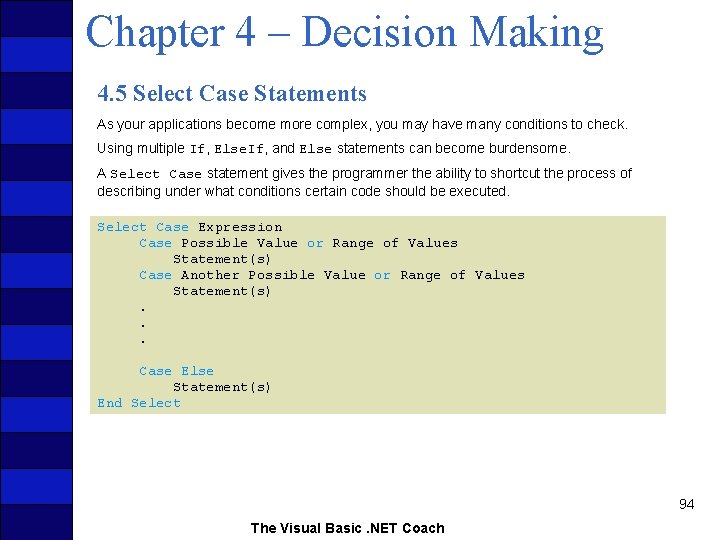
Chapter 4 – Decision Making 4. 5 Select Case Statements As your applications become more complex, you may have many conditions to check. Using multiple If, Else. If, and Else statements can become burdensome. A Select Case statement gives the programmer the ability to shortcut the process of describing under what conditions certain code should be executed. Select Case Expression Case Possible Value or Range of Values Statement(s) Case Another Possible Value or Range of Values Statement(s). . . Case Else Statement(s) End Select 94 The Visual Basic. NET Coach
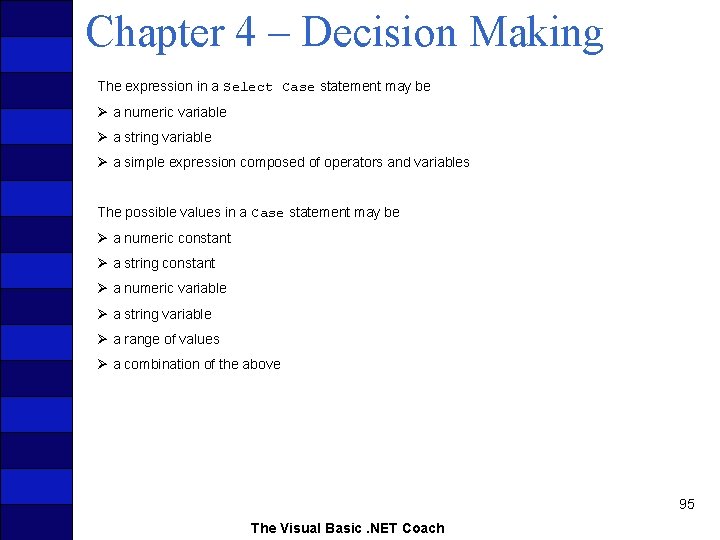
Chapter 4 – Decision Making The expression in a Select Case statement may be Ø a numeric variable Ø a string variable Ø a simple expression composed of operators and variables The possible values in a Case statement may be Ø a numeric constant Ø a string constant Ø a numeric variable Ø a string variable Ø a range of values Ø a combination of the above 95 The Visual Basic. NET Coach
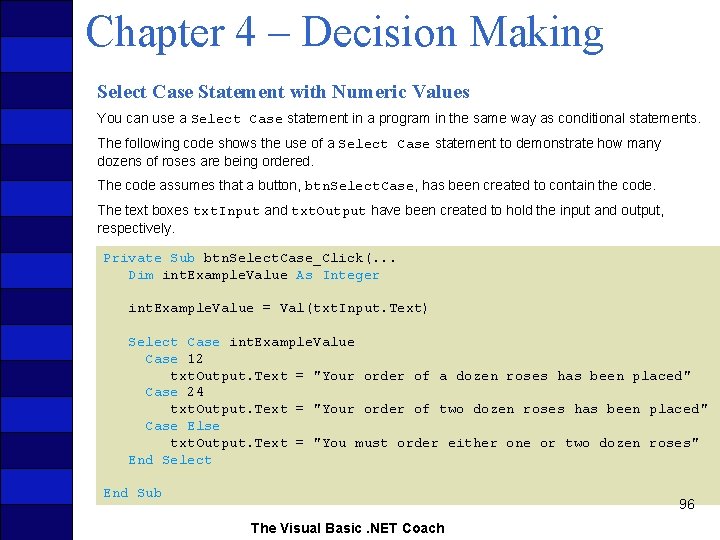
Chapter 4 – Decision Making Select Case Statement with Numeric Values You can use a Select Case statement in a program in the same way as conditional statements. The following code shows the use of a Select Case statement to demonstrate how many dozens of roses are being ordered. The code assumes that a button, btn. Select. Case, has been created to contain the code. The text boxes txt. Input and txt. Output have been created to hold the input and output, respectively. Private Sub btn. Select. Case_Click(. . . Dim int. Example. Value As Integer int. Example. Value = Val(txt. Input. Text) Select Case int. Example. Value Case 12 txt. Output. Text = "Your order of a dozen roses has been placed" Case 24 txt. Output. Text = "Your order of two dozen roses has been placed" Case Else txt. Output. Text = "You must order either one or two dozen roses" End Select End Sub 96 The Visual Basic. NET Coach
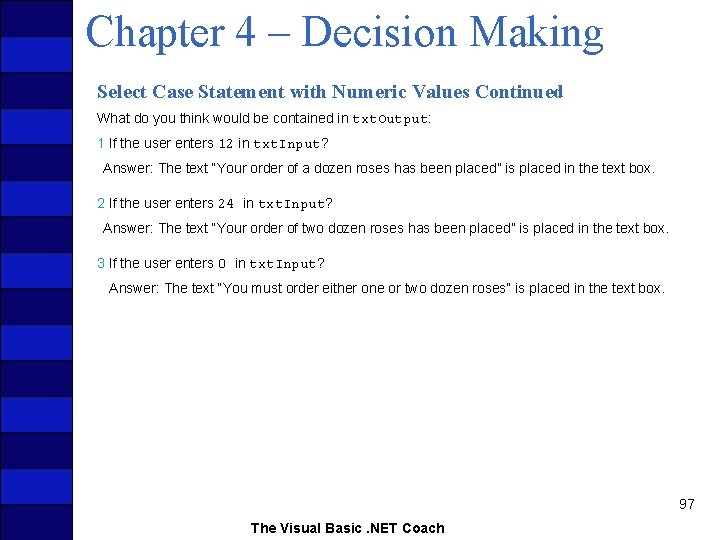
Chapter 4 – Decision Making Select Case Statement with Numeric Values Continued What do you think would be contained in txt. Output: 1 If the user enters 12 in txt. Input? Answer: The text “Your order of a dozen roses has been placed” is placed in the text box. 2 If the user enters 24 in txt. Input? Answer: The text “Your order of two dozen roses has been placed” is placed in the text box. 3 If the user enters 0 in txt. Input? Answer: The text “You must order either one or two dozen roses” is placed in the text box. 97 The Visual Basic. NET Coach
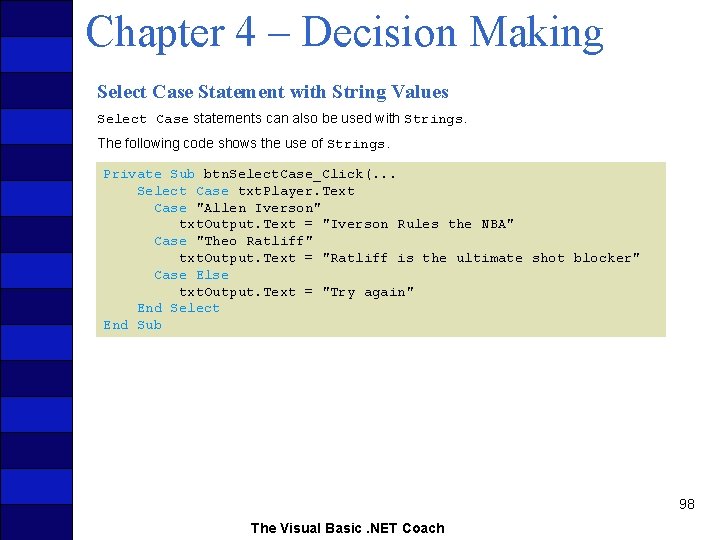
Chapter 4 – Decision Making Select Case Statement with String Values Select Case statements can also be used with Strings. The following code shows the use of Strings. Private Sub btn. Select. Case_Click(. . . Select Case txt. Player. Text Case "Allen Iverson" txt. Output. Text = "Iverson Rules the NBA" Case "Theo Ratliff" txt. Output. Text = "Ratliff is the ultimate shot blocker" Case Else txt. Output. Text = "Try again" End Select End Sub 98 The Visual Basic. NET Coach
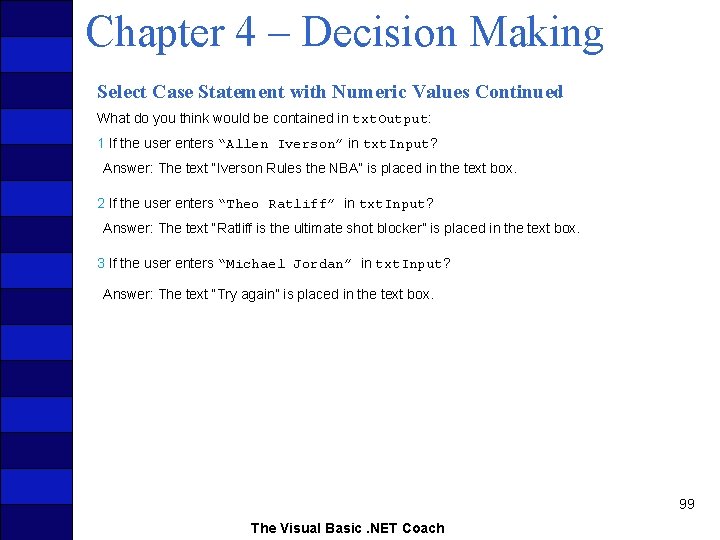
Chapter 4 – Decision Making Select Case Statement with Numeric Values Continued What do you think would be contained in txt. Output: 1 If the user enters “Allen Iverson” in txt. Input? Answer: The text “Iverson Rules the NBA” is placed in the text box. 2 If the user enters “Theo Ratliff” in txt. Input? Answer: The text “Ratliff is the ultimate shot blocker” is placed in the text box. 3 If the user enters “Michael Jordan” in txt. Input? Answer: The text “Try again” is placed in the text box. 99 The Visual Basic. NET Coach
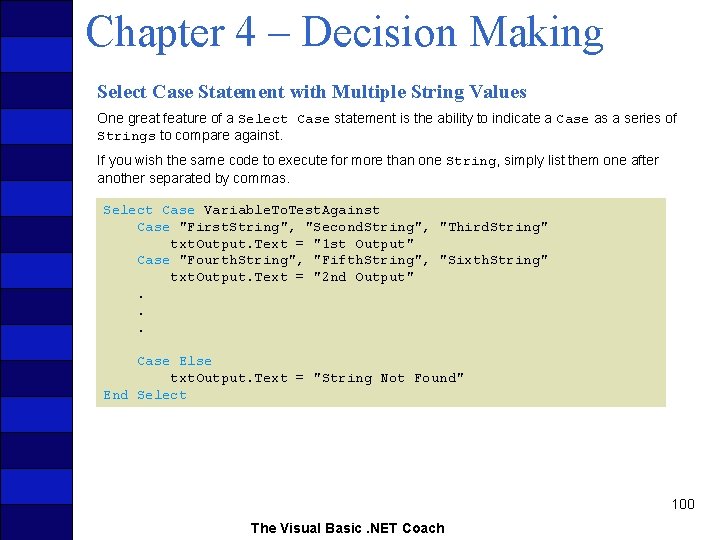
Chapter 4 – Decision Making Select Case Statement with Multiple String Values One great feature of a Select Case statement is the ability to indicate a Case as a series of Strings to compare against. If you wish the same code to execute for more than one String, simply list them one after another separated by commas. Select Case Variable. To. Test. Against Case "First. String", "Second. String", "Third. String" txt. Output. Text = "1 st Output" Case "Fourth. String", "Fifth. String", "Sixth. String" txt. Output. Text = "2 nd Output". . . Case Else txt. Output. Text = "String Not Found" End Select 100 The Visual Basic. NET Coach
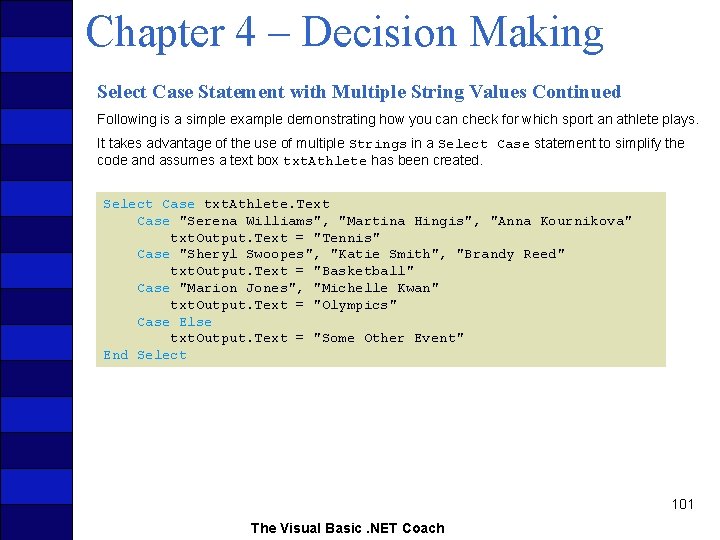
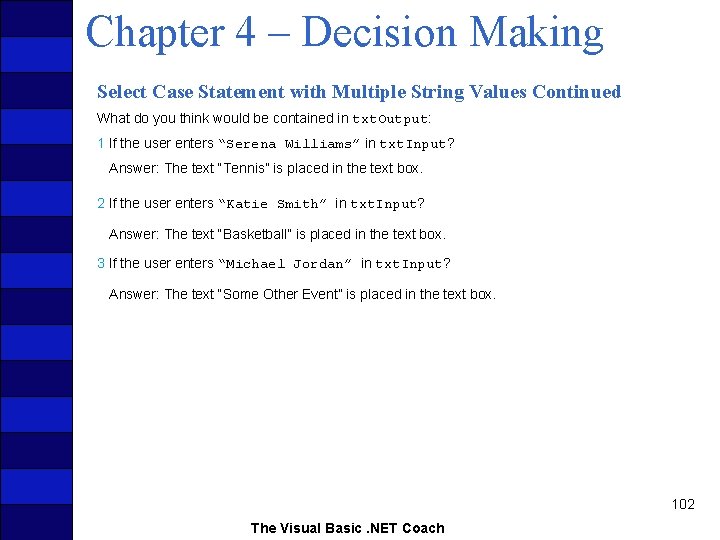
Chapter 4 – Decision Making Select Case Statement with Multiple String Values Continued Following is a simple example demonstrating how you can check for which sport an athlete plays. It takes advantage of the use of multiple Strings in a Select Case statement to simplify the code and assumes a text box txt. Athlete has been created. Select Case txt. Athlete. Text Case "Serena Williams", "Martina Hingis", "Anna Kournikova" txt. Output. Text = "Tennis" Case "Sheryl Swoopes", "Katie Smith", "Brandy Reed" txt. Output. Text = "Basketball" Case "Marion Jones", "Michelle Kwan" txt. Output. Text = "Olympics" Case Else txt. Output. Text = "Some Other Event" End Select 101 The Visual Basic. NET Coach
Chapter 4 – Decision Making Select Case Statement with Multiple String Values Continued What do you think would be contained in txt. Output: 1 If the user enters “Serena Williams” in txt. Input? Answer: The text “Tennis” is placed in the text box. 2 If the user enters “Katie Smith” in txt. Input? Answer: The text “Basketball” is placed in the text box. 3 If the user enters “Michael Jordan” in txt. Input? Answer: The text “Some Other Event” is placed in the text box. 102 The Visual Basic. NET Coach
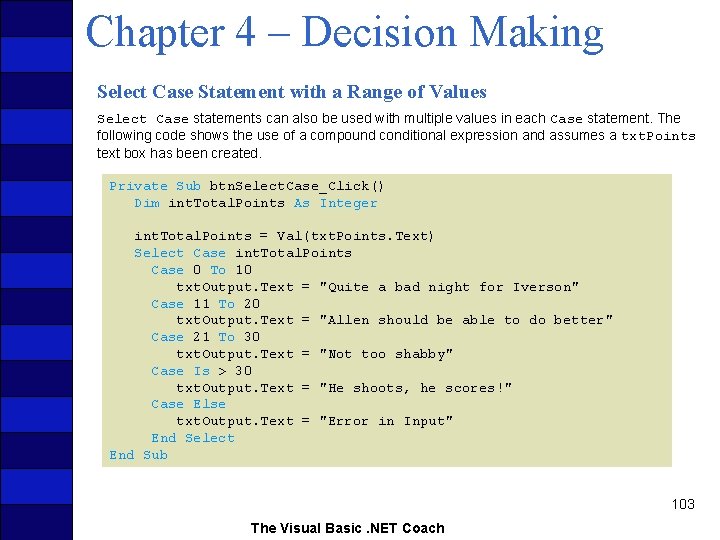
Chapter 4 – Decision Making Select Case Statement with a Range of Values Select Case statements can also be used with multiple values in each Case statement. The following code shows the use of a compound conditional expression and assumes a txt. Points text box has been created. Private Sub btn. Select. Case_Click() Dim int. Total. Points As Integer int. Total. Points = Val(txt. Points. Text) Select Case int. Total. Points Case 0 To 10 txt. Output. Text = "Quite a bad night for Iverson" Case 11 To 20 txt. Output. Text = "Allen should be able to do better" Case 21 To 30 txt. Output. Text = "Not too shabby" Case Is > 30 txt. Output. Text = "He shoots, he scores!" Case Else txt. Output. Text = "Error in Input" End Select End Sub 103 The Visual Basic. NET Coach
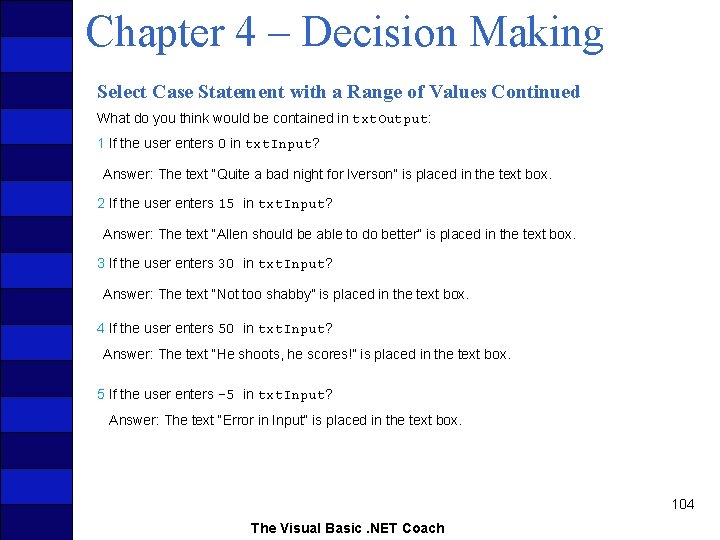
Chapter 4 – Decision Making Select Case Statement with a Range of Values Continued What do you think would be contained in txt. Output: 1 If the user enters 0 in txt. Input? Answer: The text “Quite a bad night for Iverson” is placed in the text box. 2 If the user enters 15 in txt. Input? Answer: The text “Allen should be able to do better” is placed in the text box. 3 If the user enters 30 in txt. Input? Answer: The text “Not too shabby” is placed in the text box. 4 If the user enters 50 in txt. Input? Answer: The text “He shoots, he scores!” is placed in the text box. 5 If the user enters -5 in txt. Input? Answer: The text “Error in Input” is placed in the text box. 104 The Visual Basic. NET Coach
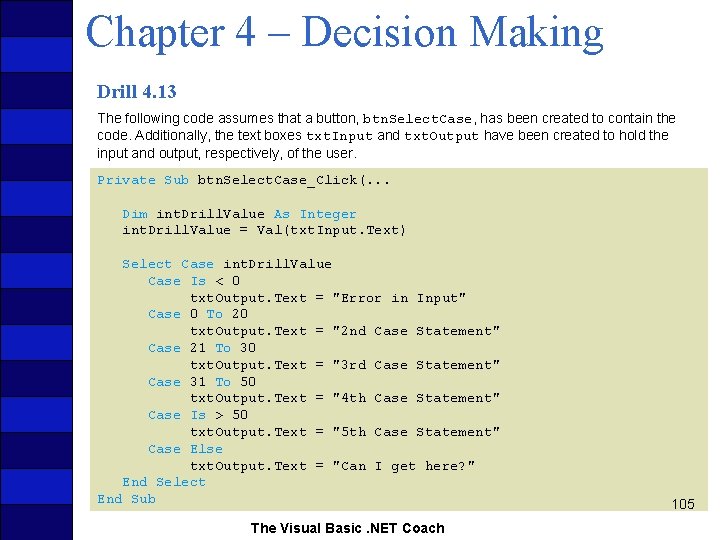
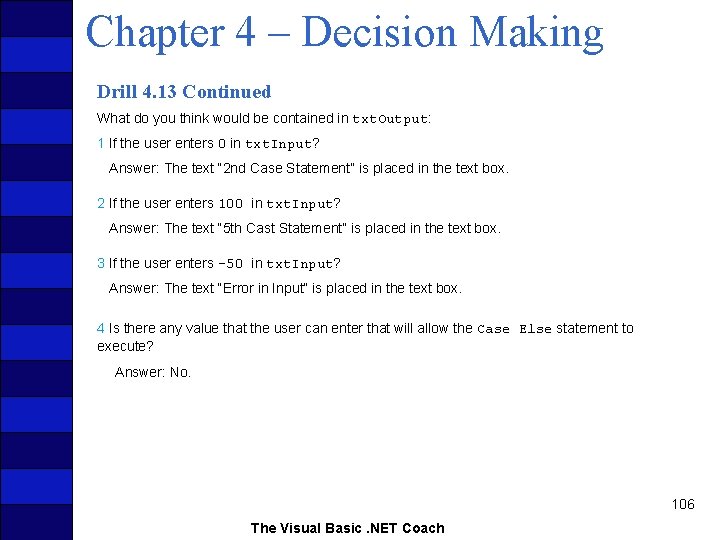
Chapter 4 – Decision Making Drill 4. 13 The following code assumes that a button, btn. Select. Case, has been created to contain the code. Additionally, the text boxes txt. Input and txt. Output have been created to hold the input and output, respectively, of the user. Private Sub btn. Select. Case_Click(. . . Dim int. Drill. Value As Integer int. Drill. Value = Val(txt. Input. Text) Select Case int. Drill. Value Case Is < 0 txt. Output. Text = "Error in Input" Case 0 To 20 txt. Output. Text = "2 nd Case Statement" Case 21 To 30 txt. Output. Text = "3 rd Case Statement" Case 31 To 50 txt. Output. Text = "4 th Case Statement" Case Is > 50 txt. Output. Text = "5 th Case Statement" Case Else txt. Output. Text = "Can I get here? " End Select End Sub The Visual Basic. NET Coach 105
Chapter 4 – Decision Making Drill 4. 13 Continued What do you think would be contained in txt. Output: 1 If the user enters 0 in txt. Input? Answer: The text “ 2 nd Case Statement” is placed in the text box. 2 If the user enters 100 in txt. Input? Answer: The text “ 5 th Cast Statement” is placed in the text box. 3 If the user enters -50 in txt. Input? Answer: The text “Error in Input” is placed in the text box. 4 Is there any value that the user can enter that will allow the Case Else statement to execute? Answer: No. 106 The Visual Basic. NET Coach
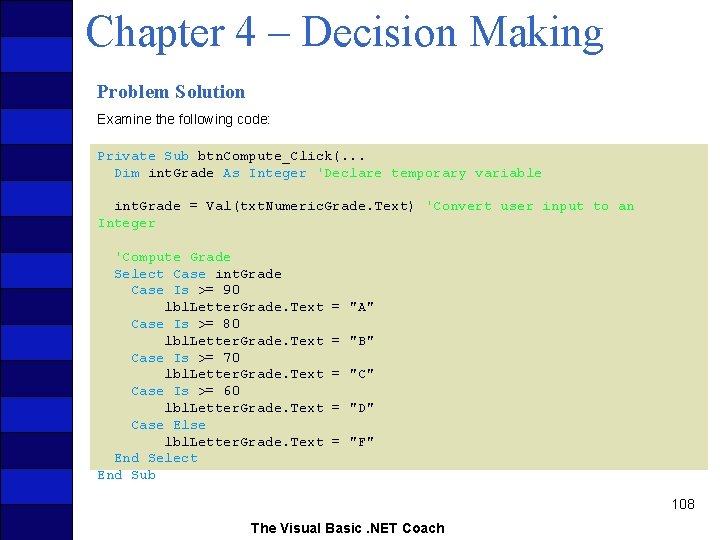
Chapter 4 – Decision Making Example: Improved Compute Grade Application Problem Description The Compute Grade application from Section 4. 2 determined a letter grade for a class given a numerical grade as input. Rewrite that example but implement it using a Select Case statement instead of If, Else. If, and Else statement. To the user of the application it will appear that nothing has changed. Problem Discussion The only code that must change is in btn. Compute_Click(). You can take advantage of the fact that you can list multiple String values to check against for a single case on a single line to greatly simplify the code. 107 The Visual Basic. NET Coach
Chapter 4 – Decision Making Problem Solution Examine the following code: Private Sub btn. Compute_Click(. . . Dim int. Grade As Integer 'Declare temporary variable int. Grade = Val(txt. Numeric. Grade. Text) 'Convert user input to an Integer 'Compute Grade Select Case int. Grade Case Is >= 90 lbl. Letter. Grade. Text Case Is >= 80 lbl. Letter. Grade. Text Case Is >= 70 lbl. Letter. Grade. Text Case Is >= 60 lbl. Letter. Grade. Text Case Else lbl. Letter. Grade. Text End Select End Sub = "A" = "B" = "C" = "D" = "F" 108 The Visual Basic. NET Coach
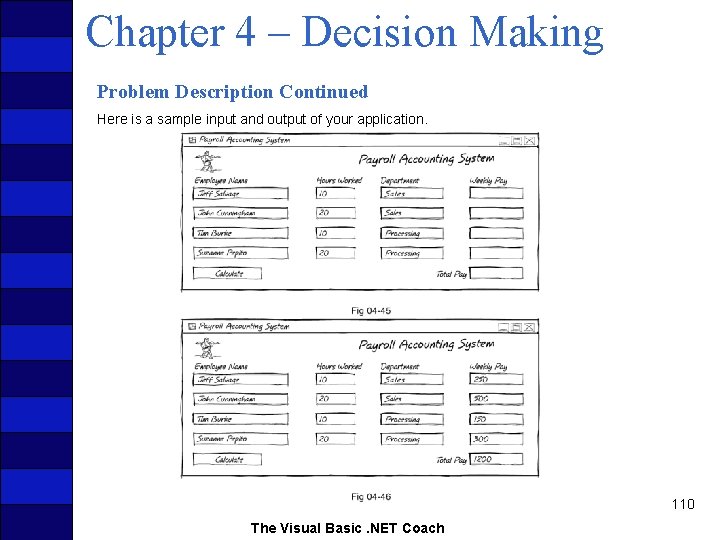
Chapter 4 – Decision Making 4. 6 Case Study Problem Description This case study will be a continuation of last chapter’s case study to compute the payroll of four workers for a company. You want to add the functionality to compute the pay of each worker at two different pay rates. You will have a rate of $25/hour for workers who are in the sales department and a rate of $15/hour for workers in the processing department. You will need a set of text box controls that allow the user to indicate a department for each employee. 109 The Visual Basic. NET Coach
Chapter 4 – Decision Making Problem Description Continued Here is a sample input and output of your application. 110 The Visual Basic. NET Coach
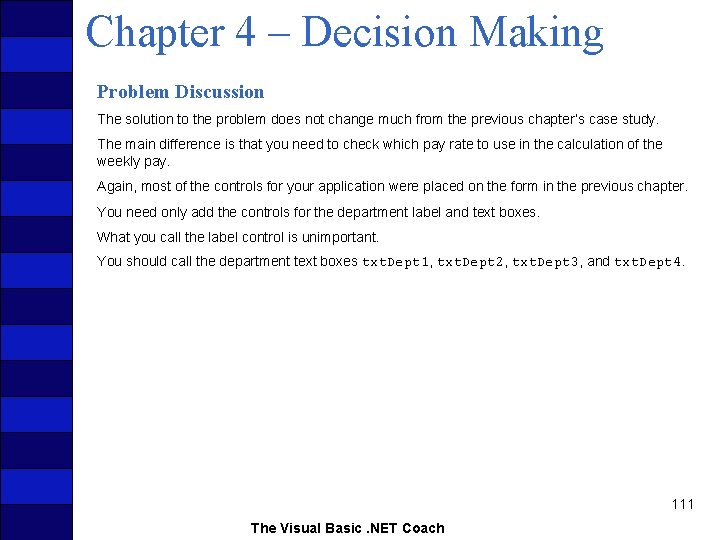
Chapter 4 – Decision Making Problem Discussion The solution to the problem does not change much from the previous chapter’s case study. The main difference is that you need to check which pay rate to use in the calculation of the weekly pay. Again, most of the controls for your application were placed on the form in the previous chapter. You need only add the controls for the department label and text boxes. What you call the label control is unimportant. You should call the department text boxes txt. Dept 1, txt. Dept 2, txt. Dept 3, and txt. Dept 4. 111 The Visual Basic. NET Coach
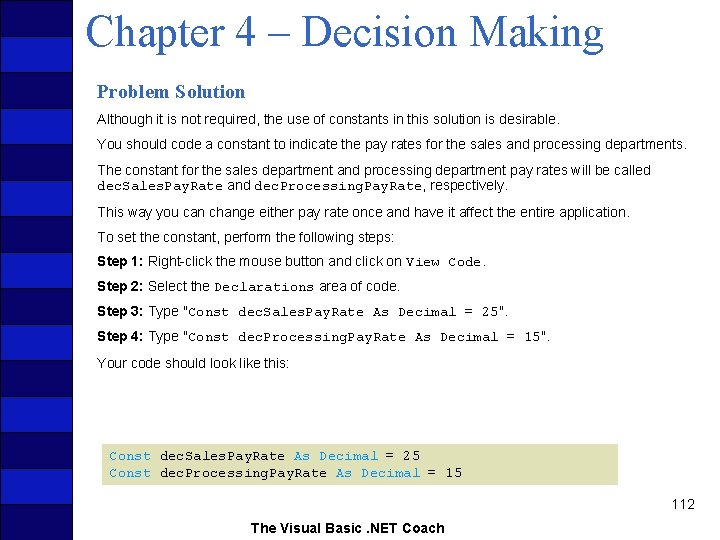
Chapter 4 – Decision Making Problem Solution Although it is not required, the use of constants in this solution is desirable. You should code a constant to indicate the pay rates for the sales and processing departments. The constant for the sales department and processing department pay rates will be called dec. Sales. Pay. Rate and dec. Processing. Pay. Rate, respectively. This way you can change either pay rate once and have it affect the entire application. To set the constant, perform the following steps: Step 1: Right-click the mouse button and click on View Code. Step 2: Select the Declarations area of code. Step 3: Type "Const dec. Sales. Pay. Rate As Decimal = 25". Step 4: Type "Const dec. Processing. Pay. Rate As Decimal = 15". Your code should look like this: Const dec. Sales. Pay. Rate As Decimal = 25 Const dec. Processing. Pay. Rate As Decimal = 15 112 The Visual Basic. NET Coach
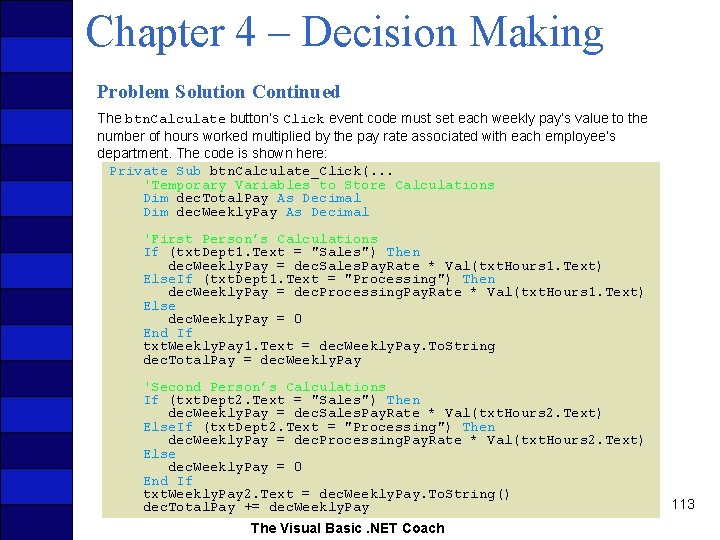
Chapter 4 – Decision Making Problem Solution Continued The btn. Calculate button’s Click event code must set each weekly pay’s value to the number of hours worked multiplied by the pay rate associated with each employee’s department. The code is shown here: Private Sub btn. Calculate_Click(. . . 'Temporary Variables to Store Calculations Dim dec. Total. Pay As Decimal Dim dec. Weekly. Pay As Decimal 'First Person’s Calculations If (txt. Dept 1. Text = "Sales") Then dec. Weekly. Pay = dec. Sales. Pay. Rate * Val(txt. Hours 1. Text) Else. If (txt. Dept 1. Text = "Processing") Then dec. Weekly. Pay = dec. Processing. Pay. Rate * Val(txt. Hours 1. Text) Else dec. Weekly. Pay = 0 End If txt. Weekly. Pay 1. Text = dec. Weekly. Pay. To. String dec. Total. Pay = dec. Weekly. Pay 'Second Person’s Calculations If (txt. Dept 2. Text = "Sales") Then dec. Weekly. Pay = dec. Sales. Pay. Rate * Val(txt. Hours 2. Text) Else. If (txt. Dept 2. Text = "Processing") Then dec. Weekly. Pay = dec. Processing. Pay. Rate * Val(txt. Hours 2. Text) Else dec. Weekly. Pay = 0 End If txt. Weekly. Pay 2. Text = dec. Weekly. Pay. To. String() dec. Total. Pay += dec. Weekly. Pay The Visual Basic. NET Coach 113
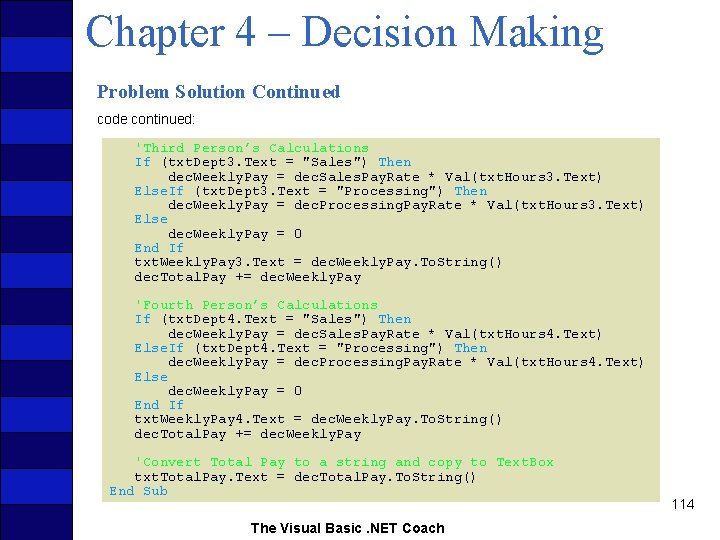
Chapter 4 – Decision Making Problem Solution Continued code continued: 'Third Person’s Calculations If (txt. Dept 3. Text = "Sales") Then dec. Weekly. Pay = dec. Sales. Pay. Rate * Val(txt. Hours 3. Text) Else. If (txt. Dept 3. Text = "Processing") Then dec. Weekly. Pay = dec. Processing. Pay. Rate * Val(txt. Hours 3. Text) Else dec. Weekly. Pay = 0 End If txt. Weekly. Pay 3. Text = dec. Weekly. Pay. To. String() dec. Total. Pay += dec. Weekly. Pay 'Fourth Person’s Calculations If (txt. Dept 4. Text = "Sales") Then dec. Weekly. Pay = dec. Sales. Pay. Rate * Val(txt. Hours 4. Text) Else. If (txt. Dept 4. Text = "Processing") Then dec. Weekly. Pay = dec. Processing. Pay. Rate * Val(txt. Hours 4. Text) Else dec. Weekly. Pay = 0 End If txt. Weekly. Pay 4. Text = dec. Weekly. Pay. To. String() dec. Total. Pay += dec. Weekly. Pay 'Convert Total Pay to a string and copy to Text. Box txt. Total. Pay. Text = dec. Total. Pay. To. String() End Sub The Visual Basic. NET Coach 114
Chapter 4 – Decision Making Problem Solution Continued The final application should look like this: 115 The Visual Basic. NET Coach
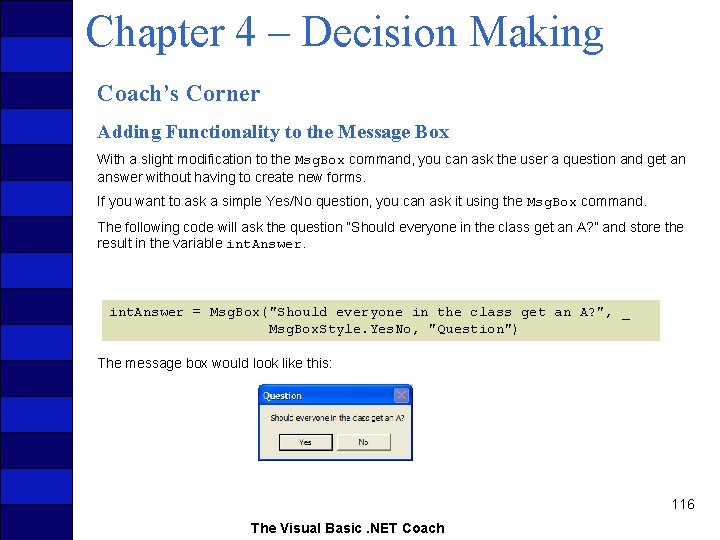
Chapter 4 – Decision Making Coach’s Corner Adding Functionality to the Message Box With a slight modification to the Msg. Box command, you can ask the user a question and get an answer without having to create new forms. If you want to ask a simple Yes/No question, you can ask it using the Msg. Box command. The following code will ask the question “Should everyone in the class get an A? ” and store the result in the variable int. Answer = Msg. Box("Should everyone in the class get an A? ", _ Msg. Box. Style. Yes. No, "Question") The message box would look like this: 116 The Visual Basic. NET Coach
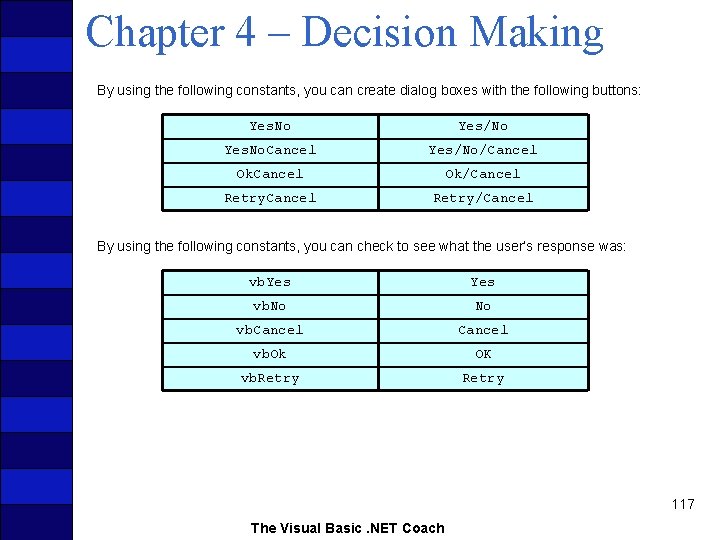
Chapter 4 – Decision Making By using the following constants, you can create dialog boxes with the following buttons: Yes. No Yes/No Yes. No. Cancel Yes/No/Cancel Ok/Cancel Retry/Cancel By using the following constants, you can check to see what the user’s response was: vb. Yes vb. No No vb. Cancel vb. Ok OK vb. Retry 117 The Visual Basic. NET Coach
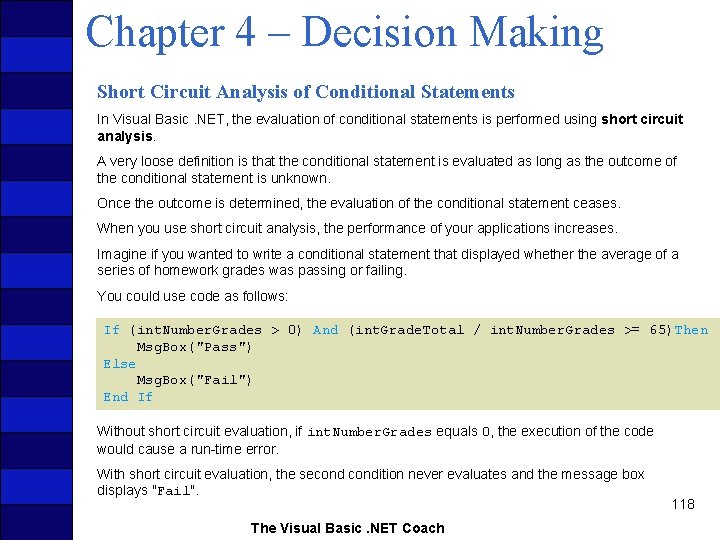
Chapter 4 – Decision Making Short Circuit Analysis of Conditional Statements In Visual Basic. NET, the evaluation of conditional statements is performed using short circuit analysis. A very loose definition is that the conditional statement is evaluated as long as the outcome of the conditional statement is unknown. Once the outcome is determined, the evaluation of the conditional statement ceases. When you use short circuit analysis, the performance of your applications increases. Imagine if you wanted to write a conditional statement that displayed whether the average of a series of homework grades was passing or failing. You could use code as follows: If (int. Number. Grades > 0) And (int. Grade. Total / int. Number. Grades >= 65)Then Msg. Box("Pass") Else Msg. Box("Fail") End If Without short circuit evaluation, if int. Number. Grades equals 0, the execution of the code would cause a run-time error. With short circuit evaluation, the secondition never evaluates and the message box displays "Fail". The Visual Basic. NET Coach 118
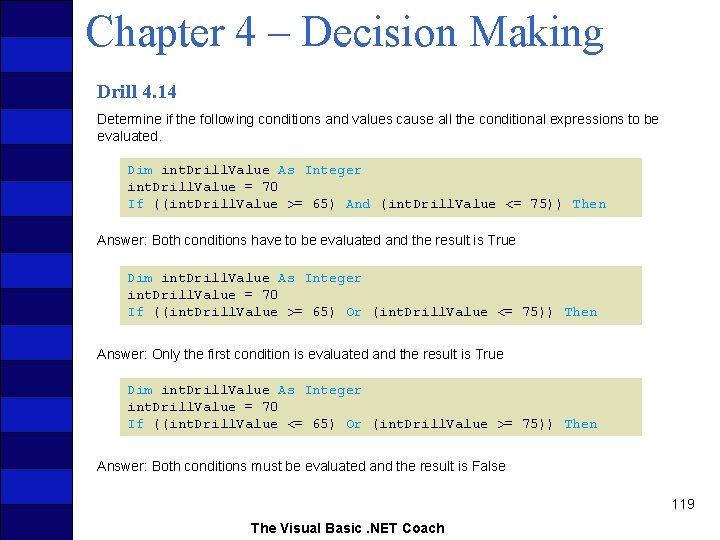
Chapter 4 – Decision Making Drill 4. 14 Determine if the following conditions and values cause all the conditional expressions to be evaluated. Dim int. Drill. Value As Integer int. Drill. Value = 70 If ((int. Drill. Value >= 65) And (int. Drill. Value <= 75)) Then Answer: Both conditions have to be evaluated and the result is True Dim int. Drill. Value As Integer int. Drill. Value = 70 If ((int. Drill. Value >= 65) Or (int. Drill. Value <= 75)) Then Answer: Only the first condition is evaluated and the result is True Dim int. Drill. Value As Integer int. Drill. Value = 70 If ((int. Drill. Value <= 65) Or (int. Drill. Value >= 75)) Then Answer: Both conditions must be evaluated and the result is False 119 The Visual Basic. NET Coach