
Chapter 4 Debugging Android Apps Chapter Overview Learning
Chapter 4 Debugging Android Apps
Chapter Overview • Learning how to use: – Log. Cat – Android Lint – DDMS • Recall: DDMS stands for Dalvik Debug Monitor Server. DDMS is the connection between your application running on the device and your development environment, such as Android Studio
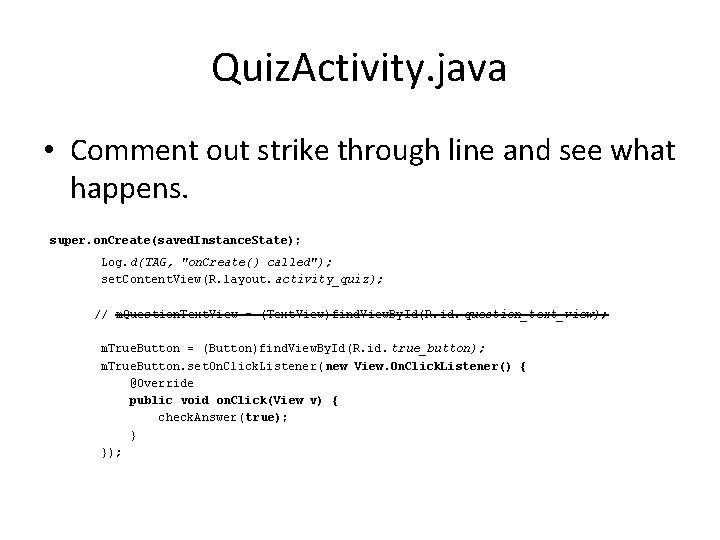
Quiz. Activity. java • Comment out strike through line and see what happens. super. on. Create(saved. Instance. State); Log. d(TAG, "on. Create() called"); set. Content. View(R. layout. activity_quiz); // m. Question. Text. View = (Text. View)find. View. By. Id(R. id. question_text_view); m. True. Button = (Button)find. View. By. Id(R. id. true_button); m. True. Button. set. On. Click. Listener( new View. On. Click. Listener() { @Override public void on. Click(View v) { check. Answer( true); } });
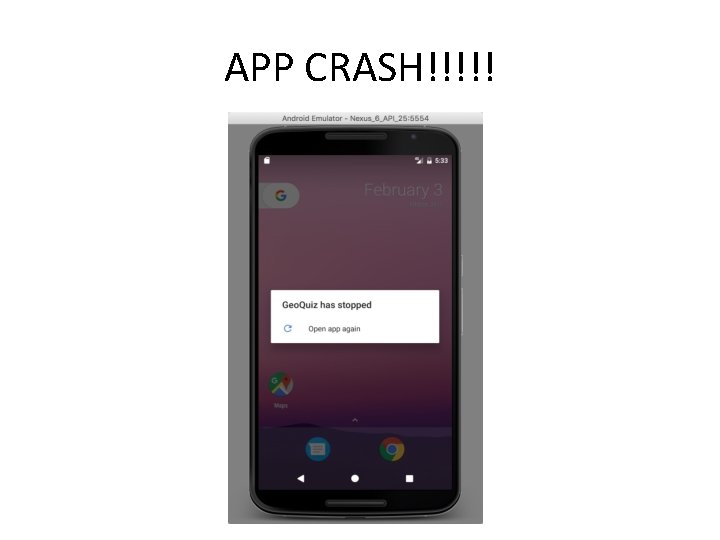
APP CRASH!!!!!
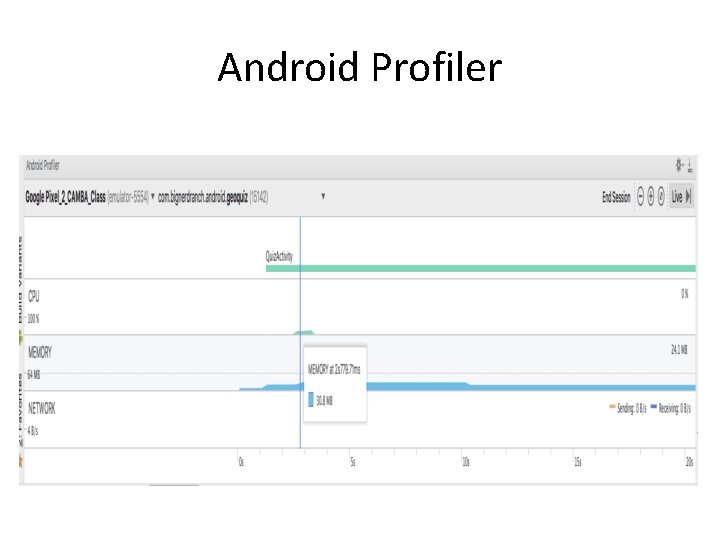
Android Profiler
Android Profiler Con’t • The Android Profiler perspective includes Log. Cat and the Devices view. • The Devices view shows you which devices and virtual devices are connected to your computer. • Problems you are having with a specific device can usually be solved in this view. • For example, is your device not showing up as an option when you run an application? – Click the downward-pointing triangle at the top-right corner and select Reset adb. Often, rebooting adb will find your device. • Is Log. Cat showing output for the wrong device? – Click to select the device you want to see output from, and Log. Cat will switch to showing output from that device.
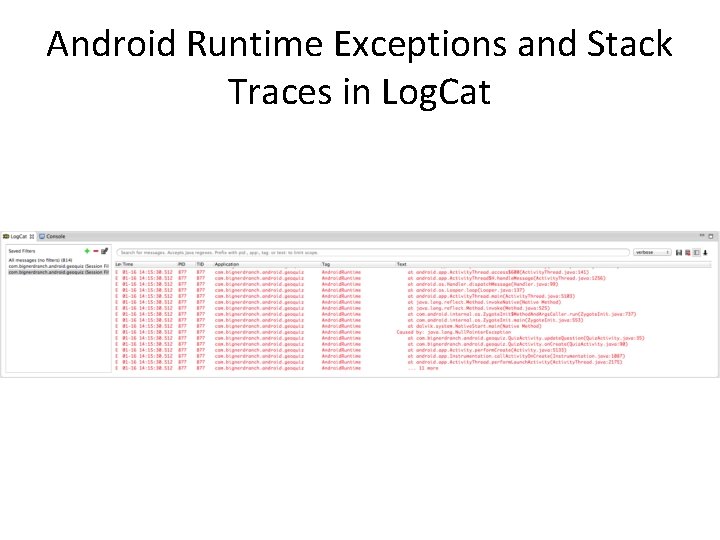
Android Runtime Exceptions and Stack Traces in Log. Cat
Android Runtime Stack Traces • The report tells you the top-level exception and its stack trace, then the exception that caused that exception and its stack trace, and so on and so forth until it finds an exception with no cause. • In most of the code you will write, that last exception with no cause is the interesting one. • Here the exception without a cause is a java. lang. Null. Pointer. Exception. The line just below this exception is the first line in its stack trace. • This line tells you the class and method where the exception occurred as well as what file and line number the exception occurred on. Double-click this line, and Android Studio will take you to that line in your source code.
Null. Pointer. Excpetion • From the red text in Log. Cat…. • Notice since the m. Question. Text. View was NOT initialized in Geo. Quiz it generated a null. Pointer. Exception in Android. If you use a real device to debug an app, the Log. Cat will show up in DDMS as well. • If a crash occurs on a device while it is not plugged in, all is not lost. The device will store the latest lines written to the log. The length and expiration of the stored log depends on the device. • Just plug in the device, pull up DDMS in Android Studio, and select your device in the Devices view. Log. Cat will fill itself with the stored log.
Diagnosing Misbehaviors • Problems with your apps will not always be crashes. In some cases, they will be misbehaviors. • For example, suppose that every time you pressed the Next button, nothing happened. • That would be a non-crashing, misbehaving bug. • In Quiz. Activity. java, make a change to the m. Next. Button listener to comment out the code that increments m. Current. Index.
Diagnosing Misbehaviors Con’t • This bug is trickier than the last bug. It is not throwing an exception, so fixing the bug is not a simple matter of making the exception go away. • On top of that, this misbehavior could be caused in two different ways: the index might not be changing, or update. Question() might not be called. • If you had no idea what was causing the problem, you would need to track down the culprit • To do this: diagnostic logging of a stack trace and using thedebugger to set a breakpoint.
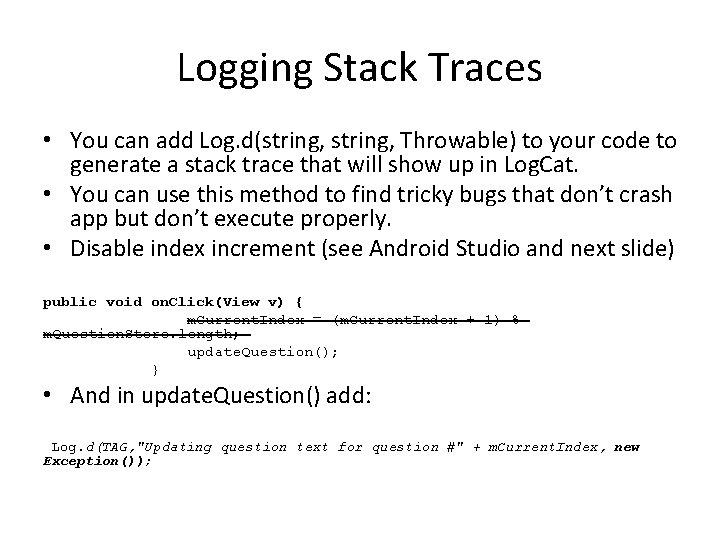
Logging Stack Traces • You can add Log. d(string, Throwable) to your code to generate a stack trace that will show up in Log. Cat. • You can use this method to find tricky bugs that don’t crash app but don’t execute properly. • Disable index increment (see Android Studio and next slide) public void on. Click(View v) { m. Current. Index = (m. Current. Index + 1) % m. Question. Store. length; update. Question(); } • And in update. Question() add: Log. d(TAG, "Updating question text for question #" + m. Current. Index, new Exception());

Stack Trace Log. Cat
Help? • Comment out the throwable log. • When asking others for help – always post a stack trace of execution to allow others to help. (source is beneficial too ) • Post to android google group for help • Post to stackoverflow. com
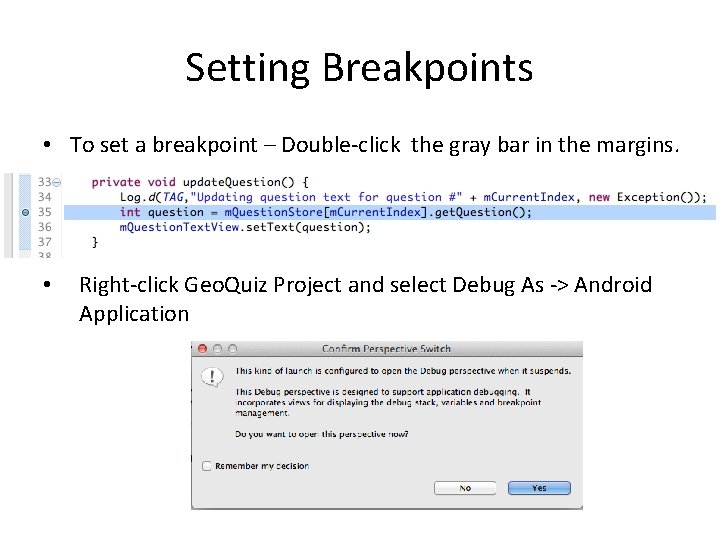
Setting Breakpoints • To set a breakpoint – Double-click the gray bar in the margins. • Right-click Geo. Quiz Project and select Debug As -> Android Application
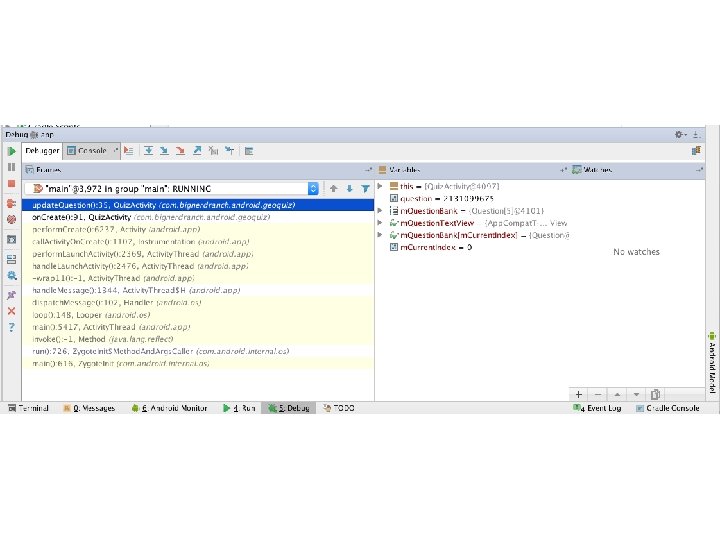
Debug View to Trace App Execution • Blue arrows at top of debug are used to step through your program. • The Resume button continues execution after the breakpoint.
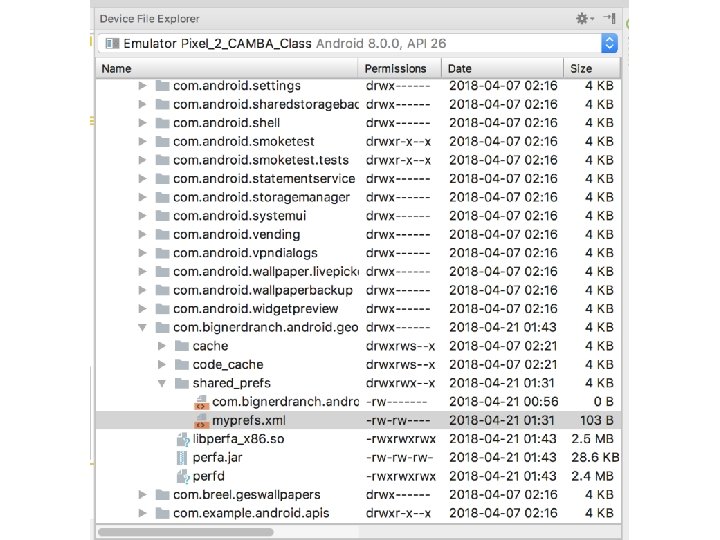
Shared Prefs • Shared. Preferences are stored in an xml file in the app data folder, i. e • /data/YOUR_PACKAGE_NAME/shared_p refs/YOUR_PREFS_NAME. xml
File Explorer • Click View-> Tool Windows->Device File explorer • You can navigate the file system of your connected device – Note you can not explore /data on a real device – But on emulator you can • You can use File Explorer to upload and download files to your device • You can also use command line “adb shell” and use “adb push” and “adb pull” to transfer files to and from Computer and Device
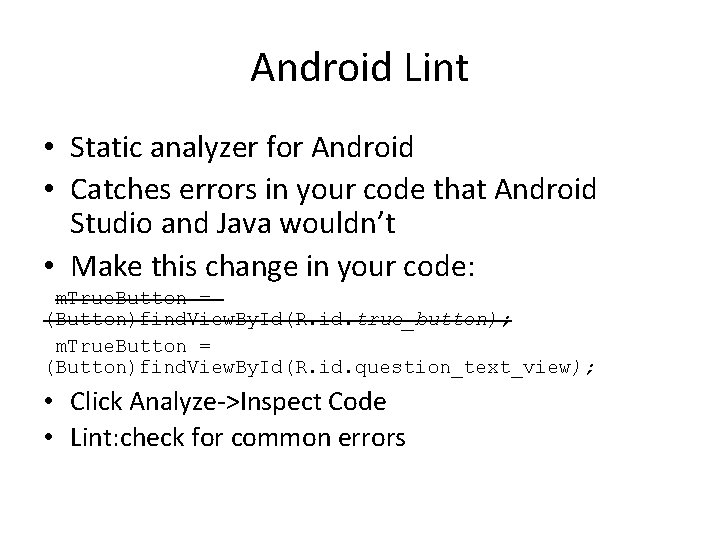
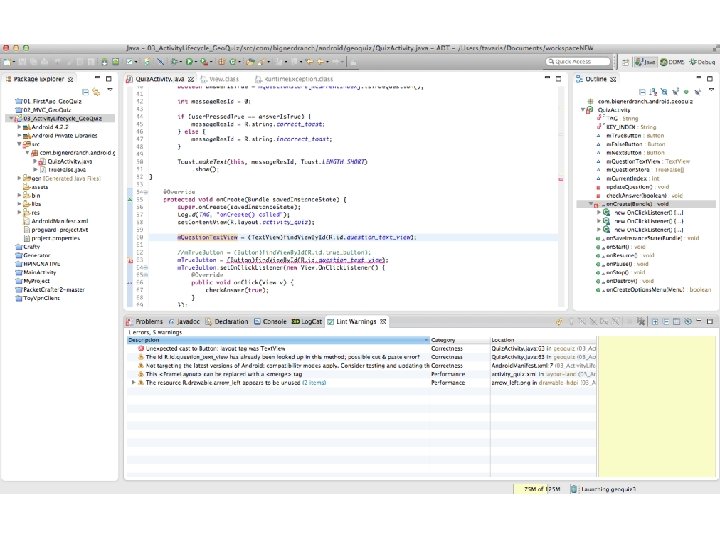
Android Lint • Static analyzer for Android • Catches errors in your code that Android Studio and Java wouldn’t • Make this change in your code: m. True. Button = (Button)find. View. By. Id(R. id. true_button); m. True. Button = (Button)find. View. By. Id(R. id. question_text_view); • Click Analyze->Inspect Code • Lint: check for common errors
If You Get Stuck • If your still getting errors from Android Studio try: 1. Android Lint (Analyze->Inspect Code) 2. Clean your Project (Project->Clean…. ) 3. If errors are in XML Resource files, modify them and resave to autogenerate R. java 4. If problem still persists delete gen folder and rebuild. Android Studio will regenerate it.
- Slides: 23