
Chapter 4 CSS for Content Presentation 1 Overview
- Slides: 78
Chapter 4: CSS for Content Presentation 1
Overview and Objectives (1 of 2) • • • The motivation for CSS, and a little history The syntax, semantics and placement of style rules, with examples Common types of property values and their formats Structuring, commenting and formatting style sheets The CSS selectors (which are also HTML attributes) id and class The legacy HTML 5 grouping elements div and span
Overview and Objectives (2 of 2) • • Some new HTML 5 semantic elements: main, header, footer, nav, article, section, aside … Inheritance and the cascade Validating CSS The CSS box model Simple CSS page layout with “floating” elements CSS reset Styling our Nature’s Source website with CSS A brief introduction to responsive design
What Is CSS? • CSS (Cascading Style Sheets) is a language used to describe the presentational aspects of a web page (that is, formatting and layout). • It’s a better idea than adding new tags (like font) to HTML for presentational purposes. • But … it took from the early 1990 s to the late 1990 s for people to fully realize this. • CSS was based on the initial work of Bert Bos and Håkon Wium Lee.
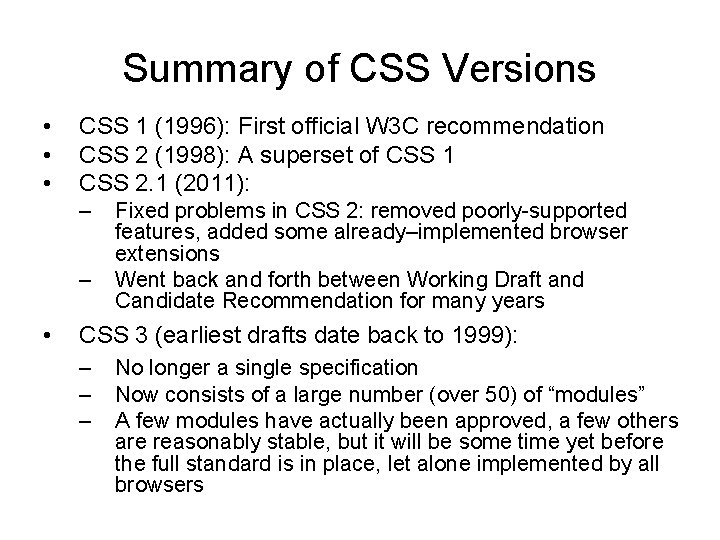
Summary of CSS Versions • • • CSS 1 (1996): First official W 3 C recommendation CSS 2 (1998): A superset of CSS 1 CSS 2. 1 (2011): – – • Fixed problems in CSS 2: removed poorly-supported features, added some already–implemented browser extensions Went back and forth between Working Draft and Candidate Recommendation for many years CSS 3 (earliest drafts date back to 1999): – – – No longer a single specification Now consists of a large number (over 50) of “modules” A few modules have actually been approved, a few others are reasonably stable, but it will be some time yet before the full standard is in place, let alone implemented by all browsers
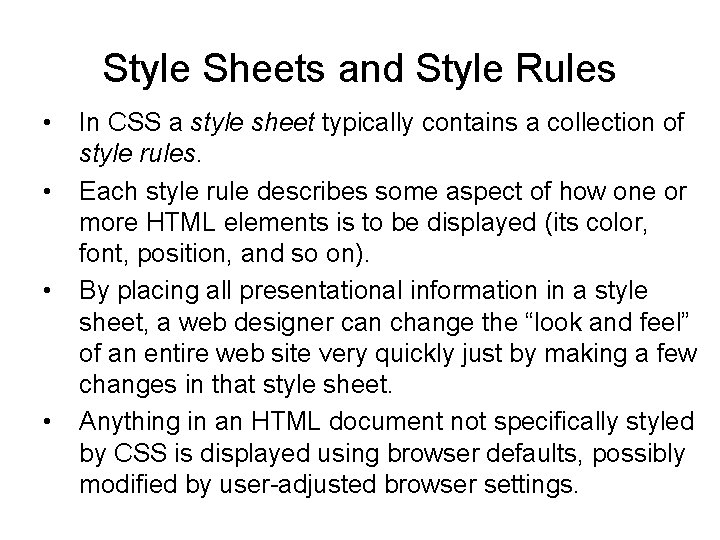
Style Sheets and Style Rules • • In CSS a style sheet typically contains a collection of style rules. Each style rule describes some aspect of how one or more HTML elements is to be displayed (its color, font, position, and so on). By placing all presentational information in a style sheet, a web designer can change the “look and feel” of an entire web site very quickly just by making a few changes in that style sheet. Anything in an HTML document not specifically styled by CSS is displayed using browser defaults, possibly modified by user-adjusted browser settings.
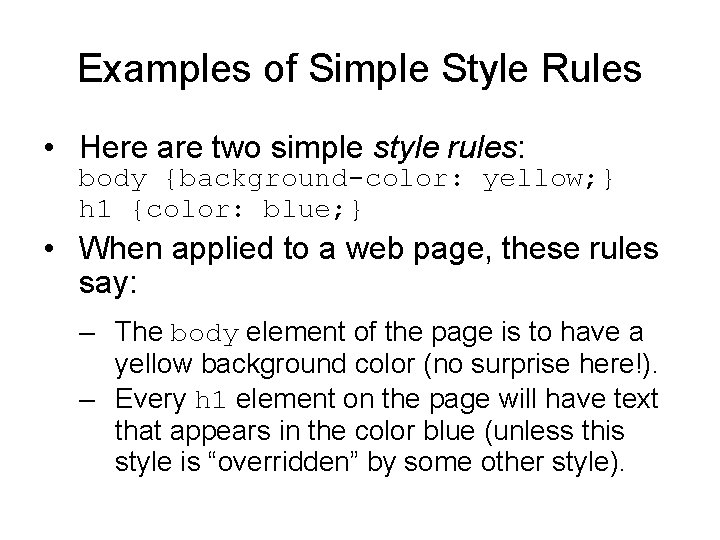
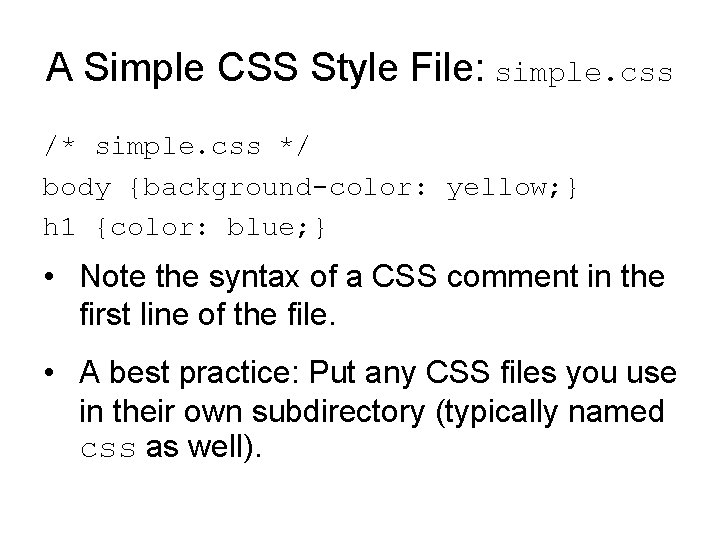
Examples of Simple Style Rules • Here are two simple style rules: body {background-color: yellow; } h 1 {color: blue; } • When applied to a web page, these rules say: – The body element of the page is to have a yellow background color (no surprise here!). – Every h 1 element on the page will have text that appears in the color blue (unless this style is “overridden” by some other style).
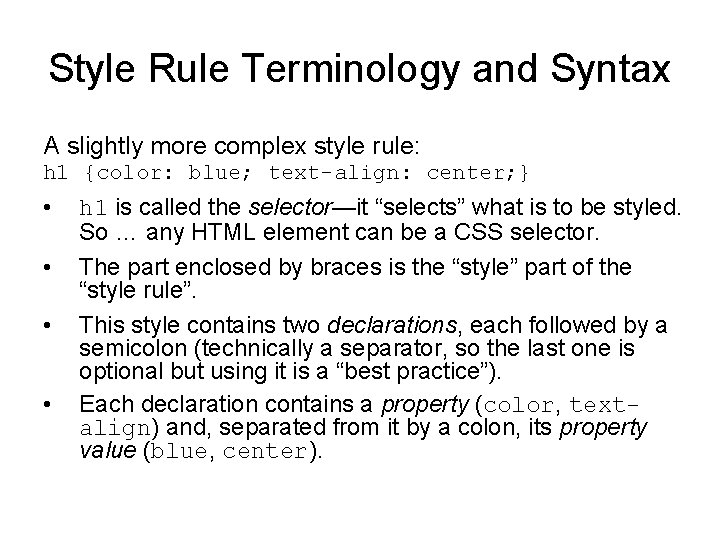
Style Rule Terminology and Syntax A slightly more complex style rule: h 1 {color: blue; text-align: center; } • • h 1 is called the selector—it “selects” what is to be styled. So … any HTML element can be a CSS selector. The part enclosed by braces is the “style” part of the “style rule”. This style contains two declarations, each followed by a semicolon (technically a separator, so the last one is optional but using it is a “best practice”). Each declaration contains a property (color, textalign) and, separated from it by a colon, its property value (blue, center).
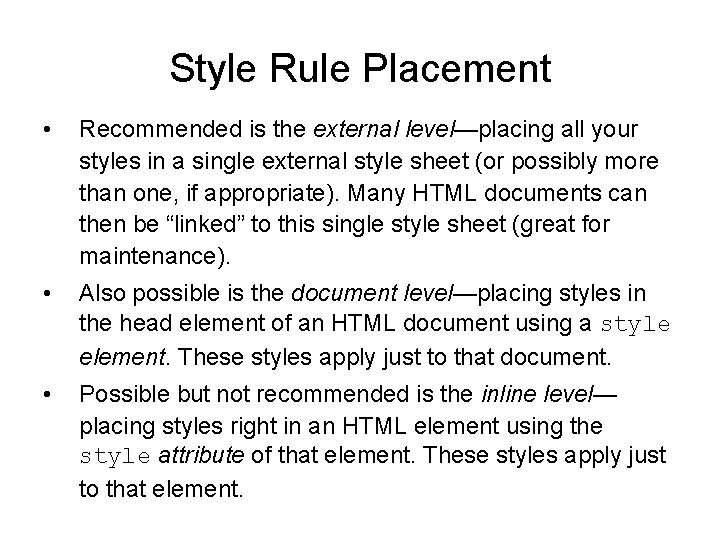
Style Rule Placement • Recommended is the external level—placing all your styles in a single external style sheet (or possibly more than one, if appropriate). Many HTML documents can then be “linked” to this single style sheet (great for maintenance). • Also possible is the document level—placing styles in the head element of an HTML document using a style element. These styles apply just to that document. • Possible but not recommended is the inline level— placing styles right in an HTML element using the style attribute of that element. These styles apply just to that element.
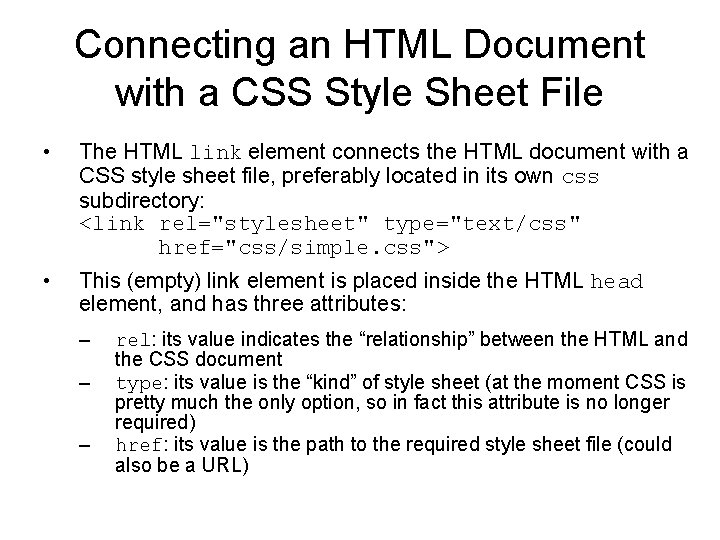
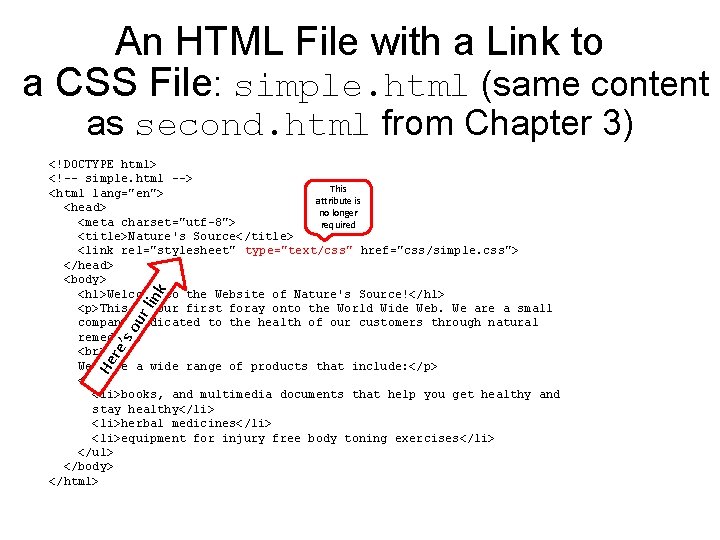
Connecting an HTML Document with a CSS Style Sheet File • The HTML link element connects the HTML document with a CSS style sheet file, preferably located in its own css subdirectory: <link rel="stylesheet" type="text/css" href="css/simple. css"> • This (empty) link element is placed inside the HTML head element, and has three attributes: – – – rel: its value indicates the “relationship” between the HTML and the CSS document type: its value is the “kind” of style sheet (at the moment CSS is pretty much the only option, so in fact this attribute is no longer required) href: its value is the path to the required style sheet file (could also be a URL)
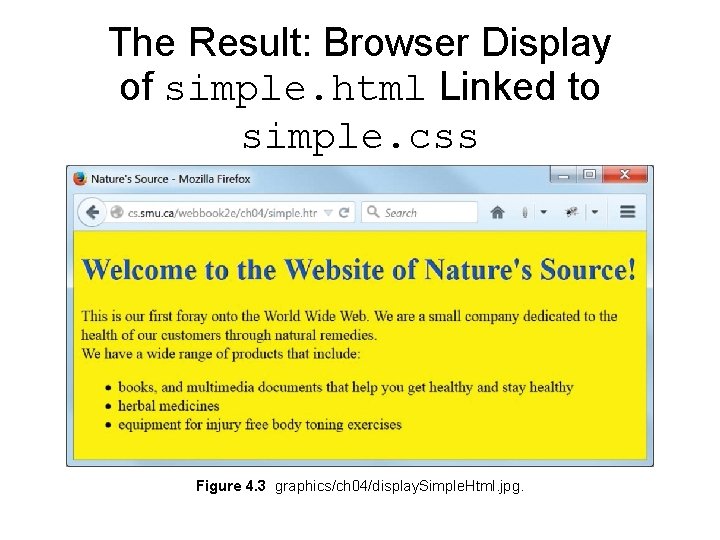
An HTML File with a Link to a CSS File: simple. html (same content as second. html from Chapter 3) He re’ so ur lin k <!DOCTYPE html> <!-- simple. html --> This <html lang="en"> attribute is <head> no longer <meta charset="utf-8"> required <title>Nature's Source</title> <link rel="stylesheet" type="text/css" href="css/simple. css"> </head> <body> <h 1>Welcome to the Website of Nature's Source!</h 1> <p>This is our first foray onto the World Wide Web. We are a small company dedicated to the health of our customers through natural remedies. We have a wide range of products that include: </p> <ul> <li>books, and multimedia documents that help you get healthy and stay healthy</li> <li>herbal medicines</li> <li>equipment for injury free body toning exercises</li> </ul> </body> </html>
A Simple CSS Style File: simple. css /* simple. css */ body {background-color: yellow; } h 1 {color: blue; } • Note the syntax of a CSS comment in the first line of the file. • A best practice: Put any CSS files you use in their own subdirectory (typically named css as well).
The Result: Browser Display of simple. html Linked to simple. css Figure 4. 3 graphics/ch 04/display. Simple. Html. jpg.
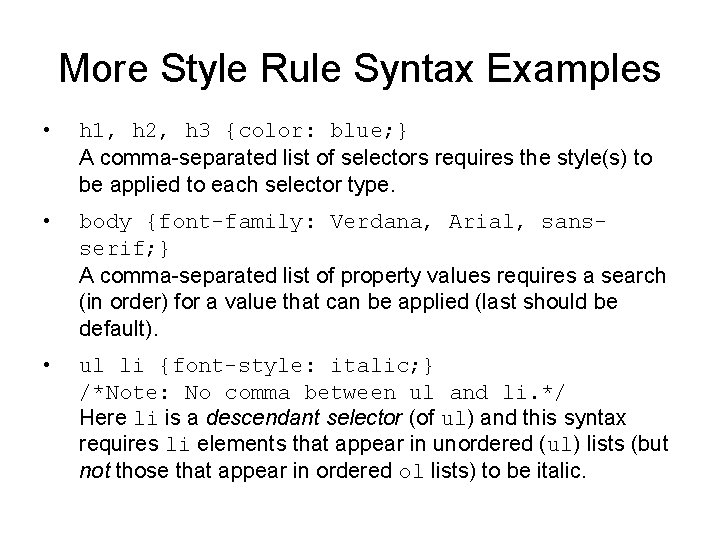
More Style Rule Syntax Examples • h 1, h 2, h 3 {color: blue; } A comma-separated list of selectors requires the style(s) to be applied to each selector type. • body {font-family: Verdana, Arial, sansserif; } A comma-separated list of property values requires a search (in order) for a value that can be applied (last should be default). • ul li {font-style: italic; } /*Note: No comma between ul and li. */ Here li is a descendant selector (of ul) and this syntax requires li elements that appear in unordered (ul) lists (but not those that appear in ordered ol lists) to be italic.
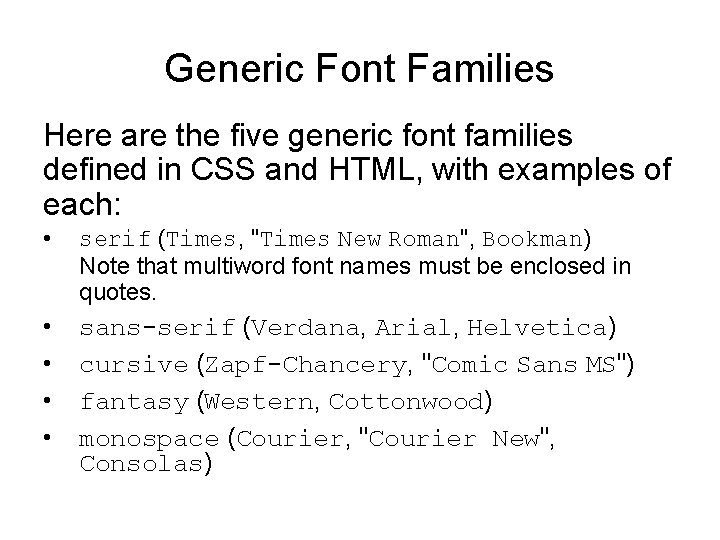
Generic Font Families Here are the five generic font families defined in CSS and HTML, with examples of each: • serif (Times, "Times New Roman", Bookman) Note that multiword font names must be enclosed in quotes. • • sans-serif (Verdana, Arial, Helvetica) cursive (Zapf-Chancery, "Comic Sans MS") fantasy (Western, Cottonwood) monospace (Courier, "Courier New", Consolas)
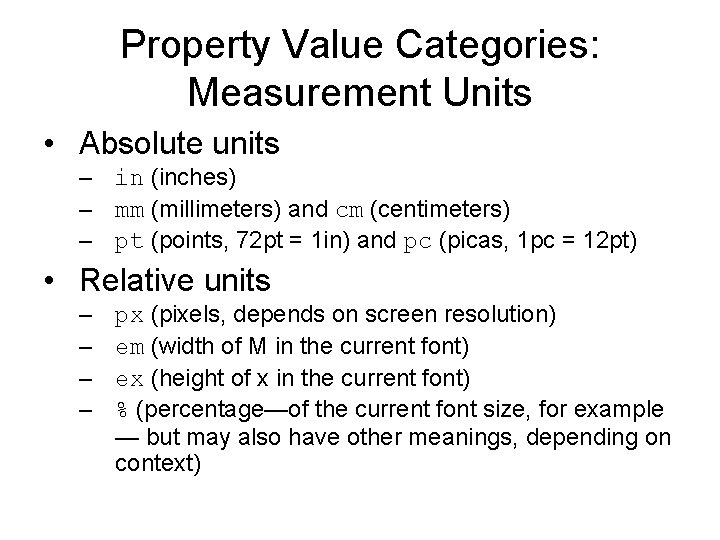
Property Value Categories: Measurement Units • Absolute units – in (inches) – mm (millimeters) and cm (centimeters) – pt (points, 72 pt = 1 in) and pc (picas, 1 pc = 12 pt) • Relative units – – px (pixels, depends on screen resolution) em (width of M in the current font) ex (height of x in the current font) % (percentage—of the current font size, for example — but may also have other meanings, depending on context)
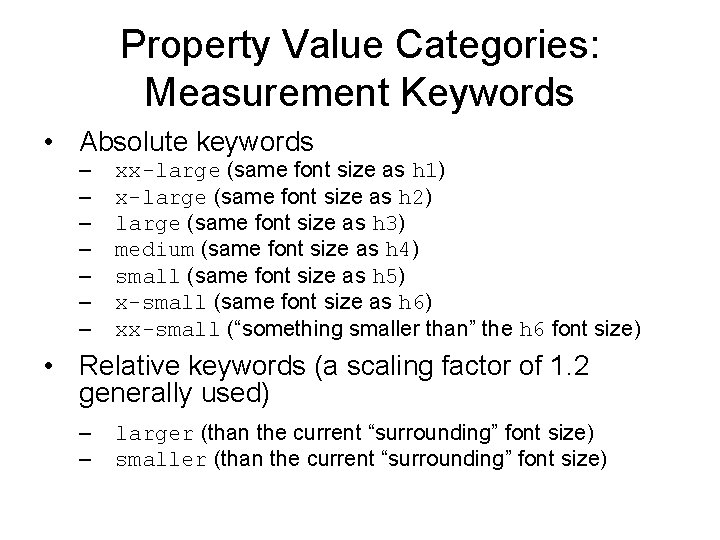
Property Value Categories: Measurement Keywords • Absolute keywords – – – – xx-large (same font size as h 1) x-large (same font size as h 2) large (same font size as h 3) medium (same font size as h 4) small (same font size as h 5) x-small (same font size as h 6) xx-small (“something smaller than” the h 6 font size) • Relative keywords (a scaling factor of 1. 2 generally used) – – larger (than the current “surrounding” font size) smaller (than the current “surrounding” font size)
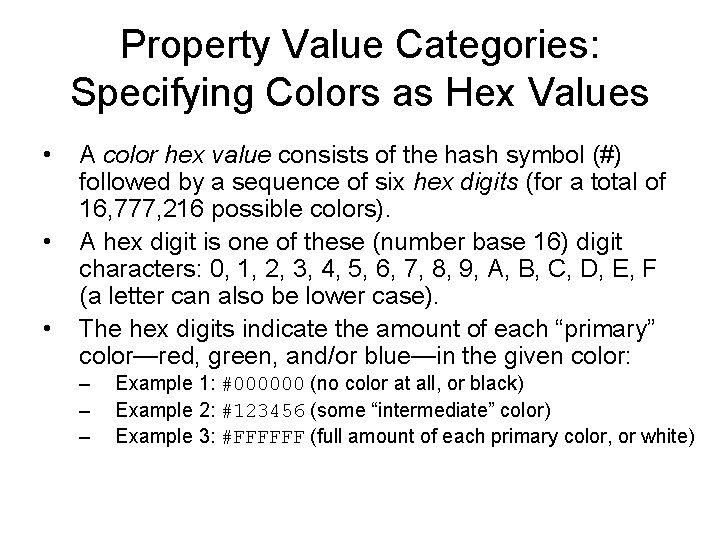
Property Value Categories: Specifying Colors as Hex Values • • • A color hex value consists of the hash symbol (#) followed by a sequence of six hex digits (for a total of 16, 777, 216 possible colors). A hex digit is one of these (number base 16) digit characters: 0, 1, 2, 3, 4, 5, 6, 7, 8, 9, A, B, C, D, E, F (a letter can also be lower case). The hex digits indicate the amount of each “primary” color—red, green, and/or blue—in the given color: – – – Example 1: #000000 (no color at all, or black) Example 2: #123456 (some “intermediate” color) Example 3: #FFFFFF (full amount of each primary color, or white)
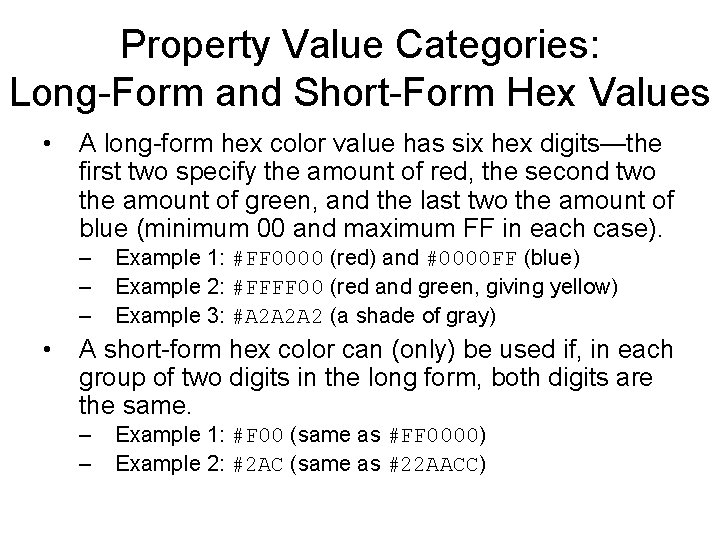
Property Value Categories: Long-Form and Short-Form Hex Values • A long-form hex color value has six hex digits—the first two specify the amount of red, the second two the amount of green, and the last two the amount of blue (minimum 00 and maximum FF in each case). – – – • Example 1: #FF 0000 (red) and #0000 FF (blue) Example 2: #FFFF 00 (red and green, giving yellow) Example 3: #A 2 A 2 A 2 (a shade of gray) A short-form hex color can (only) be used if, in each group of two digits in the long form, both digits are the same. – – Example 1: #F 00 (same as #FF 0000) Example 2: #2 AC (same as #22 AACC)
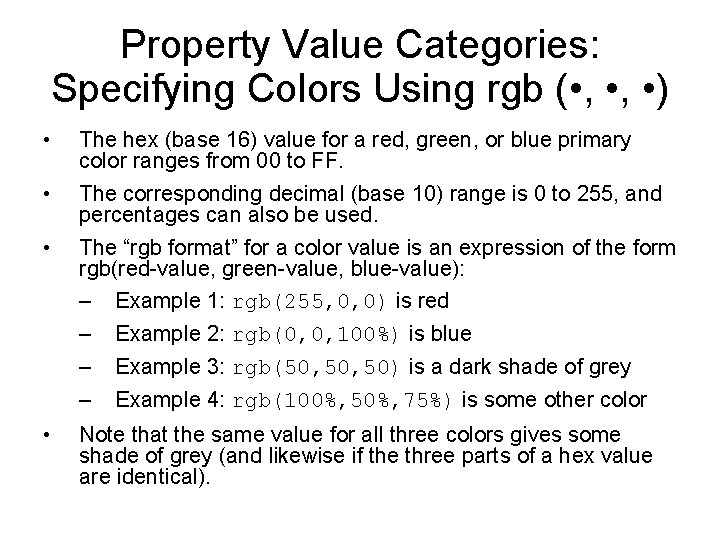
Property Value Categories: Specifying Colors Using rgb ( • , • ) • The hex (base 16) value for a red, green, or blue primary color ranges from 00 to FF. • The corresponding decimal (base 10) range is 0 to 255, and percentages can also be used. • The “rgb format” for a color value is an expression of the form rgb(red-value, green-value, blue-value): – Example 1: rgb(255, 0, 0) is red – – – • Example 2: rgb(0, 0, 100%) is blue Example 3: rgb(50, 50) is a dark shade of grey Example 4: rgb(100%, 50%, 75%) is some other color Note that the same value for all three colors gives some shade of grey (and likewise if the three parts of a hex value are identical).
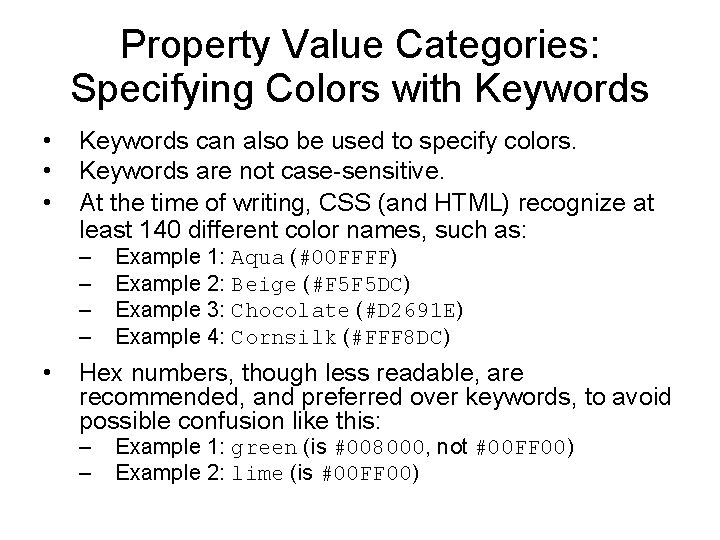
Property Value Categories: Specifying Colors with Keywords • • • Keywords can also be used to specify colors. Keywords are not case-sensitive. At the time of writing, CSS (and HTML) recognize at least 140 different color names, such as: – – • Example 1: Aqua (#00 FFFF) Example 2: Beige (#F 5 F 5 DC) Example 3: Chocolate (#D 2691 E) Example 4: Cornsilk (#FFF 8 DC) Hex numbers, though less readable, are recommended, and preferred over keywords, to avoid possible confusion like this: – – Example 1: green (is #008000, not #00 FF 00) Example 2: lime (is #00 FF 00)
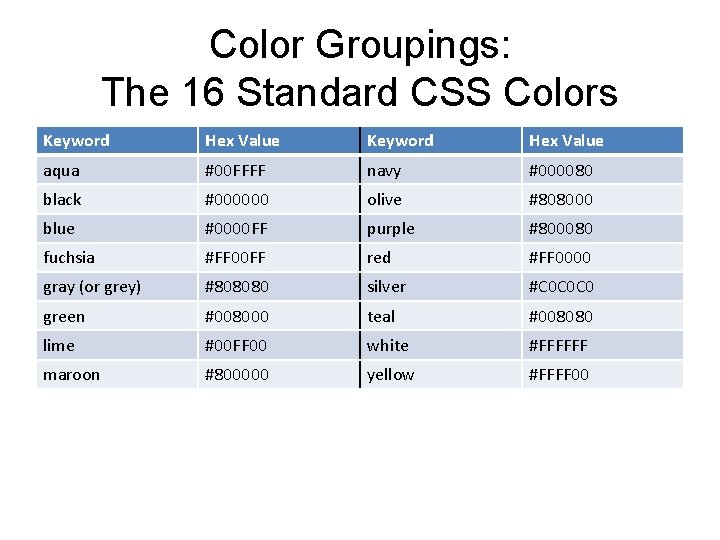
Color Groupings: The 16 Standard CSS Colors Keyword Hex Value aqua #00 FFFF navy #000080 black #000000 olive #808000 blue #0000 FF purple #800080 fuchsia #FF 00 FF red #FF 0000 gray (or grey) #808080 silver #C 0 C 0 C 0 green #008000 teal #008080 lime #00 FF 00 white #FFFFFF maroon #800000 yellow #FFFF 00
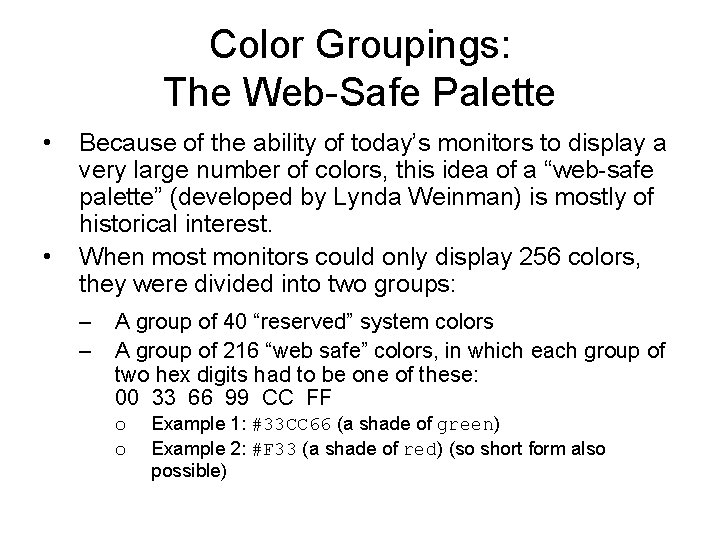
Color Groupings: The Web-Safe Palette • • Because of the ability of today’s monitors to display a very large number of colors, this idea of a “web-safe palette” (developed by Lynda Weinman) is mostly of historical interest. When most monitors could only display 256 colors, they were divided into two groups: – – A group of 40 “reserved” system colors A group of 216 “web safe” colors, in which each group of two hex digits had to be one of these: 00 33 66 99 CC FF o o Example 1: #33 CC 66 (a shade of green) Example 2: #F 33 (a shade of red) (so short form also possible)
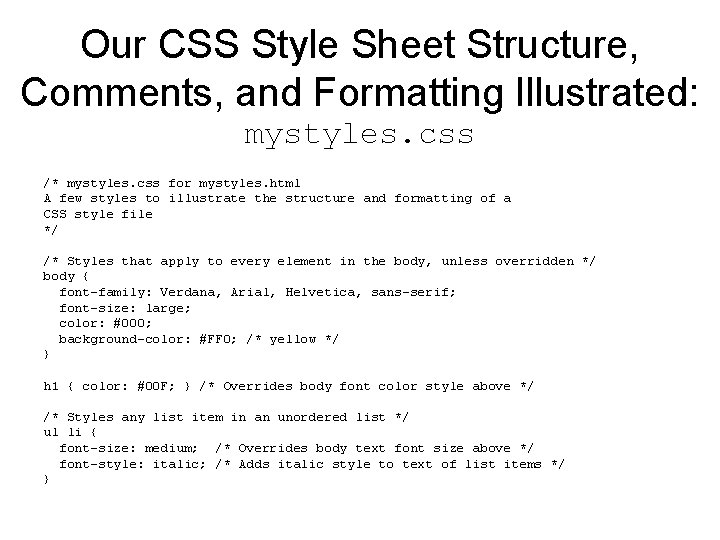
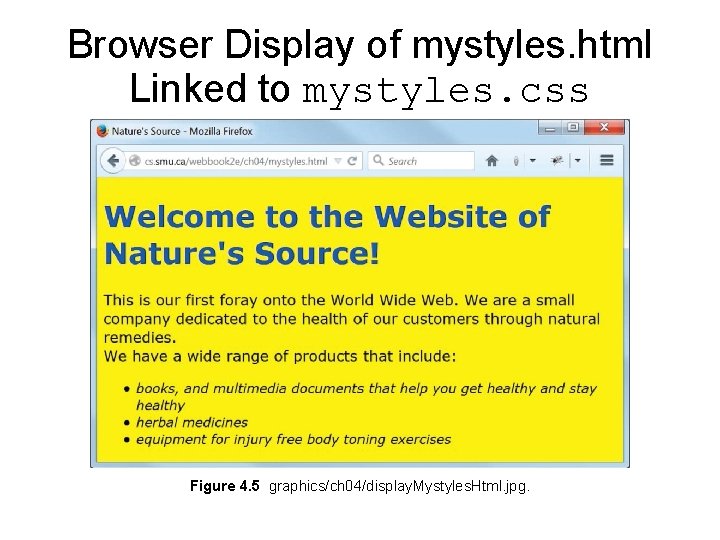
Our CSS Style Sheet Structure, Comments, and Formatting Illustrated: mystyles. css /* mystyles. css for mystyles. html A few styles to illustrate the structure and formatting of a CSS style file */ /* Styles that apply to every element in the body, unless overridden */ body { font-family: Verdana, Arial, Helvetica, sans-serif; font-size: large; color: #000; background-color: #FF 0; /* yellow */ } h 1 { color: #00 F; } /* Overrides body font color style above */ /* Styles any list item in an unordered list */ ul li { font-size: medium; /* Overrides body text font size above */ font-style: italic; /* Adds italic style to text of list items */ }
Browser Display of mystyles. html Linked to mystyles. css Figure 4. 5 graphics/ch 04/display. Mystyles. Html. jpg.
General Usage Guidelines for CSS Property Values • Prefer relative measurement units for element properties on pages that need to “scale well” when displayed at different sizes. • Prefer absolute measurement units for element properties when something must remain at a fixed size. • Prefer hex values for color property values. • Use keywords for property values when appropriate, but be careful of color keywords.
Some Things We Can’t Do (Easily) (Yet) • Apply a given style to some, but not all, of the HTML elements of a given type on a web page. • Apply the same style to HTML elements of different types at different locations on a web page. • Apply a given style to an entire section of a web page. • Apply a given style to some part of a web page that is not an HTML element.
The Legacy HTML Grouping Elements: div and span • The div and span HTML elements are used to enclose parts of a web page for purposes of identification and manipulation. • The only difference between them is that div is a block element and span is an inline element. • Neither div nor span has any formatting effect on its content.
Two Useful HTML Attributes: class and id • The class and id attributes are core or standard attributes in HTML that are also very often used as CSS selectors. • This means that most (though not all) HTML elements can have these attributes, and be styled through them via CSS. • The major difference between class and id: – Many different HTML elements on a web page can have a class attribute with the same value. – Only one element on a web page can have an id attribute with a given value.
New HTML 5 Semantic Elements vs. div • HTML 5 has added new semantic elements that are useful for grouping. • Examples include: main, header, footer, nav, article, section, aside … • These elements can now be used in many places where only a div element was available in the past. • Examples: – Instead of <div id="header"> … </div> use <header> … </header> – Instead of <div id="footer"> … </div> use <footer> … </footer>
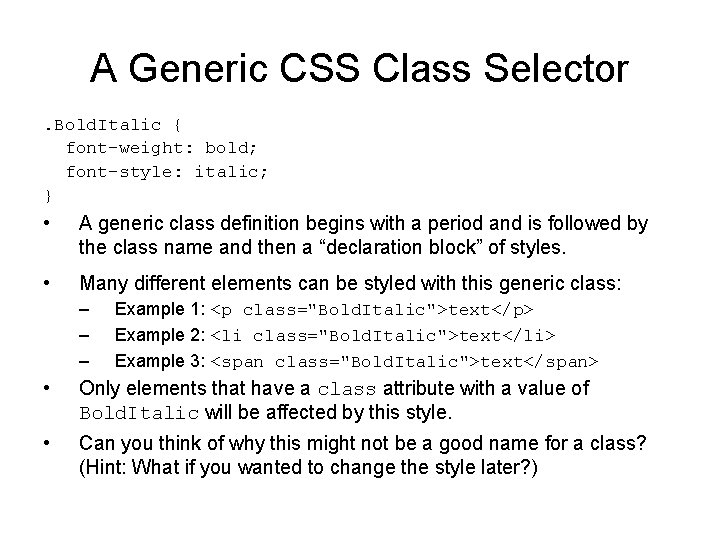
A Generic CSS Class Selector. Bold. Italic { font-weight: bold; font-style: italic; } • A generic class definition begins with a period and is followed by the class name and then a “declaration block” of styles. • Many different elements can be styled with this generic class: – – – Example 1: <p class="Bold. Italic">text</p> Example 2: <li class="Bold. Italic">text</li> Example 3: <span class="Bold. Italic">text</span> • Only elements that have a class attribute with a value of Bold. Italic will be affected by this style. • Can you think of why this might not be a good name for a class? (Hint: What if you wanted to change the style later? )
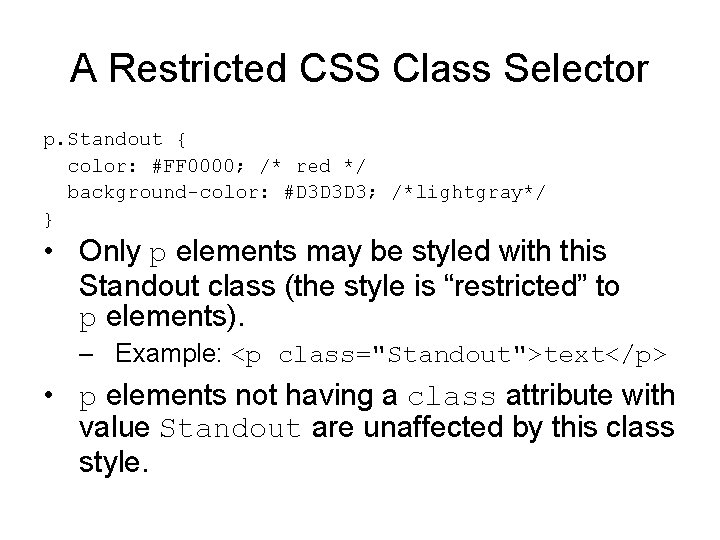
A Restricted CSS Class Selector p. Standout { color: #FF 0000; /* red */ background-color: #D 3 D 3 D 3; /*lightgray*/ } • Only p elements may be styled with this Standout class (the style is “restricted” to p elements). – Example: <p class="Standout">text</p> • p elements not having a class attribute with value Standout are unaffected by this class style.
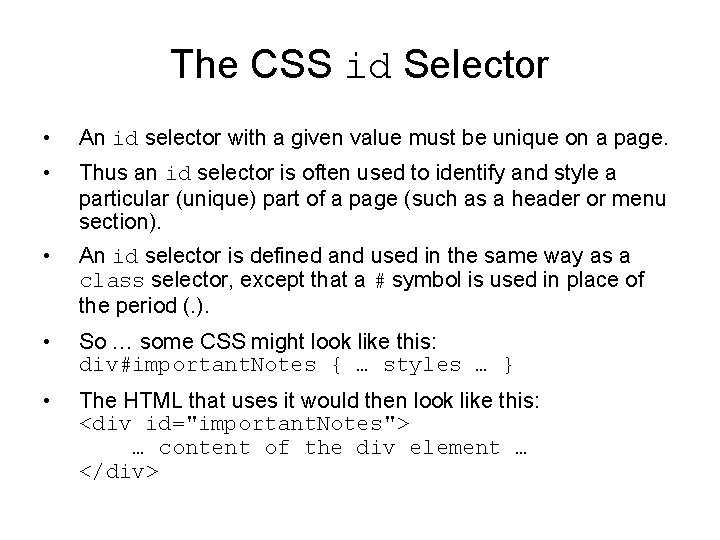
The CSS id Selector • An id selector with a given value must be unique on a page. • Thus an id selector is often used to identify and style a particular (unique) part of a page (such as a header or menu section). • An id selector is defined and used in the same way as a class selector, except that a # symbol is used in place of the period (. ). • So … some CSS might look like this: div#important. Notes { … styles … } • The HTML that uses it would then look like this: <div id="important. Notes"> … content of the div element … </div>
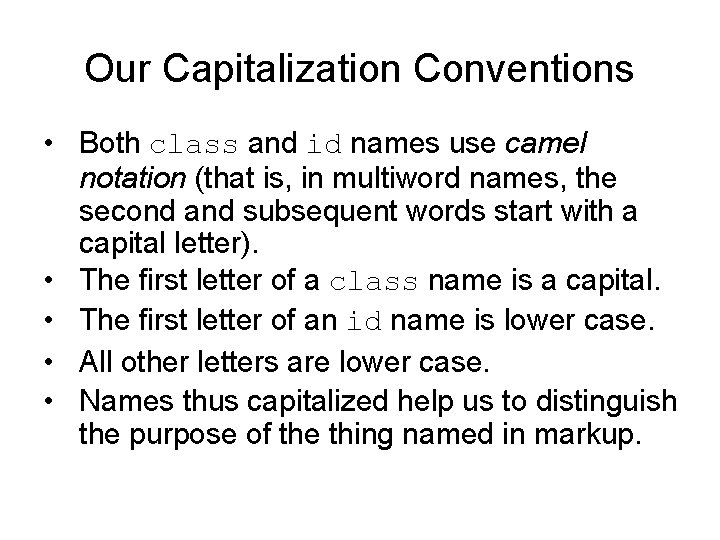
Our Capitalization Conventions • Both class and id names use camel notation (that is, in multiword names, the second and subsequent words start with a capital letter). • The first letter of a class name is a capital. • The first letter of an id name is lower case. • All other letters are lower case. • Names thus capitalized help us to distinguish the purpose of the thing named in markup.
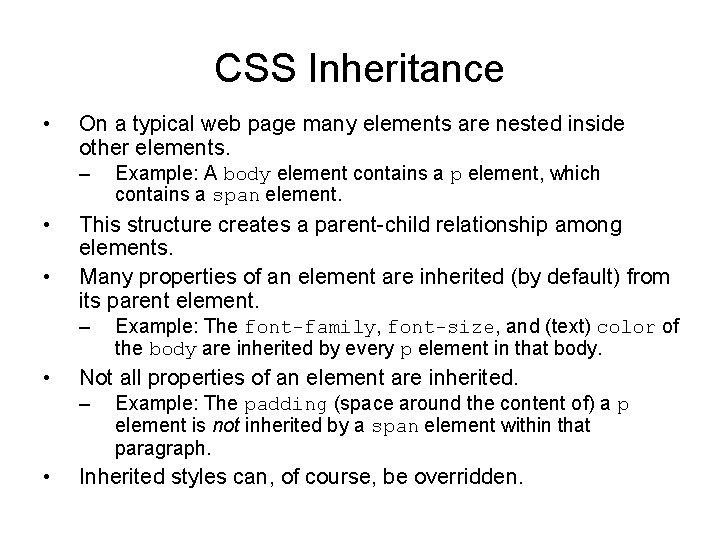
CSS Inheritance • On a typical web page many elements are nested inside other elements. – • • This structure creates a parent-child relationship among elements. Many properties of an element are inherited (by default) from its parent element. – • Example: The font-family, font-size, and (text) color of the body are inherited by every p element in that body. Not all properties of an element are inherited. – • Example: A body element contains a p element, which contains a span element. Example: The padding (space around the content of) a p element is not inherited by a span element within that paragraph. Inherited styles can, of course, be overridden.
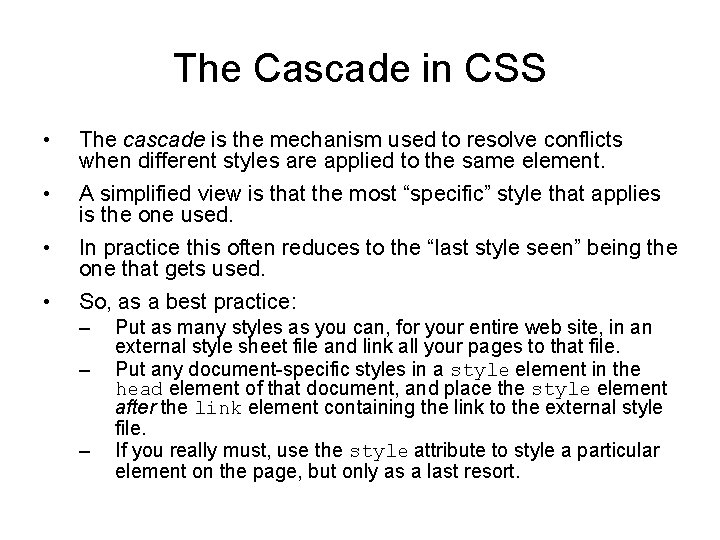
The Cascade in CSS • The cascade is the mechanism used to resolve conflicts when different styles are applied to the same element. • A simplified view is that the most “specific” style that applies is the one used. • In practice this often reduces to the “last style seen” being the one that gets used. • So, as a best practice: – – – Put as many styles as you can, for your entire web site, in an external style sheet file and link all your pages to that file. Put any document-specific styles in a style element in the head element of that document, and place the style element after the link element containing the link to the external style file. If you really must, use the style attribute to style a particular element on the page, but only as a last resort.
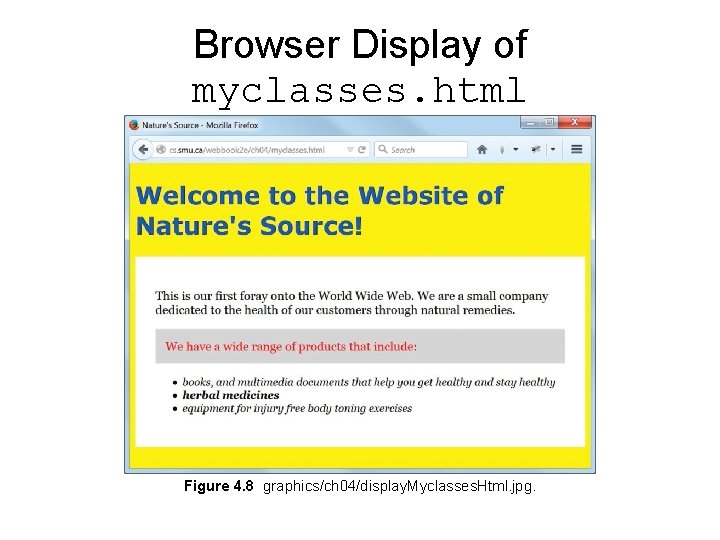
Browser Display of myclasses. html Figure 4. 8 graphics/ch 04/display. Myclasses. Html. jpg.
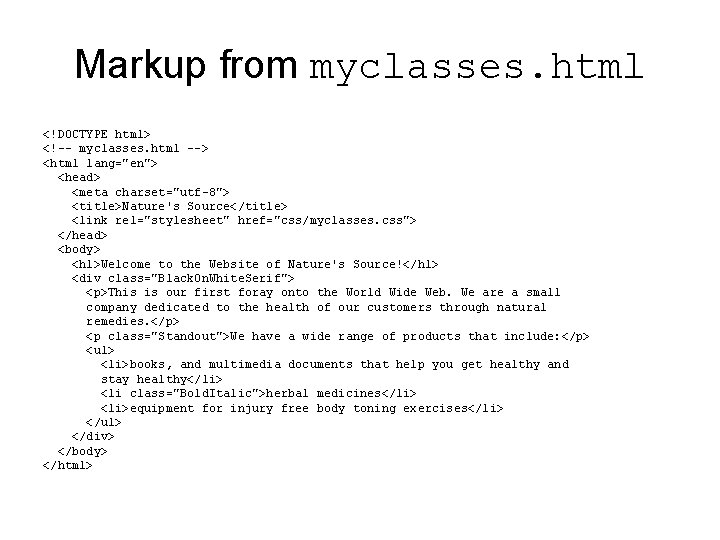
Markup from myclasses. html <!DOCTYPE html> <!-- myclasses. html --> <html lang="en"> <head> <meta charset="utf-8"> <title>Nature's Source</title> <link rel="stylesheet" href="css/myclasses. css"> </head> <body> <h 1>Welcome to the Website of Nature's Source!</h 1> <div class="Black. On. White. Serif"> <p>This is our first foray onto the World Wide Web. We are a small company dedicated to the health of our customers through natural remedies. </p> <p class="Standout">We have a wide range of products that include: </p> <ul> <li>books, and multimedia documents that help you get healthy and stay healthy</li> <li class="Bold. Italic">herbal medicines</li> <li>equipment for injury free body toning exercises</li> </ul> </div> </body> </html>
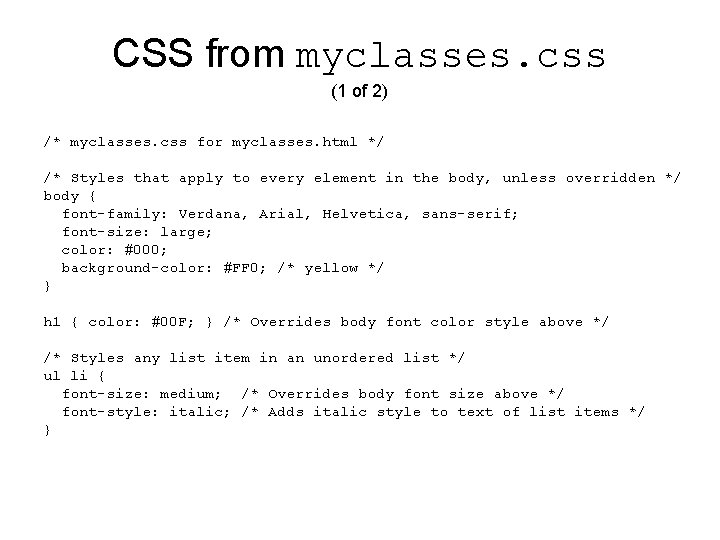
CSS from myclasses. css (1 of 2) /* myclasses. css for myclasses. html */ /* Styles that apply to every element in the body, unless overridden */ body { font-family: Verdana, Arial, Helvetica, sans-serif; font-size: large; color: #000; background-color: #FF 0; /* yellow */ } h 1 { color: #00 F; } /* Overrides body font color style above */ /* Styles any list item in an unordered list */ ul li { font-size: medium; /* Overrides body font size above */ font-style: italic; /* Adds italic style to text of list items */ }
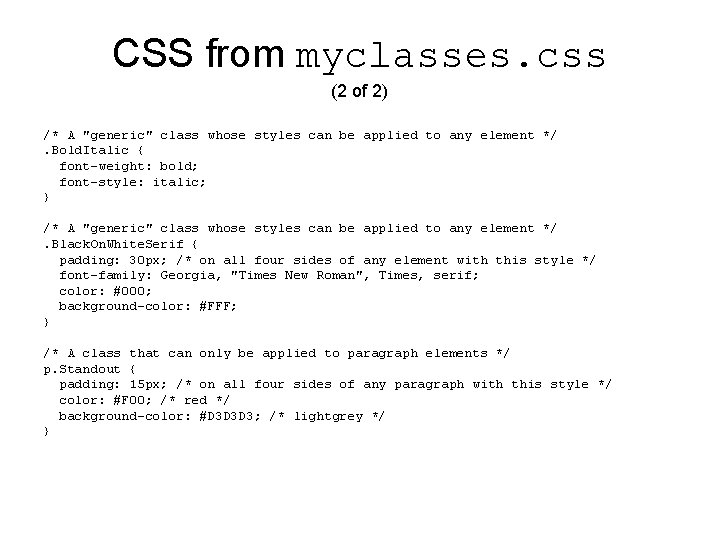
CSS from myclasses. css (2 of 2) /* A "generic" class whose styles can be applied to any element */. Bold. Italic { font-weight: bold; font-style: italic; } /* A "generic" class whose styles can be applied to any element */. Black. On. White. Serif { padding: 30 px; /* on all four sides of any element with this style */ font-family: Georgia, "Times New Roman", Times, serif; color: #000; background-color: #FFF; } /* A class that can only be applied to paragraph elements */ p. Standout { padding: 15 px; /* on all four sides of any paragraph with this style */ color: #F 00; /* red */ background-color: #D 3 D 3 D 3; /* lightgrey */ }
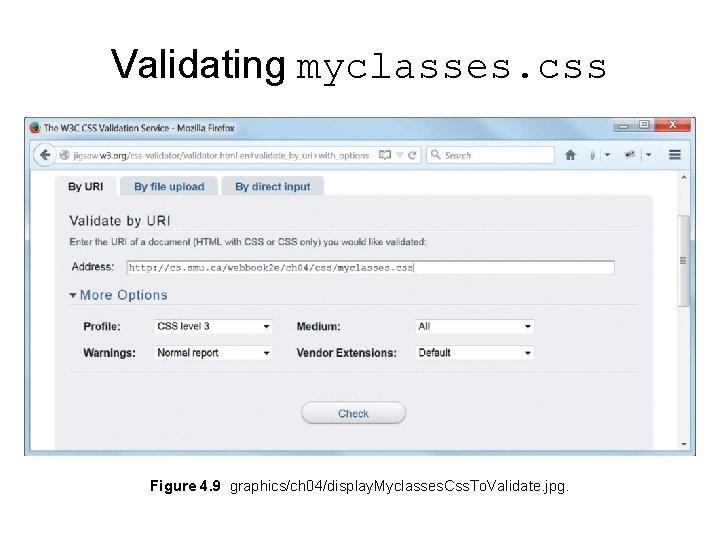
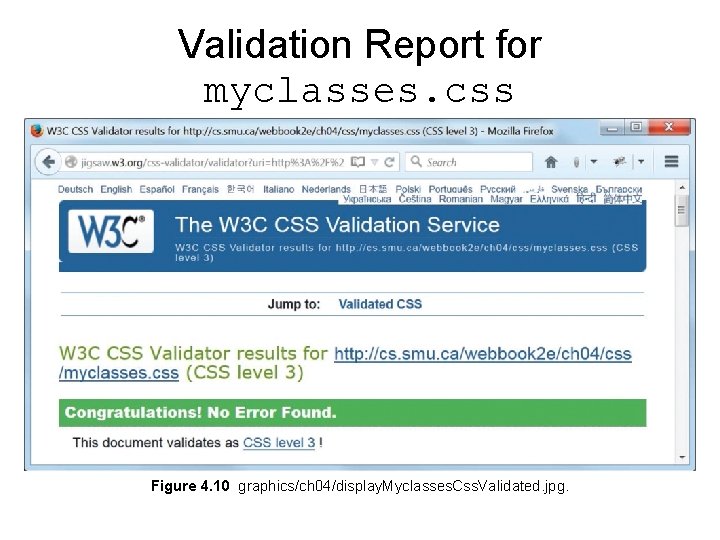
Validating Your CSS • Recall how important it is to validate your HTML markup. • It’s just as important to validate your CSS. • The process is similar to HTML markup validation, and here is the URL of the W 3 C CSS validator: http: //jigsaw. w 3. org/css-validator/ • You can enter the URL of a CSS document directly for validation, or the URL of an HTML document styled with CSS to validate the CSS used.
Validating myclasses. css Figure 4. 9 graphics/ch 04/display. Myclasses. Css. To. Validate. jpg.
Validation Report for myclasses. css Figure 4. 10 graphics/ch 04/display. Myclasses. Css. Validated. jpg.
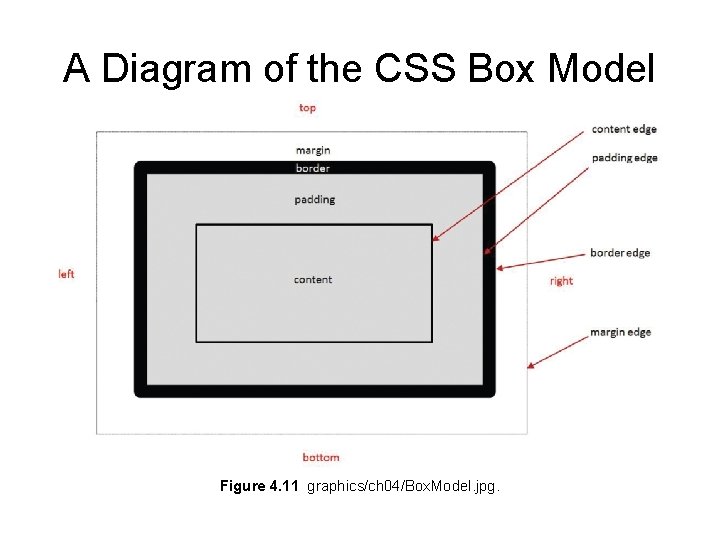
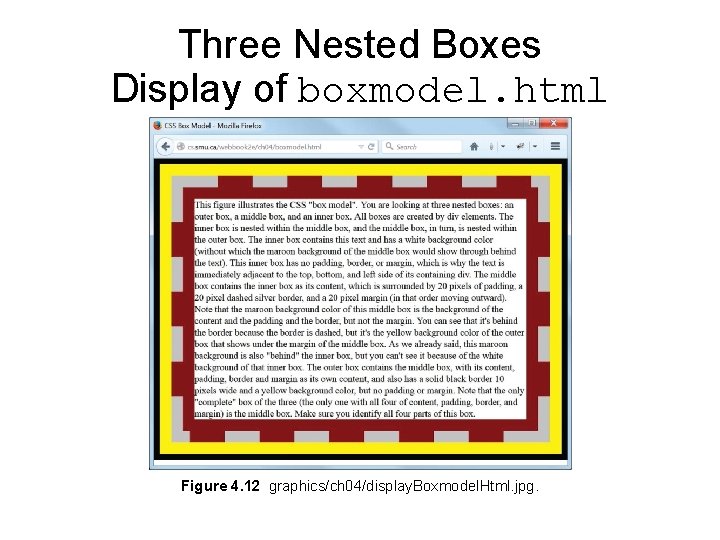
The CSS Box Model • • • Every HTML element, block or inline, that appears on a web page is treated as a “box”. This box has a content area at its center, and may (or may not) have one or more of the following (moving outward from that content): – padding to surround the content – a border surrounding the padding – a margin surrounding the border Even an element which is an “empty element” from the HTML viewpoint may have content in the above sense. – Example: The content of an “empty” img element is its image. The padding, border and/or margin may appear on all four sides of the content, on no sides, or just on some sides. The slide after the next one gives our detailed example of the box model and needs to be studied carefully. But … you should also Google “CSS box model images” and study some of the examples that will show up there, until you get comfortable with the idea.
A Diagram of the CSS Box Model Figure 4. 11 graphics/ch 04/Box. Model. jpg.
Three Nested Boxes Display of boxmodel. html Figure 4. 12 graphics/ch 04/display. Boxmodel. Html. jpg.
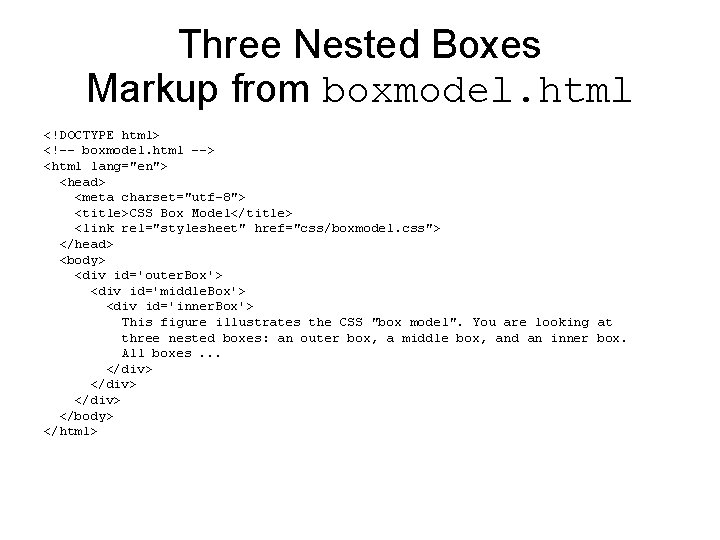
Three Nested Boxes Markup from boxmodel. html <!DOCTYPE html> <!-- boxmodel. html --> <html lang="en"> <head> <meta charset="utf-8"> <title>CSS Box Model</title> <link rel="stylesheet" href="css/boxmodel. css"> </head> <body> <div id='outer. Box'> <div id='middle. Box'> <div id='inner. Box'> This figure illustrates the CSS "box model". You are looking at three nested boxes: an outer box, a middle box, and an inner box. All boxes. . . </div> </body> </html>
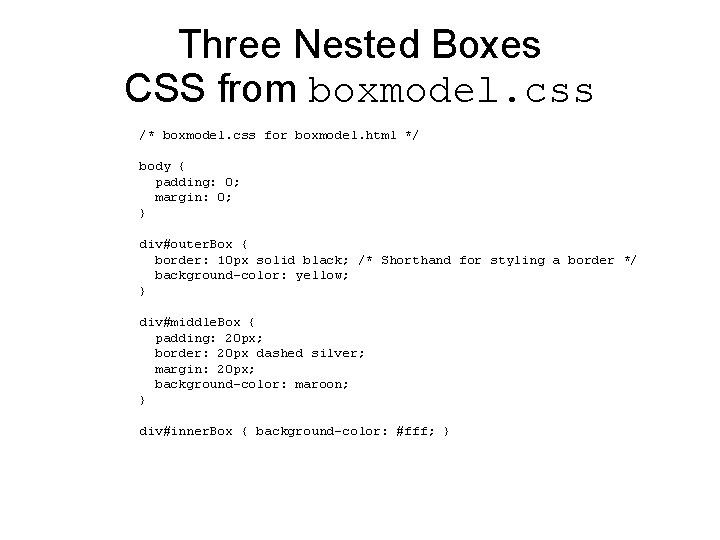
Three Nested Boxes CSS from boxmodel. css /* boxmodel. css for boxmodel. html */ body { padding: 0; margin: 0; } div#outer. Box { border: 10 px solid black; /* Shorthand for styling a border */ background-color: yellow; } div#middle. Box { padding: 20 px; border: 20 px dashed silver; margin: 20 px; background-color: maroon; } div#inner. Box { background-color: #fff; }
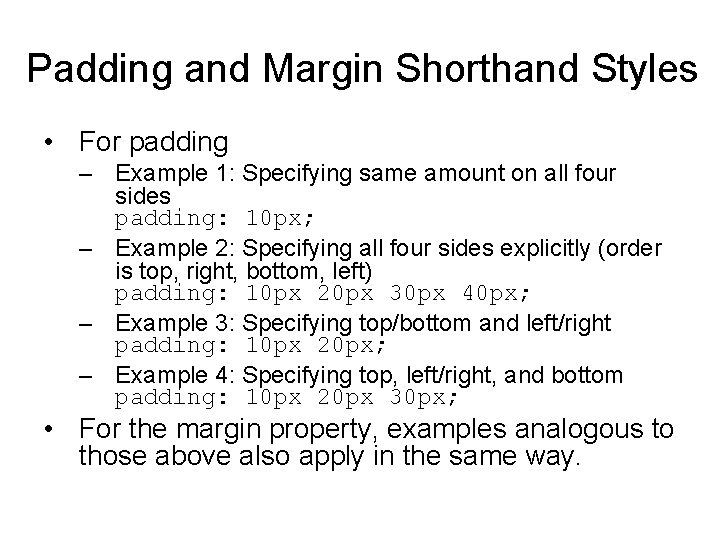
Padding and Margin Shorthand Styles • For padding – Example 1: Specifying same amount on all four sides padding: 10 px; – Example 2: Specifying all four sides explicitly (order is top, right, bottom, left) padding: 10 px 20 px 30 px 40 px; – Example 3: Specifying top/bottom and left/right padding: 10 px 20 px; – Example 4: Specifying top, left/right, and bottom padding: 10 px 20 px 30 px; • For the margin property, examples analogous to those above also apply in the same way.
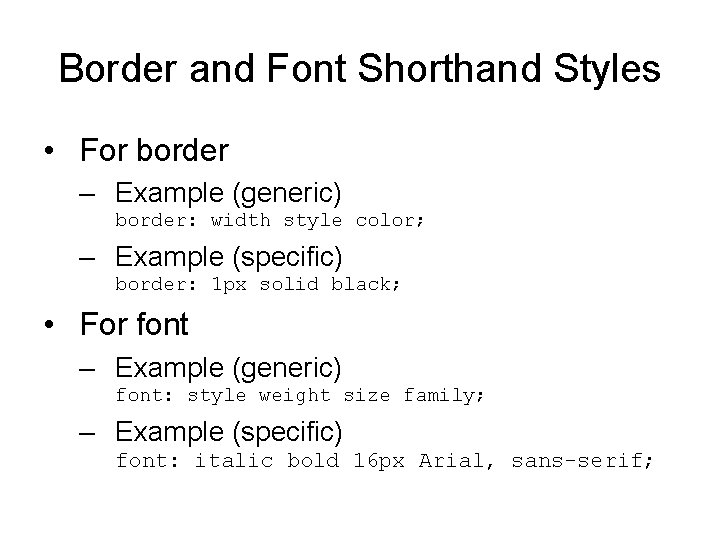
Border and Font Shorthand Styles • For border – Example (generic) border: width style color; – Example (specific) border: 1 px solid black; • For font – Example (generic) font: style weight size family; – Example (specific) font: italic bold 16 px Arial, sans-serif;
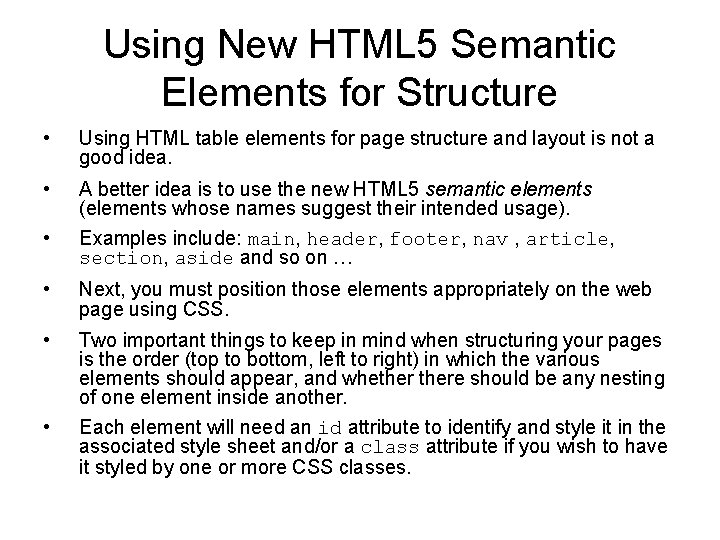
Using New HTML 5 Semantic Elements for Structure • Using HTML table elements for page structure and layout is not a good idea. • A better idea is to use the new HTML 5 semantic elements (elements whose names suggest their intended usage). Examples include: main, header, footer, nav , article, section, aside and so on … • • Next, you must position those elements appropriately on the web page using CSS. • Two important things to keep in mind when structuring your pages is the order (top to bottom, left to right) in which the various elements should appear, and whethere should be any nesting of one element inside another. Each element will need an id attribute to identify and style it in the associated style sheet and/or a class attribute if you wish to have it styled by one or more CSS classes. •
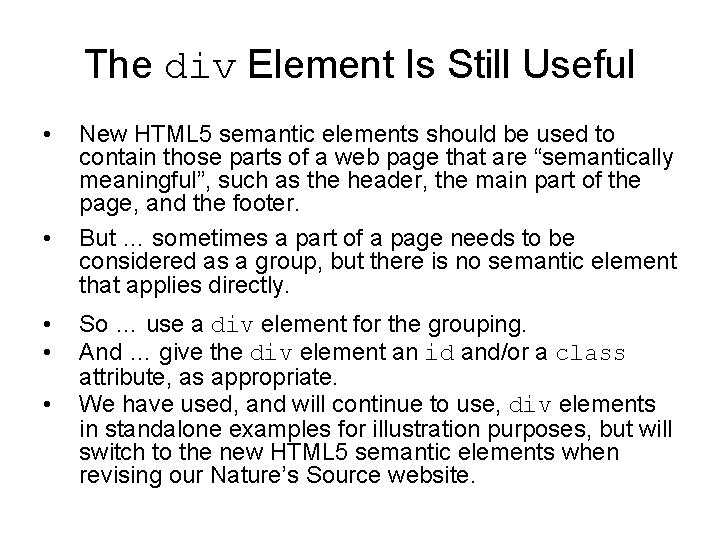
The div Element Is Still Useful • • • New HTML 5 semantic elements should be used to contain those parts of a web page that are “semantically meaningful”, such as the header, the main part of the page, and the footer. But … sometimes a part of a page needs to be considered as a group, but there is no semantic element that applies directly. So … use a div element for the grouping. And … give the div element an id and/or a class attribute, as appropriate. We have used, and will continue to use, div elements in standalone examples for illustration purposes, but will switch to the new HTML 5 semantic elements when revising our Nature’s Source website.
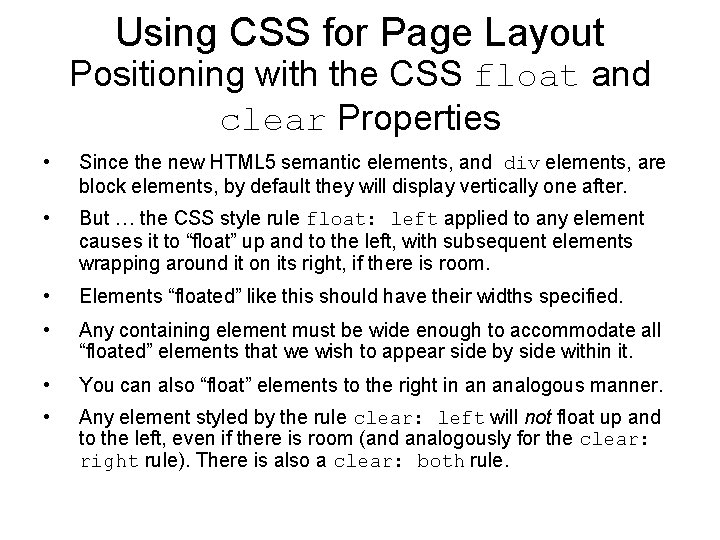
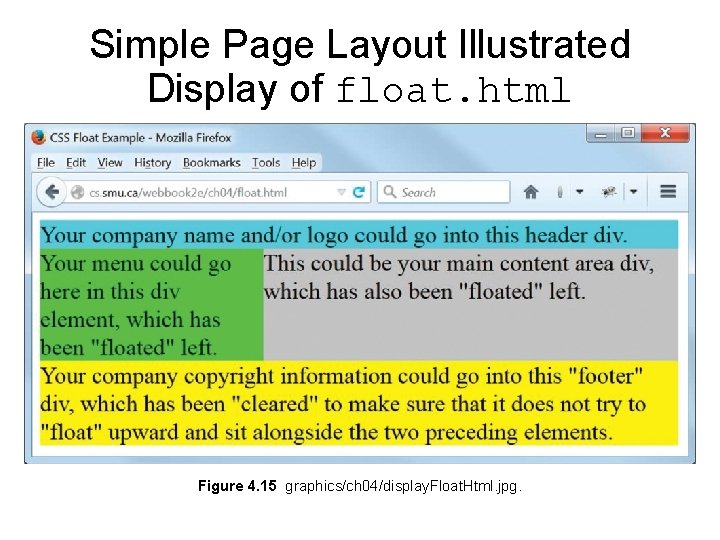
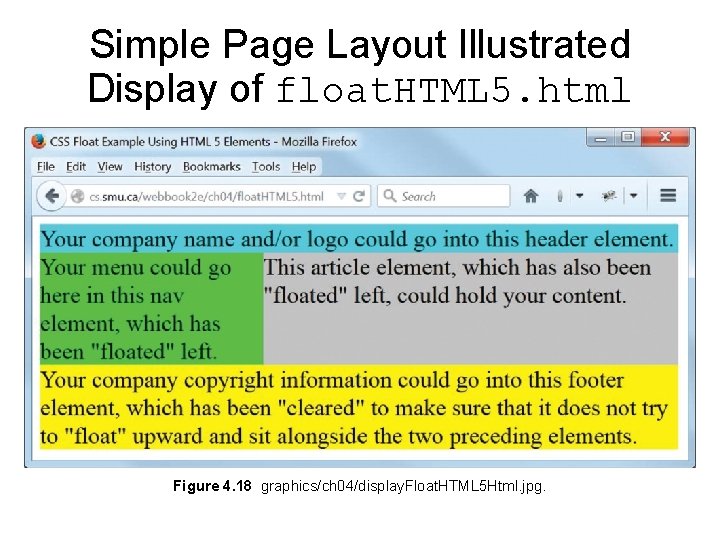
Using CSS for Page Layout Positioning with the CSS float and clear Properties • Since the new HTML 5 semantic elements, and div elements, are block elements, by default they will display vertically one after. • But … the CSS style rule float: left applied to any element causes it to “float” up and to the left, with subsequent elements wrapping around it on its right, if there is room. • Elements “floated” like this should have their widths specified. • Any containing element must be wide enough to accommodate all “floated” elements that we wish to appear side by side within it. • You can also “float” elements to the right in an analogous manner. • Any element styled by the rule clear: left will not float up and to the left, even if there is room (and analogously for the clear: right rule). There is also a clear: both rule.
Simple Page Layout Illustrated Display of float. html Figure 4. 15 graphics/ch 04/display. Float. Html. jpg.
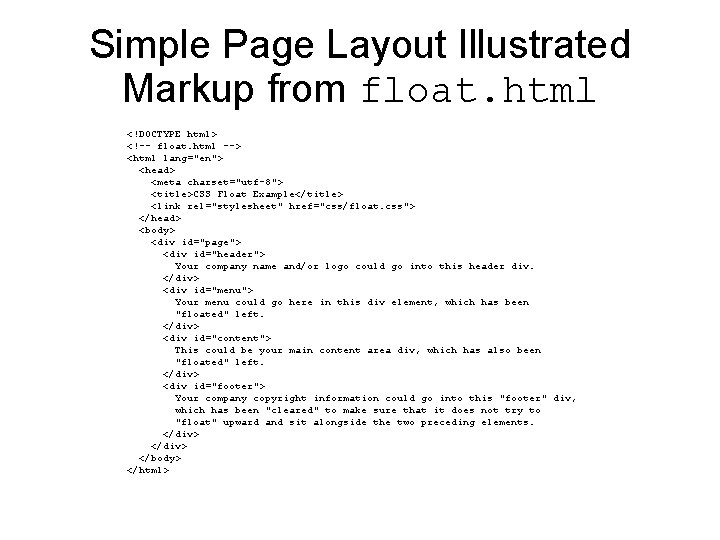
Simple Page Layout Illustrated Markup from float. html <!DOCTYPE html> <!-- float. html --> <html lang="en"> <head> <meta charset="utf-8"> <title>CSS Float Example</title> <link rel="stylesheet" href="css/float. css"> </head> <body> <div id="page"> <div id="header"> Your company name and/or logo could go into this header div. </div> <div id="menu"> Your menu could go here in this div element, which has been "floated" left. </div> <div id="content"> This could be your main content area div, which has also been "floated" left. </div> <div id="footer"> Your company copyright information could go into this "footer" div, which has been "cleared" to make sure that it does not try to "float" upward and sit alongside the two preceding elements. </div> </body> </html>
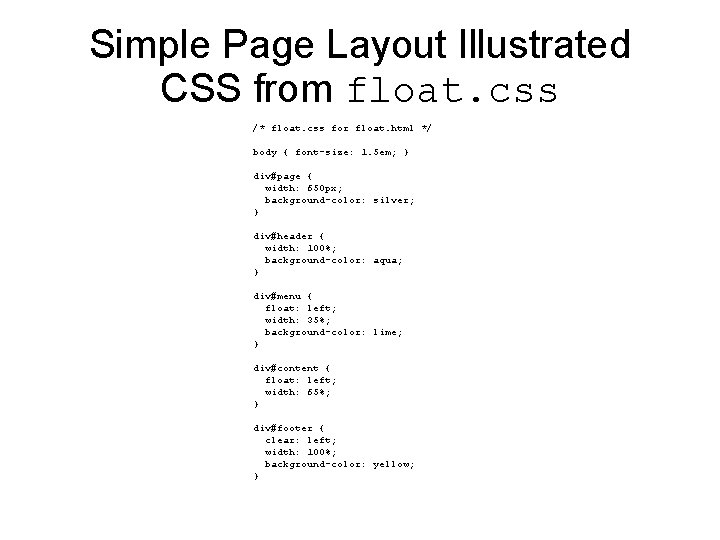
Simple Page Layout Illustrated CSS from float. css /* float. css for float. html */ body { font-size: 1. 5 em; } div#page { width: 650 px; background-color: silver; } div#header { width: 100%; background-color: aqua; } div#menu { float: left; width: 35%; background-color: lime; } div#content { float: left; width: 65%; } div#footer { clear: left; width: 100%; background-color: yellow; }
Simple Page Layout Illustrated Display of float. HTML 5. html Figure 4. 18 graphics/ch 04/display. Float. HTML 5 Html. jpg.
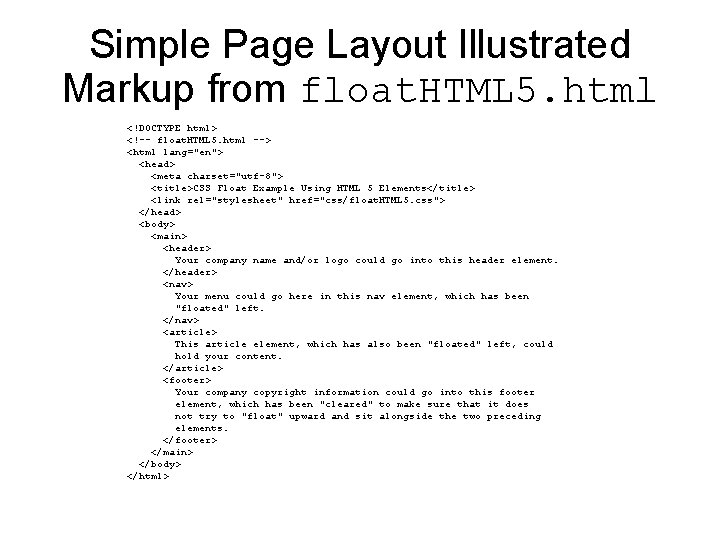
Simple Page Layout Illustrated Markup from float. HTML 5. html <!DOCTYPE html> <!-- float. HTML 5. html --> <html lang="en"> <head> <meta charset="utf-8"> <title>CSS Float Example Using HTML 5 Elements</title> <link rel="stylesheet" href="css/float. HTML 5. css"> </head> <body> <main> <header> Your company name and/or logo could go into this header element. </header> <nav> Your menu could go here in this nav element, which has been "floated" left. </nav> <article> This article element, which has also been "floated" left, could hold your content. </article> <footer> Your company copyright information could go into this footer element, which has been "cleared" to make sure that it does not try to "float" upward and sit alongside the two preceding elements. </footer> </main> </body> </html>
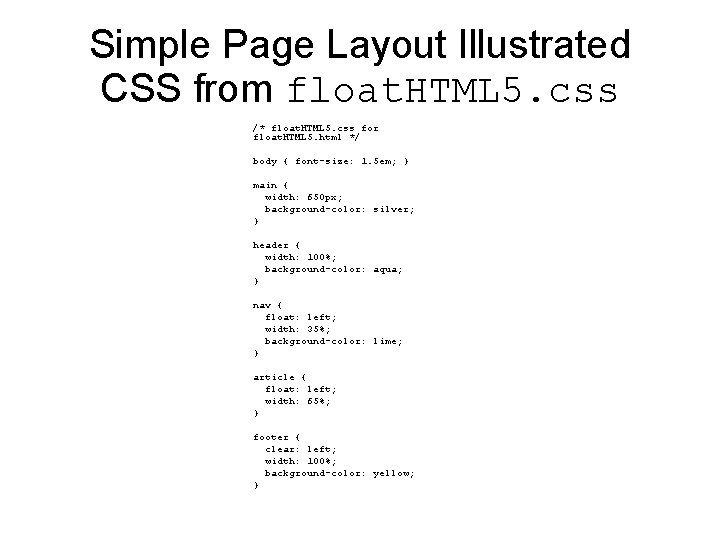
Simple Page Layout Illustrated CSS from float. HTML 5. css /* float. HTML 5. css for float. HTML 5. html */ body { font-size: 1. 5 em; } main { width: 650 px; background-color: silver; } header { width: 100%; background-color: aqua; } nav { float: left; width: 35%; background-color: lime; } article { float: left; width: 65%; } footer { clear: left; width: 100%; background-color: yellow; }
Other Positioning Properties • • There are several other element positioning properties that we do not use but of which you should be aware and may find helpful. Values of the position property: – – position: static (this is the default) fixed (with respect to the browser window) absolute (absolutely positioned with respect to a parent) relative (relative to where it would “normally” be) • Also, the z-index property may be used to create a “layered” 3 -D effect. • See the w 3 schools. com site for some good examples.
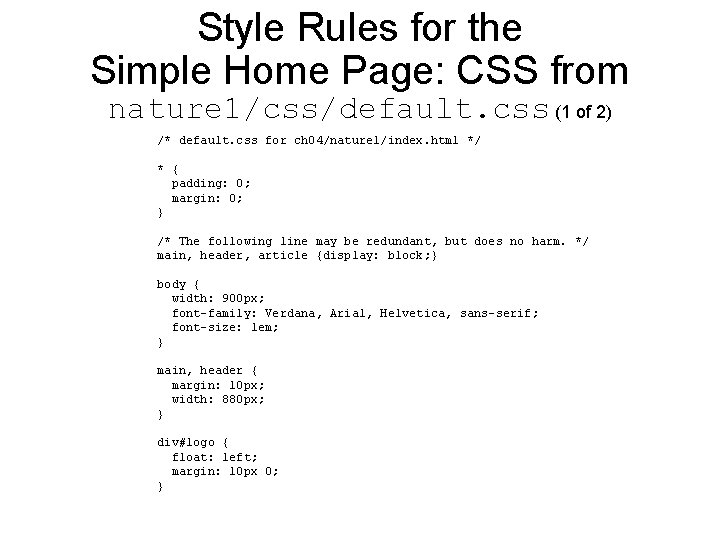
CSS Reset (1 of 2) • • A browser, in the absence of any other instructions, will use its own defaults for displaying any element on a web page. You can control how elements are laid out and displayed via CSS. Problem: Not all browsers use the same defaults, so you cannot be sure things you don’t explicitly style will look the same in all browsers. Solution: At the beginning of your style sheet, reset “everything” to some “baseline” (padding and margin to zero, for example), and then set all such values to your own preferences. – – • Example: * { padding: 0; margin: 0; } Note that * is the universal selector. That is, is “selects everything”, if properly implemented in the browser. This is a bit extreme (as stated), but it is the basis of what is called CSS Reset, and used by many developers.
CSS Reset (2 of 2) • Not all developers will agree on exactly how a CSS Reset should be done. • Other notes – http: //meyerweb. com/eric/tools/css/reset/ • Google the phrase “CSS reset” for additional links to other opinions on the matter.
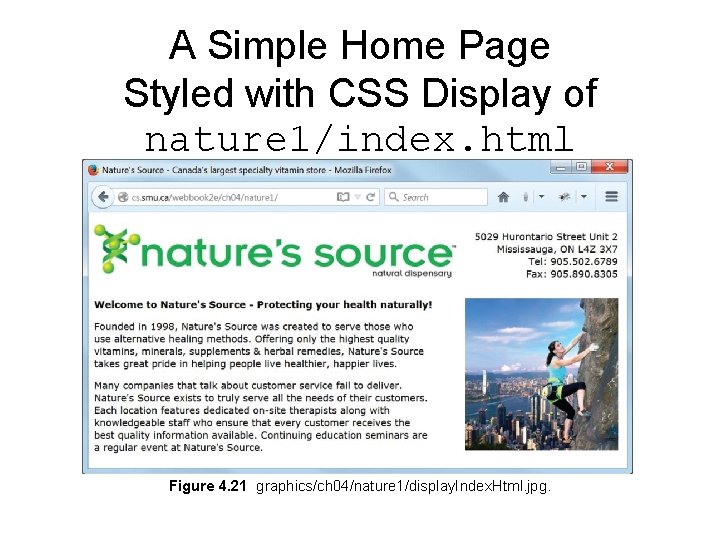
A Simple Home Page Styled with CSS Display of nature 1/index. html Figure 4. 21 graphics/ch 04/nature 1/display. Index. Html. jpg.
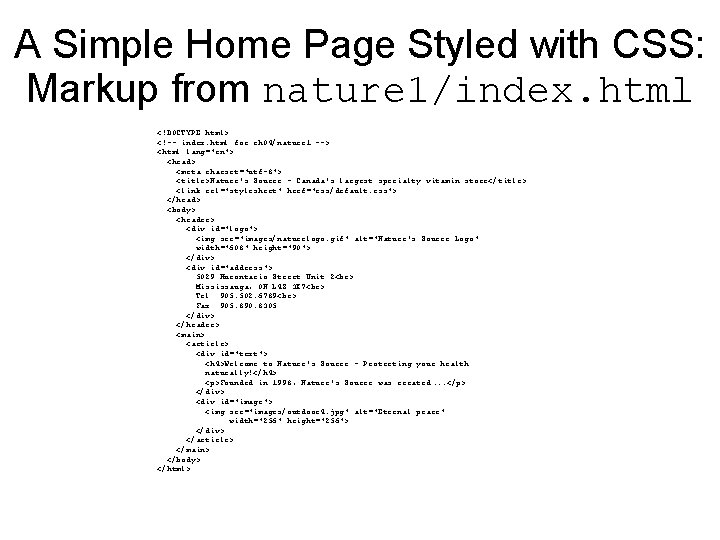
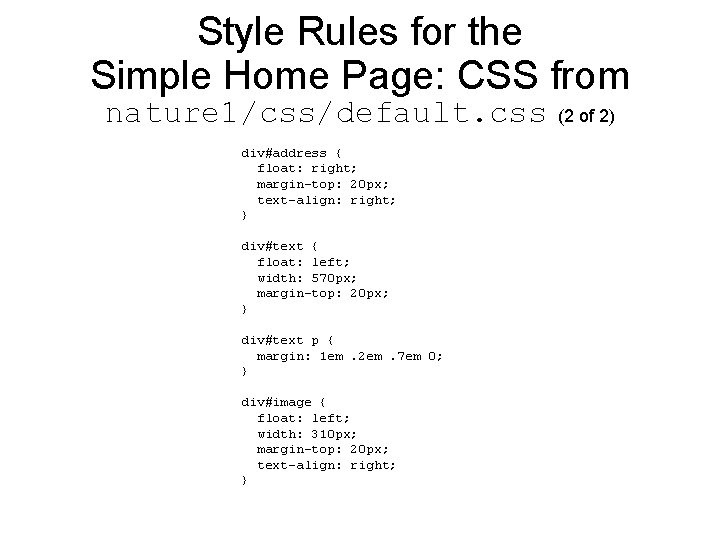
A Simple Home Page Styled with CSS: Markup from nature 1/index. html <!DOCTYPE html> <!-- index. html for ch 04/nature 1 --> <html lang="en"> <head> <meta charset="utf-8"> <title>Nature's Source - Canada's largest specialty vitamin store</title> <link rel="stylesheet" href="css/default. css"> </head> <body> <header> <div id="logo"> <img src="images/naturelogo. gif" alt="Nature's Source Logo" width="608" height="90"> </div> <div id="address"> 5029 Hurontario Street Unit 2 Mississauga, ON L 4 Z 3 X 7 Tel: 905. 502. 6789 Fax: 905. 890. 8305 </div> </header> <main> <article> <div id="text"> <h 4>Welcome to Nature's Source - Protecting your health naturally!</h 4> <p>Founded in 1998, Nature's Source was created. . . </p> </div> <div id="image"> <img src="images/outdoor 4. jpg" alt="Eternal peace" width="256" height="256"> </div> </article> </main> </body> </html>
Style Rules for the Simple Home Page: CSS from nature 1/css/default. css (1 of 2) /* default. css for ch 04/nature 1/index. html */ * { padding: 0; margin: 0; } /* The following line may be redundant, but does no harm. */ main, header, article {display: block; } body { width: 900 px; font-family: Verdana, Arial, Helvetica, sans-serif; font-size: 1 em; } main, header { margin: 10 px; width: 880 px; } div#logo { float: left; margin: 10 px 0; }
Style Rules for the Simple Home Page: CSS from nature 1/css/default. css div#address { float: right; margin-top: 20 px; text-align: right; } div#text { float: left; width: 570 px; margin-top: 20 px; } div#text p { margin: 1 em. 2 em. 7 em 0; } div#image { float: left; width: 310 px; margin-top: 20 px; text-align: right; } (2 of 2)
Notes for sample site • Very Important • You can test the styles by commenting out various style rules in the CSS and observe any resulting changes when the affected page is refreshed. • But be careful: when doing this, make sure you know how to force your browser to reload a web page; otherwise you may be looking at a “cached” version of the page and not see the effect of the changes you’ve made. • If you’re not sure about this, Google a phrase like “how to force a browser refresh” and look for what is required for your browser.
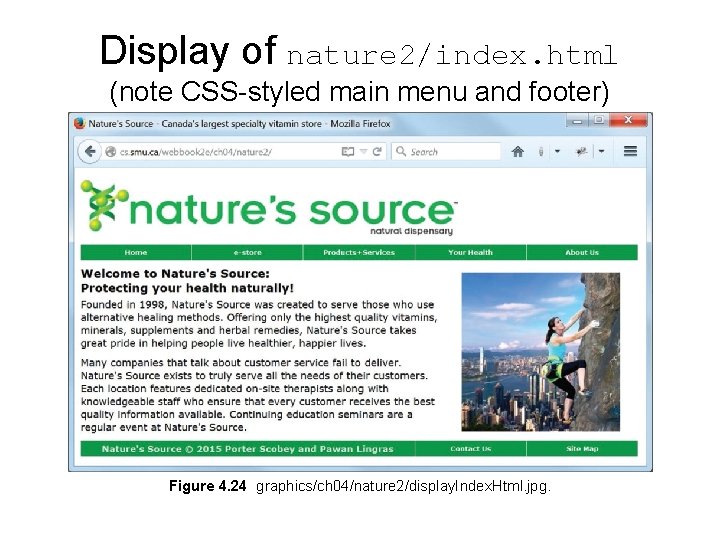
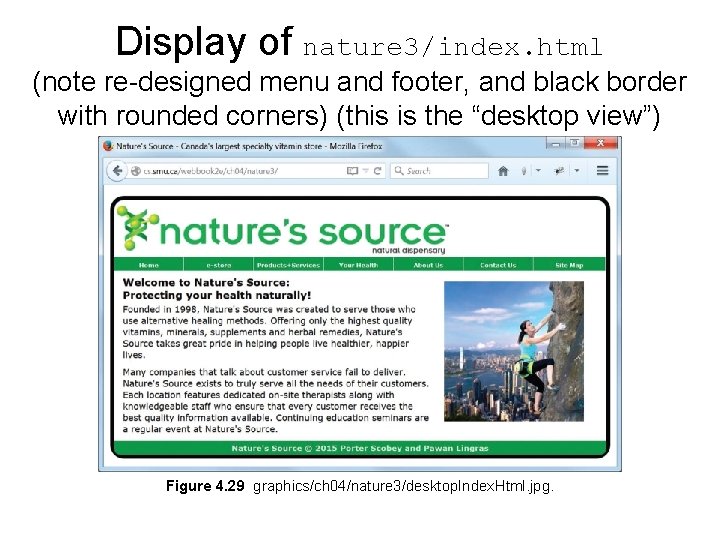
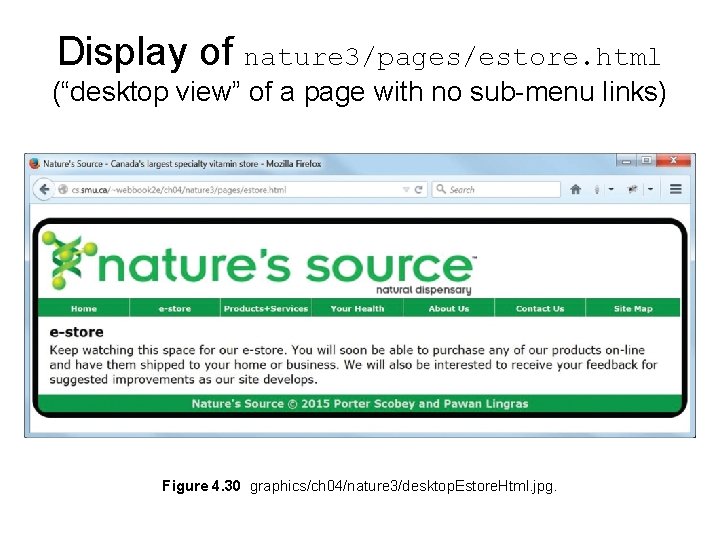
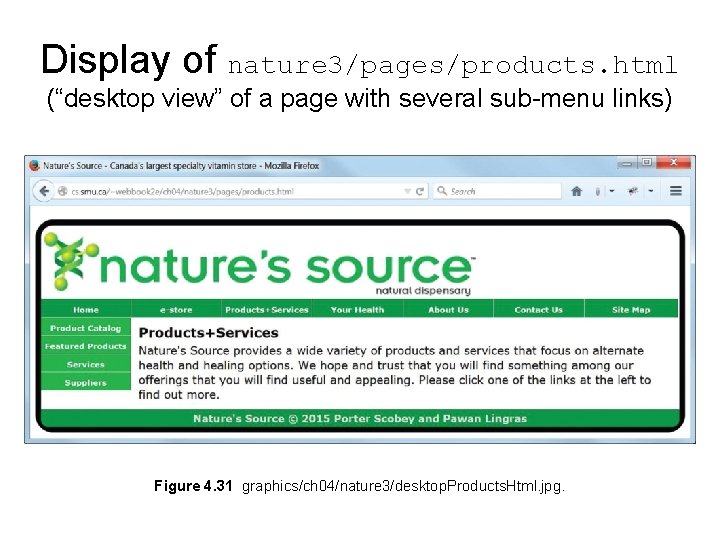
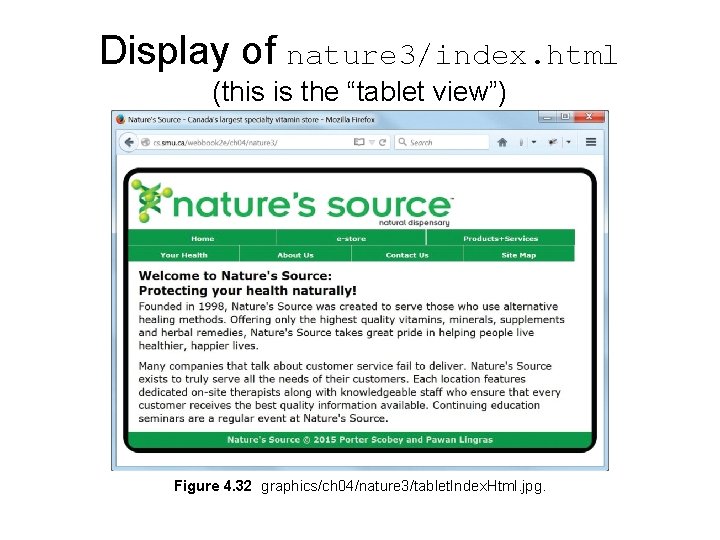
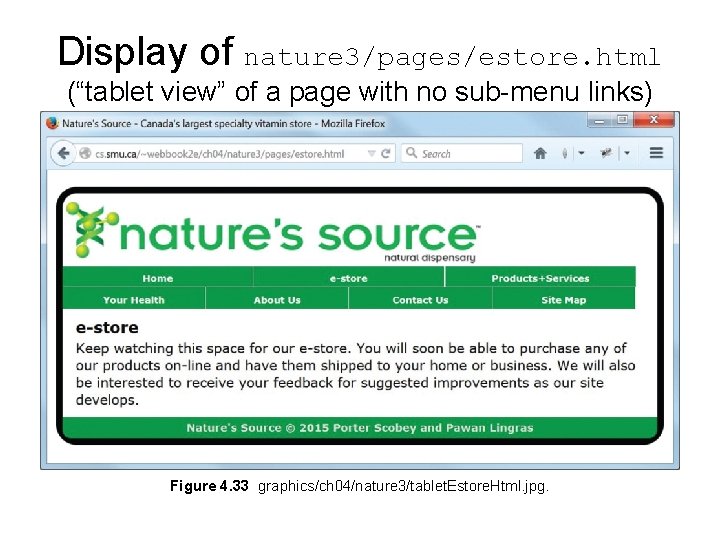
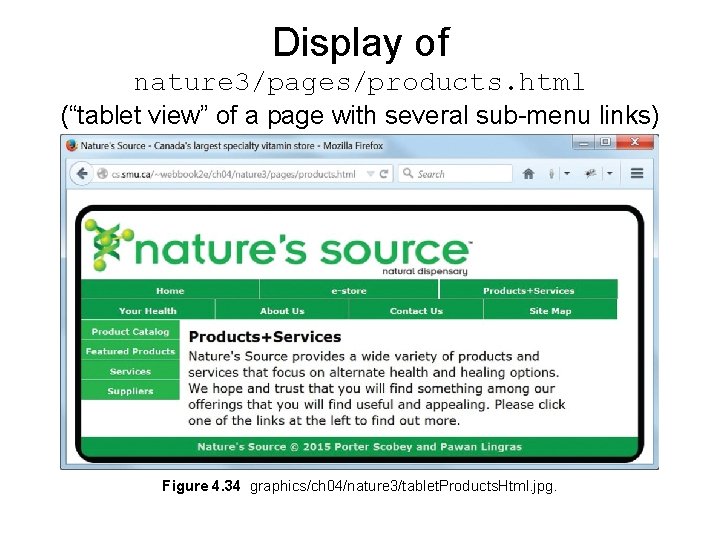
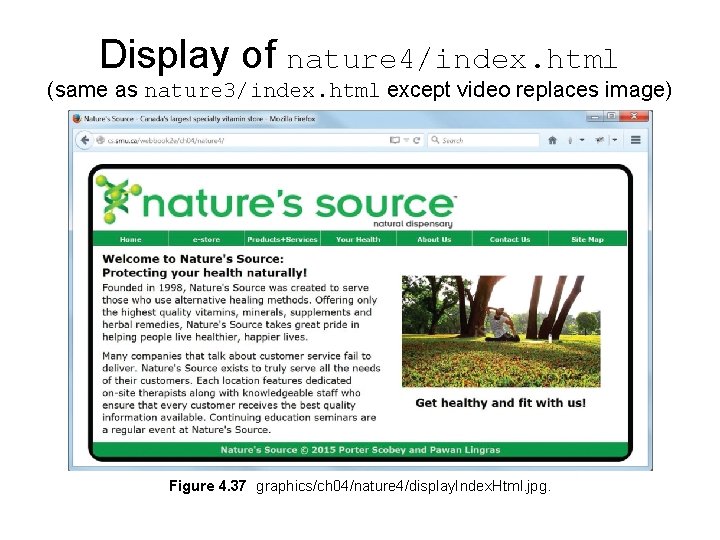
More Notes for the Example • First we show the home page of each of the three remaining versions of our Nature’s Source website in this chapter: nature 2/index. html, nature 3/index. html and nature 4/index. html • Compare the home pages of nature 2 and nature 3, noting the slight re-design of nature 3, and its somewhat improved look, achieved with a little bit of CSS 3. • We show a couple additional pages of the nature 3 website, and you should compare those pages with the corresponding pages from nature 2 as viewed online. • Note that the nature 4 website is exactly the same as nature 3, except that a video has replaced the still image on the home page. • Finally, the nature 3 and nature 4 website versions illustrate simple “responsive design”, so we show the home page of nature 3 in “tablet view” and discuss how this is achieved.
Display of nature 2/index. html (note CSS-styled main menu and footer) Figure 4. 24 graphics/ch 04/nature 2/display. Index. Html. jpg.
Display of nature 3/index. html (note re-designed menu and footer, and black border with rounded corners) (this is the “desktop view”) Figure 4. 29 graphics/ch 04/nature 3/desktop. Index. Html. jpg.
Display of nature 3/pages/estore. html (“desktop view” of a page with no sub-menu links) Figure 4. 30 graphics/ch 04/nature 3/desktop. Estore. Html. jpg.
Display of nature 3/pages/products. html (“desktop view” of a page with several sub-menu links) Figure 4. 31 graphics/ch 04/nature 3/desktop. Products. Html. jpg.
Display of nature 3/index. html (this is the “tablet view”) Figure 4. 32 graphics/ch 04/nature 3/tablet. Index. Html. jpg.
Display of nature 3/pages/estore. html (“tablet view” of a page with no sub-menu links) Figure 4. 33 graphics/ch 04/nature 3/tablet. Estore. Html. jpg.
Display of nature 3/pages/products. html (“tablet view” of a page with several sub-menu links) Figure 4. 34 graphics/ch 04/nature 3/tablet. Products. Html. jpg.
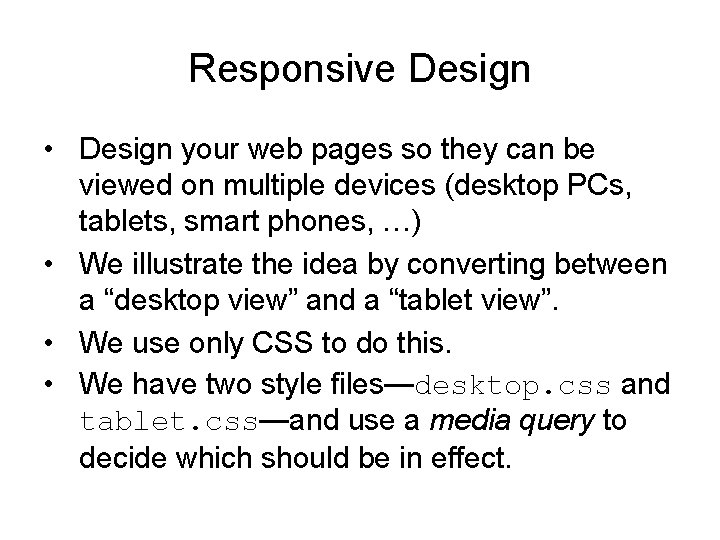
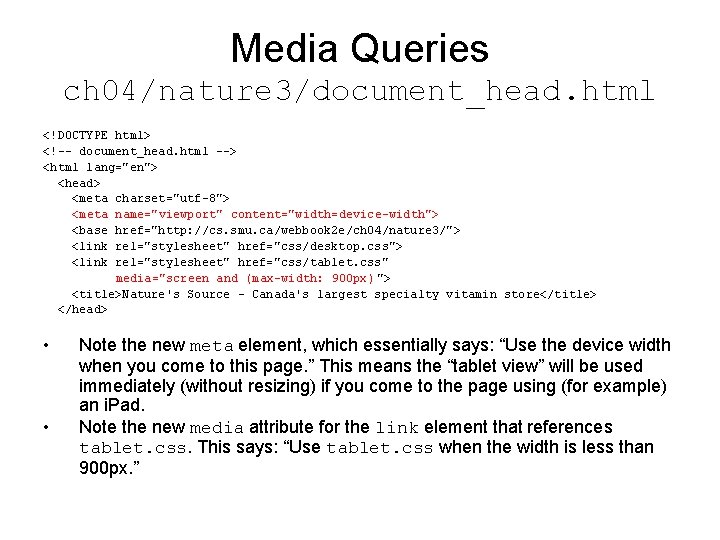
Responsive Design • Design your web pages so they can be viewed on multiple devices (desktop PCs, tablets, smart phones, …) • We illustrate the idea by converting between a “desktop view” and a “tablet view”. • We use only CSS to do this. • We have two style files—desktop. css and tablet. css—and use a media query to decide which should be in effect.
Media Queries ch 04/nature 3/document_head. html <!DOCTYPE html> <!-- document_head. html --> <html lang="en"> <head> <meta charset="utf-8"> <meta name="viewport" content="width=device-width"> <base href="http: //cs. smu. ca/webbook 2 e/ch 04/nature 3/"> <link rel="stylesheet" href="css/desktop. css"> <link rel="stylesheet" href="css/tablet. css" media="screen and (max-width: 900 px) "> <title>Nature's Source - Canada's largest specialty vitamin store</title> </head> • • Note the new meta element, which essentially says: “Use the device width when you come to this page. ” This means the “tablet view” will be used immediately (without resizing) if you come to the page using (for example) an i. Pad. Note the new media attribute for the link element that references tablet. css. This says: “Use tablet. css when the width is less than 900 px. ”
Display of nature 4/index. html (same as nature 3/index. html except video replaces image) Figure 4. 37 graphics/ch 04/nature 4/display. Index. Html. jpg.