
Chapter 4 Cascading Style Sheets CSS Outline 4



- Slides: 44
Chapter 4 – Cascading Style Sheets (CSS) Outline 4. 1 4. 2 4. 3 4. 4 4. 5 4. 6 4. 7 4. 8 4. 9 4. 10 Introduction Inline Styles Creating Style Sheets with the style Element Conflicting Styles Linking External Style Sheets Positioning Elements Backgrounds Element Dimensions Text Flow and the Box Model User Style Sheets 2002 Prentice Hall, Inc. All rights reserved.
4. 1 Introduction • Cascading Style Sheets (CSS) – Define document style – Separate structure from presentation 2002 Prentice Hall, Inc. All rights reserved.
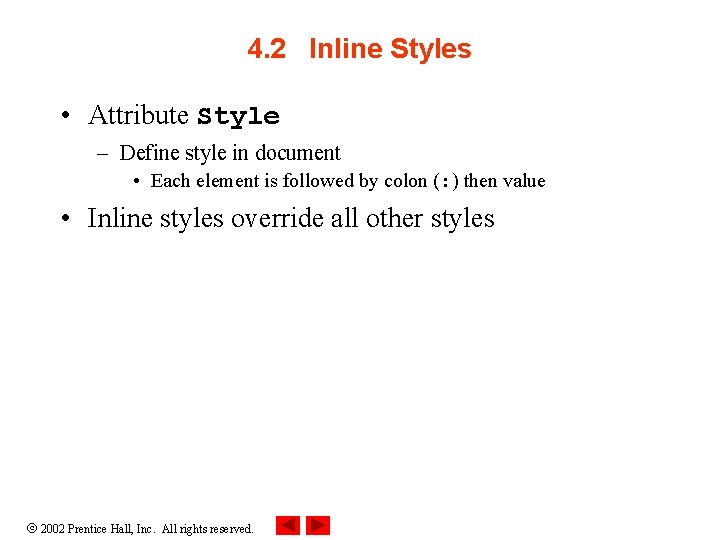
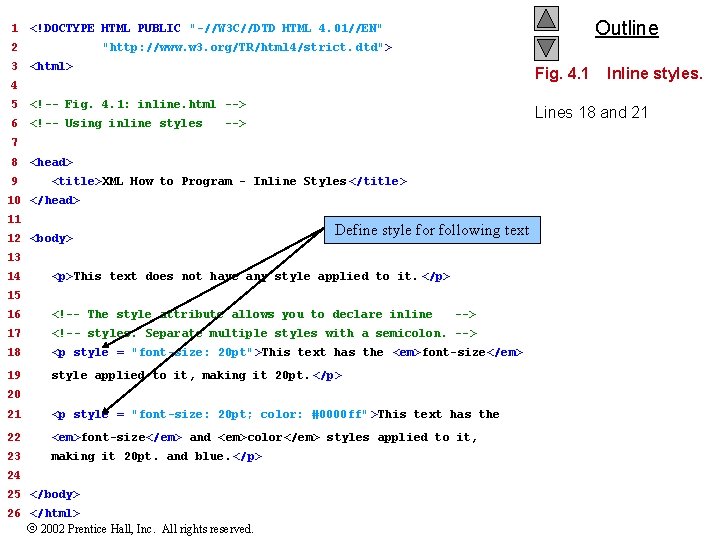
4. 2 Inline Styles • Attribute Style – Define style in document • Each element is followed by colon (: ) then value • Inline styles override all other styles 2002 Prentice Hall, Inc. All rights reserved.
1 2 3 Outline <!DOCTYPE HTML PUBLIC "-//W 3 C//DTD HTML 4. 01//EN" "http: //www. w 3. org/TR/html 4/strict. dtd"> <html> Fig. 4. 1 4 5 <!-- Fig. 4. 1: inline. html --> 6 <!-- Using inline styles Lines 18 and 21 --> 7 8 9 <head> <title>XML How to Program - Inline Styles </title> 10 </head> 11 12 <body> Define style for following text 13 14 <p>This text does not have any style applied to it. </p> 15 16 <!-- The style attribute allows you to declare inline 17 <!-- styles. Separate multiple styles with a semicolon. --> 18 <p style = "font-size: 20 pt">This text has the <em>font-size</em> 19 style applied to it, making it 20 pt. </p> --> 20 21 <p style = "font-size: 20 pt; color: #0000 ff" >This text has the 22 <em>font-size</em> and <em>color</em> styles applied to it, 23 making it 20 pt. and blue. </p> 24 25 </body> 26 </html> 2002 Prentice Hall, Inc. All rights reserved. Inline styles.
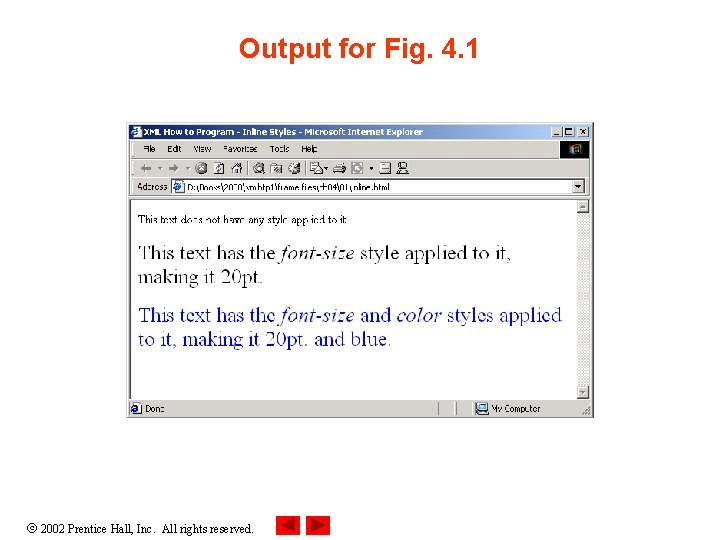
Output for Fig. 4. 1 2002 Prentice Hall, Inc. All rights reserved.
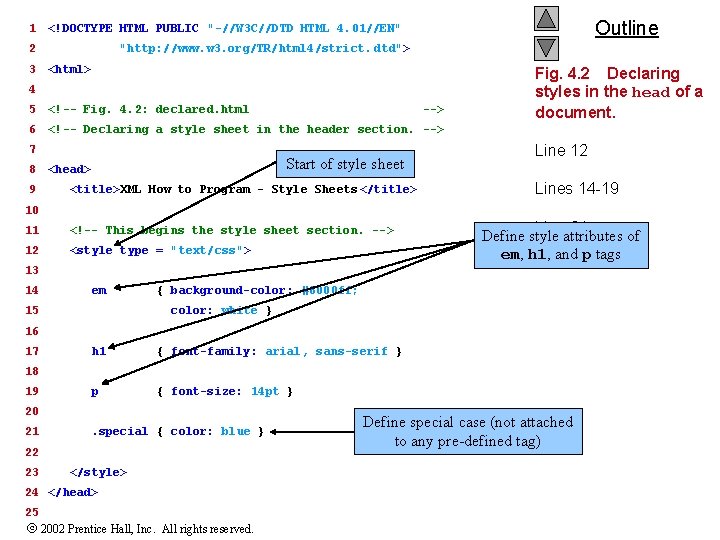
4. 3 Creating Styles with the style element • Styles – Declared in head of document – May be applied to whole document – Begin <style type = "text/css"> • Define styles attached to tags • Property followed by colon (: ) • Multiple properties separated by semi-colon (; ) 2002 Prentice Hall, Inc. All rights reserved.
1 2 3 Outline <!DOCTYPE HTML PUBLIC "-//W 3 C//DTD HTML 4. 01//EN" "http: //www. w 3. org/TR/html 4/strict. dtd"> <html> 4 5 <!-- Fig. 4. 2: declared. html 6 <!-- Declaring a style sheet in the header section. --> 7 8 9 --> Start of style sheet <head> <title>XML How to Program - Style Sheets </title> Fig. 4. 2 Declaring styles in the head of a document. Line 12 Lines 14 -19 10 11 <!-- This begins the style sheet section. --> 12 <style type = "text/css"> Line 21 Define style attributes of em, h 1, and p tags 13 14 em 15 { background-color: #8000 ff; color: white } 16 17 h 1 { font-family: arial, sans-serif } p { font-size: 14 pt } 18 19 20 21 . special { color: blue } 22 23 </style> 24 </head> 25 2002 Prentice Hall, Inc. All rights reserved. Define special case (not attached to any pre-defined tag)
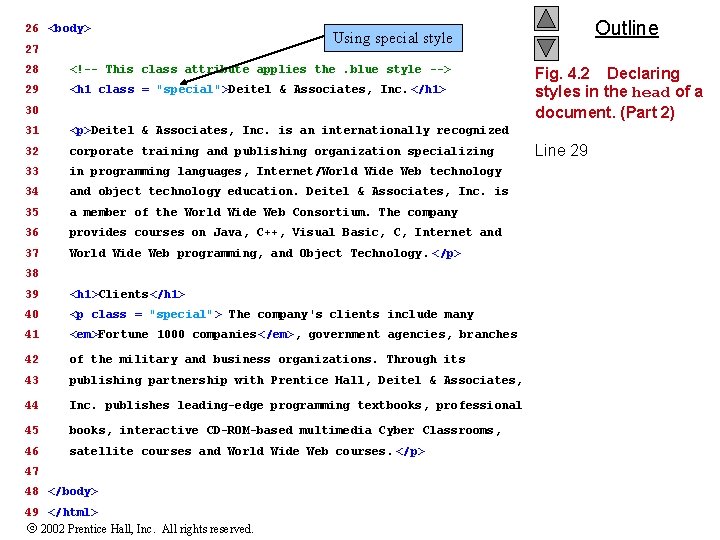
26 <body> 27 28 <!-- This class attribute applies the. blue style --> 29 <h 1 class = "special">Deitel & Associates, Inc. </h 1> 30 31 <p>Deitel & Associates, Inc. is an internationally recognized 32 corporate training and publishing organization specializing 33 in programming languages, Internet/World Wide Web technology 34 and object technology education. Deitel & Associates, Inc. is 35 a member of the World Wide Web Consortium. The company 36 provides courses on Java, C++, Visual Basic, C, Internet and 37 World Wide Web programming, and Object Technology. </p> 38 39 <h 1>Clients</h 1> 40 <p class = "special"> The company's clients include many 41 <em>Fortune 1000 companies</em>, government agencies, branches 42 of the military and business organizations. Through its 43 publishing partnership with Prentice Hall, Deitel & Associates, 44 Inc. publishes leading-edge programming textbooks, professional 45 books, interactive CD-ROM-based multimedia Cyber Classrooms, 46 satellite courses and World Wide Web courses. </p> 47 48 </body> 49 </html> 2002 Prentice Hall, Inc. All rights reserved. Outline Using special style Fig. 4. 2 Declaring styles in the head of a document. (Part 2) Line 29
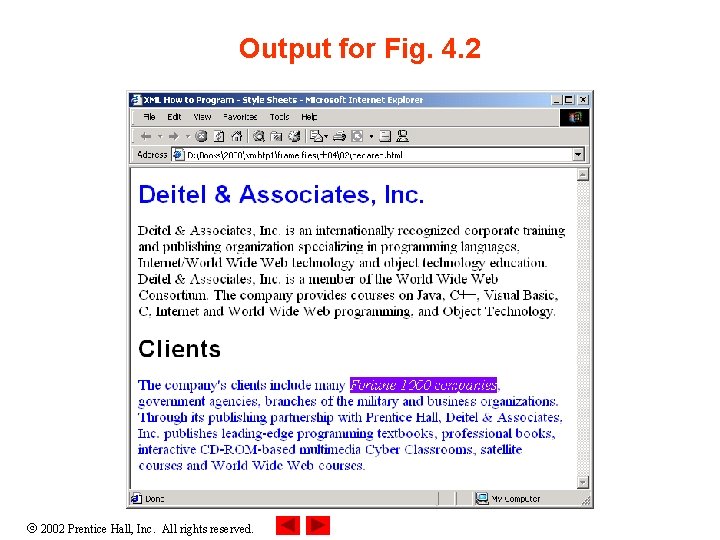
Output for Fig. 4. 2 2002 Prentice Hall, Inc. All rights reserved.
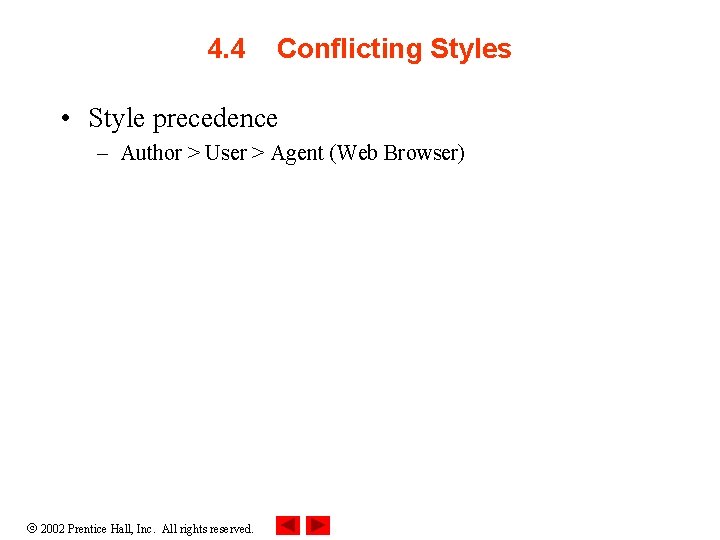
4. 4 Conflicting Styles • Style precedence – Author > User > Agent (Web Browser) 2002 Prentice Hall, Inc. All rights reserved.
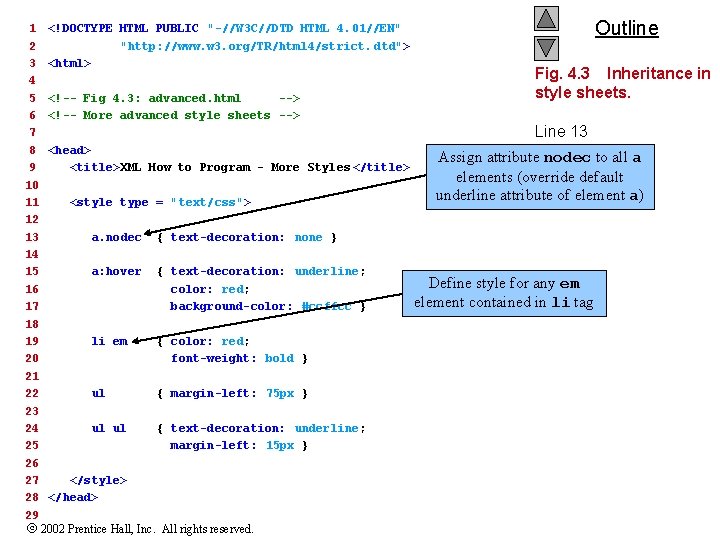
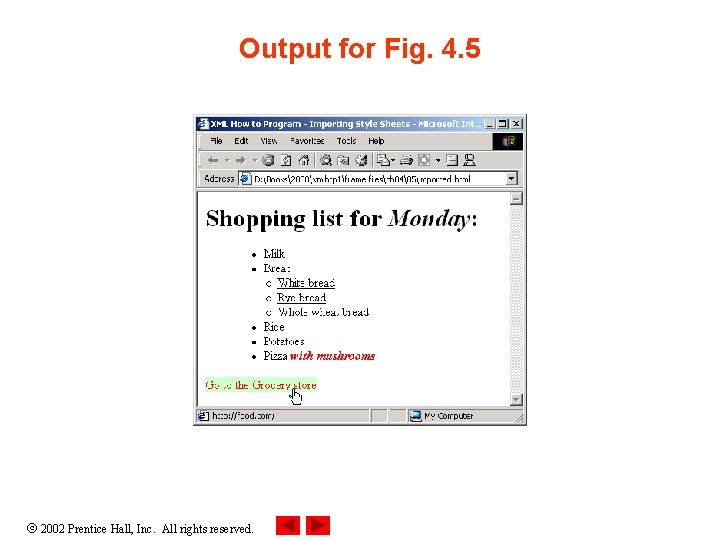
1 2 3 4 5 6 7 8 9 10 11 12 13 14 15 16 17 18 19 20 21 22 23 24 25 26 27 28 29 <!DOCTYPE HTML PUBLIC "-//W 3 C//DTD HTML 4. 01//EN" "http: //www. w 3. org/TR/html 4/strict. dtd"> <html> <!-- Fig 4. 3: advanced. html --> <!-- More advanced style sheets --> <head> <title>XML How to Program - More Styles </title> <style type = "text/css"> a. nodec { text-decoration: none } a: hover { text-decoration: underline; color: red; background-color: #ccffcc } li em { color: red; font-weight: bold } ul { margin-left: 75 px } ul ul { text-decoration: underline; margin-left: 15 px } </style> </head> 2002 Prentice Hall, Inc. All rights reserved. Outline Fig. 4. 3 Inheritance in style sheets. Line 13 Assign attribute nodec to all a Lines 19 -20 elements (override default underline attribute of element a) Define style for any em element contained in li tag
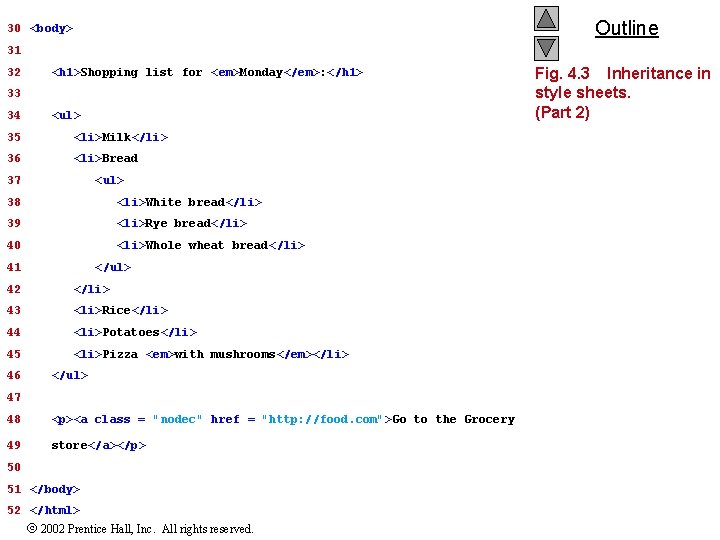
Outline 30 <body> 31 32 <h 1>Shopping list for <em>Monday</em>: </h 1> 33 34 <ul> 35 <li>Milk</li> 36 <li>Bread 37 <ul> 38 <li>White bread</li> 39 <li>Rye bread</li> 40 <li>Whole wheat bread</li> 41 </ul> 42 </li> 43 <li>Rice</li> 44 <li>Potatoes</li> 45 <li>Pizza <em>with mushrooms</em></li> 46 </ul> 47 48 <p><a class = "nodec" href = "http: //food. com">Go to the Grocery 49 store</a></p> 50 51 </body> 52 </html> 2002 Prentice Hall, Inc. All rights reserved. Fig. 4. 3 Inheritance in style sheets. (Part 2)
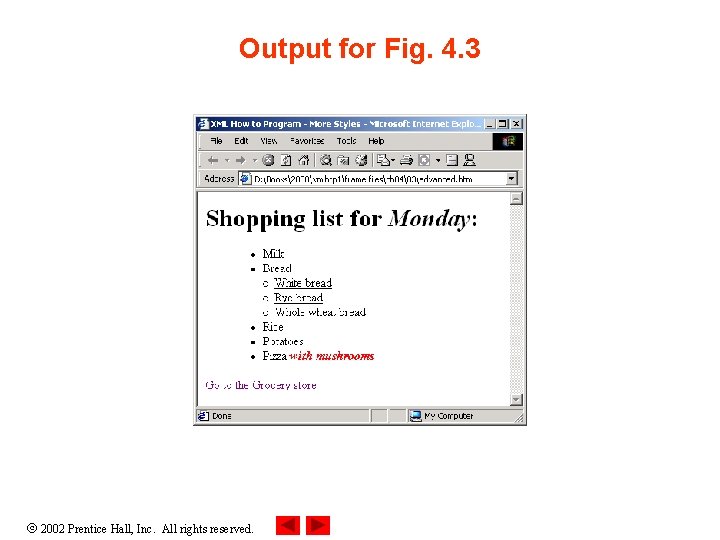
Output for Fig. 4. 3 2002 Prentice Hall, Inc. All rights reserved.
4. 5 Linking External Style Sheets • External Style Sheets – Contained in a. css file – Single style sheet used easily between multiple pages – Linked with link element 2002 Prentice Hall, Inc. All rights reserved.
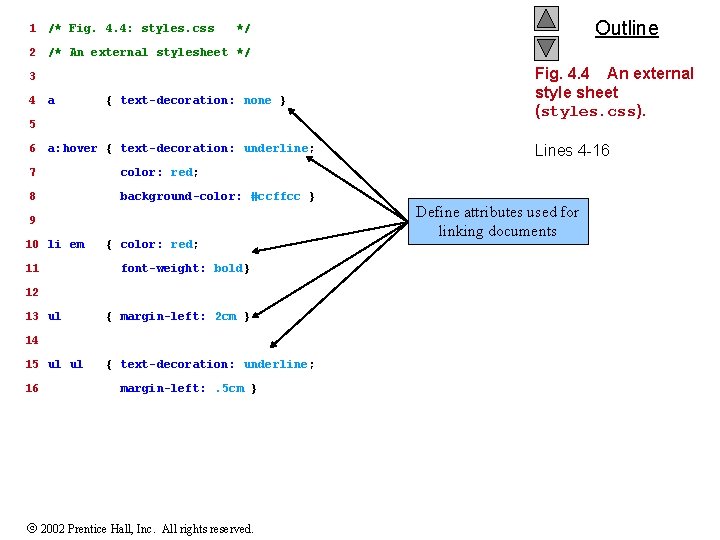
1 /* Fig. 4. 4: styles. css 2 /* An external stylesheet */ 3 4 a { text-decoration: none } 5 6 a: hover { text-decoration: underline; 7 color: red; 8 background-color: #ccffcc } 9 10 li em 11 { color: red; font-weight: bold} 12 13 ul { margin-left: 2 cm } 14 15 ul ul 16 Outline */ { text-decoration: underline; margin-left: . 5 cm } 2002 Prentice Hall, Inc. All rights reserved. Fig. 4. 4 An external style sheet (styles. css). Lines 4 -16 Define attributes used for linking documents
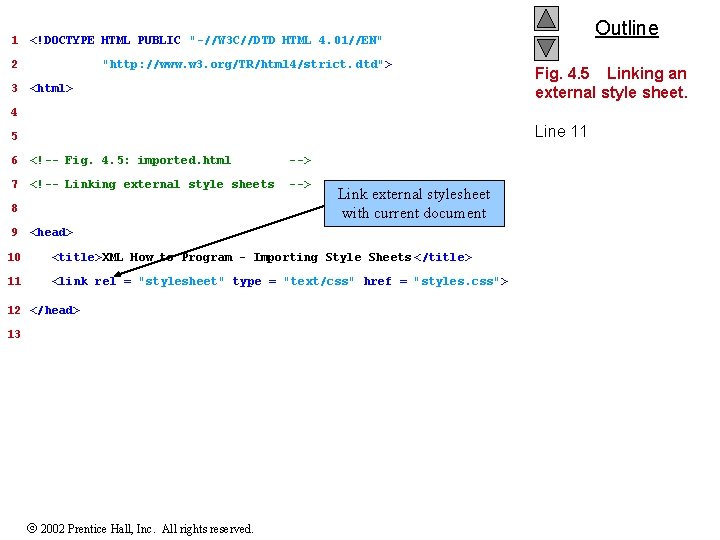
1 2 3 Outline <!DOCTYPE HTML PUBLIC "-//W 3 C//DTD HTML 4. 01//EN" "http: //www. w 3. org/TR/html 4/strict. dtd"> <html> Fig. 4. 5 Linking an external style sheet. 4 Line 11 5 6 <!-- Fig. 4. 5: imported. html --> 7 <!-- Linking external style sheets --> 8 9 Link external stylesheet with current document <head> 10 <title>XML How to Program - Importing Style Sheets </title> 11 <link rel = "stylesheet" type = "text/css" href = "styles. css"> 12 </head> 13 2002 Prentice Hall, Inc. All rights reserved.
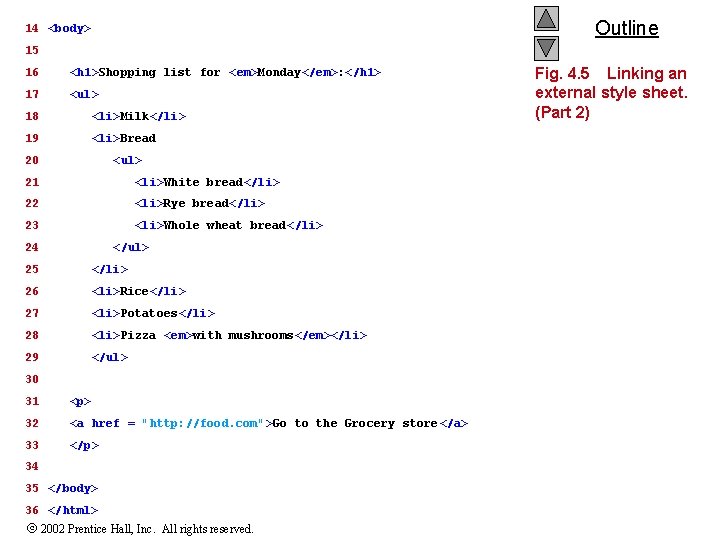
Outline 14 <body> 15 16 <h 1>Shopping list for <em>Monday</em>: </h 1> 17 <ul> 18 <li>Milk</li> 19 <li>Bread 20 <ul> 21 <li>White bread</li> 22 <li>Rye bread</li> 23 <li>Whole wheat bread</li> 24 </ul> 25 </li> 26 <li>Rice</li> 27 <li>Potatoes</li> 28 <li>Pizza <em>with mushrooms</em></li> 29 </ul> 30 31 <p> 32 <a href = "http: //food. com">Go to the Grocery store</a> 33 </p> 34 35 </body> 36 </html> 2002 Prentice Hall, Inc. All rights reserved. Fig. 4. 5 Linking an external style sheet. (Part 2)
Output for Fig. 4. 5 2002 Prentice Hall, Inc. All rights reserved.
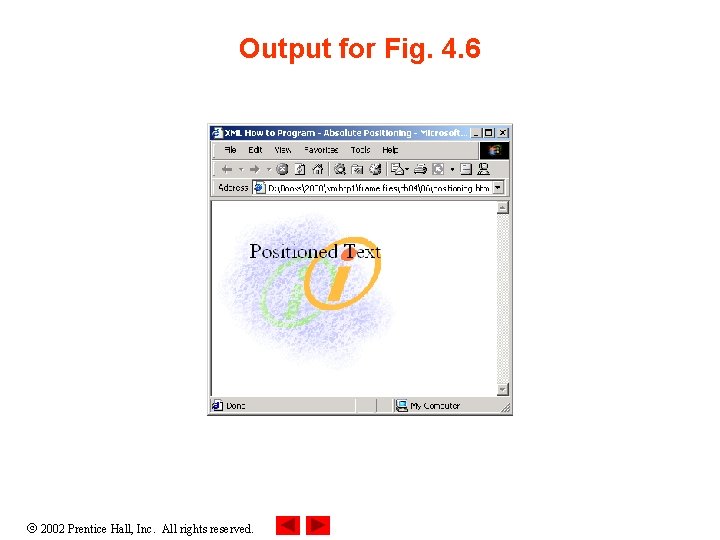
4. 6 Positioning Elements • CSS property position – Absolute positioning • Define element location in pixels • Location is not defined by browser 2002 Prentice Hall, Inc. All rights reserved.
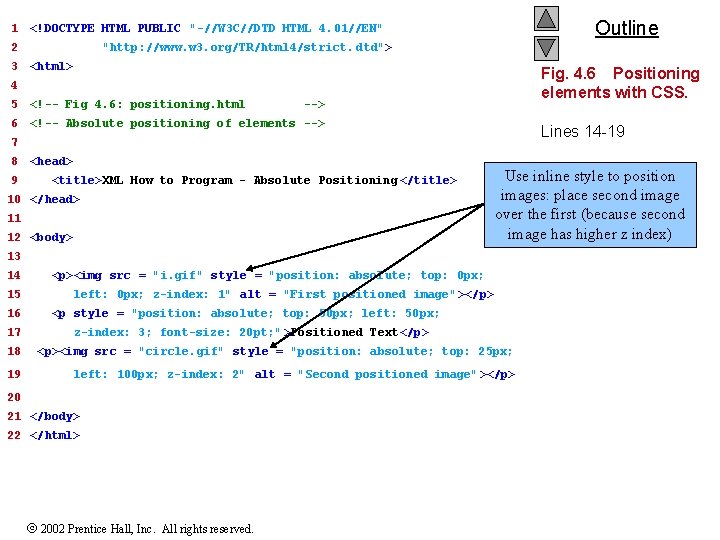
1 2 3 Outline <!DOCTYPE HTML PUBLIC "-//W 3 C//DTD HTML 4. 01//EN" "http: //www. w 3. org/TR/html 4/strict. dtd"> <html> Fig. 4. 6 Positioning elements with CSS. 4 5 <!-- Fig 4. 6: positioning. html --> 6 <!-- Absolute positioning of elements --> Lines 14 -19 7 8 9 <head> <title>XML How to Program - Absolute Positioning </title> 10 </head> 11 12 <body> Use inline style to position images: place second image over the first (because second image has higher z index) 13 14 15 16 17 <p><img src = "i. gif" style = "position: absolute; top: 0 px; left: 0 px; z-index: 1" alt = "First positioned image" ></p> <p style = "position: absolute; top: 50 px; left: 50 px; z-index: 3; font-size: 20 pt; " >Positioned Text</p> 18 <p><img src = "circle. gif" style = "position: absolute; top: 25 px; 19 left: 100 px; z-index: 2" alt = "Second positioned image" ></p> 20 21 </body> 22 </html> 2002 Prentice Hall, Inc. All rights reserved.
Output for Fig. 4. 6 2002 Prentice Hall, Inc. All rights reserved.
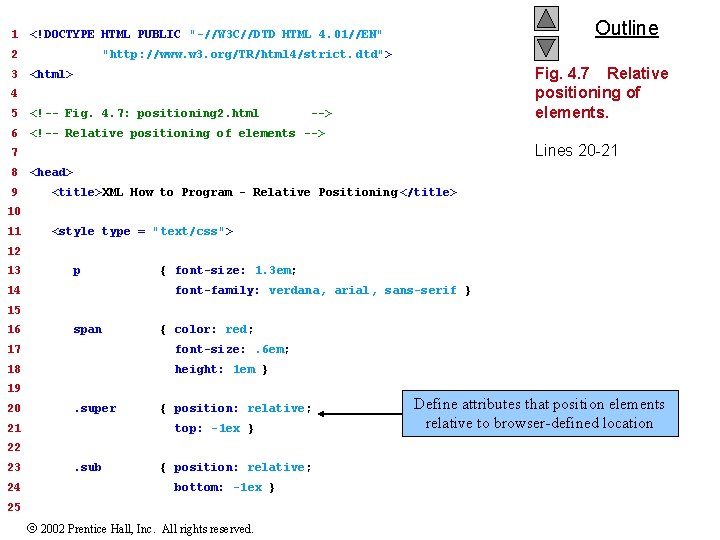
1 2 3 Outline <!DOCTYPE HTML PUBLIC "-//W 3 C//DTD HTML 4. 01//EN" "http: //www. w 3. org/TR/html 4/strict. dtd"> Fig. 4. 7 Relative positioning of elements. <html> 4 5 <!-- Fig. 4. 7: positioning 2. html --> 6 <!-- Relative positioning of elements --> Lines 20 -21 7 8 9 <head> <title>XML How to Program - Relative Positioning </title> 10 11 <style type = "text/css"> 12 13 p 14 { font-size: 1. 3 em; font-family: verdana, arial, sans-serif } 15 16 span { color: red; 17 font-size: . 6 em; 18 height: 1 em } 19 20 . super 21 { position: relative; top: -1 ex } 22 23 24 . sub { position: relative; bottom: -1 ex } 25 2002 Prentice Hall, Inc. All rights reserved. Define attributes that position elements relative to browser-defined location
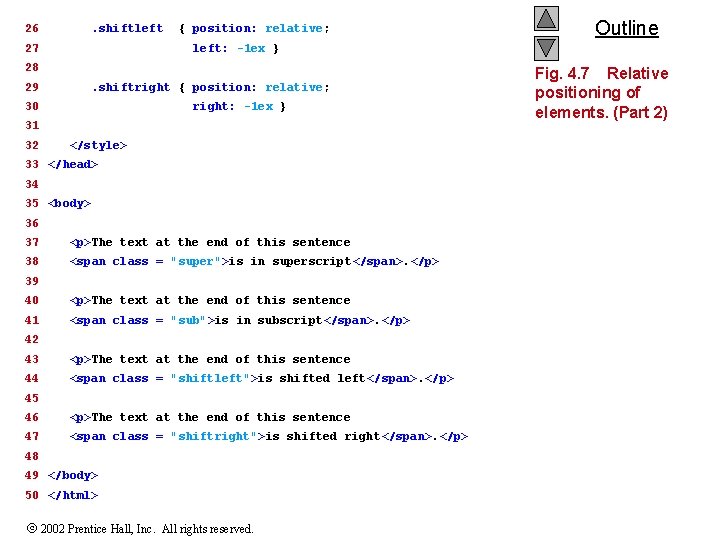
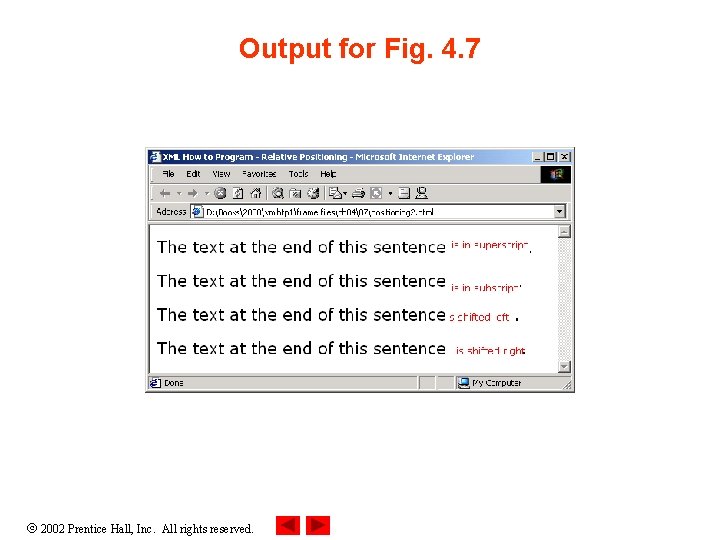
26 . shiftleft 27 { position: relative; left: -1 ex } 28 29 . shiftright { position: relative; 30 right: -1 ex } 31 32 Outline </style> 33 </head> 34 35 <body> 36 37 <p>The text at the end of this sentence 38 <span class = "super">is in superscript</span>. </p> 39 40 <p>The text at the end of this sentence 41 <span class = "sub">is in subscript</span>. </p> 42 43 <p>The text at the end of this sentence 44 <span class = "shiftleft">is shifted left</span>. </p> 45 46 <p>The text at the end of this sentence 47 <span class = "shiftright">is shifted right</span>. </p> 48 49 </body> 50 </html> 2002 Prentice Hall, Inc. All rights reserved. Fig. 4. 7 Relative positioning of elements. (Part 2)
Output for Fig. 4. 7 2002 Prentice Hall, Inc. All rights reserved.
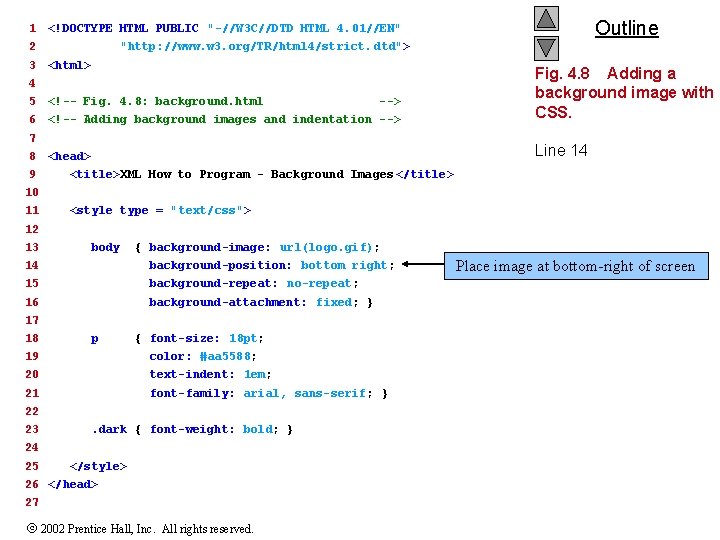
4. 7 Backgrounds • CSS gives control over backgrounds – Property background-image • Specify image URL – Property background-color • Specify background color – Property background-position • Specifies background location – Property background-repeat • Specifies background tiling – Property background-attachment • Set to fixed to apply background-position 2002 Prentice Hall, Inc. All rights reserved.
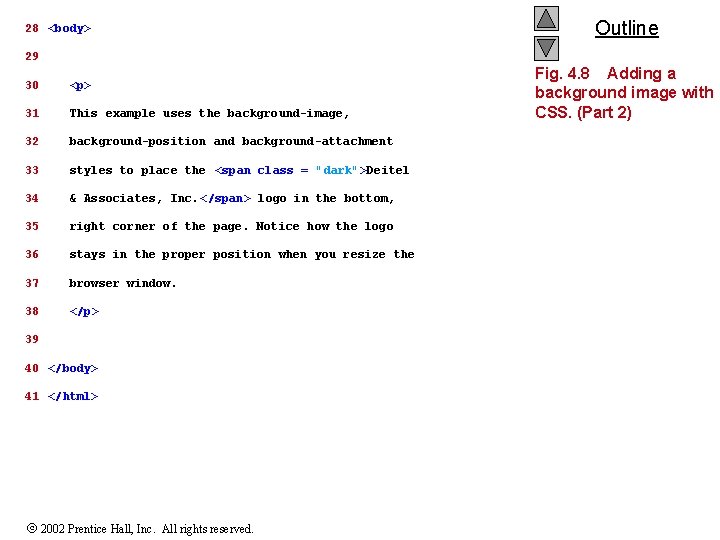
1 2 3 Outline <!DOCTYPE HTML PUBLIC "-//W 3 C//DTD HTML 4. 01//EN" "http: //www. w 3. org/TR/html 4/strict. dtd"> <html> 5 <!-- Fig. 4. 8: background. html 6 <!-- Adding background images and indentation --> Fig. 4. 8 Adding a background image with CSS. <head> Line 14 4 --> 7 8 9 <title>XML How to Program - Background Images </title> 10 11 <style type = "text/css"> 12 13 body { background-image: url(logo. gif); 14 background-position: bottom right; 15 background-repeat: no-repeat; 16 background-attachment: fixed; } 17 18 p { font-size: 18 pt; 19 color: #aa 5588; 20 text-indent: 1 em; 21 font-family: arial, sans-serif; } 22 23 . dark { font-weight: bold; } 24 25 </style> 26 </head> 27 2002 Prentice Hall, Inc. All rights reserved. Place image at bottom-right of screen
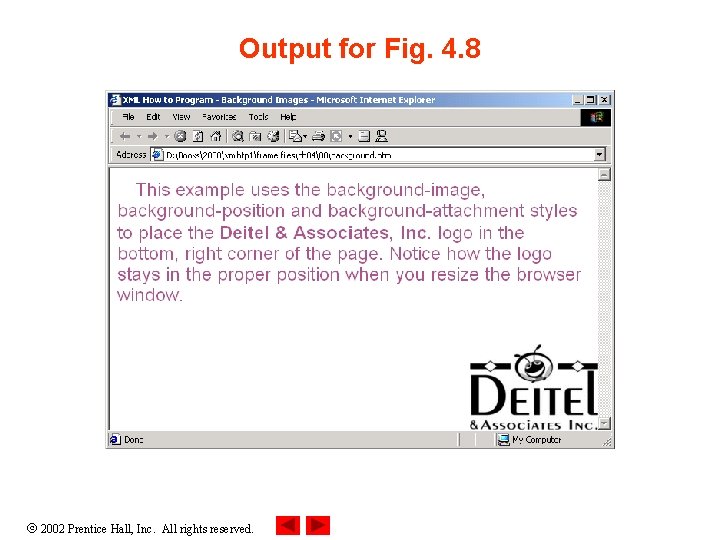
28 <body> Outline 29 30 <p> 31 This example uses the background-image, 32 background-position and background-attachment 33 styles to place the <span class = "dark">Deitel 34 & Associates, Inc. </span> logo in the bottom, 35 right corner of the page. Notice how the logo 36 stays in the proper position when you resize the 37 browser window. 38 </p> 39 40 </body> 41 </html> 2002 Prentice Hall, Inc. All rights reserved. Fig. 4. 8 Adding a background image with CSS. (Part 2)
Output for Fig. 4. 8 2002 Prentice Hall, Inc. All rights reserved.
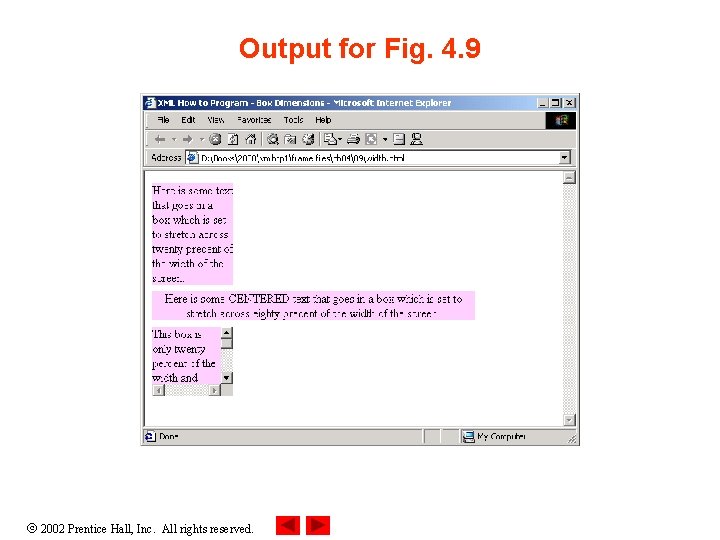
4. 8 Element Dimensions • Specify element dimensions – Set style attribute width to stretch applied elements 2002 Prentice Hall, Inc. All rights reserved.
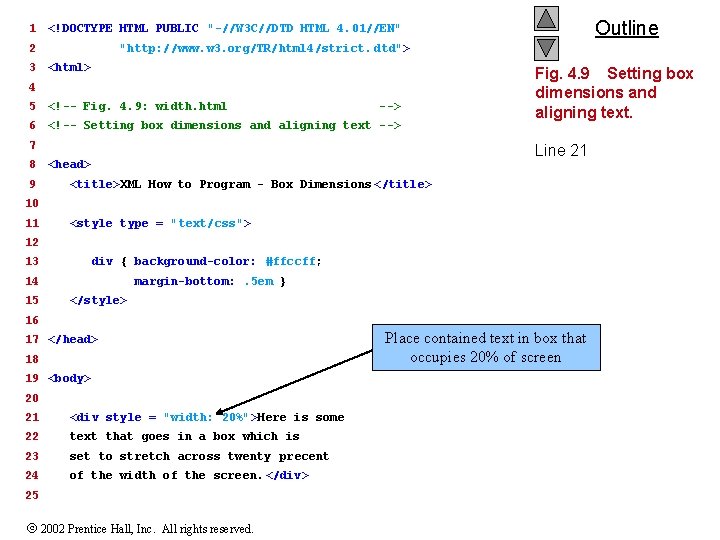
1 2 3 "http: //www. w 3. org/TR/html 4/strict. dtd"> <html> 4 5 <!-- Fig. 4. 9: width. html 6 <!-- Setting box dimensions and aligning text --> 7 8 9 Outline <!DOCTYPE HTML PUBLIC "-//W 3 C//DTD HTML 4. 01//EN" Fig. 4. 9 Setting box dimensions and aligning text. Line 21 <head> <title>XML How to Program - Box Dimensions </title> 10 11 <style type = "text/css"> 12 13 div { background-color: #ffccff; 14 margin-bottom: . 5 em } 15 </style> 16 17 </head> 18 19 <body> 20 21 <div style = "width: 20%">Here is some 22 text that goes in a box which is 23 set to stretch across twenty precent 24 of the width of the screen. </div> 25 2002 Prentice Hall, Inc. All rights reserved. Place contained text in box that occupies 20% of screen
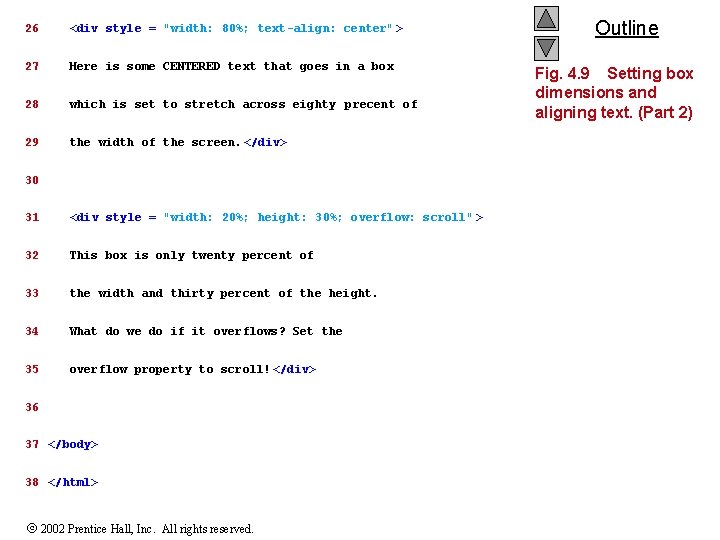
26 <div style = "width: 80%; text-align: center" > 27 Here is some CENTERED text that goes in a box 28 which is set to stretch across eighty precent of 29 the width of the screen. </div> 30 31 <div style = "width: 20%; height: 30%; overflow: scroll" > 32 This box is only twenty percent of 33 the width and thirty percent of the height. 34 What do we do if it overflows? Set the 35 overflow property to scroll! </div> 36 37 </body> 38 </html> 2002 Prentice Hall, Inc. All rights reserved. Outline Fig. 4. 9 Setting box dimensions and aligning text. (Part 2)
Output for Fig. 4. 9 2002 Prentice Hall, Inc. All rights reserved.
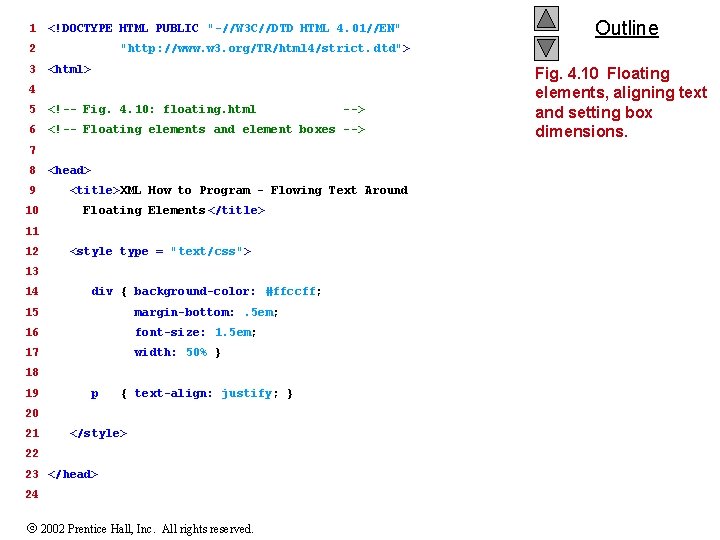
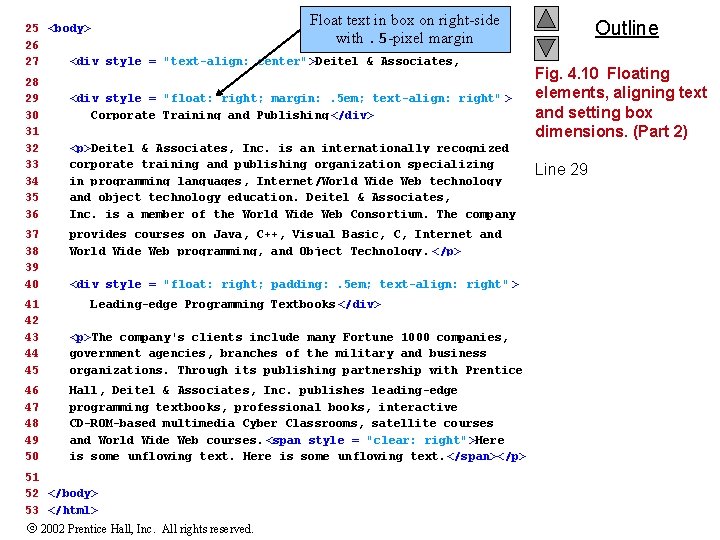
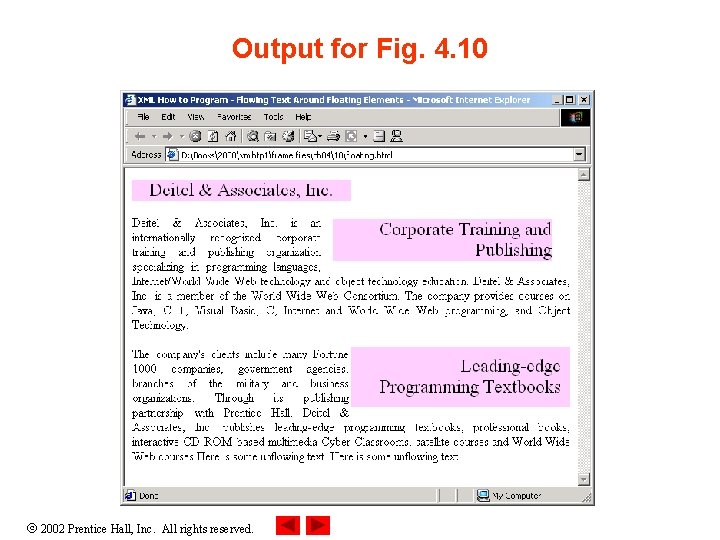
4. 9 Text Flow and the Box Model • Floating – Allows repositioning of elements • Nearby text will wrap • clear property overrides wrapping • Margin – Defines size of element’s margins 2002 Prentice Hall, Inc. All rights reserved.
1 <!DOCTYPE HTML PUBLIC "-//W 3 C//DTD HTML 4. 01//EN" 2 3 "http: //www. w 3. org/TR/html 4/strict. dtd"> <html> 4 5 <!-- Fig. 4. 10: floating. html 6 <!-- Floating elements and element boxes --> 7 8 9 10 <head> <title>XML How to Program - Flowing Text Around Floating Elements</title> 11 12 <style type = "text/css"> 13 14 div { background-color: #ffccff; 15 margin-bottom: . 5 em; 16 font-size: 1. 5 em; 17 width: 50% } 18 19 p { text-align: justify; } 20 21 Outline </style> 22 23 </head> 24 2002 Prentice Hall, Inc. All rights reserved. Fig. 4. 10 Floating elements, aligning text and setting box dimensions.
Float text in box on right-side 25 <body> with. 5 -pixel margin 26 27 <div style = "text-align: center">Deitel & Associates, Inc. </div> 28 29 30 31 32 33 34 35 36 37 38 39 40 <div style = "float: right; margin: . 5 em; text-align: right" > Corporate Training and Publishing </div> <p>Deitel & Associates, Inc. is an internationally recognized corporate training and publishing organization specializing in programming languages, Internet/World Wide Web technology and object technology education. Deitel & Associates, Inc. is a member of the World Wide Web Consortium. The company provides courses on Java, C++, Visual Basic, C, Internet and World Wide Web programming, and Object Technology. </p> <div style = "float: right; padding: . 5 em; text-align: right" > 41 42 43 44 45 Leading-edge Programming Textbooks </div> <p>The company's clients include many Fortune 1000 companies, government agencies, branches of the military and business organizations. Through its publishing partnership with Prentice 46 47 48 49 50 Hall, Deitel & Associates, Inc. publishes leading-edge programming textbooks, professional books, interactive CD-ROM-based multimedia Cyber Classrooms, satellite courses and World Wide Web courses. <span style = "clear: right">Here is some unflowing text. </span></p> 51 52 </body> 53 </html> 2002 Prentice Hall, Inc. All rights reserved. Outline Fig. 4. 10 Floating elements, aligning text and setting box dimensions. (Part 2) Line 29
Output for Fig. 4. 10 2002 Prentice Hall, Inc. All rights reserved.
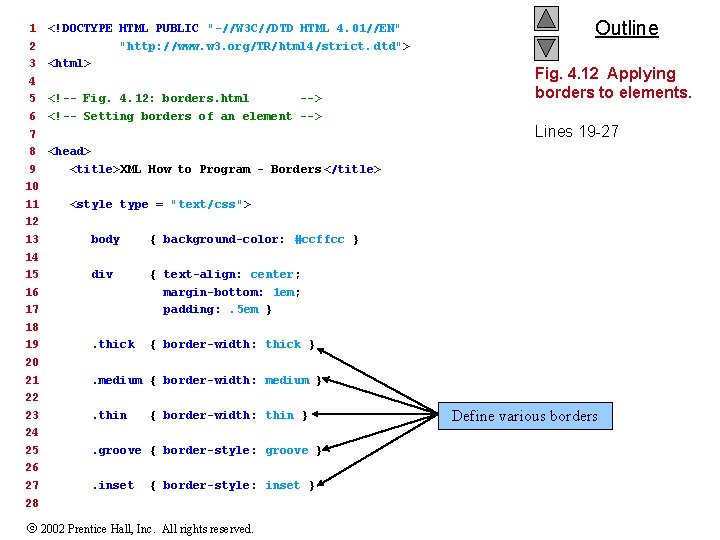
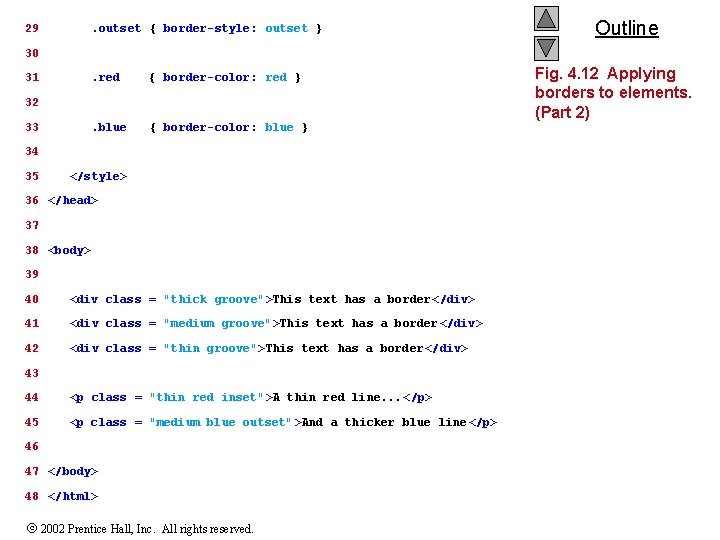
1 2 3 4 5 6 7 8 9 10 11 12 13 14 15 16 17 18 19 20 21 22 23 24 25 26 27 28 <!DOCTYPE HTML PUBLIC "-//W 3 C//DTD HTML 4. 01//EN" "http: //www. w 3. org/TR/html 4/strict. dtd"> <html> <!-- Fig. 4. 12: borders. html --> <!-- Setting borders of an element --> Outline Fig. 4. 12 Applying borders to elements. Lines 19 -27 <head> <title>XML How to Program - Borders </title> <style type = "text/css"> body { background-color: #ccffcc } div { text-align: center; margin-bottom: 1 em; padding: . 5 em } . thick { border-width: thick } . medium { border-width: medium }. thin { border-width: thin } . groove { border-style: groove }. inset { border-style: inset } 2002 Prentice Hall, Inc. All rights reserved. Define various borders
29 . outset { border-style: outset } Outline 30 31 . red { border-color: red } . blue { border-color: blue } 32 33 34 35 </style> 36 </head> 37 38 <body> 39 40 <div class = "thick groove">This text has a border</div> 41 <div class = "medium groove">This text has a border</div> 42 <div class = "thin groove">This text has a border</div> 43 44 <p class = "thin red inset">A thin red line. . . </p> 45 <p class = "medium blue outset">And a thicker blue line</p> 46 47 </body> 48 </html> 2002 Prentice Hall, Inc. All rights reserved. Fig. 4. 12 Applying borders to elements. (Part 2)
Output for Fig. 4. 12 2002 Prentice Hall, Inc. All rights reserved.
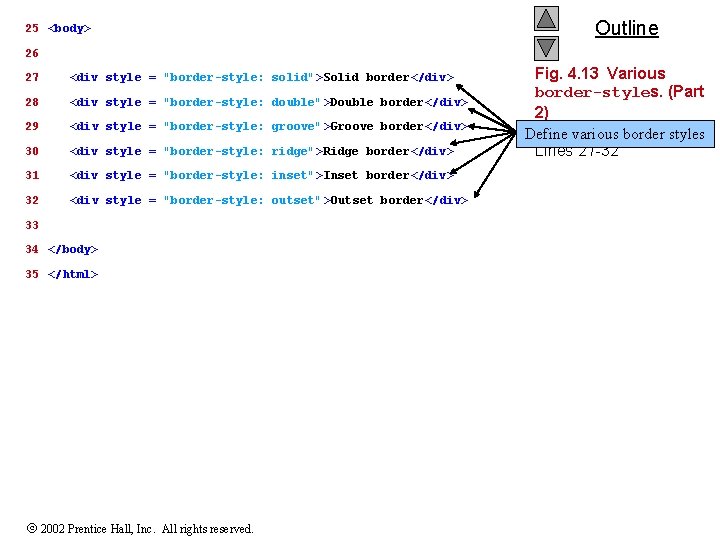
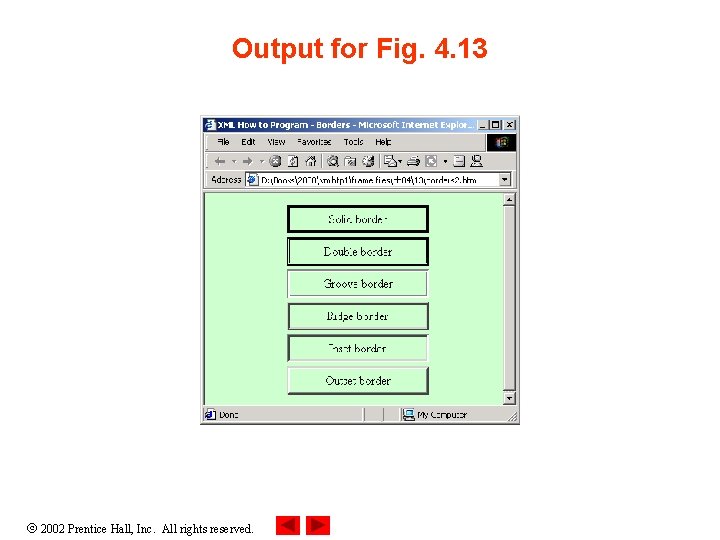
1 2 3 4 5 6 7 8 9 10 11 12 13 14 15 16 17 18 19 20 21 22 23 24 <!DOCTYPE HTML PUBLIC "-//W 3 C//DTD HTML 4. 01//EN" "http: //www. w 3. org/TR/html 4/strict. dtd"> <html> <!-- Fig. 4. 13: borders 2. html <!-- Various border-styles --> <head> <title>XML How to Program - Borders </title> <style type = "text/css"> body { background-color: #ccffcc } div { text-align: center; margin-bottom: . 3 em; width: 50%; position: relative; left: 25%; padding: . 3 em } </style> </head> 2002 Prentice Hall, Inc. All rights reserved. Outline Fig. 4. 13 Various border-styles.
25 <body> Outline 26 27 <div style = "border-style: solid">Solid border</div> 28 <div style = "border-style: double">Double border</div> 29 <div style = "border-style: groove">Groove border</div> 30 <div style = "border-style: ridge">Ridge border</div> 31 <div style = "border-style: inset">Inset border</div> 32 <div style = "border-style: outset">Outset border</div> 33 34 </body> 35 </html> 2002 Prentice Hall, Inc. All rights reserved. Fig. 4. 13 Various border-styles. (Part 2) Define various border styles Lines 27 -32
Output for Fig. 4. 13 2002 Prentice Hall, Inc. All rights reserved.
4. 10 User Style Sheets • User-defined styles – Users can customize styles • e. g. , Web-site designers 2002 Prentice Hall, Inc. All rights reserved.
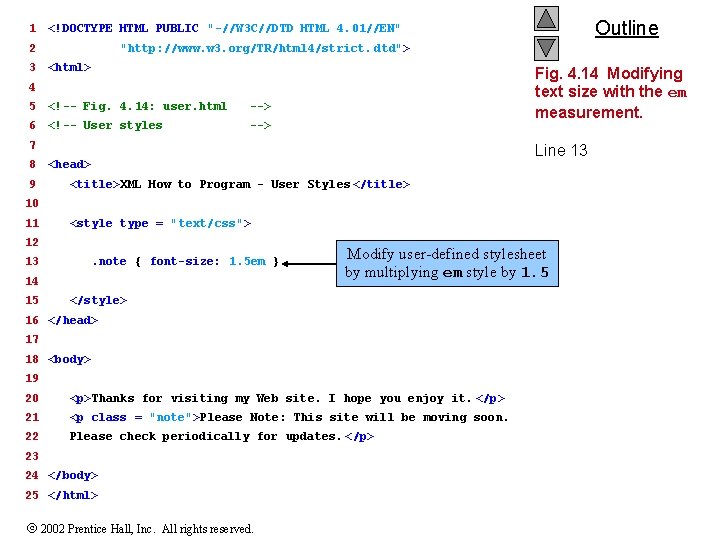
1 2 3 "http: //www. w 3. org/TR/html 4/strict. dtd"> <html> Fig. 4. 14 Modifying text size with the em measurement. 4 5 <!-- Fig. 4. 14: user. html --> 6 <!-- User styles --> 7 8 9 Outline <!DOCTYPE HTML PUBLIC "-//W 3 C//DTD HTML 4. 01//EN" Line 13 <head> <title>XML How to Program - User Styles </title> 10 11 <style type = "text/css"> 12 13 . note { font-size: 1. 5 em } 14 15 Modify user-defined stylesheet by multiplying em style by 1. 5 </style> 16 </head> 17 18 <body> 19 20 <p>Thanks for visiting my Web site. I hope you enjoy it. </p> 21 <p class = "note">Please Note: This site will be moving soon. 22 Please check periodically for updates. </p> 23 24 </body> 25 </html> 2002 Prentice Hall, Inc. All rights reserved.