
Chapter 3 Variables Input and Output 3 1
Chapter 3 – Variables, Input, and Output • 3. 1 Numbers • 3. 2 Strings • 3. 3 Input and Output Chapter 3 - VB 2008 by Schneider 1
3. 1 Numbers • • Arithmetic Operations Variables Incrementing the Value of a Variable Built-In Functions: • Math. Sqrt • Int • Math. Round Chapter 3 - VB 2008 by Schneider 2
Numbers continued • • • The Integer Data Type Multiple Declarations Parentheses Three Types of Errors The Error List Window Chapter 3 - VB 2008 by Schneider 3
Arithmetic Operations • Numbers are called numeric literals • Five arithmetic operations in Visual Basic • • • + addition - subtraction * multiplication / division ^ exponentiation Chapter 3 - VB 2008 by Schneider 4
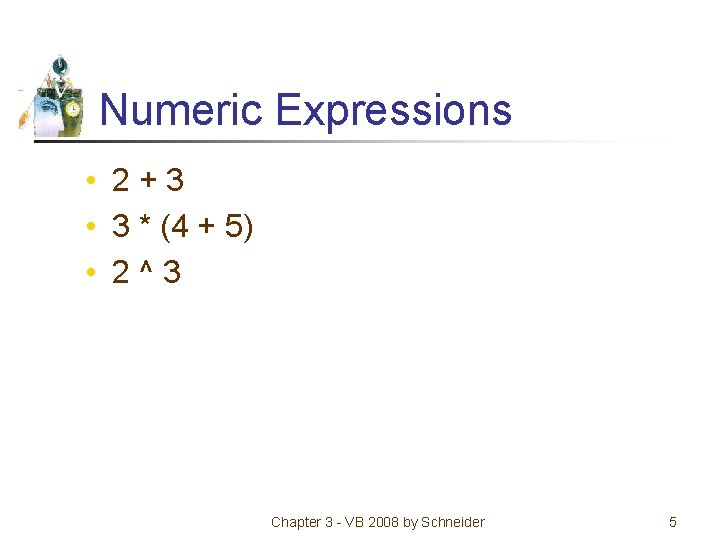
Numeric Expressions • 2+3 • 3 * (4 + 5) • 2^3 Chapter 3 - VB 2008 by Schneider 5
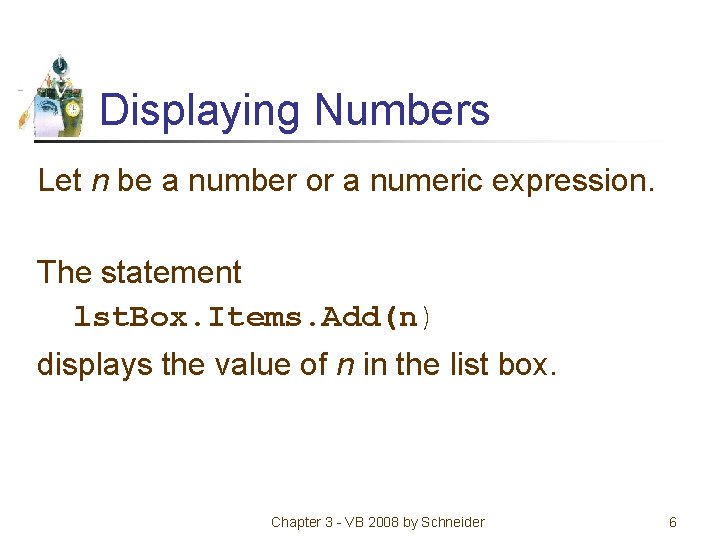
Displaying Numbers Let n be a number or a numeric expression. The statement lst. Box. Items. Add(n) displays the value of n in the list box. Chapter 3 - VB 2008 by Schneider 6
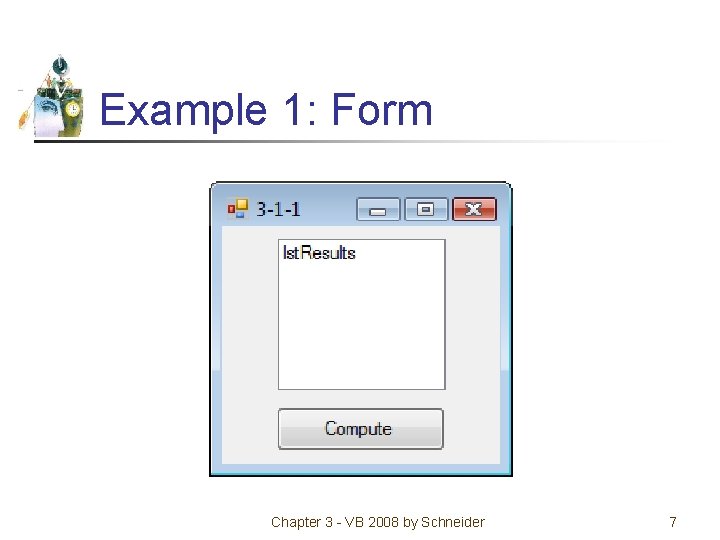
Example 1: Form Chapter 3 - VB 2008 by Schneider 7
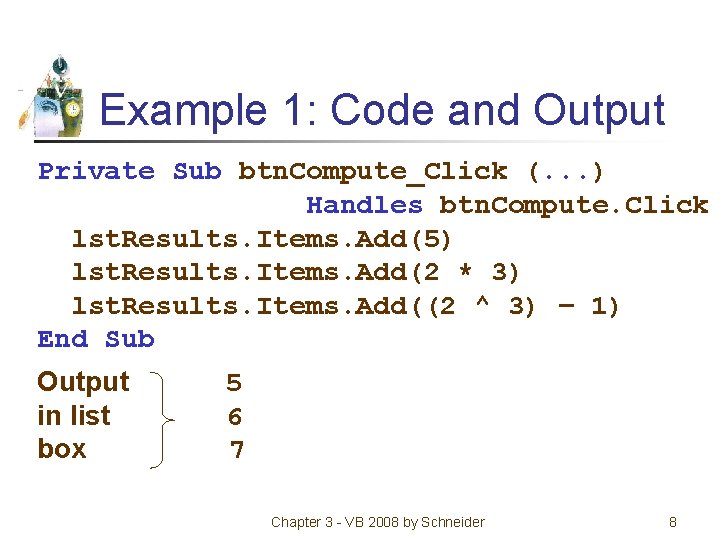
Example 1: Code and Output Private Sub btn. Compute_Click (. . . ) Handles btn. Compute. Click lst. Results. Items. Add(5) lst. Results. Items. Add(2 * 3) lst. Results. Items. Add((2 ^ 3) – 1) End Sub Output in list box 5 6 7 Chapter 3 - VB 2008 by Schneider 8
Numeric Variable A numeric variable is a name to which a number can be assigned. Examples: speed distance interest. Rate balance Chapter 3 - VB 2008 by Schneider 9
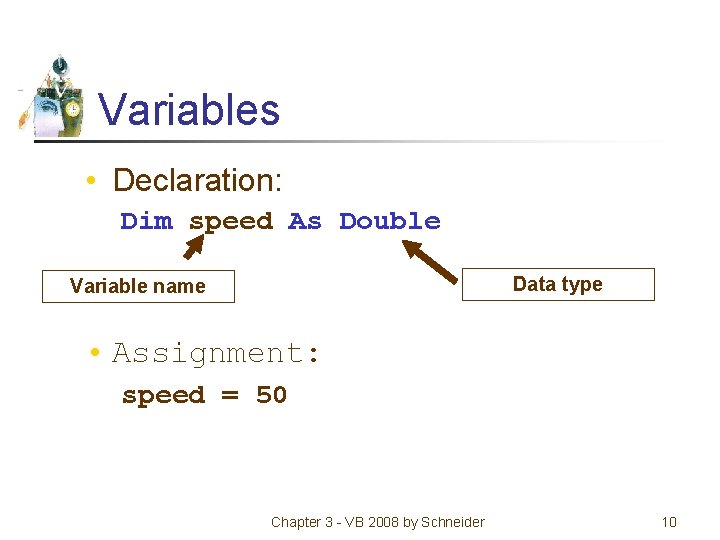
Variables • Declaration: Dim speed As Double Data type Variable name • Assignment: speed = 50 Chapter 3 - VB 2008 by Schneider 10
Initialization • Numeric variables are automatically initialized to 0: Dim var. Name As Double • To specify a nonzero initial value Dim var. Name As Double = 50 Chapter 3 - VB 2008 by Schneider 11
Numeric Expressions Numeric variables can be used in numeric expressions. Dim balance As Double = 1000 lst. Box. Items. Add(1. 05 * balance) Output: 1050 Chapter 3 - VB 2008 by Schneider 12
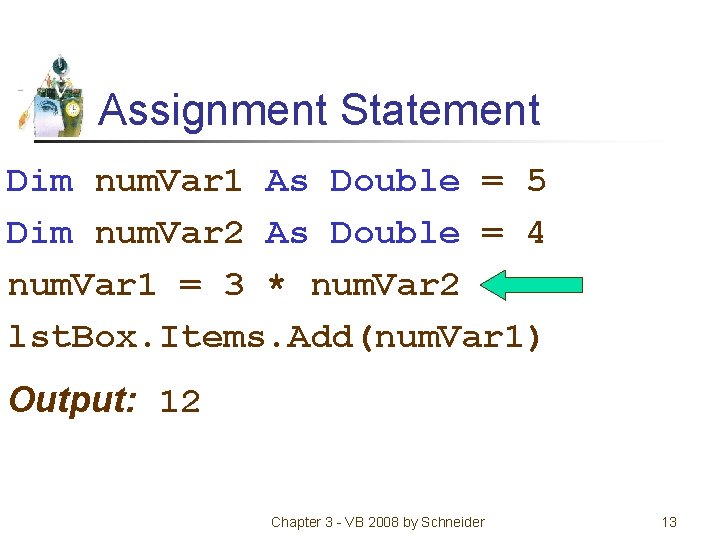
Assignment Statement Dim num. Var 1 As Double = 5 Dim num. Var 2 As Double = 4 num. Var 1 = 3 * num. Var 2 lst. Box. Items. Add(num. Var 1) Output: 12 Chapter 3 - VB 2008 by Schneider 13
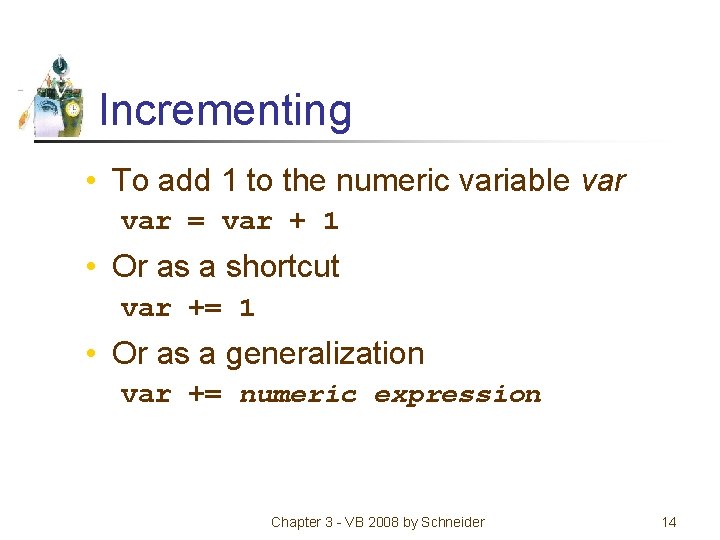
Incrementing • To add 1 to the numeric variable var = var + 1 • Or as a shortcut var += 1 • Or as a generalization var += numeric expression Chapter 3 - VB 2008 by Schneider 14
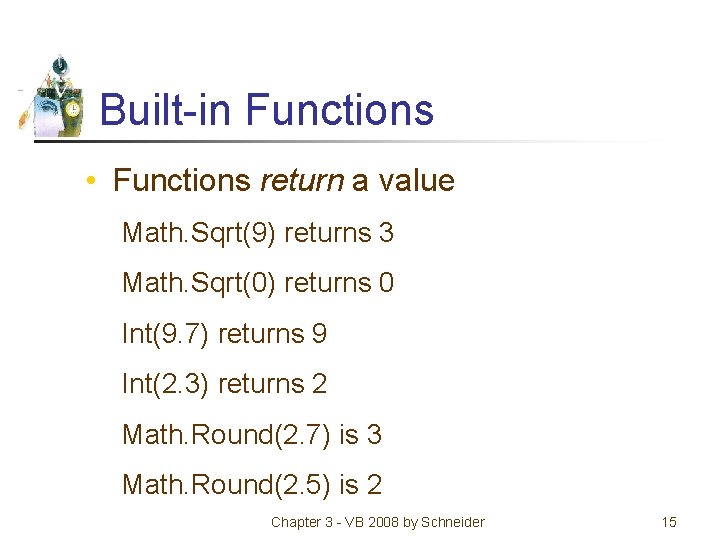
Built-in Functions • Functions return a value Math. Sqrt(9) returns 3 Math. Sqrt(0) returns 0 Int(9. 7) returns 9 Int(2. 3) returns 2 Math. Round(2. 7) is 3 Math. Round(2. 5) is 2 Chapter 3 - VB 2008 by Schneider 15
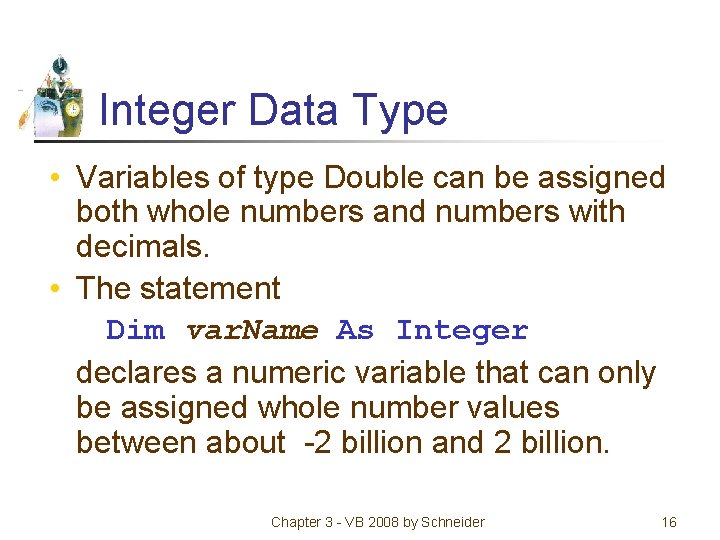
Integer Data Type • Variables of type Double can be assigned both whole numbers and numbers with decimals. • The statement Dim var. Name As Integer declares a numeric variable that can only be assigned whole number values between about -2 billion and 2 billion. Chapter 3 - VB 2008 by Schneider 16
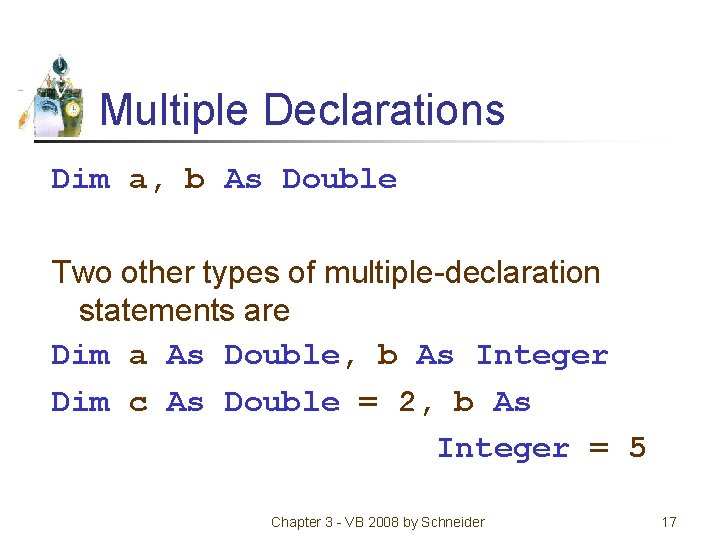
Multiple Declarations Dim a, b As Double Two other types of multiple-declaration statements are Dim a As Double, b As Integer Dim c As Double = 2, b As Integer = 5 Chapter 3 - VB 2008 by Schneider 17
Parentheses • Parentheses should be used liberally in numeric expressions. • In the absence of parentheses, the operations are carried out in the following order: ^, * and /, + and -. Chapter 3 - VB 2008 by Schneider 18
Three Types of Errors • Syntax error • Run-time error • Logic error Chapter 3 - VB 2008 by Schneider 19
Some Types of Syntax Errors • Misspellings lst. Box. Itms. Add(3) • Omissions lst. Box. Items. Add(2 + ) • Incorrect punctuation Dim m; n As Integer Chapter 3 - VB 2008 by Schneider 20
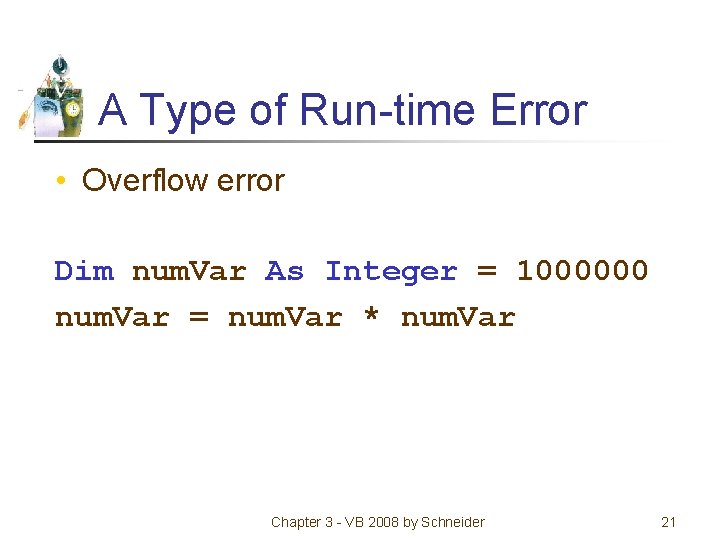
A Type of Run-time Error • Overflow error Dim num. Var As Integer = 1000000 num. Var = num. Var * num. Var Chapter 3 - VB 2008 by Schneider 21
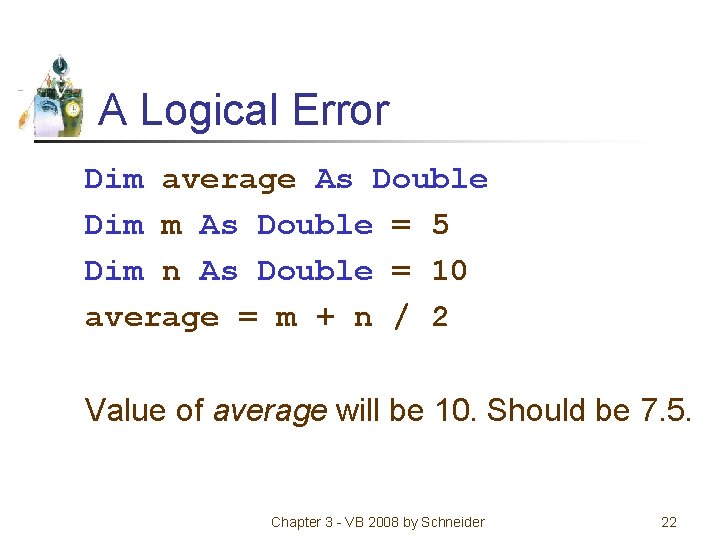
A Logical Error Dim average As Double Dim m As Double = 5 Dim n As Double = 10 average = m + n / 2 Value of average will be 10. Should be 7. 5. Chapter 3 - VB 2008 by Schneider 22
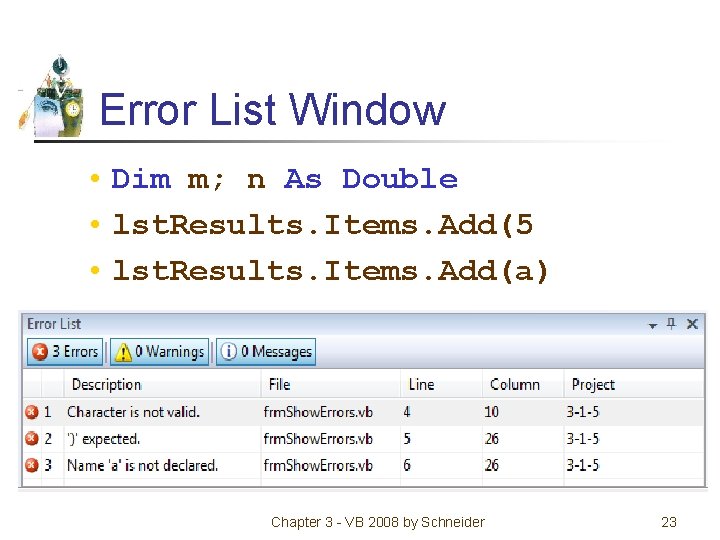
Error List Window • Dim m; n As Double • lst. Results. Items. Add(5 • lst. Results. Items. Add(a) Chapter 3 - VB 2008 by Schneider 23
3. 2 Strings • • Variables and Strings Option Explicit and Option Strict Using Text Boxes for Input and Output Concatenation • String Properties and Methods: • Length • To. Upper • Trim • To. Lower • Index. Of • Substring Chapter 3 - VB 2008 by Schneider 24
Strings continued • • Auto Correction The Empty String Initial Value of a String Widening and Narrowing Internal Documentation Line-Continuation Character Scope of a Variable Chapter 3 - VB 2008 by Schneider 25
String Literal A string literal is a sequence of characters surrounded by quotation marks. Examples: "hello" "123 -45 -6789" "#ab cde? " Chapter 3 - VB 2008 by Schneider 26
String Variable A string variable is a name to which a string value can be assigned. Examples: country ssn word first. Name Chapter 3 - VB 2008 by Schneider 27
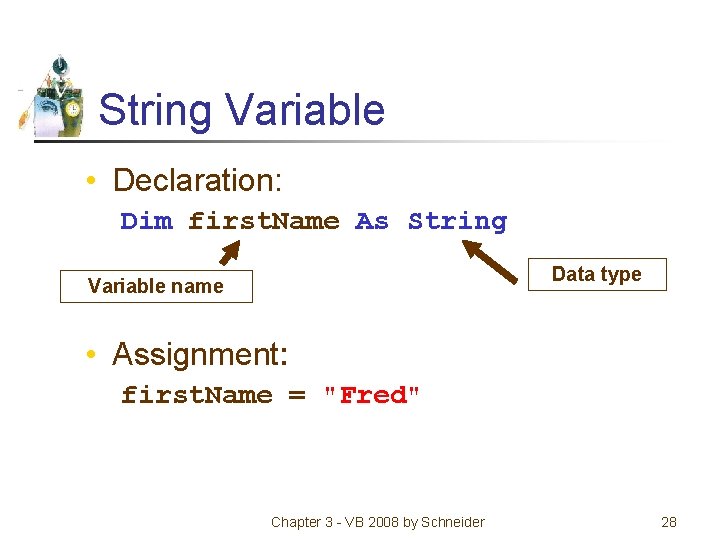
String Variable • Declaration: Dim first. Name As String Data type Variable name • Assignment: first. Name = "Fred" Chapter 3 - VB 2008 by Schneider 28
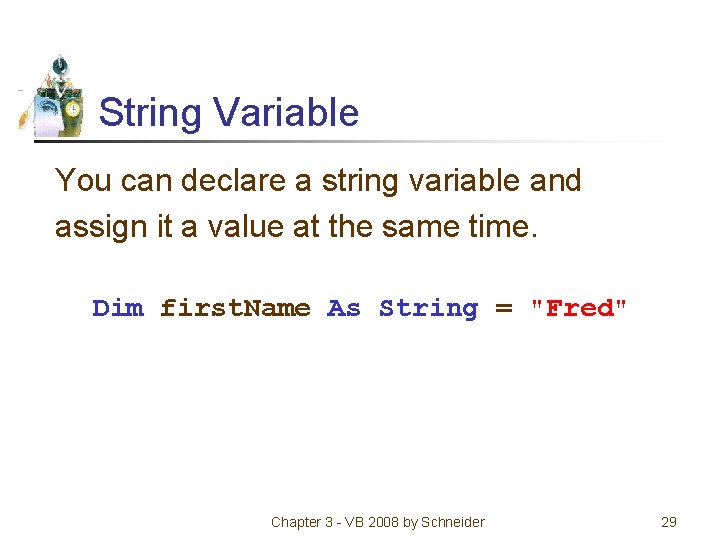
String Variable You can declare a string variable and assign it a value at the same time. Dim first. Name As String = "Fred" Chapter 3 - VB 2008 by Schneider 29
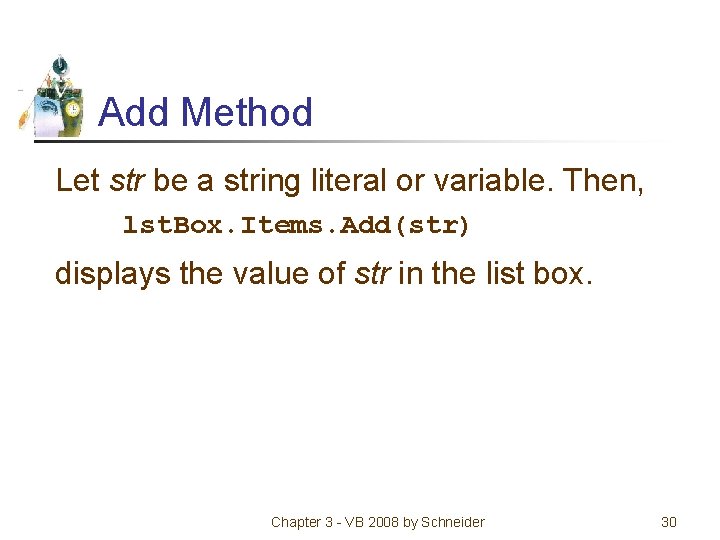
Add Method Let str be a string literal or variable. Then, lst. Box. Items. Add(str) displays the value of str in the list box. Chapter 3 - VB 2008 by Schneider 30
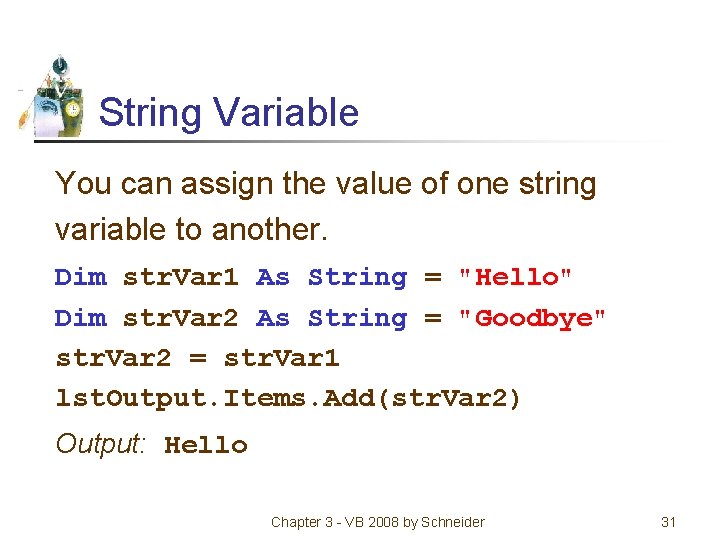
String Variable You can assign the value of one string variable to another. Dim str. Var 1 As String = "Hello" Dim str. Var 2 As String = "Goodbye" str. Var 2 = str. Var 1 lst. Output. Items. Add(str. Var 2) Output: Hello Chapter 3 - VB 2008 by Schneider 31
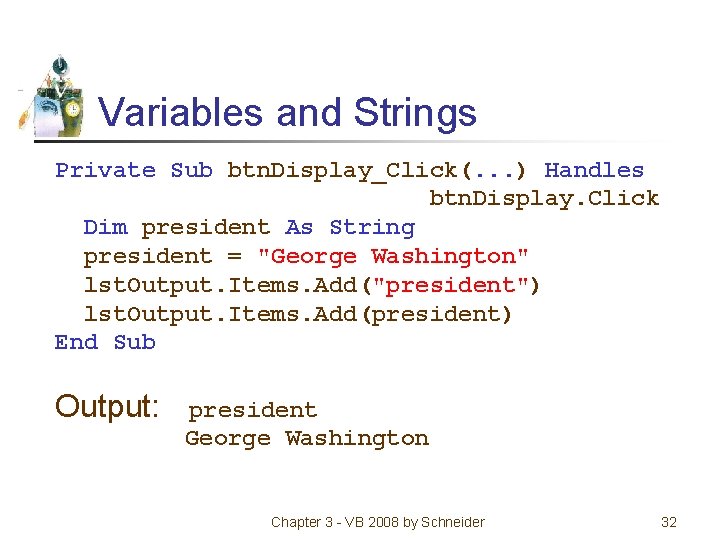
Variables and Strings Private Sub btn. Display_Click(. . . ) Handles btn. Display. Click Dim president As String president = "George Washington" lst. Output. Items. Add("president") lst. Output. Items. Add(president) End Sub Output: president George Washington Chapter 3 - VB 2008 by Schneider 32
Option Strict • Visual Basic allows numeric variables to be assigned strings and vice versa, a poor programming practice. • To prevent such assignments, set Option Strict to On in the Options dialog box. Chapter 3 - VB 2008 by Schneider 33
Option Strict -continued • Select Options from the Tools menu • In left pane, expand Projects and Solution • Select VB Defaults • Set Option Strict to On Chapter 3 - VB 2008 by Schneider 34
Using Text Boxes for Input and Output • The contents of a text box is always a string • Input example str. Var = txt. Box. Text • Output example txt. Box. Text = str. Var Chapter 3 - VB 2008 by Schneider 35
Data Conversion • Because the contents of a text box is always a string, sometimes you must convert the input or output. dbl. Var = CDbl(txt. Box. Text) Converts a String to a Double txt. Box. Text = CStr(num. Var) Converts a number to a string Chapter 3 - VB 2008 by Schneider 36
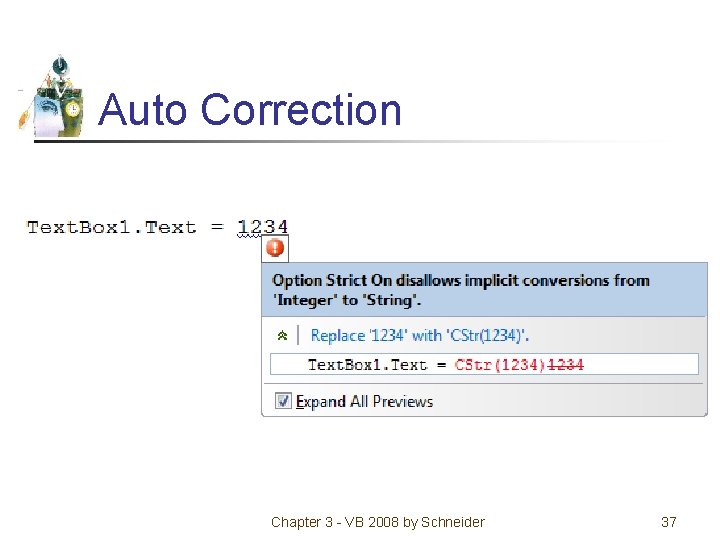
Auto Correction Chapter 3 - VB 2008 by Schneider 37
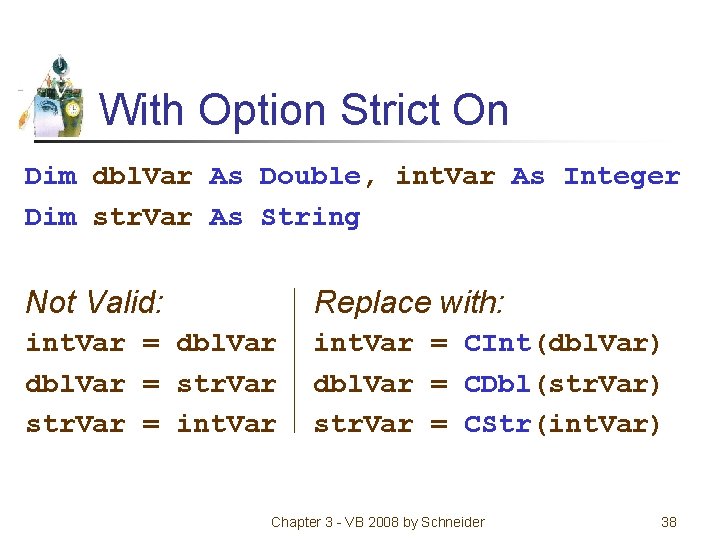
With Option Strict On Dim dbl. Var As Double, int. Var As Integer Dim str. Var As String Not Valid: Replace with: int. Var = dbl. Var = str. Var = int. Var = CInt(dbl. Var) dbl. Var = CDbl(str. Var) str. Var = CStr(int. Var) Chapter 3 - VB 2008 by Schneider 38
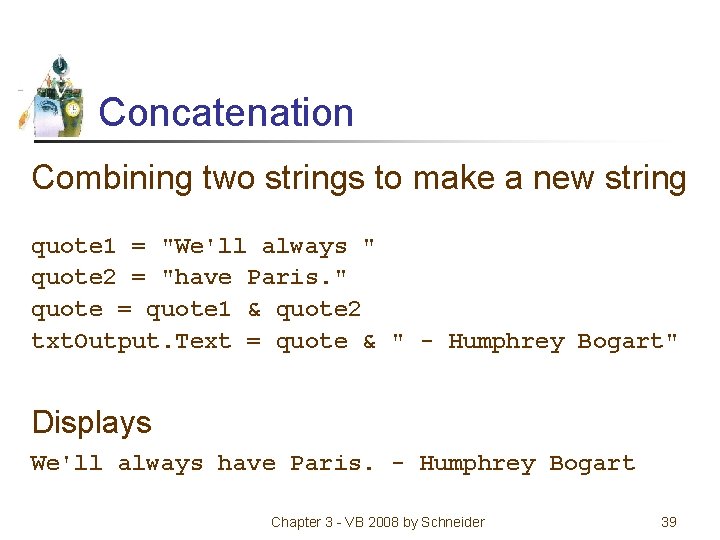
Concatenation Combining two strings to make a new string quote 1 = "We'll always " quote 2 = "have Paris. " quote = quote 1 & quote 2 txt. Output. Text = quote & " - Humphrey Bogart" Displays We'll always have Paris. - Humphrey Bogart Chapter 3 - VB 2008 by Schneider 39
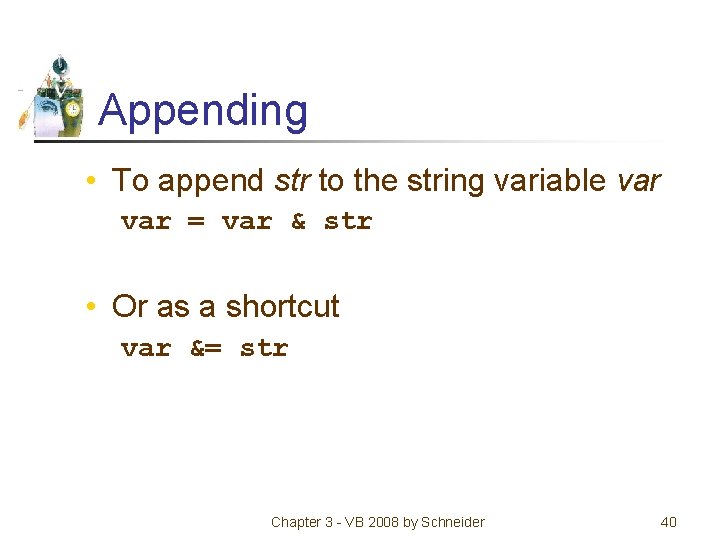
Appending • To append str to the string variable var = var & str • Or as a shortcut var &= str Chapter 3 - VB 2008 by Schneider 40
Appending Example Dim var As String = "Good" var &= "bye" txt. Box. Text = var OUTPUT: Goodbye Can you concatenate a string with a number and concatenate numbers? yes, the result will be string Chapter 3 - VB 2008 by Schneider 41
String Properties and Methods "Visual". Length is 6. "Visual". To. Upper is VISUAL. "123 Hike". Length is 8. "123 Hike". To. Lower is 123 hike. "a" & " bcd ". Trim & "efg" is abcdefg. Chapter 3 - VB 2008 by Schneider 42
Positions in a String Positions of characters in a string are numbered 0, 1, 2, …. Consider the string “Visual Basic”. Position 0: V Position 1: i Position 7: B Substring “al” begins at position 4 Chapter 3 - VB 2008 by Schneider 43
Substring Method Let str be a string. str. Substring(m, n) is the substring of length n, beginning at position m in str. “Visual Basic”. Substring(2, 3) is “sua” “Visual Basic”. Substring(0, 1) is “V” Chapter 3 - VB 2008 by Schneider 44
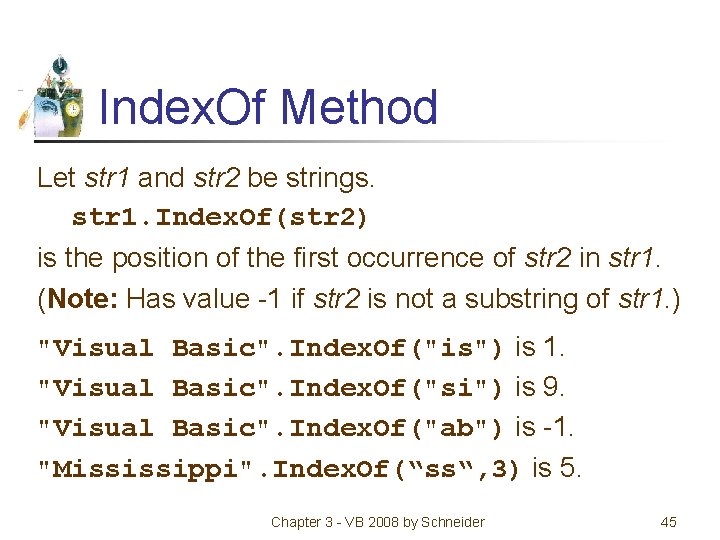
Index. Of Method Let str 1 and str 2 be strings. str 1. Index. Of(str 2) is the position of the first occurrence of str 2 in str 1. (Note: Has value -1 if str 2 is not a substring of str 1. ) "Visual Basic". Index. Of("is") is 1. "Visual Basic". Index. Of("si") is 9. "Visual Basic". Index. Of("ab") is -1. "Mississippi". Index. Of(“ss“, 3) is 5. Chapter 3 - VB 2008 by Schneider 45
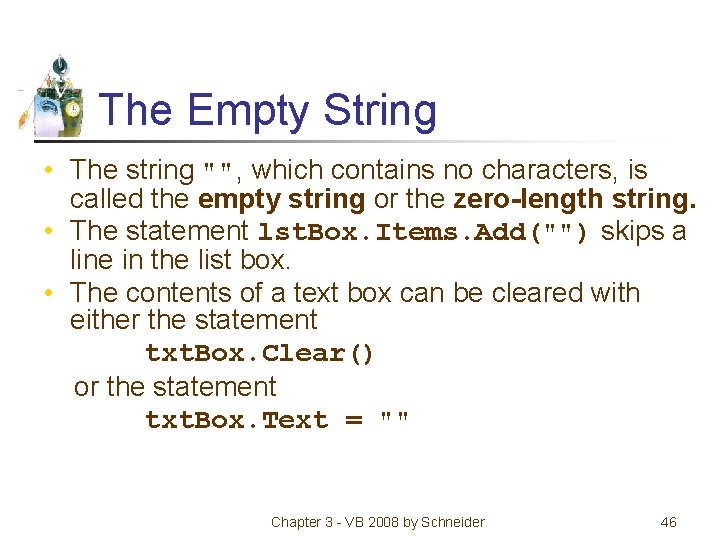
The Empty String • The string "", which contains no characters, is called the empty string or the zero-length string. • The statement lst. Box. Items. Add("") skips a line in the list box. • The contents of a text box can be cleared with either the statement txt. Box. Clear() or the statement txt. Box. Text = "" Chapter 3 - VB 2008 by Schneider 46
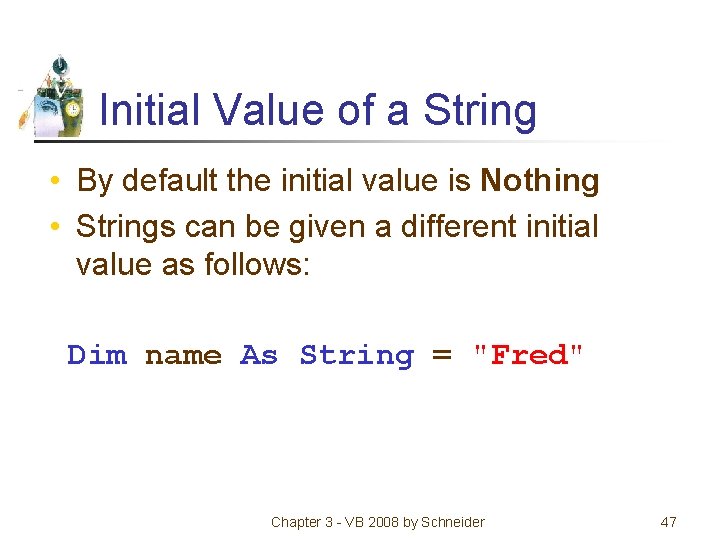
Initial Value of a String • By default the initial value is Nothing • Strings can be given a different initial value as follows: Dim name As String = "Fred" Chapter 3 - VB 2008 by Schneider 47
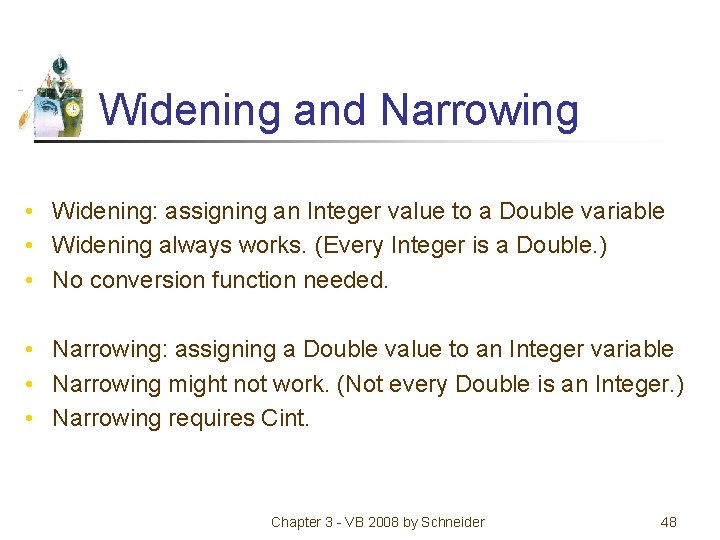
Widening and Narrowing • Widening: assigning an Integer value to a Double variable • Widening always works. (Every Integer is a Double. ) • No conversion function needed. • Narrowing: assigning a Double value to an Integer variable • Narrowing might not work. (Not every Double is an Integer. ) • Narrowing requires Cint. Chapter 3 - VB 2008 by Schneider 48
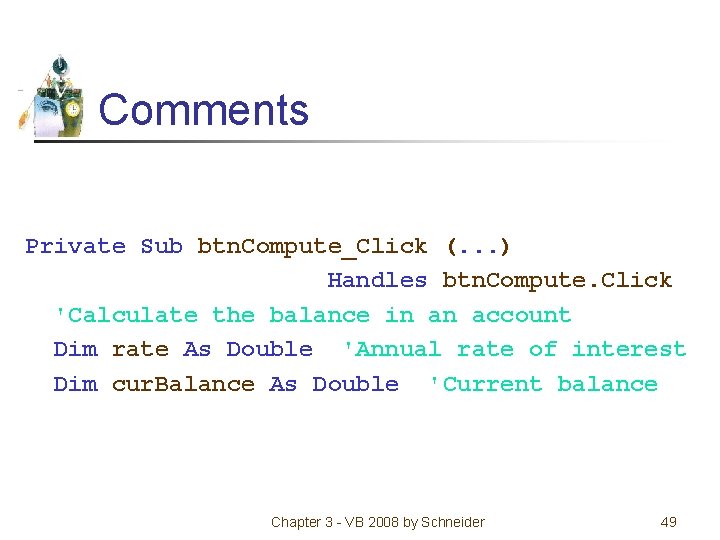
Comments Private Sub btn. Compute_Click (. . . ) Handles btn. Compute. Click 'Calculate the balance in an account Dim rate As Double 'Annual rate of interest Dim cur. Balance As Double 'Current balance Chapter 3 - VB 2008 by Schneider 49
Internal Documentation 1. Other people can easily understand the program. 2. You can understand the program when you read it later. 3. Long programs are easier to read because the purposes of individual pieces can be determined at a glance. Chapter 3 - VB 2008 by Schneider 50
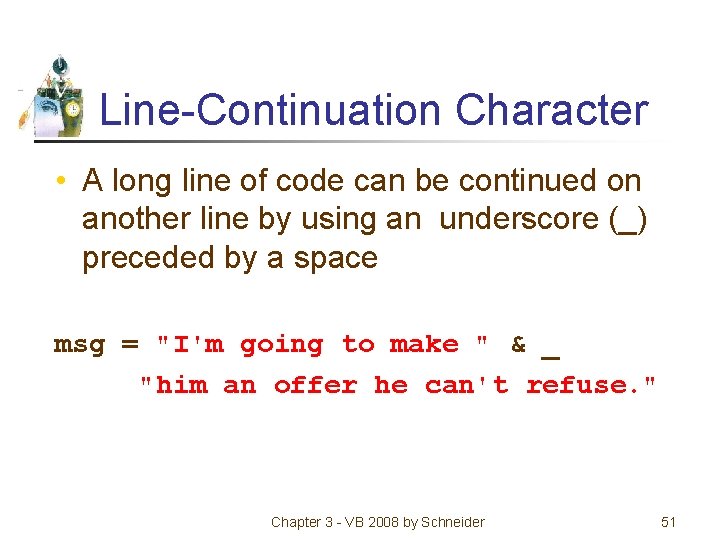
Line-Continuation Character • A long line of code can be continued on another line by using an underscore (_) preceded by a space msg = "I'm going to make " & _ "him an offer he can't refuse. " Chapter 3 - VB 2008 by Schneider 51
Scope • The scope of a variable is the portion of the program that can refer to it. • Variables declared inside an event procedure are said to have local scope and are only available in the event procedure in which they are declared. Chapter 6 - VB 2008 by Schneider 52
Scope • Variables declared outside an event procedure are said to have class-level scope and are available to every event procedure. • Usually declared after Public Class form. Name (Declarations section of Code Editor. ) Chapter 6 - VB 2008 by Schneider 53
Automatic Colorization Comments – green String literals – maroon Keywords – blue Note: Keywords are words such as Sub, Handles, Private, With, and End that have special meaning in Visual Basic. They cannot be used as variable names. Chapter 3 - VB 2008 by Schneider 54
3. 3 Input and Output • • • Formatting Output with Format Functions Formatting Output with Zones Reading Data from Files Getting Input from an Input Dialog Box Using a Message Dialog Box for Output Using a Masked Text Box for Input Chapter 3 - VB 2008 by Schneider 55
Formatting Output with Format Functions Function String Value Format. Number(12345. 628, 1) 12, 345. 6 Format. Currency(12345. 628, 2) $12, 345. 63 Format. Percent(0. 183, 0) 18% Format. Percent(0. 185, 2) 18. 50% Chapter 3 - VB 2008 by Schneider 56
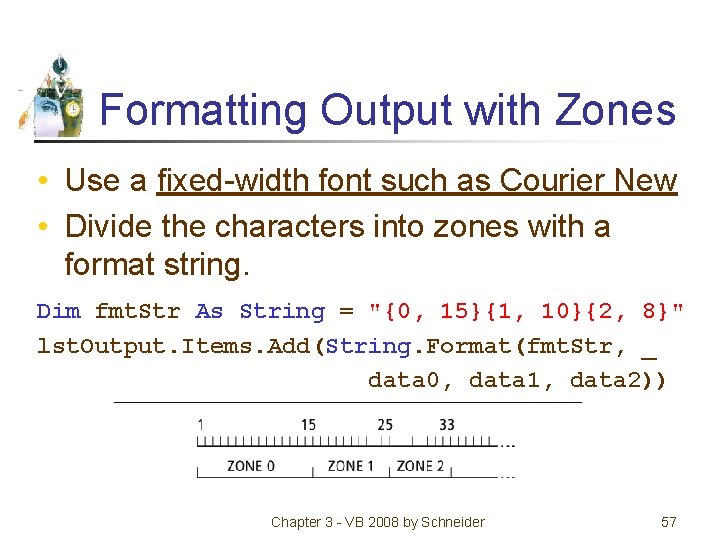
Formatting Output with Zones • Use a fixed-width font such as Courier New • Divide the characters into zones with a format string. Dim fmt. Str As String = "{0, 15}{1, 10}{2, 8}" lst. Output. Items. Add(String. Format(fmt. Str, _ data 0, data 1, data 2)) Chapter 3 - VB 2008 by Schneider 57
Formatting Output with Zones Example Dim fmt. Str As String = "{0, 15}{1, 10}" lst. Output. Items. Add(String. Format(fmt. Str, _ “Name”, “Major”)) lst. Output. Items. Add(String. Format(fmt. Str, _ “Mohammed”, “MIS”)) lst. Output. Items. Add(String. Format(fmt. Str, _ “Ahmed”, “CIS”)) Chapter 3 - VB 2008 by Schneider 58
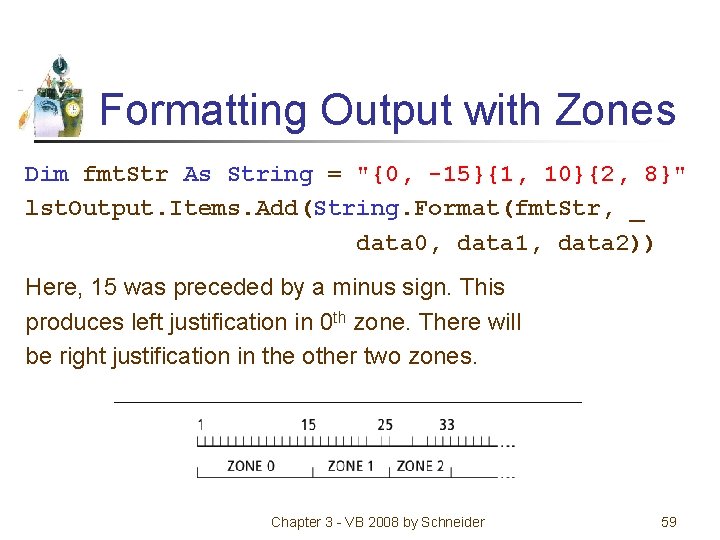
Formatting Output with Zones Dim fmt. Str As String = "{0, -15}{1, 10}{2, 8}" lst. Output. Items. Add(String. Format(fmt. Str, _ data 0, data 1, data 2)) Here, 15 was preceded by a minus sign. This produces left justification in 0 th zone. There will be right justification in the other two zones. Chapter 3 - VB 2008 by Schneider 59
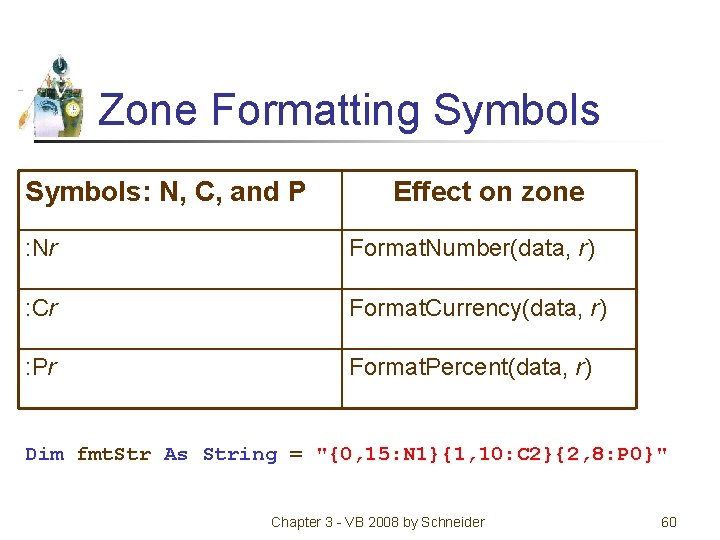
Zone Formatting Symbols: N, C, and P Effect on zone : Nr Format. Number(data, r) : Cr Format. Currency(data, r) : Pr Format. Percent(data, r) Dim fmt. Str As String = "{0, 15: N 1}{1, 10: C 2}{2, 8: P 0}" Chapter 3 - VB 2008 by Schneider 60
Reading Data from Files • Data can be stored in text files and accessed with a Stream. Reader object. • We assume that the text files have one piece of data per line. Chapter 3 - VB 2008 by Schneider 61
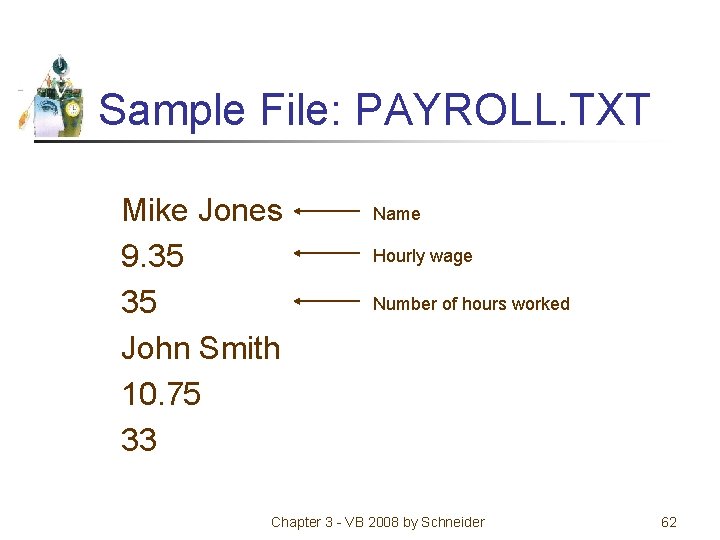
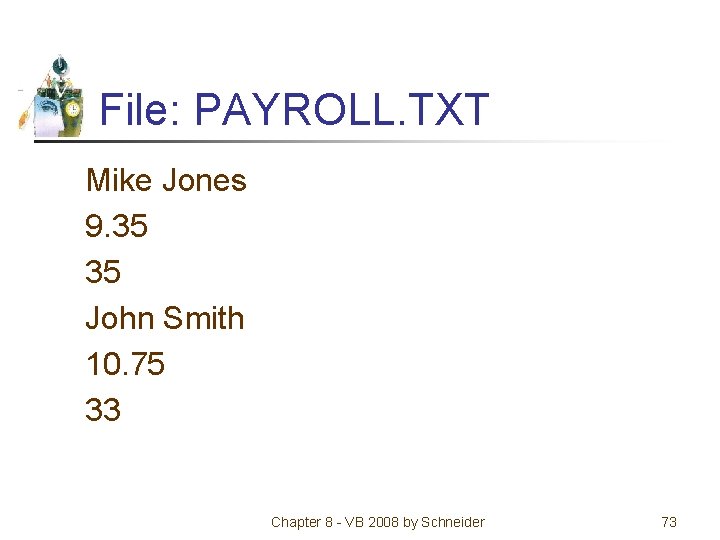
Sample File: PAYROLL. TXT Mike Jones 9. 35 35 John Smith 10. 75 33 Name Hourly wage Number of hours worked Chapter 3 - VB 2008 by Schneider 62
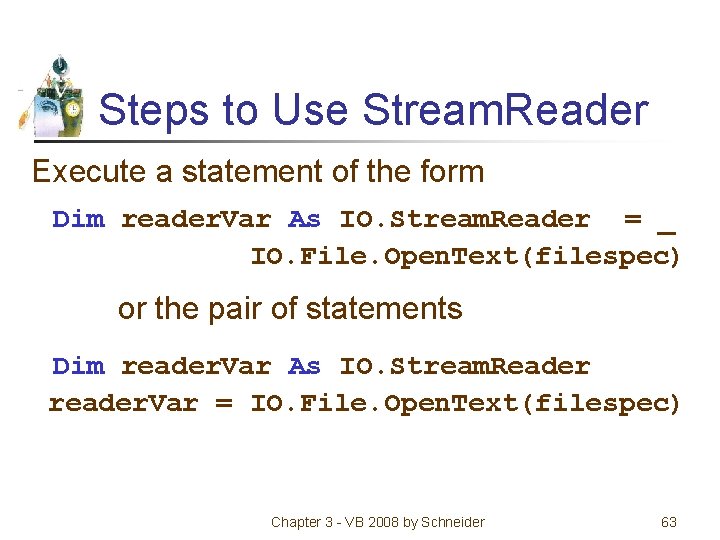
Steps to Use Stream. Reader Execute a statement of the form Dim reader. Var As IO. Stream. Reader = _ IO. File. Open. Text(filespec) or the pair of statements Dim reader. Var As IO. Stream. Reader reader. Var = IO. File. Open. Text(filespec) Chapter 3 - VB 2008 by Schneider 63
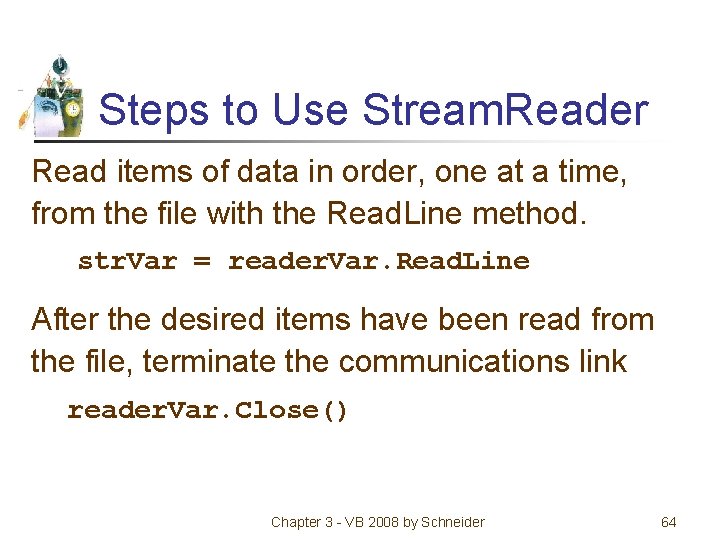
Steps to Use Stream. Reader Read items of data in order, one at a time, from the file with the Read. Line method. str. Var = reader. Var. Read. Line After the desired items have been read from the file, terminate the communications link reader. Var. Close() Chapter 3 - VB 2008 by Schneider 64
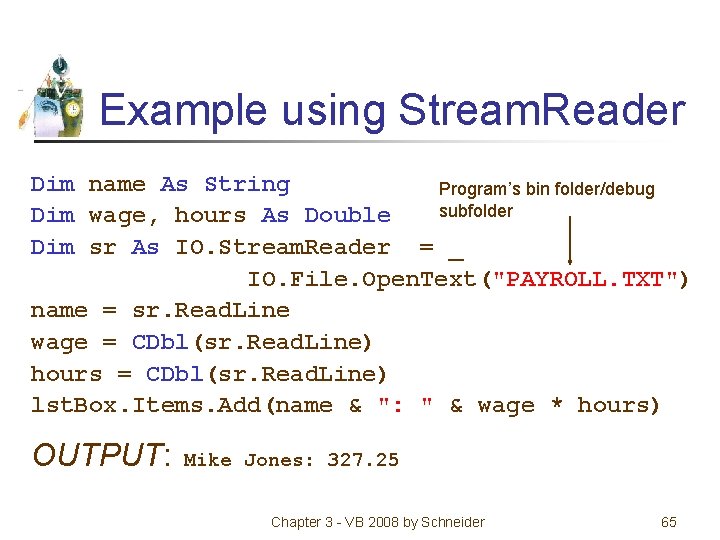
Example using Stream. Reader Dim name As String Program’s bin folder/debug subfolder Dim wage, hours As Double Dim sr As IO. Stream. Reader = _ IO. File. Open. Text("PAYROLL. TXT") name = sr. Read. Line wage = CDbl(sr. Read. Line) hours = CDbl(sr. Read. Line) lst. Box. Items. Add(name & ": " & wage * hours) OUTPUT: Mike Jones: 327. 25 Chapter 3 - VB 2008 by Schneider 65
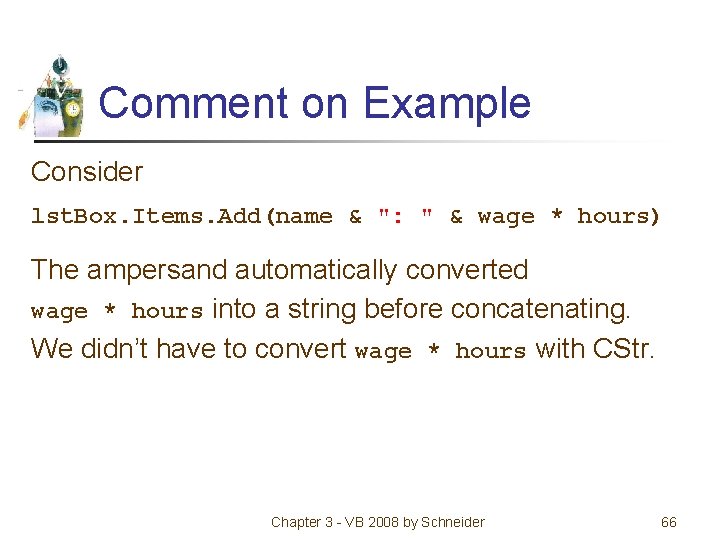
Comment on Example Consider lst. Box. Items. Add(name & ": " & wage * hours) The ampersand automatically converted wage * hours into a string before concatenating. We didn’t have to convert wage * hours with CStr. Chapter 3 - VB 2008 by Schneider 66
Chapter 8 – Sequential Files 8. 1 Sequential Files 8. 2 Using Sequential Files Chapter 8 - VB 2008 by Schneider 67
Section 8. 1 – Sequential Files • Creating a Sequential File • Adding Items to a Sequential File • Structured Exception Handling Chapter 8 - VB 2008 by Schneider 68
Sequential Files • A sequential file consists of data stored in a text file on disk. • May be created with the Visual Basic IDE • May also be created programmatically from Visual Basic Chapter 8 - VB 2008 by Schneider 69
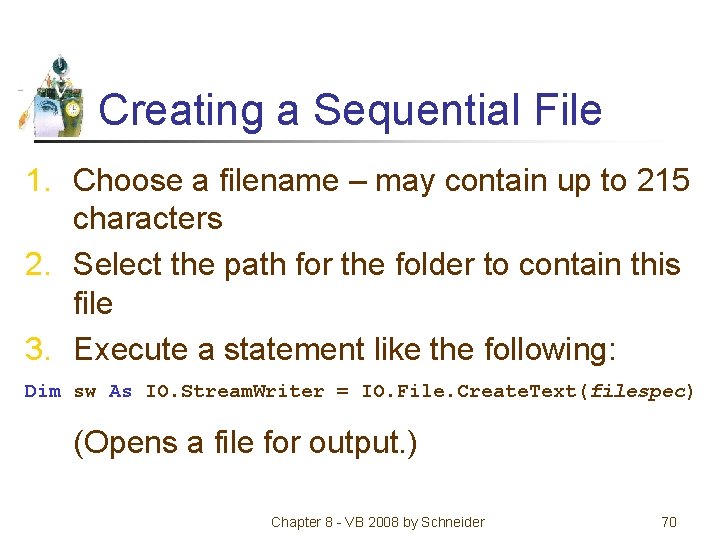
Creating a Sequential File 1. Choose a filename – may contain up to 215 characters 2. Select the path for the folder to contain this file 3. Execute a statement like the following: Dim sw As IO. Stream. Writer = IO. File. Create. Text(filespec) (Opens a file for output. ) Chapter 8 - VB 2008 by Schneider 70
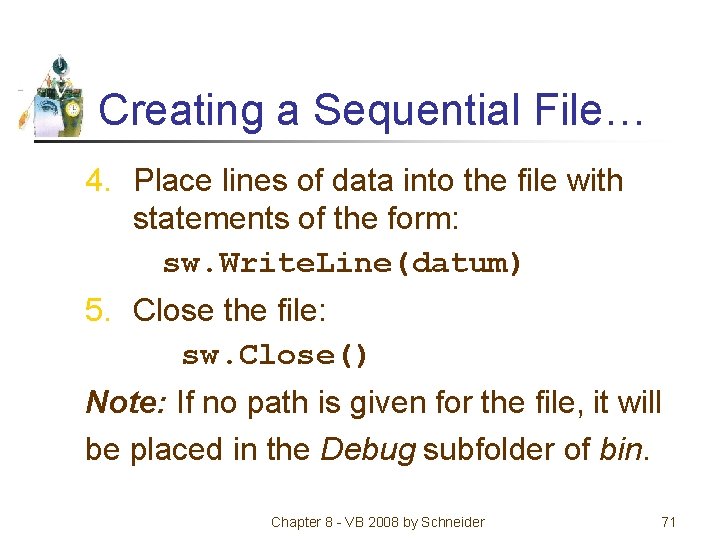
Creating a Sequential File… 4. Place lines of data into the file with statements of the form: sw. Write. Line(datum) 5. Close the file: sw. Close() Note: If no path is given for the file, it will be placed in the Debug subfolder of bin. Chapter 8 - VB 2008 by Schneider 71
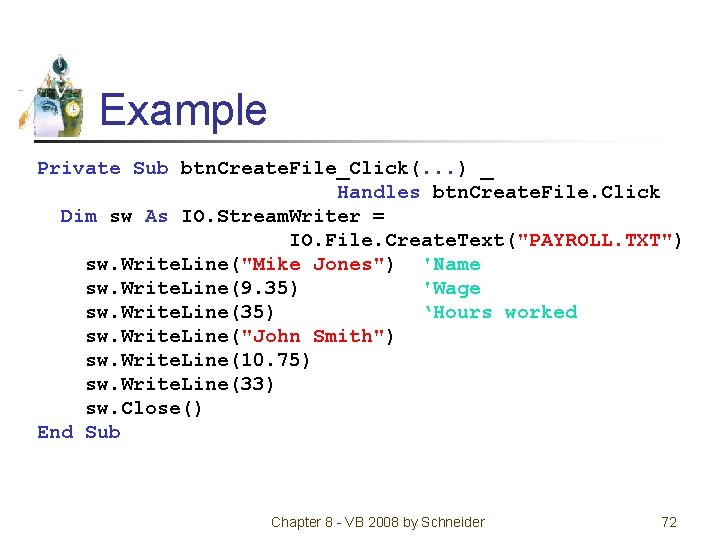
Example Private Sub btn. Create. File_Click(. . . ) _ Handles btn. Create. File. Click Dim sw As IO. Stream. Writer = IO. File. Create. Text("PAYROLL. TXT") sw. Write. Line("Mike Jones") 'Name sw. Write. Line(9. 35) 'Wage sw. Write. Line(35) ‘Hours worked sw. Write. Line("John Smith") sw. Write. Line(10. 75) sw. Write. Line(33) sw. Close() End Sub Chapter 8 - VB 2008 by Schneider 72
File: PAYROLL. TXT Mike Jones 9. 35 35 John Smith 10. 75 33 Chapter 8 - VB 2008 by Schneider 73
Caution • If an existing file is opened for output, Visual Basic will erase the existing file and create a new one. Chapter 8 - VB 2008 by Schneider 74
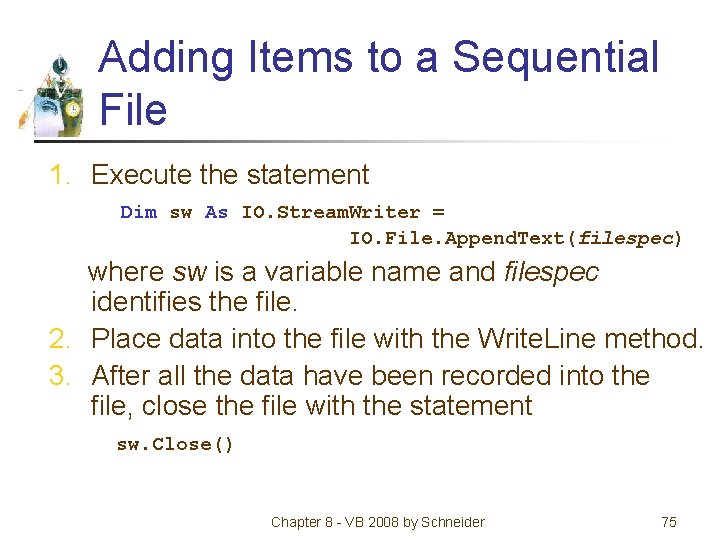
Adding Items to a Sequential File 1. Execute the statement Dim sw As IO. Stream. Writer = IO. File. Append. Text(filespec) where sw is a variable name and filespec identifies the file. 2. Place data into the file with the Write. Line method. 3. After all the data have been recorded into the file, close the file with the statement sw. Close() Chapter 8 - VB 2008 by Schneider 75
IO. File. Append. Text • Will add data to the end of an existing file • If a file does not exist, the method will create it. Chapter 8 - VB 2008 by Schneider 76
Sequential File Modes • • Create. Text – open for output Open. Text – open for input Append. Text – open for append A file should not be opened in two different modes at the same time. Chapter 8 - VB 2008 by Schneider 77
Imports System. IO • Simplifies programs that have extensive file handling. • Place the statement Imports System. IO at the top of the Code Editor, before the Class frm. Name statement. Then, there is no need to insert the prefix “IO. ” before the words Stream. Reader, Stream. Writer, and File. Chapter 8 - VB 2008 by Schneider 78
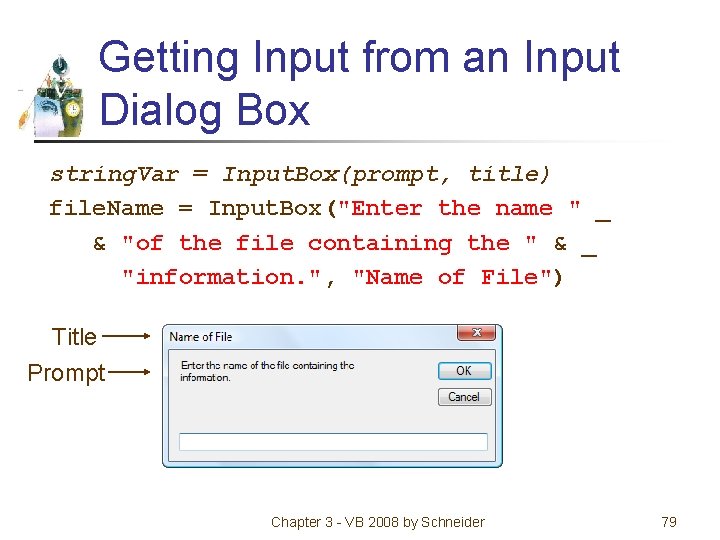
Getting Input from an Input Dialog Box string. Var = Input. Box(prompt, title) file. Name = Input. Box("Enter the name " _ & "of the file containing the " & _ "information. ", "Name of File") Title Prompt Chapter 3 - VB 2008 by Schneider 79
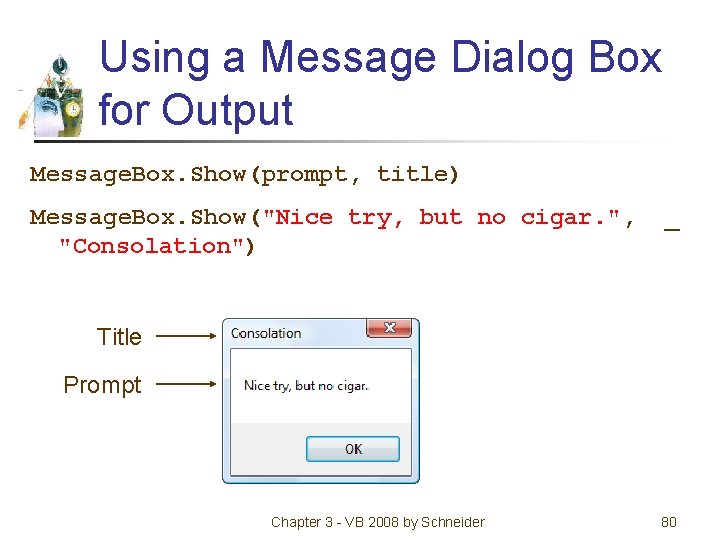
Using a Message Dialog Box for Output Message. Box. Show(prompt, title) Message. Box. Show("Nice try, but no cigar. ", "Consolation") _ Title Prompt Chapter 3 - VB 2008 by Schneider 80
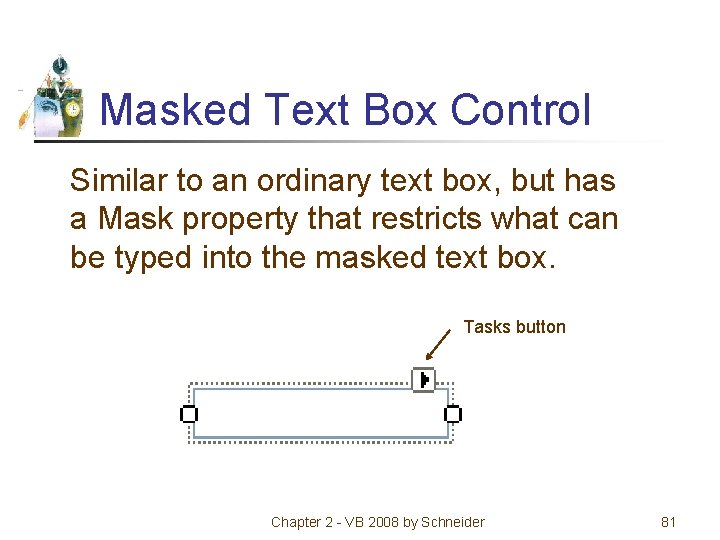
Masked Text Box Control Similar to an ordinary text box, but has a Mask property that restricts what can be typed into the masked text box. Tasks button Chapter 2 - VB 2008 by Schneider 81
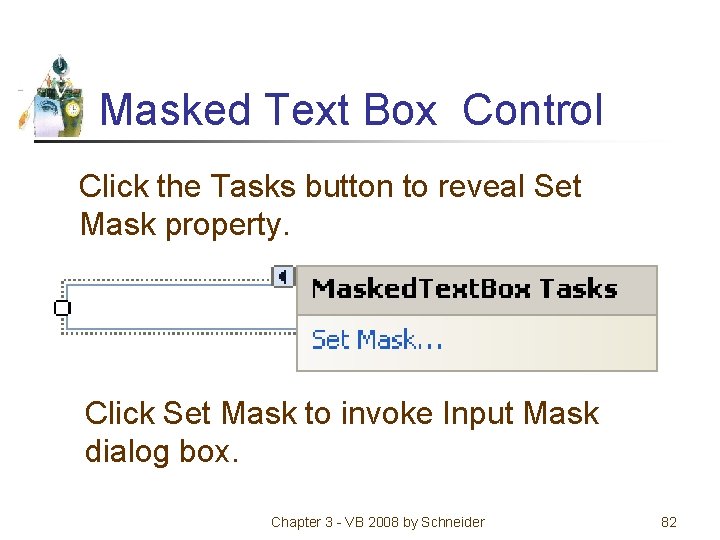
Masked Text Box Control Click the Tasks button to reveal Set Mask property. Click Set Mask to invoke Input Mask dialog box. Chapter 3 - VB 2008 by Schneider 82
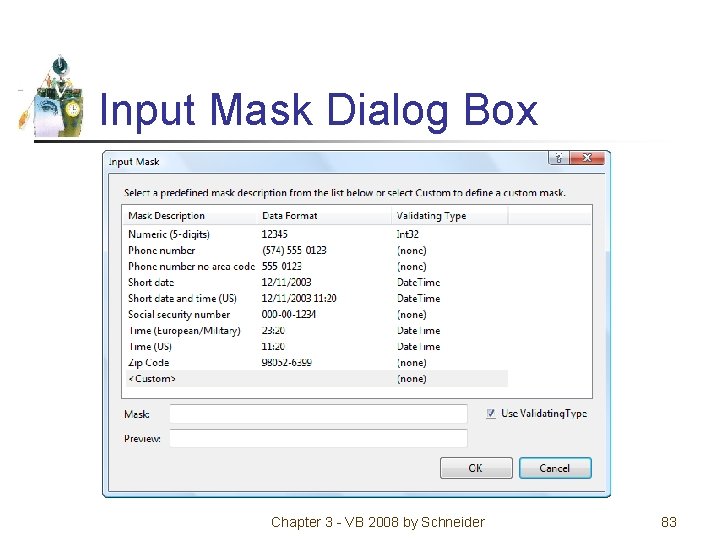
Input Mask Dialog Box Chapter 3 - VB 2008 by Schneider 83
Mask A Mask setting is a sequence of characters, with 0, L, and & having special meanings. 0 Placeholder for a digit. L Placeholder for a letter. & Placeholder for a character Chapter 3 - VB 2008 by Schneider 84
Sample Masks State abbreviation: LL Phone number: 000 -0000 Social Security Number: 000 -00 -0000 License plate: &&&&&& Chapter 3 - VB 2008 by Schneider 85
Importing a Text File • Highlight program name in Solution Explorer • Click on “Add Existing Item” in Project menu • Locate text file and double-click on it. (File name will appear in Solution Explorer. ) • Move file to Debug subfolder of bin folder. Chapter 3 - VB 2008 by Schneider 86
- Slides: 86