
CHAPTER 3 P 2 Introduction to Word processing
- Slides: 32
CHAPTER 3 (P 2) Introduction to Word processing.
OBJECTIVES At the end of class, students should be able to: • Create, save, and open a Word document. • Format a document by customizing margins and page orientation • Modify the layout and design of a document using columns to present information. • Enrich a document by adding and modifying visual elements such as pictures, shapes, Smart. Art, and Word. Art.
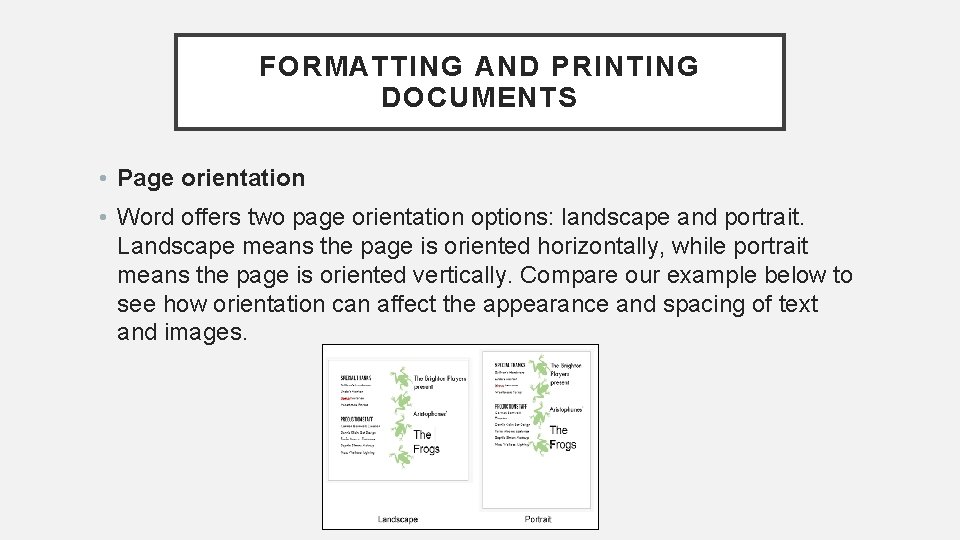
FORMATTING AND PRINTING DOCUMENTS • Page orientation • Word offers two page orientation options: landscape and portrait. Landscape means the page is oriented horizontally, while portrait means the page is oriented vertically. Compare our example below to see how orientation can affect the appearance and spacing of text and images.
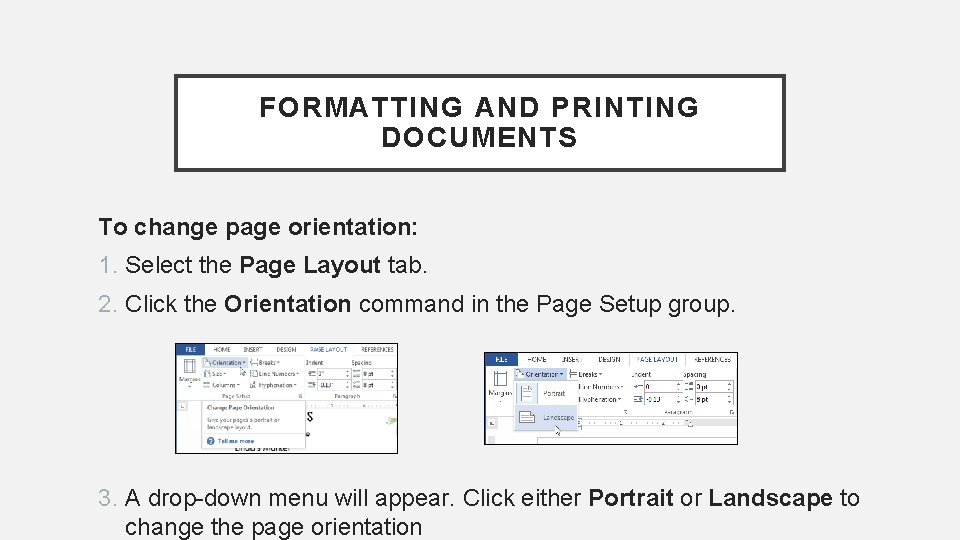
FORMATTING AND PRINTING DOCUMENTS To change page orientation: 1. Select the Page Layout tab. 2. Click the Orientation command in the Page Setup group. 3. A drop-down menu will appear. Click either Portrait or Landscape to change the page orientation
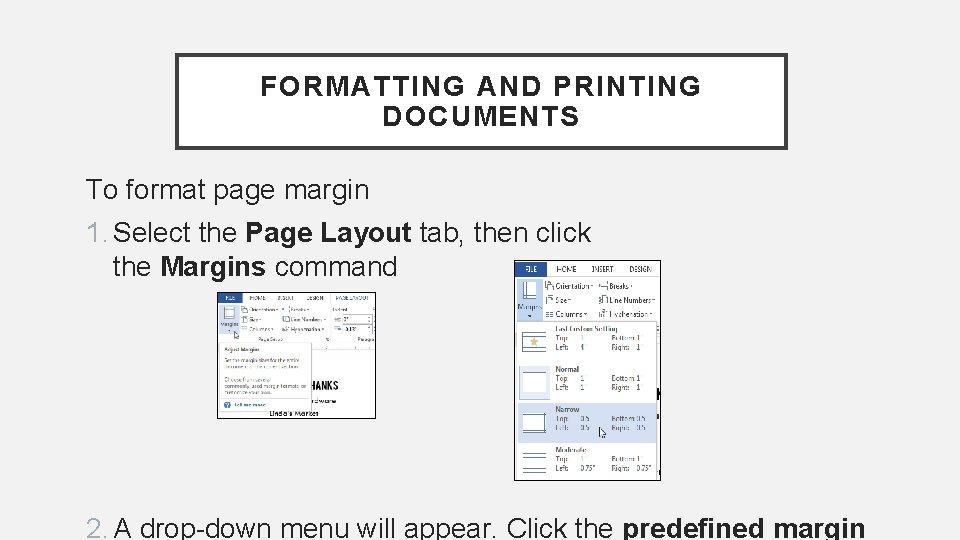
FORMATTING AND PRINTING DOCUMENTS To format page margin 1. Select the Page Layout tab, then click the Margins command 2. A drop-down menu will appear. Click the predefined margin
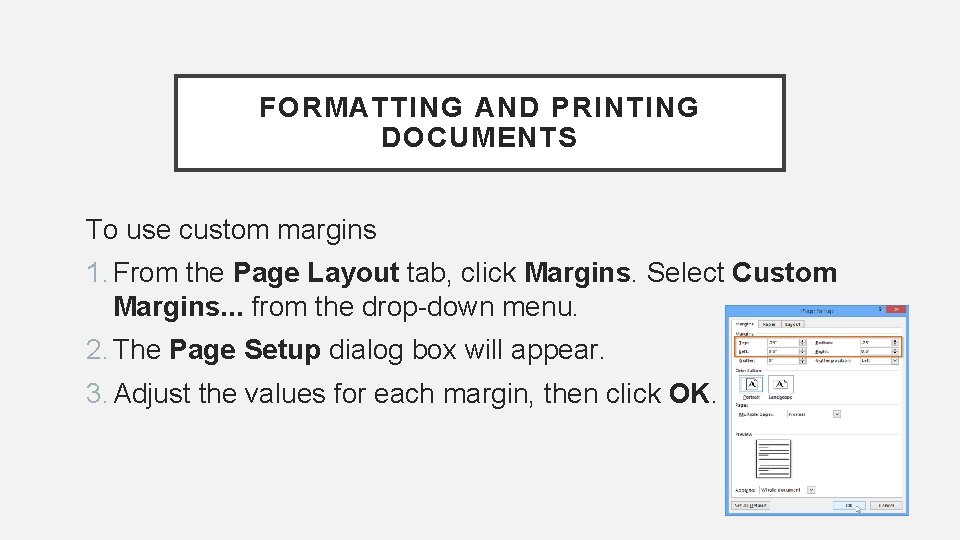
FORMATTING AND PRINTING DOCUMENTS To use custom margins 1. From the Page Layout tab, click Margins. Select Custom Margins. . . from the drop-down menu. 2. The Page Setup dialog box will appear. 3. Adjust the values for each margin, then click OK.
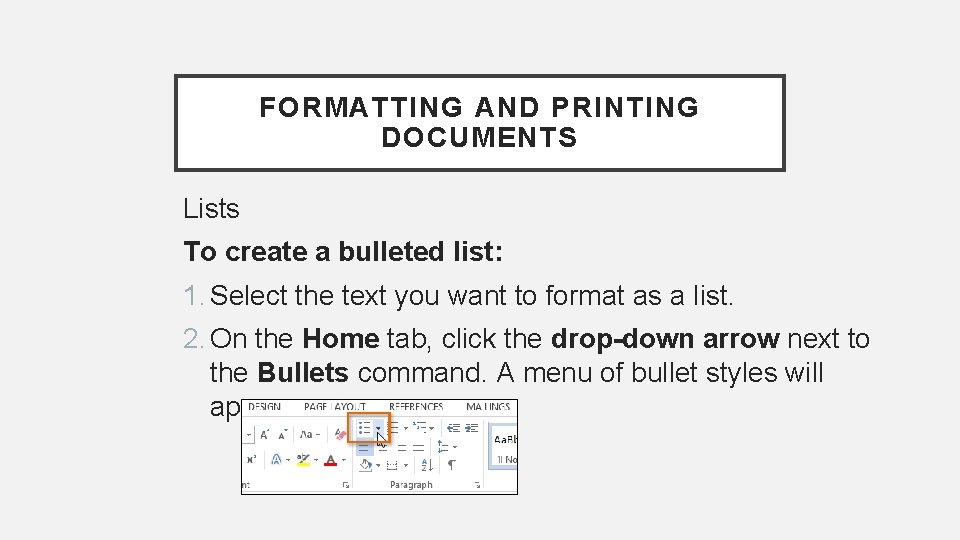
FORMATTING AND PRINTING DOCUMENTS Lists To create a bulleted list: 1. Select the text you want to format as a list. 2. On the Home tab, click the drop-down arrow next to the Bullets command. A menu of bullet styles will appear.
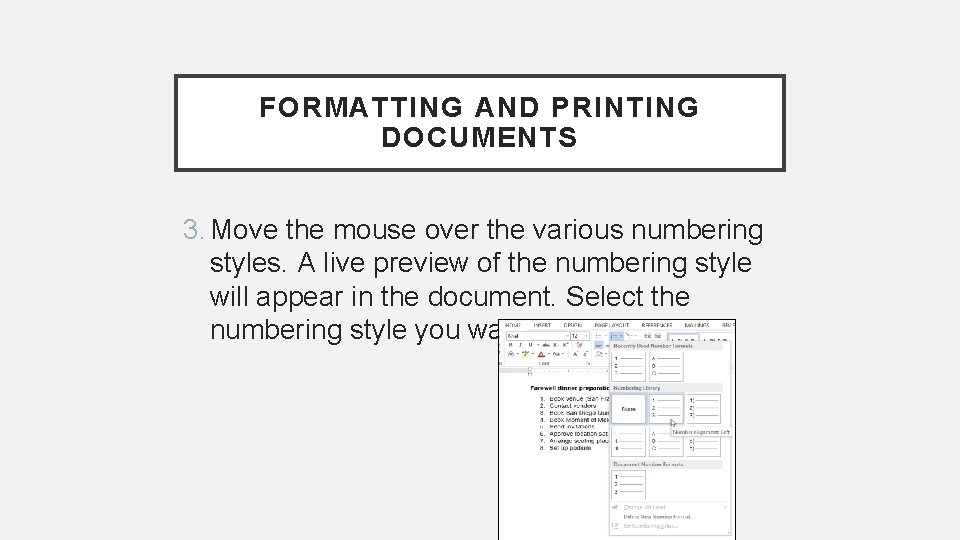
FORMATTING AND PRINTING DOCUMENTS 3. Move the mouse over the various numbering styles. A live preview of the numbering style will appear in the document. Select the numbering style you want to use.
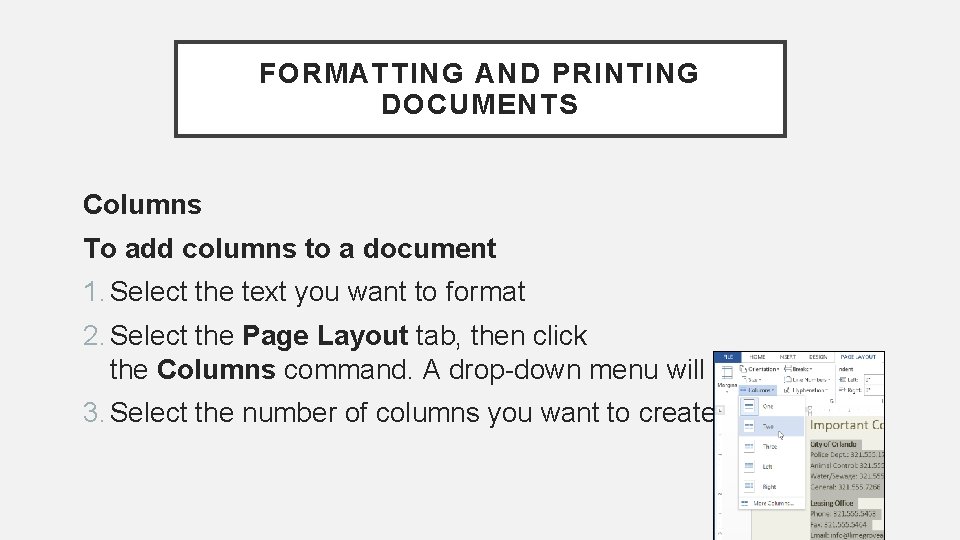
FORMATTING AND PRINTING DOCUMENTS Columns To add columns to a document 1. Select the text you want to format 2. Select the Page Layout tab, then click the Columns command. A drop-down menu will appear. 3. Select the number of columns you want to create.
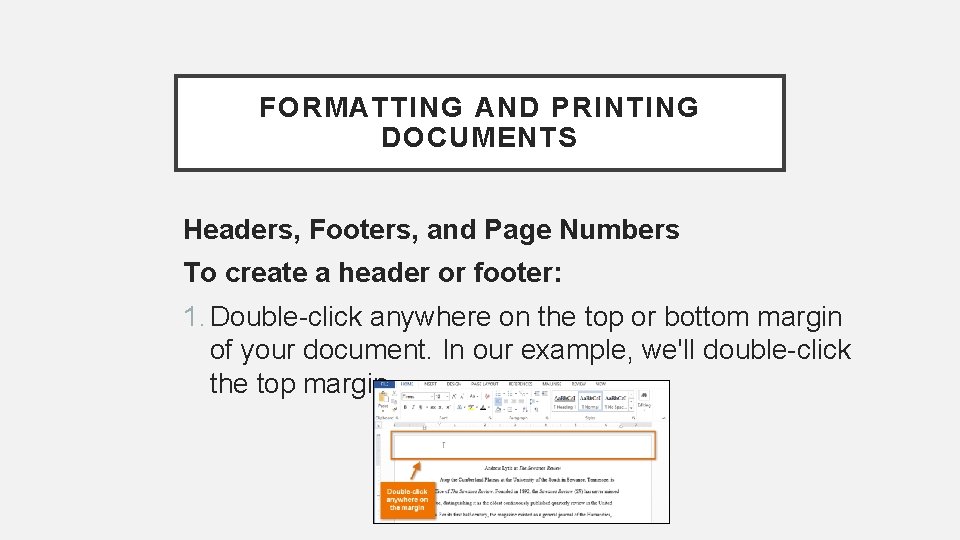
FORMATTING AND PRINTING DOCUMENTS Headers, Footers, and Page Numbers To create a header or footer: 1. Double-click anywhere on the top or bottom margin of your document. In our example, we'll double-click the top margin.
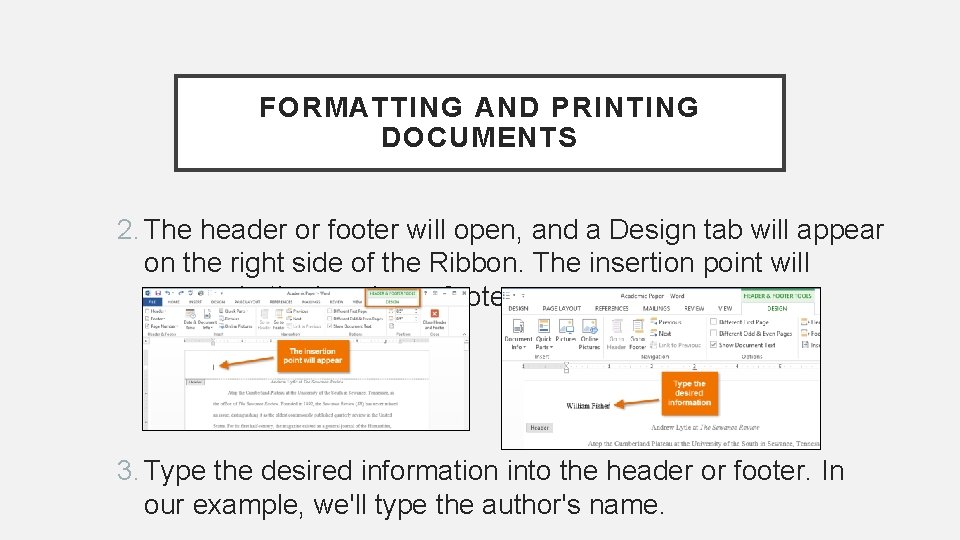
FORMATTING AND PRINTING DOCUMENTS 2. The header or footer will open, and a Design tab will appear on the right side of the Ribbon. The insertion point will appear in the header or footer. 3. Type the desired information into the header or footer. In our example, we'll type the author's name.
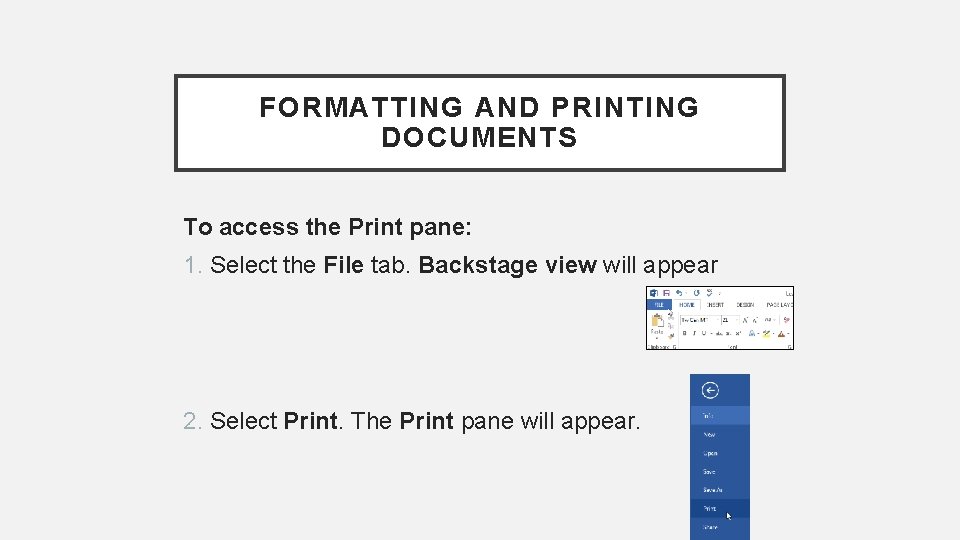
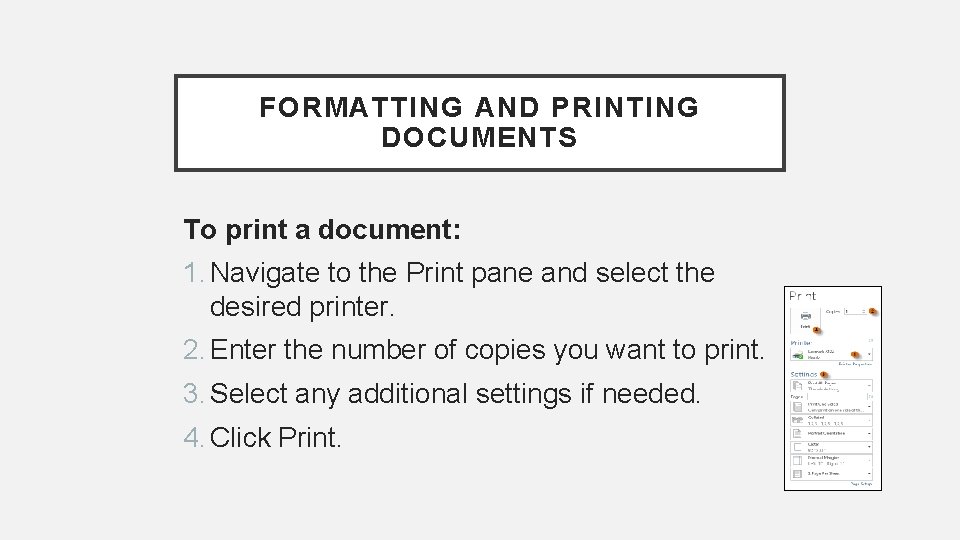
FORMATTING AND PRINTING DOCUMENTS To access the Print pane: 1. Select the File tab. Backstage view will appear 2. Select Print. The Print pane will appear.
FORMATTING AND PRINTING DOCUMENTS To print a document: 1. Navigate to the Print pane and select the desired printer. 2. Enter the number of copies you want to print. 3. Select any additional settings if needed. 4. Click Print.
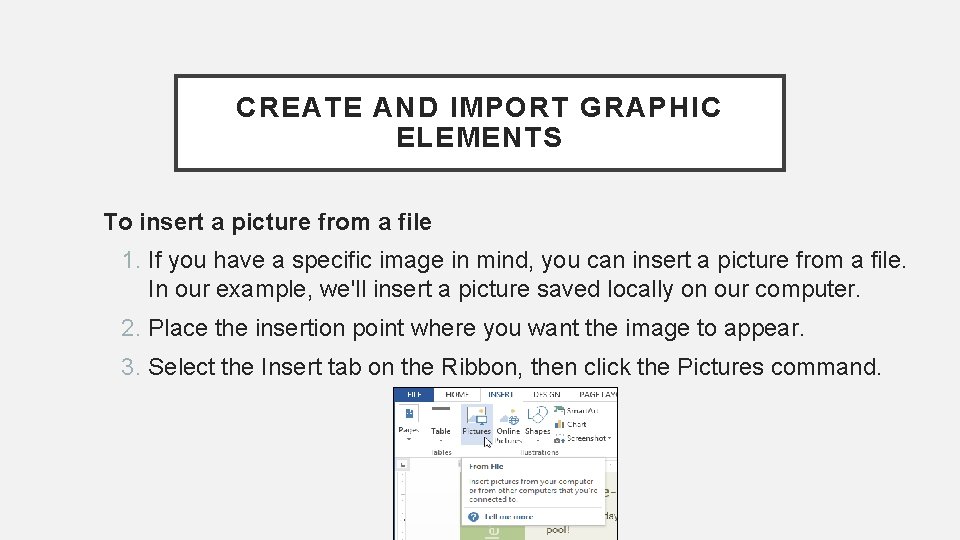
CREATE AND IMPORT GRAPHIC ELEMENTS To insert a picture from a file 1. If you have a specific image in mind, you can insert a picture from a file. In our example, we'll insert a picture saved locally on our computer. 2. Place the insertion point where you want the image to appear. 3. Select the Insert tab on the Ribbon, then click the Pictures command.
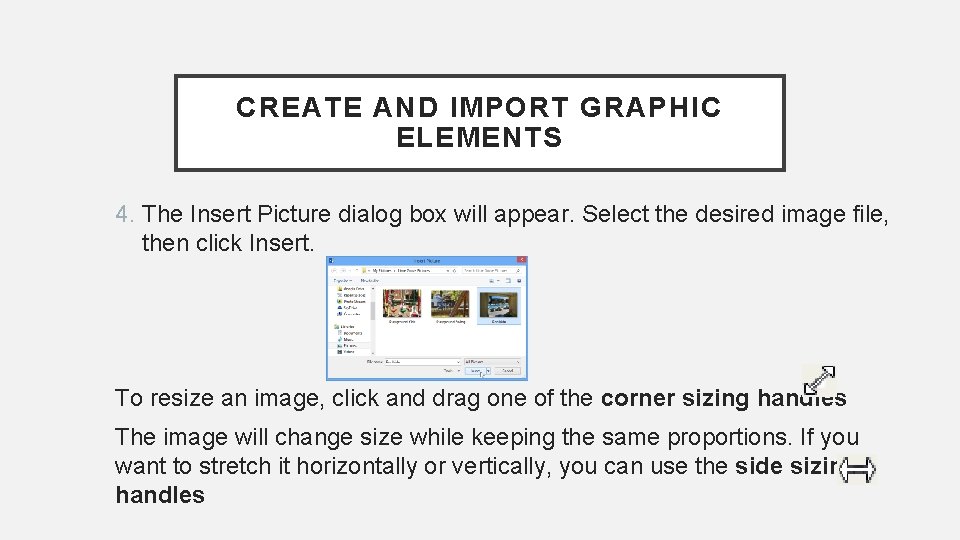
CREATE AND IMPORT GRAPHIC ELEMENTS 4. The Insert Picture dialog box will appear. Select the desired image file, then click Insert. To resize an image, click and drag one of the corner sizing handles The image will change size while keeping the same proportions. If you want to stretch it horizontally or vertically, you can use the side sizing handles
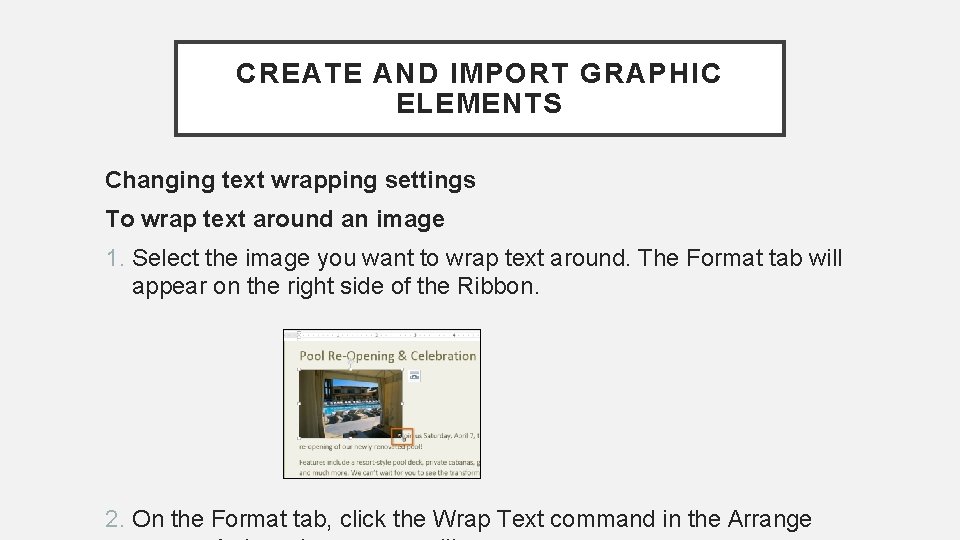
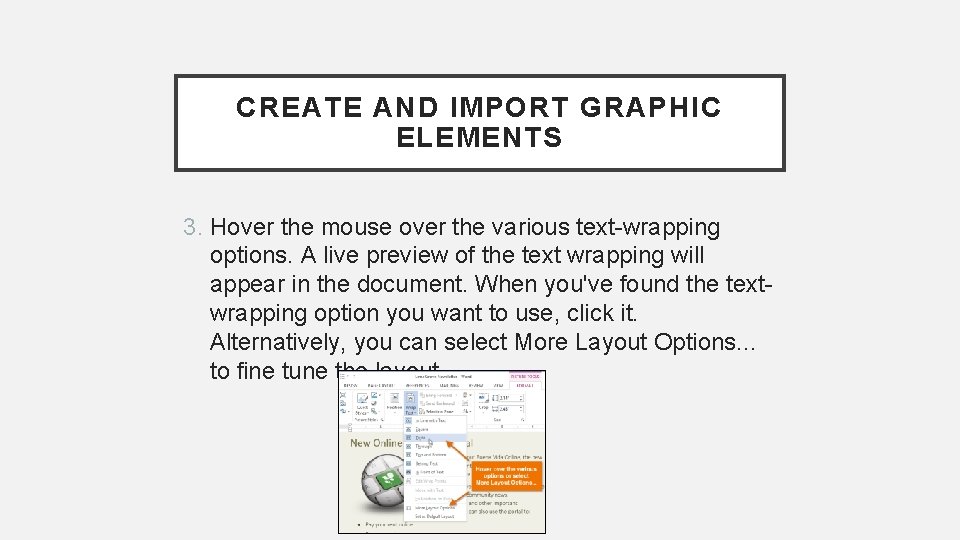
CREATE AND IMPORT GRAPHIC ELEMENTS Changing text wrapping settings To wrap text around an image 1. Select the image you want to wrap text around. The Format tab will appear on the right side of the Ribbon. 2. On the Format tab, click the Wrap Text command in the Arrange
CREATE AND IMPORT GRAPHIC ELEMENTS 3. Hover the mouse over the various text-wrapping options. A live preview of the text wrapping will appear in the document. When you've found the textwrapping option you want to use, click it. Alternatively, you can select More Layout Options. . . to fine tune the layout.
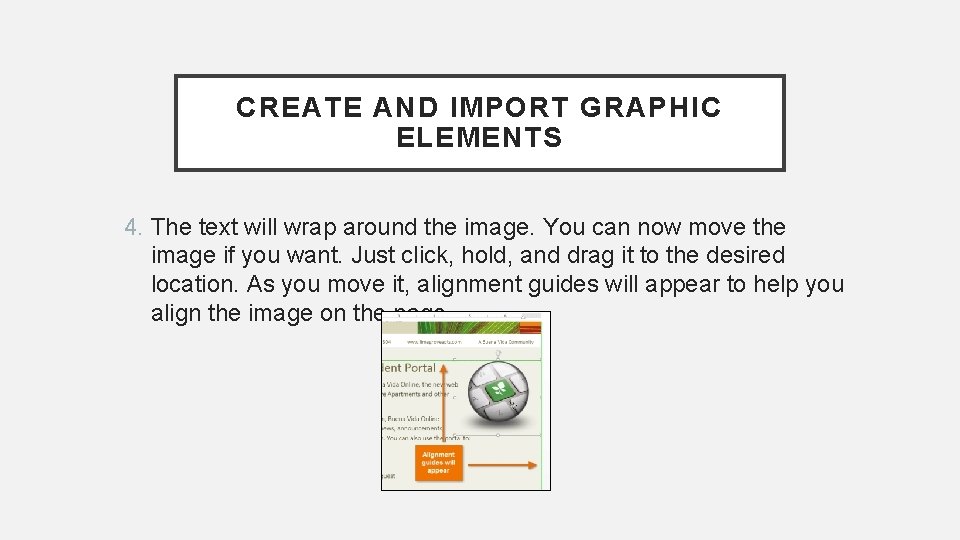
CREATE AND IMPORT GRAPHIC ELEMENTS 4. The text will wrap around the image. You can now move the image if you want. Just click, hold, and drag it to the desired location. As you move it, alignment guides will appear to help you align the image on the page.
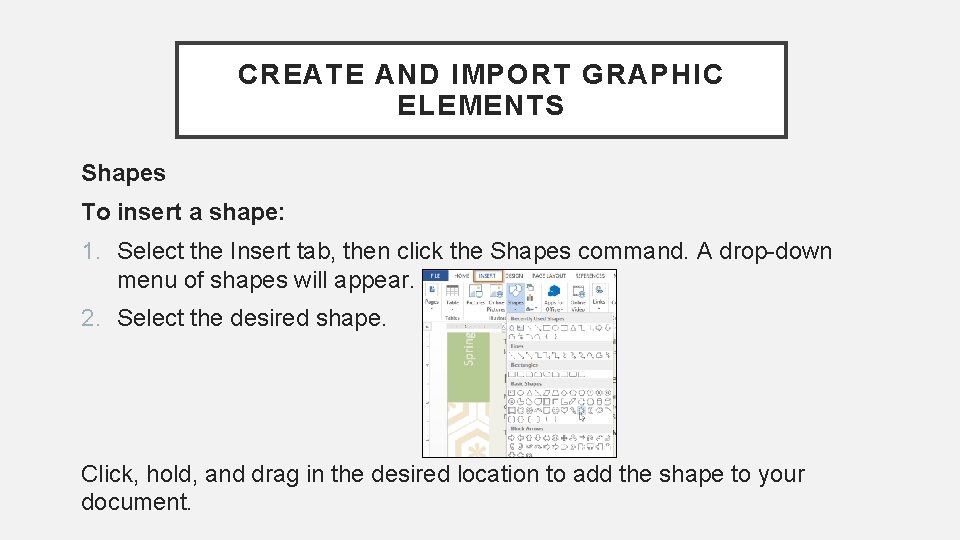
CREATE AND IMPORT GRAPHIC ELEMENTS Shapes To insert a shape: 1. Select the Insert tab, then click the Shapes command. A drop-down menu of shapes will appear. 2. Select the desired shape. Click, hold, and drag in the desired location to add the shape to your document.
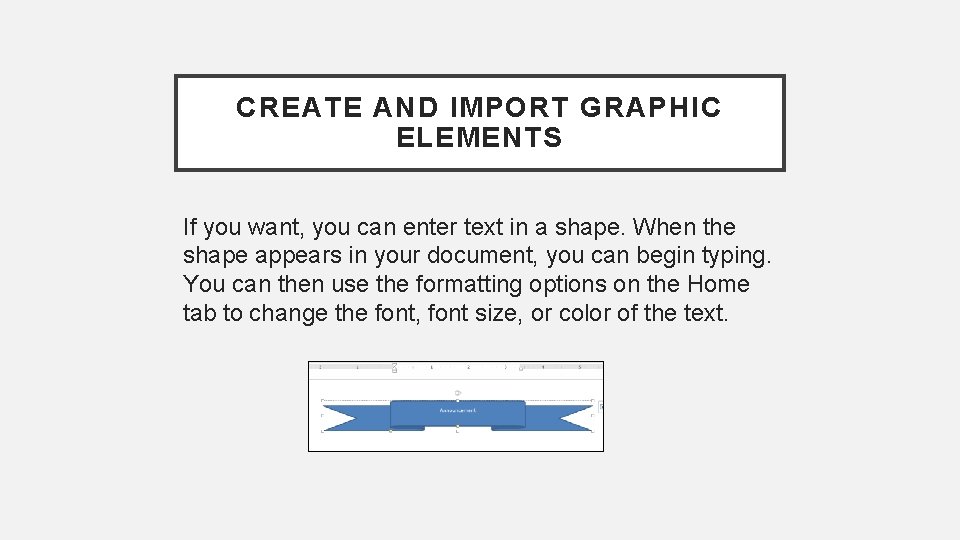
CREATE AND IMPORT GRAPHIC ELEMENTS If you want, you can enter text in a shape. When the shape appears in your document, you can begin typing. You can then use the formatting options on the Home tab to change the font, font size, or color of the text.
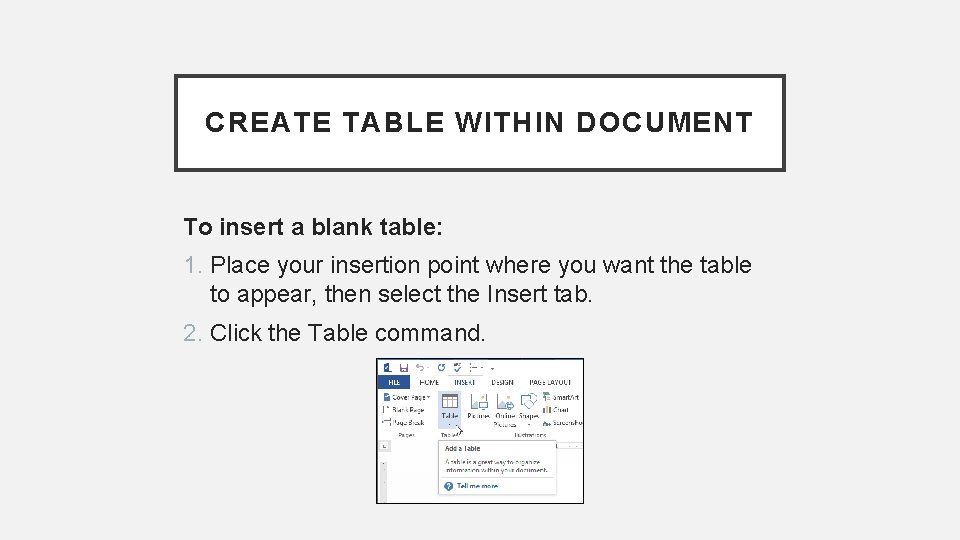
CREATE TABLE WITHIN DOCUMENT To insert a blank table: 1. Place your insertion point where you want the table to appear, then select the Insert tab. 2. Click the Table command.
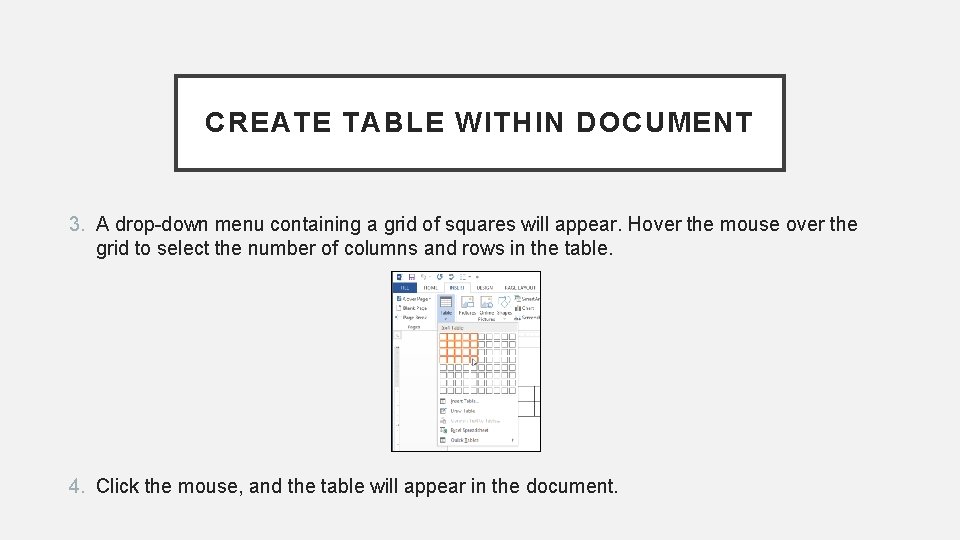
CREATE TABLE WITHIN DOCUMENT 3. A drop-down menu containing a grid of squares will appear. Hover the mouse over the grid to select the number of columns and rows in the table. 4. Click the mouse, and the table will appear in the document.
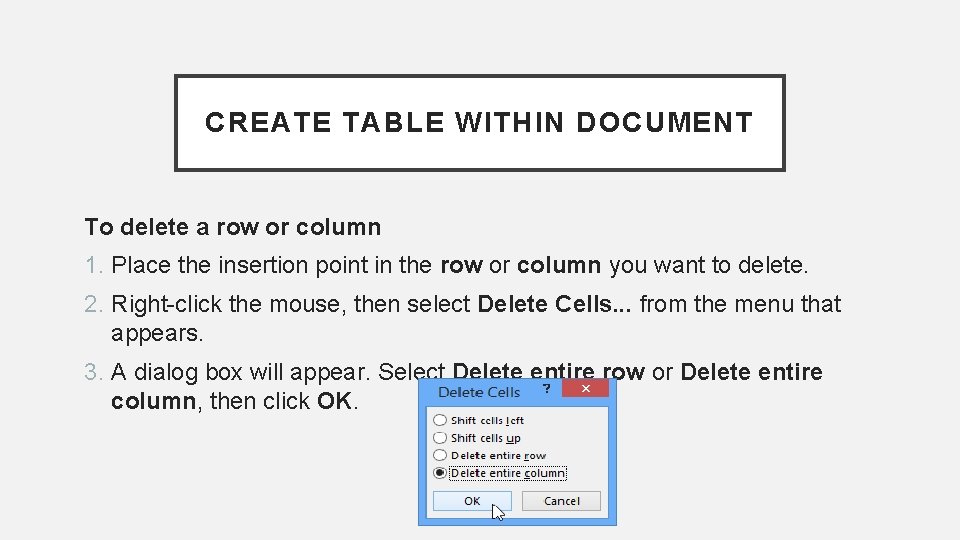
CREATE TABLE WITHIN DOCUMENT To delete a row or column 1. Place the insertion point in the row or column you want to delete. 2. Right-click the mouse, then select Delete Cells. . . from the menu that appears. 3. A dialog box will appear. Select Delete entire row or Delete entire column, then click OK.
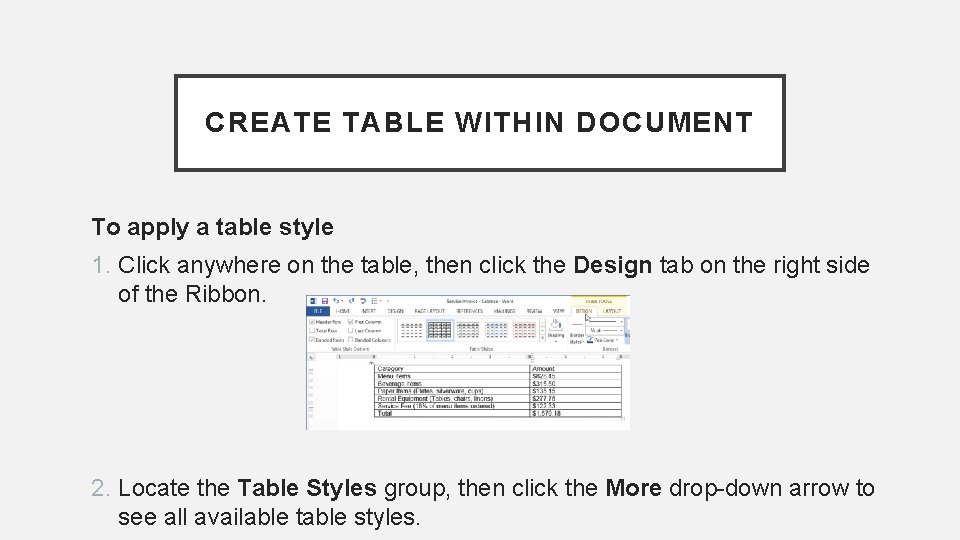
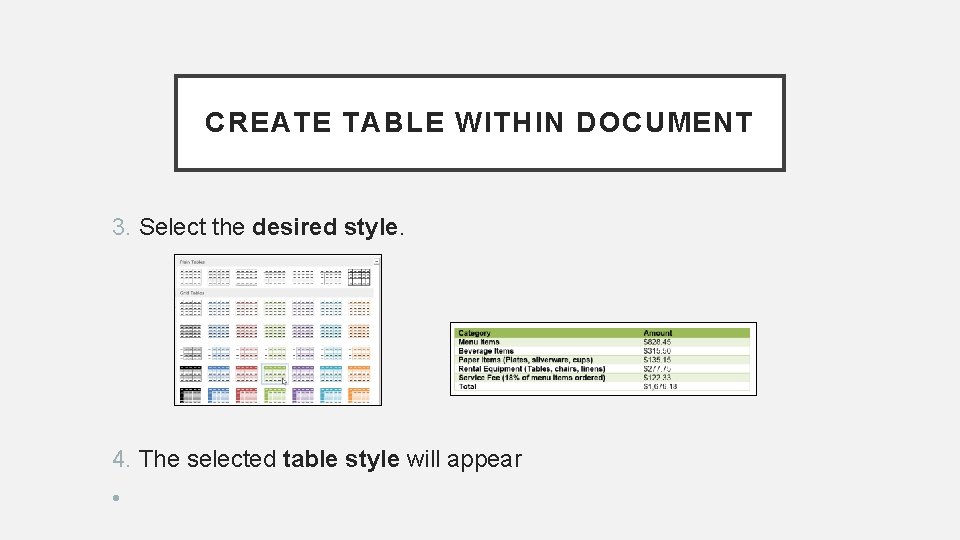
CREATE TABLE WITHIN DOCUMENT To apply a table style 1. Click anywhere on the table, then click the Design tab on the right side of the Ribbon. 2. Locate the Table Styles group, then click the More drop-down arrow to see all available table styles.
CREATE TABLE WITHIN DOCUMENT 3. Select the desired style. 4. The selected table style will appear •
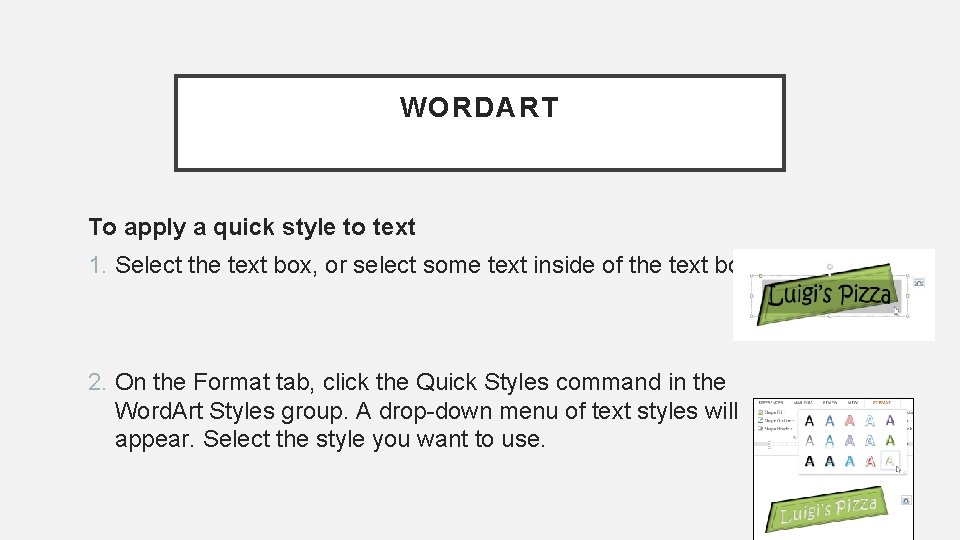
WORDART To apply a quick style to text 1. Select the text box, or select some text inside of the text box. 2. On the Format tab, click the Quick Styles command in the Word. Art Styles group. A drop-down menu of text styles will appear. Select the style you want to use.
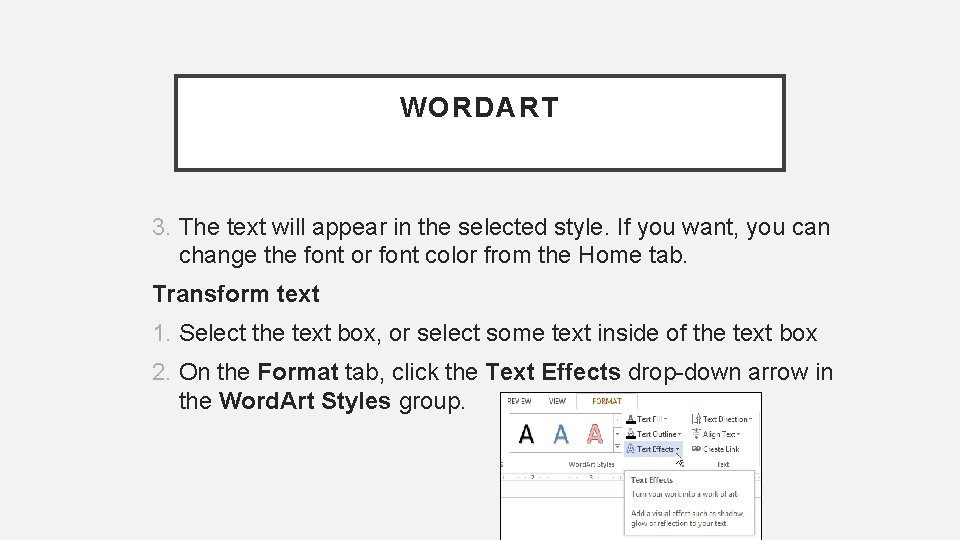
WORDART 3. The text will appear in the selected style. If you want, you can change the font or font color from the Home tab. Transform text 1. Select the text box, or select some text inside of the text box 2. On the Format tab, click the Text Effects drop-down arrow in the Word. Art Styles group.
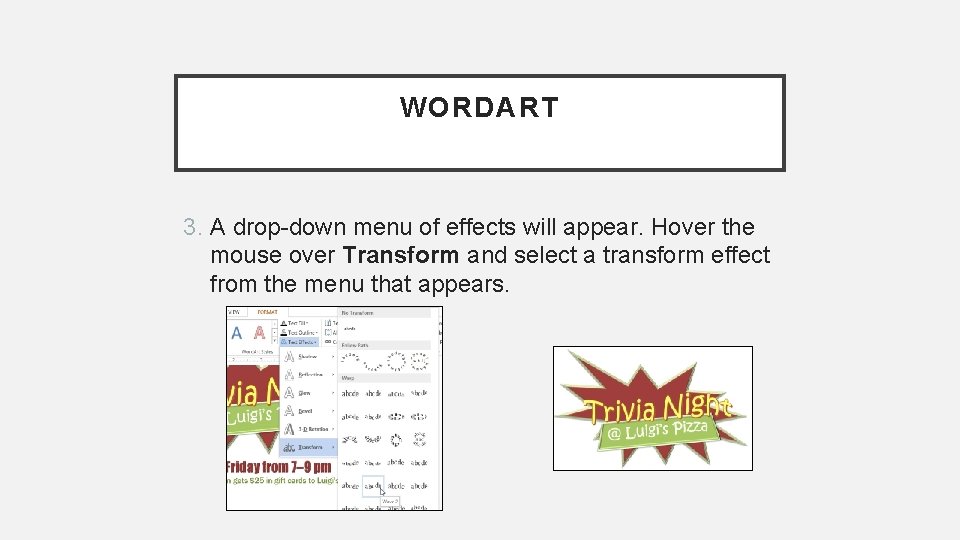
WORDART 3. A drop-down menu of effects will appear. Hover the mouse over Transform and select a transform effect from the menu that appears.
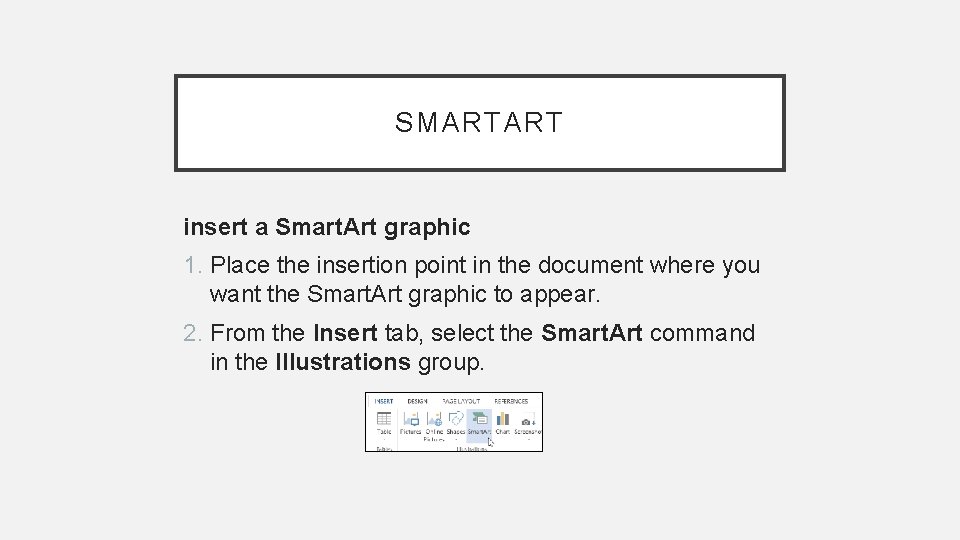
SMARTART insert a Smart. Art graphic 1. Place the insertion point in the document where you want the Smart. Art graphic to appear. 2. From the Insert tab, select the Smart. Art command in the Illustrations group.
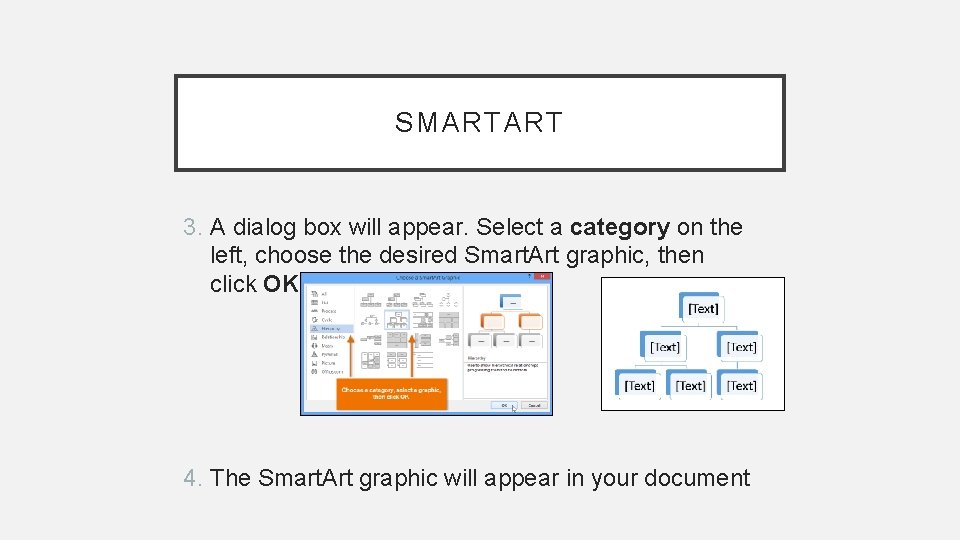
SMARTART 3. A dialog box will appear. Select a category on the left, choose the desired Smart. Art graphic, then click OK. 4. The Smart. Art graphic will appear in your document
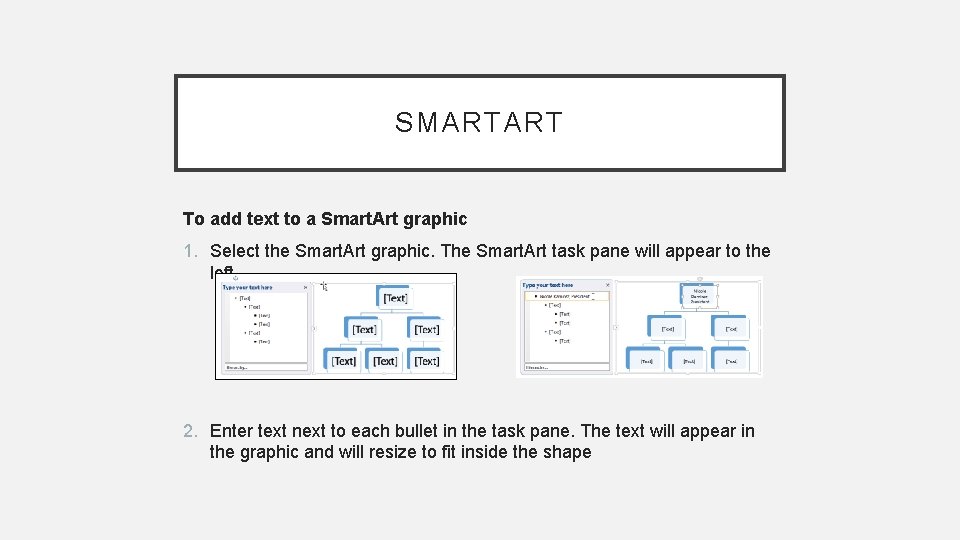
SMARTART To add text to a Smart. Art graphic 1. Select the Smart. Art graphic. The Smart. Art task pane will appear to the left. 2. Enter text next to each bullet in the task pane. The text will appear in the graphic and will resize to fit inside the shape