
Chapter 3 Documenting Information Systems Learning Objectives To
Chapter 3 Documenting Information Systems
Learning Objectives • • • To read and evaluate data flow diagrams To read and evaluate system flowcharts. To read and evaluate entity-relationship diagrams. To prepare data flow diagrams from a narrative. To prepare system flowcharts from a narrative.
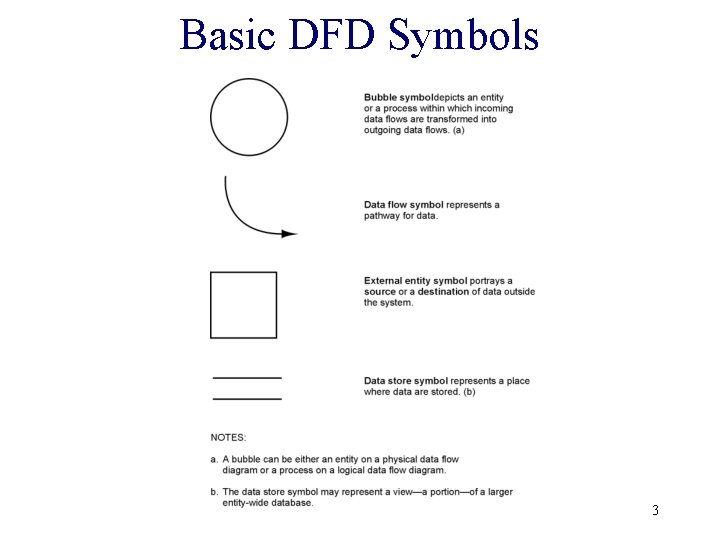
Basic DFD Symbols 3

CONTEXT DIAGRAM 4
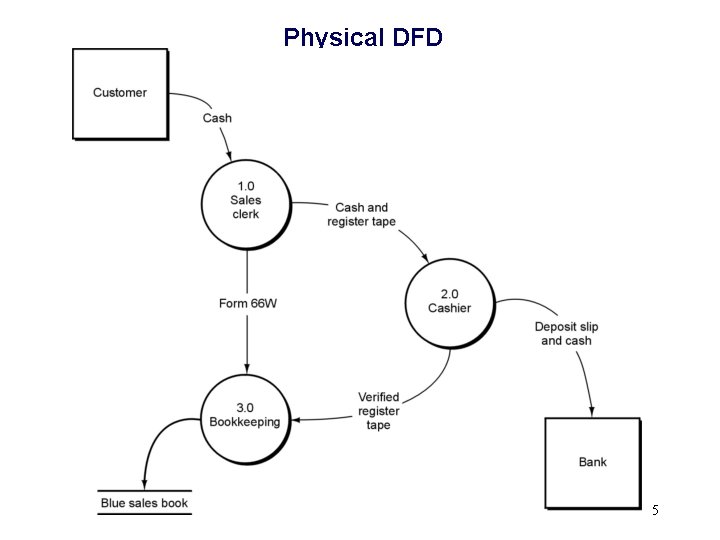
Physical DFD 5
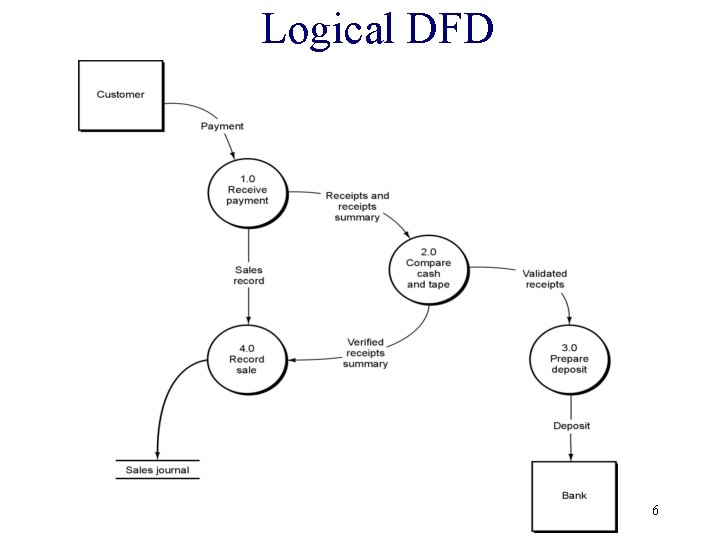
Logical DFD 6
Balanced DFDs • The next five slides depict “balanced” data flow diagrams. • Balanced DFDs exist when the external data flows are equivalent. • The first DFD is a context diagram and the next one is an “explosion” of it into a level 0 logical DFD. • The next diagram is an “explosion” of the logical level 0 DFD, and so on. 7
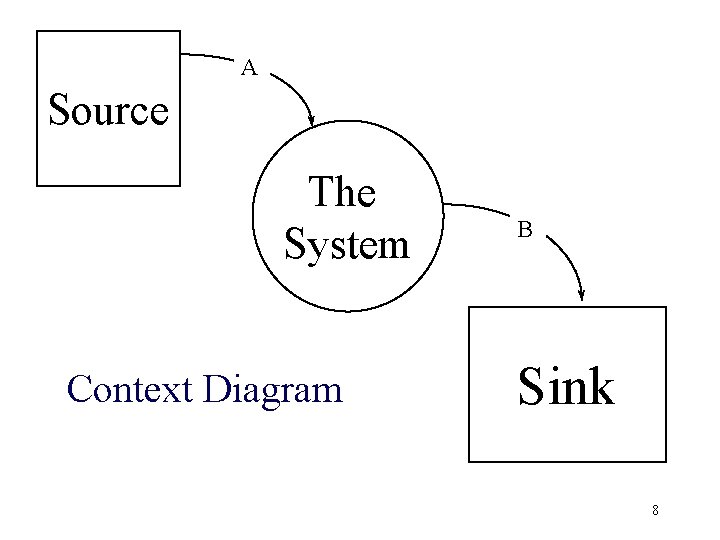
A Source The System Context Diagram B Sink 8
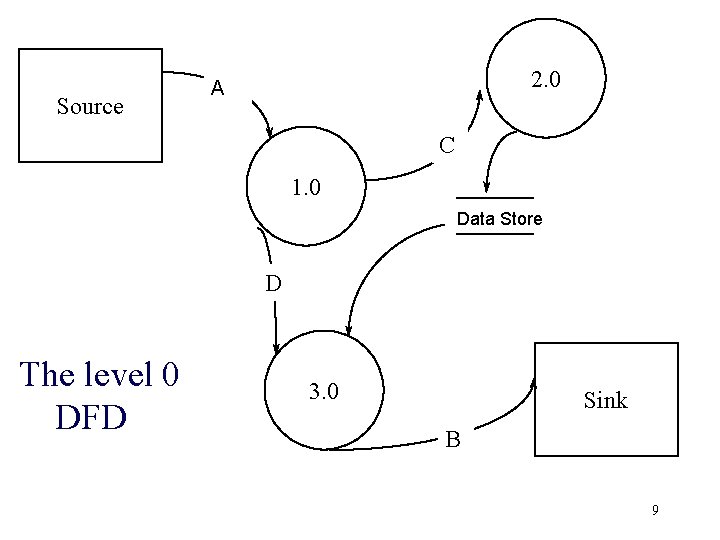
Source 2. 0 A C 1. 0 Data Store D The level 0 DFD 3. 0 Sink B 9
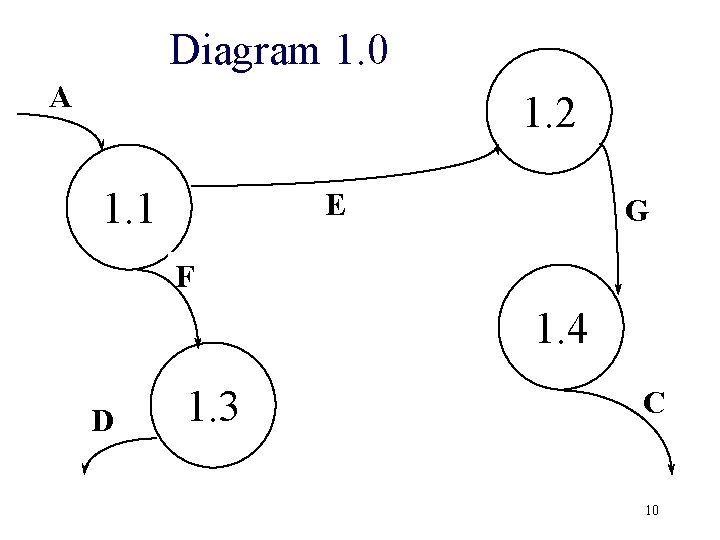
Diagram 1. 0 A 1. 2 1. 1 E G F 1. 4 D 1. 3 C 10
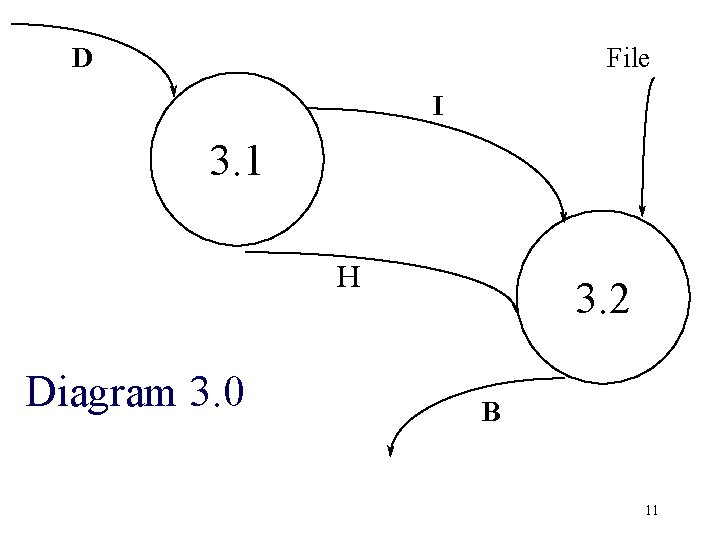
D File I 3. 1 H Diagram 3. 0 3. 2 B 11
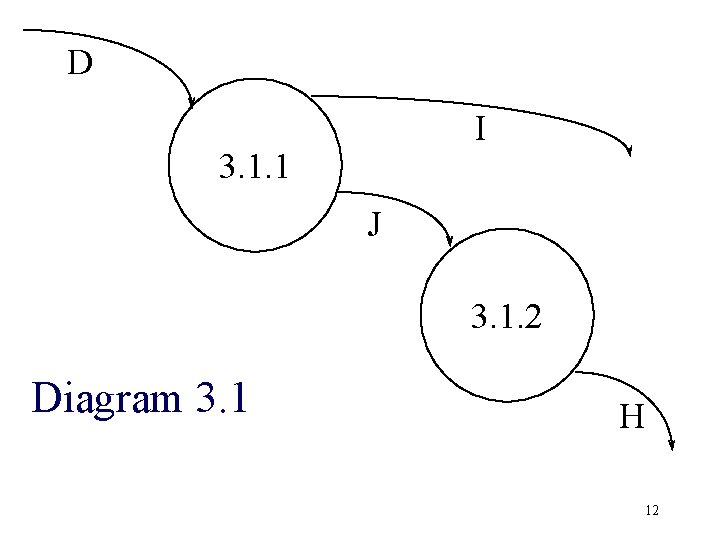
D I 3. 1. 1 J 3. 1. 2 Diagram 3. 1 H 12

Standard Flowchart Symbols INPUTS PROCESSING OUTPUT DOCUMENTS COMPUTER PROCESS CRT DISPLAY MANUAL KEYING MANUAL PROCESS PUNCH CARD OFFLINE PROCESS GENERAL PURPOSE INPUTOUTPUT DISK TAPE PAPER CONNECTORS START/STOP ON-PAGE CONNECTOR OFF-PAGE CONNECTOR LOGIC FLOW MISCELLANEOUS ANNOTATIONS BATCH TOTAL DATA STORES GOODS; I. e. inventory shipment FILING SEQUENCE: A = ALPHABETICAL C = CHRONOLOGICAL N = NUMERICAL TELECOMMUNICATIONS LINK 13
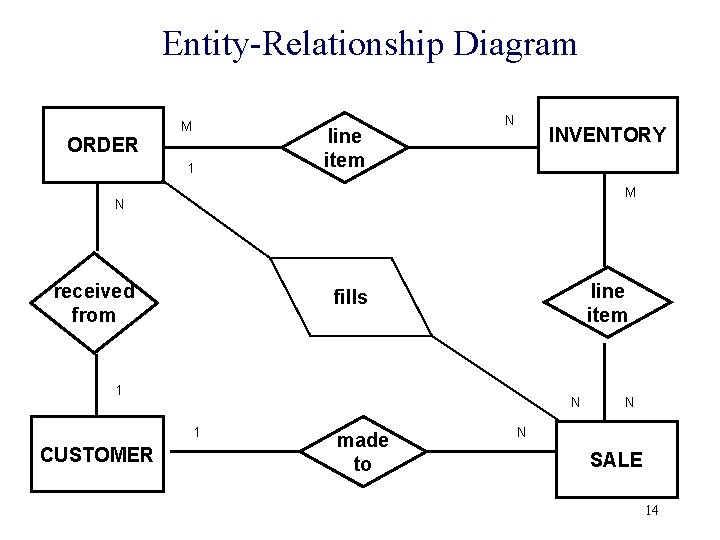
Entity-Relationship Diagram M ORDER 1 line item N INVENTORY M N received from line item fills 1 N 1 CUSTOMER made to N N SALE 14
Common system flowcharting routines • The following slides show several common ways of showing processing using system flowcharting. • Pay particular attention to the way the columns are set up to communicate the flow of activities between processing entities. 15
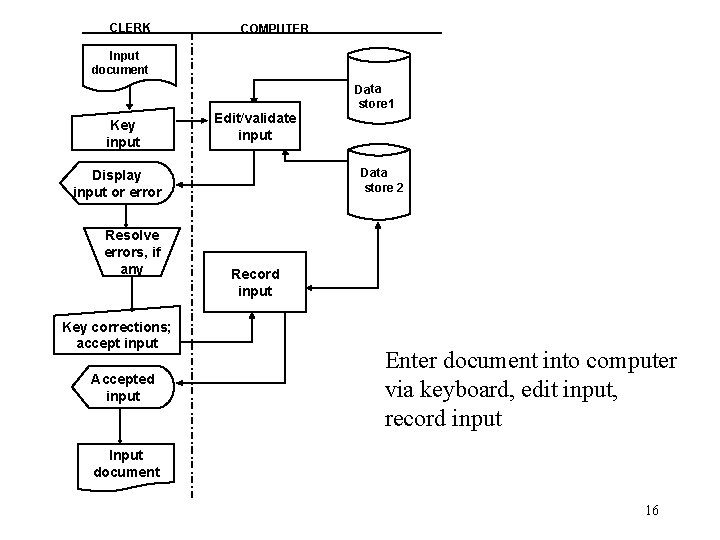
CLERK COMPUTER Input document Key input Edit/validate input Data store 2 Display input or error Resolve errors, if any Key corrections; accept input Accepted input Data store 1 Record input Enter document into computer via keyboard, edit input, record input Input document 16
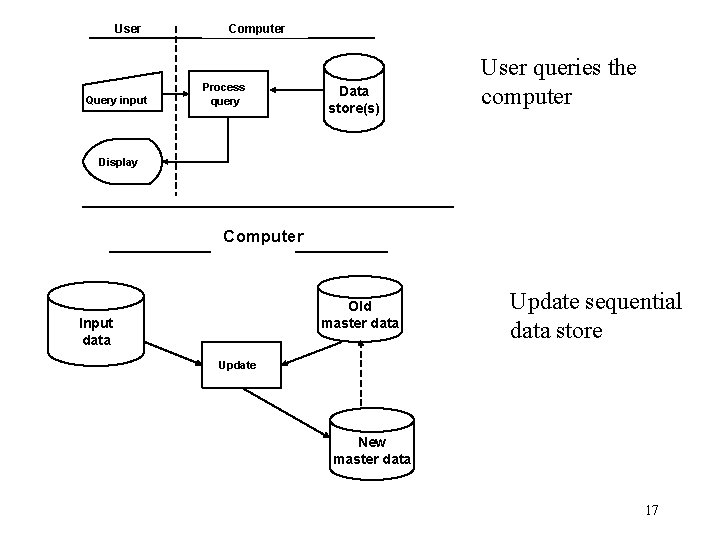
User Query input Computer Process query Data store(s) User queries the computer Display Computer Old master data Input data Update sequential data store Update New master data 17
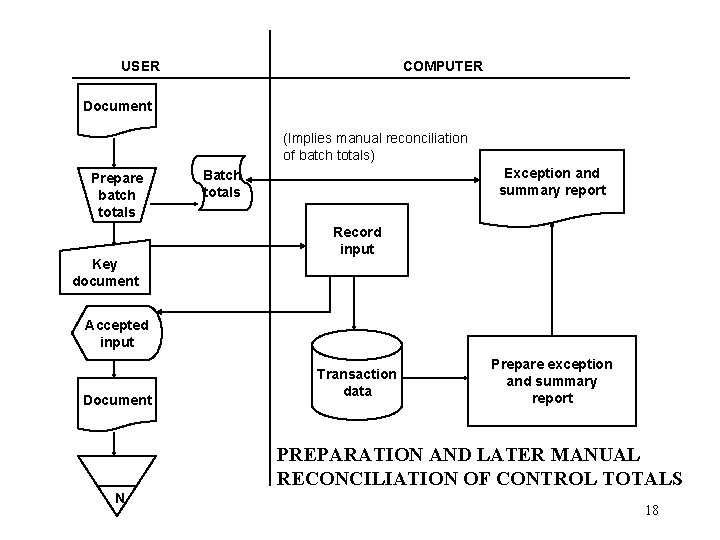
USER COMPUTER Document (Implies manual reconciliation of batch totals) Prepare batch totals Key document Exception and summary report Batch totals Record input Accepted input Document Transaction data Prepare exception and summary report PREPARATION AND LATER MANUAL RECONCILIATION OF CONTROL TOTALS N 18
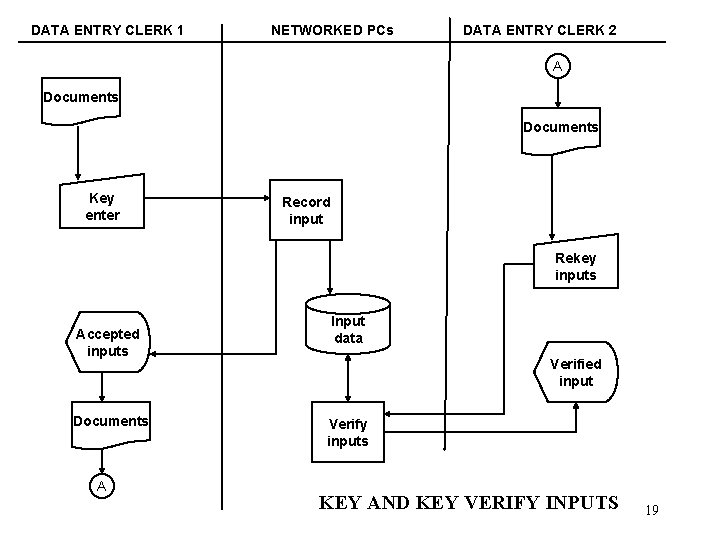
DATA ENTRY CLERK 1 NETWORKED PCs DATA ENTRY CLERK 2 A Documents Key enter Record input Rekey inputs Accepted inputs Documents A Input data Verified input Verify inputs KEY AND KEY VERIFY INPUTS 19
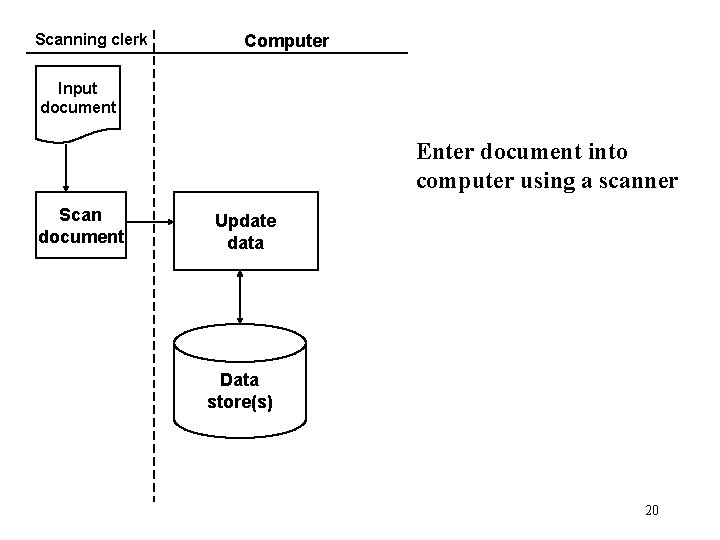
Scanning clerk Computer Input document Enter document into computer using a scanner Scan document Update data Data store(s) 20
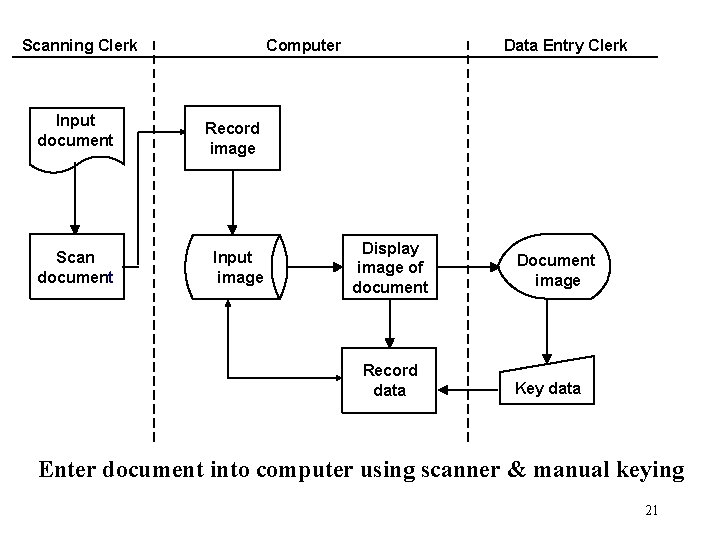
Scanning Clerk Input document Scan document Computer Data Entry Clerk Record image Input image Display image of document Record data Document image Key data Enter document into computer using scanner & manual keying 21
Preparing Data Flow Diagrams • Read narrative carefully - number lines and paragraphs in text • Prepare table of entities and activities • Draw context diagram - use DFD guidelines 22
DFD Guidelines • 1. Include within the system context (bubble) any entity that performs one or more information processing activities. • 2. For now, include only normal processing routines, not exception routines or error routines, on context diagrams, physical DFDs, and logical level 0 DFDs. • 3. Include on the systems documentation all (and only) activities and entities described in the systems narrative no more, no less. • 4. When multiple entities operate identically, depict only one to represent all. 23
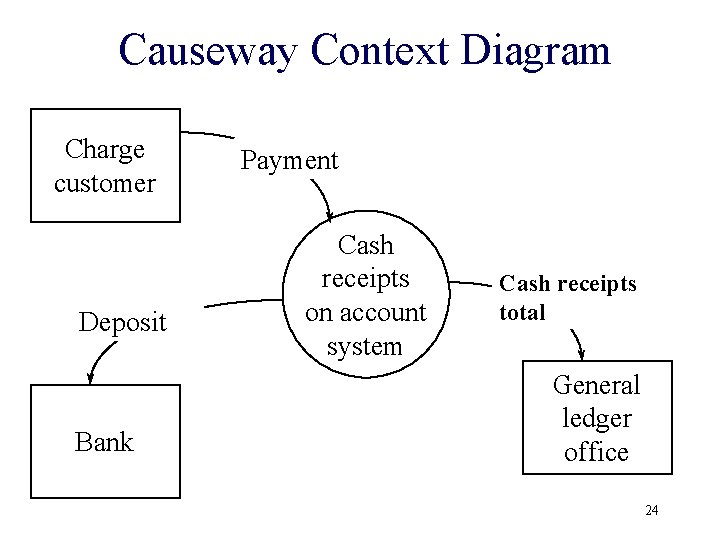
Causeway Context Diagram Charge customer Deposit Bank Payment Cash receipts on account system Cash receipts total General ledger office 24
DFD Guidelines (cont. ) • 5. For clarity, draw a data flow for each flow into and out of a file. You may, also for clarity and to help you determine that you have included all necessary flows, label each flow with the activity number that gives rise to the flow or with a description of the flow. • 6. If a file is logically necessary (that is, because of a delay between processes), include a file in the diagrams, whether or not it is mentioned in the narrative. 25
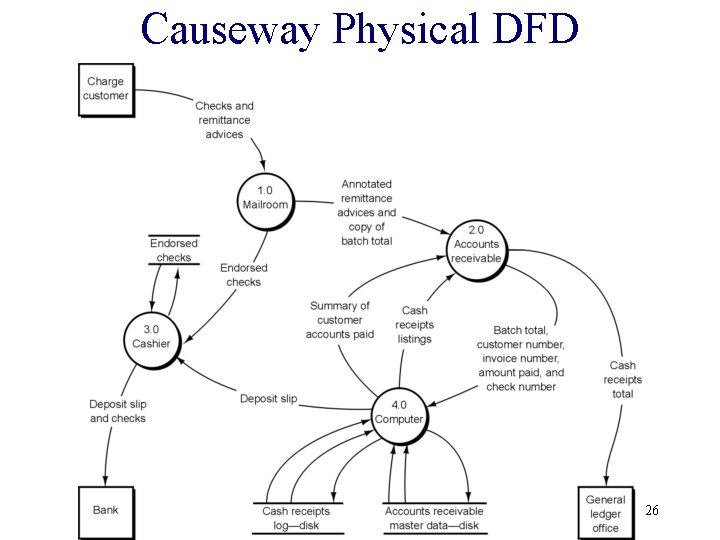
Causeway Physical DFD 26
DFD Guidelines (cont. ) • 7. Group activities if they occur in the same place and at the same time. • 8. Group activities if they occur at the same time but in different places. • 9. Group activities that seem to be logically related. • 10. To make the DFD readable, use between five and seven bubbles. 27
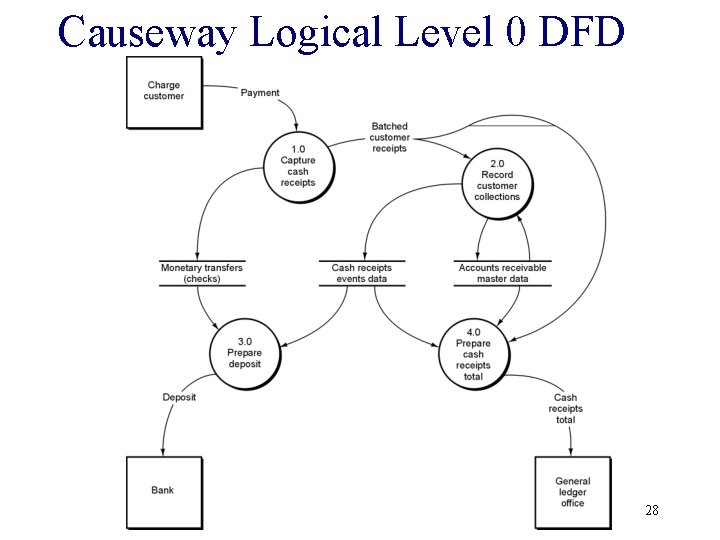
Causeway Logical Level 0 DFD 28
DFD Guidelines (cont, ) • 11. A data flow should go to an operations entity square when only operations functions (that is, work-related functions such as storing goods, picking goods from shelves, etc. ) are to performed by that entity. A data flow should enter an entity bubble if the operations entity is to perform an information processing activity. • 12. On a physical DFD, reading computer data stores & writing to computer data stores must go through a computer bubble. • 13. On a logical DFD, data flows cannot go from higher - to lower-numbered bubbles. 29
System flowcharting guidelines • 1. Divide the flowchart into columns; one column for each internal entity and one for each external entity. Label each column. • 2. Flowchart columns should be laid out so that the flowchart activities flow from left to right, but you should locate columns so as to minimize crossed lines and connectors. 30
System flowcharting guidelines (cont. ) • 3. Flowchart logic should flow from top to bottom and from left to right. For clarity, put arrows on all flow lines. • 4. Keep the flowchart on one page. If you can’t, use multiple pages and connect the pages with off-page connectors. Do not glue, tape, staple, or otherwise extend your flowchart to get it one page. 31

32
System flowcharting guidelines (cont. ) • 5. Within each column, there must be at least one manual process, keying operation, or data store between documents. That is, do not directly connect documents within the same column. • 6. When crossing organizational lines (one column to another), show a document at both ends of the flow line unless the connection is so short that the intent is unambiguous. 33
System flowcharting guidelines (cont. ) • 7. Documents or reports printed in data processing (DP) should be shown in the DP column first. You can then show the document or report going to the destination unit. • 8. Documents or reports printed by a centralized computer facility on equipment located in another organizational unit ( warehouse, shipping dept. ) should not be shown within the computer facility. 34
System flowcharting guidelines (cont. ) • 9. Processing within an organizational unit on devices such as a PC or computerized cash register should be shown within the unit or as a separate column next to that unit, but not in the central computer facility column. • 10. Sequential processing steps (computerized or manual) with no delay between them can be shown as one process or as a sequence of processes. 35
System flowcharting guidelines (cont. ) • 11. The only way into a computer data storage unit is through a computer processing rectangle. • 12. A manual process is not needed to show the sending of a document. The sending of the document should be apparent from the movement of the document itself. • 13. Do not use a manual process to file a document. Just show the document going in to a file. 36

37
Learning Objectives • • • To read and evaluate data flow diagrams To read and evaluate system flowcharts. To read and evaluate entity-relationship diagrams. To prepare data flow diagrams from a narrative. To prepare system flowcharts from a narrative.
- Slides: 38