
CHAPTER 3 All About Motherboards Objectives Learn about
CHAPTER 3 All About Motherboards
Objectives • Learn about the different types and features of motherboards • Learn how to use setup BIOS and physical jumpers to configure a motherboard • Learn how to maintain a motherboard • Learn how to select, install, and replace a motherboard
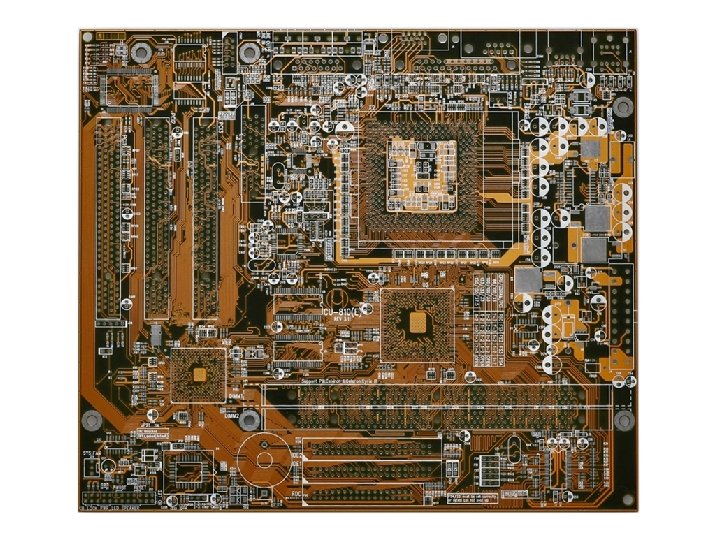
Motherboard Types and Features • Motherboard • Most complicated computer component • One of the first items to consider when building a computer • Consider the following when purchasing a motherboard: • Form factor • Processor socket and chipset • Buses and number of bus slots • Other connectors, slots, and ports
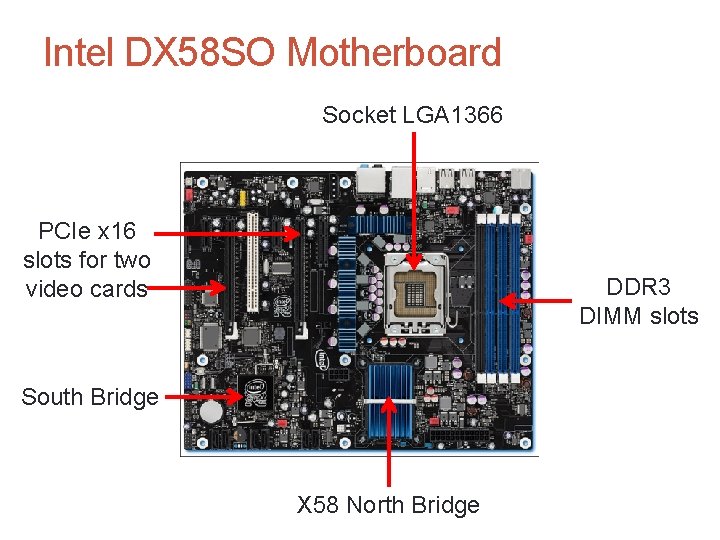
Intel DX 58 SO Motherboard Socket LGA 1366 PCIe x 16 slots for two video cards DDR 3 DIMM slots South Bridge X 58 North Bridge
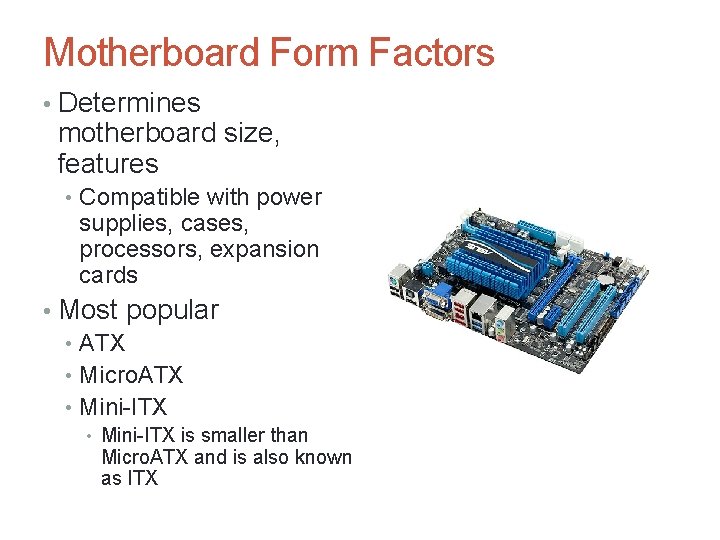
Motherboard Form Factors • Determines motherboard size, features • Compatible with power supplies, cases, processors, expansion cards • Most popular • ATX • Micro. ATX • Mini-ITX is smaller than Micro. ATX and is also known as ITX
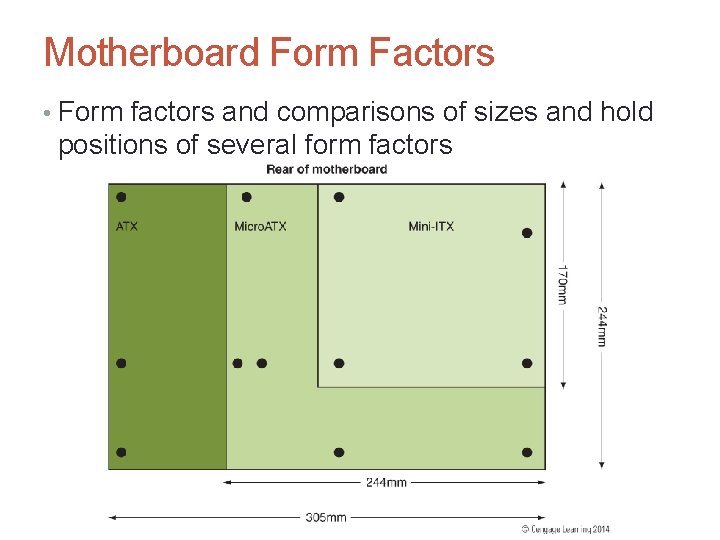
Motherboard Form Factors • Form factors and comparisons of sizes and hold positions of several form factors
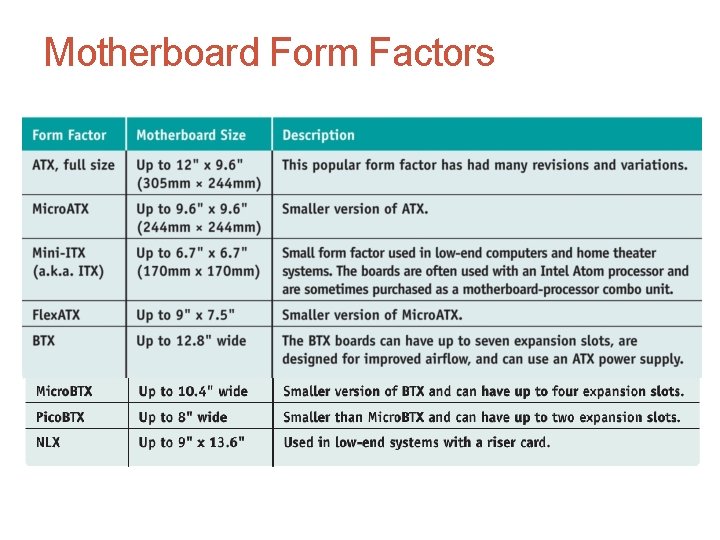
Motherboard Form Factors
A+ Guide to Hardware, Sixth Edition 8 Processor Sockets • Processor socket – determines which processors a board can support • Socket holds Intel or AMD processor
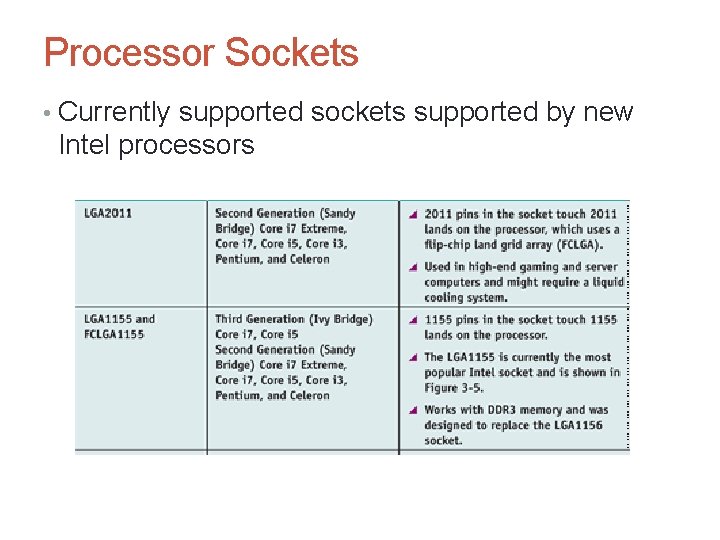
Processor Sockets • Currently supported sockets supported by new Intel processors
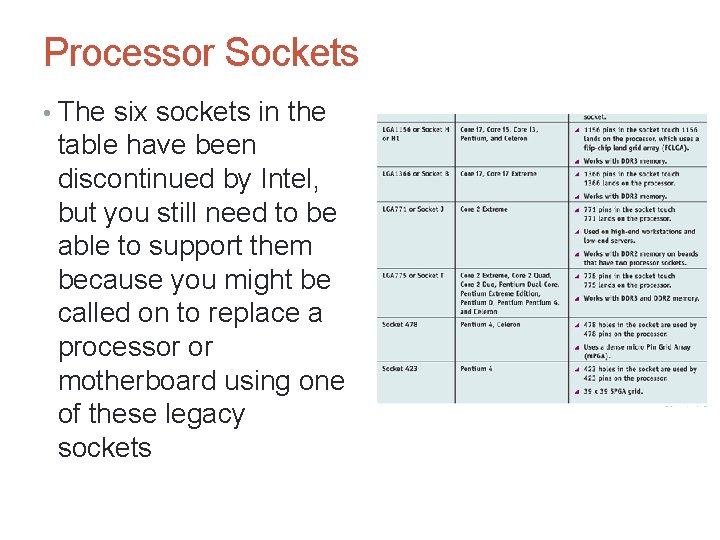
Processor Sockets • The six sockets in the table have been discontinued by Intel, but you still need to be able to support them because you might be called on to replace a processor or motherboard using one of these legacy sockets
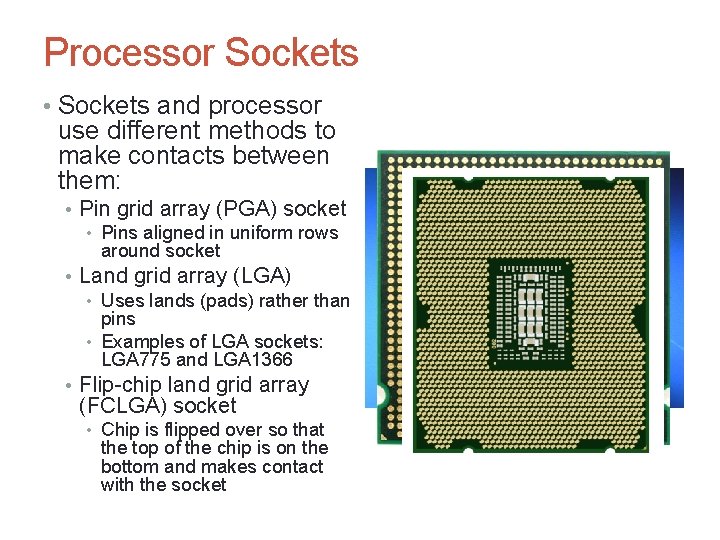
Processor Sockets • Sockets and processor use different methods to make contacts between them: • Pin grid array (PGA) socket • Pins aligned in uniform rows around socket • Land grid array (LGA) • Uses lands (pads) rather than pins • Examples of LGA sockets: LGA 775 and LGA 1366 • Flip-chip land grid array (FCLGA) socket • Chip is flipped over so that the top of the chip is on the bottom and makes contact with the socket
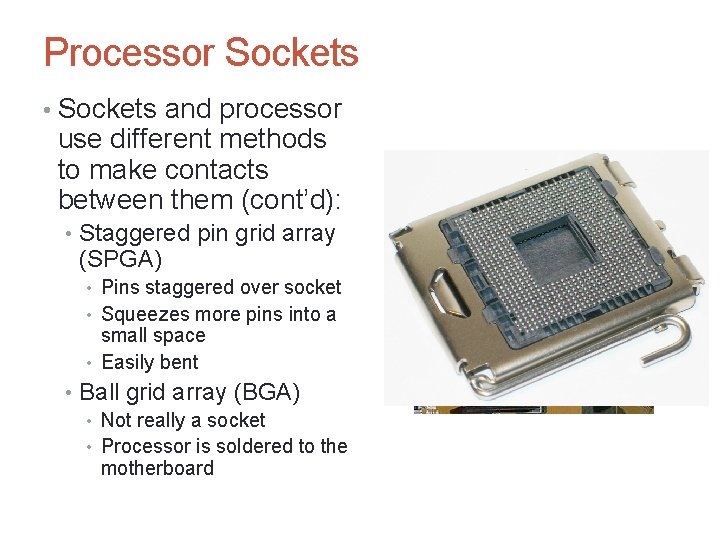
Processor Sockets • Sockets and processor use different methods to make contacts between them (cont’d): • Staggered pin grid array (SPGA) • Pins staggered over socket • Squeezes more pins into a small space • Easily bent • Ball grid array (BGA) • Not really a socket • Processor is soldered to the motherboard
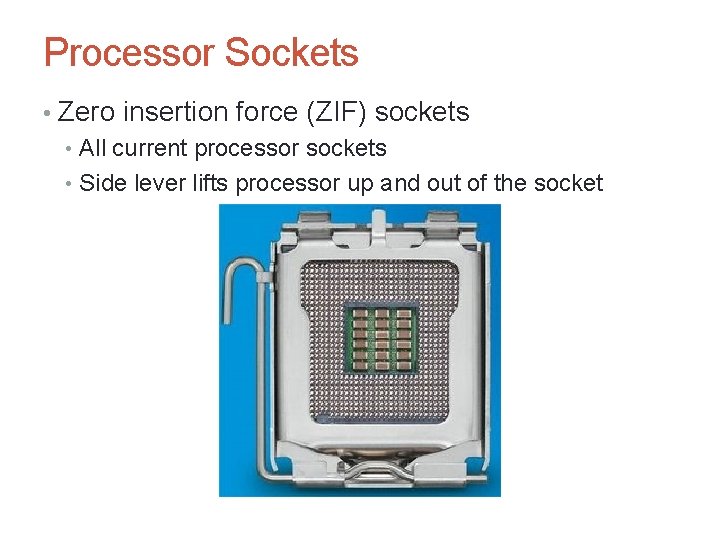
Processor Sockets • Zero insertion force (ZIF) sockets • All current processor sockets • Side lever lifts processor up and out of the socket
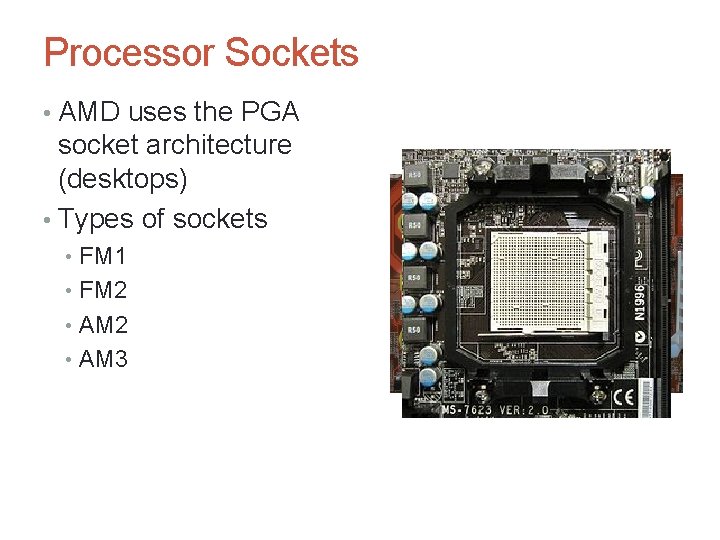
Processor Sockets • AMD uses the PGA socket architecture (desktops) • Types of sockets • FM 1 • FM 2 • AM 3
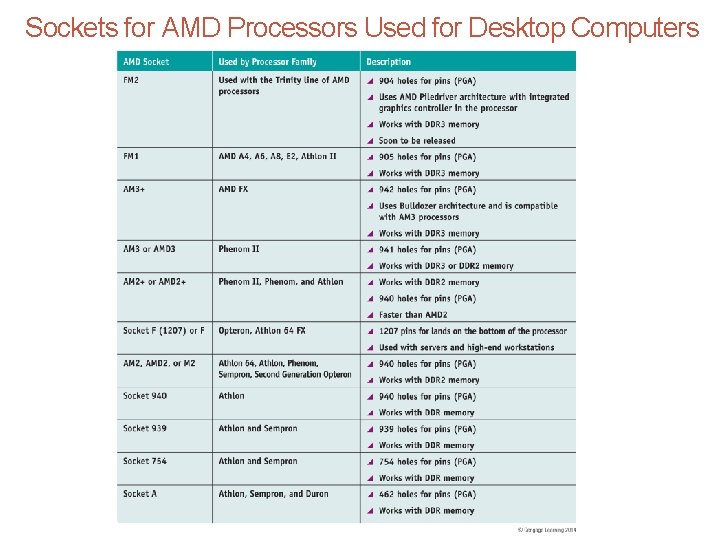
Sockets for AMD Processors Used for Desktop Computers
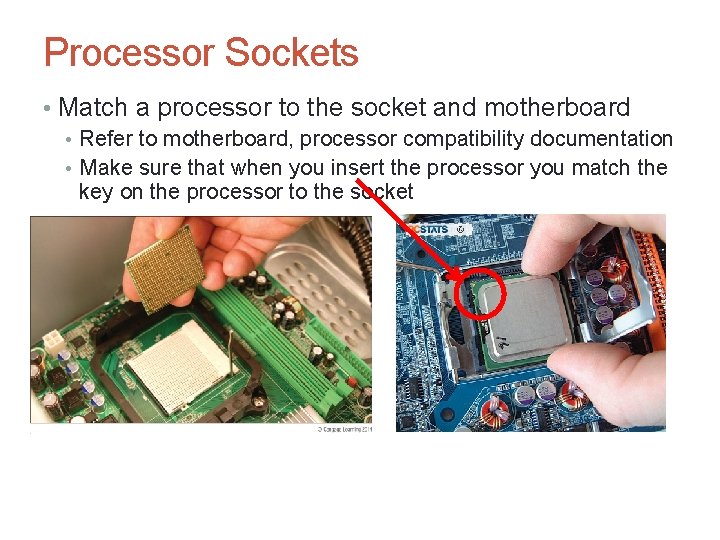
Processor Sockets • Match a processor to the socket and motherboard • Refer to motherboard, processor compatibility documentation • Make sure that when you insert the processor you match the key on the processor to the socket
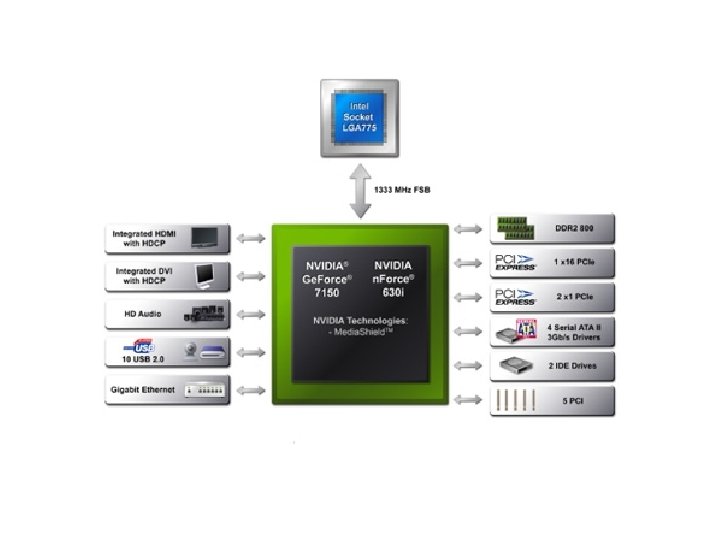
The Chipset • Chipset: set of chips on motherboard that work with processor to collectively control: • Memory • Motherboard buses • Some peripherals • Manufacturers • Intel, AMD, NVIDIA, Si. S, and VIA
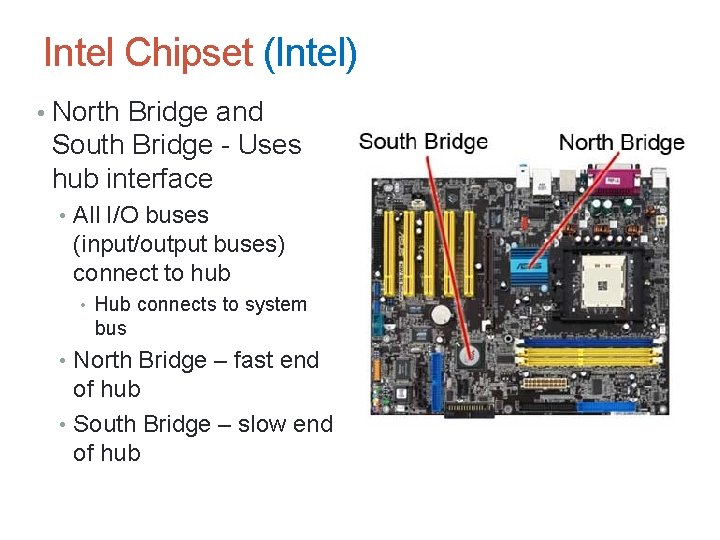
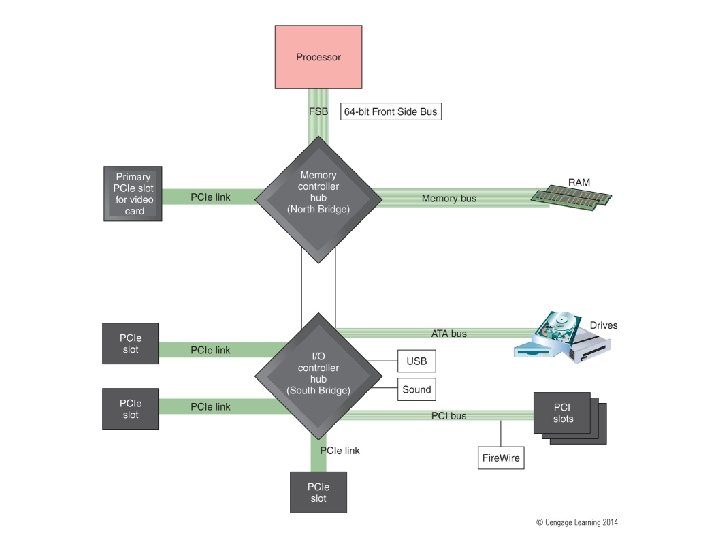
Intel Chipset (Intel) • North Bridge and South Bridge - Uses hub interface • All I/O buses (input/output buses) connect to hub • Hub connects to system bus • North Bridge – fast end of hub • South Bridge – slow end of hub
Intel Chipset (Intel) • The fast end of the hub, called the North Bridge, contains • the graphics and memory controller • connects directly to the processor by way of a 64 -bit bus, called the Front Side Bus (FSB), system bus, or host bus. • The slower end of the hub, called the South Bridge, contains • the I/O controller hub (ICH) • all I/O (input/output) devices, except video
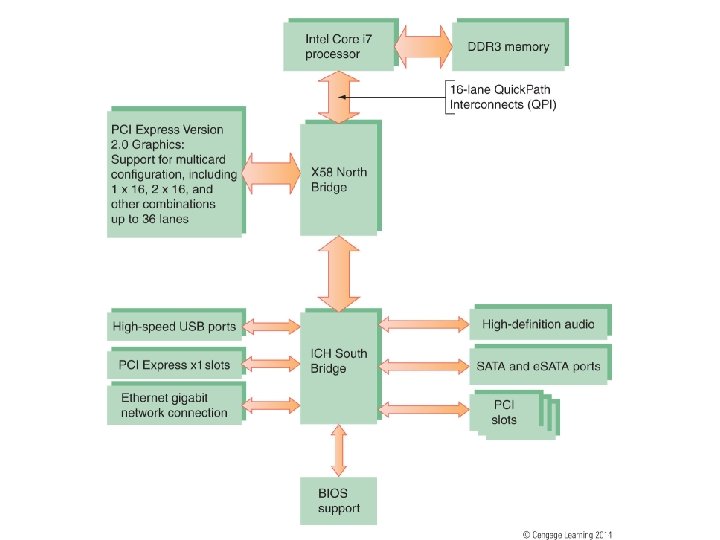
The Chipset (Intel) • Core i 7 and X 58 chipset • Referred to by Intel as Nehalem chipset • Contain memory controller within processor housing • Memory connects directly to processor • Has Quick. Path Interconnect (QPI) technology • Has 16 lanes for data packets • support the Intel LGA 1366 socket • the Core i 7 processors, • PCI Express Version 2. • They can also support either SLI or Cross. Fire technologies.
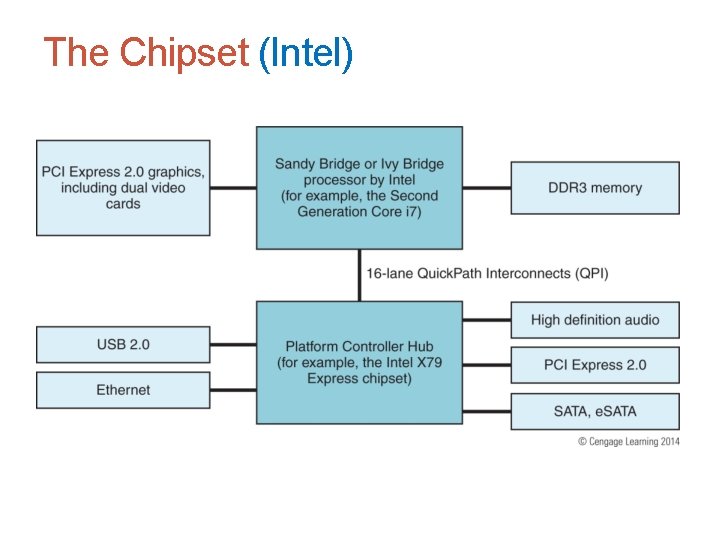
The Chipset (Intel) • Sandy Bridge chipset • Rather than using the traditional North Bridge and South Bridge, only one chipset housing is needed, which houses the Platform Controller Hub • Memory and graphics controller in Sandy Bridge processor • Second Generation Core i 7 processor is an example • Sandy Bridge motherboards use DDR 3 memory
The Chipset (Intel)
The Chipset (Intel) • Ivy Bridge chipset – 3 rd generation processors released in 2012 • Use less power • More transistors in a smaller place • Perform better than earlier products • Uses a single Platform Controller Hub
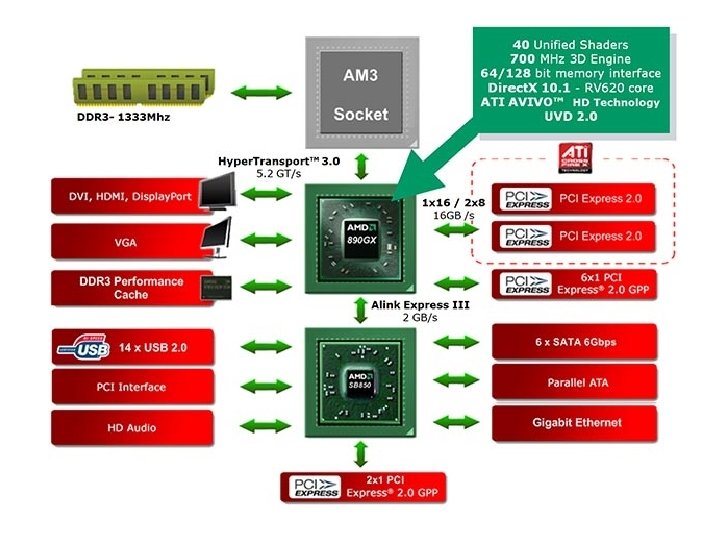
The Chipset (AMD) • AMD A-series (code name Trinity) • Designed to compete with Ivey Bridge chipsets • AMD 9 -series, 8 -series, and 7 -series • Designed for gamer, hobbyist, multimedia enthusiast • Focus on good graphics capabilities • Support overclocking • AMD 580 X Crossfire chipset • Supports ATI Cross. Fire • AMD 780 V chipset • Designed for business needs • AMD 740 G and 690 chipsets • Designed for low-end, inexpensive systems
The Chipset • NVIDIA, SIS and VIA Chipsets • All make graphics processors and chipset for AMD and Intel processors • NVIDIA’s method of connecting multiple video cards is called SLI • If planning a gaming computer using two video cards: • Look for a motherboard that supports SLI and uses the n. Force chipset
Buses and Expansion Slots • Bus • A system of pathways used for communication and the protocols and methods used for transmission • Busses carry • Power - to power components on the motherboard • control signals - to coordinate activity among components • memory addresses - for one program to tell another program where to find data or instructions • Data – binary information
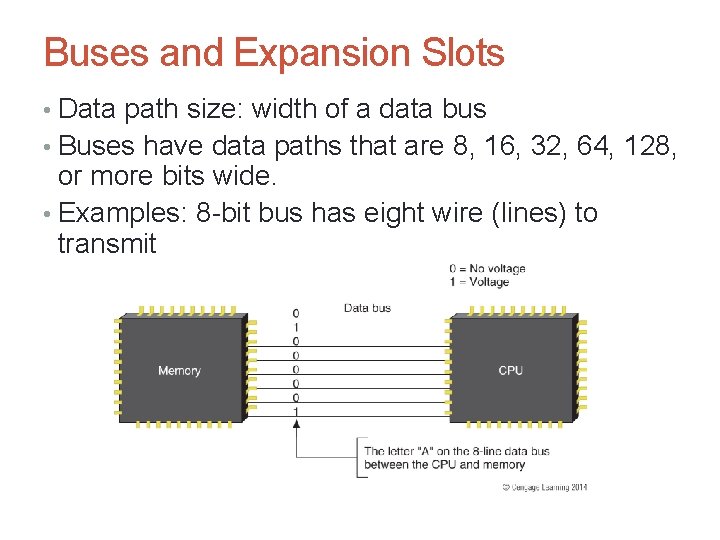
Buses and Expansion Slots • Data path size: width of a data bus • Buses have data paths that are 8, 16, 32, 64, 128, or more bits wide. • Examples: 8 -bit bus has eight wire (lines) to transmit
Buses and Expansion Slots • The CPU, bus, and other devices work in a binary fashion—do something, stop, and so forth • System clock (system timer) – times activities on the motherboard for all components • One system clock line, dedicated to carrying the pulse, is read by other components on the motherboard (including the processor, bus slots, memory slots, and so forth) and ensures that all activities are synchronized • Speed of memory, Front Side Bus, processor, or other component is measured in hertz (Hz), which is one cycle per second • Megahertz (MHz): one million cycles per second • Gigahertz (GHz): one billion cycles per second
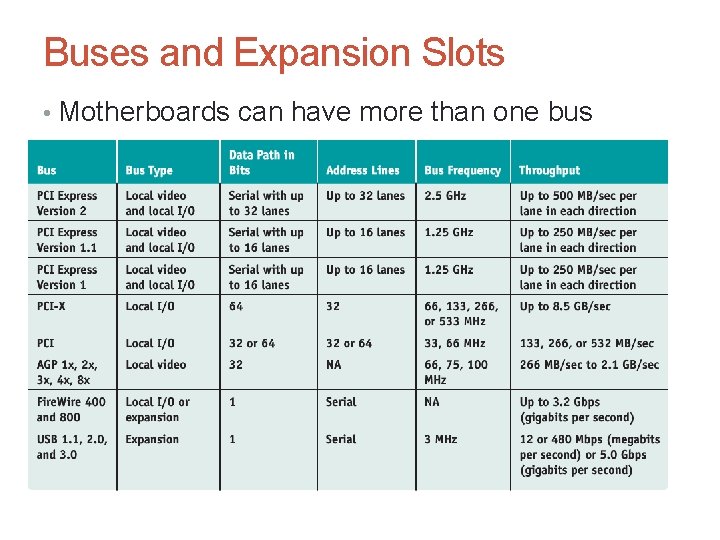
Buses and Expansion Slots • Motherboards can have more than one bus
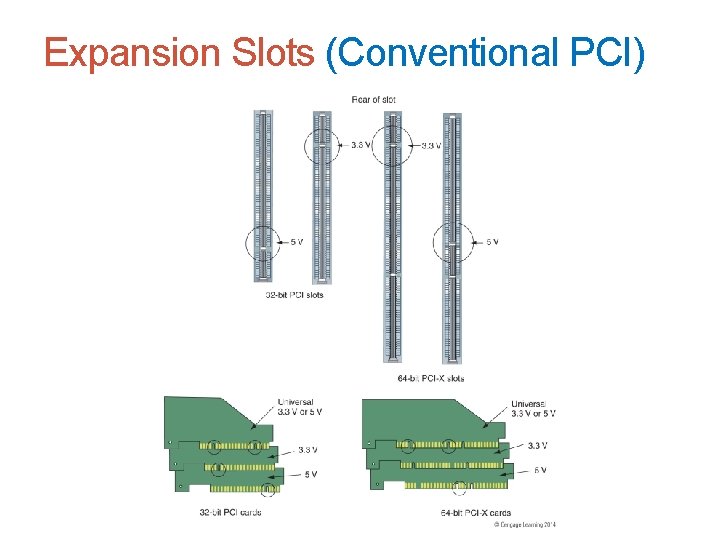
Expansion Slots (Conventional PCI) • Conventional PCI • Improved several times • PCI - 32 bit pathway • PCI 2 – 64 bit pathway • Four types of slots and six possible PCI card configurations • Because a card can be damaged if installed in the wrong voltage slot, a notch in a PCI slot distinguishes between a 5 V slot and a 3. 3 V slot
Expansion Slots (Conventional PCI)
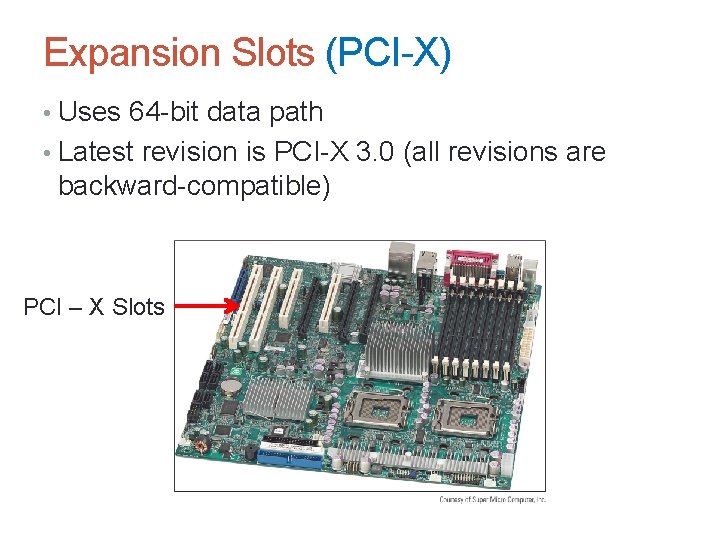
Expansion Slots (PCI-X) • Uses 64 -bit data path • Latest revision is PCI-X 3. 0 (all revisions are backward-compatible) PCI – X Slots
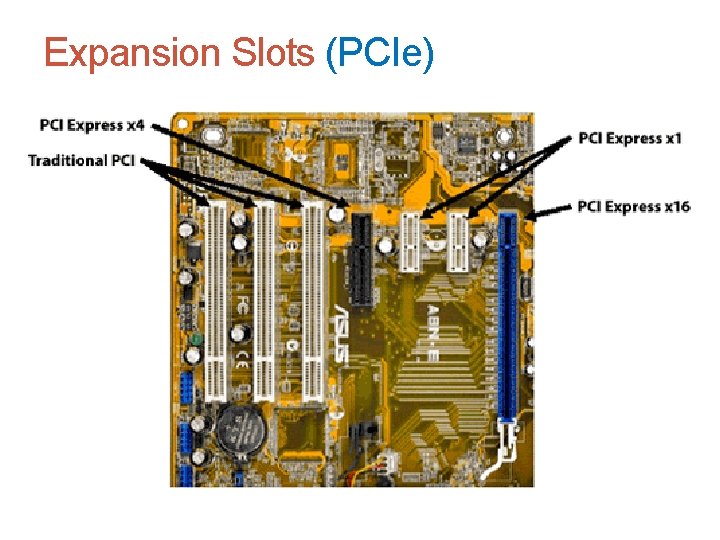
Expansion Slots (PCIe) • Not backward compatible with conventional PCI or PCI-X • Expected to replace both PCI and PCI-X in the future • Uses a serial bus, which is faster than parallel • Comes in four different slot sizes • PCI Express x 1, x 4, x 8, and x 16 • Latest version is PCIe 3. 0 which doubles the throughput of version 2. 0
Expansion Slots (PCIe)
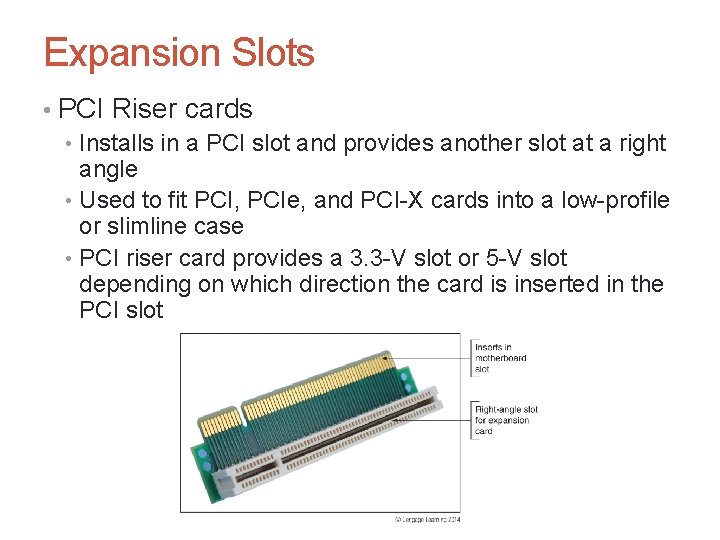
Expansion Slots • PCI Riser cards • Installs in a PCI slot and provides another slot at a right angle • Used to fit PCI, PCIe, and PCI-X cards into a low-profile or slimline case • PCI riser card provides a 3. 3 -V slot or 5 -V slot depending on which direction the card is inserted in the PCI slot

Buses and Expansion Slots • AGP Buses • Accelerated Graphics Port (AGP) – standard used by motherboard video slots and video cards for years • Will need to know how to support it even though it is a dying technology • AGP standards include: • Three major releases - AGP 1. 0, AGP 2. 0, AGP 3. 0 • One major change in slot length – AGP Pro • Four different speeds – 1 x, 2 x, 4 x, and 8 x • Three different voltages • Six different slots
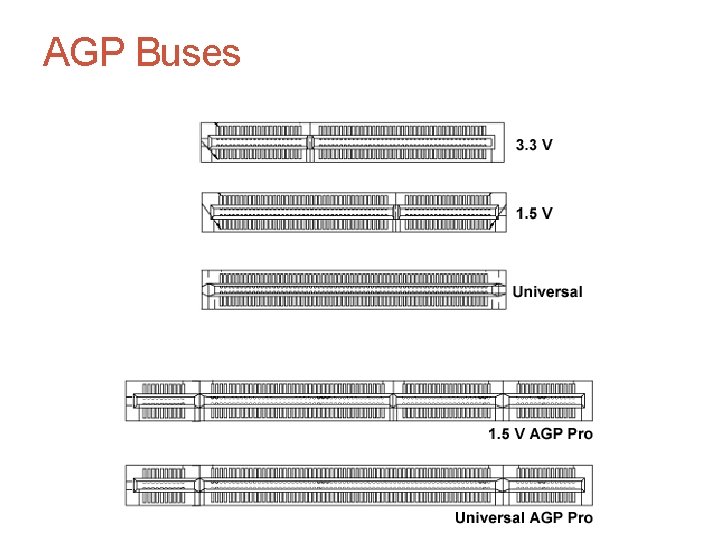
AGP Buses
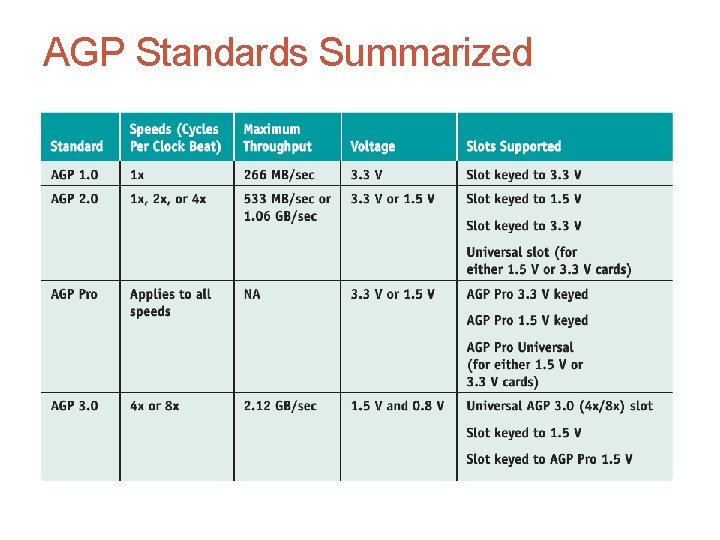
AGP Standards Summarized
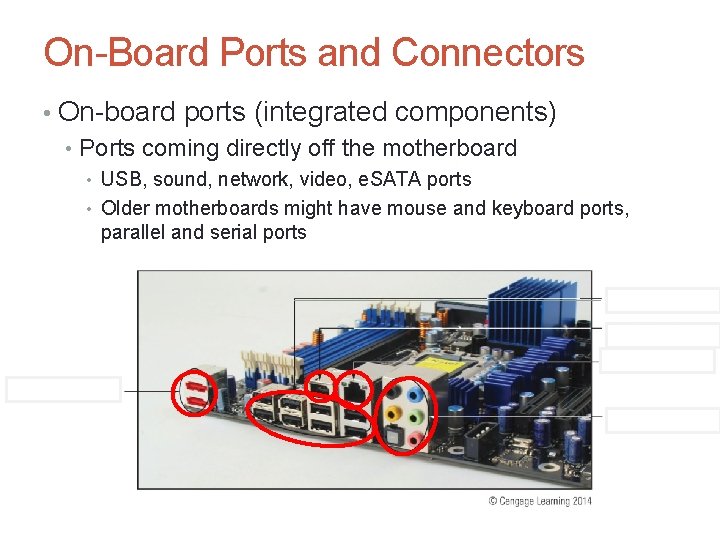
On-Board Ports and Connectors • On-board ports (integrated components) • Ports coming directly off the motherboard • USB, sound, network, video, e. SATA ports • Older motherboards might have mouse and keyboard ports, parallel and serial ports
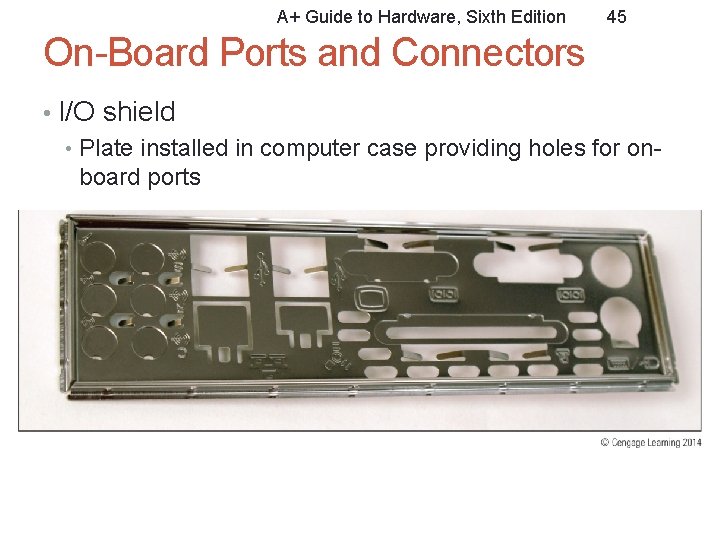
A+ Guide to Hardware, Sixth Edition 45 On-Board Ports and Connectors • I/O shield • Plate installed in computer case providing holes for onboard ports
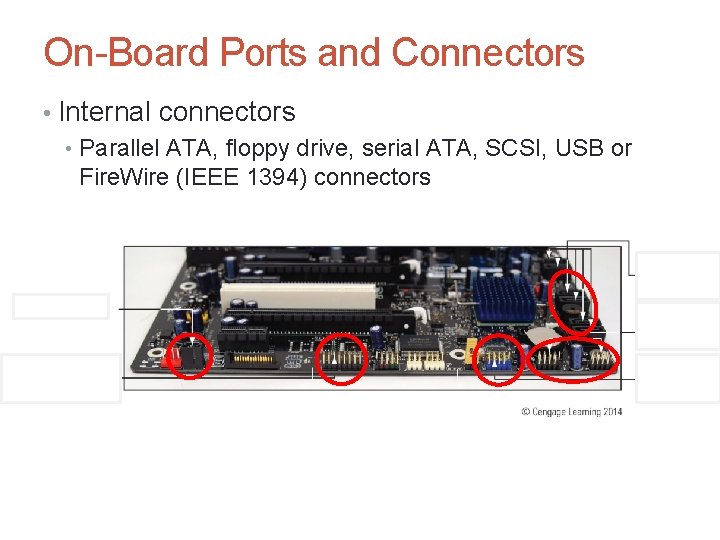
On-Board Ports and Connectors • Internal connectors • Parallel ATA, floppy drive, serial ATA, SCSI, USB or Fire. Wire (IEEE 1394) connectors
Configuring a Motherboard • Motherboard settings • Enable or disable connector or port • Set CPU frequency, system bus, other buses • Control security features • Control what happens when PC first boots • Three ways to configure older motherboards: • DIP switches, jumpers, CMOS RAM • Today, almost all motherboard configuration data is stored in CMOS RAM • Program called BIOS setup or CMOS setup is used to make changes to settings stored in CMOS RAM
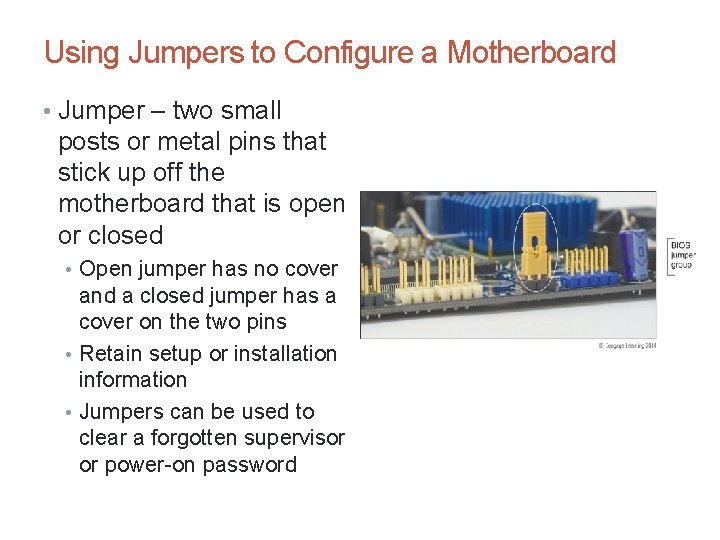
Using Jumpers to Configure a Motherboard • Jumper – two small posts or metal pins that stick up off the motherboard that is open or closed • Open jumper has no cover and a closed jumper has a cover on the two pins • Retain setup or installation information • Jumpers can be used to clear a forgotten supervisor or power-on password
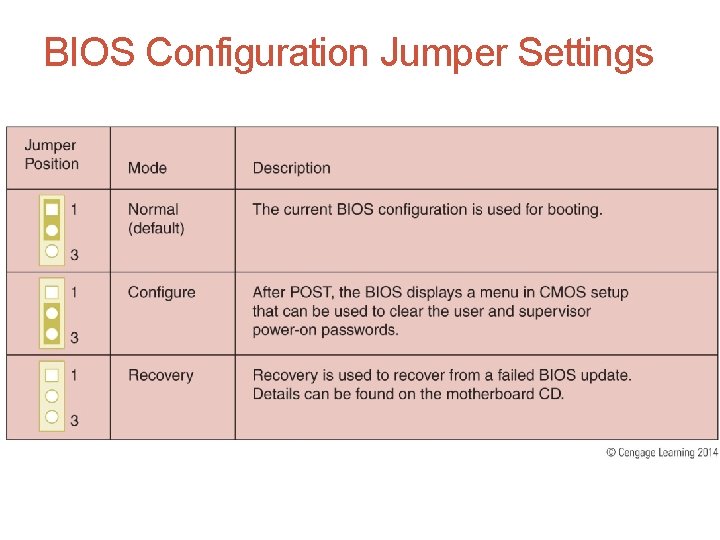
BIOS Configuration Jumper Settings
Using Setup BIOS To Configure a Motherboard • Access the BIOS Setup Program • Press a key or combination of keys during the boot process • Varies from one manufacturer to another • See documentation for your motherboard or watch the screen near the beginning of the boot • Two possible options for accessing Bios • Press DEL to change Setup • Press F 2 for Setup • Setup screen appears with menus and Help features
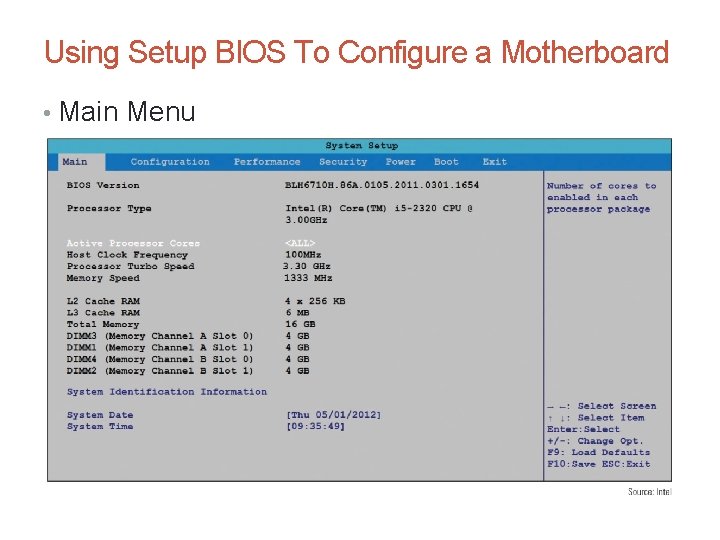
Using Setup BIOS To Configure a Motherboard • Main Menu
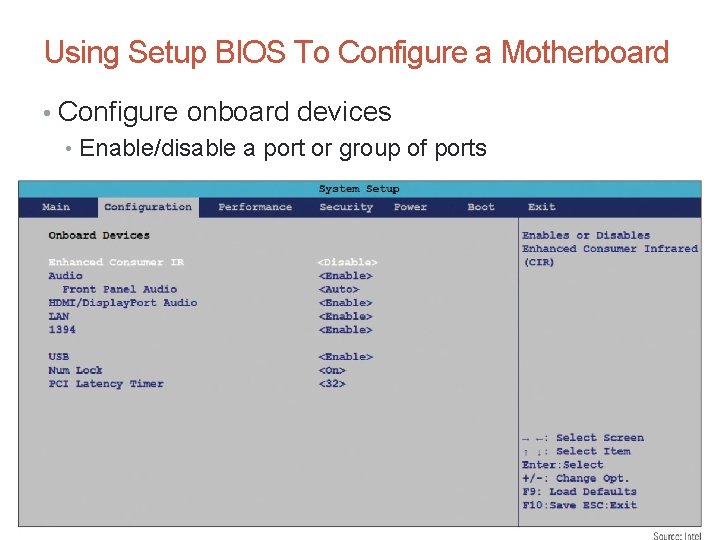
Using Setup BIOS To Configure a Motherboard • Configure onboard devices • Enable/disable a port or group of ports
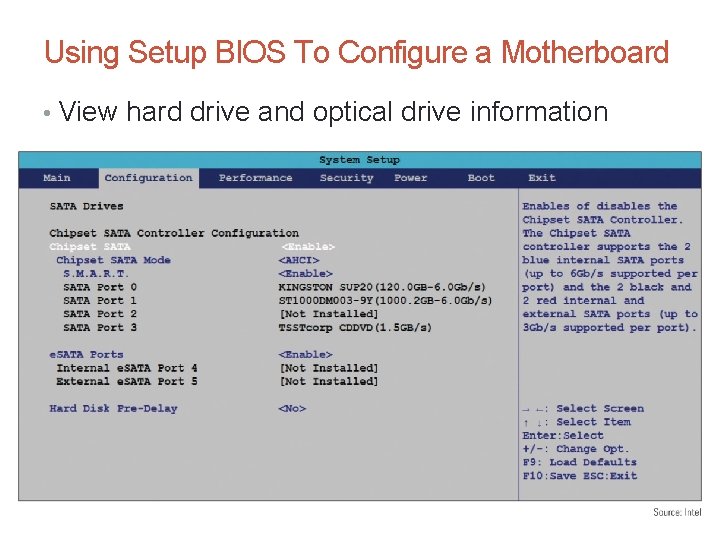
Using Setup BIOS To Configure a Motherboard • View hard drive and optical drive information
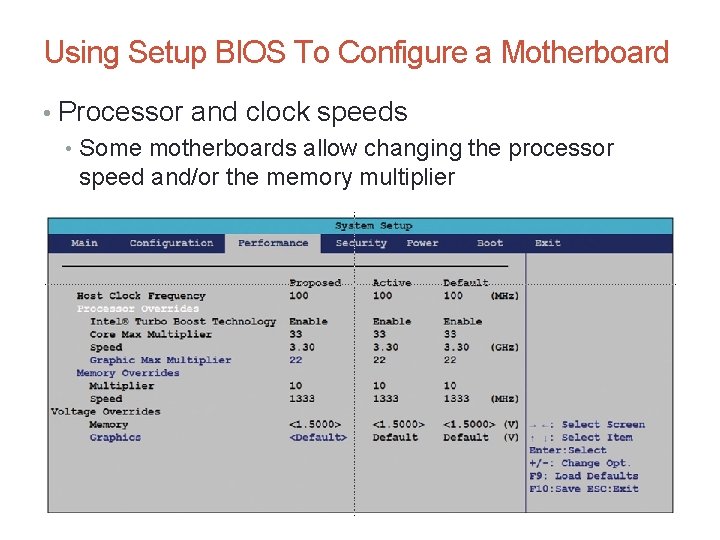
Using Setup BIOS To Configure a Motherboard • Processor and clock speeds • Some motherboards allow changing the processor speed and/or the memory multiplier
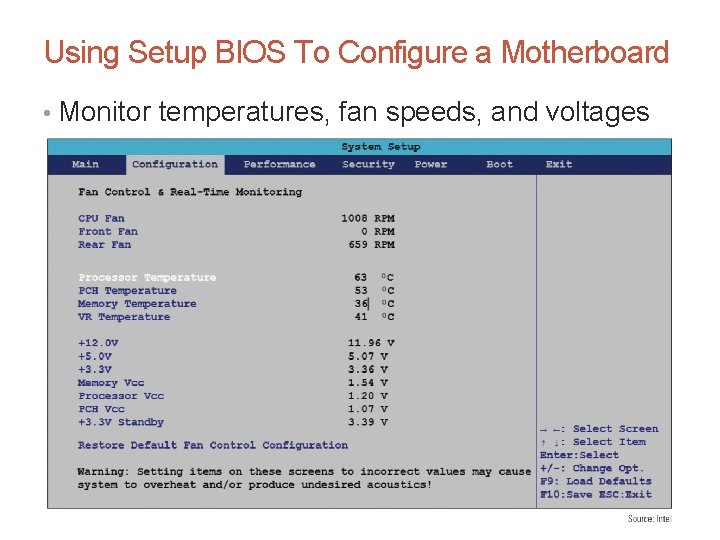
Using Setup BIOS To Configure a Motherboard • Monitor temperatures, fan speeds, and voltages
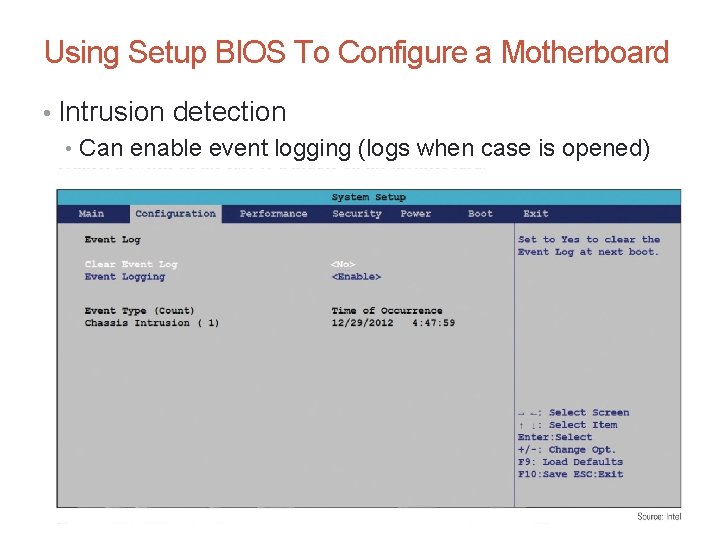
Using Setup BIOS To Configure a Motherboard • Intrusion detection • Can enable event logging (logs when case is opened)
Using Setup BIOS To Configure a Motherboard • Power-on passwords • Assigned in BIOS setup to prevent unauthorized access to the computer and/or BIOS setup utility • May be possible to set a supervisor and user password • If both passwords are set, must enter a valid password to boot the system • How to set passwords varies depending on motherboard and BIOS • Some allow a System power-on password, which will require a password be entered every boot • A Setup power-on password only requires a password be entered in order to access BIOS setup
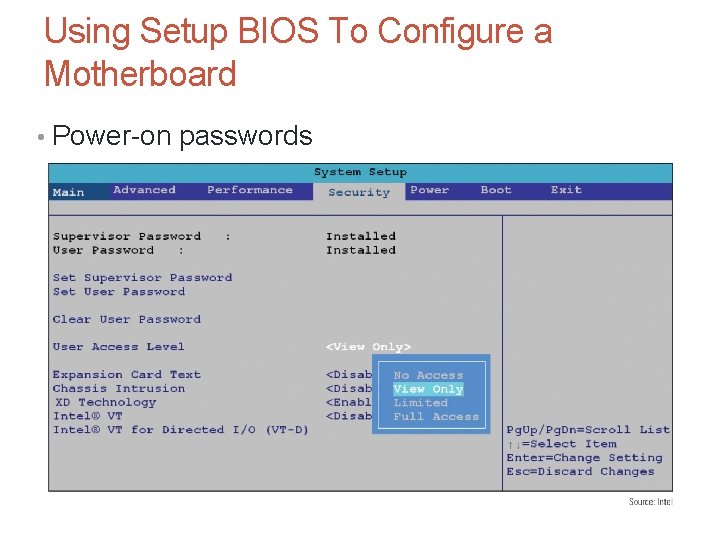
Using Setup BIOS To Configure a Motherboard • Power-on passwords
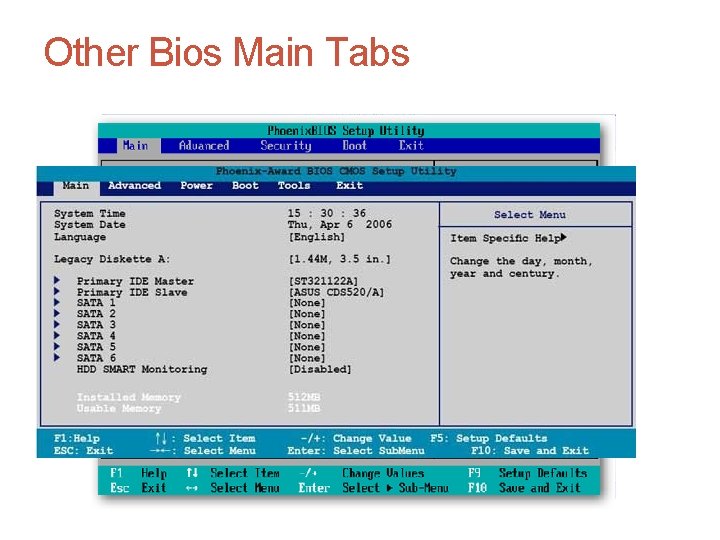
Other Bios Main Tabs
Using Setup BIOS To Configure a Motherboard • Lo. Jack • Technology embedded in the BIOS of many laptops to protect a system against theft • Must subscribe to service • Software and BIOS work together to locate a laptop whenever it connects to the Internet • Drive Encryption and Drive Password Protection • Some motherboards allow you to set a password in order to access the hard drive • Password kept on drive so that it still works even if drive is moved to another computer
Using Setup BIOS To Configure a Motherboard • TPM chip – Trusted Platform Module chip • Bit. Locker Encryption in Windows 7/Vista works with this chip • Encryption key is kept on chip • Assures that a drive cannot be used in another computer
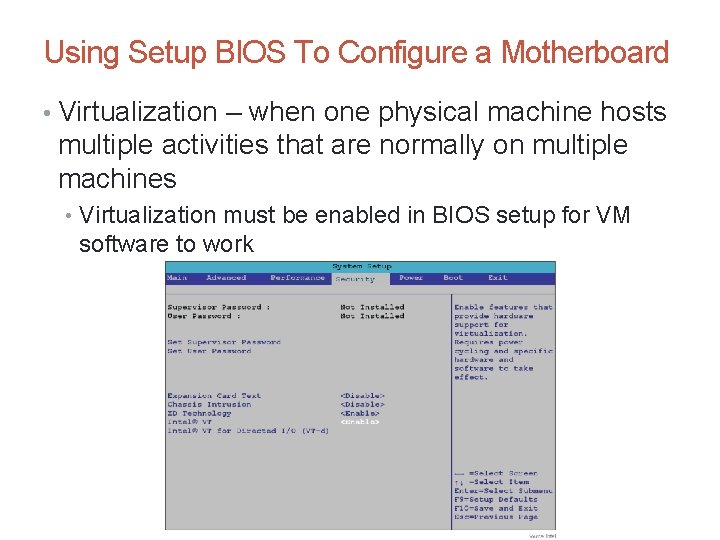
Using Setup BIOS To Configure a Motherboard • Virtualization – when one physical machine hosts multiple activities that are normally on multiple machines • Virtualization must be enabled in BIOS setup for VM software to work
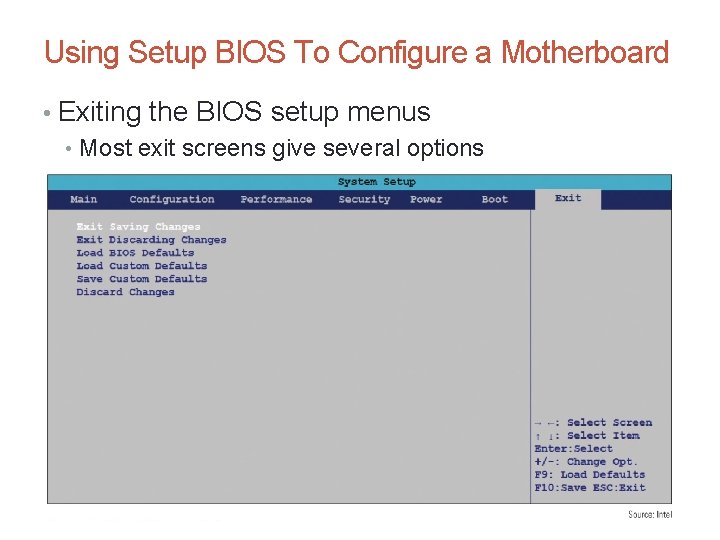
Using Setup BIOS To Configure a Motherboard • Exiting the BIOS setup menus • Most exit screens give several options
Unified Extensible Firmware Interface (UEFI) • BIOS has been terribly outdated for decades. • For example a BIOS only has 1, 024 KB (kilobytes) of executable space, that means BIOS • has trouble starting up the multiple peripheral interfaces (USB, e. SATA, Thunder. Bolt, etc. ) devices, ports, and controllers on a modern PC. • Just as annoying, the BIOS was never meant to initialize more than a handful of devices so even if you can get all devices ready to go it will take up to 30 seconds after you turn the switch on before your PC is ready to start booting.
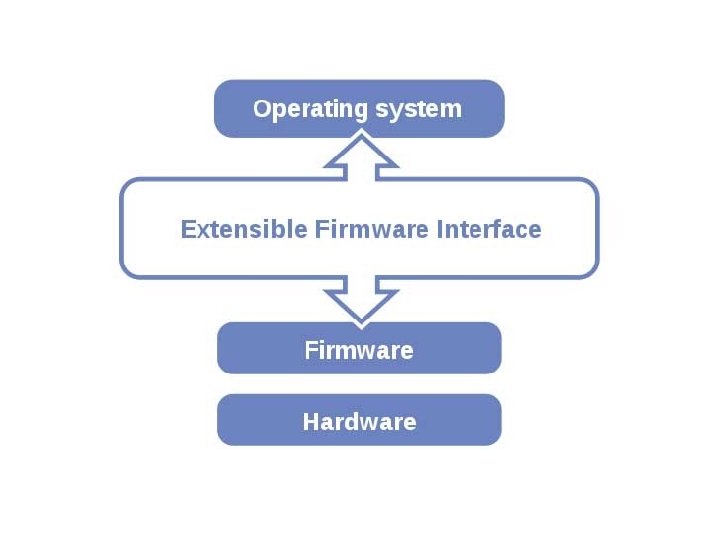
Unified Extensible Firmware Interface (UEFI) • UEFI is a mini-operating system that sits on top of a computer's hardware and firmware • Instead of being stored in firmware, as is the BIOS, the UEFI code is stored in the /EFI/ directory in non-volatile memory. • UEFI can be in NAND flash memory on the motherboard or it can reside on a hard drive, or even on a network share. • Even in a UEFI system there will still be a little bit of the BIOS in the firmware to enable UEFI itself to "boot" up.
UEFI Advantage • UEFI systems boot faster and you can have even larger primary drives • BIOS is limited to hard drives with a maximum size of 2. 2 TB • With 3 TB drives now becoming common, OEMs have no choice but to move to UEFI on high-end PCs • UEFI uses the GUID (Globally Unique ID) Partition Table, both to replace the MBR and address partitions • With GUID, you'll be able to boot from hard disks as large as 9. 4 ZB (zetabytes)
UEFI Advantage • Today, if a PC can't be booted, a technician has to be onsite to fix the PC. BIOS simply doesn't support networking, never mind basic, remote troubleshooting and maintenance tools. • With UEFI, an OEM can built in networking functionality and basic repair tools. • For business use, a properly featured UEFI PC will be far cheaper to support over its lifespan than its older BIOS brother.
UEFI Problems • 32 -bit Windows doesn't support booting from a UEFI system • In addition, UEFI is just a framework. If an OEM wants to offer full support for all the possible hardware that might be available on a given motherboard and offer diagnostic tools, it has to create them. • UEFI can be set to secure boot only form Windows 8. • UEFI itself, since it is both software and mimics an operating system, could itself be attacked. • The latest UEFI specification, 2. 3. 1 (PDF) includes some malware defensive measures such as driver signing and hash-protected authentication.
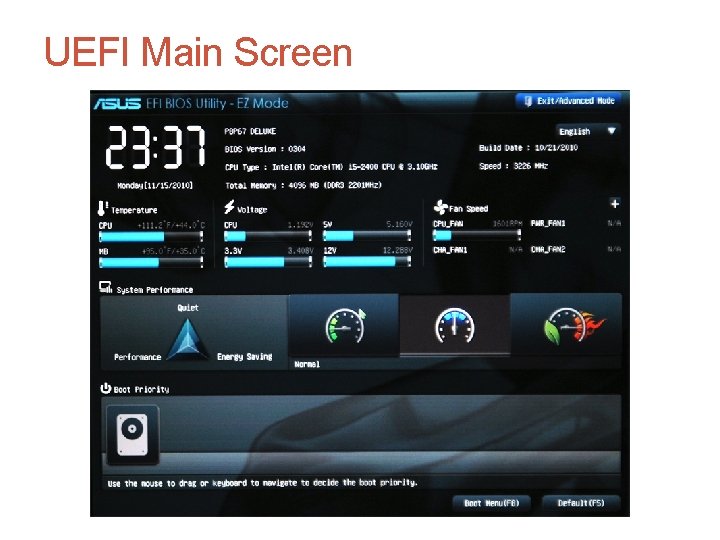
UEFI Main Screen
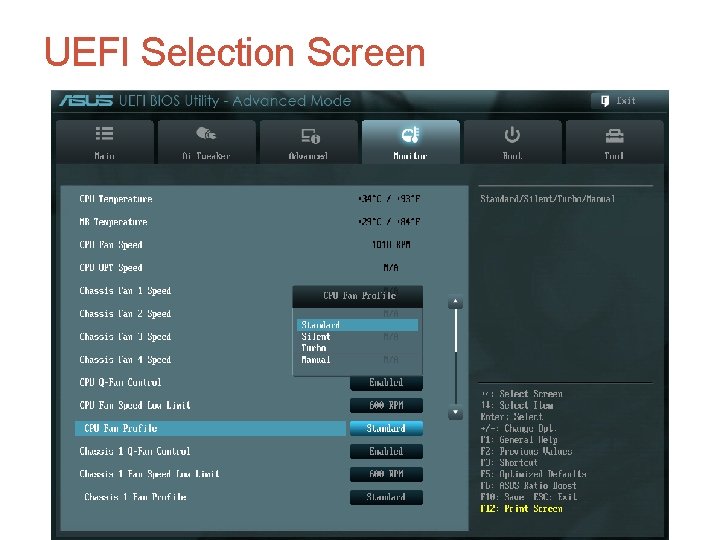
UEFI Selection Screen
Maintaining a Motherboard • Motherboard is considered a field replaceable unit • Need to know how to: • Update motherboard drivers • Update flash BIOS • Replace CMOS battery
Maintaining a Motherboard • Update motherboard drivers • Device drivers are small programs that allow software to interact with certain hardware • Use Windows internal drivers, bundled CD drivers, or download drivers from manufacturer site • Flash BIOS • Process of upgrading or refreshing the ROM BIOS chip • BIOS updates are downloaded from motherboard manufacturer’s Web site or third party site • Performed if motherboard unstable, incorporating new feature, or component
Methods of Installing BIOS Updates • Express BIOS update • done from Windows. • Download the update file to your hard drive. • Close all open applications. • Double-click the file, which runs the update program, and follow the directions on-screen. • The system will reboot to apply the update
Methods of Installing BIOS Updates • Update from a USB flash drive using setup BIOS • Copy the downloaded update file to a USB flash drive. • Then restart the system and press a key at startup that launches the BIOS update process. (For Intel motherboards, you press F 7. ) • A screen appears where you can select the USB flash drive. • BIOS finds the update file on the flash drive, completes the update, and restarts the system
Methods of Installing BIOS Updates • Update using a bootable CD • You can download an ISO file from the motherboard manufacturer’s web site that contains the BIOS update. • An ISO file has an. iso file extension and contains an ISO image of a CD. You can use an ISO image to create a bootable CD with software and data on it. • After you have created the bootable CD, boot from it and follow the directions on-screen to flash the BIOS.
Methods of Installing BIOS Updates • Recovery from a failed update • If the BIOS update is interrupted or the update gives errors, you are in an unfortunate situation. • You might be able to revert to the earlier version. • To do this, generally • You download the recovery file from the web site and copy the file to a USB flash drive. • Then set the jumper on the motherboard to recover from a failed BIOS update. • Reboot the system and the BIOS automatically reads from the device and performs the recovery. • Then reset the jumper to the normal setting and boot the system
Methods of Installing BIOS Updates • “If it’s not broke, don’t fix it” – only update if you’re having trouble with a motherboard • Don’t update unless the update is a later version than the one installed • Update should not be interrupted while in progress
Maintaining a Motherboard • Replacing the CMOS battery • How can you tell? • The CMOS battery on the motherboard is considered a field replaceable unit. • The battery is designed to last for years and recharges when the motherboard has power • Make sure the replacement battery is an exact match to the original or is one the motherboard manufacturer recommends for the board • Power down system, unplug it, press power button to drain the power, remove case cover • Use ground bracelet, remove old battery using a flathead screwdriver, pop new battery into place • For more specific directions, see the motherboard documentation

BUILD YOUR OWN
Purchasing A Motherboard • The form factor and the case • The brand (Intel or AMD) and model processors the board supports (CPU Socket) • Chipset and memory speeds the board supports • Number of memory bays • Integrated graphics
Purchasing A Motherboard • Expansion slots (type and how many needed) • Hard drive controllers and number of connectors • External e. SATA port • USB 3. 0 • Audio connectors • Power Connectors • Price and warranty • Support
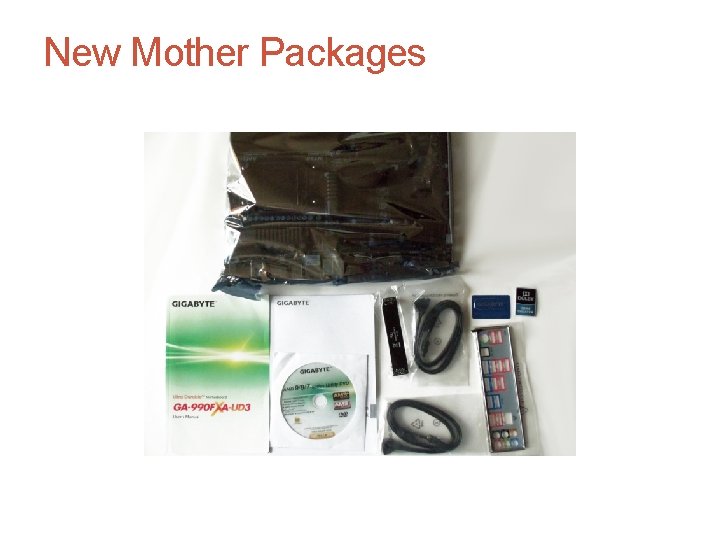
New Mother Packages
Installing or Replacing a Motherboard • General process for replacing a motherboard see pages 128 – 131 in book
Summary • The motherboard is the most complicated of all components inside a computer • Most popular motherboard form factors are ATX, Micro. ATX and Mini-ITX • Motherboard will have one or more processor sockets • Intel, AMD, NVIDIA, and Si. S are the most popular chipset manufacturers • Major advancements in Intel: Accelerated Hub Architecture, Nehalem chipsets, Sandy Bridge and Ivy Bridge chipsets
Summary • Buses include conventional PCI, PIC-X, PCI Express, and AGP • Some components can be built into the motherboard, called on-board components • Most common method of configuring a motherboard is BIOS setup • Settings that can be changed include: changing boot order, enabling or disabling onboard devices, support for virtualization, and security settings
Summary • Motherboard drivers and/or BIOS might need updating to fix a problem • CMOS battery might need replacing • When selecting a motherboard pay attention to the form factor, chipset, expansion slots, memory slots, and processors supported • Study motherboard manual before installing it
- Slides: 87