
Chapter 2 Visual Basic Controls and Events 2
Chapter 2 –Visual Basic, Controls, and Events 2. 1 An Introduction to Visual Basic 2. 2 Visual Basic Controls 2. 3 Visual Basic Events 1
2. 1 An Introduction to Visual Basic 2012 • Why Windows and Why Visual Basic • How You Develop a Visual Basic Application • The Different Versions of Visual Basic 2
Visual Basic 2012 • Language used to create Windows applications. • Provides a Graphical User Interface or GUI. • The sequence of instructions executed in the program is controlled by events. 3
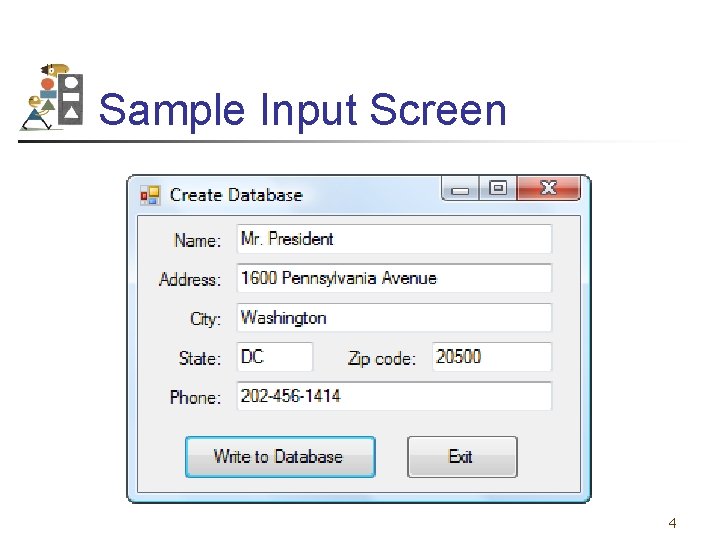
Sample Input Screen 4
How to Develop a Visual Basic Application • Design the Interface for the user. • Determine which events the controls on the window should recognize. • Write the event procedures for those events. 5
Different Versions of Visual Basic • • Version 1. 0 – 1991 Version 2. 0 – 1992 Version 3. 0 – 1993 Version 4. 0 – 1995 Version 5. 0 – 1997 Version 6. 0 – 1998 Visual Basic. NET – 2002 (NOT BACKWARD COMPATIBLE WITH EARLIER VERSIONS) • Visual Basic 2005 – November 2005 • Visual Basic 2008 – November 2007 • Visual Basic 2010 – April 2010 6
2. 2 Visual Basic Controls • • Starting a New Visual Basic Program Text Box Control Button Control Label Control List Box Control Name Property Fonts / Auto Hide Positioning and Aligning Controls 7
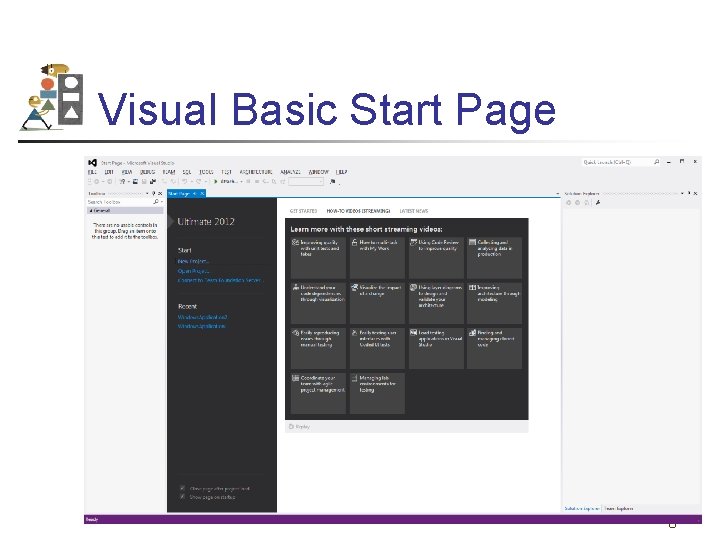
Visual Basic Start Page 8

Start a New Project 9
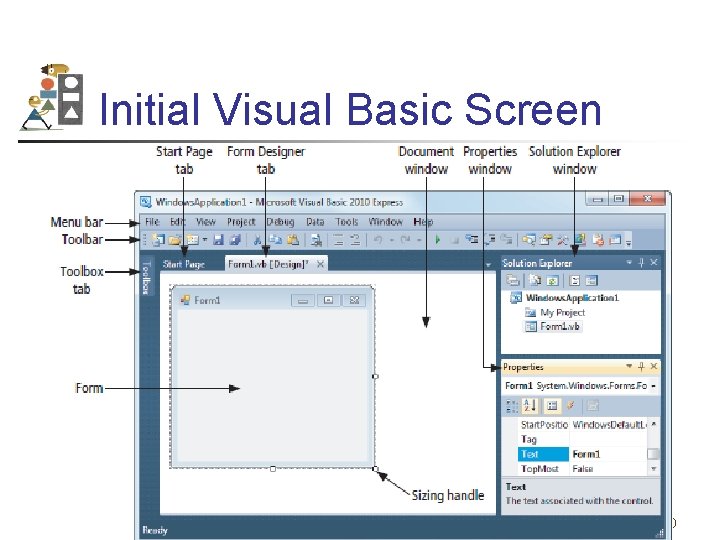
Initial Visual Basic Screen 10

Toolbox 11
4 Ways to Place a Control from the Toolbox onto the Form Designer • • Double-click Drag and Drop Click, Point, and Drag 12
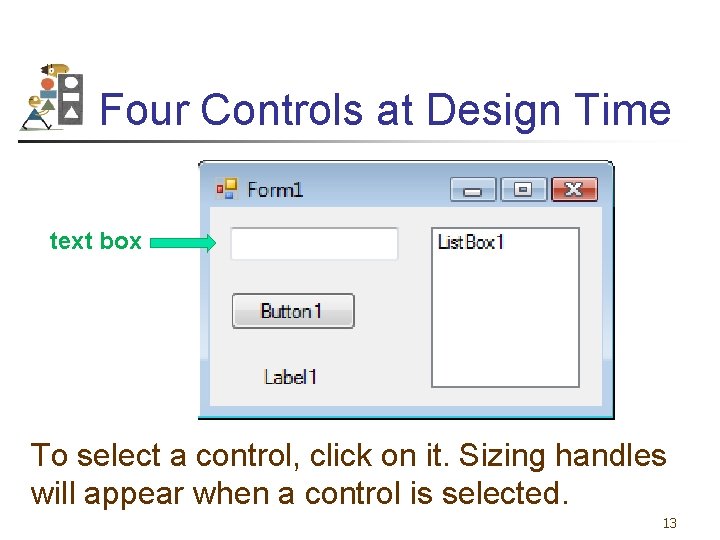
Four Controls at Design Time text box To select a control, click on it. Sizing handles will appear when a control is selected. 13
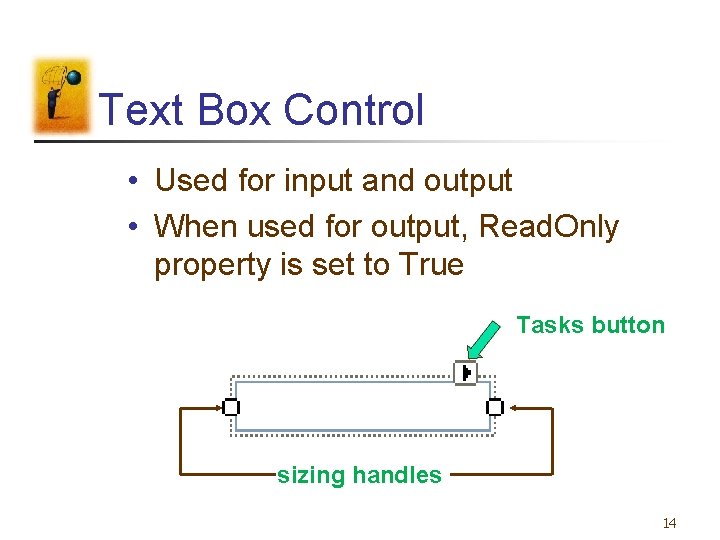
Text Box Control • Used for input and output • When used for output, Read. Only property is set to True Tasks button sizing handles 14
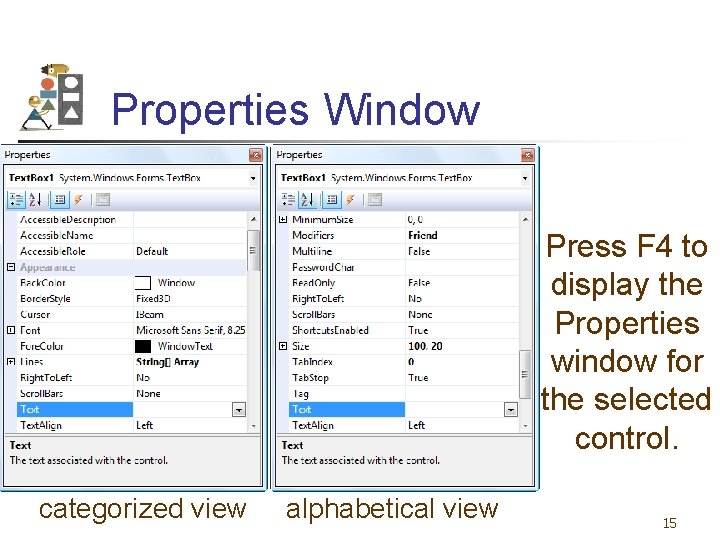
Properties Window Press F 4 to display the Properties window for the selected control. categorized view alphabetical view 15
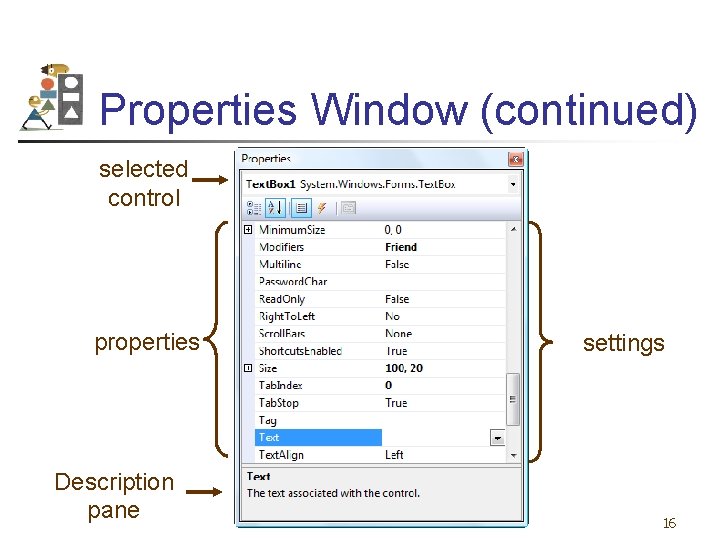
Properties Window (continued) selected control properties Description pane settings 16
Some Often Used Properties • • Text Autosize Font. Name Font. Size Fore. Color Back. Color Read. Only 17
Setting Properties • Click on property name in left column. • Enter its setting into right column by typing or selecting from options displayed via a button or ellipses. 18
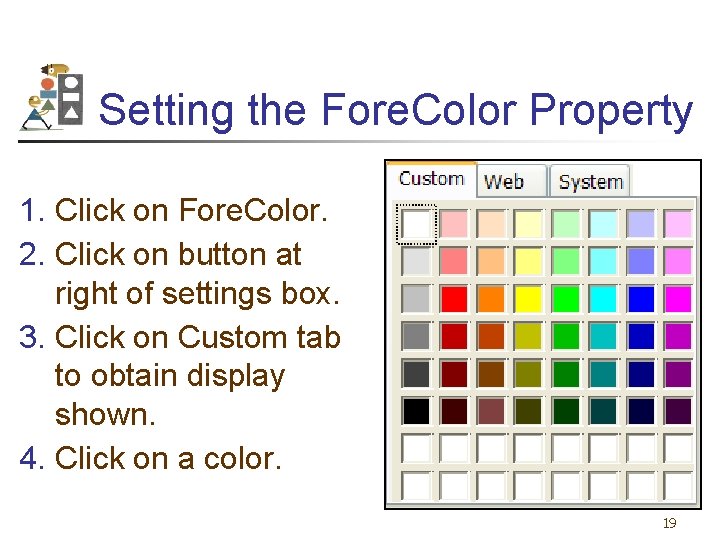
Setting the Fore. Color Property 1. Click on Fore. Color. 2. Click on button at right of settings box. 3. Click on Custom tab to obtain display shown. 4. Click on a color. 19
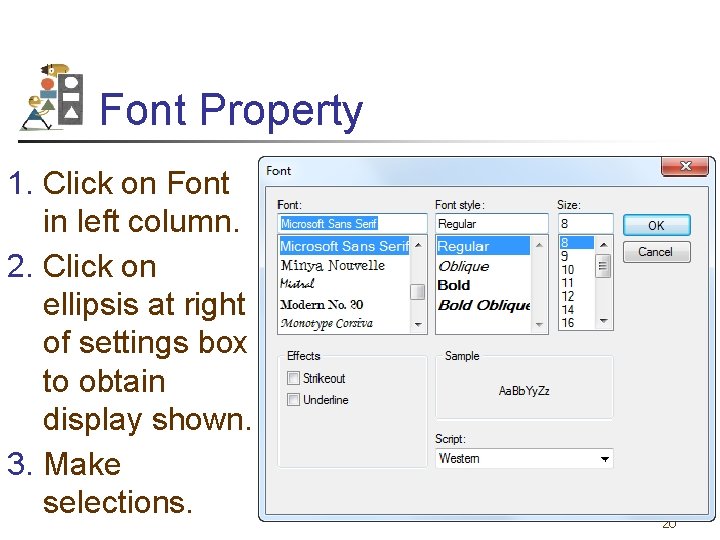
Font Property 1. Click on Font in left column. 2. Click on ellipsis at right of settings box to obtain display shown. 3. Make selections. 20
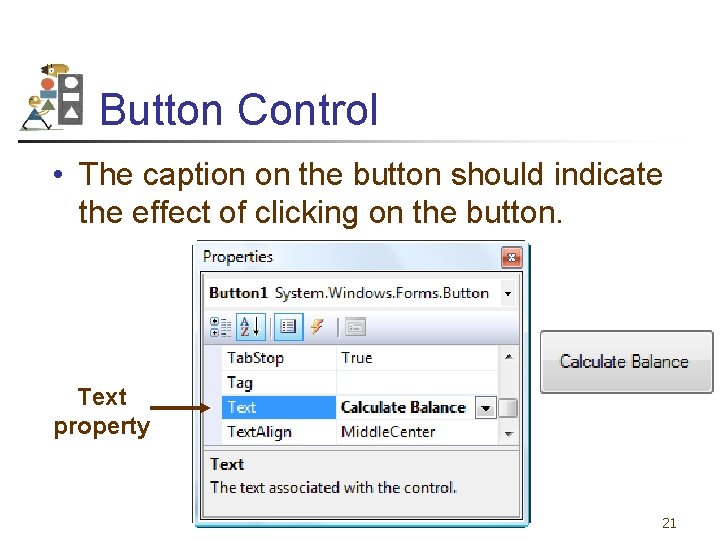
Button Control • The caption on the button should indicate the effect of clicking on the button. Text property 21
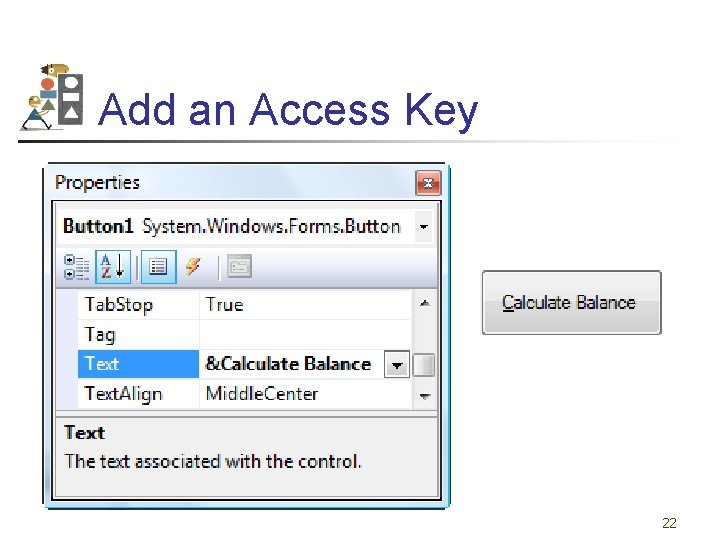
Add an Access Key 22
Label Control • Used to identify the contents of a text box. • Text property specifies caption. • By default, label automatically resizes to accommodate caption on one line. • When the Auto. Size property is set to False, label can be resized manually. Auto. Size is used primarily to obtain a multi-rowed label. 23
List Box Control • Initially used to display several pieces of output. • In Chapter 4 used to select from a list. 24
The Name Property • Used by the programmer to refer to a control in code • Setting for Name property near top of Properties window • Use appropriate 3 -character naming prefix • Use descriptive names 25
Control Name Prefixes Control button label text box list box Prefix btn lbl txt lst Example btn. Compute lbl. Address txt. Address lst. Output 26
Renaming the Form • Initial name is Form 1 • The Solution Explorer window lists a file named Form 1. vb. • To rename the form, change the name of this file to new. Name. vb • new. Name should begin with prefix frm. 27
Fonts • Proportional width fonts, such as Microsoft Sans Serif, use less space for "I" than for "W" • Fixed-width fonts take up the same amount of space for each character – like Courier New • Fixed-width fonts are used for tables. 28
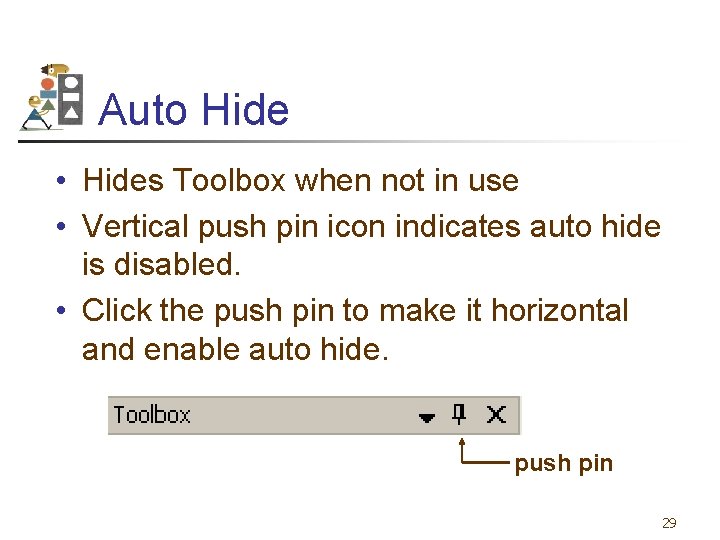
Auto Hide • Hides Toolbox when not in use • Vertical push pin icon indicates auto hide is disabled. • Click the push pin to make it horizontal and enable auto hide. push pin 29
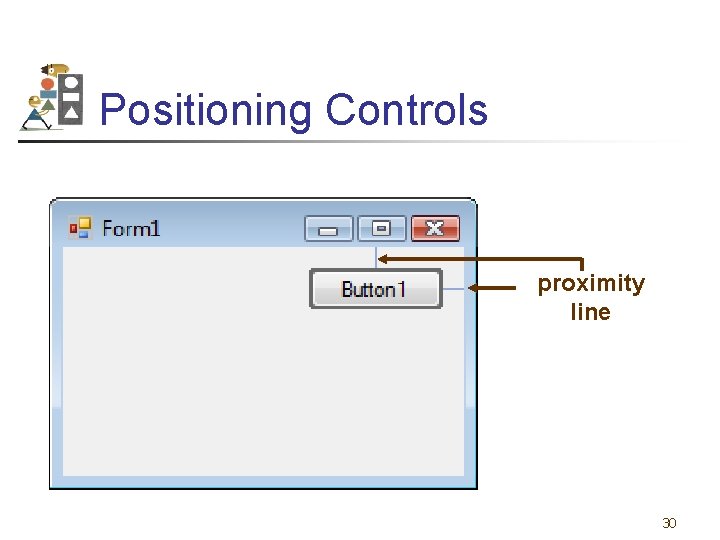
Positioning Controls proximity line 30
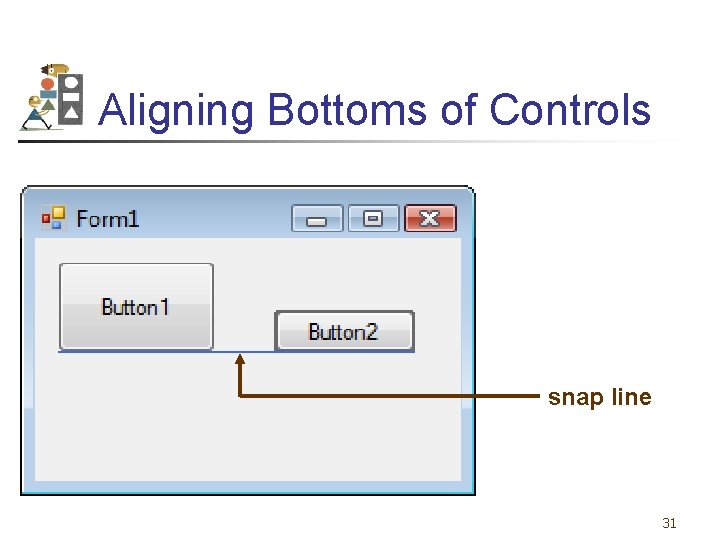
Aligning Bottoms of Controls snap line 31
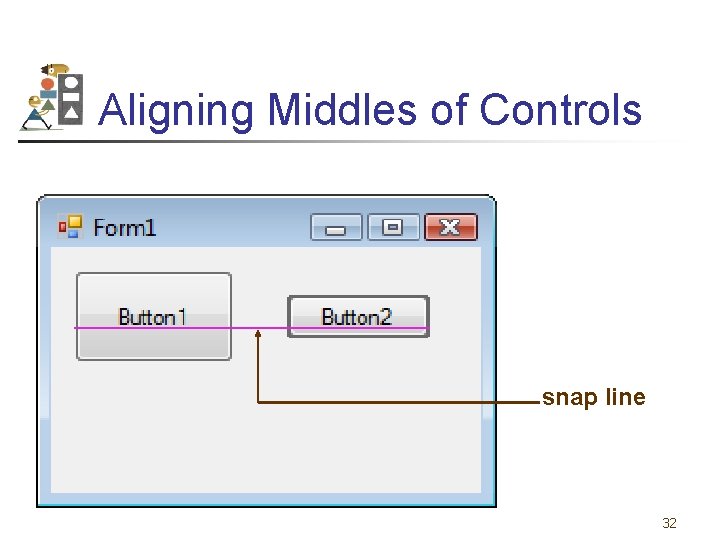
Aligning Middles of Controls snap line 32
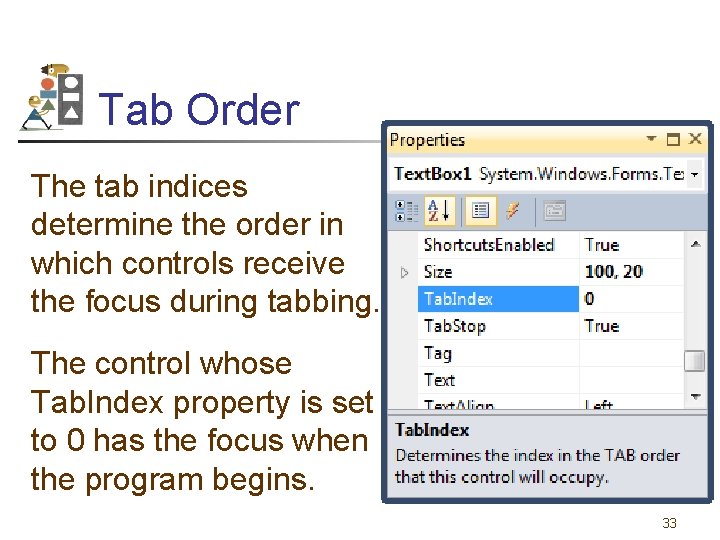
Tab Order The tab indices determine the order in which controls receive the focus during tabbing. The control whose Tab. Index property is set to 0 has the focus when the program begins. 33
2. 3 Visual Basic Events • An Event Procedure Walkthrough • Properties and Event Procedures of the Form • The Header of an Event Procedure 34
Event • An event is an action, such as the user clicking on a button • Usually, nothing happens in a Visual Basic program until the user does something and raises an event. • What happens is determined by statements inside the event procedure. 35
Sample Statements • txt. Box. Fore. Color = Color. Red • txt. Box. Visible = True • txt. Box. Text = "Hello World" General Form: control. Name. property = setting 36
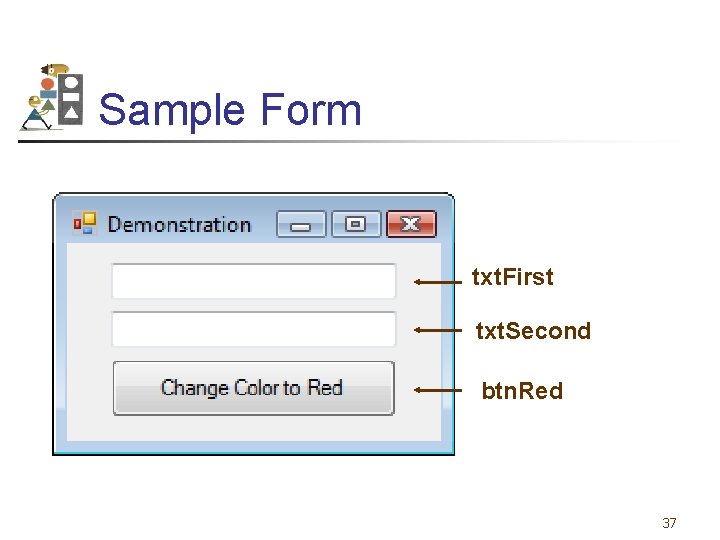
Sample Form txt. First txt. Second btn. Red 37
Focus • When you click on a text box, a cursor appears in the text box, and you can type into the text box. • Such a text box is said to have the focus. • If you click on another text box, the first text box loses the focus and the second text box receives the focus. 38
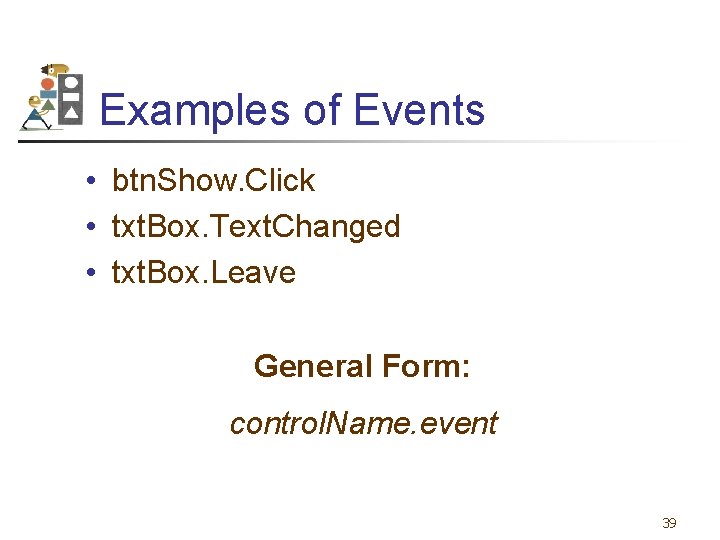
Examples of Events • btn. Show. Click • txt. Box. Text. Changed • txt. Box. Leave General Form: control. Name. event 39
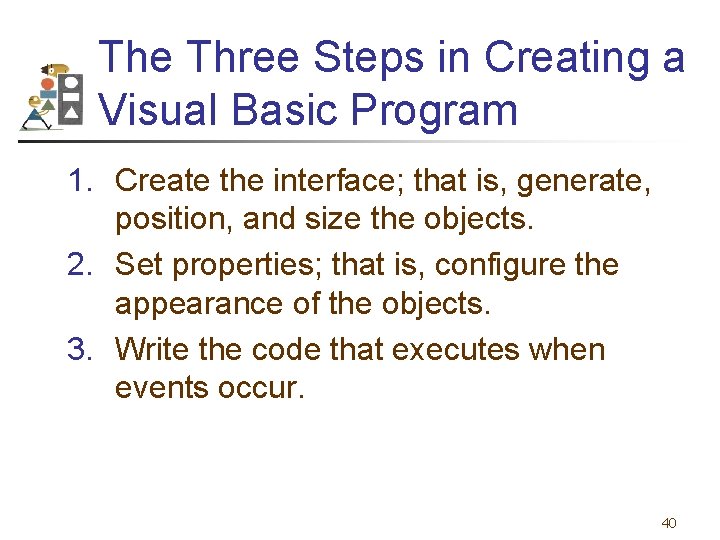
The Three Steps in Creating a Visual Basic Program 1. Create the interface; that is, generate, position, and size the objects. 2. Set properties; that is, configure the appearance of the objects. 3. Write the code that executes when events occur. 40
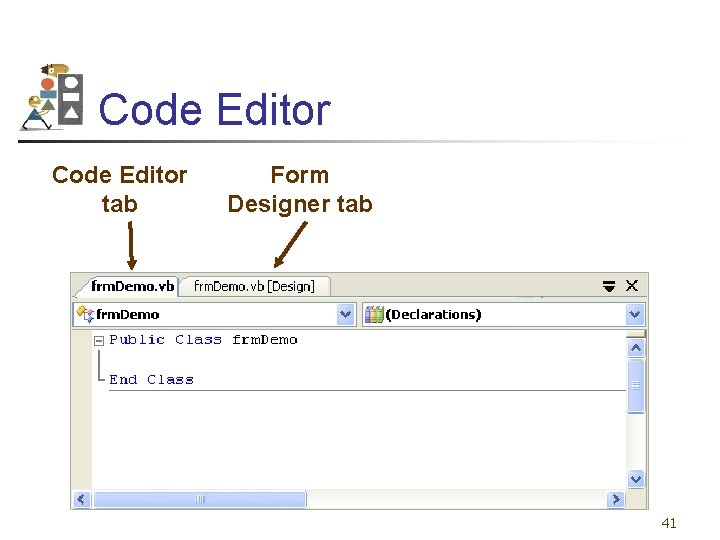
Code Editor tab Form Designer tab 41
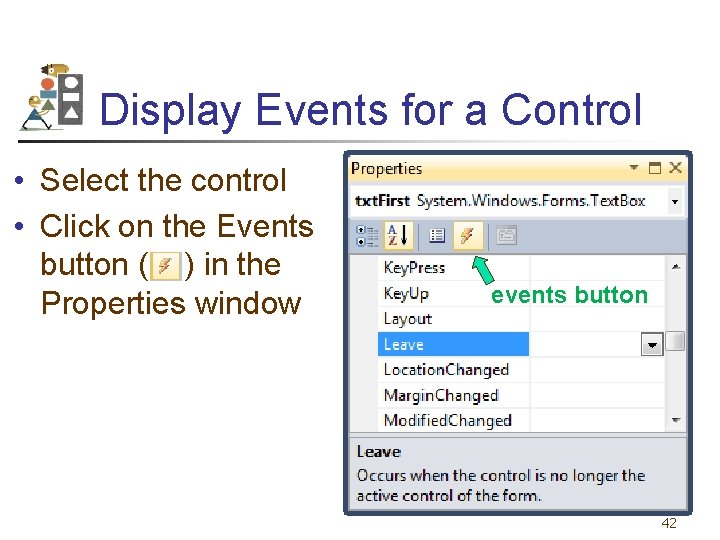
Display Events for a Control • Select the control • Click on the Events button ( ) in the Properties window events button 42
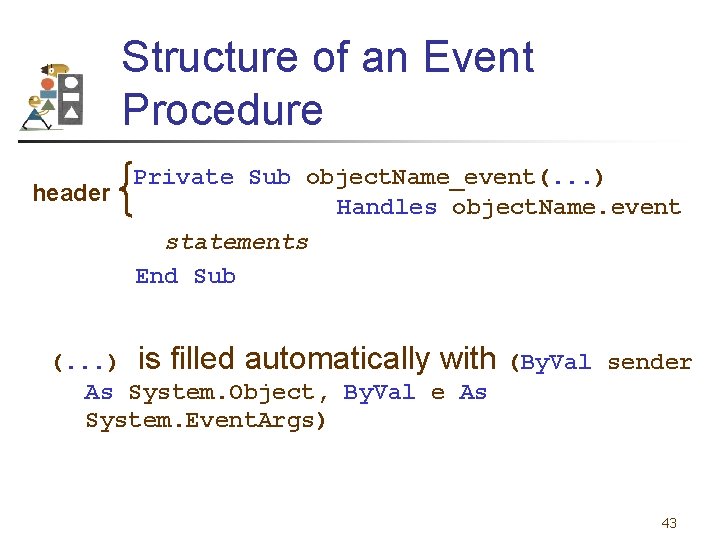
Structure of an Event Procedure Private Sub object. Name_event(. . . ) header Handles object. Name. event statements End Sub (. . . ) is filled automatically with (By. Val sender As System. Object, By. Val e As System. Event. Args) 43
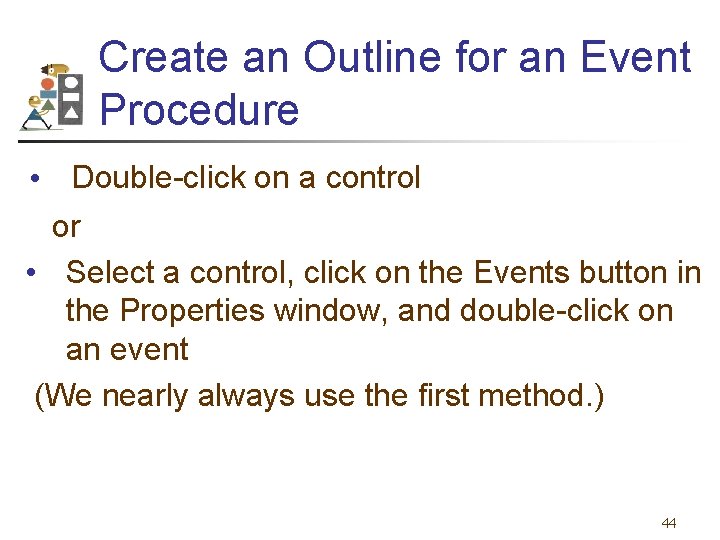
Create an Outline for an Event Procedure • Double-click on a control or • Select a control, click on the Events button in the Properties window, and double-click on an event (We nearly always use the first method. ) 44
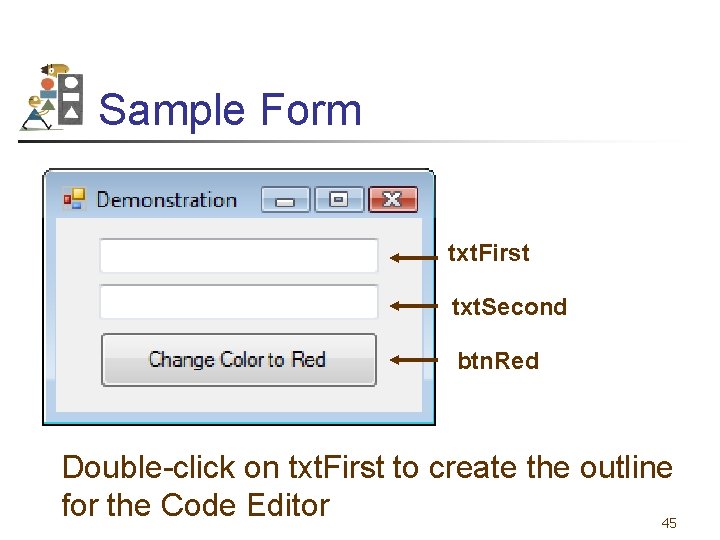
Sample Form txt. First txt. Second btn. Red Double-click on txt. First to create the outline for the Code Editor 45
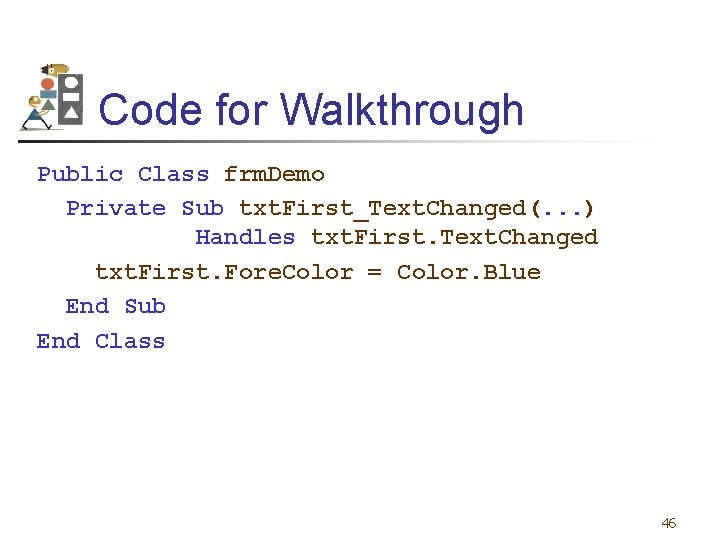
Code for Walkthrough Public Class frm. Demo Private Sub txt. First_Text. Changed(. . . ) Handles txt. First. Text. Changed txt. First. Fore. Color = Color. Blue End Sub End Class 46
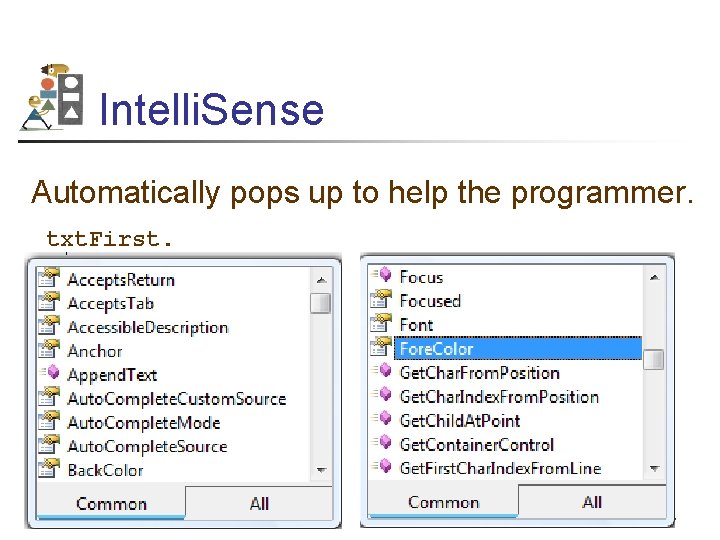
Intelli. Sense Automatically pops up to help the programmer. txt. First. 47
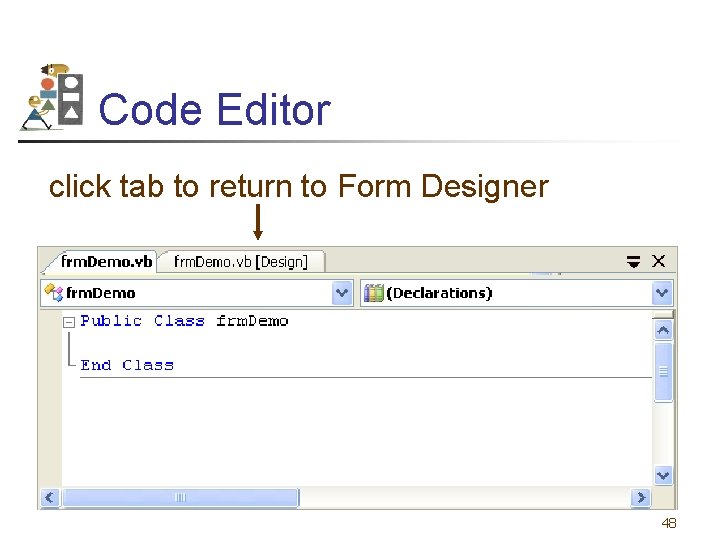
Code Editor click tab to return to Form Designer 48
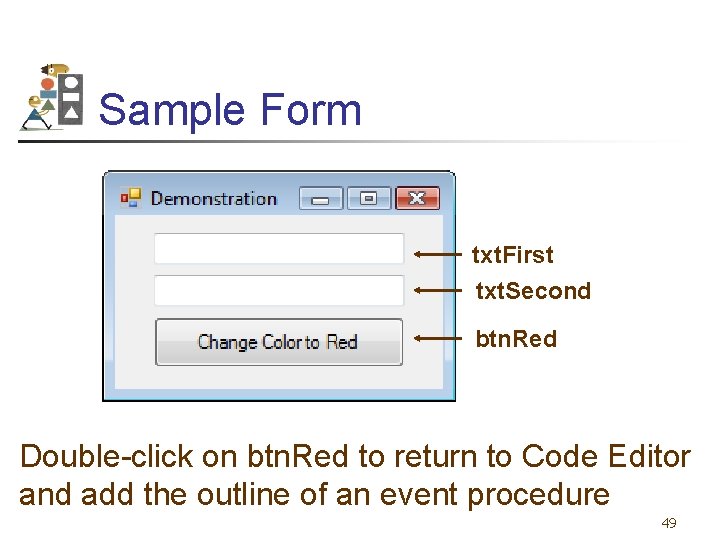
Sample Form txt. First txt. Second btn. Red Double-click on btn. Red to return to Code Editor and add the outline of an event procedure 49
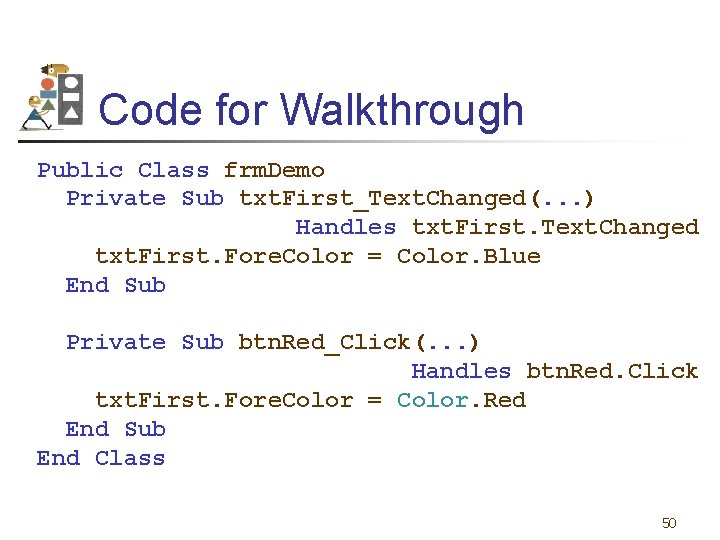
Code for Walkthrough Public Class frm. Demo Private Sub txt. First_Text. Changed(. . . ) Handles txt. First. Text. Changed txt. First. Fore. Color = Color. Blue End Sub Private Sub btn. Red_Click(. . . ) Handles btn. Red. Click txt. First. Fore. Color = Color. Red End Sub End Class 50
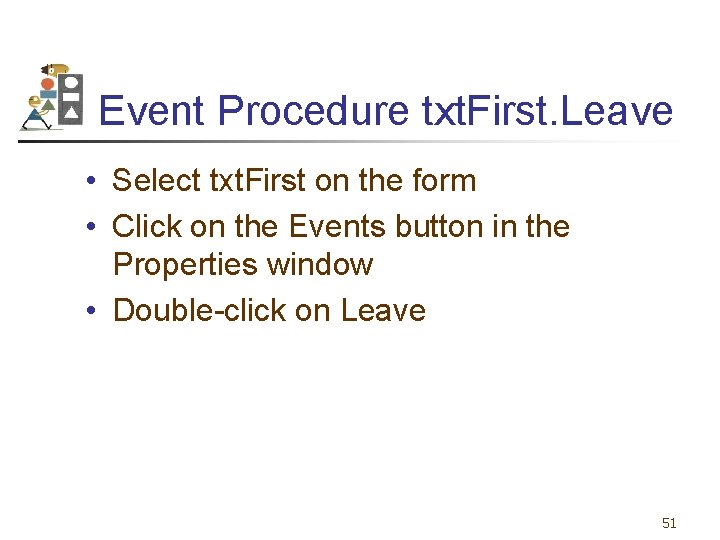
Event Procedure txt. First. Leave • Select txt. First on the form • Click on the Events button in the Properties window • Double-click on Leave 51
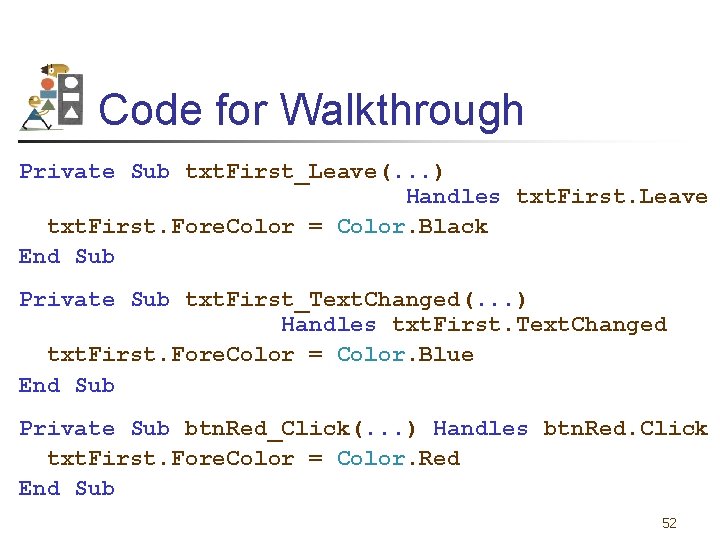
Code for Walkthrough Private Sub txt. First_Leave(. . . ) Handles txt. First. Leave txt. First. Fore. Color = Color. Black End Sub Private Sub txt. First_Text. Changed(. . . ) Handles txt. First. Text. Changed txt. First. Fore. Color = Color. Blue End Sub Private Sub btn. Red_Click(. . . ) Handles btn. Red. Click txt. First. Fore. Color = Color. Red End Sub 52
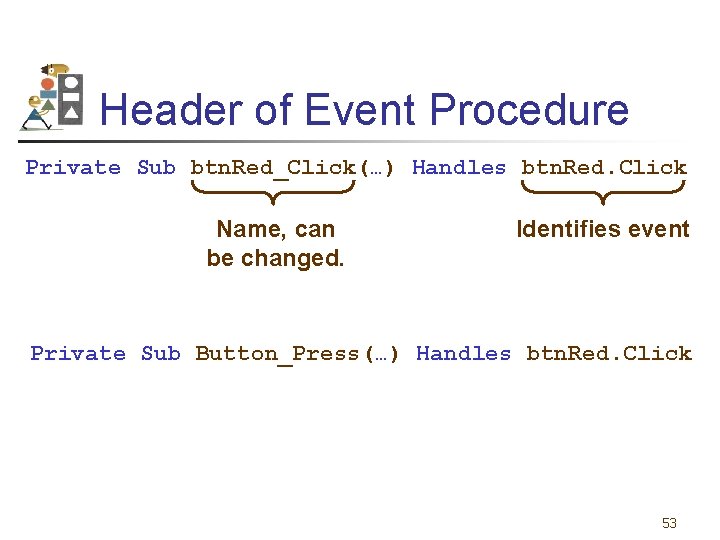
Header of Event Procedure Private Sub btn. Red_Click(…) Handles btn. Red. Click Name, can be changed. Identifies event Private Sub Button_Press(…) Handles btn. Red. Click 53
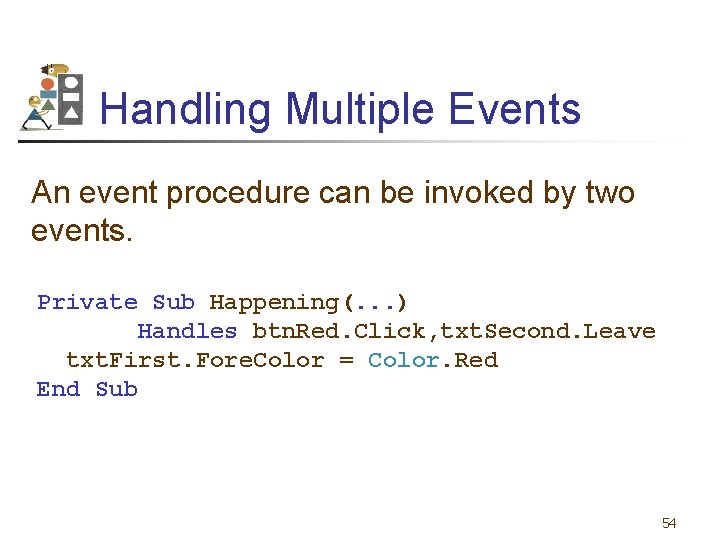
Handling Multiple Events An event procedure can be invoked by two events. Private Sub Happening(. . . ) Handles btn. Red. Click, txt. Second. Leave txt. First. Fore. Color = Color. Red End Sub 54
Altering Properties of the Form • The following won't work: frm. Demo. Text = "Demonstration" • The form is referred to by the keyword Me. Text = "Demonstration" 55
Open and Run an Existing Program • • • Click on Open Project in the File menu. Navigate to the program’s folder. Double-click on the program’s folder to open it. Double-click on the file with extension sln. In the Solution Explorer double-click on the file with extension vb. (The Form Designer will appear. ) • Press F 5 to run the program. 56
- Slides: 56