
Chapter 2 Sketching Constraining Dimensioning Chapter 2 Objectives
Chapter 2 Sketching, Constraining & Dimensioning

Chapter 2 - Objectives • After completing this chapter, you will be able to do the following: – – – Change the part and sketch options as needed Sketch an outline of a part Create geometric constraints Use construction geometry to help constrain sketches Dimension a sketch Create dimensions using the automatic dimensioning command – Change a dimension’s value in a sketch – Open and insert Auto. CAD DWG data
Sketch & Part - Application Options • Options – Customized your preferences – Settings are global – Affects all open & new Inventor documents
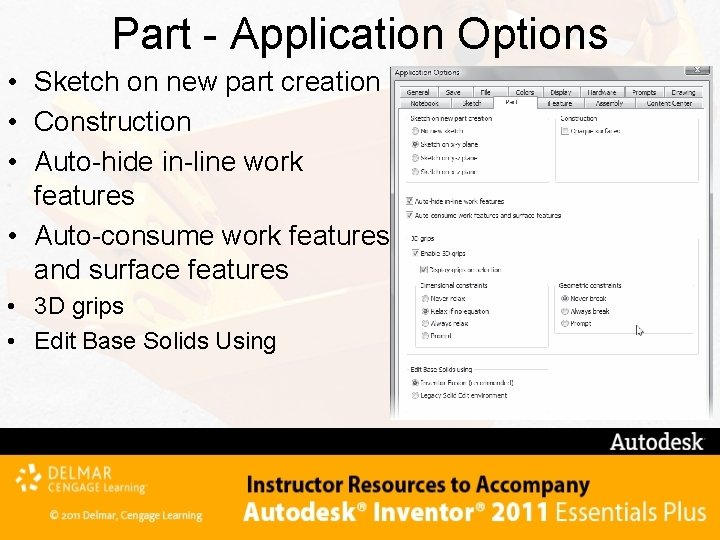
Part - Application Options • Sketch on new part creation • Construction • Auto-hide in-line work features • Auto-consume work features and surface features • 3 D grips • Edit Base Solids Using
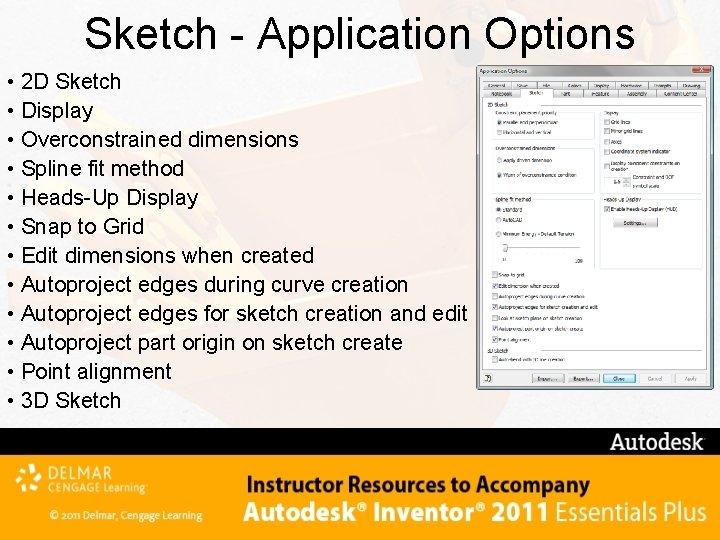
Sketch - Application Options • 2 D Sketch • Display • Overconstrained dimensions • Spline fit method • Heads-Up Display • Snap to Grid • Edit dimensions when created • Autoproject edges during curve creation • Autoproject edges for sketch creation and edit • Autoproject part origin on sketch create • Point alignment • 3 D Sketch
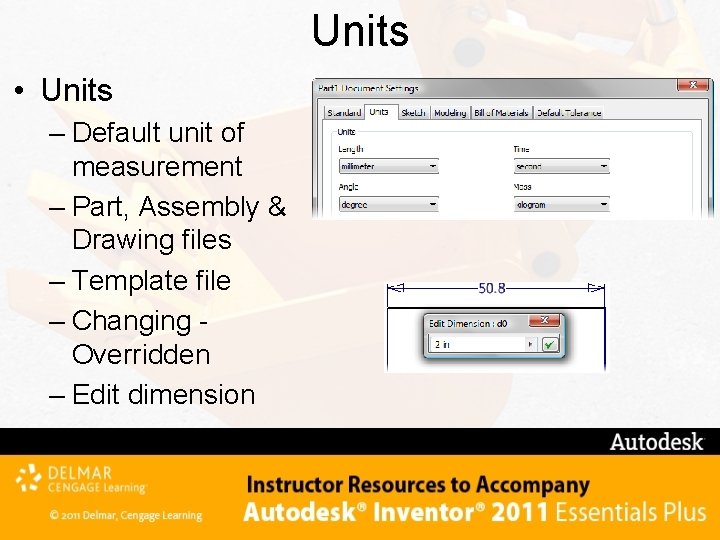
Units • Units – Default unit of measurement – Part, Assembly & Drawing files – Template file – Changing Overridden – Edit dimension
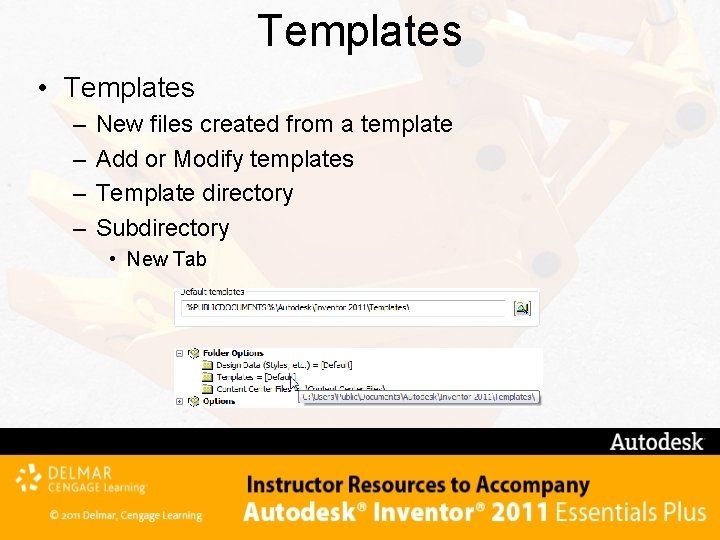
Templates • Templates – – New files created from a template Add or Modify templates Template directory Subdirectory • New Tab
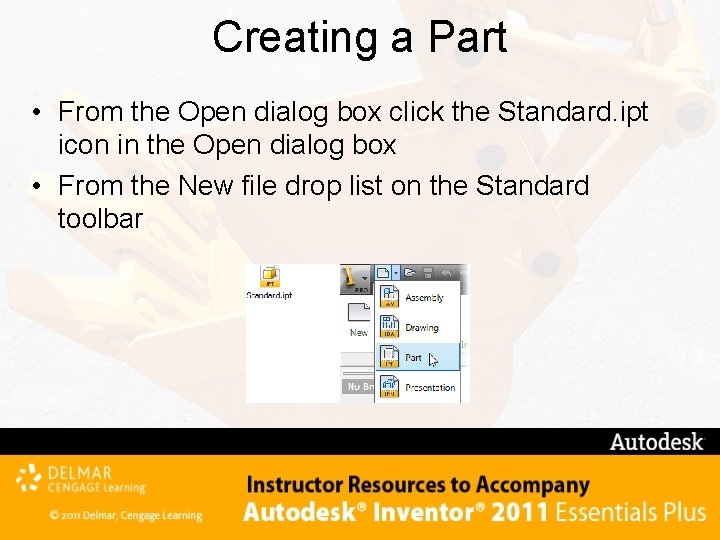
Creating a Part • From the Open dialog box click the Standard. ipt icon in the Open dialog box • From the New file drop list on the Standard toolbar
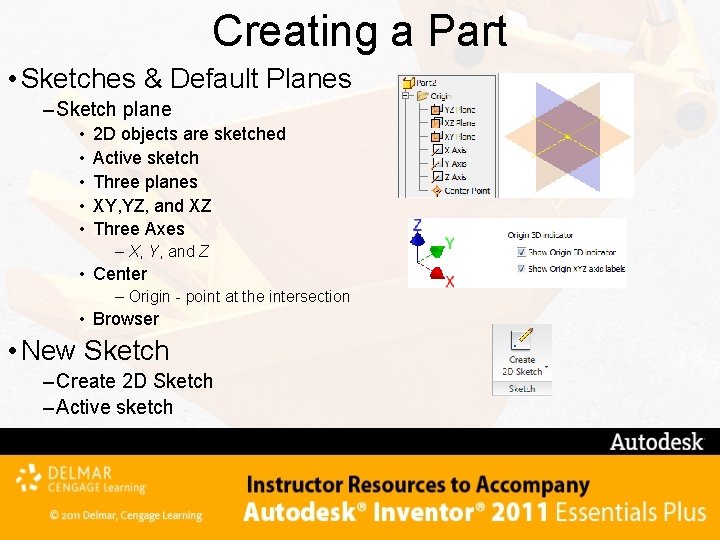
Creating a Part • Sketches & Default Planes – Sketch plane • • • 2 D objects are sketched Active sketch Three planes XY, YZ, and XZ Three Axes – X, Y, and Z • Center – Origin - point at the intersection • Browser • New Sketch – Create 2 D Sketch – Active sketch
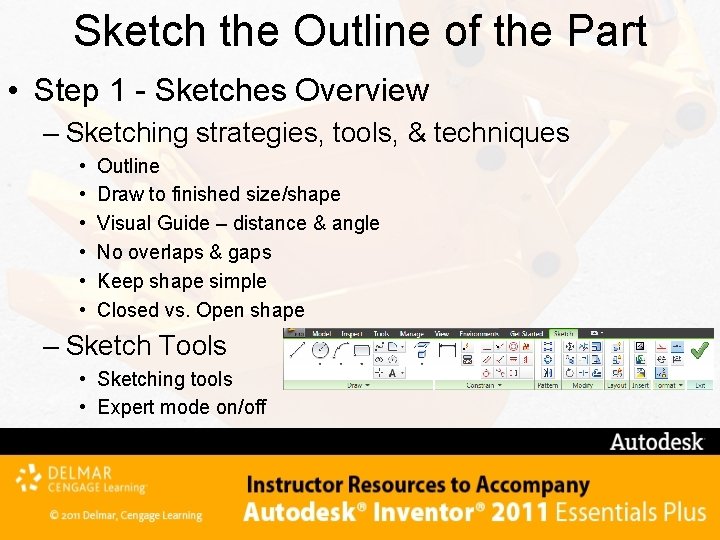
Sketch the Outline of the Part • Step 1 - Sketches Overview – Sketching strategies, tools, & techniques • • • Outline Draw to finished size/shape Visual Guide – distance & angle No overlaps & gaps Keep shape simple Closed vs. Open shape – Sketch Tools • Sketching tools • Expert mode on/off
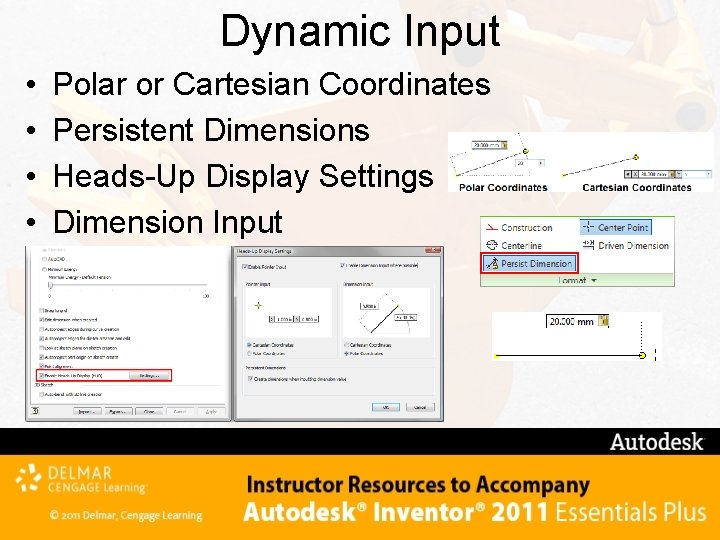
Dynamic Input • • Polar or Cartesian Coordinates Persistent Dimensions Heads-Up Display Settings Dimension Input
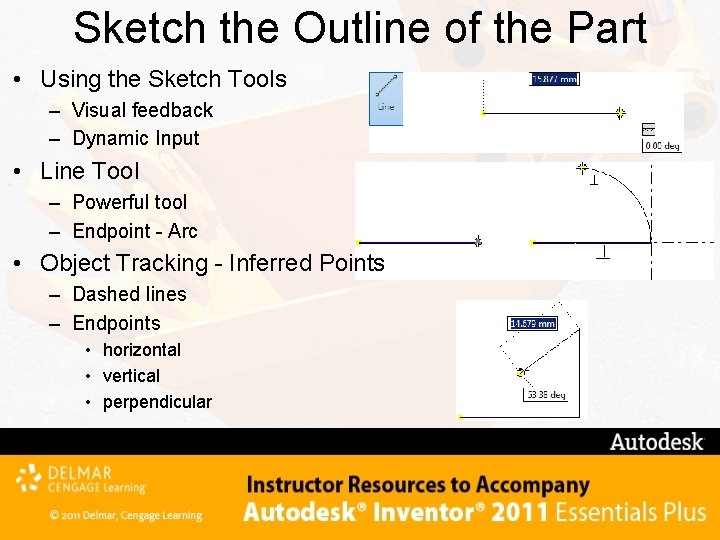
Sketch the Outline of the Part • Using the Sketch Tools – Visual feedback – Dynamic Input • Line Tool – Powerful tool – Endpoint - Arc • Object Tracking - Inferred Points – Dashed lines – Endpoints • horizontal • vertical • perpendicular
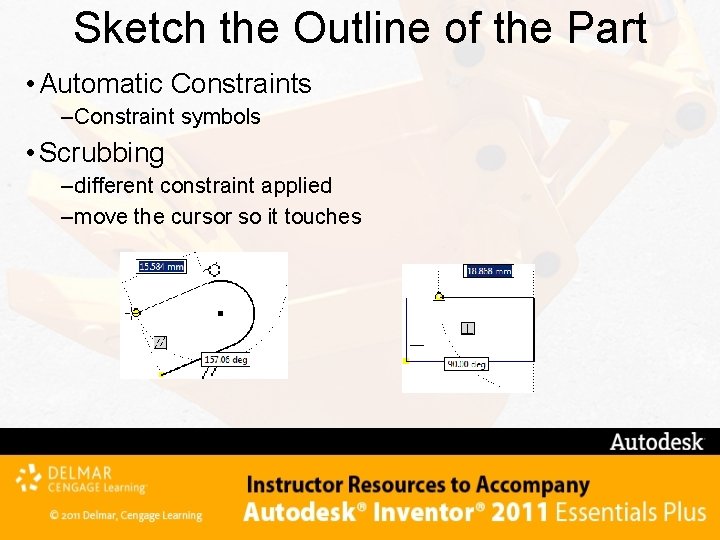
Sketch the Outline of the Part • Automatic Constraints – Constraint symbols • Scrubbing – different constraint applied – move the cursor so it touches
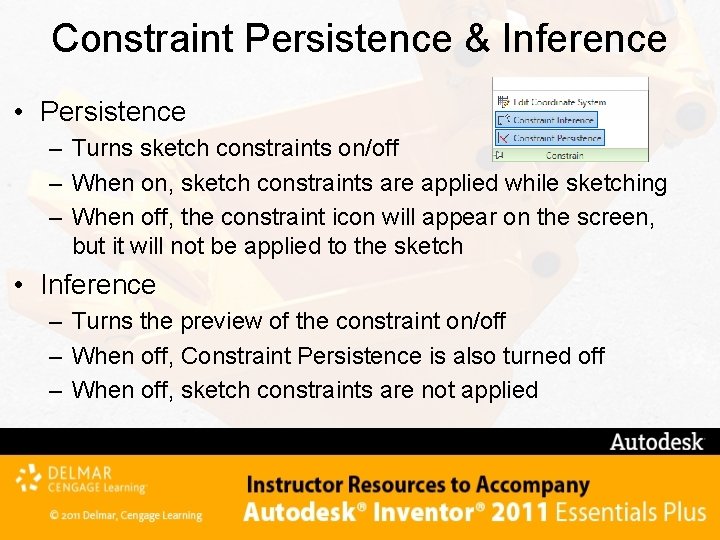
Constraint Persistence & Inference • Persistence – Turns sketch constraints on/off – When on, sketch constraints are applied while sketching – When off, the constraint icon will appear on the screen, but it will not be applied to the sketch • Inference – Turns the preview of the constraint on/off – When off, Constraint Persistence is also turned off – When off, sketch constraints are not applied
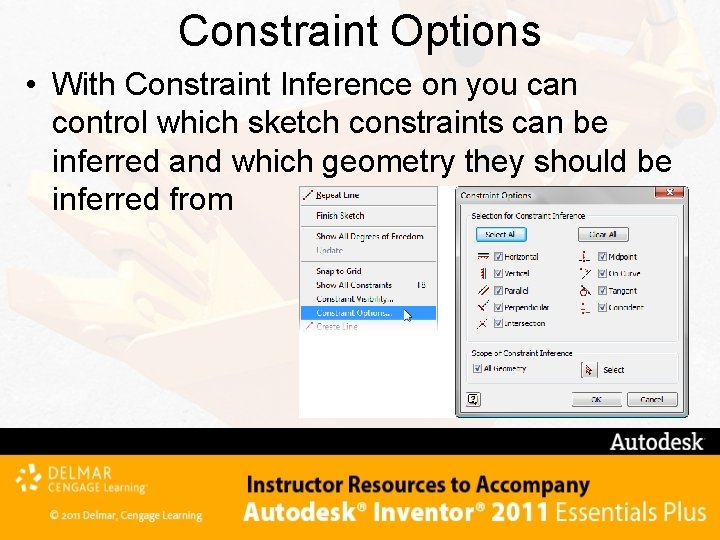
Constraint Options • With Constraint Inference on you can control which sketch constraints can be inferred and which geometry they should be inferred from
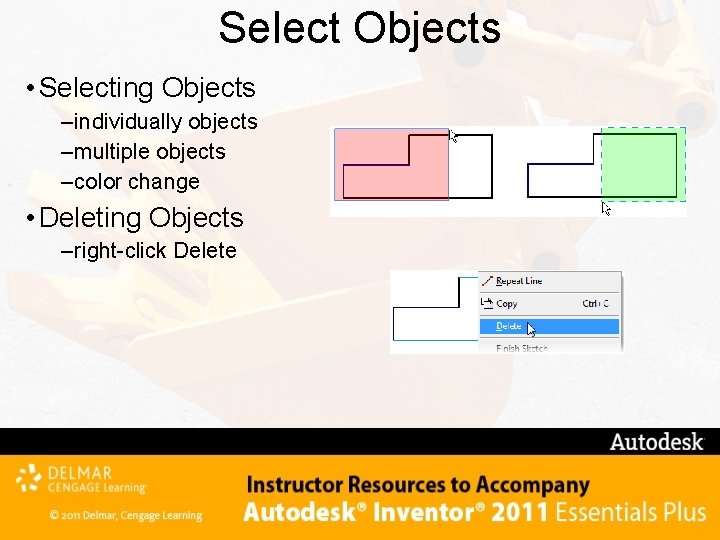
Select Objects • Selecting Objects – individually objects – multiple objects – color change • Deleting Objects – right-click Delete
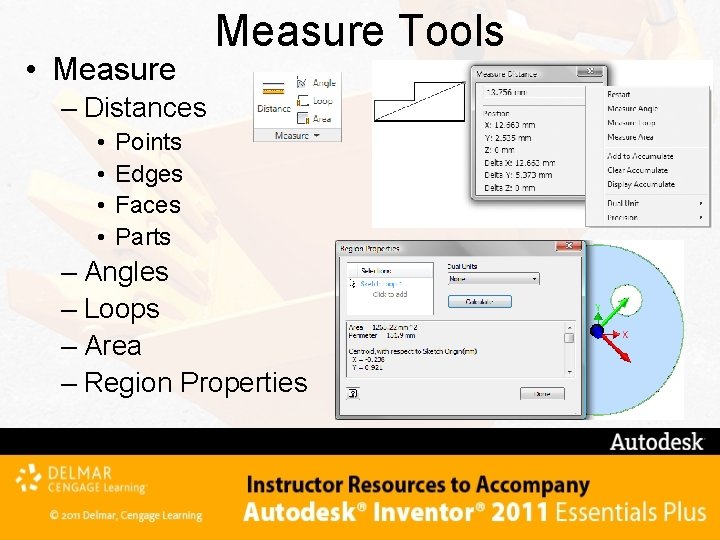
• Measure Tools – Distances • • Points Edges Faces Parts – Angles – Loops – Area – Region Properties
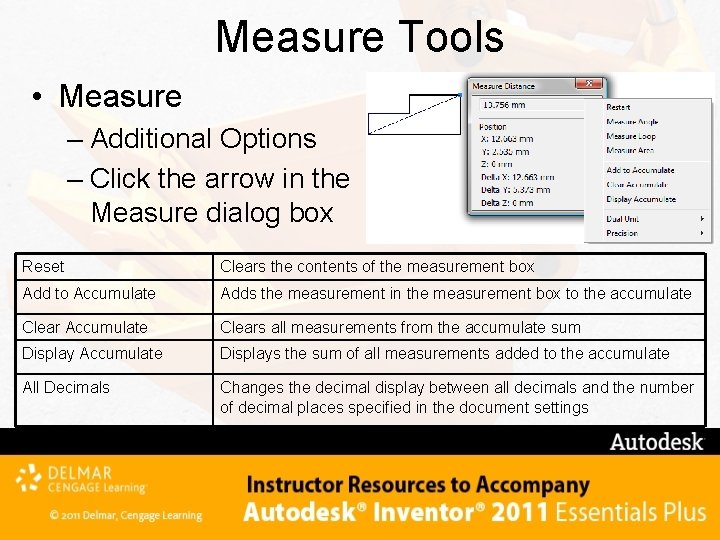
Measure Tools • Measure – Additional Options – Click the arrow in the Measure dialog box Reset Clears the contents of the measurement box Add to Accumulate Adds the measurement in the measurement box to the accumulate Clear Accumulate Clears all measurements from the accumulate sum Display Accumulate Displays the sum of all measurements added to the accumulate All Decimals Changes the decimal display between all decimals and the number of decimal places specified in the document settings
Exercise 2 -1 • Creating A Sketch with Lines Exercise 2 -2 • Creating a Sketch with Tangencies
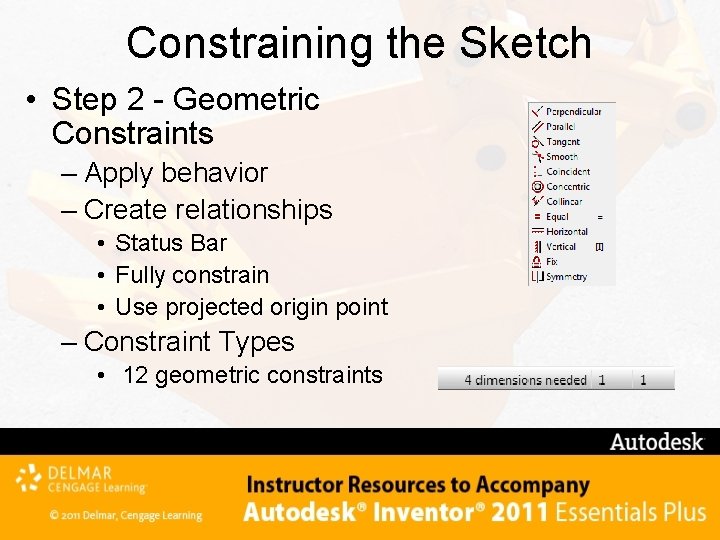
Constraining the Sketch • Step 2 - Geometric Constraints – Apply behavior – Create relationships • Status Bar • Fully constrain • Use projected origin point – Constraint Types • 12 geometric constraints
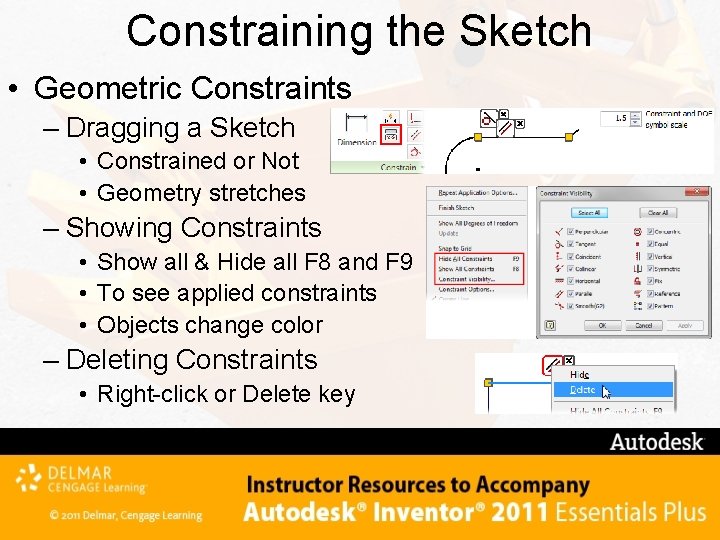
Constraining the Sketch • Geometric Constraints – Dragging a Sketch • Constrained or Not • Geometry stretches – Showing Constraints • Show all & Hide all F 8 and F 9 • To see applied constraints • Objects change color – Deleting Constraints • Right-click or Delete key
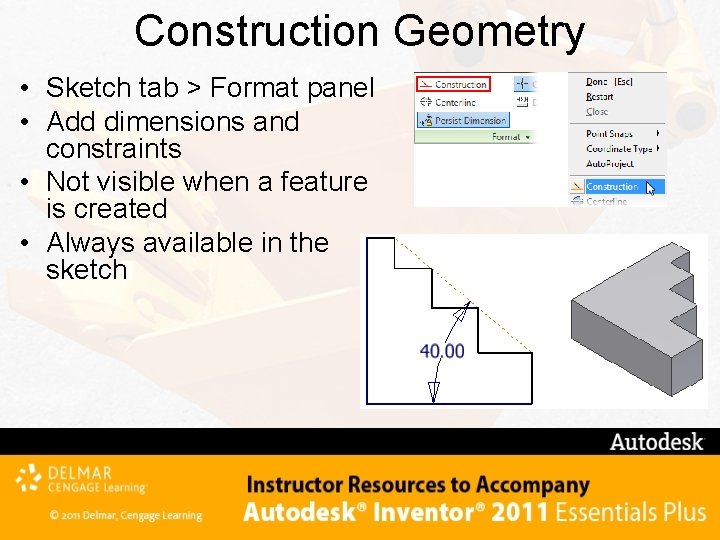
Construction Geometry • Sketch tab > Format panel • Add dimensions and constraints • Not visible when a feature is created • Always available in the sketch
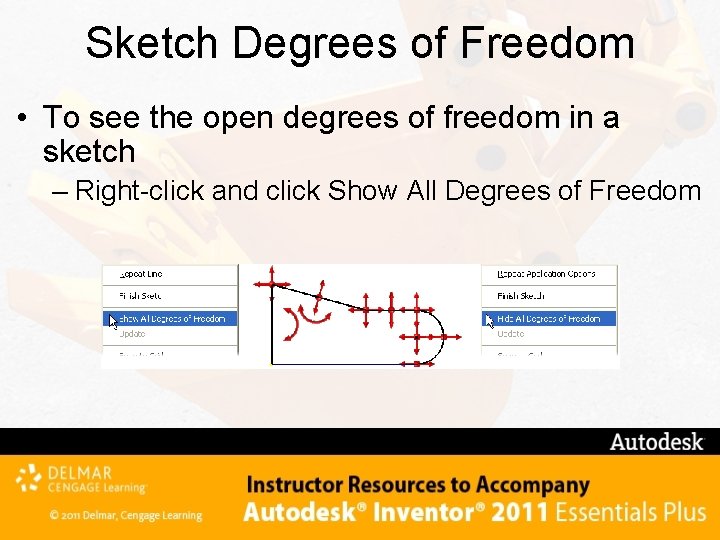
Sketch Degrees of Freedom • To see the open degrees of freedom in a sketch – Right-click and click Show All Degrees of Freedom
Exercise 2 -3 • Adding and Displaying Constraints
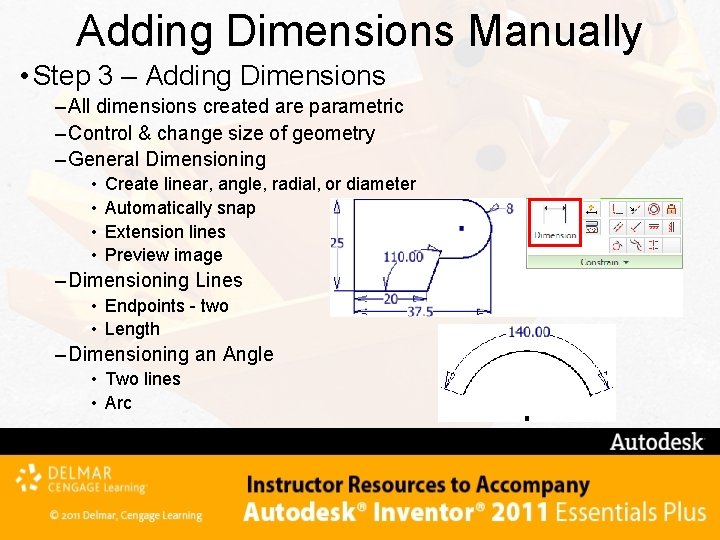
Adding Dimensions Manually • Step 3 – Adding Dimensions – All dimensions created are parametric – Control & change size of geometry – General Dimensioning • • Create linear, angle, radial, or diameter Automatically snap Extension lines Preview image – Dimensioning Lines • Endpoints - two • Length – Dimensioning an Angle • Two lines • Arc
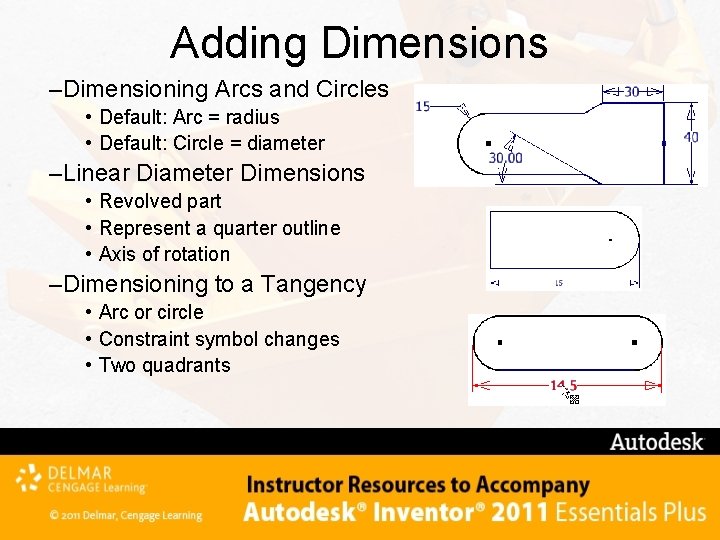
Adding Dimensions –Dimensioning Arcs and Circles • Default: Arc = radius • Default: Circle = diameter –Linear Diameter Dimensions • Revolved part • Represent a quarter outline • Axis of rotation –Dimensioning to a Tangency • Arc or circle • Constraint symbol changes • Two quadrants
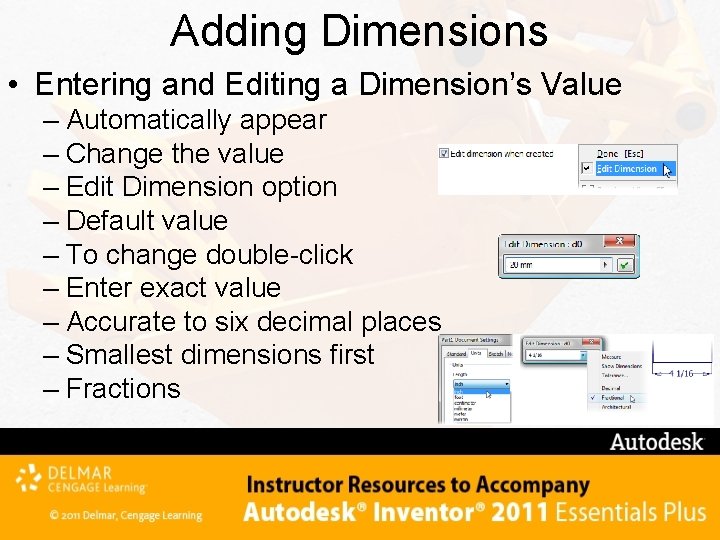
Adding Dimensions • Entering and Editing a Dimension’s Value – Automatically appear – Change the value – Edit Dimension option – Default value – To change double-click – Enter exact value – Accurate to six decimal places – Smallest dimensions first – Fractions
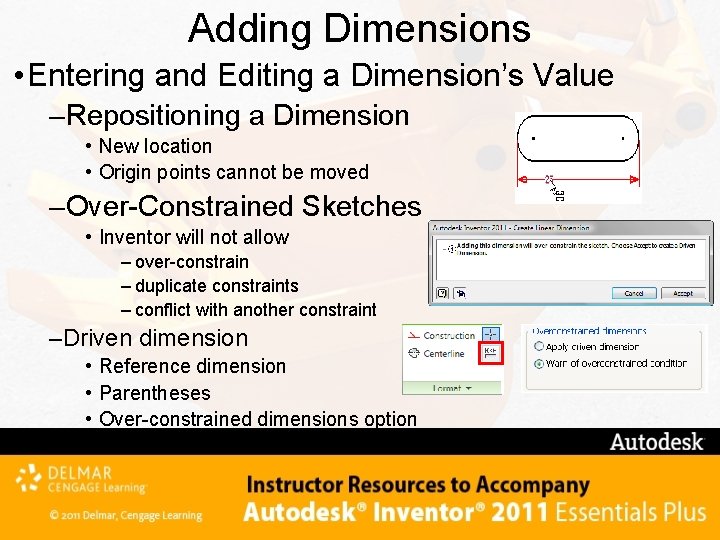
Adding Dimensions • Entering and Editing a Dimension’s Value –Repositioning a Dimension • New location • Origin points cannot be moved –Over-Constrained Sketches • Inventor will not allow – over-constrain – duplicate constraints – conflict with another constraint –Driven dimension • Reference dimension • Parentheses • Over-constrained dimensions option
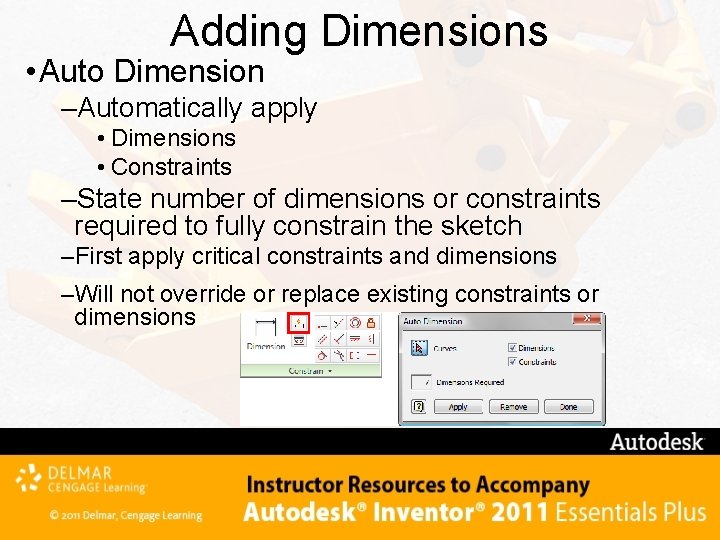
Adding Dimensions • Auto Dimension –Automatically apply • Dimensions • Constraints –State number of dimensions or constraints required to fully constrain the sketch –First apply critical constraints and dimensions –Will not override or replace existing constraints or dimensions
Exercise 2 -4 • Dimensioning a Sketch
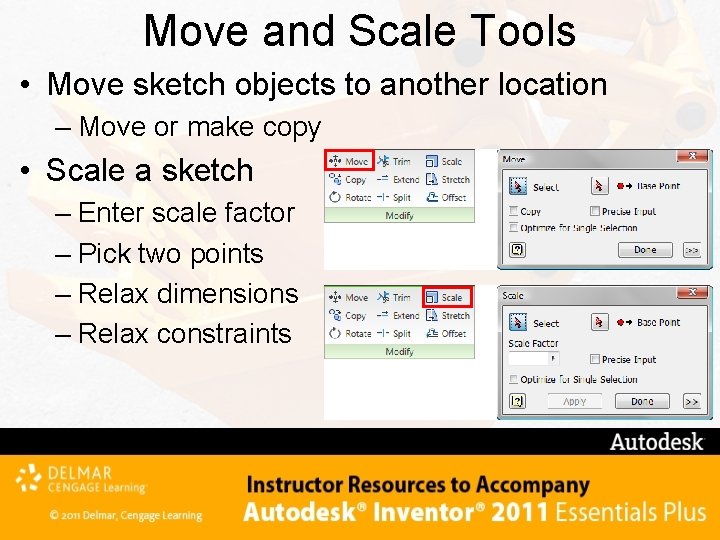
Move and Scale Tools • Move sketch objects to another location – Move or make copy • Scale a sketch – Enter scale factor – Pick two points – Relax dimensions – Relax constraints
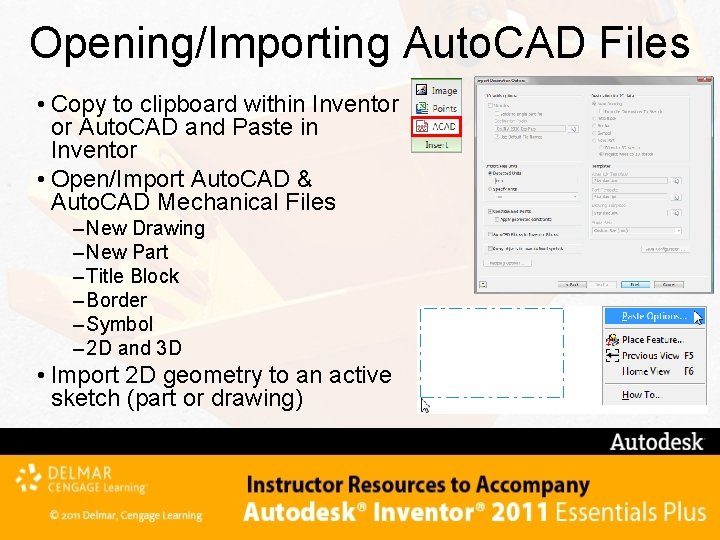
Opening/Importing Auto. CAD Files • Copy to clipboard within Inventor or Auto. CAD and Paste in Inventor • Open/Import Auto. CAD & Auto. CAD Mechanical Files – New Drawing – New Part – Title Block – Border – Symbol – 2 D and 3 D • Import 2 D geometry to an active sketch (part or drawing)
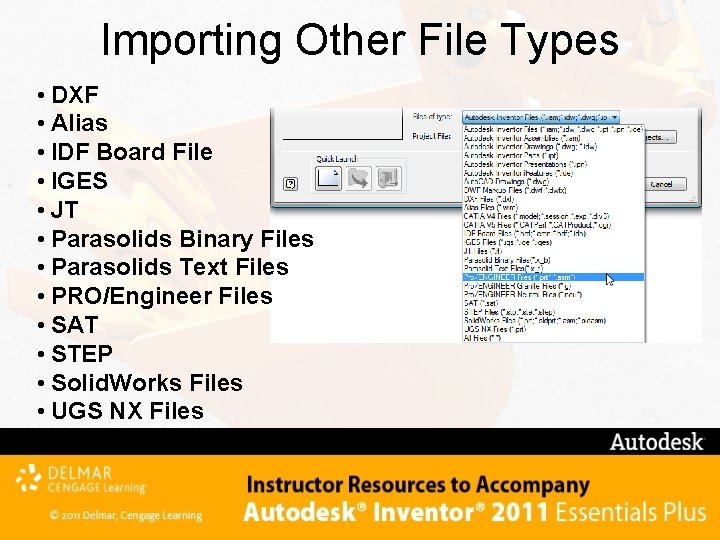
Importing Other File Types • DXF • Alias • IDF Board File • IGES • JT • Parasolids Binary Files • Parasolids Text Files • PRO/Engineer Files • SAT • STEP • Solid. Works Files • UGS NX Files
Exercise 2 -5 • Inserting Auto. CAD Data
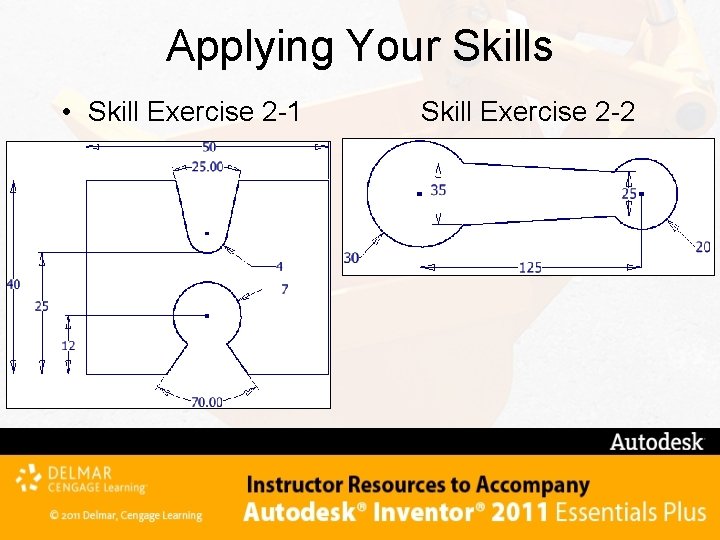
Applying Your Skills • Skill Exercise 2 -1 Skill Exercise 2 -2
Checking Your Skills 1. True__ False__ When you sketch, constraints are not applied to the sketch by default. 2. True__ False__ When you sketch and a point is inferred, a constraint is applied to represent that relationship. 3. True__ False__ A sketch does not need to be fully constrained. 4. True__ False__ When working on an mm part, you cannot use English (inch) units. 5. True__ False__ After a sketch is constrained fully, you cannot change a dimension’s value. 6. True__ False__ A driven dimension is another name for a parametric dimension. 7. True__ False__ Dimensions placed dynamically are not parametric. 8. True__ False__ You can import only 2 D Auto. CAD data into Autodesk Inventor. 9. Explain how to draw an arc while in the Line command. 10. Explain how to remove a geometric constraint from a sketch. 11. Explain how to change a vertical dimension to an aligned dimension while you create it. 12. Explain how to create a dimension between two quadrants of two arcs.
- Slides: 36