
Chapter 2 Introduction to Java Applications Outline 2
- Slides: 64
Chapter 2 - Introduction to Java Applications Outline 2. 1 2. 2 2. 3 2. 4 2. 5 2. 6 2. 7 2. 8 2. 9 Introduction A First Program in Java: Printing a Line of Text Modifying Our First Java Program Displaying Text in a Dialog Box Another Java Application: Adding Integers Memory Concepts Arithmetic Decision Making: Equality and Relational Operators (Optional Case Study) Thinking About Objects: Examining the Problem Statement 2003 Prentice Hall, Inc. All rights reserved. 1
2 2. 1 Introduction • In this chapter – Introduce examples to illustrate features of Java – Two program styles - applications and applets 2003 Prentice Hall, Inc. All rights reserved.
2. 2 A First Program in Java: Printing a Line of Text • Application – Program that executes using the java interpreter • Sample program – Show program, then analyze each line 2003 Prentice Hall, Inc. All rights reserved. 3
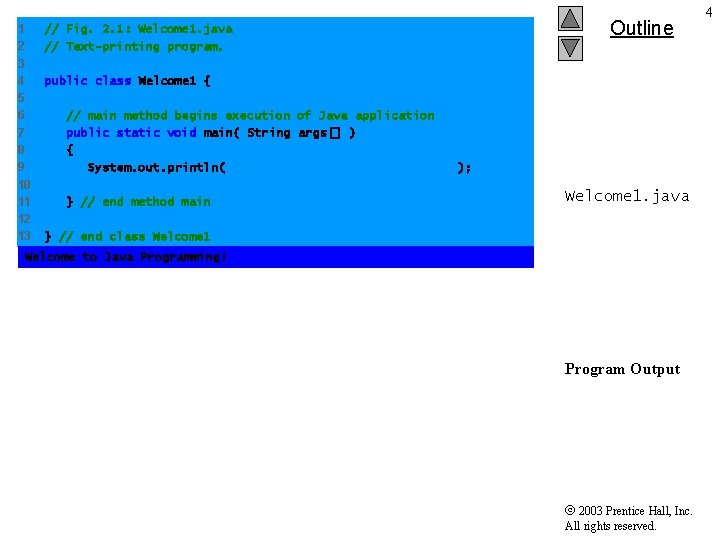
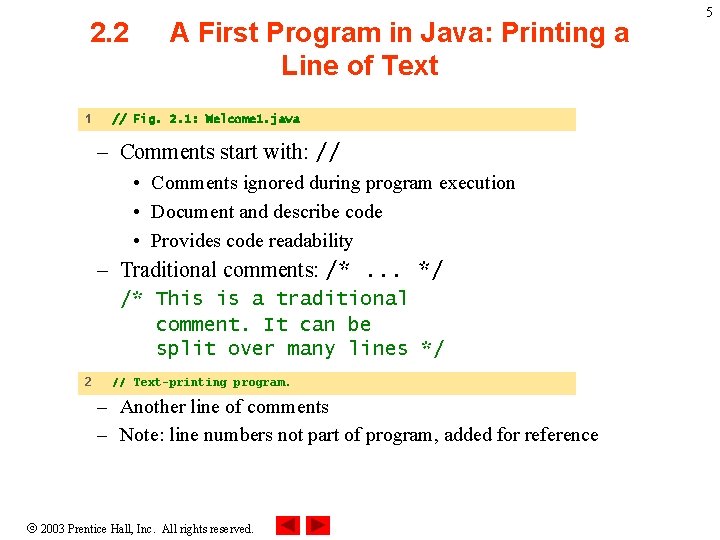
1 2 3 4 5 6 7 8 9 10 11 12 13 // Fig. 2. 1: Welcome 1. java // Text-printing program. Outline public class Welcome 1 { // main method begins execution of Java application public static void main( String args[] ) { System. out. println( "Welcome to Java Programming!" ); } // end method main Welcome 1. java } // end class Welcome 1 Welcome to Java Programming! Program Output 2003 Prentice Hall, Inc. All rights reserved. 4
2. 2 1 A First Program in Java: Printing a Line of Text // Fig. 2. 1: Welcome 1. java – Comments start with: // • Comments ignored during program execution • Document and describe code • Provides code readability – Traditional comments: /*. . . */ /* This is a traditional comment. It can be split over many lines */ 2 // Text-printing program. – Another line of comments – Note: line numbers not part of program, added for reference 2003 Prentice Hall, Inc. All rights reserved. 5
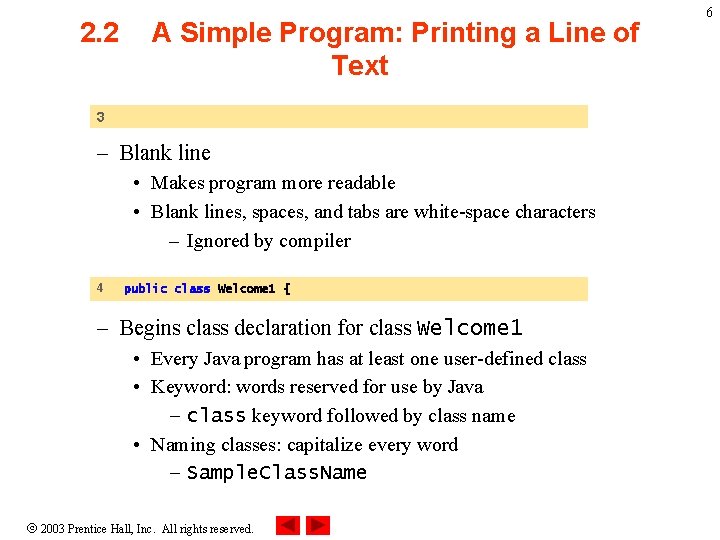
2. 2 A Simple Program: Printing a Line of Text 3 – Blank line • Makes program more readable • Blank lines, spaces, and tabs are white-space characters – Ignored by compiler 4 public class Welcome 1 { – Begins class declaration for class Welcome 1 • Every Java program has at least one user-defined class • Keyword: words reserved for use by Java – class keyword followed by class name • Naming classes: capitalize every word – Sample. Class. Name 2003 Prentice Hall, Inc. All rights reserved. 6
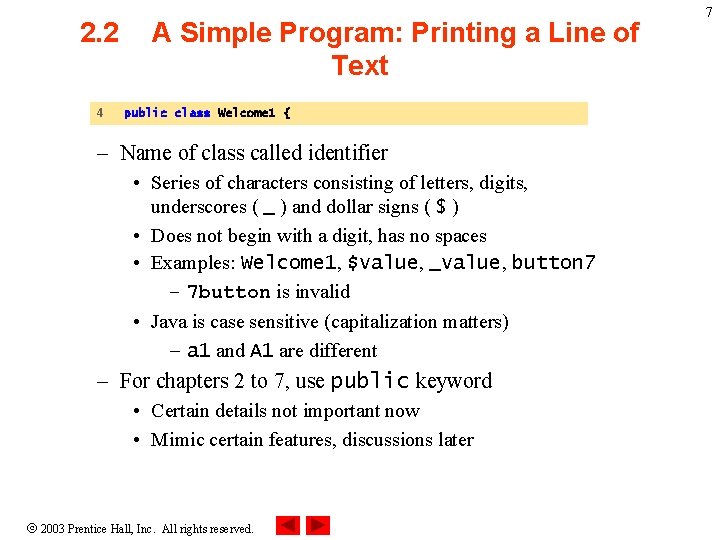
2. 2 4 A Simple Program: Printing a Line of Text public class Welcome 1 { – Name of class called identifier • Series of characters consisting of letters, digits, underscores ( _ ) and dollar signs ( $ ) • Does not begin with a digit, has no spaces • Examples: Welcome 1, $value, _value, button 7 – 7 button is invalid • Java is case sensitive (capitalization matters) – a 1 and A 1 are different – For chapters 2 to 7, use public keyword • Certain details not important now • Mimic certain features, discussions later 2003 Prentice Hall, Inc. All rights reserved. 7
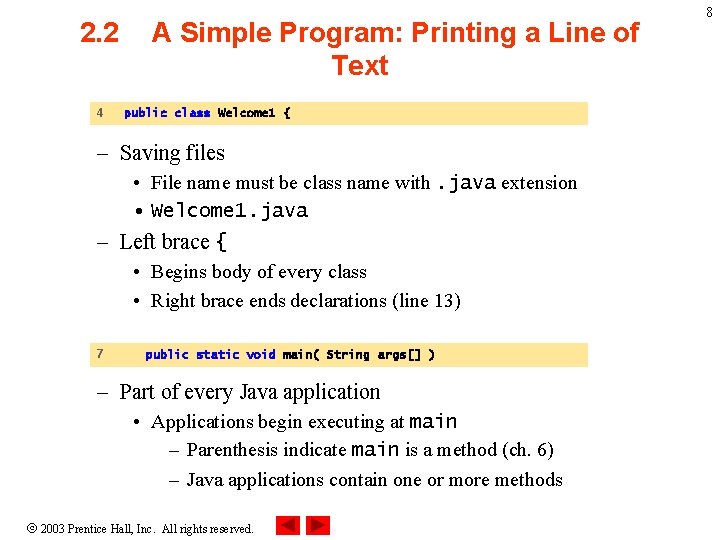
2. 2 4 A Simple Program: Printing a Line of Text public class Welcome 1 { – Saving files • File name must be class name with. java extension • Welcome 1. java – Left brace { • Begins body of every class • Right brace ends declarations (line 13) 7 public static void main( String args[] ) – Part of every Java application • Applications begin executing at main – Parenthesis indicate main is a method (ch. 6) – Java applications contain one or more methods 2003 Prentice Hall, Inc. All rights reserved. 8
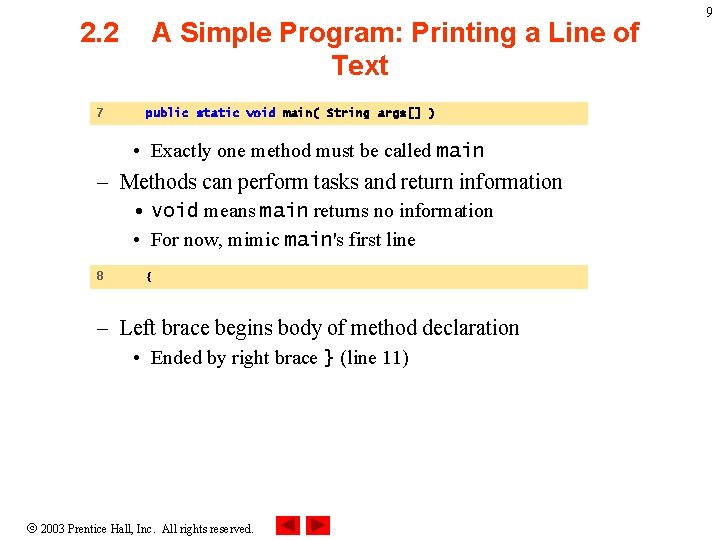
2. 2 7 A Simple Program: Printing a Line of Text public static void main( String args[] ) • Exactly one method must be called main – Methods can perform tasks and return information • void means main returns no information • For now, mimic main's first line 8 { – Left brace begins body of method declaration • Ended by right brace } (line 11) 2003 Prentice Hall, Inc. All rights reserved. 9
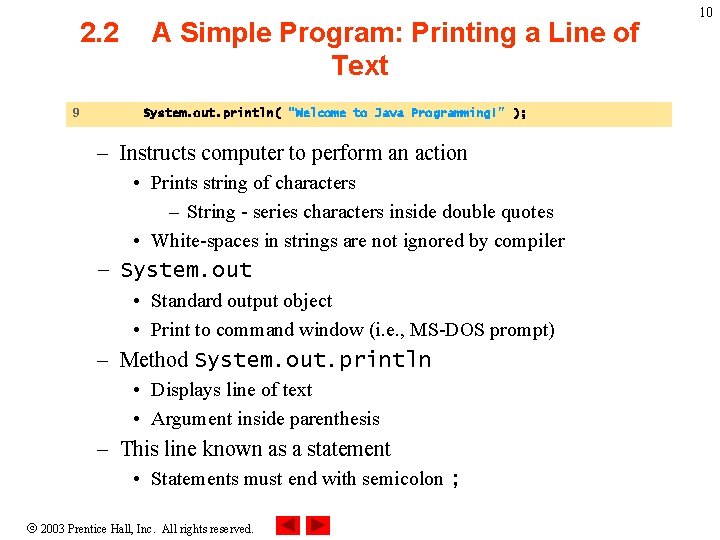
2. 2 9 A Simple Program: Printing a Line of Text System. out. println( "Welcome to Java Programming!" ); – Instructs computer to perform an action • Prints string of characters – String - series characters inside double quotes • White-spaces in strings are not ignored by compiler – System. out • Standard output object • Print to command window (i. e. , MS-DOS prompt) – Method System. out. println • Displays line of text • Argument inside parenthesis – This line known as a statement • Statements must end with semicolon ; 2003 Prentice Hall, Inc. All rights reserved. 10
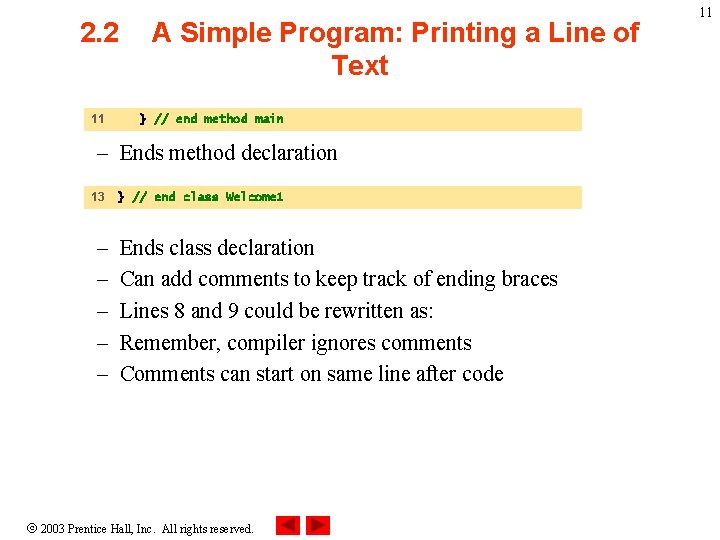
2. 2 11 A Simple Program: Printing a Line of Text } // end method main – Ends method declaration 13 – – – } // end class Welcome 1 Ends class declaration Can add comments to keep track of ending braces Lines 8 and 9 could be rewritten as: Remember, compiler ignores comments Comments can start on same line after code 2003 Prentice Hall, Inc. All rights reserved. 11
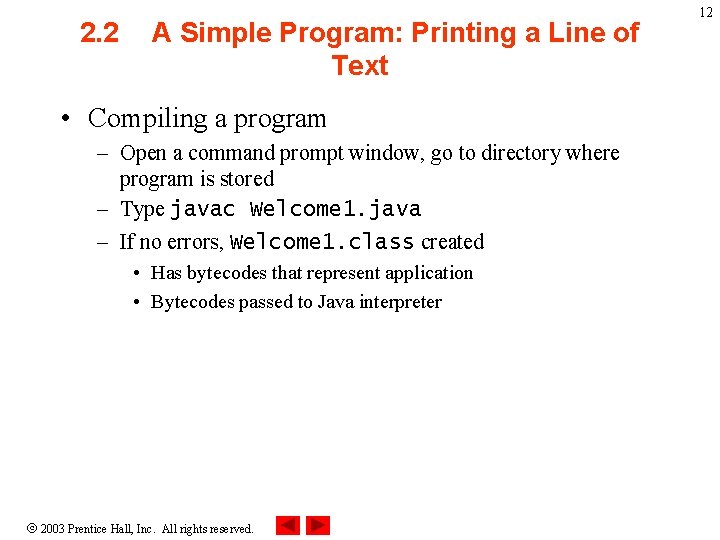
2. 2 A Simple Program: Printing a Line of Text • Compiling a program – Open a command prompt window, go to directory where program is stored – Type javac Welcome 1. java – If no errors, Welcome 1. class created • Has bytecodes that represent application • Bytecodes passed to Java interpreter 2003 Prentice Hall, Inc. All rights reserved. 12
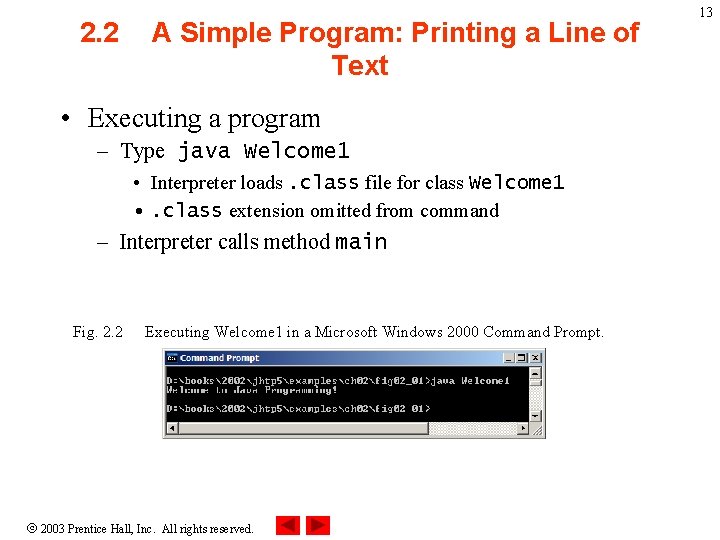
2. 2 A Simple Program: Printing a Line of Text • Executing a program – Type java Welcome 1 • Interpreter loads. class file for class Welcome 1 • . class extension omitted from command – Interpreter calls method main Fig. 2. 2 Executing Welcome 1 in a Microsoft Windows 2000 Command Prompt. 2003 Prentice Hall, Inc. All rights reserved. 13
14 2. 3 Modifying Our First Java Program • Modify example in Fig. 2. 1 to print same contents using different code 2003 Prentice Hall, Inc. All rights reserved.
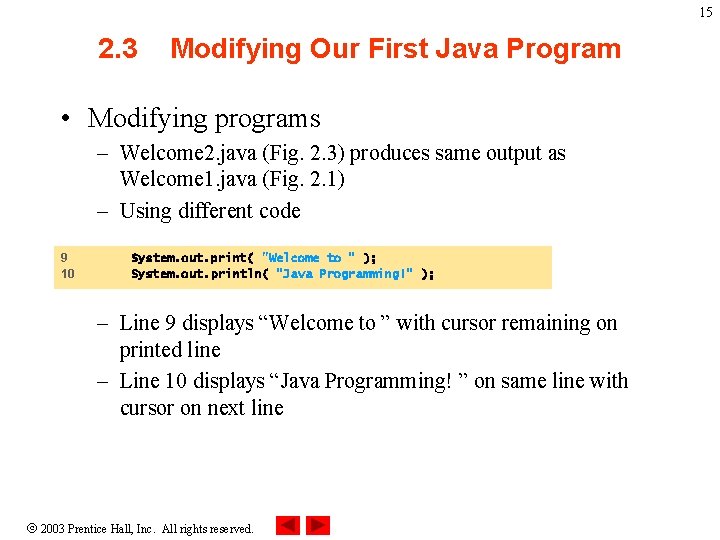
15 2. 3 Modifying Our First Java Program • Modifying programs – Welcome 2. java (Fig. 2. 3) produces same output as Welcome 1. java (Fig. 2. 1) – Using different code 9 10 System. out. print( "Welcome to " ); System. out. println( "Java Programming!" ); – Line 9 displays “Welcome to ” with cursor remaining on printed line – Line 10 displays “Java Programming! ” on same line with cursor on next line 2003 Prentice Hall, Inc. All rights reserved.
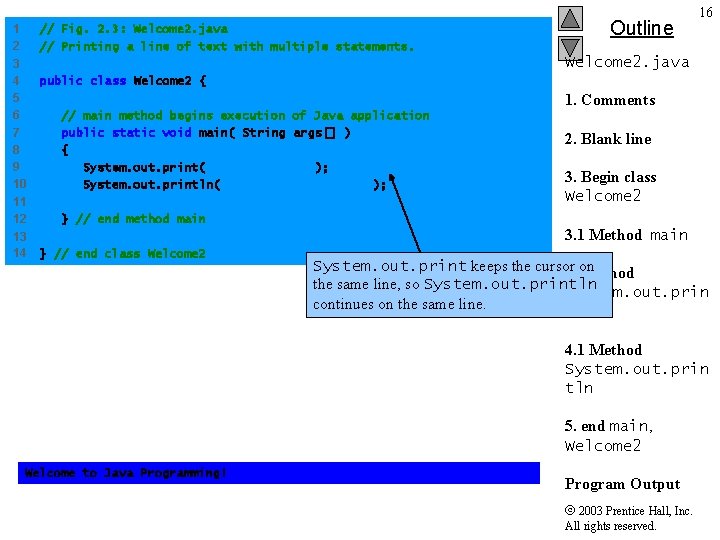
1 2 3 4 5 6 7 8 9 10 11 12 13 14 // Fig. 2. 3: Welcome 2. java // Printing a line of text with multiple statements. Outline 16 Welcome 2. java public class Welcome 2 { 1. Comments // main method begins execution of Java application public static void main( String args[] ) { System. out. print( "Welcome to " ); System. out. println( "Java Programming!" ); } // end method main } // end class Welcome 2 2. Blank line 3. Begin class Welcome 2 3. 1 Method main System. out. print keeps the cursor 4. on Method the same line, so System. out. println System. out. prin continues on the same line. t 4. 1 Method System. out. prin tln 5. end main, Welcome 2 Welcome to Java Programming! Program Output 2003 Prentice Hall, Inc. All rights reserved.
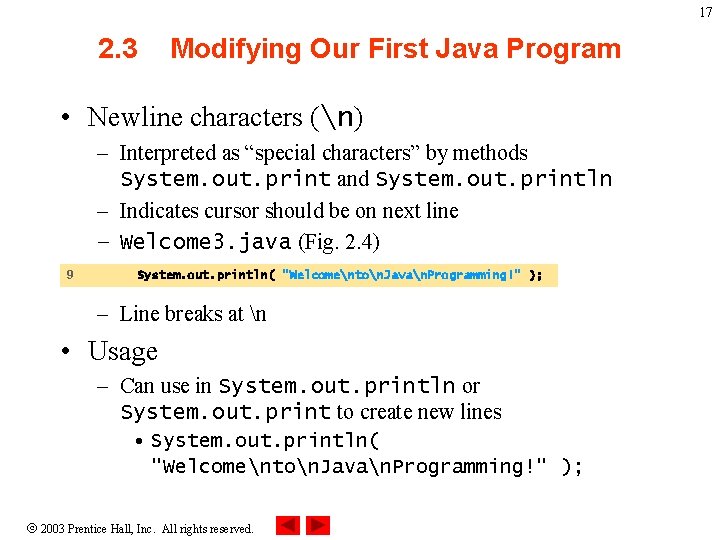
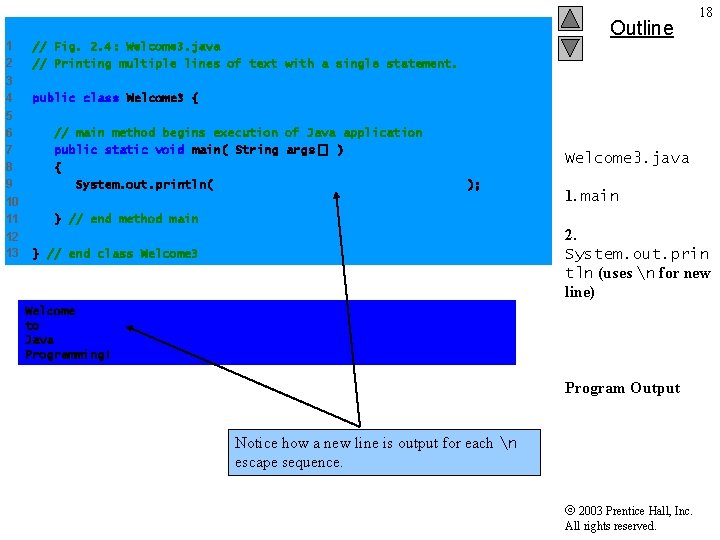
17 2. 3 Modifying Our First Java Program • Newline characters (n) – Interpreted as “special characters” by methods System. out. print and System. out. println – Indicates cursor should be on next line – Welcome 3. java (Fig. 2. 4) 9 System. out. println( "Welcomenton. Javan. Programming!" ); – Line breaks at n • Usage – Can use in System. out. println or System. out. print to create new lines • System. out. println( "Welcomenton. Javan. Programming!" ); 2003 Prentice Hall, Inc. All rights reserved.
1 2 3 4 5 6 7 8 9 10 11 12 13 Outline 18 // Fig. 2. 4: Welcome 3. java // Printing multiple lines of text with a single statement. public class Welcome 3 { // main method begins execution of Java application public static void main( String args[] ) { System. out. println( "Welcomenton. Javan. Programming!" ); Welcome 3. java 1. main } // end method main 2. System. out. prin tln (uses n for new line) } // end class Welcome 3 Welcome to Java Programming! Program Output Notice how a new line is output for each n escape sequence. 2003 Prentice Hall, Inc. All rights reserved.
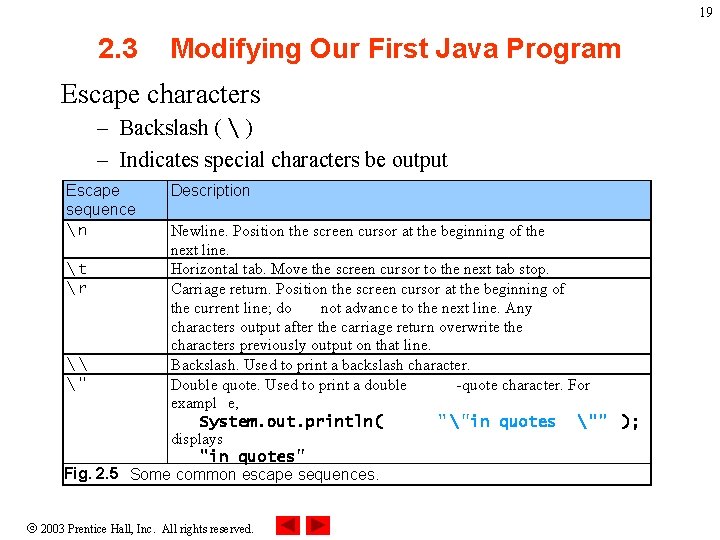
19 2. 3 Modifying Our First Java Program Escape characters – Backslash ( ) – Indicates special characters be output Escape sequence n Description Newline. Position the screen cursor at the beginning of the next line. t Horizontal tab. Move the screen cursor to the next tab stop. r Carriage return. Position the screen cursor at the beginning of the current line; do not advance to the next line. Any characters output after the carriage return overwrite the characters previously output on that line. \ Backslash. Used to print a backslash character. " Double quote. Used to print a double -quote character. For exampl e, System. out. println( " "in quotes "" ); displays "in quotes" Fig. 2. 5 Some common escape sequences. 2003 Prentice Hall, Inc. All rights reserved.
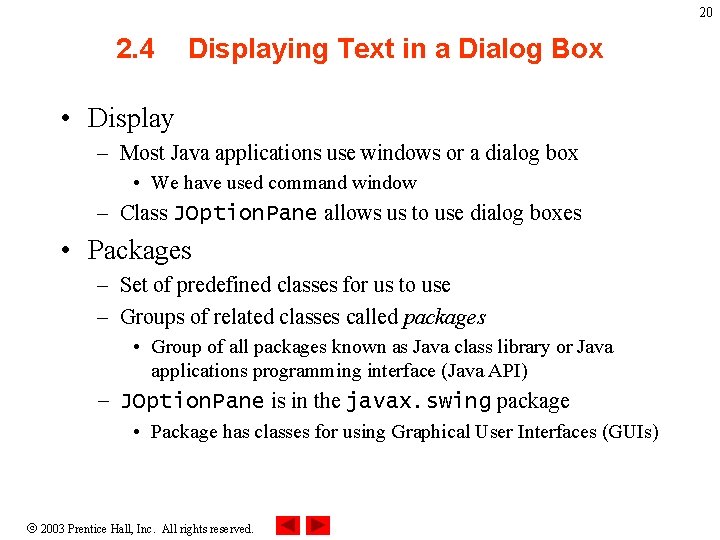
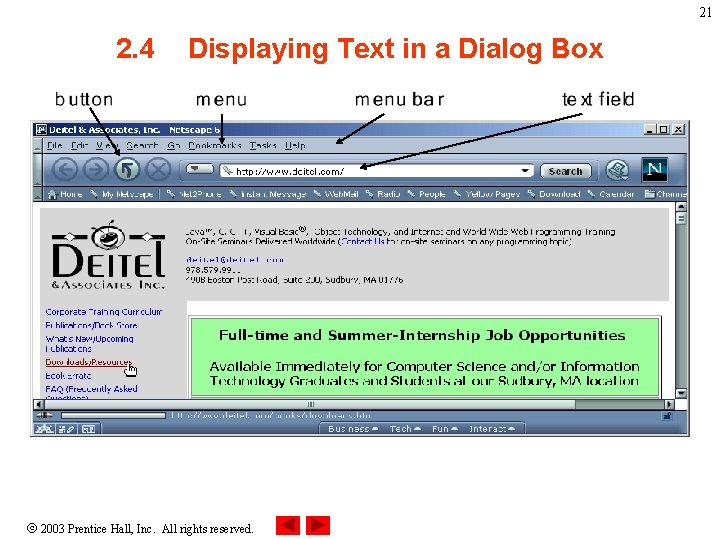
20 2. 4 Displaying Text in a Dialog Box • Display – Most Java applications use windows or a dialog box • We have used command window – Class JOption. Pane allows us to use dialog boxes • Packages – Set of predefined classes for us to use – Groups of related classes called packages • Group of all packages known as Java class library or Java applications programming interface (Java API) – JOption. Pane is in the javax. swing package • Package has classes for using Graphical User Interfaces (GUIs) 2003 Prentice Hall, Inc. All rights reserved.
21 2. 4 Displaying Text in a Dialog Box 2003 Prentice Hall, Inc. All rights reserved.
22 2. 4 Displaying Text in a Dialog Box • Upcoming program – – Application that uses dialog boxes Explanation will come afterwards Demonstrate another way to display output Packages, methods and GUI 2003 Prentice Hall, Inc. All rights reserved.
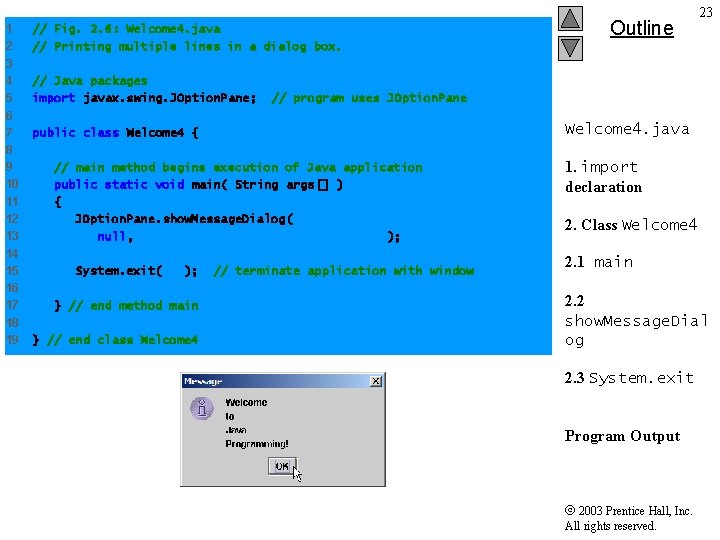
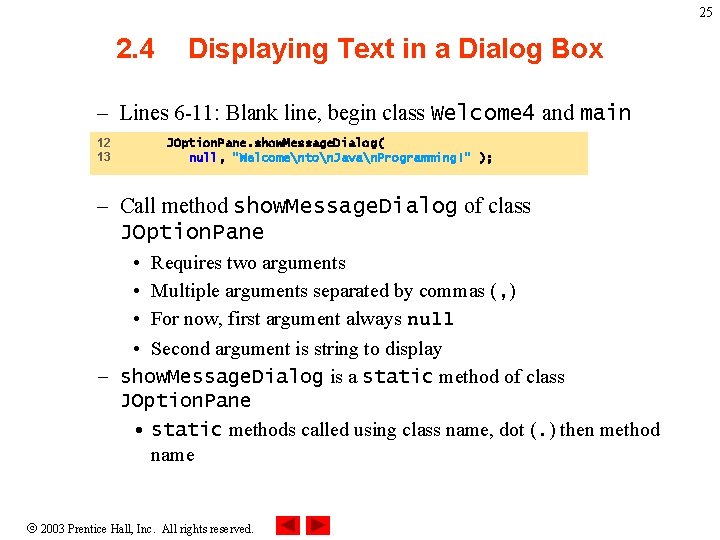
1 2 3 4 5 6 7 8 9 10 11 12 13 14 15 16 17 18 19 1// // Fig. 2. 6: Welcome 4. java // Printing multiple lines in a dialog box. 2 // Printing multiple lines in a dialog box Outline 23 3// import javax. swing. JOption. Pane; // import class JOption. Pane Java packages 4 import javax. swing. JOption. Pane; // program uses JOption. Pane 5 public class Welcome 4 { 6 public static void main( String args] ) // main method begins execution of Java application 7 { public static void main( String args[] ) 8 JOption. Pane. show. Message. Dialog( { JOption. Pane. show. Message. Dialog( 9 null, "Welcomenton. Javan. Programming!" ); 10 11 12 System. exit( 0 ); terminate application with window System. exit( 0 ); //// terminate the program } } // end method main } // end class Welcome 4. java 1. import declaration 2. Class Welcome 4 2. 1 main 2. 2 show. Message. Dial og 2. 3 System. exit Program Output 2003 Prentice Hall, Inc. All rights reserved.
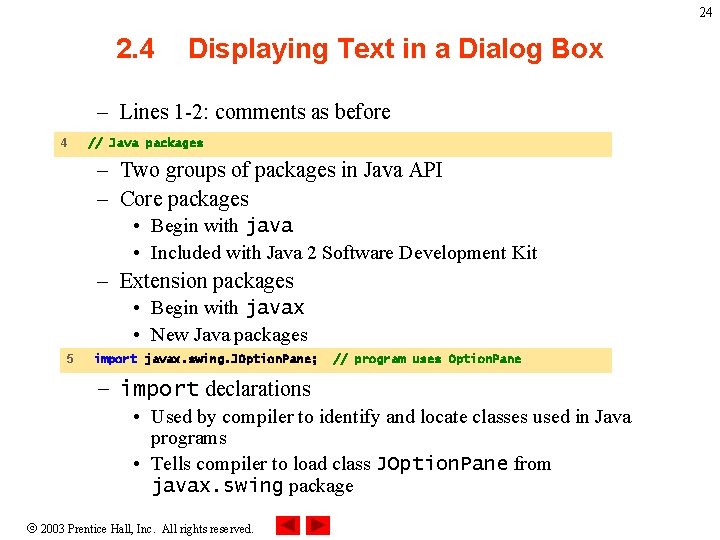
24 2. 4 Displaying Text in a Dialog Box – Lines 1 -2: comments as before 4 // Java packages – Two groups of packages in Java API – Core packages • Begin with java • Included with Java 2 Software Development Kit – Extension packages • Begin with javax • New Java packages 5 import javax. swing. JOption. Pane; // program uses Option. Pane – import declarations • Used by compiler to identify and locate classes used in Java programs • Tells compiler to load class JOption. Pane from javax. swing package 2003 Prentice Hall, Inc. All rights reserved.
25 2. 4 Displaying Text in a Dialog Box – Lines 6 -11: Blank line, begin class Welcome 4 and main 12 13 JOption. Pane. show. Message. Dialog( null, "Welcomenton. Javan. Programming!" ); – Call method show. Message. Dialog of class JOption. Pane • Requires two arguments • Multiple arguments separated by commas (, ) • For now, first argument always null • Second argument is string to display – show. Message. Dialog is a static method of class JOption. Pane • static methods called using class name, dot (. ) then method name 2003 Prentice Hall, Inc. All rights reserved.
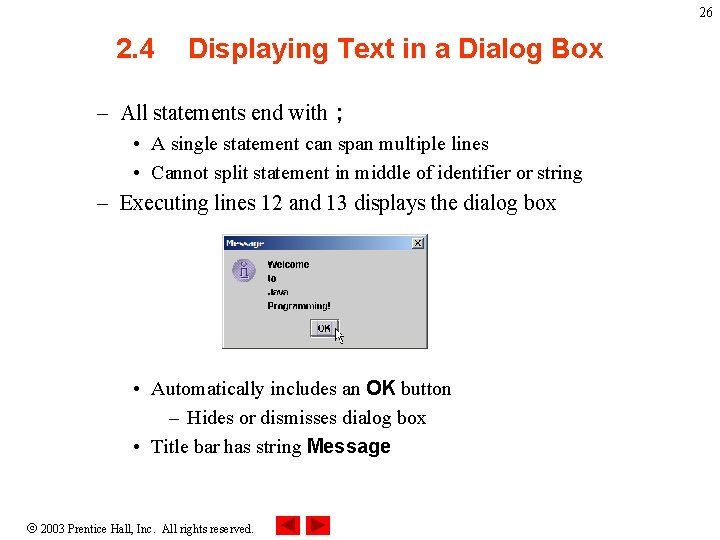
26 2. 4 Displaying Text in a Dialog Box – All statements end with ; • A single statement can span multiple lines • Cannot split statement in middle of identifier or string – Executing lines 12 and 13 displays the dialog box • Automatically includes an OK button – Hides or dismisses dialog box • Title bar has string Message 2003 Prentice Hall, Inc. All rights reserved.
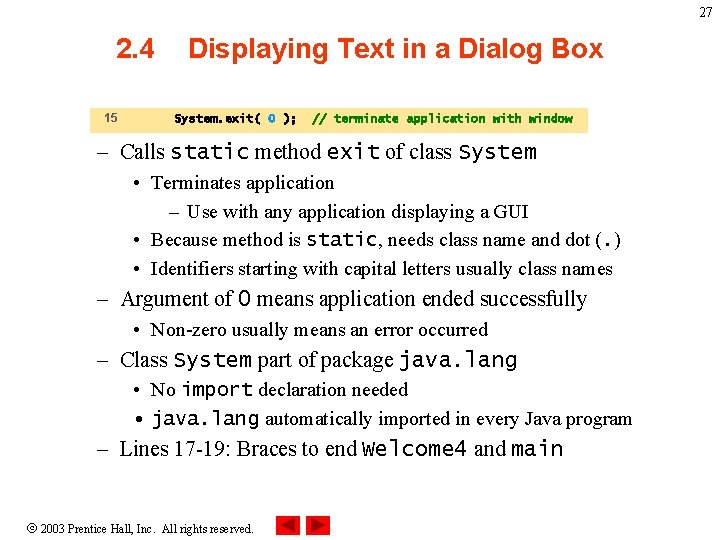
27 2. 4 15 Displaying Text in a Dialog Box System. exit( 0 ); // terminate application with window – Calls static method exit of class System • Terminates application – Use with any application displaying a GUI • Because method is static, needs class name and dot (. ) • Identifiers starting with capital letters usually class names – Argument of 0 means application ended successfully • Non-zero usually means an error occurred – Class System part of package java. lang • No import declaration needed • java. lang automatically imported in every Java program – Lines 17 -19: Braces to end Welcome 4 and main 2003 Prentice Hall, Inc. All rights reserved.
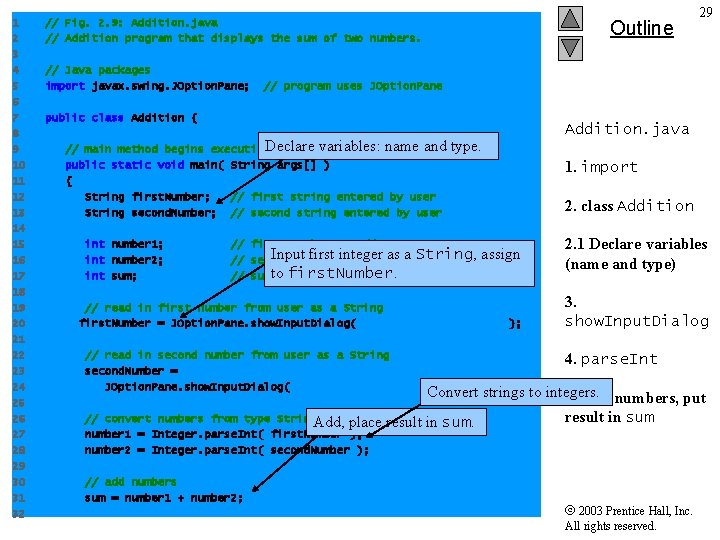
2. 5 Another Java Application: Adding Integers • Upcoming program – Use input dialogs to input two values from user – Use message dialog to display sum of the two values 2003 Prentice Hall, Inc. All rights reserved. 28
1 2 3 4 5 6 7 8 9 10 11 12 13 14 15 16 17 18 19 20 21 22 23 24 25 26 27 28 29 30 31 32 Outline // Fig. 2. 9: Addition. java // Addition program that displays the sum of two numbers. // Java packages import javax. swing. JOption. Pane; 29 // program uses JOption. Pane public class Addition { name and // main method begins execution. Declare of Javavariables: application public static void main( String args[] ) { String first. Number; // first string entered by user String second. Number; // second string entered by user type. Addition. java 1. import 2. class Addition assign 2. 1 Declare variables (name and type) // read in first number from user as a String first. Number = JOption. Pane. show. Input. Dialog( "Enter first integer" ); 3. show. Input. Dialog int number 1; int number 2; int sum; // first number to add Input first integer // second number to add as a String, // sum to offirst. Number. number 1 and number 2 // read in second number from user as a String second. Number = JOption. Pane. show. Input. Dialog( "Enter second integer" ); 4. parse. Int // convert numbers from type String. Add, to type placeint result number 1 = Integer. parse. Int( first. Number ); number 2 = Integer. parse. Int( second. Number ); result in sum Convert strings to integers. 5. Add numbers, put // add numbers sum = number 1 + number 2; in sum. 2003 Prentice Hall, Inc. All rights reserved.
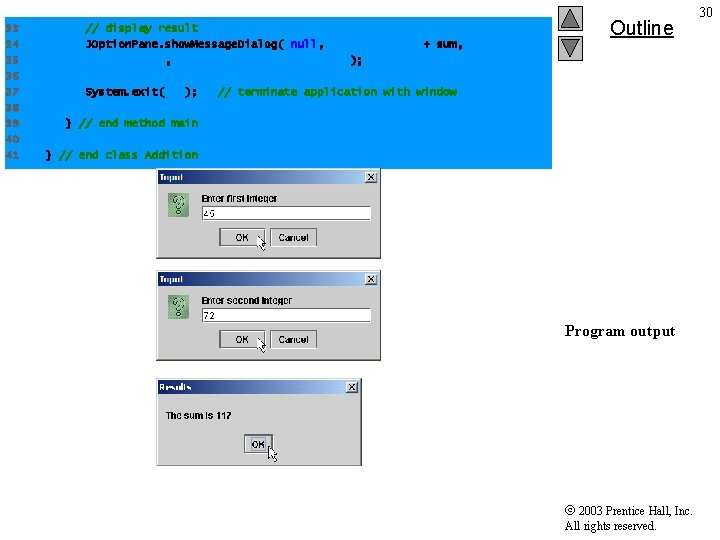
33 34 35 36 37 38 39 40 41 // display result JOption. Pane. show. Message. Dialog( null, "The sum is " + sum, "Results", JOption. Pane. PLAIN_MESSAGE ); System. exit( 0 ); Outline // terminate application with window } // end method main } // end class Addition Program output 2003 Prentice Hall, Inc. All rights reserved. 30
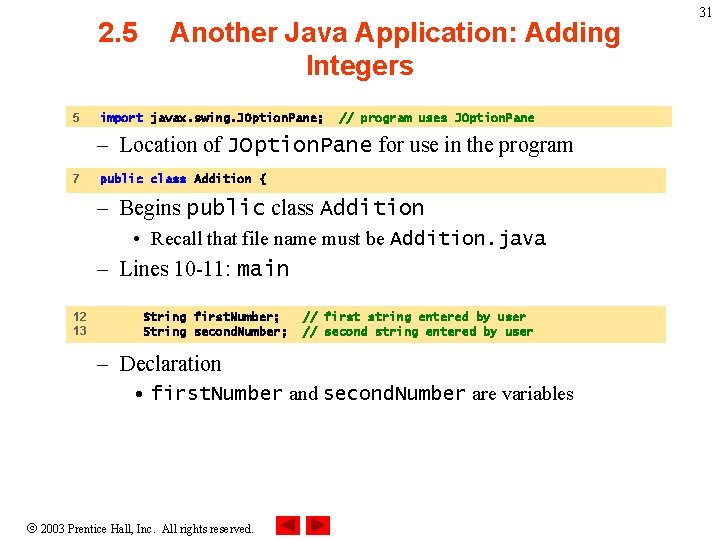
2. 5 5 Another Java Application: Adding Integers import javax. swing. JOption. Pane; // program uses JOption. Pane – Location of JOption. Pane for use in the program 7 public class Addition { – Begins public class Addition • Recall that file name must be Addition. java – Lines 10 -11: main 12 13 String first. Number; String second. Number; // first string entered by user // second string entered by user – Declaration • first. Number and second. Number are variables 2003 Prentice Hall, Inc. All rights reserved. 31
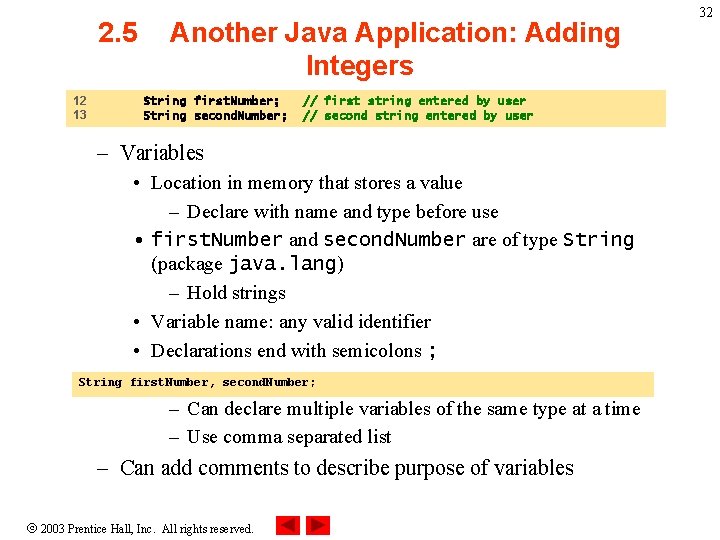
2. 5 12 13 Another Java Application: Adding Integers String first. Number; String second. Number; // first string entered by user // second string entered by user – Variables • Location in memory that stores a value – Declare with name and type before use • first. Number and second. Number are of type String (package java. lang) – Hold strings • Variable name: any valid identifier • Declarations end with semicolons ; String first. Number, second. Number; – Can declare multiple variables of the same type at a time – Use comma separated list – Can add comments to describe purpose of variables 2003 Prentice Hall, Inc. All rights reserved. 32
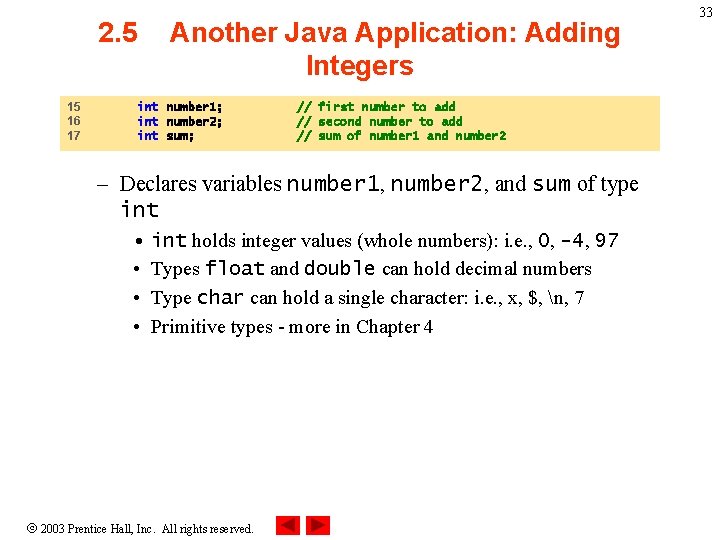
2. 5 15 16 17 Another Java Application: Adding Integers int number 1; int number 2; int sum; // first number to add // second number to add // sum of number 1 and number 2 – Declares variables number 1, number 2, and sum of type int • int holds integer values (whole numbers): i. e. , 0, -4, 97 • Types float and double can hold decimal numbers • Type char can hold a single character: i. e. , x, $, n, 7 • Primitive types - more in Chapter 4 2003 Prentice Hall, Inc. All rights reserved. 33
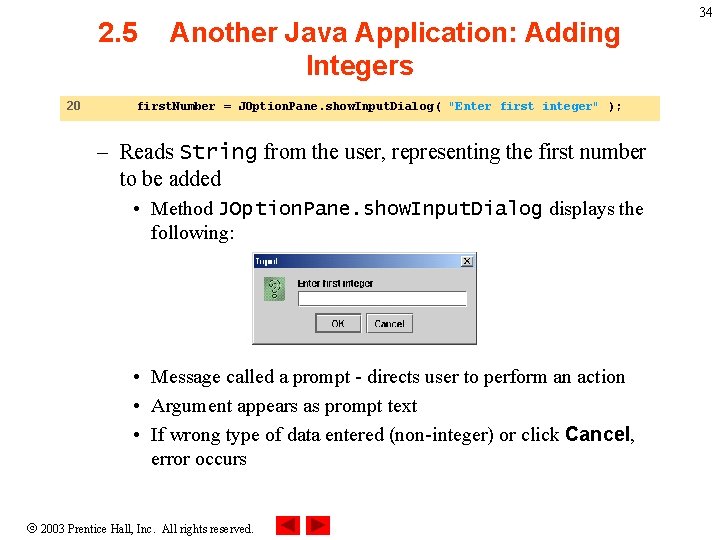
2. 5 20 Another Java Application: Adding Integers first. Number = JOption. Pane. show. Input. Dialog( "Enter first integer" ); – Reads String from the user, representing the first number to be added • Method JOption. Pane. show. Input. Dialog displays the following: • Message called a prompt - directs user to perform an action • Argument appears as prompt text • If wrong type of data entered (non-integer) or click Cancel, error occurs 2003 Prentice Hall, Inc. All rights reserved. 34
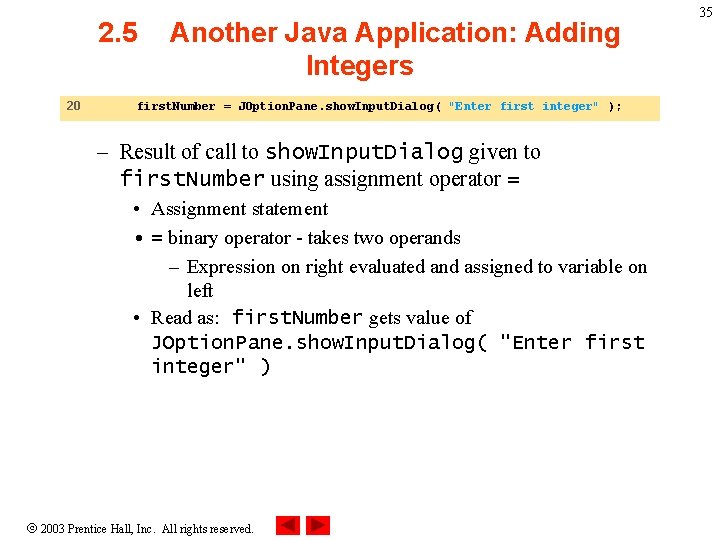
2. 5 20 Another Java Application: Adding Integers first. Number = JOption. Pane. show. Input. Dialog( "Enter first integer" ); – Result of call to show. Input. Dialog given to first. Number using assignment operator = • Assignment statement • = binary operator - takes two operands – Expression on right evaluated and assigned to variable on left • Read as: first. Number gets value of JOption. Pane. show. Input. Dialog( "Enter first integer" ) 2003 Prentice Hall, Inc. All rights reserved. 35
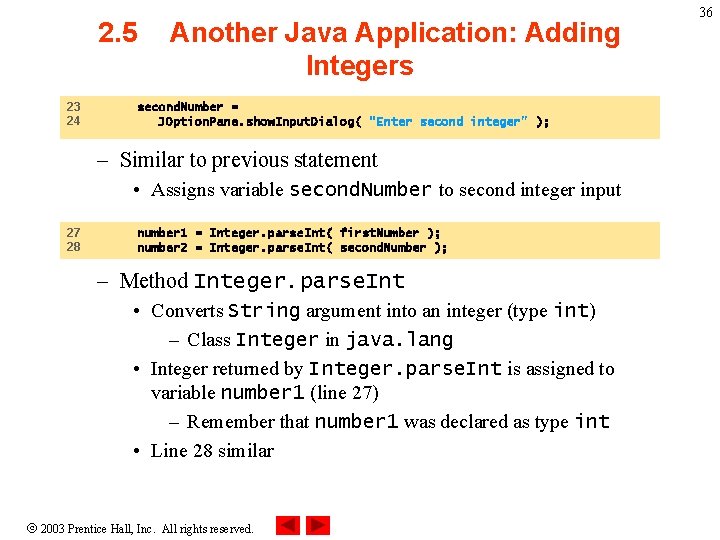
2. 5 23 24 Another Java Application: Adding Integers second. Number = JOption. Pane. show. Input. Dialog( "Enter second integer" ); – Similar to previous statement • Assigns variable second. Number to second integer input 27 28 number 1 = Integer. parse. Int( first. Number ); number 2 = Integer. parse. Int( second. Number ); – Method Integer. parse. Int • Converts String argument into an integer (type int) – Class Integer in java. lang • Integer returned by Integer. parse. Int is assigned to variable number 1 (line 27) – Remember that number 1 was declared as type int • Line 28 similar 2003 Prentice Hall, Inc. All rights reserved. 36
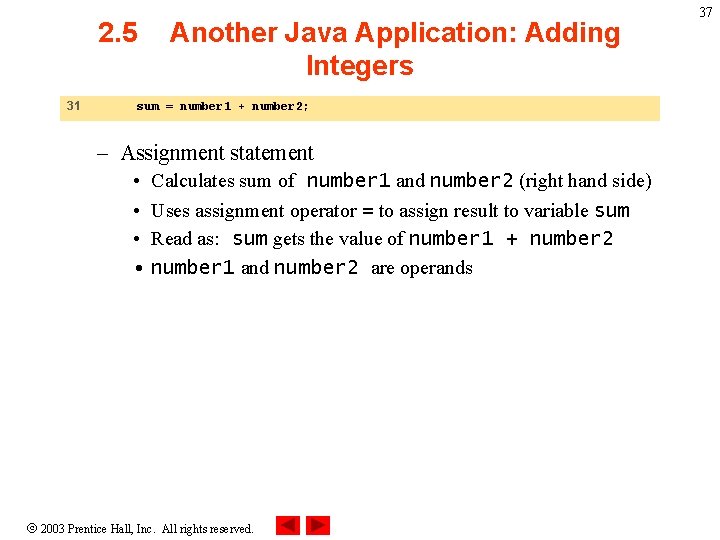
2. 5 31 Another Java Application: Adding Integers sum = number 1 + number 2; – Assignment statement • Calculates sum of number 1 and number 2 (right hand side) • Uses assignment operator = to assign result to variable sum • Read as: sum gets the value of number 1 + number 2 • number 1 and number 2 are operands 2003 Prentice Hall, Inc. All rights reserved. 37
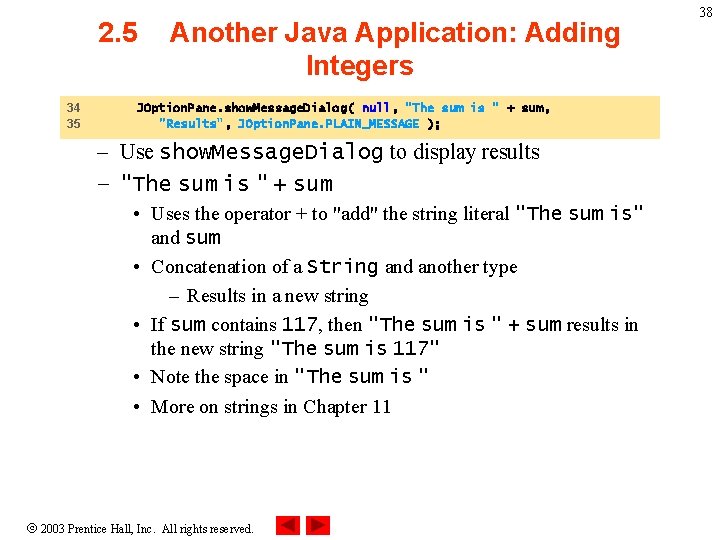
2. 5 34 35 Another Java Application: Adding Integers JOption. Pane. show. Message. Dialog( null, "The sum is " + sum, "Results", JOption. Pane. PLAIN_MESSAGE ); – Use show. Message. Dialog to display results – "The sum is " + sum • Uses the operator + to "add" the string literal "The sum is" and sum • Concatenation of a String and another type – Results in a new string • If sum contains 117, then "The sum is " + sum results in the new string "The sum is 117" • Note the space in "The sum is " • More on strings in Chapter 11 2003 Prentice Hall, Inc. All rights reserved. 38
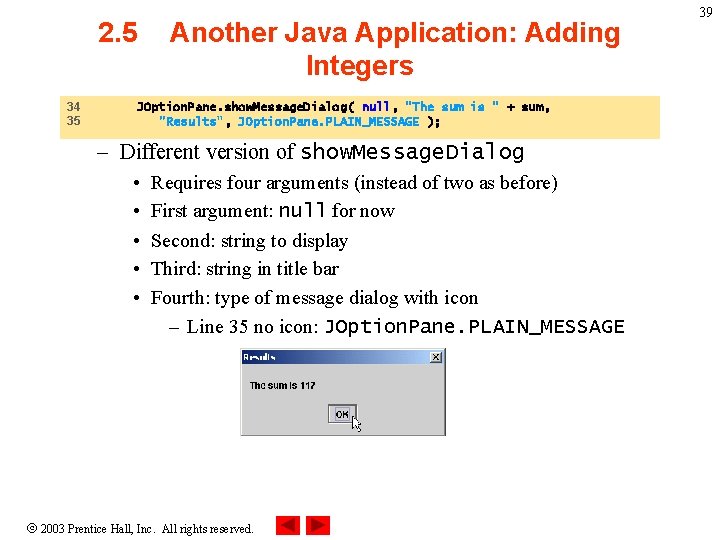
2. 5 34 35 Another Java Application: Adding Integers JOption. Pane. show. Message. Dialog( null, "The sum is " + sum, "Results", JOption. Pane. PLAIN_MESSAGE ); – Different version of show. Message. Dialog • • • Requires four arguments (instead of two as before) First argument: null for now Second: string to display Third: string in title bar Fourth: type of message dialog with icon – Line 35 no icon: JOption. Pane. PLAIN_MESSAGE 2003 Prentice Hall, Inc. All rights reserved. 39
2. 5 Another Java Application: Adding Integers 2003 Prentice Hall, Inc. All rights reserved. 40
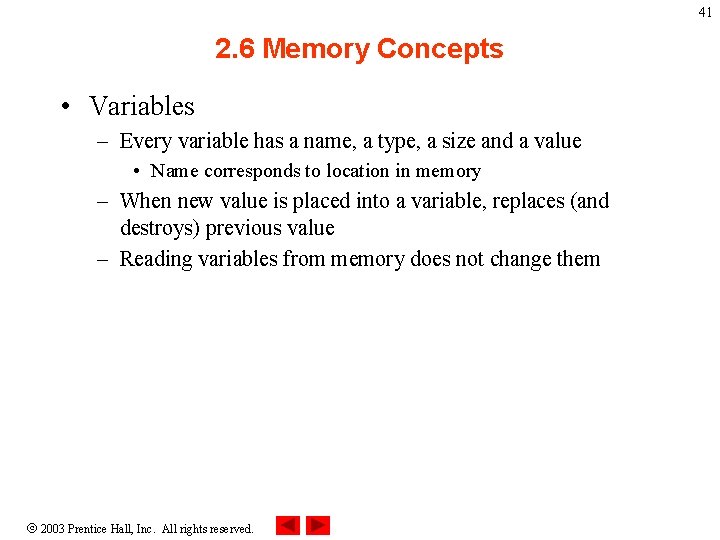
41 2. 6 Memory Concepts • Variables – Every variable has a name, a type, a size and a value • Name corresponds to location in memory – When new value is placed into a variable, replaces (and destroys) previous value – Reading variables from memory does not change them 2003 Prentice Hall, Inc. All rights reserved.
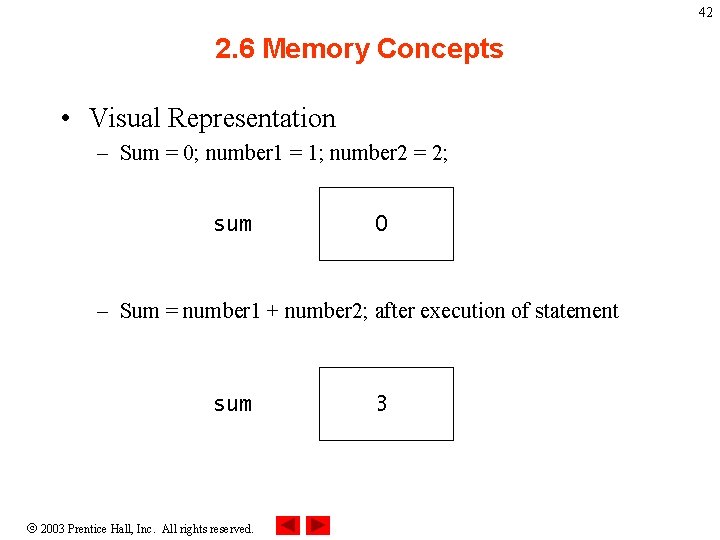
42 2. 6 Memory Concepts • Visual Representation – Sum = 0; number 1 = 1; number 2 = 2; sum 0 – Sum = number 1 + number 2; after execution of statement sum 2003 Prentice Hall, Inc. All rights reserved. 3
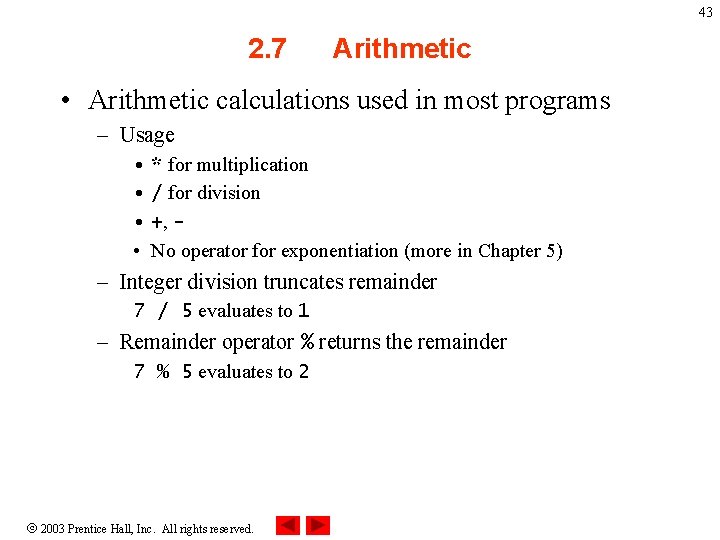
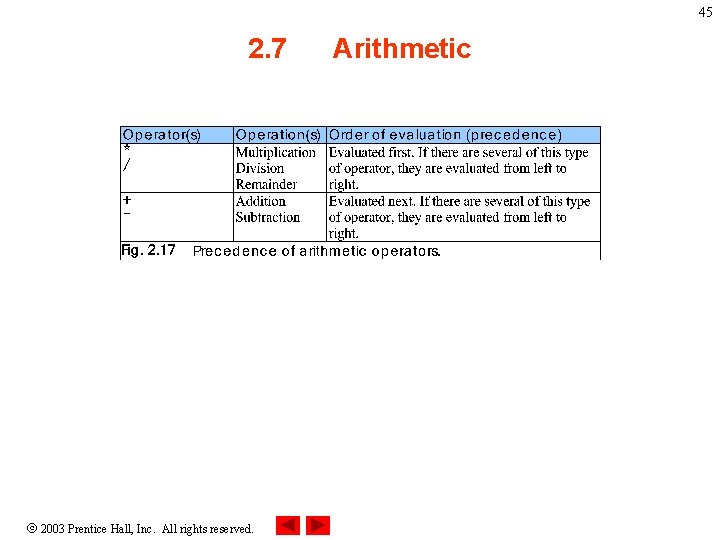
43 2. 7 Arithmetic • Arithmetic calculations used in most programs – Usage • * for multiplication • / for division • +, • No operator for exponentiation (more in Chapter 5) – Integer division truncates remainder 7 / 5 evaluates to 1 – Remainder operator % returns the remainder 7 % 5 evaluates to 2 2003 Prentice Hall, Inc. All rights reserved.
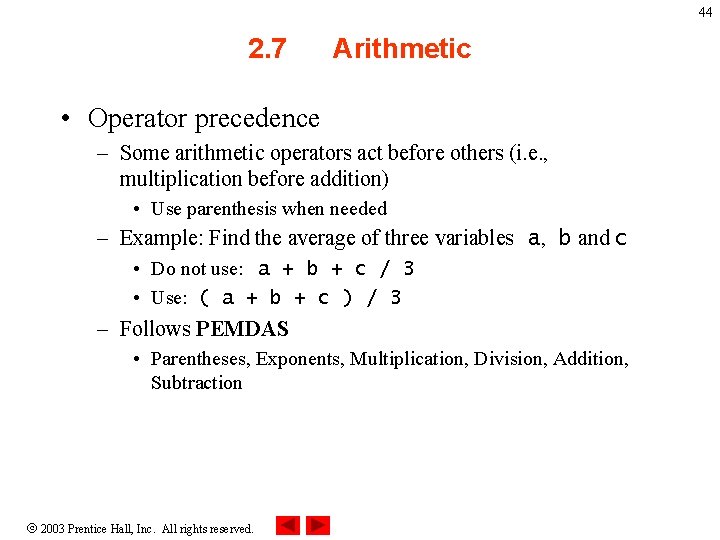
44 2. 7 Arithmetic • Operator precedence – Some arithmetic operators act before others (i. e. , multiplication before addition) • Use parenthesis when needed – Example: Find the average of three variables a, b and c • Do not use: a + b + c / 3 • Use: ( a + b + c ) / 3 – Follows PEMDAS • Parentheses, Exponents, Multiplication, Division, Addition, Subtraction 2003 Prentice Hall, Inc. All rights reserved.
45 2. 7 2003 Prentice Hall, Inc. All rights reserved. Arithmetic
2. 8 Decision Making: Equality and Relational Operators • if control statement – Simple version in this section, more detail later – If a condition is true, then the body of the if statement executed • 0 interpreted as false, non-zero is true – Control always resumes after the if structure – Conditions for if statements can be formed using equality or relational operators (next slide) if ( condition ) statement executed if condition true • No semicolon needed after condition – Else conditional task not performed 2003 Prentice Hall, Inc. All rights reserved. 46
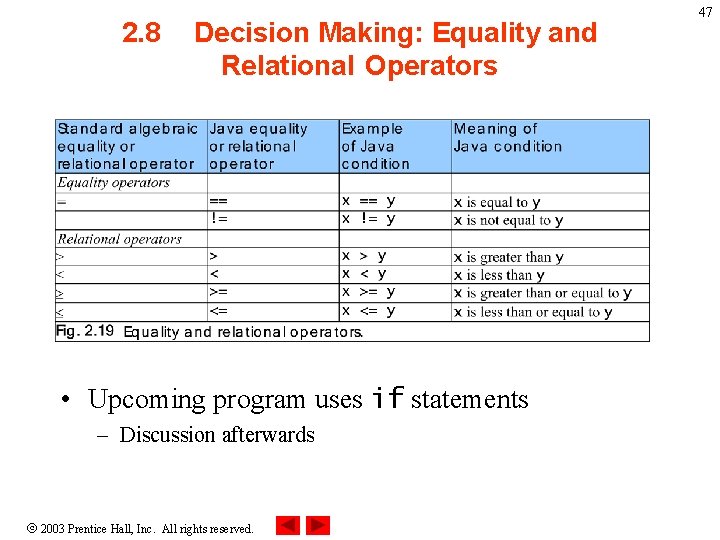
2. 8 Decision Making: Equality and Relational Operators • Upcoming program uses if statements – Discussion afterwards 2003 Prentice Hall, Inc. All rights reserved. 47
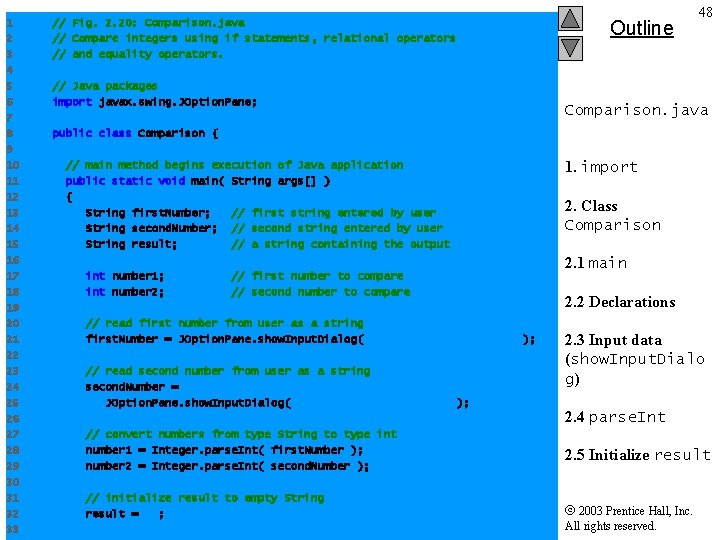
1 2 3 4 5 6 7 8 9 10 11 12 13 14 15 16 17 18 19 20 21 22 23 24 25 26 27 28 29 30 31 32 33 // Fig. 2. 20: Comparison. java // Compare integers using if statements, relational operators // and equality operators. // Java packages import javax. swing. JOption. Pane; Outline 48 Comparison. java public class Comparison { // main method begins execution of Java application public static void main( String args[] ) { String first. Number; // first string entered by user String second. Number; // second string entered by user String result; // a string containing the output int number 1; int number 2; // first number to compare // second number to compare // read first number from user as a string first. Number = JOption. Pane. show. Input. Dialog( "Enter first integer: " ); // read second number from user as a string second. Number = JOption. Pane. show. Input. Dialog( "Enter second integer: " ); 1. import 2. Class Comparison 2. 1 main 2. 2 Declarations 2. 3 Input data (show. Input. Dialo g) 2. 4 parse. Int // convert numbers from type String to type int number 1 = Integer. parse. Int( first. Number ); number 2 = Integer. parse. Int( second. Number ); 2. 5 Initialize result // initialize result to empty String result = ""; 2003 Prentice Hall, Inc. All rights reserved.
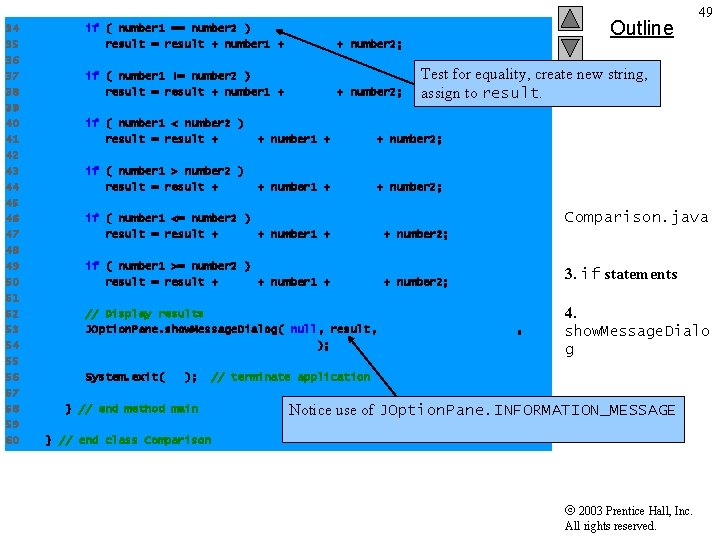
34 35 36 37 38 39 40 41 42 43 44 45 46 47 48 49 50 51 52 53 54 55 56 57 58 59 60 Outline if ( number 1 == number 2 ) result = result + number 1 + " == " + number 2; if ( number 1 != number 2 ) result = result + number 1 + " != " + number 2; 49 Test for equality, create new string, assign to result. if ( number 1 < number 2 ) result = result + "n" + number 1 + " < " + number 2; if ( number 1 > number 2 ) result = result + "n" + number 1 + " > " + number 2; if ( number 1 <= number 2 ) result = result + "n" + number 1 + " <= " + number 2; Comparison. java if ( number 1 >= number 2 ) result = result + "n" + number 1 + " >= " + number 2; 3. if statements // Display results JOption. Pane. show. Message. Dialog( null, result, "Comparison Results", JOption. Pane. INFORMATION_MESSAGE ); 4. System. exit( 0 ); } // end method main show. Message. Dialo g // terminate application Notice use of JOption. Pane. INFORMATION_MESSAGE } // end class Comparison 2003 Prentice Hall, Inc. All rights reserved.
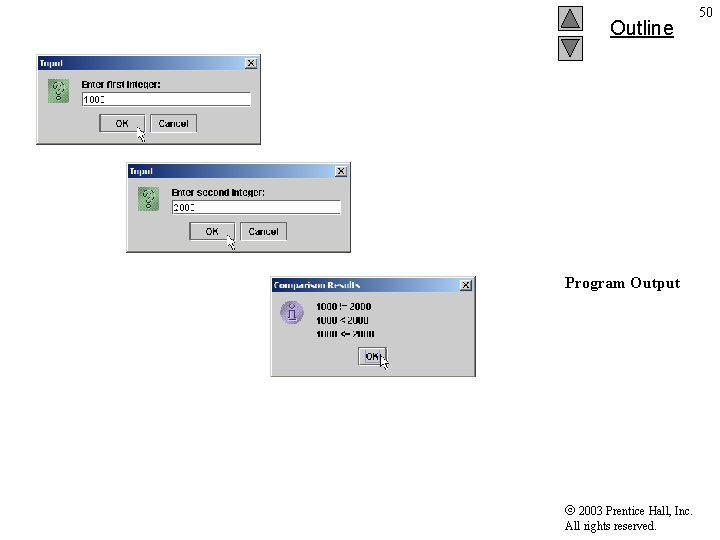
Outline Program Output 2003 Prentice Hall, Inc. All rights reserved. 50
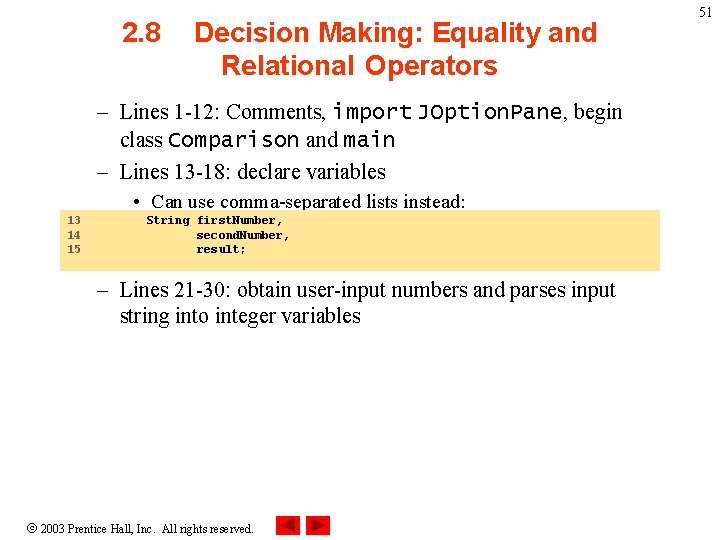
2. 8 Decision Making: Equality and Relational Operators – Lines 1 -12: Comments, import JOption. Pane, begin class Comparison and main – Lines 13 -18: declare variables • Can use comma-separated lists instead: 13 14 15 String first. Number, second. Number, result; – Lines 21 -30: obtain user-input numbers and parses input string into integer variables 2003 Prentice Hall, Inc. All rights reserved. 51
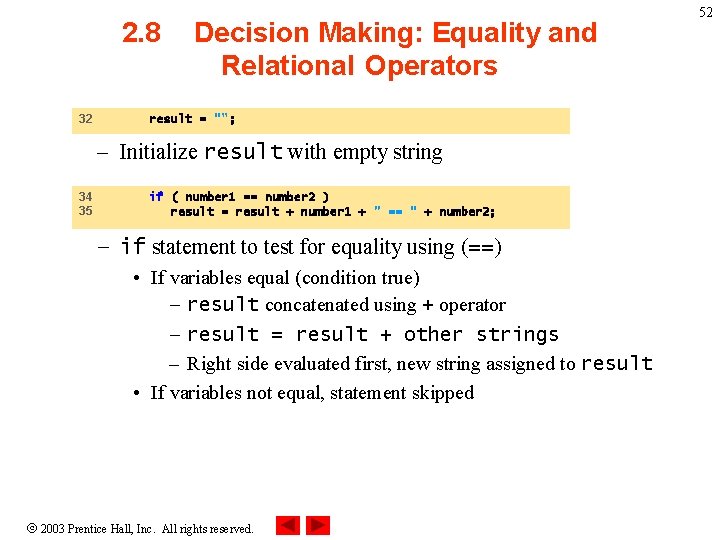
2. 8 32 Decision Making: Equality and Relational Operators result = ""; – Initialize result with empty string 34 35 if ( number 1 == number 2 ) result = result + number 1 + " == " + number 2; – if statement to test for equality using (==) • If variables equal (condition true) – result concatenated using + operator – result = result + other strings – Right side evaluated first, new string assigned to result • If variables not equal, statement skipped 2003 Prentice Hall, Inc. All rights reserved. 52
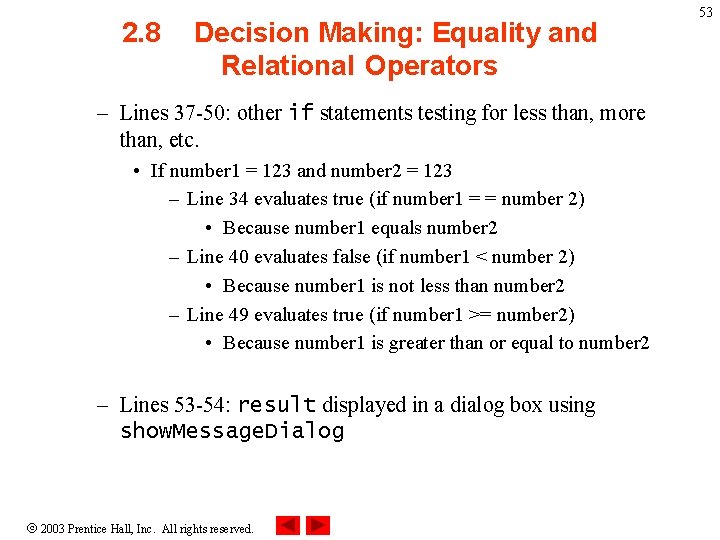
2. 8 Decision Making: Equality and Relational Operators – Lines 37 -50: other if statements testing for less than, more than, etc. • If number 1 = 123 and number 2 = 123 – Line 34 evaluates true (if number 1 = = number 2) • Because number 1 equals number 2 – Line 40 evaluates false (if number 1 < number 2) • Because number 1 is not less than number 2 – Line 49 evaluates true (if number 1 >= number 2) • Because number 1 is greater than or equal to number 2 – Lines 53 -54: result displayed in a dialog box using show. Message. Dialog 2003 Prentice Hall, Inc. All rights reserved. 53
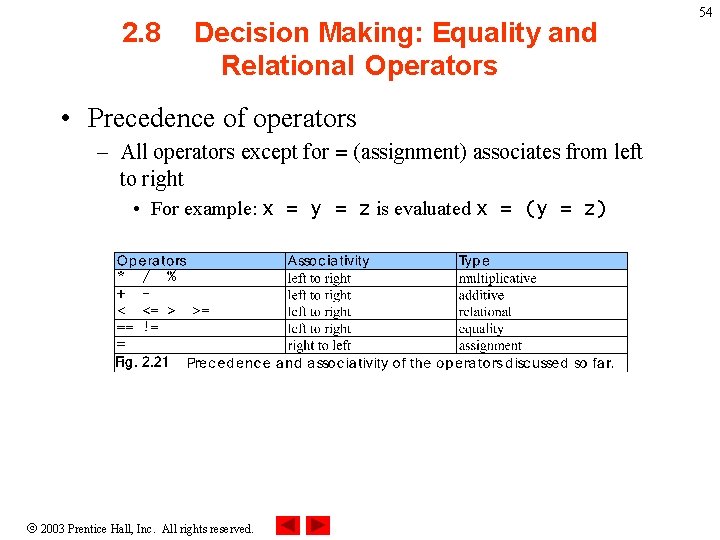
2. 8 Decision Making: Equality and Relational Operators • Precedence of operators – All operators except for = (assignment) associates from left to right • For example: x = y = z is evaluated x = (y = z) 2003 Prentice Hall, Inc. All rights reserved. 54
2. 9 (Optional Case Study) Thinking About Objects: Examining the Problem Statement • Emphasize object-oriented programming (OOP) • Object-oriented design (OOD) implementation – Chapters 3 to 14, 16, 19 – Appendices D, E, F 2003 Prentice Hall, Inc. All rights reserved. 55
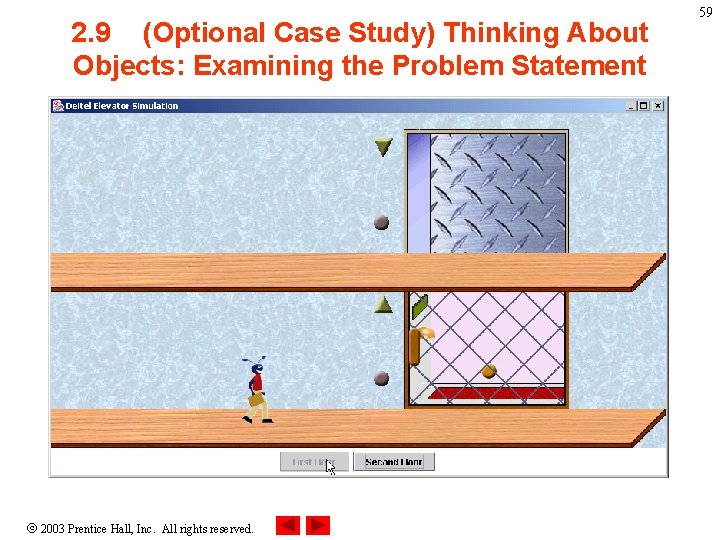
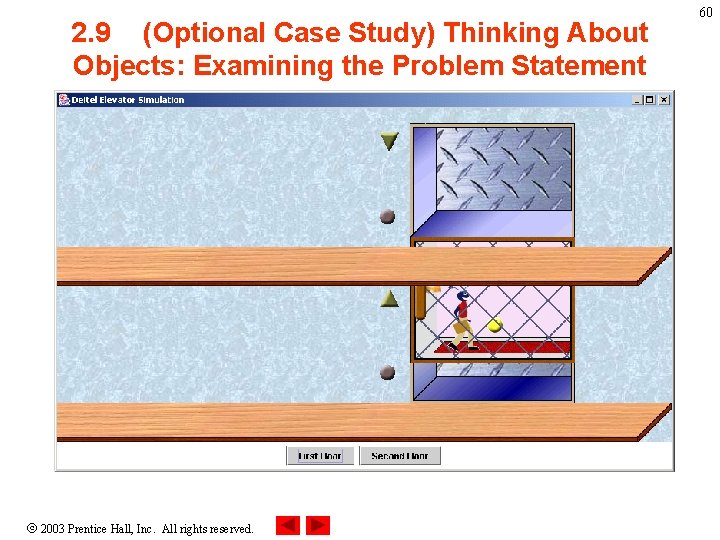
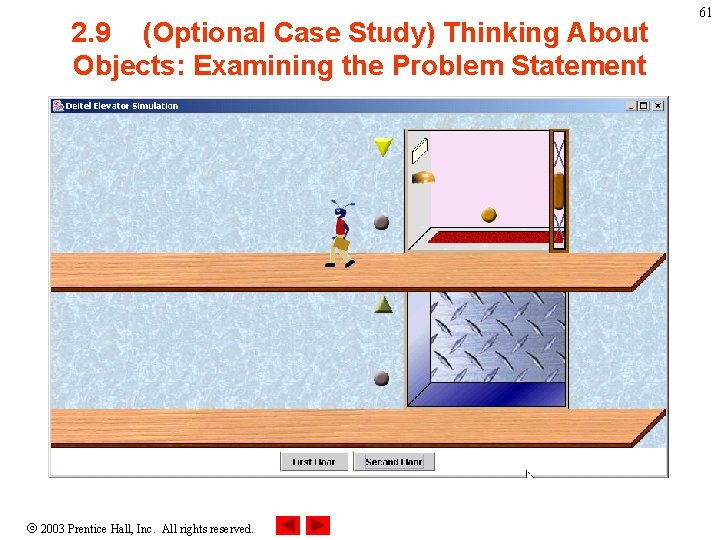
2. 9 (Optional Case Study) Thinking About Objects: Examining the Problem Statement • Program Goal – Software simulator application – 2 -floor elevator simulator • Models actual elevator operation – Elevator graphics displayed to user – Graphical user interface (GUI) • User can control elevator 2003 Prentice Hall, Inc. All rights reserved. 56
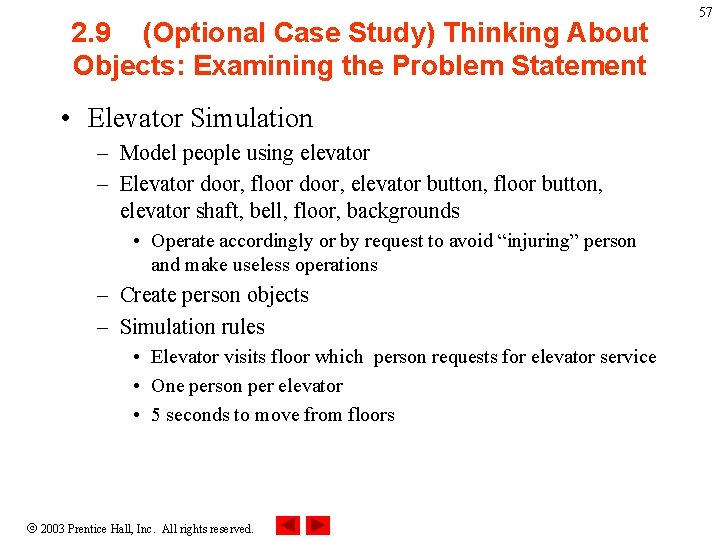
2. 9 (Optional Case Study) Thinking About Objects: Examining the Problem Statement • Elevator Simulation – Model people using elevator – Elevator door, floor door, elevator button, floor button, elevator shaft, bell, floor, backgrounds • Operate accordingly or by request to avoid “injuring” person and make useless operations – Create person objects – Simulation rules • Elevator visits floor which person requests for elevator service • One person per elevator • 5 seconds to move from floors 2003 Prentice Hall, Inc. All rights reserved. 57
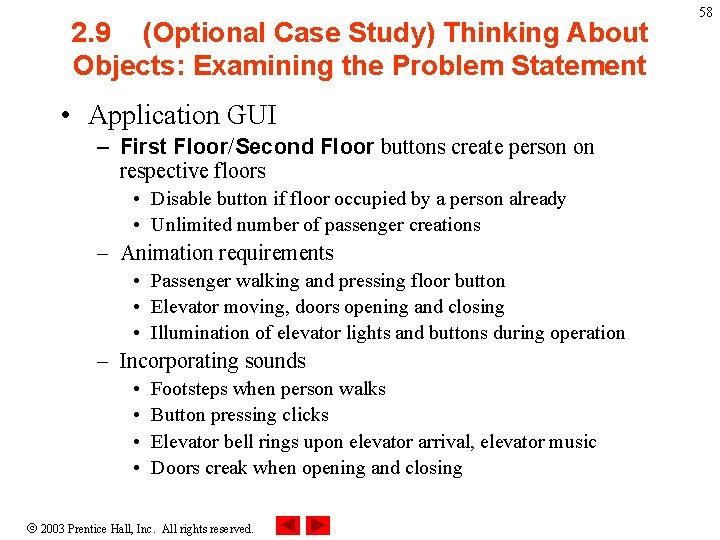
2. 9 (Optional Case Study) Thinking About Objects: Examining the Problem Statement • Application GUI – First Floor/Second Floor buttons create person on respective floors • Disable button if floor occupied by a person already • Unlimited number of passenger creations – Animation requirements • Passenger walking and pressing floor button • Elevator moving, doors opening and closing • Illumination of elevator lights and buttons during operation – Incorporating sounds • • Footsteps when person walks Button pressing clicks Elevator bell rings upon elevator arrival, elevator music Doors creak when opening and closing 2003 Prentice Hall, Inc. All rights reserved. 58
2. 9 (Optional Case Study) Thinking About Objects: Examining the Problem Statement 2003 Prentice Hall, Inc. All rights reserved. 59
2. 9 (Optional Case Study) Thinking About Objects: Examining the Problem Statement 2003 Prentice Hall, Inc. All rights reserved. 60
2. 9 (Optional Case Study) Thinking About Objects: Examining the Problem Statement 2003 Prentice Hall, Inc. All rights reserved. 61
2. 9 (Optional Case Study) Thinking About Objects: Examining the Problem Statement • Designing elevator system – Specified in requirements document through OOD analysis • UML • Design used to implement Java code – How system should be constructed to complete tasks • System Structure – System is a set of interactive components to solve problems • Simplified by subsystems – Simulator (through ch. 16), GUI (ch. 13 and 14, display (ch. 22) – Describes system’s objects and inter-relationships – System behavior describes how system changes through object interaction 2003 Prentice Hall, Inc. All rights reserved. 62
2. 9 (Optional Case Study) Thinking About Objects: Examining the Problem Statement • UML diagram types – System structure • Class diagram (section 3. 7) – Models classes, or “building blocks” of a system – Person, elevator, floor, etc. • Object diagrams (section 3. 7) – Snapshot (model) of system’s objects and relationships at specific point in time • Component diagrams (section 14. 13) – Model components such as graphics resources and class packages that make up the system • Deployment diagrams (not discussed) – Model hardware, memory and runtime resources 2003 Prentice Hall, Inc. All rights reserved. 63
2. 9 (Optional Case Study) Thinking About Objects: Examining the Problem Statement – System behavior • Statechart diagrams (section 5. 11) – Model how object changes state • Condition/behavior of an object at a specific time • Activity diagrams (section 5. 11) – Flowchart modeling order and actions performed by object • Collaboration diagrams (section 7. 10) – Emphasize what interactions occur • Sequence diagrams (section 16. 11) – Emphasize when interactions occur • Use-case diagrams (section 13. 17) – Represent interaction between user and system • Clicking elevator button 2003 Prentice Hall, Inc. All rights reserved. 64