
Chapter 2 Fundamentals I After completing this Chapter
- Slides: 43
Chapter 2: Fundamentals I
After completing this Chapter, you will be able to do the following: • Construct Geometric Figures • Use Coordinate Systems • Additional Constructing Geometric Figures • Object Selection • Modifying Objects
Construct Geometric Figures Auto. CAD provides various methods for constructing geometric figures üDrawing Lines üDrawing Rectangles
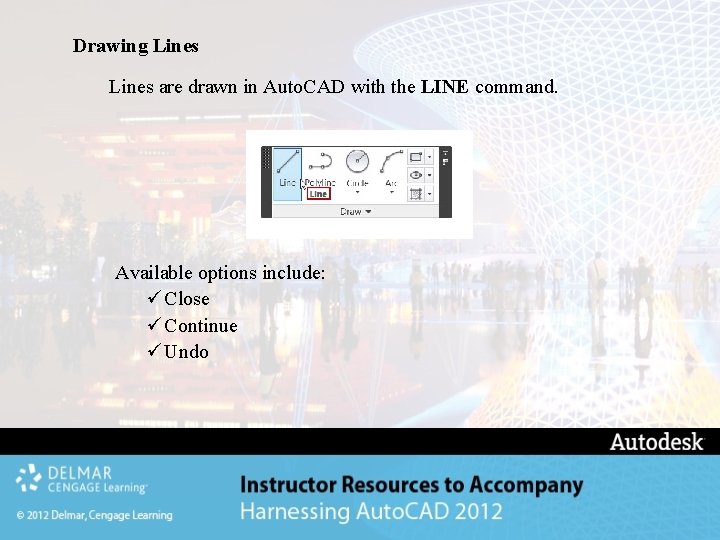
Drawing Lines are drawn in Auto. CAD with the LINE command. Available options include: ü Close ü Continue ü Undo
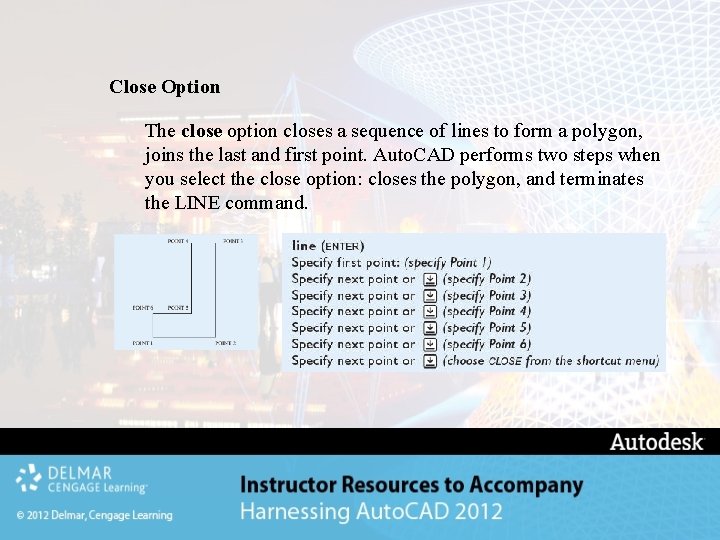
Close Option The close option closes a sequence of lines to form a polygon, joins the last and first point. Auto. CAD performs two steps when you select the close option: closes the polygon, and terminates the LINE command.
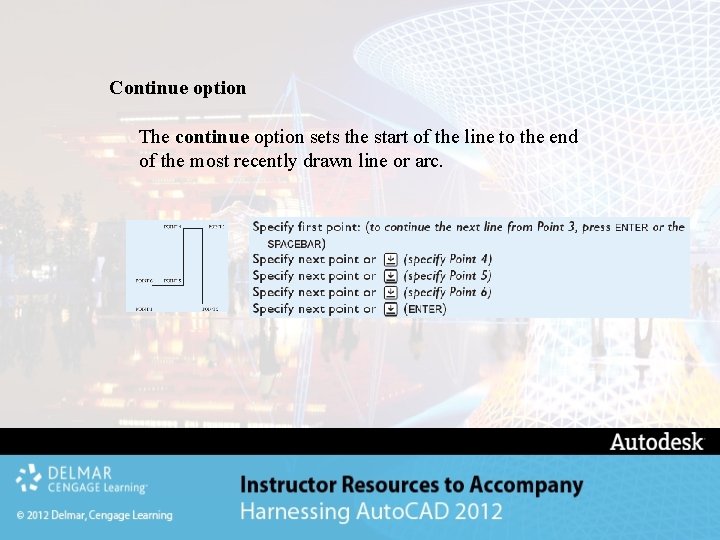
Continue option The continue option sets the start of the line to the end of the most recently drawn line or arc.
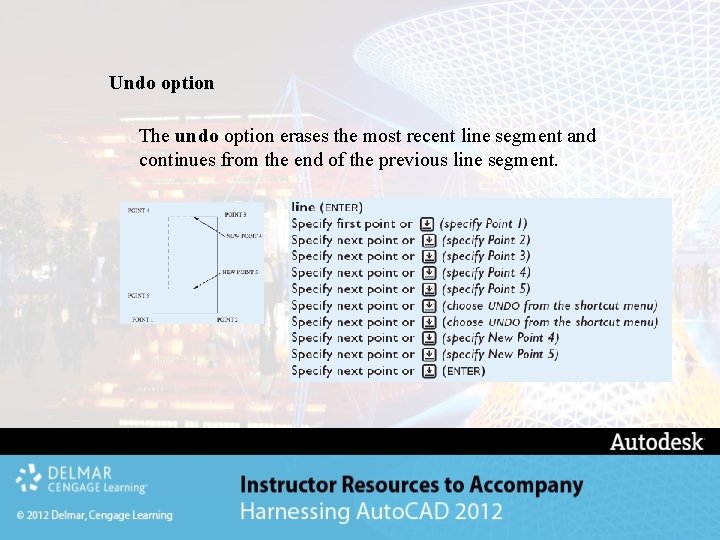
Undo option The undo option erases the most recent line segment and continues from the end of the previous line segment.
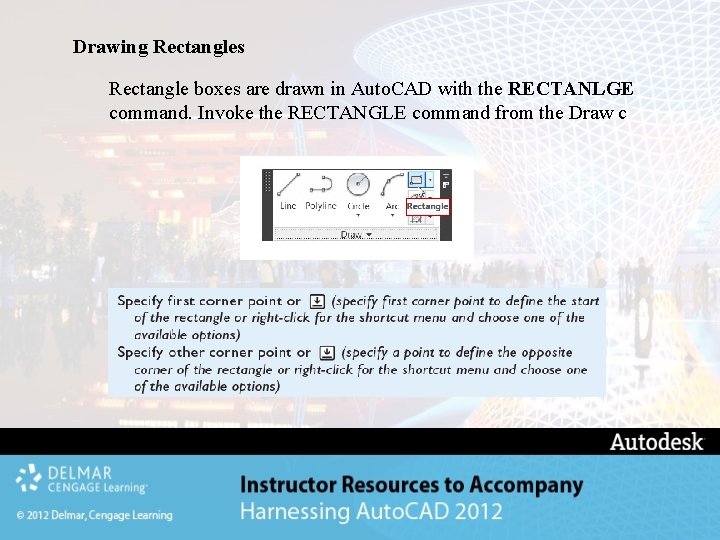
Drawing Rectangles Rectangle boxes are drawn in Auto. CAD with the RECTANLGE command. Invoke the RECTANGLE command from the Draw c
Coordinate Systems A coordinate system allows you to specify the locations of points in space or on a plane. In three-dimensional space, there are three commonly used coordinate systems. Each system uses a set of three numbers to describe the location of a point. Spherical Coordinate System Cylindrical Coordinate System Cartesian Coordinate System
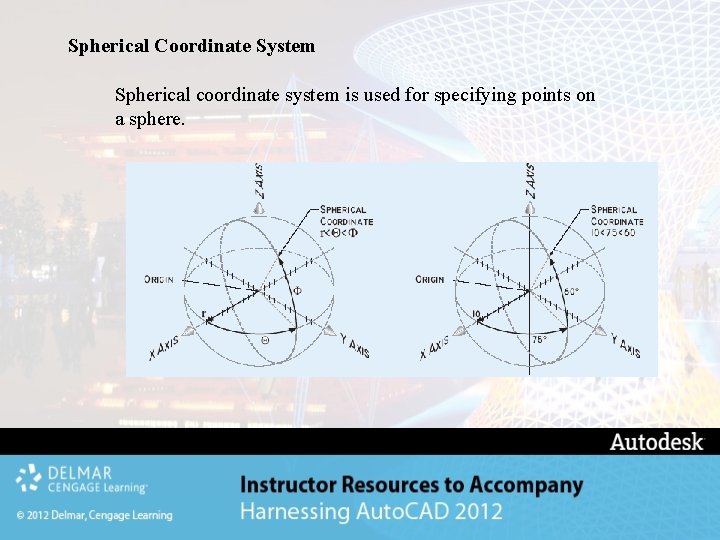
Spherical Coordinate System Spherical coordinate system is used for specifying points on a sphere.
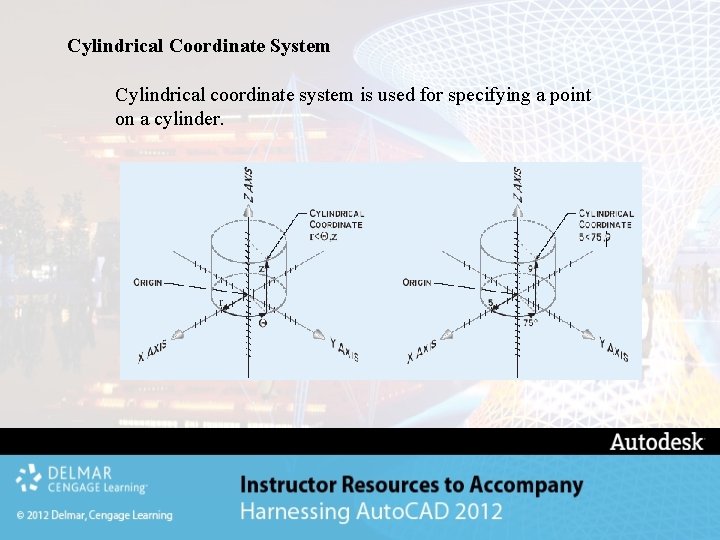
Cylindrical Coordinate System Cylindrical coordinate system is used for specifying a point on a cylinder.
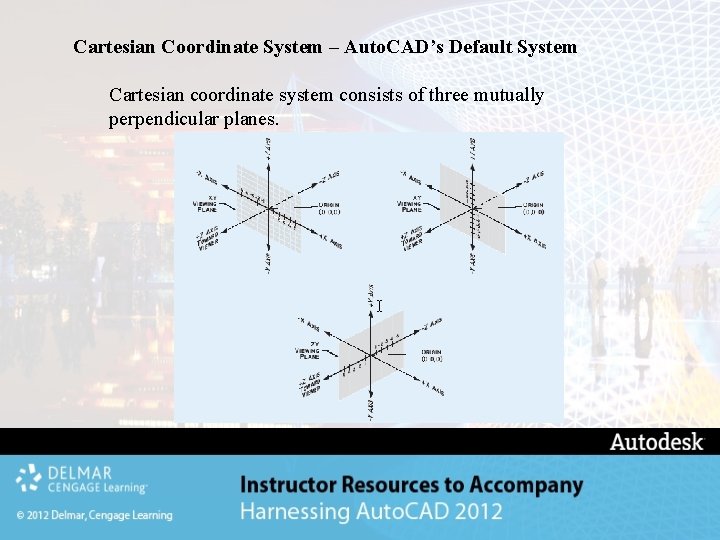
Cartesian Coordinate System – Auto. CAD’s Default System Cartesian coordinate system consists of three mutually perpendicular planes.
Auto. CAD provides two coordinate systems to locate a point: World Coordinate System (WCS) and User Coordinate System (UCS): The WCS (fixed) is designed in accordance with the conventions of the Cartesian coordinate system; horizontal distances increase in the positive X direction, toward the right, and vertical distances increase in the positive Y direction, upward. Distances perpendicular to the XY plane that you are viewing increase toward you in the positive Z direction. WCS is fixed but can be at any angle, side or rotation. The UCS (movable) is user defined version of the coordinate system and created with the UCS command.
Methods to Specify Points When a command prompts you for a point, you can use the pointing device to specify a point, or you can enter a coordinate value on the On-Screen point. You can enter coordinates either: üCartesian coordinate system ü Polar coordinate system
Cartesian coordinate system In Cartesian coordinate system a point's distance (in units) and its direction (+ or -) are indicated along the X, Y, and Z axes. You can enter absolute coordinates based on the origin (0, 0), or relative coordinates based on the last point specified. For example: 3, 4 --- indicates 3 units along x axis and 4 units along y axis measured from origin (0, 0, ) as absolute Coordinates. @3, 4 --- indicates 3 units along x axis and 4 units along y axis measured from previous point as relative Coordinates.
Polar coordinate system In Polar coordinate system a point is indicated in reference to a distance and an angle. By default the angle is measured in counter-clockwise direction from positive x axis. You can enter absolute coordinates based on the origin (0, 0), or relative coordinates based on the last point specified. For example: 3<45 --- indicates 3 units measured from origin as distance and 45 degrees measured counter-clockwise direction from x axis. @3<45 --- indicates 3 units measured from previous point and 45 degrees measured counter-clockwise direction from x axis. .
OVERRIDES FOR ABSOLUTE/RELATIVE COORDINATE ENTRY If you use Dynamic Input, you should specify absolute coordinates with the # prefix (default setting) at the on-screen prompt. If you enter coordinates on the command line instead of in the on-screen prompt, the # prefix is not used.
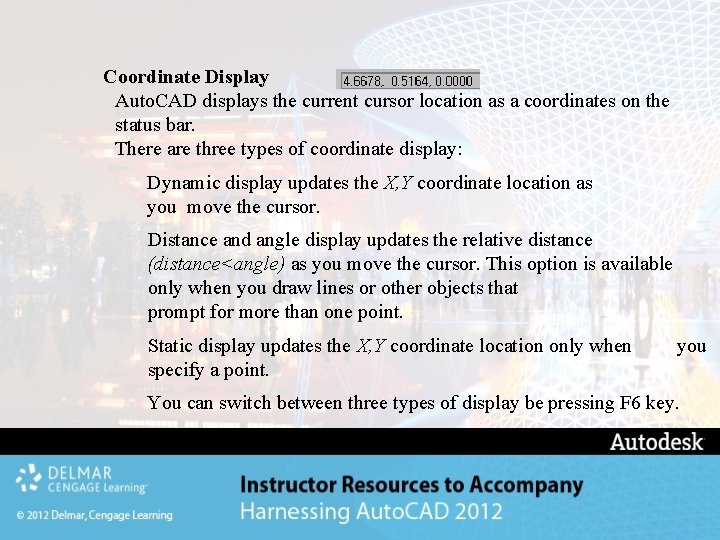
Coordinate Display Auto. CAD displays the current cursor location as a coordinates on the status bar. There are three types of coordinate display: Dynamic display updates the X, Y coordinate location as you move the cursor. Distance and angle display updates the relative distance (distance<angle) as you move the cursor. This option is available only when you draw lines or other objects that prompt for more than one point. Static display updates the X, Y coordinate location only when specify a point. you You can switch between three types of display be pressing F 6 key.
Additional Constructing Geometric Figures Auto. CAD provides various methods for constructing geometric figures üDrawing Circles üDrawing Arcs
Drawing Circles The CIRCLE command offers five different options for drawing circle: üCenter-Radius üCenter-Diameter ü 3 Points ü 2 Points üTangent, Radius (ttr)
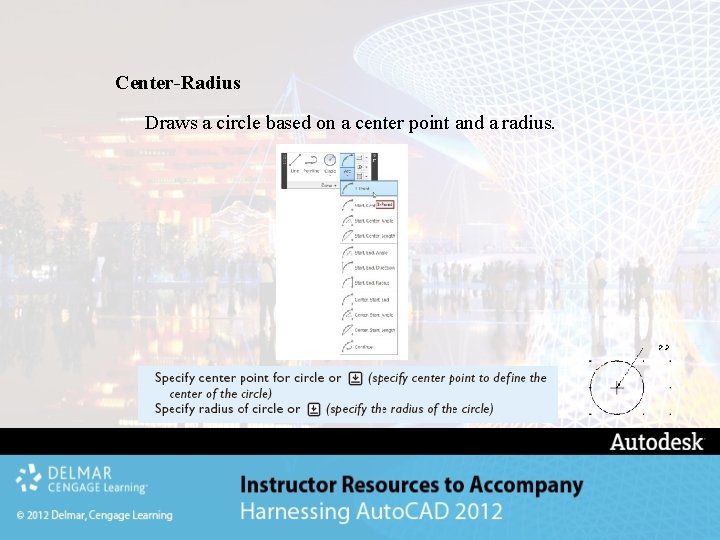
Center-Radius Draws a circle based on a center point and a radius.
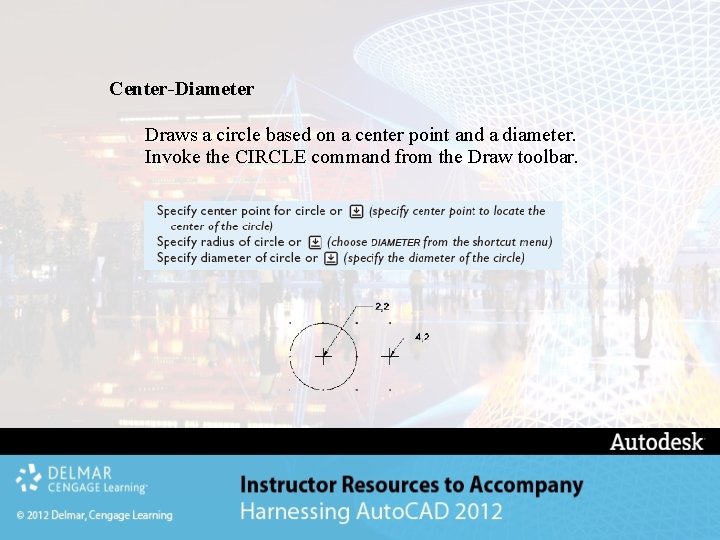
Center-Diameter Draws a circle based on a center point and a diameter. Invoke the CIRCLE command from the Draw toolbar.
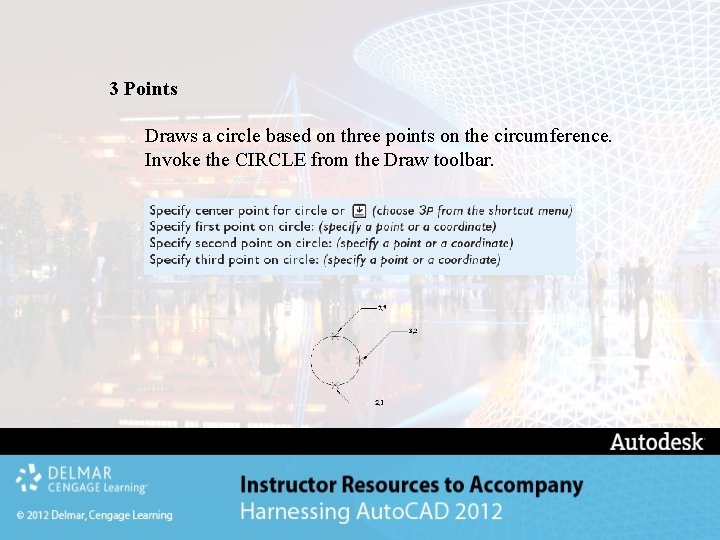
3 Points Draws a circle based on three points on the circumference. Invoke the CIRCLE from the Draw toolbar.
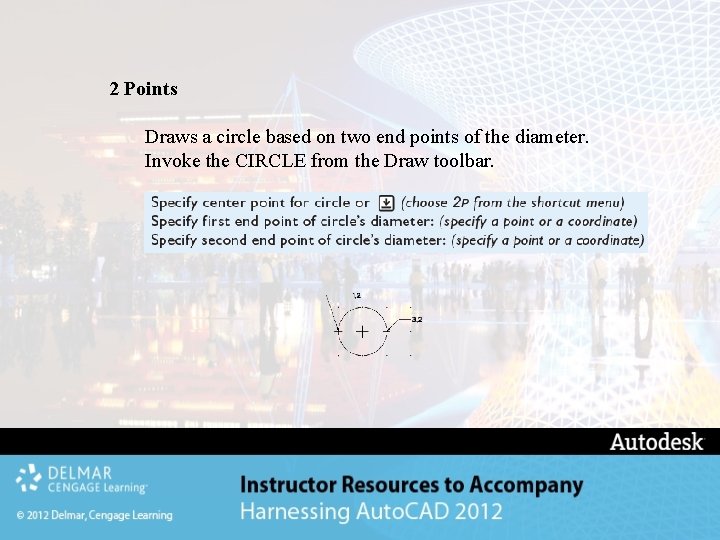
2 Points Draws a circle based on two end points of the diameter. Invoke the CIRCLE from the Draw toolbar.
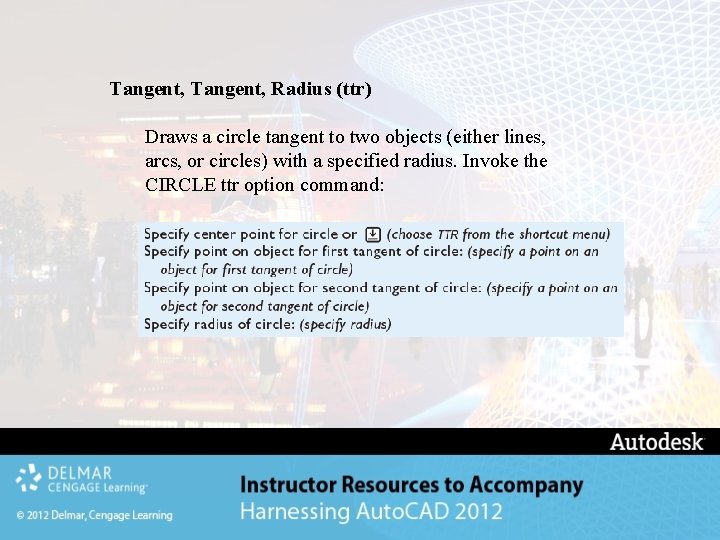
Tangent, Radius (ttr) Draws a circle tangent to two objects (either lines, arcs, or circles) with a specified radius. Invoke the CIRCLE ttr option command:
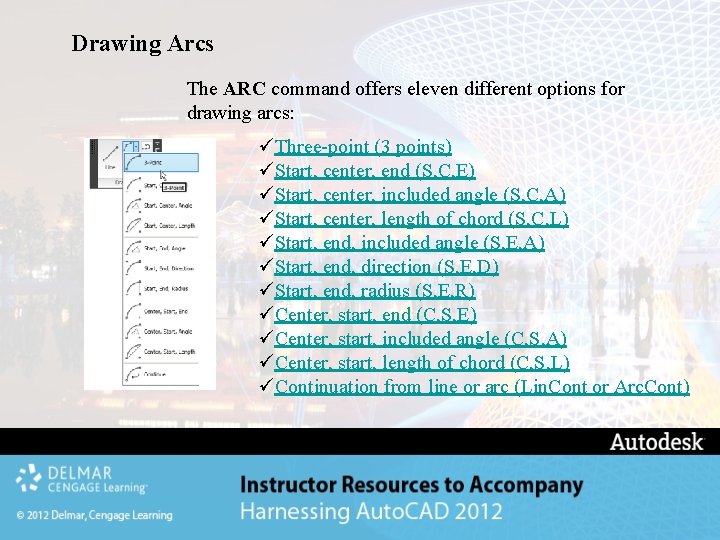
Drawing Arcs The ARC command offers eleven different options for drawing arcs: üThree-point (3 points) üStart, center, end (S, C, E) üStart, center, included angle (S, C, A) üStart, center, length of chord (S, C, L) üStart, end, included angle (S, E, A) üStart, end, direction (S, E, D) üStart, end, radius (S, E, R) üCenter, start, end (C, S, E) üCenter, start, included angle (C, S, A) üCenter, start, length of chord (C, S, L) üContinuation from line or arc (Lin. Cont or Arc. Cont)
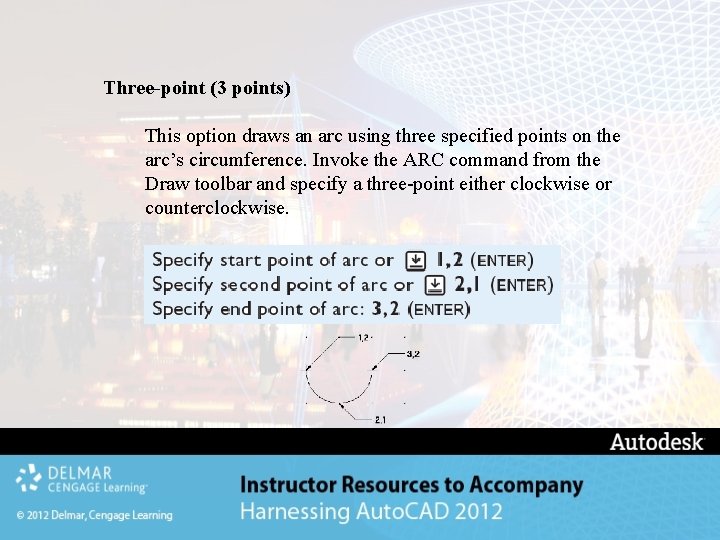
Three-point (3 points) This option draws an arc using three specified points on the arc’s circumference. Invoke the ARC command from the Draw toolbar and specify a three-point either clockwise or counterclockwise.
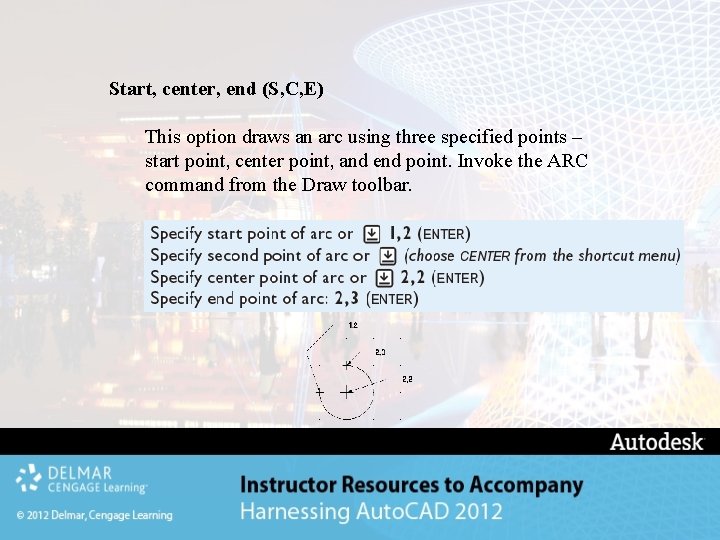
Start, center, end (S, C, E) This option draws an arc using three specified points – start point, center point, and end point. Invoke the ARC command from the Draw toolbar.
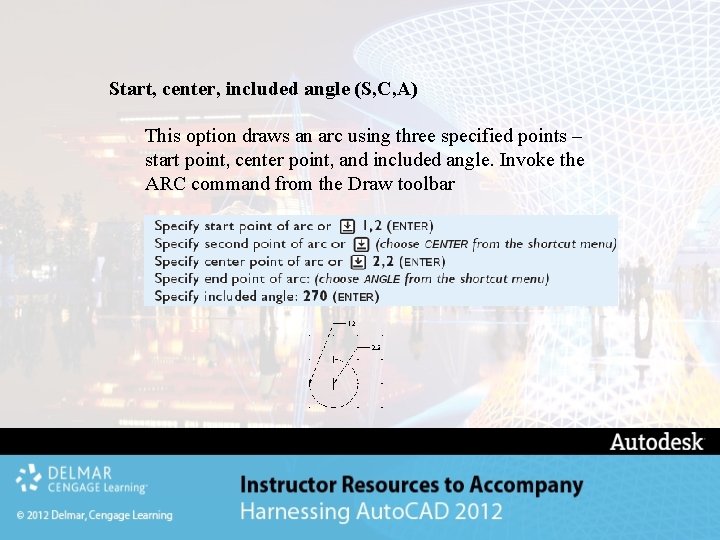
Start, center, included angle (S, C, A) This option draws an arc using three specified points – start point, center point, and included angle. Invoke the ARC command from the Draw toolbar
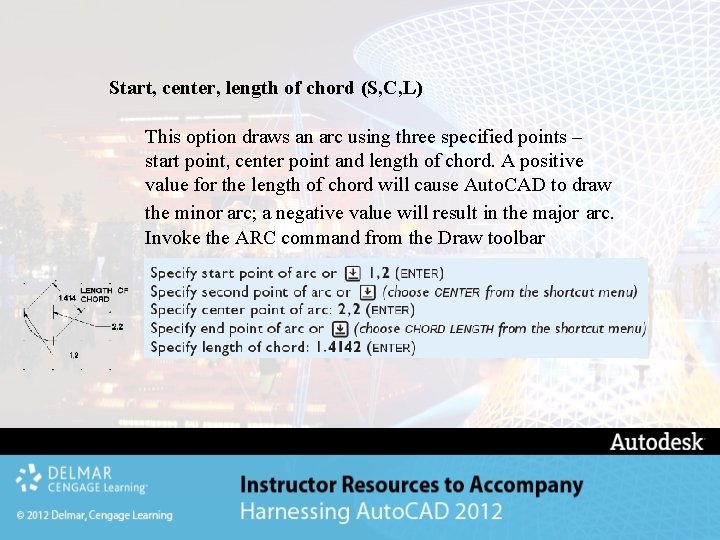
Start, center, length of chord (S, C, L) This option draws an arc using three specified points – start point, center point and length of chord. A positive value for the length of chord will cause Auto. CAD to draw the minor arc; a negative value will result in the major arc. Invoke the ARC command from the Draw toolbar
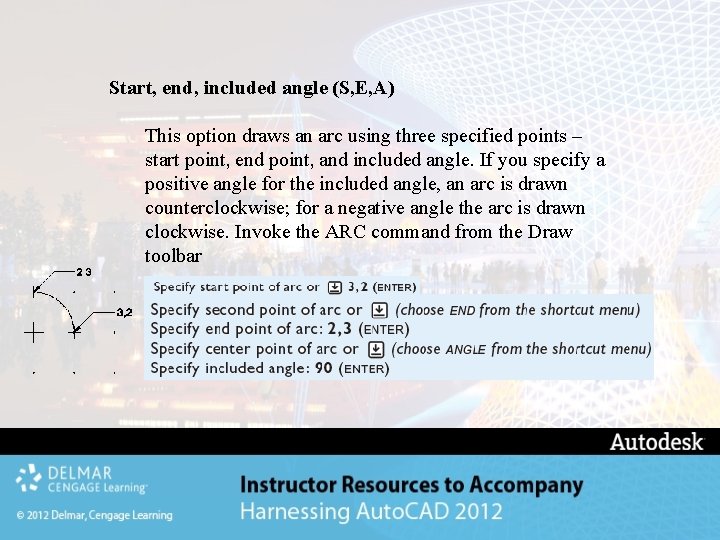
Start, end, included angle (S, E, A) This option draws an arc using three specified points – start point, end point, and included angle. If you specify a positive angle for the included angle, an arc is drawn counterclockwise; for a negative angle the arc is drawn clockwise. Invoke the ARC command from the Draw toolbar
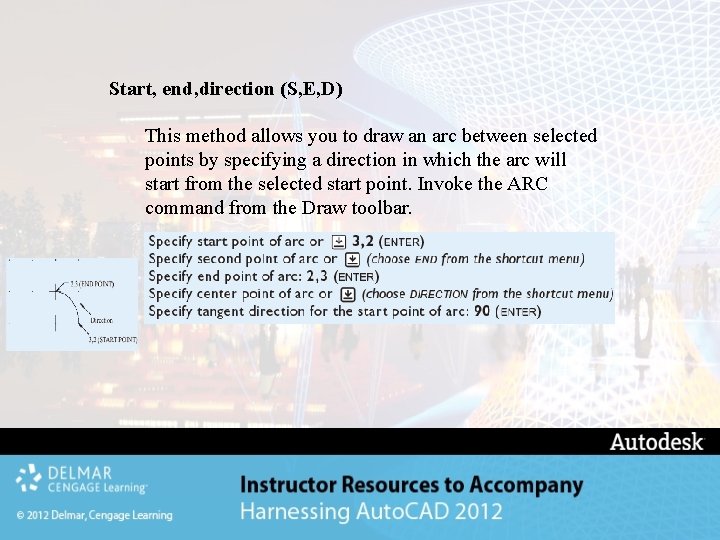
Start, end, direction (S, E, D) This method allows you to draw an arc between selected points by specifying a direction in which the arc will start from the selected start point. Invoke the ARC command from the Draw toolbar.
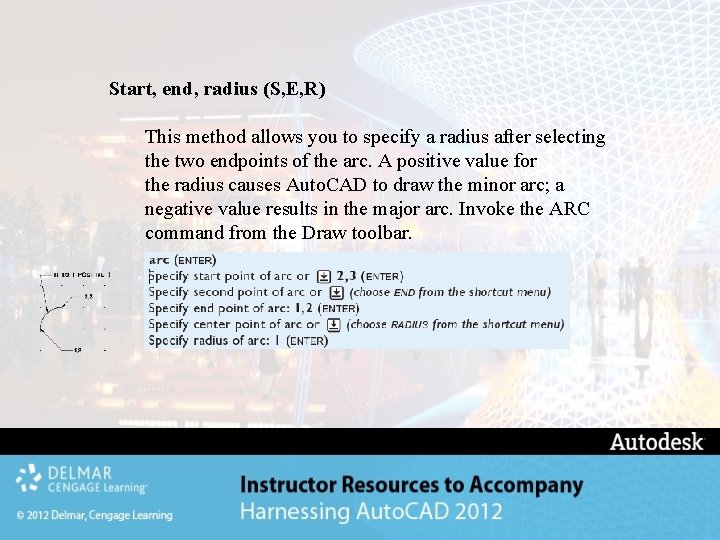
Start, end, radius (S, E, R) This method allows you to specify a radius after selecting the two endpoints of the arc. A positive value for the radius causes Auto. CAD to draw the minor arc; a negative value results in the major arc. Invoke the ARC command from the Draw toolbar.
Center, start, end (C, S, E) This method is similar to the Start, Center, End (S, C, E) method, except in this option the beginning point is the center point of the arc rather than the start point. Center, start, included angle (C, S, A) This method is similar to the Start, Center, Angle (S, C, A) method, except in this option the beginning point is the center point of the arc rather than the start point. Center, start, length of chord (C, S, L) This method is similar to the Start, Center, Length (S, C, L) method, except that the beginning point is the center point of the arc rather than the start point.
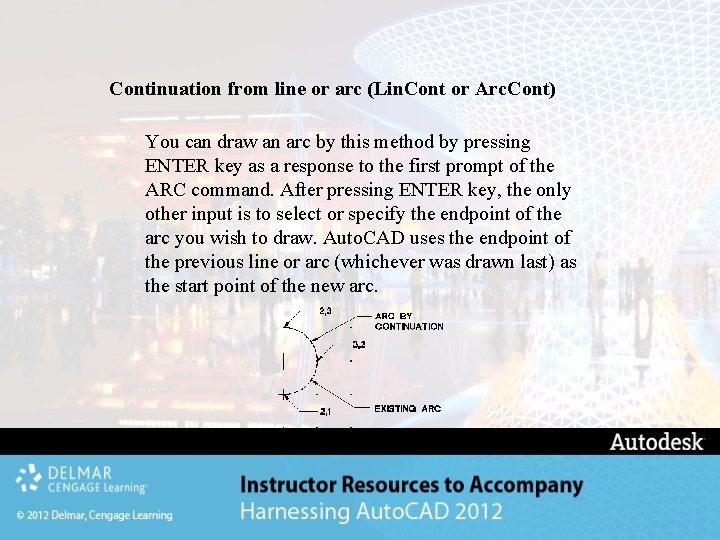
Continuation from line or arc (Lin. Cont or Arc. Cont) You can draw an arc by this method by pressing ENTER key as a response to the first prompt of the ARC command. After pressing ENTER key, the only other input is to select or specify the endpoint of the arc you wish to draw. Auto. CAD uses the endpoint of the previous line or arc (whichever was drawn last) as the start point of the new arc.
Object Selection The group of objects selected for the modification is called the selection set. There are several different ways of selecting the objects for modification and some of the methods include: üWindow Option üCrossing Option üPrevious Option üLast Option
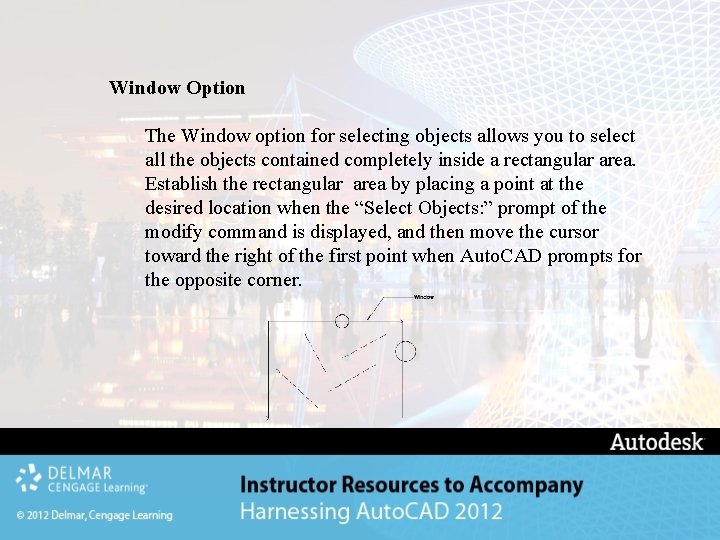
Window Option The Window option for selecting objects allows you to select all the objects contained completely inside a rectangular area. Establish the rectangular area by placing a point at the desired location when the “Select Objects: ” prompt of the modify command is displayed, and then move the cursor toward the right of the first point when Auto. CAD prompts for the opposite corner.
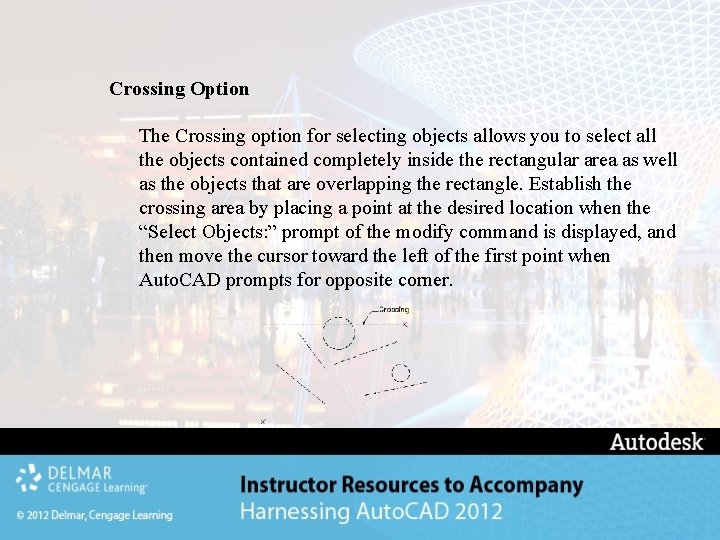
Crossing Option The Crossing option for selecting objects allows you to select all the objects contained completely inside the rectangular area as well as the objects that are overlapping the rectangle. Establish the crossing area by placing a point at the desired location when the “Select Objects: ” prompt of the modify command is displayed, and then move the cursor toward the left of the first point when Auto. CAD prompts for opposite corner.
Previous Option Auto. CAD remembers the most recent selection set and allows you to reselect it with the Previous option. For example, if you moved several objects and now wish to copy them else-where, you can invoke the COPY command respond to the “Select objects: ” prompt by entering P to select the same group objects again.
Last Option The Last option is an easy way to select the most recently created object currently visible. Invoke the appropriate modify command enter L for last option at the “Select Objects: ” prompt.
Modify Objects Auto. CAD not only allows you to draw objects easily, but also allows you to modify the objects you have drawn. Of the many modifying commands available, the ERASE command will probably be the one use most often. üErasing Objects üGetting it back
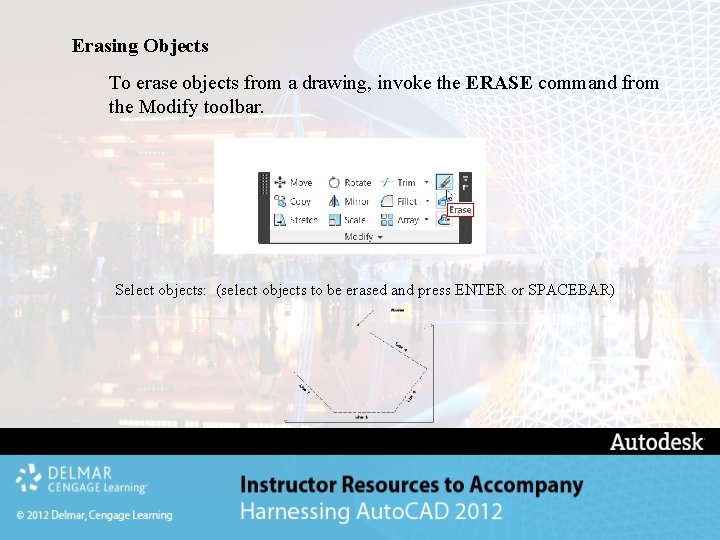
Erasing Objects To erase objects from a drawing, invoke the ERASE command from the Modify toolbar. Select objects: (select objects to be erased and press ENTER or SPACEBAR)
Getting it back The OOPS command restores objects that have been unintentionally erased. When ever the ERASE command is used, the last group of objects erased is stored in memory. The OOPS command will restore the objects; it can be used at any time. It only restores the objects erased by the most recent erase command. Invoke the OOPS command at the On-screen prompt and restores the last group of objects erased.