
Chapter 2 Computer Hardware Computer Concepts 2013 2
- Slides: 44
Chapter 2 Computer Hardware Computer Concepts 2013
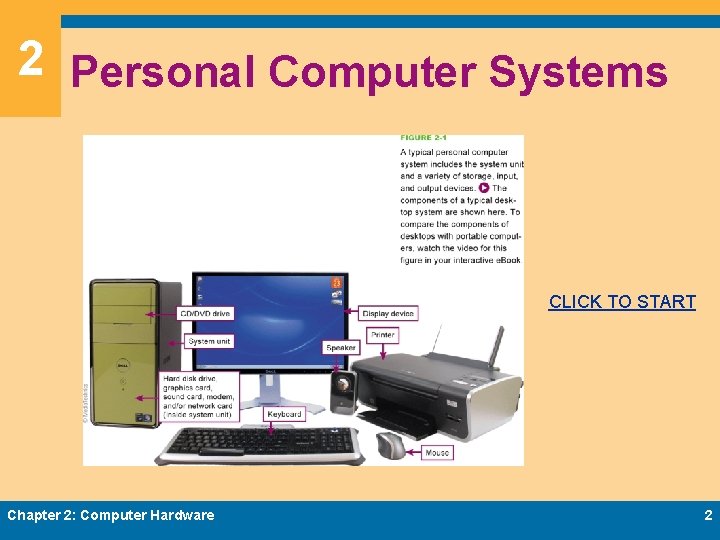
2 Personal Computer Systems CLICK TO START Chapter 2: Computer Hardware 2
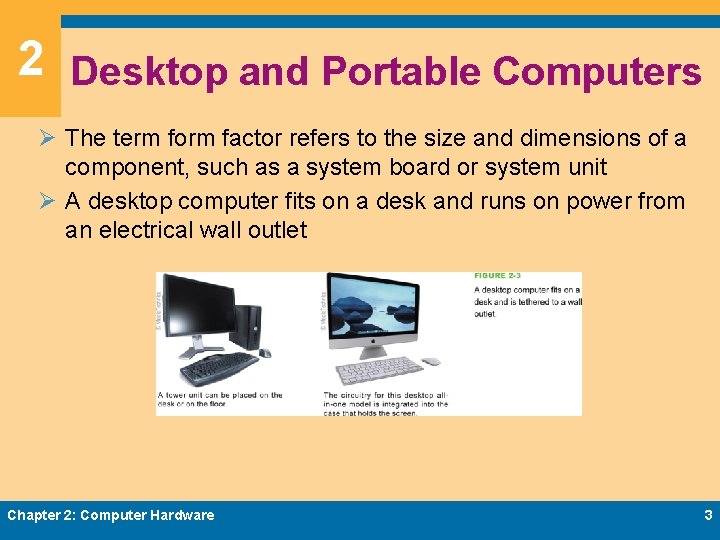
2 Desktop and Portable Computers Ø The term form factor refers to the size and dimensions of a component, such as a system board or system unit Ø A desktop computer fits on a desk and runs on power from an electrical wall outlet Chapter 2: Computer Hardware 3
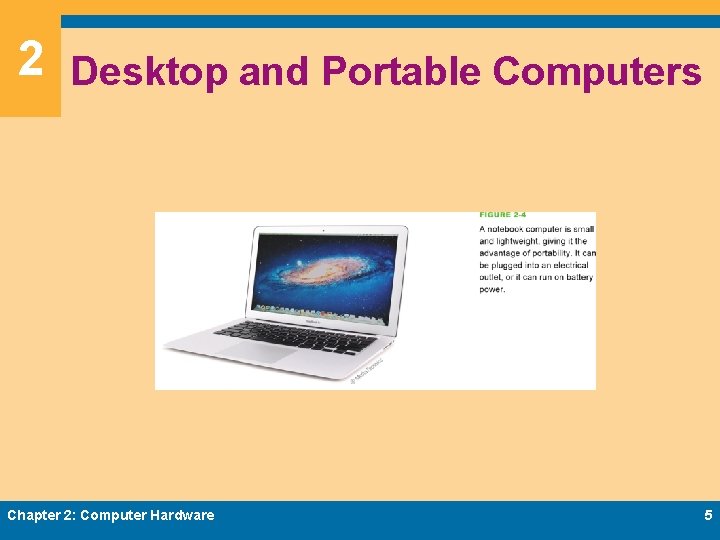
2 Desktop and Portable Computers Ø A portable computer is a small, lightweight personal computer Ø A notebook computer (also referred to as a laptop) is a small, lightweight portable computer that opens like a clamshell to reveal a screen and keyboard Ø A netbook is a small version of a notebook computer Chapter 2: Computer Hardware 4
2 Desktop and Portable Computers Chapter 2: Computer Hardware 5
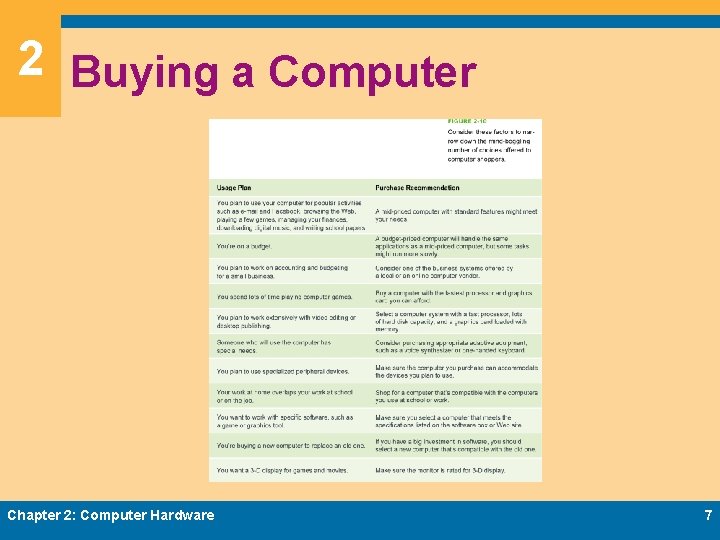
2 Buying a Computer Ø Browse through computer magazines and online computer stores to get a general idea of features and prices Ø Decide on a budget and stick to it Ø Make a list of the ways you plan to use your computer Ø Select a platform Ø Decide on a form factor Ø Select peripherals, software, and accessories Chapter 2: Computer Hardware 6
2 Buying a Computer Chapter 2: Computer Hardware 7
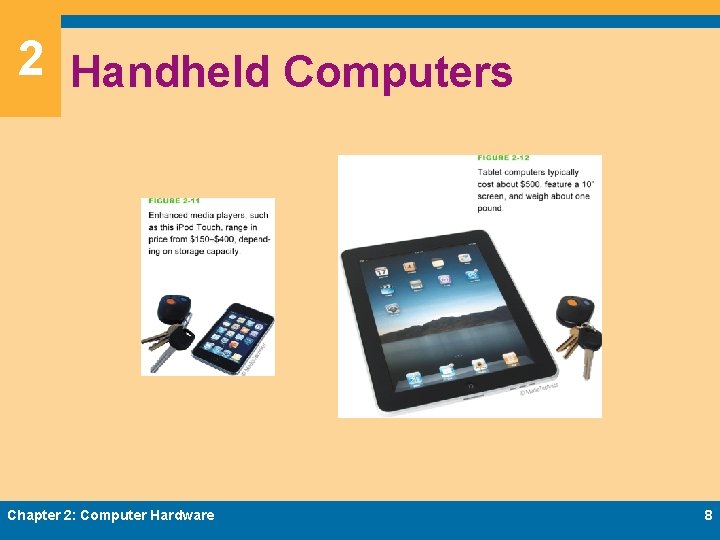
2 Handheld Computers Chapter 2: Computer Hardware 8
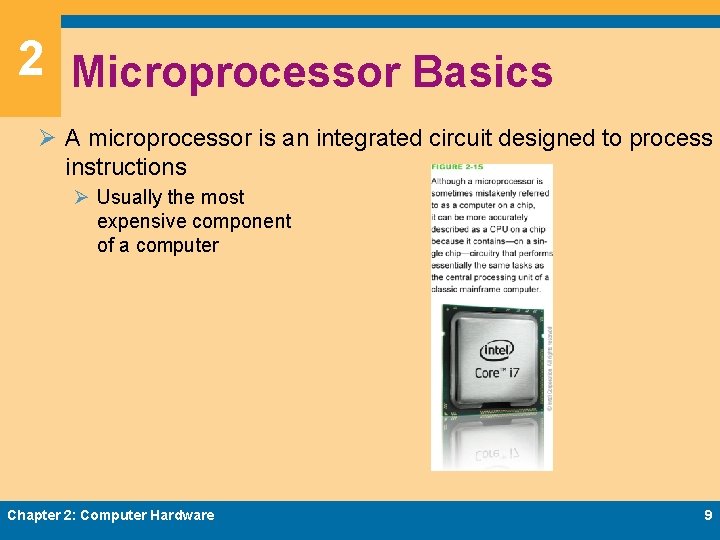
2 Microprocessor Basics Ø A microprocessor is an integrated circuit designed to process instructions Ø Usually the most expensive component of a computer Chapter 2: Computer Hardware 9
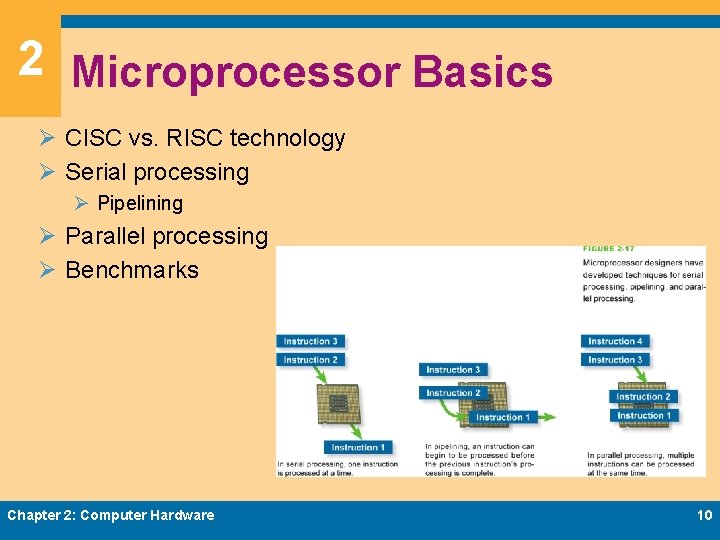
2 Microprocessor Basics Ø CISC vs. RISC technology Ø Serial processing Ø Pipelining Ø Parallel processing Ø Benchmarks Chapter 2: Computer Hardware 10
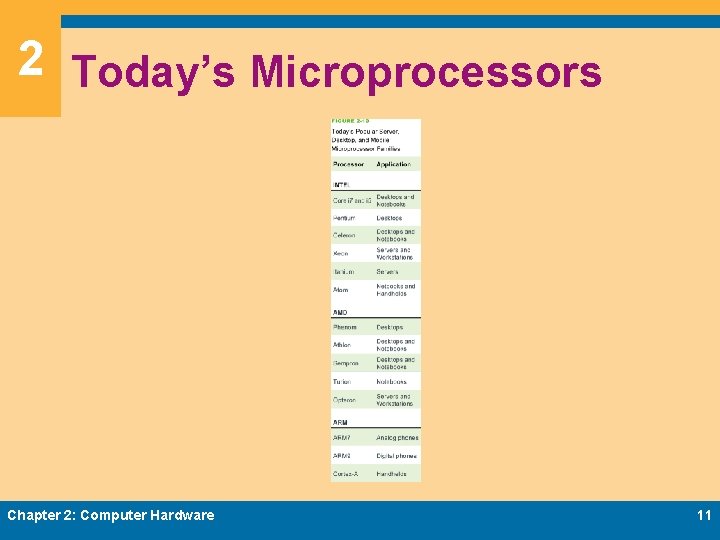
2 Today’s Microprocessors Chapter 2: Computer Hardware 11
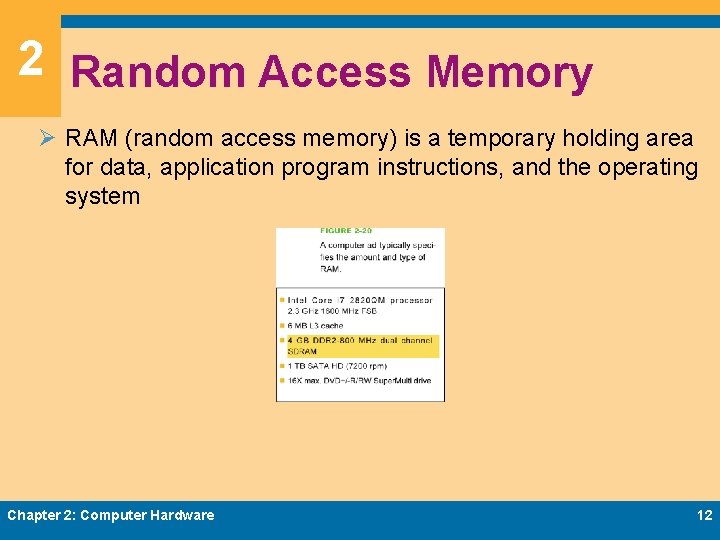
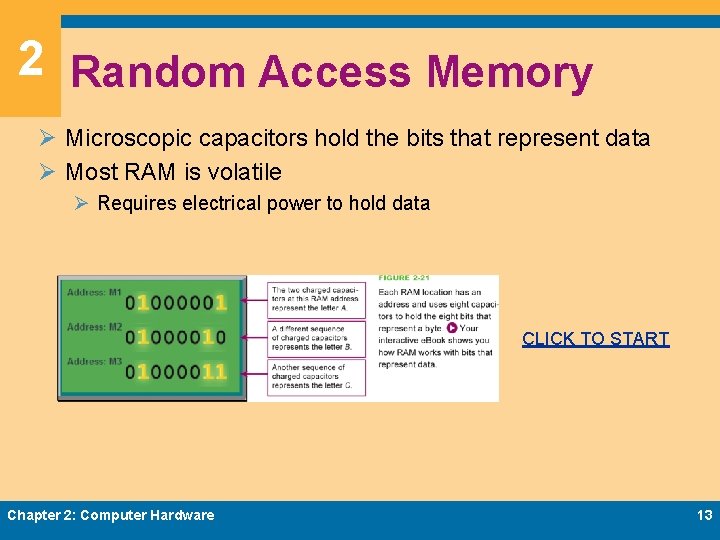
2 Random Access Memory Ø RAM (random access memory) is a temporary holding area for data, application program instructions, and the operating system Chapter 2: Computer Hardware 12
2 Random Access Memory Ø Microscopic capacitors hold the bits that represent data Ø Most RAM is volatile Ø Requires electrical power to hold data CLICK TO START Chapter 2: Computer Hardware 13
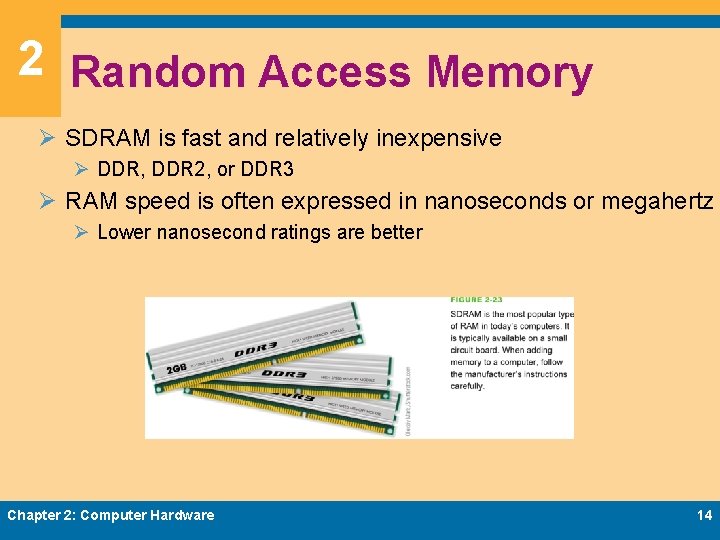
2 Random Access Memory Ø SDRAM is fast and relatively inexpensive Ø DDR, DDR 2, or DDR 3 Ø RAM speed is often expressed in nanoseconds or megahertz Ø Lower nanosecond ratings are better Chapter 2: Computer Hardware 14
2 Read-Only Memory Ø ROM is a type of memory circuitry that holds the computer’s startup routine Ø Permanent and non-volatile Ø The ROM BIOS tells the computer how to access the hard disk, find the operating system, and load it into RAM Chapter 2: Computer Hardware 15
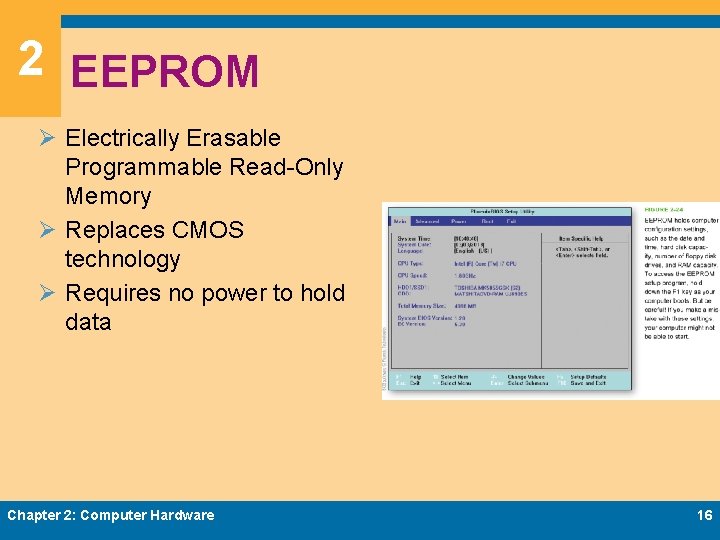
2 EEPROM Ø Electrically Erasable Programmable Read-Only Memory Ø Replaces CMOS technology Ø Requires no power to hold data Chapter 2: Computer Hardware 16
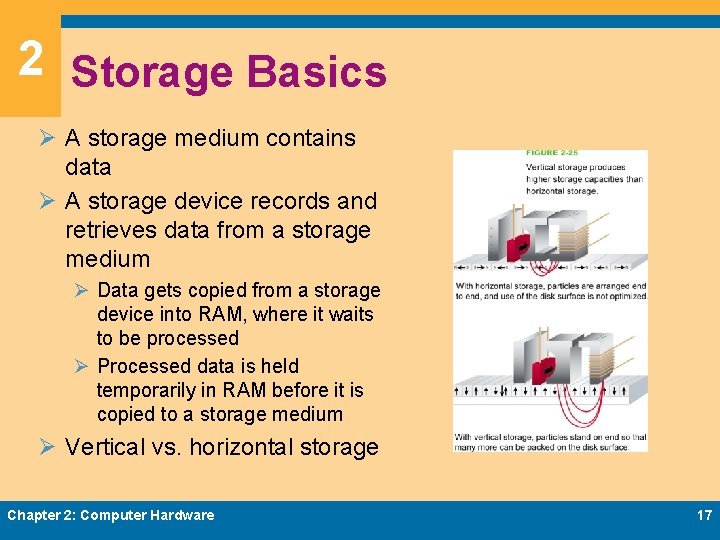
2 Storage Basics Ø A storage medium contains data Ø A storage device records and retrieves data from a storage medium Ø Data gets copied from a storage device into RAM, where it waits to be processed Ø Processed data is held temporarily in RAM before it is copied to a storage medium Ø Vertical vs. horizontal storage Chapter 2: Computer Hardware 17
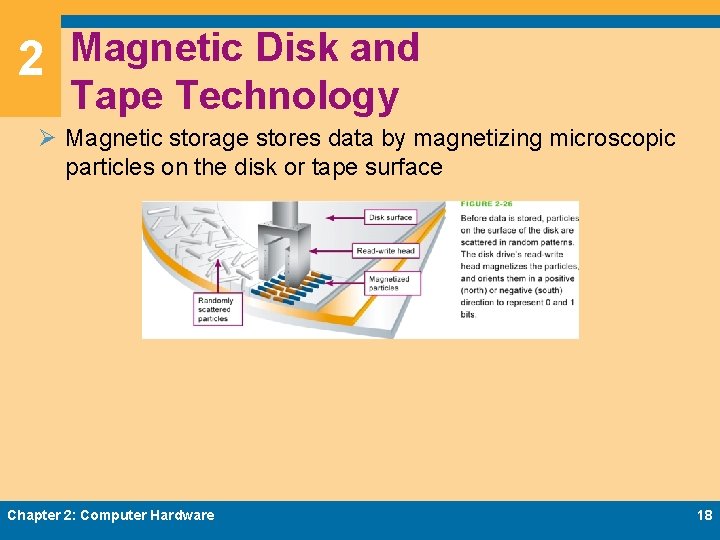
2 Magnetic Disk and Tape Technology Ø Magnetic storage stores data by magnetizing microscopic particles on the disk or tape surface Chapter 2: Computer Hardware 18
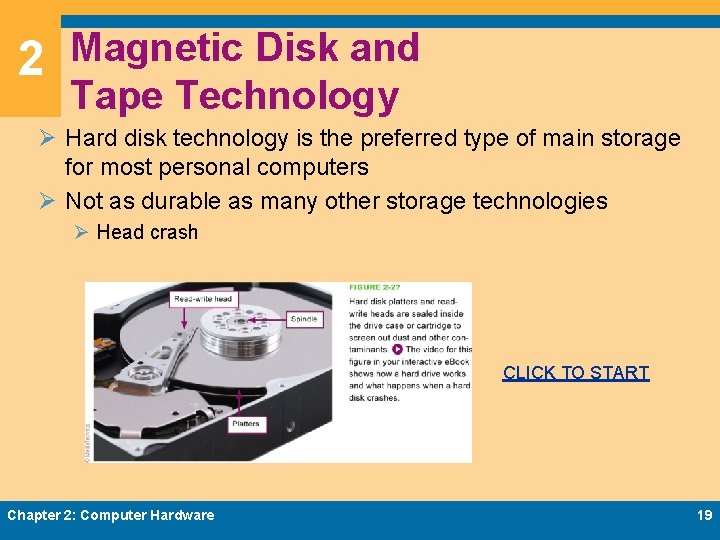
2 Magnetic Disk and Tape Technology Ø Hard disk technology is the preferred type of main storage for most personal computers Ø Not as durable as many other storage technologies Ø Head crash CLICK TO START Chapter 2: Computer Hardware 19
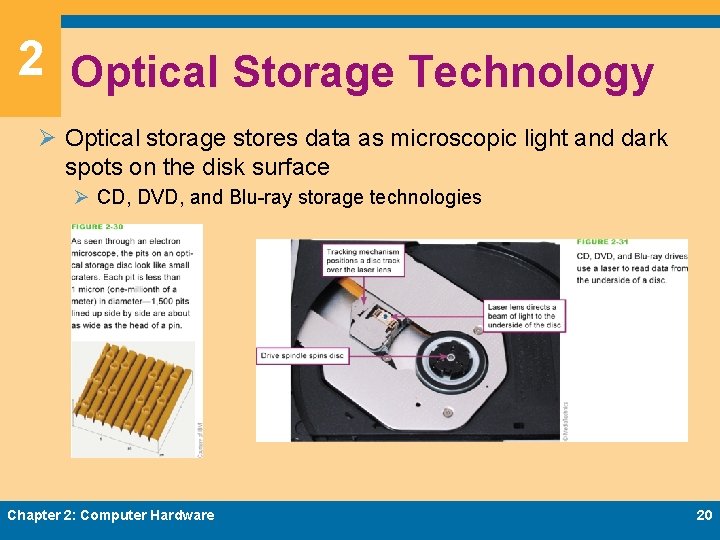
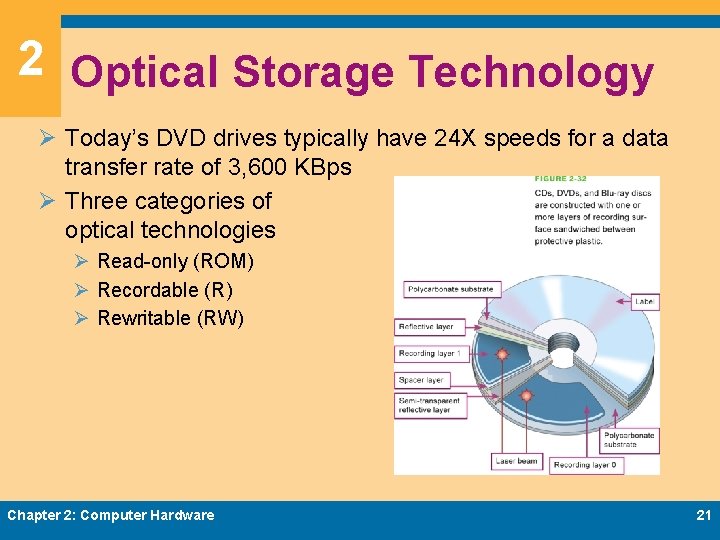
2 Optical Storage Technology Ø Optical storage stores data as microscopic light and dark spots on the disk surface Ø CD, DVD, and Blu-ray storage technologies Chapter 2: Computer Hardware 20
2 Optical Storage Technology Ø Today’s DVD drives typically have 24 X speeds for a data transfer rate of 3, 600 KBps Ø Three categories of optical technologies Ø Read-only (ROM) Ø Recordable (R) Ø Rewritable (RW) Chapter 2: Computer Hardware 21
2 Optical Storage Technology Ø Ø Ø Ø Ø CDDA DVD-Video CD-ROM DVD-ROM CD-R DVD+R or DVD-R CD-RW DVD+RW or DVD-RW BD-ROM, BD-R, and BD-RE Chapter 2: Computer Hardware 22
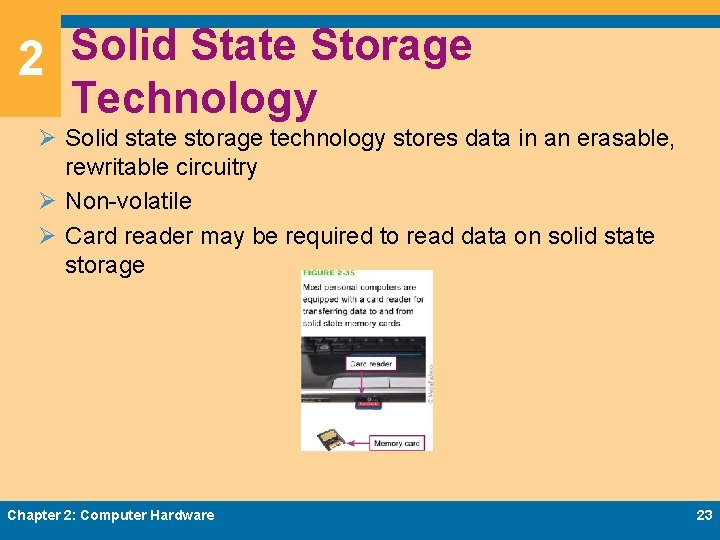
2 Solid State Storage Technology Ø Solid state storage technology stores data in an erasable, rewritable circuitry Ø Non-volatile Ø Card reader may be required to read data on solid state storage Chapter 2: Computer Hardware 23
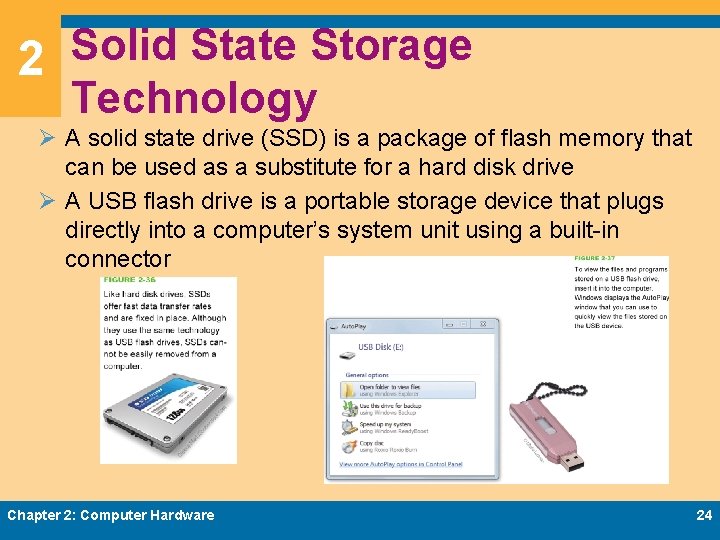
2 Solid State Storage Technology Ø A solid state drive (SSD) is a package of flash memory that can be used as a substitute for a hard disk drive Ø A USB flash drive is a portable storage device that plugs directly into a computer’s system unit using a built-in connector Chapter 2: Computer Hardware 24
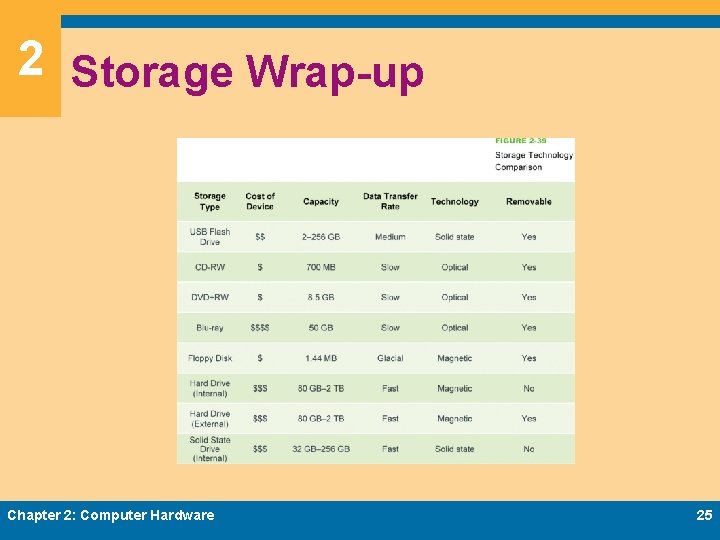
2 Storage Wrap-up Chapter 2: Computer Hardware 25
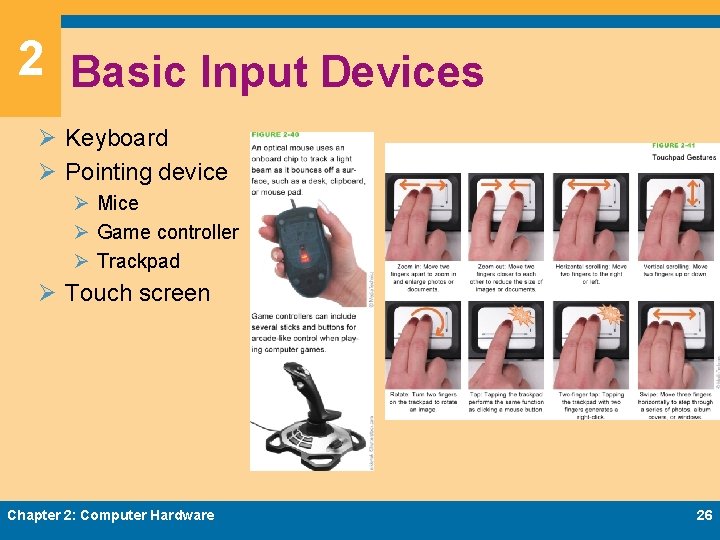
2 Basic Input Devices Ø Keyboard Ø Pointing device Ø Mice Ø Game controller Ø Trackpad Ø Touch screen Chapter 2: Computer Hardware 26
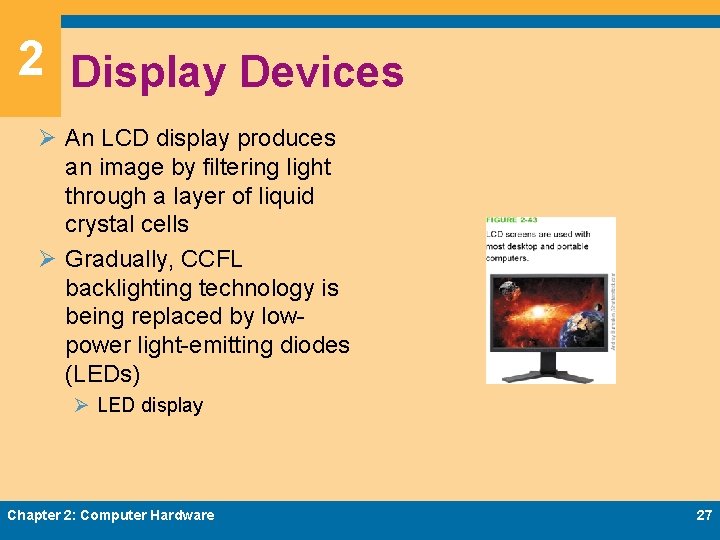
2 Display Devices Ø An LCD display produces an image by filtering light through a layer of liquid crystal cells Ø Gradually, CCFL backlighting technology is being replaced by lowpower light-emitting diodes (LEDs) Ø LED display Chapter 2: Computer Hardware 27
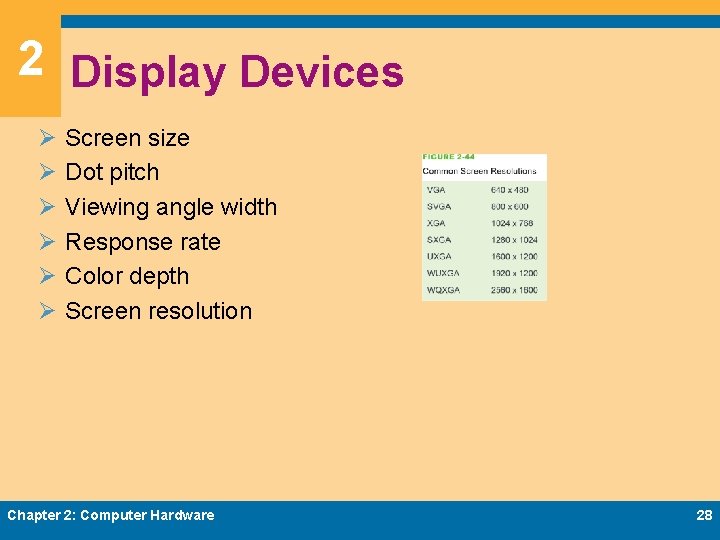
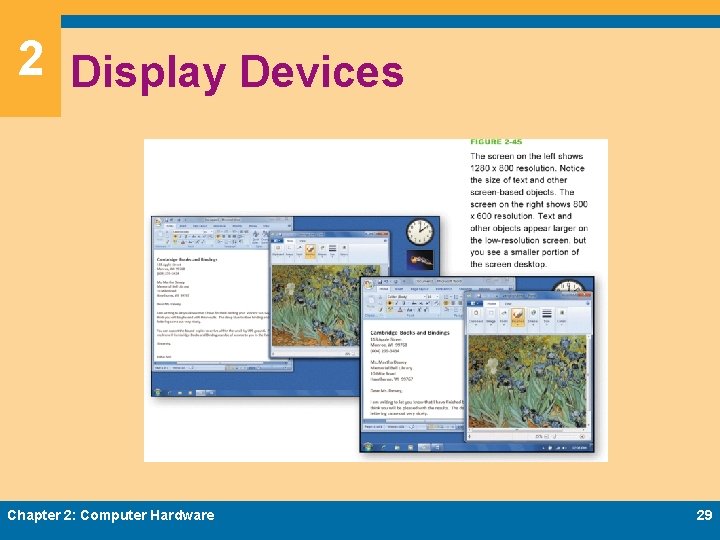
2 Display Devices Ø Ø Ø Screen size Dot pitch Viewing angle width Response rate Color depth Screen resolution Chapter 2: Computer Hardware 28
2 Display Devices Chapter 2: Computer Hardware 29
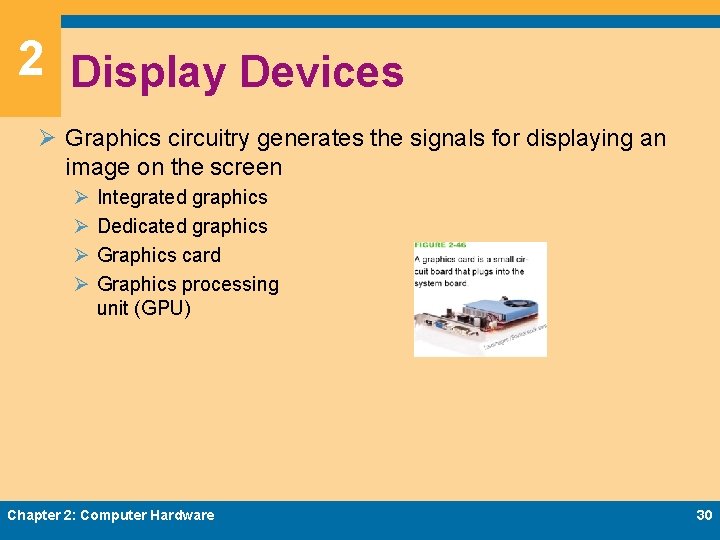
2 Display Devices Ø Graphics circuitry generates the signals for displaying an image on the screen Ø Ø Integrated graphics Dedicated graphics Graphics card Graphics processing unit (GPU) Chapter 2: Computer Hardware 30
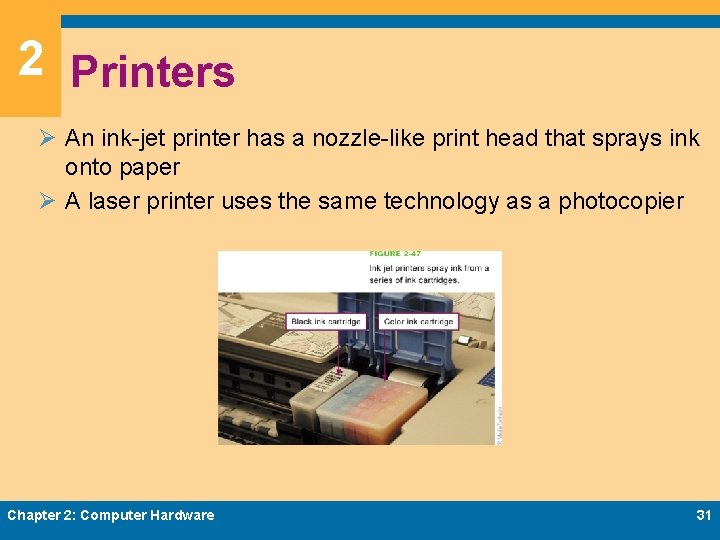
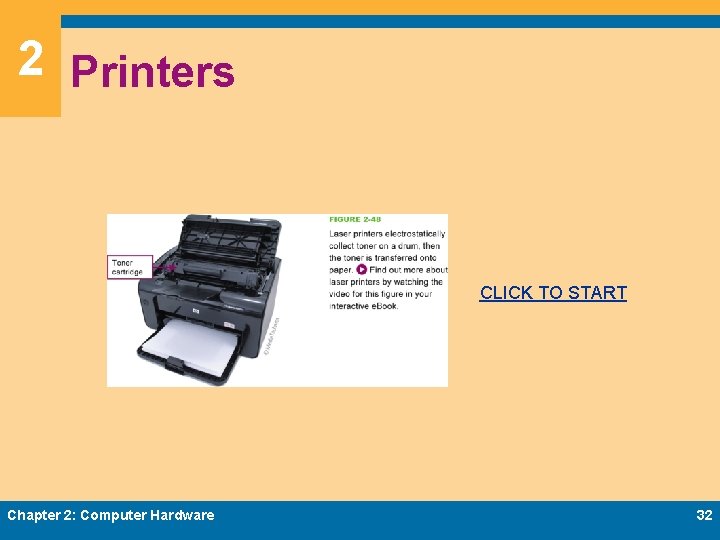
2 Printers Ø An ink-jet printer has a nozzle-like print head that sprays ink onto paper Ø A laser printer uses the same technology as a photocopier Chapter 2: Computer Hardware 31
2 Printers CLICK TO START Chapter 2: Computer Hardware 32
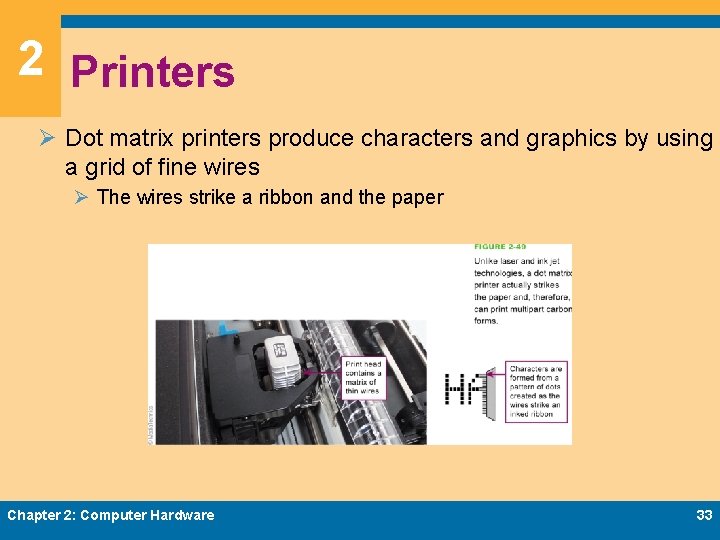
2 Printers Ø Dot matrix printers produce characters and graphics by using a grid of fine wires Ø The wires strike a ribbon and the paper Chapter 2: Computer Hardware 33
2 Printers Ø Printer features Ø Resolution Ø Print speed Ø Duty cycle Ø Operating costs Chapter 2: Computer Hardware – Duplex capability – Memory – Networkability 34
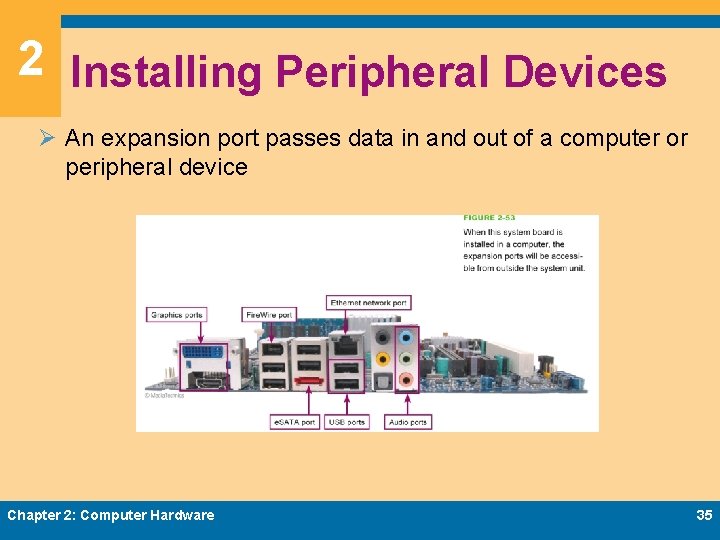
2 Installing Peripheral Devices Ø An expansion port passes data in and out of a computer or peripheral device Chapter 2: Computer Hardware 35
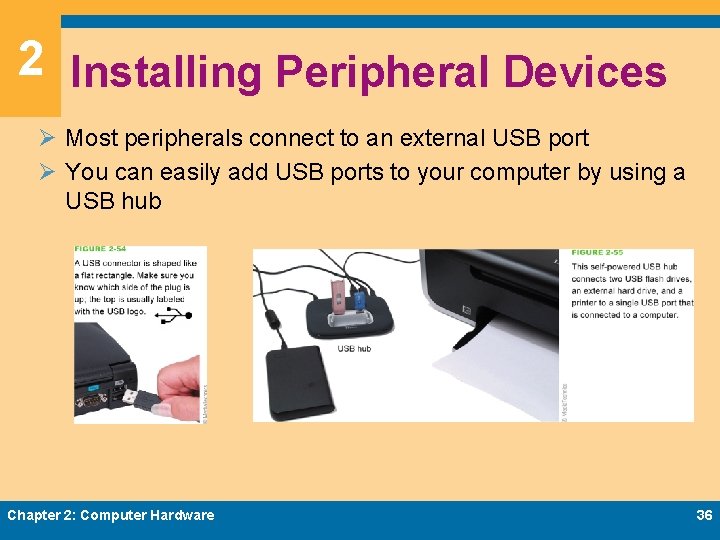
2 Installing Peripheral Devices Ø Most peripherals connect to an external USB port Ø You can easily add USB ports to your computer by using a USB hub Chapter 2: Computer Hardware 36
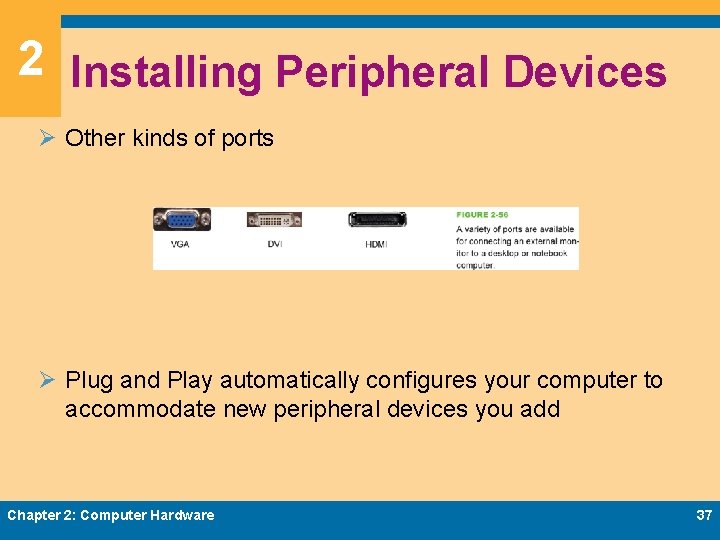
2 Installing Peripheral Devices Ø Other kinds of ports Ø Plug and Play automatically configures your computer to accommodate new peripheral devices you add Chapter 2: Computer Hardware 37
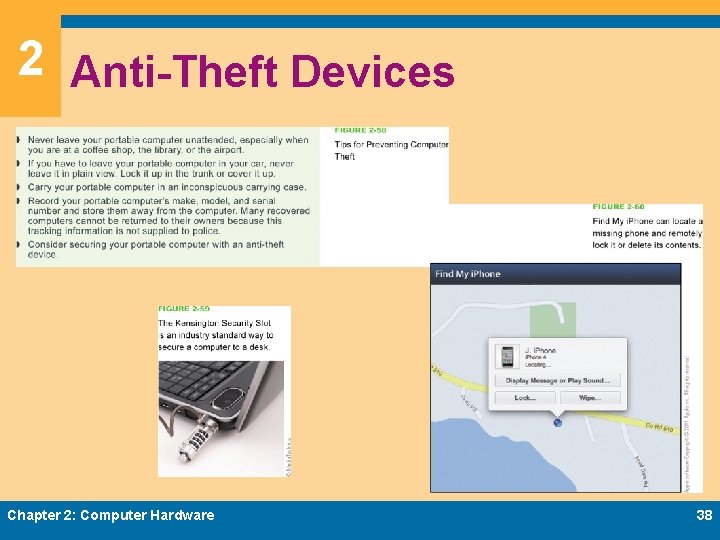
2 Anti-Theft Devices Chapter 2: Computer Hardware 38
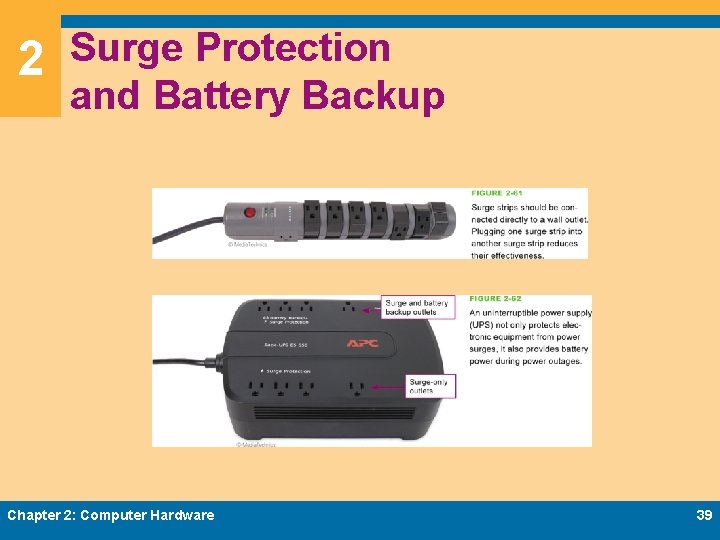
2 Surge Protection and Battery Backup Chapter 2: Computer Hardware 39
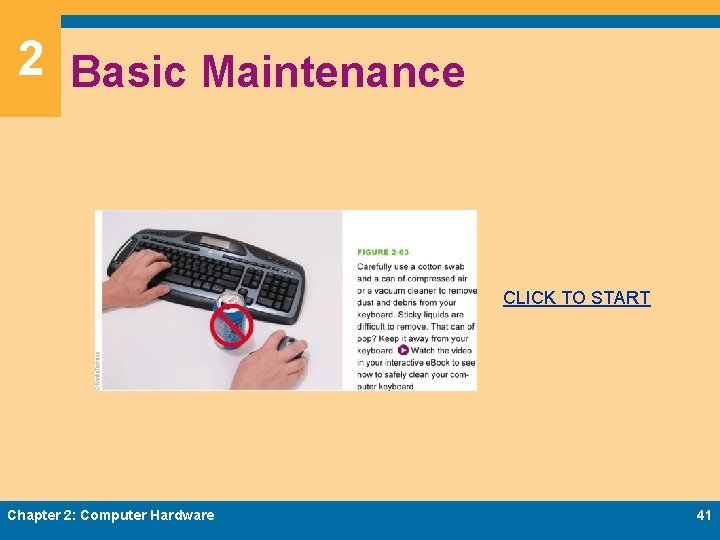
2 Basic Maintenance Ø Computer component failures can be caused by manufacturing defects and other circumstances beyond your control Ø Keep the keyboard clean Ø Clean your computer screen on a regular basis Ø Keep the area clean around your computer Ø Make sure fans are free of dust Chapter 2: Computer Hardware 40
2 Basic Maintenance CLICK TO START Chapter 2: Computer Hardware 41
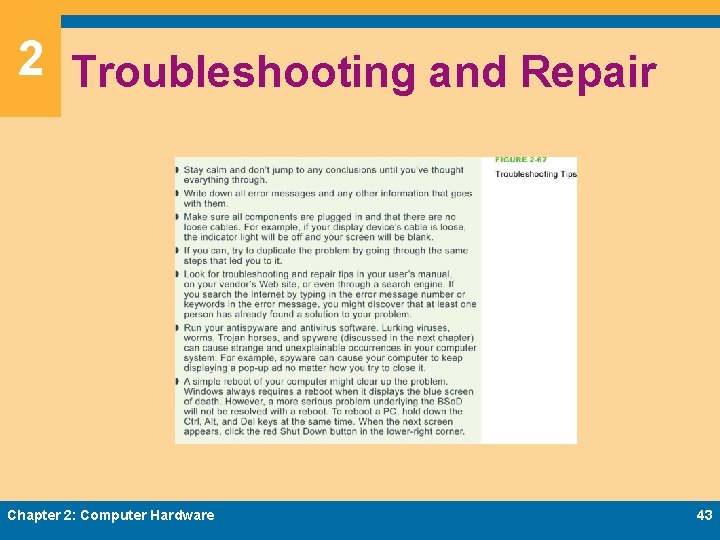
2 Troubleshooting and Repair Ø There are several telltale signs that your computer is in trouble Ø Ø Failure to power up Loud beep Blank screens and/or error messages Blue screen of death Ø Troubleshooting and diagnostic tools Ø Safe Mode Chapter 2: Computer Hardware 42
2 Troubleshooting and Repair Chapter 2: Computer Hardware 43
Chapter 2 Complete Computer Concepts 2013