
Chapter 2 Building User Interfaces Basic Applications 12262021
Chapter 2 Building User Interfaces Basic Applications 12/26/2021 1
2. 1 Android User Interface • User interface is – a collection of visual objects arranged on the screen that the user can see and interact with – can be created in java code or created in an external XML layout file 12/26/2021 2
• GUI in Android app is made of a hierarchy of – View and View. Group objects – View objects are usually UI widgets (buttons, text fields, etc. ) – View. Group objects are invisible view containers that defines how the child views are laid out • XML is used to describe the hierarchy of View and View. Group – A layout resource file is referred to as layout. 12/26/2021 3
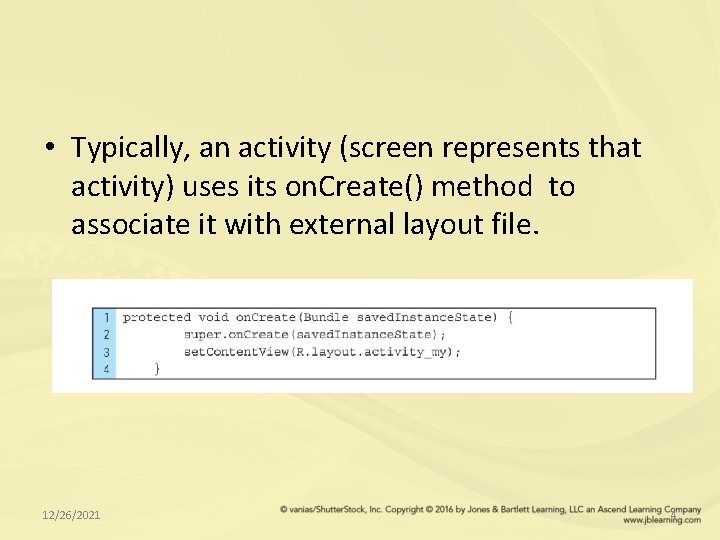
• Typically, an activity (screen represents that activity) uses its on. Create() method to associate it with external layout file. 12/26/2021 4
2. 2 Layouts • Visual interfaces can be defined by one or more layout files • The term Layout denotes the visual architecture of the application • Typically, a single XML layout file for each Activity. • Layout XML files often contains other layout XML files to allow reuse of screen elements for multiple locations 12/26/2021 5
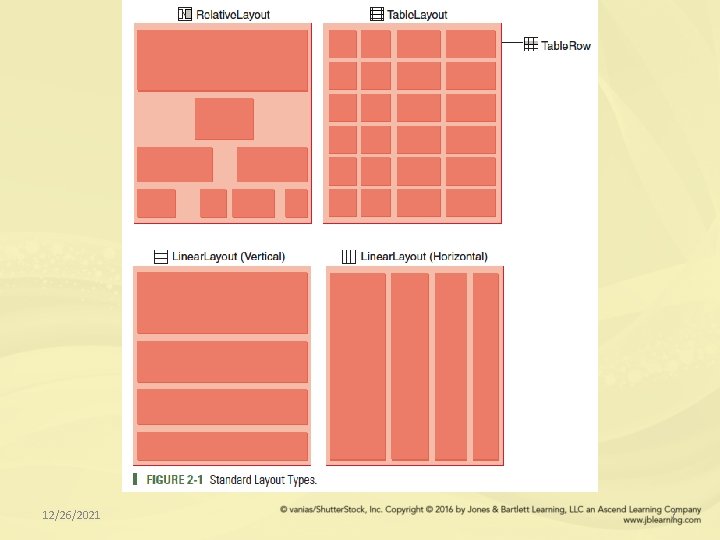
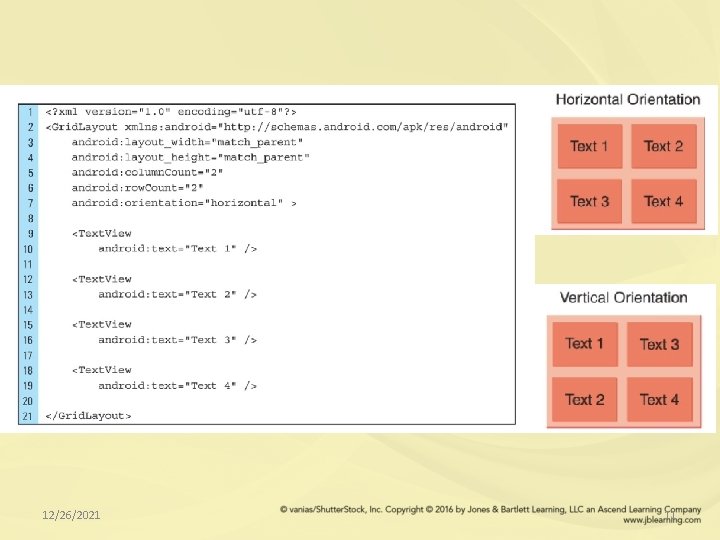
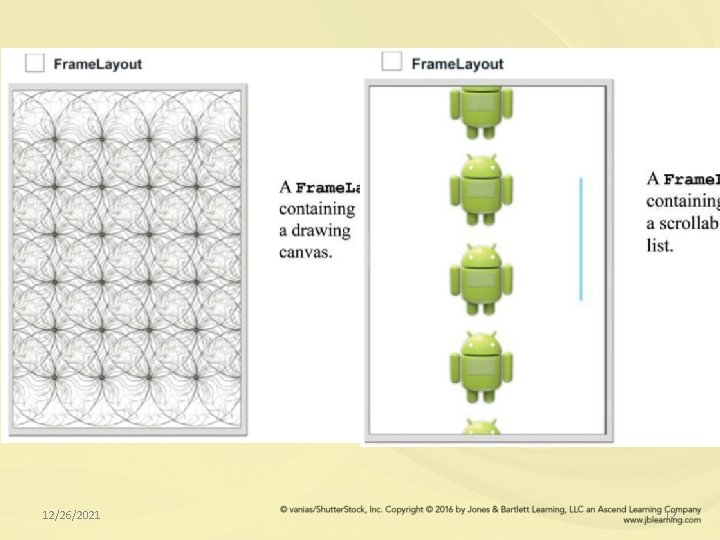
• All layout files are configured in a hierarchical tree: • There are six standard root layouts: Relative. Layout Linear. Layout Table. Layout Row. Layout Grid. Layout Frame. Layout 12/26/2021 6
12/26/2021 7
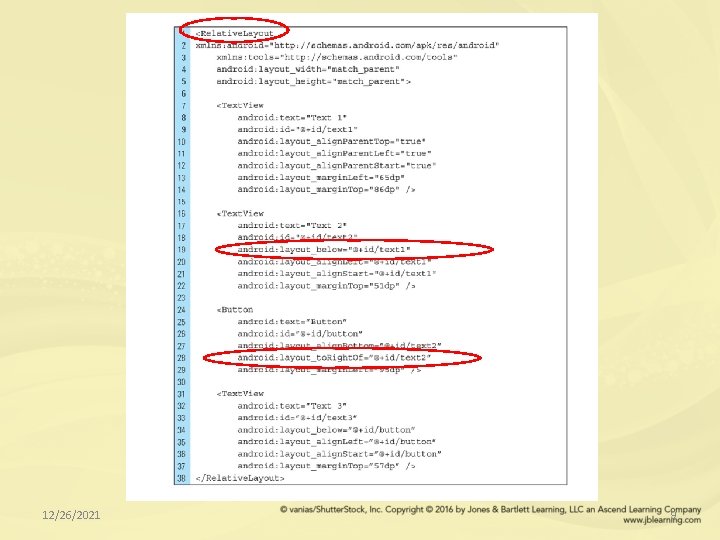
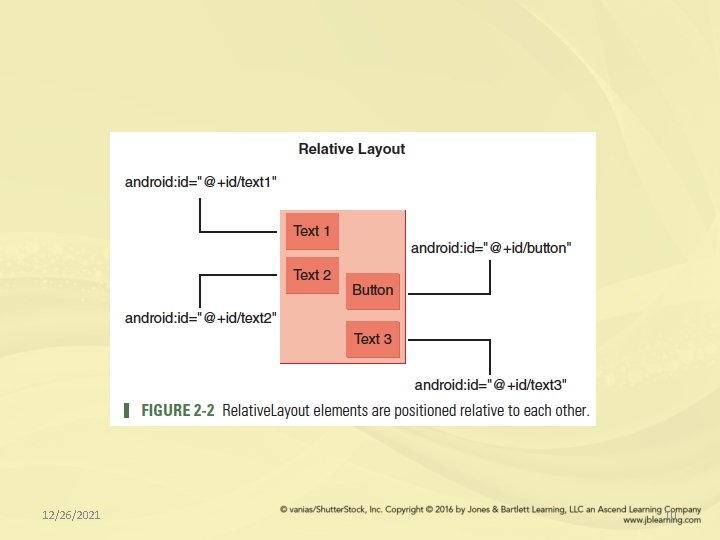
• A Relative. Layout is used for screen designs that require control elements to be positioned in relation to one another • A Linear. Layout is used for simple arrangments that require elements to be displayed along either a horizontal or vertical line • A Table. Layout is used to arrange elements into tabular rows and columns 12/26/2021 8
12/26/2021 9
12/26/2021 10
12/26/2021 11
12/26/2021 12
2. 3 The View Class • Android user interface is built around an object called a View • A View describes every interactive visual control object that appears on an application screen • Every control object in an Android user interface is a subclass of the Android View class 12/26/2021 13
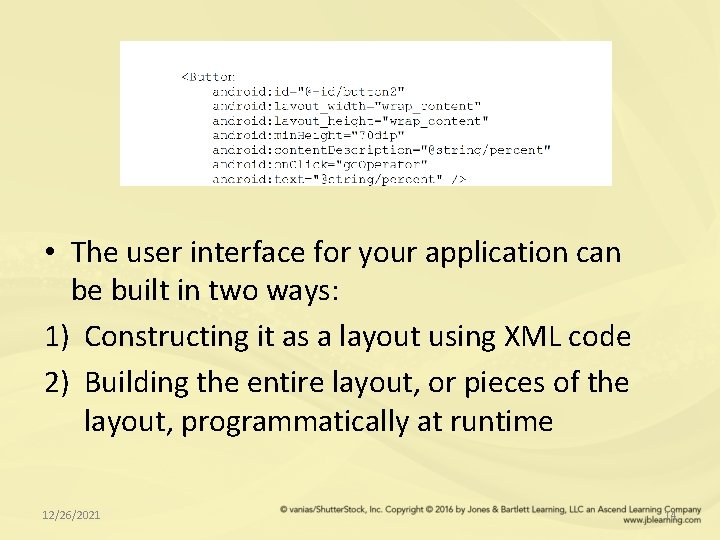
• The user interface for your application can be built in two ways: 1) Constructing it as a layout using XML code 2) Building the entire layout, or pieces of the layout, programmatically at runtime 12/26/2021 14
2. 4 Text Input and Output • Text. View and Edit. Text are the two Android text field classes, both derived from the View super class • Text. View is used primarily for text output • Edit. Text allows text input and editing by the user 12/26/2021 15
• Attributes must be applied to an Edit. Text object to customize type of data for input. • For example, Input. Type properties can be set to: ütext. Cap. Charactors ütext. Auto. Correct ütext. Auto. Complete üText. No. Suggestions 12/26/2021 16
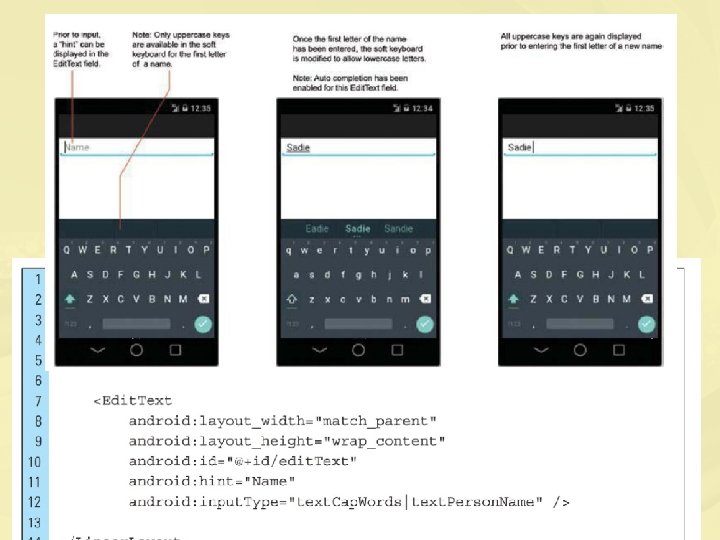
12/26/2021 17
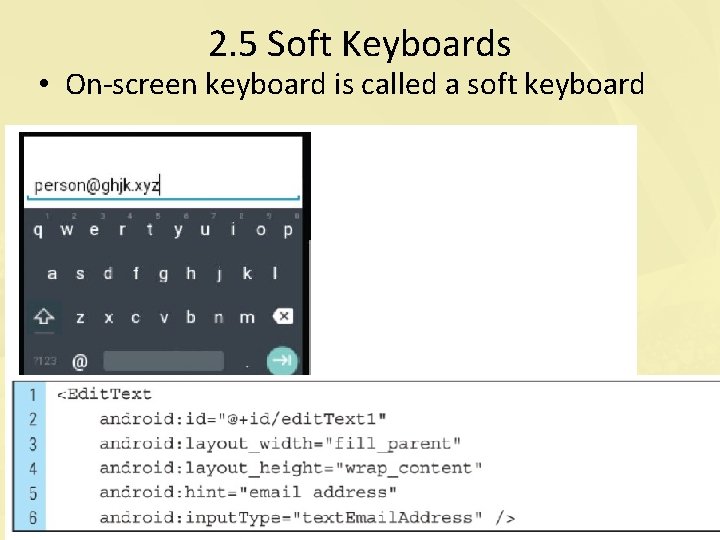
2. 5 Soft Keyboards • On-screen keyboard is called a soft keyboard 12/26/2021 18
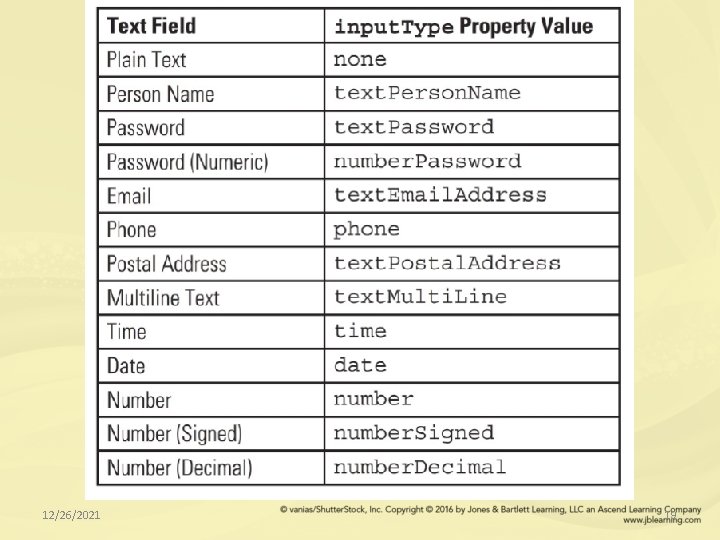
12/26/2021 19
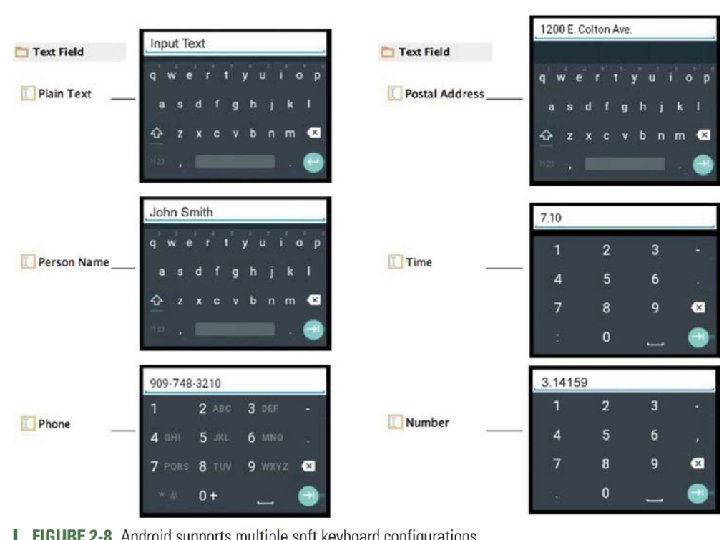
12/26/2021 20
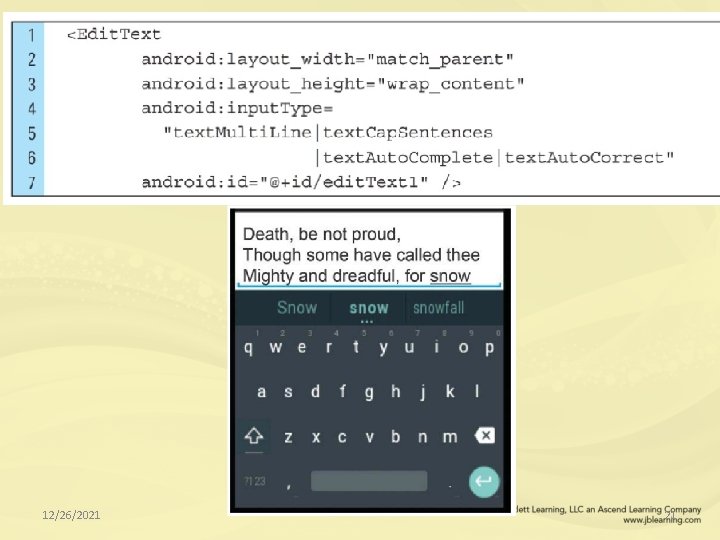
12/26/2021 21
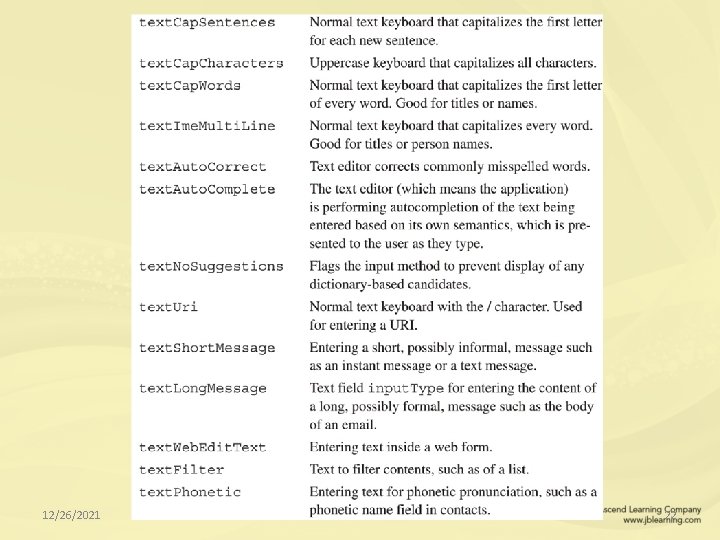
12/26/2021 22
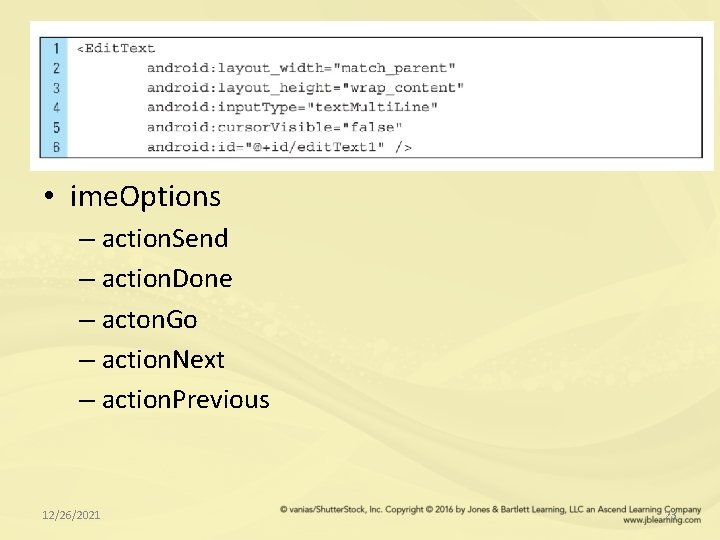
• ime. Options – action. Send – action. Done – acton. Go – action. Next – action. Previous 12/26/2021 23
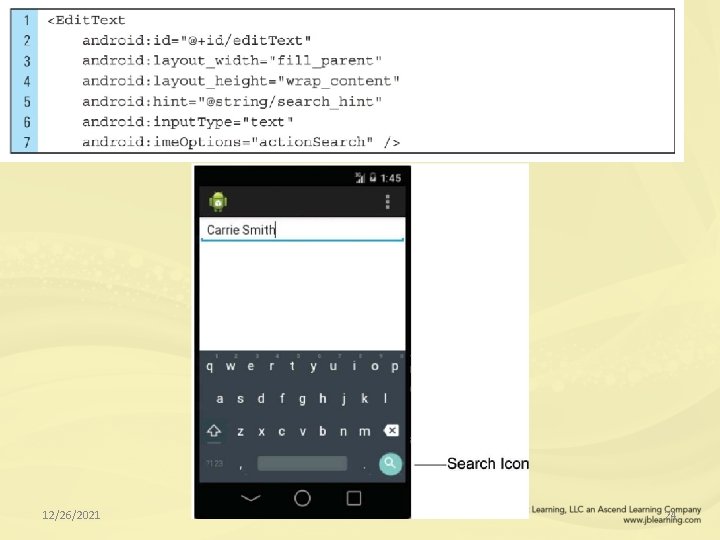
12/26/2021 24
2. 6 Android’s Form Widgets for UI • Android provides a wide set of input controls (widgets), to be used in an app’s user interface • Widgets are subclasses of the View base class • Each widget has a built-in set of properties that can be used to customize its appearance • Each widget has a built-in set of methods that can be used to access values • Each widget has a built-in set of interfaces that can be used to handle events 12/26/2021 25
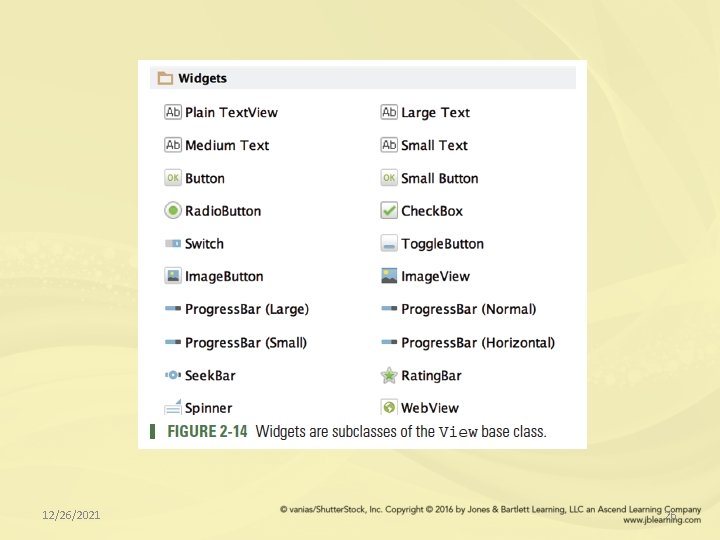
12/26/2021 26
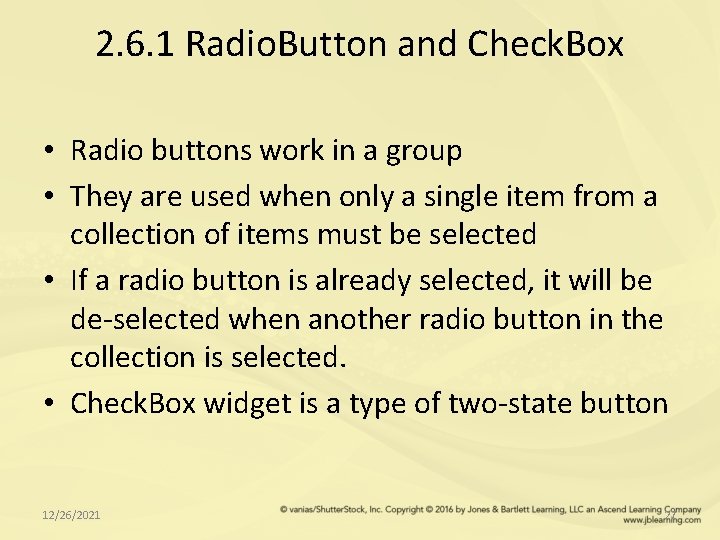
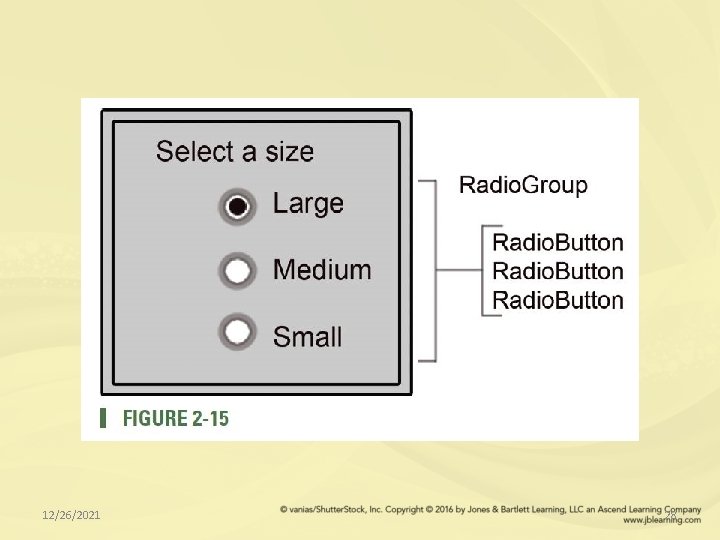
2. 6. 1 Radio. Button and Check. Box • Radio buttons work in a group • They are used when only a single item from a collection of items must be selected • If a radio button is already selected, it will be de-selected when another radio button in the collection is selected. • Check. Box widget is a type of two-state button 12/26/2021 27
12/26/2021 28
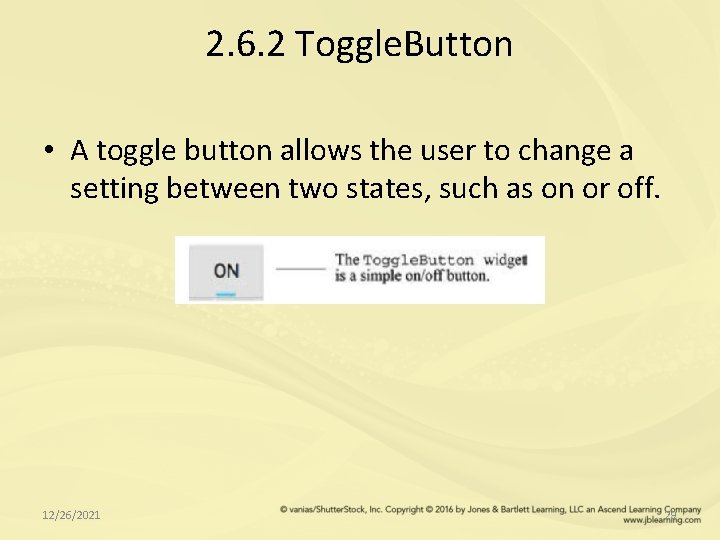
2. 6. 2 Toggle. Button • A toggle button allows the user to change a setting between two states, such as on or off. 12/26/2021 29
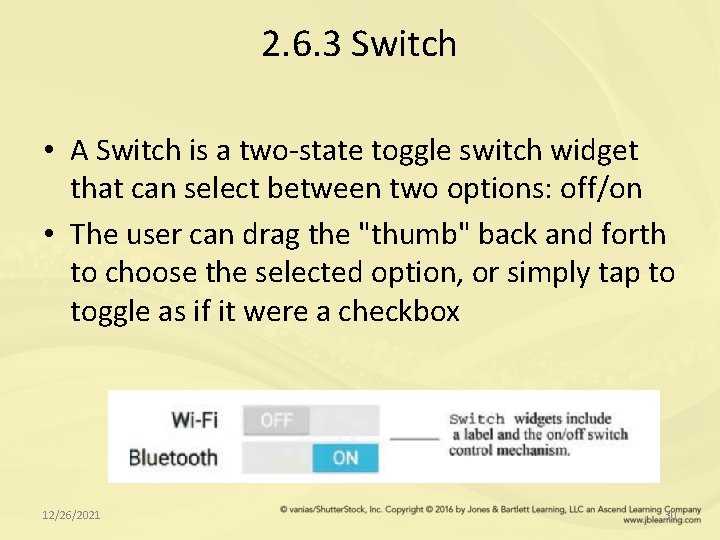
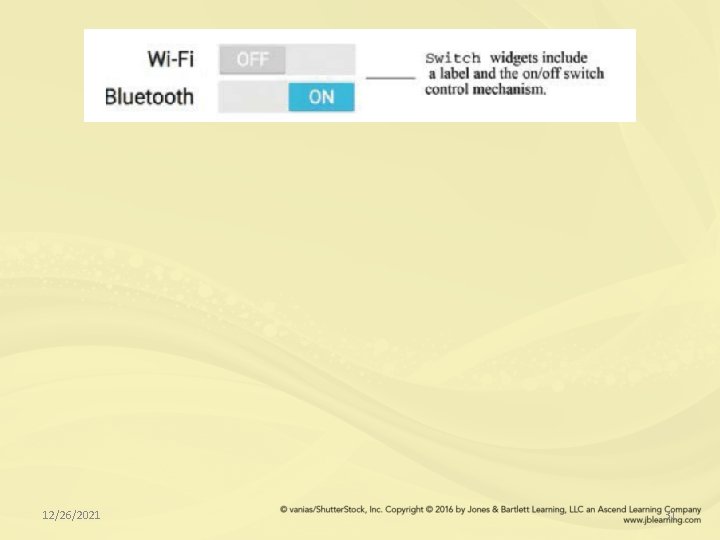
2. 6. 3 Switch • A Switch is a two-state toggle switch widget that can select between two options: off/on • The user can drag the "thumb" back and forth to choose the selected option, or simply tap to toggle as if it were a checkbox 12/26/2021 30
12/26/2021 31
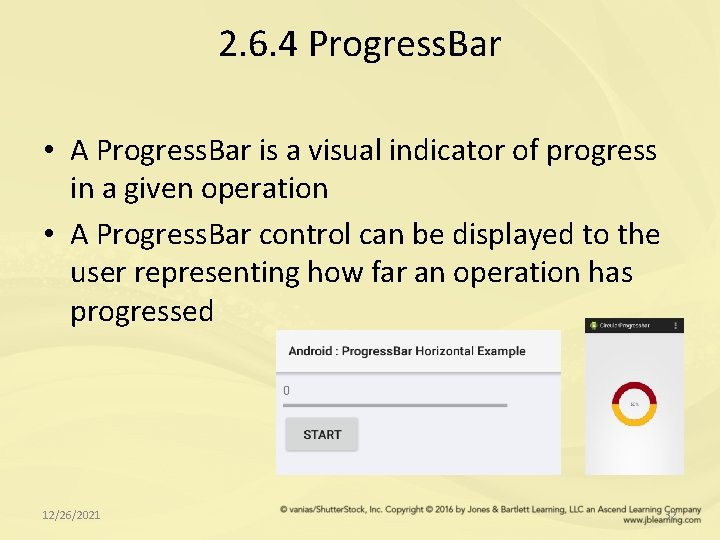
2. 6. 4 Progress. Bar • A Progress. Bar is a visual indicator of progress in a given operation • A Progress. Bar control can be displayed to the user representing how far an operation has progressed 12/26/2021 32
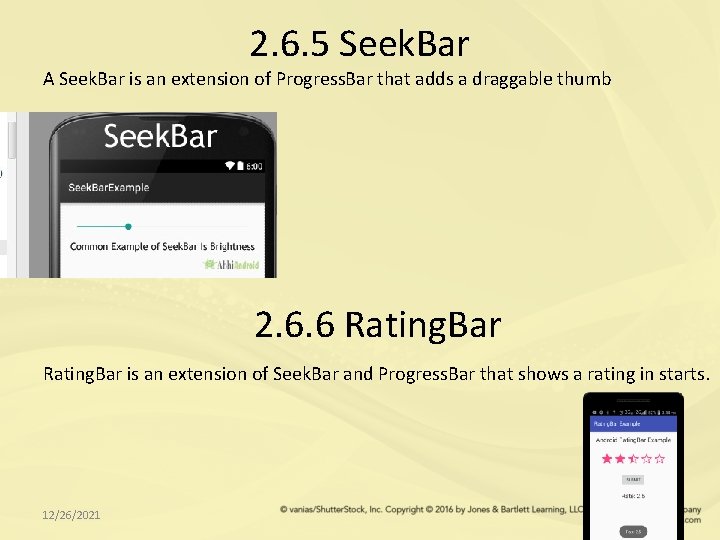
2. 6. 5 Seek. Bar A Seek. Bar is an extension of Progress. Bar that adds a draggable thumb 2. 6. 6 Rating. Bar is an extension of Seek. Bar and Progress. Bar that shows a rating in starts. 12/26/2021 33
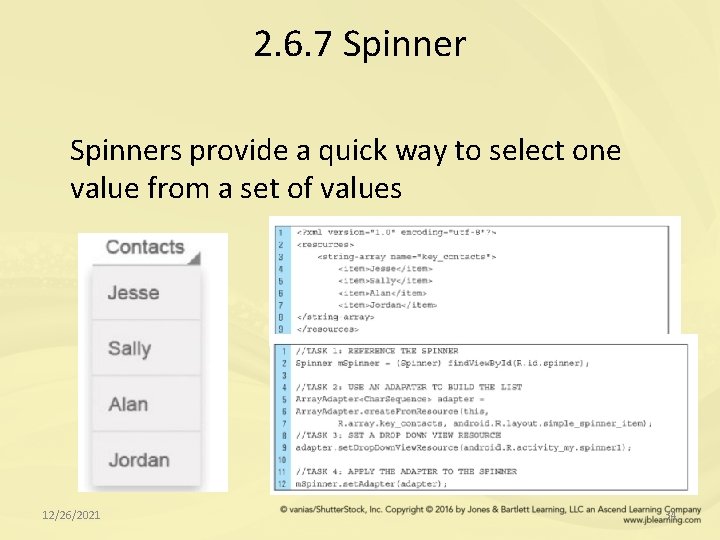
2. 6. 7 Spinners provide a quick way to select one value from a set of values 12/26/2021 34
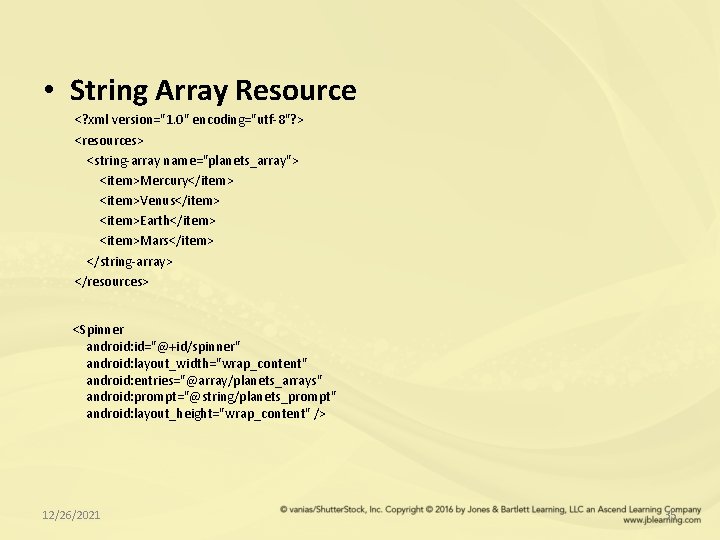
• String Array Resource <? xml version="1. 0" encoding="utf-8"? > <resources> <string-array name="planets_array"> <item>Mercury</item> <item>Venus</item> <item>Earth</item> <item>Mars</item> </string-array> </resources> <Spinner android: id="@+id/spinner" android: layout_width="wrap_content" android: entries="@array/planets_arrays" android: prompt="@string/planets_prompt" android: layout_height="wrap_content" /> 12/26/2021 35
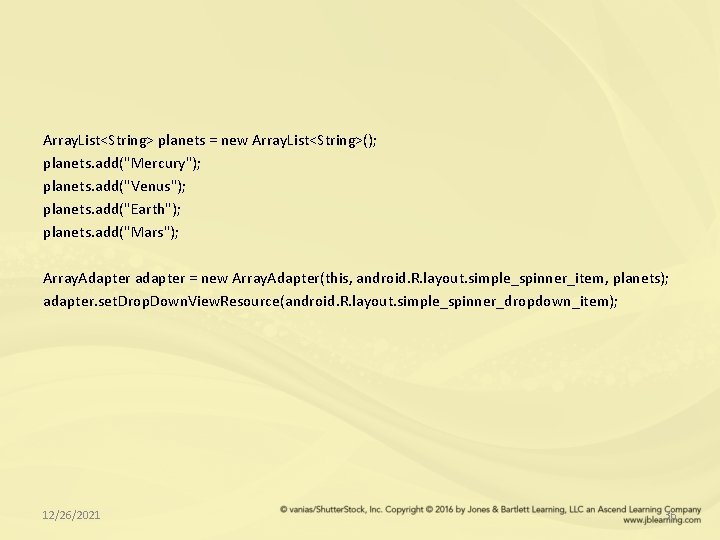
Array. List<String> planets = new Array. List<String>(); planets. add("Mercury"); planets. add("Venus"); planets. add("Earth"); planets. add("Mars"); Array. Adapter adapter = new Array. Adapter(this, android. R. layout. simple_spinner_item, planets); adapter. set. Drop. Down. View. Resource(android. R. layout. simple_spinner_dropdown_item); 12/26/2021 36
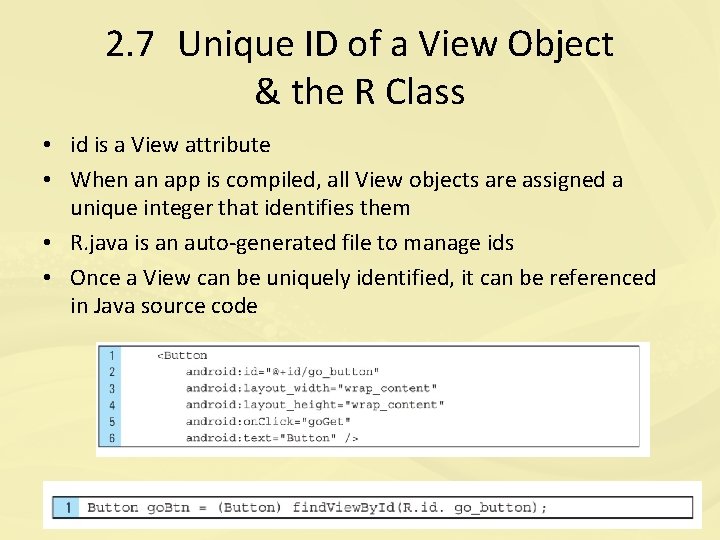
2. 7 Unique ID of a View Object & the R Class • id is a View attribute • When an app is compiled, all View objects are assigned a unique integer that identifies them • R. java is an auto-generated file to manage ids • Once a View can be uniquely identified, it can be referenced in Java source code 12/26/2021 37
2. 8 The View. Group • A View. Group is a container of View objects • All View. Group objects are also View objects • A View. Group is a special type of View that is designed to hold groups of Views • Each View. Group is an invisible container that organizes child Views 12/26/2021 38
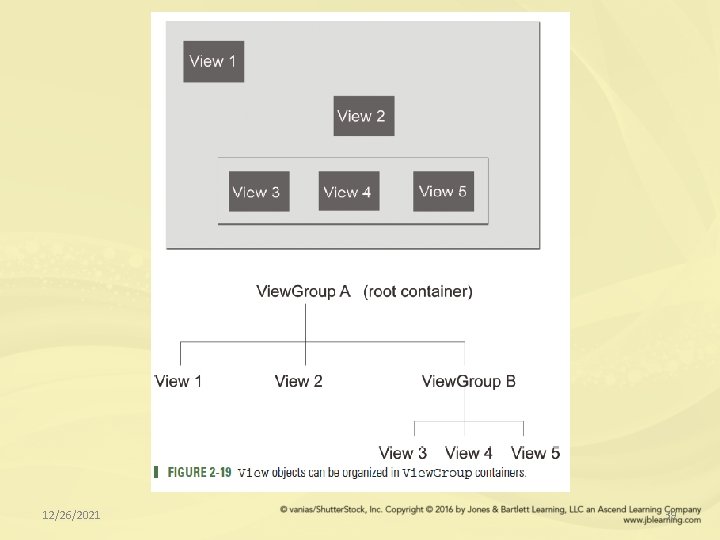
12/26/2021 39
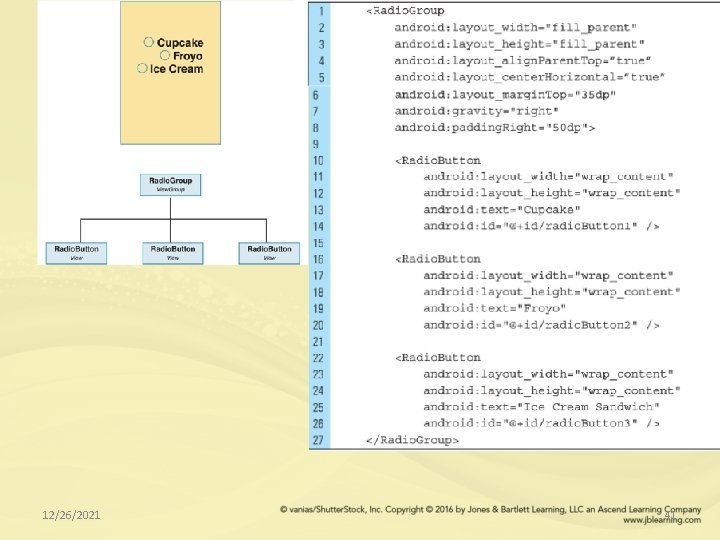
2. 8. 1 Radio. Group • A Radio. Group object is a View. Group container • As a View. Group, the Radio. Group is used to group together a related set of Radio. Buttons 12/26/2021 40
12/26/2021 41
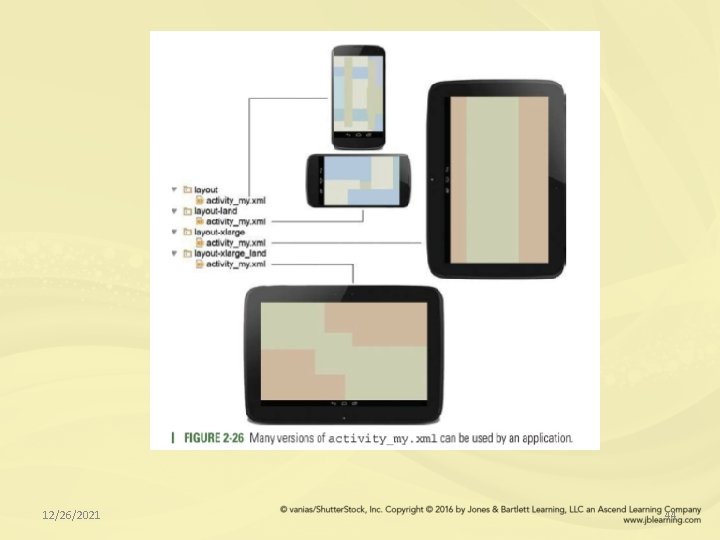
2. 9 Adaptive Design Concepts – Screens and Orientations • Many variations in screen sizes available • Adaptive design is important because it supports flexibility when designing an app that can work on multiple devices • Adaptive design refers to the adaptation of a layout design that fits an individual screen size and/or orientation 12/26/2021 42
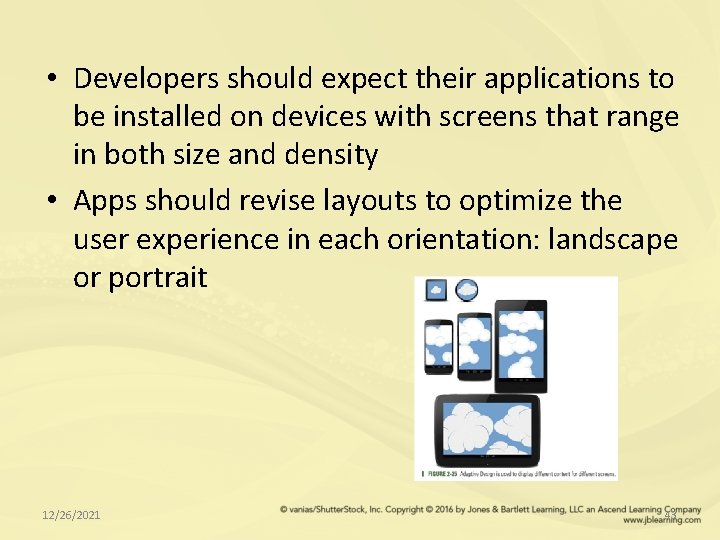
• Developers should expect their applications to be installed on devices with screens that range in both size and density • Apps should revise layouts to optimize the user experience in each orientation: landscape or portrait 12/26/2021 43
12/26/2021 44
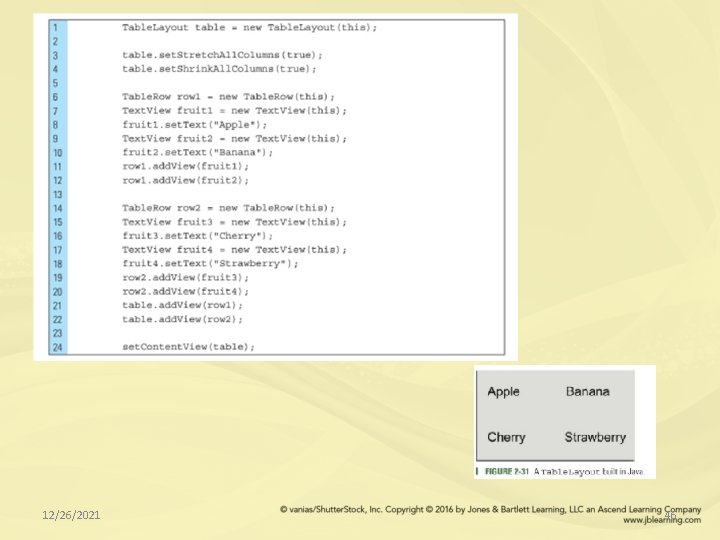
2. 10 Table. Layout and Table. Row • Table. Layouts are often used for organizing data content into tabular form • Tables can be added to a layout file using the Graphical Layout Editor or programmatically using Java • The number of columns automatically matches the number of columns in the row with the most columns • The width of each column is defined as the width of the widest content in the column 12/26/2021 45
12/26/2021 46
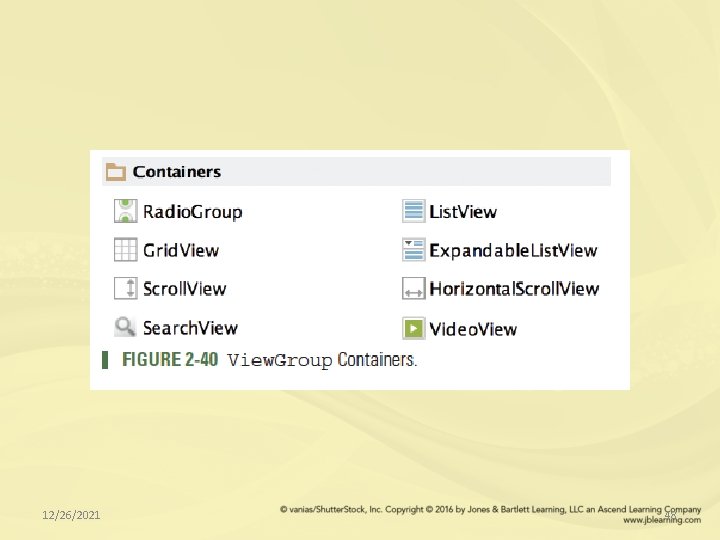
2. 11 Container Views • Container Views are View. Groups • Android categorizes this group of Views as “containers” because their sole function is to act as containers for other views • Any object that provides access to container values is referred to as a Container 12/26/2021 47
12/26/2021 48
2. 11. 1 List. View, Grid. View, Expandable. List. View • The List. View, Grid. View, and Expandable. List. View are all Adapter. Views. This means they are populated with Views that are identified by an Adapter. • A List. View object displays items in a vertically scrolling list • Grid. View displays contain items in a two-dimensional scrolling grid. • A Expandable. List. View is an extension of a List. View. This type of container displays items in a vertically scrolling list that supports two levels 12/26/2021 49
2. 11. 2 Scroll. View & Horizontal. Scroll. View • The Scroll. View and the Horizontal. Scroll. View are containers specifically designed for scrolling • Both these containers are extensions of the Frame. Layout • Once a View has been placed in either of these containers, the view can be made scrollable 12/26/2021 50
2. 11. 3 Search. View • The Search. View is typically added to the menu and provides an easy way to incorporate a standard search into the header of any activity • The Android system controls all search events • A Search. View object can be placed anywhere in your layout and will behave like a standard Edit. Text View 12/26/2021 51
2. 11. 4 Video. View • A Video. View is an extension of a Surface. View • It is used to display a video file • This means that it can load images from various sources (such as resources or content providers), and provides various display options such as scaling and tinting 12/26/2021 52
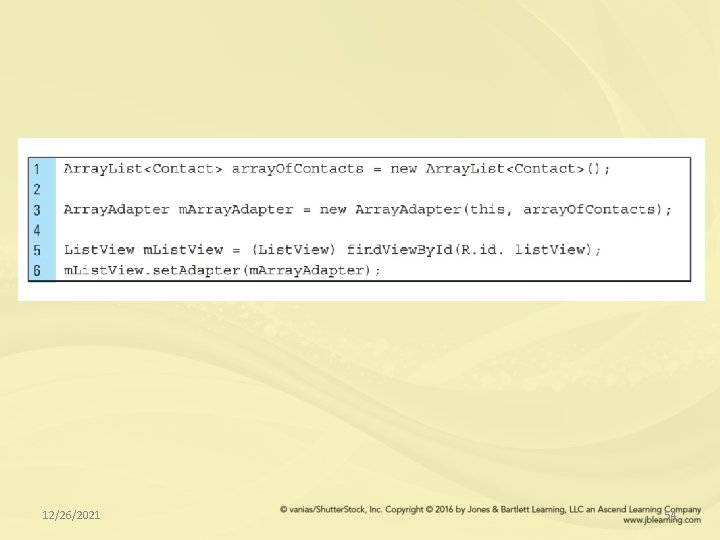
2. 12 Using an Adapter • Adapter provides a common interface to the data model behind an Adapter. View, such as a List. View object • An Adapter is responsible for accessing the data to be supplied to a container widget and converting the individual elements of data into a specific format • The Adapter behaves as a middleman between the data source and the Adapter. View layout 12/26/2021 53
12/26/2021 54
- Slides: 54