
Chapter 16 Java FX UI Controls and Multimedia
- Slides: 34
Chapter 16 Java. FX UI Controls and Multimedia Liang, Introduction to Java Programming, Tenth Edition, (c) 2015 Pearson Education, Inc. All rights reserved. 1
Motivations A graphical user interface (GUI) makes a system user-friendly and easy to use. Creating a GUI requires creativity and knowledge of how GUI components work. Since the GUI components in Java are very flexible and versatile, you can create a wide assortment of useful user interfaces. Previous chapters briefly introduced several GUI components. This chapter introduces the frequently used GUI components in detail. Liang, Introduction to Java Programming, Tenth Edition, (c) 2015 Pearson Education, Inc. All rights reserved. 2
Installation for eclipse F You'll need at least JDK 8 installed in your system. Make sure your e(fx)clipse installation uses this JDK when you launch your Eclipse instance! F http: //www. eclipse. org/efxclipse/install. htm l Liang, Introduction to Java Programming, Tenth Edition, (c) 2015 Pearson Education, Inc. All rights reserved. 3
Objectives F F F F To create graphical user interfaces with various user-interface controls (§§ 16. 2– 16. 11). To create a label with text and graphic using the Label class and explore properties in the abstract Labeled class (§ 16. 2). To create a button with text and graphic using the Button class and set a handler using the set. On. Action method in the abstract Button. Base class (§ 16. 3). To create a check box using the Check. Box class (§ 16. 4). To create a radio button using the Radio. Button class and group radio buttons using a Toggle. Group (§ 16. 5). To enter data using the Text. Field class and password using the Password. Field class (§ 16. 6). To enter data in multiple lines using the Text. Area class (§ 16. 7). To select a single item using Combo. Box (§ 16. 8). To select a single or multiple items using List. View (§ 16. 9). To select a range of values using Scroll. Bar (§ 16. 10). To select a range of values using Slider and explore differences between Scroll. Bar and Slider (§ 16. 11). To develop a tic-tac-toe game (§ 16. 12). To view and play video and audio using the Media, Media. Player, and Media. View (§ 16. 13). To develop a case study for showing the national flag and play anthem (§ 16. 14). Liang, Introduction to Java Programming, Tenth Edition, (c) 2015 Pearson Education, Inc. All rights reserved. 4
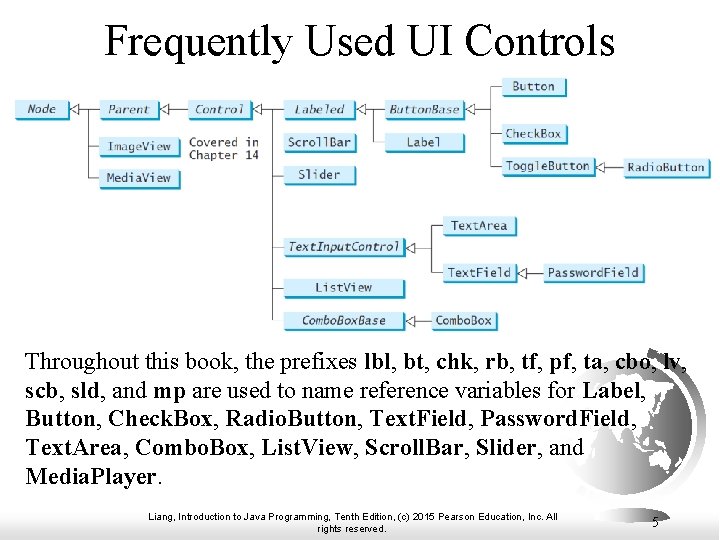
Frequently Used UI Controls Throughout this book, the prefixes lbl, bt, chk, rb, tf, pf, ta, cbo, lv, scb, sld, and mp are used to name reference variables for Label, Button, Check. Box, Radio. Button, Text. Field, Password. Field, Text. Area, Combo. Box, List. View, Scroll. Bar, Slider, and Media. Player. Liang, Introduction to Java Programming, Tenth Edition, (c) 2015 Pearson Education, Inc. All rights reserved. 5
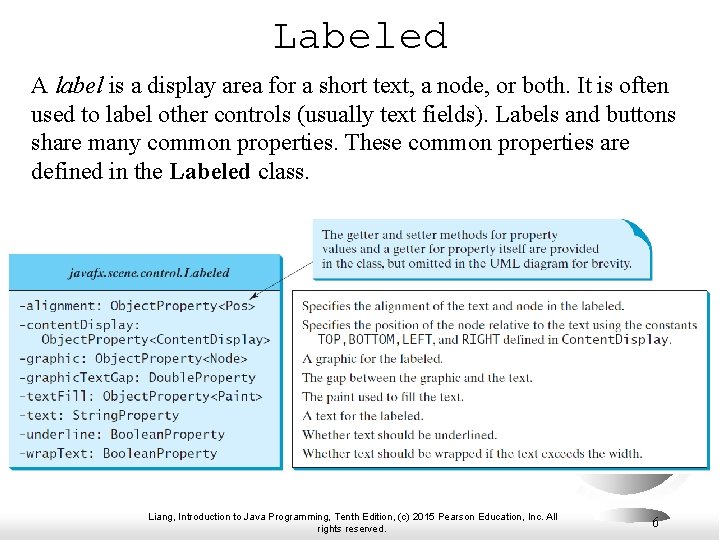
Labeled A label is a display area for a short text, a node, or both. It is often used to label other controls (usually text fields). Labels and buttons share many common properties. These common properties are defined in the Labeled class. Liang, Introduction to Java Programming, Tenth Edition, (c) 2015 Pearson Education, Inc. All rights reserved. 6
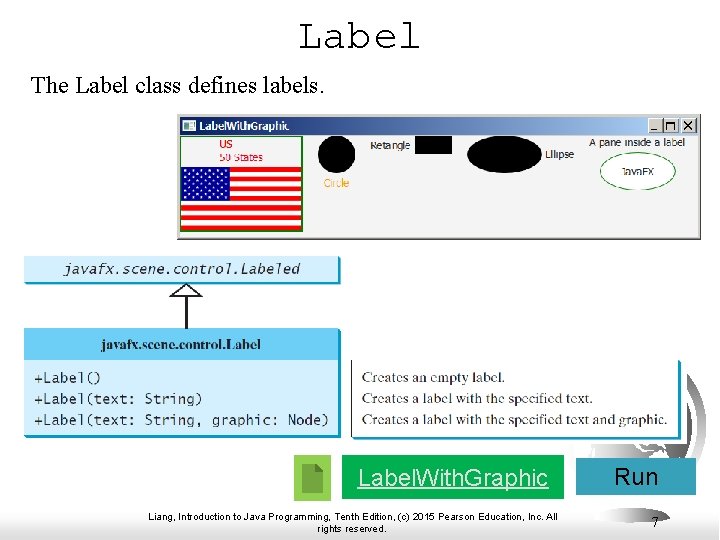
Label The Label class defines labels. Label. With. Graphic Liang, Introduction to Java Programming, Tenth Edition, (c) 2015 Pearson Education, Inc. All rights reserved. Run 7
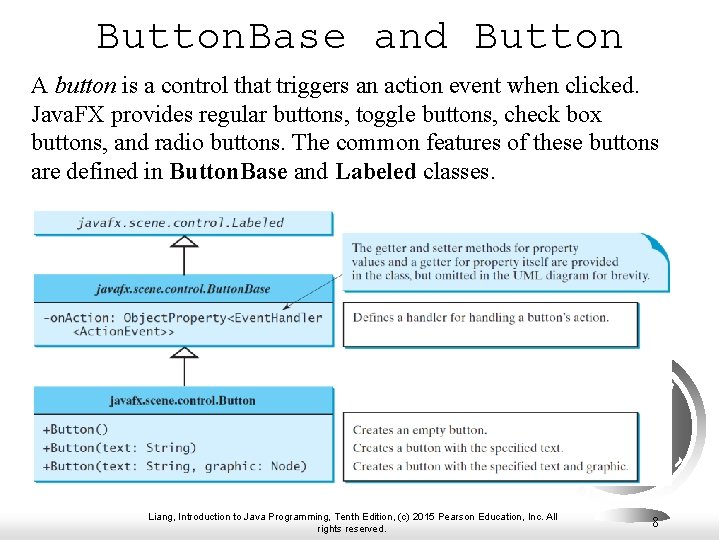
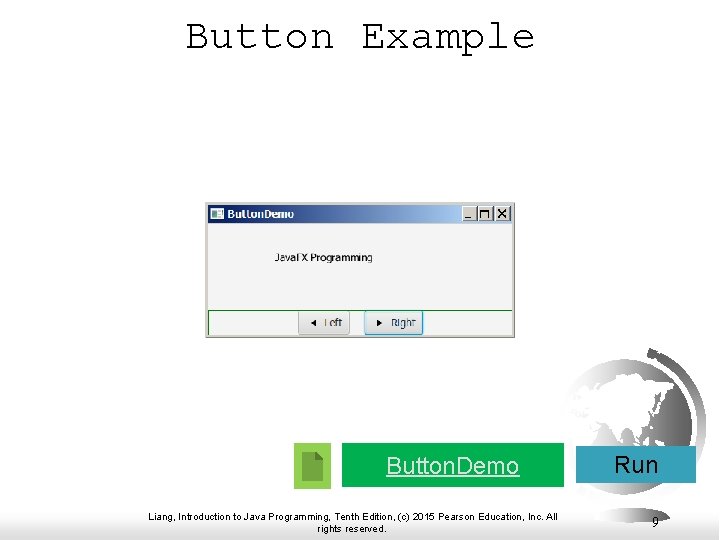
Button. Base and Button A button is a control that triggers an action event when clicked. Java. FX provides regular buttons, toggle buttons, check box buttons, and radio buttons. The common features of these buttons are defined in Button. Base and Labeled classes. Liang, Introduction to Java Programming, Tenth Edition, (c) 2015 Pearson Education, Inc. All rights reserved. 8
Button Example Button. Demo Liang, Introduction to Java Programming, Tenth Edition, (c) 2015 Pearson Education, Inc. All rights reserved. Run 9
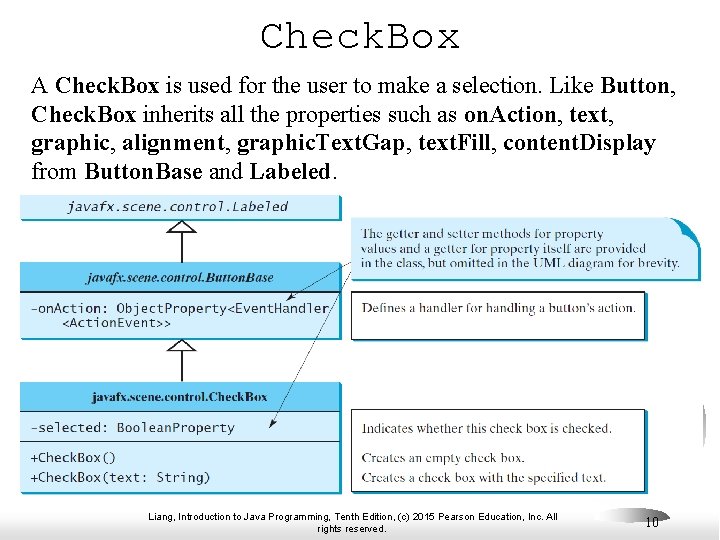
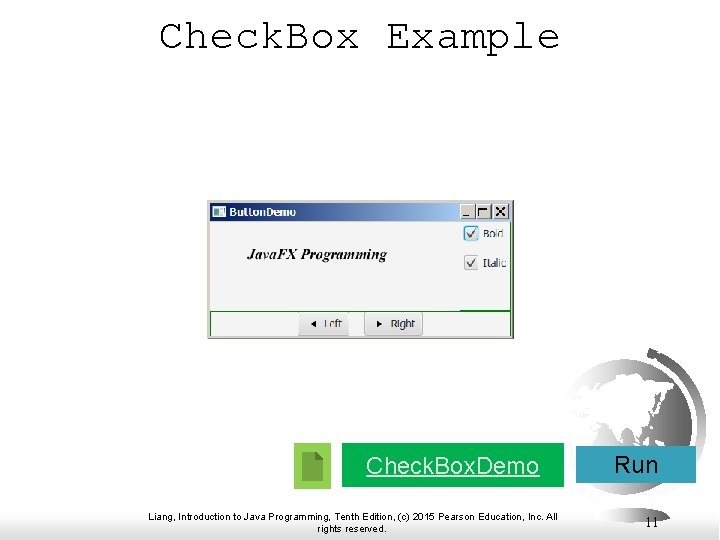
Check. Box A Check. Box is used for the user to make a selection. Like Button, Check. Box inherits all the properties such as on. Action, text, graphic, alignment, graphic. Text. Gap, text. Fill, content. Display from Button. Base and Labeled. Liang, Introduction to Java Programming, Tenth Edition, (c) 2015 Pearson Education, Inc. All rights reserved. 10
Check. Box Example Check. Box. Demo Liang, Introduction to Java Programming, Tenth Edition, (c) 2015 Pearson Education, Inc. All rights reserved. Run 11
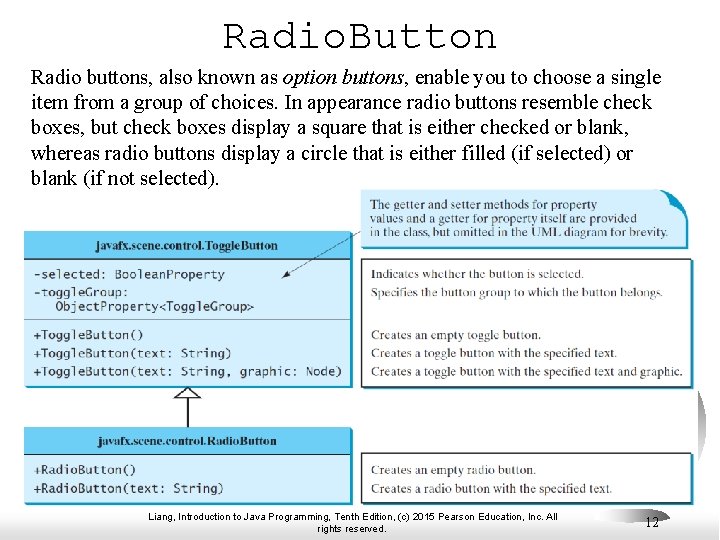
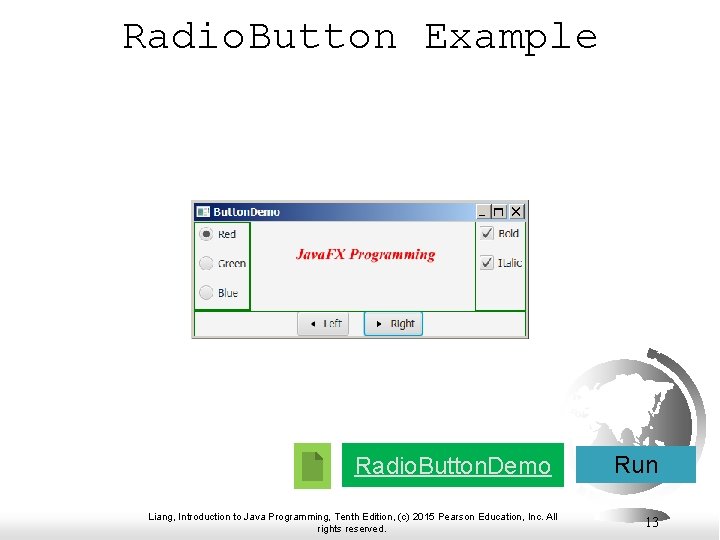
Radio. Button Radio buttons, also known as option buttons, enable you to choose a single item from a group of choices. In appearance radio buttons resemble check boxes, but check boxes display a square that is either checked or blank, whereas radio buttons display a circle that is either filled (if selected) or blank (if not selected). Liang, Introduction to Java Programming, Tenth Edition, (c) 2015 Pearson Education, Inc. All rights reserved. 12
Radio. Button Example Radio. Button. Demo Liang, Introduction to Java Programming, Tenth Edition, (c) 2015 Pearson Education, Inc. All rights reserved. Run 13
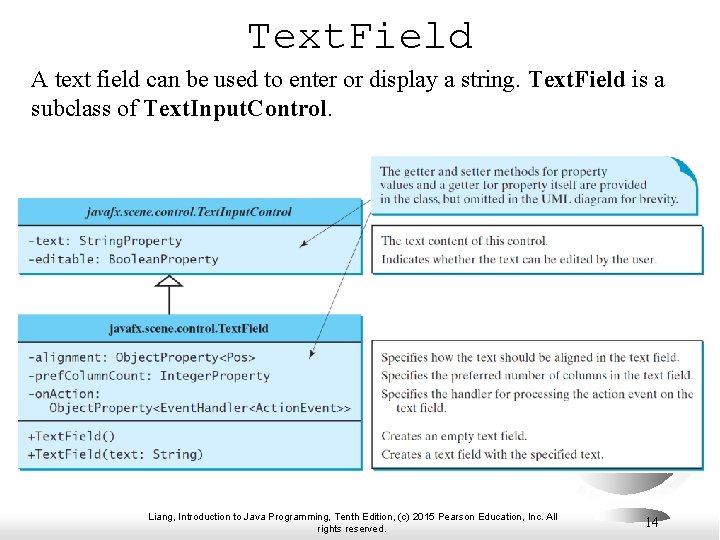
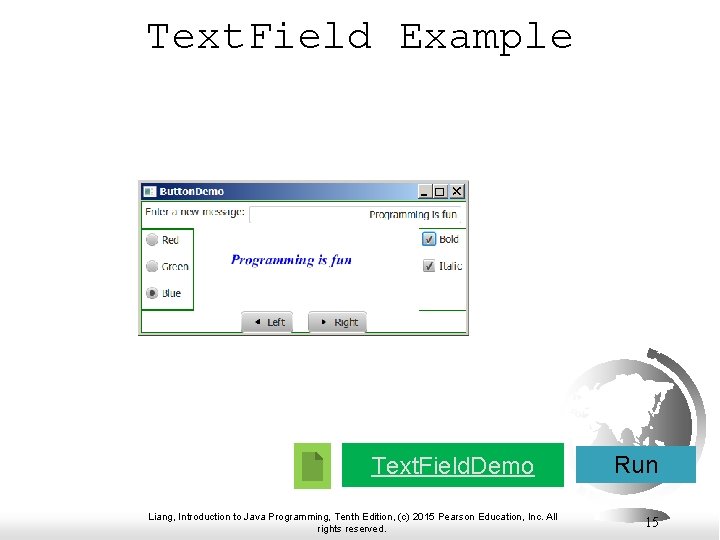
Text. Field A text field can be used to enter or display a string. Text. Field is a subclass of Text. Input. Control. Liang, Introduction to Java Programming, Tenth Edition, (c) 2015 Pearson Education, Inc. All rights reserved. 14
Text. Field Example Text. Field. Demo Liang, Introduction to Java Programming, Tenth Edition, (c) 2015 Pearson Education, Inc. All rights reserved. Run 15
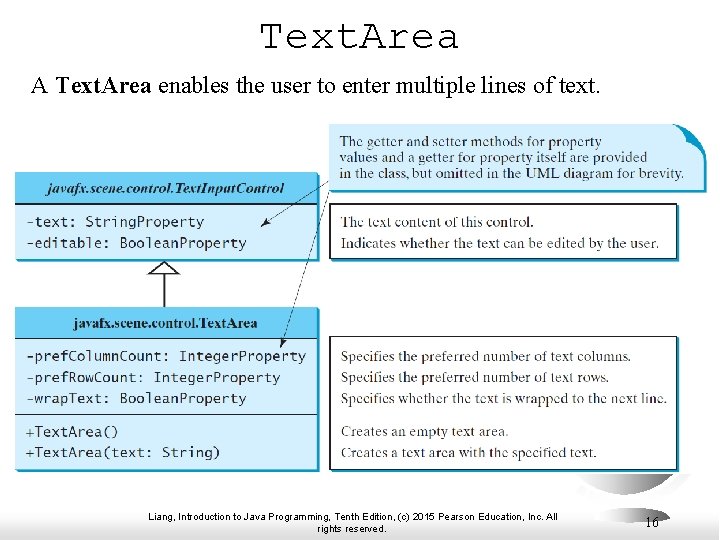
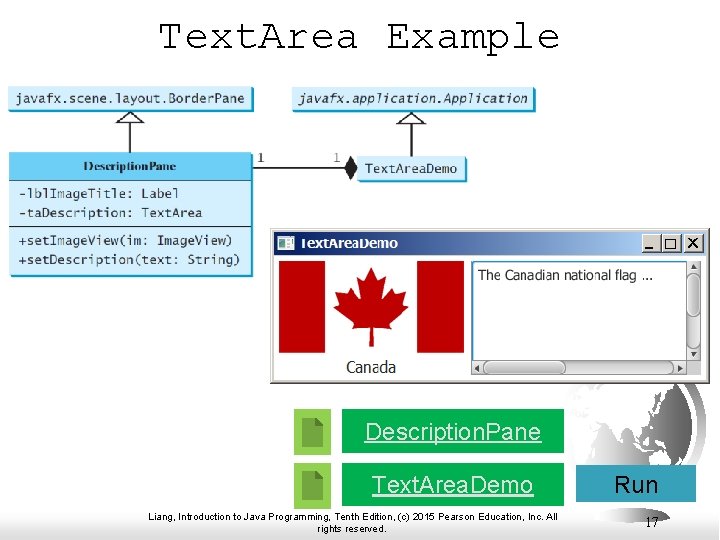
Text. Area A Text. Area enables the user to enter multiple lines of text. Liang, Introduction to Java Programming, Tenth Edition, (c) 2015 Pearson Education, Inc. All rights reserved. 16
Text. Area Example Description. Pane Text. Area. Demo Liang, Introduction to Java Programming, Tenth Edition, (c) 2015 Pearson Education, Inc. All rights reserved. Run 17
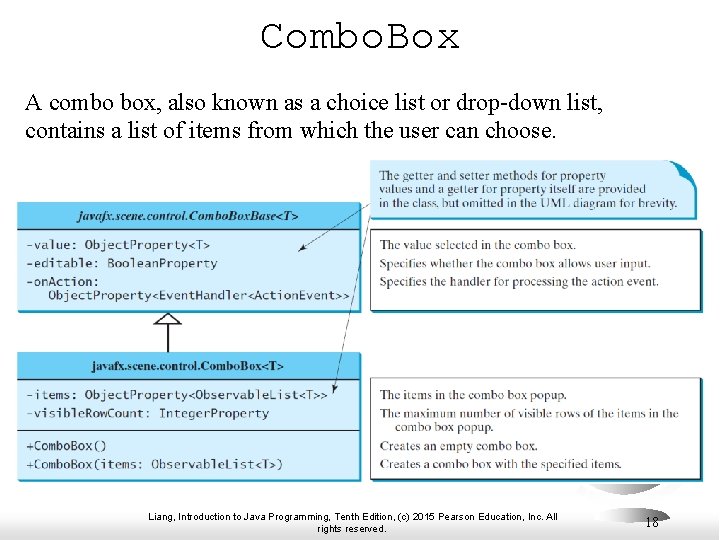
Combo. Box A combo box, also known as a choice list or drop-down list, contains a list of items from which the user can choose. Liang, Introduction to Java Programming, Tenth Edition, (c) 2015 Pearson Education, Inc. All rights reserved. 18
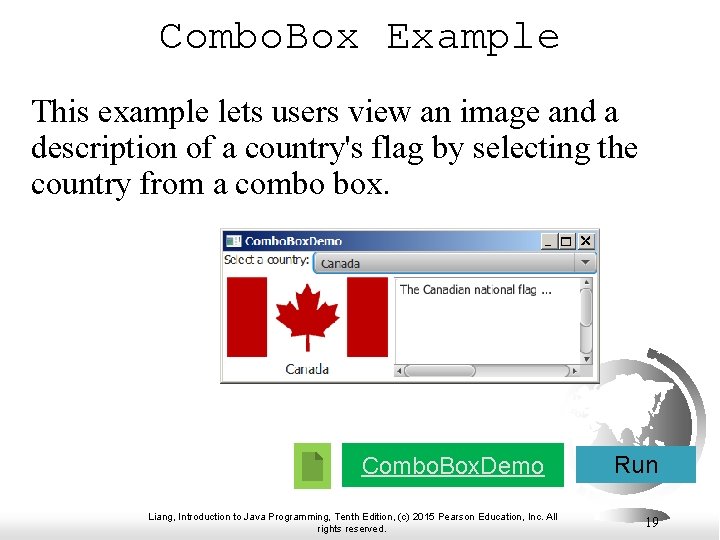
Combo. Box Example This example lets users view an image and a description of a country's flag by selecting the country from a combo box. Combo. Box. Demo Liang, Introduction to Java Programming, Tenth Edition, (c) 2015 Pearson Education, Inc. All rights reserved. Run 19
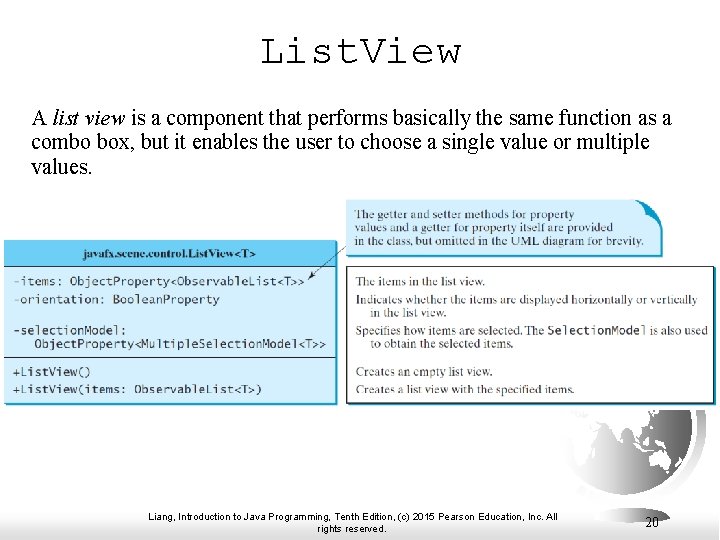
List. View A list view is a component that performs basically the same function as a combo box, but it enables the user to choose a single value or multiple values. Liang, Introduction to Java Programming, Tenth Edition, (c) 2015 Pearson Education, Inc. All rights reserved. 20
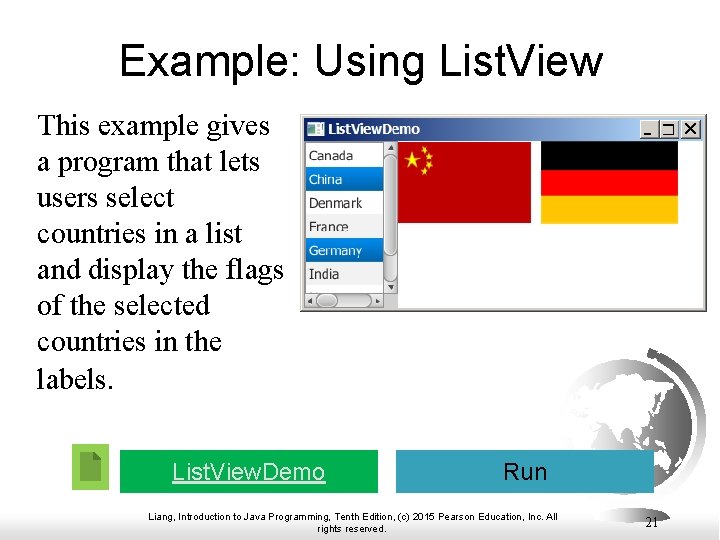
Example: Using List. View This example gives a program that lets users select countries in a list and display the flags of the selected countries in the labels. List. View. Demo Run Liang, Introduction to Java Programming, Tenth Edition, (c) 2015 Pearson Education, Inc. All rights reserved. 21
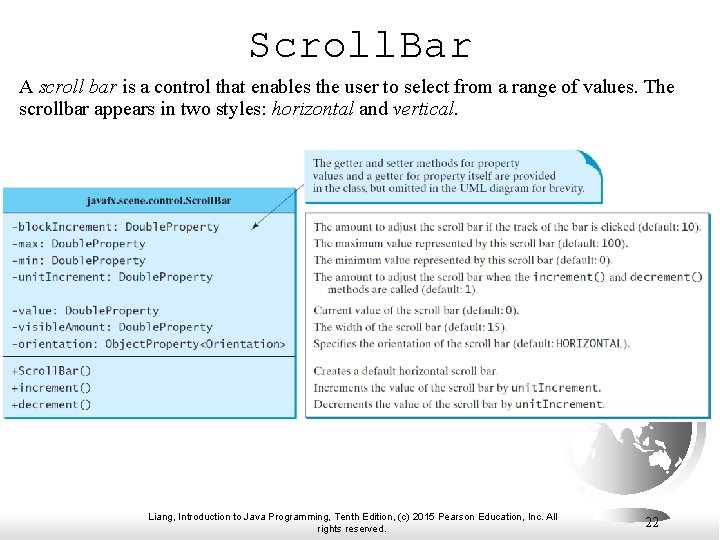
Scroll. Bar A scroll bar is a control that enables the user to select from a range of values. The scrollbar appears in two styles: horizontal and vertical. Liang, Introduction to Java Programming, Tenth Edition, (c) 2015 Pearson Education, Inc. All rights reserved. 22
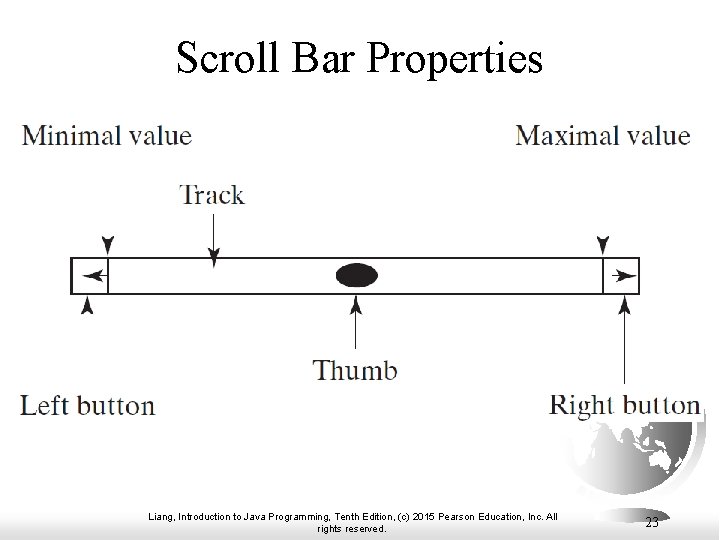
Scroll Bar Properties Liang, Introduction to Java Programming, Tenth Edition, (c) 2015 Pearson Education, Inc. All rights reserved. 23
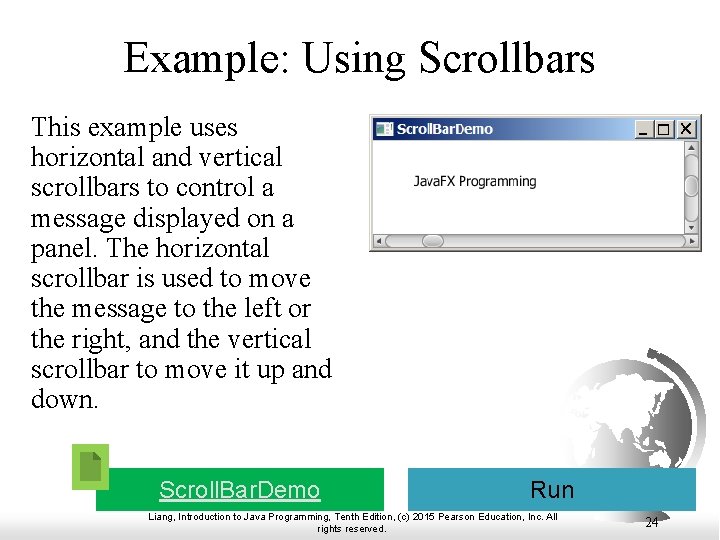
Example: Using Scrollbars This example uses horizontal and vertical scrollbars to control a message displayed on a panel. The horizontal scrollbar is used to move the message to the left or the right, and the vertical scrollbar to move it up and down. Scroll. Bar. Demo Run Liang, Introduction to Java Programming, Tenth Edition, (c) 2015 Pearson Education, Inc. All rights reserved. 24
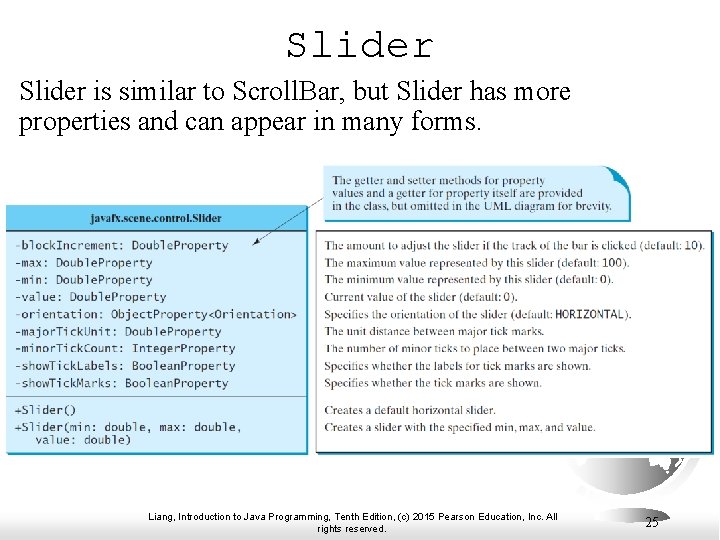
Slider is similar to Scroll. Bar, but Slider has more properties and can appear in many forms. Liang, Introduction to Java Programming, Tenth Edition, (c) 2015 Pearson Education, Inc. All rights reserved. 25
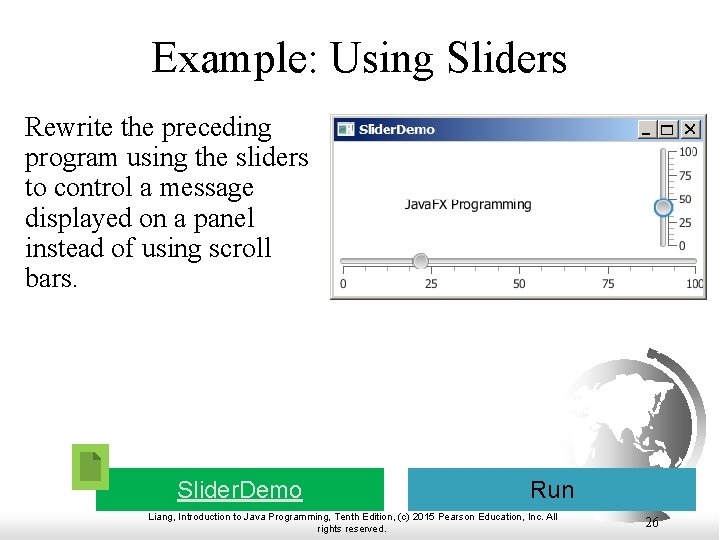
Example: Using Sliders Rewrite the preceding program using the sliders to control a message displayed on a panel instead of using scroll bars. Slider. Demo Run Liang, Introduction to Java Programming, Tenth Edition, (c) 2015 Pearson Education, Inc. All rights reserved. 26
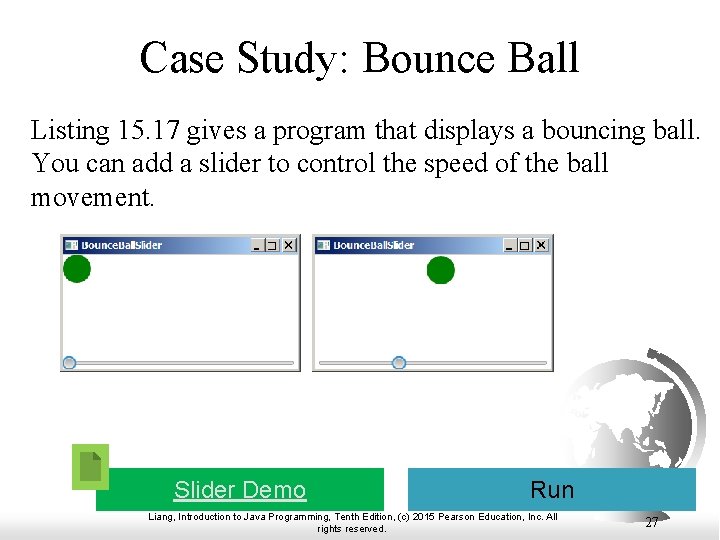
Case Study: Bounce Ball Listing 15. 17 gives a program that displays a bouncing ball. You can add a slider to control the speed of the ball movement. Slider Demo Run Liang, Introduction to Java Programming, Tenth Edition, (c) 2015 Pearson Education, Inc. All rights reserved. 27
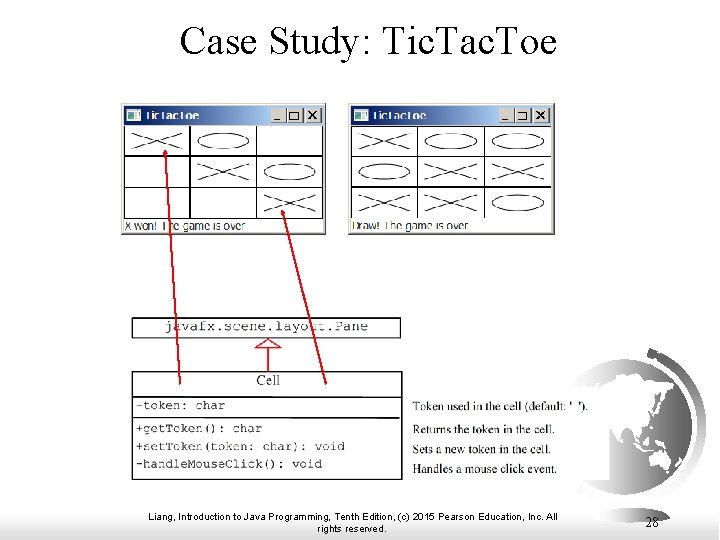
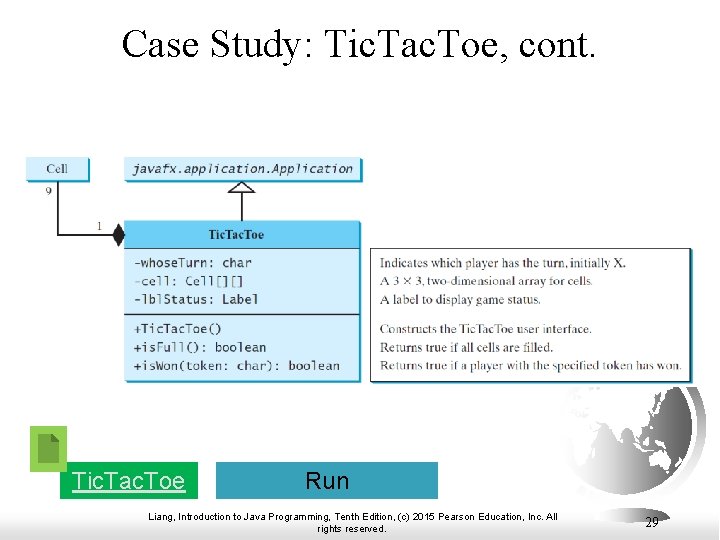
Case Study: Tic. Tac. Toe Liang, Introduction to Java Programming, Tenth Edition, (c) 2015 Pearson Education, Inc. All rights reserved. 28
Case Study: Tic. Tac. Toe, cont. Tic. Tac. Toe Run Liang, Introduction to Java Programming, Tenth Edition, (c) 2015 Pearson Education, Inc. All rights reserved. 29
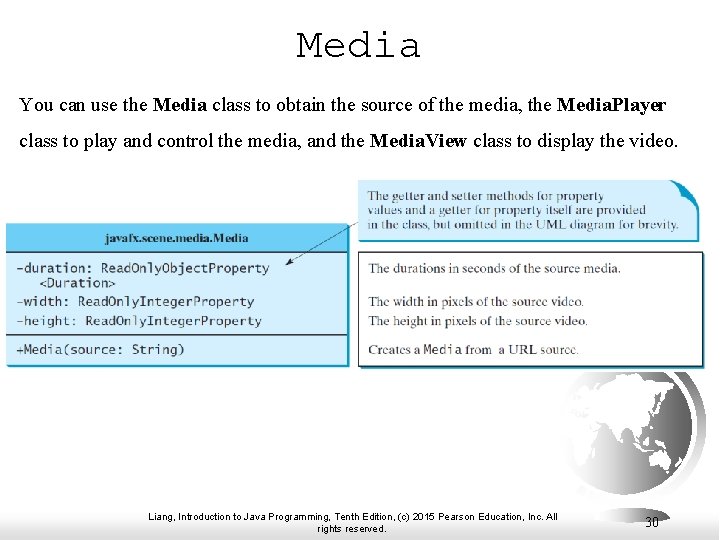
Media You can use the Media class to obtain the source of the media, the Media. Player class to play and control the media, and the Media. View class to display the video. Liang, Introduction to Java Programming, Tenth Edition, (c) 2015 Pearson Education, Inc. All rights reserved. 30
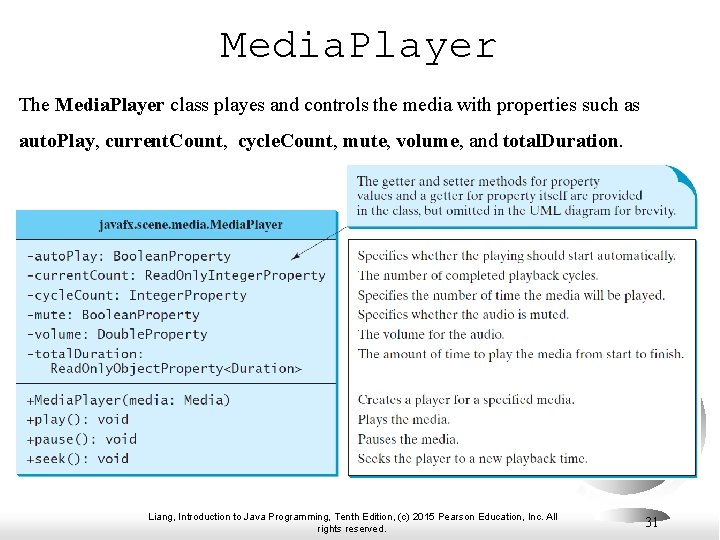
Media. Player The Media. Player class playes and controls the media with properties such as auto. Play, current. Count, cycle. Count, mute, volume, and total. Duration. Liang, Introduction to Java Programming, Tenth Edition, (c) 2015 Pearson Education, Inc. All rights reserved. 31
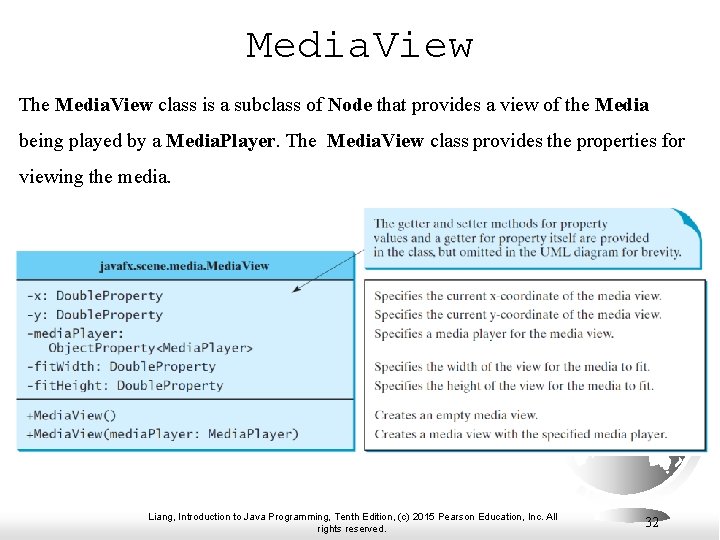
Media. View The Media. View class is a subclass of Node that provides a view of the Media being played by a Media. Player. The Media. View class provides the properties for viewing the media. Liang, Introduction to Java Programming, Tenth Edition, (c) 2015 Pearson Education, Inc. All rights reserved. 32
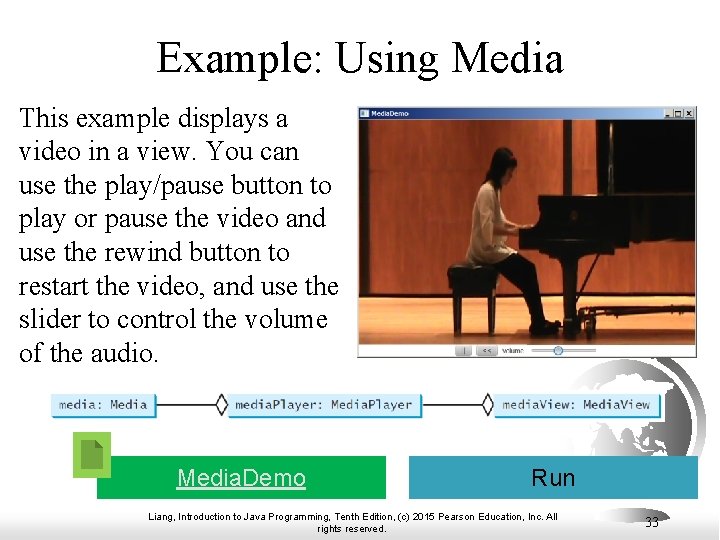
Example: Using Media This example displays a video in a view. You can use the play/pause button to play or pause the video and use the rewind button to restart the video, and use the slider to control the volume of the audio. Media. Demo Run Liang, Introduction to Java Programming, Tenth Edition, (c) 2015 Pearson Education, Inc. All rights reserved. 33
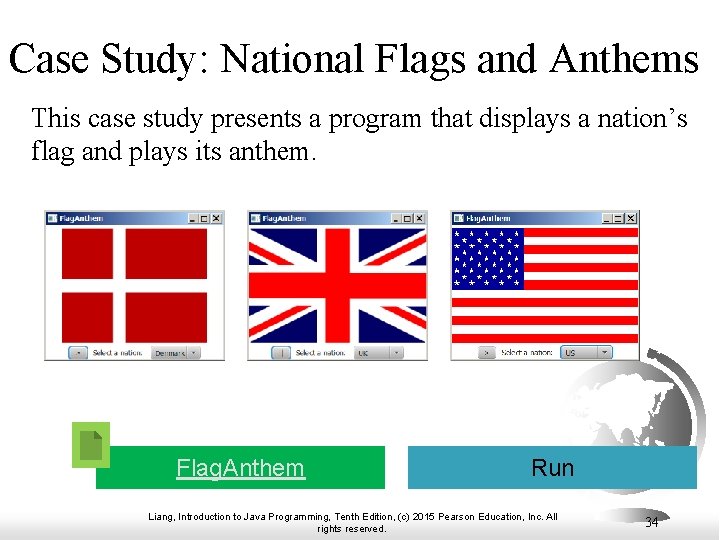
Case Study: National Flags and Anthems This case study presents a program that displays a nation’s flag and plays its anthem. Flag. Anthem Run Liang, Introduction to Java Programming, Tenth Edition, (c) 2015 Pearson Education, Inc. All rights reserved. 34