
Chapter 15 Images sections 1 2 3 Getting
- Slides: 11
Chapter 15, Images sections 1, 2, 3
Getting Started PImage is a class for loading and displaying an image. 4 steps to draw an image to the screen. 1. Add file to data folder 2. Create the PImage variable 3. Load the image into the variable with load. Image() 4. Draw the image() function
Activity • Practice Example 15 -1. To get the image: Use image of your own. • Drag file into Processing window, or • Click SKETCH>Add file, or • Next, control the height • Create the data folder and & width with the add file manually. mouse. Other considerations • The files accepted are GIF, JPG, PNG & TGA • Spaces are OK, but the file name is case sensitive.
Resizing an Image • Problem: Using a 4 th & 5 th parameter to resize an image does not work consistently. e. g. image(img, 0, 0, width/2, height/2) • Solution: There is a consistency issue with how images are rendered when sized that way. – Ideally, should resize in image editor. – A workaround is to calculate by using image dimensions. e. g. image(img, 0, 0, 240/2, 190/2) – The proper function is with resize(). https: //processing. org/reference/PImage_resize_. html
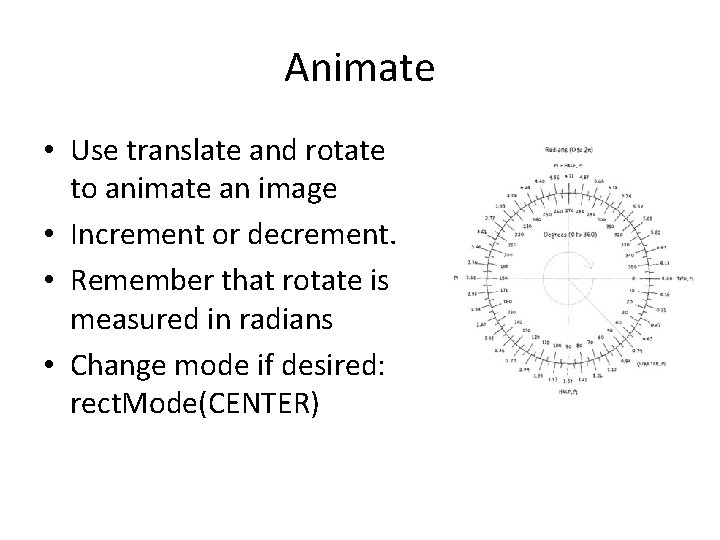
Animate • Use translate and rotate to animate an image • Increment or decrement. • Remember that rotate is measured in radians • Change mode if desired: rect. Mode(CENTER)
Another Practice Exercise • Open your Example 15 -2 and let’s examine code. • Use your own picture from www. pngimg. com or www. freepngimg. com • For a remix, add JPG picture as background()
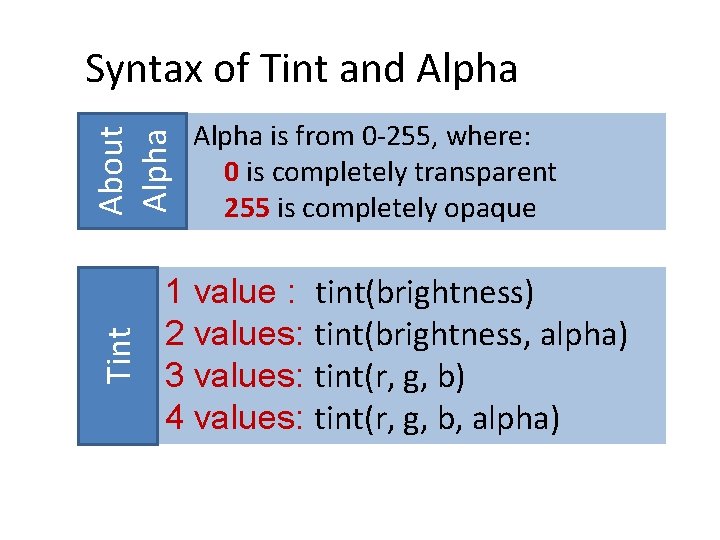
Tint About Alpha Syntax of Tint and Alpha is from 0 -255, where: 0 is completely transparent 255 is completely opaque 1 value : tint(brightness) 2 values: tint(brightness, alpha) 3 values: tint(r, g, b) 4 values: tint(r, g, b, alpha)
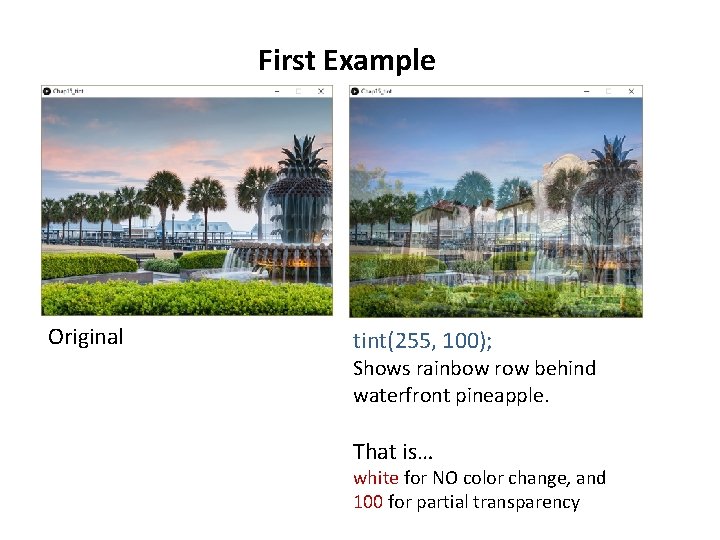
First Example Original tint(255, 100); Shows rainbow row behind waterfront pineapple. That is… white for NO color change, and 100 for partial transparency
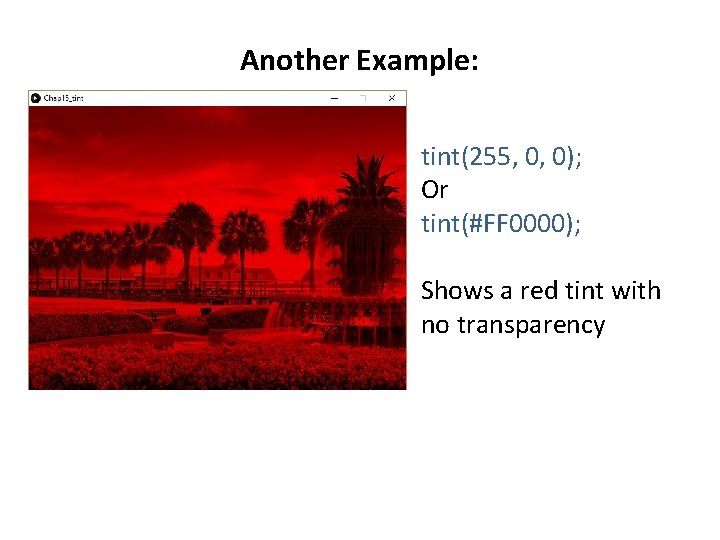
Another Example: tint(255, 0, 0); Or tint(#FF 0000); Shows a red tint with no transparency
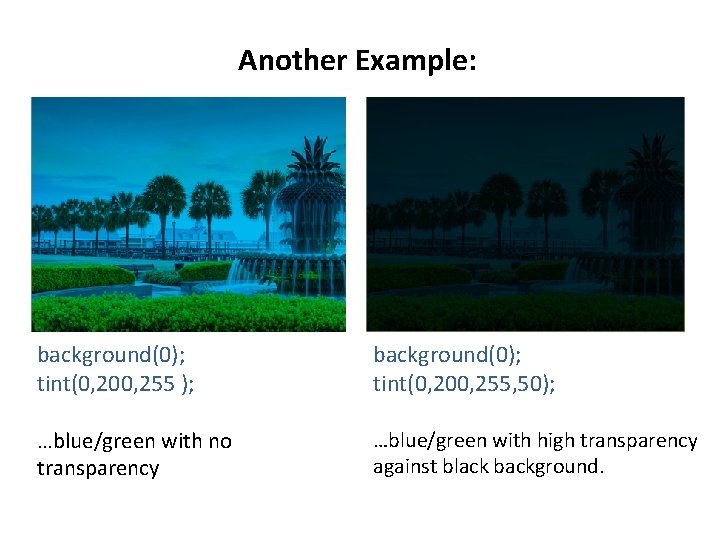
Another Example: background(0); tint(0, 200, 255 ); background(0); tint(0, 200, 255, 50); …blue/green with no transparency …blue/green with high transparency against black background.
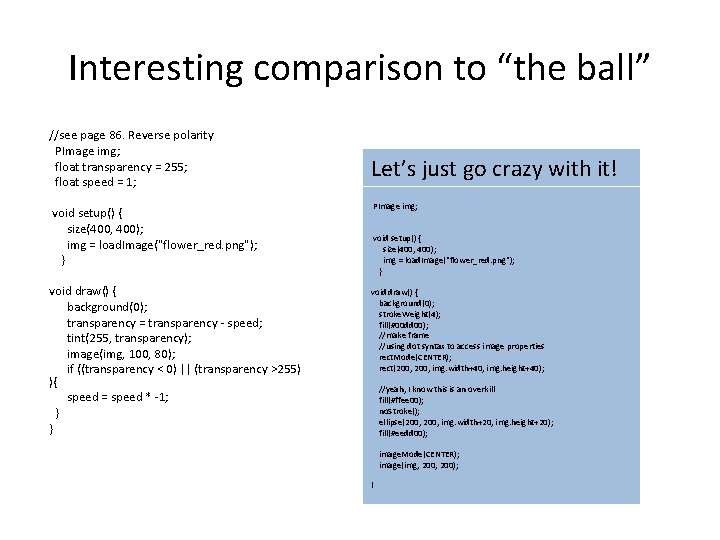
Interesting comparison to “the ball” //see page 86. Reverse polarity PImage img; float transparency = 255; float speed = 1; void setup() { size(400, 400); img = load. Image("flower_red. png"); } void draw() { background(0); transparency = transparency - speed; tint(255, transparency); image(img, 100, 80); if ((transparency < 0) || (transparency >255) ){ speed = speed * -1; } } Let’s just go crazy with it! PImage img; void setup() { size(400, 400); img = load. Image("flower_red. png"); } void draw() { background(0); stroke. Weight(4); fill(#00 dd 00); //make frame //using dot syntax to access image properties rect. Mode(CENTER); rect(200, img. width+40, img. height+40); //yeah, I know this is an overkill fill(#ffee 00); no. Stroke(); ellipse(200, img. width+20, img. height+20); fill(#eedd 00); image. Mode(CENTER); image(img, 200); }