
Chapter 15 Basic Word Processing Skills Computer Literacy
Chapter 15: Basic Word Processing Skills Computer Literacy Chapter 15: Basic Word Processing Skills
Introduction • • • P_______ Formatting Page and Section B____ S______s and Specials Characters Styles Format P_____ L______ Tools and Research Computer Literacy Chapter 15: Basic Word Processing Skills
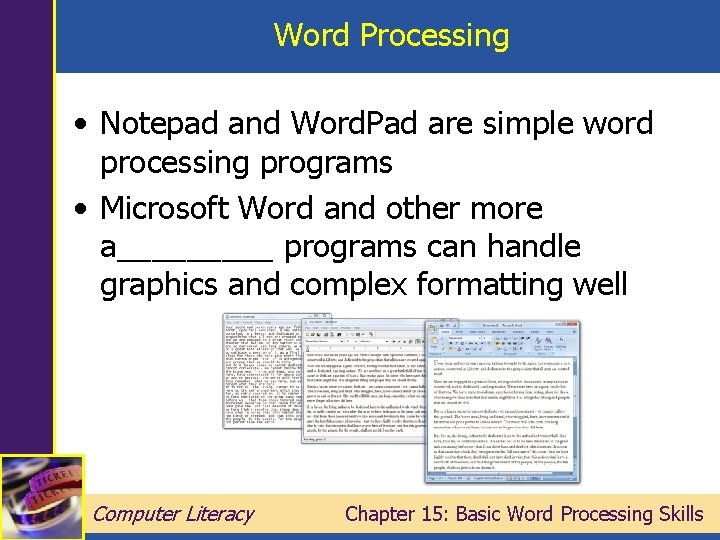
Word Processing • Notepad and Word. Pad are simple word processing programs • Microsoft Word and other more a_____ programs can handle graphics and complex formatting well Computer Literacy Chapter 15: Basic Word Processing Skills
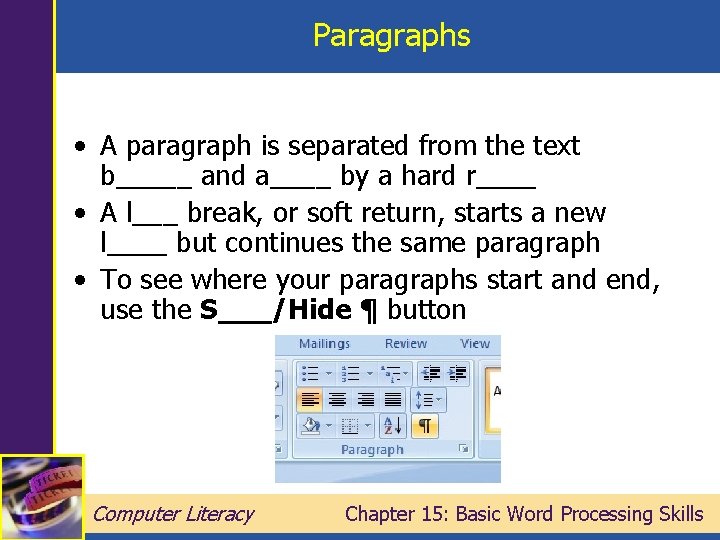
Paragraphs • A paragraph is separated from the text b_____ and a____ by a hard r____ • A l___ break, or soft return, starts a new l____ but continues the same paragraph • To see where your paragraphs start and end, use the S___/Hide ¶ button Computer Literacy Chapter 15: Basic Word Processing Skills
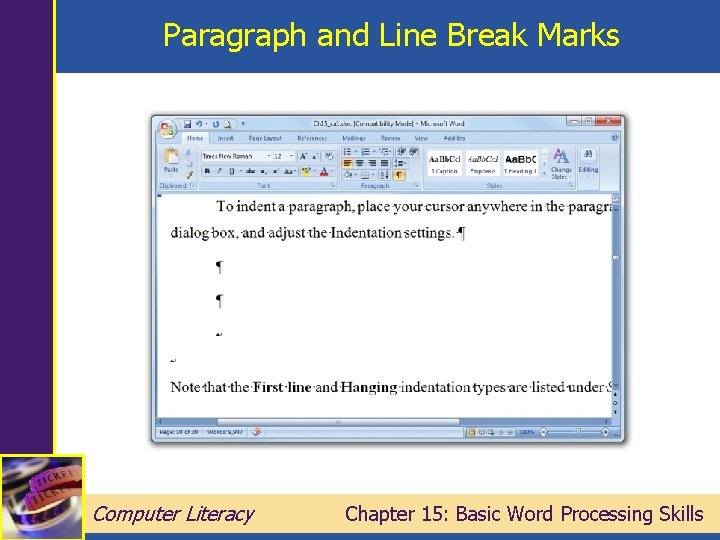
Paragraph and Line Break Marks Computer Literacy Chapter 15: Basic Word Processing Skills
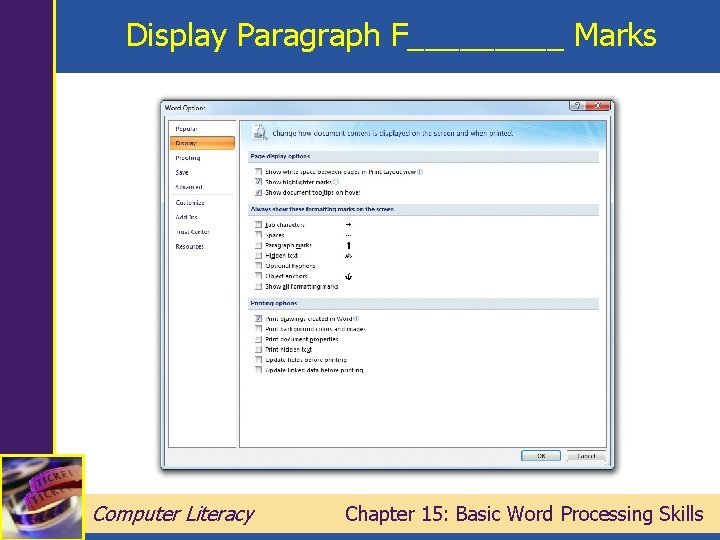
Display Paragraph F_____ Marks Computer Literacy Chapter 15: Basic Word Processing Skills
Formatting Paragraphs • Buttons on the H____ tab – Text alignment: left, center, right, justified • Types of I_____ – first line, left, right, hanging • T_____ – left, center, right, decimal, bar Computer Literacy Chapter 15: Basic Word Processing Skills
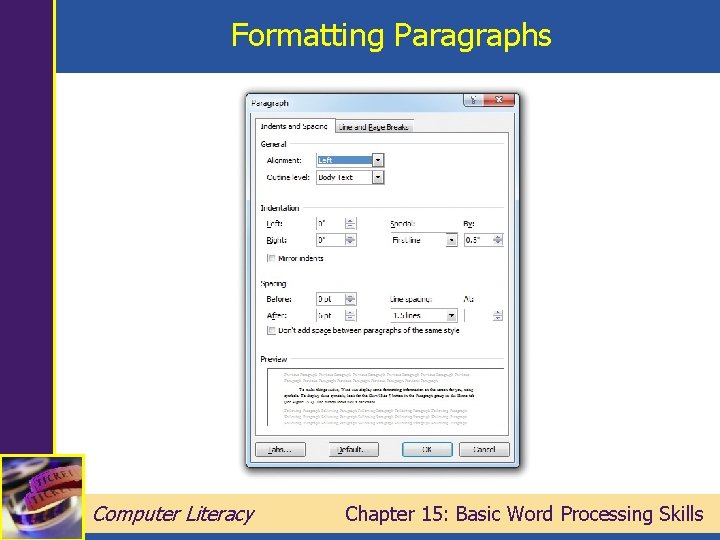
Formatting Paragraphs Computer Literacy Chapter 15: Basic Word Processing Skills
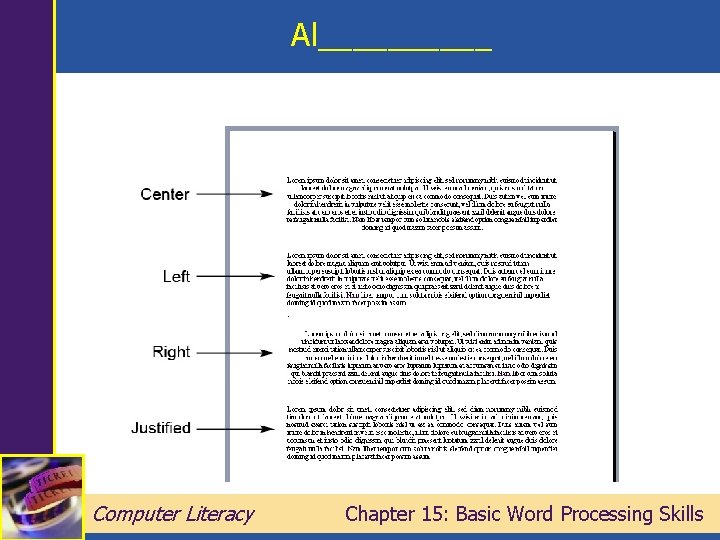
Al_____ Computer Literacy Chapter 15: Basic Word Processing Skills
![Alignment • Use alignment buttons • Keyboard shortcuts – – [Ctrl + + _]](http://slidetodoc.com/presentation_image_h2/883b0ecdce0dd7b6a1e026954eda1db6/image-10.jpg "Alignment • Use alignment buttons • Keyboard shortcuts – – [Ctrl + + _]")
Alignment • Use alignment buttons • Keyboard shortcuts – – [Ctrl + + _] _] to to Computer Literacy center left align right align justify Chapter 15: Basic Word Processing Skills
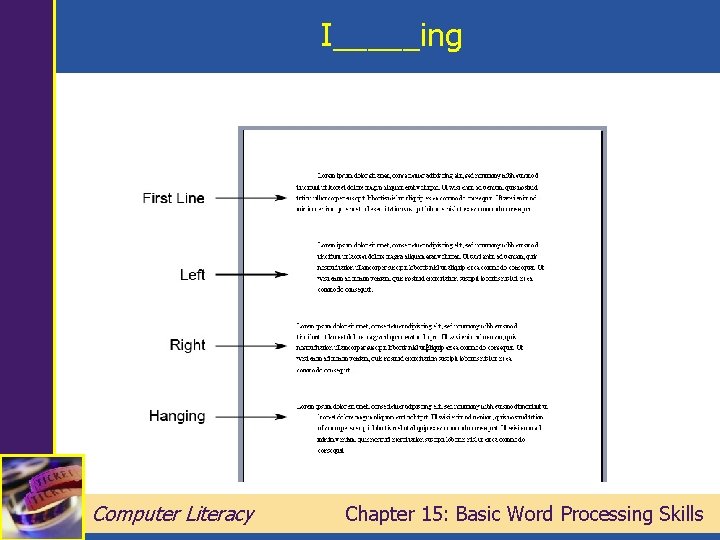
I_____ing Computer Literacy Chapter 15: Basic Word Processing Skills
![Tabs • Enable limited spacing controls • Press the [___] key to add •](http://slidetodoc.com/presentation_image_h2/883b0ecdce0dd7b6a1e026954eda1db6/image-12.jpg "Tabs • Enable limited spacing controls • Press the [___] key to add •")
Tabs • Enable limited spacing controls • Press the [___] key to add • Default tab s____ configurable Computer Literacy Chapter 15: Basic Word Processing Skills
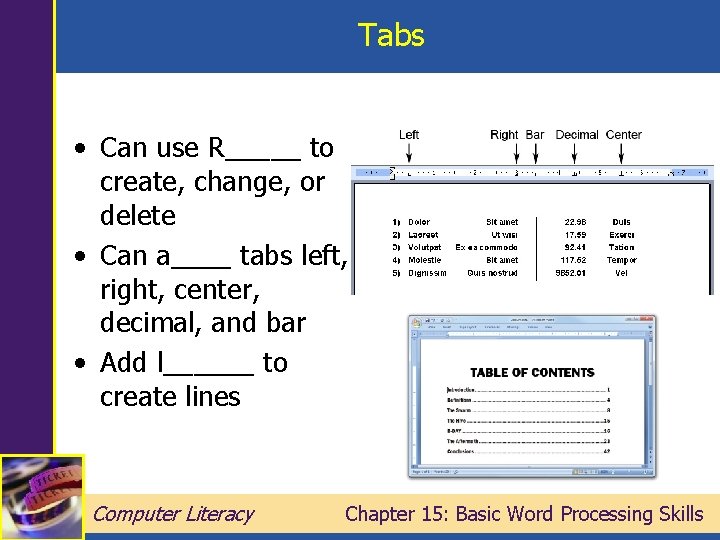
Tabs • Can use R_____ to create, change, or delete • Can a____ tabs left, right, center, decimal, and bar • Add l______ to create lines Computer Literacy Chapter 15: Basic Word Processing Skills
Line Spacing • Determines space _______n lines • Use Line Spacing drop-down • Keyboard shortcut – [Ctrl + _] for single space – [Ctrl + _] for double space • Size of l____ matches t___ of paragraph by default Computer Literacy Chapter 15: Basic Word Processing Skills
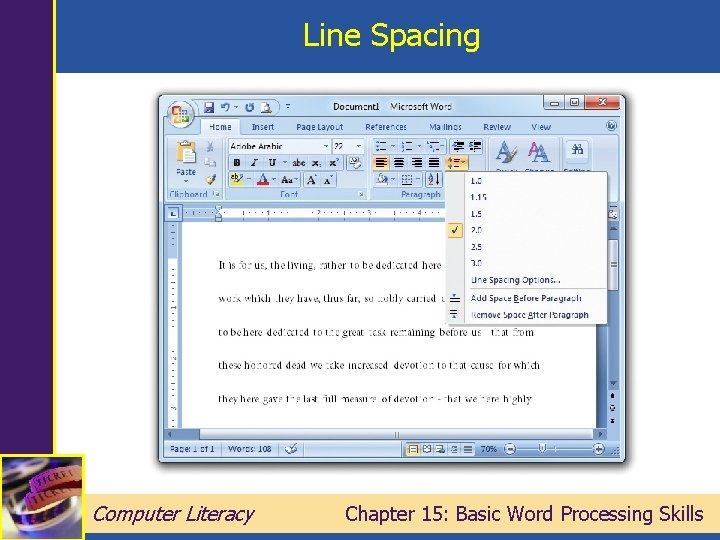
Line Spacing Computer Literacy Chapter 15: Basic Word Processing Skills
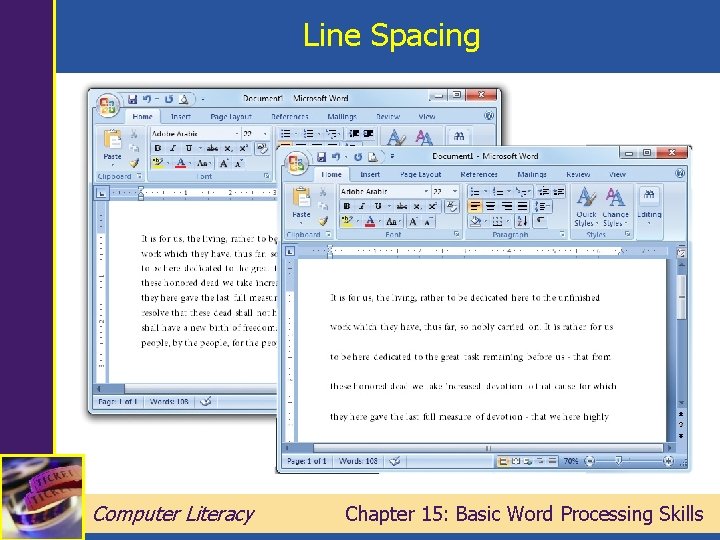
Line Spacing Computer Literacy Chapter 15: Basic Word Processing Skills
Paragraph Spacing • Changes distance before and after paragraphs • Use P_______ properties dialog box • A 0 space means single- or doublespacing without any extra space Computer Literacy Chapter 15: Basic Word Processing Skills
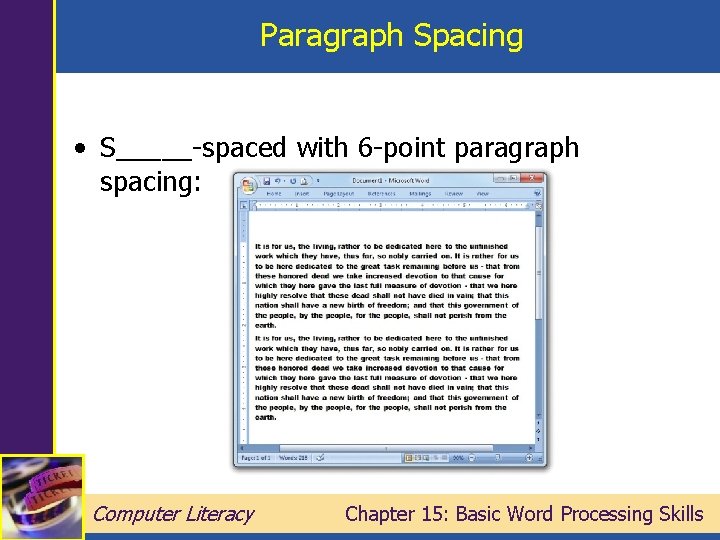
Paragraph Spacing • S_____-spaced with 6 -point paragraph spacing: Computer Literacy Chapter 15: Basic Word Processing Skills
Page Breaks • Pages b____ automatically based on page and margin size • To create a manual page break, – Use [Ctrl + E____] – or select I______ | Page Break Computer Literacy Chapter 15: Basic Word Processing Skills
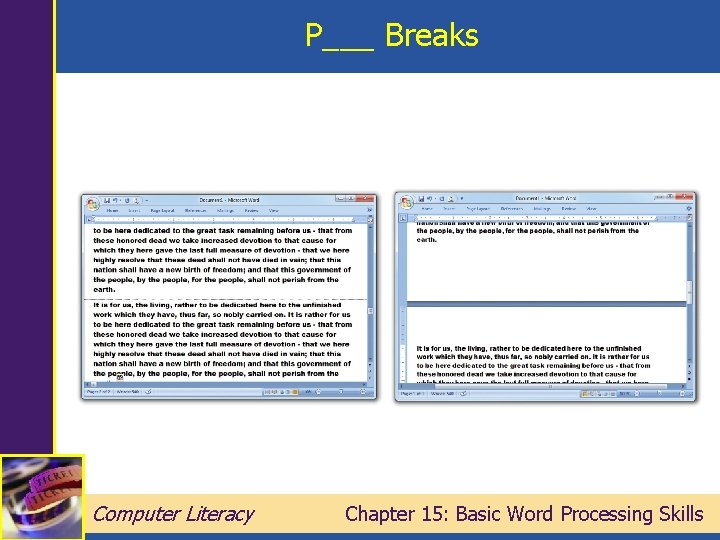
P___ Breaks Computer Literacy Chapter 15: Basic Word Processing Skills
Section Breaks • Enable you to v___ the page formatting on d______parts of the same document – N___ page includes a page break – C_____s doesn’t start a new page – E___ page begins the next section on a page with an even page number – O__ page begins the next section on a page with an odd page number Computer Literacy Chapter 15: Basic Word Processing Skills
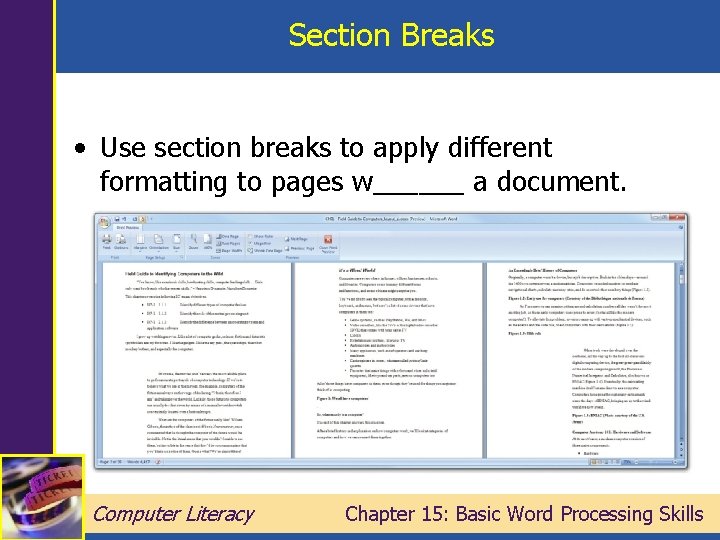
Section Breaks • Use section breaks to apply different formatting to pages w______ a document. Computer Literacy Chapter 15: Basic Word Processing Skills
Symbols and Special Characters • • • A____ letters (é, ñ) C______ symbols (¢, €) l_____ symbols (©, ™) M____ signs (±, Σ) Other odd items Select Insert | S_____, then find and select the item you want and click Insert Computer Literacy Chapter 15: Basic Word Processing Skills
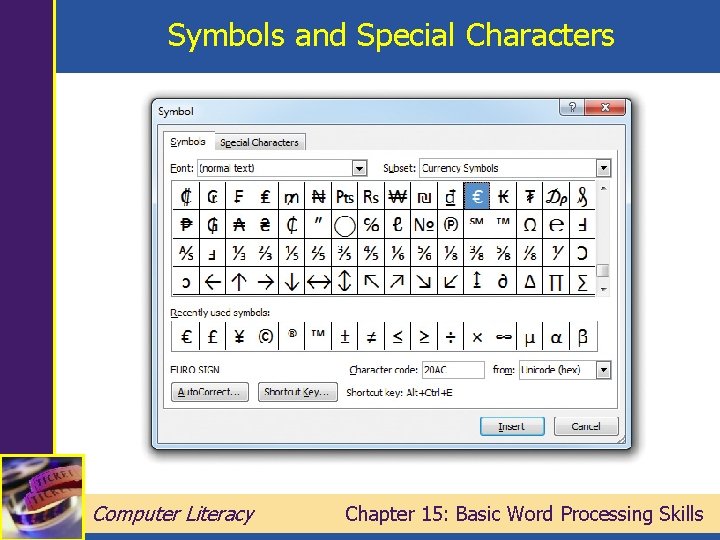
Symbols and Special Characters Computer Literacy Chapter 15: Basic Word Processing Skills
Styles • A s_____ is a collection of character or paragraph formatting settings • Use styles to save time and make your document more u______ and p____-looking • C______ styles affect just the s______ text • P____styles apply to an e_____ paragraph Computer Literacy Chapter 15: Basic Word Processing Skills
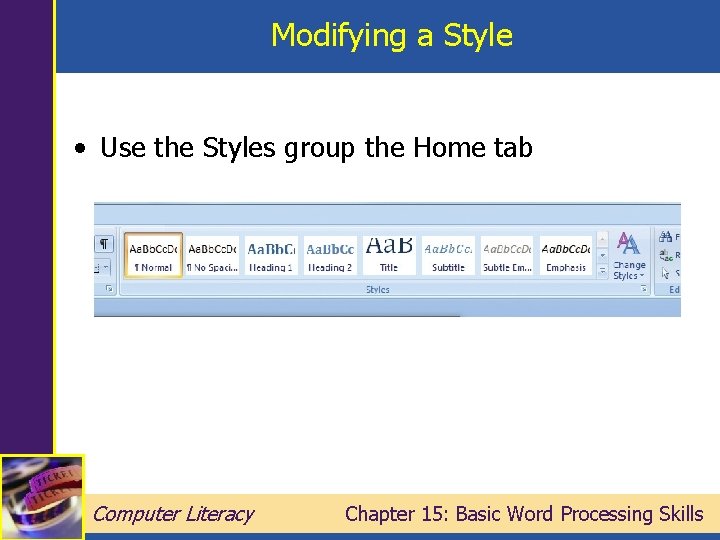
Modifying a Style • Use the Styles group the Home tab Computer Literacy Chapter 15: Basic Word Processing Skills
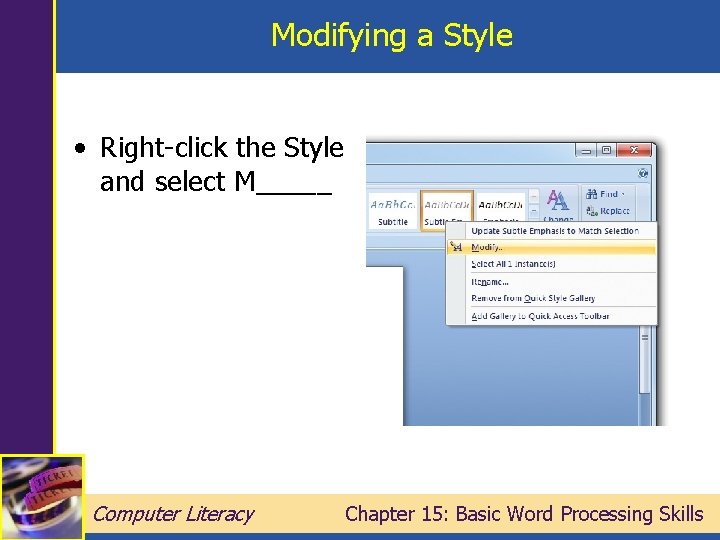
Modifying a Style • Right-click the Style and select M_____ Computer Literacy Chapter 15: Basic Word Processing Skills
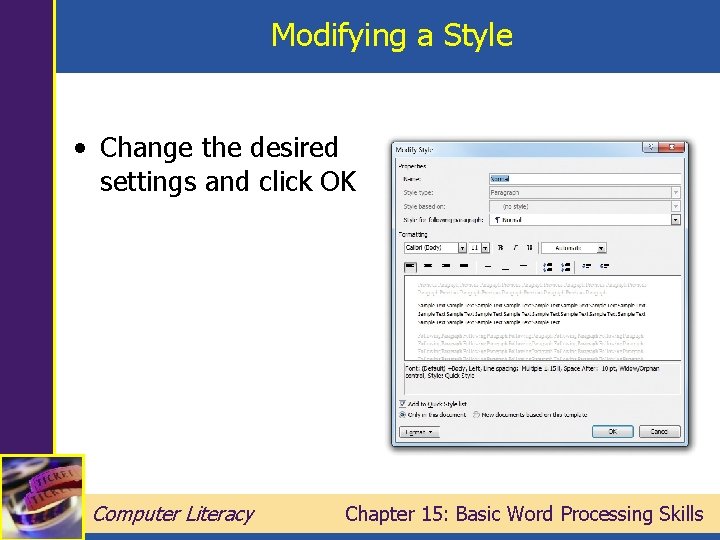
Modifying a Style • Change the desired settings and click OK Computer Literacy Chapter 15: Basic Word Processing Skills
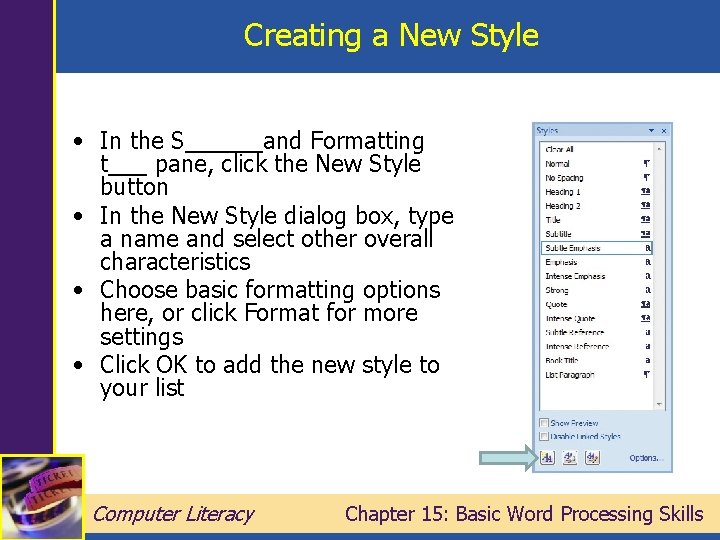
Creating a New Style • In the S______and Formatting t___ pane, click the New Style button • In the New Style dialog box, type a name and select other overall characteristics • Choose basic formatting options here, or click Format for more settings • Click OK to add the new style to your list Computer Literacy Chapter 15: Basic Word Processing Skills
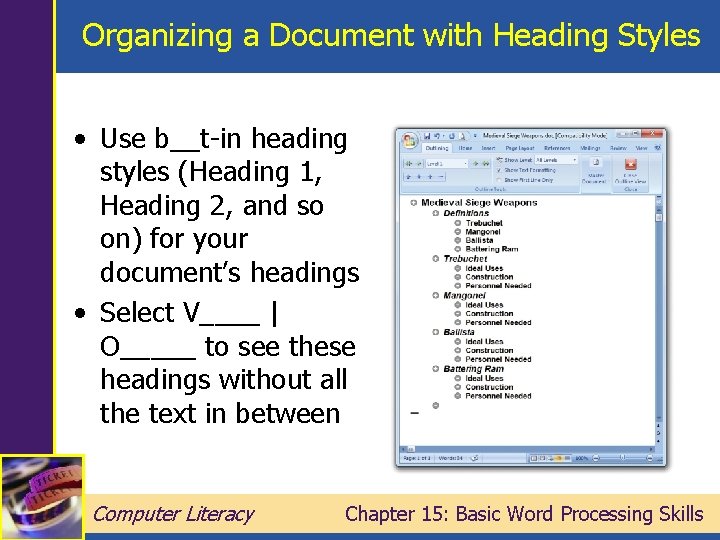
Organizing a Document with Heading Styles • Use b__t-in heading styles (Heading 1, Heading 2, and so on) for your document’s headings • Select V____ | O_____ to see these headings without all the text in between Computer Literacy Chapter 15: Basic Word Processing Skills
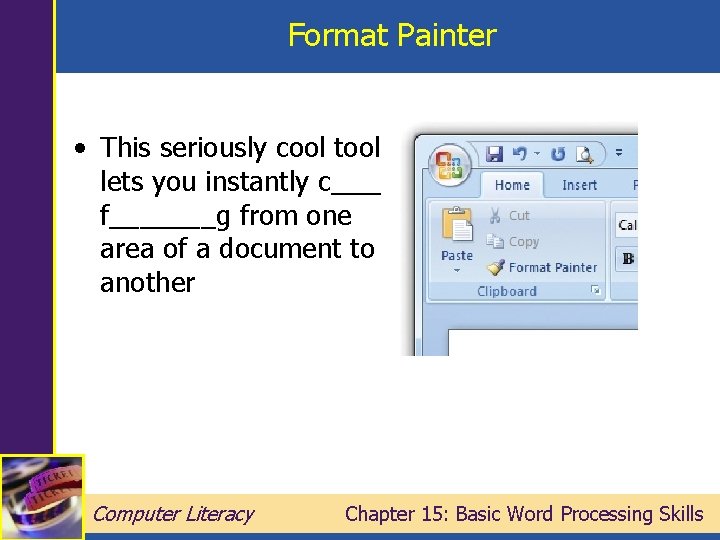
Format Painter • This seriously cool tool lets you instantly c____ f_______g from one area of a document to another Computer Literacy Chapter 15: Basic Word Processing Skills
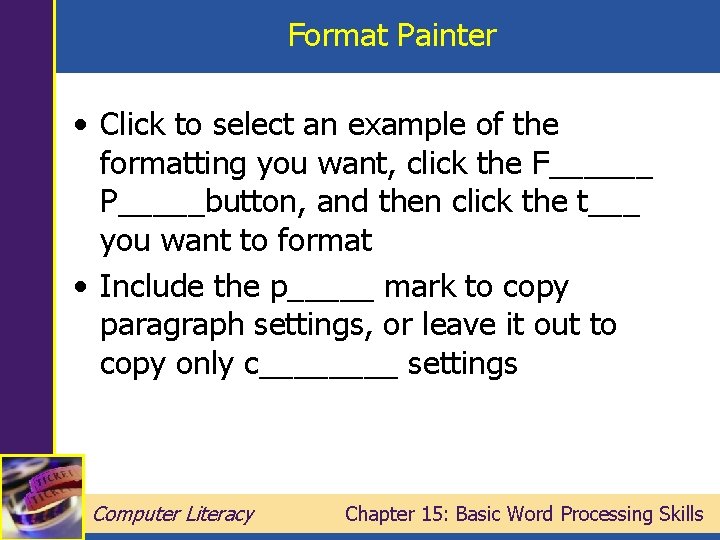
Format Painter • Click to select an example of the formatting you want, click the F______ P_____button, and then click the t___ you want to format • Include the p_____ mark to copy paragraph settings, or leave it out to copy only c____ settings Computer Literacy Chapter 15: Basic Word Processing Skills
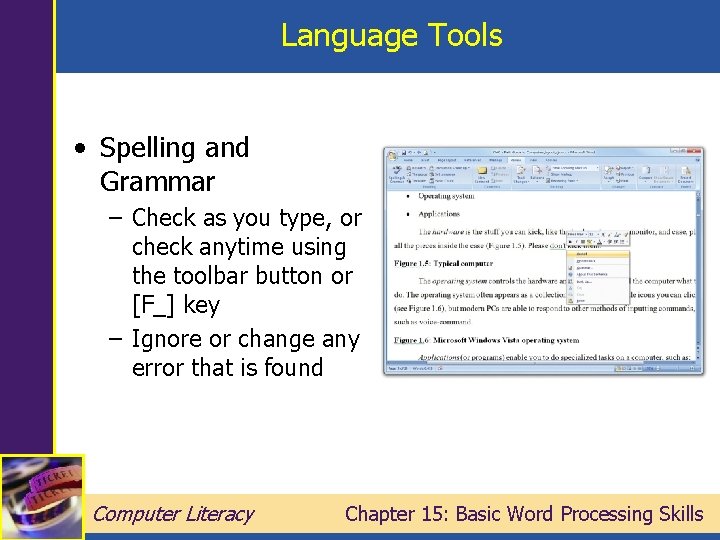
Language Tools • Spelling and Grammar – Check as you type, or check anytime using the toolbar button or [F_] key – Ignore or change any error that is found Computer Literacy Chapter 15: Basic Word Processing Skills
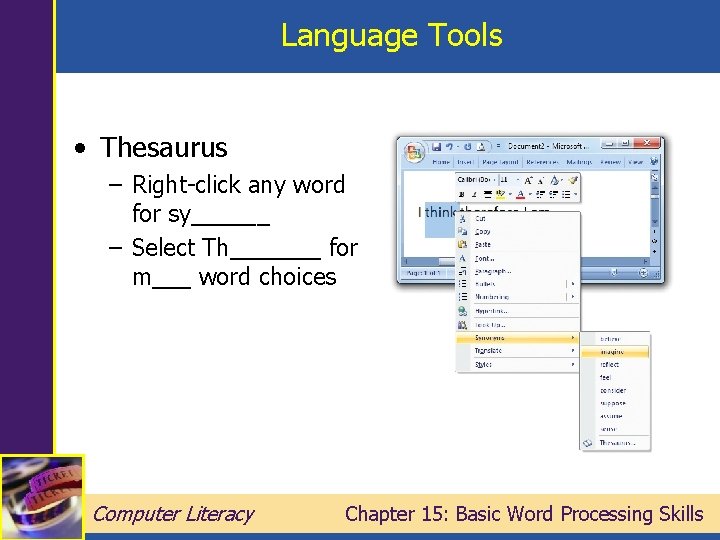
Language Tools • Thesaurus – Right-click any word for sy______ – Select Th_______ for m___ word choices Computer Literacy Chapter 15: Basic Word Processing Skills
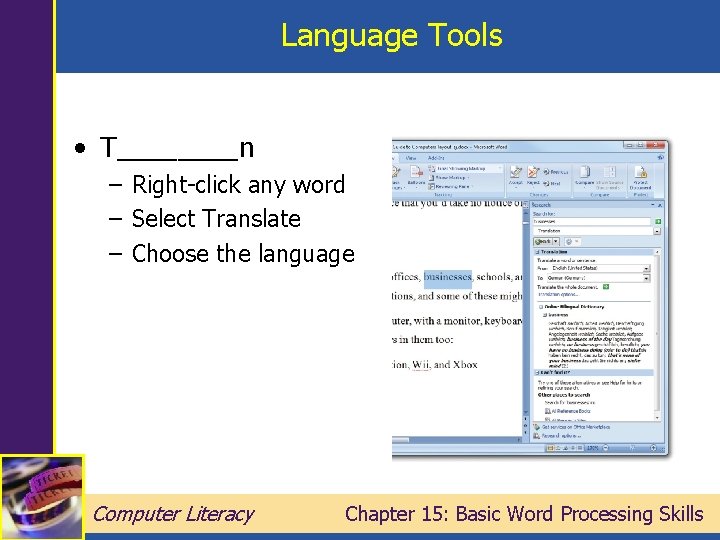
Language Tools • T____n – Right-click any word – Select Translate – Choose the language Computer Literacy Chapter 15: Basic Word Processing Skills
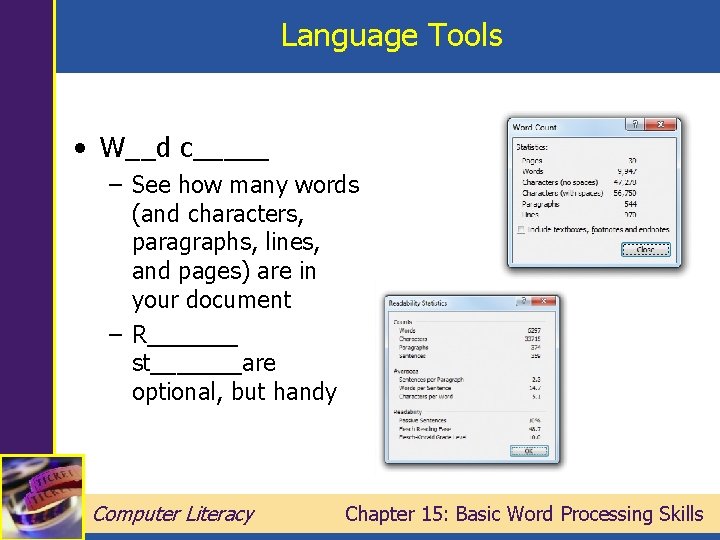
Language Tools • W__d c_____ – See how many words (and characters, paragraphs, lines, and pages) are in your document – R_______ st_______are optional, but handy Computer Literacy Chapter 15: Basic Word Processing Skills
Summary • • • Paragraph Formatting Page and Section Breaks Symbols and Specials Characters Styles Format Painter Language Tools and Research Computer Literacy Chapter 15: Basic Word Processing Skills
- Slides: 37