
CHAPTER 14 Working with Formulas and Functions CMPTR
- Slides: 38
CHAPTER 14 Working with Formulas and Functions
CMPTR Chapter 14: Formatting a Workbook Learning Objectives 2 • Use relative, absolute, and mixed cell references in formulas • Enter functions • Use Auto. Fill • Work with date functions • Work with the PMT financial function • Format cells and ranges
CMPTR 3 Using Relative, Absolute, and Mixed Cell References in Formulas • One of the most powerful aspects of Excel is being able to copy formulas between cells. • Topics Covered: • Using Relative References • Using Absolute References • Using Mixed References
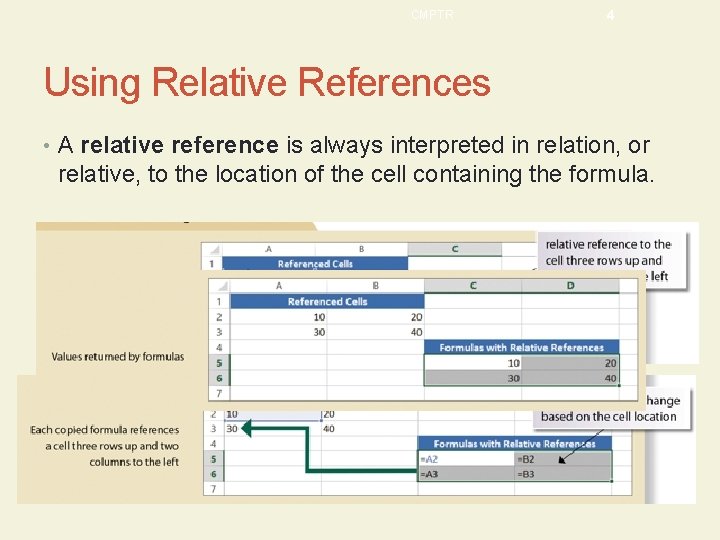
CMPTR 4 Using Relative References • A relative reference is always interpreted in relation, or relative, to the location of the cell containing the formula.
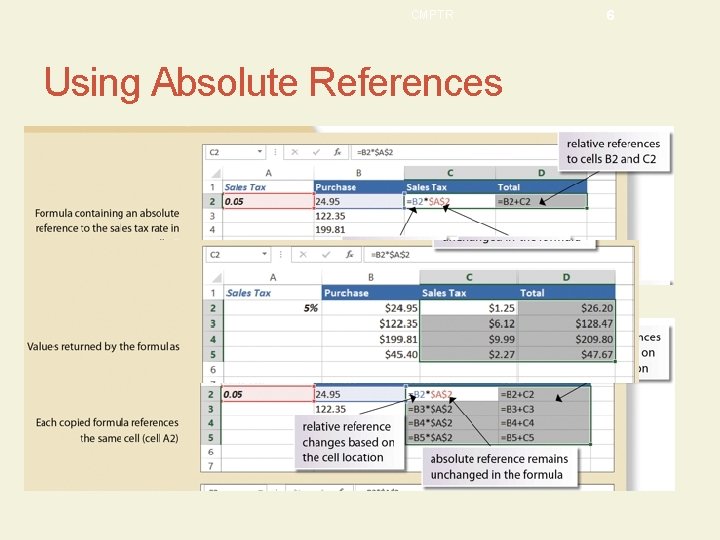
CMPTR 5 Using Absolute References • Cell references that remain fixed when a formula is copied to a new location are called absolute references. • In Excel, absolute references have a $ (dollar sign) before each column and row designation. • To quickly switch a cell reference between relative and absolute and mixed reference, select or click in the cell reference and then press the F 4 key.
CMPTR Using Absolute References 6
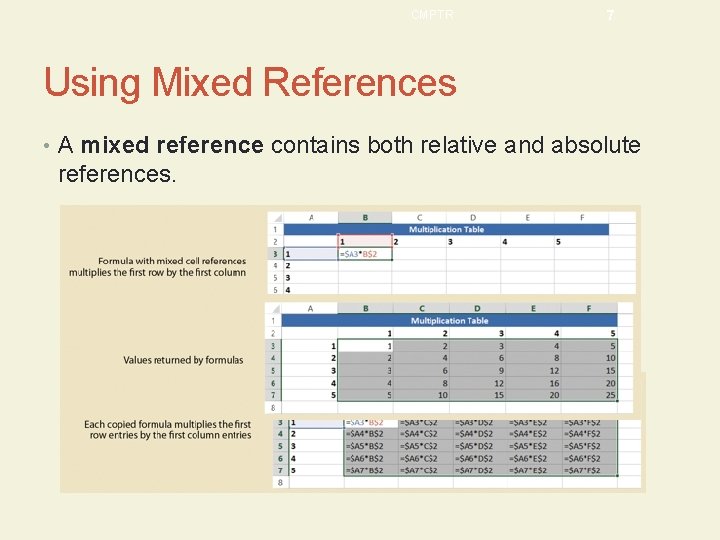
CMPTR 7 Using Mixed References • A mixed reference contains both relative and absolute references.
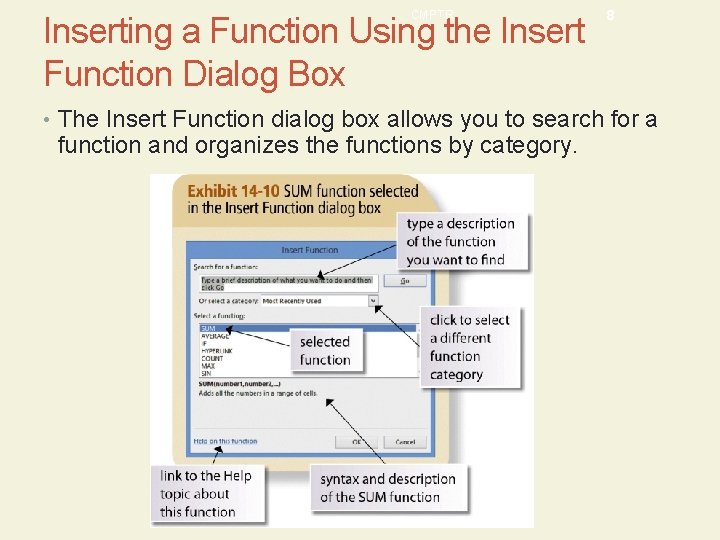
CMPTR Inserting a Function Using the Insert Function Dialog Box 8 • The Insert Function dialog box allows you to search for a function and organizes the functions by category.
CMPTR Chapter 13: Creating a Workbook Typing a Function in a Cell 9 • After you become familiar with a function, it can be faster to type the function directly in a cell rather than using the Insert Function dialog box.
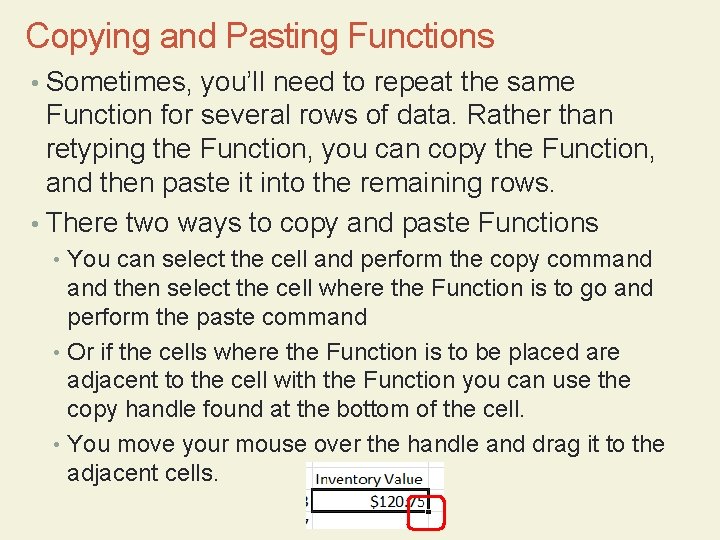
Copying and Pasting Functions • Sometimes, you’ll need to repeat the same Function for several rows of data. Rather than retyping the Function, you can copy the Function, and then paste it into the remaining rows. • There two ways to copy and paste Functions • You can select the cell and perform the copy command then select the cell where the Function is to go and perform the paste command • Or if the cells where the Function is to be placed are adjacent to the cell with the Function you can use the copy handle found at the bottom of the cell. • You move your mouse over the handle and drag it to the adjacent cells.
CMPTR 11 Creating a Series • Auto. Fill can also be used to create a series of numbers, dates, or text based on a pattern. • To create a series of numbers, you enter the initial values in the series in a selected range and then use Auto. Fill to complete the series.
CMPTR 12 Working with the PMT Financial Function • A financial function is a function related to monetary calculations, such as loans and payments. • Topics Covered: • Understanding Loan Factors • Entering the PMT Function • Performing What-If Analysis • .
CMPTR 13 Understanding Loan Factors • One commonly used financial function is the PMT function, which is used to calculate a payment schedule required to completely repay a loan. • Principal is the amount of money being loaned. • The length of time between each payment is the payment period. • Interest is the amount added to the principal by the lender. • .
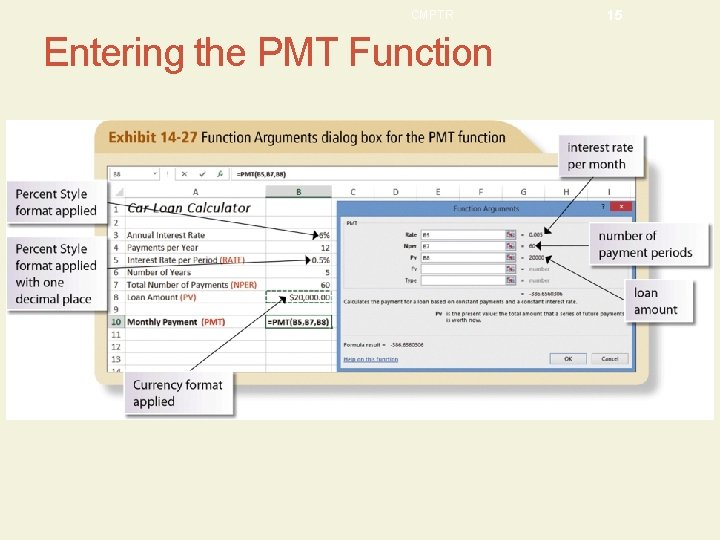
CMPTR 14 Entering the PMT Function • To calculate the costs associated with a loan, you need the following information: • Annual interest rate • Number of payments or payment periods per year • Length of the loan • Principal amount
CMPTR Entering the PMT Function 15
Formatting • You can format the appearance of individual cells by modifying the alignment of text within the cell, indenting cell text, or adding borders of different styles and colors to individual cells or ranges. • Topics Covered: • Using the Format Cells Dialog Box • Applying Cell Styles • Aligning Cell Content • Indenting Cell Content • Merging Cells • Adding Cell Borders • Changing Cell Background Color
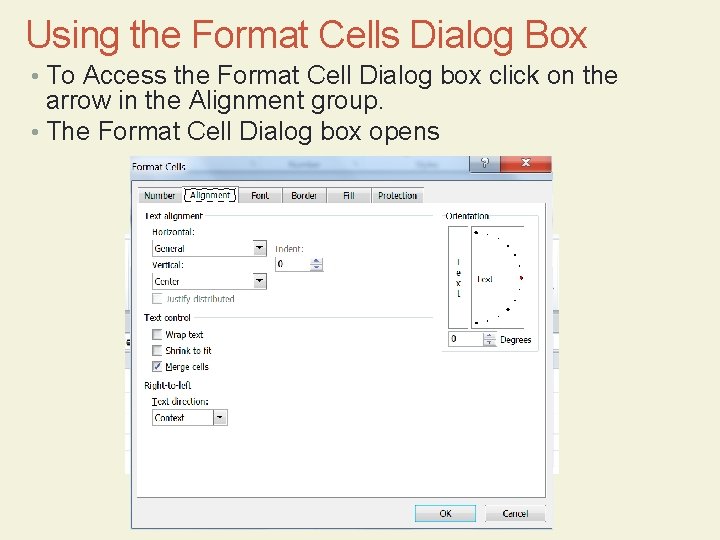
Using the Format Cells Dialog Box • To Access the Format Cell Dialog box click on the arrow in the Alignment group. • The Format Cell Dialog box opens
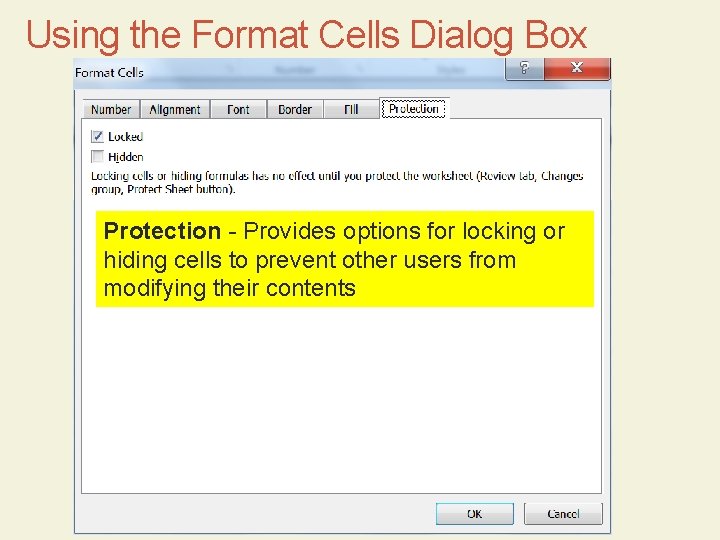
Using the Format Cells Dialog Box Protection - Number Provides -options foroptions lockingfor or Provides hiding cells toformatting prevent other users from of the appearance modifying their contentsincluding dates and numbers, numbers treated as text such as telephone or Social options Security Alignment - Provides numbers for how data is aligned within a Fill - Providescell options for creating and Border - background Provides options for adding and to applying colors and patterns Font - Provides options for selecting font a removing cell orders as well as selecting cells sizes, styles, and other formatting types, line style and color attributes such as underlining and font colors
Formatting • Do the following to improve the appearance of your workbooks: • Place the most important information first in the workbook. • Position worksheets summarizing your findings near the front of the workbook. • Position worksheets with detailed and involved analysis near the end as an appendix. • Use consistent formatting through out the workbook. If negative values appear in red on one worksheet, format them in red on all sheets.
Formatting • Do the following to improve the appearance of your workbooks: • Pay attention to the formatting of the printed workbook. Make sure your printouts are legible with informative headers and footers. • The goal of formatting is to maintain consistent look throughout a workbook
Formatting Data in Cells • Topics Covered: • Formatting Text • Formatting Numbers • Formatting Dates and Times
Formatting Text • Formatting text involves changing fonts, font sizes, font styles, and color. • The formatting of text is the same process that we used in word. • You can format all of the text in a cell at once or • You select a cell and format individual words with in the cell
Formatting Numbers • The numbers displayed in cells are either values entered directly in cells or values calculated with formulas. • Can be formatted using: • General number format: default number format, which, for the most part, displays values exactly as they are typed • Number format: displays values in a way that makes it easy for them to be understood and interpreted
Formatting Numbers • The General number format is good for simple calculations, but some values require additional formatting to make the numbers easier to interpret. • You can format numbers to: • Set how many digits appear to the right of the decimal point. • Add commas to act as a thousands separator for large values. • Include currency or accounting symbols to identify the monetary unit being used. • Display percentages using the % symbol.
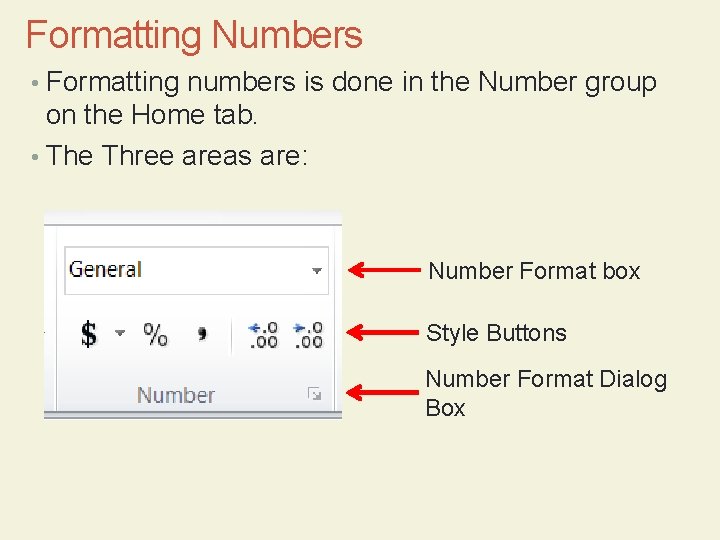
Formatting Numbers • Formatting numbers is done in the Number group on the Home tab. • The Three areas are: Number Format box Style Buttons Number Format Dialog Box
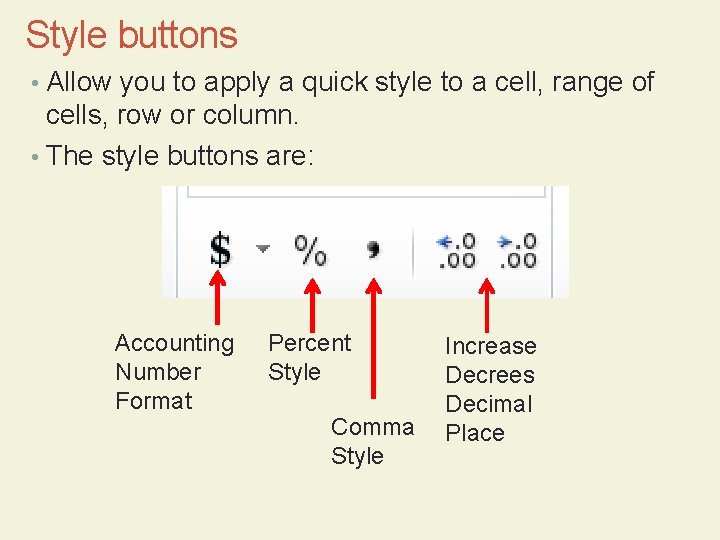
Style buttons • Allow you to apply a quick style to a cell, range of cells, row or column. • The style buttons are: Accounting Number Format Percent Style Comma Style Increase Decrees Decimal Place
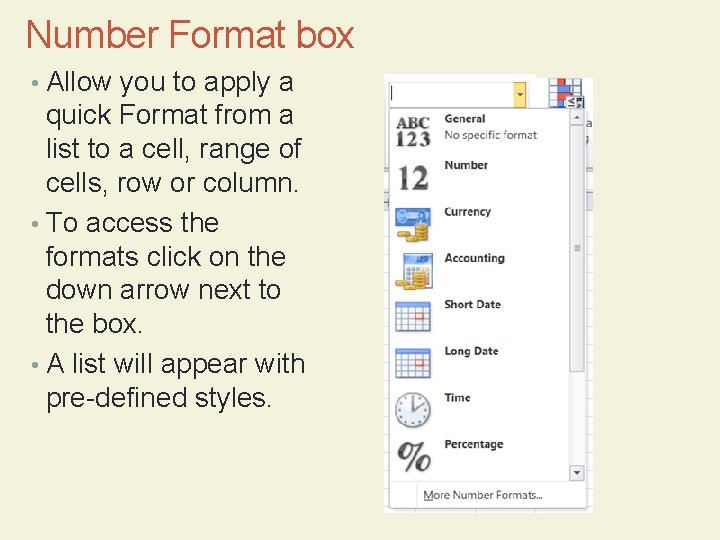
Number Format box • Allow you to apply a quick Format from a list to a cell, range of cells, row or column. • To access the formats click on the down arrow next to the box. • A list will appear with pre-defined styles.
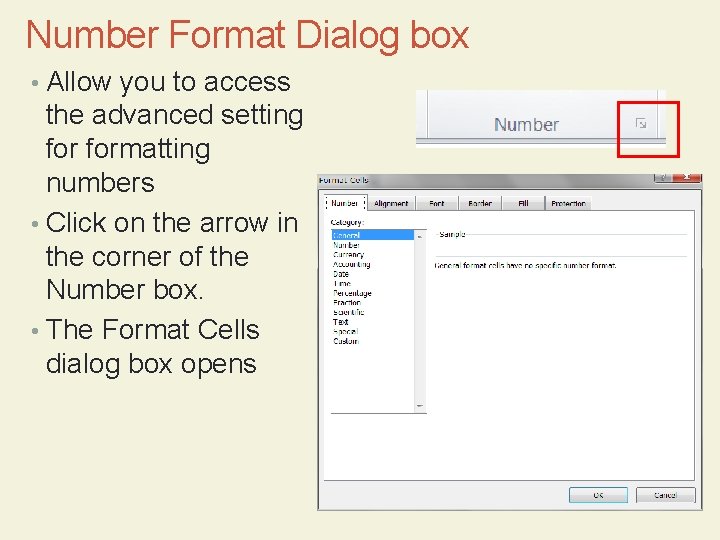
Number Format Dialog box • Allow you to access the advanced setting formatting numbers • Click on the arrow in the corner of the Number box. • The Format Cells dialog box opens
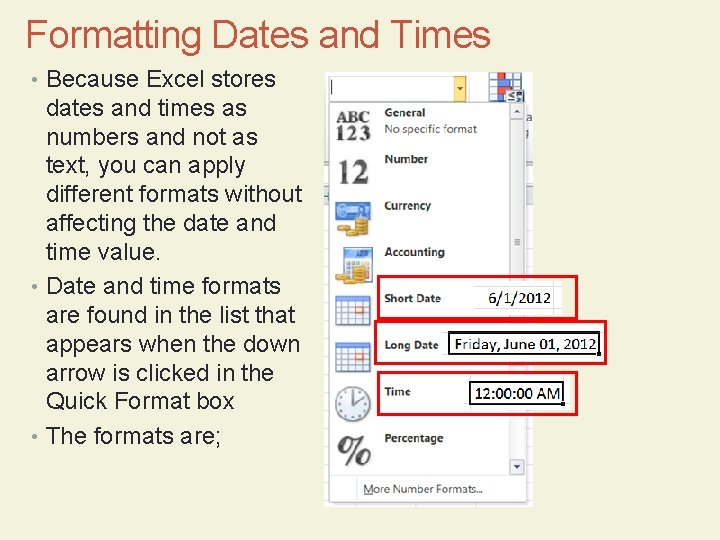
Formatting Dates and Times • Because Excel stores dates and times as numbers and not as text, you can apply different formats without affecting the date and time value. • Date and time formats are found in the list that appears when the down arrow is clicked in the Quick Format box • The formats are;
Formatting Cells and Ranges • Topics Covered: • Applying Cell Styles • Aligning Cell Content • Indenting Cell Content • Merging Cells • Adding Cell Borders • Changing Cell Background Color • Using the Format Cells Dialog Box
Applying Cell Styles • A good design practice is to apply the same format to worksheet cells that contain the same type of data. • One way to ensure that you are using consistent formats is to copy and paste the formats using the Format Painter. • The Format Painter is effective, but it can also be time-consuming if you need to copy the same format to several cells scattered across the workbook. • A better way to ensure that cells displaying the same type of data use the same format is with styles
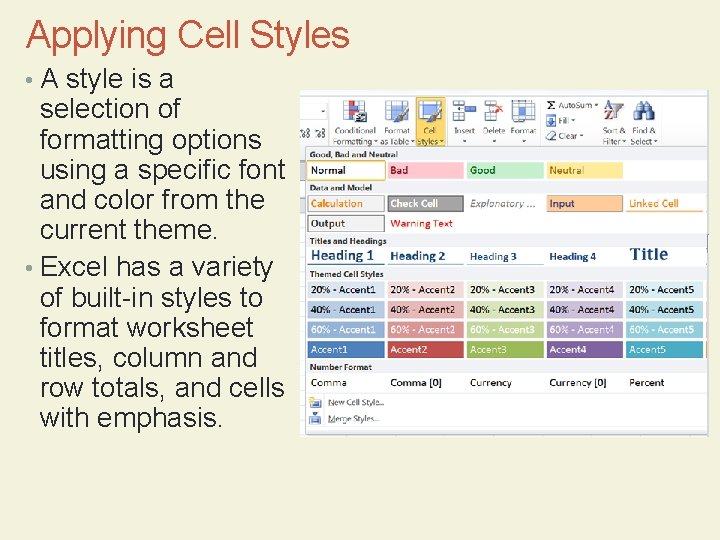
Applying Cell Styles • A style is a selection of formatting options using a specific font and color from the current theme. • Excel has a variety of built-in styles to format worksheet titles, column and row totals, and cells with emphasis.
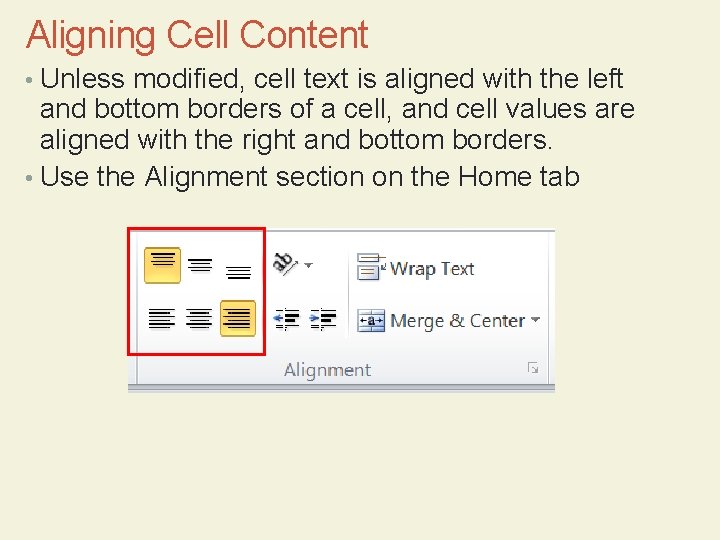
Aligning Cell Content • Unless modified, cell text is aligned with the left and bottom borders of a cell, and cell values are aligned with the right and bottom borders. • Use the Alignment section on the Home tab
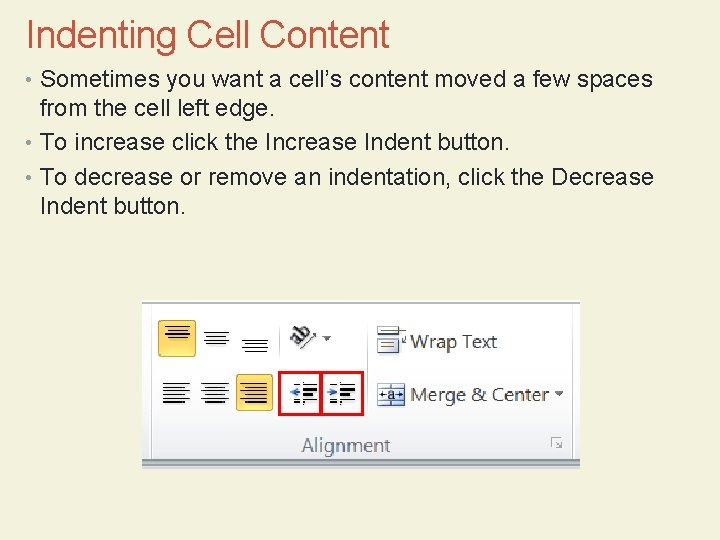
Indenting Cell Content • Sometimes you want a cell’s content moved a few spaces from the cell left edge. • To increase click the Increase Indent button. • To decrease or remove an indentation, click the Decrease Indent button.
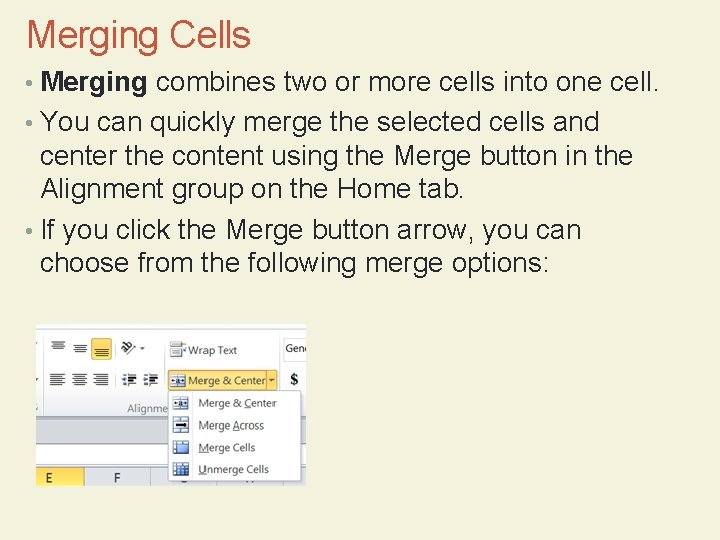
Merging Cells • Merging combines two or more cells into one cell. • You can quickly merge the selected cells and center the content using the Merge button in the Alignment group on the Home tab. • If you click the Merge button arrow, you can choose from the following merge options:
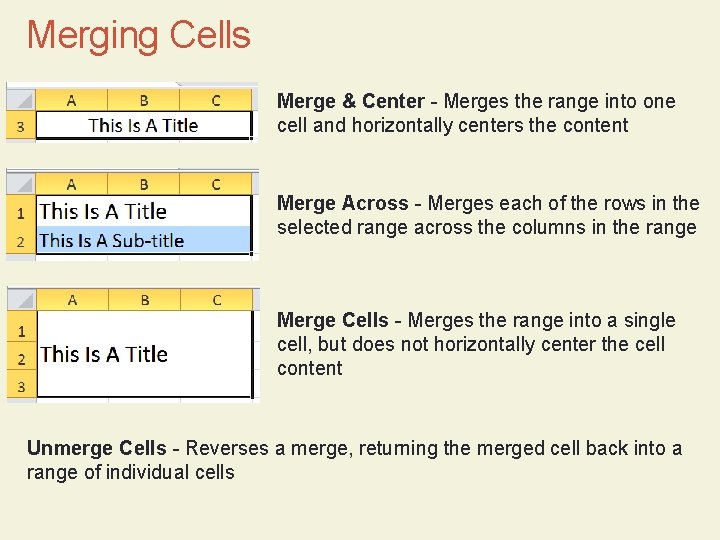
Merging Cells Merge & Center - Merges the range into one cell and horizontally centers the content Merge Across - Merges each of the rows in the selected range across the columns in the range Merge Cells - Merges the range into a single cell, but does not horizontally center the cell content Unmerge Cells - Reverses a merge, returning the merged cell back into a range of individual cells
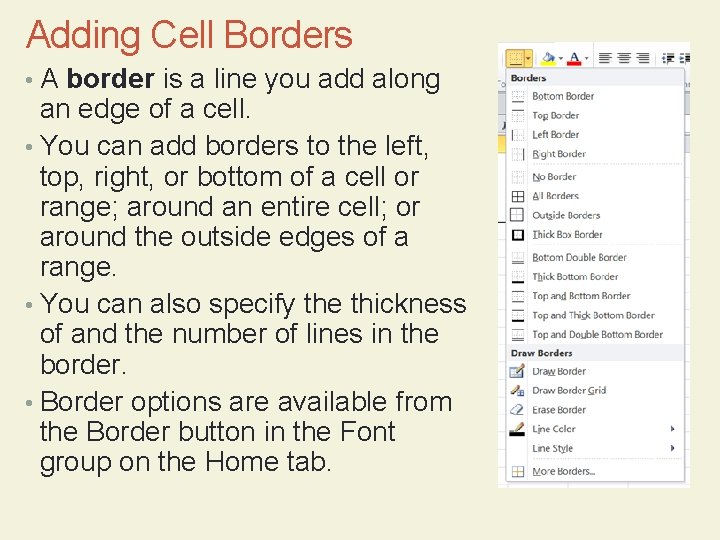
Adding Cell Borders • A border is a line you add along an edge of a cell. • You can add borders to the left, top, right, or bottom of a cell or range; around an entire cell; or around the outside edges of a range. • You can also specify the thickness of and the number of lines in the border. • Border options are available from the Border button in the Font group on the Home tab.
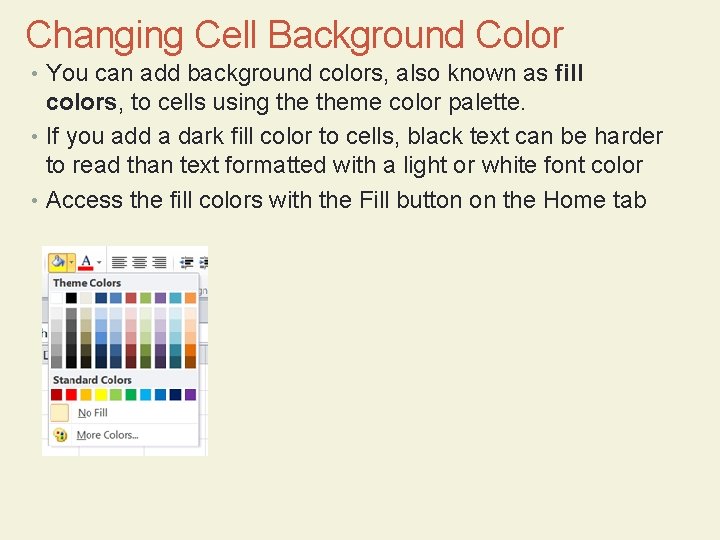
Changing Cell Background Color • You can add background colors, also known as fill colors, to cells using theme color palette. • If you add a dark fill color to cells, black text can be harder to read than text formatted with a light or white font color • Access the fill colors with the Fill button on the Home tab