
Chapter 14 Graphical User Interfaces with Windows Forms


- Slides: 90
Chapter 14 Graphical User Interfaces with Windows Forms: Part 1 Visual C# 2012 How to Program 1
2
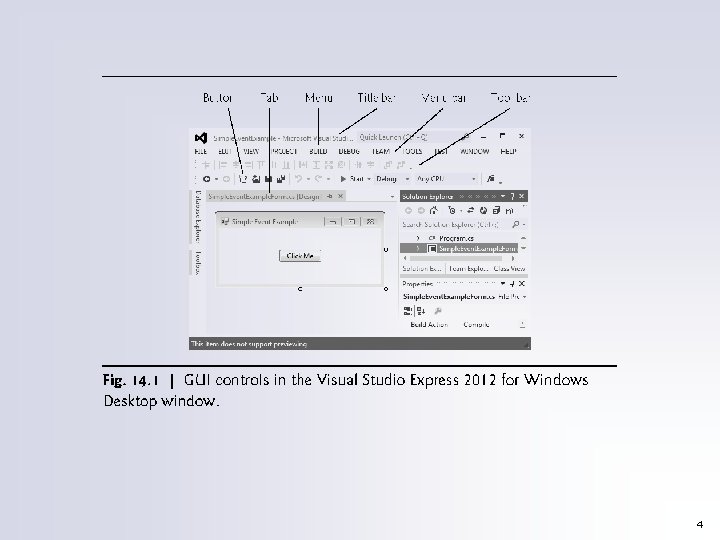
14. 1 Introduction A graphical user interface (GUI) allows a user to interact visually with a program. Figure 14. 1 shows a Visual Studio Express window containing various GUI controls. 3
4
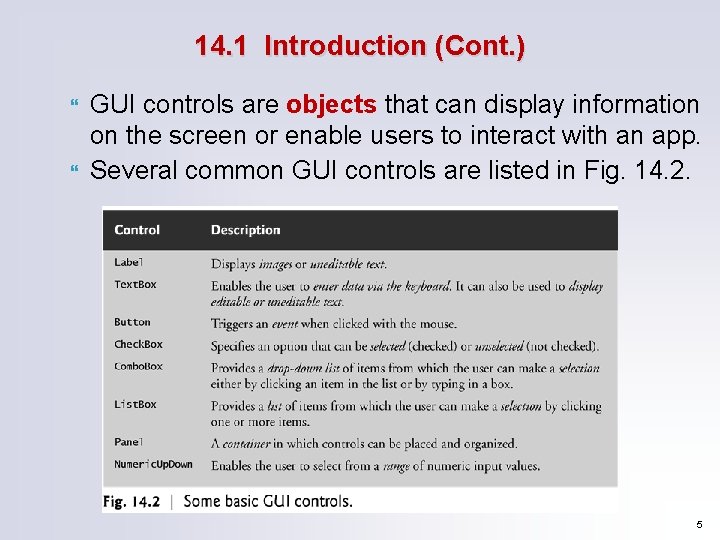
14. 1 Introduction (Cont. ) GUI controls are objects that can display information on the screen or enable users to interact with an app. Several common GUI controls are listed in Fig. 14. 2. 5
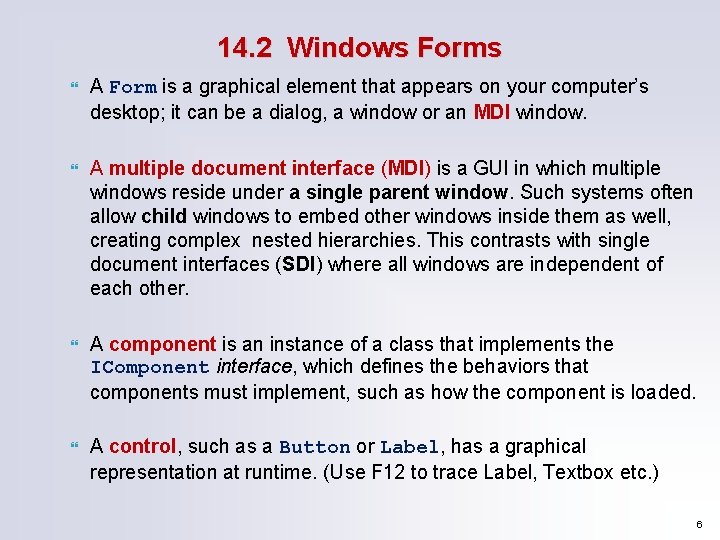
14. 2 Windows Forms A Form is a graphical element that appears on your computer’s desktop; it can be a dialog, a window or an MDI window. A multiple document interface (MDI) is a GUI in which multiple windows reside under a single parent window. Such systems often allow child windows to embed other windows inside them as well, creating complex nested hierarchies. This contrasts with single document interfaces (SDI) where all windows are independent of each other. A component is an instance of a class that implements the IComponent interface, which defines the behaviors that components must implement, such as how the component is loaded. A control, such as a Button or Label, has a graphical representation at runtime. (Use F 12 to trace Label, Textbox etc. ) 6
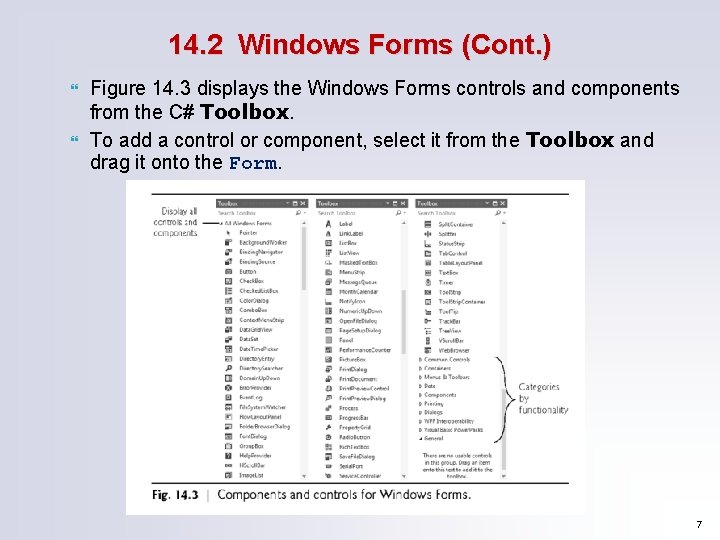
14. 2 Windows Forms (Cont. ) Figure 14. 3 displays the Windows Forms controls and components from the C# Toolbox. To add a control or component, select it from the Toolbox and drag it onto the Form. 7
14. 2 Windows Forms (Cont. ) The active window is the frontmost and has a highlighted title bar. A window becomes the active window when the user clicks somewhere inside it. A Form is a container for controls and components. When you drag items from the Toolbox onto the Form, Visual Studio generates code that creates the object and sets its basic properties. The IDE maintains the generated code in a separate file using partial classes. 8
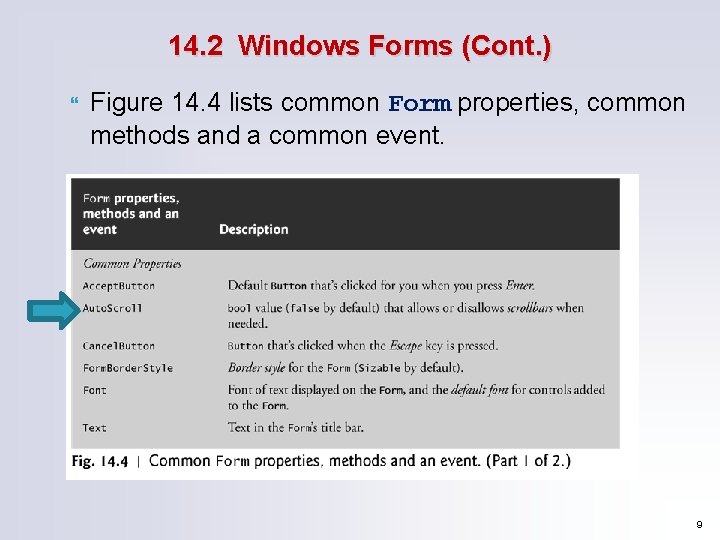
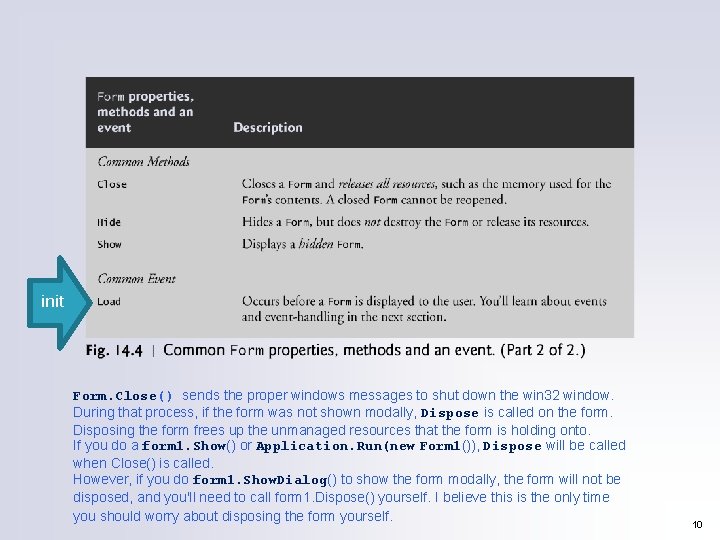
14. 2 Windows Forms (Cont. ) Figure 14. 4 lists common Form properties, common methods and a common event. 9
init Form. Close() sends the proper windows messages to shut down the win 32 window. During that process, if the form was not shown modally, Dispose is called on the form. Disposing the form frees up the unmanaged resources that the form is holding onto. If you do a form 1. Show() or Application. Run(new Form 1()), Dispose will be called when Close() is called. However, if you do form 1. Show. Dialog() to show the form modally, the form will not be disposed, and you'll need to call form 1. Dispose() yourself. I believe this is the only time you should worry about disposing the form yourself. 10
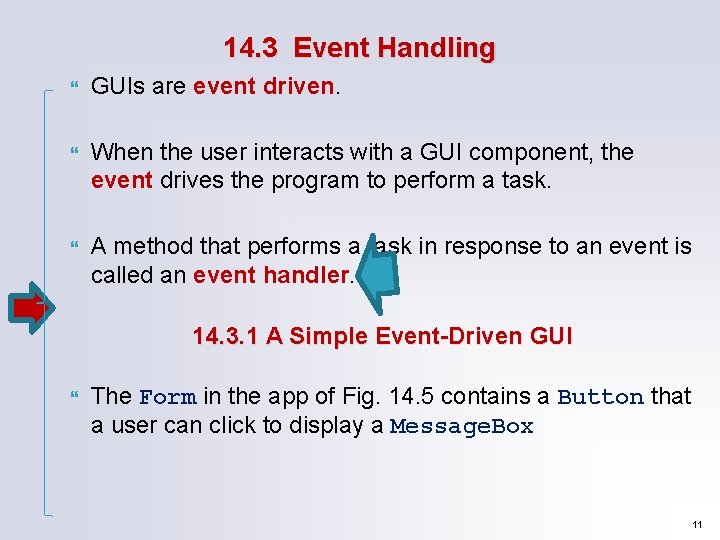
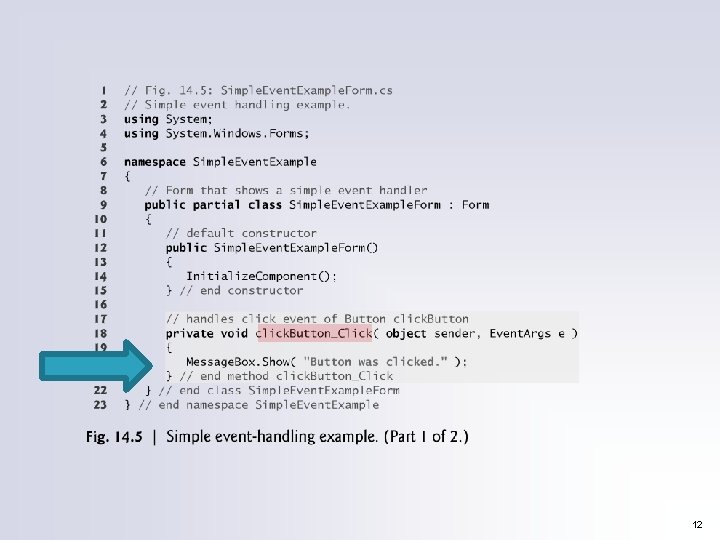
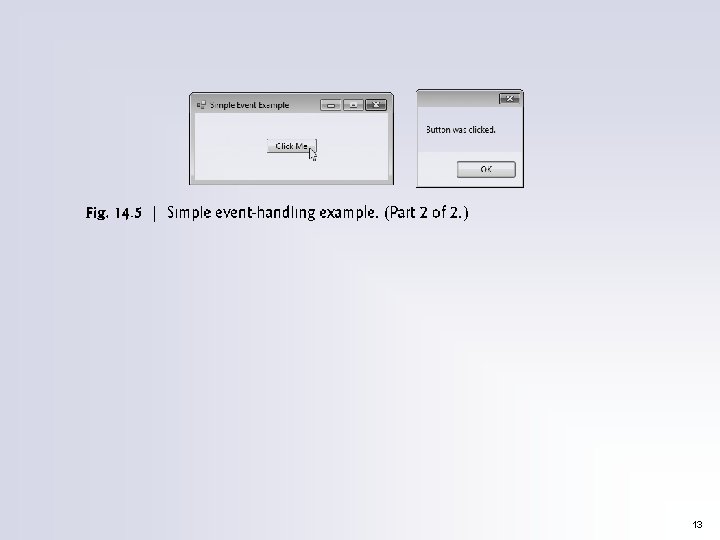
14. 3 Event Handling GUIs are event driven. When the user interacts with a GUI component, the event drives the program to perform a task. A method that performs a task in response to an event is called an event handler. 14. 3. 1 A Simple Event-Driven GUI The Form in the app of Fig. 14. 5 contains a Button that a user can click to display a Message. Box 11
12
13
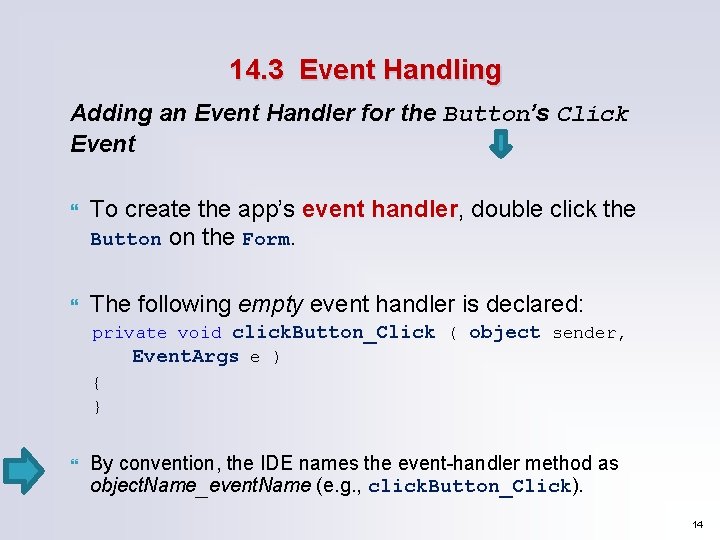
14. 3 Event Handling Adding an Event Handler for the Button’s Click Event To create the app’s event handler, double click the Button on the Form. The following empty event handler is declared: private void click. Button_Click ( object sender, Event. Args e ) { } By convention, the IDE names the event-handler method as object. Name_event. Name (e. g. , click. Button_Click). 14
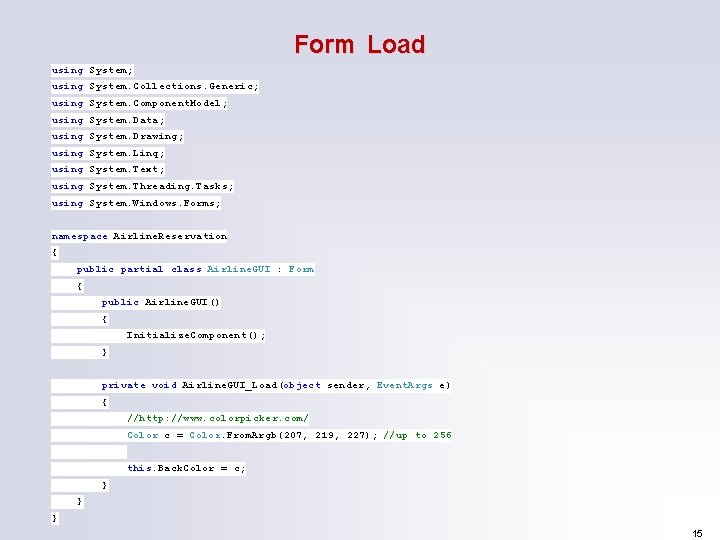
Form Load using System; using System. Collections. Generic; using System. Component. Model; using System. Data; using System. Drawing; using System. Linq; using System. Text; using System. Threading. Tasks; using System. Windows. Forms; namespace Airline. Reservation { public partial class Airline. GUI : Form { public Airline. GUI() { Initialize. Component(); } private void Airline. GUI_Load(object sender, Event. Args e) { //http: //www. colorpicker. com/ Color c = Color. From. Argb(207, 219, 227); //up to 256 this. Back. Color = c; } } } 15
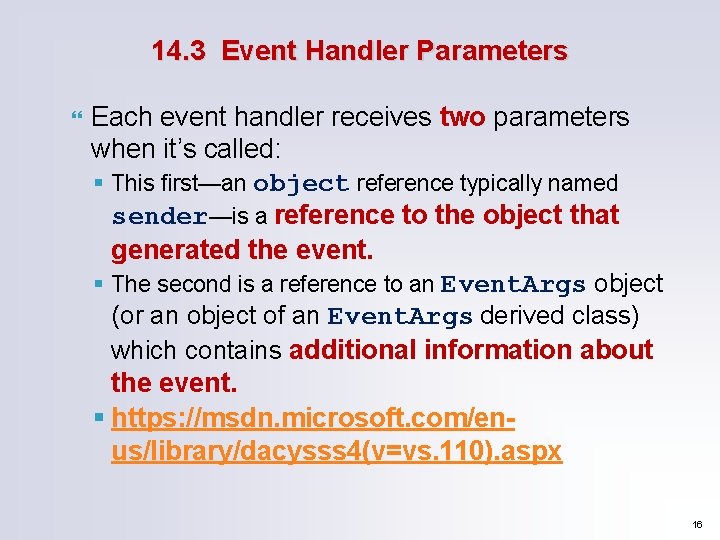
14. 3 Event Handler Parameters Each event handler receives two parameters when it’s called: § This first—an object reference typically named sender—is a reference to the object that generated the event. § The second is a reference to an Event. Args object (or an object of an Event. Args derived class) which contains additional information about the event. § https: //msdn. microsoft. com/enus/library/dacysss 4(v=vs. 110). aspx 16
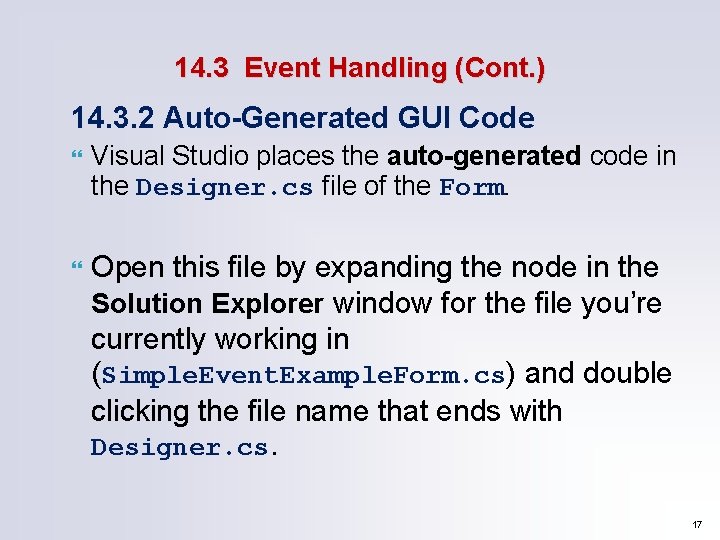
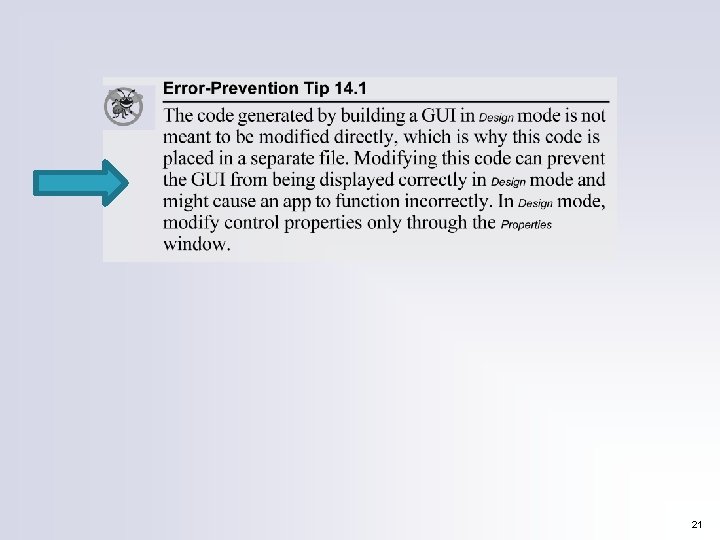
14. 3 Event Handling (Cont. ) 14. 3. 2 Auto-Generated GUI Code Visual Studio places the auto-generated code in the Designer. cs file of the Form. Open this file by expanding the node in the Solution Explorer window for the file you’re currently working in (Simple. Event. Example. Form. cs) and double clicking the file name that ends with Designer. cs. 17
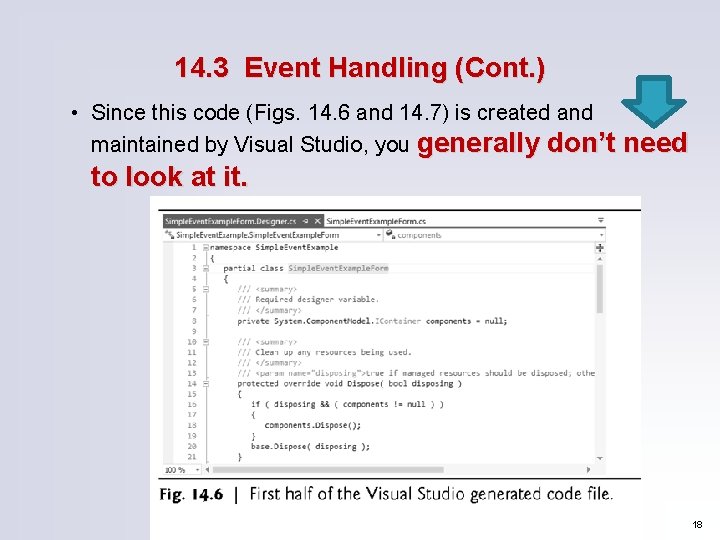
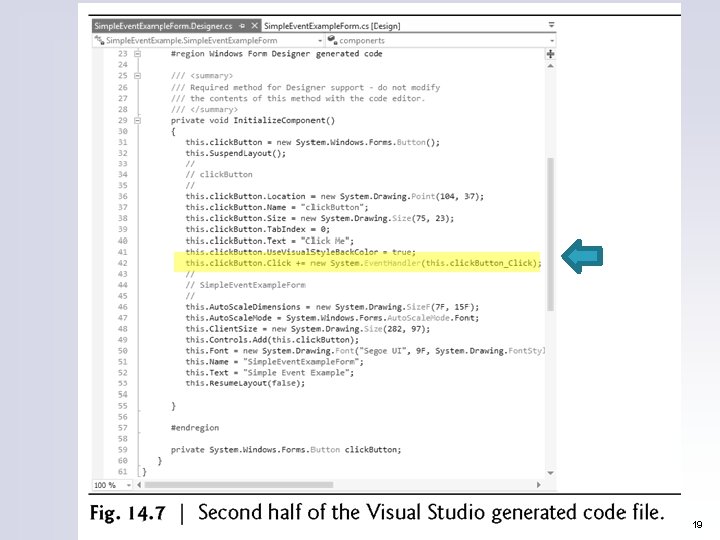
14. 3 Event Handling (Cont. ) • Since this code (Figs. 14. 6 and 14. 7) is created and maintained by Visual Studio, you generally don’t need to look at it. 18
19
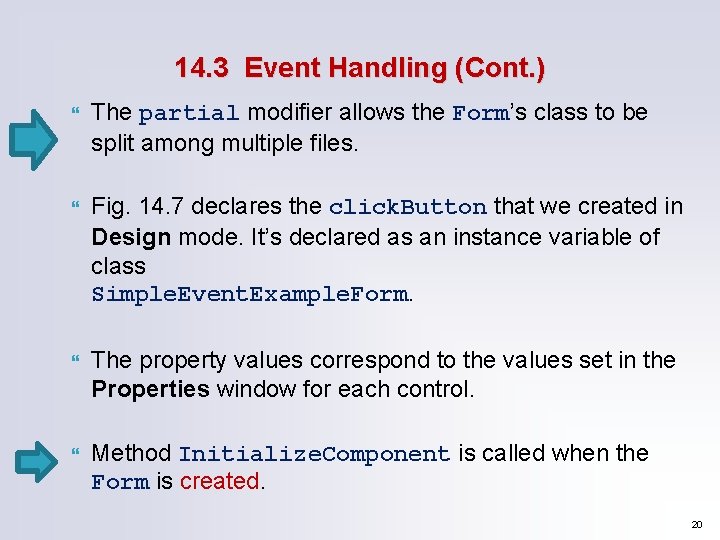
14. 3 Event Handling (Cont. ) The partial modifier allows the Form’s class to be split among multiple files. Fig. 14. 7 declares the click. Button that we created in Design mode. It’s declared as an instance variable of class Simple. Event. Example. Form. The property values correspond to the values set in the Properties window for each control. Method Initialize. Component is called when the Form is created. 20
21
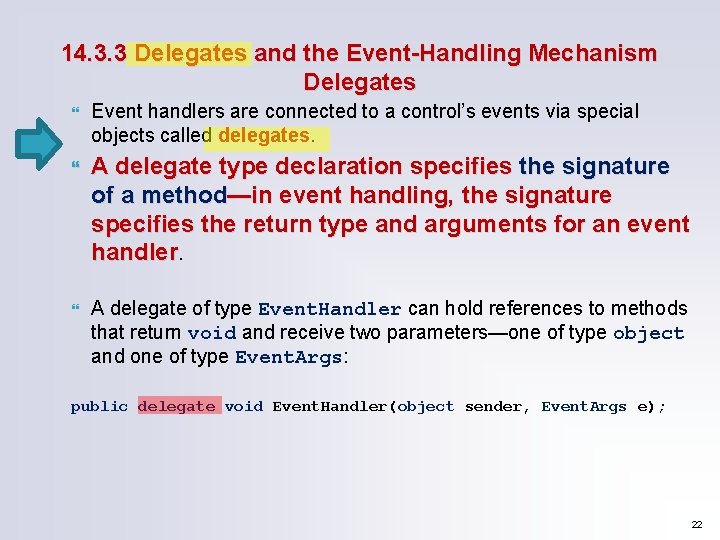
14. 3. 3 Delegates and the Event-Handling Mechanism Delegates Event handlers are connected to a control’s events via special objects called delegates. A delegate type declaration specifies the signature of a method—in event handling, the signature specifies the return type and arguments for an event handler. A delegate of type Event. Handler can hold references to methods that return void and receive two parameters—one of type object and one of type Event. Args: public delegate void Event. Handler(object sender, Event. Args e); 22
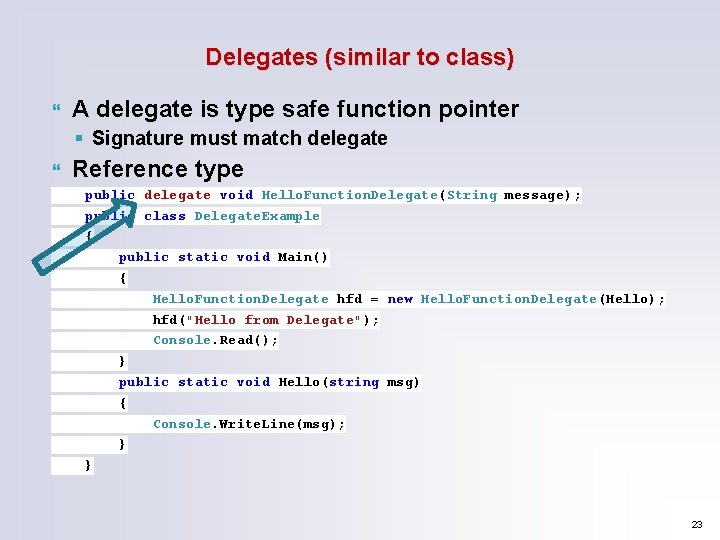
Delegates (similar to class) A delegate is type safe function pointer § Signature must match delegate Reference type public delegate void Hello. Function. Delegate(String message); public class Delegate. Example { public static void Main() { Hello. Function. Delegate hfd = new Hello. Function. Delegate(Hello); hfd("Hello from Delegate"); Console. Read(); } public static void Hello(string msg) { Console. Write. Line(msg); } } 23
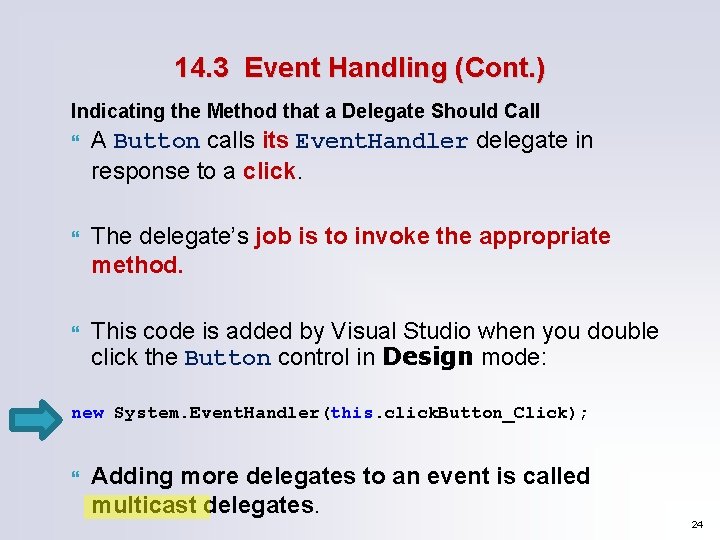
14. 3 Event Handling (Cont. ) Indicating the Method that a Delegate Should Call A Button calls its Event. Handler delegate in response to a click. The delegate’s job is to invoke the appropriate method. This code is added by Visual Studio when you double click the Button control in Design mode: new System. Event. Handler(this. click. Button_Click); Adding more delegates to an event is called multicast delegates. 24
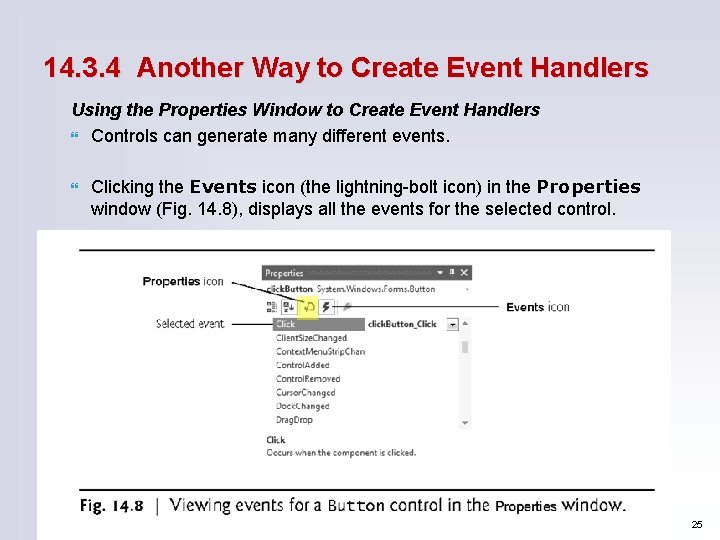
14. 3. 4 Another Way to Create Event Handlers Using the Properties Window to Create Event Handlers Controls can generate many different events. Clicking the Events icon (the lightning-bolt icon) in the Properties window (Fig. 14. 8), displays all the events for the selected control. 25
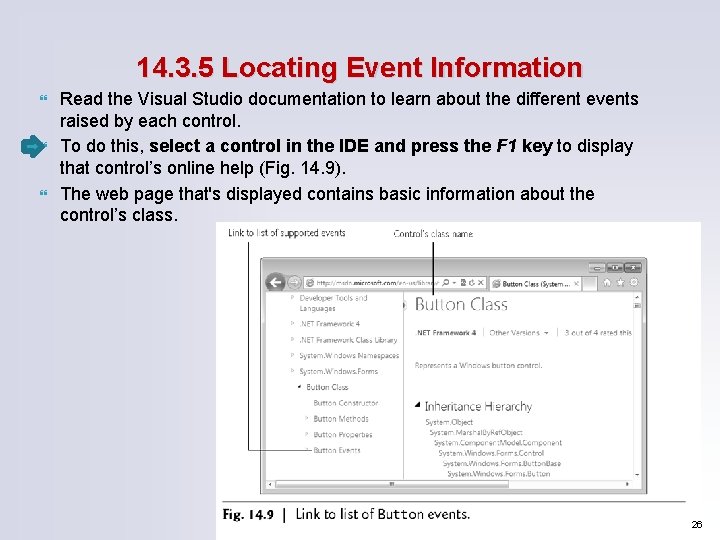
14. 3. 5 Locating Event Information Read the Visual Studio documentation to learn about the different events raised by each control. To do this, select a control in the IDE and press the F 1 key to display that control’s online help (Fig. 14. 9). The web page that's displayed contains basic information about the control’s class. 26
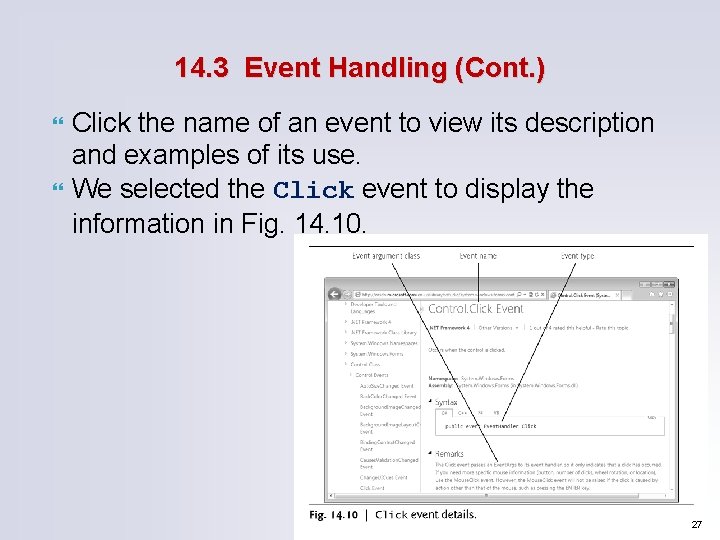
14. 3 Event Handling (Cont. ) Click the name of an event to view its description and examples of its use. We selected the Click event to display the information in Fig. 14. 10. 27
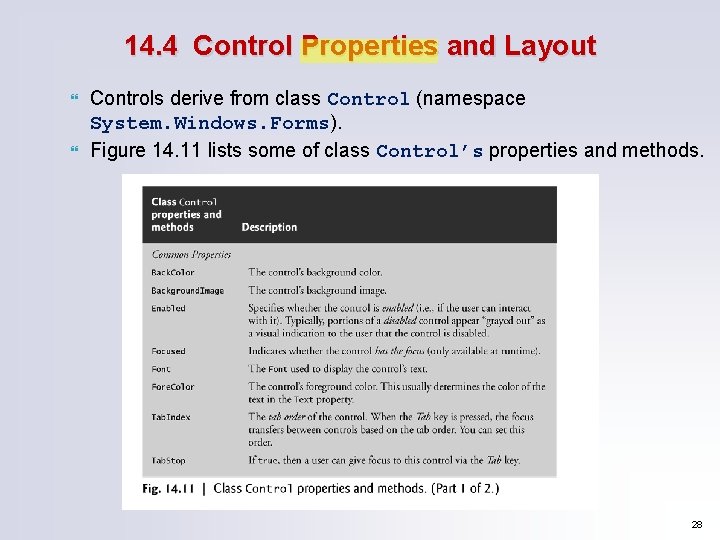
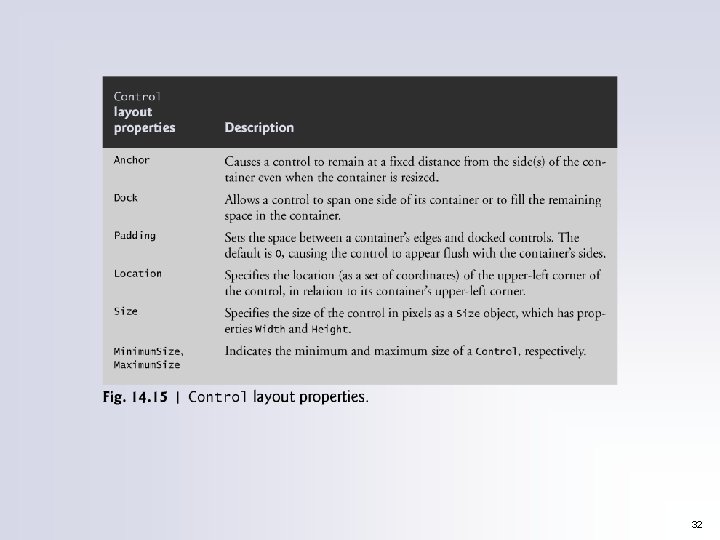
14. 4 Control Properties and Layout Controls derive from class Control (namespace System. Windows. Forms). Figure 14. 11 lists some of class Control’s properties and methods. 28
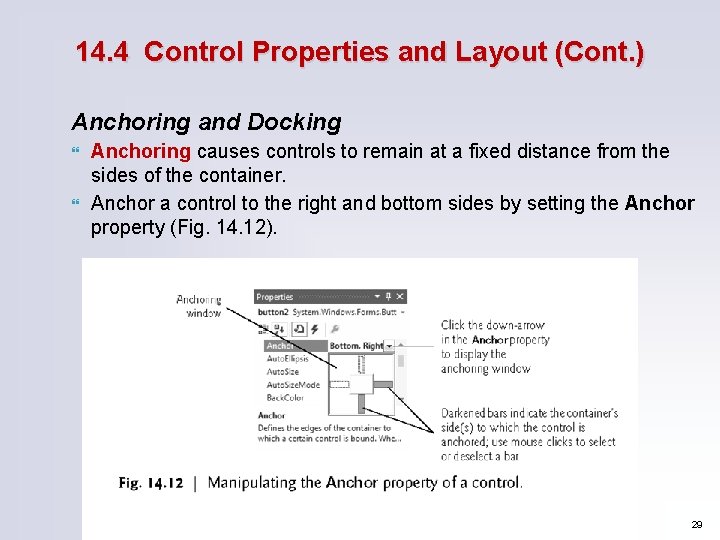
14. 4 Control Properties and Layout (Cont. ) Anchoring and Docking Anchoring causes controls to remain at a fixed distance from the sides of the container. Anchor a control to the right and bottom sides by setting the Anchor property (Fig. 14. 12). 29
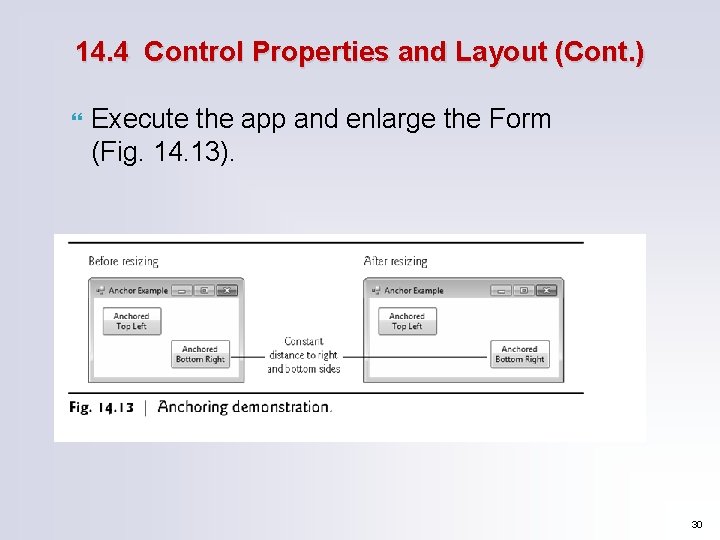
14. 4 Control Properties and Layout (Cont. ) Execute the app and enlarge the Form (Fig. 14. 13). 30
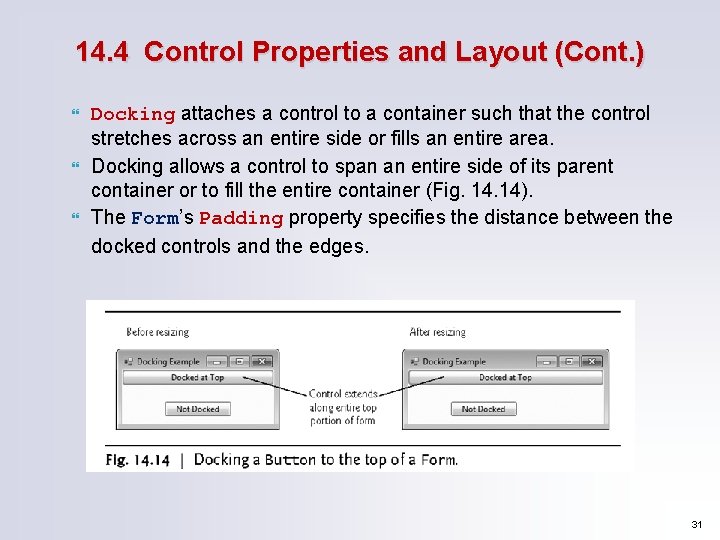
14. 4 Control Properties and Layout (Cont. ) Docking attaches a control to a container such that the control stretches across an entire side or fills an entire area. Docking allows a control to span an entire side of its parent container or to fill the entire container (Fig. 14). The Form’s Padding property specifies the distance between the docked controls and the edges. 31
32
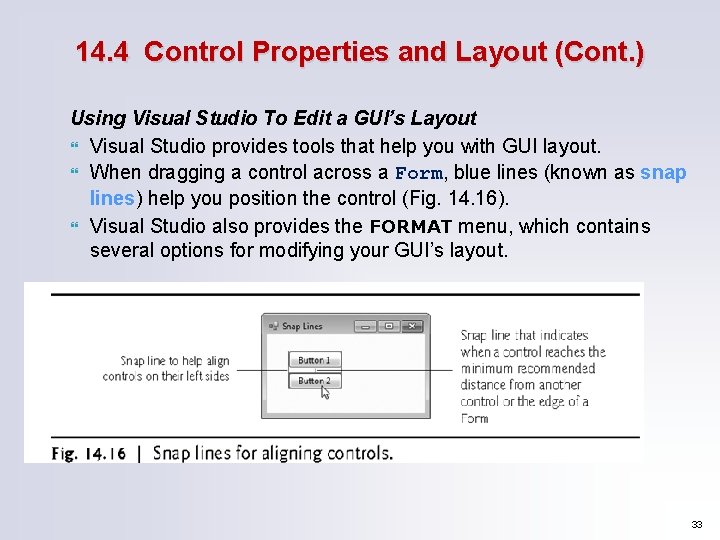
14. 4 Control Properties and Layout (Cont. ) Using Visual Studio To Edit a GUI’s Layout Visual Studio provides tools that help you with GUI layout. When dragging a control across a Form, blue lines (known as snap lines) help you position the control (Fig. 14. 16). Visual Studio also provides the FORMAT menu, which contains several options for modifying your GUI’s layout. 33
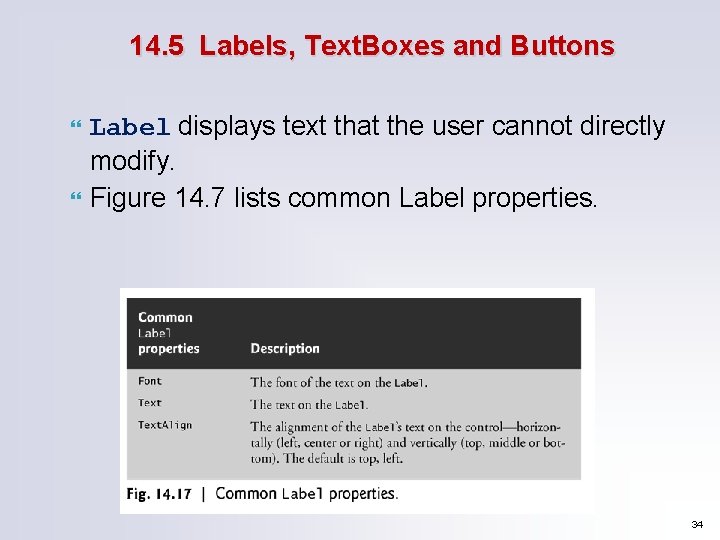
14. 5 Labels, Text. Boxes and Buttons Label displays text that the user cannot directly modify. Figure 14. 7 lists common Label properties. 34
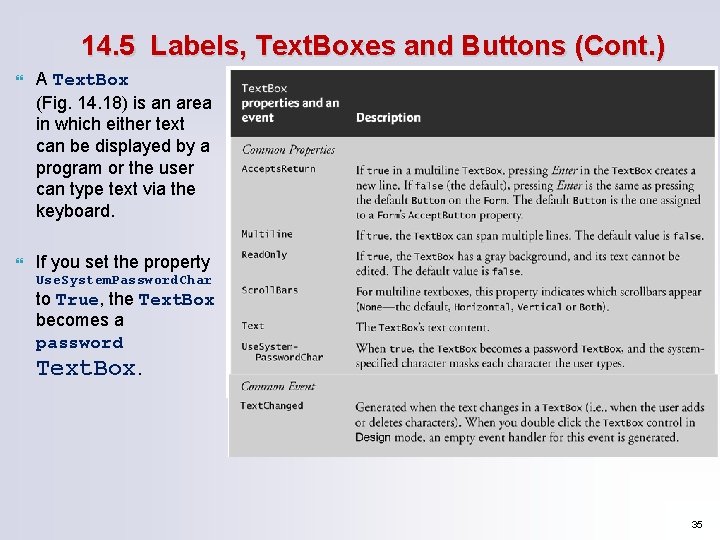
14. 5 Labels, Text. Boxes and Buttons (Cont. ) A Text. Box (Fig. 14. 18) is an area in which either text can be displayed by a program or the user can type text via the keyboard. If you set the property Use. System. Password. Char to True, the Text. Box becomes a password Text. Box. 35
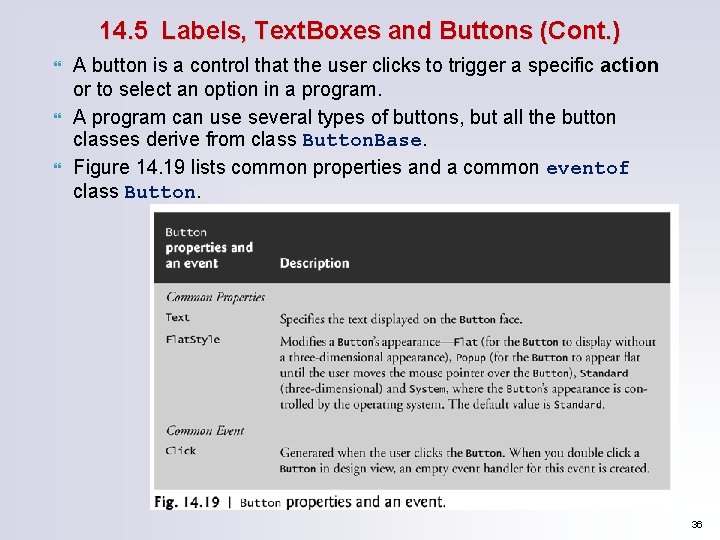
14. 5 Labels, Text. Boxes and Buttons (Cont. ) A button is a control that the user clicks to trigger a specific action or to select an option in a program. A program can use several types of buttons, but all the button classes derive from class Button. Base. Figure 14. 19 lists common properties and a common eventof class Button. 36
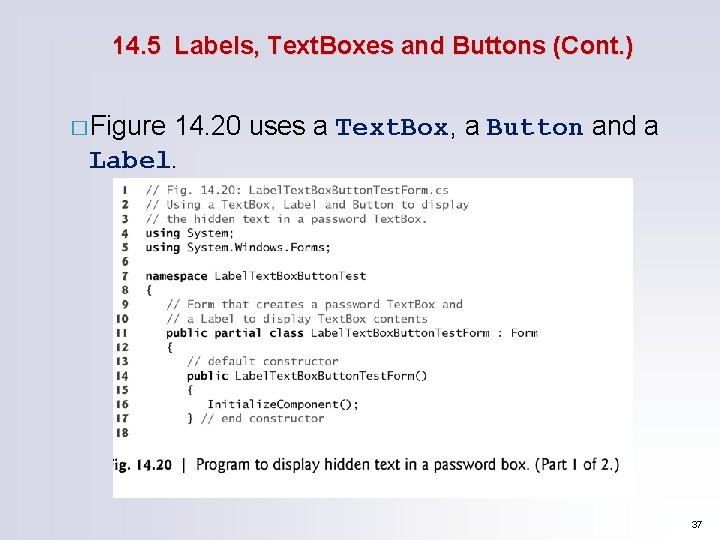
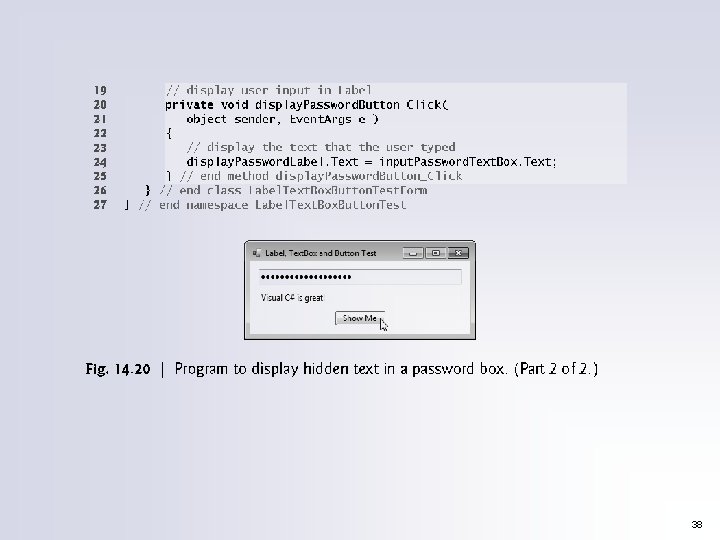
14. 5 Labels, Text. Boxes and Buttons (Cont. ) � Figure 14. 20 uses a Text. Box, a Button and a Label. 37
38
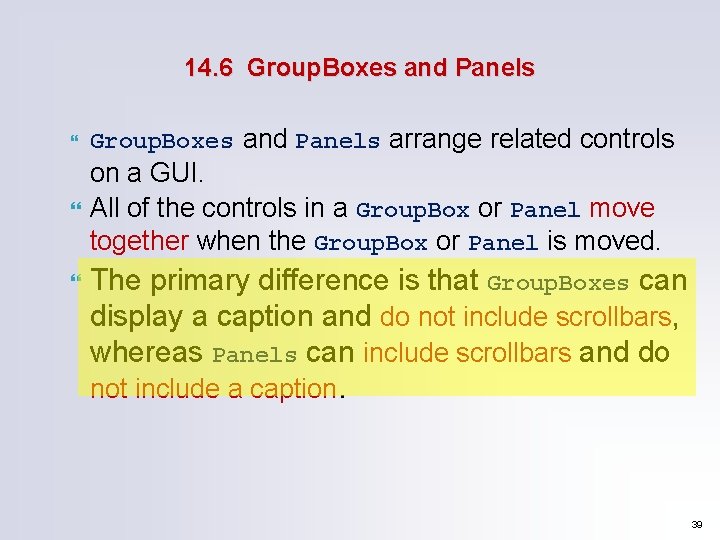
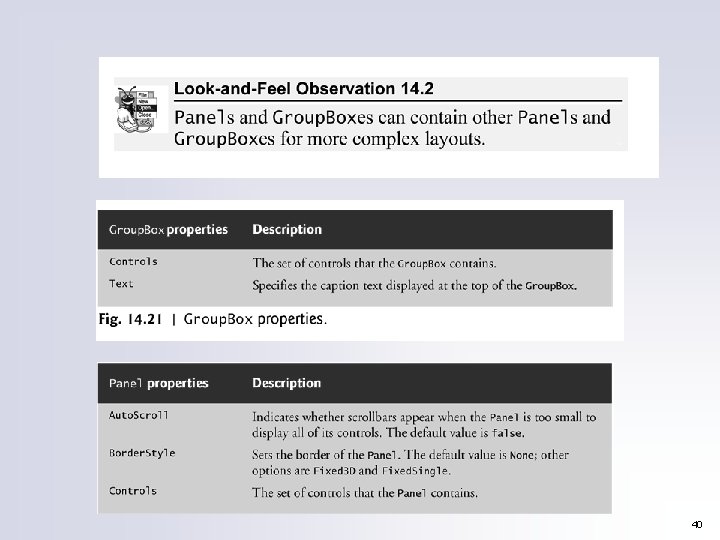
14. 6 Group. Boxes and Panels arrange related controls on a GUI. All of the controls in a Group. Box or Panel move together when the Group. Box or Panel is moved. The primary difference is that Group. Boxes can display a caption and do not include scrollbars, whereas Panels can include scrollbars and do not include a caption. 39
40
41
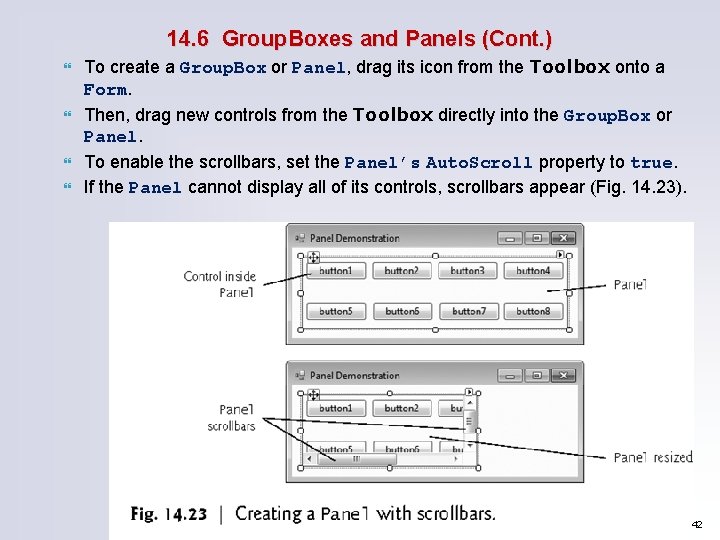
14. 6 Group. Boxes and Panels (Cont. ) To create a Group. Box or Panel, drag its icon from the Toolbox onto a Form. Then, drag new controls from the Toolbox directly into the Group. Box or Panel. To enable the scrollbars, set the Panel’s Auto. Scroll property to true. If the Panel cannot display all of its controls, scrollbars appear (Fig. 14. 23). 42
43
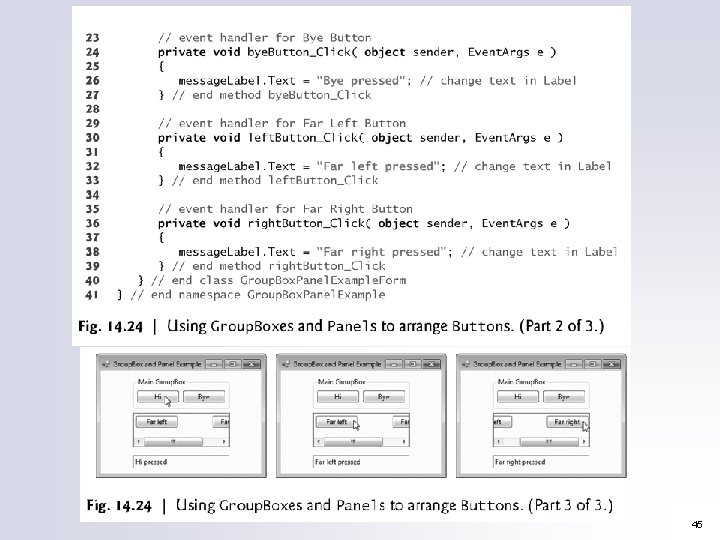
14. 6 Group. Boxes and Panels (Cont. ) The program in Fig. 14. 24 uses a Group. Box and a Panel to arrange Buttons. 44
45
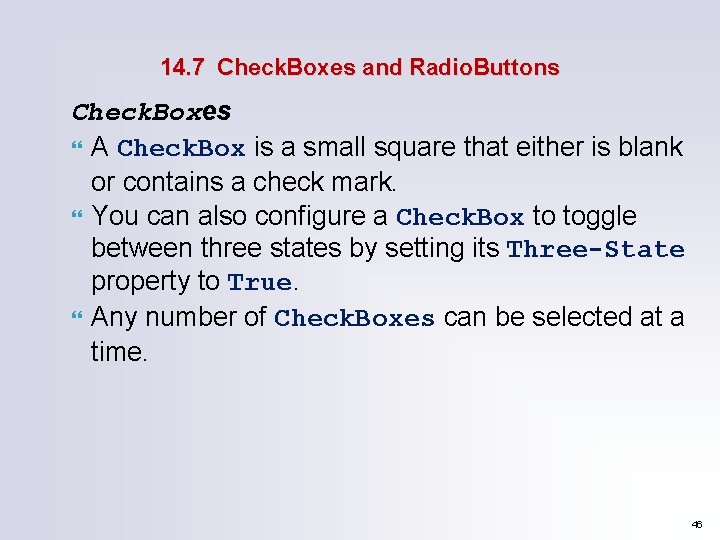
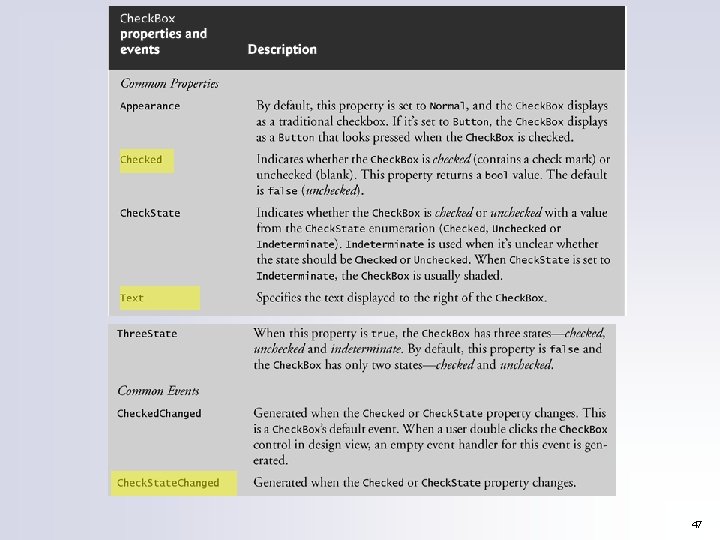
14. 7 Check. Boxes and Radio. Buttons Check. Boxes A Check. Box is a small square that either is blank or contains a check mark. You can also configure a Check. Box to toggle between three states by setting its Three State property to True. Any number of Check. Boxes can be selected at a time. 46
47
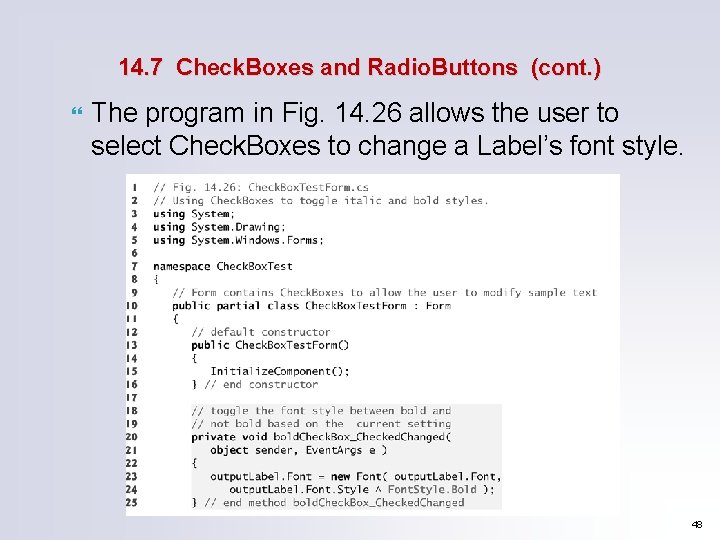
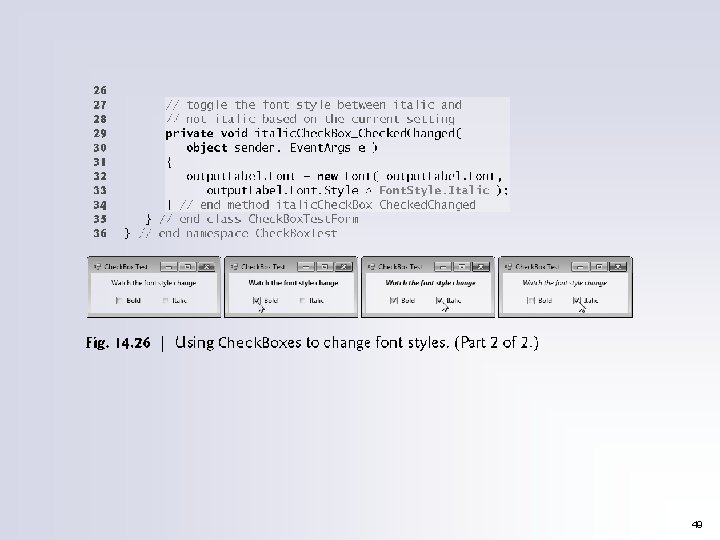
14. 7 Check. Boxes and Radio. Buttons (cont. ) The program in Fig. 14. 26 allows the user to select Check. Boxes to change a Label’s font style. 48
49
14. 7 Check. Boxes and Radio. Buttons (Cont. ) To change the font style on a Label, you must set its Font property to a new Font object. The Font constructor we used takes the current font and the new style as arguments. Combining Font Styles with Bitwise Operators Styles can be combined via bitwise operators— operators that perform manipulation on bits of information. We needed to set the Font. Style so that the text appears in bold if it was not bold originally, and vice versa § The logical exclusive OR operator makes toggling the text style simple. 50
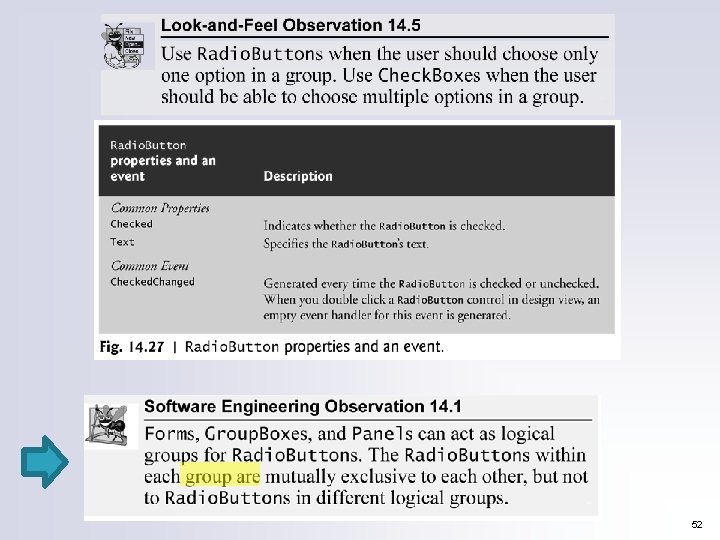
14. 7 Radio. Buttons Radio buttons are similar to Check. Boxes in that they also have two states—selected and not selected. Radio. Buttons normally appear as a group, in which only one Radio. Button can be selected at a time. All Radio. Buttons added to a container become part of the same group. 51
52
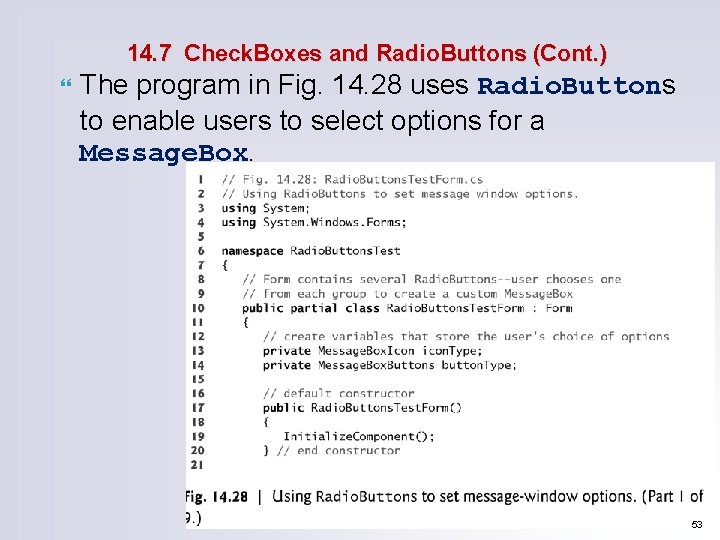
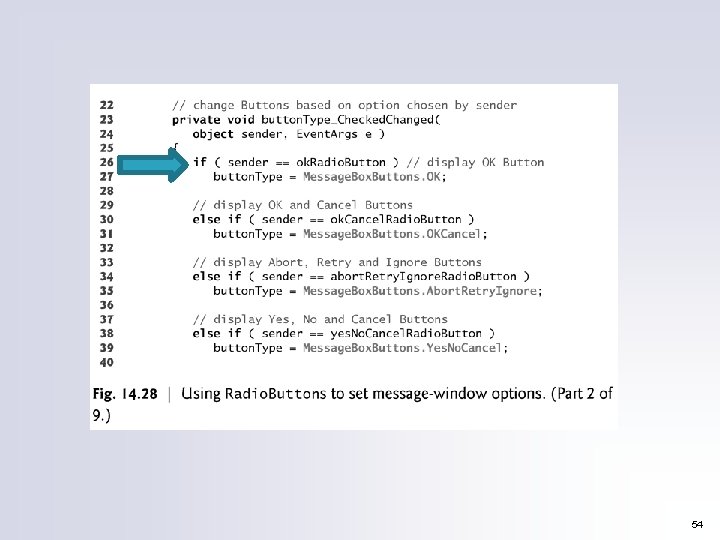
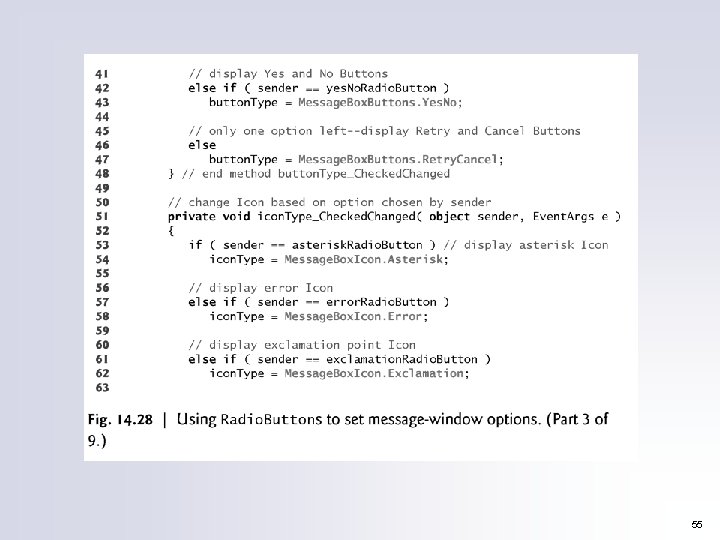
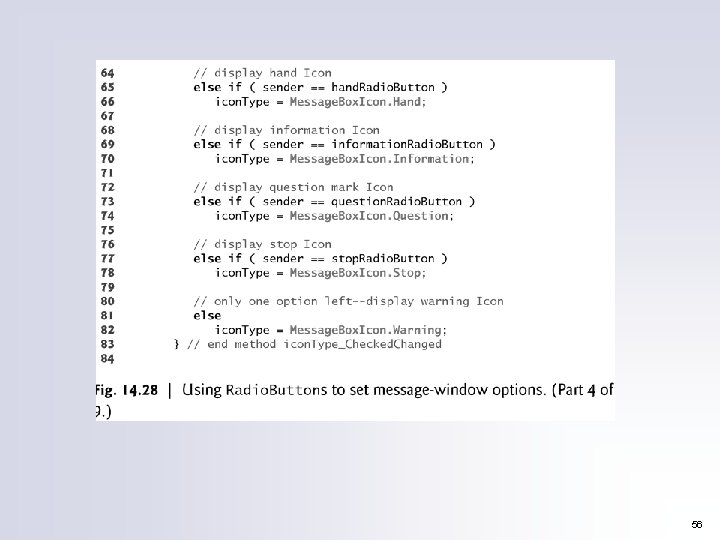
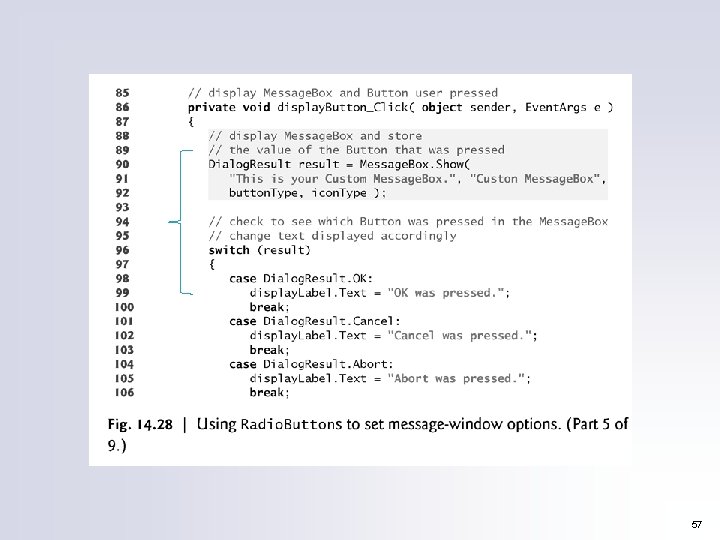
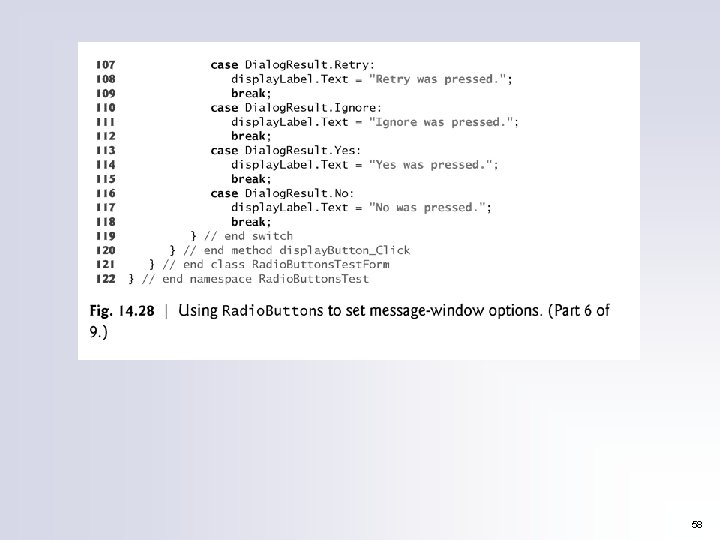
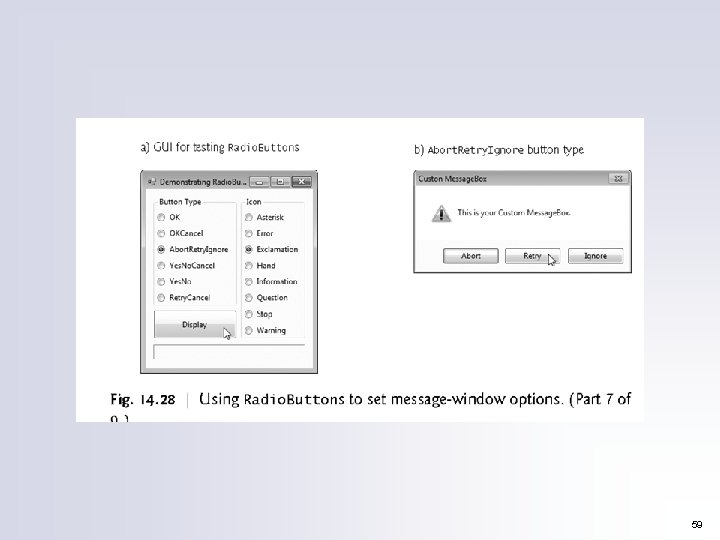
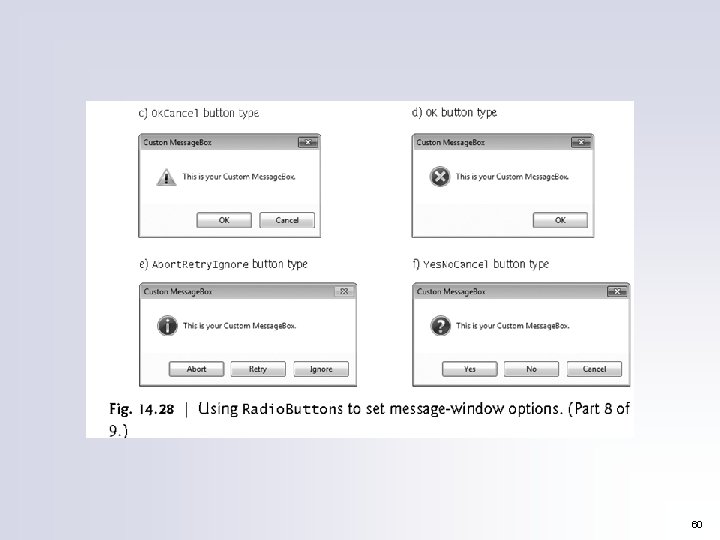
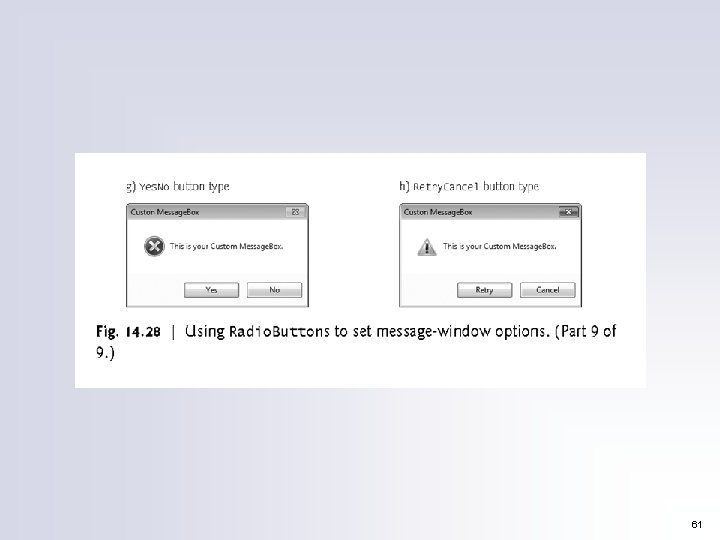
14. 7 Check. Boxes and Radio. Buttons (Cont. ) The program in Fig. 14. 28 uses Radio. Buttons to enable users to select options for a Message. Box. 53
54
55
56
57
58
59
60
61
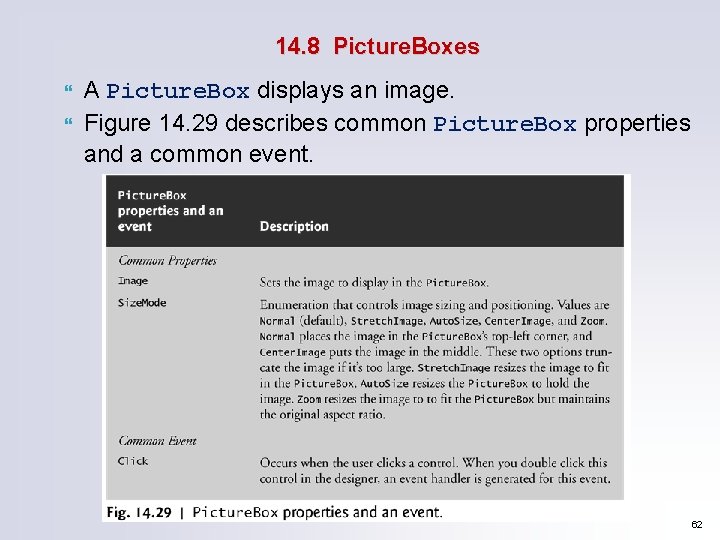
14. 8 Picture. Boxes A Picture. Box displays an image. Figure 14. 29 describes common Picture. Box properties and a common event. 62
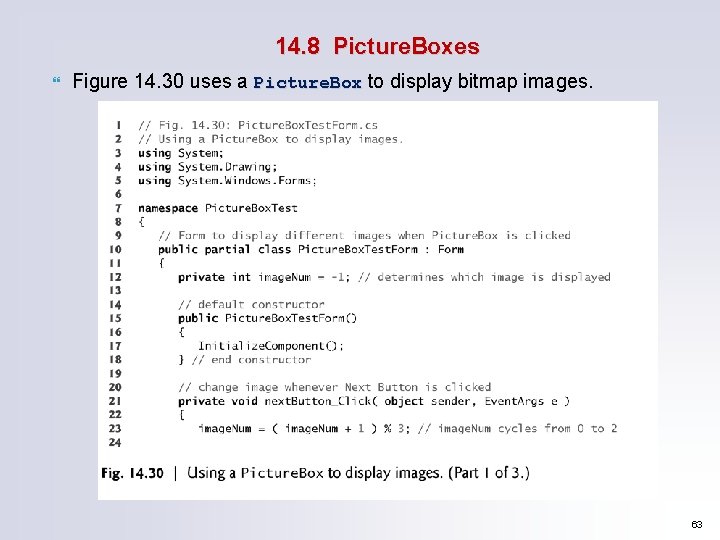
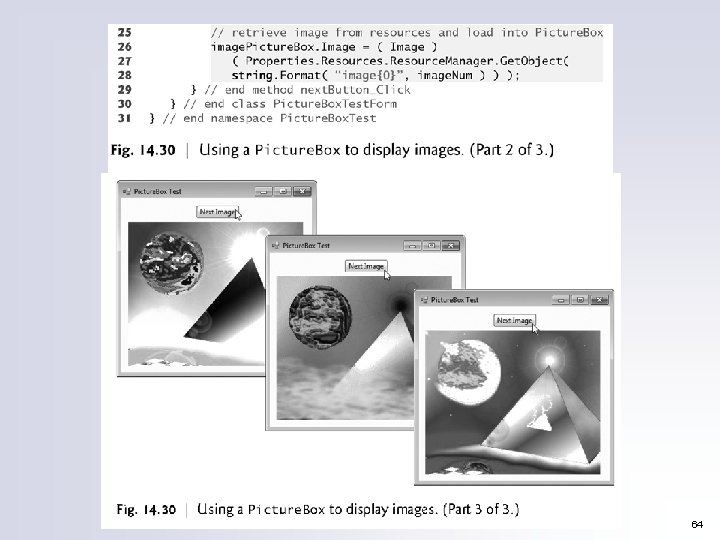
14. 8 Picture. Boxes Figure 14. 30 uses a Picture. Box to display bitmap images. 63
64
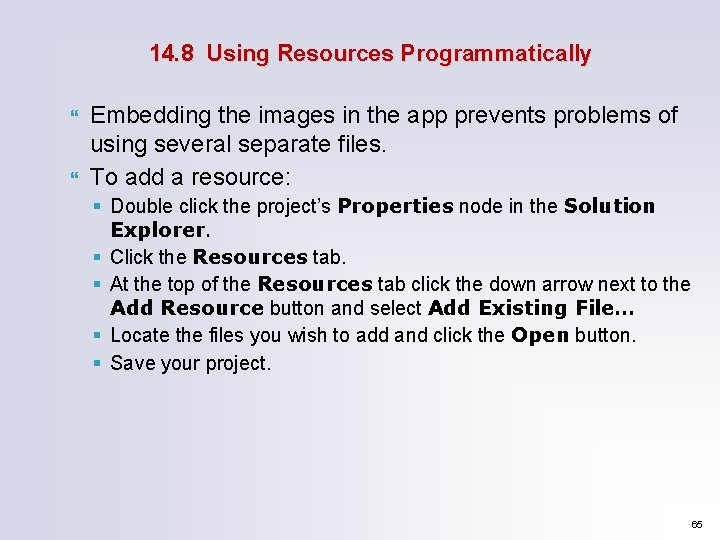
14. 8 Using Resources Programmatically Embedding the images in the app prevents problems of using several separate files. To add a resource: § Double click the project’s Properties node in the Solution Explorer. § Click the Resources tab. § At the top of the Resources tab click the down arrow next to the Add Resource button and select Add Existing File… § Locate the files you wish to add and click the Open button. § Save your project. 65
14. 8 Picture. Boxes (Cont. ) A project’s resources are stored in its Resources class. Its Resource. Manager object allows interacting with the resources programmatically. To access an image, use the method Get. Object, which takes as an argument the resource name as it appears in the Resources tab. The Resources class also provides direct access with expressions of the form Resources. resource. Name. 66
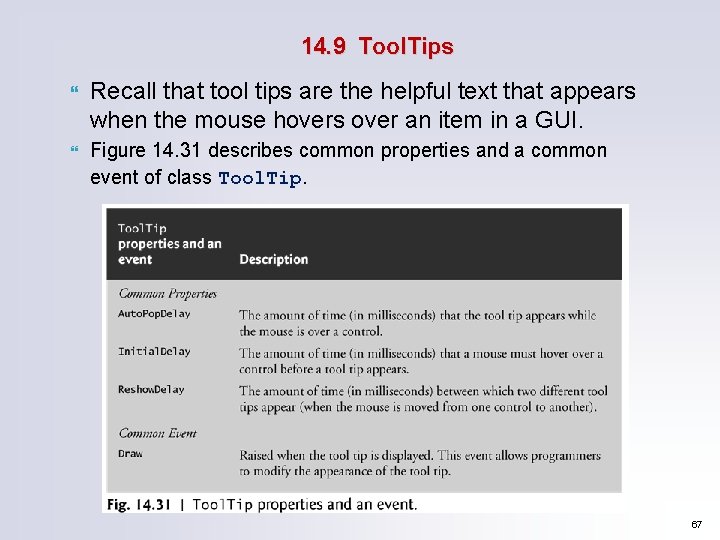
14. 9 Tool. Tips Recall that tool tips are the helpful text that appears when the mouse hovers over an item in a GUI. Figure 14. 31 describes common properties and a common event of class Tool. Tip. 67
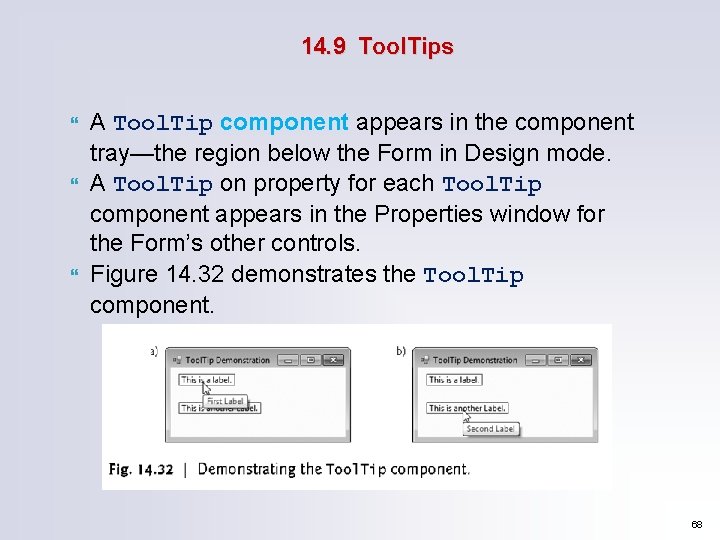
14. 9 Tool. Tips A Tool. Tip component appears in the component tray—the region below the Form in Design mode. A Tool. Tip on property for each Tool. Tip component appears in the Properties window for the Form’s other controls. Figure 14. 32 demonstrates the Tool. Tip component. 68
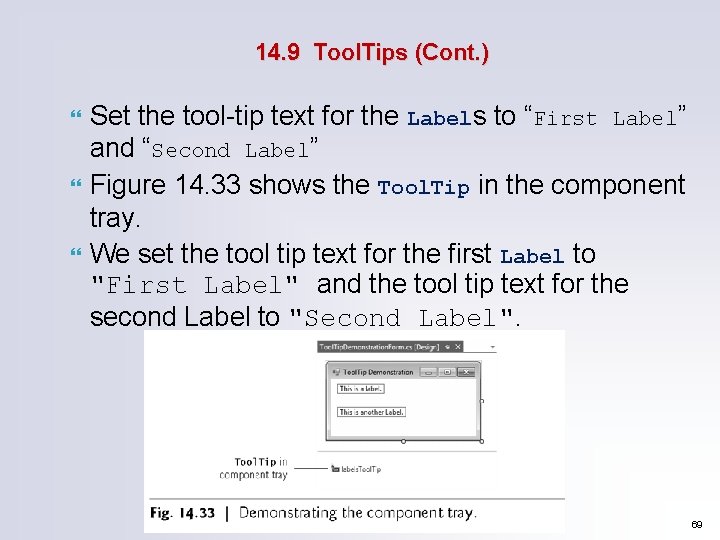
14. 9 Tool. Tips (Cont. ) Set the tool-tip text for the Labels to “First Label” and “Second Label” Figure 14. 33 shows the Tool. Tip in the component tray. We set the tool tip text for the first Label to "First Label" and the tool tip text for the second Label to "Second Label". 69
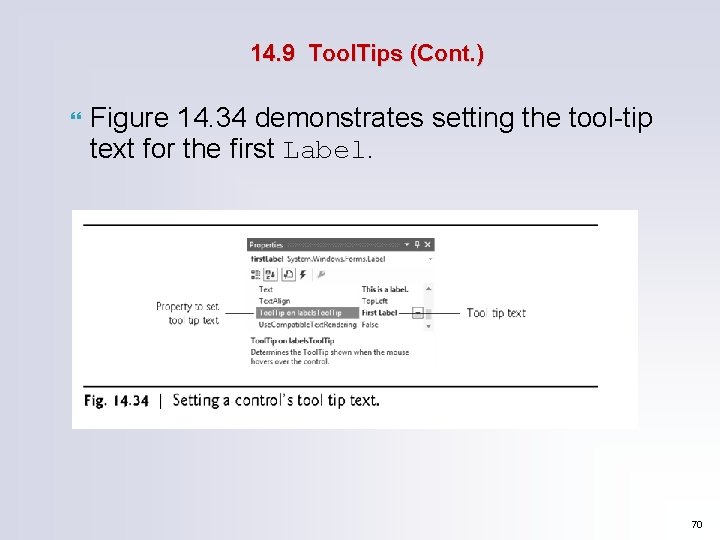
14. 9 Tool. Tips (Cont. ) Figure 14. 34 demonstrates setting the tool-tip text for the first Label. 70
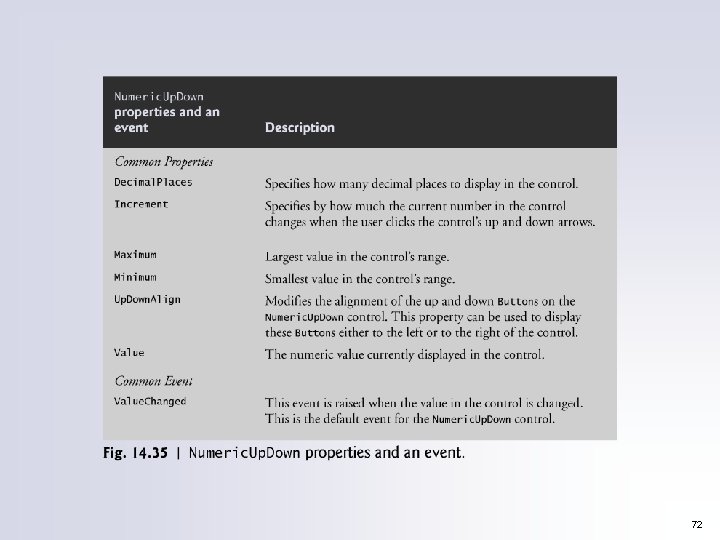
14. 10 Numeric. Up. Down Control (cont. ) Restricting a user’s input choices to a specific range of numeric values can be done with a Numeric. Up. Down control. A user can type numeric values into this control or click up and down arrows. Figure 14. 35 describes common Numeric. Up. Down properties and an event. 71
72
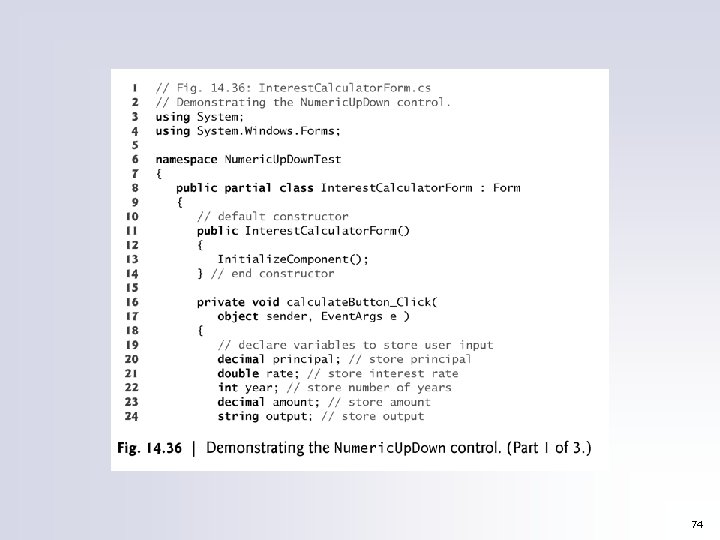
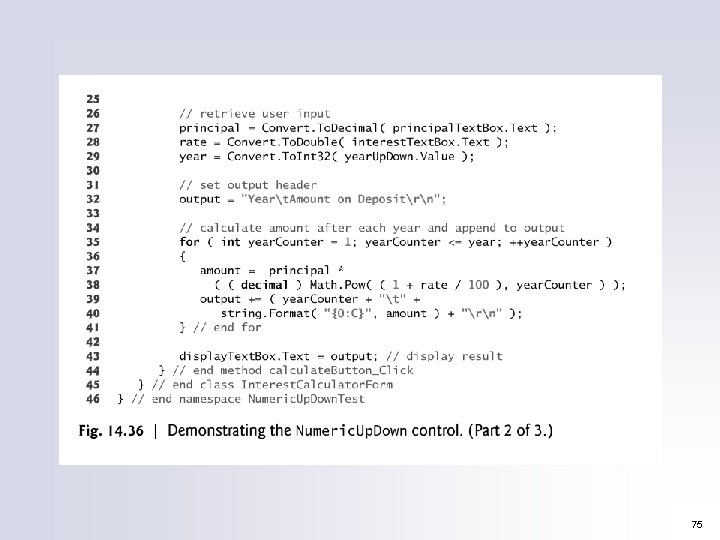
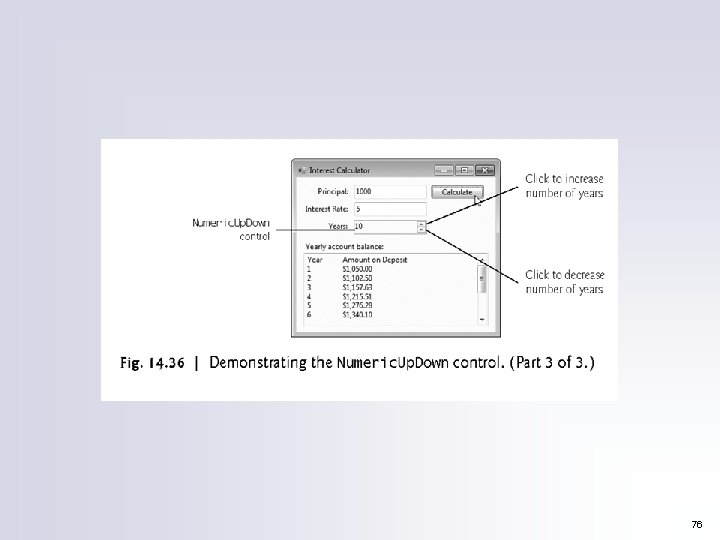
14. 10 Numeric. Up. Down Control Figure 14. 36 demonstrates a Numeric. Up. Down control in a GUI app that calculates interest rate. For the Numeric. Up. Down control, we set the Minimum to 1 and the Maximum to 10. We set the Numeric. Up. Down’s Read. Only property to true to indicate that the user cannot type a number into the control. 73
74
75
76
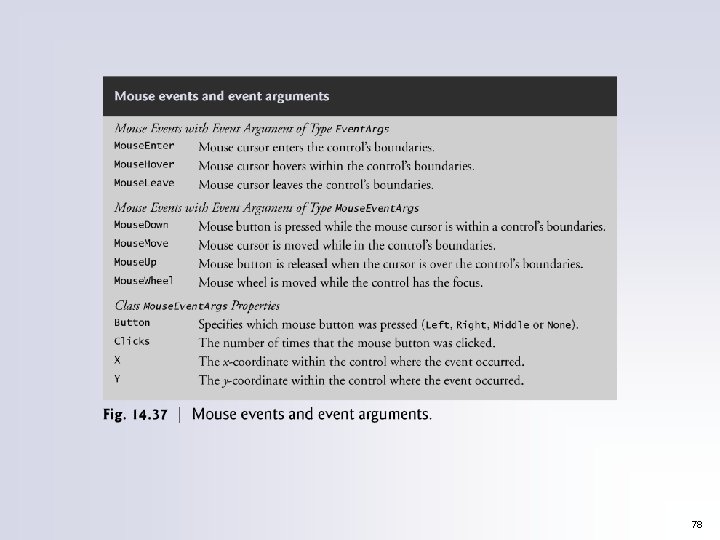
14. 11 Mouse-Event Handling Mouse events are generated when the user interacts with a control via the mouse. Information about the event is passed through a Mouse. Event Args object, and the delegate type is Mouse Event. Handler. Mouse. Event. Args x- and y-coordinates are relative to the control that generated the event. Several common mouse events and event arguments are described in Figure 14. 37. 77
78
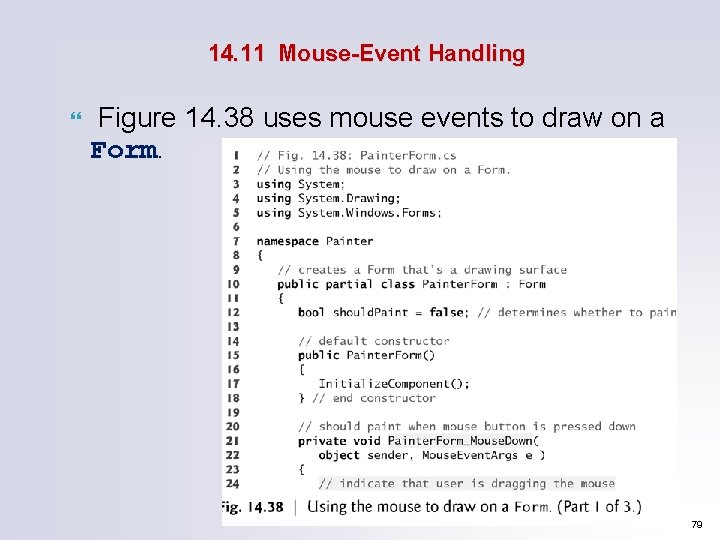
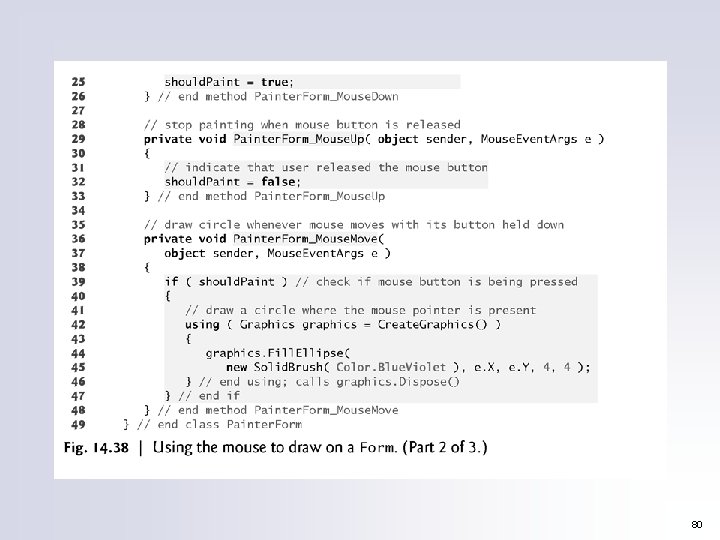
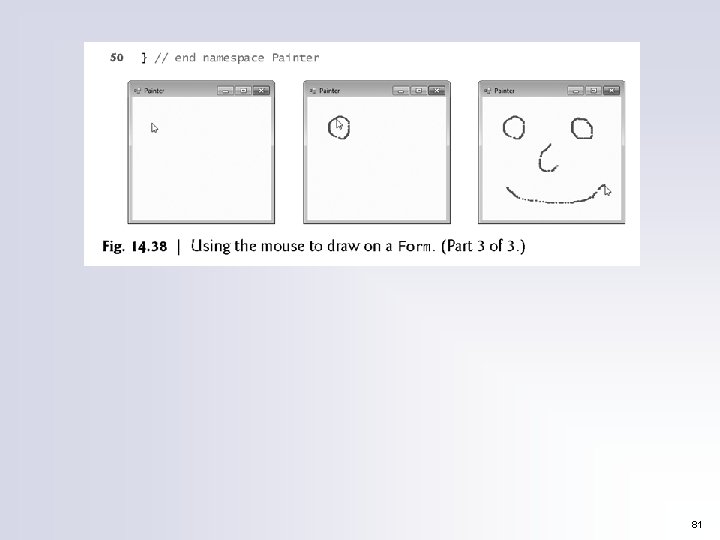
14. 11 Mouse-Event Handling Figure 14. 38 uses mouse events to draw on a Form. 79
80
81
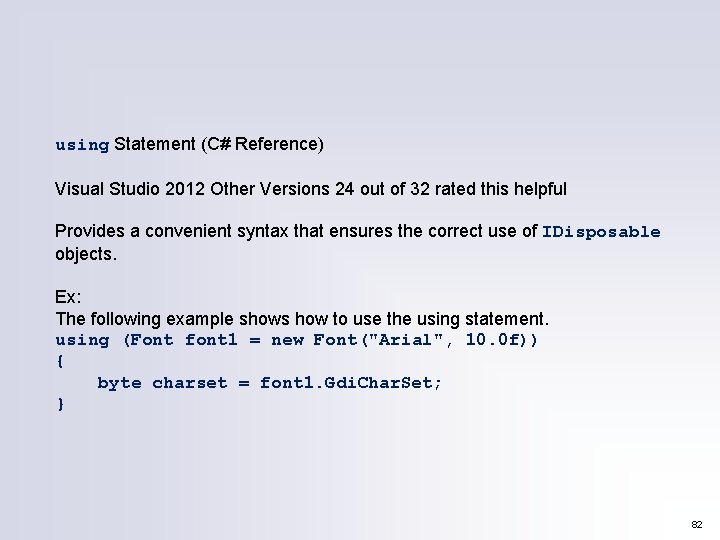
using Statement (C# Reference) Visual Studio 2012 Other Versions 24 out of 32 rated this helpful Provides a convenient syntax that ensures the correct use of IDisposable objects. Ex: The following example shows how to use the using statement. using (Font font 1 = new Font("Arial", 10. 0 f)) { byte charset = font 1. Gdi. Char. Set; } 82
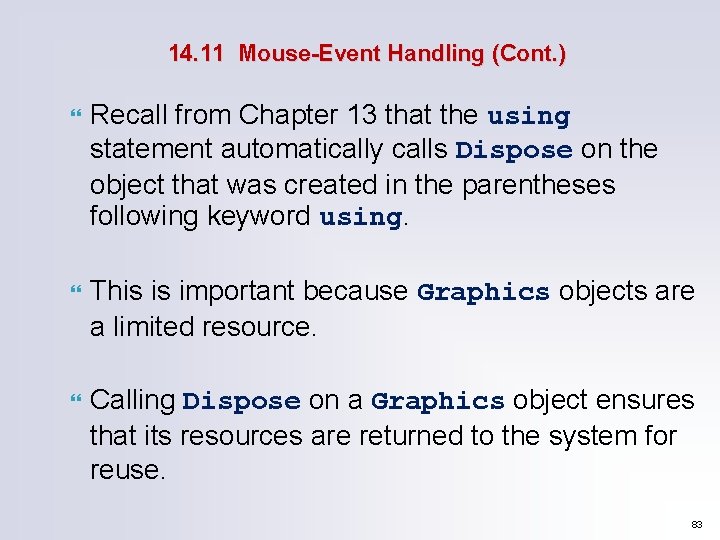
14. 11 Mouse-Event Handling (Cont. ) Recall from Chapter 13 that the using statement automatically calls Dispose on the object that was created in the parentheses following keyword using. This is important because Graphics objects are a limited resource. Calling Dispose on a Graphics object ensures that its resources are returned to the system for reuse. 83
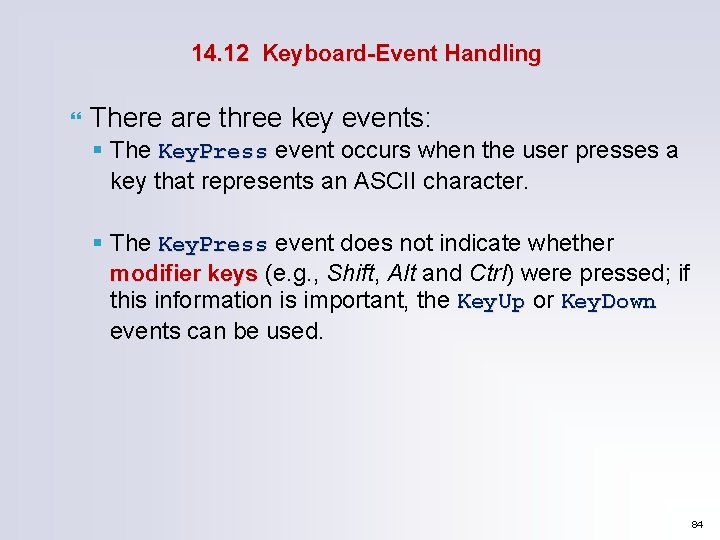
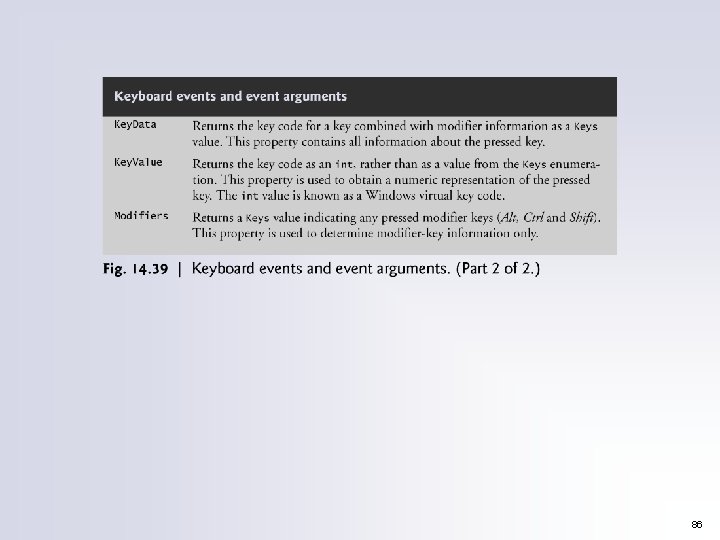
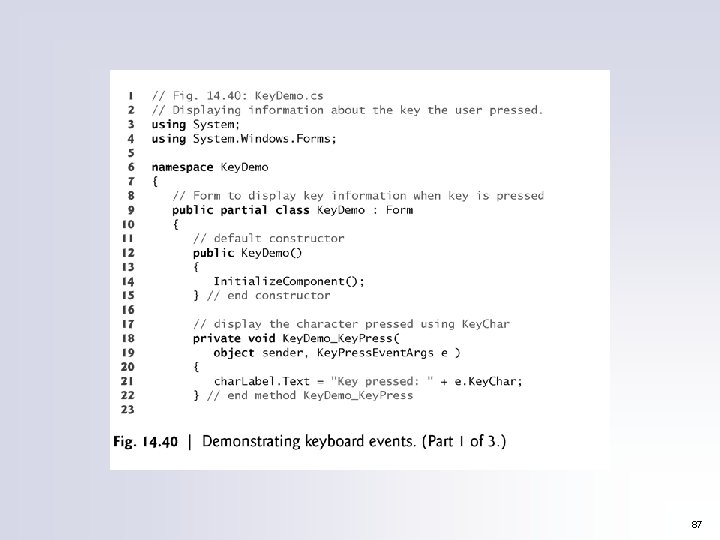
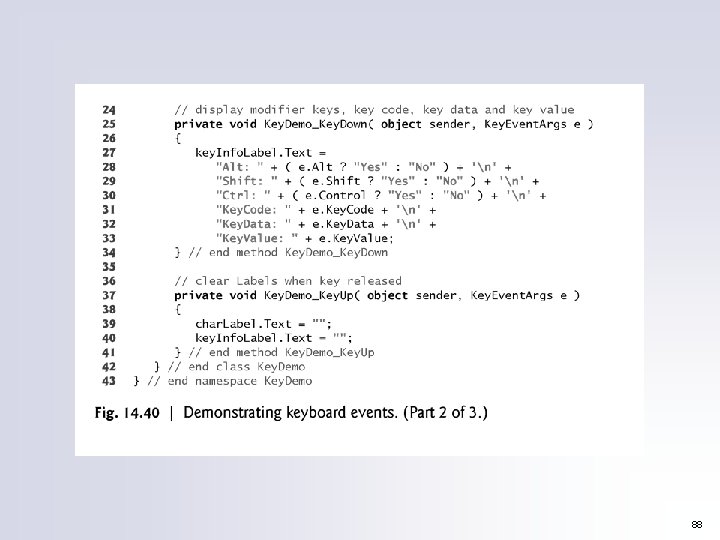
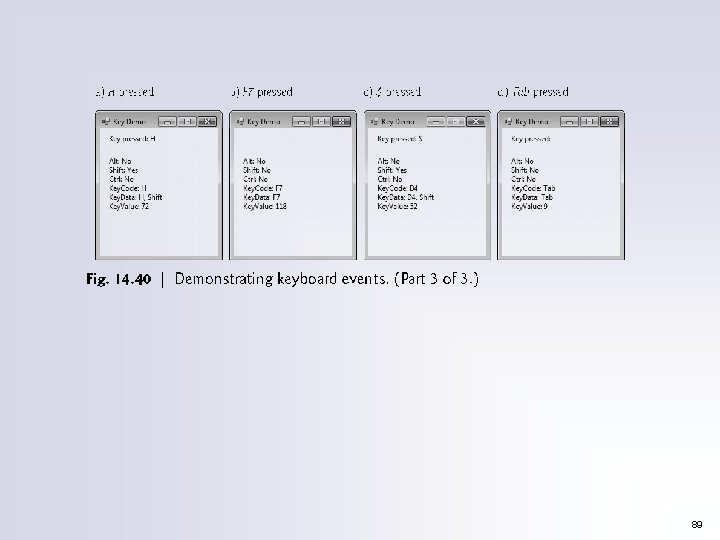
14. 12 Keyboard-Event Handling There are three key events: § The Key. Press event occurs when the user presses a key that represents an ASCII character. § The Key. Press event does not indicate whether modifier keys (e. g. , Shift, Alt and Ctrl) were pressed; if this information is important, the Key. Up or Key. Down events can be used. 84
85
86
87
88
89
90