
Chapter 14 Designing Visuals Technical Communication 9e John
- Slides: 21
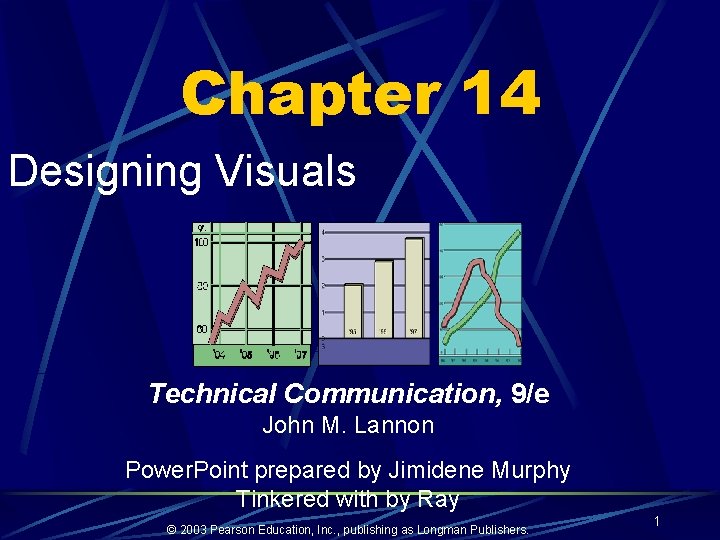
Chapter 14 Designing Visuals Technical Communication, 9/e John M. Lannon Power. Point prepared by Jimidene Murphy Tinkered with by Ray © 2003 Pearson Education, Inc. , publishing as Longman Publishers. 1
Typical Audience Questions in Processing Information • Which information is most important? • Where, exactly should I focus? • What do these numbers mean? • What should I be thinking or doing? • What should I remember about this? • How is it organized? • How is it done? • How does it work? © 2003 Pearson Education, Inc. , publishing as Longman Publishers. 2
How Visuals Work Ø Enhance comprehension Ø Make meaningful comparisons possible Ø Depict relationships Ø Serve as a universal language Ø Provide emphasis Ø Focus and organize information, making it easier to remember © 2003 Pearson Education, Inc. , publishing as Longman Publishers. 3
When to Use Visuals • When you want to instruct or persuade • When you want to draw attention to something immediately important • When you expect the document to be consulted randomly or selectively • When you expect the audience to be relatively less educated, less motivated, or less familiar with the topic • When you expect the audience to be distracted © 2003 Pearson Education, Inc. , publishing as Longman Publishers. 4
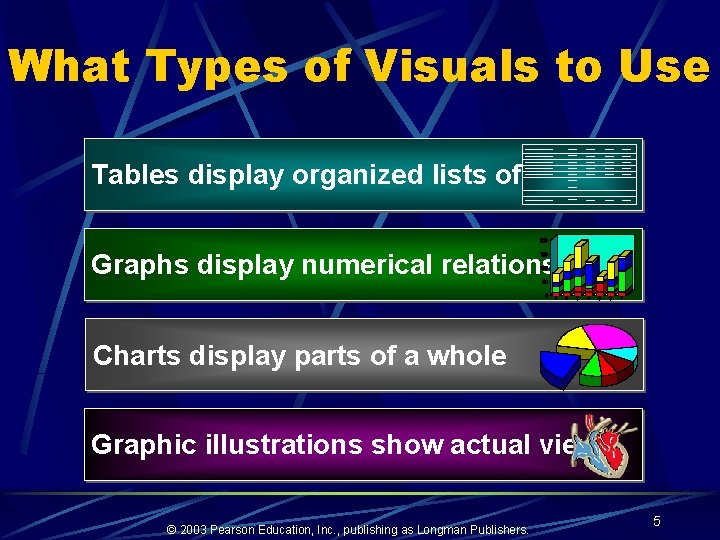
What Types of Visuals to Use Tables display organized lists of data Graphs display numerical relationships Charts display parts of a whole Graphic illustrations show actual views © 2003 Pearson Education, Inc. , publishing as Longman Publishers. 5
How to Select Visuals for Your Purpose and Audience • Visual Plan Sheet © 2003 Pearson Education, Inc. , publishing as Longman Publishers. 6
Tables Ø Tables are used to organize numerical data Ø No table should be overly complex for the intended audience Ø Tables are easy to construct through word processing and spreadsheet programs © 2003 Pearson Education, Inc. , publishing as Longman Publishers. 7
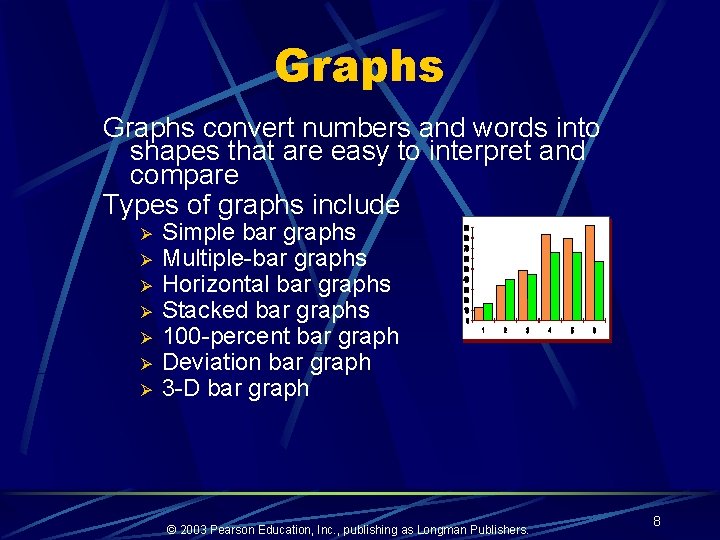
Graphs convert numbers and words into shapes that are easy to interpret and compare Types of graphs include Ø Ø Ø Ø Simple bar graphs Multiple-bar graphs Horizontal bar graphs Stacked bar graphs 100 -percent bar graph Deviation bar graph 3 -D bar graph © 2003 Pearson Education, Inc. , publishing as Longman Publishers. 8
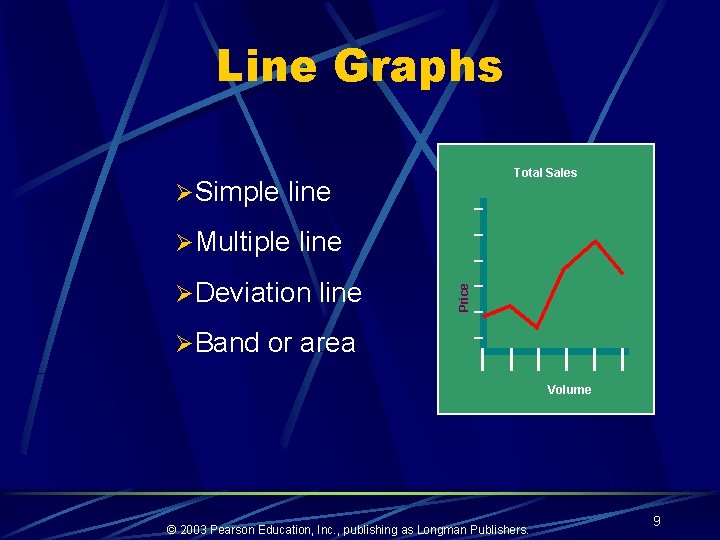
Line Graphs Total Sales ØSimple line ØDeviation line Price ØMultiple line ØBand or area Volume © 2003 Pearson Education, Inc. , publishing as Longman Publishers. 9
How to Display a Bar Graph • Keep the graph simple and easy to read • Number your scales in units the audience will find familiar and easy to follow • Label both scales to show what is being measured or compared • Label each bar or cluster of bars at its base • Use marks to show the points of division on your scale © 2003 Pearson Education, Inc. , publishing as Longman Publishers. 10
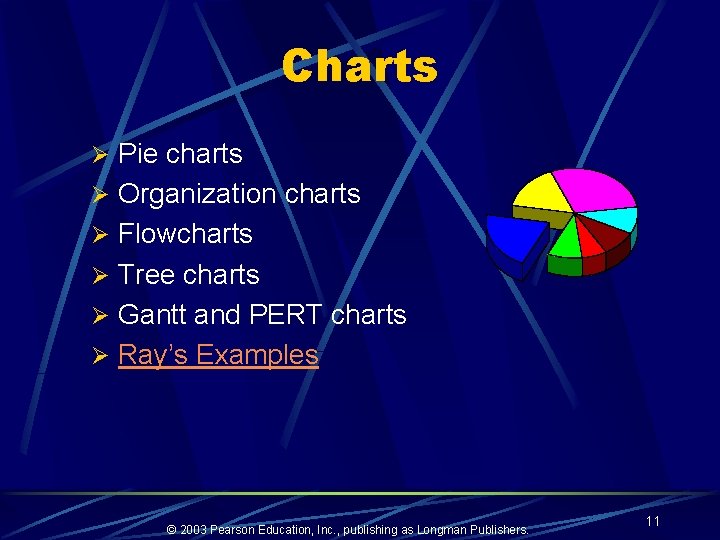
Charts Ø Pie charts Ø Organization charts Ø Flowcharts Ø Tree charts Ø Gantt and PERT charts Ø Ray’s Examples © 2003 Pearson Education, Inc. , publishing as Longman Publishers. 11
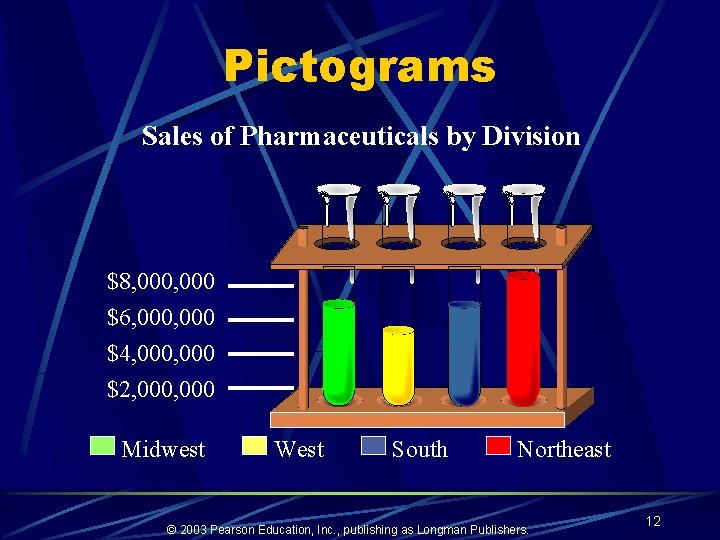
Pictograms Sales of Pharmaceuticals by Division $8, 000 $6, 000 $4, 000 $2, 000 Midwest West South Northeast © 2003 Pearson Education, Inc. , publishing as Longman Publishers. 12
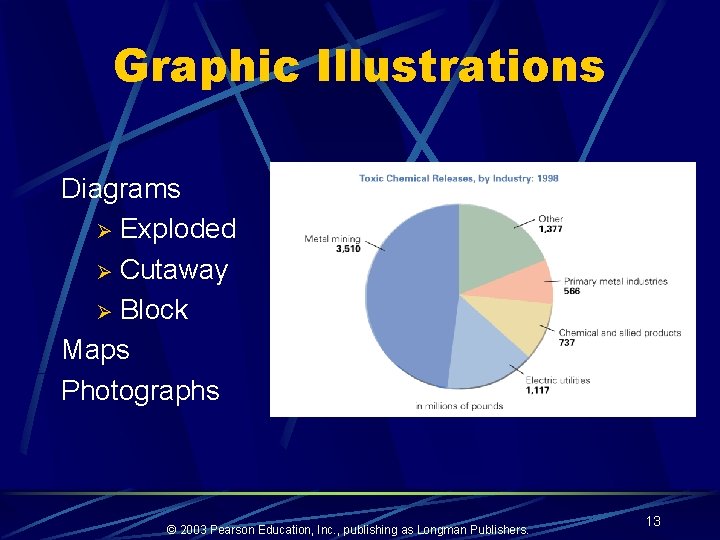
Graphic Illustrations Diagrams Ø Exploded Ø Cutaway Ø Block Maps Photographs © 2003 Pearson Education, Inc. , publishing as Longman Publishers. 13
Computer Graphics Ø Select appropriate designs Ø Use clip art wisely and creatively Ø Use color to enhance, interpret, orient, and organize Ø Create Web pages that utilize color effectively © 2003 Pearson Education, Inc. , publishing as Longman Publishers. 14
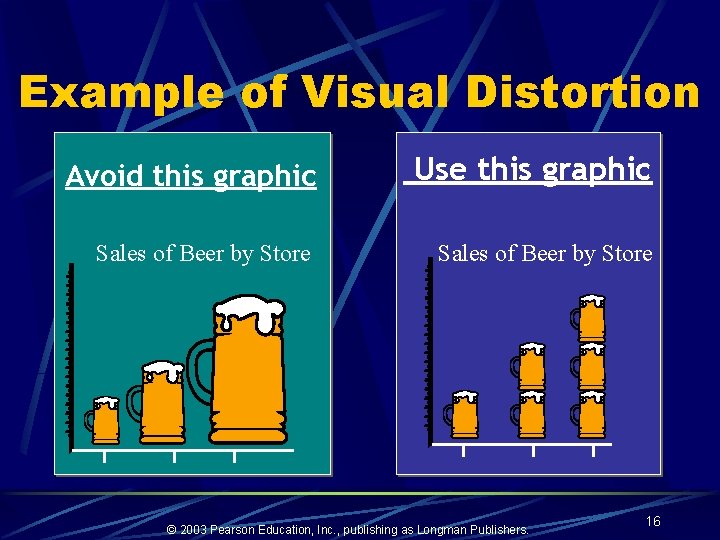
Avoid Visual Distortion Ø Present the real picture Ø Present the complete picture Ø Concentrate on emphasis, not distortion (An example of distortion is on the next slide. ) © 2003 Pearson Education, Inc. , publishing as Longman Publishers. 15
Example of Visual Distortion Avoid this graphic Use this graphic Sales of Beer by Store © 2003 Pearson Education, Inc. , publishing as Longman Publishers. 16
More Examples of Visual Distortion • Ray’s examples of unethical graphics • Ray’s examples of unclear graphics © 2003 Pearson Education, Inc. , publishing as Longman Publishers. 17
Fitting Visuals with Printed Text • Place the visual where it will best serve your • • readers Never refer to a visual that readers cannot easily locate Never crowd a visual into a cramped space Number the visual and give it a clear title and labels Match the visual to your audience © 2003 Pearson Education, Inc. , publishing as Longman Publishers. 18
Fitting Visuals with Printed Text • Introduce and interpret the visual • Use prose captions to explain important points made by the visual • Never include excessive information in a visual • Be sure the visual can stand alone © 2003 Pearson Education, Inc. , publishing as Longman Publishers. 19
Now to work! • Now you’ll take a shot at designing graphics. With your partner, complete Exercise 1, page 338. • I’ll walk you through a how to use Excel to create these kinds of graphics. © 2003 Pearson Education, Inc. , publishing as Longman Publishers. 20
Any Questions? For additional help reviewing this chapter, please visit the Companion Website for your text at http: //www. ablongman. com/lannon. © 2003 Pearson Education, Inc. , publishing as Longman Publishers. 21