
Chapter 13 Editing Documents Computer Literacy Chapter 13
![Using Keyboard Tricks • • [Ctrl + _] = Find [Ctrl + _____] =](https://slidetodoc.com/presentation_image_h2/1c50762c4e2a1e9176274c85f166555f/image-6.jpg "Using Keyboard Tricks • • [Ctrl + _] = Find [Ctrl + _____] =")
![Selecting Information • • • Click and ____ [_____]-click Double-click to select a word](https://slidetodoc.com/presentation_image_h2/1c50762c4e2a1e9176274c85f166555f/image-7.jpg "Selecting Information • • • Click and ____ [_____]-click Double-click to select a word")
![What to Do with Selected Information • [_____] or [Backspace] to clear • [_____]](https://slidetodoc.com/presentation_image_h2/1c50762c4e2a1e9176274c85f166555f/image-8.jpg "What to Do with Selected Information • [_____] or [Backspace] to clear • [_____]")
![Pasting • Home | _____ • [Ctrl + _] Computer Literacy Chapter 13: Editing](https://slidetodoc.com/presentation_image_h2/1c50762c4e2a1e9176274c85f166555f/image-11.jpg "Pasting • Home | _____ • [Ctrl + _] Computer Literacy Chapter 13: Editing")
- Slides: 27
Chapter 13: Editing Documents Computer Literacy Chapter 13: Editing Documents
Introduction • • Ways to N_______ Ways to S______ Information What to Do with Selected Information The B______ You Need the Most Using a S____ Checker Changing the L____ of Your Text A P______ is Worth a Thousand Words P____ Your Documents Computer Literacy Chapter 13: Editing Documents
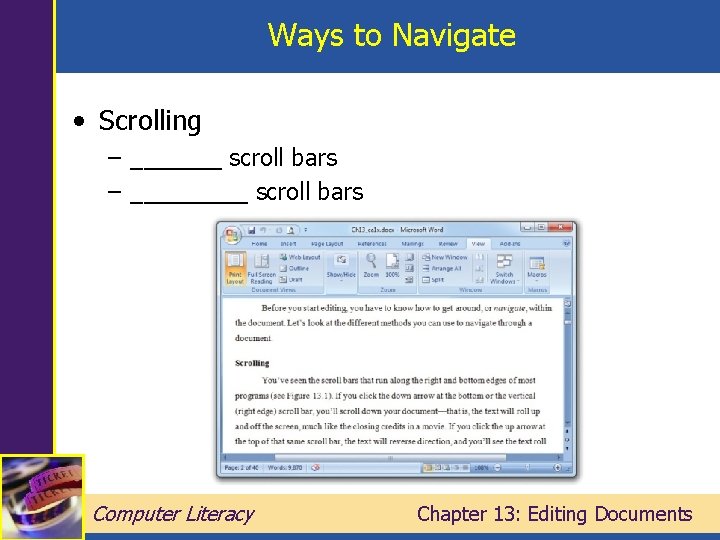
Ways to Navigate • Scrolling – _______ scroll bars – _____ scroll bars Computer Literacy Chapter 13: Editing Documents
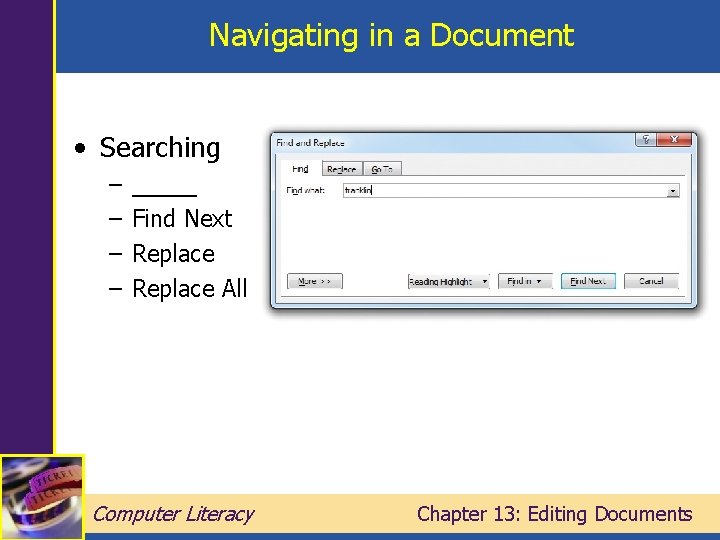
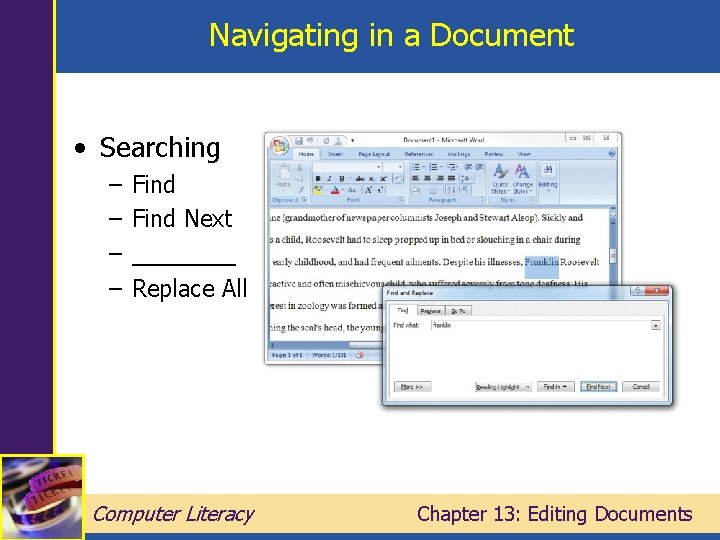
Navigating in a Document • Searching – – _____ Find Next Replace All Computer Literacy Chapter 13: Editing Documents
Navigating in a Document • Searching – – Find Next ____ Replace All Computer Literacy Chapter 13: Editing Documents
Using Keyboard Tricks • • [Ctrl + _] = Find [Ctrl + _____] = Go to document start [Ctrl + ___] = Go to document end [Ctrl + _____ or Left Arrow] = Skip from word to word • [Ctrl + _] = Go To Computer Literacy Chapter 13: Editing Documents
Selecting Information • • • Click and ____ [_____]-click Double-click to select a word Triple-click to select a paragraph [Ctrl + _] to select all Computer Literacy Chapter 13: Editing Documents
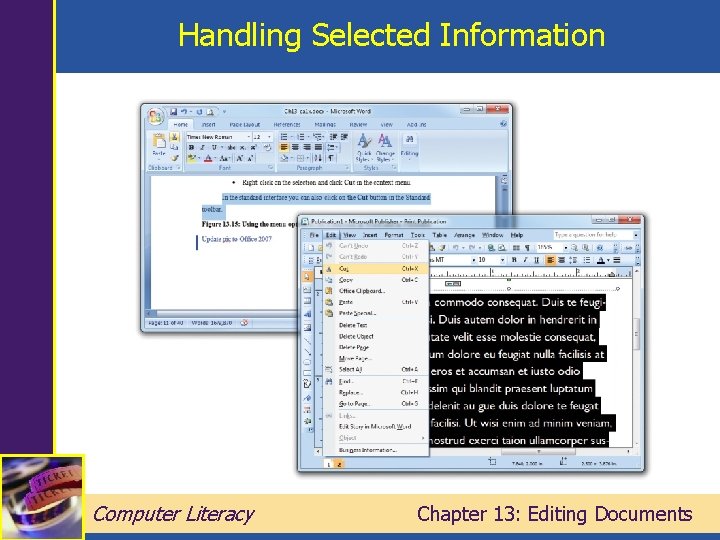
What to Do with Selected Information • [_____] or [Backspace] to clear • [_____] key to overtype • Clipboard operations: – Home | Cut or [Ctrl + X] to cut – Home | Copy or [Ctrl + C] to copy – Home | Paste or [Ctrl + V] to paste • Drag and drop selection using mouse Computer Literacy Chapter 13: Editing Documents
Handling Selected Information Computer Literacy Chapter 13: Editing Documents
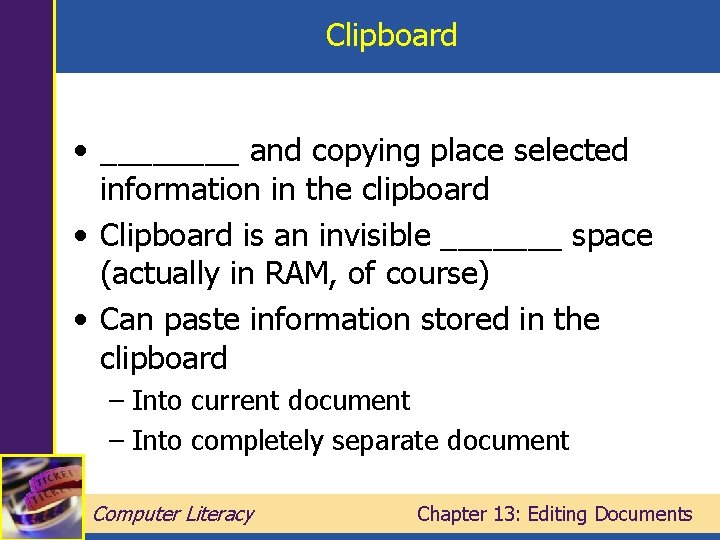
Clipboard • ____ and copying place selected information in the clipboard • Clipboard is an invisible _______ space (actually in RAM, of course) • Can paste information stored in the clipboard – Into current document – Into completely separate document Computer Literacy Chapter 13: Editing Documents
Pasting • Home | _____ • [Ctrl + _] Computer Literacy Chapter 13: Editing Documents
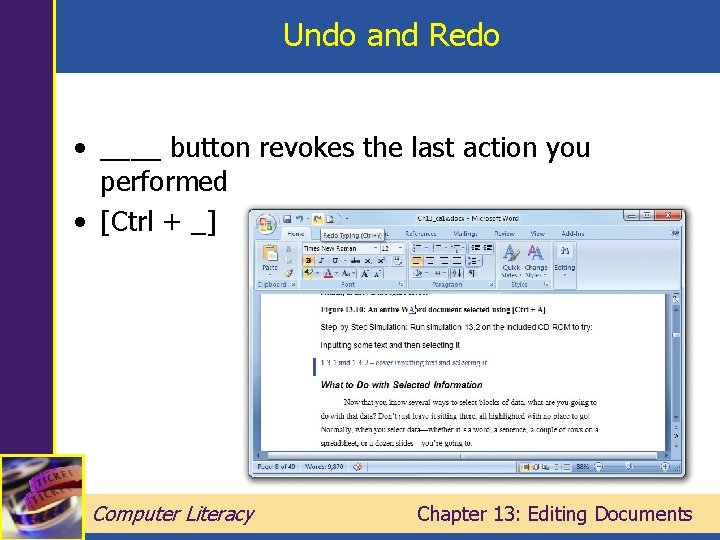
Undo and Redo • ____ button revokes the last action you performed • [Ctrl + _] Computer Literacy Chapter 13: Editing Documents
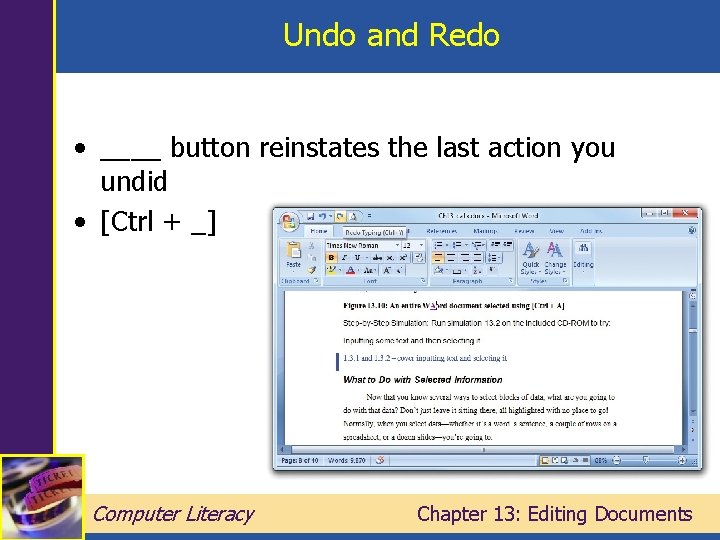
Undo and Redo • ____ button reinstates the last action you undid • [Ctrl + _] Computer Literacy Chapter 13: Editing Documents
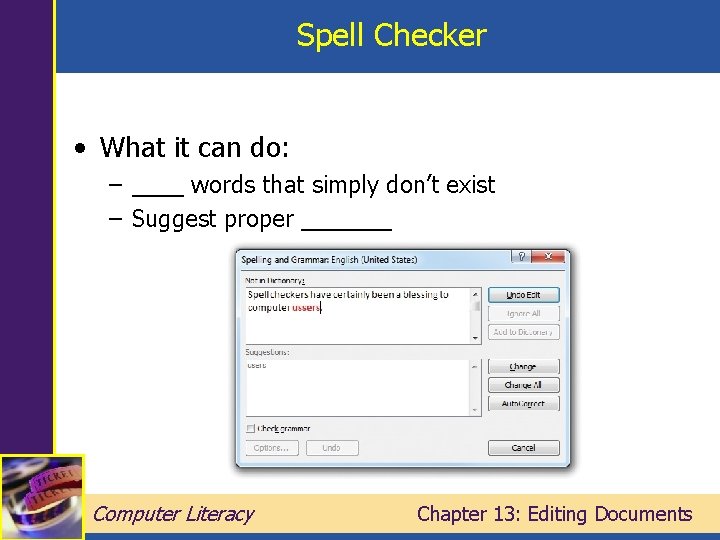
Spell Checker • What it can do: – ____ words that simply don’t exist – Suggest proper _______ Computer Literacy Chapter 13: Editing Documents
Spell Checker • What it can’t do: – Catch _____ words that you’ve used _____ (manager/manger, form/from, their/they’re/there, etc. ) – Make _____ for proper names, unless you tell it to Computer Literacy Chapter 13: Editing Documents
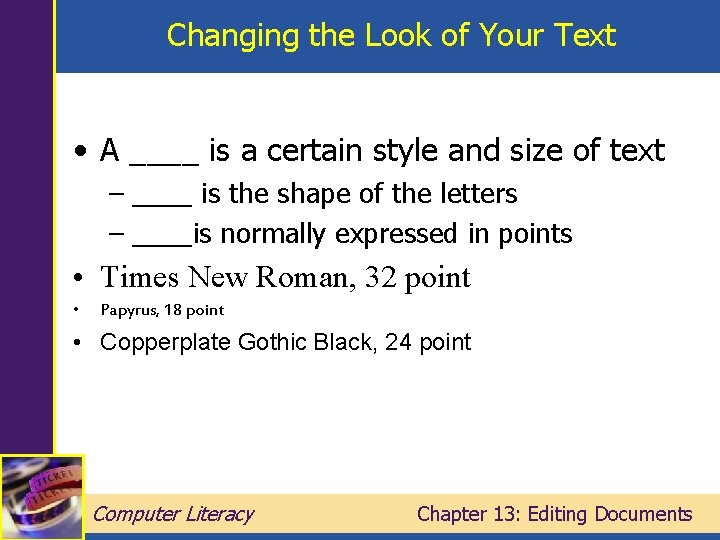
Changing the Look of Your Text • A ____ is a certain style and size of text – ____ is the shape of the letters – ____is normally expressed in points • Times New Roman, 32 point • Papyrus, 18 point • Copperplate Gothic Black, 24 point Computer Literacy Chapter 13: Editing Documents
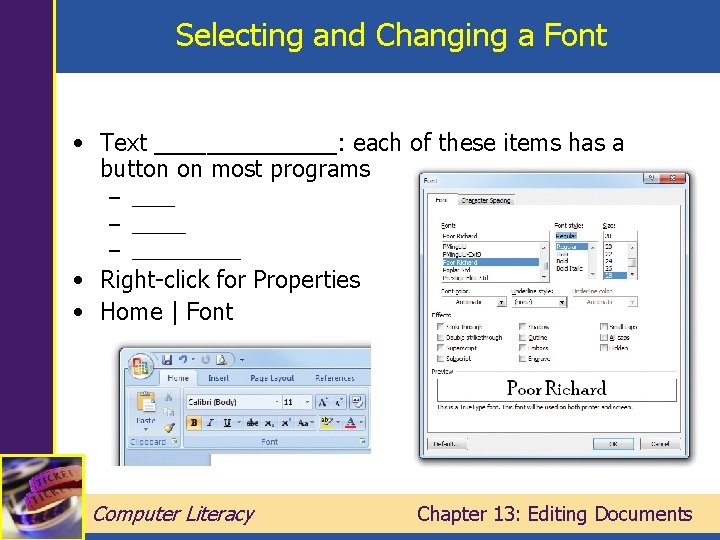
Selecting and Changing a Font • Text _______: each of these items has a button on most programs – _____ • Right-click for Properties • Home | Font Computer Literacy Chapter 13: Editing Documents
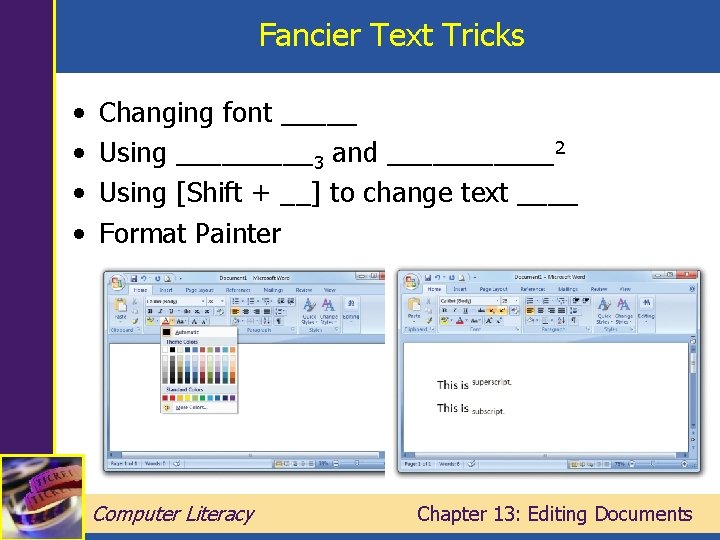
Fancier Text Tricks • • Changing font _____ Using _____3 and ______2 Using [Shift + __] to change text ____ Format Painter Computer Literacy Chapter 13: Editing Documents
Using Images into a File • Insert graphic files (photos, etc. ) such as. ___, . ___ • Insert | Picture – Select File – Size appropriately Computer Literacy Chapter 13: Editing Documents
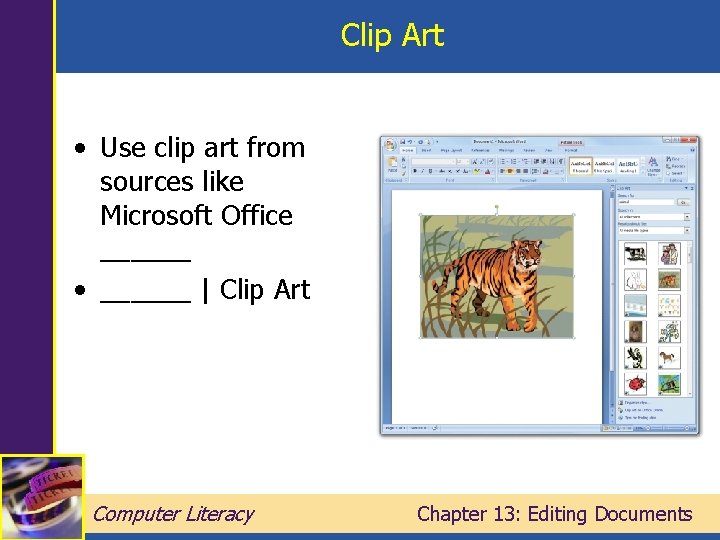
Clip Art • Use clip art from sources like Microsoft Office ______ • ______ | Clip Art Computer Literacy Chapter 13: Editing Documents
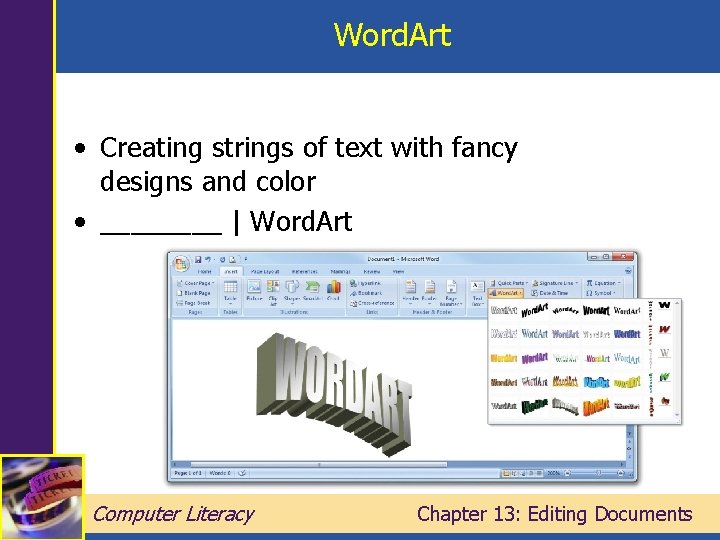
Word. Art • Creating strings of text with fancy designs and color • ____ | Word. Art Computer Literacy Chapter 13: Editing Documents
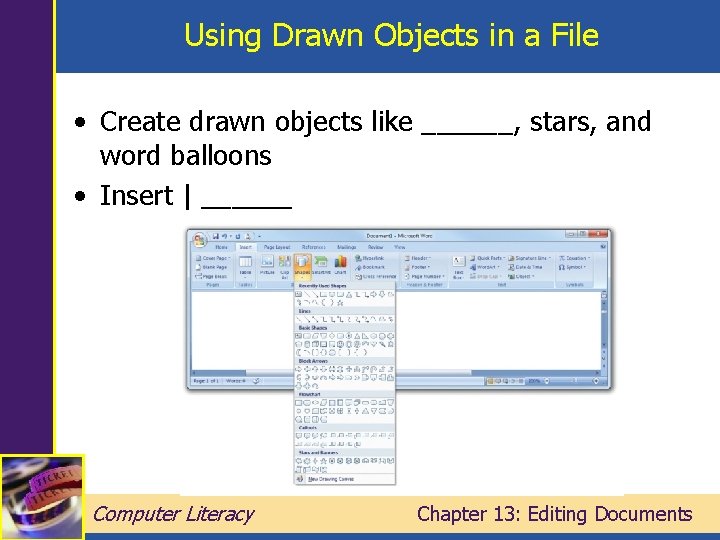
Using Drawn Objects in a File • Create drawn objects like ______, stars, and word balloons • Insert | ______ Computer Literacy Chapter 13: Editing Documents
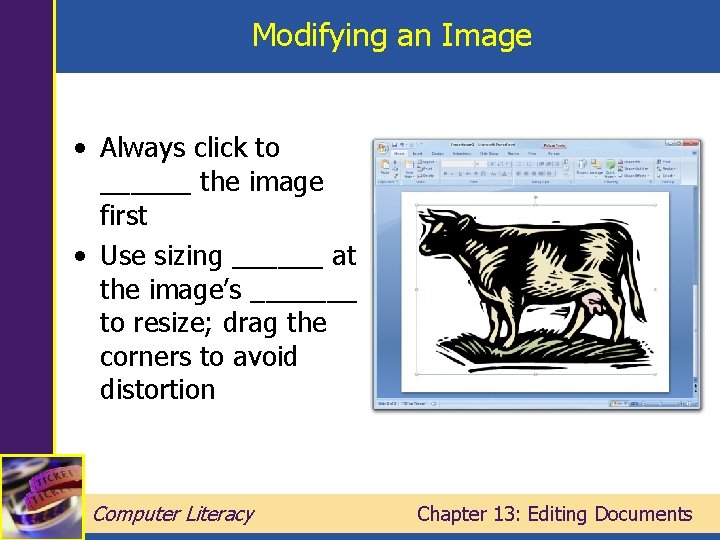
Modifying an Image • Always click to ______ the image first • Use sizing ______ at the image’s _______ to resize; drag the corners to avoid distortion Computer Literacy Chapter 13: Editing Documents
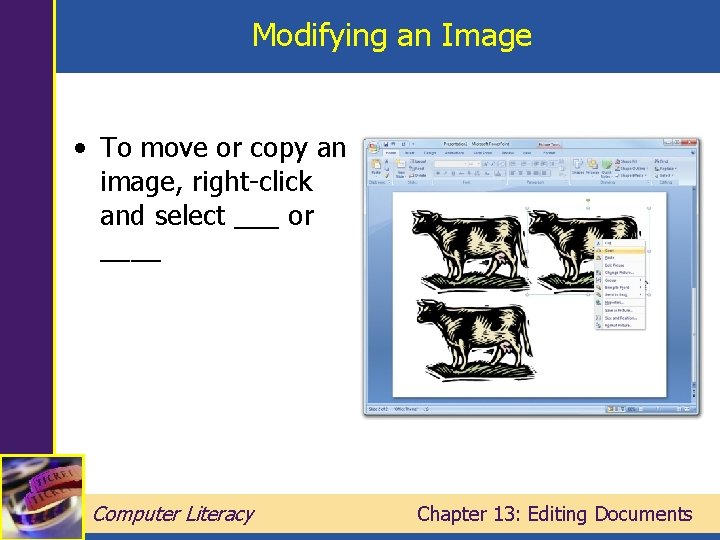
Modifying an Image • To move or copy an image, right-click and select ___ or ____ Computer Literacy Chapter 13: Editing Documents
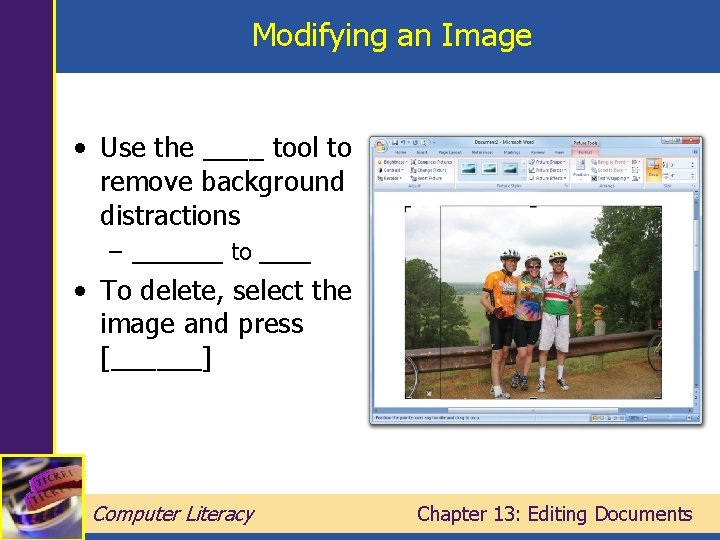
Modifying an Image • Use the ____ tool to remove background distractions – _______ to ____ • To delete, select the image and press [______] Computer Literacy Chapter 13: Editing Documents
Protecting Your Documents • Office Button | _____, then at the bottom click the down arrow to open Tools | General Options. • Password to Open – strong encryption. • Password to Modify – not encrypted. Computer Literacy Chapter 13: Editing Documents
Summary • • Ways to Navigate Ways to Select Information What to Do with Selected Information The Buttons You Need the Most Using a Spell Checker Changing the Look of Your Text A Picture is Worth a Thousand Words Protecting Your Documents Computer Literacy Chapter 13: Editing Documents