
Chapter 12 DATABASE DESIGN AND DEVELOPMENT A VISUAL
Chapter 12 DATABASE DESIGN AND DEVELOPMENT: A VISUAL APPROACH Raymond Frost – John Day – Craig Van Slyke Chapter 12 Accessing Databases from Web Applications with Microsoft ASP. NET Part A 1 Database Design and Development: A Visual Approach © 2006 Prentice Hall

Chapter 12 Active Server Page Model Database Design and Development: A Visual Approach © 2006 Prentice Hall Exhibit 12 -1: The Basic Active Server Page Model 2
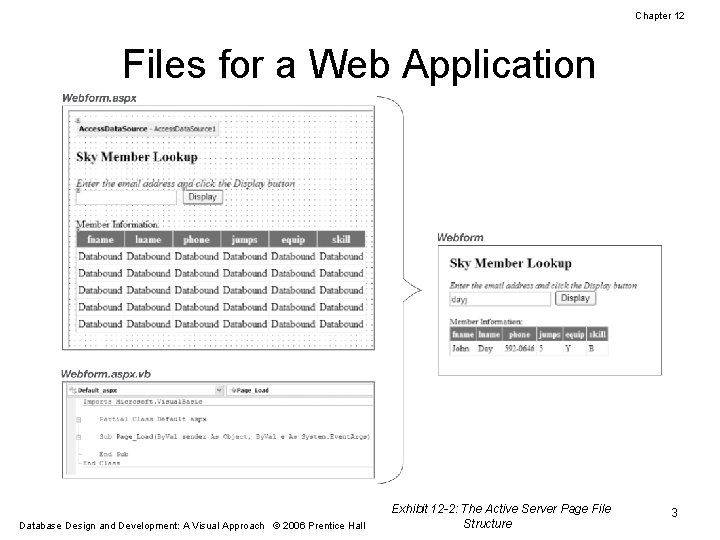
Chapter 12 Files for a Web Application Database Design and Development: A Visual Approach © 2006 Prentice Hall Exhibit 12 -2: The Active Server Page File Structure 3
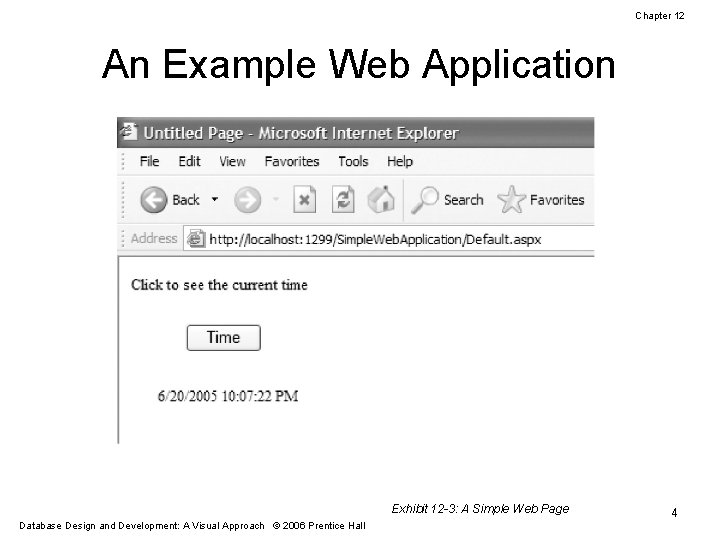
Chapter 12 An Example Web Application Exhibit 12 -3: A Simple Web Page Database Design and Development: A Visual Approach © 2006 Prentice Hall 4
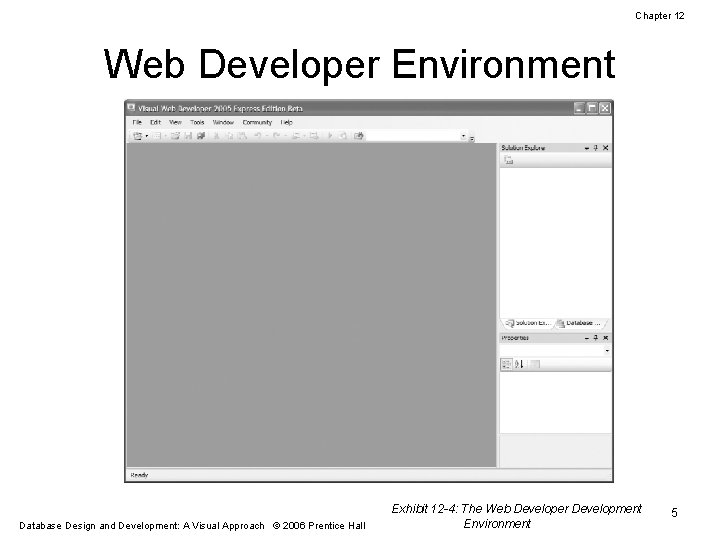
Chapter 12 Web Developer Environment Database Design and Development: A Visual Approach © 2006 Prentice Hall Exhibit 12 -4: The Web Developer Development Environment 5
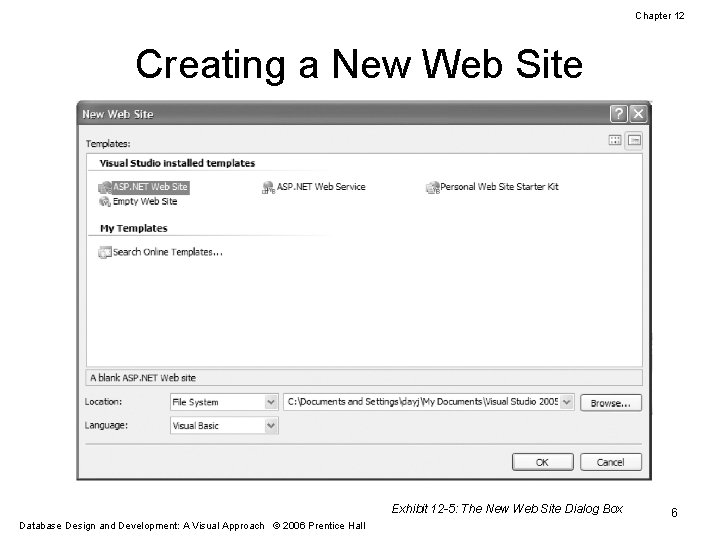
Chapter 12 Creating a New Web Site Exhibit 12 -5: The New Web Site Dialog Box Database Design and Development: A Visual Approach © 2006 Prentice Hall 6
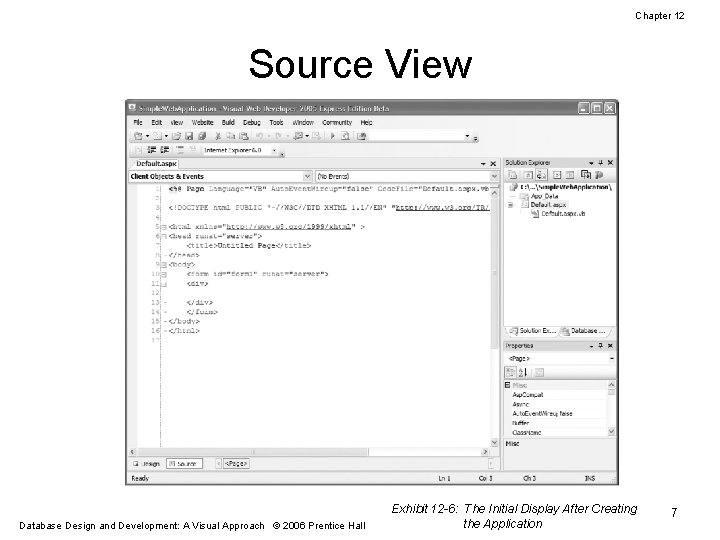
Chapter 12 Source View Database Design and Development: A Visual Approach © 2006 Prentice Hall Exhibit 12 -6: The Initial Display After Creating the Application 7
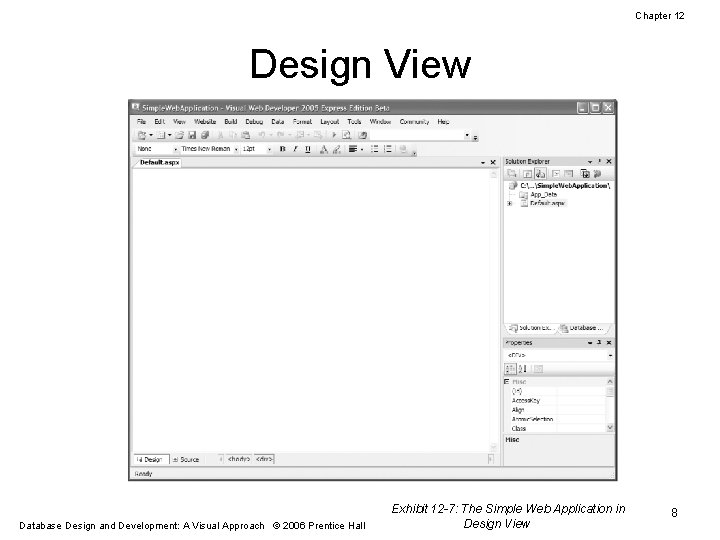
Chapter 12 Design View Database Design and Development: A Visual Approach © 2006 Prentice Hall Exhibit 12 -7: The Simple Web Application in Design View 8
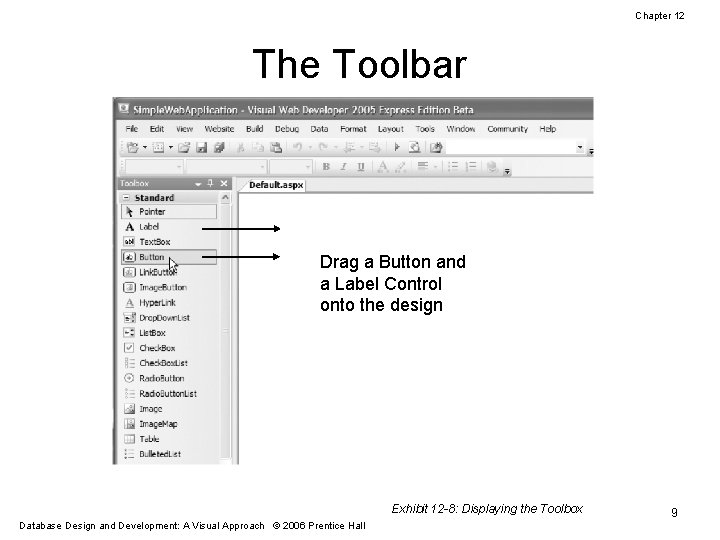
Chapter 12 The Toolbar Drag a Button and a Label Control onto the design Exhibit 12 -8: Displaying the Toolbox Database Design and Development: A Visual Approach © 2006 Prentice Hall 9
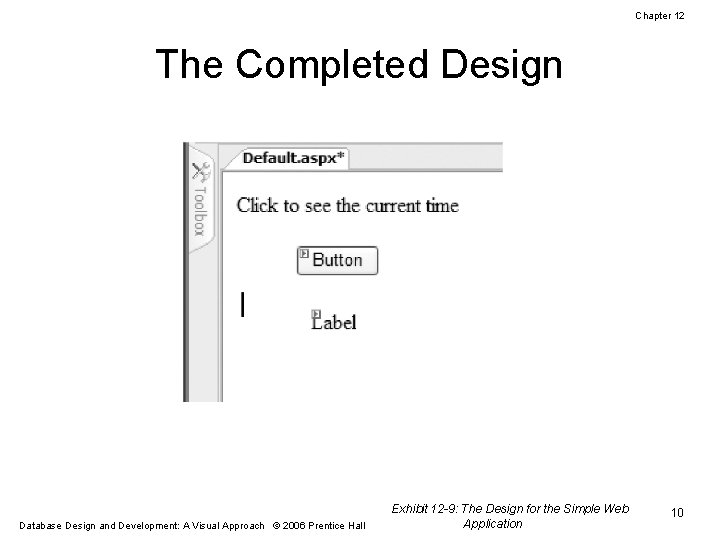
Chapter 12 The Completed Design Database Design and Development: A Visual Approach © 2006 Prentice Hall Exhibit 12 -9: The Design for the Simple Web Application 10
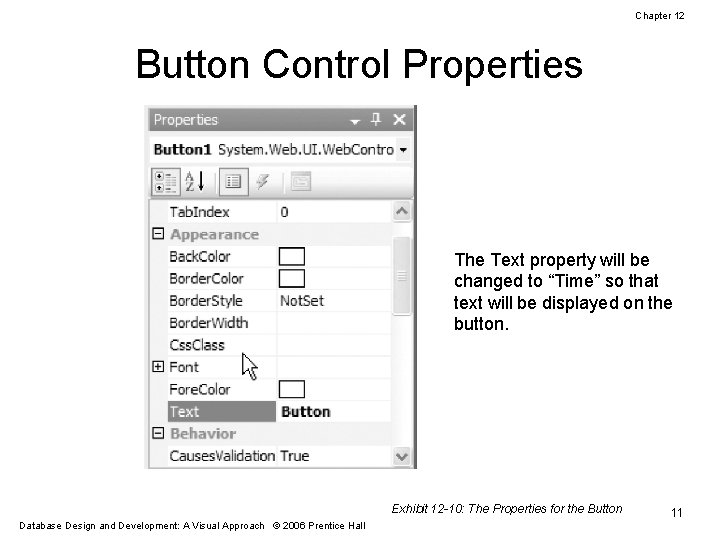
Chapter 12 Button Control Properties The Text property will be changed to “Time” so that text will be displayed on the button. Exhibit 12 -10: The Properties for the Button Database Design and Development: A Visual Approach © 2006 Prentice Hall 11
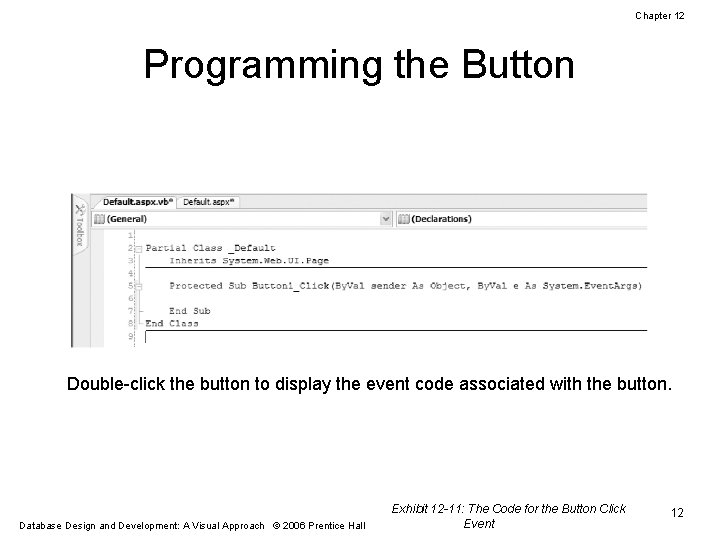
Chapter 12 Programming the Button Double-click the button to display the event code associated with the button. Database Design and Development: A Visual Approach © 2006 Prentice Hall Exhibit 12 -11: The Code for the Button Click Event 12
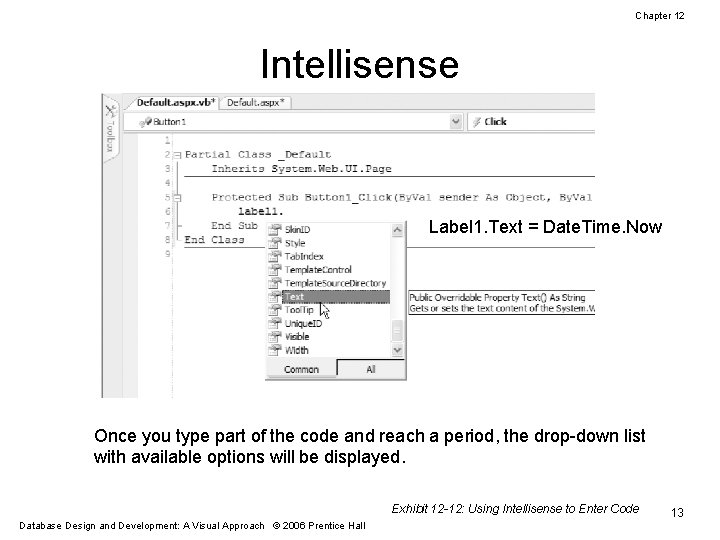
Chapter 12 Intellisense Label 1. Text = Date. Time. Now Once you type part of the code and reach a period, the drop-down list with available options will be displayed. Exhibit 12 -12: Using Intellisense to Enter Code Database Design and Development: A Visual Approach © 2006 Prentice Hall 13
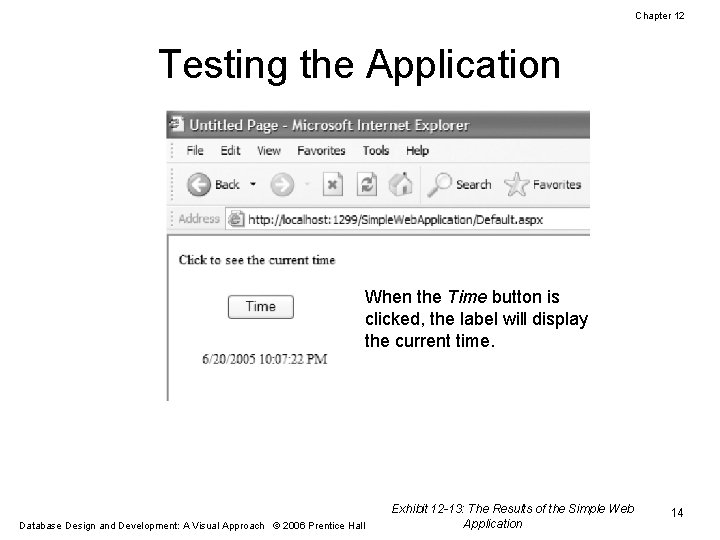
Chapter 12 Testing the Application When the Time button is clicked, the label will display the current time. Database Design and Development: A Visual Approach © 2006 Prentice Hall Exhibit 12 -13: The Results of the Simple Web Application 14
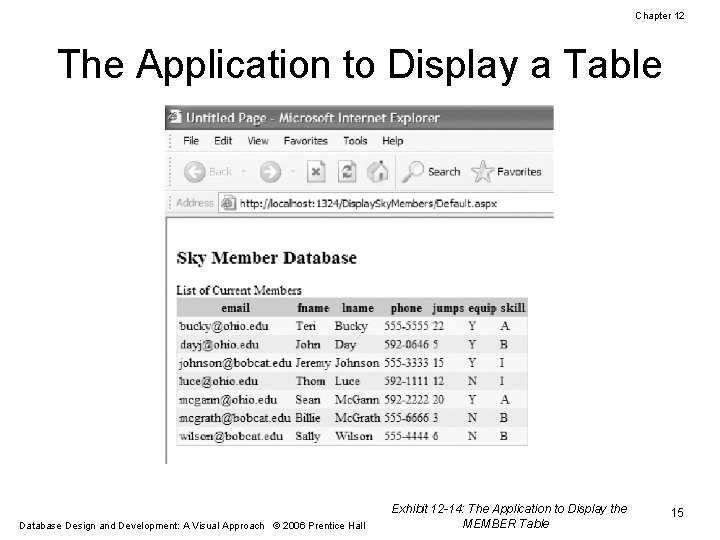
Chapter 12 The Application to Display a Table Database Design and Development: A Visual Approach © 2006 Prentice Hall Exhibit 12 -14: The Application to Display the MEMBER Table 15
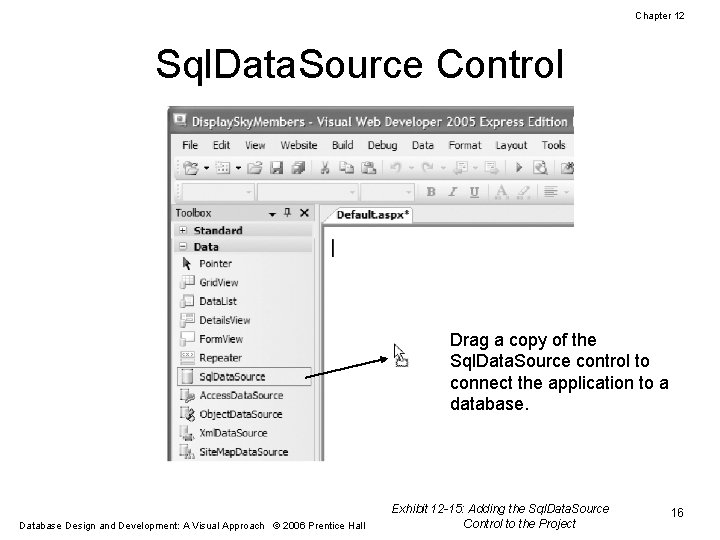
Chapter 12 Sql. Data. Source Control Drag a copy of the Sql. Data. Source control to connect the application to a database. Database Design and Development: A Visual Approach © 2006 Prentice Hall Exhibit 12 -15: Adding the Sql. Data. Source Control to the Project 16
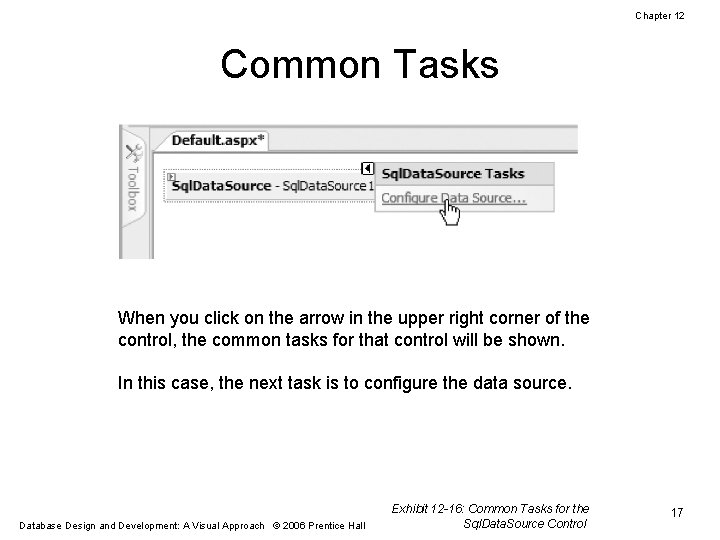
Chapter 12 Common Tasks When you click on the arrow in the upper right corner of the control, the common tasks for that control will be shown. In this case, the next task is to configure the data source. Database Design and Development: A Visual Approach © 2006 Prentice Hall Exhibit 12 -16: Common Tasks for the Sql. Data. Source Control 17
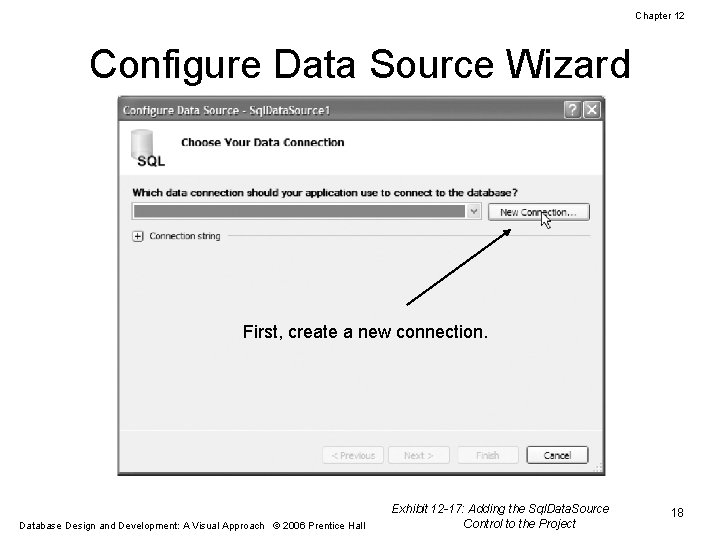
Chapter 12 Configure Data Source Wizard First, create a new connection. Database Design and Development: A Visual Approach © 2006 Prentice Hall Exhibit 12 -17: Adding the Sql. Data. Source Control to the Project 18
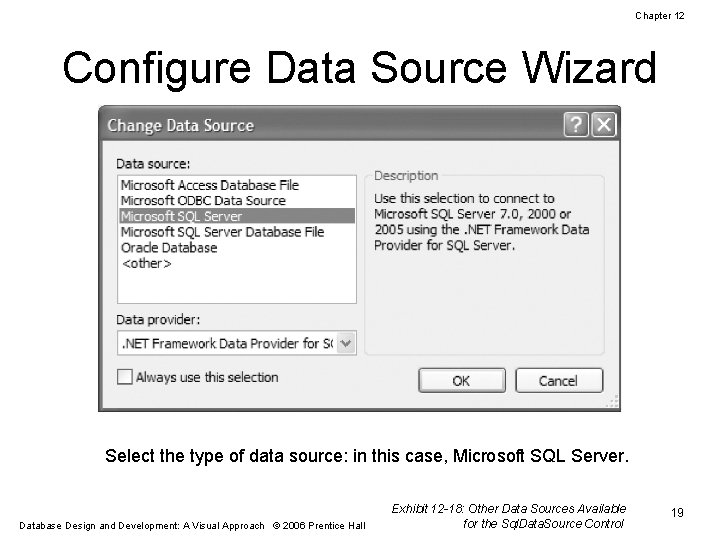
Chapter 12 Configure Data Source Wizard Select the type of data source: in this case, Microsoft SQL Server. Database Design and Development: A Visual Approach © 2006 Prentice Hall Exhibit 12 -18: Other Data Sources Available for the Sql. Data. Source Control 19
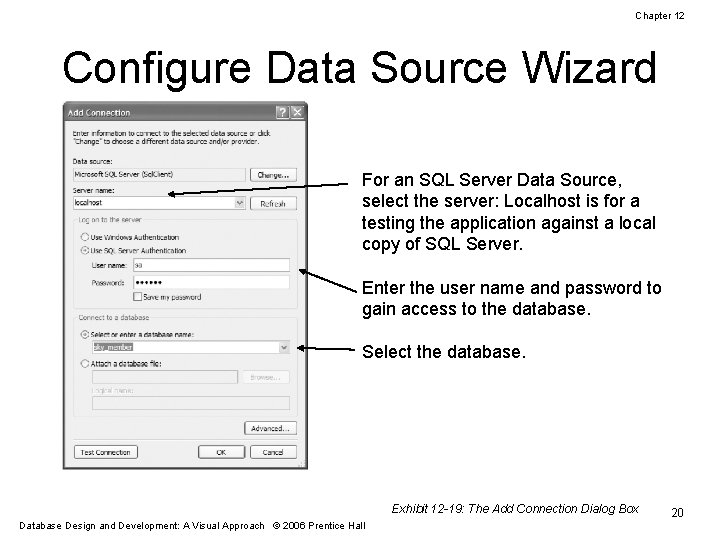
Chapter 12 Configure Data Source Wizard For an SQL Server Data Source, select the server: Localhost is for a testing the application against a local copy of SQL Server. Enter the user name and password to gain access to the database. Select the database. Exhibit 12 -19: The Add Connection Dialog Box Database Design and Development: A Visual Approach © 2006 Prentice Hall 20
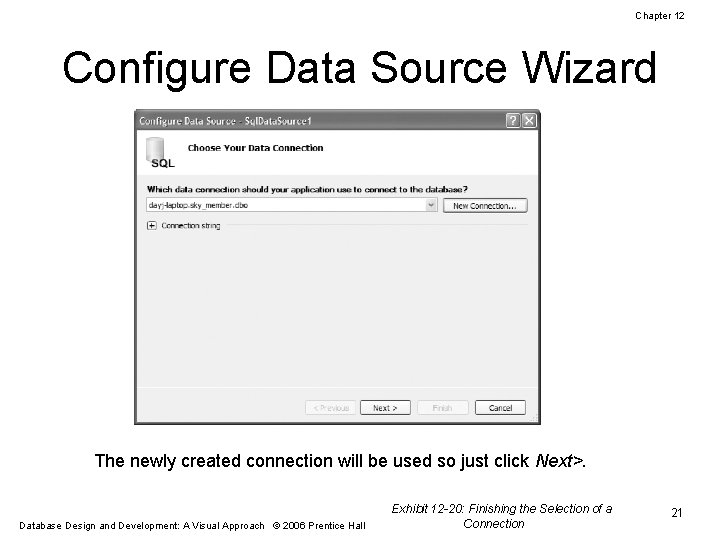
Chapter 12 Configure Data Source Wizard The newly created connection will be used so just click Next>. Database Design and Development: A Visual Approach © 2006 Prentice Hall Exhibit 12 -20: Finishing the Selection of a Connection 21
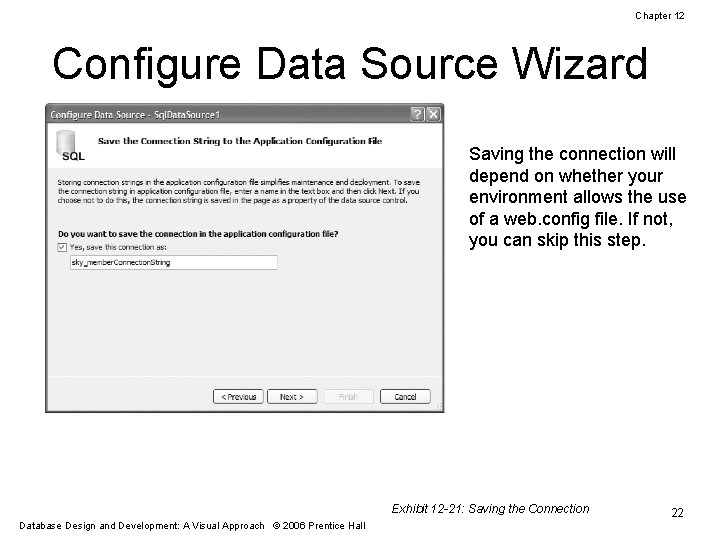
Chapter 12 Configure Data Source Wizard Saving the connection will depend on whether your environment allows the use of a web. config file. If not, you can skip this step. Exhibit 12 -21: Saving the Connection Database Design and Development: A Visual Approach © 2006 Prentice Hall 22
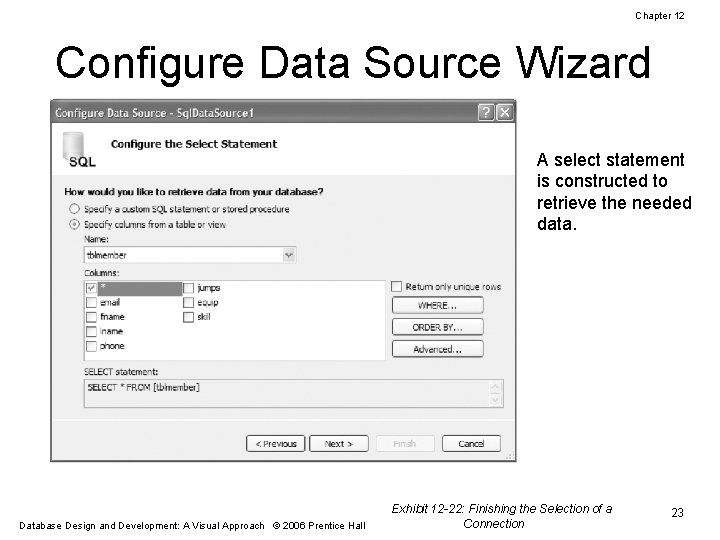
Chapter 12 Configure Data Source Wizard A select statement is constructed to retrieve the needed data. Database Design and Development: A Visual Approach © 2006 Prentice Hall Exhibit 12 -22: Finishing the Selection of a Connection 23
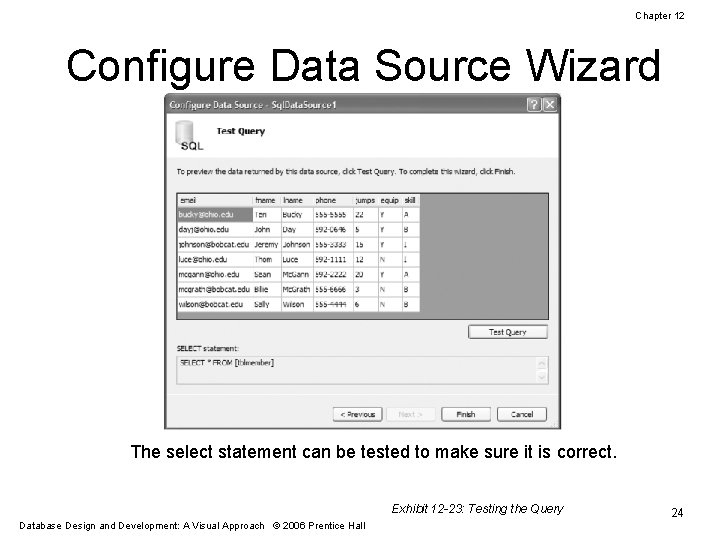
Chapter 12 Configure Data Source Wizard The select statement can be tested to make sure it is correct. Exhibit 12 -23: Testing the Query Database Design and Development: A Visual Approach © 2006 Prentice Hall 24
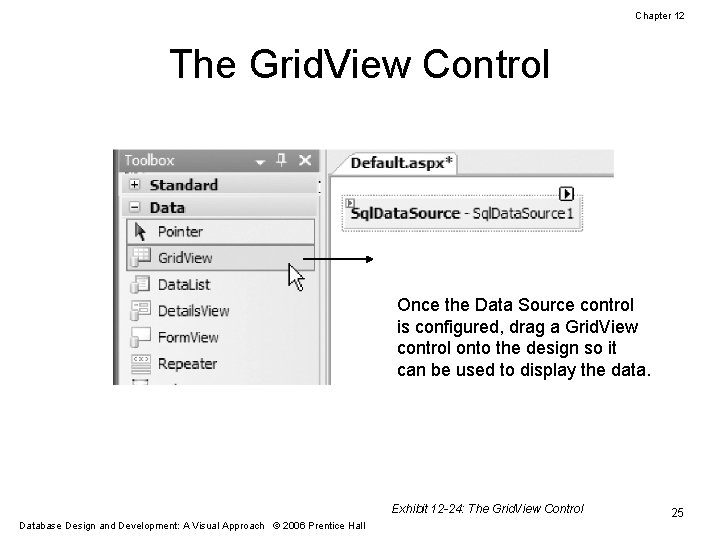
Chapter 12 The Grid. View Control Once the Data Source control is configured, drag a Grid. View control onto the design so it can be used to display the data. Exhibit 12 -24: The Grid. View Control Database Design and Development: A Visual Approach © 2006 Prentice Hall 25
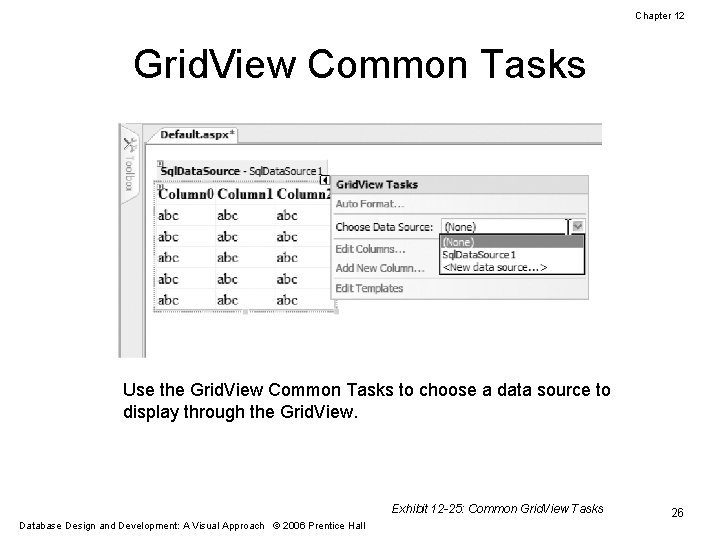
Chapter 12 Grid. View Common Tasks Use the Grid. View Common Tasks to choose a data source to display through the Grid. View. Exhibit 12 -25: Common Grid. View Tasks Database Design and Development: A Visual Approach © 2006 Prentice Hall 26
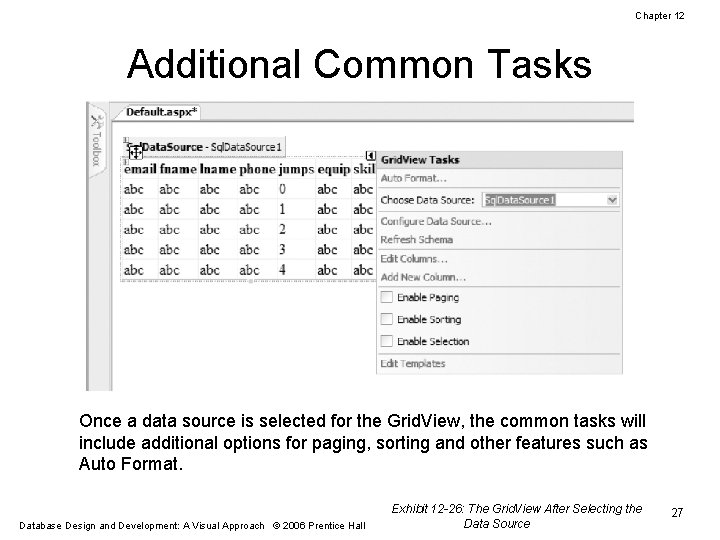
Chapter 12 Additional Common Tasks Once a data source is selected for the Grid. View, the common tasks will include additional options for paging, sorting and other features such as Auto Format. Database Design and Development: A Visual Approach © 2006 Prentice Hall Exhibit 12 -26: The Grid. View After Selecting the Data Source 27
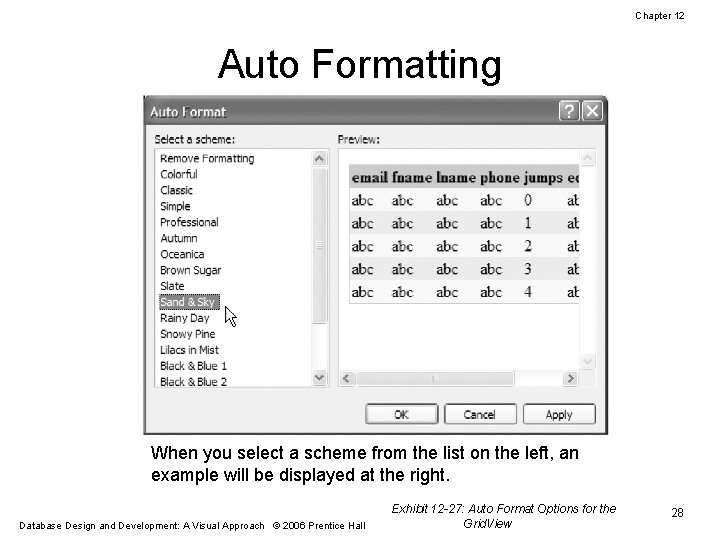
Chapter 12 Auto Formatting When you select a scheme from the list on the left, an example will be displayed at the right. Database Design and Development: A Visual Approach © 2006 Prentice Hall Exhibit 12 -27: Auto Format Options for the Grid. View 28
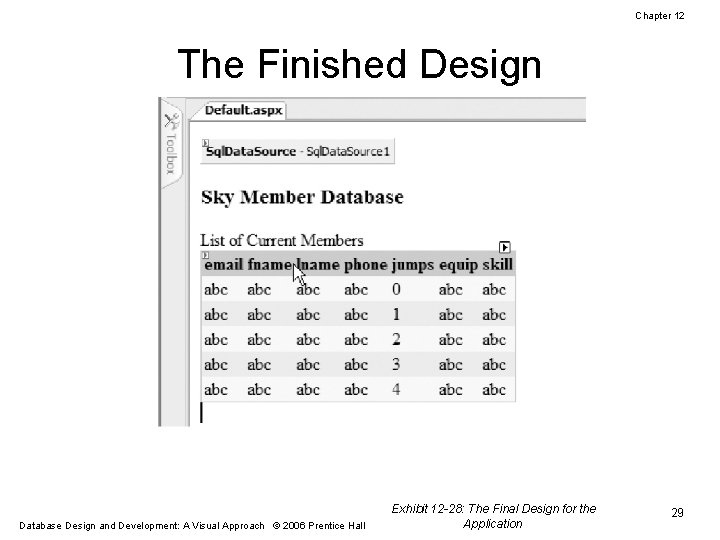
Chapter 12 The Finished Design Database Design and Development: A Visual Approach © 2006 Prentice Hall Exhibit 12 -28: The Final Design for the Application 29
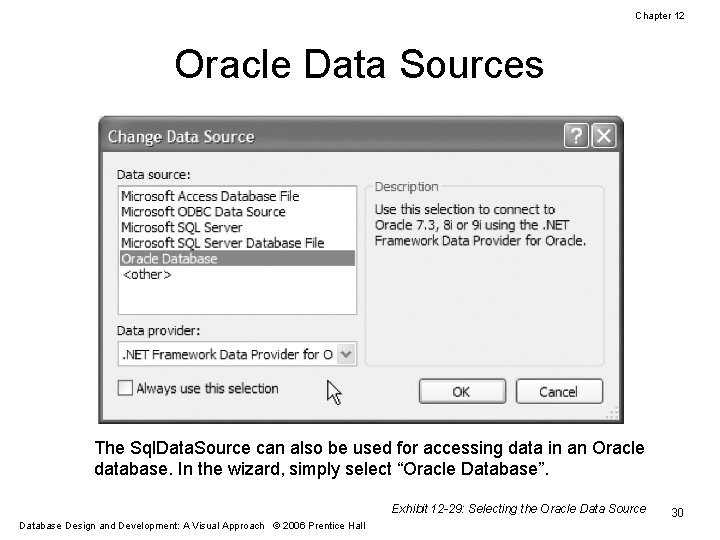
Chapter 12 Oracle Data Sources The Sql. Data. Source can also be used for accessing data in an Oracle database. In the wizard, simply select “Oracle Database”. Exhibit 12 -29: Selecting the Oracle Data Source Database Design and Development: A Visual Approach © 2006 Prentice Hall 30
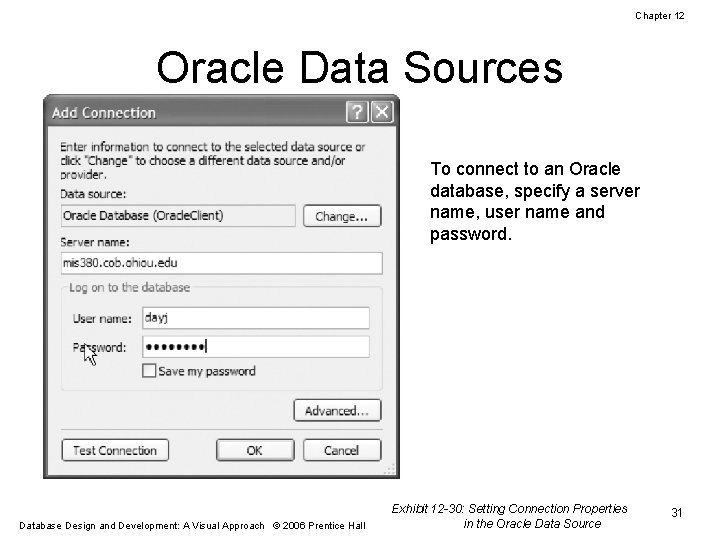
Chapter 12 Oracle Data Sources To connect to an Oracle database, specify a server name, user name and password. Database Design and Development: A Visual Approach © 2006 Prentice Hall Exhibit 12 -30: Setting Connection Properties in the Oracle Data Source 31
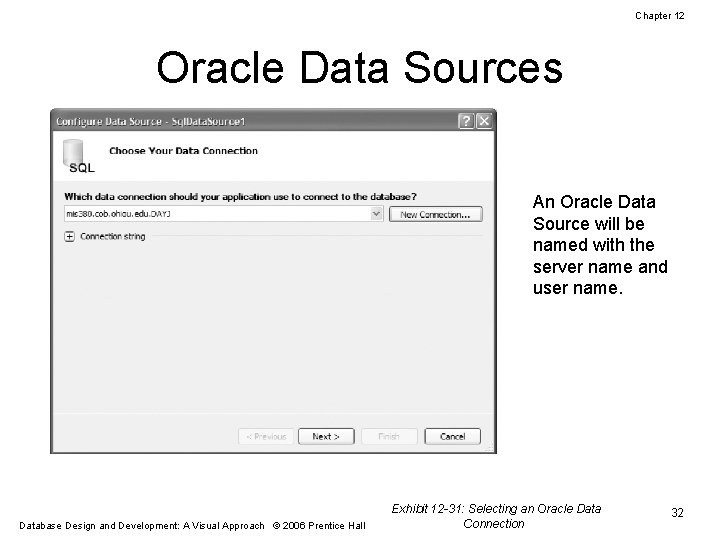
Chapter 12 Oracle Data Sources An Oracle Data Source will be named with the server name and user name. Database Design and Development: A Visual Approach © 2006 Prentice Hall Exhibit 12 -31: Selecting an Oracle Data Connection 32
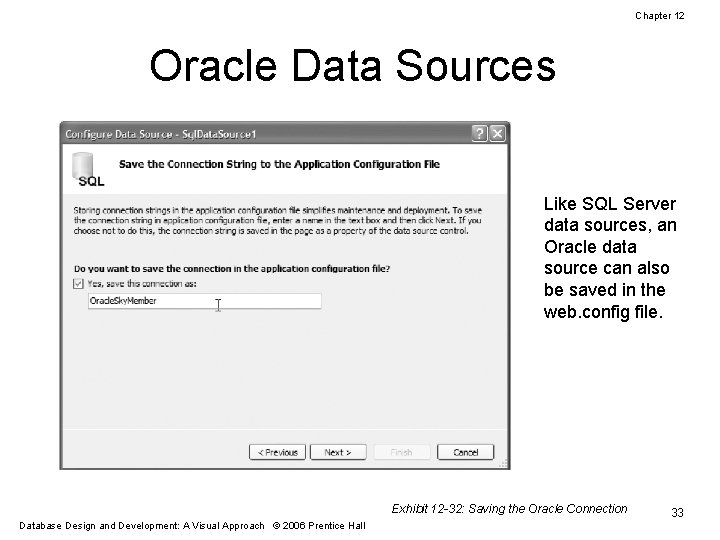
Chapter 12 Oracle Data Sources Like SQL Server data sources, an Oracle data source can also be saved in the web. config file. Exhibit 12 -32: Saving the Oracle Connection Database Design and Development: A Visual Approach © 2006 Prentice Hall 33
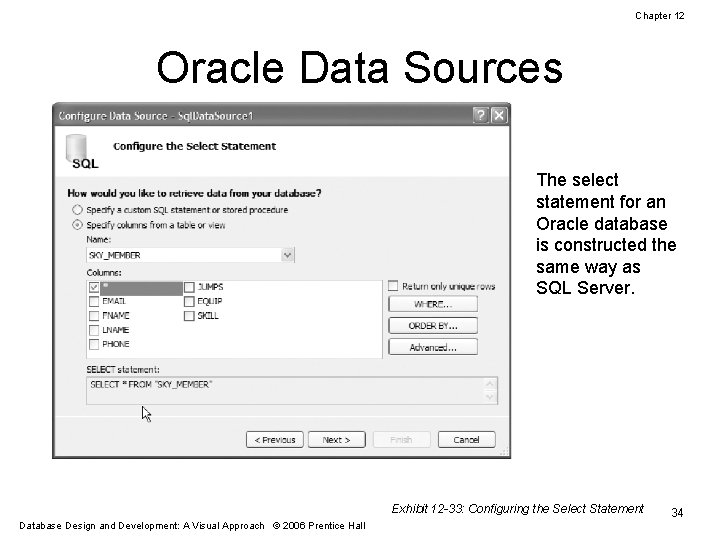
Chapter 12 Oracle Data Sources The select statement for an Oracle database is constructed the same way as SQL Server. Exhibit 12 -33: Configuring the Select Statement Database Design and Development: A Visual Approach © 2006 Prentice Hall 34
- Slides: 34