
Chapter 10 Introduction to Batch Files Ch 10
Chapter 10 Introduction to Batch Files Ch 10 1
Overview A batch file is a text file that contains an ordered series of commands. Ch 10 2
Overview Batch files allow the user to … î î automate a process create more powerful commands Ch 10 3
Concepts of Batch & Interactive Processing A batch file contains one or more commands. Ch 10 4

Concepts of Batch & Interactive Processing A batch file must have the extension. BAT Ch 10 5
Concepts of Batch & Interactive Processing Batch files allow the user to … î î minimize keystrokes minimize the possibility of errors Ch 10 6
Concepts of Batch & Interactive Processing In interactive processing (realtime mode) … î the user directly interacts with computer î info. is processed without delay Ch 10 7
How Batch Files Work The difference between Data and Program files is determined by their file extensions. Ch 10 8
How Batch Files Work Priority rules are followed when the OS looks for a file to load and execute. Ch 10 9
How Batch Files Work The. BAT extension is the last file extension the OS looks for when trying to execute a program. Ch 10 10
Using EDIT to Write Batch Files To write a batch file … î must use a program that creates ASCII text files. Ch 10 11
Using EDIT to Write Batch Files Word processing programs can create text files, but … î î they are very large they take a long time to load into memory Ch 10 12
Using EDIT to Write Batch Files EDIT is the small, simple text editor in MS-DOS used to write batch files. Ch 10 13
Using EDIT to Write Batch Files Notepad is the text editor in Windows that can be used to write batch files. Ch 10 14
Ch 10 15
Writing and Executing a Batch File to Save Keystrokes It is sometimes easier to use COPY CON instead of EDIT to write a simple batch file. Ch 10 16
Writing and Executing a Batch File to Save Keystrokes Two drawbacks to using COPY CON: Ê Cannot correct errors once <Enter> is pressed Ë Cannot correct errors in existing files Ch 10 17
Writing and Executing a Batch File to Save Keystrokes Must use EDIT to correct errors. Ch 10 18
Ch 10 19
Using Batch Files to Load Application Software To launch an application in Windows … î î î click program icon select program from menu use the toolbar Ch 10 20
Using Batch Files to Load Application Software To launch an application program from the command line … must create a batch file î Ch 10 21
Using Batch Files to Load Application Software Need to follow three steps in order to load application software in MS-DOS. Ch 10 22
Ch 10 23
Writing a Batch File to Load an Application Program By creating a batch file, a user can simplify the process of loading an application program in MS-DOS. Ch 10 24
Ch 10 25
Creating Shortcuts for Batch Files on the Desktop To run a batch file from Windows: î î click file name in Explorer/My Computer create shortcut for file and place on desktop Ch 10 26

Ch 10 27
Special Batch File Commands There are nine commands specifically designed to be used in batch files. Ch 10 28
Special Batch File Commands î î î CALL CHOICE ECHO Ch 10 29
Special Batch File Commands î î î FOR GOTO IF Ch 10 30
Special Batch File Commands î î î PAUSE REM SHIFT Ch 10 31
The REM Command REM command (remarks). . . statements keyed in by user that tell what is the purpose of the batch file Ch 10 32
Ch 10 33
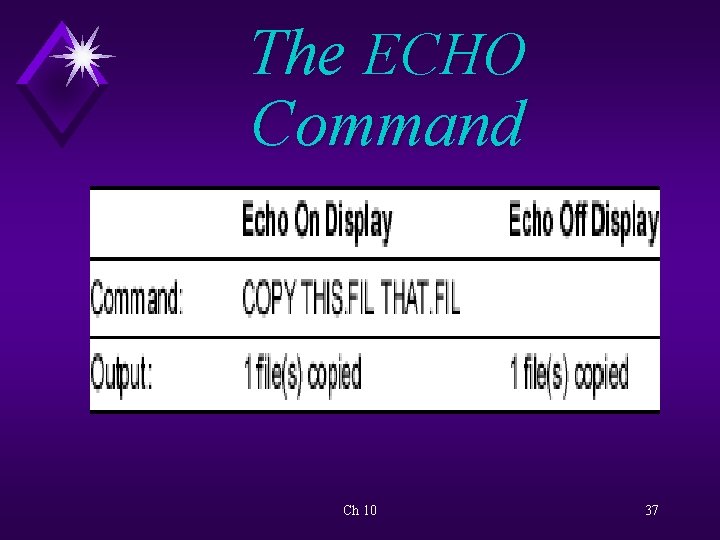
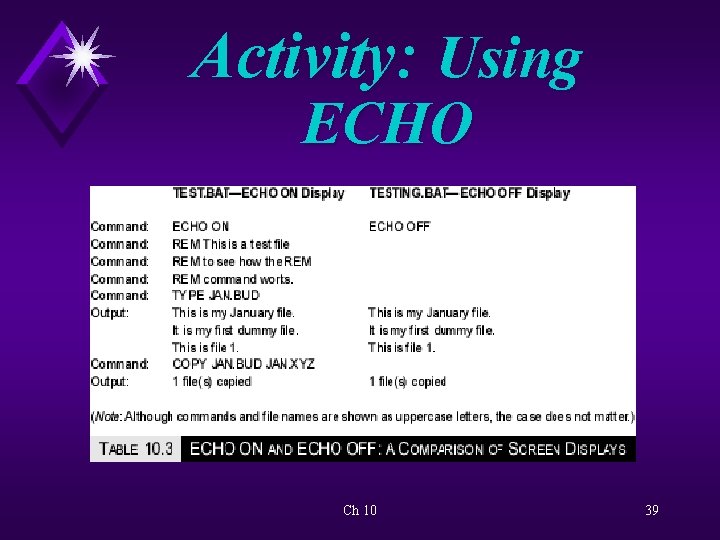
The ECHO Command ECHO command … displays a command the output of that command to the screen. Ch 10 34
The ECHO Command The default value for ECHO is ON. Ch 10 35
The ECHO Command Can turn off the display of the command only see the output of the command. Ch 10 36
The ECHO Command Ch 10 37

Ch 10 38
Activity: Using ECHO Ch 10 39
The PAUSE Command PAUSE command … instructs the batch file to stop executing until the user takes some action. Ch 10 40
Ch 10 41
Stopping a Batch File from Executing Two ways to interrupt a batch file during execution: Ê Press Ë Press <Ctrl> + C <Ctrl> + <Break> Ch 10 42
Ch 10 43
Replaceable Parameters in Batch Files Many commands use variable or replaceable parameters. Ch 10 44
Replaceable Parameters in Batch Files Batch files can also use replaceable parameters. Ch 10 45
Replaceable Parameters in Batch Files Replaceable parameters are used to limit the number of batch files that do the same thing, but use different names. Ch 10 46
Replaceable Parameters in Batch Files Place holders are needed to indicate to the batch file that a variable (file name) will be keyed in. Ch 10 47
Replaceable Parameters in Batch Files The place holder used in batch files is the percent sign (%), followed by a number (0 -9). Ch 10 48
Replaceable Parameters in Batch Files The % sign is a signal to the OS that a parameter is coming. Ch 10 49
Replaceable Parameters in Batch Files The numbers (0 -9) indicate what position the parameter is on in the command line. Ch 10 50

Ch 10 51
Multiple Replaceable Parameters in Batch Files Many commands used in batch files may require more than one parameter. Ch 10 52
Multiple Replaceable Parameters in Batch File Batch files can have up to 10 replaceable parameters (%0 -%9). Ch 10 53

Ch 10 54
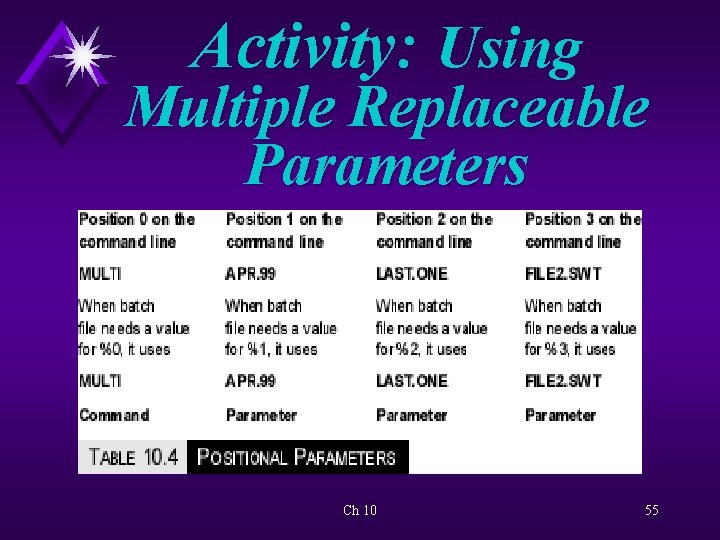
Activity: Using Multiple Replaceable Parameters Ch 10 55

Creating Useful Batch Files With batch files a user can create new commands that are not provided by the OS. Ch 10 56
Ch 10 57
Understanding AUTOEXEC. BAT is a file that … î î runs when the system is booted contains specific commands that a user chooses to run Ch 10 58
Understanding AUTOEXEC. BAT Interactive booting … user is asked by the computer if s/he wants to execute each line in the CONFIG. SYS and AUTOEXEC. BAT files. Ch 10 59
Ch 10 60
Controlling the Boot Process During booting process, the user may experience problems that are related to instruction statements in the CONFIG. SYS or AUTOEXEC. BAT files. Ch 10 61
Controlling the Boot Process By pressing certain function keys, the user can control the boot process in order to correct problems that arise. Ch 10 62

Ch 10 63
- Slides: 63