
Chapter 10 Graphical User Interface Components Part 1

- Slides: 58
Chapter 10 – Graphical User Interface Components: Part 1 Outline 10. 1 10. 2 10. 3 10. 4 10. 5 10. 6 10. 7 10. 8 10. 9 10. 10 10. 11 10. 12 Introduction Tkinter Overview Simple Tkinter Example: Label Component Event Handling Model Entry Component Button Component Checkbutton and Radiobutton Components Mouse Event Handling Keyboard Event Handling Layout Managers 10. 1 Pack 10. 2 Grid 10. 3 Place Card Shuffling and Dealing Simulation Internet and World Wide Web Resources 2002 Prentice Hall. All rights reserved. 1
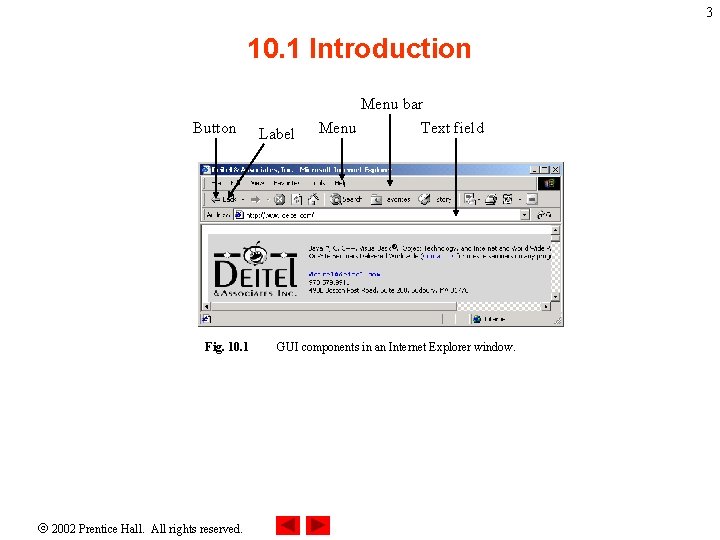
2 10. 1 Introduction • Graphical user interface (GUI) enables user interaction via mouse or keyboard with program • GUIs built from components called widgets 2002 Prentice Hall. All rights reserved.
3 10. 1 Introduction Button Fig. 10. 1 2002 Prentice Hall. All rights reserved. Label Menu bar Menu Text field GUI components in an Internet Explorer window.
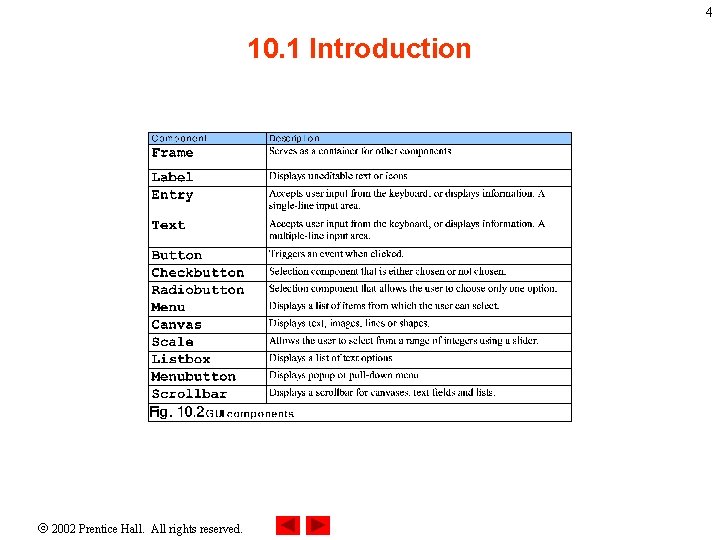
4 10. 1 Introduction 2002 Prentice Hall. All rights reserved.
5 10. 2 Tkinter Overview • Python’s standard GUI package – Tkinter module • Tkinter library provides object-oriented interface to Tk GUI toolkit • Each GUI component class inherits from class Widget • GUI consists of top-level (or parent) component that can contain children components • Class Frame serves as a top-level component 2002 Prentice Hall. All rights reserved.
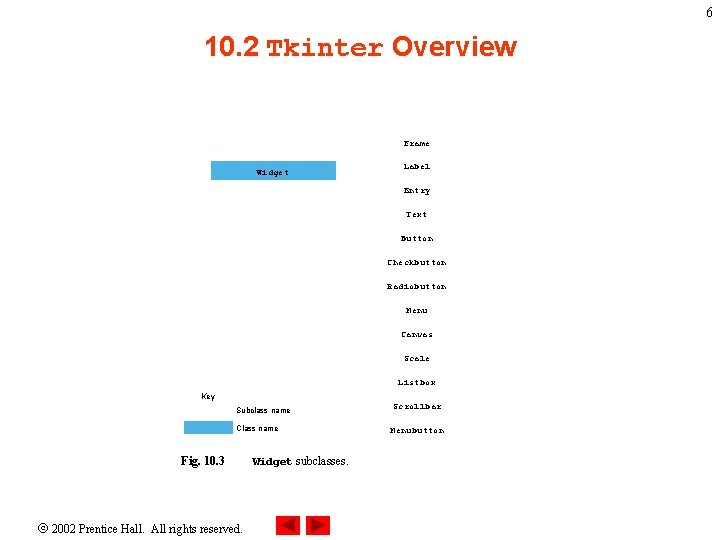
6 10. 2 Tkinter Overview Frame Widget Label Entry Text Button Checkbutton Radiobutton Menu Canvas Scale Listbox Key Subclass name Class name Fig. 10. 3 2002 Prentice Hall. All rights reserved. Widget subclasses. Scrollbar Menubutton
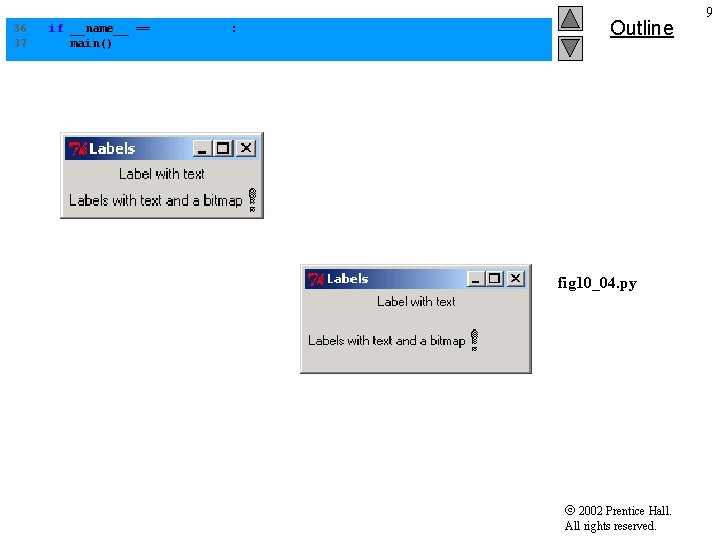
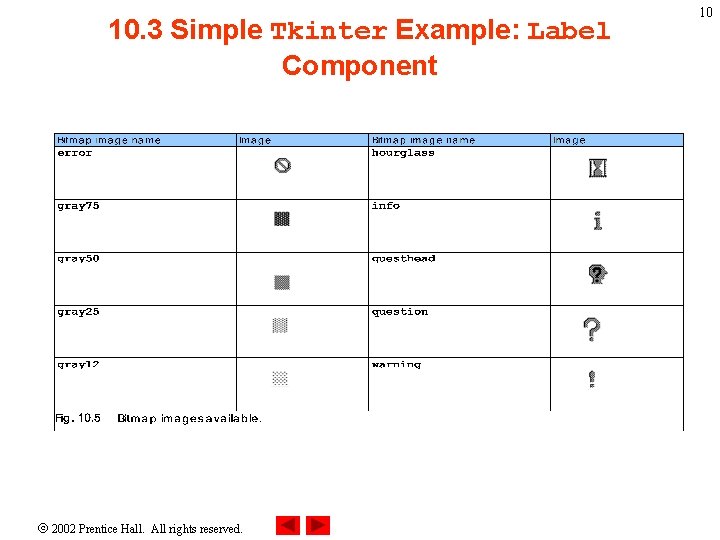
10. 3 Simple Tkinter Example: Label Component • Labels – Display text or images – Provide instructions and other information – Created by Tkinter class Label 2002 Prentice Hall. All rights reserved. 7
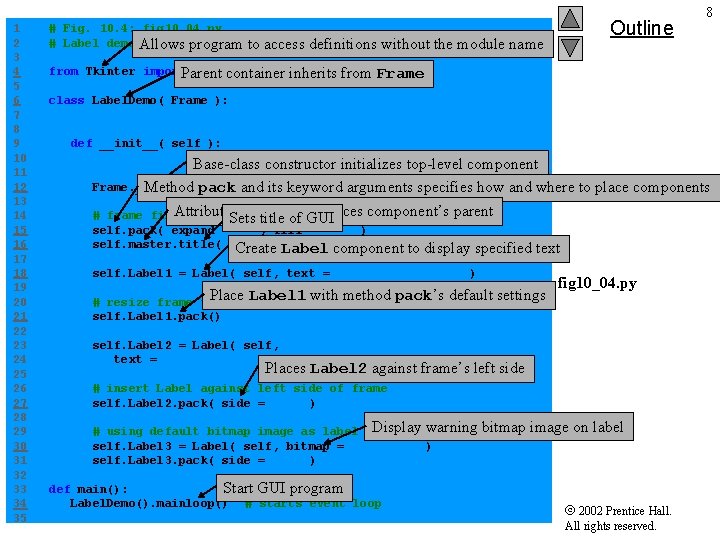
1 2 3 4 5 6 7 8 9 10 11 12 13 14 15 16 17 18 19 20 21 22 23 24 25 26 27 28 29 30 31 32 33 34 35 # Fig. 10. 4: fig 10_04. py # Label demonstration. Allows program from Tkinter import. Parent * Outline to access definitions without the module name 8 container inherits from Frame class Label. Demo( Frame ): """Demonstrate Labels""" def __init__( self ): """Create three Labels and pack them""" Base-class constructor initializes top-level component Frame. __init__( self and ) # Frame object Method pack itsinitializes keyword arguments specifies how and where to place components Attribute master references component’s parent # frame fills all available Sets title ofspace GUI self. pack( expand = YES, fill = BOTH ) self. master. title( "Labels" ) Create Label component to display specified text self. Label 1 = Label( self, text = "Label with text" ) Place Label 1 with method pack’s default settings to accommodate Label fig 10_04. py # resize frame self. Label 1. pack() self. Label 2 = Label( self, text = "Labels with text and a bitmap" ) Places Label 2 against frame’s left side # insert Label against left side of frame self. Label 2. pack( side = LEFT ) # using default bitmap image as label Display warning self. Label 3 = Label( self, bitmap = "warning" ) self. Label 3. pack( side = LEFT ) def main(): Start GUI program Label. Demo(). mainloop() # starts event loop bitmap image on label 2002 Prentice Hall. All rights reserved.
36 37 if __name__ == "__main__": main() Outline fig 10_04. py 2002 Prentice Hall. All rights reserved. 9
10. 3 Simple Tkinter Example: Label Component 2002 Prentice Hall. All rights reserved. 10
11 10. 4 Event Handling Model • GUI components generate events due to user interaction • Asynchronous event-driven programs • Programs bind event to graphical component and implement event handler (or callback) to process GUI event 2002 Prentice Hall. All rights reserved.
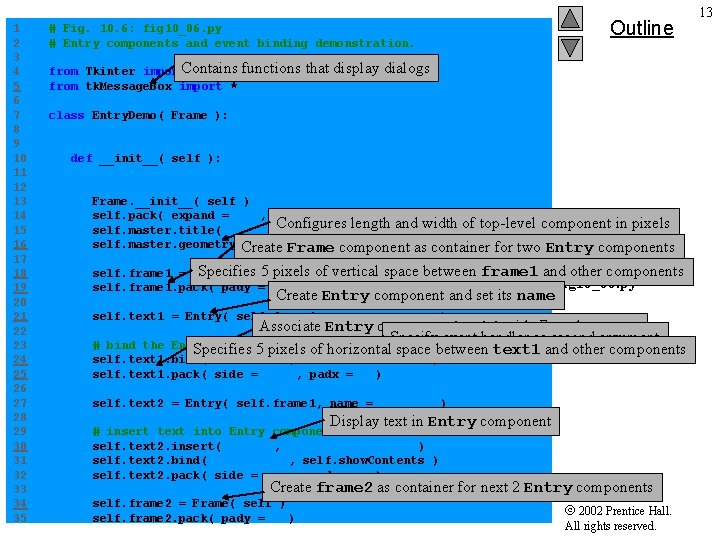
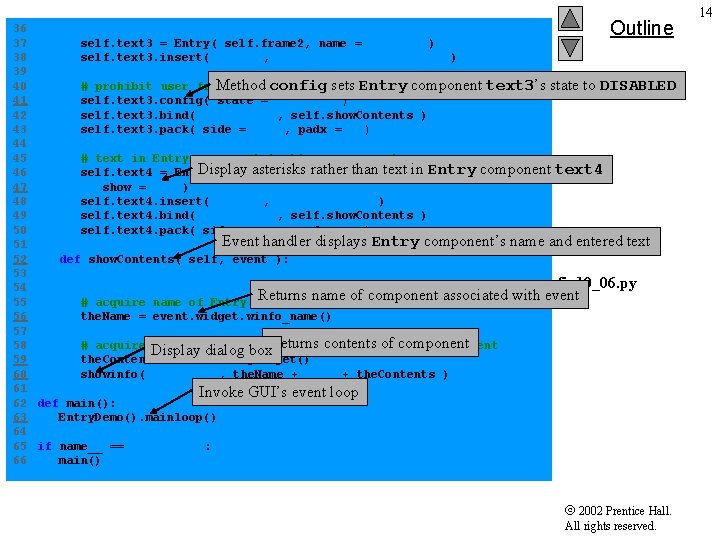
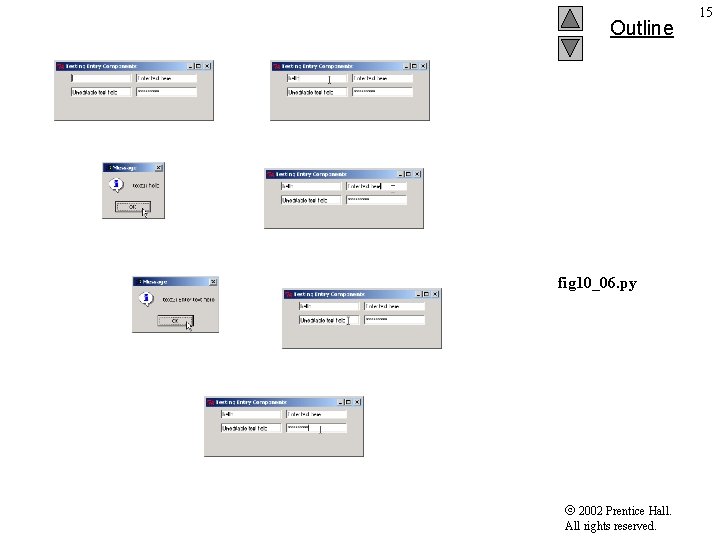
12 10. 5 Entry Component • Text fields – Areas in which users can enter text or programmers can display a line of text – Created by Entry class • <Return> event occurs when user presses Enter key inside Entry component 2002 Prentice Hall. All rights reserved.
1 2 3 4 5 6 7 8 9 10 11 12 13 14 15 16 17 18 19 20 21 22 23 24 25 26 27 28 29 30 31 32 33 34 35 # Fig. 10. 6: fig 10_06. py # Entry components and event binding demonstration. from Tkinter import. Contains * from tk. Message. Box import * Outline functions that display dialogs class Entry. Demo( Frame ): """Demonstrate Entrys and Event binding""" def __init__( self ): """Create, pack and bind events to four Entrys""" Frame. __init__( self ) self. pack( expand = YES, fill = BOTH ) Configures length and width of top-level component in pixels self. master. title( "Testing Entry Components" ) self. master. geometry(Create "325 x 100" ) component # width x as length Frame container for two Entry components Specifies 5 pixels self. frame 1 = Frame( self ) self. frame 1. pack( pady = 5 ) of vertical space between frame 1 and other components fig 10_06. py Create Entry component and set its name self. text 1 = Entry( self. frame 1, name = "text 1" ) Associate Entry component text 1 with Enter key event Specify event handler as second argument Entry component to event Specifies 5 pixels of horizontal space between text 1 and other components # bind the self. text 1. bind( "<Return>", self. show. Contents ) self. text 1. pack( side = LEFT, padx = 5 ) self. text 2 = Entry( self. frame 1, name = "text 2" ) Display text in Entry component # insert text into Entry component text 2 self. text 2. insert( INSERT, "Enter text here" ) self. text 2. bind( "<Return>", self. show. Contents ) self. text 2. pack( side = LEFT, padx = 5 ) Create frame 2 as container for next 2 Entry components self. frame 2 = Frame( self ) self. frame 2. pack( pady = 5 ) 2002 Prentice Hall. All rights reserved. 13
Outline 36 37 self. text 3 = Entry( self. frame 2, name = "text 3" ) 38 self. text 3. insert( INSERT, "Uneditable text field" ) 39 Method config Entry component text 3’s state to DISABLED 40 # prohibit user from altering text sets in Entry component text 3 41 self. text 3. config( state = DISABLED ) 42 self. text 3. bind( "<Return>", self. show. Contents ) 43 self. text 3. pack( side = LEFT, padx = 5 ) 44 45 # text in Entry component text 4 appears as * Display asterisks rather text in Entry component text 4 46 self. text 4 = Entry( self. frame 2, name than = "text 4", 47 show = "*" ) 48 self. text 4. insert( INSERT, "Hidden text" ) 49 self. text 4. bind( "<Return>", self. show. Contents ) 50 self. text 4. pack( side = LEFT, padx = 5 ) Event handler displays Entry component’s name and entered text 51 52 def show. Contents( self, event ): 53 """Display the contents of the Entry""" fig 10_06. py 54 Returns name of component associated with event 55 # acquire name of Entry component that generated event 56 the. Name = event. widget. winfo_name() 57 contents componentevent 58 # acquire contents of Entry. Returns thatofgenerated Display dialog box component 59 the. Contents = event. widget. get() 60 showinfo( "Message", the. Name + ": " + the. Contents ) 61 Invoke GUI’s event loop 62 def main(): 63 Entry. Demo(). mainloop() 64 65 if name__ == "__main__": 66 main() 2002 Prentice Hall. All rights reserved. 14
Outline fig 10_06. py 2002 Prentice Hall. All rights reserved. 15
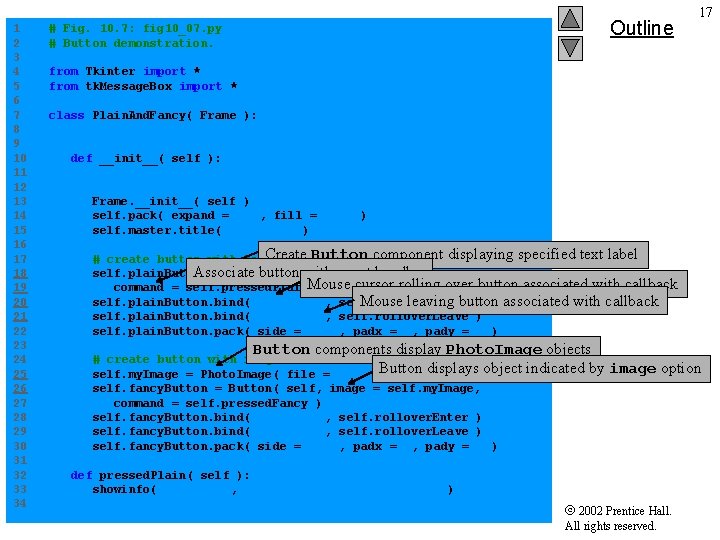
16 10. 6 Button components • Buttons – – – Generates events when selected Facilitate selection of actions Created with class Button Displays text or image called button label Each should have unique label 2002 Prentice Hall. All rights reserved.
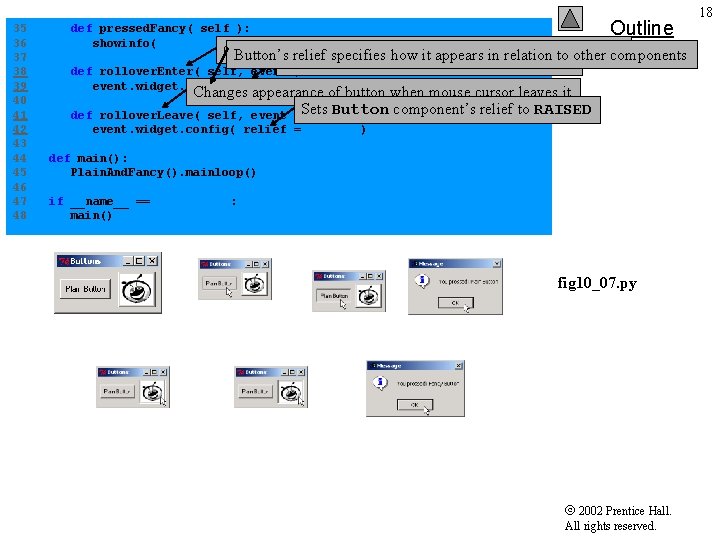
1 2 3 4 5 6 7 8 9 10 11 12 13 14 15 16 17 18 19 20 21 22 23 24 25 26 27 28 29 30 31 32 33 34 Outline # Fig. 10. 7: fig 10_07. py # Button demonstration. 17 from Tkinter import * from tk. Message. Box import * class Plain. And. Fancy( Frame ): """Create one plain and one fancy button""" def __init__( self ): """Create two buttons, pack them and bind events""" Frame. __init__( self ) self. pack( expand = YES, fill = BOTH ) self. master. title( "Buttons" ) Create Button component displaying specified text label # create button with text self. plain. Button = Button( self, "Plain Button", Associate button withtext event= handler fig 10_07. py cursor rolling over button associated with callback command = self. pressed. Plain. Mouse ) self. plain. Button. bind( "<Enter>", self. rollover. Enter ) Mouse leaving button associated with callback self. plain. Button. bind( "<Leave>", self. rollover. Leave ) self. plain. Button. pack( side = LEFT, padx = 5, pady = 5 ) Button components display Photo. Image objects indicated by image option # create button with image Button displays object self. my. Image = Photo. Image( file = "logotiny. gif" ) self. fancy. Button = Button( self, image = self. my. Image, command = self. pressed. Fancy ) self. fancy. Button. bind( "<Enter>", self. rollover. Enter ) self. fancy. Button. bind( "<Leave>", self. rollover. Leave ) self. fancy. Button. pack( side = LEFT, padx = 5, pady = 5 ) def pressed. Plain( self ): showinfo( "Message", "You pressed: Plain Button" ) 2002 Prentice Hall. All rights reserved.
35 36 37 38 39 40 41 42 43 44 45 46 47 48 Outline def pressed. Fancy( self ): showinfo( "Message", "You pressed: Fancy Button" ) Changes of button mouse cursor rolls over components it Button’sappearance relief specifies how when it appears to other Sets Button component’s reliefintorelation GROOVE def rollover. Enter( self, event ): event. widget. config( relief = GROOVE ) Changes appearance of button when mouse cursor leaves it Sets Button component’s relief to RAISED rollover. Leave( self, event ): def event. widget. config( relief = RAISED ) def main(): Plain. And. Fancy(). mainloop() if __name__ == "__main__": main() fig 10_07. py 2002 Prentice Hall. All rights reserved. 18
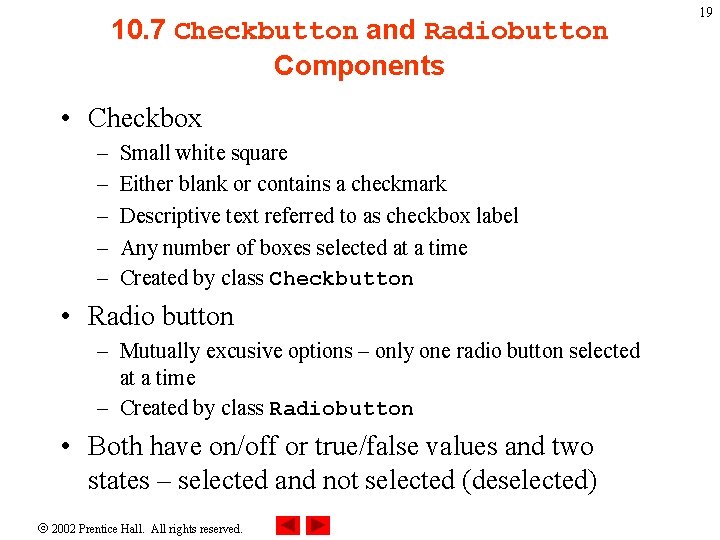
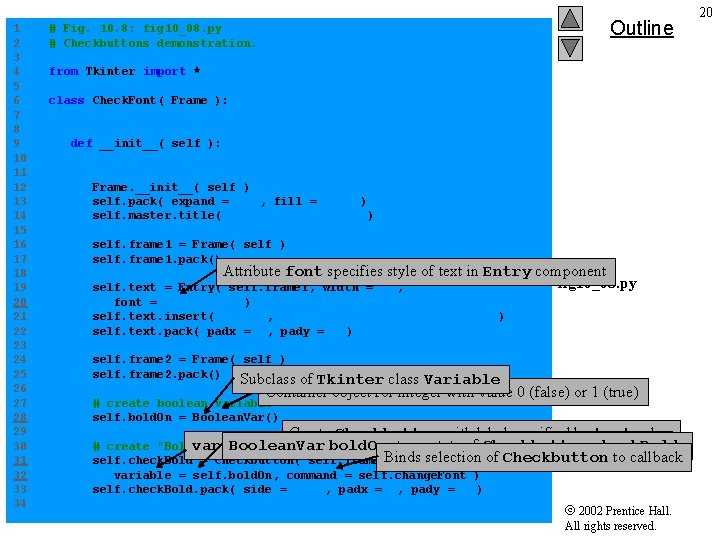
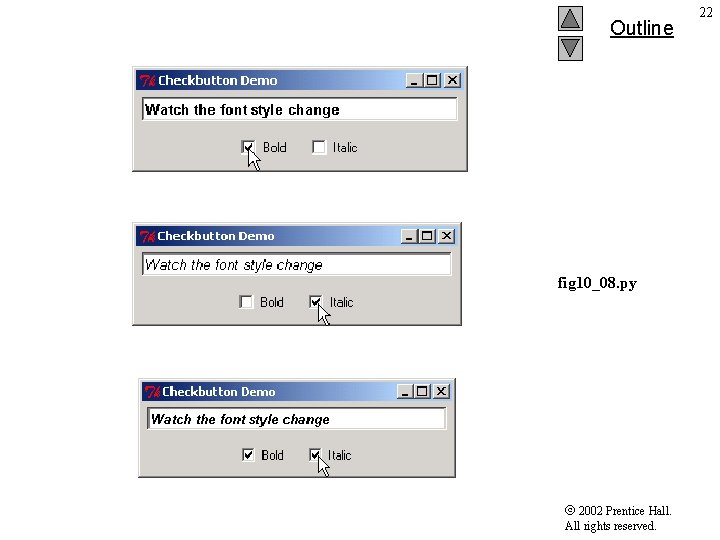
10. 7 Checkbutton and Radiobutton Components • Checkbox – – – Small white square Either blank or contains a checkmark Descriptive text referred to as checkbox label Any number of boxes selected at a time Created by class Checkbutton • Radio button – Mutually excusive options – only one radio button selected at a time – Created by class Radiobutton • Both have on/off or true/false values and two states – selected and not selected (deselected) 2002 Prentice Hall. All rights reserved. 19
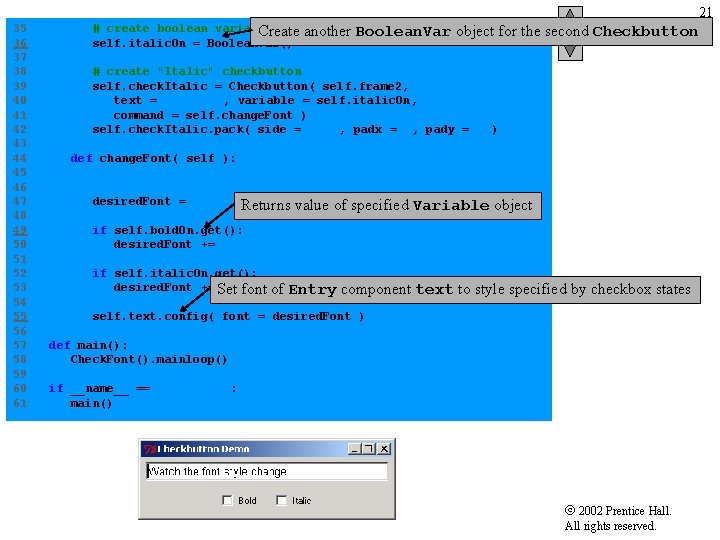
1 2 3 4 5 6 7 8 9 10 11 12 13 14 15 16 17 18 19 20 21 22 23 24 25 26 27 28 29 30 31 32 33 34 Outline # Fig. 10. 8: fig 10_08. py # Checkbuttons demonstration. from Tkinter import * class Check. Font( Frame ): """An area of text with Checkbutton controlled font""" def __init__( self ): """Create an Entry and two Checkbuttons""" Frame. __init__( self ) self. pack( expand = YES, fill = BOTH ) self. master. title( "Checkbutton Demo" ) self. frame 1 = Frame( self ) self. frame 1. pack() Attribute font specifies style of text in Entry component fig 10_08. py Entry( self. frame 1, width = 40, self. text = font = "Arial 10" ) self. text. insert( INSERT, "Watch the font style change" ) self. text. pack( padx = 5, pady = 5 ) self. frame 2 = Frame( self ) self. frame 2. pack() Subclass of Tkinter class Variable Container object for integer with value 0 (false) or 1 (true) # create boolean variable self. bold. On = Boolean. Var() Create Checkbutton with label specified by text value variable requires an object of Tkinter or itscheck. Bold subclasses Boolean. Var bold. On stores state of. Variable Checkbutton # create "Bold" checkbutton Binds selection of Checkbutton to callback self. check. Bold = Checkbutton( self. frame 2, text = "Bold", variable = self. bold. On, command = self. change. Font ) self. check. Bold. pack( side = LEFT, padx = 5, pady = 5 ) 2002 Prentice Hall. All rights reserved. 20
21 35 36 37 38 39 40 41 42 43 44 45 46 47 48 49 50 51 52 53 54 55 56 57 58 59 60 61 # create boolean variable Create self. italic. On = Boolean. Var() Outline another Boolean. Var object for the second Checkbutton # create "Italic" checkbutton self. check. Italic = Checkbutton( self. frame 2, text = "Italic", variable = self. italic. On, command = self. change. Font ) self. check. Italic. pack( side = LEFT, padx = 5, pady = 5 ) def change. Font( self ): """Change the font based on selected Checkbuttons""" desired. Font = "Arial Returns 10" value of specified Variable object if self. bold. On. get(): desired. Font += " bold" if self. italic. On. get(): desired. Font += Set " italic" font of Entry fig 10_08. py component text to style specified by checkbox states self. text. config( font = desired. Font ) def main(): Check. Font(). mainloop() if __name__ == "__main__": main() 2002 Prentice Hall. All rights reserved.
Outline fig 10_08. py 2002 Prentice Hall. All rights reserved. 22
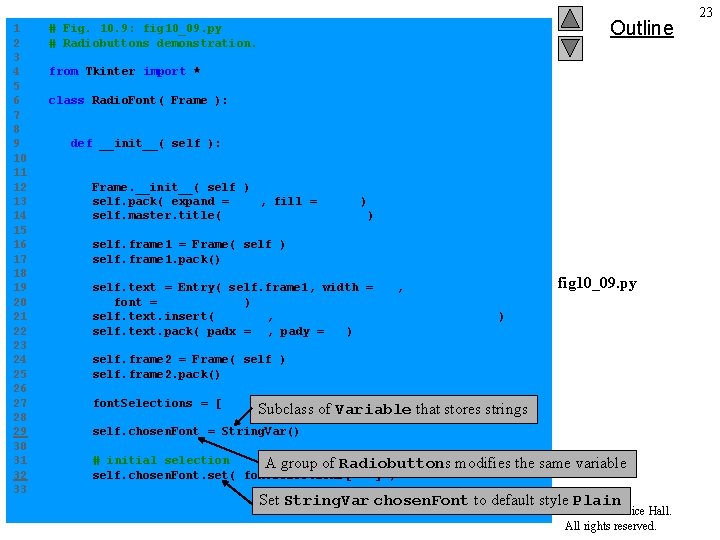
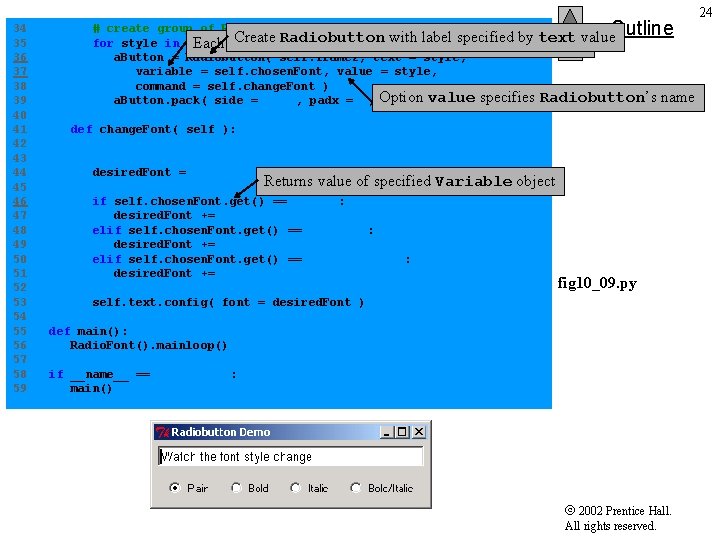
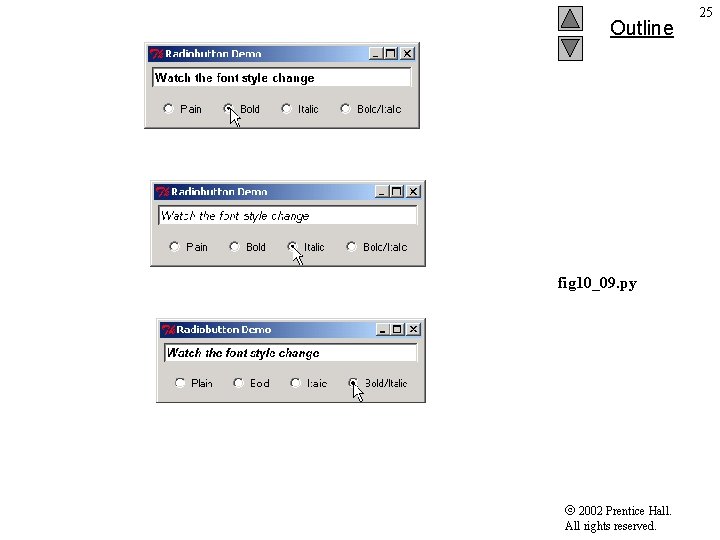
1 2 3 4 5 6 7 8 9 10 11 12 13 14 15 16 17 18 19 20 21 22 23 24 25 26 27 28 29 30 31 32 33 Outline # Fig. 10. 9: fig 10_09. py # Radiobuttons demonstration. from Tkinter import * class Radio. Font( Frame ): """An area of text with Radiobutton controlled font""" def __init__( self ): """Create an Entry and four Radiobuttons""" Frame. __init__( self ) self. pack( expand = YES, fill = BOTH ) self. master. title( "Radiobutton Demo" ) self. frame 1 = Frame( self ) self. frame 1. pack() self. text = Entry( self. frame 1, width = 40, font = "Arial 10" ) self. text. insert( INSERT, "Watch the font style change" ) self. text. pack( padx = 5, pady = 5 ) fig 10_09. py self. frame 2 = Frame( self ) self. frame 2. pack() font. Selections = [ "Plain", "Bold", "Italic", Subclass of Variable that "Bold/Italic" ] self. chosen. Font = String. Var() stores strings # initial selection A group of Radiobuttons self. chosen. Font. set( font. Selections[ 0 ] ) modifies the same variable Set String. Var chosen. Font to default style Plain 2002 Prentice Hall. All rights reserved. 23
34 35 36 37 38 39 40 41 42 43 44 45 46 47 48 49 50 51 52 53 54 55 56 57 58 59 Outline # create group of Radiobutton components with same variable Create Radiobutton with specified by text for style in font. Selections: Each Radiobutton in a group haslabel same variable value a. Button = Radiobutton( self. frame 2, text = style, variable = self. chosen. Font, value = style, command = self. change. Font ) specifies Radiobutton’s a. Button. pack( side = LEFT, padx = 5, Option pady = value 5 ) name def change. Font( self ): """Change the font based on selected Radiobutton""" desired. Font = "Arial 10" Returns value of specified Variable object if self. chosen. Font. get() == "Bold": desired. Font += " bold" elif self. chosen. Font. get() == "Italic": desired. Font += " italic" elif self. chosen. Font. get() == "Bold/Italic": desired. Font += " bold italic" fig 10_09. py self. text. config( font = desired. Font ) def main(): Radio. Font(). mainloop() if __name__ == "__main__": main() 2002 Prentice Hall. All rights reserved. 24
Outline fig 10_09. py 2002 Prentice Hall. All rights reserved. 25
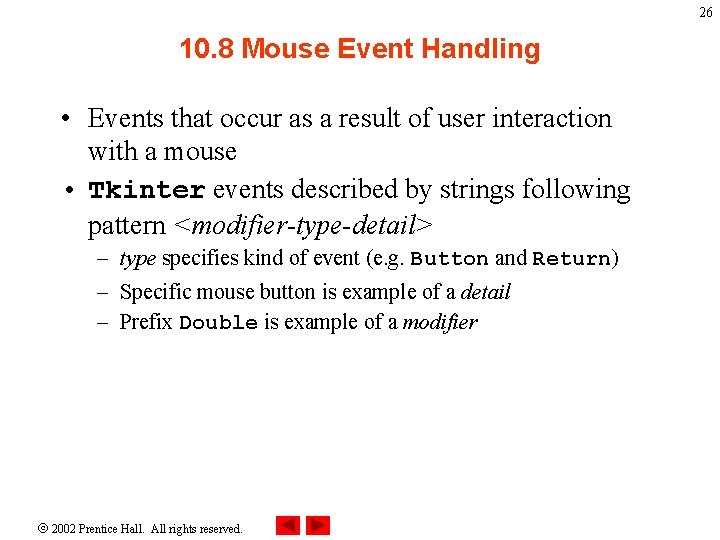
26 10. 8 Mouse Event Handling • Events that occur as a result of user interaction with a mouse • Tkinter events described by strings following pattern <modifier-type-detail> – type specifies kind of event (e. g. Button and Return) – Specific mouse button is example of a detail – Prefix Double is example of a modifier 2002 Prentice Hall. All rights reserved.
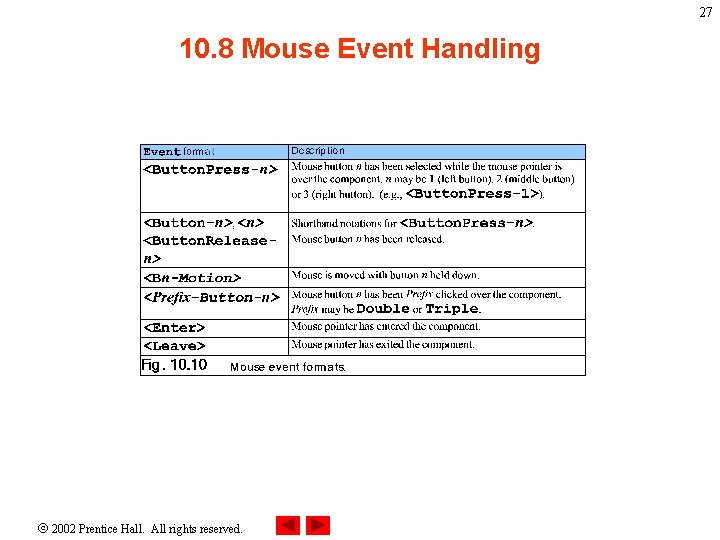
27 10. 8 Mouse Event Handling 2002 Prentice Hall. All rights reserved.
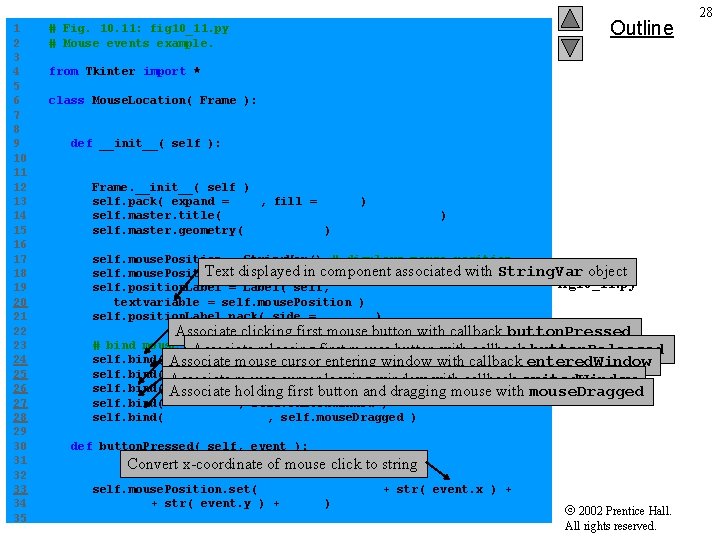
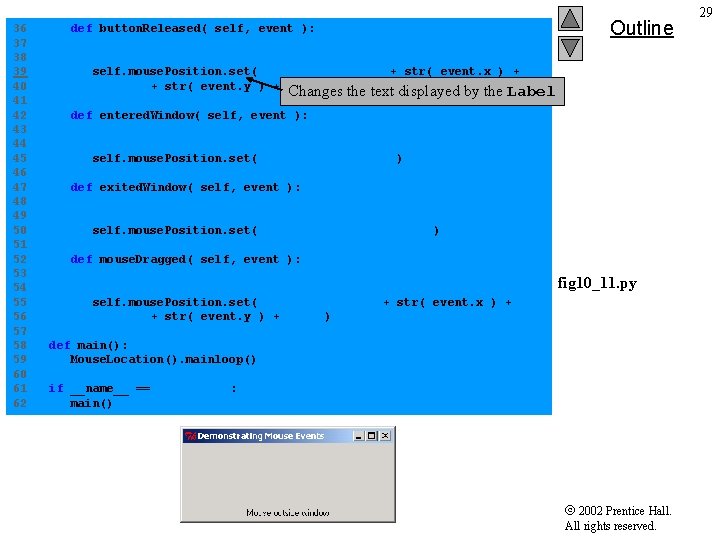
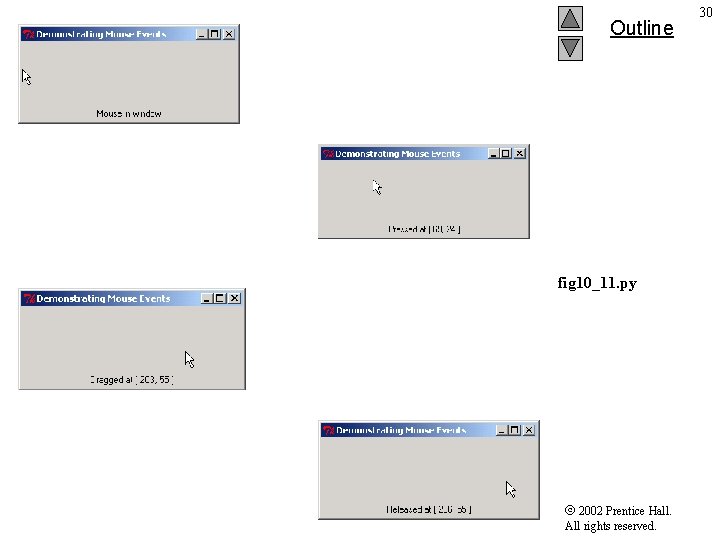
1 2 3 4 5 6 7 8 9 10 11 12 13 14 15 16 17 18 19 20 21 22 23 24 25 26 27 28 29 30 31 32 33 34 35 # Fig. 10. 11: fig 10_11. py # Mouse events example. Outline from Tkinter import * class Mouse. Location( Frame ): """Demonstrate binding mouse events""" def __init__( self ): """Create a Label, pack it and bind mouse events""" Frame. __init__( self ) self. pack( expand = YES, fill = BOTH ) self. master. title( "Demonstrating Mouse Events" ) self. master. geometry( "275 x 100" ) self. mouse. Position = String. Var() # displays mouse position Text displayed in outside component associated with String. Var object self. mouse. Position. set( "Mouse window" ) fig 10_11. py self. position. Label = Label( self, textvariable = self. mouse. Position ) self. position. Label. pack( side = BOTTOM ) Associate clicking first mouse button with callback button. Pressed # bind mouse events to releasing window Associate first mouse button with callback button. Released self. bind( Associate "<Button-1>", ) mouseself. button. Pressed cursor entering window with callback entered. Window self. bind( Associate "<Button. Release-1>", self. button. Released ) mouse cursor leaving window with callback exited. Window self. bind( Associate "<Enter>", self. entered. Window holding first button and )dragging mouse with mouse. Dragged self. bind( "<Leave>", self. exited. Window ) self. bind( "<B 1 -Motion>", self. mouse. Dragged ) def button. Pressed( self, event ): """Display Convertcoordinates x-coordinateofofbutton mouse press""" click to string self. mouse. Position. set( "Pressed at [ " + str( event. x ) + ", " + str( event. y ) + " ]" ) 2002 Prentice Hall. All rights reserved. 28
36 37 38 39 40 41 42 43 44 45 46 47 48 49 50 51 52 53 54 55 56 57 58 59 60 61 62 def button. Released( self, event ): """Display coordinates of button release""" Outline self. mouse. Position. set( "Released at [ " + str( event. x ) + ", " + str( event. y ) + Changes " ]" ) the text displayed by the Label def entered. Window( self, event ): """Display message that mouse has entered window""" self. mouse. Position. set( "Mouse in window" ) def exited. Window( self, event ): """Display message that mouse has left window""" self. mouse. Position. set( "Mouse outside window" ) def mouse. Dragged( self, event ): """Display coordinates of mouse being moved""" fig 10_11. py self. mouse. Position. set( "Dragged at [ " + str( event. x ) + ", " + str( event. y ) + " ]" ) def main(): Mouse. Location(). mainloop() if __name__ == "__main__": main() 2002 Prentice Hall. All rights reserved. 29
Outline fig 10_11. py 2002 Prentice Hall. All rights reserved. 30
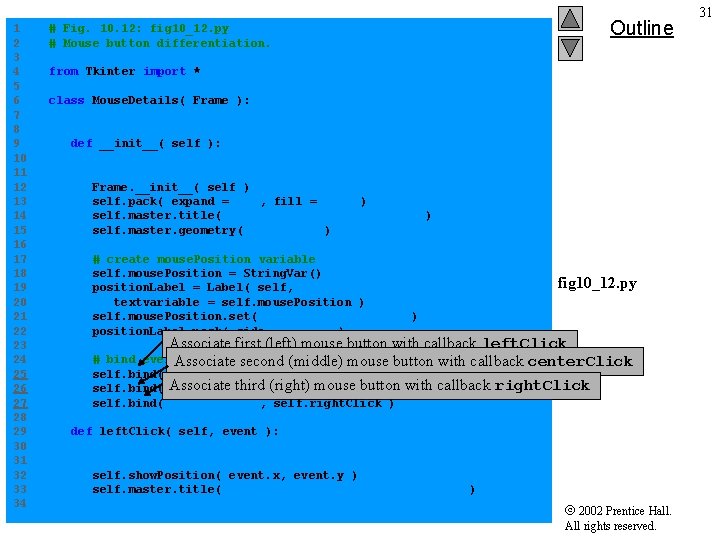
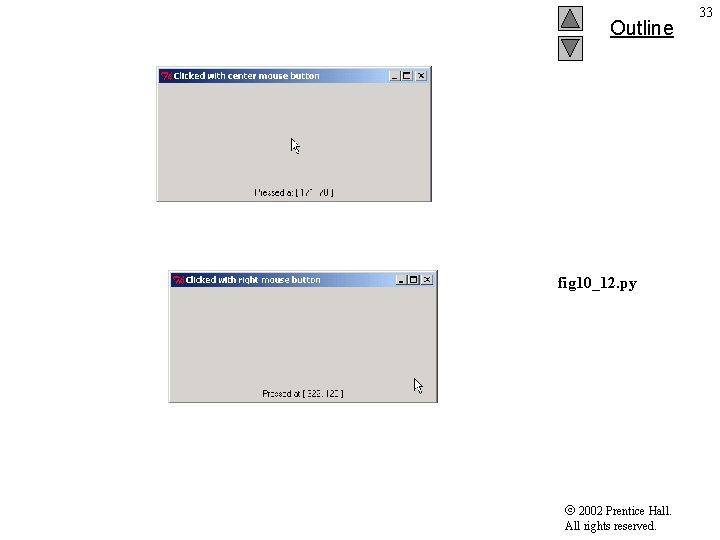
1 2 3 4 5 6 7 8 9 10 11 12 13 14 15 16 17 18 19 20 21 22 23 24 25 26 27 28 29 30 31 32 33 34 Outline # Fig. 10. 12: fig 10_12. py # Mouse button differentiation. from Tkinter import * class Mouse. Details( Frame ): """Demonstrate mouse events for different buttons""" def __init__( self ): """Create a Label, pack it and bind mouse events""" Frame. __init__( self ) self. pack( expand = YES, fill = BOTH ) self. master. title( "Mouse clicks and buttons" ) self. master. geometry( "350 x 150" ) # create mouse. Position variable self. mouse. Position = String. Var() position. Label = Label( self, textvariable = self. mouse. Position ) self. mouse. Position. set( "Mouse not clicked" ) position. Label. pack( side = BOTTOM ) fig 10_12. py Associate first (left) mouse button with callback left. Click event. Associate handler second to events for each mouse button (middle) mouse button with callback center. Click # bind self. bind( "<Button-1>", self. left. Click ) third (right) mouse button) with self. bind( Associate "<Button-2>", self. center. Click self. bind( "<Button-3>", self. right. Click ) callback right. Click def left. Click( self, event ): """Display coordinates and indicate left button clicked""" self. show. Position( event. x, event. y ) self. master. title( "Clicked with left mouse button" ) 2002 Prentice Hall. All rights reserved. 31
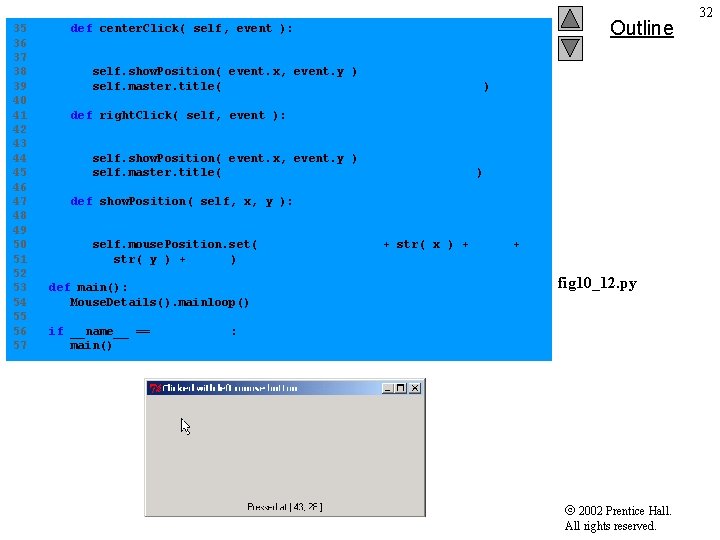
35 36 37 38 39 40 41 42 43 44 45 46 47 48 49 50 51 52 53 54 55 56 57 def center. Click( self, event ): """Display coordinates and indicate center button used""" Outline self. show. Position( event. x, event. y ) self. master. title( "Clicked with center mouse button" ) def right. Click( self, event ): """Display coordinates and indicate right button clicked""" self. show. Position( event. x, event. y ) self. master. title( "Clicked with right mouse button" ) def show. Position( self, x, y ): """Display coordinates of button press""" self. mouse. Position. set( "Pressed at [ " + str( x ) + ", " + str( y ) + " ]" ) def main(): Mouse. Details(). mainloop() fig 10_12. py if __name__ == "__main__": main() 2002 Prentice Hall. All rights reserved. 32
Outline fig 10_12. py 2002 Prentice Hall. All rights reserved. 33
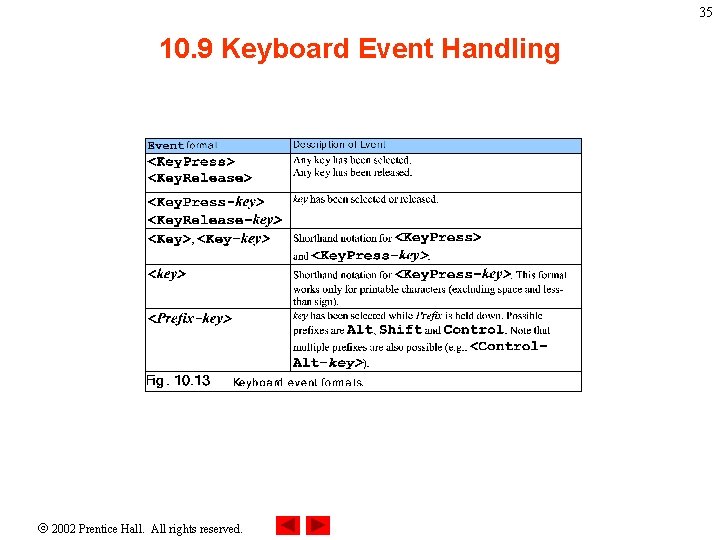
34 10. 9 Keyboard Event Handling • Keyboard events generated when users press and release keys 2002 Prentice Hall. All rights reserved.
35 10. 9 Keyboard Event Handling 2002 Prentice Hall. All rights reserved.
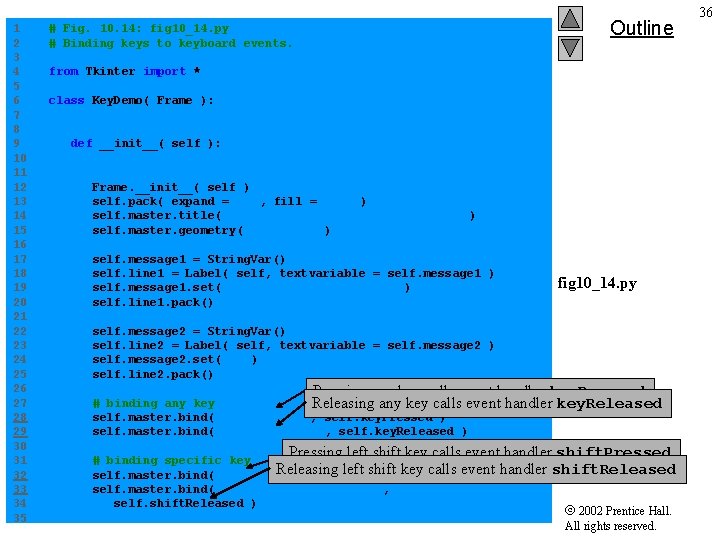
1 2 3 4 5 6 7 8 9 10 11 12 13 14 15 16 17 18 19 20 21 22 23 24 25 26 27 28 29 30 31 32 33 34 35 Outline # Fig. 10. 14: fig 10_14. py # Binding keys to keyboard events. from Tkinter import * class Key. Demo( Frame ): """Demonstrate keystroke events""" def __init__( self ): """Create two Labels and bind keystroke events""" Frame. __init__( self ) self. pack( expand = YES, fill = BOTH ) self. master. title( "Demonstrating Keystroke Events" ) self. master. geometry( "350 x 100" ) self. message 1 = String. Var() self. line 1 = Label( self, textvariable = self. message 1 ) self. message 1. set( "Type any key or shift" ) self. line 1. pack() fig 10_14. py self. message 2 = String. Var() self. line 2 = Label( self, textvariable = self. message 2 ) self. message 2. set( "" ) self. line 2. pack() Pressing any key calls event handler key. Pressed handler key. Released # binding any key Releasing any key calls event self. master. bind( "<Key. Press>", self. key. Pressed ) self. master. bind( "<Key. Release>", self. key. Released ) Pressing left shift key calls event handler shift. Pressed shift. Released # binding specific key Releasing left shift key calls event handler self. master. bind( "<Key. Press-Shift_L>", self. shift. Pressed ) self. master. bind( "<Key. Release-Shift_L>", self. shift. Released ) 2002 Prentice Hall. All rights reserved. 36
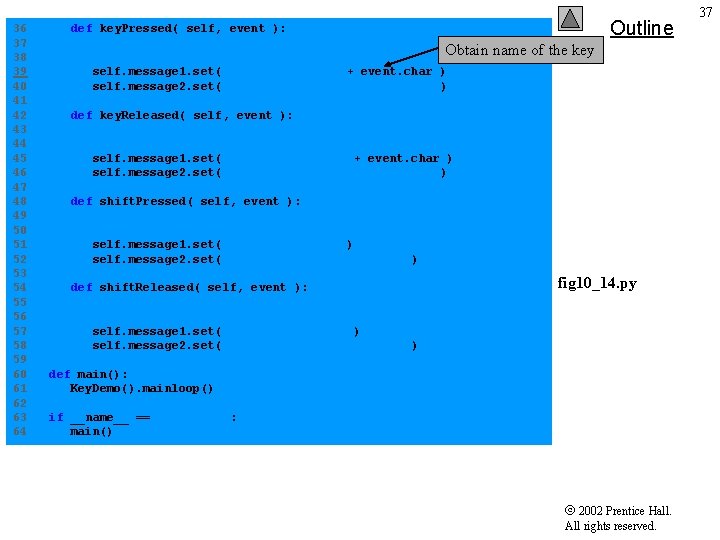
36 37 38 39 40 41 42 43 44 45 46 47 48 49 50 51 52 53 54 55 56 57 58 59 60 61 62 63 64 def key. Pressed( self, event ): """Display the name of the pressed key""" Outline Obtain name of the key self. message 1. set( "Key pressed: " + event. char ) self. message 2. set( "This key is not left shift" ) def key. Released( self, event ): """Display the name of the released key""" self. message 1. set( "Key released: " + event. char ) self. message 2. set( "This key is not left shift" ) def shift. Pressed( self, event ): """Display a message that left shift was pressed""" self. message 1. set( "Shift pressed" ) self. message 2. set( "This key is left shift" ) def shift. Released( self, event ): """Display a message that left shift was released""" fig 10_14. py self. message 1. set( "Shift released" ) self. message 2. set( "This key is left shift" ) def main(): Key. Demo(). mainloop() if __name__ == "__main__": main() 2002 Prentice Hall. All rights reserved. 37
Outline fig 10_14. py 2002 Prentice Hall. All rights reserved. 38
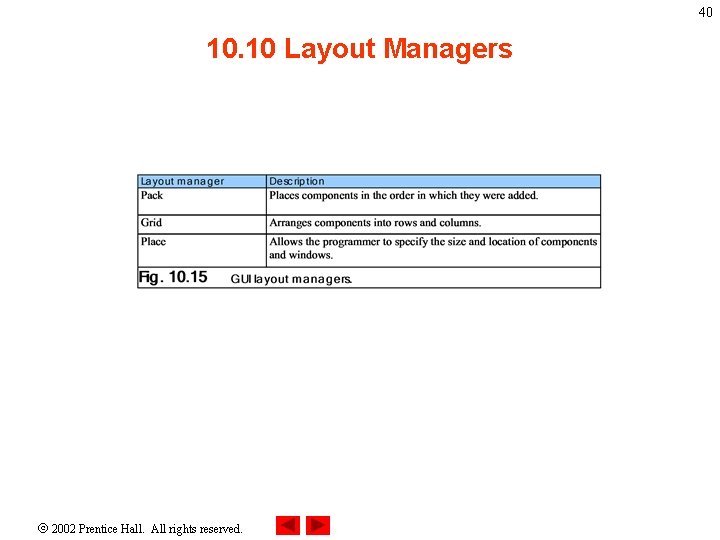
39 10. 10 Layout Managers • • Arrange placement of GUI components Provide layout capabilities Process most of design Tkinter offers Pack, Grid and Place classes 2002 Prentice Hall. All rights reserved.
40 10. 10 Layout Managers 2002 Prentice Hall. All rights reserved.
41 10. 1 Pack • Pack layout manager places GUI components in a container from top to bottom in program order, by default • Option side indicates side of container against which component is placed • Option expand determines whether the component fills any extra space in the container • Option fill allots amount of space the components should occupy in the container • Options padx and pady inserts horizontal and vertical padding around a component, respectively 2002 Prentice Hall. All rights reserved.
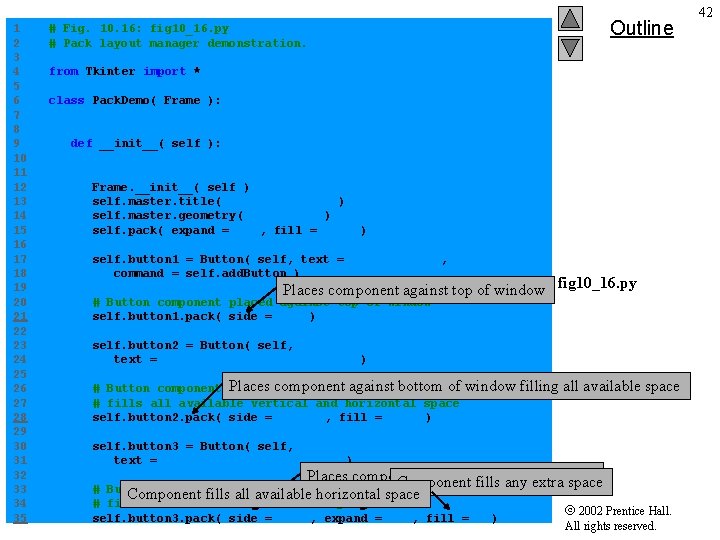
1 2 3 4 5 6 7 8 9 10 11 12 13 14 15 16 17 18 19 20 21 22 23 24 25 26 27 28 29 30 31 32 33 34 35 Outline # Fig. 10. 16: fig 10_16. py # Pack layout manager demonstration. from Tkinter import * class Pack. Demo( Frame ): """Demonstrate some options of Pack""" def __init__( self ): """Create four Buttons with different pack options""" Frame. __init__( self ) self. master. title( "Packing Demo" ) self. master. geometry( "400 x 150" ) self. pack( expand = YES, fill = BOTH ) self. button 1 = Button( self, text = "Add Button", command = self. add. Button ) Places component against top of window fig 10_16. py # Button component placed against top of window self. button 1. pack( side = TOP ) self. button 2 = Button( self, text = "expand = NO, fill = BOTH" ) againstofbottom # Button component Places placed component against bottom windowof # fills all available vertical and horizontal space self. button 2. pack( side = BOTTOM, fill = BOTH ) window filling all available space self. button 3 = Button( self, text = "expand = YES, fill = X" ) Places component against window’s left space side any extra # Button component placed against left side. Component of window fills Component fills all available horizontal space # fills all available horizontal space self. button 3. pack( side = LEFT, expand = YES, fill = X ) 2002 Prentice Hall. All rights reserved. 42
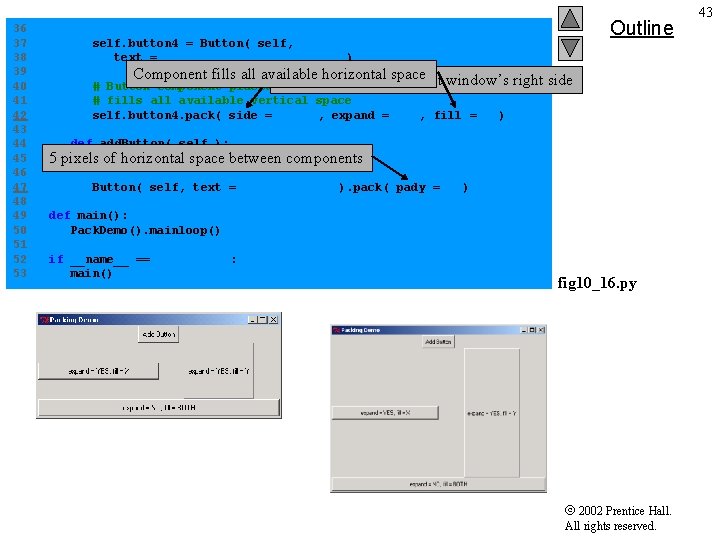
36 37 38 39 40 41 42 43 44 45 46 47 48 49 50 51 52 53 Outline self. button 4 = Button( self, text = "expand = YES, fill = Y" ) Component fills all available horizontal space component against window’s # Button component placed Places against right side of window # fills all available vertical space self. button 4. pack( side = RIGHT, expand = YES, fill = Y ) 5 right side def add. Button( self ): and space pack between a new Button""" pixels"""Create of horizontal components Button( self, text = "New Button" ). pack( pady = 5 ) def main(): Pack. Demo(). mainloop() if __name__ == "__main__": main() fig 10_16. py 2002 Prentice Hall. All rights reserved. 43
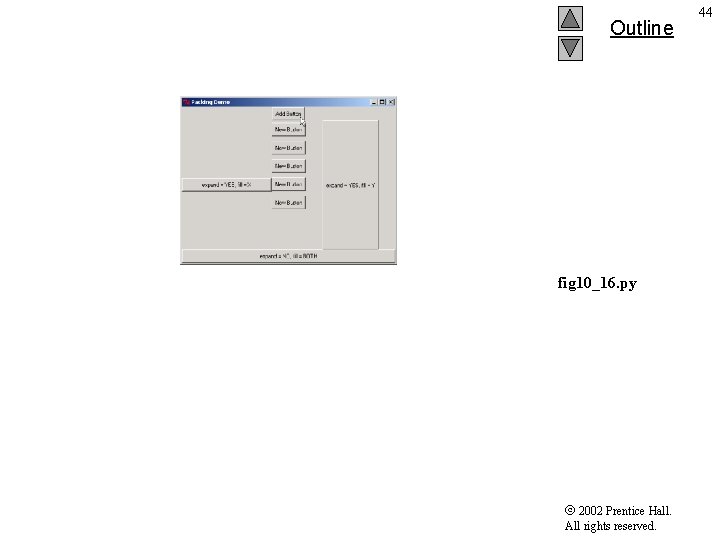
Outline fig 10_16. py 2002 Prentice Hall. All rights reserved. 44
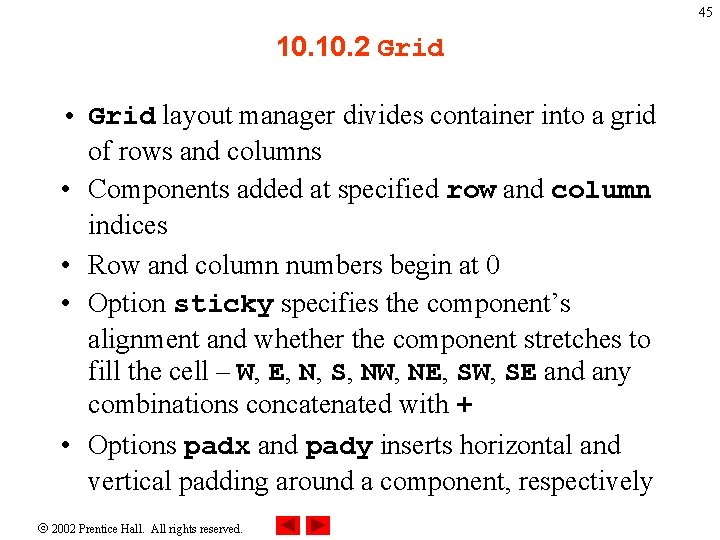
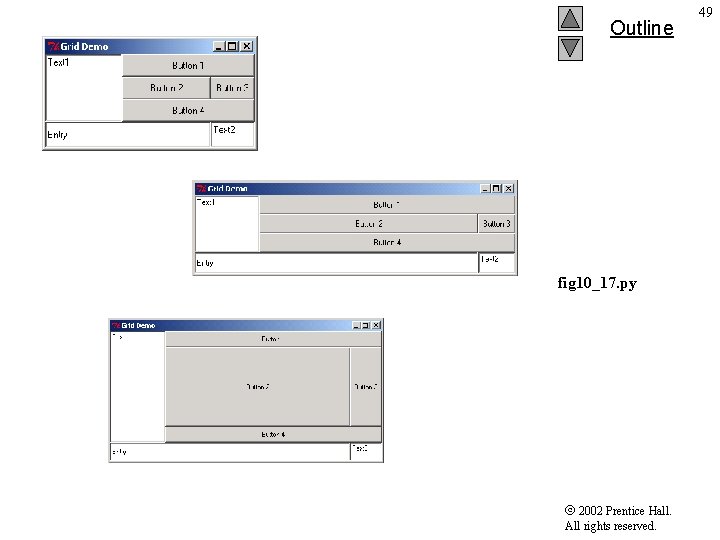
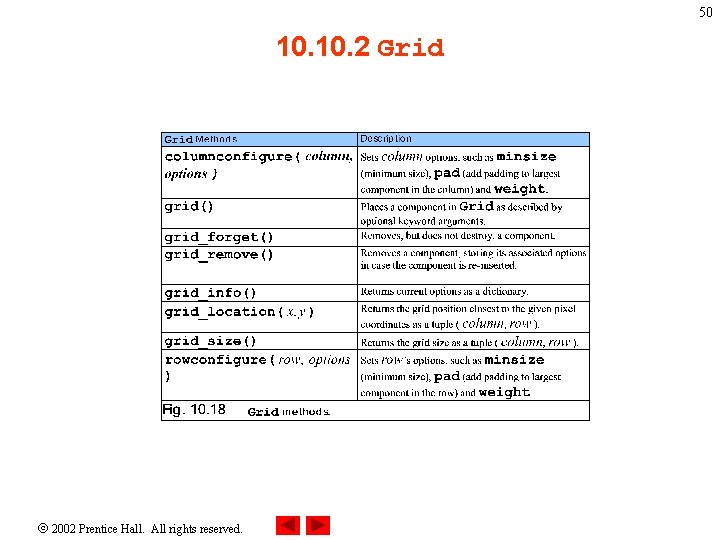
45 10. 2 Grid • Grid layout manager divides container into a grid of rows and columns • Components added at specified row and column indices • Row and column numbers begin at 0 • Option sticky specifies the component’s alignment and whether the component stretches to fill the cell – W, E, N, S, NW, NE, SW, SE and any combinations concatenated with + • Options padx and pady inserts horizontal and vertical padding around a component, respectively 2002 Prentice Hall. All rights reserved.
46 10. 2 Grid • Options ipadx and ipady inserts horizontal and vertical padding inside a component • Option weight indicates relative weight of growth for a row or a column when a window is resized 2002 Prentice Hall. All rights reserved.
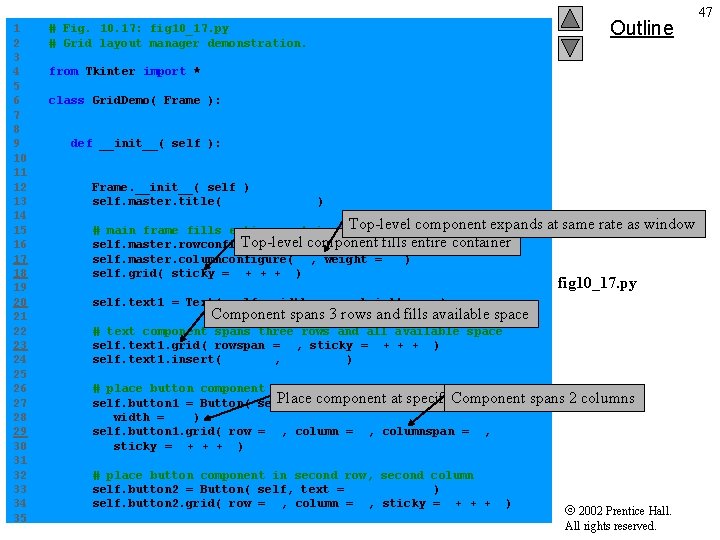
1 2 3 4 5 6 7 8 9 10 11 12 13 14 15 16 17 18 19 20 21 22 23 24 25 26 27 28 29 30 31 32 33 34 35 Outline # Fig. 10. 17: fig 10_17. py # Grid layout manager demonstration. from Tkinter import * class Grid. Demo( Frame ): """Demonstrate the Grid geometry manager""" def __init__( self ): """Create and grid several components into the frame""" Frame. __init__( self ) self. master. title( "Grid Demo" ) expands # main frame fills entire container, Top-level expands component if necessary Top-level component entire container self. master. rowconfigure( 0, weight = 1 fills ) self. master. columnconfigure( 0, weight = 1 ) self. grid( sticky = W+E+N+S ) at same rate as window fig 10_17. py self. text 1 = Text( self, width = 15, height = 5 ) Component spans 3 rows and fills available space # text component spans three rows and all available space self. text 1. grid( rowspan = 3, sticky = W+E+N+S ) self. text 1. insert( INSERT, "Text 1" ) # place button component in first row, second column Place component at specified row and column spans 2 self. button 1 = Button( self, text = "Button 1", Component width = 25 ) self. button 1. grid( row = 0, column = 1, columnspan = 2, sticky = W+E+N+S ) # place button component in second row, second column self. button 2 = Button( self, text = "Button 2" ) self. button 2. grid( row = 1, column = 1, sticky = W+E+N+S ) columns 2002 Prentice Hall. All rights reserved. 47
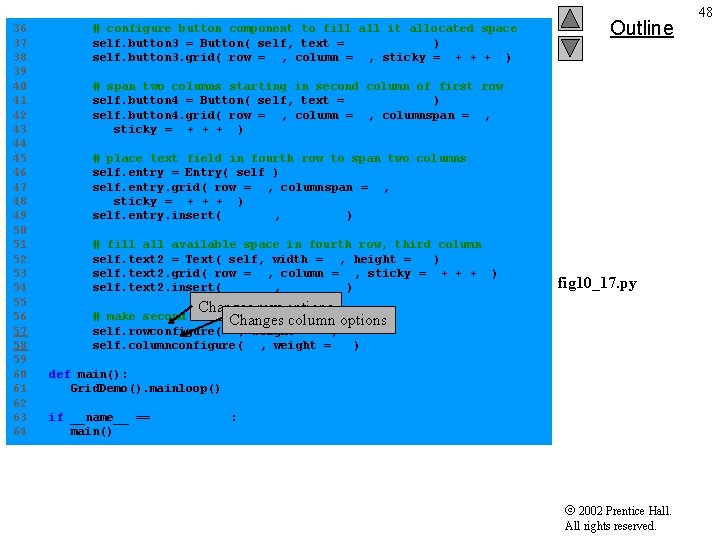
36 37 38 39 40 41 42 43 44 45 46 47 48 49 50 51 52 53 54 55 56 57 58 59 60 61 62 63 64 # configure button component to fill all it allocated space self. button 3 = Button( self, text = "Button 3" ) self. button 3. grid( row = 1, column = 2, sticky = W+E+N+S ) Outline # span two columns starting in second column of first row self. button 4 = Button( self, text = "Button 4" ) self. button 4. grid( row = 2, column = 1, columnspan = 2, sticky = W+E+N+S ) # place text field in fourth row to span two columns self. entry = Entry( self ) self. entry. grid( row = 3, columnspan = 2, sticky = W+E+N+S ) self. entry. insert( INSERT, "Entry" ) # fill available space in fourth row, third column self. text 2 = Text( self, width = 2, height = 2 ) self. text 2. grid( row = 3, column = 2, sticky = W+E+N+S ) self. text 2. insert( INSERT, "Text 2" ) fig 10_17. py Changes row options # make second row/column expand Changes column options self. rowconfigure( 1, weight = 1 ) self. columnconfigure( 1, weight = 1 ) def main(): Grid. Demo(). mainloop() if __name__ == "__main__": main() 2002 Prentice Hall. All rights reserved. 48
Outline fig 10_17. py 2002 Prentice Hall. All rights reserved. 49
50 10. 2 Grid 2002 Prentice Hall. All rights reserved.
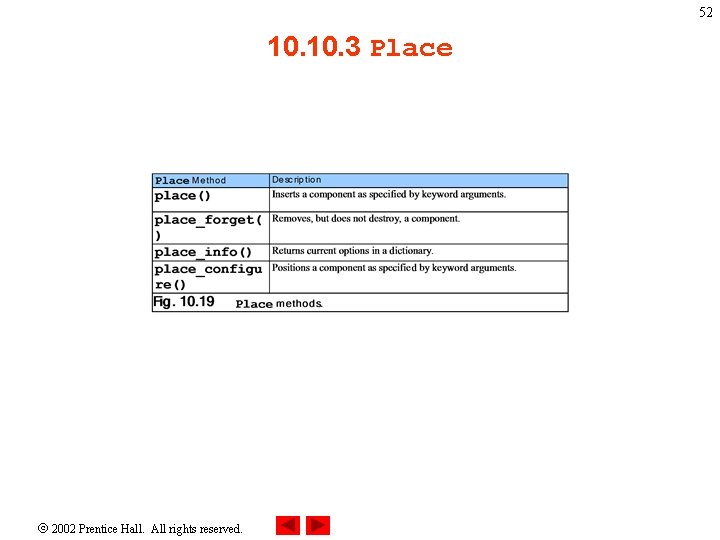
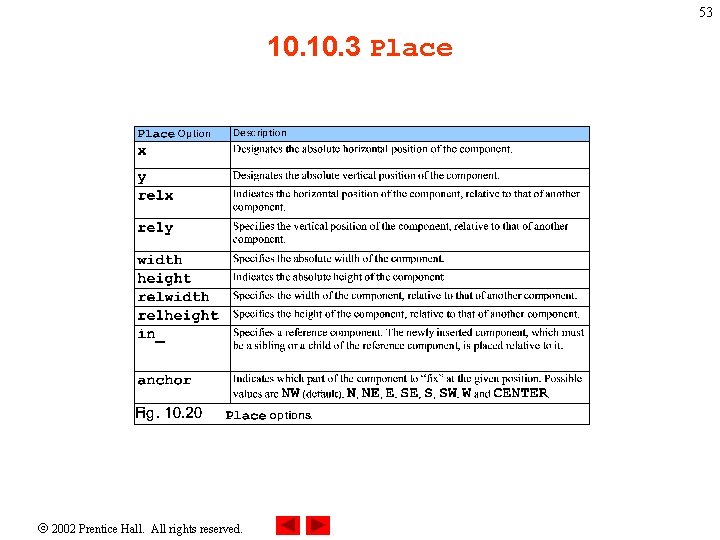
51 10. 3 Place • Place layout manager sets the position and size of a GUI component absolutely or relatively to the position and size of another component • Referenced component specified with option in_ • More complicated than other layout managers 2002 Prentice Hall. All rights reserved.
52 10. 3 Place 2002 Prentice Hall. All rights reserved.
53 10. 3 Place 2002 Prentice Hall. All rights reserved.
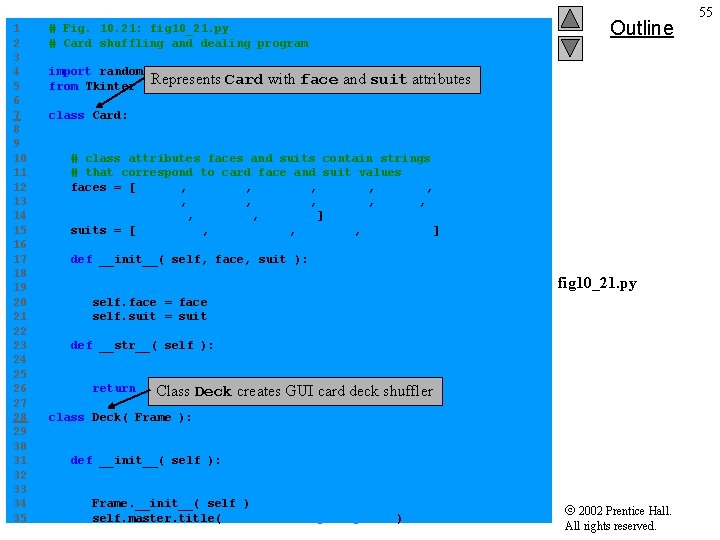
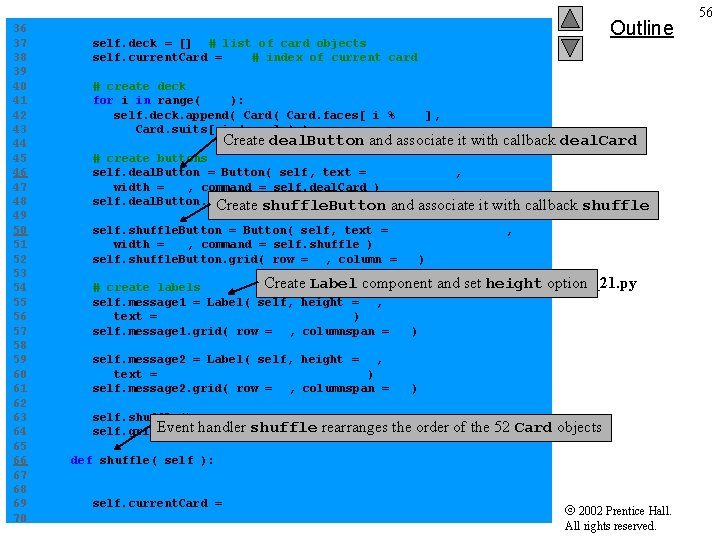
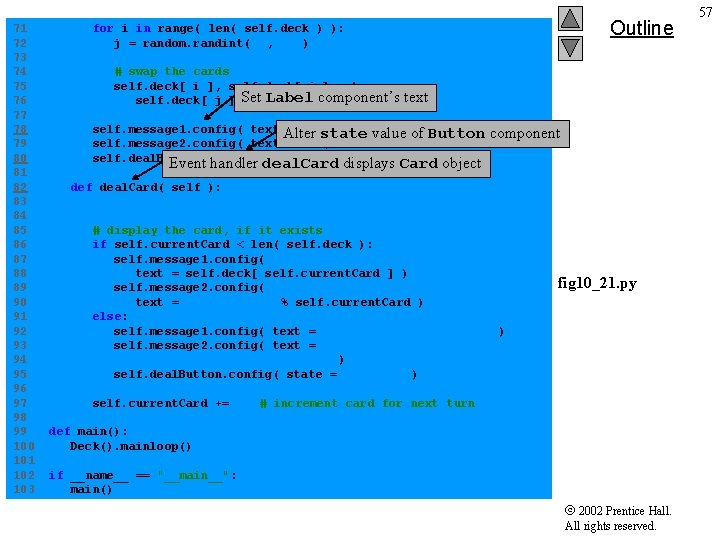
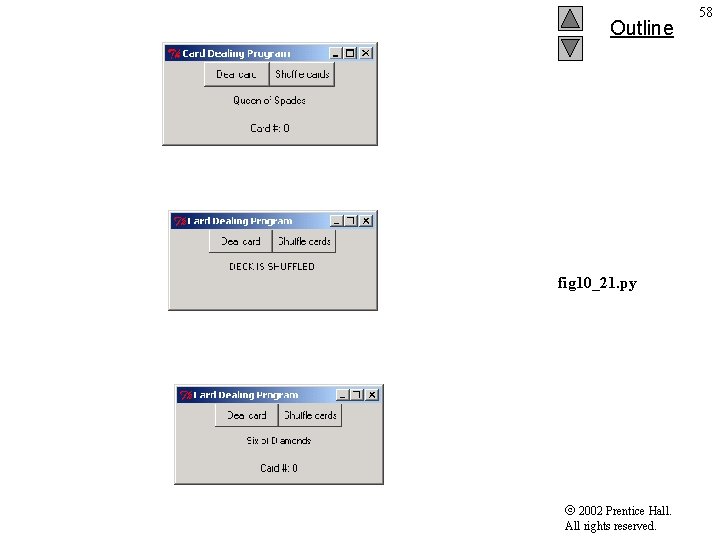
54 10. 11 Card Shuffling and Dealing Simulation • Creates GUI with Button and Label components • Event handlers associated with button events • Uses random number generation 2002 Prentice Hall. All rights reserved.
1 2 3 4 5 6 7 8 9 10 11 12 13 14 15 16 17 18 19 20 21 22 23 24 25 26 27 28 29 30 31 32 33 34 35 # Fig. 10. 21: fig 10_21. py # Card shuffling and dealing program import random Represents from Tkinter import * Outline Card with face and suit attributes class Card: """Class that represents one playing card""" # class attributes faces and suits contain strings # that correspond to card face and suit values faces = [ "Ace", "Deuce", "Three", "Four", "Five", "Six", "Seven", "Eight", "Nine", "Ten", "Jack", "Queen", "King" ] suits = [ "Hearts", "Diamonds", "Clubs", "Spades" ] def __init__( self, face, suit ): """Card constructor, takes face and suit as strings""" fig 10_21. py self. face = face self. suit = suit def __str__( self ): """String representation of a card""" return "%s of %s" % creates ( self. face, self. suit ) Class Deck GUI card deck shuffler class Deck( Frame ): """Class to represent a GUI card deck shuffler""" def __init__( self ): """Deck constructor""" Frame. __init__( self ) self. master. title( "Card Dealing Program" ) 2002 Prentice Hall. All rights reserved. 55
36 37 38 39 40 41 42 43 44 45 46 47 48 49 50 51 52 53 54 55 56 57 58 59 60 61 62 63 64 65 66 67 68 69 70 Outline self. deck = [] # list of card objects self. current. Card = 0 # index of current card # create deck for i in range( 52 ): self. deck. append( Card. faces[ i % 13 ], Card. suits[ i / 13 ] ) ) Create deal. Button and associate it with callback deal. Card # create buttons self. deal. Button = Button( self, text = "Deal Card", width = 10, command = self. deal. Card ) self. deal. Button. grid( = 0, column = 0 and ) associate Createrow shuffle. Button it with callback shuffle self. shuffle. Button = Button( self, text = "Shuffle cards", width = 10, command = self. shuffle ) self. shuffle. Button. grid( row = 0, column = 1 ) Create Label component # create labels self. message 1 = Label( self, height = 2, text = "Welcome to Card Dealer!" ) self. message 1. grid( row = 1, columnspan = 2 ) and set height option fig 10_21. py self. message 2 = Label( self, height = 2, text = "Deal card or shuffle deck" ) self. message 2. grid( row = 2, columnspan = 2 ) self. shuffle() Event self. grid() handler shuffle rearranges the order of the 52 Card objects def shuffle( self ): """Shuffle the deck""" self. current. Card = 0 2002 Prentice Hall. All rights reserved. 56
71 72 73 74 75 76 77 78 79 80 81 82 83 84 85 86 87 88 89 90 91 92 93 94 95 96 97 98 99 100 101 102 103 Outline for i in range( len( self. deck ) ): j = random. randint( 0, 51 ) # swap the cards self. deck[ i ], self. deck[ j ] = Label component’s self. deck[ j ], Set self. deck[ i ] text self. message 1. config( text Alter = "DECK IS SHUFFLED" ) state value of Button self. message 2. config( text = "" ) self. deal. Button. config( state = NORMAL ) Card object Event handler deal. Card displays component def deal. Card( self ): """Deal one card from the deck""" # display the card, if it exists if self. current. Card < len( self. deck ): self. message 1. config( text = self. deck[ self. current. Card ] ) self. message 2. config( text = "Card #: %d" % self. current. Card ) else: self. message 1. config( text = "NO MORE CARDS TO DEAL" ) self. message 2. config( text = "Shuffle cards to continue" ) self. deal. Button. config( state = DISABLED ) self. current. Card += 1 fig 10_21. py # increment card for next turn def main(): Deck(). mainloop() if __name__ == "__main__": main() 2002 Prentice Hall. All rights reserved. 57
Outline fig 10_21. py 2002 Prentice Hall. All rights reserved. 58