
CHAPTER 1 INTRODUCTION TO COMPUTER REPAIR CERTIFICATIONS Certifications
- Slides: 41
CHAPTER 1 INTRODUCTION TO COMPUTER REPAIR
CERTIFICATIONS • Certifications • • May substitute for experience • Validates experienced technicians proficiency and up-todate knowledge May get them an interview Shows they know the basic information for the job Does not demonstrate ability to think logically, troubleshoot problems, or deal with people in a professional manner
A+ CERTIFICATION & COMP TIA • Computing Technology Industry Association (Comp. TIA) • Created in 1982 from representatives of five microcomputer dealerships. • The A+ certification demonstrates competency as a computer technician. They have many more certifications • The A+ Certification is a non-vendor specific industry standard certification. • • Does not guarantee someone a job Is required by a lot of companies and agencies • Consists of two exams • • 220 -701 A+ Essentials 220 -702 IT Technician • Comp. TIA states that it measures competencies for an IT professional with at least 1000 hours of hands-on experience in the lab or field.
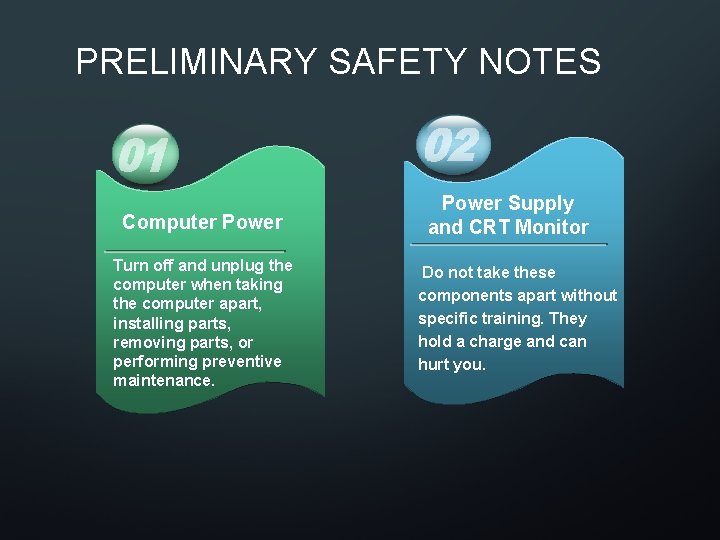
PRELIMINARY SAFETY NOTES Computer Power Turn off and unplug the computer when taking the computer apart, installing parts, removing parts, or performing preventive maintenance. Power Supply and CRT Monitor Do not take these components apart without specific training. They hold a charge and can hurt you.
OVERVIEW Qualities Parts Ports Explore qualities of a good computer support person Discover the major parts of the computer Identify ports seen on a computer © 2012 Pearson Addison-Wesley. All rights reserved.
A GOOD TECHNICIAN… Technician Qualities Active listening Good, positive attitude © 2012 Pearson Addison-Wesley. All rights reserved. Know technical terms, but explain in easy to understand words Humbleness
TRAITS OF A TECH • Dependable • Responsible • Adapt • Versitle • Sensitive
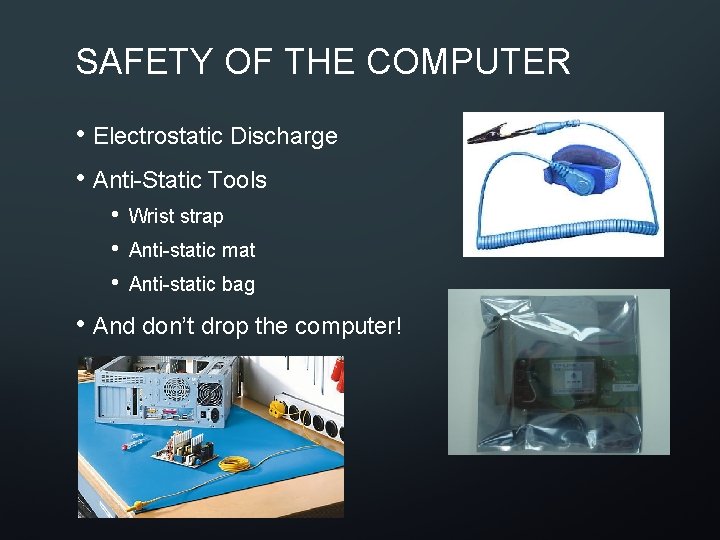
SAFETY OF THE COMPUTER • Electrostatic Discharge • Anti-Static Tools • • • Wrist strap Anti-static mat Anti-static bag • And don’t drop the computer!
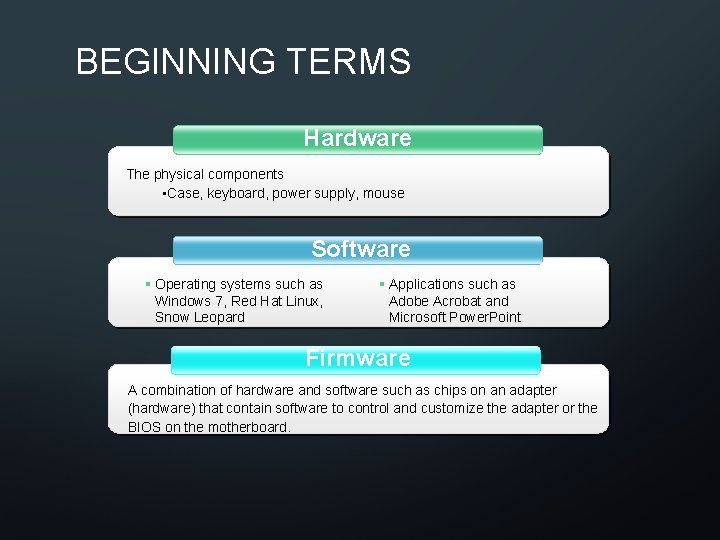
BEGINNING TERMS Hardware The physical components • Case, keyboard, power supply, mouse Software § Operating systems such as Windows 7, Red Hat Linux, Snow Leopard § Applications such as Adobe Acrobat and Microsoft Power. Point Firmware A combination of hardware and software such as chips on an adapter (hardware) that contain software to control and customize the adapter or the BIOS on the motherboard.
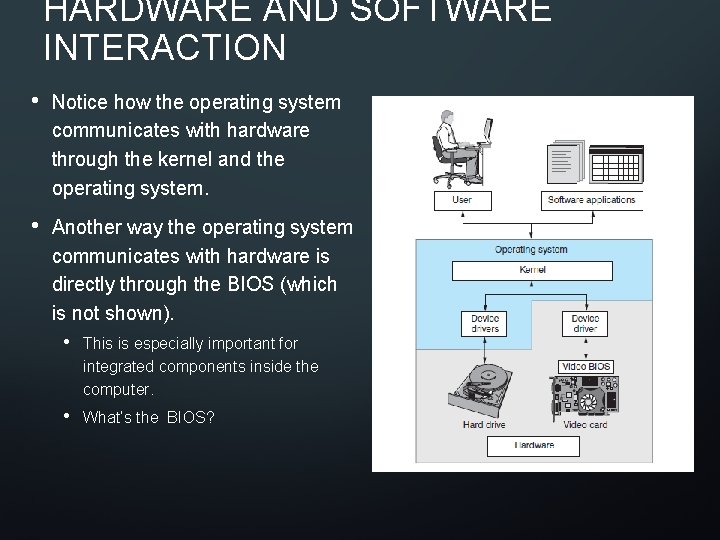
HARDWARE AND SOFTWARE INTERACTION • Notice how the operating system communicates with hardware through the kernel and the operating system. • Another way the operating system communicates with hardware is directly through the BIOS (which is not shown). • This is especially important for integrated components inside the computer. • What’s the BIOS?
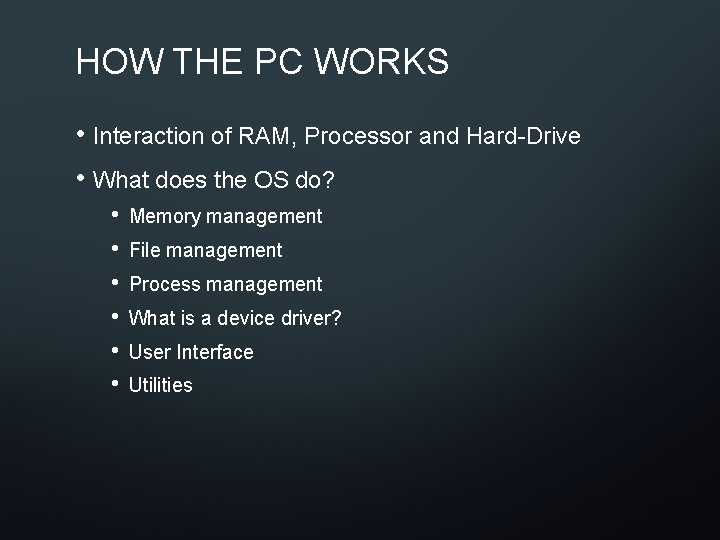
HOW THE PC WORKS • Interaction of RAM, Processor and Hard-Drive • What does the OS do? • • • Memory management File management Process management What is a device driver? User Interface Utilities
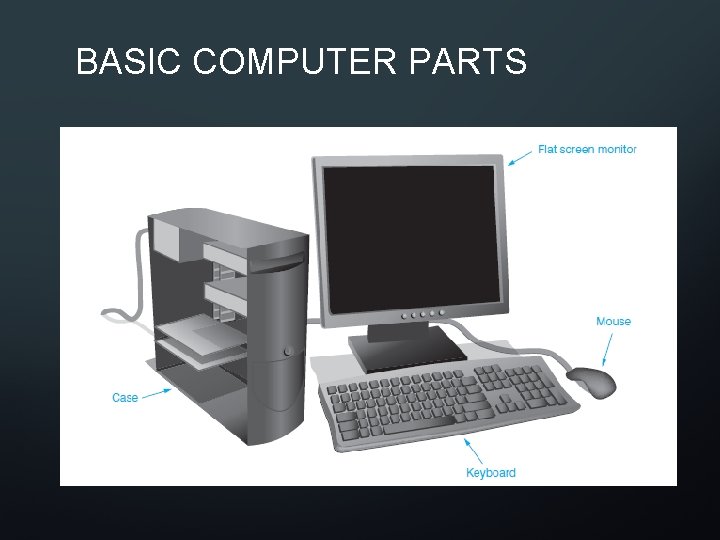
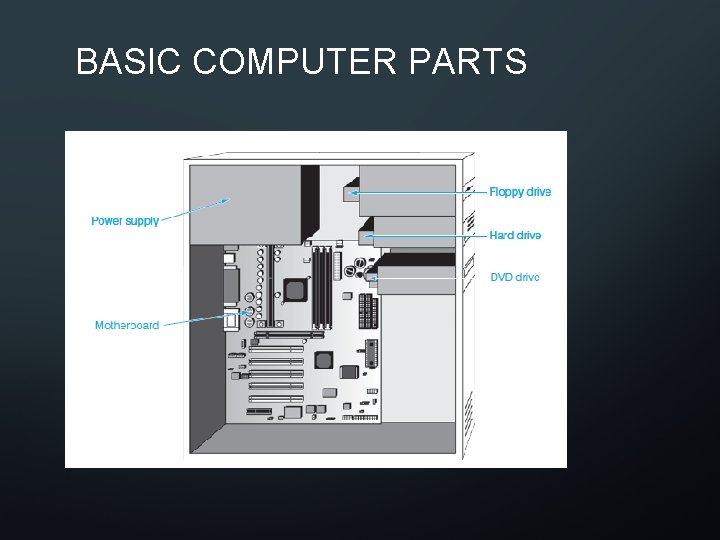
BASIC COMPUTER PARTS
BASIC COMPUTER PARTS
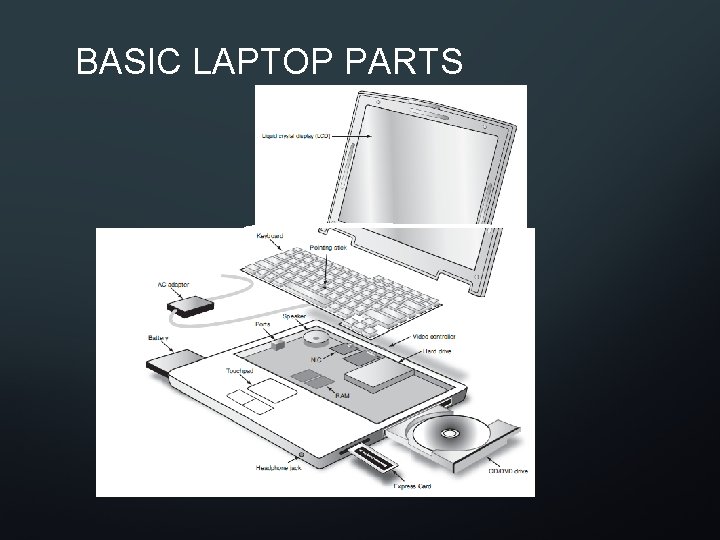
BASIC LAPTOP PARTS
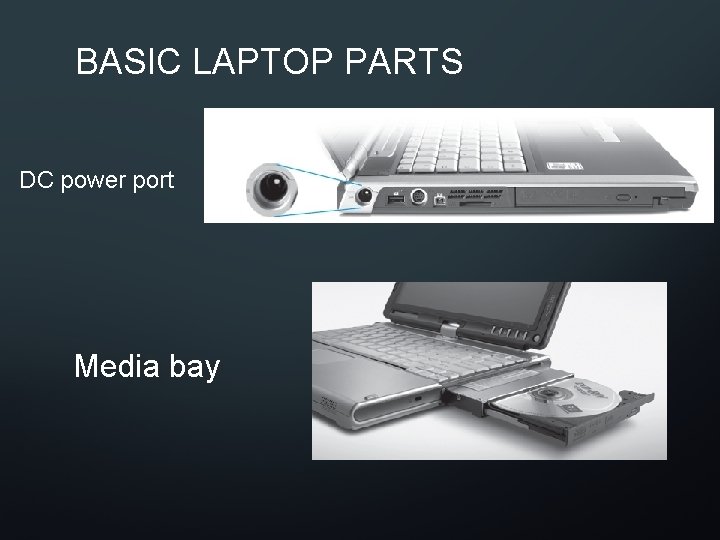
BASIC LAPTOP PARTS DC power port Media bay
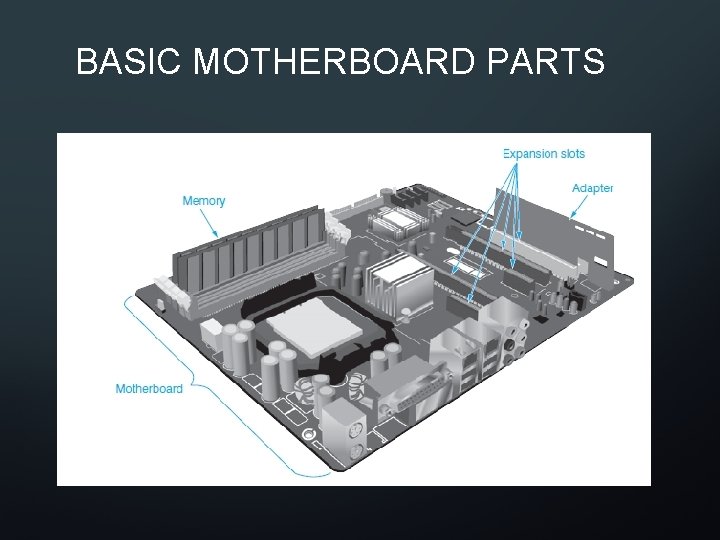
BASIC MOTHERBOARD PARTS
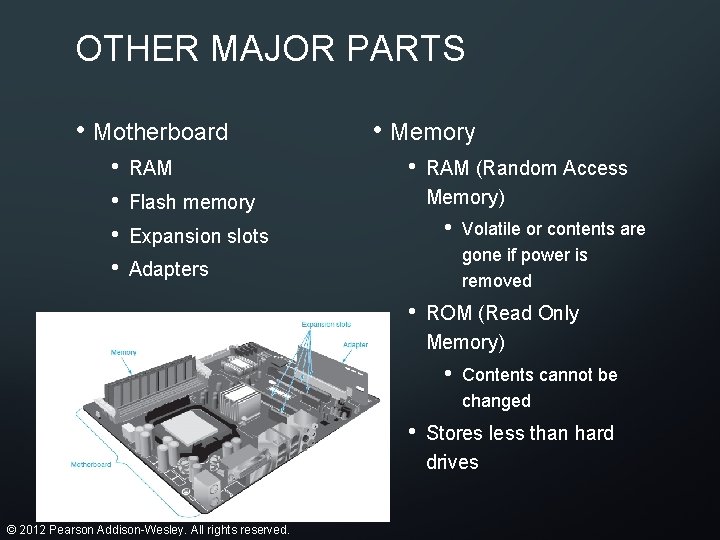
OTHER MAJOR PARTS • Motherboard • • RAM • Memory • Flash memory RAM (Random Access Memory) • Expansion slots Adapters • ROM (Read Only Memory) • • © 2012 Pearson Addison-Wesley. All rights reserved. Volatile or contents are gone if power is removed Contents cannot be changed Stores less than hard drives
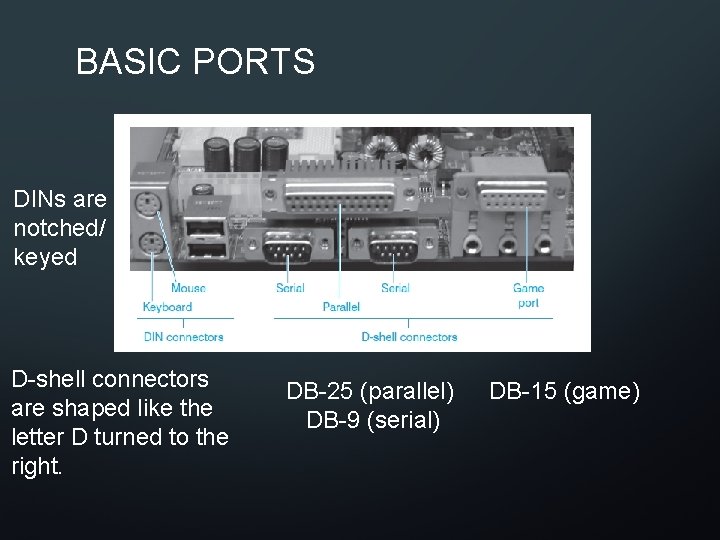
BASIC PORTS DINs are notched/ keyed D-shell connectors are shaped like the letter D turned to the right. DB-25 (parallel) DB-9 (serial) DB-15 (game)
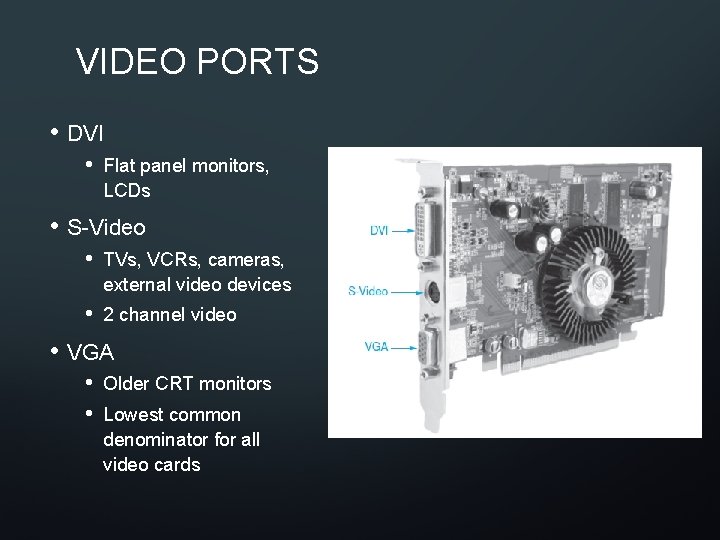
VIDEO PORTS • DVI • Flat panel monitors, LCDs • S-Video • TVs, VCRs, cameras, external video devices • 2 channel video • VGA • • Older CRT monitors Lowest common denominator for all video cards
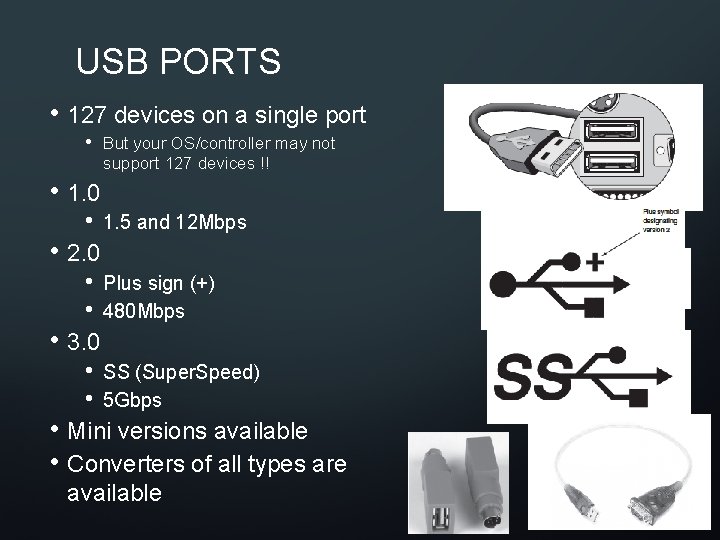
USB PORTS • 127 devices on a single port • But your OS/controller may not support 127 devices !! • 1. 0 • 1. 5 and 12 Mbps • • Plus sign (+) 480 Mbps • • SS (Super. Speed) 5 Gbps • 2. 0 • 3. 0 • Mini versions available • Converters of all types are available
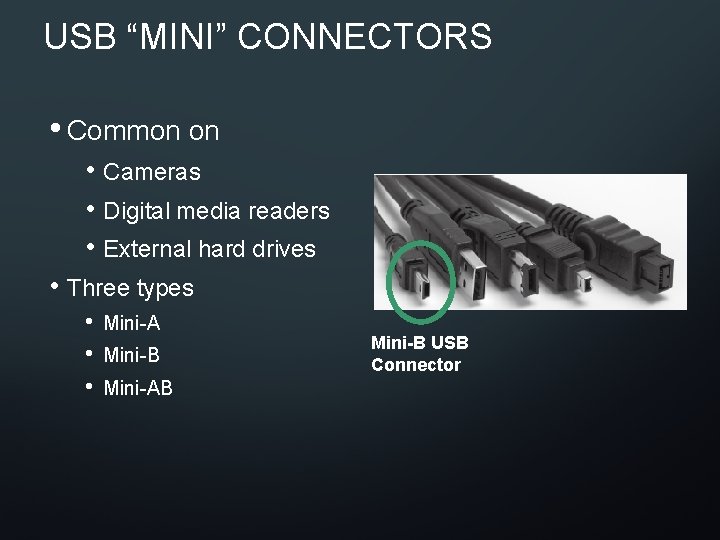
USB “MINI” CONNECTORS • Common on • Cameras • Digital media readers • External hard drives • Three types • • • Mini-A Mini-B Mini-AB Mini-B USB Connector
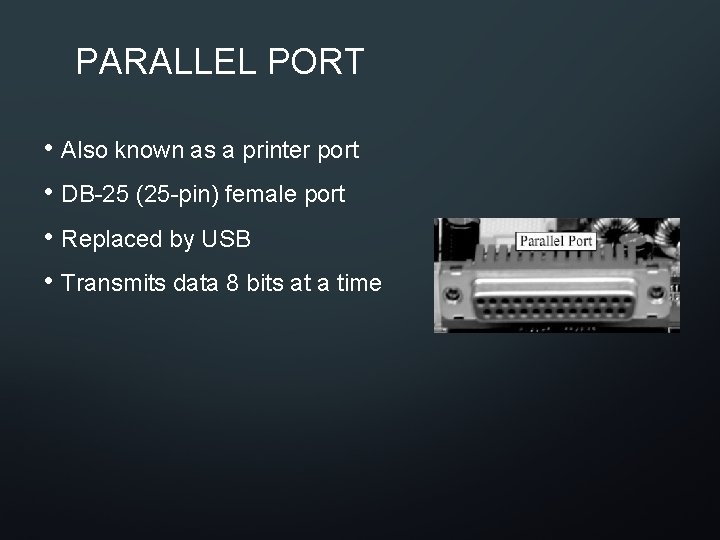
PARALLEL PORT • Also known as a printer port • DB-25 (25 -pin) female port • Replaced by USB • Transmits data 8 bits at a time
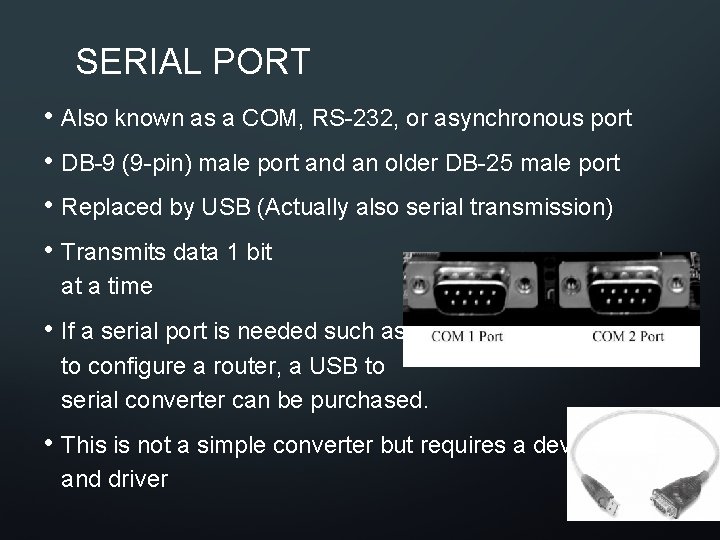
SERIAL PORT • Also known as a COM, RS-232, or asynchronous port • DB-9 (9 -pin) male port and an older DB-25 male port • Replaced by USB (Actually also serial transmission) • Transmits data 1 bit at a time • If a serial port is needed such as to configure a router, a USB to serial converter can be purchased. • This is not a simple converter but requires a device and driver
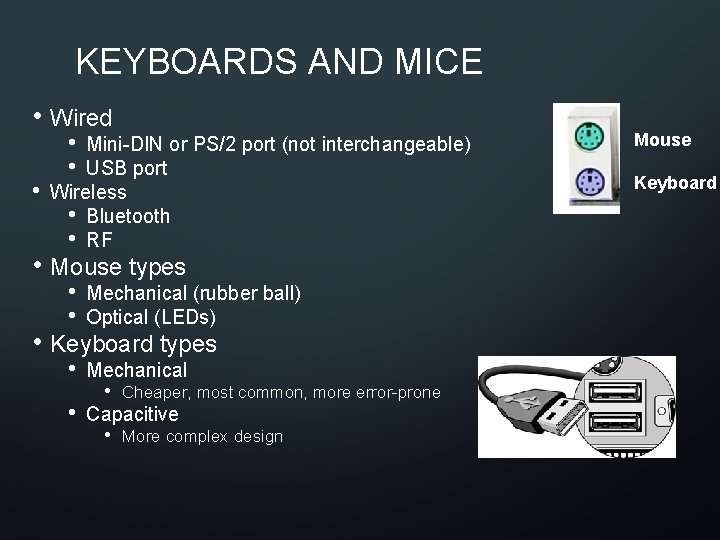
KEYBOARDS AND MICE • Wired • • • Mini-DIN or PS/2 port (not interchangeable) USB port Wireless • Bluetooth • RF • Mouse types • • Mechanical (rubber ball) Optical (LEDs) • Mechanical • Keyboard types • • Cheaper, most common, more error-prone Capacitive • More complex design Mouse Keyboard
PREVENTIVE MAINTENANCE • Mouse • Cleaning kits • Optical: damp, lint-free cloth for the bottom • Mechanical mouse ball: clean with mild detergent, rinse, and dry thoroughly. For rollers, lint-free cloth with alcohol; otherwise, fingernail, small screwdriver, straightened paper clip. • Keyboard • Cleaning wipes • Compressed air • Cotton or lint-free swab between keys • Upside down shake
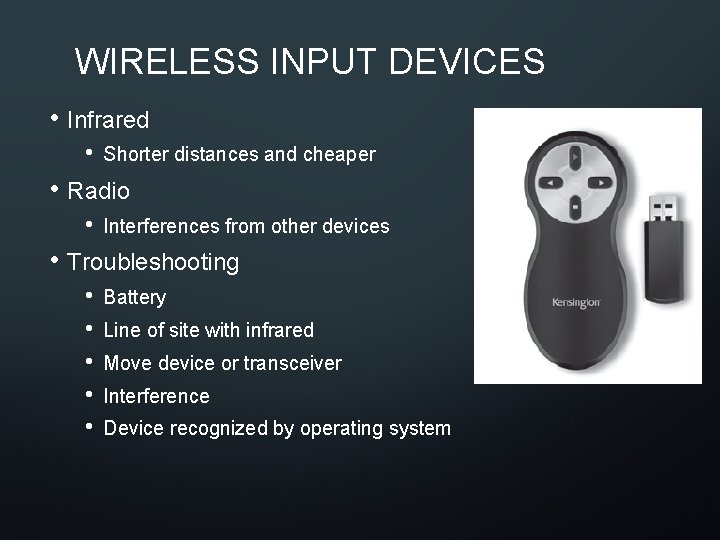
WIRELESS INPUT DEVICES • Infrared • Shorter distances and cheaper • Radio • Interferences from other devices • Troubleshooting • • • Battery Line of site with infrared Move device or transceiver Interference Device recognized by operating system
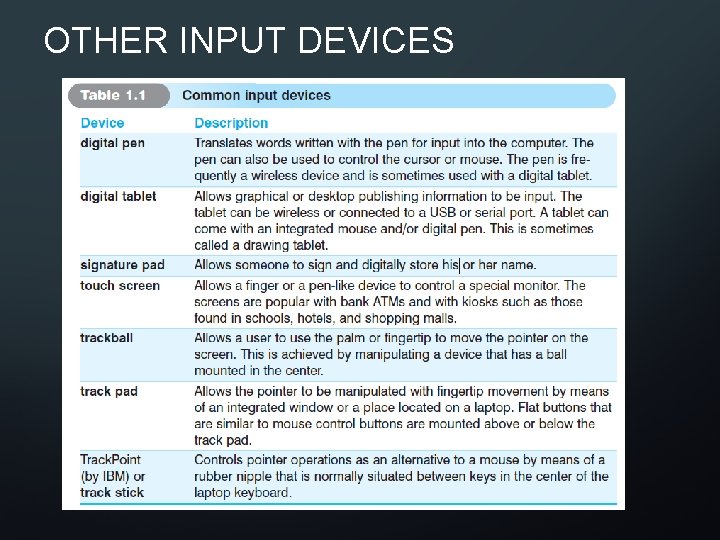
OTHER INPUT DEVICES
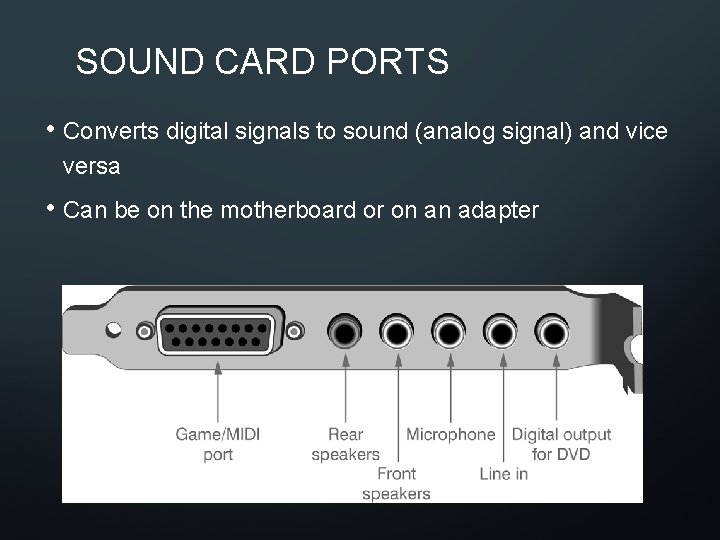
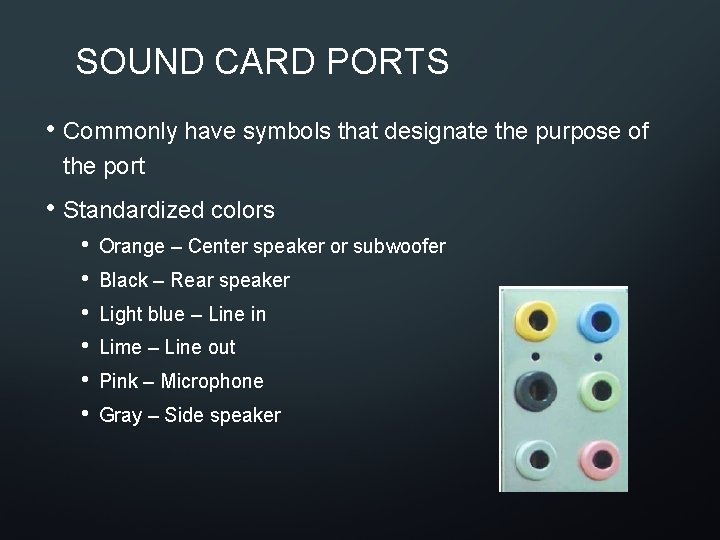
SOUND CARD PORTS • Converts digital signals to sound (analog signal) and vice versa • Can be on the motherboard or on an adapter
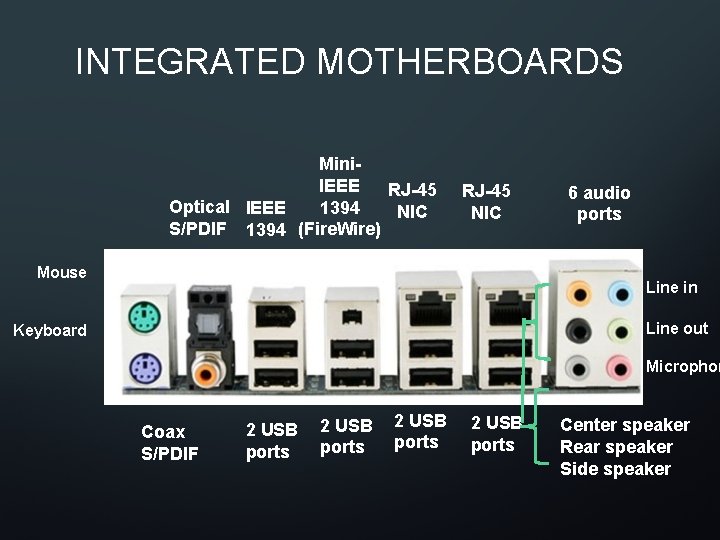
SOUND CARD PORTS • Commonly have symbols that designate the purpose of the port • Standardized colors • • • Orange – Center speaker or subwoofer Black – Rear speaker Light blue – Line in Lime – Line out Pink – Microphone Gray – Side speaker
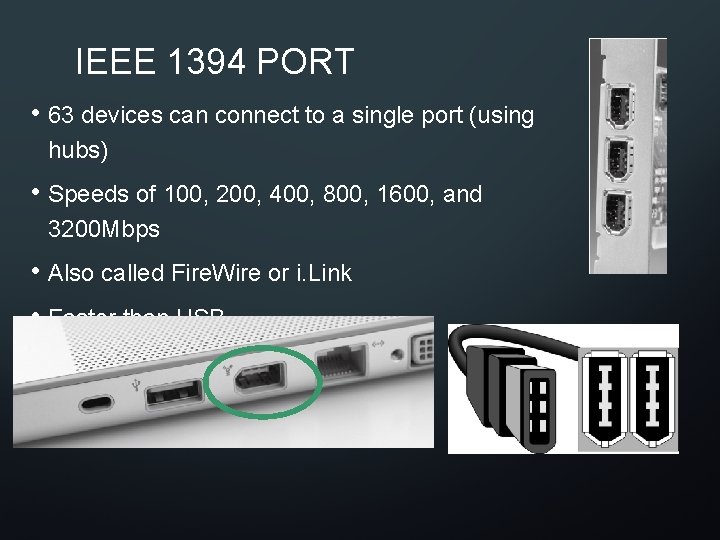
IEEE 1394 PORT • 63 devices can connect to a single port (using hubs) • Speeds of 100, 200, 400, 800, 1600, and 3200 Mbps • Also called Fire. Wire or i. Link • Faster than USB • Supports hot swapping
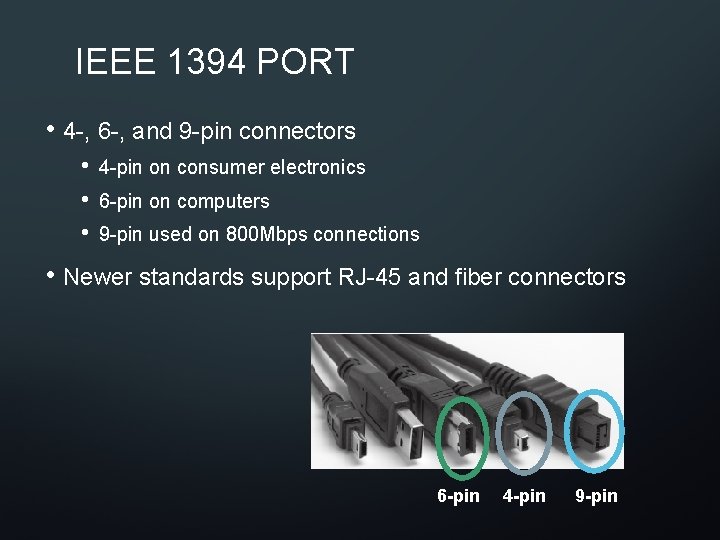
IEEE 1394 PORT • 4 -, 6 -, and 9 -pin connectors • • • 4 -pin on consumer electronics 6 -pin on computers 9 -pin used on 800 Mbps connections • Newer standards support RJ-45 and fiber connectors 6 -pin 4 -pin 9 -pin
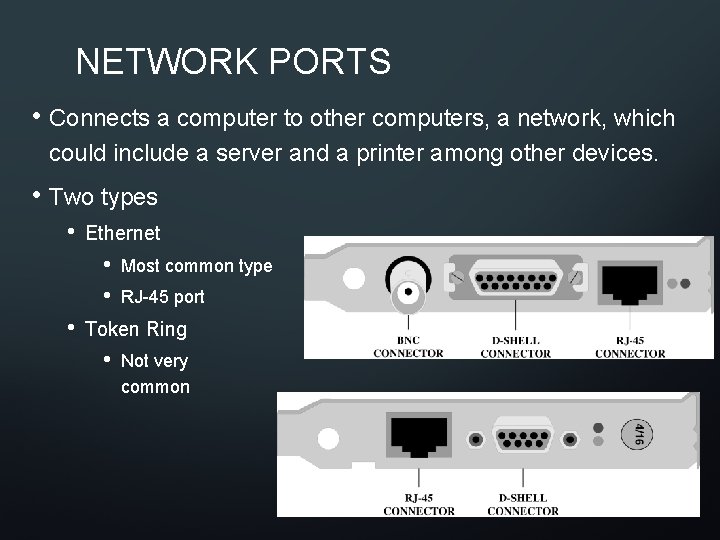
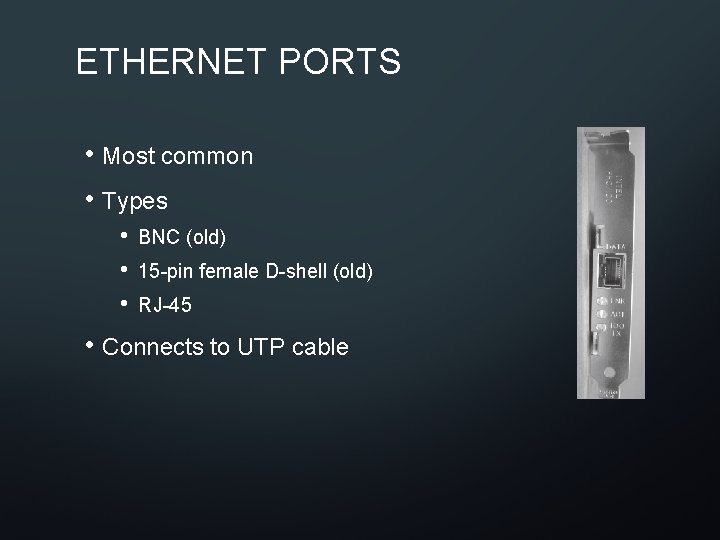
NETWORK PORTS • Connects a computer to other computers, a network, which could include a server and a printer among other devices. • Two types • Ethernet • • • Most common type RJ-45 port Token Ring • Not very common
ETHERNET PORTS • Most common • Types • • • BNC (old) 15 -pin female D-shell (old) RJ-45 • Connects to UTP cable
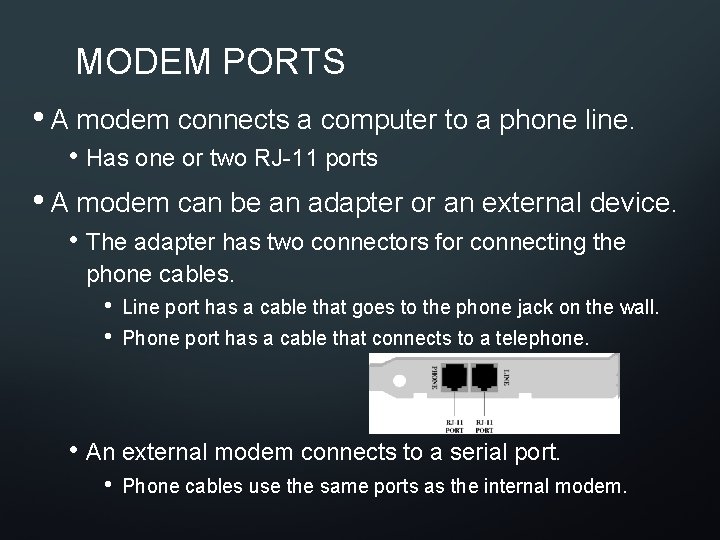
MODEM PORTS • A modem connects a computer to a phone line. • Has one or two RJ-11 ports • A modem can be an adapter or an external device. • The adapter has two connectors for connecting the phone cables. • • Line port has a cable that goes to the phone jack on the wall. Phone port has a cable that connects to a telephone. • An external modem connects to a serial port. • Phone cables use the same ports as the internal modem.
INTEGRATED MOTHERBOARDS Mini. IEEE RJ-45 Optical IEEE 1394 NIC S/PDIF 1394 (Fire. Wire) RJ-45 NIC Mouse 6 audio ports Line in Line out Keyboard Microphon Coax S/PDIF 2 USB ports Center speaker Rear speaker Side speaker
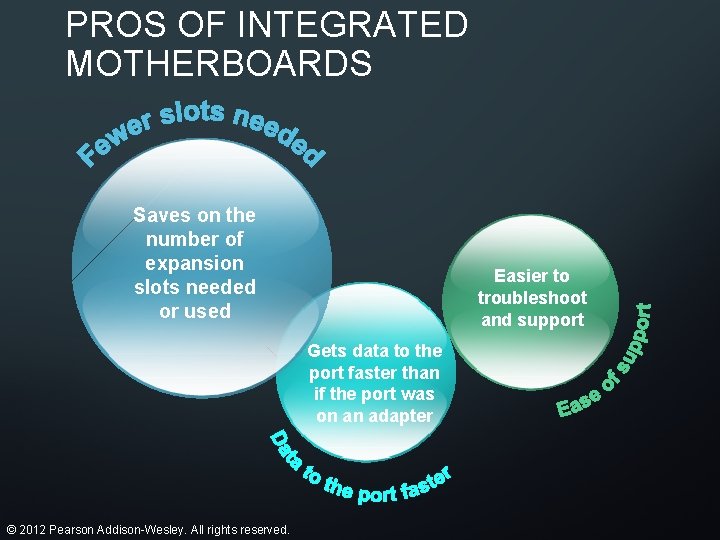
PROS OF INTEGRATED MOTHERBOARDS Saves on the number of expansion slots needed or used Easier to troubleshoot and support Gets data to the port faster than if the port was on an adapter © 2012 Pearson Addison-Wesley. All rights reserved.
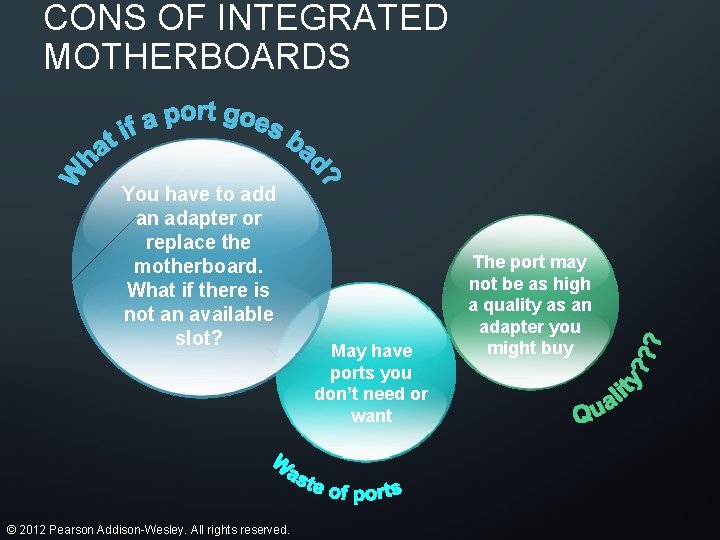
CONS OF INTEGRATED MOTHERBOARDS You have to add an adapter or replace the motherboard. What if there is not an available slot? © 2012 Pearson Addison-Wesley. All rights reserved. May have ports you don’t need or want The port may not be as high a quality as an adapter you might buy
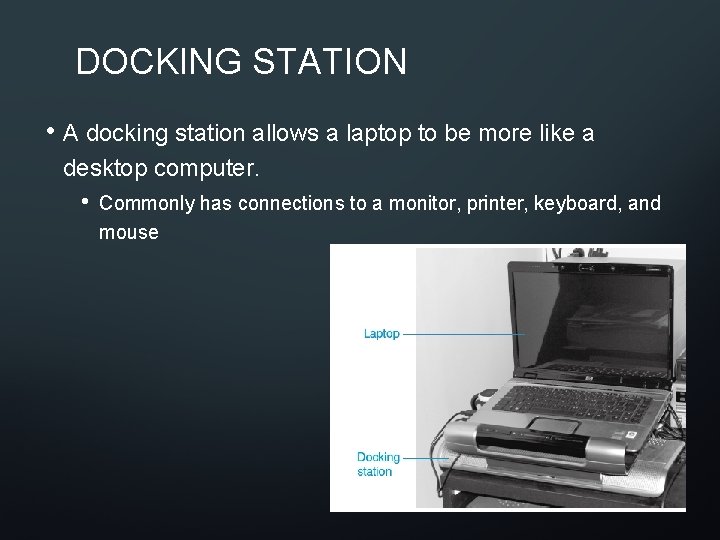
DOCKING STATION • A docking station allows a laptop to be more like a desktop computer. • Commonly has connections to a monitor, printer, keyboard, and mouse
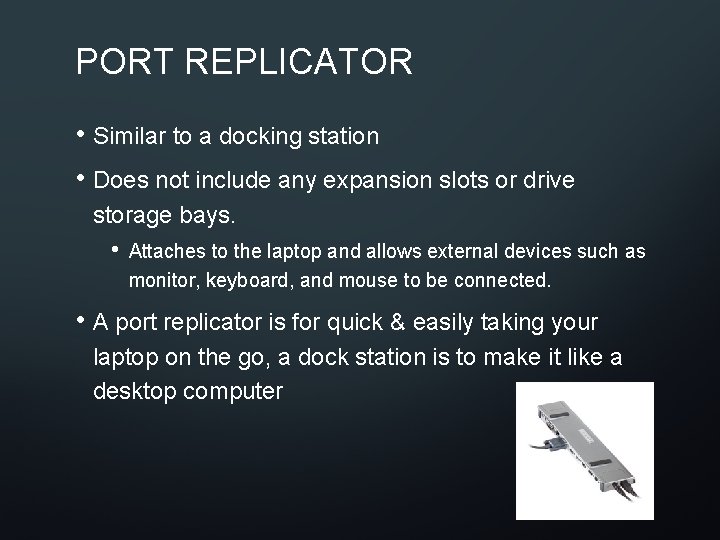
PORT REPLICATOR • Similar to a docking station • Does not include any expansion slots or drive storage bays. • Attaches to the laptop and allows external devices such as monitor, keyboard, and mouse to be connected. • A port replicator is for quick & easily taking your laptop on the go, a dock station is to make it like a desktop computer
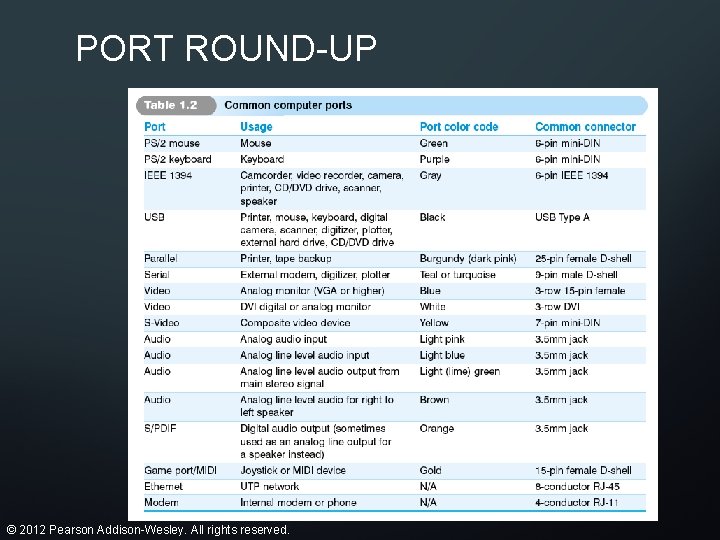
PORT ROUND-UP © 2012 Pearson Addison-Wesley. All rights reserved.
QUESTIONS? ? ?