
CHAPTER 1 Introduction to Abstract Windowing Toolkit AWT
CHAPTER 1 Introduction to Abstract Windowing Toolkit (AWT) & Swings Objectives -> To design and develop GUI programs using AWT and swing component -> To arrange the GUI components using different layout managers
Abstract Window Toolkit �Java’s Abstract Window Toolkit provides classes and other tools for building programs that have a graphical user interface. �The term “Abstract” refers to the AWT’s ability to run on multiple platforms. �AWT components are platform dependent. �Building a GUI involves creating “abstract” components such as buttons and windows, which are then mapped to “concrete” components for a specific platform.
AWT (Abstract Windowing Toolkit) The AWT is roughly broken into three categories Components Layout Managers Graphics Many AWT components have been replaced by Swing components Package required to import is java. awt It is generally not considered a good idea to mix Swing components and AWT components. Choose to use one or the other.
Swing �Java has a newer library for building graphical user interfaces, known as “Swing. ” Swing is more powerful and sophisticated than the AWT. �Swing is built around the existing AWT, so it helps to understand the AWT first. �Swing is similar enough to the AWT that it’s relatively easy to switch if the need arises. �Many Swing classes correspond to AWT classes. For example, Swing’s JButton class corresponds to the AWT’s Button class. 4
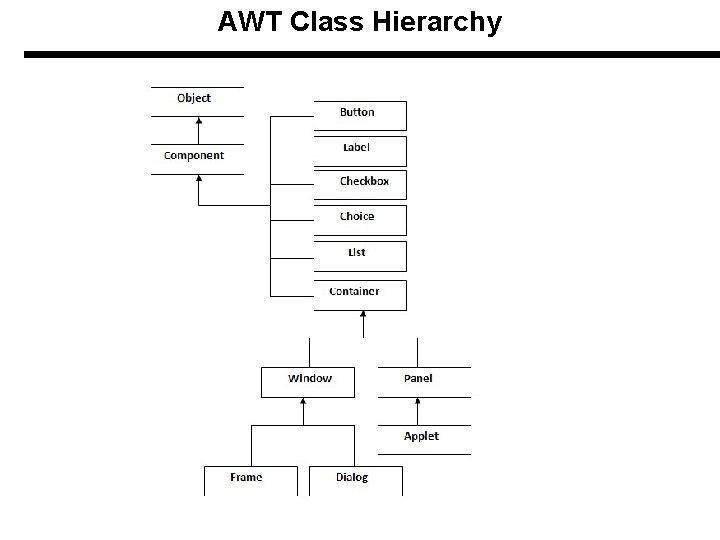
AWT Class Hierarchy
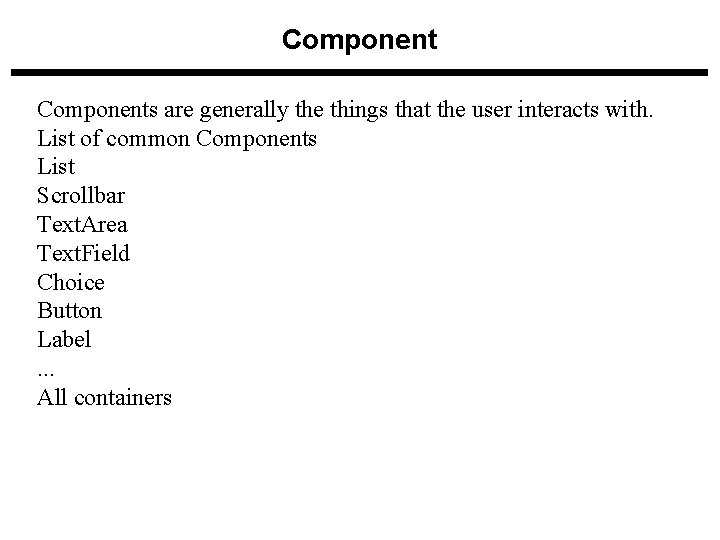
Components are generally the things that the user interacts with. List of common Components List Scrollbar Text. Area Text. Field Choice Button Label. . . All containers
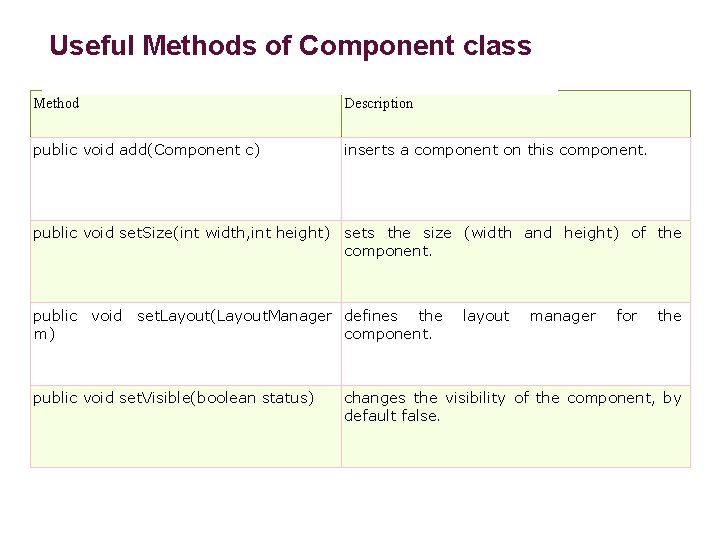
Useful Methods of Component class Method Description public void add(Component c) inserts a component on this component. public void set. Size(int width, int height) sets the size (width and height) of the component. public void set. Layout(Layout. Manager defines the layout manager for the m) component. public void set. Visible(boolean status) changes the visibility of the component, by default false.
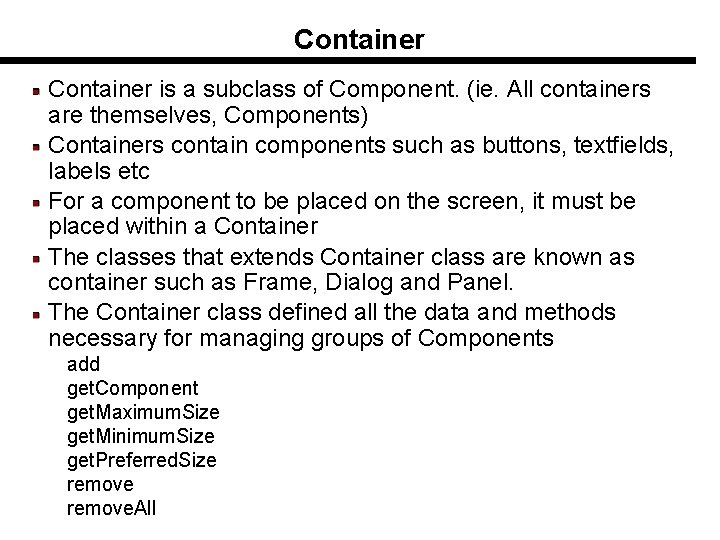
Container is a subclass of Component. (ie. All containers are themselves, Components) Containers contain components such as buttons, textfields, labels etc For a component to be placed on the screen, it must be placed within a Container The classes that extends Container class are known as container such as Frame, Dialog and Panel. The Container class defined all the data and methods necessary for managing groups of Components add get. Component get. Maximum. Size get. Minimum. Size get. Preferred. Size remove. All
Windows and Frames The Window class defines a top-level Window with no Borders or Menu bar. You must use frame, dialog or another window for creating a window. • Frame defines a top-level Window with Borders, Title and Menu Bar • Frames are more commonly used than Windows Once defined, a Frame is a Container which can contain Components Frame a. Frame = new Frame(“Hello World”); a. Frame. set. Size(100, 100); a. Frame. set. Location(10, 10); a. Frame. set. Visible(true);
Creating a Graphical User Interface �GUI programming in Java is based on three concepts: �Components. A component is an object that the user can see on the screen and—in most cases—interact with. �Containers. A container is a component that can hold other components. �Events. An event is an action triggered by the user, such as a key press or mouse click. �Designing a graphical user interface involves creating components, putting them into containers, and arranging for the program to respond to events. 10
Creating a Graphical User Interface �Components are objects, so they’re created by invoking a constructor. �A button would be created by using a constructor belonging to the Button class. �The most commonly used constructor has one argument (the button’s label): Button b = new Button("Testing"); �For a component to be visible, it must be added to a container (typically a frame) by the add method. 11
Creating a Graphical User Interface �To detect when an event occurs, a special “listener” object can be attached to a component. �When the user performs an action that involves the component, a method belonging to the listener object will be called automatically. 12
12. 2 Frames �In Java terminology, a frame is a window with a title and a border. �A frame may also have a menu bar. �Frames play an important role in the AWT because a GUI program normally displays a frame when it’s executed. 13
The Frame Class �Frames are created using one of the constructors in the Frame class. �One constructor takes a single argument (the title to be displayed at the top of the frame): Frame f = new Frame("Title goes here"); �Although the Frame object now exists, it’s not visible on the screen. �Before making the frame visible, a method should be called to set the size of the frame. �If desired, the frame’s location can also be specified. 14
Frame Methods �Many methods used with Frame objects are inherited from Window (Frame’s superclass) or from Component (Window’s superclass). �The set. Size method sets the width and height of a frame: f. set. Size(width, height); �If a program fails to call set. Size or pack before displaying a frame, it will assume a default size. 15
Frame Methods �The size of a frame can change during the execution of a program. �The get. Size method returns a frame’s current width and height: Dimension frame. Size = f. get. Size(); frame. Size. width will contain f’s width. frame. Size. height will contain f’s height. 16
Frame Methods �The set. Visible method controls whether or not a frame is currently visible on the screen. �Calling set. Visible with true as the argument makes a frame visible: f. set. Visible(true); �Calling it with false as the argument makes the frame disappear from the screen: f. set. Visible(false); �The Frame object still exists; it can be made to reappear later by calling set. Visible again. 17
Creating a Frame �The Frame. Test program creates a Frame object and displays it on the screen. �This program illustrates three key steps: 1. Using the Frame constructor to create a frame. 2. Setting the size of the frame. 3. Displaying the frame on the screen. 18
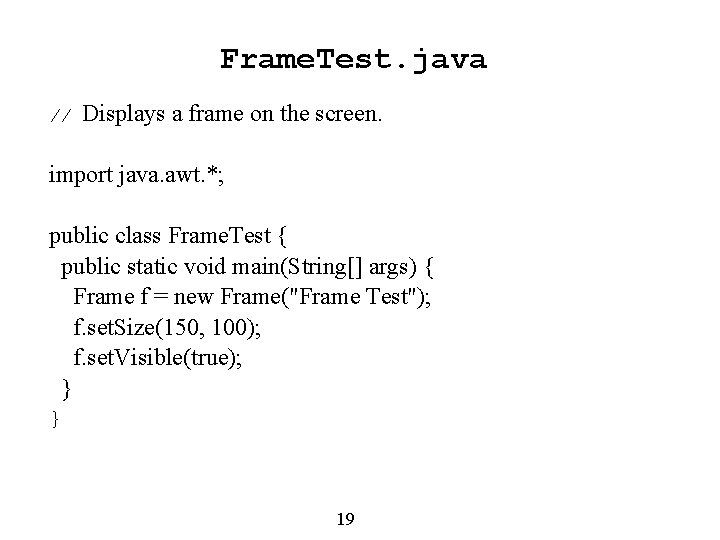
Frame. Test. java // Displays a frame on the screen. import java. awt. *; public class Frame. Test { public static void main(String[] args) { Frame f = new Frame("Frame Test"); f. set. Size(150, 100); f. set. Visible(true); } } 19
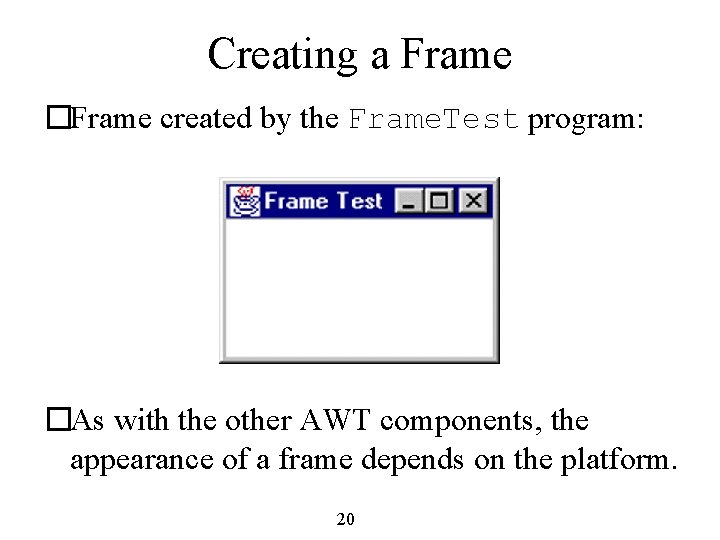
Creating a Frame �Frame created by the Frame. Test program: �As with the other AWT components, the appearance of a frame depends on the platform. 20
Creating a Frame �Clicking on the Close button has no effect, because there’s no action associated with that button. �The frame will have be closed the hard way, by killing the program. �In Windows, click on the DOS window from which the program was launched, hold down the Ctrl key, and press the letter C. 21
Setting the Location of a Frame �By default, all windows (including frames) are displayed in the upper-left corner of the screen, which has coordinates (0, 0). �The set. Location method can be used to specify a different location: f. set. Location(50, 75); �To find the current location of a frame, call get. Location: Point frame. Location = f. get. Location(); The coordinates of f’s upper-left corner will be stored in frame. Location. x and frame. Location. y. 22
Adding Components to a Frame �To add a component to a frame (or any kind of container), the add method is used. �add belongs to the Container class, so it’s inherited by Frame and the other container classes. �An example of adding a button to a frame: Button b = new Button("Testing"); add(b); 23
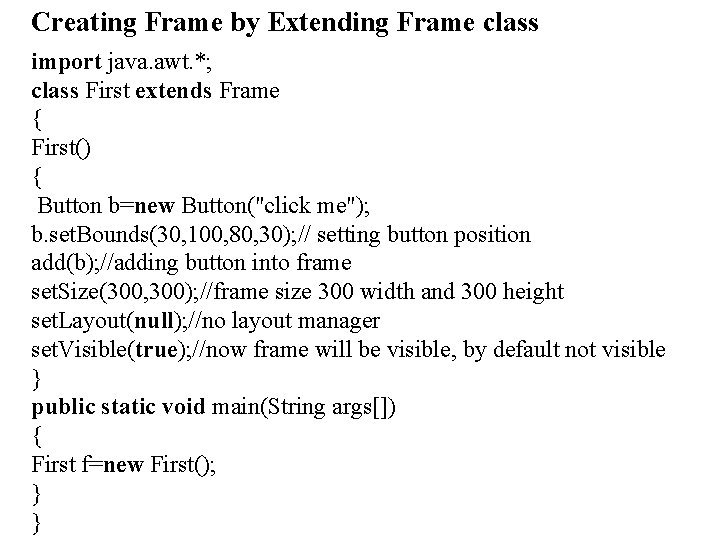
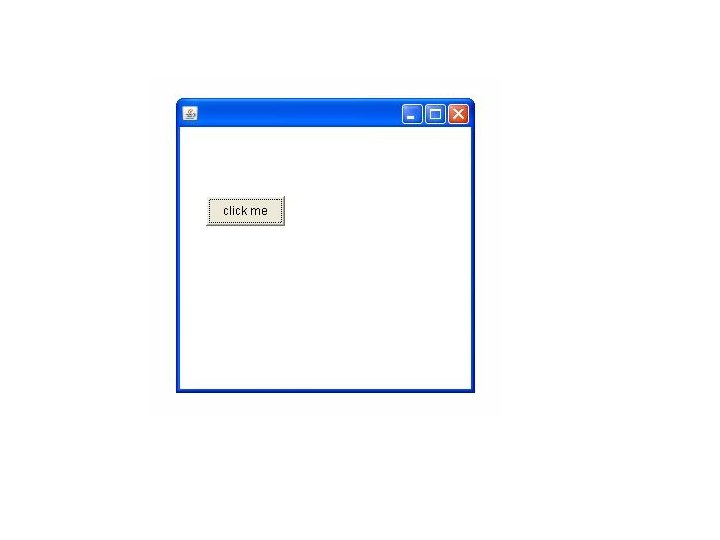
Creating Frame by Extending Frame class import java. awt. *; class First extends Frame { First() { Button b=new Button("click me"); b. set. Bounds(30, 100, 80, 30); // setting button position add(b); //adding button into frame set. Size(300, 300); //frame size 300 width and 300 height set. Layout(null); //no layout manager set. Visible(true); //now frame will be visible, by default not visible } public static void main(String args[]) { First f=new First(); } }
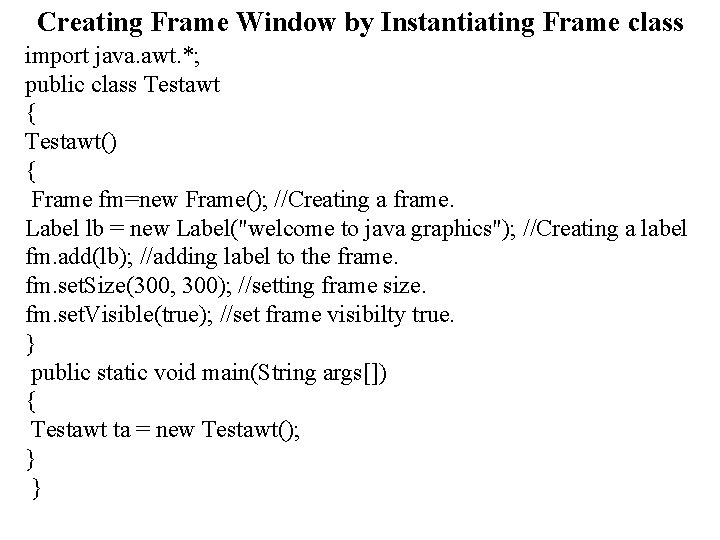
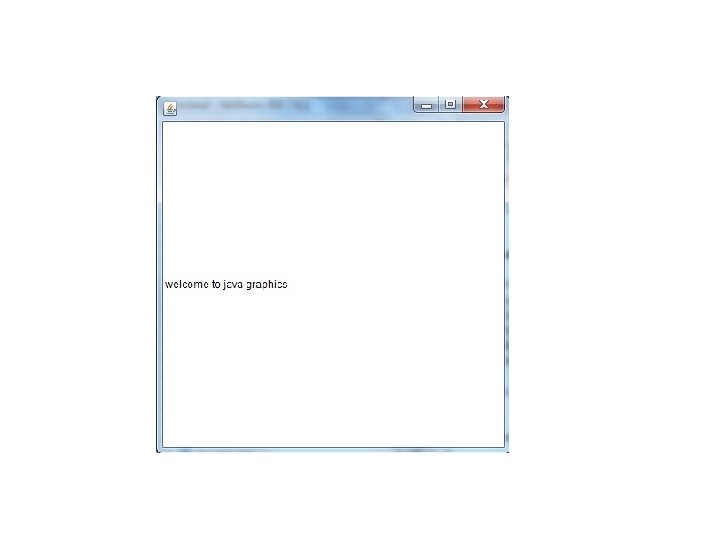
Creating Frame Window by Instantiating Frame class import java. awt. *; public class Testawt { Testawt() { Frame fm=new Frame(); //Creating a frame. Label lb = new Label("welcome to java graphics"); //Creating a label fm. add(lb); //adding label to the frame. fm. set. Size(300, 300); //setting frame size. fm. set. Visible(true); //set frame visibilty true. } public static void main(String args[]) { Testawt ta = new Testawt(); } }
Panels The Panel is the container that doesn't contain title bar and menu bars. It can have other components like button, textfield etc. Panel a. Panel = new Panel(); a. Panel. add(new Button("Ok")); a. Panel. add(new Button("Cancel")); Frame a. Frame = new Frame("Button Test"); a. Frame. set. Size(100, 100); a. Frame. set. Location(10, 10); a. Frame. add(a. Panel);
Buttons This class represents a push-button which displays some specified text. Constructors 1) Button() Constructs a button with an empty string for its label. 2) Button(String text) Constructs a new button with specified label. Panel a. Panel = new Panel(); Button ok. Button = new Button("Ok"); Button cancel. Button = new Button("Cancel"); a. Panel. add(ok. Button)); a. Panel. add(cancel. Button));
Labels This class is a Component which displays a single line of text. Labels are read-only. That is, the user cannot click on a label to edit the text it displays. Text can be aligned within the label Constructors 1) Label() Constructs an empty label. 2)Label(String text) Constructs a new label with the specified string of text, left justified. 3)Label(String text, int alignment) Constructs a new label that presents the specified string of text with the specified alignment.
Label Ll = new Label("Enter password: "); Ll. set. Alignment(Label. RIGHT); Ll. add(a. Label);
List This class is a Component which displays a list of Strings. The list is scrollable, if necessary. Sometimes called Listbox in other languages. Lists can be set up to allow single or multiple selections. The list will return an array indicating which Strings are selected Constructors 1) List() Creates a new scrolling list. 2) List(int rows) Creates a new scrolling list initialized with the specified number of visible lines. 3 List(int rows, boolean multiple. Mode) Creates a new scrolling list initialized to display the specified number of rows.
List L 1 = new List(); L 1. add(“India"); L 1. add(“UK"); L 1 t. add(“USA");
Checkbox This class represents a GUI checkbox with a textual label. The Checkbox maintains a boolean state indicating whether it is checked or not. If a Checkbox is added to a Check. Box. Group, it will behave like a radio button. Constructors 1) Checkbox() Creates a check box with an empty string for its label. 2) Checkbox(String label) Creates a check box with the specified label. 3)Checkbox(String label, boolean state) Creates a check box with the specified label and sets the specified state.
4) Checkbox(String label, boolean state, Checkbox. Group group) Constructs a Checkbox with the specified label, set to the specified state, and in the specified check box group. 5)Checkbox(String label, Checkbox. Group group, boolean state) Creates a check box with the specified label, in the specified check box group, and set to the specified state. Checkbox cream. Checkbox = new Check. Box("Cream"); Checkbox sugar. Checkbox = new Check. Box("Sugar"); if (cream. Checkbox. get. State()) { coffee. add. Cream(); }
Choice This class represents a dropdown list of Strings. Similar to a list in terms of functionality, but displayed differently. Only one item from the list can be selected at one time and the currently selected element is displayed. Choice C 1 = new Choice(); C 1. add(“India"); C 1. add(“UK"); C 1. add(“USA");
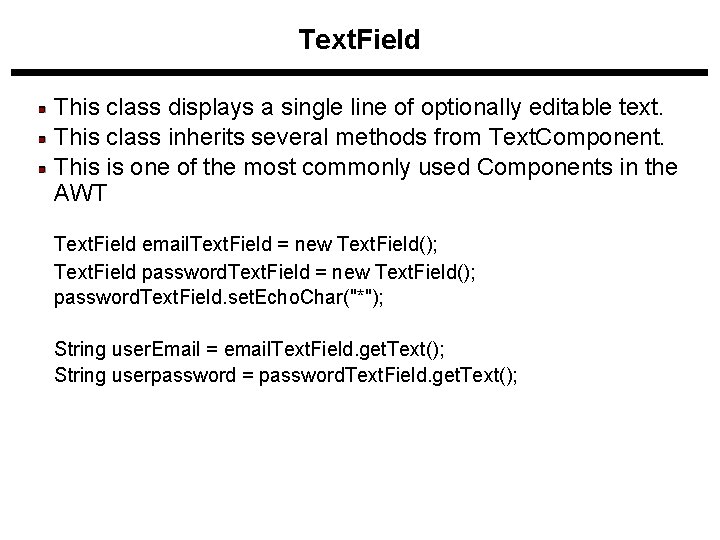
Text. Field This class displays a single line of optionally editable text. This class inherits several methods from Text. Component. This is one of the most commonly used Components in the AWT Text. Field email. Text. Field = new Text. Field(); Text. Field password. Text. Field = new Text. Field(); password. Text. Field. set. Echo. Char("*"); String user. Email = email. Text. Field. get. Text(); String userpassword = password. Text. Field. get. Text();
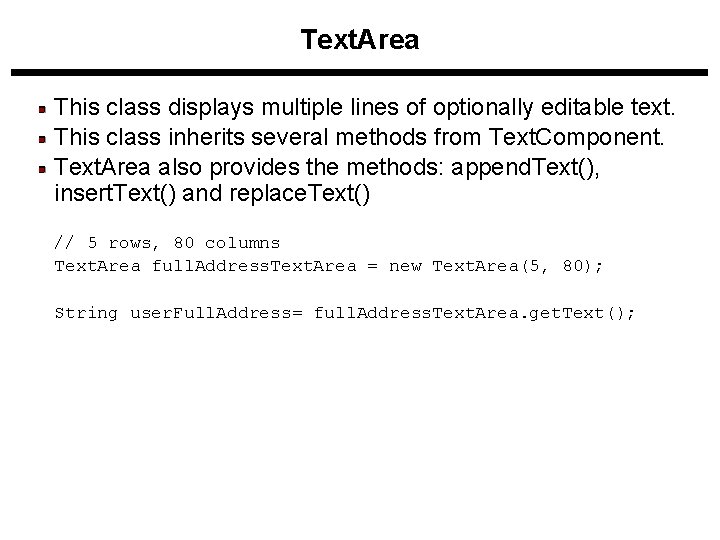
Text. Area This class displays multiple lines of optionally editable text. This class inherits several methods from Text. Component. Text. Area also provides the methods: append. Text(), insert. Text() and replace. Text() // 5 rows, 80 columns Text. Area full. Address. Text. Area = new Text. Area(5, 80); String user. Full. Address= full. Address. Text. Area. get. Text();
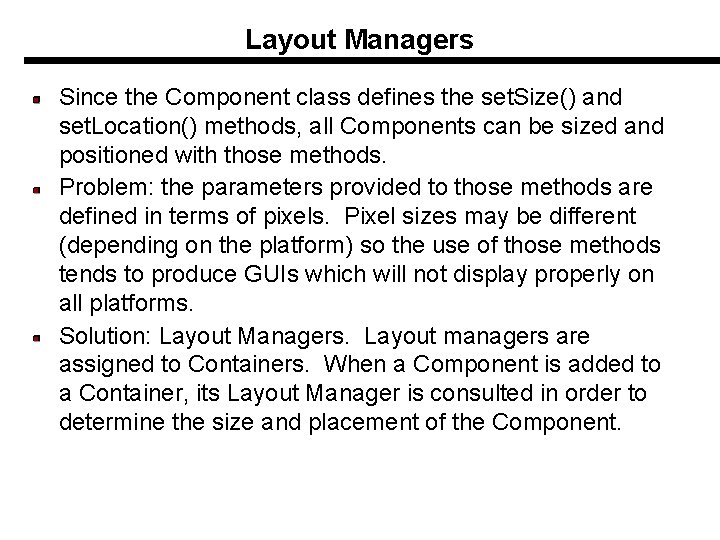
Layout Managers Since the Component class defines the set. Size() and set. Location() methods, all Components can be sized and positioned with those methods. Problem: the parameters provided to those methods are defined in terms of pixels. Pixel sizes may be different (depending on the platform) so the use of those methods tends to produce GUIs which will not display properly on all platforms. Solution: Layout Managers. Layout managers are assigned to Containers. When a Component is added to a Container, its Layout Manager is consulted in order to determine the size and placement of the Component.
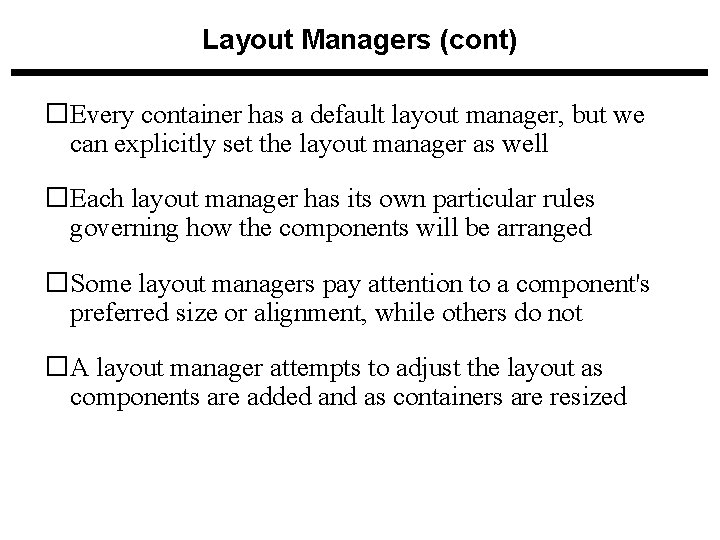
Layout Managers (cont) �Every container has a default layout manager, but we can explicitly set the layout manager as well �Each layout manager has its own particular rules governing how the components will be arranged �Some layout managers pay attention to a component's preferred size or alignment, while others do not �A layout manager attempts to adjust the layout as components are added and as containers are resized
Layout Managers (cont) There are several different Layout. Managers, each of which sizes and positions its Components based on an algorithm: Flow. Layout Border. Layout Grid. Layout Card. Layout Grid. Bag. Layout For Windows and Frames, the default Layout. Manager is Border. Layout. For Panels, the default Layout. Manager is Flow. Layout.
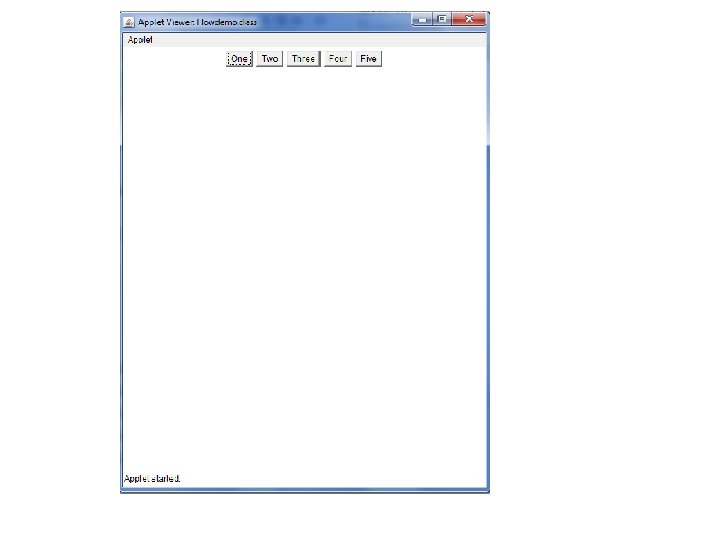
Flow Layout The algorithm used by the Flow. Layout is to lay out Components like words on a page: Left to right, top to bottom. It fits as many Components into a given row before moving to the next row. Rows are created as needed to accommodate all of the components Components are displayed in the order they are added to the container Each row of components is centered horizontally in the window by default, but could also be aligned left or right Also, the horizontal and vertical gaps between the components can be explicitly set
Flow. Layout class contains three constants you can use to align Components �Flow. Layout. LEFT �Flow. Layout. CENTER �Flow. Layout. RIGHT �If you do not specify alignment, Components are center-aligned in a Flow. Layout Container by default
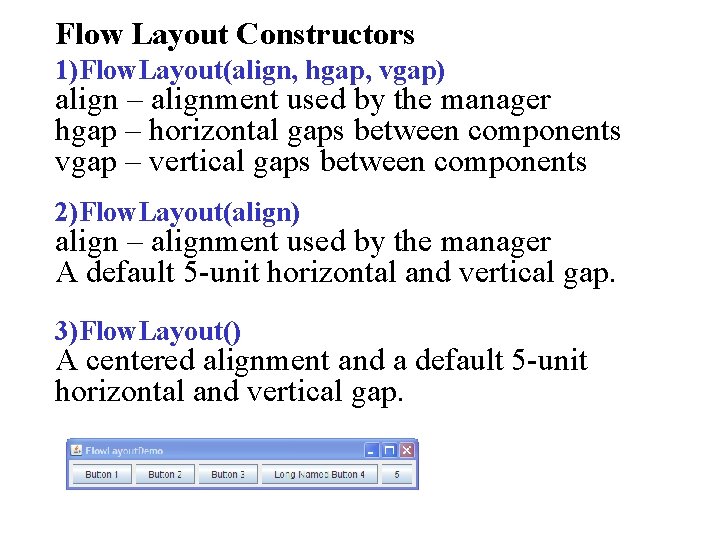
Flow Layout Constructors 1)Flow. Layout(align, hgap, vgap) align – alignment used by the manager hgap – horizontal gaps between components vgap – vertical gaps between components 2)Flow. Layout(align) align – alignment used by the manager A default 5 -unit horizontal and vertical gap. 3)Flow. Layout() A centered alignment and a default 5 -unit horizontal and vertical gap.
import java. awt. *; import java. applet. *; public class Flowdemo extends Applet { public void init() { // Default for Applet is Flow. Layout Button b 1=new Button("One"); Button b 2= new Button("Two"); Button b 3=new Button("Three"); Button b 4= new Button("Four"); Button b 5=new Button("Five"); add(b 1); add(b 2); add(b 3); add(b 4); add(b 5); } } /* <applet code="Flowdemo. class" width=500 height=600></applet>*/
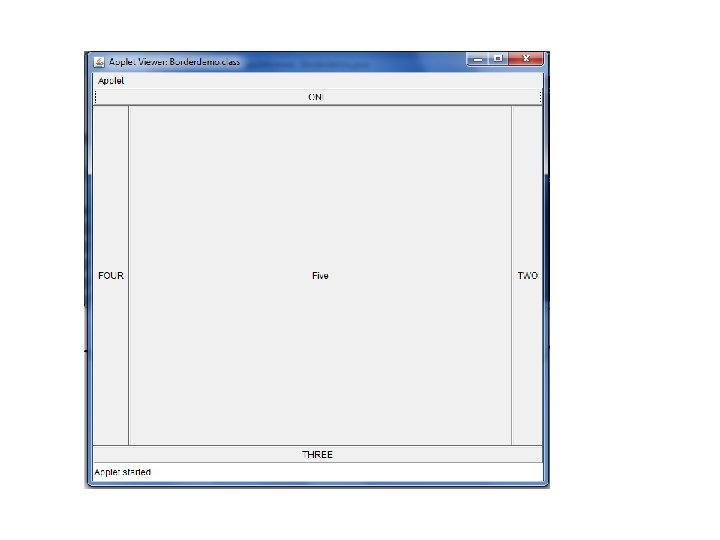
Border Layout The Border. Layout Manager breaks the Container into 5 regions (North, South, East, West, and Center). When you add a component to a container that uses Border. Layout, the add() method uses two arguments the component and the region to which the component is added Frame a. Frame = new Frame(); a. Frame. add("North", new Button("Ok")); a. Frame. add("South", new Button("Add")); a. Frame. add("East", new Button("Delete")); a. Frame. add("West", new Button("Cancel"));
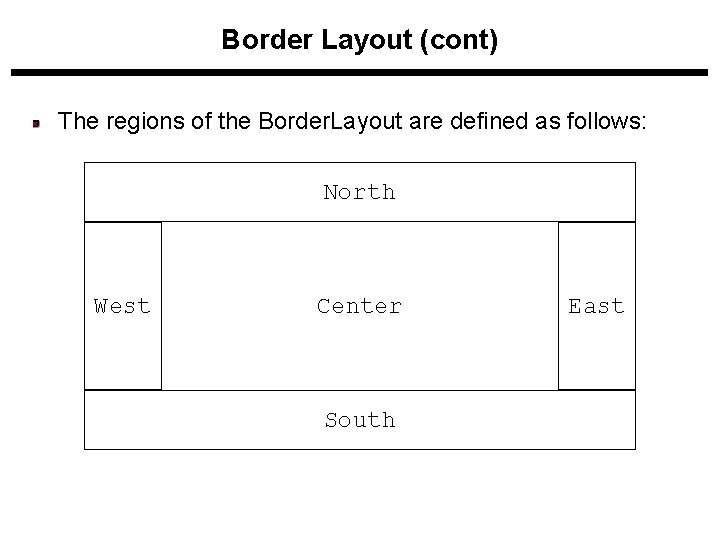
Border Layout (cont) The regions of the Border. Layout are defined as follows: North West Center South East
Border Layout Constructors 1)Border. Layout(hgap, vgap) hgap – horizontal gaps between components vgap – vertical gaps between components 2)Border. Layout() No vertical or horizontal gaps.
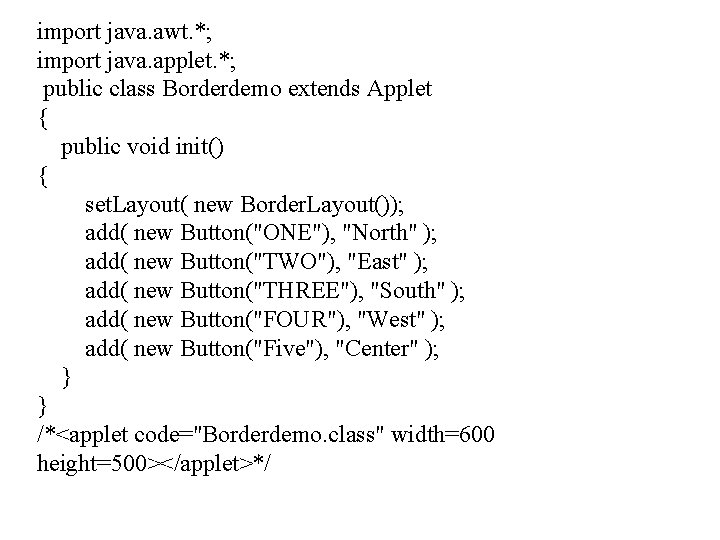
import java. awt. *; import java. applet. *; public class Borderdemo extends Applet { public void init() { set. Layout( new Border. Layout()); add( new Button("ONE"), "North" ); add( new Button("TWO"), "East" ); add( new Button("THREE"), "South" ); add( new Button("FOUR"), "West" ); add( new Button("Five"), "Center" ); } } /*<applet code="Borderdemo. class" width=600 height=500></applet>*/
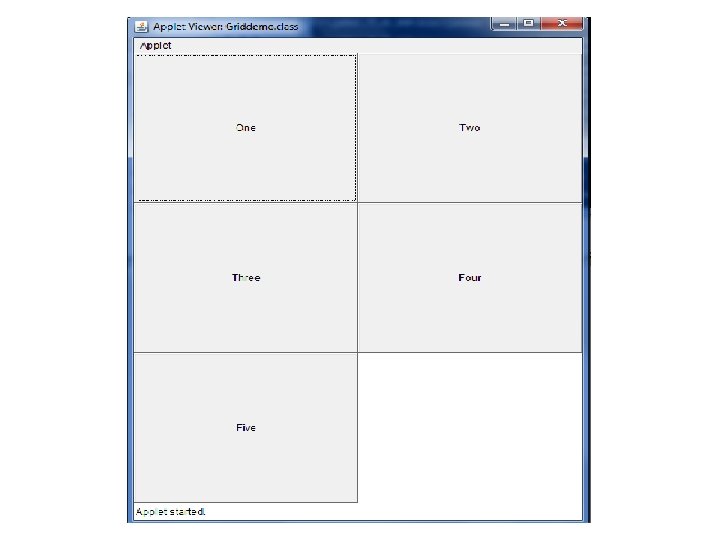
Grid Layout The Grid. Layout class divides the region into a grid of equally sized rows and columns. Components are added left-to-right, top-to-bottom. The number of rows and columns is specified in the constructor for the Layout. Manager. You cannot skip a position or specify an exact position for a component You can add a blank label to a grid position and give the illusion of skipping a position
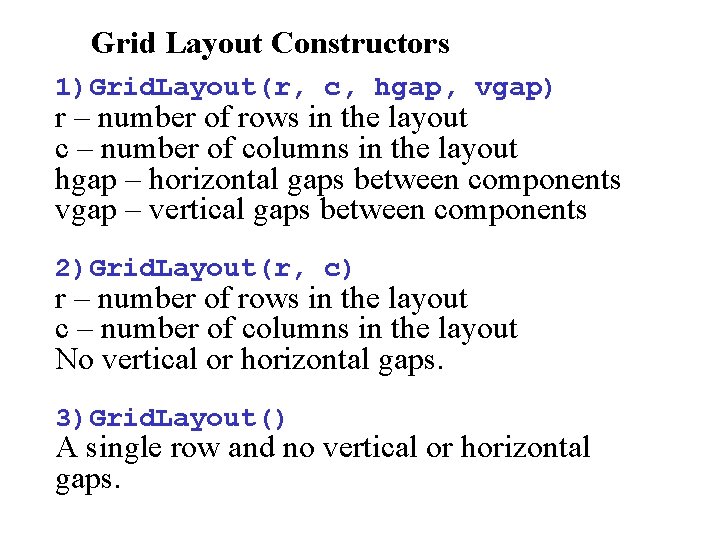
Grid Layout Constructors 1)Grid. Layout(r, c, hgap, vgap) r – number of rows in the layout c – number of columns in the layout hgap – horizontal gaps between components vgap – vertical gaps between components 2)Grid. Layout(r, c) r – number of rows in the layout c – number of columns in the layout No vertical or horizontal gaps. 3)Grid. Layout() A single row and no vertical or horizontal gaps.
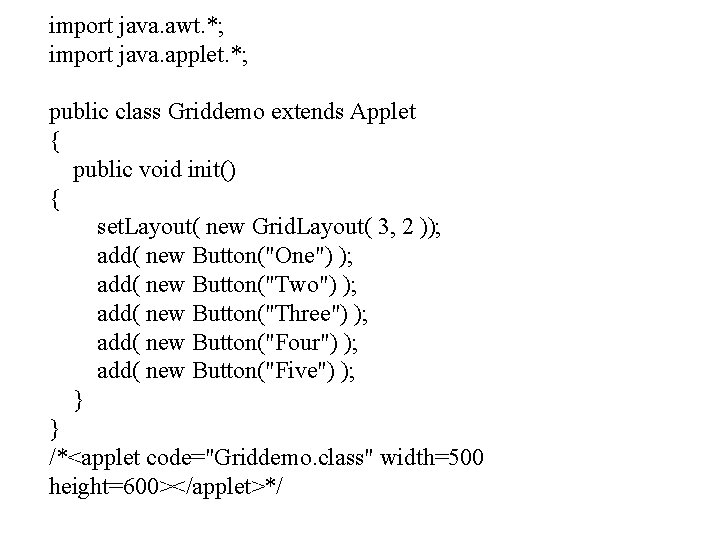
import java. awt. *; import java. applet. *; public class Griddemo extends Applet { public void init() { set. Layout( new Grid. Layout( 3, 2 )); add( new Button("One") ); add( new Button("Two") ); add( new Button("Three") ); add( new Button("Four") ); add( new Button("Five") ); } } /*<applet code="Griddemo. class" width=500 height=600></applet>*/
Card Layout You use Card. Layout when you want multiple compnoents to share the same display space If multiple containers exist in the application but only one is to be displayed at a time, you could use Card. Layout The Card. Layout manager generates a stack of containers or components, one on top of another Each component is a ‘card’ and each ‘card’ can be any component type ex. , JButton, JLabel, or JPanel
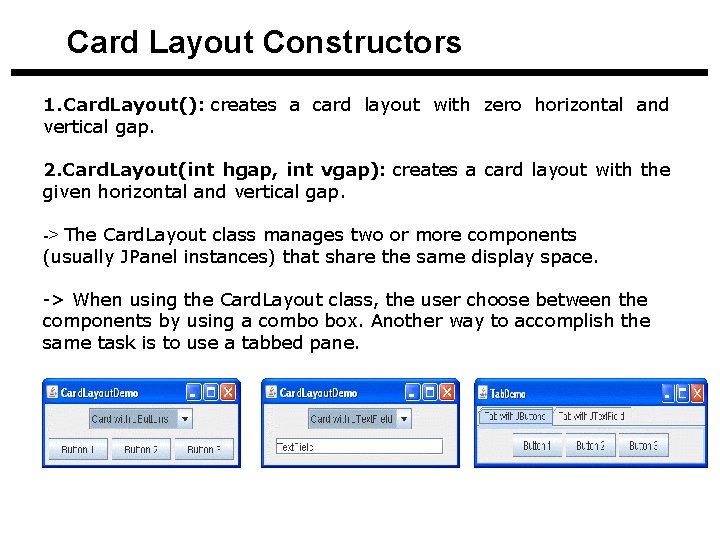
Card Layout Constructors 1. Card. Layout(): creates a card layout with zero horizontal and vertical gap. 2. Card. Layout(int hgap, int vgap): creates a card layout with the given horizontal and vertical gap. -> The Card. Layout class manages two or more components (usually JPanel instances) that share the same display space. -> When using the Card. Layout class, the user choose between the components by using a combo box. Another way to accomplish the same task is to use a tabbed pane.
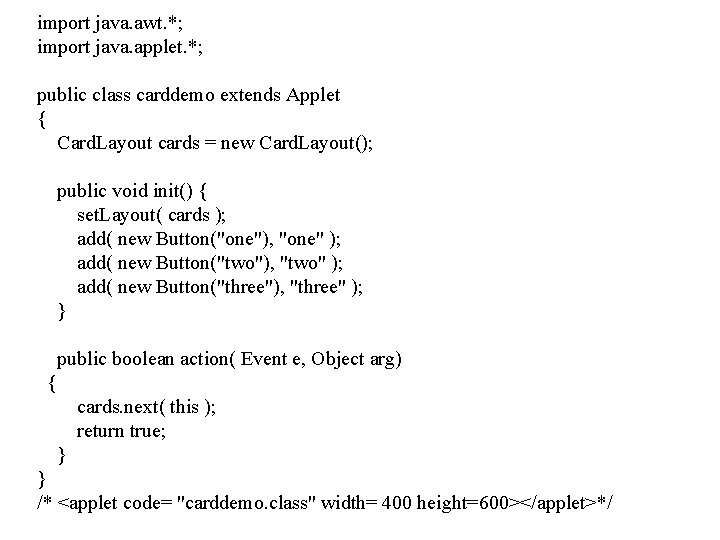
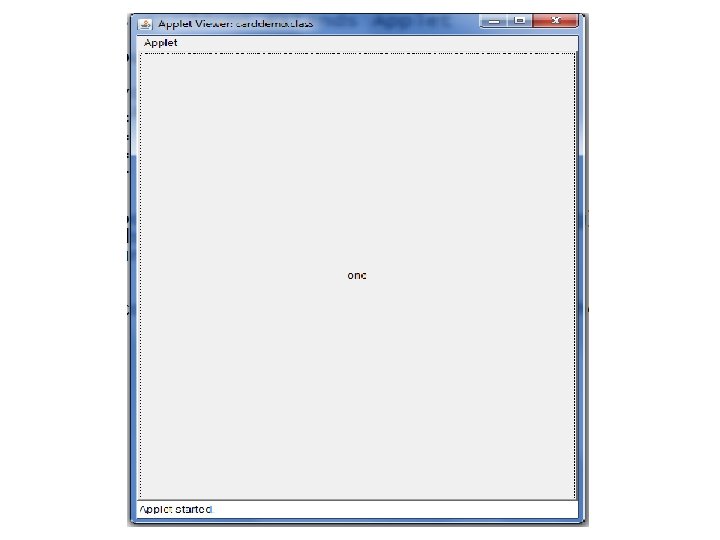
import java. awt. *; import java. applet. *; public class carddemo extends Applet { Card. Layout cards = new Card. Layout(); public void init() { set. Layout( cards ); add( new Button("one"), "one" ); add( new Button("two"), "two" ); add( new Button("three"), "three" ); } public boolean action( Event e, Object arg) { cards. next( this ); return true; } } /* <applet code= "carddemo. class" width= 400 height=600></applet>*/
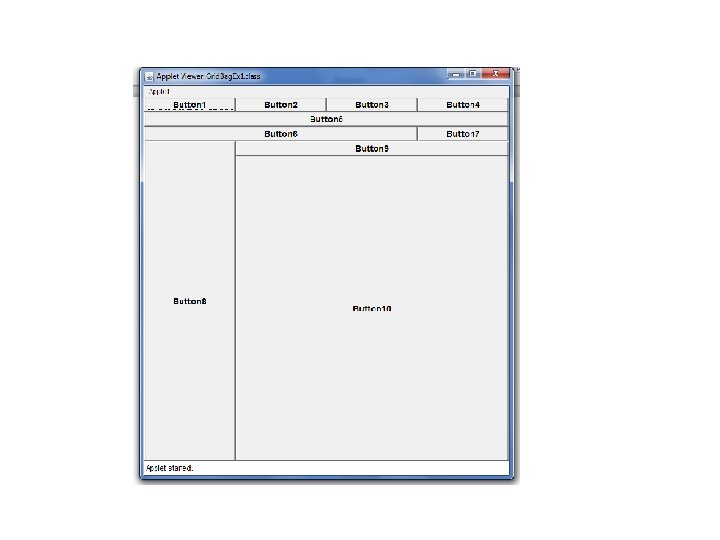
Grid. Bag Layout The Grid. Bag. Layout is one of the most complex and flexible layout managers There is a grid of rows and columns, but the heights and widths do not have to be the same. Components can take up multiple cells as well Grid. Bag. Layout tries to acknowledge the preferred height and width of the components Each component gets added to the grid with a Grid. Bag. Constraints object to set the parameters for the component
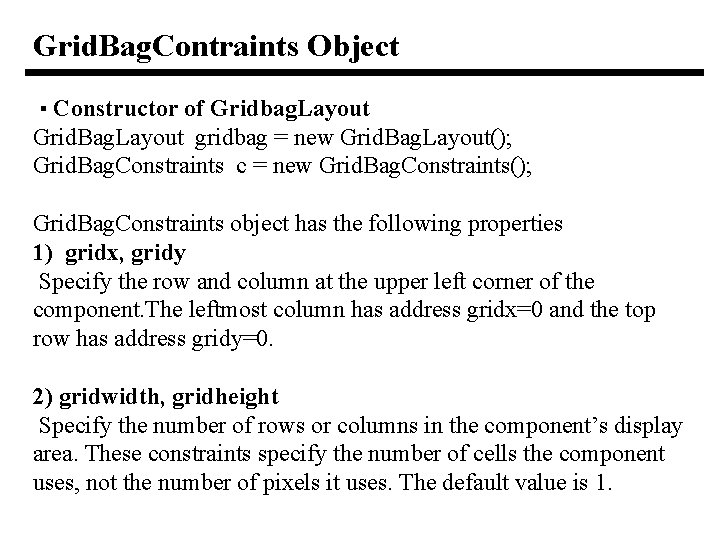
Grid. Bag. Contraints Object ▪ Constructor of Gridbag. Layout Grid. Bag. Layout gridbag = new Grid. Bag. Layout(); Grid. Bag. Constraints c = new Grid. Bag. Constraints(); Grid. Bag. Constraints object has the following properties 1) gridx, gridy Specify the row and column at the upper left corner of the component. The leftmost column has address gridx=0 and the top row has address gridy=0. 2) gridwidth, gridheight Specify the number of rows or columns in the component’s display area. These constraints specify the number of cells the component uses, not the number of pixels it uses. The default value is 1.
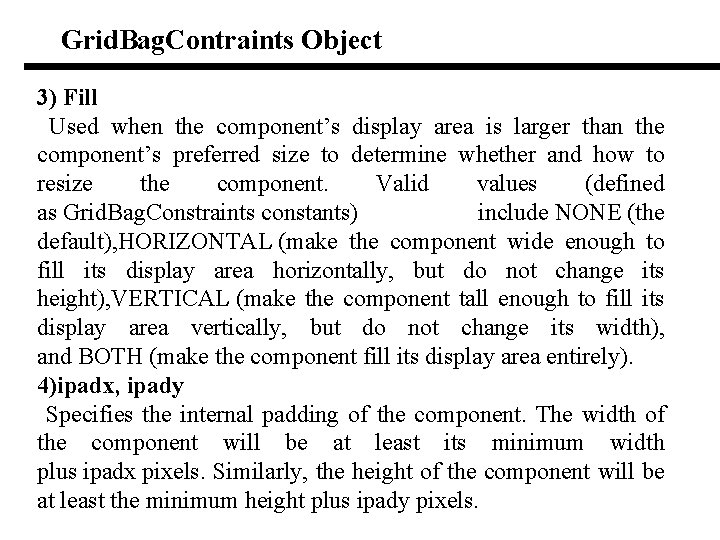
Grid. Bag. Contraints Object 3) Fill Used when the component’s display area is larger than the component’s preferred size to determine whether and how to resize the component. Valid values (defined as Grid. Bag. Constraints constants) include NONE (the default), HORIZONTAL (make the component wide enough to fill its display area horizontally, but do not change its height), VERTICAL (make the component tall enough to fill its display area vertically, but do not change its width), and BOTH (make the component fill its display area entirely). 4)ipadx, ipady Specifies the internal padding of the component. The width of the component will be at least its minimum width plus ipadx pixels. Similarly, the height of the component will be at least the minimum height plus ipady pixels.
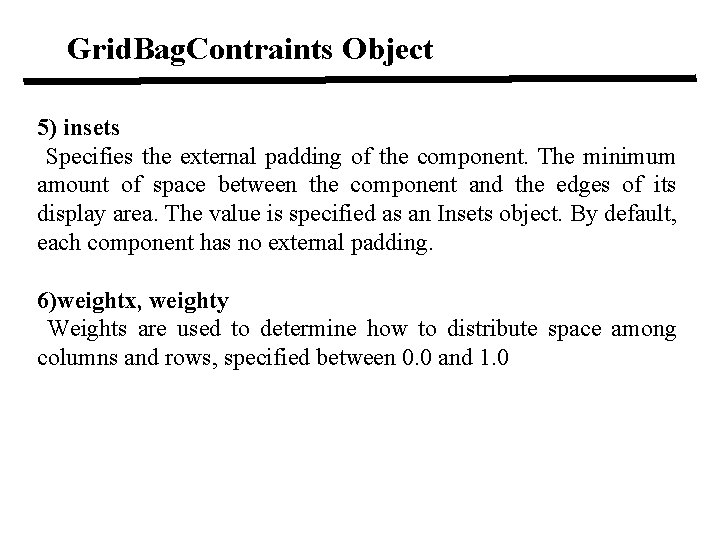
Grid. Bag. Contraints Object 5) insets Specifies the external padding of the component. The minimum amount of space between the component and the edges of its display area. The value is specified as an Insets object. By default, each component has no external padding. 6)weightx, weighty Weights are used to determine how to distribute space among columns and rows, specified between 0. 0 and 1. 0
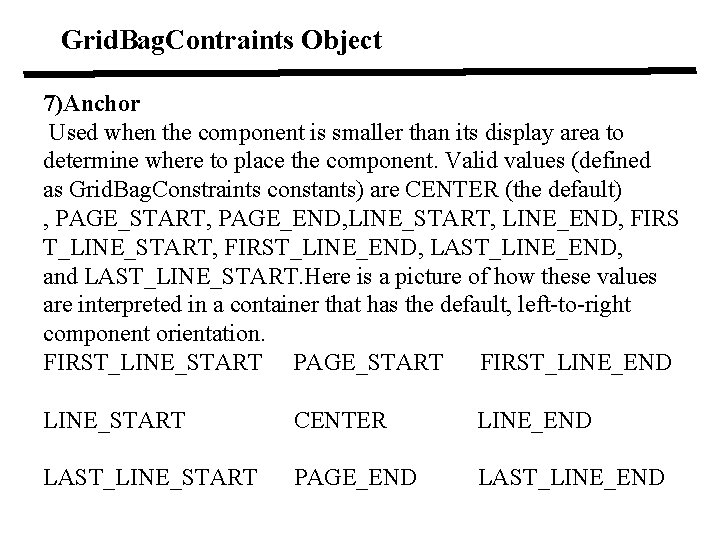
Grid. Bag. Contraints Object 7)Anchor Used when the component is smaller than its display area to determine where to place the component. Valid values (defined as Grid. Bag. Constraints constants) are CENTER (the default) , PAGE_START, PAGE_END, LINE_START, LINE_END, FIRS T_LINE_START, FIRST_LINE_END, LAST_LINE_END, and LAST_LINE_START. Here is a picture of how these values are interpreted in a container that has the default, left-to-right component orientation. FIRST_LINE_START PAGE_START FIRST_LINE_END LINE_START CENTER LINE_END LAST_LINE_START PAGE_END LAST_LINE_END
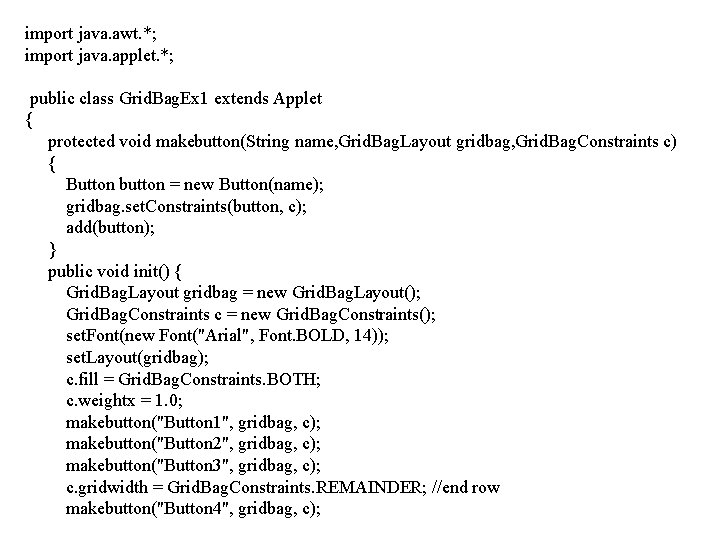
import java. awt. *; import java. applet. *; public class Grid. Bag. Ex 1 extends Applet { protected void makebutton(String name, Grid. Bag. Layout gridbag, Grid. Bag. Constraints c) { Button button = new Button(name); gridbag. set. Constraints(button, c); add(button); } public void init() { Grid. Bag. Layout gridbag = new Grid. Bag. Layout(); Grid. Bag. Constraints c = new Grid. Bag. Constraints(); set. Font(new Font("Arial", Font. BOLD, 14)); set. Layout(gridbag); c. fill = Grid. Bag. Constraints. BOTH; c. weightx = 1. 0; makebutton("Button 1", gridbag, c); makebutton("Button 2", gridbag, c); makebutton("Button 3", gridbag, c); c. gridwidth = Grid. Bag. Constraints. REMAINDER; //end row makebutton("Button 4", gridbag, c);
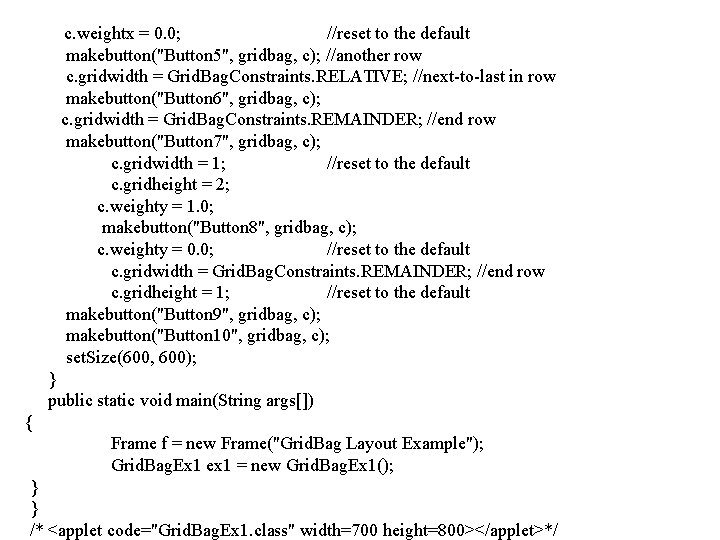
c. weightx = 0. 0; //reset to the default makebutton("Button 5", gridbag, c); //another row c. gridwidth = Grid. Bag. Constraints. RELATIVE; //next-to-last in row makebutton("Button 6", gridbag, c); c. gridwidth = Grid. Bag. Constraints. REMAINDER; //end row makebutton("Button 7", gridbag, c); c. gridwidth = 1; //reset to the default c. gridheight = 2; c. weighty = 1. 0; makebutton("Button 8", gridbag, c); c. weighty = 0. 0; //reset to the default c. gridwidth = Grid. Bag. Constraints. REMAINDER; //end row c. gridheight = 1; //reset to the default makebutton("Button 9", gridbag, c); makebutton("Button 10", gridbag, c); set. Size(600, 600); } public static void main(String args[]) { Frame f = new Frame("Grid. Bag Layout Example"); Grid. Bag. Ex 1 ex 1 = new Grid. Bag. Ex 1(); } } /* <applet code="Grid. Bag. Ex 1. class" width=700 height=800></applet>*/
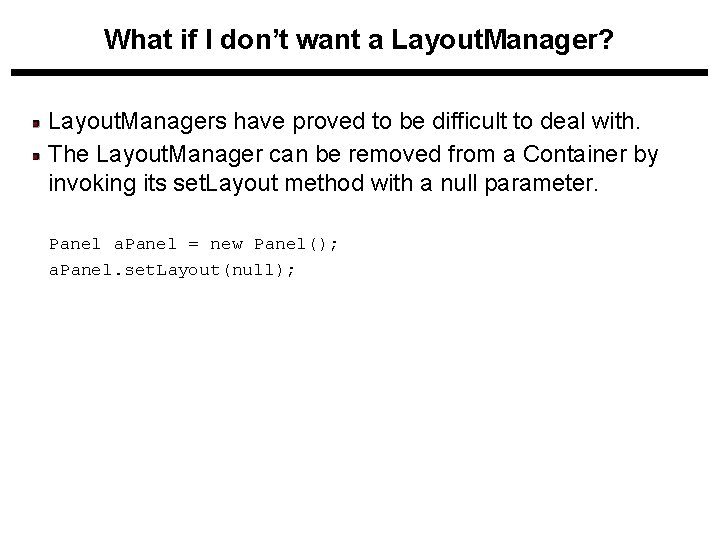
What if I don’t want a Layout. Manager? Layout. Managers have proved to be difficult to deal with. The Layout. Manager can be removed from a Container by invoking its set. Layout method with a null parameter. Panel a. Panel = new Panel(); a. Panel. set. Layout(null);

Menubars q Menus are a number of pull-down combo boxes (In Java called as Choice) placed at single place for easy selection by the user. q To create menus, the java. awt package comes with mainly four classes – Menu. Bar, Menu. Item and Checkbox. Menu. Item. q All these four classes are not AWT components as they are not subclasses of java. awt. Component class. q They are subclasses of java. awt. Menu. Component. 1) Menu. Bar: Menu. Bar holds the menus. Menu. Bar is added to frame with set. Menu. Bar() method. Implicitly, the menu bar is added to the north (top) of the frame. Menu. Bar cannot be added to other sides like south and west etc. 2) Menu: Menu holds the menu items. Menu is added to frame with add() method. A sub-menu can be added to Menu.
Menubars 3) Menu. Item: Menu. Item displays the actual option user can select. Menu items are added to menu with method add. Menu. Item(). A dull-colored line can be added in between menu items with add. Separator() method. 4) Checkbox. Menu. Item: It differs from Menu. Item in that it appears along with a checkbox. The selection can be done with checkbox selected.
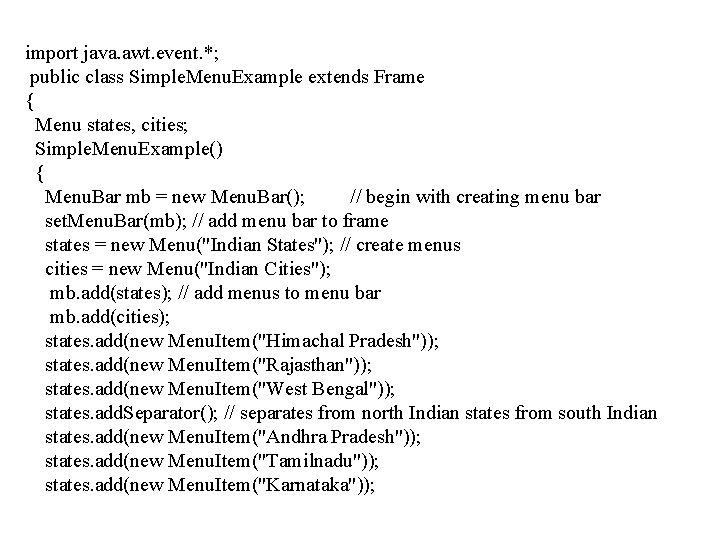
import java. awt. event. *; public class Simple. Menu. Example extends Frame { Menu states, cities; Simple. Menu. Example() { Menu. Bar mb = new Menu. Bar(); // begin with creating menu bar set. Menu. Bar(mb); // add menu bar to frame states = new Menu("Indian States"); // create menus cities = new Menu("Indian Cities"); mb. add(states); // add menus to menu bar mb. add(cities); states. add(new Menu. Item("Himachal Pradesh")); states. add(new Menu. Item("Rajasthan")); states. add(new Menu. Item("West Bengal")); states. add. Separator(); // separates from north Indian states from south Indian states. add(new Menu. Item("Andhra Pradesh")); states. add(new Menu. Item("Tamilnadu")); states. add(new Menu. Item("Karnataka"));
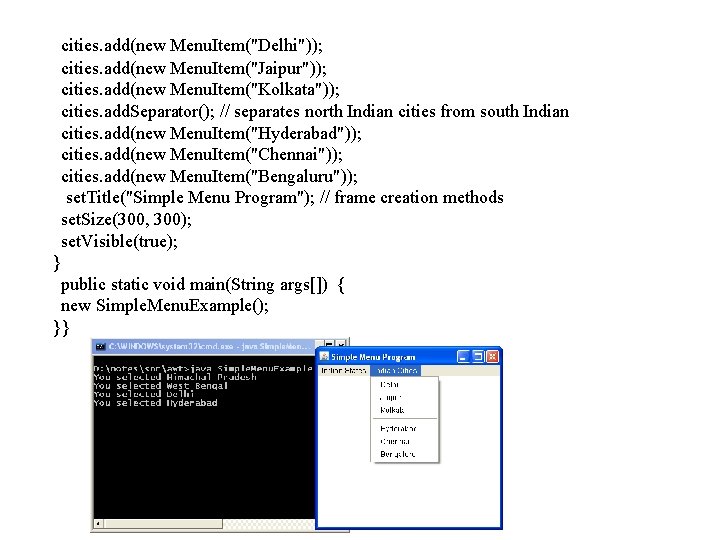
cities. add(new Menu. Item("Delhi")); cities. add(new Menu. Item("Jaipur")); cities. add(new Menu. Item("Kolkata")); cities. add. Separator(); // separates north Indian cities from south Indian cities. add(new Menu. Item("Hyderabad")); cities. add(new Menu. Item("Chennai")); cities. add(new Menu. Item("Bengaluru")); set. Title("Simple Menu Program"); // frame creation methods set. Size(300, 300); set. Visible(true); } public static void main(String args[]) { new Simple. Menu. Example(); }}
Dialog boxes and File Dialog q Dialog boxes are pop-up windows on the screen that appear for a small time to take either input or display output while a main application is running. q Dialog boxes are generally used to draw special attention of the user like displaying warnings. q Dialog box is a top-level window that comes with a border including a title bar. The dialog box can be made non-resizable and the default layout manager is Border. Layout. q A dialog box works within a main program. It cannot be created as a standalone application. q It is a child window and must be connected to a main program or to a parent window. Frame is a parent window as it can work independently. q For example, the Find and Replace Dialog box cannot be obtained without opening MS-Word document. Likewise, File Deletion Confirmation box cannot appear without deleting a file.
Types of Dialog boxes Two types of dialog boxes exist 1)Modal 2)Modeless. -> Modal dialog box does not allow the user to do any activity without dismissing (closing) it; example is File Deletion Confirmation dialog box. -> Modeless dialog box permits the user to do any activity without closing it; example is Find and Replace dialog box of MS Word. Java supports both styles of dialog boxes. ->One more dialog box exists with AWT, known as File dialog which gets the platform dependent file searching dialog box.
Swings in Java q Java Swing is a part of Java Foundation Classes (JFC) that is used to create window-based applications. It is built on the top of AWT (Abstract Windowing Toolkit) API and entirely written in java. q Unlike AWT, Java Swing provides platform-independent and lightweight components. q The javax. swing package provides classes for java swing API such as JButton, JText. Field, JText. Area, JRadio. Button, JCheckbox, Jmenu etc.
Swing Features 1. Light Weight - Swing component are independent of native Operating System's API as Swing API controls are rendered mostly using pure JAVA code instead of underlying operating system calls. 2. Rich controls - Swing provides a rich set of advanced controls like Tree, Tabbed. Pane, slider, colorpicker, table controls etc. 3. Highly Customizable - Swing controls can be customized in very easy way as visual apperance is independent of internal representation. 4. Pluggable look-and-feel- SWING based GUI Application look and feel can be changed at run time based on available values.
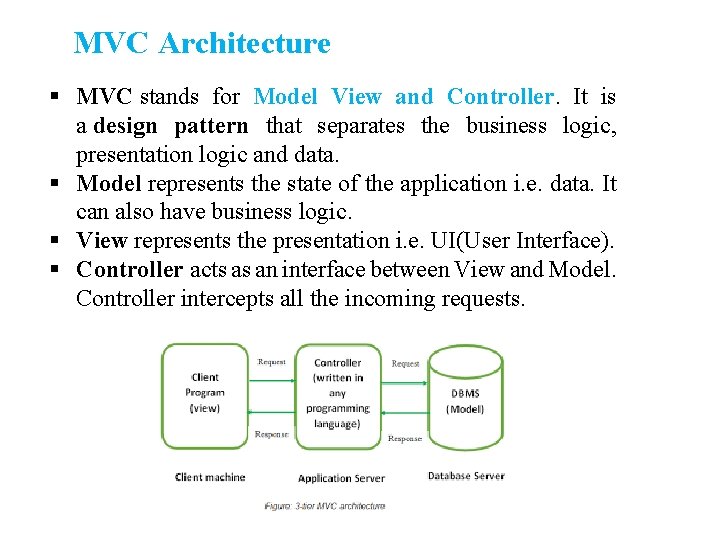
MVC Architecture § MVC stands for Model View and Controller. It is a design pattern that separates the business logic, presentation logic and data. § Model represents the state of the application i. e. data. It can also have business logic. § View represents the presentation i. e. UI(User Interface). § Controller acts as an interface between View and Model. Controller intercepts all the incoming requests.
Swing Components 1) JButton class provides functionality of a button. JButton class has three constuctors. i) JButton(Icon ic) ii) JButton(String str) iii) JButton(String str, Icon ic) It allows a button to be created using icon, a string or both. JButton supports Action. Event. When a button is pressed an Action. Event is generated.
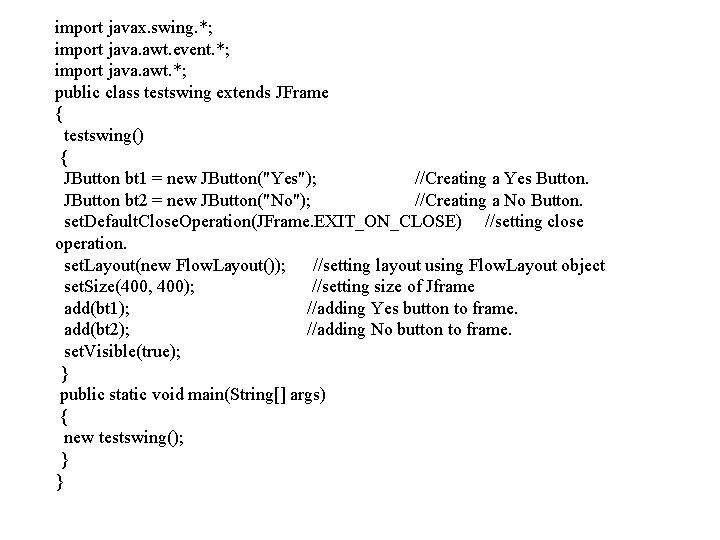
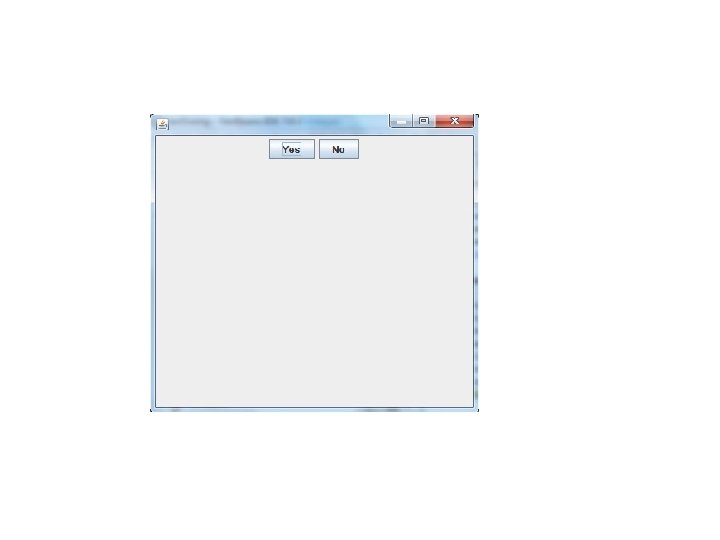
import javax. swing. *; import java. awt. event. *; import java. awt. *; public class testswing extends JFrame { testswing() { JButton bt 1 = new JButton("Yes"); //Creating a Yes Button. JButton bt 2 = new JButton("No"); //Creating a No Button. set. Default. Close. Operation(JFrame. EXIT_ON_CLOSE) //setting close operation. set. Layout(new Flow. Layout()); //setting layout using Flow. Layout object set. Size(400, 400); //setting size of Jframe add(bt 1); //adding Yes button to frame. add(bt 2); //adding No button to frame. set. Visible(true); } public static void main(String[] args) { new testswing(); } }
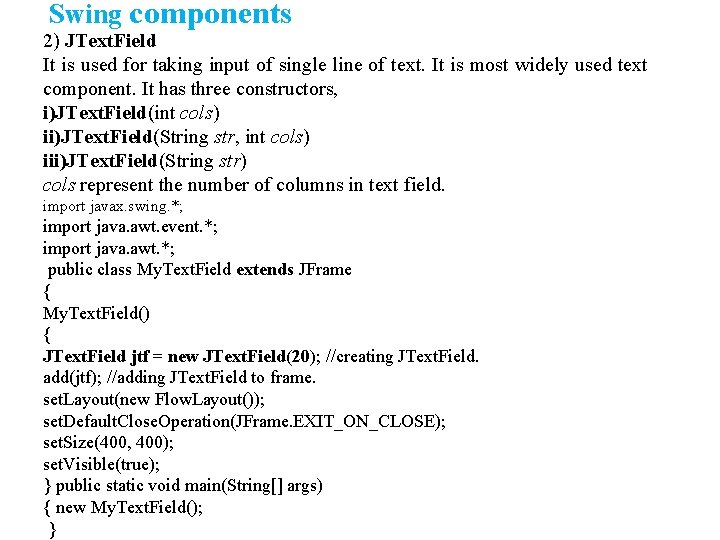
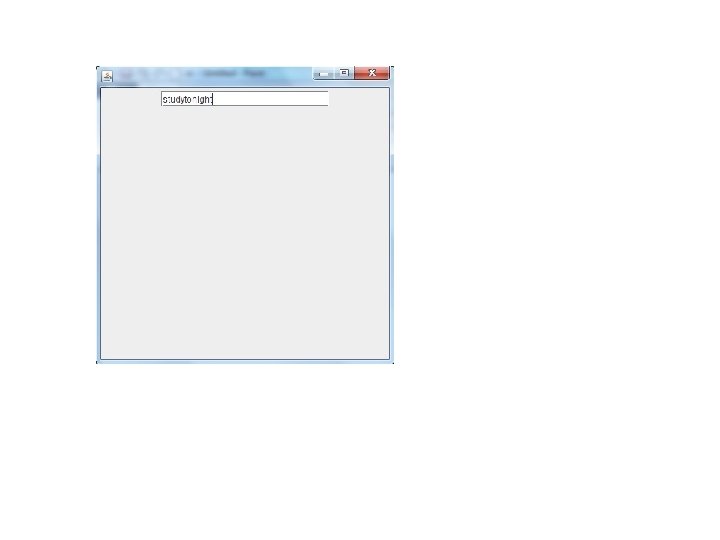
Swing components 2) JText. Field It is used for taking input of single line of text. It is most widely used text component. It has three constructors, i)JText. Field(int cols) ii)JText. Field(String str, int cols) iii)JText. Field(String str) cols represent the number of columns in text field. import javax. swing. *; import java. awt. event. *; import java. awt. *; public class My. Text. Field extends JFrame { My. Text. Field() { JText. Field jtf = new JText. Field(20); //creating JText. Field. add(jtf); //adding JText. Field to frame. set. Layout(new Flow. Layout()); set. Default. Close. Operation(JFrame. EXIT_ON_CLOSE); set. Size(400, 400); set. Visible(true); } public static void main(String[] args) { new My. Text. Field(); }
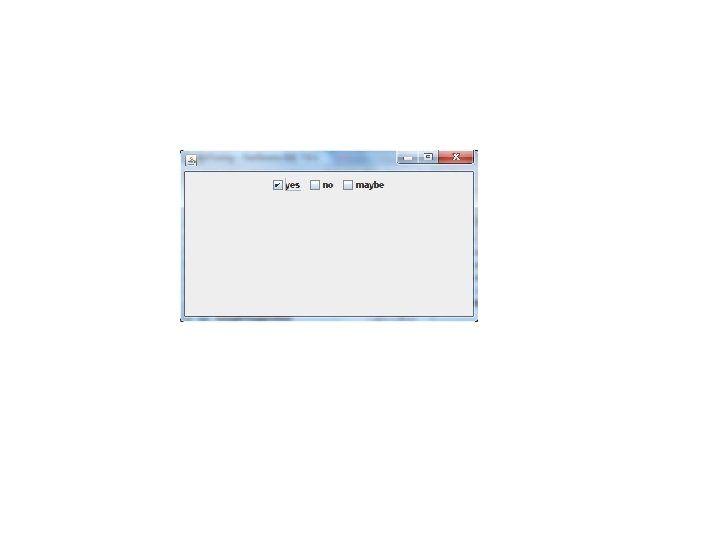
Swing components 3) JCheck. Box class is used to create checkboxes in frame. Following is constructor for JCheck. Box, JCheck. Box(String str);
import javax. swing. *; import java. awt. event. *; import java. awt. *; public class Test extends JFrame { Test() { JCheck. Box jcb = new JCheck. Box("yes"); //creating JCheck. Box. add(jcb); //adding JCheck. Box to frame. jcb = new JCheck. Box("no"); //creating JCheck. Box. add(jcb); //adding JCheck. Box to frame. jcb = new JCheck. Box("maybe"); //creating JCheck. Box. add(jcb); //adding JCheck. Box to frame. set. Layout(new Flow. Layout()); set. Default. Close. Operation(JFrame. EXIT_ON_CLOSE); set. Size(400, 400); set. Visible(true); } public static void main(String[] args) { new Test(); } }
Swing components 4) JRadio. Button Radio button is a group of related button in which only one can be selected. JRadio. Button class is used to create a radio button in Frames. Following is the constructor for JRadio. Button, JRadio. Button(String str)
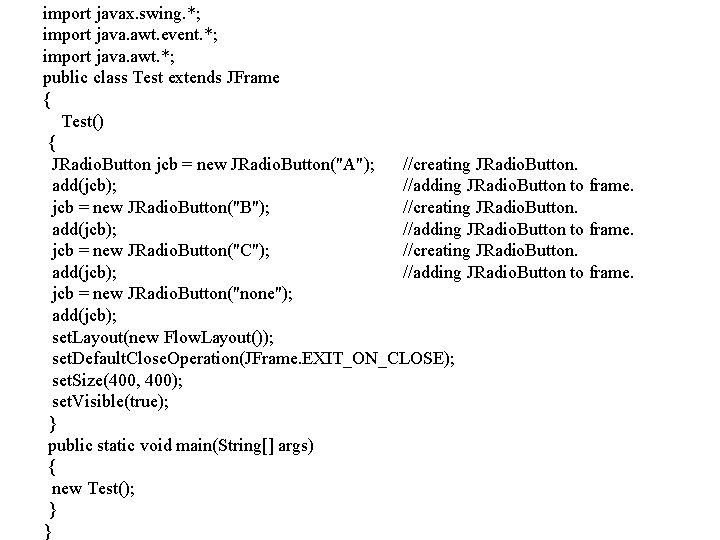
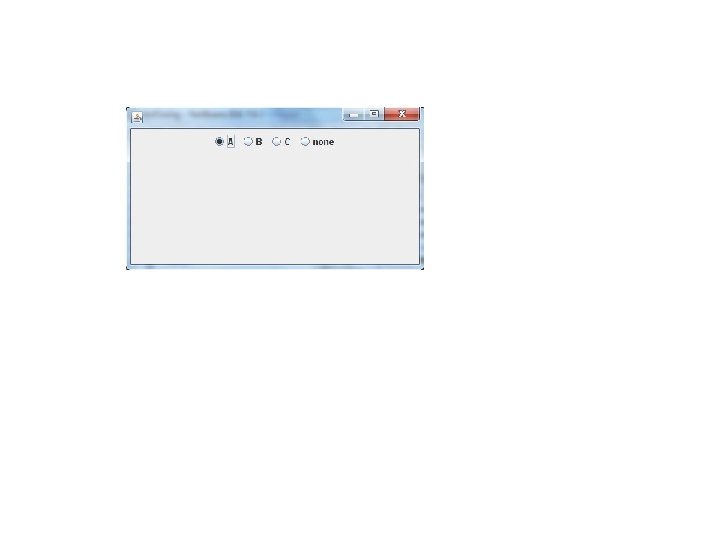
import javax. swing. *; import java. awt. event. *; import java. awt. *; public class Test extends JFrame { Test() { JRadio. Button jcb = new JRadio. Button("A"); //creating JRadio. Button. add(jcb); //adding JRadio. Button to frame. jcb = new JRadio. Button("B"); //creating JRadio. Button. add(jcb); //adding JRadio. Button to frame. jcb = new JRadio. Button("C"); //creating JRadio. Button. add(jcb); //adding JRadio. Button to frame. jcb = new JRadio. Button("none"); add(jcb); set. Layout(new Flow. Layout()); set. Default. Close. Operation(JFrame. EXIT_ON_CLOSE); set. Size(400, 400); set. Visible(true); } public static void main(String[] args) { new Test(); } }
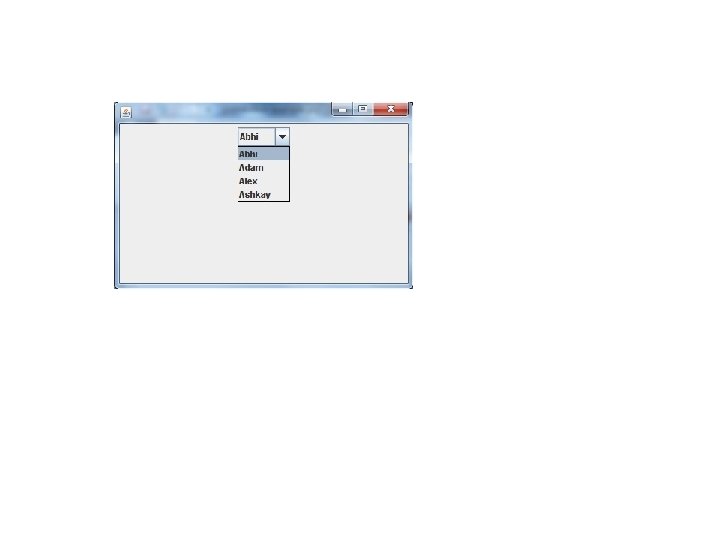
Swing components 5) JCombo. Box Combo box is a combination of text fields and drop-down list. JCombo. Box component is used to create a combo box in Swing. Following is the constructor for JCombo. Box, JCombo. Box(String arr[])
import javax. swing. *; import java. awt. event. *; import java. awt. *; public class Test extends JFrame { String name[] = {"Abhi", "Adam", "Alex", "Ashkay"}; //list of name. Test() { JCombo. Box jc = new JCombo. Box(name); //initialzing combo box with list of name. add(jc); //adding JCombo. Box to frame. set. Layout(new Flow. Layout()); set. Default. Close. Operation(JFrame. EXIT_ON_CLOSE); set. Size(400, 400); set. Visible(true); } public static void main(String[] args) { new Test(); } }
Swing components 6) JProgress. Bar The class JProgress. Bar is a component which visually displays the progress of some task. Constructors : 1) JProgress. Bar() Creates a horizontal progress bar that displays a border but no progress string. 2) JProgress. Bar(int orient) Creates a progress bar with the specified orientation, which can be either Swing. Constants. VERTICAL or Swing. Constants. HORIZONTAL. 3) JProgress. Bar(int min, int max)Creates a horizontal progress bar with the specified minimum and maximum. 4) JProgress. Bar(int orient, int min, int max)Creates a progress bar using the specified orientation, minimum, and maximum.
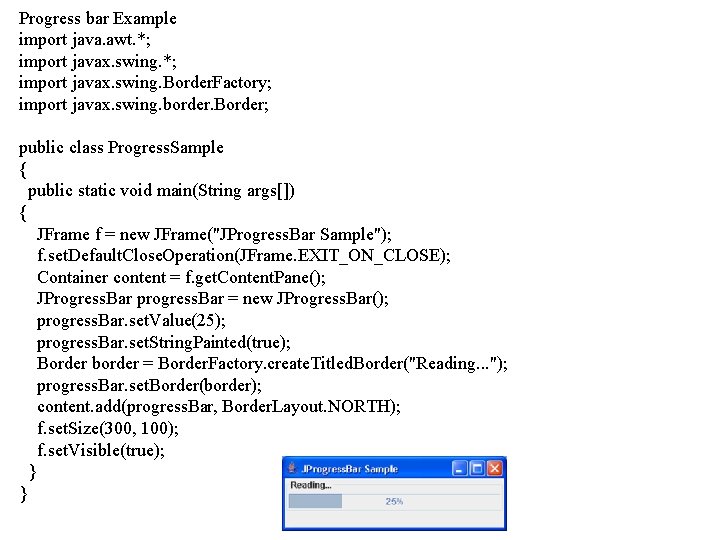
Progress bar Example import java. awt. *; import javax. swing. Border. Factory; import javax. swing. border. Border; public class Progress. Sample { public static void main(String args[]) { JFrame f = new JFrame("JProgress. Bar Sample"); f. set. Default. Close. Operation(JFrame. EXIT_ON_CLOSE); Container content = f. get. Content. Pane(); JProgress. Bar progress. Bar = new JProgress. Bar(); progress. Bar. set. Value(25); progress. Bar. set. String. Painted(true); Border border = Border. Factory. create. Titled. Border("Reading. . . "); progress. Bar. set. Border(border); content. add(progress. Bar, Border. Layout. NORTH); f. set. Size(300, 100); f. set. Visible(true); } }
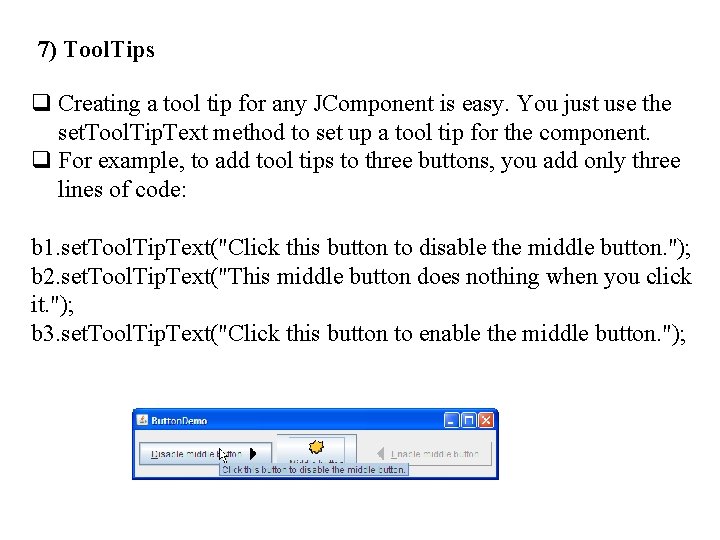
7) Tool. Tips q Creating a tool tip for any JComponent is easy. You just use the set. Tool. Tip. Text method to set up a tool tip for the component. q For example, to add tool tips to three buttons, you add only three lines of code: b 1. set. Tool. Tip. Text("Click this button to disable the middle button. "); b 2. set. Tool. Tip. Text("This middle button does nothing when you click it. "); b 3. set. Tool. Tip. Text("Click this button to enable the middle button. ");
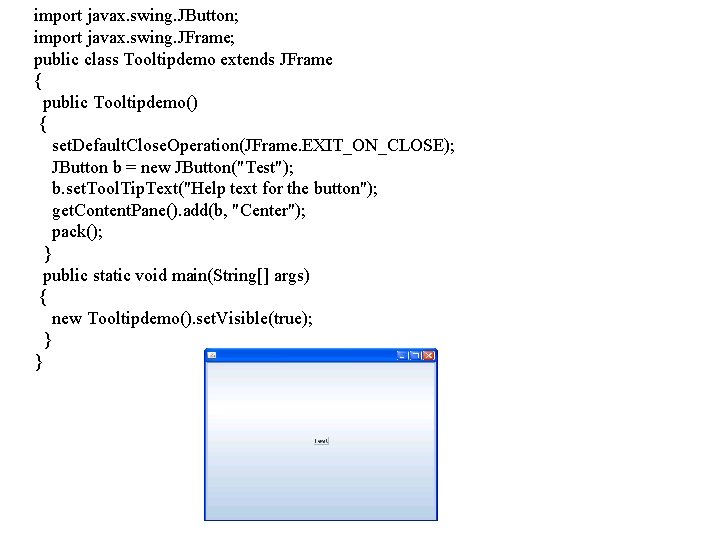
import javax. swing. JButton; import javax. swing. JFrame; public class Tooltipdemo extends JFrame { public Tooltipdemo() { set. Default. Close. Operation(JFrame. EXIT_ON_CLOSE); JButton b = new JButton("Test"); b. set. Tool. Tip. Text("Help text for the button"); get. Content. Pane(). add(b, "Center"); pack(); } public static void main(String[] args) { new Tooltipdemo(). set. Visible(true); } }

8) Seperator q The JSeparator class provides a horizontal or vertical dividing line or empty space. It's most commonly used in menus and tool bars. q We can use separators without even knowing that a JSeparator class exists, since menus and tool bars provide convenience methods that create and add separators customized for their containers. q Separators are somewhat similar to borders, except that they are the components which are drawn inside a container, rather than around the edges of a particular component. Here is a picture of a menu that has three separators, used to divide the menu into four groups of items:

import javax. swing. *; import java. awt. *; public class Separator. Demo { public static void main(String args[]) { JFrame f = new JFrame("JSeparator Sample"); f. set. Default. Close. Operation(JFrame. EXIT_ON_CLOSE); Container content = f. get. Content. Pane(); content. set. Layout(new Grid. Layout(0, 1)); JLabel above = new JLabel("Above Separator"); content. add(above); JSeparator separator = new JSeparator(); content. add(separator); JLabel below = new JLabel("Below Separator"); content. add(below); f. set. Size(300, 100); f. set. Visible(true); } }

9) Jtable 0005976643
- Slides: 98