
Chapter 1 Getting Started with ASP NET 4
- Slides: 25
Chapter 1 Getting Started with ASP. NET 4. 5. 1
Objectives • Why ASP? • To get familiar with our IDE (Integrated Development Environment ), Visual Studio. • Understand how to create a new Website with the. NET Framework. • Write a simple Hello World Program • Look at some HTML Controls • Review an ASP. NET control
Why ASP. NET • Websites have gone from being static to being dynamic. • A static site stays the same no matter how many times your request it and contains HTML elements: • • A dynamic site changes depending on user input and changes ever time. • • Example: http: //users. cis. fiu. edu/~aleroque/COP 4813/index. html Example: https: //www. amazon. com/ There are frameworks out there that facility the building of dynamic sites: • Java Servlets, PHP, Ruby. And ASP. NET
Why ASP. NET • ASP. NET is a free, powerful web runtime engine. • It accelerates web development by providing feature rich controls. • Clear separation of look and feel (. aspx) and the programmability (aspx. cs) • HTTP is a Stateless protocol (it doesn’t remember the state it was last in after a network trip). ASP. NET takes care of this for us with a mechanism to handle state (View. State). • Features many controls that provide a lot of built in features.
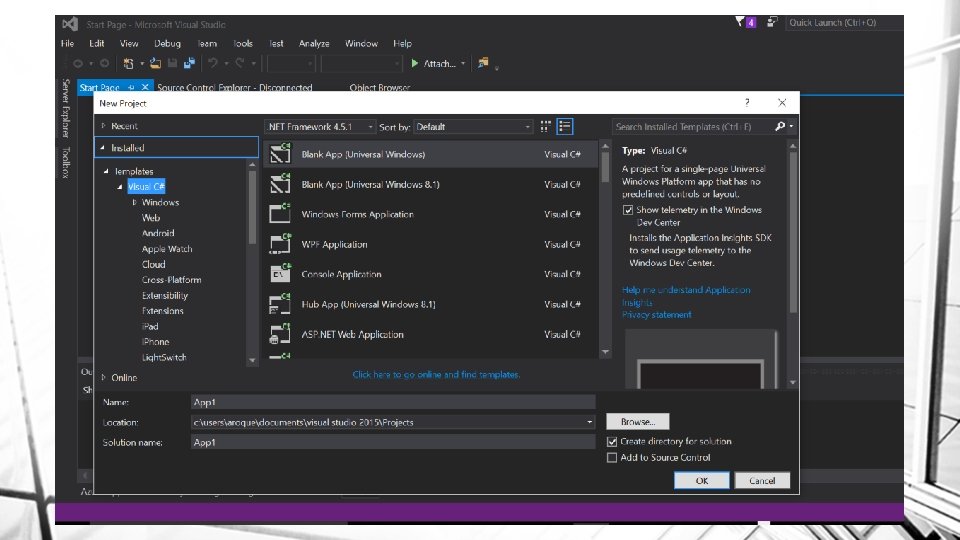
Our IDE • It is our primary Tool for creating an application. • It supports different types of “Projects”, which the shell for the overall program that we want to create. It also supports a website structure. • We will always work with C#. C# is a more marketable and more powerful programming language. • We will also work with HTML and become familiar with the different HTML controls. • For a reference of HTML Tags, go to http: //www. w 3 schools. com/tags/default. asp
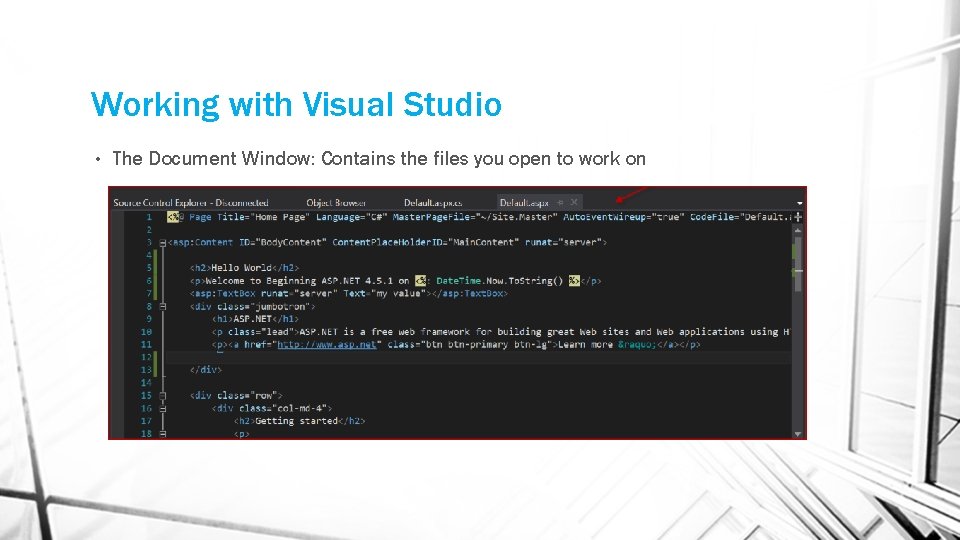
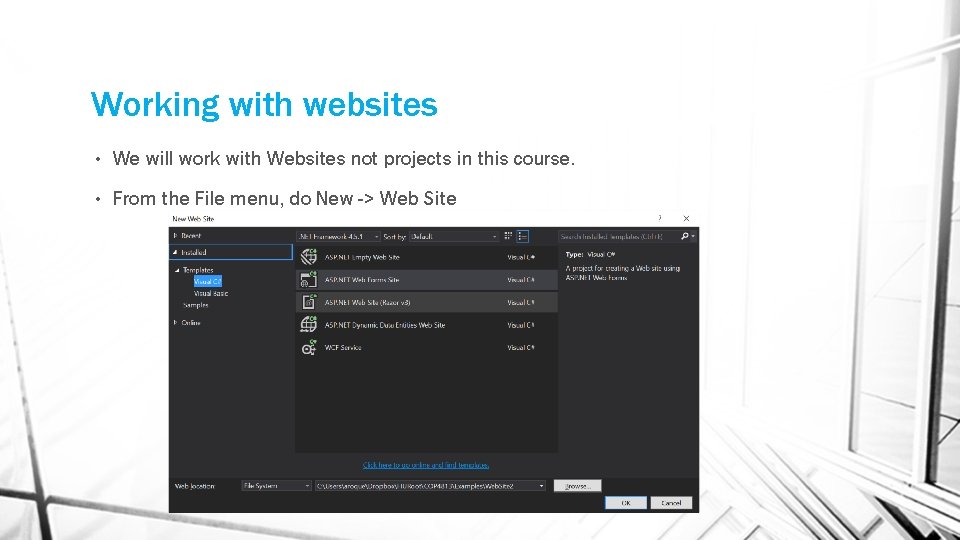
How to create a new website • Create a Website by hitting File -> New - > Web Site and select. NET framework 4. 5. 1 (or latest). • Select from the templates ASP. NET Web Forms • You now have a default website structure. We can add or change files as necessary • Open the default. aspx and add the following code under the asp: Content tag • <h 2>Hello World</h 2> • <p>Welcome to ASP. NET on <%: Date. Time. Now. To. String() %></p>
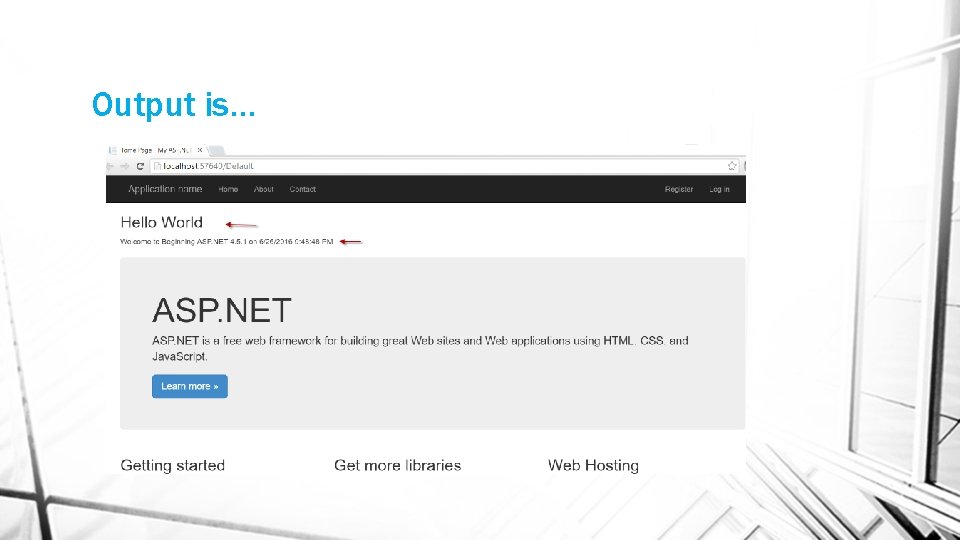
Output is…
What happened • We created a new website under the. NET Framework with the template of ASP. NET forms • The template create some default files and we opened up the default. aspx file. • Default. aspx is actually two files bound together. Default. aspx and Default. aspx. cs • The “aspx” file is known as the markup file. We work with HTML elements here and ASP controls. • The “aspx. cs” file is known as the code behind file is where we add programmability for our web file. You can also use the <% %> in the markup to add code.
What happened • The tags/controls on the markup file (aspx) get rendered to display the page. • The <% %> tags treat anything between them like code to compile and process. • The C# code Date. Time. Now. To. String() dynamically generates the time on the server side. • But what do we mean by on the server side? ? ?
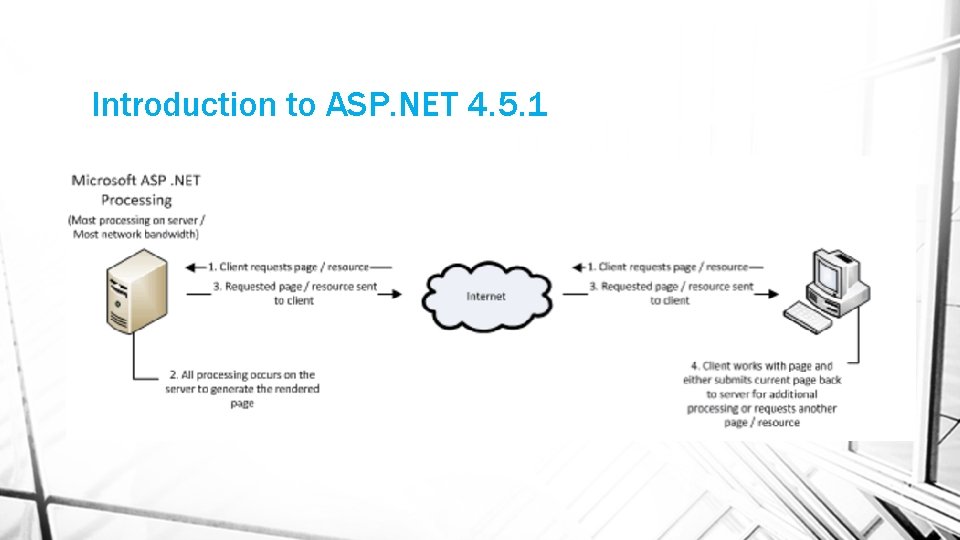
Introduction to ASP. NET 4. 5. 1 • When we type a URL in a web browser, a request is sent to a web server through the HTTP (Hyper. Text Transfer Protocol). • The URL (www. something. suffix/resource) is translated into an IP address and port, which is received by a web server. • When the server accepts the request, it processes it and sends back a response. • For static files (files that do not change regardless of the request) the web server finds the resources and sends them back • For dynamic files (aspx) the web server maps the request to another software that can handle it, namely the ASP. NET runtime
Introduction to ASP. NET 4. 5. 1
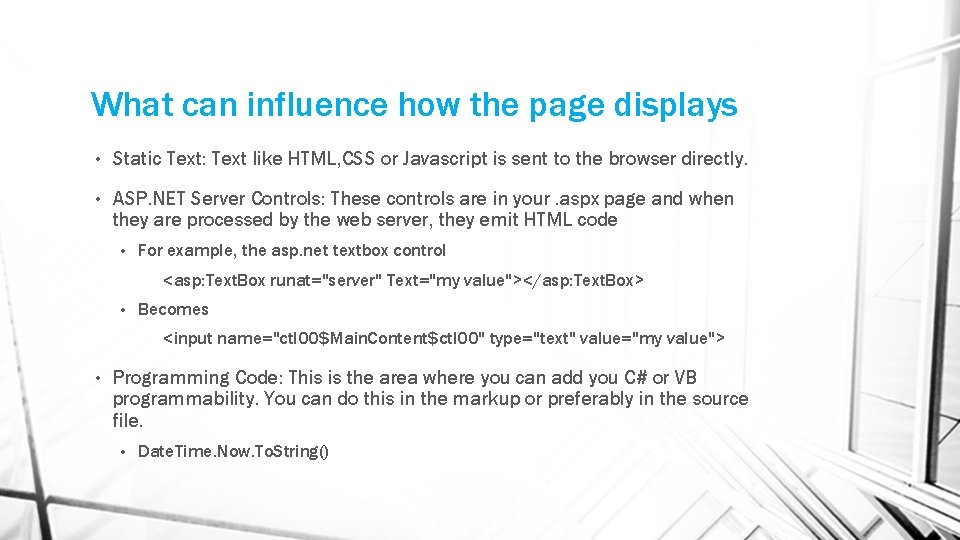
What can influence how the page displays • Static Text: Text like HTML, CSS or Javascript is sent to the browser directly. • ASP. NET Server Controls: These controls are in your. aspx page and when they are processed by the web server, they emit HTML code • For example, the asp. net textbox control <asp: Text. Box runat="server" Text="my value"></asp: Text. Box> • Becomes <input name="ctl 00$Main. Content$ctl 00" type="text" value="my value"> • Programming Code: This is the area where you can add you C# or VB programmability. You can do this in the markup or preferably in the source file. • Date. Time. Now. To. String()
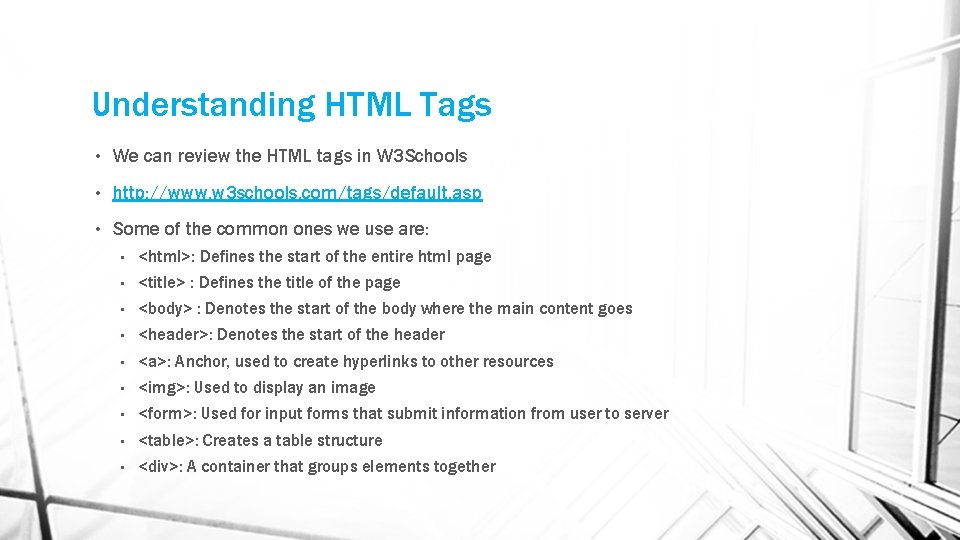
Understanding HTML Tags • We can review the HTML tags in W 3 Schools • http: //www. w 3 schools. com/tags/default. asp • Some of the common ones we use are: • <html>: Defines the start of the entire html page • <title> : Defines the title of the page • <body> : Denotes the start of the body where the main content goes • <header>: Denotes the start of the header • <a>: Anchor, used to create hyperlinks to other resources • <img>: Used to display an image • <form>: Used for input forms that submit information from user to server • <table>: Creates a table structure • <div>: A container that groups elements together
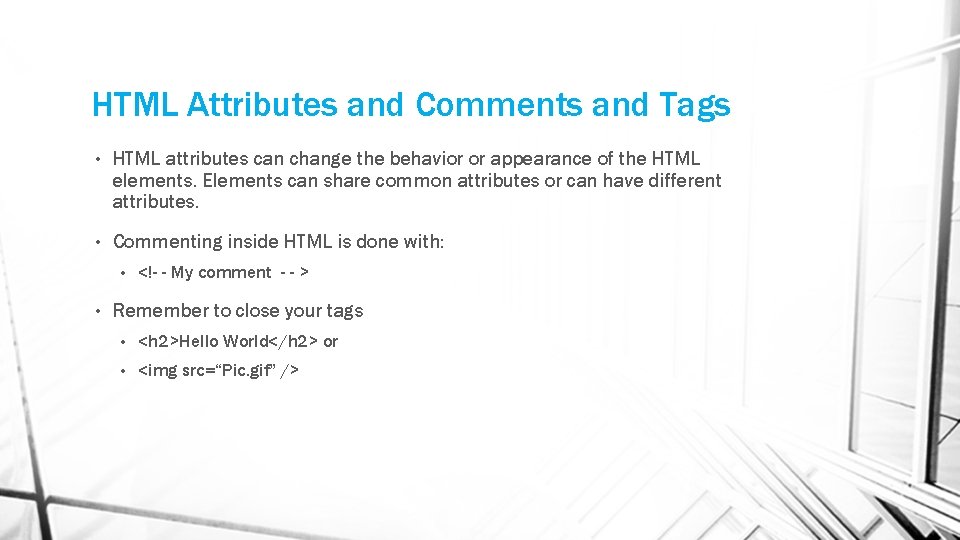
HTML Attributes and Comments and Tags • HTML attributes can change the behavior or appearance of the HTML elements. Elements can share common attributes or can have different attributes. • Commenting inside HTML is done with: • • <!- - My comment - - > Remember to close your tags • <h 2>Hello World</h 2> or • <img src=“Pic. gif” />
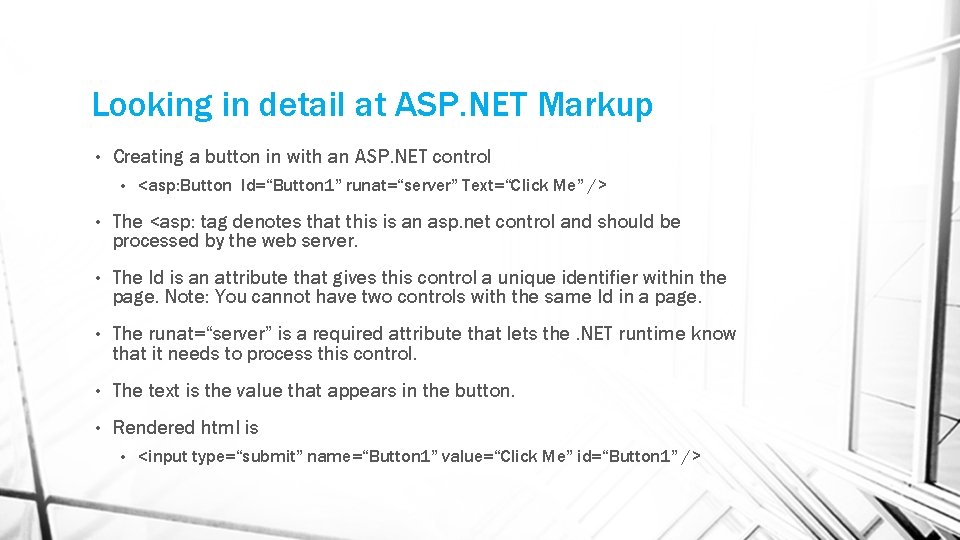
Looking in detail at ASP. NET Markup • Creating a button in with an ASP. NET control • <asp: Button Id=“Button 1” runat=“server” Text=“Click Me” /> • The <asp: tag denotes that this is an asp. net control and should be processed by the web server. • The Id is an attribute that gives this control a unique identifier within the page. Note: You cannot have two controls with the same Id in a page. • The runat=“server” is a required attribute that lets the. NET runtime know that it needs to process this control. • The text is the value that appears in the button. • Rendered html is • <input type=“submit” name=“Button 1” value=“Click Me” id=“Button 1” />
Working with Visual Studio • The Document Window: Contains the files you open to work on
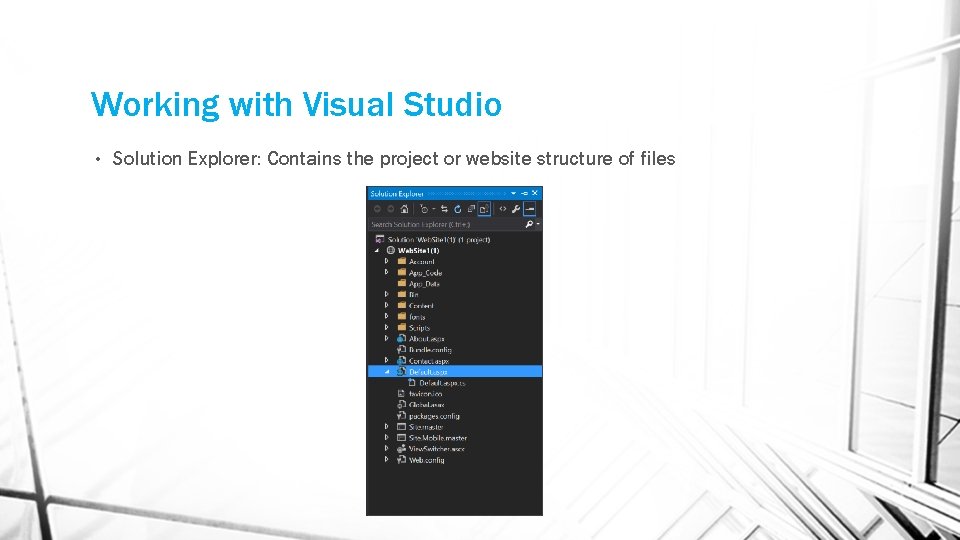
Working with Visual Studio • Solution Explorer: Contains the project or website structure of files
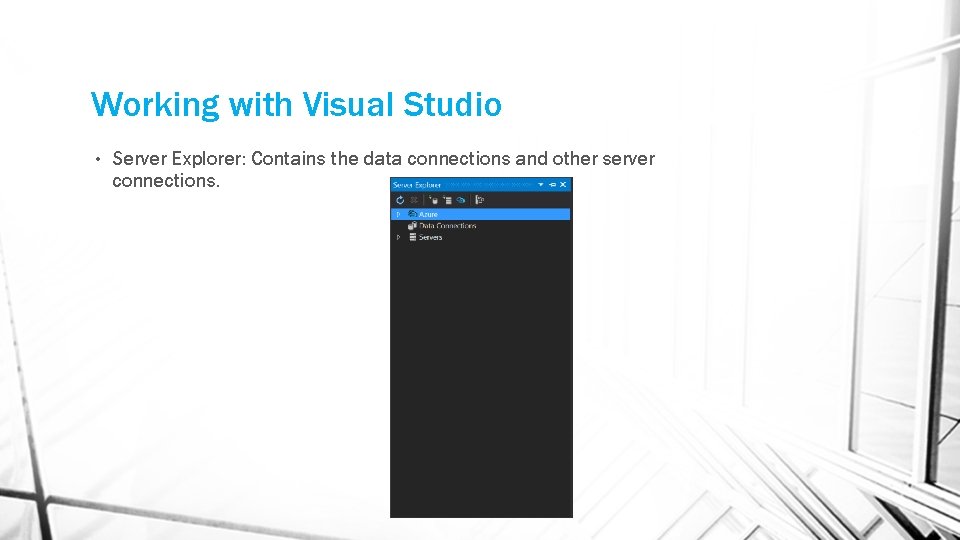
Working with Visual Studio • Server Explorer: Contains the data connections and other server connections.
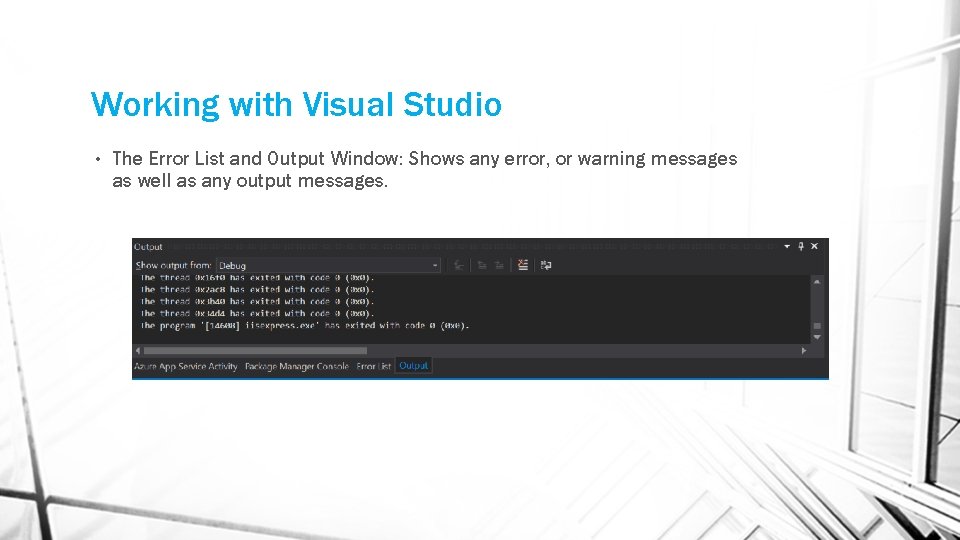
Working with Visual Studio • The Error List and Output Window: Shows any error, or warning messages as well as any output messages.
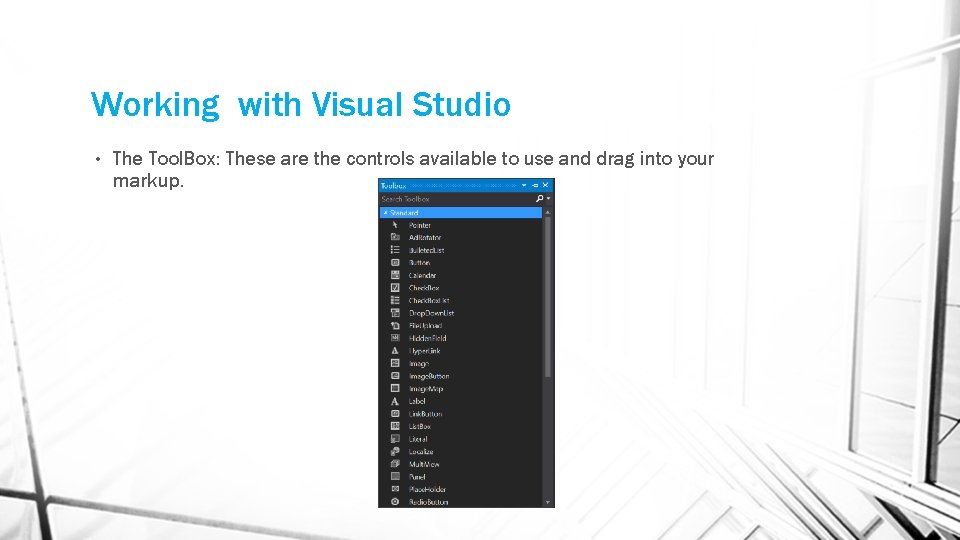
Working with Visual Studio • The Tool. Box: These are the controls available to use and drag into your markup.
Customizing the IDE • Visual studio can be highly customizable. • You can rearrange windows and snap them into place as desired. • You can Create Keyboard shortcuts • You can modify the toolbox. • Until you are very comfortable, use the standard layout.
Working with websites • We will work with Websites not projects in this course. • From the File menu, do New -> Web Site
Differences between Web Sites and Projects • • Advantages of web site • You do not want to have to explicitly compile the project in order to deploy it. • You want to be able to update individual files in production by just copying new versions to the production server, or by editing the files directly on the production server. • If you precompile the site, you want to be able to update individual ASP. NET web pages (. aspx files) without having to recompile the entire site. • You like to keep your source code on the production server because it can serve as an additional backup copy For those interested in the differences, check out https: //msdn. microsoft. com/en-us/library/dd 547590. aspx
Summary • In this chapter we covered: • How do we create a quick hello world website • What is ASP. NET, why do we use it and how does it work/ • What are the advantages of ASP. NET • Some of the basic HTML tags • The anatomy of an ASP. NET control • The different parts of the visual studio IDE that we use for development.