
Chapter 1 First Things First Web 101 Third
Chapter 1: First Things First • Web 101 • Third Edition • by Wendy G. Lehnert & Richard L. Kopec Copyright © 2007 Pearson Education, Inc. Publishing as Pearson Addison-Wesley
Learning Objectives • Understand the purpose of your computer’s CPU, RAM, and hard drive • Learn about bits, bytes, kilobytes, megabytes, and gigabytes • Find out how the Internet is structured and how computers become part of the Internet Copyright © 2007 Pearson Education, Inc. Publishing as Pearson Addison-Wesley 2
Learning Objectives • Discover how IP and DNS addresses are used • Master the basic navigational features of your Web browser Copyright © 2007 Pearson Education, Inc. Publishing as Pearson Addison-Wesley 3
Taking Charge • The Internet (or Net) is used by students and others for many purposes • In 2001, college seniors used the Internet an average of 11 hours per week • People use the Internet to become informed on issues, to communicate with other who share their interests, and to pursue goals Copyright © 2007 Pearson Education, Inc. Publishing as Pearson Addison-Wesley 4
Taking Charge • Much time can be wasted online, but better understanding of the Internet can allow you to use your time more effectively • Some understanding of general computing concepts will establish a foundation that you will build upon as you learn about the Internet Copyright © 2007 Pearson Education, Inc. Publishing as Pearson Addison-Wesley 5
Computer Basics • The Operating System • The Central Processing Unit • Memory and Storage Copyright © 2007 Pearson Education, Inc. Publishing as Pearson Addison-Wesley 6
The Operating System • The heart of the computer • A large program that starts when the computer is turned on • The OS is needed to run other programs called application programs (e. g. Microsoft Word) • Examples: – Microsoft Windows XP, Vista – Apple Macintosh OS X – Linux Copyright © 2007 Pearson Education, Inc. Publishing as Pearson Addison-Wesley 7
The Central Processing Unit • The CPU has three characteristics: – Clock speed • The number of instructions the CPU can execute in an amount of time • Measured in Megahertz (MHz) – Instruction set • The collection of operations that the CPU can execute • Some instructions are general, like adding 2 integers Copyright © 2007 Pearson Education, Inc. Publishing as Pearson Addison-Wesley 8
The Central Processing Unit • Instruction set (continued) – Other instructions are specific to the type of CPU – So software that runs on the PC will not run on the Macintosh (and vice-versa), without emulation. • Word size (a. k. a. data width) – The more data that the CPU can potentially manipulate at one time, the faster the CPU. Copyright © 2007 Pearson Education, Inc. Publishing as Pearson Addison-Wesley 9
The Central Processing Unit • The instruction set and the hardware must accommodate large word sizes in order to increase the CPU speed. Copyright © 2007 Pearson Education, Inc. Publishing as Pearson Addison-Wesley 10
Memory and Storage • Random Access Memory (RAM) • Long-term storage Copyright © 2007 Pearson Education, Inc. Publishing as Pearson Addison-Wesley 11
Memory and Storage • Random Access Memory (RAM) • The memory that the CPU uses when it executes instructions • The CPU reads and writes to RAM very quickly • RAM is volatile - the information goes away when the computer is turned off or restarted (short-term) • Each program that you run requires some amount of RAM Copyright © 2007 Pearson Education, Inc. Publishing as Pearson Addison-Wesley 12
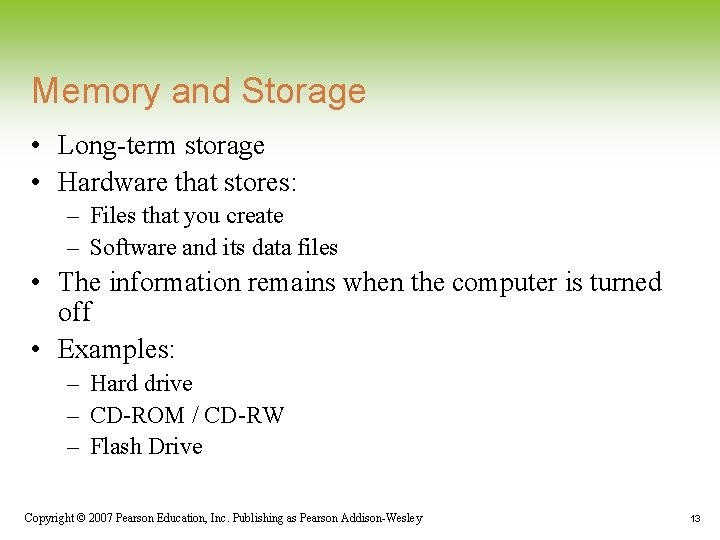
Memory and Storage • Long-term storage • Hardware that stores: – Files that you create – Software and its data files • The information remains when the computer is turned off • Examples: – Hard drive – CD-ROM / CD-RW – Flash Drive Copyright © 2007 Pearson Education, Inc. Publishing as Pearson Addison-Wesley 13
Units of Memory • A file is a collection of data • Each file has a name • The online experience of what we see and hear is comprised of files • The software that we use needs files to run • The larger the file, the more time is needed to download the file to your computer. Copyright © 2007 Pearson Education, Inc. Publishing as Pearson Addison-Wesley 14
Units of Memory • The size of files is measurable • The smallest unit of data is the bit. – A bit is either a 1 or a 0 – All data (and files) are a pattern of bits • A byte is 8 bits – Each byte can represent a letter, number or symbol. – The set of upper and lowercase letters, numbers, and other symbols is called the ASCII character set. Copyright © 2007 Pearson Education, Inc. Publishing as Pearson Addison-Wesley 15
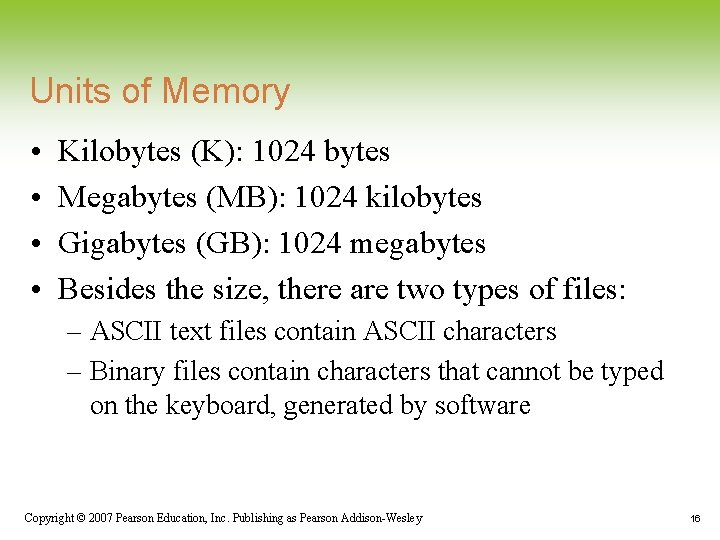
Units of Memory • • Kilobytes (K): 1024 bytes Megabytes (MB): 1024 kilobytes Gigabytes (GB): 1024 megabytes Besides the size, there are two types of files: – ASCII text files contain ASCII characters – Binary files contain characters that cannot be typed on the keyboard, generated by software Copyright © 2007 Pearson Education, Inc. Publishing as Pearson Addison-Wesley 16
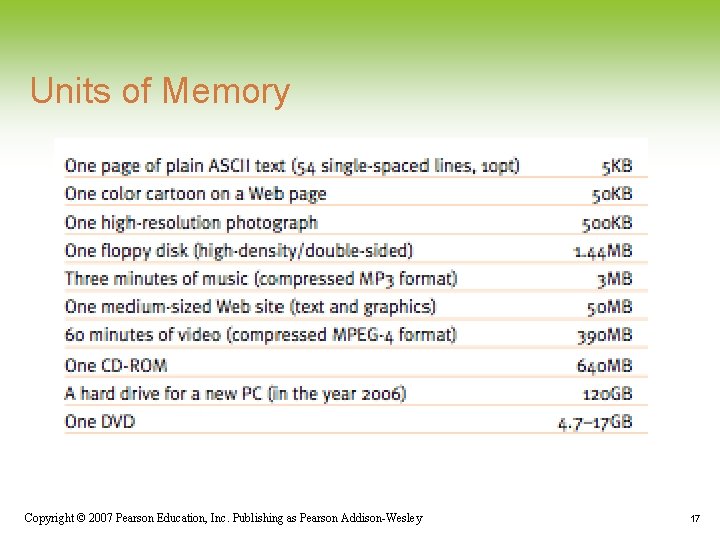
Units of Memory Copyright © 2007 Pearson Education, Inc. Publishing as Pearson Addison-Wesley 17
The Internet • The Internet is a network of networks that are spread all over the world • Networks that are geographically close are called Local Area Networks (LANs) – Often in the same building – The university’s network is a prime example • The Internet is a largely heterarchical network containing many individual LANs Copyright © 2007 Pearson Education, Inc. Publishing as Pearson Addison-Wesley 18
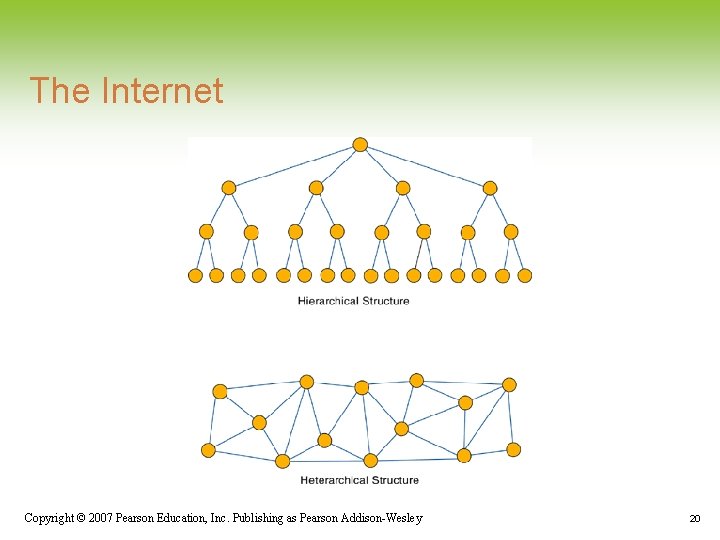
The Internet • A heterarchical network contains many nodes that are interconnected. • A hierarchical network contains a tree-like structure where some nodes are superior to others. Copyright © 2007 Pearson Education, Inc. Publishing as Pearson Addison-Wesley 19
The Internet Copyright © 2007 Pearson Education, Inc. Publishing as Pearson Addison-Wesley 20
The Internet • A characteristic of a heterarchical network is that it is a robust network. • If some nodes are removed, data can still be sent between nodes • Hierarchical networks do not lend themselves to robustness • The Internet also has dynamic routing, where the route of the data is determined at the time of transmission based on current network conditions. Copyright © 2007 Pearson Education, Inc. Publishing as Pearson Addison-Wesley 21
Host Machines and Host Names • Each computer on the Internet is a host machine. • Each computer has a unique Internet Protocol (IP) address, such as 124. 110. 24. 1 – Some computers have a permanent IP address – Some computers borrow an IP address while they are connected to the Internet • An IP address is not human-friendly Copyright © 2007 Pearson Education, Inc. Publishing as Pearson Addison-Wesley 22
Host Machines and Host Names • The IP address for most host machines are mapped to a Domain Name Service (DNS) address in order to be more people-friendly • The DNS address consists of a host name followed by a domain name • Example DNS Address: mail. yahoo. com – Host Name is: mail – Domain Name is: yahoo. com Copyright © 2007 Pearson Education, Inc. Publishing as Pearson Addison-Wesley 23
Host Machines and Host Names • Each domain name consists of: – Institutional site name – Top Level Domain name (TLD) • Example: cs. umass. edu – cs. umass is the Dept. of Computer Science at the University of Massachusetts at Amherst – edu refers to an educational site Copyright © 2007 Pearson Education, Inc. Publishing as Pearson Addison-Wesley 24
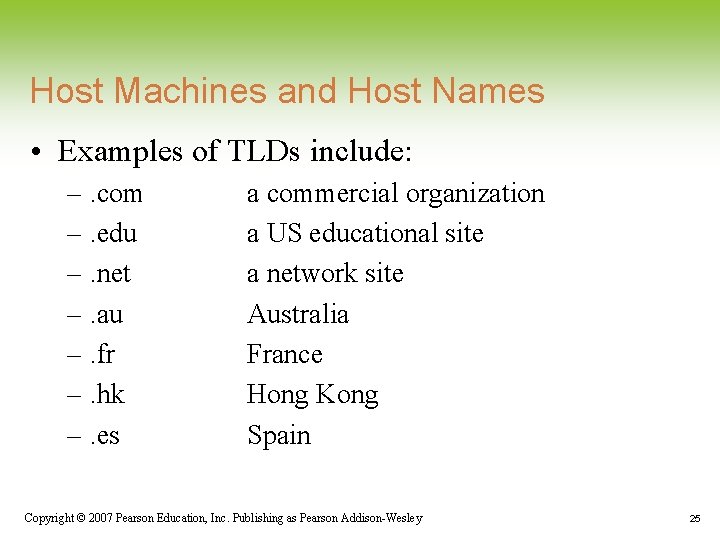
Host Machines and Host Names • Examples of TLDs include: –. com –. edu –. net –. au –. fr –. hk –. es a commercial organization a US educational site a network site Australia France Hong Kong Spain Copyright © 2007 Pearson Education, Inc. Publishing as Pearson Addison-Wesley 25
Host Machines and Host Names • New TLDs have been added as the original set became overloaded • While each machine has a unique IP address, it can have multiple DNS addresses (called aliases) • Anyone can register a DNS address • When you type in a DNS address, a domain name server translates it into an IP address. Copyright © 2007 Pearson Education, Inc. Publishing as Pearson Addison-Wesley 26
Speed and Bottlenecks • When you go online, your computer exchanges data with other computers. • The transfer of data is measured in bits per second (bps); bandwidth • Your data transfer rate is determined by: – The type of connection (e. g. dial-up) – The traffic over the network • The bottleneck is the part of your connection that slows the data rate during transfer Copyright © 2007 Pearson Education, Inc. Publishing as Pearson Addison-Wesley 27
The Client/Server Software Model • Clients and servers are host machines • A client is the host machine that requests information from the server • The server is a resource that provides a service for (many) clients • The client/server interaction is the foundation for all Internet communication Copyright © 2007 Pearson Education, Inc. Publishing as Pearson Addison-Wesley 28
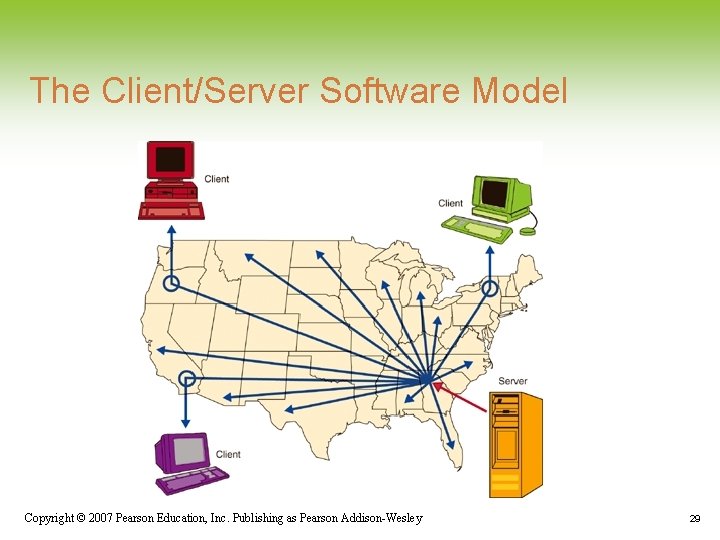
The Client/Server Software Model Copyright © 2007 Pearson Education, Inc. Publishing as Pearson Addison-Wesley 29
The Client/Server Software Model • Some companies use servers that do not need to be installed on the client to supply commercial software to clients • Application Service Providers (ASPs) provide software through subscriptions • The software is “rented” with this arrangement Copyright © 2007 Pearson Education, Inc. Publishing as Pearson Addison-Wesley 30
The World Wide Web and Web Browsers • The World Wide Web has become a popular means of accessing information and services. • The Web and the Internet are not the same. • A Web browser is the software necessary to view information. • Some browsers are integrated into other software, such as an email client Copyright © 2007 Pearson Education, Inc. Publishing as Pearson Addison-Wesley 31
The World Wide Web and Web Browsers • Navigating the Web only takes a few commands. • The information in the Web is organized as hypertext, graphics, video, and sound • The text in a Web page may contain hyperlinks that, if clicked, allows you to view related information on other Web pages. • You control where you go and what information you see via these hyperlinks Copyright © 2007 Pearson Education, Inc. Publishing as Pearson Addison-Wesley 32
The World Wide Web and Web Browsers • A Web page is a document on the Web that you view through your Web browser • The act of reading Web pages and clicking on hyperlinks is called browsing • Browsing can be seen as a way of exploring • Each Web page has a unique address called a Uniform Resource Locator (URL) that you can use to jump directly to it Copyright © 2007 Pearson Education, Inc. Publishing as Pearson Addison-Wesley 33
How to Get Online • Before you can use Internet resources, you need to get access to the Internet. • Many students use their accounts on university computers • Others use the computers at the library, their workplace, or even that of a friend. • Others will need to get an account and software through a commercial Internet Service Provider (ISP) Copyright © 2007 Pearson Education, Inc. Publishing as Pearson Addison-Wesley 34
How to Get Online • An ISP provides technical support for the provided software • Your account gives you a userid and password Copyright © 2007 Pearson Education, Inc. Publishing as Pearson Addison-Wesley 35
Browser Tips and Tricks • Select your own default home page – When you start your browser, a default Web page is displayed – You can change the default page to another URL • Use the Find command – Find allows you to find text in a page – You enter the text that you want to find – If that text is in the page, then you view the first instance of the text in the page Copyright © 2007 Pearson Education, Inc. Publishing as Pearson Addison-Wesley 36
Browser Tips and Tricks • Use your History list – The History list is a list of the URLs that you have visited recently – You can click on a URL from the list to revisit the page • Use Bookmarks (Favorites) – A bookmark is a pointer to a Web page that you expect to revisit – You can select a bookmark from a list, and quickly jump to that Web page. Copyright © 2007 Pearson Education, Inc. Publishing as Pearson Addison-Wesley 37
Browser Tips and Tricks • Add Bookmarks with care – Bookmarking every page of interest is tempting – Large bookmark lists are difficult to use • Abort a download if you get stuck – If the browser appears to be stuck while loading page, select the option to stop the page loading – The page may display, but if not try clicking on the link again Copyright © 2007 Pearson Education, Inc. Publishing as Pearson Addison-Wesley 38
Browser Tips and Tricks • Turn off graphics – Graphics files can be large and take a long time to download – If you are in a hurry or have a slow Internet connection, then you may spend time waiting for pages to load. – You can set your browser to not download graphics Copyright © 2007 Pearson Education, Inc. Publishing as Pearson Addison-Wesley 39
Browser Tips and Tricks • Use Tabbed Browsing – Most current browsers support the use of tabs to select one of many open web pages in a single browser window. – New tabs are created by using the Tab button tool or Ctrl-T (Command-T on a Mac). – Clicking on a tab switches the window display to the page marked by that tab. – Tabs can also be displayed as a list or as thumbnail images. Copyright © 2007 Pearson Education, Inc. Publishing as Pearson Addison-Wesley 40
Browser Tips and Tricks • Use the Phishing Filter – Phishing is a form of Social Engineering (see Chapter 2) designed to get unwary users to enter sensitive information (like passwords or account numbers) for nefarious purposes. – Your browser warns you when visiting a known phishing site. – But - your browsing history must be monitored to enable this feature. Copyright © 2007 Pearson Education, Inc. Publishing as Pearson Addison-Wesley 41
Browser Tips and Tricks • Don’t let a “ 404 Not Found” message stop you dead – The error means that the specified URL was not found – Check that the URL was correct – The page may have been removed or moved – You can always backtrack through the URL to see if a related part of the site is available Copyright © 2007 Pearson Education, Inc. Publishing as Pearson Addison-Wesley 42
Browser Tips and Tricks • Avoid peak hours – The Internet has times of high traffic where response times are slower than off-peak times – In the US, the peak times of usage during the week are: • The middle of the day • Early evenings Copyright © 2007 Pearson Education, Inc. Publishing as Pearson Addison-Wesley 43
Browser Tips and Tricks • Other Useful browser Features – Automatic Update - checks for updates to the browser. – Bookmark Import/Export - useful when switching from one browser to another. – Bookmark manager - facilitates organization of bookmarks. – Content Advisor - aka Parental Control, allows unacceptable sites to be blocked. Copyright © 2007 Pearson Education, Inc. Publishing as Pearson Addison-Wesley 44
Browser Tips and Tricks • Other Useful browser Features – Cookie Manager - manages cookies (See Chapter 2, Above and Beyond) – Customization - allows user to change the look and feel of the browser window. – Download Manager - helps keep track of downloaded materials. – Form Manager - enables automatic Web form completion. Copyright © 2007 Pearson Education, Inc. Publishing as Pearson Addison-Wesley 45
Browser Tips and Tricks • Other Useful browser Features – History Manager - keeps tracks of visited Web pages. – Integrated Search - features an integrated keyword entry box linked directly to one or more search engines (See Chapter 5). – Javascript Disable - permits deactivation of Javascript program execution for security purposes. Copyright © 2007 Pearson Education, Inc. Publishing as Pearson Addison-Wesley 46
Browser Tips and Tricks • Other Useful browser Features – Password Manager - stores passwords for automatic form completion, may be editable. – Pop-up Blocker - disables those annoying pop-up windows. – RSS Feeds - polls RSS sites (See Section 4. 4) for dynamically updated content. Copyright © 2007 Pearson Education, Inc. Publishing as Pearson Addison-Wesley 47
Browser Tips and Tricks • Other Useful browser Features – Security Manager - keeps track of various securityrelated features, such as digital certificate checking and trusted sites. Copyright © 2007 Pearson Education, Inc. Publishing as Pearson Addison-Wesley 48
Alternate Web Browsers • Firefox – Available for Windows and Mac – Replaces the aging Mozilla browser – http: //www. mozilla. com/firefox/ • Mozilla (aka Sea. Monkey) – Available for Windows and Mac – Includes web page editor, mail client, Usenet News reader, IRC Chat cient – http: //www. mozilla. org/projects/seamonkey – http: //www. mozilla. org/products/mozilla 1. x/ Copyright © 2007 Pearson Education, Inc. Publishing as Pearson Addison-Wesley 49
Alternate Web Browsers • Netscape – – Available for Windows and Mac Based on Firefox browser Includes integrated Security Center http: //www. netscape. com/ • Opera – Available for Windows and Mac – Includes widgets and a Bit. Torrent client (see Section 6. 4. 1) – http: //www. opera. com/ Copyright © 2007 Pearson Education, Inc. Publishing as Pearson Addison-Wesley 50
Mac Only Web Browsers • Safari – Includes “Private Browsing” feature which keeps no record of sites visited – http: //www. apple. com/ • Camino, i. Cab, Shiira – http: //www. mozilla. org/ (Camino) – http: //www. i. Cab. de/ (i. Cab) – http: //hmdt-web. net/ (Shiira) Copyright © 2007 Pearson Education, Inc. Publishing as Pearson Addison-Wesley 51
- Slides: 51