
Chapter 0 Programming BASICs Presentation based on Robotics
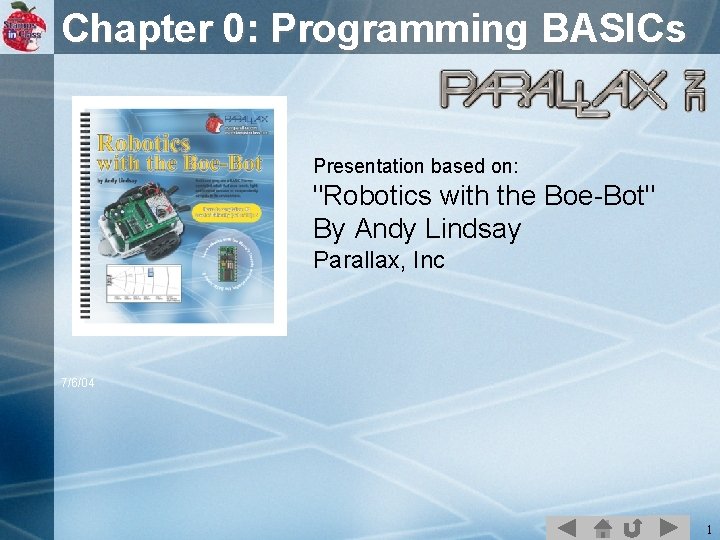
Chapter 0: Programming BASICs Presentation based on: "Robotics with the Boe-Bot" By Andy Lindsay Parallax, Inc 7/6/04 1
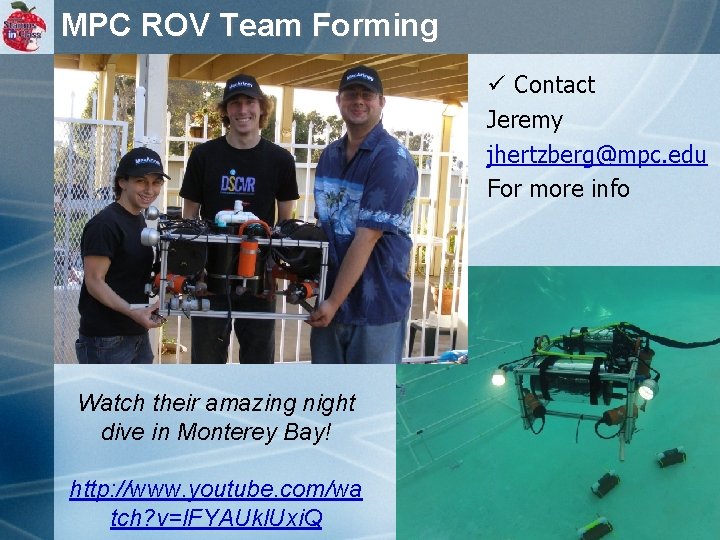
MPC ROV Team Forming ü Contact Jeremy jhertzberg@mpc. edu For more info Watch their amazing night dive in Monterey Bay! http: //www. youtube. com/wa tch? v=l. FYAUkl. Uxi. Q 2
Today’s Agenda ü Overview of STAMP Hardware ü Basic Electronics ü Build an LED circuit ü Program the STAMP to flash LED ü Build a Speaker Circuit ü Program the STAMP to play music ü Skills: • Breadboarding • Use of variables • Use of Control Structures (DO, IF, FOR) 3
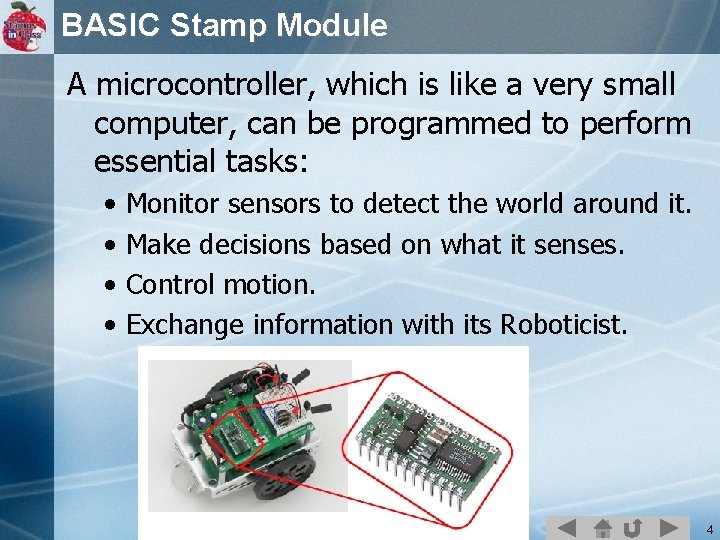
BASIC Stamp Module A microcontroller, which is like a very small computer, can be programmed to perform essential tasks: • • Monitor sensors to detect the world around it. Make decisions based on what it senses. Control motion. Exchange information with its Roboticist. 4
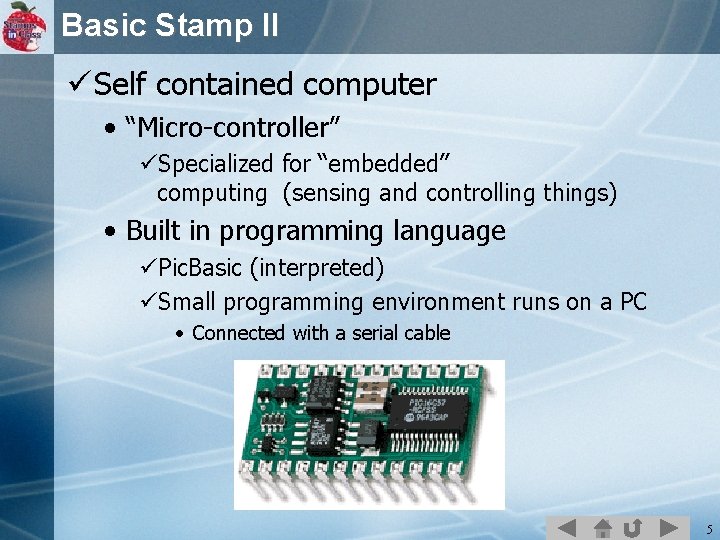
Basic Stamp II ü Self contained computer • “Micro-controller” üSpecialized for “embedded” computing (sensing and controlling things) • Built in programming language üPic. Basic (interpreted) üSmall programming environment runs on a PC • Connected with a serial cable 5
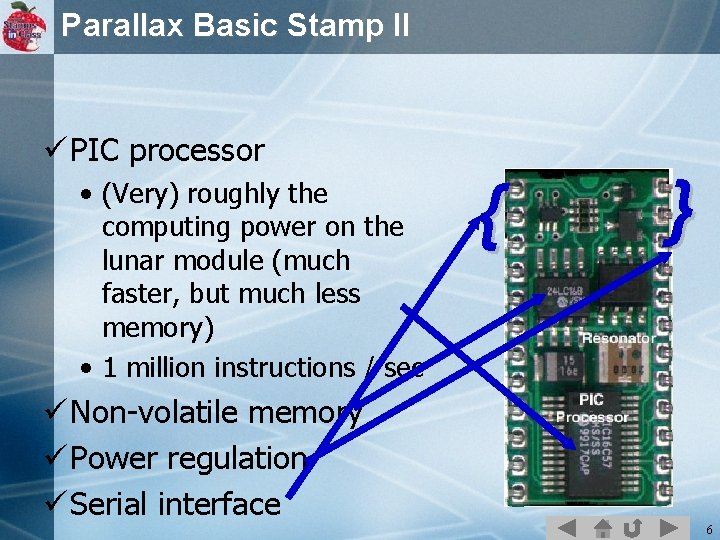
Parallax Basic Stamp II ü PIC processor • (Very) roughly the computing power on the lunar module (much faster, but much less memory) • 1 million instructions / sec { } ü Non-volatile memory ü Power regulation ü Serial interface 6
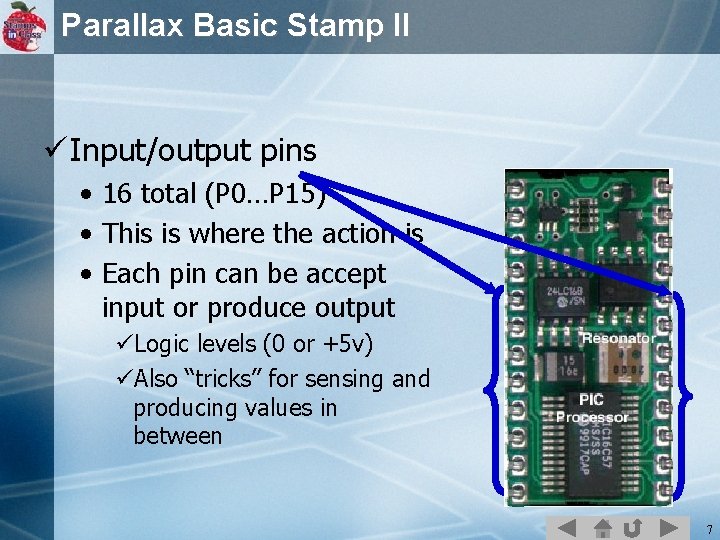
Parallax Basic Stamp II ü Input/output pins • 16 total (P 0…P 15) • This is where the action is • Each pin can be accept input or produce output üLogic levels (0 or +5 v) üAlso “tricks” for sensing and producing values in between 7
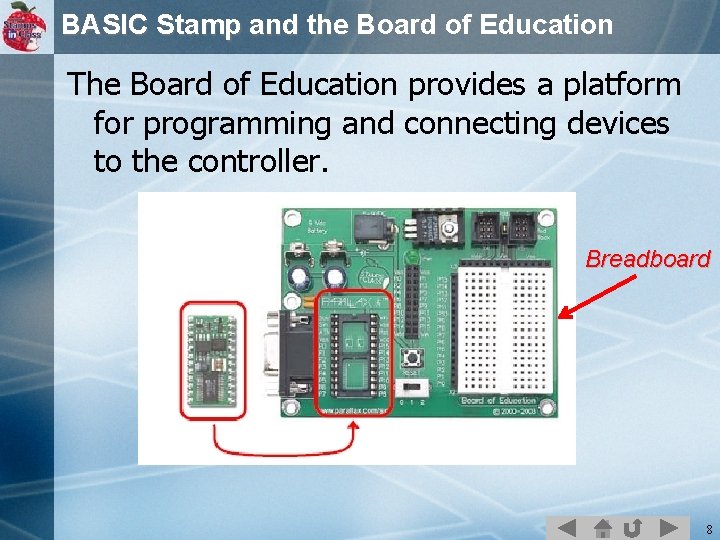
BASIC Stamp and the Board of Education The Board of Education provides a platform for programming and connecting devices to the controller. Breadboard 8
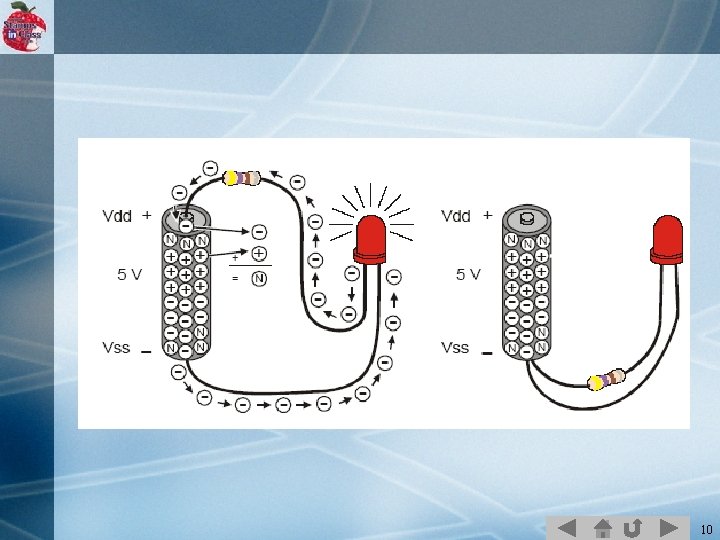
Basic Electronics ü Voltage (V or E): Potential difference between 2 points. Volts. • (+) - A lack of electrons • (-) – A surplus of electrons • When a circuit is formed, electrons will flow to equalize out the 2 sides. ü Current (I): The measure of the flow of electrons. Amps. ü Resistance (R): Opposition to current flow. Ohms. ü Ohm's Law: I = V/R 9
10
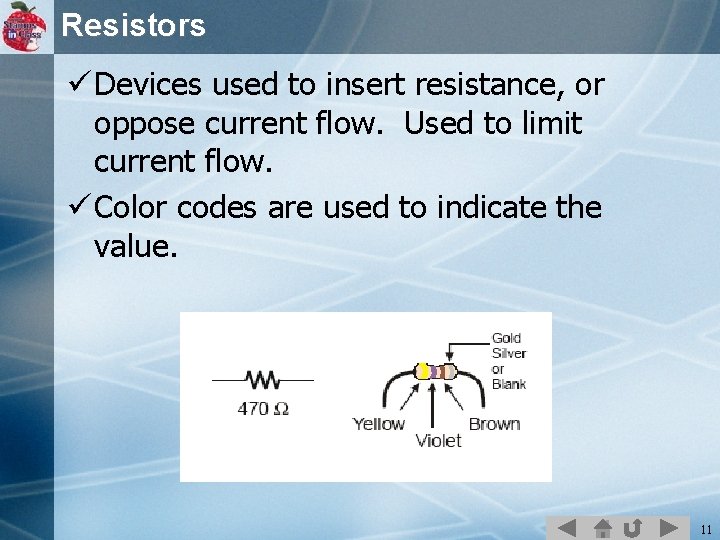
Resistors ü Devices used to insert resistance, or oppose current flow. Used to limit current flow. ü Color codes are used to indicate the value. 11
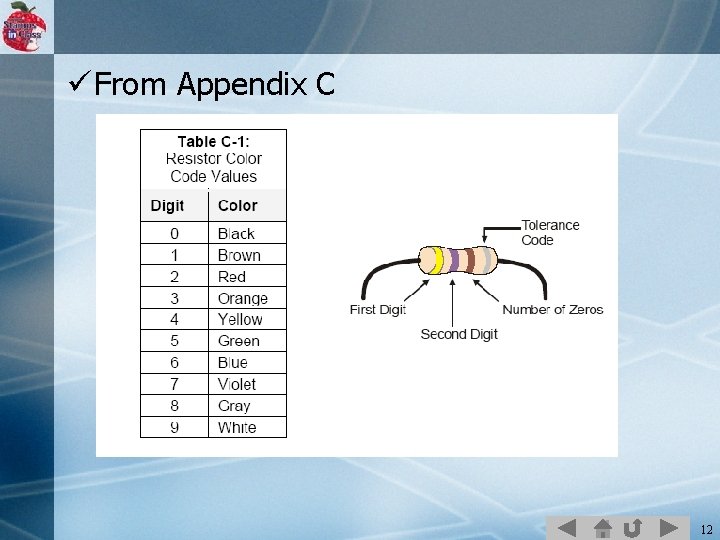
ü From Appendix C 12
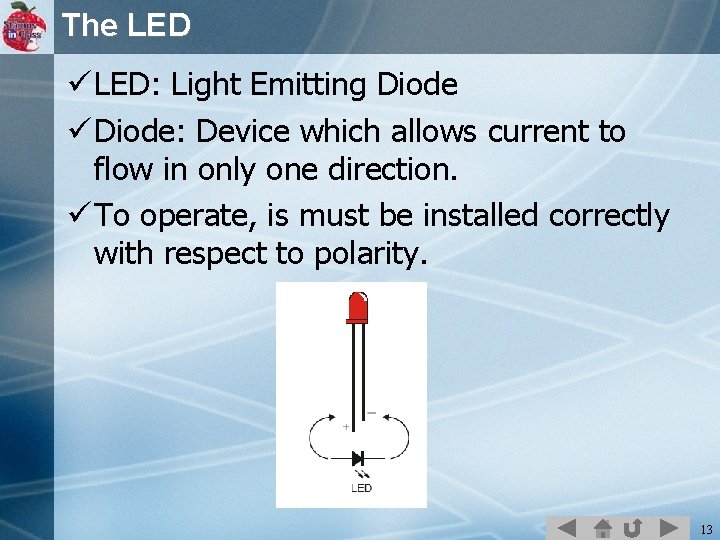
The LED ü LED: Light Emitting Diode ü Diode: Device which allows current to flow in only one direction. ü To operate, is must be installed correctly with respect to polarity. 13
ü A regular LED can be damaged if current exceed 20 m. A (milliamps). ü Apply ohm's law to find the resistor size that will limit current to 20 m. A with a 5 V supply. I = V/R 14
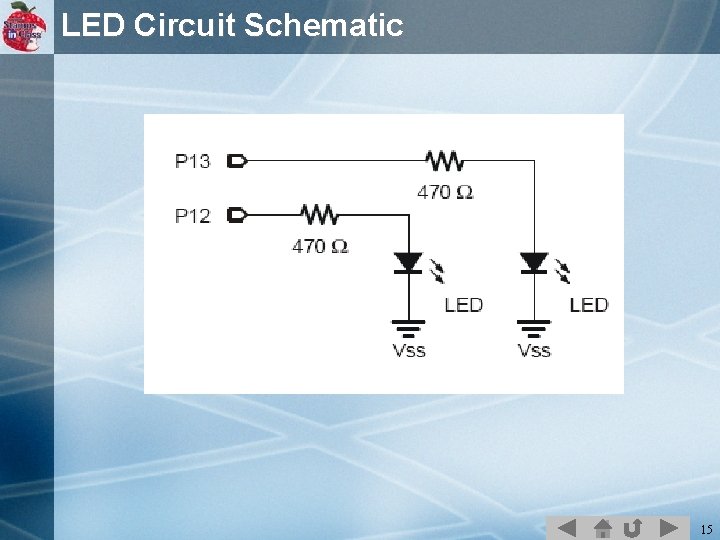
LED Circuit Schematic 15
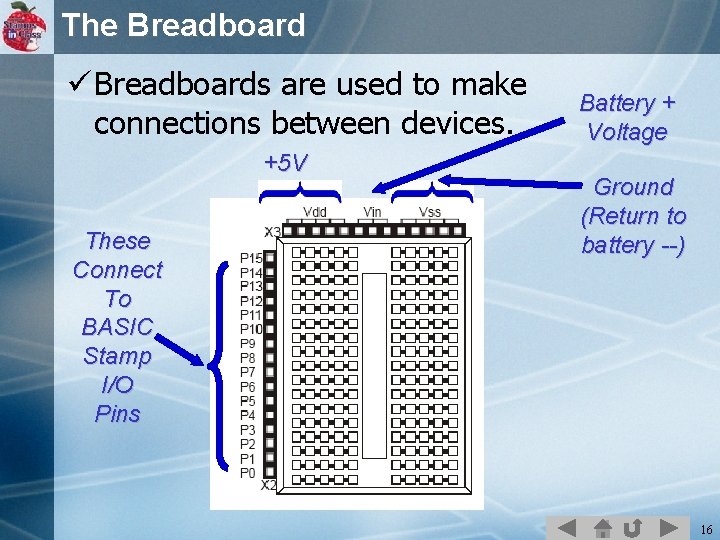
The Breadboard ü Breadboards are used to make connections between devices. +5 V These Connect To BASIC Stamp I/O Pins Battery + Voltage Ground (Return to battery --) 16
Check out this video on Breadboards ! ü http: //www. youtube. com/watch? v=q_Q 5 s 9 Ah. CR 0 17
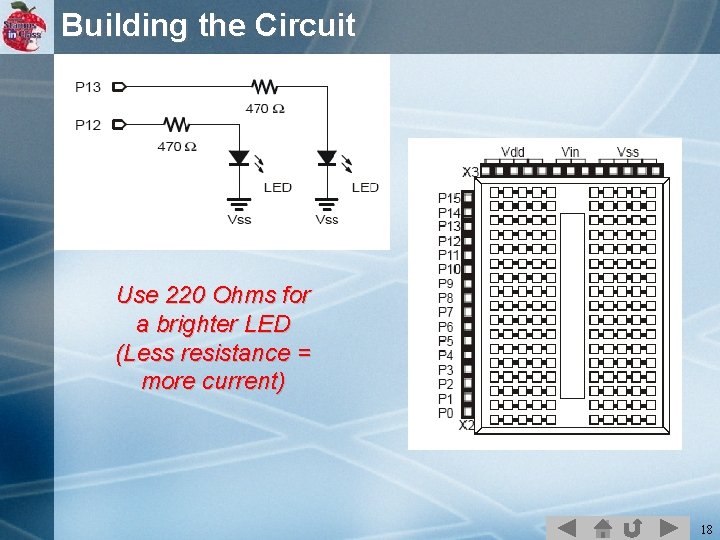
Building the Circuit Use 220 Ohms for a brighter LED (Less resistance = more current) 18
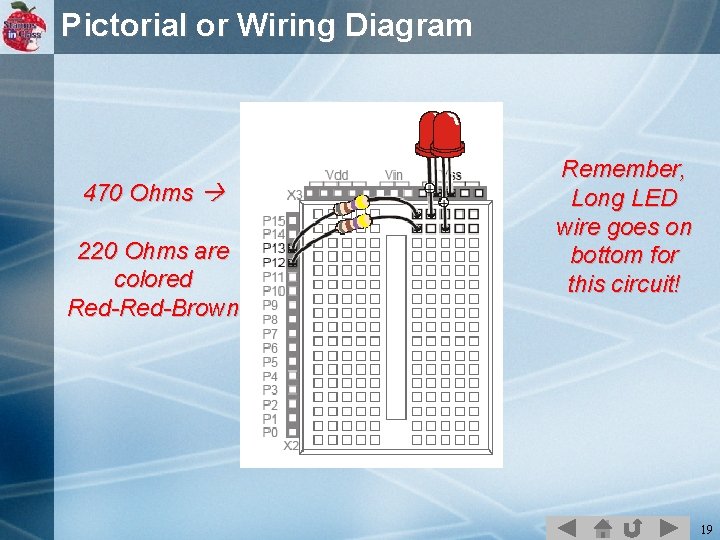
Pictorial or Wiring Diagram 470 Ohms 220 Ohms are colored Red-Brown Remember, Long LED wire goes on bottom for this circuit! 19
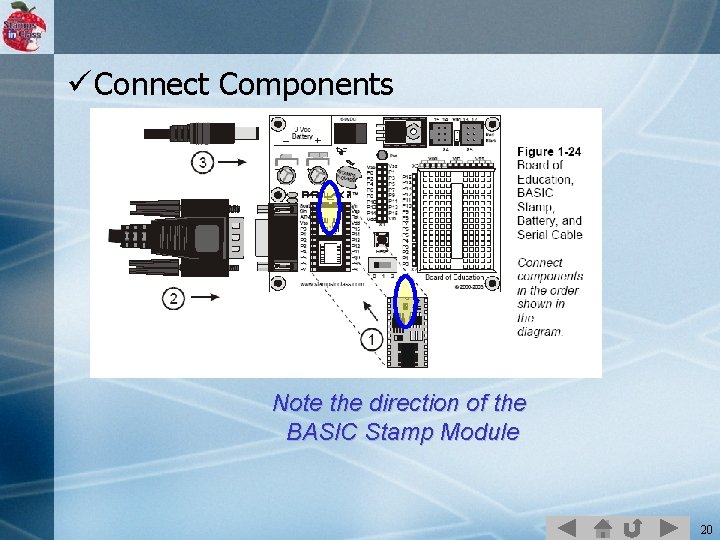
ü Connect Components Note the direction of the BASIC Stamp Module 20
Hardware and Software BASIC Stamp, programming board, robot parts, and various electronic parts are the hardware. Software is used to instruct the BASIC Stamp what to do. Programs are written on the PC and transferred to and run on the BASIC Stamp. 21
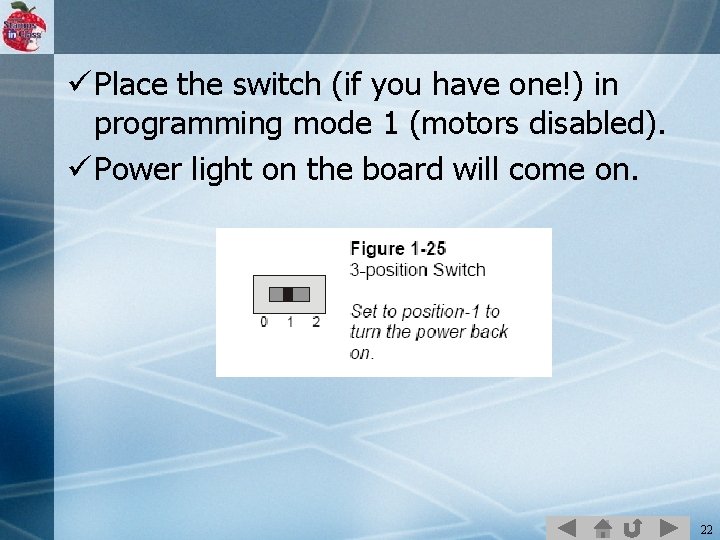
ü Place the switch (if you have one!) in programming mode 1 (motors disabled). ü Power light on the board will come on. 22
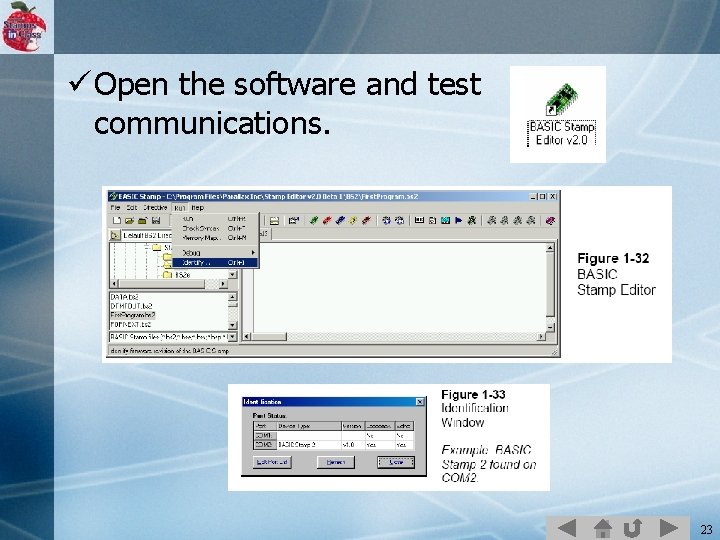
ü Open the software and test communications. 23
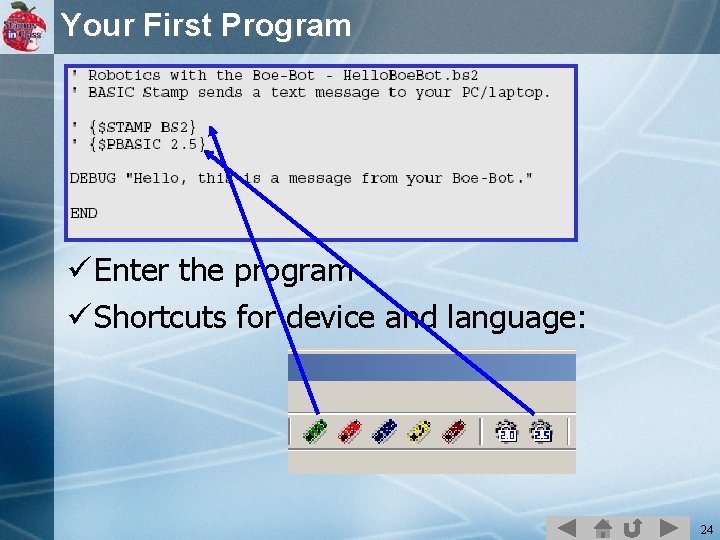
Your First Program ü Enter the program ü Shortcuts for device and language: 24
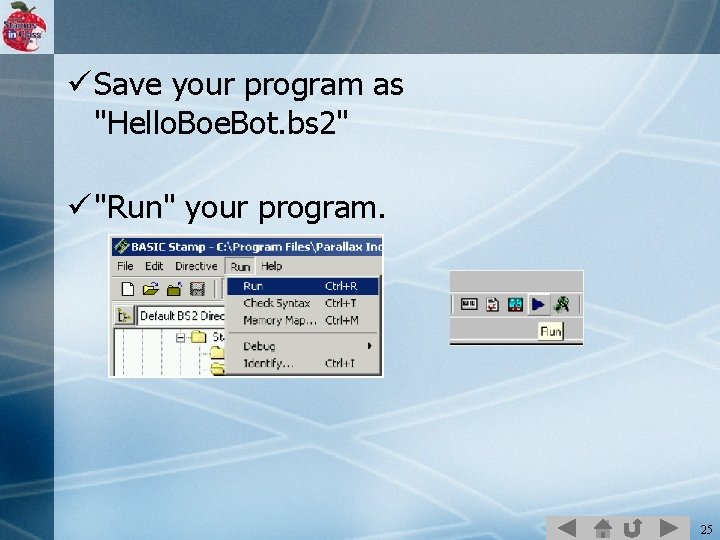
ü Save your program as "Hello. Boe. Bot. bs 2" ü "Run" your program. 25
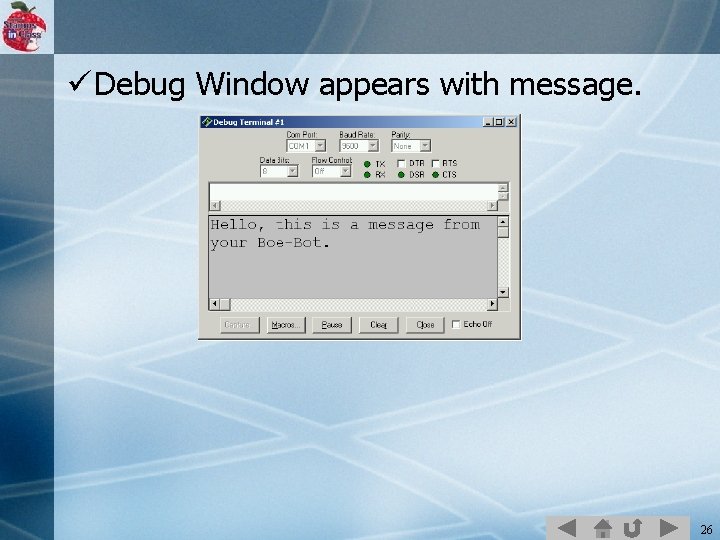
ü Debug Window appears with message. 26
Code Discussion ü Comments – used to explain or comment code – start with apostrophe (') ü Directives – such as '{$STAMP BS 2} – used to inform the program of something special, such as the device being used. ü Commands – Word used to instruct the BASIC Stamp what to do: DEBUG END 27
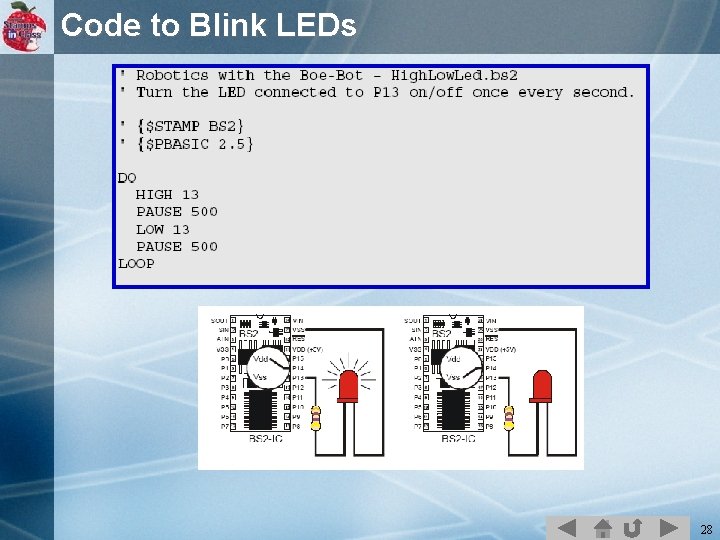
Code to Blink LEDs 28
Code Discussion ü HIGH defines the pin to be an output and sets it to a HIGH state, digital 1 or 5 V. • HIGH pin 0 -15 • HIGH 13 ü LOW defines the pin to be an output and sets it to a LOW state, digital 0 or 0 V. • LOW pin 0 -15 • LOW 13 ü PAUSE instructs the BS 2 to wait for the defined number of milliseconds (1/1000 seconds). • PAUSE time in milliseconds 0 -65535 • PAUSE 500 ü DO and LOOP instructs the BS 2 to repeat the enclosed statements. More about this will be covered in Programming Structures. 29
Challenge : Blink the 2 nd LED } Modify the program to blink only the second LED using HIGH and LOW instructions. } Then Modify to blink both LEDs on and off at the same time 30
Challenge : LED Cycling ü Code a program to perform the following sequence (use HIGH and LOW): • • LED 1 on P 12 ON, LED 2 on P 13 OFF Wait 2 seconds LED 1 on P 12 ON, LED 2 on P 13 ON Wait 1 second Both LEDs OFF Wait one-half second Repeat 31
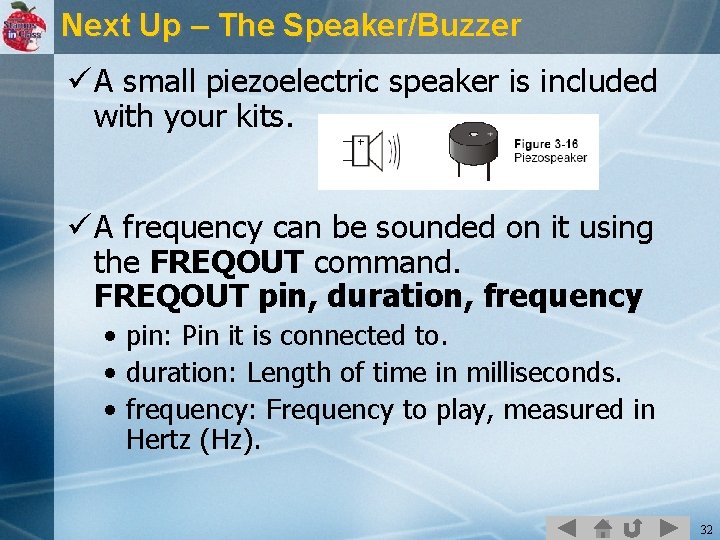
Next Up – The Speaker/Buzzer ü A small piezoelectric speaker is included with your kits. ü A frequency can be sounded on it using the FREQOUT command. FREQOUT pin, duration, frequency • pin: Pin it is connected to. • duration: Length of time in milliseconds. • frequency: Frequency to play, measured in Hertz (Hz). 32
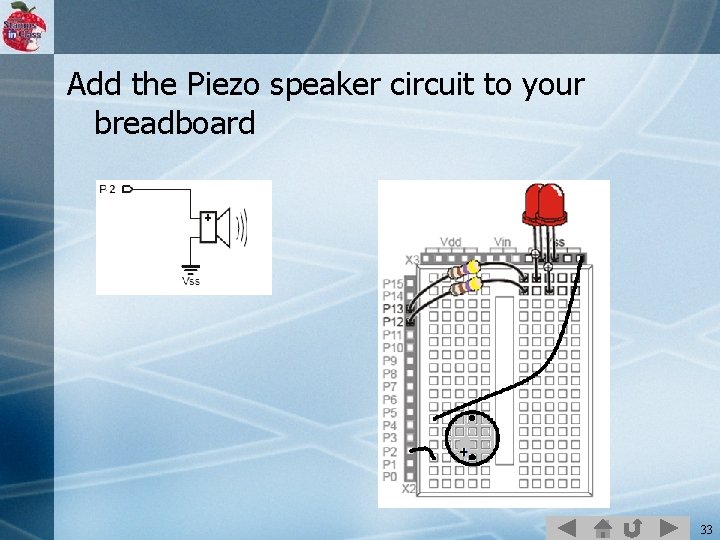
Add the Piezo speaker circuit to your breadboard 33
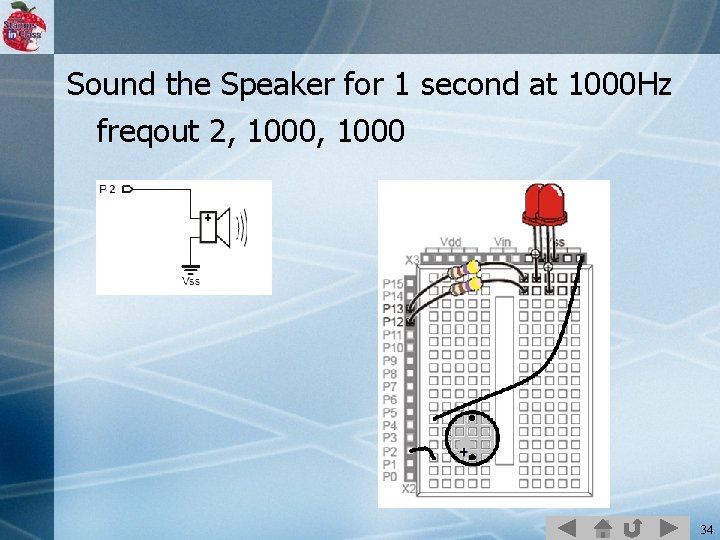
Sound the Speaker for 1 second at 1000 Hz freqout 2, 1000 34
Musical And BASIC Programming ü We can use freqout to demonstrate different programming concepts. ü You’ll be able to “Hear” what your code is doing. ü Helps to understand logic of your code. 35
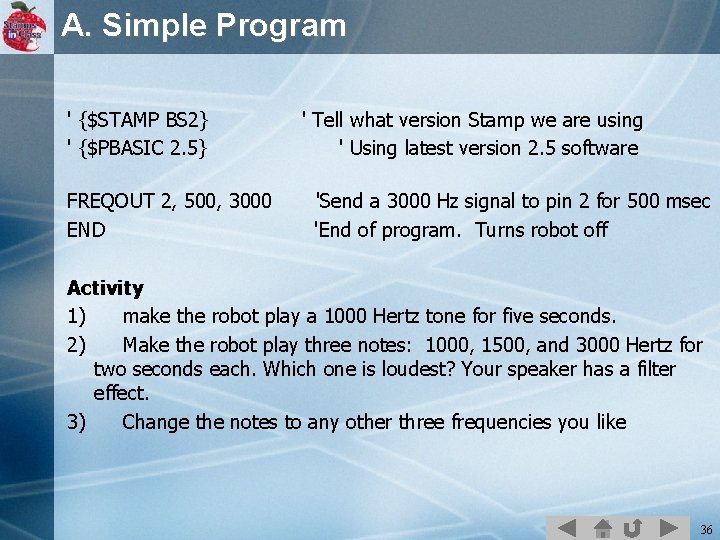
A. Simple Program ' {$STAMP BS 2} ' {$PBASIC 2. 5} FREQOUT 2, 500, 3000 END ' Tell what version Stamp we are using ' Using latest version 2. 5 software 'Send a 3000 Hz signal to pin 2 for 500 msec 'End of program. Turns robot off Activity 1) make the robot play a 1000 Hertz tone for five seconds. 2) Make the robot play three notes: 1000, 1500, and 3000 Hertz for two seconds each. Which one is loudest? Your speaker has a filter effect. 3) Change the notes to any other three frequencies you like 36
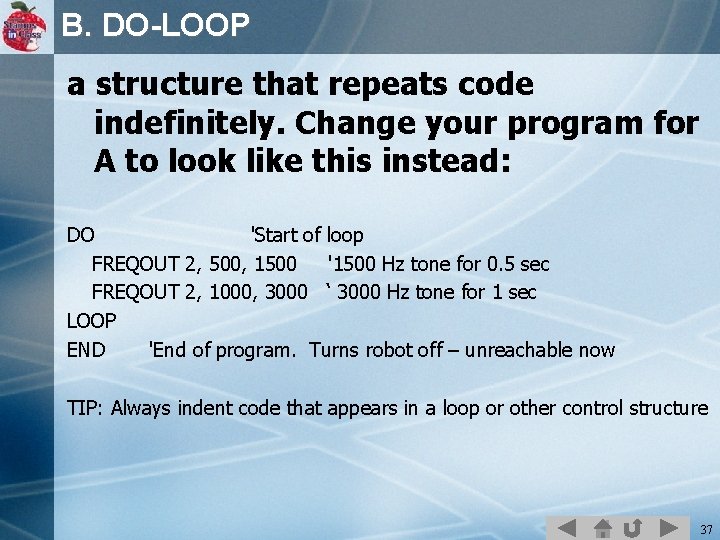
B. DO-LOOP a structure that repeats code indefinitely. Change your program for A to look like this instead: DO 'Start of loop FREQOUT 2, 500, 1500 '1500 Hz tone for 0. 5 sec FREQOUT 2, 1000, 3000 ‘ 3000 Hz tone for 1 sec LOOP END 'End of program. Turns robot off – unreachable now TIP: Always indent code that appears in a loop or other control structure 37
B. Activity 4) 5) Make the robot repeat your tone pattern from 3) Make a folder called Lab 0 and Save this as program sound 1. bs 2 inside it 6) Now save the program again as sound 2. bs 2 so we can make changes to it. 38
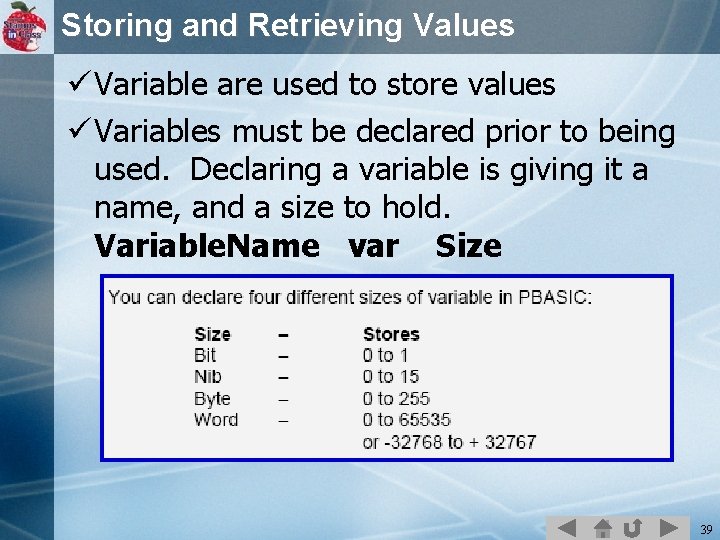
Storing and Retrieving Values ü Variable are used to store values ü Variables must be declared prior to being used. Declaring a variable is giving it a name, and a size to hold. Variable. Name var Size 39
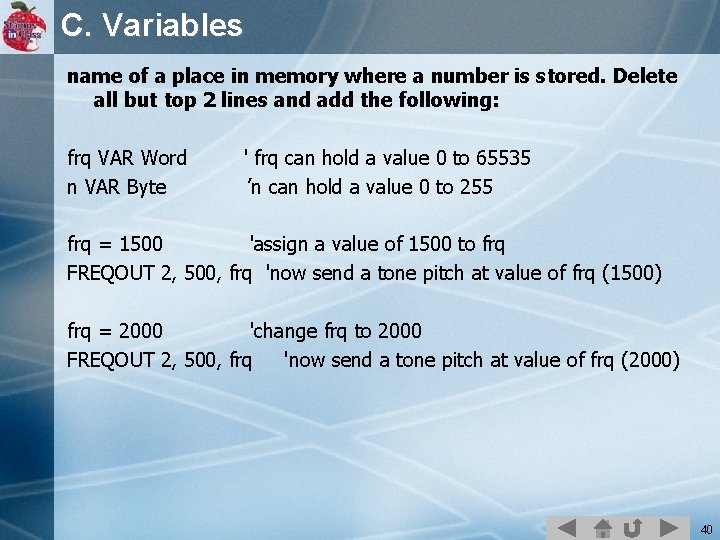
C. Variables name of a place in memory where a number is stored. Delete all but top 2 lines and add the following: frq VAR Word n VAR Byte ' frq can hold a value 0 to 65535 ’n can hold a value 0 to 255 frq = 1500 'assign a value of 1500 to frq FREQOUT 2, 500, frq 'now send a tone pitch at value of frq (1500) frq = 2000 'change frq to 2000 FREQOUT 2, 500, frq 'now send a tone pitch at value of frq (2000) 40
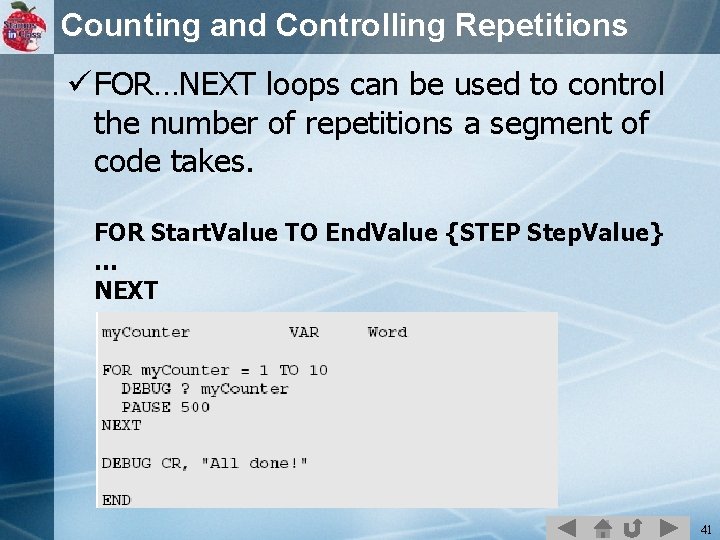
Counting and Controlling Repetitions ü FOR…NEXT loops can be used to control the number of repetitions a segment of code takes. FOR Start. Value TO End. Value {STEP Step. Value} … NEXT 41
Continue Lab 0 with Step D on handout 42
- Slides: 42