
Change the Button Caption On Bn Clicked Button
Change the Button Caption

On. Bn. Clicked. Button 1() void Cch 18 puzzle 1 View: : On. Bn. Clicked. Button 1() { CClient. DC a. DC(this); a. DC. Set. ROP 2(R 2_NOTXORPEN); static bool shown = false; a. DC. Ellipse(50, 150, 150); CWnd* p. Btn = Get. Dlg. Item(IDC_BUTTON 1); if (shown) p. Btn->Set. Window. Text("&Show"); else p. Btn->Set. Window. Text("H&ide"); shown = !shown; } 2
Get Mouse Position
P. 834 4

Message from the Mouse p WM_LBUTTONDOWN n p WM_LBUTTONUP n p Left mouse button is pressed Left mouse button is released WM_MOUSEMOVE n The mouse is moved. 5
Mouse Message Handlers p p Create a handler by clicking on the ID of a mouse message. Then select the down arrow in its right column. n n For example, select <add> On. LButton. Up for the WM_LBUTTONUP message. The wizard generates the WM_LBUTTONUP message handler: void CSketcher. View: : On. LButton. Up(UINT n. Flags, CPoint point) { // TODO: Add your message handler code here and/or call default CView: : On. LButton. Up(n. Flags, point); } 6
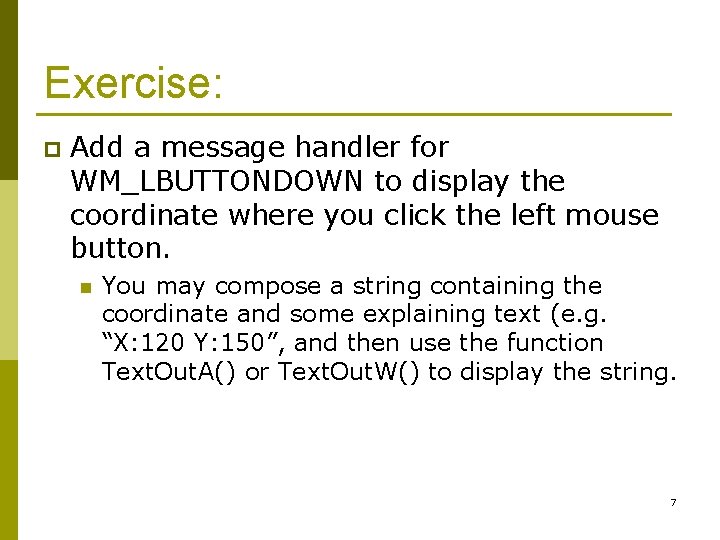
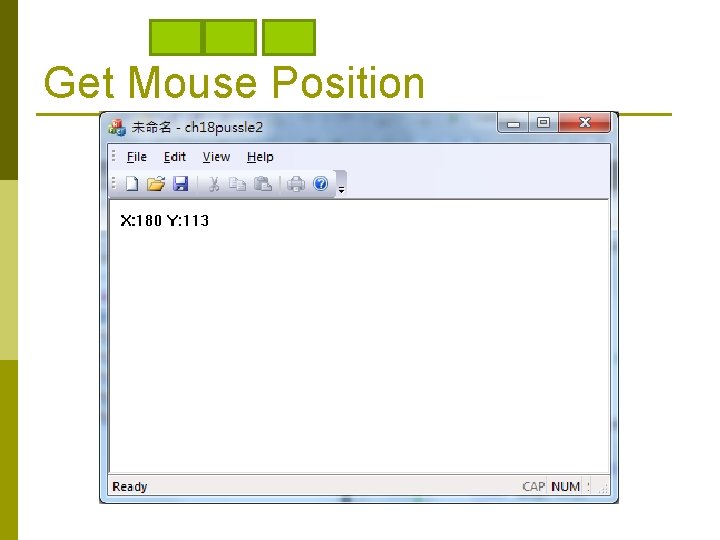
Exercise: p Add a message handler for WM_LBUTTONDOWN to display the coordinate where you click the left mouse button. n You may compose a string containing the coordinate and some explaining text (e. g. “X: 120 Y: 150”, and then use the function Text. Out. A() or Text. Out. W() to display the string. 7
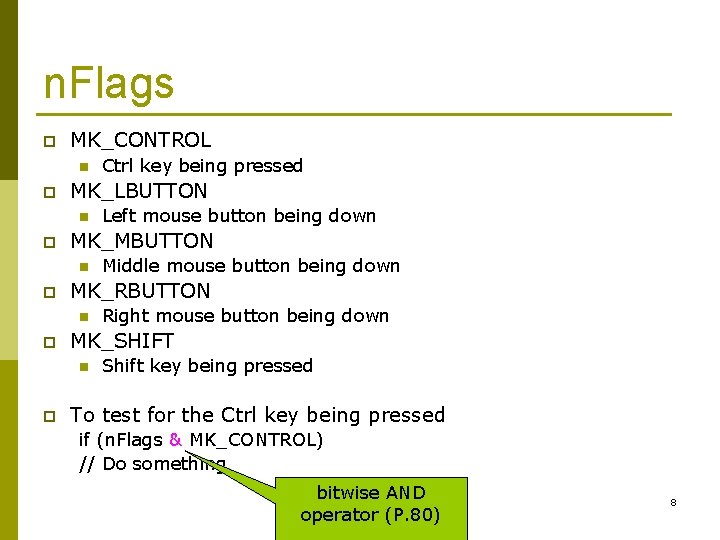
n. Flags p MK_CONTROL n p MK_LBUTTON n p Right mouse button being down MK_SHIFT n p Middle mouse button being down MK_RBUTTON n p Left mouse button being down MK_MBUTTON n p Ctrl key being pressed Shift key being pressed To test for the Ctrl key being pressed if (n. Flags & MK_CONTROL) // Do something bitwise AND operator (P. 80) 8
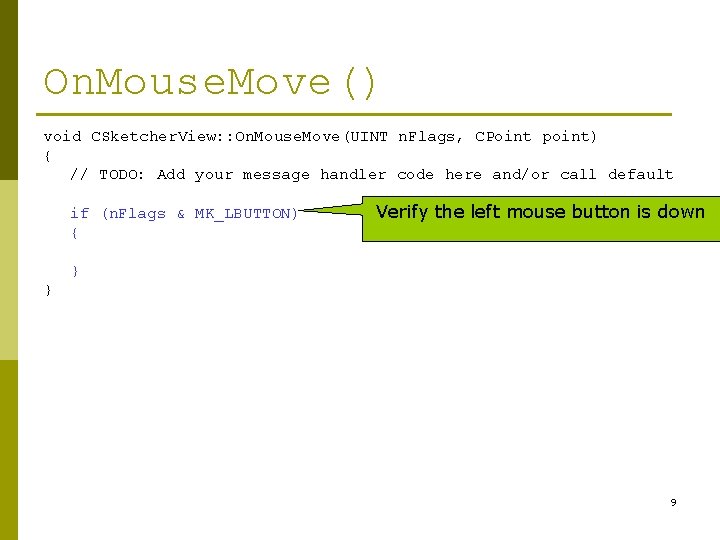
On. Mouse. Move() void CSketcher. View: : On. Mouse. Move(UINT n. Flags, CPoint point) { // TODO: Add your message handler code here and/or call default if (n. Flags & MK_LBUTTON) { Verify the left mouse button is down } } 9
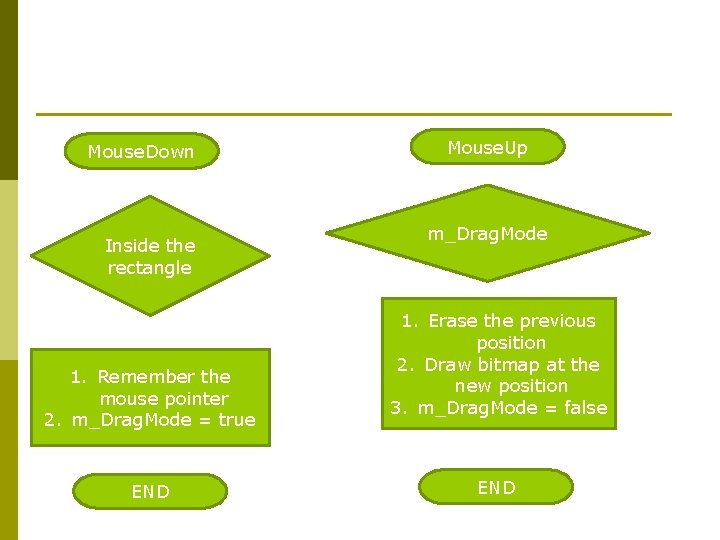
Mouse. Down Inside the rectangle 1. Remember the mouse pointer 2. m_Drag. Mode = true END Mouse. Up m_Drag. Mode 1. Erase the previous position 2. Draw bitmap at the new position 3. m_Drag. Mode = false END
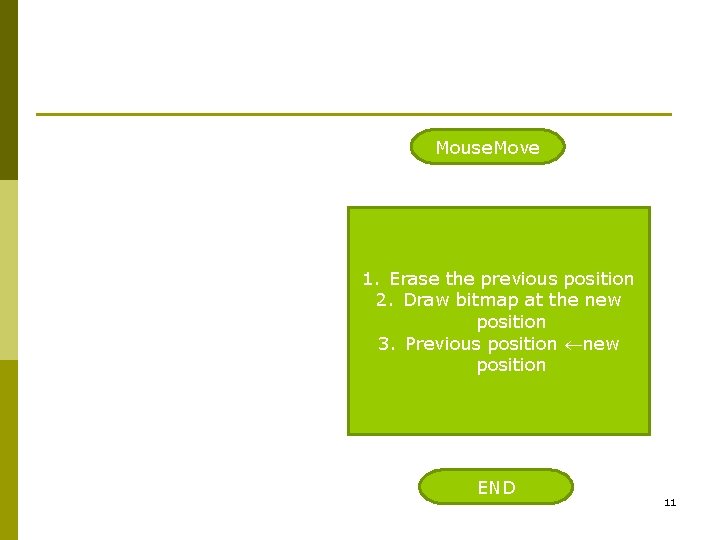
Mouse. Move 1. Erase the previous position 2. Draw bitmap at the new position 3. Previous position new position END 11
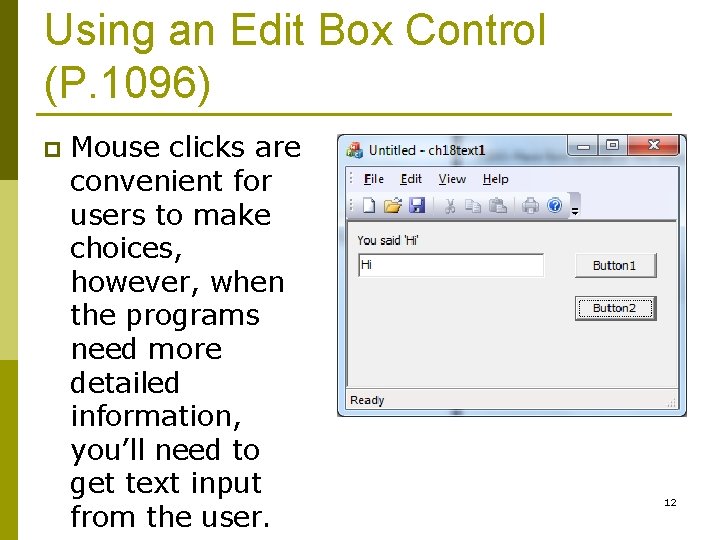
Using an Edit Box Control (P. 1096) p Mouse clicks are convenient for users to make choices, however, when the programs need more detailed information, you’ll need to get text input from the user. 12
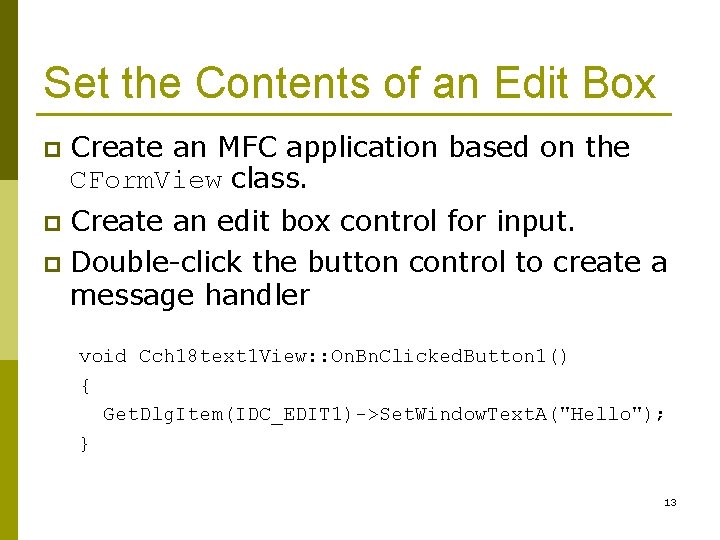
Set the Contents of an Edit Box p Create an MFC application based on the CForm. View class. Create an edit box control for input. p Double-click the button control to create a message handler p void Cch 18 text 1 View: : On. Bn. Clicked. Button 1() { Get. Dlg. Item(IDC_EDIT 1)->Set. Window. Text. A("Hello"); } 13
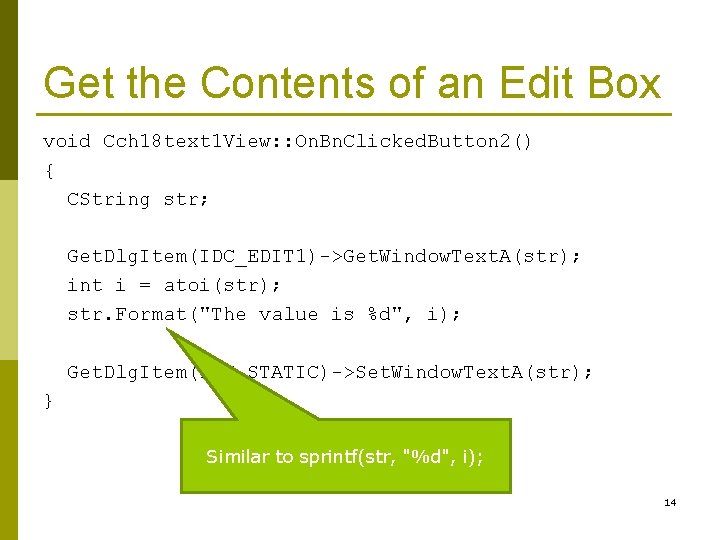
Get the Contents of an Edit Box void Cch 18 text 1 View: : On. Bn. Clicked. Button 2() { CString str; Get. Dlg. Item(IDC_EDIT 1)->Get. Window. Text. A(str); int i = atoi(str); str. Format("The value is %d", i); Get. Dlg. Item(IDC_STATIC)->Set. Window. Text. A(str); } Similar to sprintf(str, "%d", i); 14

HW 24: Currency Converter Design an application to convert US dollars to NT dollars (assume 1 USD = 30 NT dollars), and vice versa. p Note that the input may not always be integers. p n Hint: Use atof(). 15
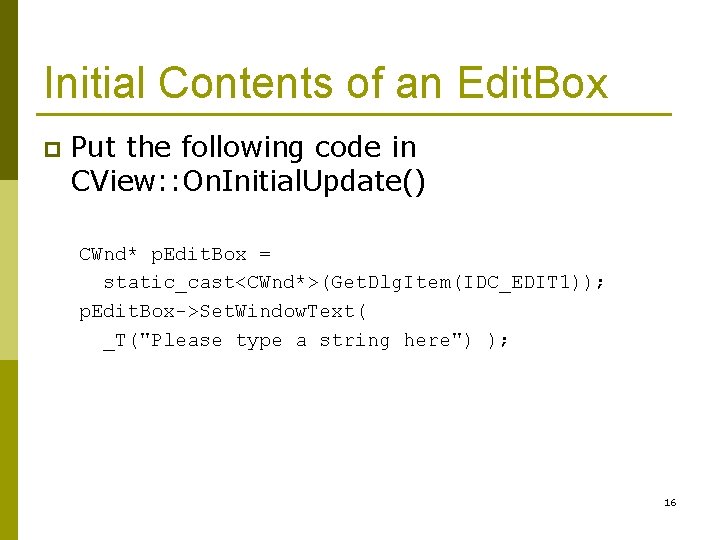
Initial Contents of an Edit. Box p Put the following code in CView: : On. Initial. Update() CWnd* p. Edit. Box = static_cast<CWnd*>(Get. Dlg. Item(IDC_EDIT 1)); p. Edit. Box->Set. Window. Text( _T("Please type a string here") ); 16
Properties of an Edit Box Control p Multiline n p Align text n p The text you enter can span more than one line. Left/Center/Right Want return n n Insert a RETURN character into the text string. If False, pressing enter will select the default control (generally the OK button). Auto HScroll p Auto VScroll p 17
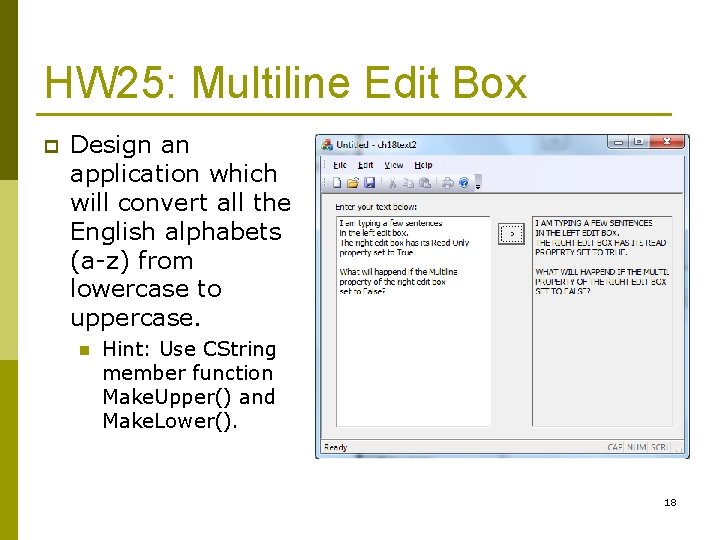
HW 25: Multiline Edit Box p Design an application which will convert all the English alphabets (a-z) from lowercase to uppercase. n Hint: Use CString member function Make. Upper() and Make. Lower(). 18
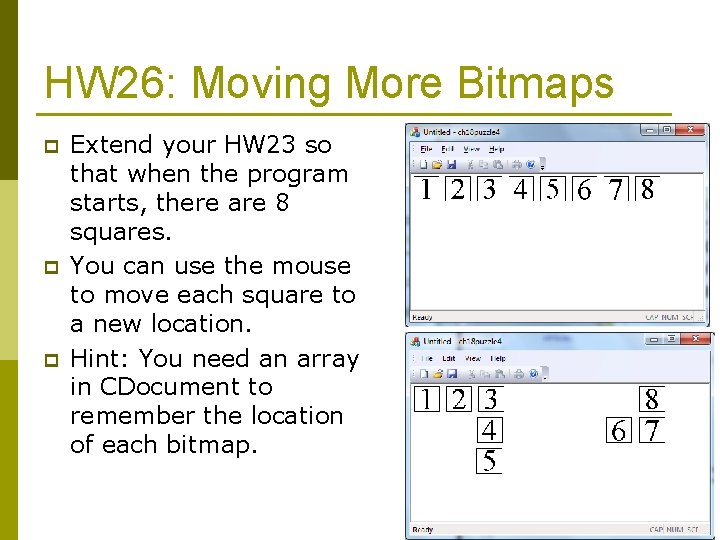
HW 26: Moving More Bitmaps p p p Extend your HW 23 so that when the program starts, there are 8 squares. You can use the mouse to move each square to a new location. Hint: You need an array in CDocument to remember the location of each bitmap. 19
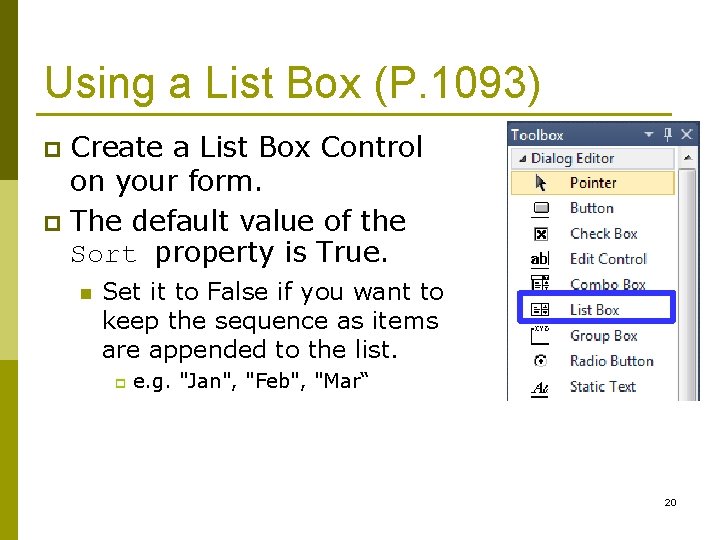
Using a List Box (P. 1093) Create a List Box Control on your form. p The default value of the Sort property is True. p n Set it to False if you want to keep the sequence as items are appended to the list. p e. g. "Jan", "Feb", "Mar“ 20
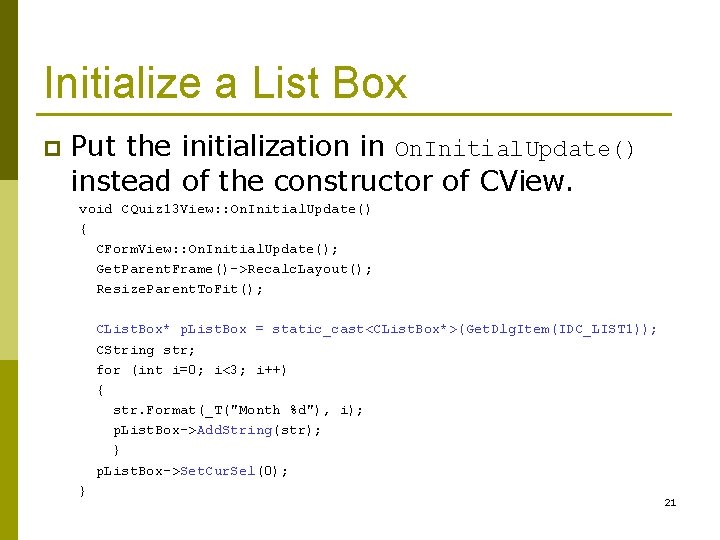
Initialize a List Box p Put the initialization in On. Initial. Update() instead of the constructor of CView. void CQuiz 13 View: : On. Initial. Update() { CForm. View: : On. Initial. Update(); Get. Parent. Frame()->Recalc. Layout(); Resize. Parent. To. Fit(); CList. Box* p. List. Box = static_cast<CList. Box*>(Get. Dlg. Item(IDC_LIST 1)); CString str; for (int i=0; i<3; i++) { str. Format(_T("Month %d"), i); p. List. Box->Add. String(str); } p. List. Box->Set. Cur. Sel(0); } 21
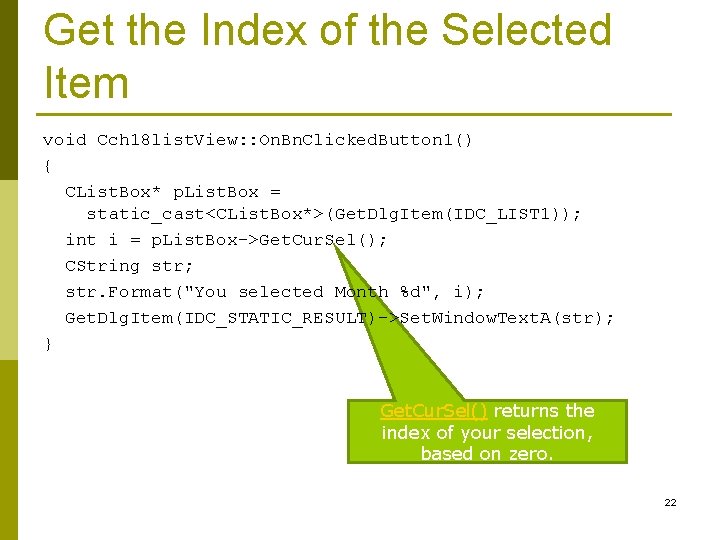
Get the Index of the Selected Item void Cch 18 list. View: : On. Bn. Clicked. Button 1() { CList. Box* p. List. Box = static_cast<CList. Box*>(Get. Dlg. Item(IDC_LIST 1)); int i = p. List. Box->Get. Cur. Sel(); CString str; str. Format("You selected Month %d", i); Get. Dlg. Item(IDC_STATIC_RESULT)->Set. Window. Text. A(str); } Get. Cur. Sel() returns the index of your selection, based on zero. 22
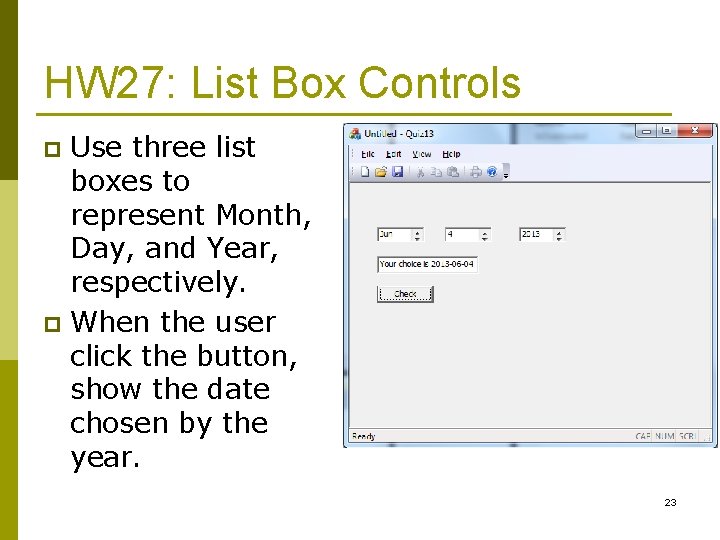
HW 27: List Box Controls Use three list boxes to represent Month, Day, and Year, respectively. p When the user click the button, show the date chosen by the year. p 23
CList. Box Member Functions p Get. Count n p Get. Text. Len n p Returns the number of strings in a list box. Returns the length in bytes of a list-box item. Delete. String n Deletes a string from a list box. 24
HW 28: Dynamically Change a List p Modify your HW 27, so that n When the user selects a month, your program will automatically adjust the list for days. January – 31 days p April – 30 days p June – 30 days p etc. p n When the user click the button, your program will calculate what day the selected day is, and show a sentence like “ 2013 -06 -04 is Tuesday”. 25
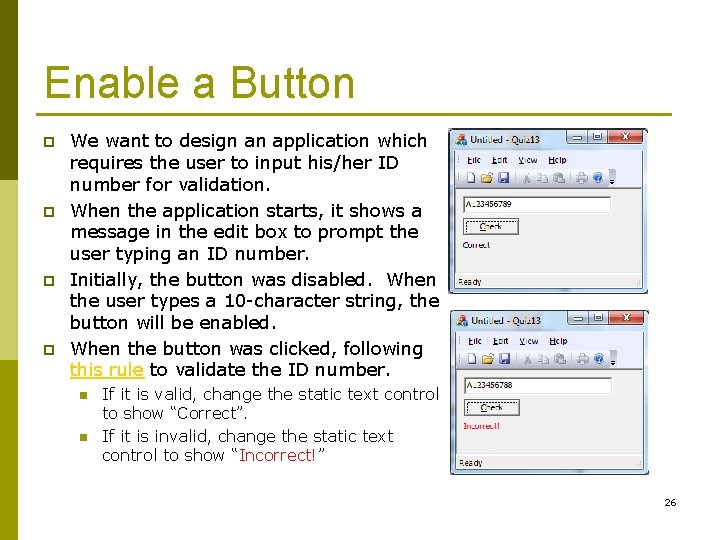
Enable a Button p p We want to design an application which requires the user to input his/her ID number for validation. When the application starts, it shows a message in the edit box to prompt the user typing an ID number. Initially, the button was disabled. When the user types a 10 -character string, the button will be enabled. When the button was clicked, following this rule to validate the ID number. n n If it is valid, change the static text control to show “Correct”. If it is invalid, change the static text control to show “Incorrect!” 26
CView: : On. Initial. Update() p Initialize an Edit Box control n n p CWnd* p. Edit. Box = static_cast<CWnd*>(Get. Dlg. Item(IDC_EDIT 1)); p. Edit. Box->Set. Window. Text( _T("Please type your ID here") ); Disable a Button n Get. Dlg. Item(IDC_BUTTON 1)->Enable. Window(FALSE); 27
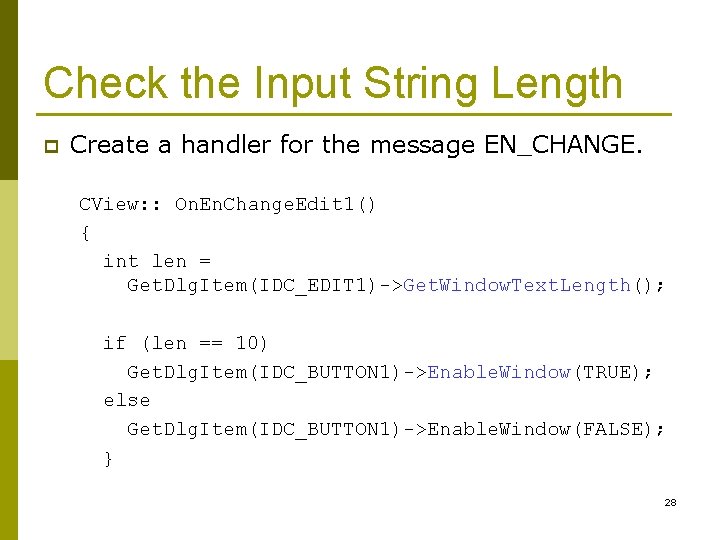
Check the Input String Length p Create a handler for the message EN_CHANGE. CView: : On. En. Change. Edit 1() { int len = Get. Dlg. Item(IDC_EDIT 1)->Get. Window. Text. Length(); if (len == 10) Get. Dlg. Item(IDC_BUTTON 1)->Enable. Window(TRUE); else Get. Dlg. Item(IDC_BUTTON 1)->Enable. Window(FALSE); } 28
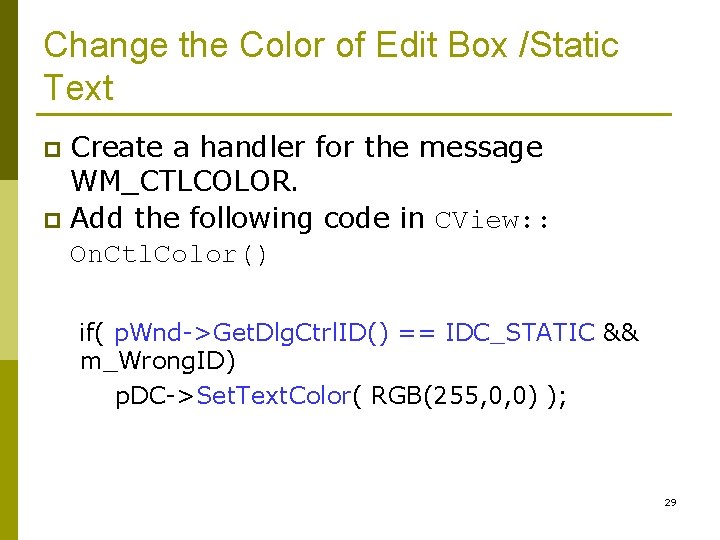
Change the Color of Edit Box /Static Text Create a handler for the message WM_CTLCOLOR. p Add the following code in CView: : On. Ctl. Color() p if( p. Wnd->Get. Dlg. Ctrl. ID() == IDC_STATIC && m_Wrong. ID) p. DC->Set. Text. Color( RGB(255, 0, 0) ); 29
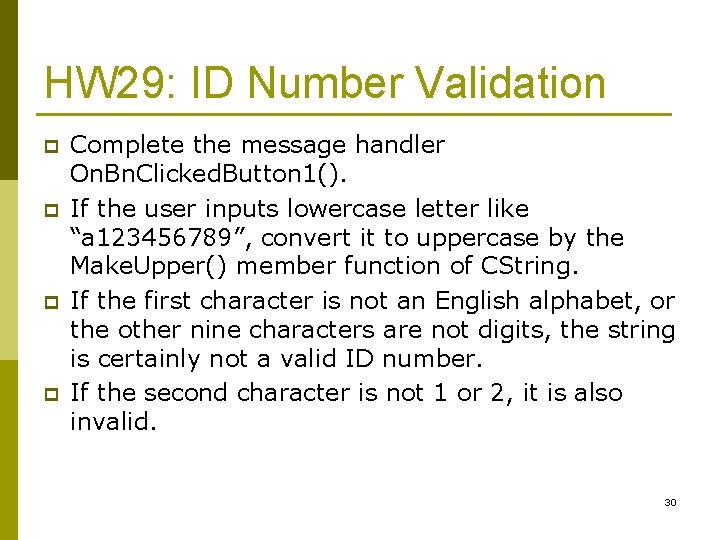
HW 29: ID Number Validation p p Complete the message handler On. Bn. Clicked. Button 1(). If the user inputs lowercase letter like “a 123456789”, convert it to uppercase by the Make. Upper() member function of CString. If the first character is not an English alphabet, or the other nine characters are not digits, the string is certainly not a valid ID number. If the second character is not 1 or 2, it is also invalid. 30
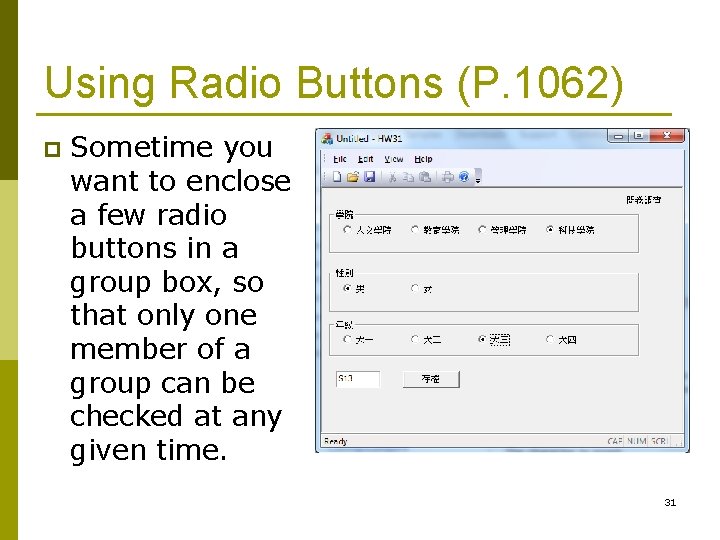
Using Radio Buttons (P. 1062) p Sometime you want to enclose a few radio buttons in a group box, so that only one member of a group can be checked at any given time. 31
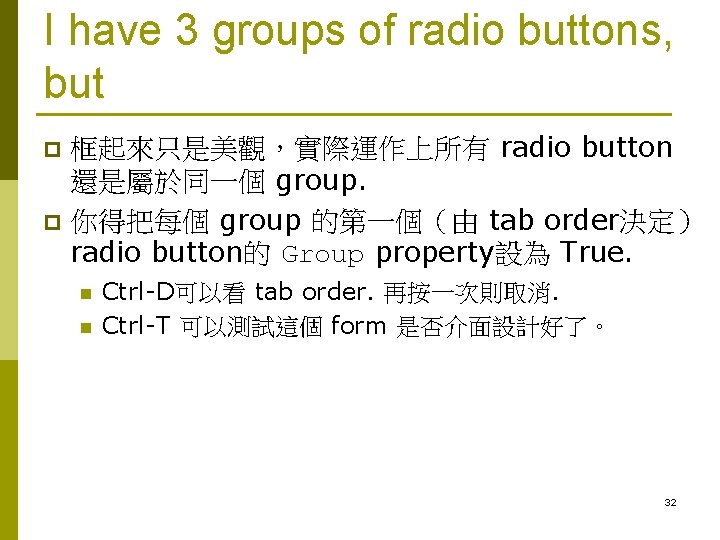
I have 3 groups of radio buttons, but 框起來只是美觀,實際運作上所有 radio button 還是屬於同一個 group. p 你得把每個 group 的第一個(由 tab order決定) radio button的 Group property設為 True. p n n Ctrl-D可以看 tab order. 再按一次則取消. Ctrl-T 可以測試這個 form 是否介面設計好了。 32
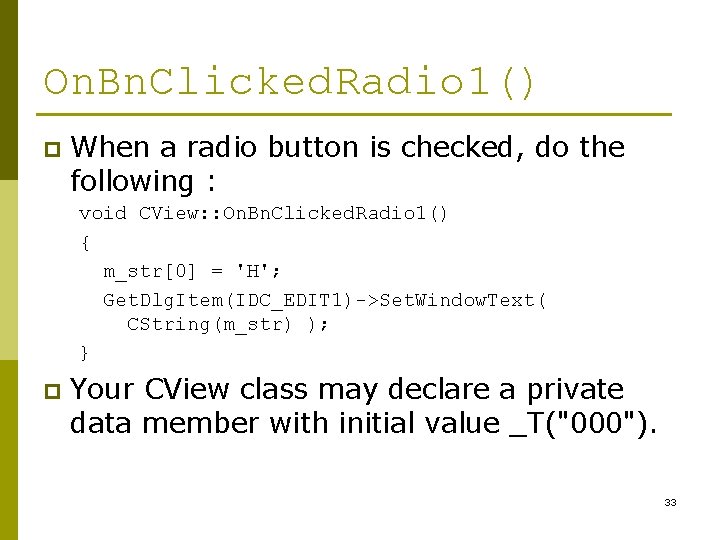
On. Bn. Clicked. Radio 1() p When a radio button is checked, do the following : void CView: : On. Bn. Clicked. Radio 1() { m_str[0] = 'H'; Get. Dlg. Item(IDC_EDIT 1)->Set. Window. Text( CString(m_str) ); } p Your CView class may declare a private data member with initial value _T("000"). 33
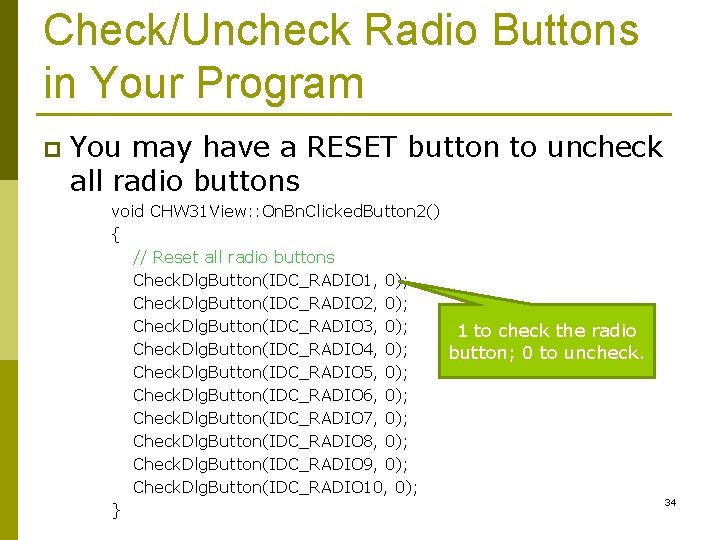
Check/Uncheck Radio Buttons in Your Program p You may have a RESET button to uncheck all radio buttons void CHW 31 View: : On. Bn. Clicked. Button 2() { // Reset all radio buttons Check. Dlg. Button(IDC_RADIO 1, 0); Check. Dlg. Button(IDC_RADIO 2, 0); Check. Dlg. Button(IDC_RADIO 3, 0); 1 to check the radio Check. Dlg. Button(IDC_RADIO 4, 0); button; 0 to uncheck. Check. Dlg. Button(IDC_RADIO 5, 0); Check. Dlg. Button(IDC_RADIO 6, 0); Check. Dlg. Button(IDC_RADIO 7, 0); Check. Dlg. Button(IDC_RADIO 8, 0); Check. Dlg. Button(IDC_RADIO 9, 0); Check. Dlg. Button(IDC_RADIO 10, 0); } 34
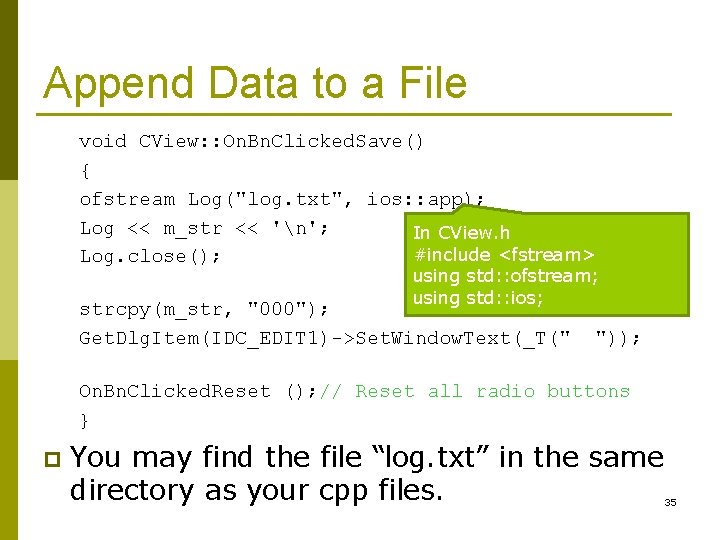
Append Data to a File void CView: : On. Bn. Clicked. Save() { ofstream Log("log. txt", ios: : app); Log << m_str << 'n'; In CView. h #include <fstream> Log. close(); using std: : ofstream; using std: : ios; strcpy(m_str, "000"); Get. Dlg. Item(IDC_EDIT 1)->Set. Window. Text(_T(" ")); On. Bn. Clicked. Reset (); // Reset all radio buttons } p You may find the file “log. txt” in the same directory as your cpp files. 35
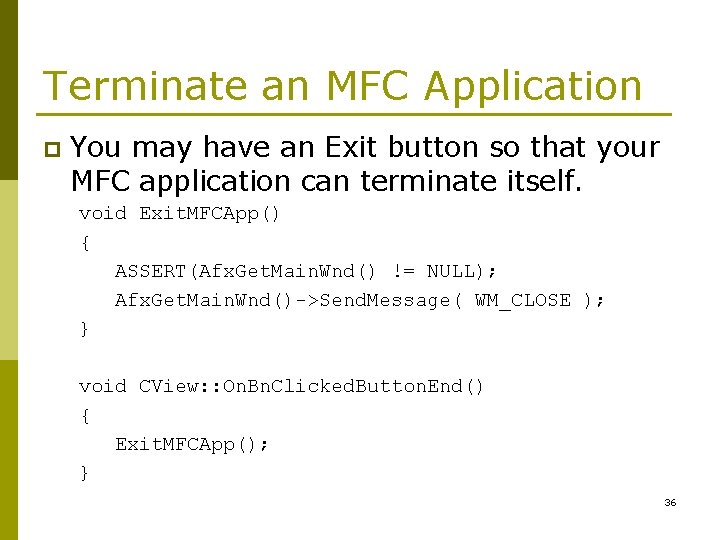
Terminate an MFC Application p You may have an Exit button so that your MFC application can terminate itself. void Exit. MFCApp() { ASSERT(Afx. Get. Main. Wnd() != NULL); Afx. Get. Main. Wnd()->Send. Message( WM_CLOSE ); } void CView: : On. Bn. Clicked. Button. End() { Exit. MFCApp(); } 36
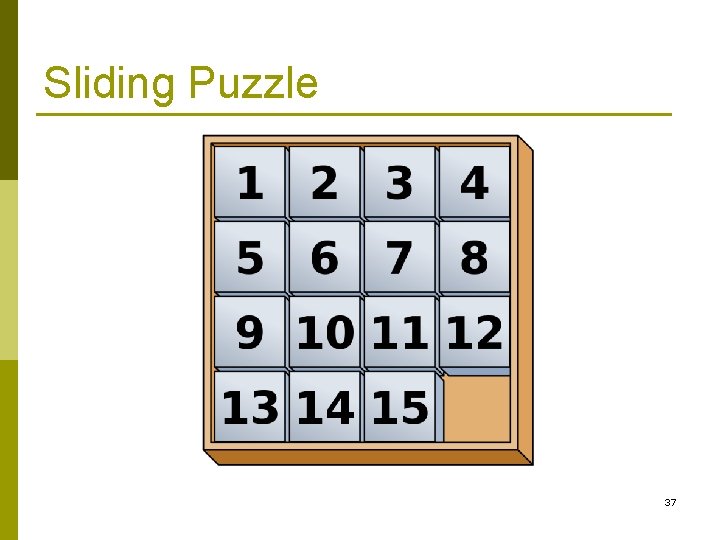
Sliding Puzzle 37
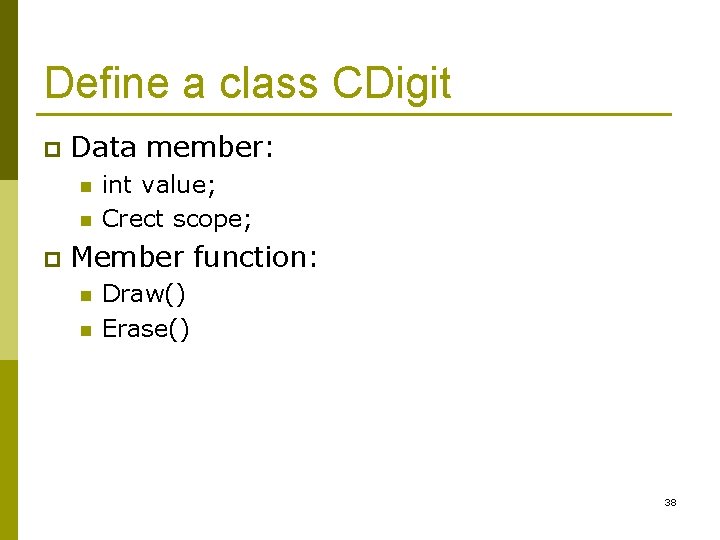
Define a class CDigit p Data member: n n p int value; Crect scope; Member function: n n Draw() Erase() 38
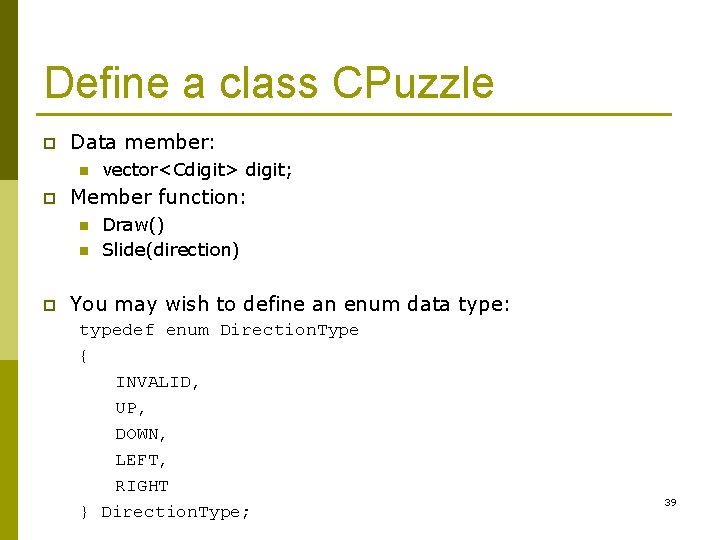
Define a class CPuzzle p Data member: n p Member function: n n p vector<Cdigit> digit; Draw() Slide(direction) You may wish to define an enum data type: typedef enum Direction. Type { INVALID, UP, DOWN, LEFT, RIGHT } Direction. Type; 39
- Slides: 39