
Change Requests This document is a quickstart guide
- Slides: 1
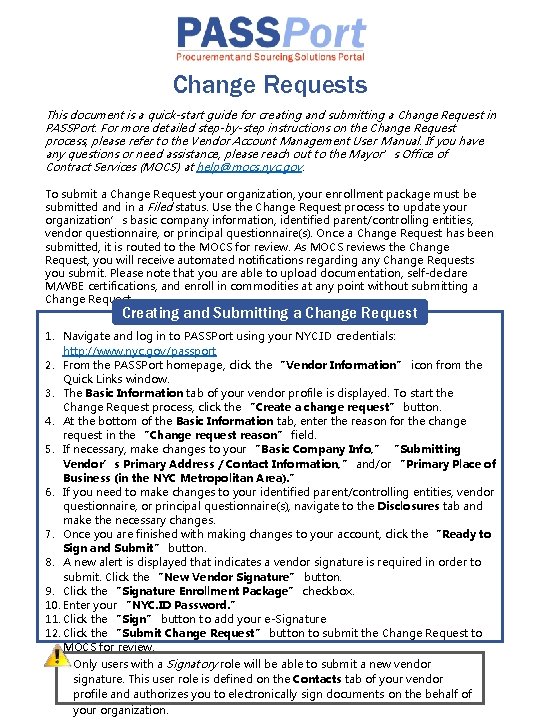
Change Requests This document is a quick-start guide for creating and submitting a Change Request in PASSPort. For more detailed step-by-step instructions on the Change Request process, please refer to the Vendor Account Management User Manual. If you have any questions or need assistance, please reach out to the Mayor’s Office of Contract Services (MOCS) at help@mocs. nyc. gov. To submit a Change Request your organization, your enrollment package must be submitted and in a Filed status. Use the Change Request process to update your organization’s basic company information, identified parent/controlling entities, vendor questionnaire, or principal questionnaire(s). Once a Change Request has been submitted, it is routed to the MOCS for review. As MOCS reviews the Change Request, you will receive automated notifications regarding any Change Requests you submit. Please note that you are able to upload documentation, self-declare M/WBE certifications, and enroll in commodities at any point without submitting a Change Request. Creating and Submitting a Change Request 1. Navigate and log in to PASSPort using your NYC. ID credentials: http: //www. nyc. gov/passport 2. From the PASSPort homepage, click the “Vendor Information” icon from the Quick Links window. 3. The Basic Information tab of your vendor profile is displayed. To start the Change Request process, click the “Create a change request” button. 4. At the bottom of the Basic Information tab, enter the reason for the change request in the “Change request reason” field. 5. If necessary, make changes to your “Basic Company Info, ” “Submitting Vendor’s Primary Address / Contact Information, ” and/or “Primary Place of Business (in the NYC Metropolitan Area). ” 6. If you need to make changes to your identified parent/controlling entities, vendor questionnaire, or principal questionnaire(s), navigate to the Disclosures tab and make the necessary changes. 7. Once you are finished with making changes to your account, click the “Ready to Sign and Submit” button. 8. A new alert is displayed that indicates a vendor signature is required in order to submit. Click the “New Vendor Signature” button. 9. Click the “Signature Enrollment Package” checkbox. 10. Enter your “NYC. ID Password. ” 11. Click the “Sign” button to add your e-Signature 12. Click the “Submit Change Request” button to submit the Change Request to MOCS for review. Only users with a Signatory role will be able to submit a new vendor signature. This user role is defined on the Contacts tab of your vendor profile and authorizes you to electronically sign documents on the behalf of your organization.