
Change Partner Meeting Payroll Costing Workday Training WorkdayYale







- Slides: 52
Change Partner Meeting Payroll Costing Workday Training Workday@Yale April 18, 2017
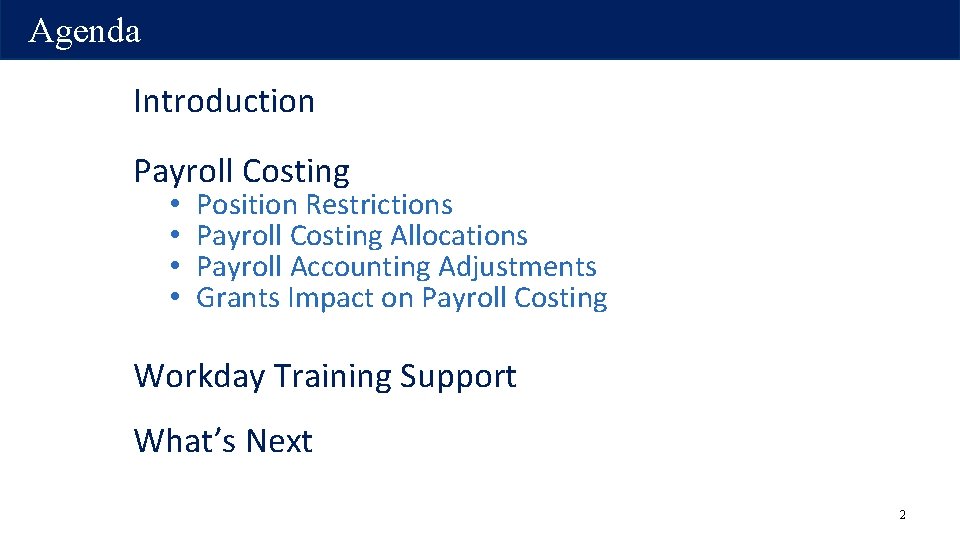
Agenda Introduction Payroll Costing • • Position Restrictions Payroll Costing Allocations Payroll Accounting Adjustments Grants Impact on Payroll Costing Workday Training Support What’s Next 2
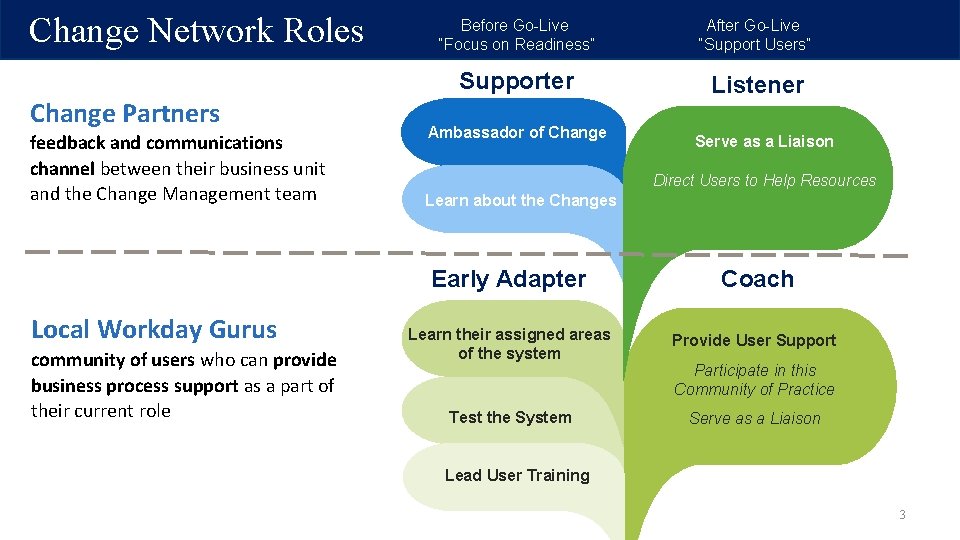
Change Network Roles Change Partners feedback and communications channel between their business unit and the Change Management team Local Workday Gurus community of users who can provide business process support as a part of their current role Before Go-Live “Focus on Readiness” After Go-Live “Support Users” Supporter Listener Ambassador of Change Serve as a Liaison Direct Users to Help Resources Learn about the Changes Early Adapter Coach Learn their assigned areas of the system Provide User Support Test the System Serve as a Liaison Participate in this Community of Practice Lead User Training 3
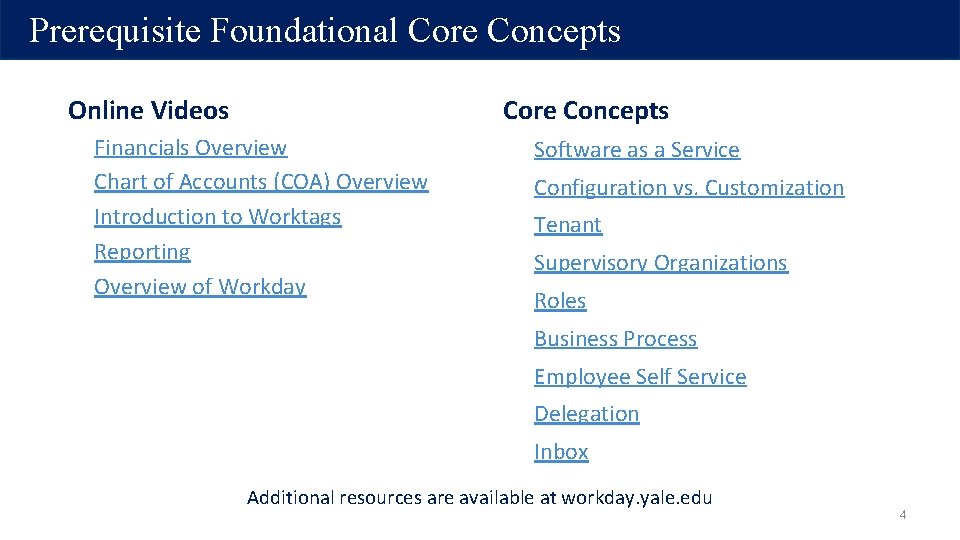
Prerequisite Foundational Core Concepts Online Videos Core Concepts Financials Overview Chart of Accounts (COA) Overview Introduction to Worktags Reporting Overview of Workday Software as a Service Configuration vs. Customization Tenant Supervisory Organizations Roles Business Process Employee Self Service Delegation Inbox Additional resources are available at workday. yale. edu 4
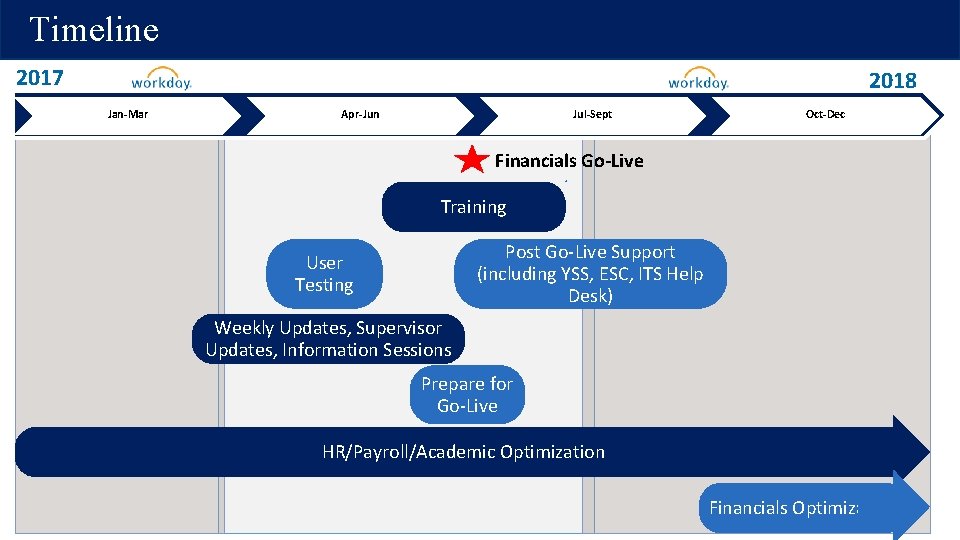
Timeline 2017 2018 Jan-Mar Apr-Jun Jul-Sept Oct-Dec Financials Go-Live Training Post Go-Live Support (including YSS, ESC, ITS Help Desk) User Testing Weekly Updates, Supervisor Updates, Information Sessions Prepare for Go-Live HR/Payroll/Academic Optimization Financials Optimization
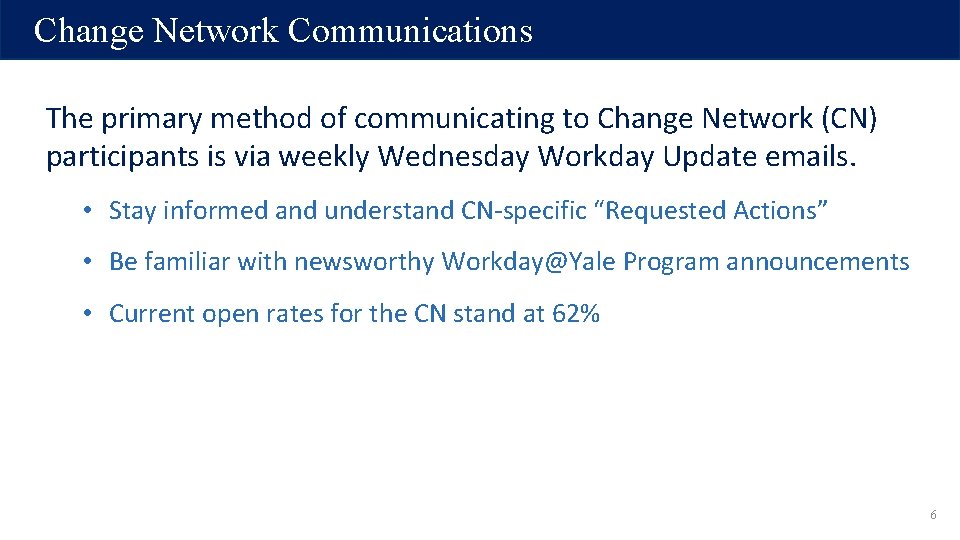
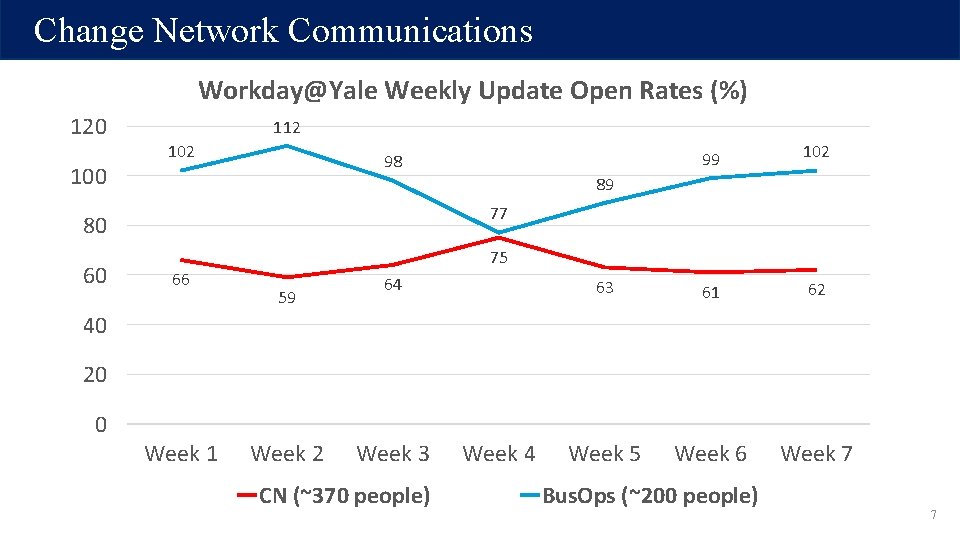
Change Network Communications The primary method of communicating to Change Network (CN) participants is via weekly Wednesday Workday Update emails. • Stay informed and understand CN-specific “Requested Actions” • Be familiar with newsworthy Workday@Yale Program announcements • Current open rates for the CN stand at 62% 6
Change Network Communications Workday@Yale Weekly Update Open Rates (%) 120 100 112 102 63 61 62 Week 5 Week 6 Week 7 89 77 80 60 99 98 75 66 59 64 40 20 0 Week 1 Week 2 Week 3 CN (~370 people) Week 4 Bus. Ops (~200 people) 7
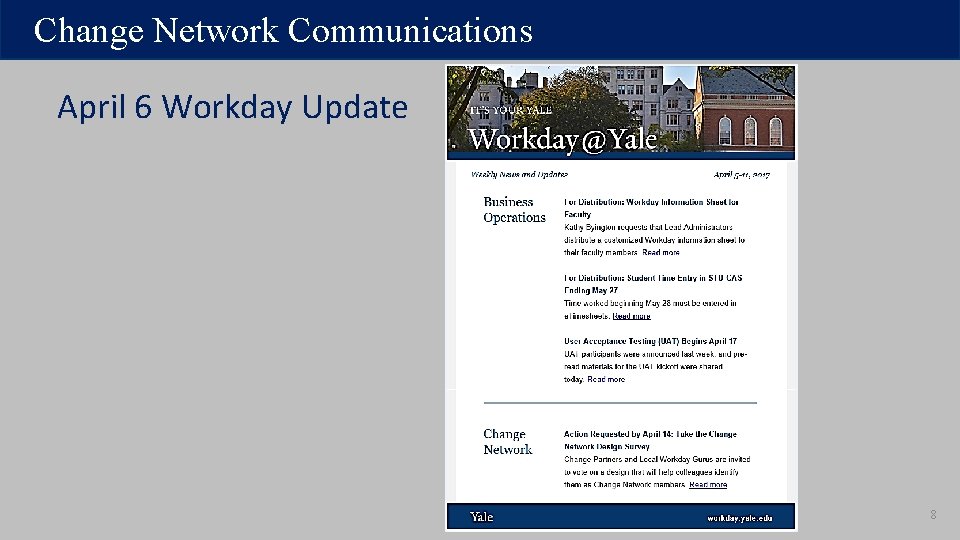
Change Network Communications April 6 Workday Update 8
Workday@Yale Payroll Costing Position Restrictions Payroll Costing Allocation Workday@Yale
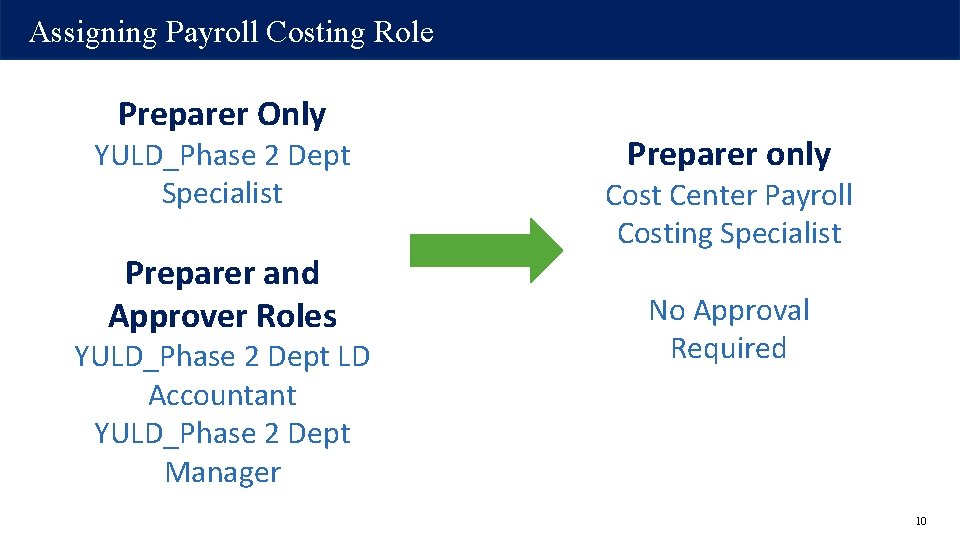
Assigning Payroll Costing Role Preparer Only YULD_Phase 2 Dept Specialist Preparer and Approver Roles YULD_Phase 2 Dept LD Accountant YULD_Phase 2 Dept Manager Preparer only Cost Center Payroll Costing Specialist No Approval Required 10
Key Changes • In Oracle, we use Labor Schedules to assign Payroll Costing or charging instructions. • In Workday, we will use Assign Payroll Allocation. 11
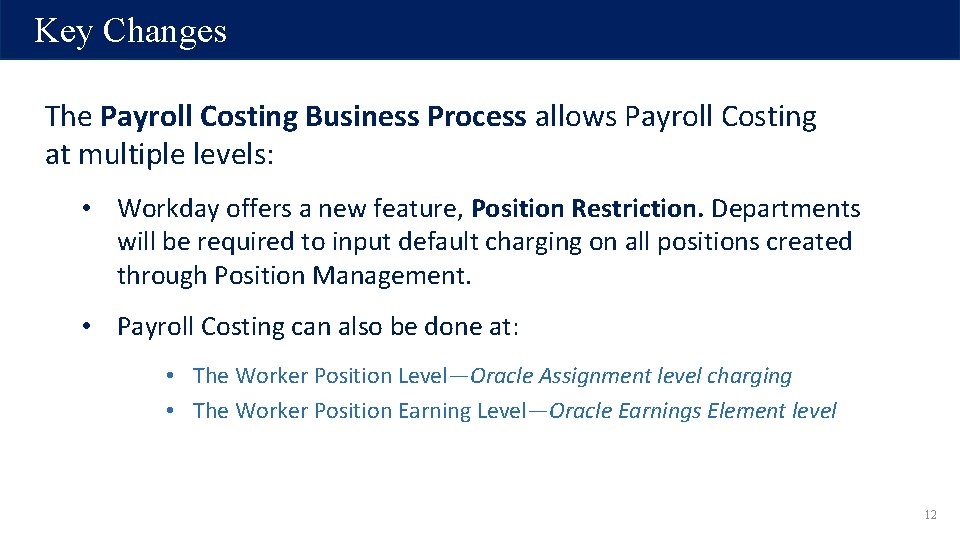
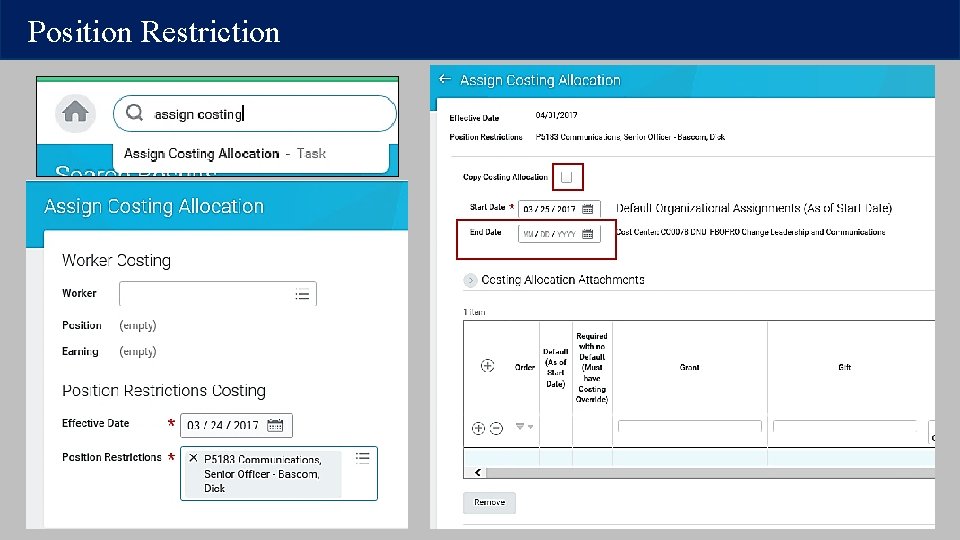
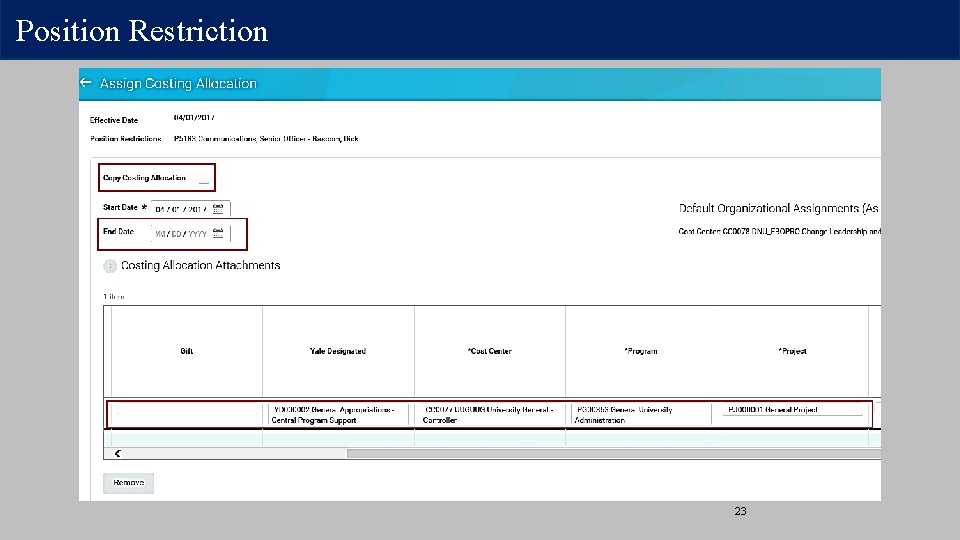
Key Changes The Payroll Costing Business Process allows Payroll Costing at multiple levels: • Workday offers a new feature, Position Restriction. Departments will be required to input default charging on all positions created through Position Management. • Payroll Costing can also be done at: • The Worker Position Level—Oracle Assignment level charging • The Worker Position Earning Level—Oracle Earnings Element level 12
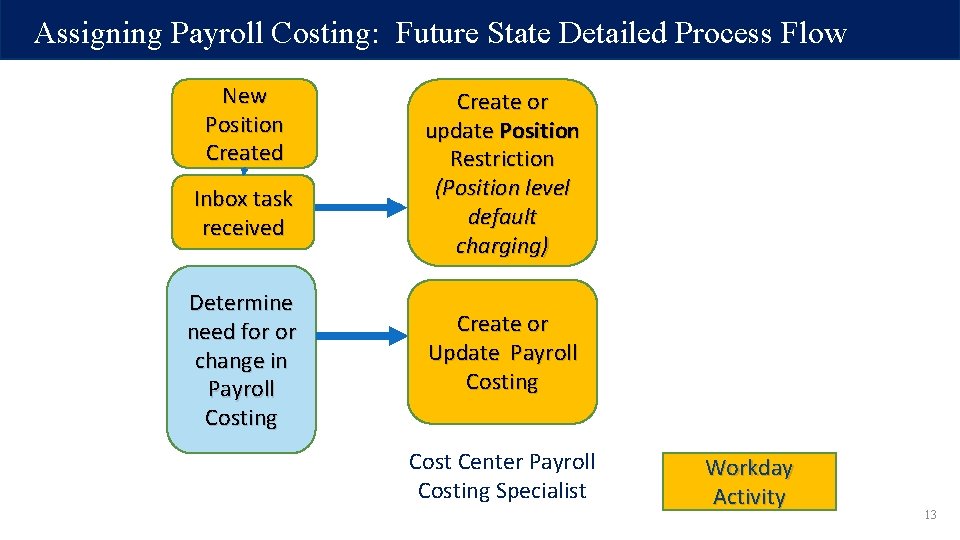
Assigning Payroll Costing: Future State Detailed Process Flow New Position Created Inbox task received Determine need for or change in Payroll Costing Create or update Position Restriction (Position level default charging) Create or Update Payroll Costing Cost Center Payroll Costing Specialist Workday Activity 13
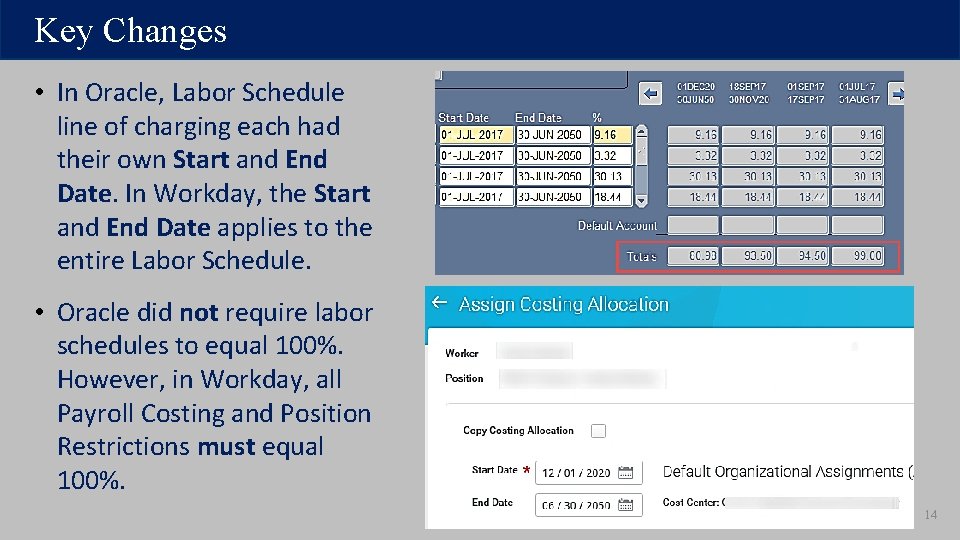
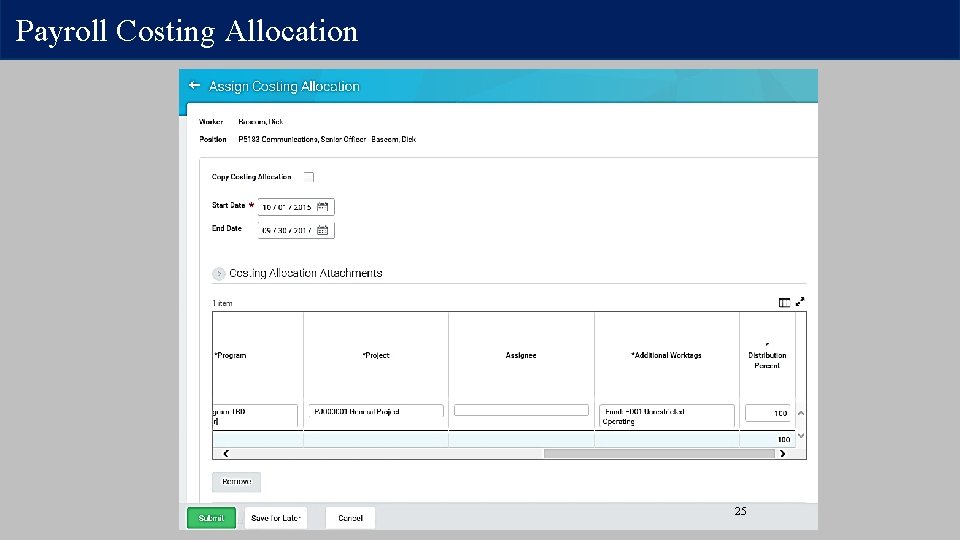
Key Changes • In Oracle, Labor Schedule line of charging each had their own Start and End Date. In Workday, the Start and End Date applies to the entire Labor Schedule. • Oracle did not require labor schedules to equal 100%. However, in Workday, all Payroll Costing and Position Restrictions must equal 100%. 14
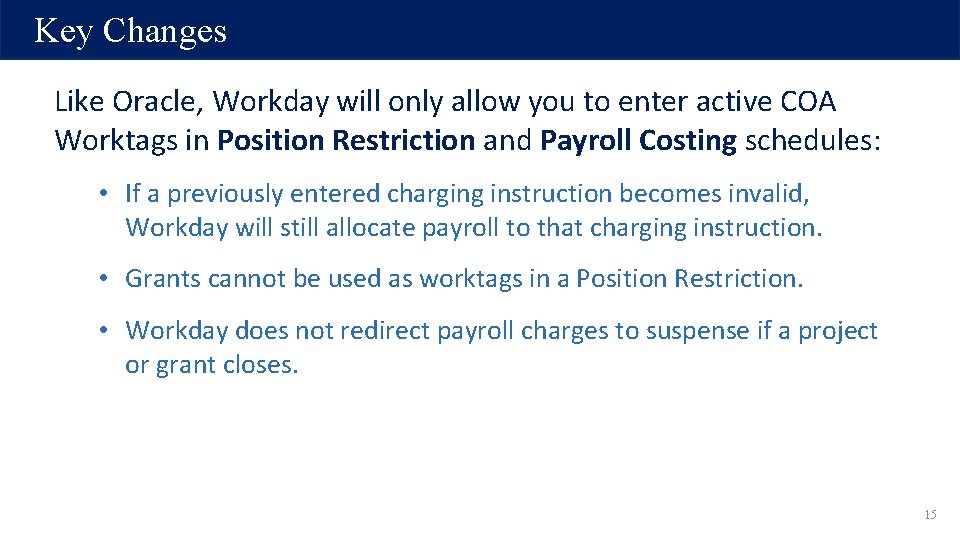
Key Changes Like Oracle, Workday will only allow you to enter active COA Worktags in Position Restriction and Payroll Costing schedules: • If a previously entered charging instruction becomes invalid, Workday will still allocate payroll to that charging instruction. • Grants cannot be used as worktags in a Position Restriction. • Workday does not redirect payroll charges to suspense if a project or grant closes. 15
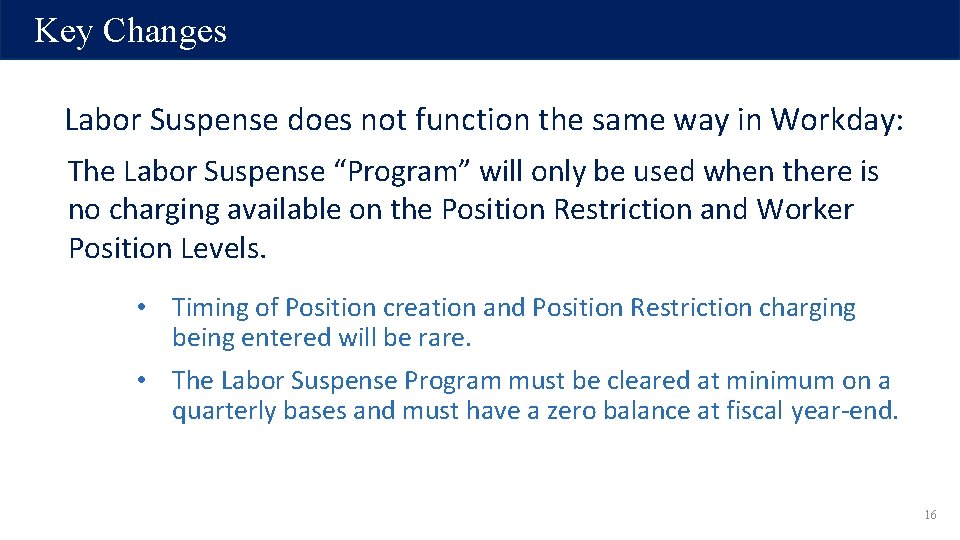
Key Changes Labor Suspense does not function the same way in Workday: The Labor Suspense “Program” will only be used when there is no charging available on the Position Restriction and Worker Position Levels. • Timing of Position creation and Position Restriction charging being entered will be rare. • The Labor Suspense Program must be cleared at minimum on a quarterly bases and must have a zero balance at fiscal year-end. 16
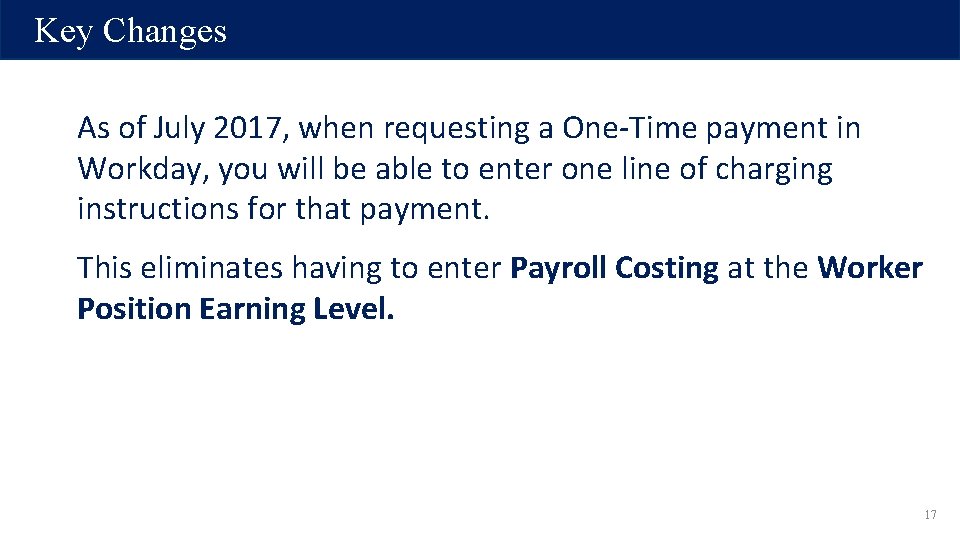
Key Changes As of July 2017, when requesting a One-Time payment in Workday, you will be able to enter one line of charging instructions for that payment. This eliminates having to enter Payroll Costing at the Worker Position Earning Level. 17
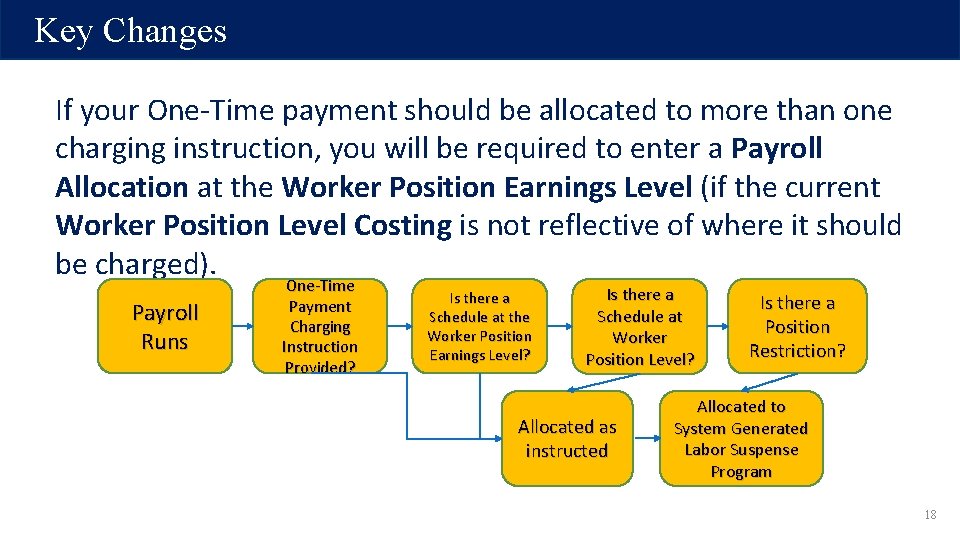
Key Changes If your One-Time payment should be allocated to more than one charging instruction, you will be required to enter a Payroll Allocation at the Worker Position Earnings Level (if the current Worker Position Level Costing is not reflective of where it should be charged). Payroll Runs One-Time Payment Charging Instruction Provided? Is there a Schedule at the Worker Position Earnings Level? Is there a Schedule at Worker Position Level? Allocated as instructed Is there a Position Restriction? Allocated to System Generated Labor Suspense Program 18
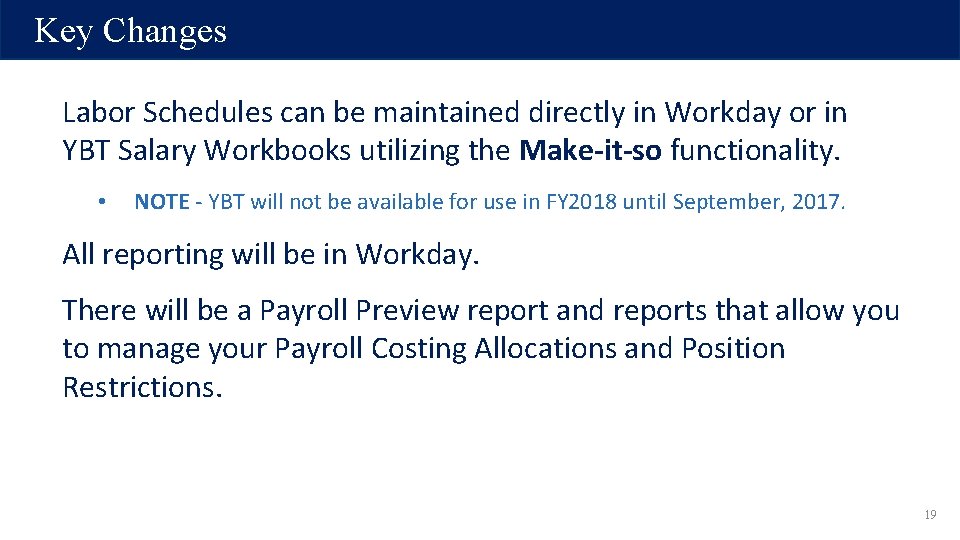
Key Changes Labor Schedules can be maintained directly in Workday or in YBT Salary Workbooks utilizing the Make-it-so functionality. • NOTE - YBT will not be available for use in FY 2018 until September, 2017. All reporting will be in Workday. There will be a Payroll Preview report and reports that allow you to manage your Payroll Costing Allocations and Position Restrictions. 19
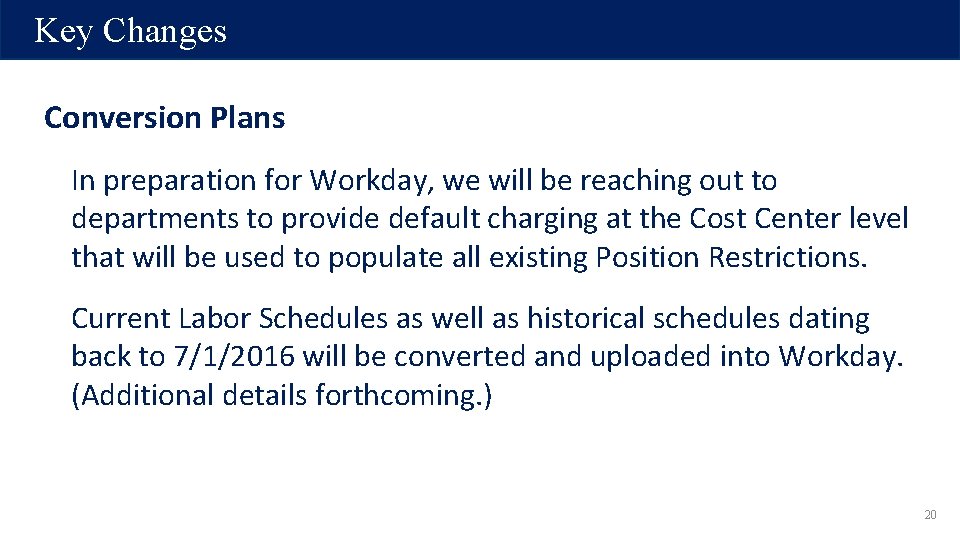
Key Changes Conversion Plans In preparation for Workday, we will be reaching out to departments to provide default charging at the Cost Center level that will be used to populate all existing Position Restrictions. Current Labor Schedules as well as historical schedules dating back to 7/1/2016 will be converted and uploaded into Workday. (Additional details forthcoming. ) 20
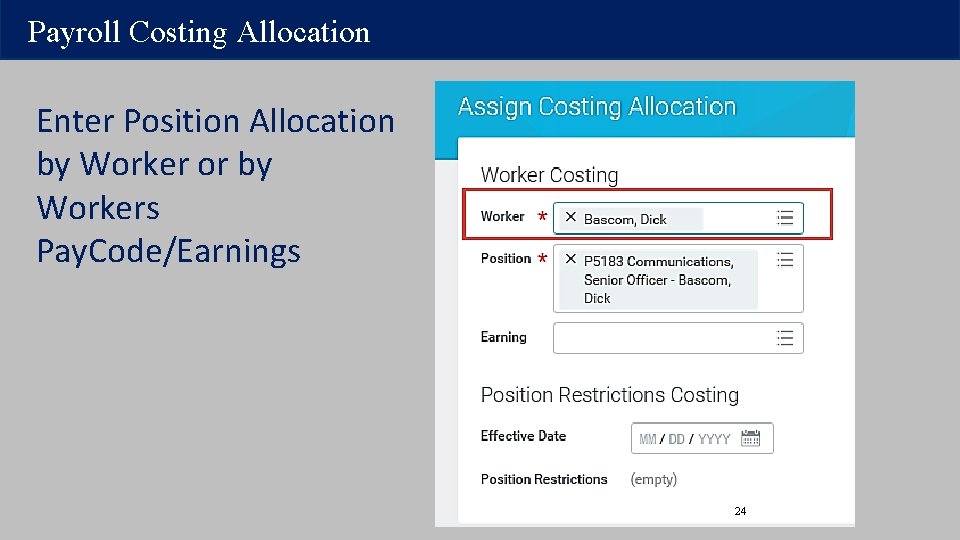
Position Restriction and Payroll Costing Allocation Setup DEMO 21
Position Restriction
Position Restriction 23
Payroll Costing Allocation Enter Position Allocation by Worker or by Workers Pay. Code/Earnings 24
Payroll Costing Allocation 25
Payroll Accounting Adjustments Workday@Yale
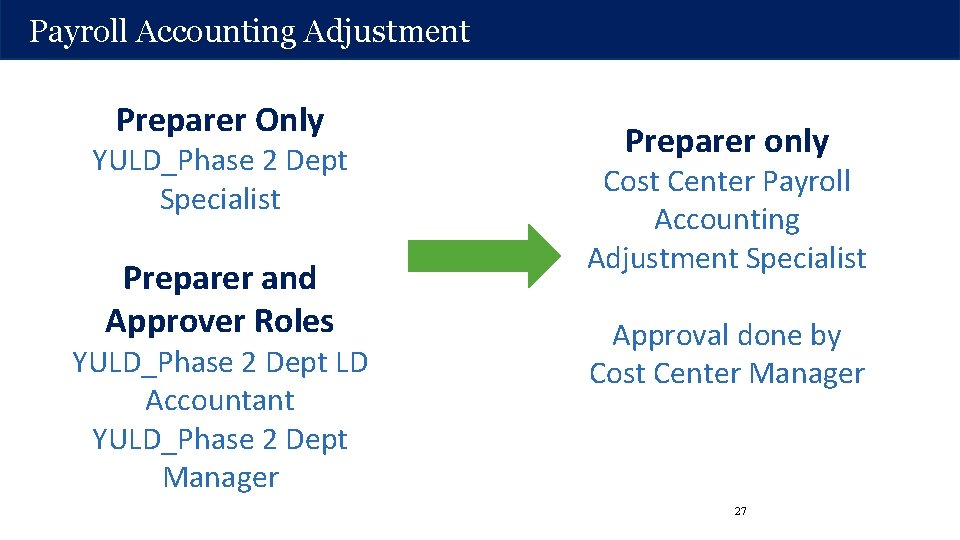
Payroll Accounting Adjustment Preparer Only YULD_Phase 2 Dept Specialist Preparer and Approver Roles YULD_Phase 2 Dept LD Accountant YULD_Phase 2 Dept Manager Preparer only Cost Center Payroll Accounting Adjustment Specialist Approval done by Cost Center Manager 27
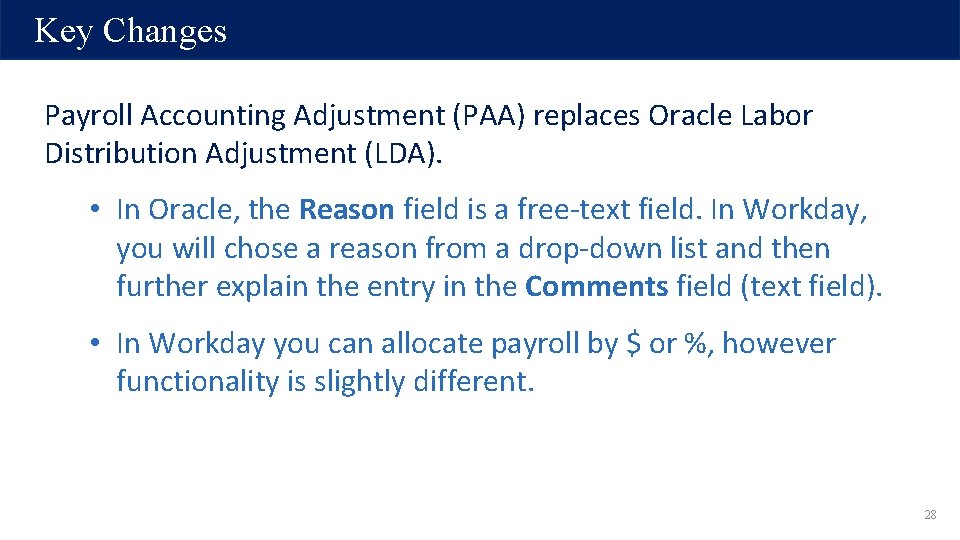
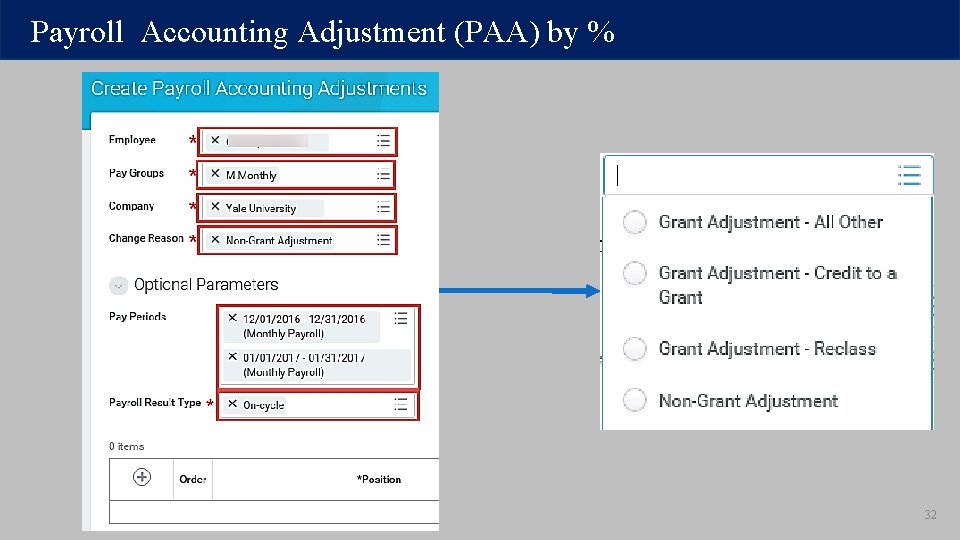
Key Changes Payroll Accounting Adjustment (PAA) replaces Oracle Labor Distribution Adjustment (LDA). • In Oracle, the Reason field is a free-text field. In Workday, you will chose a reason from a drop-down list and then further explain the entry in the Comments field (text field). • In Workday you can allocate payroll by $ or %, however functionality is slightly different. 28
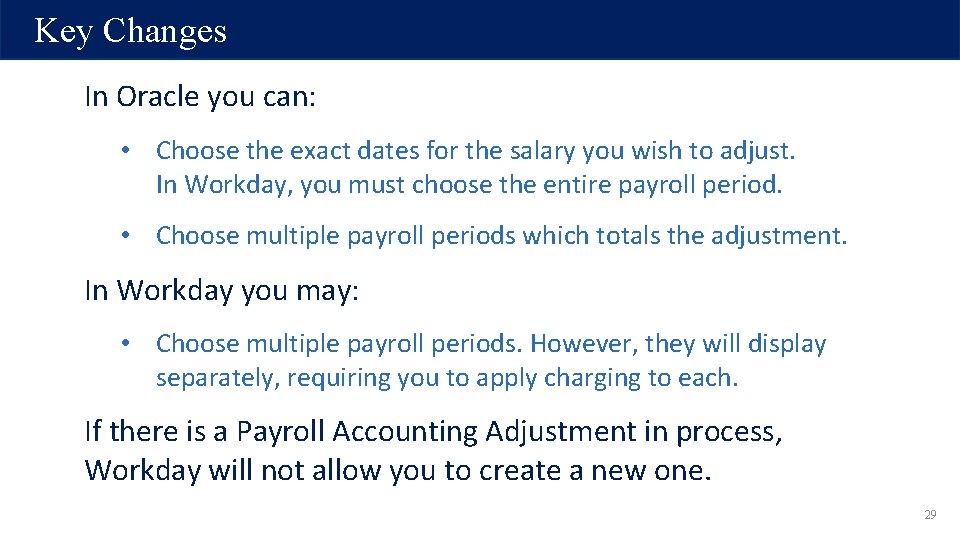
Key Changes In Oracle you can: • Choose the exact dates for the salary you wish to adjust. In Workday, you must choose the entire payroll period. • Choose multiple payroll periods which totals the adjustment. In Workday you may: • Choose multiple payroll periods. However, they will display separately, requiring you to apply charging to each. If there is a Payroll Accounting Adjustment in process, Workday will not allow you to create a new one. 29
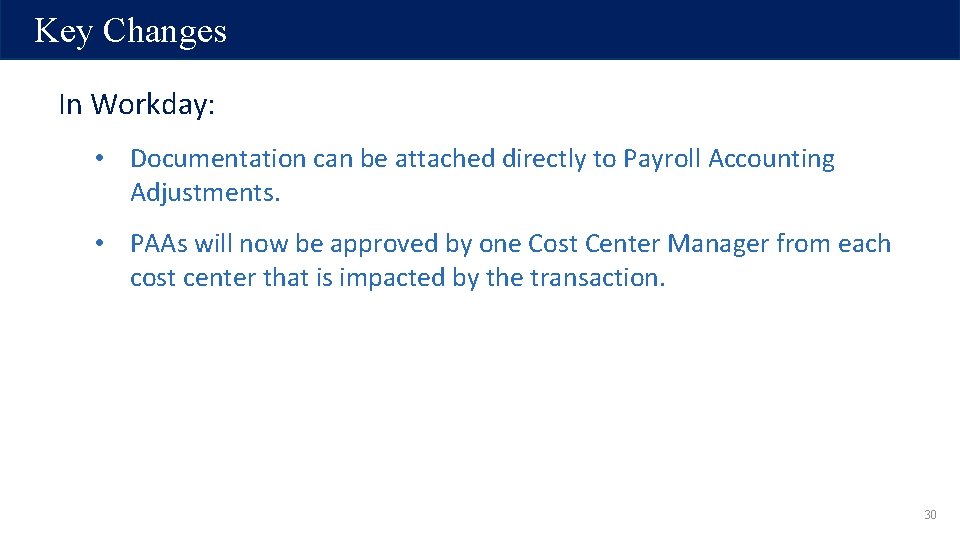
Key Changes In Workday: • Documentation can be attached directly to Payroll Accounting Adjustments. • PAAs will now be approved by one Cost Center Manager from each cost center that is impacted by the transaction. 30
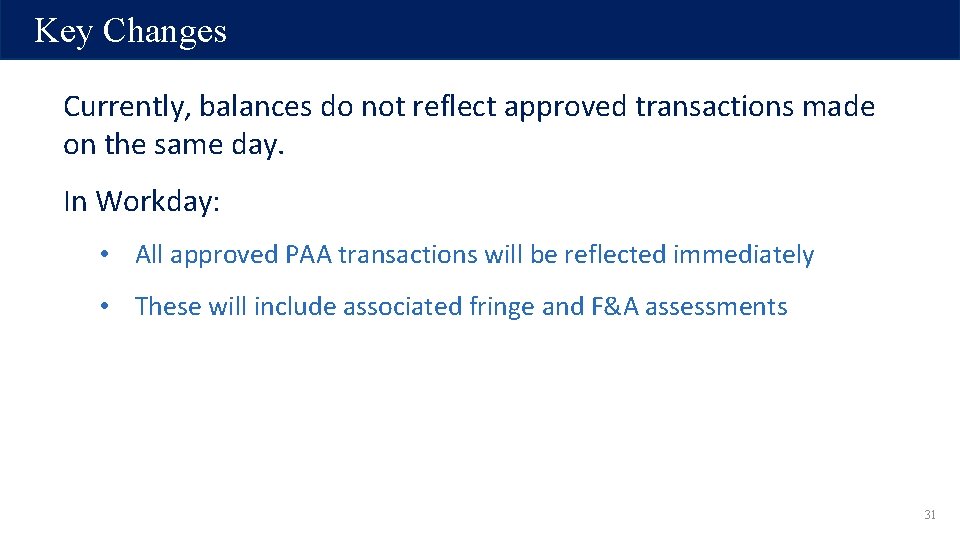
Key Changes Currently, balances do not reflect approved transactions made on the same day. In Workday: • All approved PAA transactions will be reflected immediately • These will include associated fringe and F&A assessments 31
Payroll Accounting Adjustment (PAA) by % 32
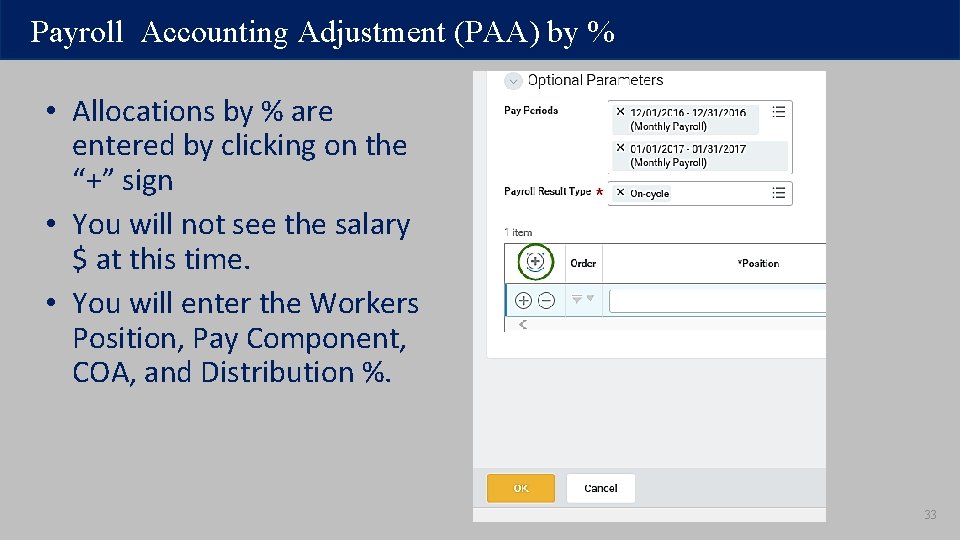
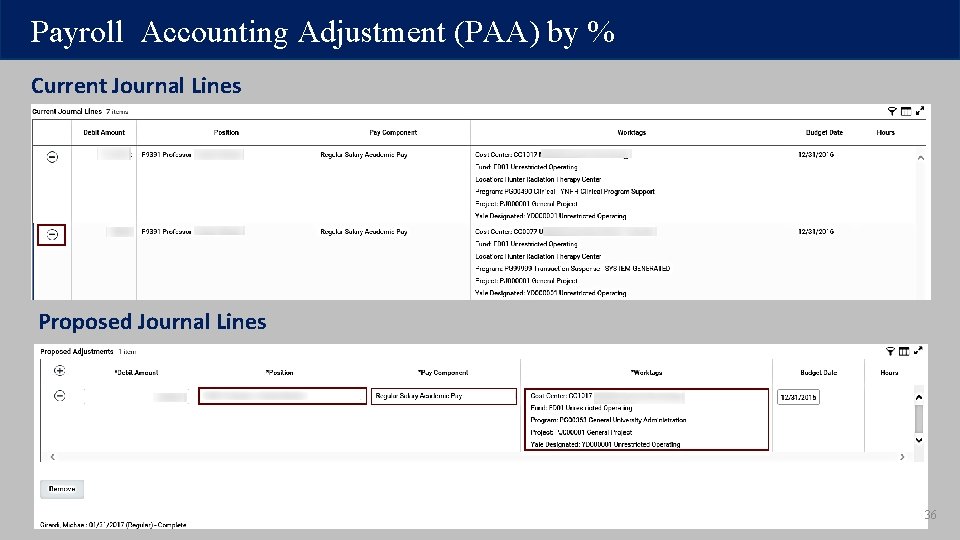
Payroll Accounting Adjustment (PAA) by % • Allocations by % are entered by clicking on the “+” sign • You will not see the salary $ at this time. • You will enter the Workers Position, Pay Component, COA, and Distribution %. 33
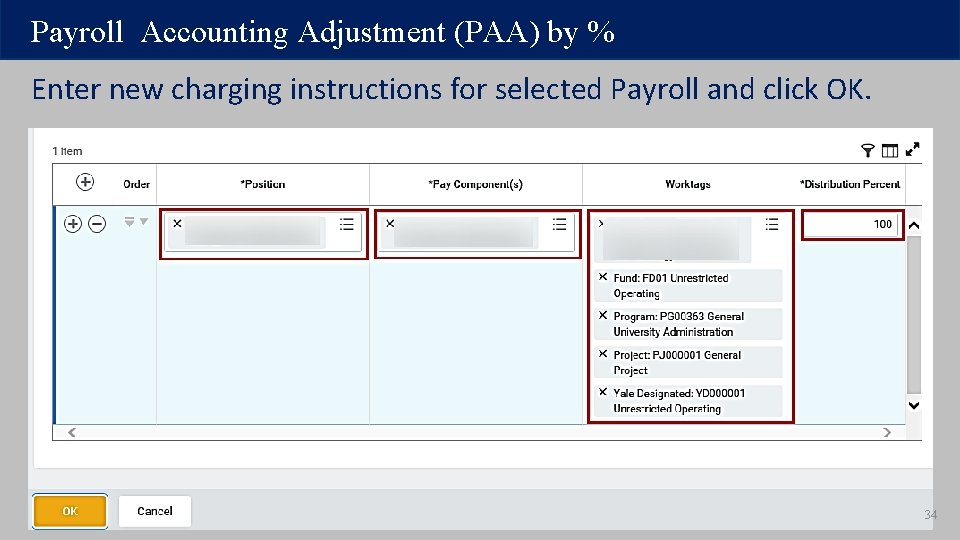
Payroll Accounting Adjustment (PAA) by % Enter new charging instructions for selected Payroll and click OK. 34
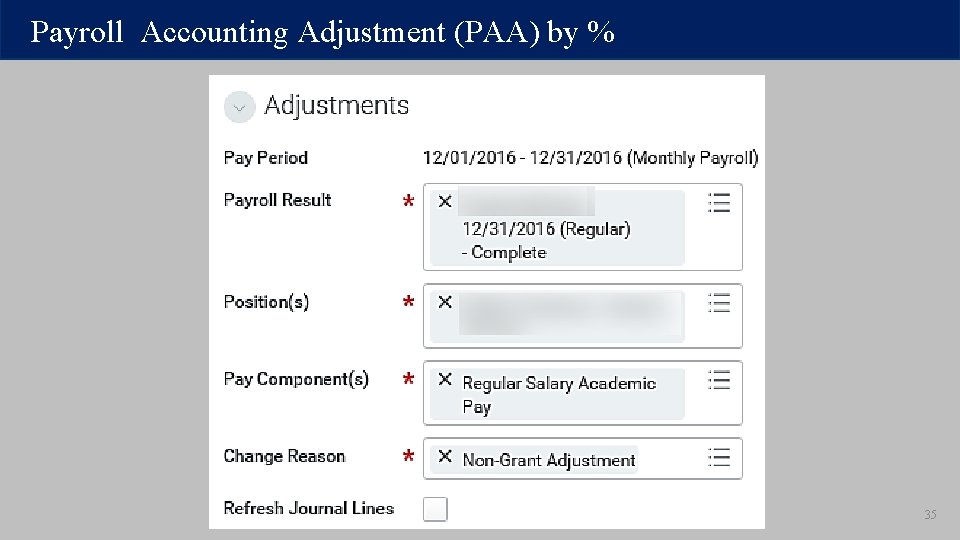
Payroll Accounting Adjustment (PAA) by % 35
Payroll Accounting Adjustment (PAA) by % Current Journal Lines Proposed Journal Lines 36
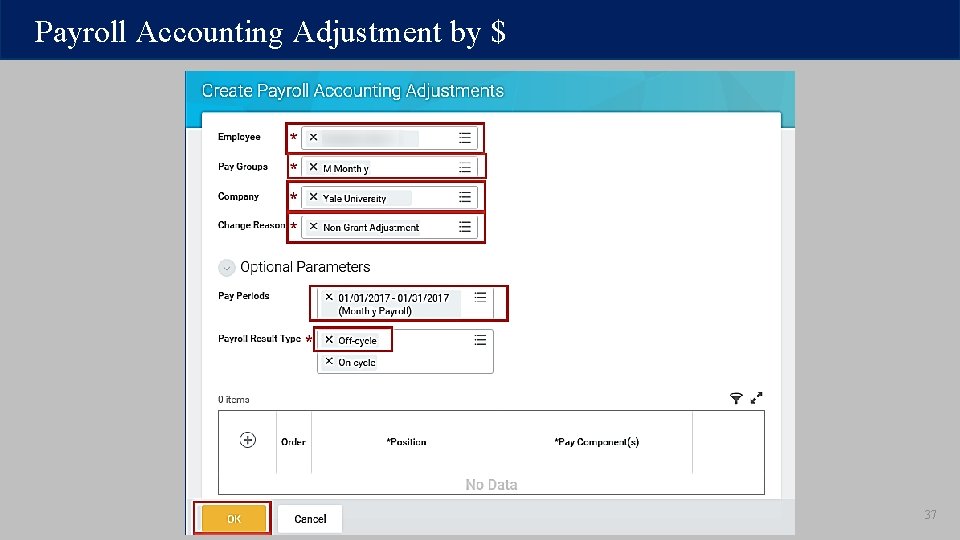
Payroll Accounting Adjustment by $ 37
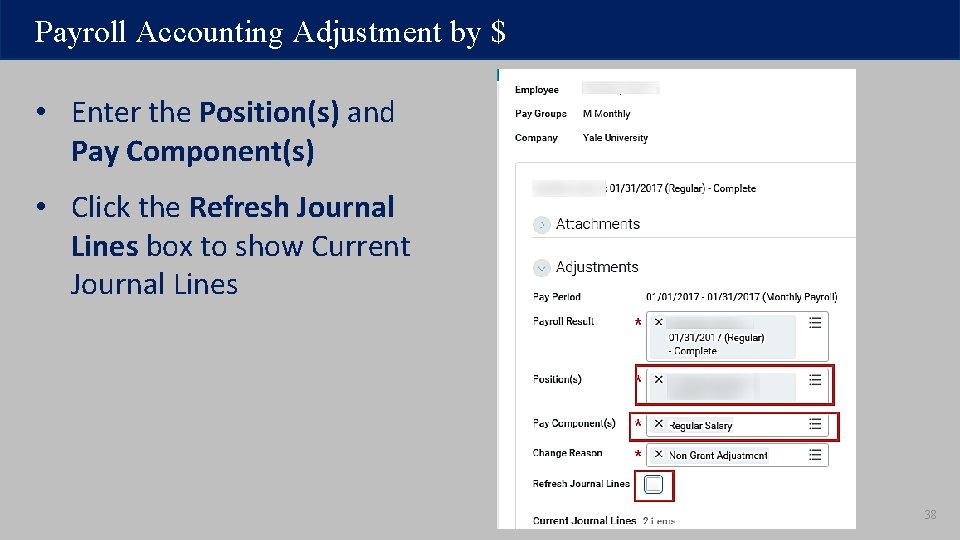
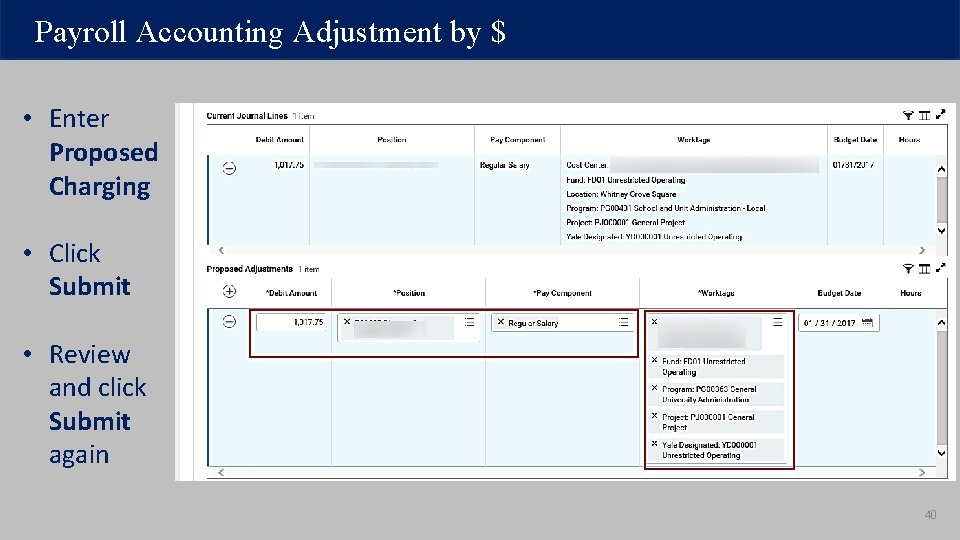
Payroll Accounting Adjustment by $ • Enter the Position(s) and Pay Component(s) • Click the Refresh Journal Lines box to show Current Journal Lines 38
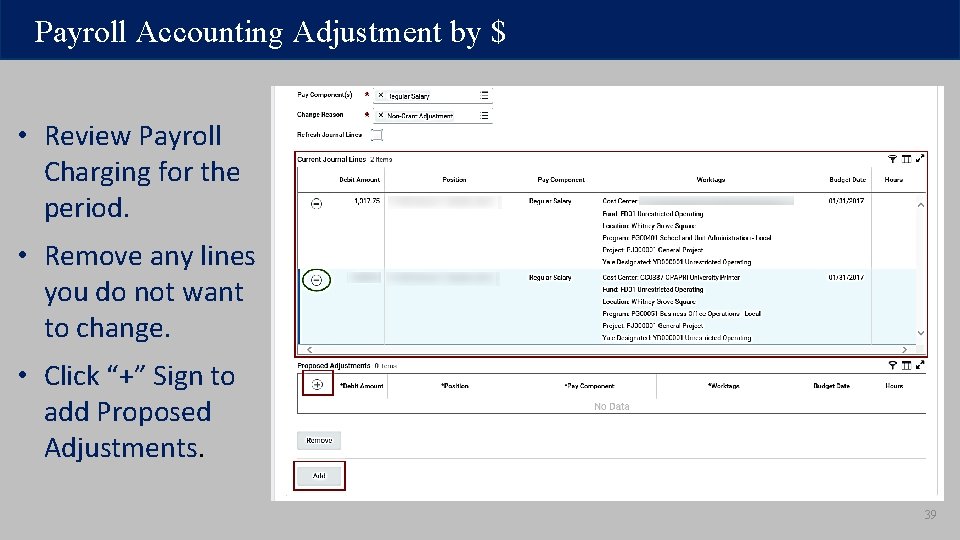
Payroll Accounting Adjustment by $ • Review Payroll Charging for the period. • Remove any lines you do not want to change. • Click “+” Sign to add Proposed Adjustments. 39
Payroll Accounting Adjustment by $ • Enter Proposed Charging • Click Submit • Review and click Submit again 40
Grants Impact on Payroll Costing Workday@Yale
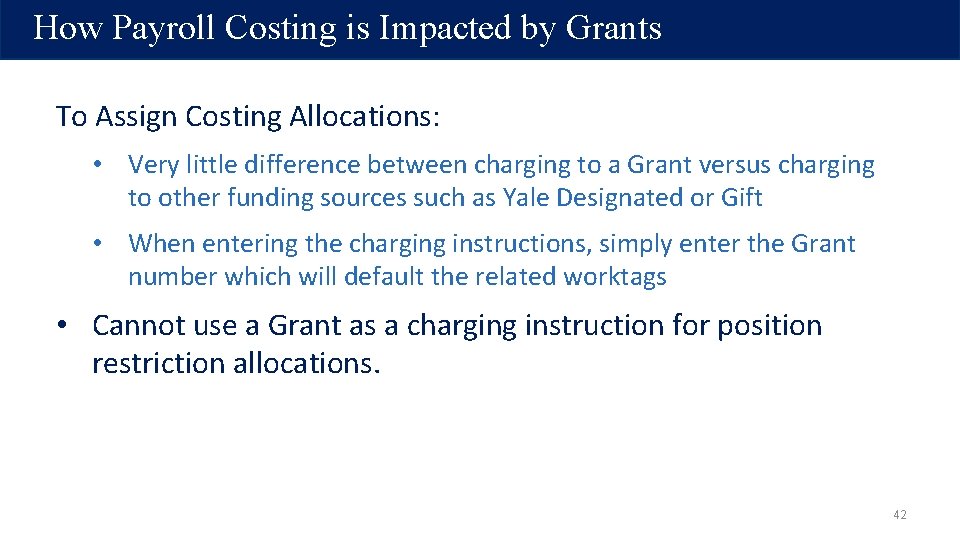
How Payroll Costing is Impacted by Grants To Assign Costing Allocations: • Very little difference between charging to a Grant versus charging to other funding sources such as Yale Designated or Gift • When entering the charging instructions, simply enter the Grant number which will default the related worktags • Cannot use a Grant as a charging instruction for position restriction allocations. 42
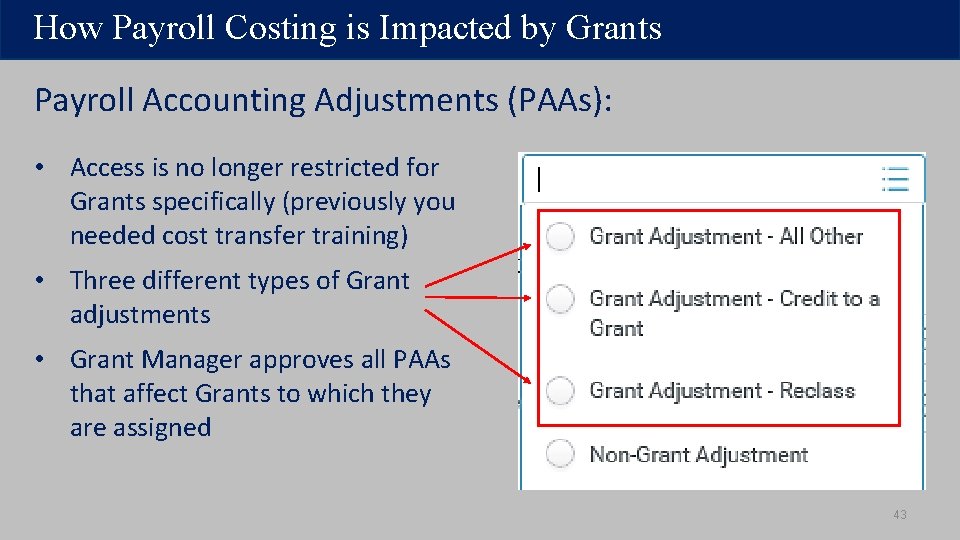
How Payroll Costing is Impacted by Grants Payroll Accounting Adjustments (PAAs): • Access is no longer restricted for Grants specifically (previously you needed cost transfer training) • Three different types of Grant adjustments • Grant Manager approves all PAAs that affect Grants to which they are assigned 43
How Payroll Costing Is Impacted by Grants Payroll Accounting Adjustment-Cost Transfer • PAA is greater than 90 days • PAA affects Previously Certified Effort (PCE) • Central Grant Cost Transfer Approver is added as an approver and documentation must be attached to justify the PAA. ð This is a change from Oracle because Workday does not prompt you for justification. ð Workday is unable to validate on the $2, 500 threshold for cost transfers. Therefore, the threshold is no longer a criteria for defining a cost transfer for PAAs. 44
Workday Training Support Workday@Yale
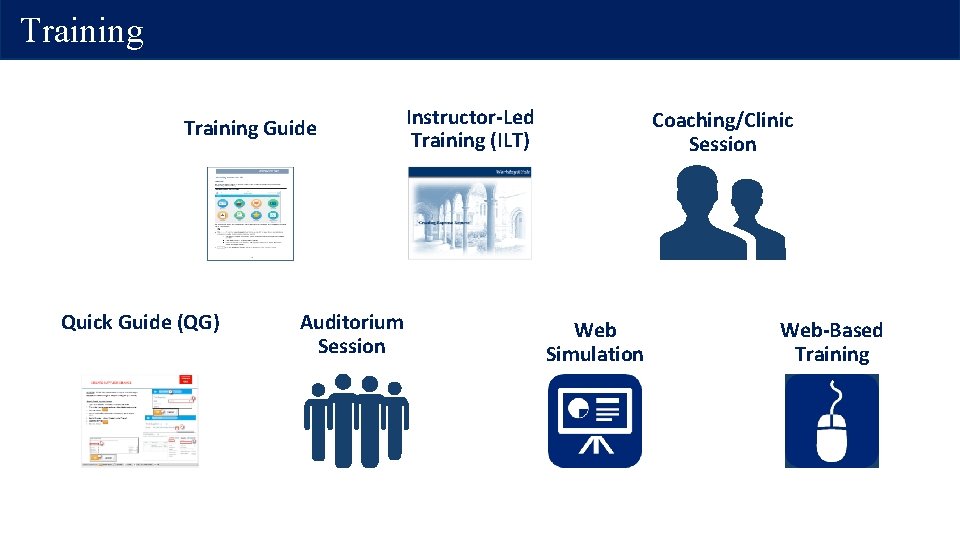
Training Guide Quick Guide (QG) Auditorium Session Instructor-Led Training (ILT) Coaching/Clinic Session Web Simulation Web-Based Training
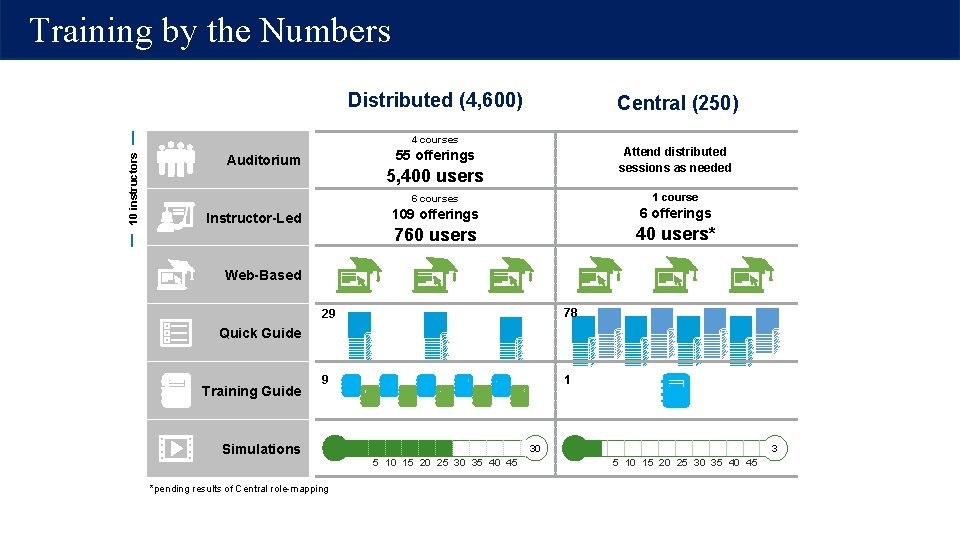
Training by the Numbers Distributed (4, 600) Central (250) 10 instructors 4 courses Attend distributed sessions as needed 55 offerings Auditorium 5, 400 users Instructor-Led 6 courses 1 course 109 offerings 6 offerings 760 users 40 users* Web-Based 29 78 9 1 Quick Guide Training Guide Simulations *pending results of Central role-mapping 30 5 10 15 20 25 30 35 40 45 30 3 5 10 15 20 25 30 35 40 45
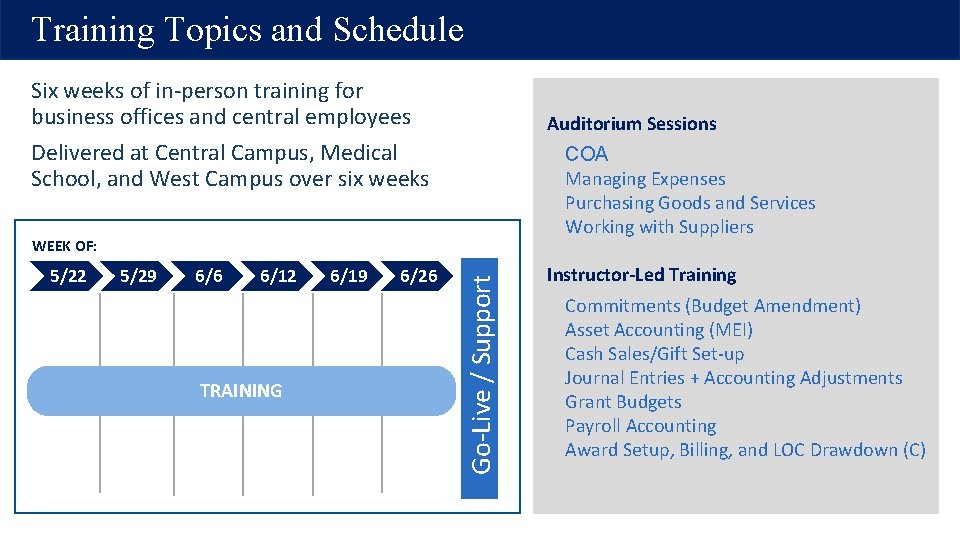
Training Topics and Schedule Six weeks of in-person training for business offices and central employees Delivered at Central Campus, Medical School, and West Campus over six weeks Auditorium Sessions COA Managing Expenses Purchasing Goods and Services Working with Suppliers 5/22 5/29 6/6 6/12 TRAINING 6/19 6/26 Go-Live / Support WEEK OF: Instructor-Led Training Commitments (Budget Amendment) Asset Accounting (MEI) Cash Sales/Gift Set-up Journal Entries + Accounting Adjustments Grant Budgets Payroll Accounting Award Setup, Billing, and LOC Drawdown (C)
Section Title What’s Next Goes Right Here • Workday@Yale • Overview Workday@Yale
Support You will have support! • Local Workday Gurus are embedded in your department • Workday. yale. edu provides access to quick guides, web-based training, and additional supporting documentation • Yale Shared Services (YSS) will provide tier-one helpdesk support through the Finance Support Center (FSC) • Heightened support will be provided from July through October
What’s Next • Become an ambassador of change • Work closely with your Lead Administrator to share content from today’s meeting • Grow your network • Topics for next session • User Acceptance Testing April 17 – May 19 • End-User Training begins May 22 (tentative) 51
Questions & Discussion Workday@Yale