
Cell Reference Review and Functions Relative Address H
- Slides: 37
Cell Reference Review and Functions Relative Address H Absolute Address H Functions Decision Making in Excel H Using the If function H Examples H H Slide No. 1
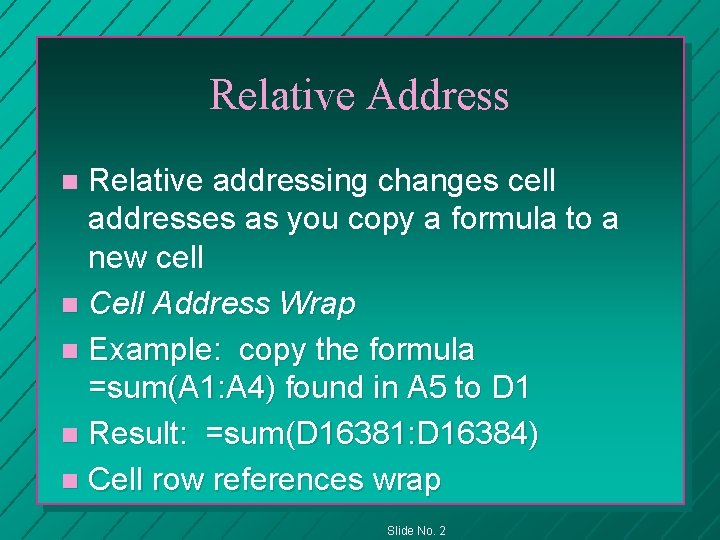
Relative Address Relative addressing changes cell addresses as you copy a formula to a new cell n Cell Address Wrap n Example: copy the formula =sum(A 1: A 4) found in A 5 to D 1 n Result: =sum(D 16381: D 16384) n Cell row references wrap n Slide No. 2
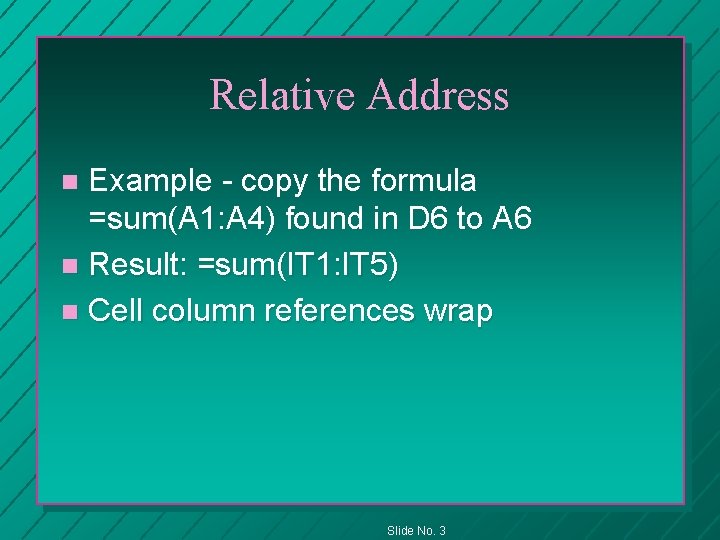
Relative Address Example - copy the formula =sum(A 1: A 4) found in D 6 to A 6 n Result: =sum(IT 1: IT 5) n Cell column references wrap n Slide No. 3
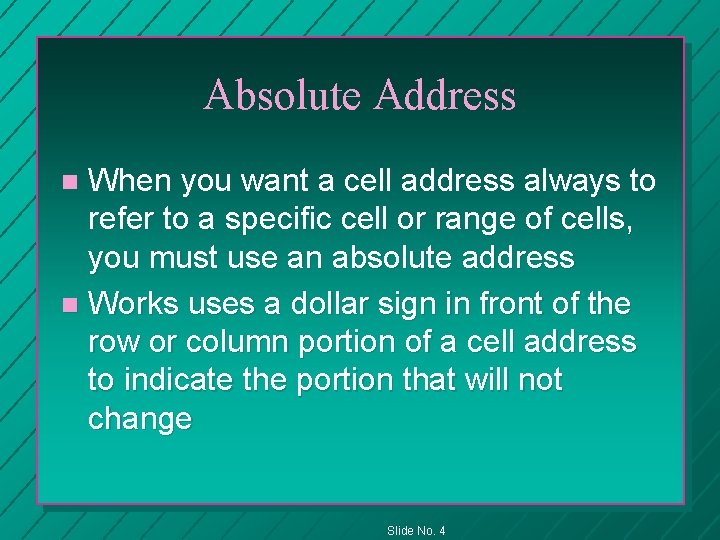
Absolute Address When you want a cell address always to refer to a specific cell or range of cells, you must use an absolute address n Works uses a dollar sign in front of the row or column portion of a cell address to indicate the portion that will not change n Slide No. 4
The Special Chars $ and , When entering numbers in a cell, never add a dollar sign or comma to the number. These are reserved for use in formulas. n If you want them, use the formatting option! n Slide No. 5
Mixed Address n With a mixed cell address, the row or column can change without the other part changing Slide No. 6
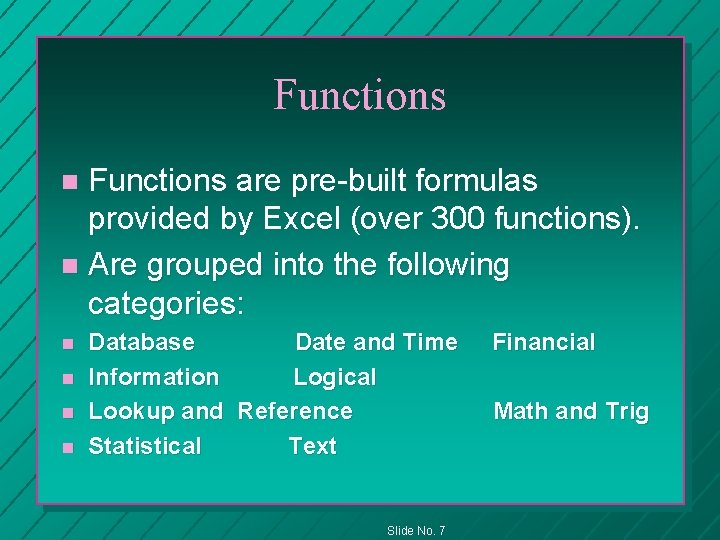
Functions are pre-built formulas provided by Excel (over 300 functions). n Are grouped into the following categories: n n n Database Date and Time Information Logical Lookup and Reference Statistical Text Slide No. 7 Financial Math and Trig
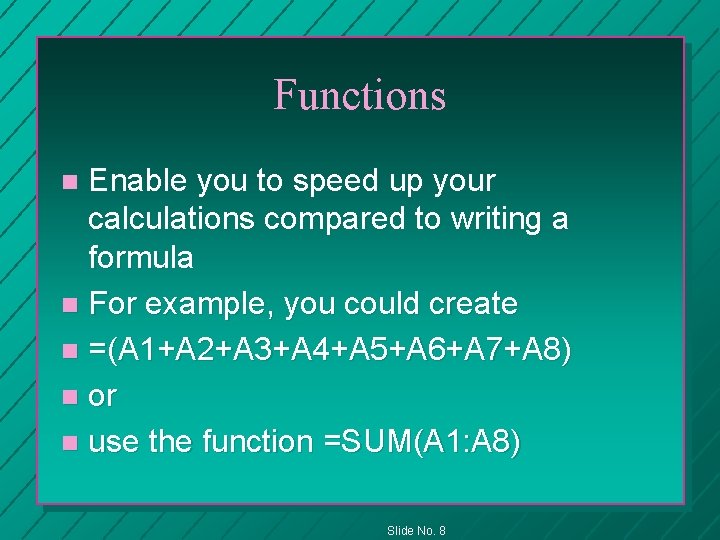
Functions Enable you to speed up your calculations compared to writing a formula n For example, you could create n =(A 1+A 2+A 3+A 4+A 5+A 6+A 7+A 8) n or n use the function =SUM(A 1: A 8) n Slide No. 8
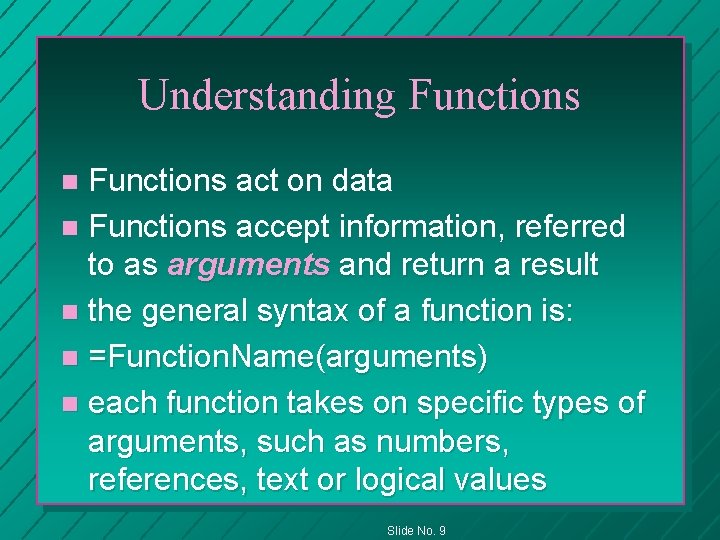
Understanding Functions act on data n Functions accept information, referred to as arguments and return a result n the general syntax of a function is: n =Function. Name(arguments) n each function takes on specific types of arguments, such as numbers, references, text or logical values n Slide No. 9
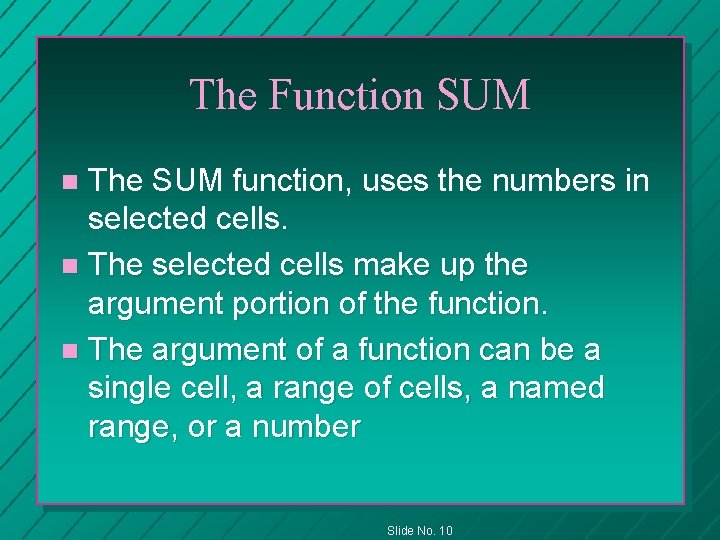
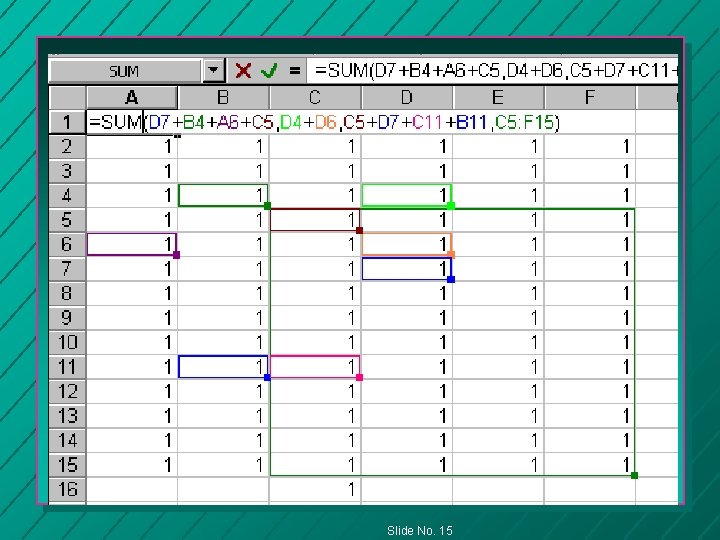
The Function SUM The SUM function, uses the numbers in selected cells. n The selected cells make up the argument portion of the function. n The argument of a function can be a single cell, a range of cells, a named range, or a number n Slide No. 10
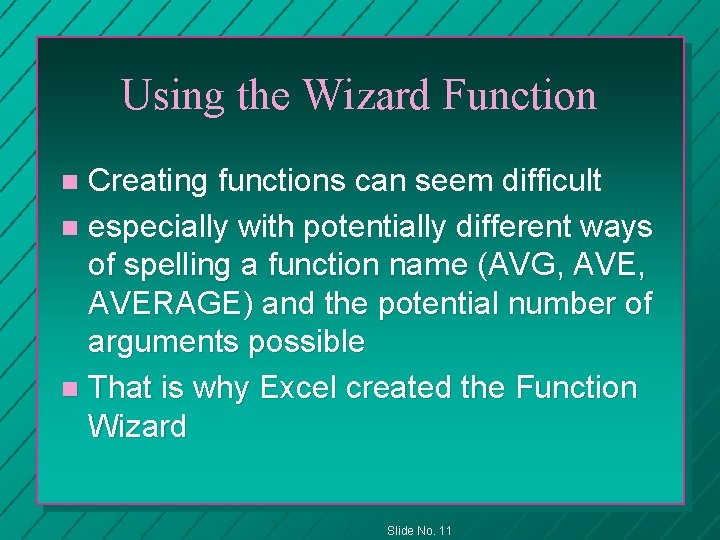
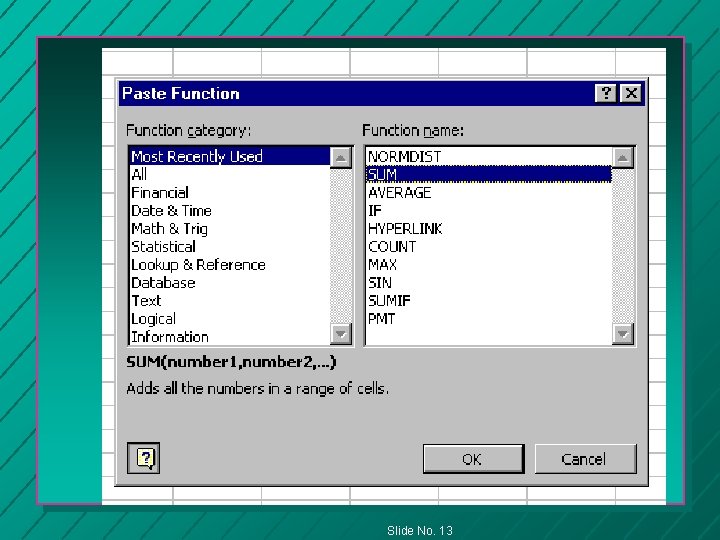
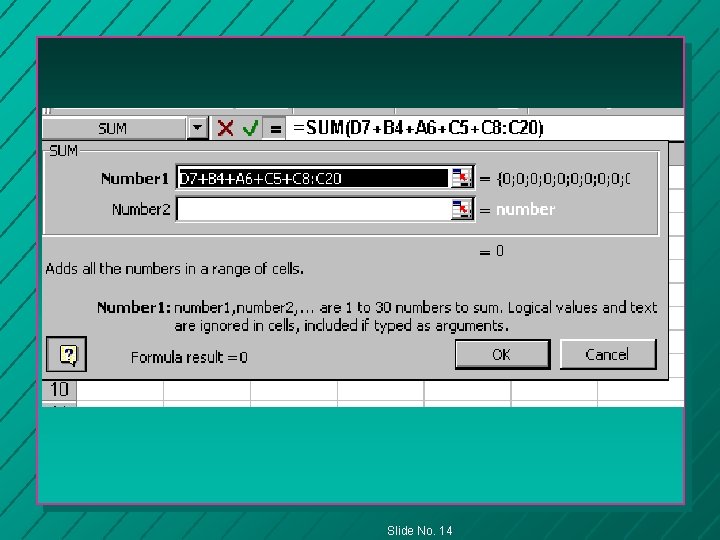
Using the Wizard Function Creating functions can seem difficult n especially with potentially different ways of spelling a function name (AVG, AVERAGE) and the potential number of arguments possible n That is why Excel created the Function Wizard n Slide No. 11
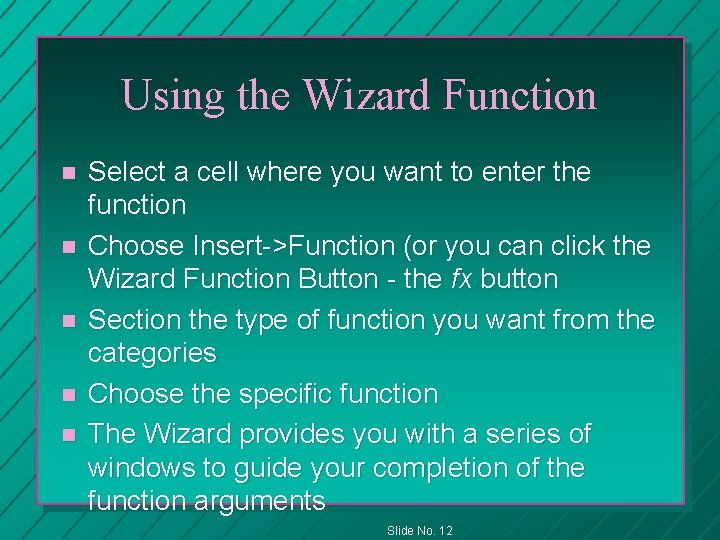
Using the Wizard Function n n Select a cell where you want to enter the function Choose Insert->Function (or you can click the Wizard Function Button - the fx button Section the type of function you want from the categories Choose the specific function The Wizard provides you with a series of windows to guide your completion of the function arguments Slide No. 12
Slide No. 13
Slide No. 14
Slide No. 15
Decision Making in Excel When you will be using a spreadsheet, you will undoubtedly find situations where the result depends on different conditions n Excel provides a number of features to facilitate analysis and lookups n IF() and LOOKUP() n Slide No. 16
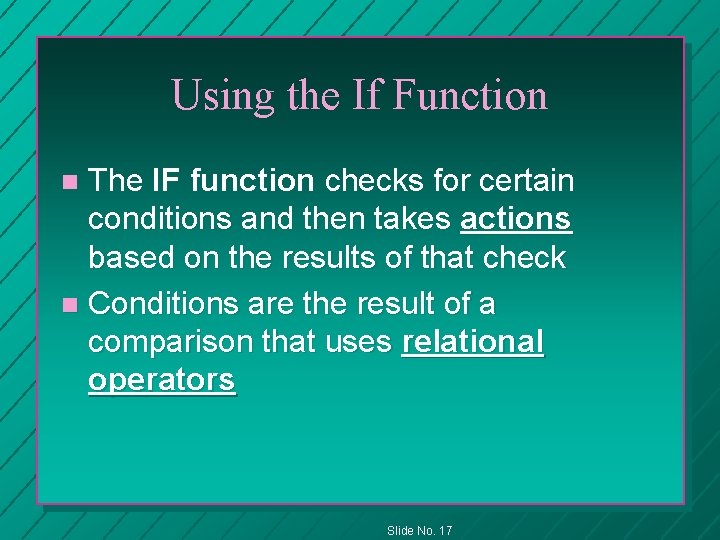
Using the If Function The IF function checks for certain conditions and then takes actions based on the results of that check n Conditions are the result of a comparison that uses relational operators n Slide No. 17
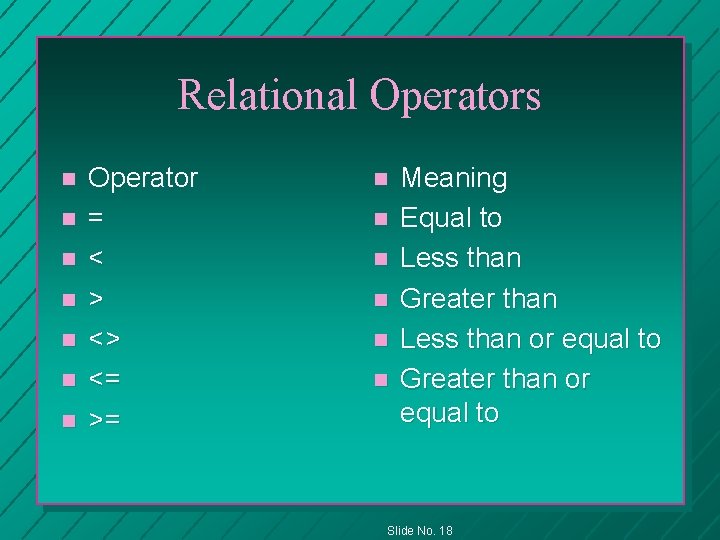
Relational Operators n n n n Operator = < > <> <= >= n n n Meaning Equal to Less than Greater than Less than or equal to Greater than or equal to Slide No. 18
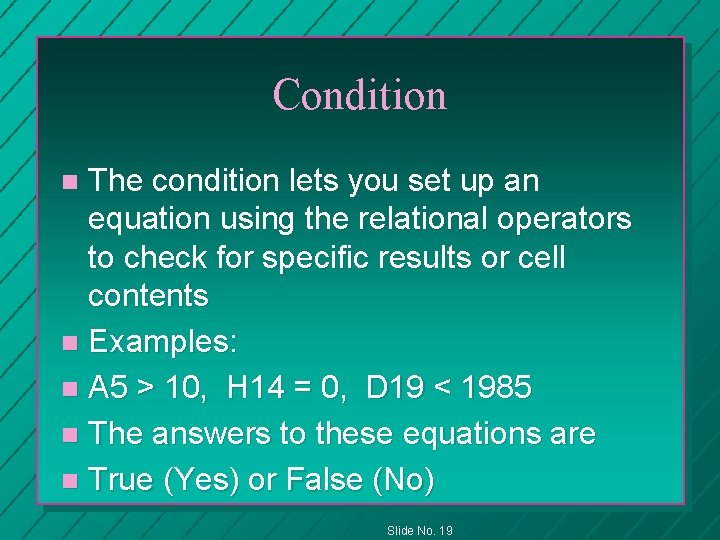
Condition The condition lets you set up an equation using the relational operators to check for specific results or cell contents n Examples: n A 5 > 10, H 14 = 0, D 19 < 1985 n The answers to these equations are n True (Yes) or False (No) n Slide No. 19
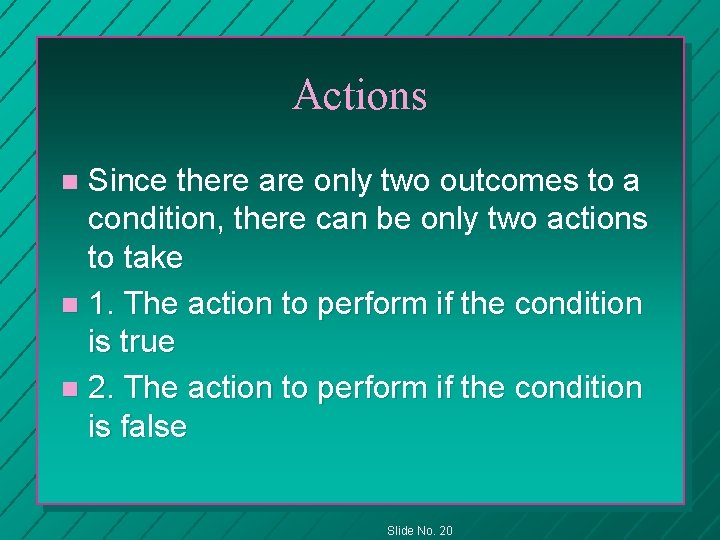
Actions Since there are only two outcomes to a condition, there can be only two actions to take n 1. The action to perform if the condition is true n 2. The action to perform if the condition is false n Slide No. 20
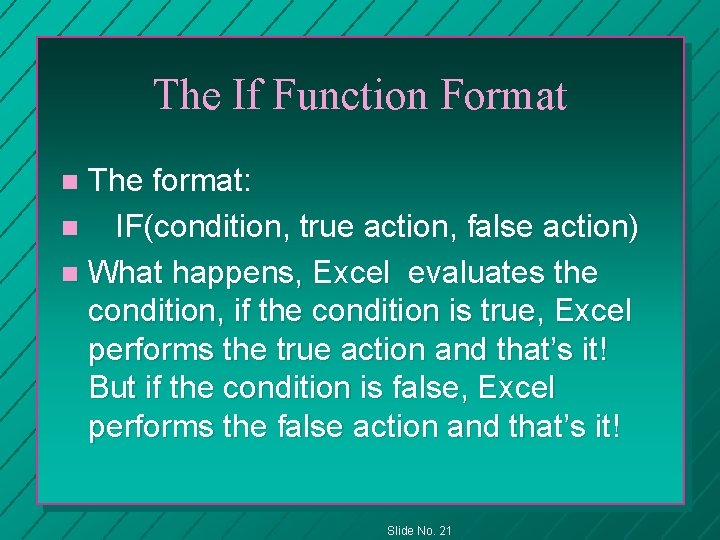
The If Function Format The format: n IF(condition, true action, false action) n What happens, Excel evaluates the condition, if the condition is true, Excel performs the true action and that’s it! But if the condition is false, Excel performs the false action and that’s it! n Slide No. 21
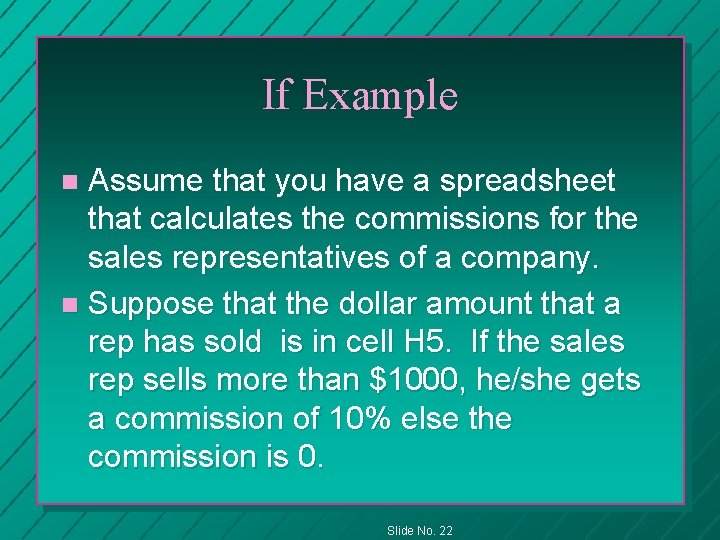
If Example Assume that you have a spreadsheet that calculates the commissions for the sales representatives of a company. n Suppose that the dollar amount that a rep has sold is in cell H 5. If the sales rep sells more than $1000, he/she gets a commission of 10% else the commission is 0. n Slide No. 22
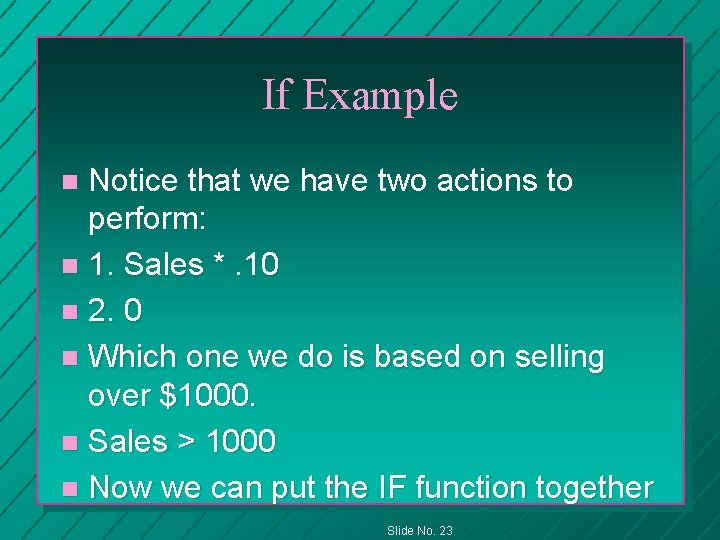
If Example Notice that we have two actions to perform: n 1. Sales *. 10 n 2. 0 n Which one we do is based on selling over $1000. n Sales > 1000 n Now we can put the IF function together n Slide No. 23
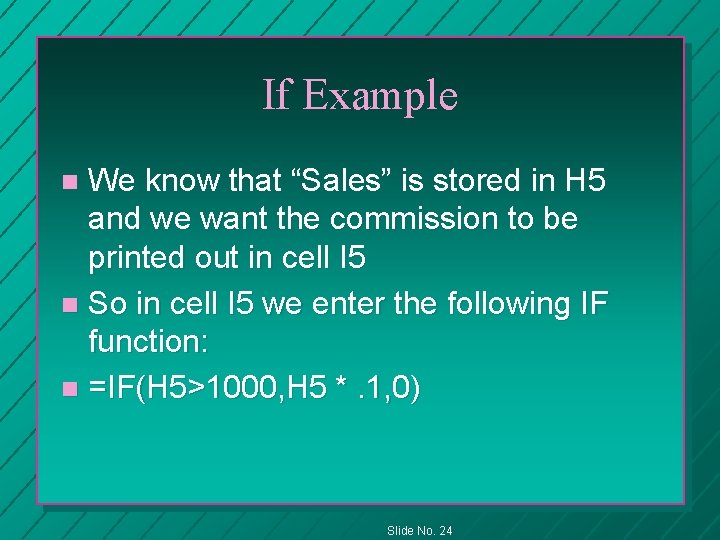
If Example We know that “Sales” is stored in H 5 and we want the commission to be printed out in cell I 5 n So in cell I 5 we enter the following IF function: n =IF(H 5>1000, H 5 *. 1, 0) n Slide No. 24
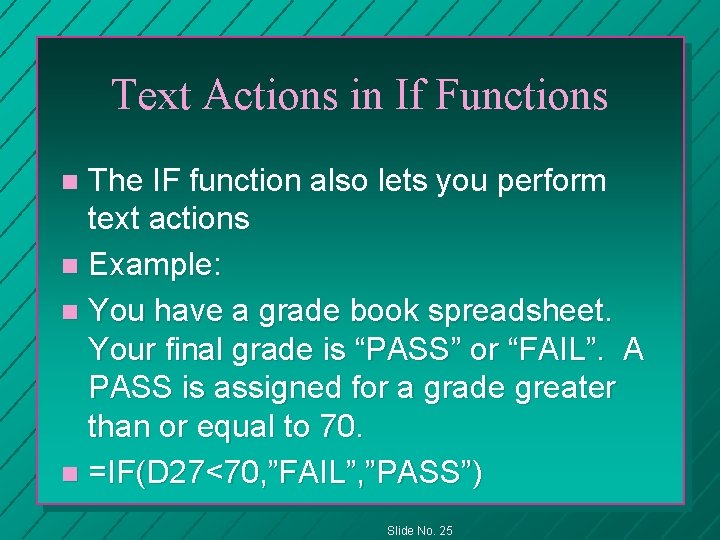
Text Actions in If Functions The IF function also lets you perform text actions n Example: n You have a grade book spreadsheet. Your final grade is “PASS” or “FAIL”. A PASS is assigned for a grade greater than or equal to 70. n =IF(D 27<70, ”FAIL”, ”PASS”) n Slide No. 25
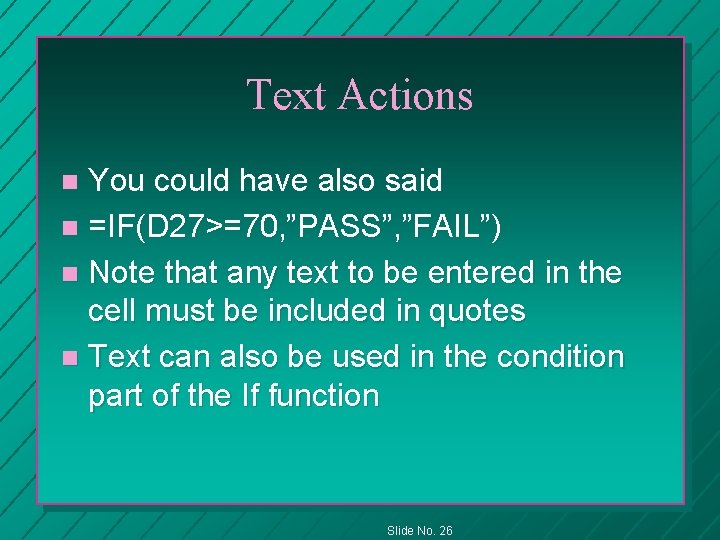
Text Actions You could have also said n =IF(D 27>=70, ”PASS”, ”FAIL”) n Note that any text to be entered in the cell must be included in quotes n Text can also be used in the condition part of the If function n Slide No. 26
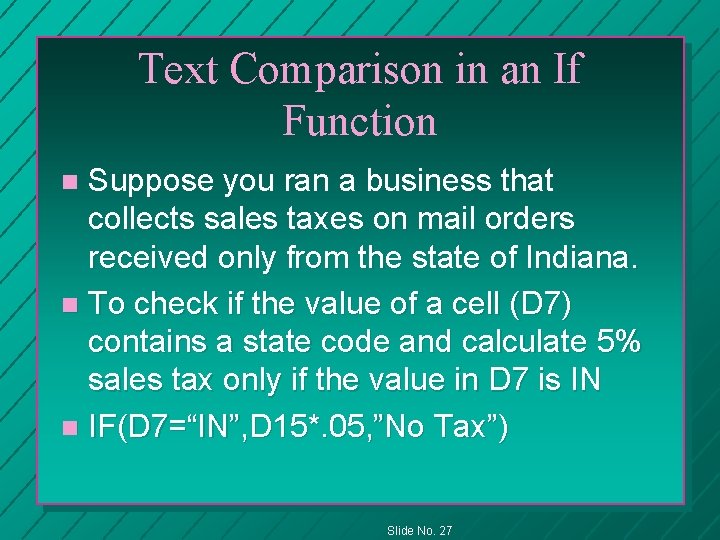
Text Comparison in an If Function Suppose you ran a business that collects sales taxes on mail orders received only from the state of Indiana. n To check if the value of a cell (D 7) contains a state code and calculate 5% sales tax only if the value in D 7 is IN n IF(D 7=“IN”, D 15*. 05, ”No Tax”) n Slide No. 27
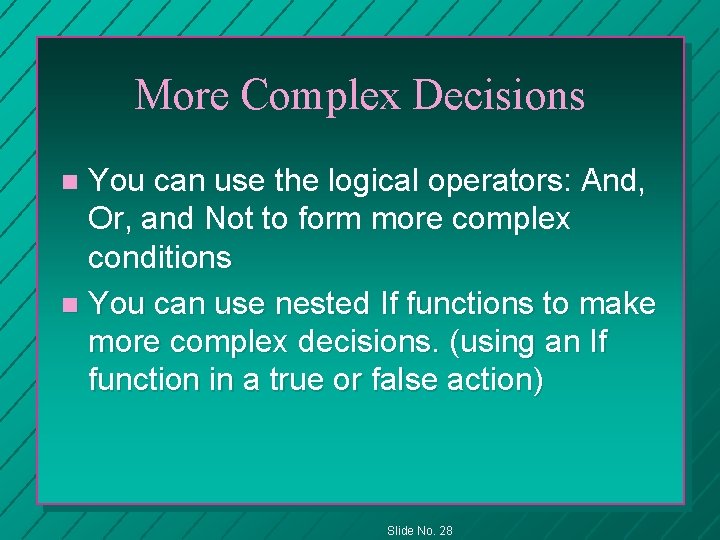
More Complex Decisions You can use the logical operators: And, Or, and Not to form more complex conditions n You can use nested If functions to make more complex decisions. (using an If function in a true or false action) n Slide No. 28
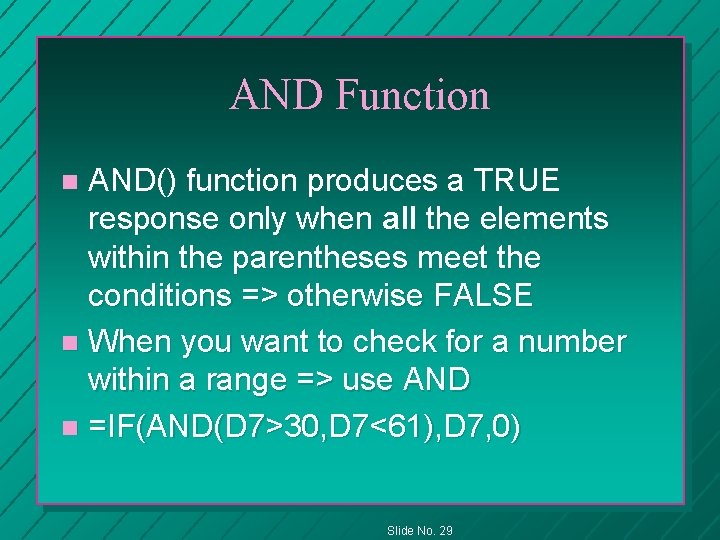
AND Function AND() function produces a TRUE response only when all the elements within the parentheses meet the conditions => otherwise FALSE n When you want to check for a number within a range => use AND n =IF(AND(D 7>30, D 7<61), D 7, 0) n Slide No. 29
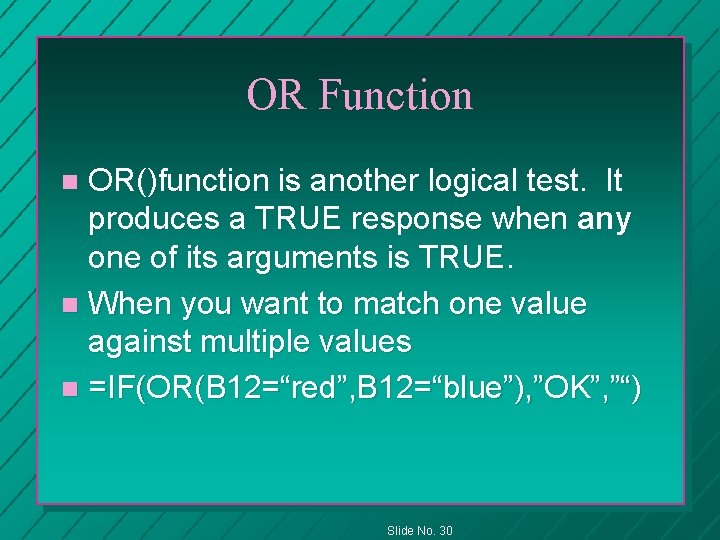
OR Function OR()function is another logical test. It produces a TRUE response when any one of its arguments is TRUE. n When you want to match one value against multiple values n =IF(OR(B 12=“red”, B 12=“blue”), ”OK”, ”“) n Slide No. 30
Evaluating Complex Decisions n To make sure that your function is evaluated correctly, you must know the order of operations ! Slide No. 31
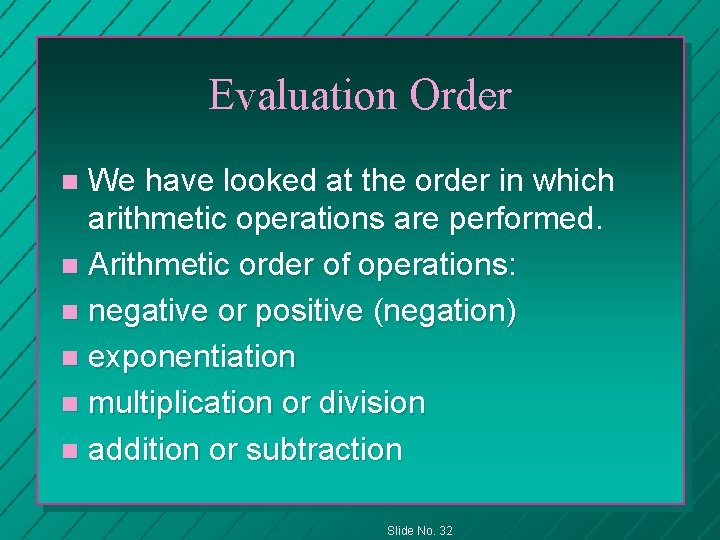
Evaluation Order We have looked at the order in which arithmetic operations are performed. n Arithmetic order of operations: n negative or positive (negation) n exponentiation n multiplication or division n addition or subtraction n Slide No. 32
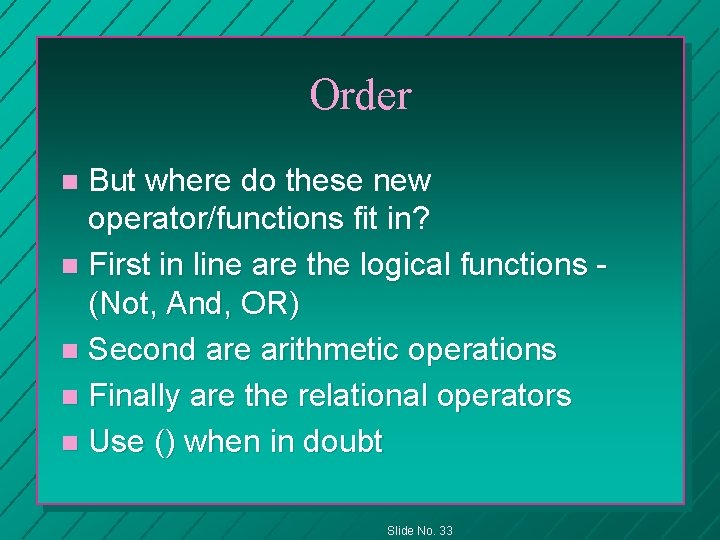
Order But where do these new operator/functions fit in? n First in line are the logical functions (Not, And, OR) n Second are arithmetic operations n Finally are the relational operators n Use () when in doubt n Slide No. 33
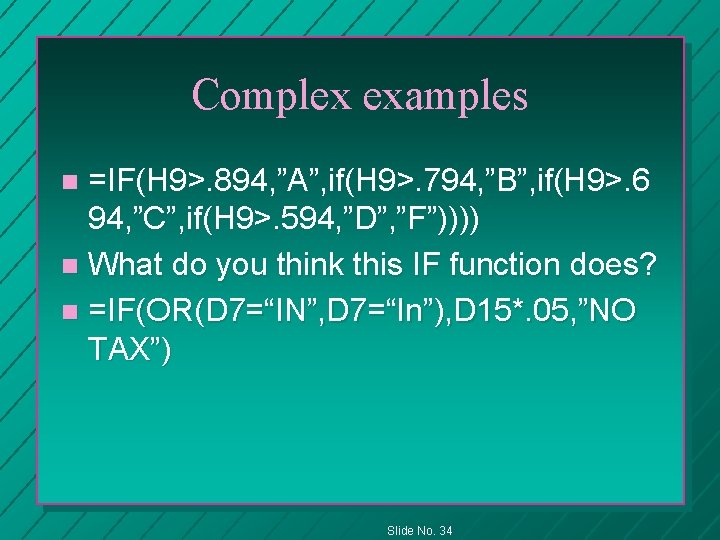
Complex examples =IF(H 9>. 894, ”A”, if(H 9>. 794, ”B”, if(H 9>. 6 94, ”C”, if(H 9>. 594, ”D”, ”F”)))) n What do you think this IF function does? n =IF(OR(D 7=“IN”, D 7=“In”), D 15*. 05, ”NO TAX”) n Slide No. 34
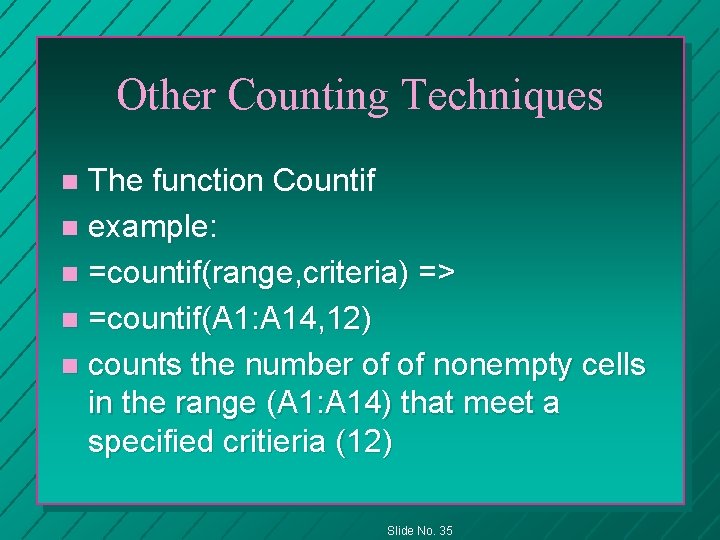
Other Counting Techniques The function Countif n example: n =countif(range, criteria) => n =countif(A 1: A 14, 12) n counts the number of of nonempty cells in the range (A 1: A 14) that meet a specified critieria (12) n Slide No. 35
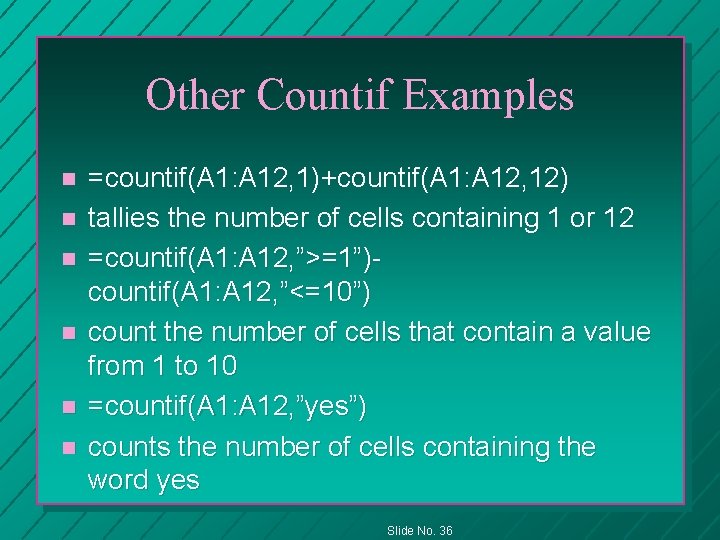
Other Countif Examples n n n =countif(A 1: A 12, 1)+countif(A 1: A 12, 12) tallies the number of cells containing 1 or 12 =countif(A 1: A 12, ”>=1”)countif(A 1: A 12, ”<=10”) count the number of cells that contain a value from 1 to 10 =countif(A 1: A 12, ”yes”) counts the number of cells containing the word yes Slide No. 36
Questions Slide No. 37