
CCFA Billing Overview and Steps Updated October 2020

CCFA Billing: Overview and Steps Updated: October 2020
Agenda • Overview • Step by Step Billing Process • Submitted Invoices Page • View Monthly Billing History Page 2
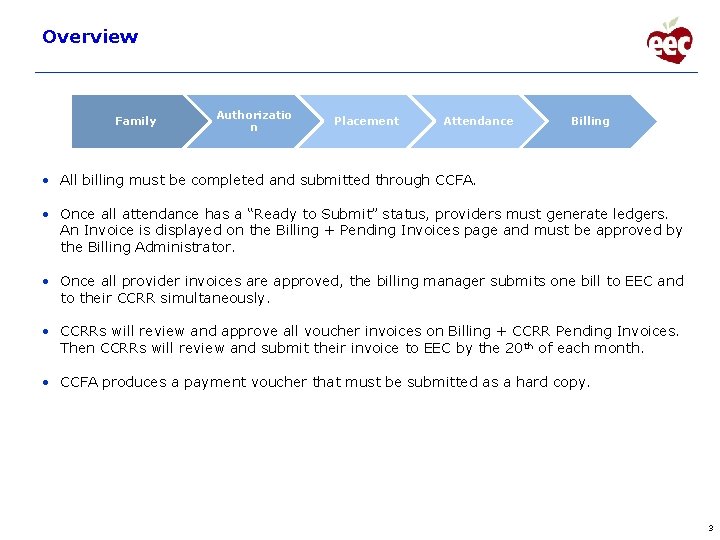
Overview Family Authorizatio n Placement Attendance Billing • All billing must be completed and submitted through CCFA. • Once all attendance has a “Ready to Submit” status, providers must generate ledgers. An Invoice is displayed on the Billing + Pending Invoices page and must be approved by the Billing Administrator. • Once all provider invoices are approved, the billing manager submits one bill to EEC and to their CCRR simultaneously. • CCRRs will review and approve all voucher invoices on Billing + CCRR Pending Invoices. Then CCRRs will review and submit their invoice to EEC by the 20 th of each month. • CCFA produces a payment voucher that must be submitted as a hard copy. 3

Overview • All billing is due to EEC by the 20 th. – This includes CCRRs, FCC Systems, and Contract Providers. – Subsidy administrators must submit Payment Vouchers with wet signature by the 20 th of every month. – If the 20 th falls on a holiday or weekend, billing is due the next business day. – Billing must be submitted on time for prompt payment. • Voucher billing is due on the 13 th of the month. – This includes Voucher only providers and contract providers with voucher agreements. • Contract billing will go to EEC, and voucher billing to the CCRR. – This gives the CCRRS time to complete their process. 4
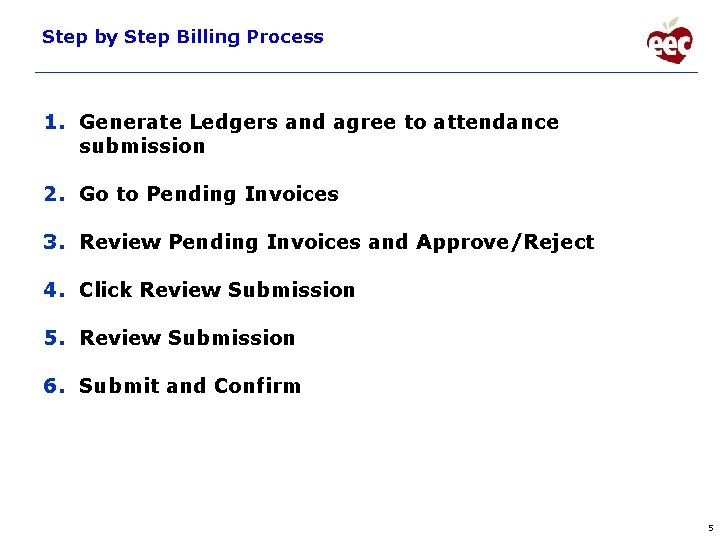
Step by Step Billing Process 1. Generate Ledgers and agree to attendance submission 2. Go to Pending Invoices 3. Review Pending Invoices and Approve/Reject 4. Click Review Submission 5. Review Submission 6. Submit and Confirm 5
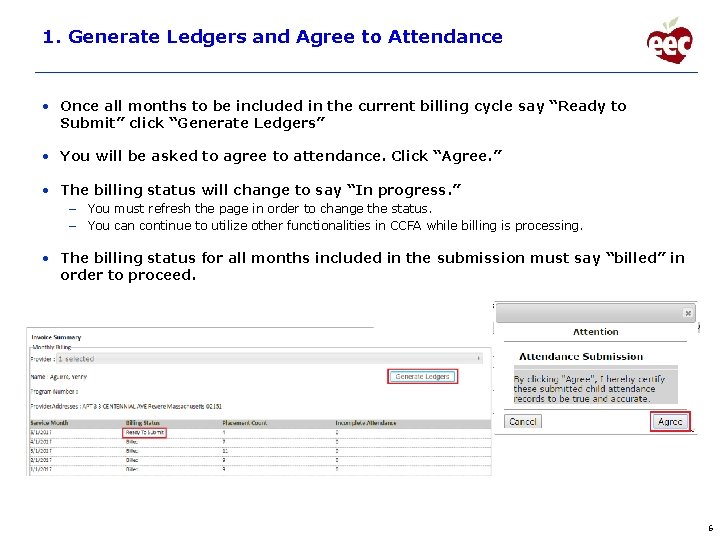
1. Generate Ledgers and Agree to Attendance • Once all months to be included in the current billing cycle say “Ready to Submit” click “Generate Ledgers” • You will be asked to agree to attendance. Click “Agree. ” • The billing status will change to say “In progress. ” – You must refresh the page in order to change the status. – You can continue to utilize other functionalities in CCFA while billing is processing. • The billing status for all months included in the submission must say “billed” in order to proceed. 6
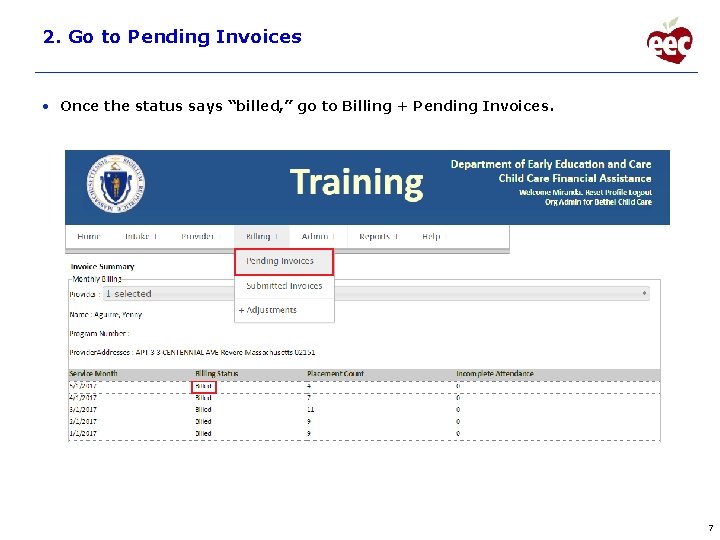
2. Go to Pending Invoices • Once the status says “billed, ” go to Billing + Pending Invoices. 7
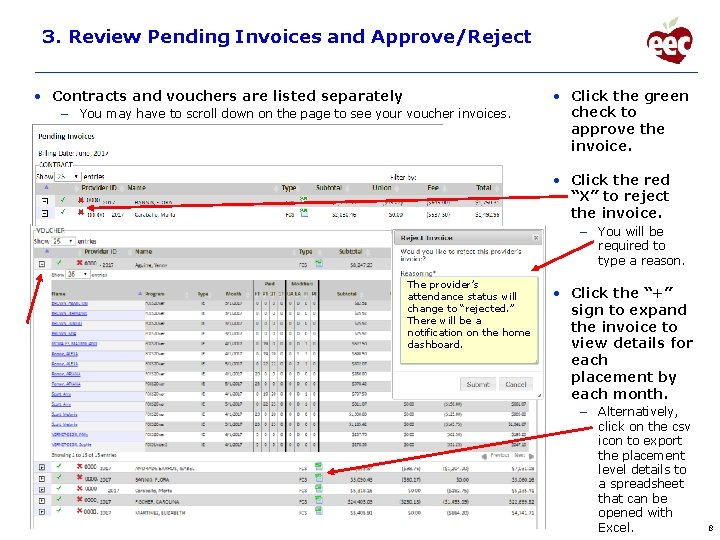
3. Review Pending Invoices and Approve/Reject • Contracts and vouchers are listed separately – You may have to scroll down on the page to see your voucher invoices. • Click the green check to approve the invoice. • Click the red “X” to reject the invoice. – You will be required to type a reason. The provider’s attendance status will change to “rejected. ” There will be a notification on the home dashboard. • Click the “+” sign to expand the invoice to view details for each placement by each month. – Alternatively, click on the csv icon to export the placement level details to a spreadsheet that can be opened with Excel. 8
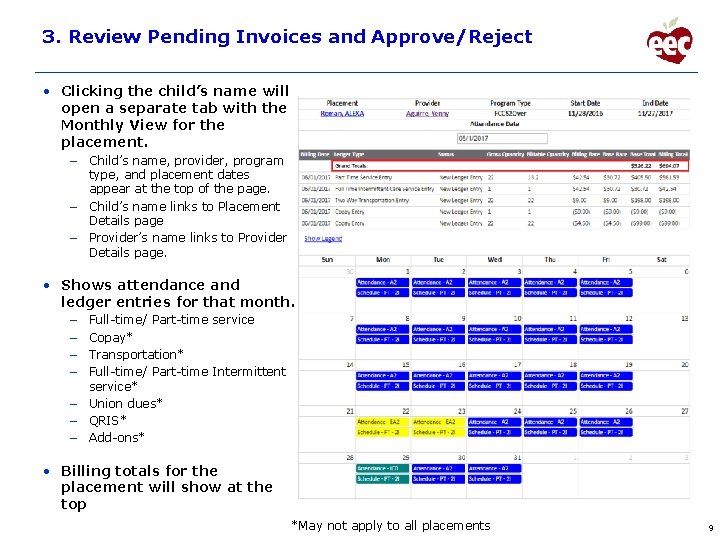
3. Review Pending Invoices and Approve/Reject • Clicking the child’s name will open a separate tab with the Monthly View for the placement. – Child’s name, provider, program type, and placement dates appear at the top of the page. – Child’s name links to Placement Details page – Provider’s name links to Provider Details page. • Shows attendance and ledger entries for that month. Full-time/ Part-time service Copay* Transportation* Full-time/ Part-time Intermittent service* – Union dues* – QRIS* – Add-ons* – – • Billing totals for the placement will show at the top *May not apply to all placements 9
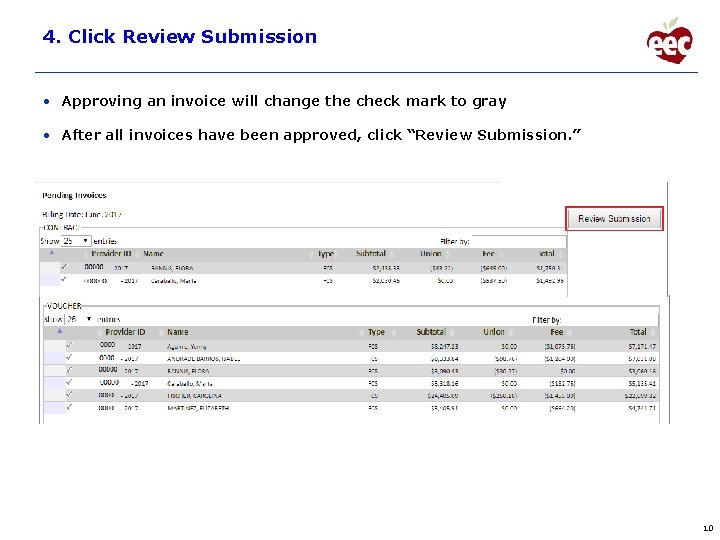
4. Click Review Submission • Approving an invoice will change the check mark to gray • After all invoices have been approved, click “Review Submission. ” 10
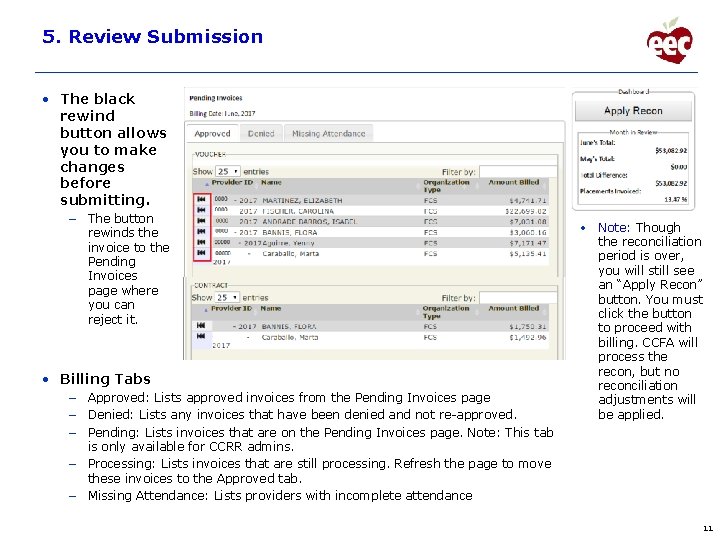
5. Review Submission • The black rewind button allows you to make changes before submitting. – The button rewinds the invoice to the Pending Invoices page where you can reject it. • Billing Tabs – Approved: Lists approved invoices from the Pending Invoices page – Denied: Lists any invoices that have been denied and not re-approved. – Pending: Lists invoices that are on the Pending Invoices page. Note: This tab is only available for CCRR admins. – Processing: Lists invoices that are still processing. Refresh the page to move these invoices to the Approved tab. – Missing Attendance: Lists providers with incomplete attendance • Note: Though the reconciliation period is over, you will still see an “Apply Recon” button. You must click the button to proceed with billing. CCFA will process the recon, but no reconciliation adjustments will be applied. 11
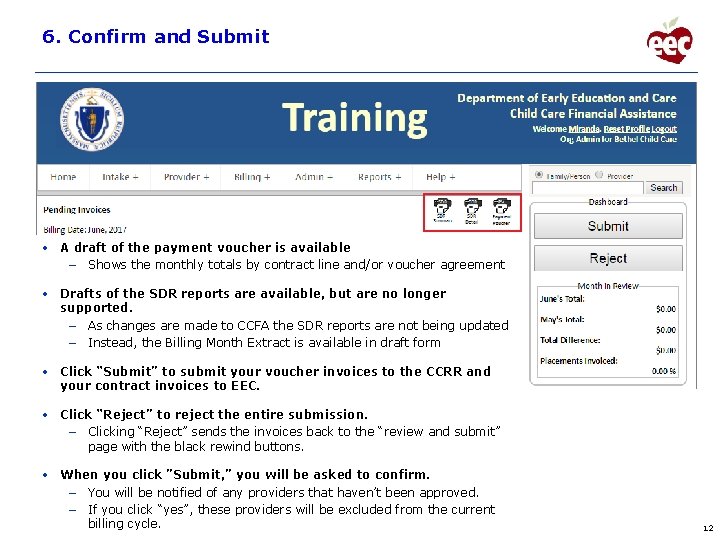
6. Confirm and Submit • A draft of the payment voucher is available – Shows the monthly totals by contract line and/or voucher agreement • Drafts of the SDR reports are available, but are no longer supported. – As changes are made to CCFA the SDR reports are not being updated – Instead, the Billing Month Extract is available in draft form • Click “Submit” to submit your voucher invoices to the CCRR and your contract invoices to EEC. • Click “Reject” to reject the entire submission. – Clicking “Reject” sends the invoices back to the “review and submit” page with the black rewind buttons. • When you click ”Submit, ” you will be asked to confirm. – You will be notified of any providers that haven’t been approved. – If you click “yes”, these providers will be excluded from the current billing cycle. 12
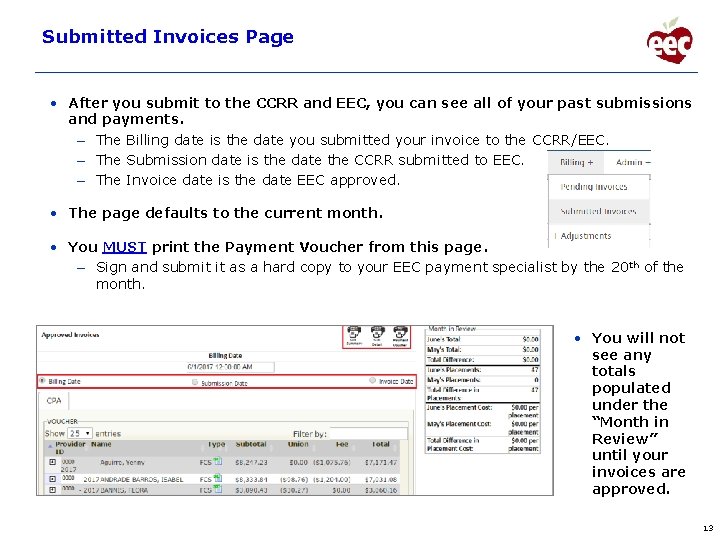
Submitted Invoices Page • After you submit to the CCRR and EEC, you can see all of your past submissions and payments. – The Billing date is the date you submitted your invoice to the CCRR/EEC. – The Submission date is the date the CCRR submitted to EEC. – The Invoice date is the date EEC approved. • The page defaults to the current month. • You MUST print the Payment Voucher from this page. – Sign and submit it as a hard copy to your EEC payment specialist by the 20 th of the month. • You will not see any totals populated under the “Month in Review” until your invoices are approved. 13
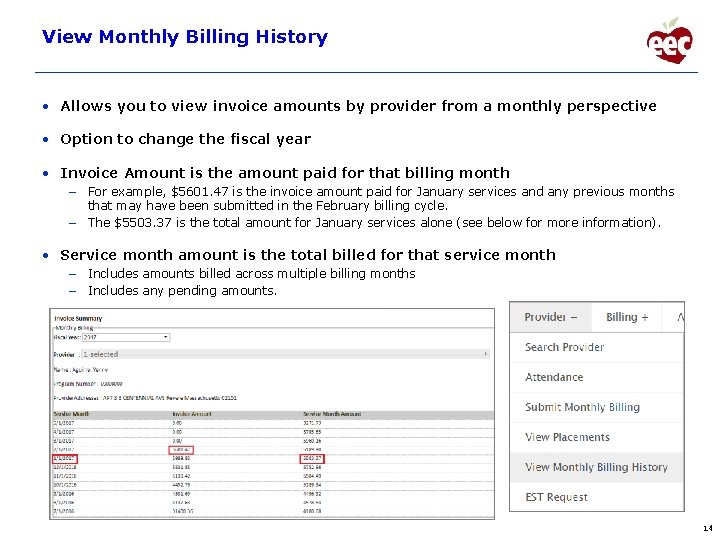
View Monthly Billing History • Allows you to view invoice amounts by provider from a monthly perspective • Option to change the fiscal year • Invoice Amount is the amount paid for that billing month – For example, $5601. 47 is the invoice amount paid for January services and any previous months that may have been submitted in the February billing cycle. – The $5503. 37 is the total amount for January services alone (see below for more information). • Service month amount is the total billed for that service month – Includes amounts billed across multiple billing months – Includes any pending amounts. 14
- Slides: 14